




已更新 2026年9月4日
產生每月帳戶報表(PDF 文件)
using IronPDF C# PDF 庫,開發人員可以在 .NET 專案中將 HTML 轉換為可靠的 PDF 文件,而無需依賴外部服務。
閱讀更多

IronPDF使在.NET中從PDF文件中提取文字、表格、表格欄位和附件變得簡單,只需幾行程式碼,非常適合自動化發票處理、建立知識庫或生成報告而無需複雜的解析。
PDF文件在商業中隨處可見; 現代的例子包括發票、報告、合同和手冊。 但要從中以程式化的方式獲得重要資訊可能很棘手。 PDF注重的是外觀,而不是資料的存取方式。
對於.NET開發人員,IronPDF是一個強大的.NET PDF程式庫,可讓您輕鬆從PDF文件中提取資料。 您可以直接從PDF文件中提取文字、表格、表單欄位、圖像和附件。 無論您是在自動化發票處理、構建知識庫,還是生成報告,這個程式庫可以節省大量時間。
本指南將通過實際範例,逐步指導您如何提取文字內容、表格資料和表單欄位的值,並在每個程式碼片段後提供解釋,以便您將其應用於自己的項目。
通過NuGet包管理器安裝IronPDF只需幾秒鐘。 打開包管理控制台並運行:
對於Windows開發人員來說,安裝非常簡便。 如果您要部署在Linux或macOS上,IronPDF也支持這些平臺。 您甚至可以在Docker中運行IronPDF,或部署到Azure和AWS。
安裝完成後,您可以立刻開始處理PDF文件。 這是一個簡單的.NET範例,展示了IronPDF的API的簡單性:
using IronPdf;
// Load any PDF document
var pdf = PdfDocument.FromFile("document.pdf");
// Extract all text with one line
string allText = pdf.ExtractAllText();
Console.WriteLine(allText);Imports IronPdf
' Load any PDF document
Dim pdf = PdfDocument.FromFile("document.pdf")
' Extract all text with one line
Dim allText As String = pdf.ExtractAllText()
Console.WriteLine(allText)此程式碼載入PDF並提取每一段文字。 IronPDF自動處理複雜的PDF結構、表單資料和通常會因為其他程式庫而導致問題的編碼。 從PDF文件中提取的資料可以保存到文字文件或進一步處理以供分析。
**實用提示:**您可以將提取的文字保存到.txt文件中以便稍後處理,或解析它來填充資料庫、Excel工作表或知識庫。 這種方法對於報告、合同或任何您只需要快速獲得原始文字的PDF文件特別有效。 如需要更高級的提取場景,請查看全面的解析指南。
現實世界中的應用程式通常需要精確的資料提取。 IronPDF提供多種方法來從特定頁面中獲取有價值的資訊。 在此範例中,我們將使用以下PDF:
using IronPdf;
// Load PDF from a memory stream if needed
byte[] pdfBytes = File.ReadAllBytes("report.pdf");
var pdfFromStream = PdfDocument.FromBytes(pdfBytes);
// Or load from a URL
var pdfFromUrl = PdfDocument.FromUrl("___PROTECTED_URL_32___");Imports IronPdf
' Load PDF from a memory stream if needed
Dim pdfBytes As Byte() = File.ReadAllBytes("report.pdf")
Dim pdfFromStream As PdfDocument = PdfDocument.FromBytes(pdfBytes)
' Or load from a URL
Dim pdfFromUrl As PdfDocument = PdfDocument.FromUrl("___PROTECTED_URL_32___")以下程式碼從特定頁面中提取資料並將結果返回到控制台。 此技術特別適用於處理多頁PDF或您需要分割PDF以進行處理時:
using IronPdf;
using System;
using System.Text.RegularExpressions;

// Load any PDF document
var pdf = PdfDocument.FromFile("AnnualReport2024.pdf");
// Extract from selected pages
int[] pagesToExtract = { 0, 2, 4 }; // Pages 1, 3, and 5
foreach (var pageIndex in pagesToExtract)
{
    string pageText = pdf.ExtractTextFromPage(pageIndex);
    // Split on 2 or more spaces (tables often flatten into space-separated values)
    var tokens = Regex.Split(pageText, @"\s{2,}");
    foreach (string token in tokens)
    {
        // Match totals, invoice headers, and invoice rows
        if (token.Contains("Invoice") || token.Contains("Total") || token.StartsWith("INV-"))
        {
            Console.WriteLine($"Important: {token.Trim()}");
        }
    }
}Imports IronPdf
Imports System
Imports System.Text.RegularExpressions
' Load any PDF document
Dim pdf = PdfDocument.FromFile("AnnualReport2024.pdf")
' Extract from selected pages
Dim pagesToExtract As Integer() = {0, 2, 4} ' Pages 1, 3, and 5
For Each pageIndex In pagesToExtract
Dim pageText As String = pdf.ExtractTextFromPage(pageIndex)
' Split on 2 or more spaces (tables often flatten into space-separated values)
Dim tokens = Regex.Split(pageText, "\s{2,}")
For Each token As String In tokens
' Match totals, invoice headers, and invoice rows
If token.Contains("Invoice") OrElse token.Contains("Total") OrElse token.StartsWith("INV-") Then
Console.WriteLine($"Important: {token.Trim()}")
End If
Next
Next此範例顯示如何從PDF文件中提取文字、搜尋關鍵資訊,並準備將其儲存。 ExtractTextFromPage()方法保持了文件的閱讀順序,使其完美適合文件分析和內容索引任務。 對於高級文字處理,您甚至可以在PDF中搜尋和替換文字。
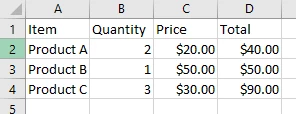
PDF文件中的表格並沒有原生結構; 它們只是定位得像表格一樣的文字內容。 IronPDF提取表格資料時保留了佈局,因此您可以將其轉換為Excel或文字文件。 涉及PDF中的圖像的較複雜場景,您可能需要單獨提取圖像。
using IronPdf;
using System.Text;
using System.Text.RegularExpressions;
using System.IO;

var pdf = PdfDocument.FromFile("example.pdf");
string rawText = pdf.ExtractAllText();
// Split into lines for processing
string[] lines = rawText.Split('\n');
var csvBuilder = new StringBuilder();
foreach (string line in lines)
{
    if (string.IsNullOrWhiteSpace(line) || line.Contains("Page"))
        continue;
    string[] rawCells = Regex.Split(line.Trim(), @"\s+");
    string[] cells;
    // If the line starts with "Product", combine first two tokens as product name
    if (rawCells[0].StartsWith("Product") && rawCells.Length >= 5)
    {
        cells = new string[rawCells.Length - 1];
        cells[0] = rawCells[0] + " " + rawCells[1]; // Combine Product + letter
        Array.Copy(rawCells, 2, cells, 1, rawCells.Length - 2);
    }
    else
    {
        cells = rawCells;
    }
    // Keep header or table rows
    bool isTableOrHeader = cells.Length >= 2
                           && (cells[0].StartsWith("Item") || cells[0].StartsWith("Product")
                               || Regex.IsMatch(cells[0], @"^INV-\d+"));
    if (isTableOrHeader)
    {
        Console.WriteLine($"Row: {string.Join("|", cells)}");
        string csvRow = string.Join(",", cells).Trim();
        csvBuilder.AppendLine(csvRow);
    }
}
// Save as CSV for Excel import
File.WriteAllText("extracted_table.csv", csvBuilder.ToString());
Console.WriteLine("Table data exported to CSV");Imports IronPdf
Imports System.Text
Imports System.Text.RegularExpressions
Imports System.IO
Dim pdf = PdfDocument.FromFile("example.pdf")
Dim rawText As String = pdf.ExtractAllText()
' Split into lines for processing
Dim lines() As String = rawText.Split(ControlChars.Lf)
Dim csvBuilder As New StringBuilder()
For Each line As String In lines
If String.IsNullOrWhiteSpace(line) OrElse line.Contains("Page") Then
Continue For
End If
Dim rawCells() As String = Regex.Split(line.Trim(), "\s+")
Dim cells() As String
' If the line starts with "Product", combine first two tokens as product name
If rawCells(0).StartsWith("Product") AndAlso rawCells.Length >= 5 Then
cells = New String(rawCells.Length - 2) {}
cells(0) = rawCells(0) & " " & rawCells(1) ' Combine Product + letter
Array.Copy(rawCells, 2, cells, 1, rawCells.Length - 2)
Else
cells = rawCells
End If
' Keep header or table rows
Dim isTableOrHeader As Boolean = cells.Length >= 2 AndAlso (cells(0).StartsWith("Item") OrElse cells(0).StartsWith("Product") OrElse Regex.IsMatch(cells(0), "^INV-\d+"))
If isTableOrHeader Then
Console.WriteLine($"Row: {String.Join("|", cells)}")
Dim csvRow As String = String.Join(",", cells).Trim()
csvBuilder.AppendLine(csvRow)
End If
Next
' Save as CSV for Excel import
File.WriteAllText("extracted_table.csv", csvBuilder.ToString())
Console.WriteLine("Table data exported to CSV")PDF中的表格通常只是定位得像網格一樣的文字。 此檢查有助於確定一行是否屬於表行或標頭。 通過過濾掉標頭、頁腳和不相關的文字,您可以從PDF中提取出乾淨的表格資料,準備好用於CSV或Excel。
此工作流程適用於PDF表單、財務文件和報告。 您可以稍後將提取的資料轉換為xlsx文件或將其合併到zip文件中。對於具有合併單元格的複雜表格,您可能需根據欄位位置調整解析邏輯。 當處理掃描過的PDF時,考慮首先使用IronOCR進行文字識別。
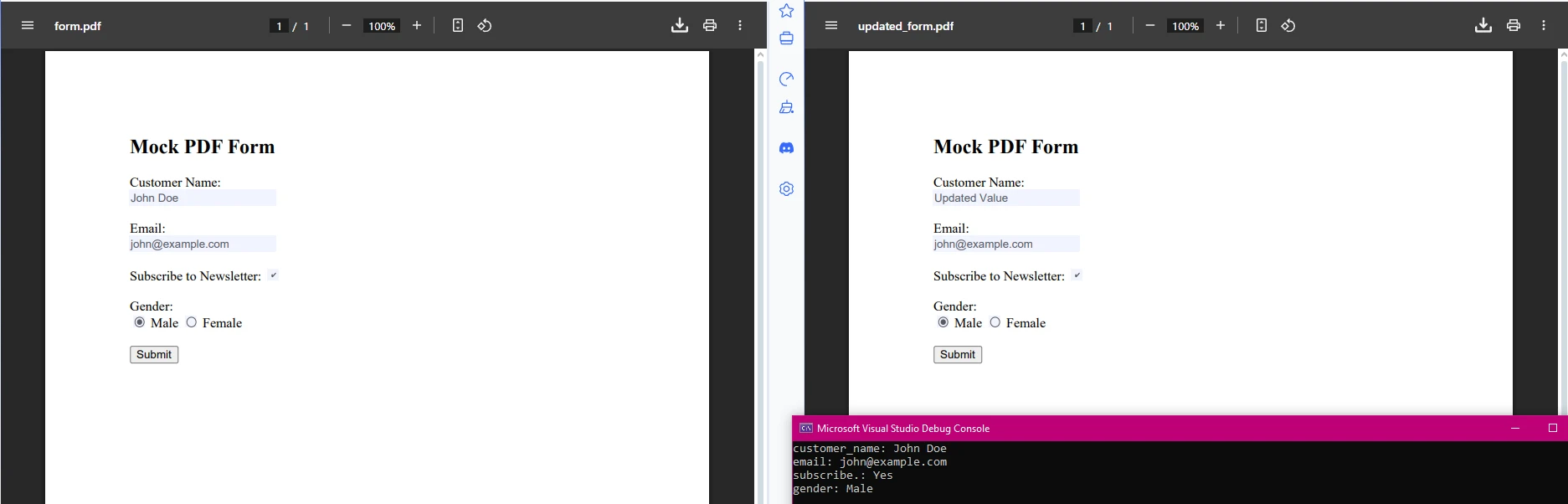
IronPDF同樣支持表單欄位資料提取及修改。 這在處理需要自動處理的可填寫PDF表單時特別有用:
using IronPdf;
using System.Drawing;
using System.Linq;

var pdf = PdfDocument.FromFile("form_document.pdf");
// Extract form field data
var form = pdf.Form;
foreach (var field in form) // Removed '.Fields' as 'FormFieldCollection' is enumerable
{
    Console.WriteLine($"{field.Name}: {field.Value}");
    // Update form values if needed
    if (field.Name == "customer_name")
    {
        field.Value = "Updated Value";
    }
}
// Save modified form
pdf.SaveAs("updated_form.pdf");Imports IronPdf
Imports System.Drawing
Imports System.Linq
Dim pdf = PdfDocument.FromFile("form_document.pdf")
' Extract form field data
Dim form = pdf.Form
For Each field In form ' Removed '.Fields' as 'FormFieldCollection' is enumerable
Console.WriteLine($"{field.Name}: {field.Value}")
' Update form values if needed
If field.Name = "customer_name" Then
field.Value = "Updated Value"
End If
Next
' Save modified form
pdf.SaveAs("updated_form.pdf")對於更高級的表單處理,您還可以處理特定的欄位型別:
// Work with different form field types
foreach (var field in pdf.Form)
{
    switch (field)
    {
        case TextFormField textField:
            Console.WriteLine($"Text field '{field.Name}': {textField.Value}");
            break;
        case CheckBoxFormField checkBox:
            Console.WriteLine($"Checkbox '{field.Name}': {checkBox.Value}");
            checkBox.Value = true; // Check the box
            break;
        case ComboBoxFormField comboBox:
            Console.WriteLine($"ComboBox '{field.Name}': {comboBox.Value}");
            // Set to first available option
            if (comboBox.Choices.Any())
                comboBox.Value = comboBox.Choices.First();
            break;
    }
}' Work with different form field types
For Each field In pdf.Form
Select Case field
Case textField As TextFormField
Console.WriteLine($"Text field '{field.Name}': {textField.Value}")
Case checkBox As CheckBoxFormField
Console.WriteLine($"Checkbox '{field.Name}': {checkBox.Value}")
checkBox.Value = True ' Check the box
Case comboBox As ComboBoxFormField
Console.WriteLine($"ComboBox '{field.Name}': {comboBox.Value}")
' Set to first available option
If comboBox.Choices.Any() Then
comboBox.Value = comboBox.Choices.First()
End If
End Select
Next此段程式碼從PDF中提取表單欄位的值,並允許您以程式化方式更新它們。 這使得處理PDF表單和提取特定資訊以進行分析或生成報告變得簡單。 這對於自動化工作流程如客戶入職、調查處理或資料驗證非常有用。
常見使用案例包括:
IronPDF使.NET中的PDF資料提取實際且高效。 您可以從各種PDF文件中提取文字、表格、表單欄位、圖像和附件,包括通常需要OCR處理的掃描過的PDF。
無論您的目標是建立知識庫、或自動化報告工作流程,或從財務PDF中提取資料,此程式庫都能為您提供工具完成工作而無需手動複製或易出錯的解析。 它簡單、快速,並能直接整合到Visual Studio項目中。 嘗試一下; 您可能會節省很多時間,並避免處理PDF時常見的麻煩。
對於更高級的場景,您可以探索:

準備在您的應用程式中實施PDF資料提取? IronPDF聽起來像是為您量身定制的.NET程式庫嗎? 開始您的免費試用以商業用途。 瀏覽我們的文件以獲取全面的指南和API參考。

Curtis Chau擁有Carleton大學的電腦科學學士學位,專精於前端開發,擁有Node.js、TypeScript、JavaScript和React的專業知識。Curtis熱衷於建立直觀且美觀的使用者介面,喜愛使用現代框架並建立結構良好、視覺吸引力的手冊。

IronPDF 是 IRONSUITE 的一部分
10 款適用於辦公室文件的 .NET API 產品

當您需要您的PDF看起來像HTML一樣快速。














