using IronPdf;

// Disable local disk access or cross-origin requests
Installation.EnableWebSecurity = true;

// Instantiate Renderer
var renderer = new ChromePdfRenderer();

// Create a PDF from a HTML string using C#
var pdf = renderer.RenderHtmlAsPdf("<h1>Hello World</h1>");

// Export to a file or Stream
pdf.SaveAs("output.pdf");

// Advanced Example with HTML Assets
// Load external html assets: Images, CSS and JavaScript.
// An optional BasePath 'C:\site\assets\' is set as the file location to load assets from
var myAdvancedPdf = renderer.RenderHtmlAsPdf("<img src='icons/iron.png'>", @"C:\site\assets\");
myAdvancedPdf.SaveAs("html-with-assets.pdf");
using IronPdf;// Disable local disk access or cross-origin requestsInstallation.EnableWebSecurity = true;// Instantiate Renderervar renderer = new ChromePdfRenderer();// Create a PDF from a HTML string using C#var pdf = renderer.RenderHtmlAsPdf("<h1>Hello World</h1>");// Export to a file or Streampdf.SaveAs("output.pdf");// Advanced Example with HTML Assets// Load external html assets: Images, CSS and JavaScript.// An optional BasePath 'C:\site\assets\' is set as the file location to load assets fromvar myAdvancedPdf = renderer.RenderHtmlAsPdf("<img src='icons/iron.png'>", @"C:\site\assets\");myAdvancedPdf.SaveAs("html-with-assets.pdf");
# How to Extract Data from a PDF in .NET
IronPDF makes extracting text, tables, form fields, and attachments from PDF documents in .NET simple with just a few lines of code, perfect for automating invoice processing, building knowledge bases, or generating reports without complex parsing.
PDF documents are everywhere in business; modern examples include invoices, reports, contracts, and manuals. But getting the vital info out of them programmatically can be tricky. PDFs focus on how things look, not on how data can be accessed.
For .NET developers, [IronPDF](https://ironpdf.com) is a powerful .NET PDF library that makes it easy to extract data from PDF files. You can pull text, tables, form fields, images, and attachments straight from PDF documents. Whether you're automating [invoice processing](https://ironpdf.com/how-to/csharp-parse-pdf/), building a knowledge base, or [generating reports](https://ironpdf.com/how-to/csharp-pdf-reports/), this library saves a lot of time.
This guide will walk you through practical examples of extracting textual content, tabular data, and form field values, with explanations after each code snippet so you can adapt them to your own projects.
## How Do I Get Started with IronPDF?
### Why Is Installation So Quick?
Installing IronPDF takes seconds via [NuGet Package Manager](https://ironpdf.com/get-started/advanced-installation-nuget/). Open your Package Manager Console and run:
```shell
:ProductInstall
```
For [Windows](https://ironpdf.com/get-started/windows/) developers, the installation is straightforward. If you're deploying to [Linux](https://ironpdf.com/get-started/linux/) or [macOS](https://ironpdf.com/get-started/macos/), IronPDF supports those platforms too. You can even [run IronPDF in Docker](https://ironpdf.com/get-started/ironpdf-docker/) containers or deploy to [Azure](https://ironpdf.com/get-started/azure/) and [AWS](https://ironpdf.com/get-started/aws/).
### What's the Simplest Way to Extract Text?
Once installed, you can immediately start processing PDF documents. Here's a minimal .NET example that demonstrates the simplicity of IronPDF's API:
```cs
using IronPdf;
// Load any PDF document
var pdf = PdfDocument.FromFile("document.pdf");
// Extract all text with one line
string allText = pdf.ExtractAllText();
Console.WriteLine(allText);
```
This code loads a PDF and [extracts every bit of text](https://ironpdf.com/how-to/extract-text-and-images/). IronPDF automatically handles complex PDF structures, form data, and encodings that typically cause issues with other libraries. Data extracted from PDF documents can be saved to a text file or processed further for analysis.
**Practical tip:** You can save the extracted text to a .txt file for later processing, or parse it to populate databases, Excel sheets, or knowledge bases. This method works well for reports, contracts, or any PDF where you just need the raw text quickly. For more advanced extraction scenarios, check out the [comprehensive parsing guide](https://ironpdf.com/how-to/csharp-parse-pdf/).
## How Do I Extract Data from Specific PDF Pages?
### Why Target Specific Pages Instead of Extracting Everything?
Real-world applications often require precise data extraction. IronPDF offers multiple methods to target valuable information from specific pages. For this example, we'll use the following PDF:
```cs
using IronPdf;
// Load PDF from a memory stream if needed
byte[] pdfBytes = File.ReadAllBytes("report.pdf");
var pdfFromStream = PdfDocument.FromBytes(pdfBytes);
// Or load from a URL
var pdfFromUrl = PdfDocument.FromUrl("https://ironpdf.com");
```
### How Do I Search for Key Information in Extracted Text?
The following code extracts data from specific pages and returns results to the console. This technique is especially useful when working with [multi-page PDFs](https://ironpdf.com/how-to/split-multipage-pdf/) or when you need to [split PDFs](https://ironpdf.com/how-to/merge-or-split-pdfs/) for processing:
```cs
using IronPdf;
using System;
using System.Text.RegularExpressions;
// Load any PDF document
var pdf = PdfDocument.FromFile("AnnualReport2024.pdf");
// Extract from selected pages
int[] pagesToExtract = { 0, 2, 4 }; // Pages 1, 3, and 5
foreach (var pageIndex in pagesToExtract)
{
string pageText = pdf.ExtractTextFromPage(pageIndex);
// Split on 2 or more spaces (tables often flatten into space-separated values)
var tokens = Regex.Split(pageText, @"\s{2,}");
foreach (string token in tokens)
{
// Match totals, invoice headers, and invoice rows
if (token.Contains("Invoice") || token.Contains("Total") || token.StartsWith("INV-"))
{
Console.WriteLine($"Important: {token.Trim()}");
}
}
}
```
This example shows how to extract text from PDF documents, search for key information, and prepare it for storage. The `ExtractTextFromPage`() method maintains the document's reading order, making it perfect for document analysis and content indexing tasks. For [advanced text manipulation](https://ironpdf.com/how-to/find-replace-text/), you can even search and replace text within PDFs.
## How Do I Extract Table Data from PDF Documents?
### Why Is Table Extraction Different from Regular Text?
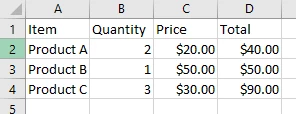
Tables in PDF files don't have a native structure; they are simply textual content positioned to look like tables. IronPDF extracts tabular data while preserving layout, so you can process it into Excel or text files. For more complex scenarios involving [images in PDFs](https://ironpdf.com/how-to/add-images-to-pdfs/), you may need to [extract images](https://ironpdf.com/how-to/extract-text-and-images/) separately.
### How Do I Convert Extracted Tables to CSV Format?
```cs
using IronPdf;
using System.Text;
using System.Text.RegularExpressions;
using System.IO;
var pdf = PdfDocument.FromFile("example.pdf");
string rawText = pdf.ExtractAllText();
// Split into lines for processing
string[] lines = rawText.Split('\n');
var csvBuilder = new StringBuilder();
foreach (string line in lines)
{
if (string.IsNullOrWhiteSpace(line) || line.Contains("Page"))
continue;
string[] rawCells = Regex.Split(line.Trim(), @"\s+");
string[] cells;
// If the line starts with "Product", combine first two tokens as product name
if (rawCells[0].StartsWith("Product") && rawCells.Length >= 5)
{
cells = new string[rawCells.Length - 1];
cells[0] = rawCells[0] + " " + rawCells[1]; // Combine Product + letter
Array.Copy(rawCells, 2, cells, 1, rawCells.Length - 2);
}
else
{
cells = rawCells;
}
// Keep header or table rows
bool isTableOrHeader = cells.Length >= 2
&& (cells[0].StartsWith("Item") || cells[0].StartsWith("Product")
|| Regex.IsMatch(cells[0], @"^INV-\d+"));
if (isTableOrHeader)
{
Console.WriteLine($"Row: {string.Join("|", cells)}");
string csvRow = string.Join(",", cells).Trim();
csvBuilder.AppendLine(csvRow);
}
}
// Save as CSV for Excel import
File.WriteAllText("extracted_table.csv", csvBuilder.ToString());
Console.WriteLine("Table data exported to CSV");
```
### What Are Common Issues When Extracting Complex Tables?
Tables in PDFs are usually just text positioned to look like a grid. This check helps determine if a line belongs to a table row or header. By filtering out headers, footers, and unrelated text, you can extract clean tabular data from a PDF, ready for CSV or Excel.
This workflow works for [PDF forms](https://ironpdf.com/how-to/create-forms/), financial documents, and reports. You can later convert extracted data into xlsx files or merge them into a zip file. For complex tables with merged cells, you might need to adjust the parsing logic based on column positions. When working with [scanned PDFs](https://ironpdf.com/how-to/pdf-to-html/), consider using [IronOCR](https://ironsoftware.com/csharp/ocr/) for text recognition first.
## How Do I Extract Form Field Data from PDFs?
### Why Extract and Modify Form Fields Programmatically?
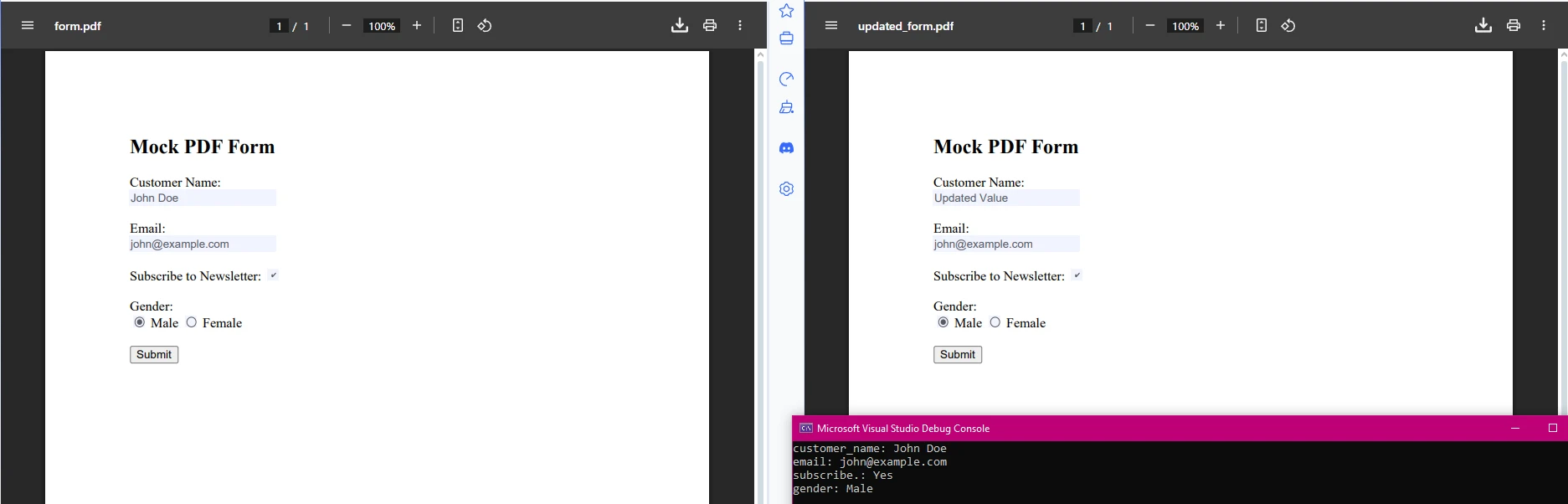
IronPDF also enables [form field data extraction](https://ironpdf.com/how-to/edit-forms/) and modification. This is particularly useful when dealing with [fillable PDF forms](https://ironpdf.com/examples/form-data/) that need automated processing:
```cs
using IronPdf;
using System.Drawing;
using System.Linq;
var pdf = PdfDocument.FromFile("form_document.pdf");
// Extract form field data
var form = pdf.Form;
foreach (var field in form) // Removed '.Fields' as 'FormFieldCollection' is enumerable
{
Console.WriteLine($"{field.Name}: {field.Value}");
// Update form values if needed
if (field.Name == "customer_name")
{
field.Value = "Updated Value";
}
}
// Save modified form
pdf.SaveAs("updated_form.pdf");
```
For more advanced form handling, you can also work with specific field types:
```cs
// Work with different form field types
foreach (var field in pdf.Form)
{
switch (field)
{
case TextFormField textField:
Console.WriteLine($"Text field '{field.Name}': {textField.Value}");
break;
case CheckBoxFormField checkBox:
Console.WriteLine($"Checkbox '{field.Name}': {checkBox.Value}");
checkBox.Value = true; // Check the box
break;
case ComboBoxFormField comboBox:
Console.WriteLine($"ComboBox '{field.Name}': {comboBox.Value}");
// Set to first available option
if (comboBox.Choices.Any())
comboBox.Value = comboBox.Choices.First();
break;
}
}
```
### When Should I Use Form Field Extraction?
This snippet extracts form field values from PDFs and lets you update them programmatically. This makes it easy to process PDF forms and extract specific pieces of information for analysis or report generation. This is useful for automating workflows such as customer onboarding, survey processing, or data validation.
Common use cases include:
- Automating digital signatures
- Processing password-protected PDFs
- Extracting data for PDF/A compliance
- Building custom workflows
## What Are My Next Steps?
IronPDF makes PDF data extraction in .NET practical and efficient. You can extract text, tables, form fields, images, and attachments from a variety of PDF documents, including scanned PDFs that normally require extra OCR handling.
Whether your goal is building a knowledge base, automating reporting workflows, or extracting data from financial PDFs, this library gives you the tools to get it done without manual copying or error-prone parsing. It's simple, fast, and integrates directly into Visual Studio projects. Give it a try; you'll likely save a lot of time and avoid the usual headaches of working with PDFs.
For more advanced scenarios, explore:
- [Converting PDFs to images](https://ironpdf.com/how-to/rasterize-pdf-to-images/)
- [Working with metadata](https://ironpdf.com/how-to/metadata/)
- [PDF compression](https://ironpdf.com/how-to/pdf-compression/)
- [Managing fonts](https://ironpdf.com/how-to/manage-fonts/)
- [Creating accessible PDFs](https://ironpdf.com/how-to/pdfua/)
!!!--LIBRARY_GET_STARTED_WITH_PRODUCT_TRIAL_EXTENDED_BLOCK--!!!
Ready to implement PDF data extraction in your applications? Does IronPDF sound like the .NET library for you? [Start your free trial](trial-license) for commercial use. Visit our [documentation](https://ironpdf.com/docs/) for comprehensive guides and [API references](https://ironpdf.com/object-reference/api/).
IronPDF makes extracting text, tables, form fields, and attachments from PDF documents in .NET simple with just a few lines of code, perfect for automating invoice processing, building knowledge bases, or generating reports without complex parsing.
PDF documents are everywhere in business; modern examples include invoices, reports, contracts, and manuals. But getting the vital info out of them programmatically can be tricky. PDFs focus on how things look, not on how data can be accessed.
For .NET developers, IronPDF is a powerful .NET PDF library that makes it easy to extract data from PDF files. You can pull text, tables, form fields, images, and attachments straight from PDF documents. Whether you're automating invoice processing, building a knowledge base, or generating reports, this library saves a lot of time.
This guide will walk you through practical examples of extracting textual content, tabular data, and form field values, with explanations after each code snippet so you can adapt them to your own projects.
How Do I Get Started with IronPDF?
Why Is Installation So Quick?
Installing IronPDF takes seconds via NuGet Package Manager. Open your Package Manager Console and run:
PM > Install-Package IronPdf
Install-Package IronPdf
For Windows developers, the installation is straightforward. If you're deploying to Linux or macOS, IronPDF supports those platforms too. You can even run IronPDF in Docker containers or deploy to Azure and AWS.
What's the Simplest Way to Extract Text?
Once installed, you can immediately start processing PDF documents. Here's a minimal .NET example that demonstrates the simplicity of IronPDF's API:
using IronPdf;// Load any PDF documentvar pdf = PdfDocument.FromFile("document.pdf");// Extract all text with one linestring allText = pdf.ExtractAllText();Console.WriteLine(allText);
using IronPdf;
// Load any PDF document
var pdf = PdfDocument.FromFile("document.pdf");
// Extract all text with one line
string allText = pdf.ExtractAllText();
Console.WriteLine(allText);
ImportsIronPdf' Load any PDF documentDim pdf = PdfDocument.FromFile("document.pdf")' Extract all text with one lineDim allText AsString = pdf.ExtractAllText()Console.WriteLine(allText)
Imports IronPdf

' Load any PDF document
Dim pdf = PdfDocument.FromFile("document.pdf")
' Extract all text with one line
Dim allText As String = pdf.ExtractAllText()
Console.WriteLine(allText)
This code loads a PDF and extracts every bit of text. IronPDF automatically handles complex PDF structures, form data, and encodings that typically cause issues with other libraries. Data extracted from PDF documents can be saved to a text file or processed further for analysis.
Practical tip: You can save the extracted text to a .txt file for later processing, or parse it to populate databases, Excel sheets, or knowledge bases. This method works well for reports, contracts, or any PDF where you just need the raw text quickly. For more advanced extraction scenarios, check out the comprehensive parsing guide.
How Do I Extract Data from Specific PDF Pages?
Why Target Specific Pages Instead of Extracting Everything?
Real-world applications often require precise data extraction. IronPDF offers multiple methods to target valuable information from specific pages. For this example, we'll use the following PDF:
using IronPdf;// Load PDF from a memory stream if neededbyte[] pdfBytes = File.ReadAllBytes("report.pdf");var pdfFromStream = PdfDocument.FromBytes(pdfBytes);// Or load from a URLvar pdfFromUrl = PdfDocument.FromUrl("https://ironpdf.com");
using IronPdf;
// Load PDF from a memory stream if needed
byte[] pdfBytes = File.ReadAllBytes("report.pdf");
var pdfFromStream = PdfDocument.FromBytes(pdfBytes);
// Or load from a URL
var pdfFromUrl = PdfDocument.FromUrl("https://ironpdf.com");
ImportsIronPdf' Load PDF from a memory stream if neededDim pdfBytes AsByte() = File.ReadAllBytes("report.pdf")Dim pdfFromStream = PdfDocument.FromBytes(pdfBytes)' Or load from a URLDim pdfFromUrl = PdfDocument.FromUrl("https://ironpdf.com")
Imports IronPdf

' Load PDF from a memory stream if needed
Dim pdfBytes As Byte() = File.ReadAllBytes("report.pdf")
Dim pdfFromStream = PdfDocument.FromBytes(pdfBytes)

' Or load from a URL
Dim pdfFromUrl = PdfDocument.FromUrl("https://ironpdf.com")
How Do I Search for Key Information in Extracted Text?
The following code extracts data from specific pages and returns results to the console. This technique is especially useful when working with multi-page PDFs or when you need to split PDFs for processing:
using IronPdf;using System;using System.Text.RegularExpressions;// Load any PDF documentvar pdf = PdfDocument.FromFile("AnnualReport2024.pdf");// Extract from selected pagesint[] pagesToExtract = { 0, 2, 4 }; // Pages 1, 3, and 5foreach (var pageIndex in pagesToExtract){ string pageText = pdf.ExtractTextFromPage(pageIndex); // Split on 2 or more spaces (tables often flatten into space-separated values) var tokens = Regex.Split(pageText, @"\s{2,}"); foreach (string token in tokens) { // Match totals, invoice headers, and invoice rows if (token.Contains("Invoice") || token.Contains("Total") || token.StartsWith("INV-")) {Console.WriteLine($"Important: {token.Trim()}"); } }}
using IronPdf;
using System;
using System.Text.RegularExpressions;

// Load any PDF document
var pdf = PdfDocument.FromFile("AnnualReport2024.pdf");
// Extract from selected pages
int[] pagesToExtract = { 0, 2, 4 }; // Pages 1, 3, and 5
foreach (var pageIndex in pagesToExtract)
{
    string pageText = pdf.ExtractTextFromPage(pageIndex);
    // Split on 2 or more spaces (tables often flatten into space-separated values)
    var tokens = Regex.Split(pageText, @"\s{2,}");
    foreach (string token in tokens)
    {
        // Match totals, invoice headers, and invoice rows
        if (token.Contains("Invoice") || token.Contains("Total") || token.StartsWith("INV-"))
        {
            Console.WriteLine($"Important: {token.Trim()}");
        }
    }
}
ImportsIronPdfImportsSystemImportsSystem.Text.RegularExpressions' Load any PDF documentDim pdf = PdfDocument.FromFile("AnnualReport2024.pdf")' Extract from selected pagesDim pagesToExtract AsInteger() = {0, 2, 4} ' Pages 1, 3, and 5For Each pageIndex In pagesToExtract Dim pageText AsString = pdf.ExtractTextFromPage(pageIndex) ' Split on 2 or more spaces (tables often flatten into space-separated values) Dim tokens = Regex.Split(pageText, "\s{2,}") For Each token AsStringIn tokens ' Match totals, invoice headers, and invoice rows If token.Contains("Invoice") OrElse token.Contains("Total") OrElse token.StartsWith("INV-") ThenConsole.WriteLine($"Important: {token.Trim()}") End If NextNext
Imports IronPdf
Imports System
Imports System.Text.RegularExpressions

' Load any PDF document
Dim pdf = PdfDocument.FromFile("AnnualReport2024.pdf")
' Extract from selected pages
Dim pagesToExtract As Integer() = {0, 2, 4} ' Pages 1, 3, and 5
For Each pageIndex In pagesToExtract
    Dim pageText As String = pdf.ExtractTextFromPage(pageIndex)
    ' Split on 2 or more spaces (tables often flatten into space-separated values)
    Dim tokens = Regex.Split(pageText, "\s{2,}")
    For Each token As String In tokens
        ' Match totals, invoice headers, and invoice rows
        If token.Contains("Invoice") OrElse token.Contains("Total") OrElse token.StartsWith("INV-") Then
            Console.WriteLine($"Important: {token.Trim()}")
        End If
    Next
Next
This example shows how to extract text from PDF documents, search for key information, and prepare it for storage. The ExtractTextFromPage() method maintains the document's reading order, making it perfect for document analysis and content indexing tasks. For advanced text manipulation, you can even search and replace text within PDFs.
How Do I Extract Table Data from PDF Documents?
Why Is Table Extraction Different from Regular Text?
Tables in PDF files don't have a native structure; they are simply textual content positioned to look like tables. IronPDF extracts tabular data while preserving layout, so you can process it into Excel or text files. For more complex scenarios involving images in PDFs, you may need to extract images separately.
How Do I Convert Extracted Tables to CSV Format?
using IronPdf;using System.Text;using System.Text.RegularExpressions;using System.IO;var pdf = PdfDocument.FromFile("example.pdf");string rawText = pdf.ExtractAllText();// Split into lines for processingstring[] lines = rawText.Split('\n');var csvBuilder = new StringBuilder();foreach (string line in lines){ if (string.IsNullOrWhiteSpace(line) || line.Contains("Page")) continue; string[] rawCells = Regex.Split(line.Trim(), @"\s+"); string[] cells; // If the line starts with "Product", combine first two tokens as product name if (rawCells[0].StartsWith("Product") && rawCells.Length >= 5) { cells = new string[rawCells.Length - 1]; cells[0] = rawCells[0] + " " + rawCells[1]; // Combine Product + letterArray.Copy(rawCells, 2, cells, 1, rawCells.Length - 2); } else { cells = rawCells; } // Keep header or table rows bool isTableOrHeader = cells.Length >= 2 && (cells[0].StartsWith("Item") || cells[0].StartsWith("Product") || Regex.IsMatch(cells[0], @"^INV-\d+")); if (isTableOrHeader) {Console.WriteLine($"Row: {string.Join("|", cells)}"); string csvRow = string.Join(",", cells).Trim(); csvBuilder.AppendLine(csvRow); }}// Save as CSV for Excel importFile.WriteAllText("extracted_table.csv", csvBuilder.ToString());Console.WriteLine("Table data exported to CSV");
using IronPdf;
using System.Text;
using System.Text.RegularExpressions;
using System.IO;

var pdf = PdfDocument.FromFile("example.pdf");
string rawText = pdf.ExtractAllText();
// Split into lines for processing
string[] lines = rawText.Split('\n');
var csvBuilder = new StringBuilder();
foreach (string line in lines)
{
    if (string.IsNullOrWhiteSpace(line) || line.Contains("Page"))
        continue;
    string[] rawCells = Regex.Split(line.Trim(), @"\s+");
    string[] cells;
    // If the line starts with "Product", combine first two tokens as product name
    if (rawCells[0].StartsWith("Product") && rawCells.Length >= 5)
    {
        cells = new string[rawCells.Length - 1];
        cells[0] = rawCells[0] + " " + rawCells[1]; // Combine Product + letter
        Array.Copy(rawCells, 2, cells, 1, rawCells.Length - 2);
    }
    else
    {
        cells = rawCells;
    }
    // Keep header or table rows
    bool isTableOrHeader = cells.Length >= 2
                           && (cells[0].StartsWith("Item") || cells[0].StartsWith("Product")
                               || Regex.IsMatch(cells[0], @"^INV-\d+"));
    if (isTableOrHeader)
    {
        Console.WriteLine($"Row: {string.Join("|", cells)}");
        string csvRow = string.Join(",", cells).Trim();
        csvBuilder.AppendLine(csvRow);
    }
}
// Save as CSV for Excel import
File.WriteAllText("extracted_table.csv", csvBuilder.ToString());
Console.WriteLine("Table data exported to CSV");
ImportsIronPdfImportsSystem.TextImportsSystem.Text.RegularExpressionsImportsSystem.IODim pdf = PdfDocument.FromFile("example.pdf")Dim rawText AsString = pdf.ExtractAllText()' Split into lines for processingDim lines() AsString = rawText.Split(ControlChars.Lf)Dim csvBuilder As New StringBuilder()For Each line AsStringIn lines IfString.IsNullOrWhiteSpace(line) OrElse line.Contains("Page") Then Continue For End If Dim rawCells() AsString = Regex.Split(line.Trim(), "\s+") Dim cells() AsString ' If the line starts with "Product", combine first two tokens as product name If rawCells(0).StartsWith("Product") AndAlso rawCells.Length >= 5 Then cells = New String(rawCells.Length - 2) {} cells(0) = rawCells(0) & " " & rawCells(1) ' Combine Product + letterArray.Copy(rawCells, 2, cells, 1, rawCells.Length - 2) Else cells = rawCells End If ' Keep header or table rows Dim isTableOrHeader AsBoolean = cells.Length >= 2AndAlso (cells(0).StartsWith("Item") OrElse cells(0).StartsWith("Product") OrElseRegex.IsMatch(cells(0), "^INV-\d+")) If isTableOrHeader ThenConsole.WriteLine($"Row: {String.Join("|", cells)}") Dim csvRow AsString = String.Join(",", cells).Trim() csvBuilder.AppendLine(csvRow) End IfNext' Save as CSV for Excel importFile.WriteAllText("extracted_table.csv", csvBuilder.ToString())Console.WriteLine("Table data exported to CSV")
Imports IronPdf
Imports System.Text
Imports System.Text.RegularExpressions
Imports System.IO

Dim pdf = PdfDocument.FromFile("example.pdf")
Dim rawText As String = pdf.ExtractAllText()
' Split into lines for processing
Dim lines() As String = rawText.Split(ControlChars.Lf)
Dim csvBuilder As New StringBuilder()
For Each line As String In lines
    If String.IsNullOrWhiteSpace(line) OrElse line.Contains("Page") Then
        Continue For
    End If
    Dim rawCells() As String = Regex.Split(line.Trim(), "\s+")
    Dim cells() As String
    ' If the line starts with "Product", combine first two tokens as product name
    If rawCells(0).StartsWith("Product") AndAlso rawCells.Length >= 5 Then
        cells = New String(rawCells.Length - 2) {}
        cells(0) = rawCells(0) & " " & rawCells(1) ' Combine Product + letter
        Array.Copy(rawCells, 2, cells, 1, rawCells.Length - 2)
    Else
        cells = rawCells
    End If
    ' Keep header or table rows
    Dim isTableOrHeader As Boolean = cells.Length >= 2 AndAlso (cells(0).StartsWith("Item") OrElse cells(0).StartsWith("Product") OrElse Regex.IsMatch(cells(0), "^INV-\d+"))
    If isTableOrHeader Then
        Console.WriteLine($"Row: {String.Join("|", cells)}")
        Dim csvRow As String = String.Join(",", cells).Trim()
        csvBuilder.AppendLine(csvRow)
    End If
Next
' Save as CSV for Excel import
File.WriteAllText("extracted_table.csv", csvBuilder.ToString())
Console.WriteLine("Table data exported to CSV")
What Are Common Issues When Extracting Complex Tables?
Tables in PDFs are usually just text positioned to look like a grid. This check helps determine if a line belongs to a table row or header. By filtering out headers, footers, and unrelated text, you can extract clean tabular data from a PDF, ready for CSV or Excel.
This workflow works for PDF forms, financial documents, and reports. You can later convert extracted data into xlsx files or merge them into a zip file. For complex tables with merged cells, you might need to adjust the parsing logic based on column positions. When working with scanned PDFs, consider using IronOCR for text recognition first.
How Do I Extract Form Field Data from PDFs?
Why Extract and Modify Form Fields Programmatically?
using IronPdf;using System.Drawing;using System.Linq;var pdf = PdfDocument.FromFile("form_document.pdf");// Extract form field datavar form = pdf.Form;foreach (var field in form) // Removed '.Fields' as 'FormFieldCollection' is enumerable{Console.WriteLine($"{field.Name}: {field.Value}"); // Update form values if needed if (field.Name == "customer_name") { field.Value = "Updated Value"; }}// Save modified formpdf.SaveAs("updated_form.pdf");
using IronPdf;
using System.Drawing;
using System.Linq;

var pdf = PdfDocument.FromFile("form_document.pdf");
// Extract form field data
var form = pdf.Form;
foreach (var field in form) // Removed '.Fields' as 'FormFieldCollection' is enumerable
{
    Console.WriteLine($"{field.Name}: {field.Value}");
    // Update form values if needed
    if (field.Name == "customer_name")
    {
        field.Value = "Updated Value";
    }
}
// Save modified form
pdf.SaveAs("updated_form.pdf");
ImportsIronPdfImportsSystem.DrawingImportsSystem.LinqDim pdf = PdfDocument.FromFile("form_document.pdf")' Extract form field dataDim form = pdf.FormFor Each field Inform ' Removed '.Fields' as 'FormFieldCollection' is enumerableConsole.WriteLine($"{field.Name}: {field.Value}") ' Update form values if needed If field.Name = "customer_name" Then field.Value = "Updated Value" End IfNext' Save modified formpdf.SaveAs("updated_form.pdf")
Imports IronPdf
Imports System.Drawing
Imports System.Linq

Dim pdf = PdfDocument.FromFile("form_document.pdf")
' Extract form field data
Dim form = pdf.Form
For Each field In form ' Removed '.Fields' as 'FormFieldCollection' is enumerable
    Console.WriteLine($"{field.Name}: {field.Value}")
    ' Update form values if needed
    If field.Name = "customer_name" Then
        field.Value = "Updated Value"
    End If
Next
' Save modified form
pdf.SaveAs("updated_form.pdf")
For more advanced form handling, you can also work with specific field types:
// Work with different form field typesforeach (var field in pdf.Form){ switch (field) { case TextFormField textField:Console.WriteLine($"Text field '{field.Name}': {textField.Value}"); break; case CheckBoxFormField checkBox:Console.WriteLine($"Checkbox '{field.Name}': {checkBox.Value}"); checkBox.Value = true; // Check the box break; case ComboBoxFormField comboBox:Console.WriteLine($"ComboBox '{field.Name}': {comboBox.Value}"); // Set to first available option if (comboBox.Choices.Any()) comboBox.Value = comboBox.Choices.First(); break; }}
// Work with different form field types
foreach (var field in pdf.Form)
{
    switch (field)
    {
        case TextFormField textField:
            Console.WriteLine($"Text field '{field.Name}': {textField.Value}");
            break;
        case CheckBoxFormField checkBox:
            Console.WriteLine($"Checkbox '{field.Name}': {checkBox.Value}");
            checkBox.Value = true; // Check the box
            break;
        case ComboBoxFormField comboBox:
            Console.WriteLine($"ComboBox '{field.Name}': {comboBox.Value}");
            // Set to first available option
            if (comboBox.Choices.Any())
                comboBox.Value = comboBox.Choices.First();
            break;
    }
}
' Work with different form field typesFor Each field In pdf.Form Select Case field Case textField AsTextFormFieldConsole.WriteLine($"Text field '{field.Name}': {textField.Value}") Case checkBox AsCheckBoxFormFieldConsole.WriteLine($"Checkbox '{field.Name}': {checkBox.Value}") checkBox.Value = True ' Check the box Case comboBox AsComboBoxFormFieldConsole.WriteLine($"ComboBox '{field.Name}': {comboBox.Value}") ' Set to first available option If comboBox.Choices.Any() Then comboBox.Value = comboBox.Choices.First() End If End SelectNext
' Work with different form field types
For Each field In pdf.Form
    Select Case field
        Case textField As TextFormField
            Console.WriteLine($"Text field '{field.Name}': {textField.Value}")
        Case checkBox As CheckBoxFormField
            Console.WriteLine($"Checkbox '{field.Name}': {checkBox.Value}")
            checkBox.Value = True ' Check the box
        Case comboBox As ComboBoxFormField
            Console.WriteLine($"ComboBox '{field.Name}': {comboBox.Value}")
            ' Set to first available option
            If comboBox.Choices.Any() Then
                comboBox.Value = comboBox.Choices.First()
            End If
    End Select
Next
When Should I Use Form Field Extraction?
This snippet extracts form field values from PDFs and lets you update them programmatically. This makes it easy to process PDF forms and extract specific pieces of information for analysis or report generation. This is useful for automating workflows such as customer onboarding, survey processing, or data validation.
Common use cases include:
Automating digital signatures
Processing password-protected PDFs
Extracting data for PDF/A compliance
Building custom workflows
What Are My Next Steps?
IronPDF makes PDF data extraction in .NET practical and efficient. You can extract text, tables, form fields, images, and attachments from a variety of PDF documents, including scanned PDFs that normally require extra OCR handling.
Whether your goal is building a knowledge base, automating reporting workflows, or extracting data from financial PDFs, this library gives you the tools to get it done without manual copying or error-prone parsing. It's simple, fast, and integrates directly into Visual Studio projects. Give it a try; you'll likely save a lot of time and avoid the usual headaches of working with PDFs.
Ready to implement PDF data extraction in your applications? Does IronPDF sound like the .NET library for you? Start your free trial for commercial use. Visit our documentation for comprehensive guides and API references.
Curtis Chau holds a Bachelor’s degree in Computer Science (Carleton University) and specializes in front-end development with expertise in Node.js, TypeScript, JavaScript, and React. Passionate about crafting intuitive and aesthetically pleasing user interfaces, Curtis enjoys working with modern frameworks and creating well-structured, visually appealing manuals.