




已更新 2026年9月4日
產生每月帳戶報表(PDF 文件)
using IronPDF C# PDF 庫,開發人員可以在 .NET 專案中將 HTML 轉換為可靠的 PDF 文件,而無需依賴外部服務。
閱讀更多

保護敏感文件是在.NET應用中建立PDF工作流程時的關鍵要求。 財務報告、法律合同和合規記錄在沒有存取控制的情況下發佈會承擔風險。 任何人都能打開、複製或編輯的PDF不是安全的文件——它是一種責任。
IronPDF提供了一個直接的API,用於加密PDF文件、強制執行密碼存取,以及限制如列印和內容複製的權限。 本教程涵蓋每一個安全機制,並提供針對.NET 10的工作C#程式碼範例。
開始免費試用,參考以下程式碼範例。

在應用安全設置之前,請將IronPDF安裝到您的.NET專案中。 打開NuGet包管理器控制台並運行:
或者通過.NET CLI新增它:
安裝後,將SecuritySettings屬性,用於控制所有加密和權限選項。 不需要額外的配置——當您設置密碼時,程式庫會自動啟用128位加密。
IronPDF在Windows、macOS和Linux上運行,無需額外的原生依賴。因此,安全API在容器化環境中以相同方式工作。 您可以部署到Azure和Docker,無需特定於平台的設置。IronPDF還支持.NET 8和.NET 9,除了.NET 10,還支持.NET Framework 4.6.2+以處理安全文件工作流程的舊應用。
有關完整的安裝指南,包括許可激活和專案設置,請參見IronPDF .NET安裝指南。
PDF規範定義了兩種不同的密碼型別,它們在文件存取控制中擔任不同的角色。 了解它們各自的工作方式可以幫助您設計適合您的使用案例的安全模型。
使用者密碼(也稱為開啟密碼)是打開和查看PDF所需的密碼。 任何嘗試存取文件的人必須在看到任何內容之前輸入此密碼。 當目標是防止未授權的各方閱讀文件時,這是適當的控制方法。
擁有者密碼(也稱為權限密碼)管理文件開啟後允許進行的操作。 即使使用者密碼授予了讀取存取權限,擁有者密碼仍決定是否允許列印、複製內容、編輯或填寫表格。 設置不同值的兩種密碼意味著觀眾無法在沒有擁有者憑證的情況下修改安全配置。
以下程式碼範例展示了如何將兩種密碼型別應用於新的PDF:
using IronPdf;

// Create a new PDF document from HTML content
var renderer = new ChromePdfRenderer();
var pdf = renderer.RenderHtmlAsPdf("<h1>Confidential Report</h1><p>Sensitive financial data inside.</p>");

// Set owner password to control editing permissions
pdf.SecuritySettings.OwnerPassword = "owner-secret-123";

// Set user password required to open the document
pdf.SecuritySettings.UserPassword = "user-access-456";

// Save the encrypted PDF
pdf.SaveAs("protected-report.pdf");Imports IronPdf
' Create a new PDF document from HTML content
Dim renderer As New ChromePdfRenderer()
Dim pdf = renderer.RenderHtmlAsPdf("<h1>Confidential Report</h1><p>Sensitive financial data inside.</p>")
' Set owner password to control editing permissions
pdf.SecuritySettings.OwnerPassword = "owner-secret-123"
' Set user password required to open the document
pdf.SecuritySettings.UserPassword = "user-access-456"
' Save the encrypted PDF
pdf.SaveAs("protected-report.pdf")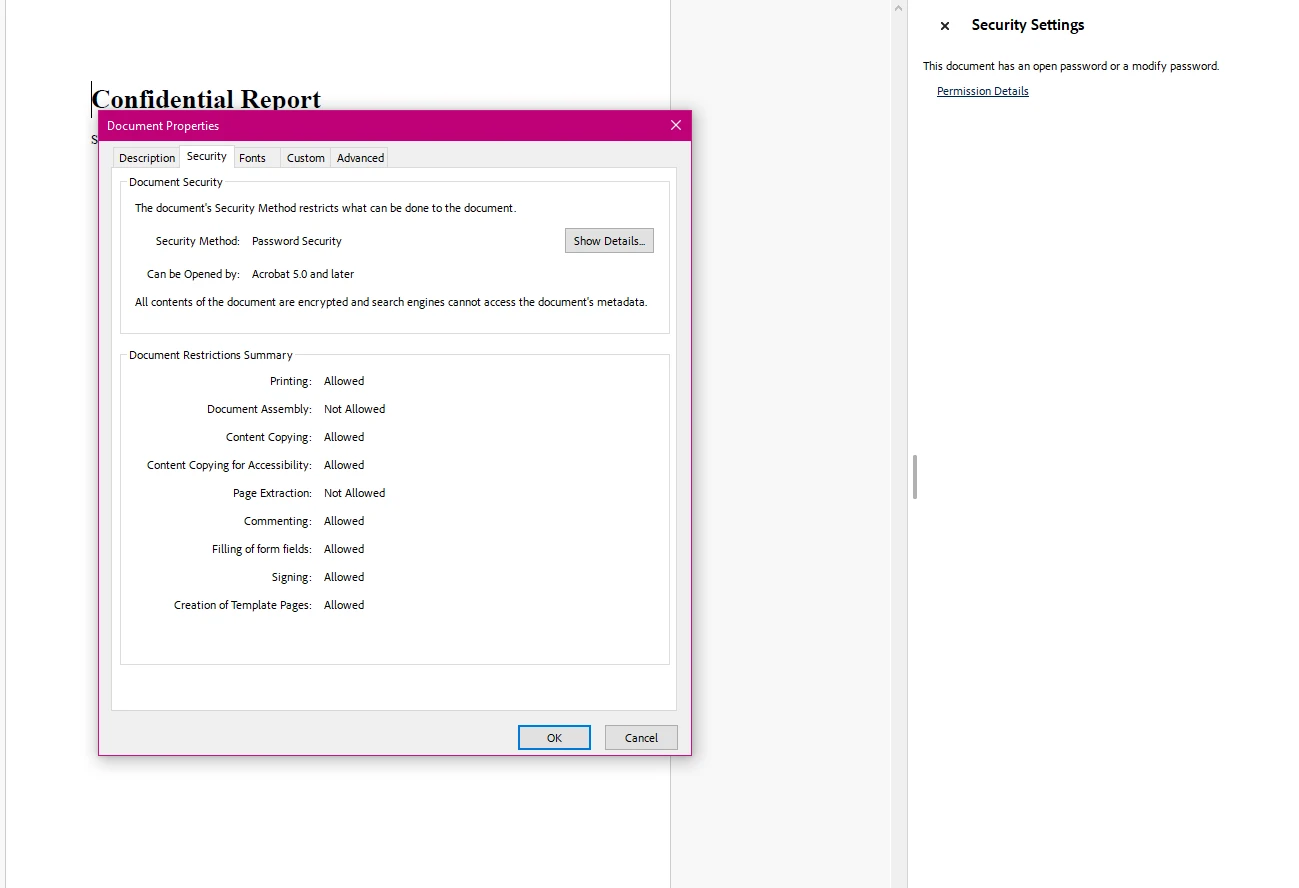
SecuritySettings屬性提供了對加密和權限控制的統一存取。 設置OwnerPassword可以對文件啟用128位加密。 設置UserPassword在打開文件時建立存取障礙。這兩個屬性可以獨立設置——僅用擁有者密碼保護的文件可被任何人讀取,但限制其可操作行為。
有關完整的SecuritySettings API詳細資訊,請參見PdfSecuritySettings類參考。
許多工作流程需要向現有的PDF文件新增安全性,而不是從HTML或模板生成新的文件。 這適用於從外部來源接收文件、在Web應用中處理上傳或者在存檔前對文件進行安全處理。
IronPDF使用相同的SecuritySettings API處理此問題。 使用PdfDocument.FromFile載入文件,應用安全配置,然後保存結果:
using IronPdf;

// Load an existing PDF document from disk
var pdf = PdfDocument.FromFile("financial-statement.pdf");

// Apply both passwords
pdf.SecuritySettings.OwnerPassword = "admin-key-789";
pdf.SecuritySettings.UserPassword = "reader-key-321";

// Restrict printing and content copying
pdf.SecuritySettings.AllowUserPrinting = IronPdf.Security.PdfPrintSecurity.NoPrint;
pdf.SecuritySettings.AllowUserCopyPasteContent = false;

// Save the secured version
pdf.SaveAs("financial-statement-secured.pdf");Imports IronPdf
' Load an existing PDF document from disk
Dim pdf = PdfDocument.FromFile("financial-statement.pdf")
' Apply both passwords
pdf.SecuritySettings.OwnerPassword = "admin-key-789"
pdf.SecuritySettings.UserPassword = "reader-key-321"
' Restrict printing and content copying
pdf.SecuritySettings.AllowUserPrinting = IronPdf.Security.PdfPrintSecurity.NoPrint
pdf.SecuritySettings.AllowUserCopyPasteContent = False
' Save the secured version
pdf.SaveAs("financial-statement-secured.pdf")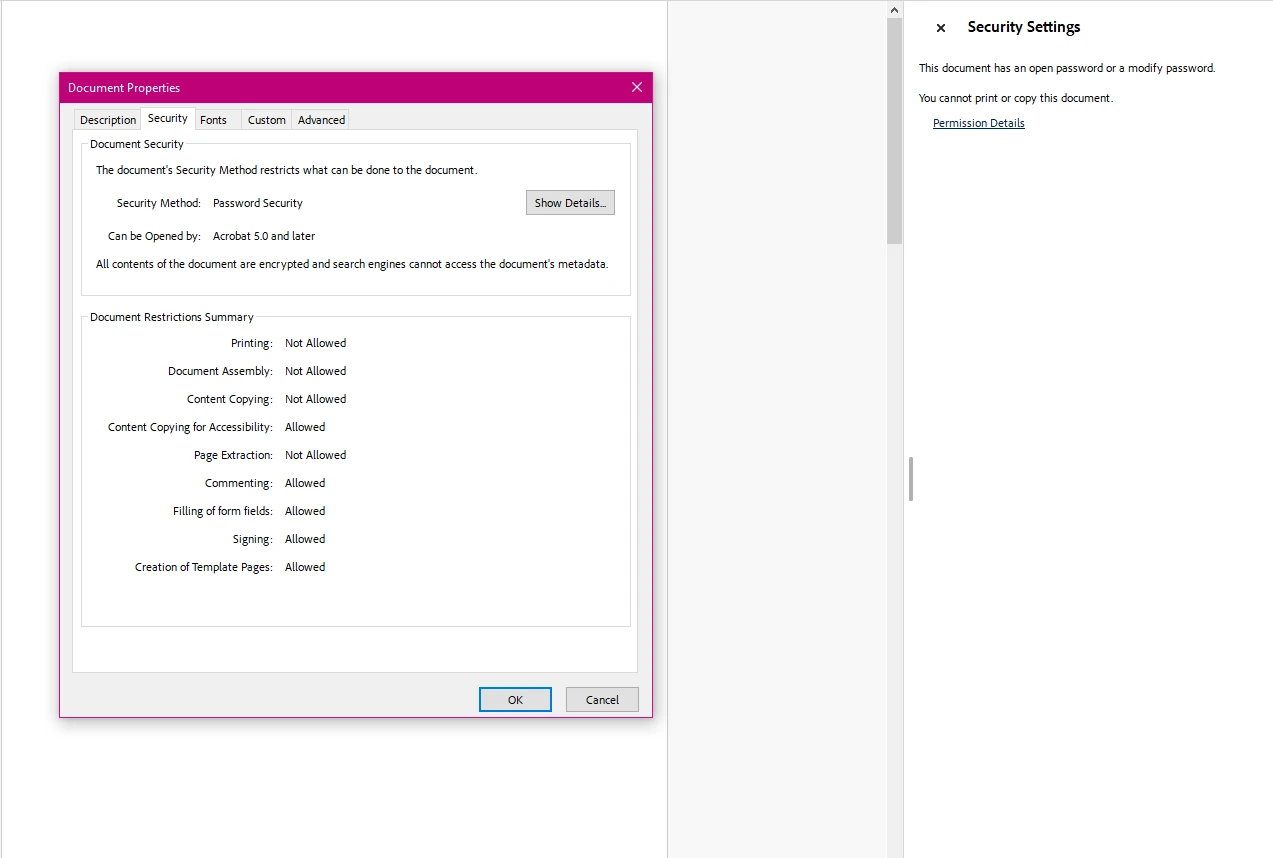
這種方法適用於任何有效的PDF文件,無論其原始建立方式如何。 程式庫會處理輸入文件,並生成一個帶有所有指定安全設置的加密副本。 當您保存到不同路徑時,原始文件不會被修改。
有關將加密與解密結合在一個工作流程中的完整範例,請參看PDF加密和解密程式碼範例。
除密碼保護外,PDF安全性還包括對使用者在打開文件後可以做什麼的詳細控制。 PDF規範中的權限標誌允許您獨立地阻止或允許列印、內容複製、編輯、註解以及表單資料輸入。
設置擁有者密碼是權限限制生效的前提。 沒有它,具有合格PDF閱讀器的觀眾可能能夠繞過權限標誌。
以下範例展示了如何為應可查看和填寫但不可編輯或列印的合同文件配置權限:
using IronPdf;

// Load a contract document
var pdf = PdfDocument.FromFile("contract.pdf");

// Owner password is required for permissions enforcement
pdf.SecuritySettings.OwnerPassword = "contract-admin";

// Allow printing with full print quality
pdf.SecuritySettings.AllowUserPrinting = IronPdf.Security.PdfPrintSecurity.FullPrintRights;

// Prevent content extraction (protects against copy/paste attacks)
pdf.SecuritySettings.AllowUserCopyPasteContent = false;

// Lock down editing
pdf.SecuritySettings.AllowUserEdits = IronPdf.Security.PdfEditSecurity.NoEdit;

// Disable comment additions
pdf.SecuritySettings.AllowUserAnnotations = false;

// Allow form completion while blocking other modifications
pdf.SecuritySettings.AllowUserFormData = true;

// Save with all restrictions
pdf.SaveAs("contract-restricted.pdf");Imports IronPdf
' Load a contract document
Dim pdf = PdfDocument.FromFile("contract.pdf")
' Owner password is required for permissions enforcement
pdf.SecuritySettings.OwnerPassword = "contract-admin"
' Allow printing with full print quality
pdf.SecuritySettings.AllowUserPrinting = IronPdf.Security.PdfPrintSecurity.FullPrintRights
' Prevent content extraction (protects against copy/paste attacks)
pdf.SecuritySettings.AllowUserCopyPasteContent = False
' Lock down editing
pdf.SecuritySettings.AllowUserEdits = IronPdf.Security.PdfEditSecurity.NoEdit
' Disable comment additions
pdf.SecuritySettings.AllowUserAnnotations = False
' Allow form completion while blocking other modifications
pdf.SecuritySettings.AllowUserFormData = True
' Save with all restrictions
pdf.SaveAs("contract-restricted.pdf")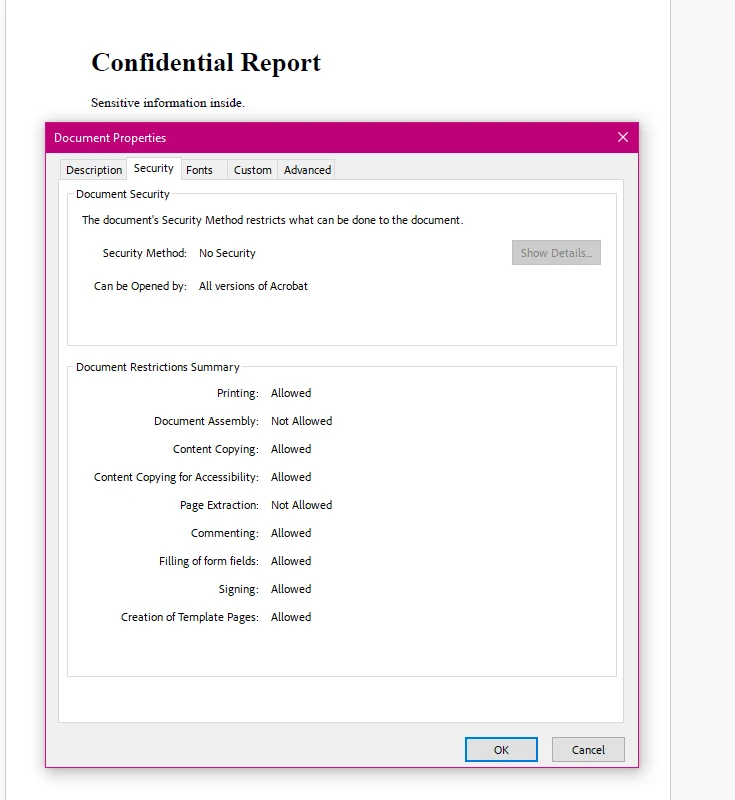
下表總結了所有可用的權限屬性及其常見應用:
| 屬性 | 型別 | 描述 | 常見用例 |
|---|---|---|---|
AllowUserPrinting | PdfPrintSecurity | 控制列印存取:NoPrint或FullPrintRights | 防止機密文件的列印 |
AllowUserCopyPasteContent | bool | 啟用或禁用文字和圖像提取 | 保護智慧財產權不被提取 |
AllowUserEdits | PdfEditSecurity | 控制編輯能力:NoEdit或允許編輯的值 | 鎖定合同和法律文件以防修改 |
AllowUserAnnotations | bool | 允許或禁止評論和標註新增 | 控制文件審查工作流程 |
AllowUserFormData | bool | 啟用或禁用表單欄位完成 | 允許填寫PDF表單,同時阻止其他編輯 |
AllowUserCopyPasteContentForAccessibility | bool | 管理螢幕閱讀器的內容提取 | 在限制一般複製的同時維持可存取性合規 |
如需更多使用權限標誌的程式碼範例,請參見IronPDF安全性和元資料範例。
當目標是一次性鎖定所有使用者修改——複製、列印、編輯和註釋——時,MakePdfDocumentReadOnly便捷方法可在一個呼叫中處理此操作。 這對於需要最大限制而不逐個配置每個權限的最終版本文件非常有用。
using IronPdf;

// Load the document to make read-only
var pdf = PdfDocument.FromFile("final-report.pdf");

// Apply full read-only protection with one method call
// This sets owner password and blocks all modification capabilities
pdf.SecuritySettings.MakePdfDocumentReadOnly("owner-readonly-password");

// Save the protected document
pdf.SaveAs("final-report-readonly.pdf");Imports IronPdf
' Load the document to make read-only
Dim pdf = PdfDocument.FromFile("final-report.pdf")
' Apply full read-only protection with one method call
' This sets owner password and blocks all modification capabilities
pdf.SecuritySettings.MakePdfDocumentReadOnly("owner-readonly-password")
' Save the protected document
pdf.SaveAs("final-report-readonly.pdf")MakePdfDocumentReadOnly方法設置您提供的擁有者密碼,並同時禁用所有修改權限。 生成的文件可以在不需要密碼的情況下打開和閱讀,但列印、複製、編輯和註釋都被限制。 這是在不需要個別權限調整時,將文件完全鎖定的最快途徑。 若某些權限必須保持開放(例如,允許列印但阻止複製),則根據上述權限部分的說明配置個別的SecuritySettings屬性。
在程式上處理加密的PDF文件時,您需要提供正確的密碼才能存取內容。 PdfDocument.FromFile方法為此目的接受可選的密碼參數。
以下範例展示了如何打開受密碼保護的文件並可選地完全移除其加密:
using IronPdf;

// Open a password-protected PDF by supplying the user password
var pdf = PdfDocument.FromFile("protected-report.pdf", "user-access-456");

// Extract text content from the decrypted document
string content = pdf.ExtractAllText();

// Remove all passwords and encryption when you need an unprotected version
pdf.SecuritySettings.RemovePasswordsAndEncryption();

// Save the unencrypted copy
pdf.SaveAs("report-unlocked.pdf");Imports IronPdf
' Open a password-protected PDF by supplying the user password
Dim pdf = PdfDocument.FromFile("protected-report.pdf", "user-access-456")
' Extract text content from the decrypted document
Dim content As String = pdf.ExtractAllText()
' Remove all passwords and encryption when you need an unprotected version
pdf.SecuritySettings.RemovePasswordsAndEncryption()
' Save the unencrypted copy
pdf.SaveAs("report-unlocked.pdf")RemovePasswordsAndEncryption方法從文件中刪除所有安全性,並將其保存為標準的、未受保護的PDF。 這在處理需存檔、進一步轉換或再發行的文件時很有用,此時終端使用者限制已不再合適。
如果PDF包含數位簽名,請傳遞RemovePasswordsAndEncryption(true)以同時刪除簽名,否則省略該參數以保留簽名。
如需加密和解密工作流程的配套查看,PDF加密和解密範例在單個可運行文件中演示了這兩個操作。
密碼加密和權限標誌覆蓋了大多數常見的PDF安全需求,但IronPDF還提供了更多專門場景的文件保護層。
數位簽名:IronPDF支持使用X.509證書簽署PDF文件,以驗證真實性並檢測篡改。 簽署的文件顯示視覺簽名欄,並提供簽署者身份的加密證明。 有關實現詳情和證書配置,請參閱PDF簽署指南。
遵從標準:針對受HIPAA、GDPR或金融規範約束的應用,文件加密通常是必需的控制。 IronPDF的128位加密滿足大多數合規框架的基準要求,當與適當的金鑰管理實踐結合時。 審查您的特定合規範圍的相關監管指引。
IronSecureDoc:針對企業級文件安全需求——包括編輯、進階數位簽署工作流程和多文件處理——IronSecureDoc提供了一種帶有一次性許可的專用安全產品。
PDF規範本身的外部參考有助於理解權限模型。 Adobe開發者站點上的PDF規範概述詳述了加密和權限在格式級別的實施方式。 NIST特別出版物800-111儲存加密指南提供了在受規管環境中選擇加密技術的背景。 如需更廣泛的.NET文件安全最佳實踐,Microsoft的.NET加密模型文件解釋了PDF程式庫所依賴的底層平台加密。
在.NET中的PDF安全性涵蓋三個關鍵領域:控制可以使使用者密碼打開文件的人、限制他們可以使用權限標誌做的事情,並使用數位簽名驗證文件的真實性。 IronPDF通過SecuritySettings API和簽署工作流程處理所有這三方面,而不需要手動加密實現。
如需進一步閱讀和實用程式碼:
開始免費試用IronPDF以測試這些安全功能在您的應用中的效果。 針對生產部署,查看IronPDF許可選項以找出適合您的專案規模的層級。

Curtis Chau擁有Carleton大學的電腦科學學士學位,專精於前端開發,擁有Node.js、TypeScript、JavaScript和React的專業知識。Curtis熱衷於建立直觀且美觀的使用者介面,喜愛使用現代框架並建立結構良好、視覺吸引力的手冊。

IronPDF 是 IRONSUITE 的一部分
10 款適用於辦公室文件的 .NET API 產品

當您需要您的PDF看起來像HTML一樣快速。














