
已更新 2026年9月4日
產生每月帳戶報表(PDF 文件)
using IronPDF C# PDF 庫,開發人員可以在 .NET 專案中將 HTML 轉換為可靠的 PDF 文件,而無需依賴外部服務。
閱讀更多

在VB.NET應用程式中直接顯示PDF文件對許多開發者來說仍然是一件棘手的事。 .NET Framework和.NET Core不提供內建的方法來查看PDF文件,因此人們常常依賴舊的ActiveX控制項或混亂的第三方工具。 這可能會讓開發者和使用者都感到沮喪。
如果您正在構建一個Windows Forms或WPF應用程式,您會希望有一個可靠的PDF查看功能。 無論是發票、報告,還是甚至轉換成PDF格式的Word文件,IronPDF通過消除對外部組件的需求並提供強大的選項來直接在您的專案中建立、編輯和處理PDF,簡化了這一過程。
在本教程中,我將逐步帶您完成構建一個VB.NET PDF查看器。 到結束時,您將知道如何像專家一樣生成和顯示應用程式中的PDF文件。 此外,您還將看到新增諸如縮放、導航和列印等功能是多麼容易。 我在最近的一個內部專案中嘗試了這種方法,這大大加快了我們團隊的報告審核過程。
Visual Studio工具箱缺少標準的PDF查看器控制項。 開發者經常依賴Internet Explorer或內嵌的WebBrowser控制項來顯示PDF文件,但這些方法依賴於使用者的預設PDF閱讀器,且可能在部署時產生隱藏的成本。
傳統解決方案還可能需要安裝外部軟體或手動配置來正確處理PDF表單、列印或渲染,這增加了複雜性並限制了在多個Windows環境下自訂PDF顯示的能力。
IronPDF透過提供一個不需要Adobe Reader或其他外部查看器的自包式程式庫轉變了VB.NET應用程式中的PDF處理。 除了基本的查看,它還使開發者能夠使用熟悉的.NET模式以程式化的方式建立、編輯、操作和渲染PDF。
該程式庫的架構利用了一個基於Chrome的渲染引擎,保證複雜PDF的像素完美顯示,並全面支援表單、註釋和嵌入多媒體等現代功能。 這種方法保證了在所有Windows環境中的一致渲染。
這些功能使得IronPDF成為.NET應用程式的一個高度可自訂的解決方案,讓開發者能夠在桌面或網路應用環境中處理複雜的PDF文件。
透過NuGet套件管理器設置IronPDF只需幾個步驟。 在Visual Studio中開啟您的VB.NET Windows Forms專案,然後遵循以下步驟:
安裝後,將這個import語句新增到您的VB.NET文件:
Imports IronPdfnet這個import語句使您的VB.NET專案能夠存取所有的IronPDF類別和方法,允許您以程式化的方式載入、渲染、列印和操作PDF文件。
此設置包含所有必要的運行時組件,消除了手動配置並避免了隱藏的成本。
構建一個PDF查看器從建立Windows Forms應用程式和實施IronPDF的渲染能力開始。 這是一個在您的應用程式中顯示PDF的簡化方法:
Imports System.Drawing
Imports System.IO
Imports IronPdf
Public Class Form1
    Private currentPdf As PdfDocument
    Private pdfBitmaps() As Bitmap
    Private currentPage As Integer = 0
    Private zoomLevel As Double = 1.0
    ' Load PDF Button
    Private Sub LoadPdfButton_Click(sender As Object, e As EventArgs) Handles LoadPdfButton.Click
        Using openFileDialog As New OpenFileDialog()
            openFileDialog.Filter = "PDF Files (*.pdf)|*.pdf"
            If openFileDialog.ShowDialog() = DialogResult.OK Then
                ' Load PDF
                currentPdf = PdfDocument.FromFile(openFileDialog.FileName)
                ' Render all pages to image files
                Dim filePaths As String() = currentPdf.RasterizeToImageFiles("page_*.png")
                ' Load images into memory
                Dim pageList As New List(Of Bitmap)()
                For Each filePath As String In filePaths
                    Using ms As New MemoryStream(File.ReadAllBytes(filePath))
                        Dim bmp As New Bitmap(ms)
                        pageList.Add(bmp)
                    End Using
                Next
                pdfBitmaps = pageList.ToArray()
                currentPage = 0
                zoomLevel = 1.0
                DisplayCurrentPage()
            End If
        End Using
    End Sub
    ' Show the current page in PictureBox
    Private Sub DisplayCurrentPage()
        If pdfBitmaps IsNot Nothing AndAlso currentPage < pdfBitmaps.Length Then
            Dim bmp As Bitmap = pdfBitmaps(currentPage)
            ' Apply zoom
            Dim newWidth As Integer = CInt(bmp.Width * zoomLevel)
            Dim newHeight As Integer = CInt(bmp.Height * zoomLevel)
            Dim zoomedBmp As New Bitmap(bmp, newWidth, newHeight)
            PictureBox1.Image = zoomedBmp
        Else
            PictureBox1.Image = Nothing
        End If
        UpdateNavigationButtons()
    End Sub
Imports System.Drawing
Imports System.IO
Imports IronPdf
Public Class Form1
Private currentPdf As PdfDocument
Private pdfBitmaps() As Bitmap
Private currentPage As Integer = 0
Private zoomLevel As Double = 1.0
' Load PDF Button
Private Sub LoadPdfButton_Click(sender As Object, e As EventArgs) Handles LoadPdfButton.Click
Using openFileDialog As New OpenFileDialog()
openFileDialog.Filter = "PDF Files (*.pdf)|*.pdf"
If openFileDialog.ShowDialog() = DialogResult.OK Then
' Load PDF
currentPdf = PdfDocument.FromFile(openFileDialog.FileName)
' Render all pages to image files
Dim filePaths As String() = currentPdf.RasterizeToImageFiles("page_*.png")
' Load images into memory
Dim pageList As New List(Of Bitmap)()
For Each filePath As String In filePaths
Using ms As New MemoryStream(File.ReadAllBytes(filePath))
Dim bmp As New Bitmap(ms)
pageList.Add(bmp)
End Using
Next
pdfBitmaps = pageList.ToArray()
currentPage = 0
zoomLevel = 1.0
DisplayCurrentPage()
End If
End Using
End Sub
' Show the current page in PictureBox
Private Sub DisplayCurrentPage()
If pdfBitmaps IsNot Nothing AndAlso currentPage < pdfBitmaps.Length Then
Dim bmp As Bitmap = pdfBitmaps(currentPage)
' Apply zoom
Dim newWidth As Integer = CInt(bmp.Width * zoomLevel)
Dim newHeight As Integer = CInt(bmp.Height * zoomLevel)
Dim zoomedBmp As New Bitmap(bmp, newWidth, newHeight)
PictureBox1.Image = zoomedBmp
Else
PictureBox1.Image = Nothing
End If
UpdateNavigationButtons()
End Sub
End Class程式碼説明:
當我們運行程式時,點擊"載入PDF"按鈕時,我們將能夠透過對話框彈出載入一個PDF文件。
導航通過允許在多頁文件中移動來增強使用者體驗。 為您的表單新增上一步和下一步按鈕來實現以下內容:
' Next Page Button
Private Sub NextButton_Click(sender As Object, e As EventArgs) Handles NextButton.Click
    If currentPage < pdfBitmaps.Length - 1 Then
        currentPage += 1
        DisplayCurrentPage()
    End If
End Sub
' Previous Page Button
Private Sub PreviousButton_Click(sender As Object, e As EventArgs) Handles PreviousButton.Click
    If currentPage > 0 Then
        currentPage -= 1
        DisplayCurrentPage()
    End If
End Sub
' Next Page Button
Private Sub NextButton_Click(sender As Object, e As EventArgs) Handles NextButton.Click
If currentPage < pdfBitmaps.Length - 1 Then
currentPage += 1
DisplayCurrentPage()
End If
End Sub
' Previous Page Button
Private Sub PreviousButton_Click(sender As Object, e As EventArgs) Handles PreviousButton.Click
If currentPage > 0 Then
currentPage -= 1
DisplayCurrentPage()
End If
End Sub這些Private Sub過程使用Object sender, EventArgs e處理PDF頁面的導航。 按鈕更新currentPage並調用DisplayCurrentPage()渲染Windows Form中的PDF頁面。
' Update navigation controls and page label
Private Sub UpdateNavigationButtons()
    PreviousButton.Enabled = currentPage > 0
    NextButton.Enabled = currentPage < pdfBitmaps.Length - 1
    PageLabel.Text = $"Page {currentPage + 1} of {pdfBitmaps.Length}"
End Sub
' Update navigation controls and page label
Private Sub UpdateNavigationButtons()
PreviousButton.Enabled = currentPage > 0
NextButton.Enabled = currentPage < pdfBitmaps.Length - 1
PageLabel.Text = $"Page {currentPage + 1} of {pdfBitmaps.Length}"
End Sub這會更新按鈕狀態,以便使用者無法導航超過第一頁或最後一頁,而標籤則顯示當前頁碼和總頁數。
IronPDF支援從各種來源載入PDF,而不僅是本地文件。 此靈活性允許與資料庫、網路服務和記憶體流整合:
' Load PDF from URL
Private Sub LoadUrlButton_Click(sender As Object, e As EventArgs) Handles LoadUrlButton.Click
    Dim url As String = UrlTextBox.Text.Trim()
    If String.IsNullOrEmpty(url) Then
        MessageBox.Show("Please enter a valid URL.")
        Return
    End If
    Try
        LoadFromUrl(url)
    Catch ex As Exception
        MessageBox.Show("Failed to load PDF: " & ex.Message)
    End Try
End Sub
' Load PDF from URL
Private Sub LoadUrlButton_Click(sender As Object, e As EventArgs) Handles LoadUrlButton.Click
Dim url As String = UrlTextBox.Text.Trim()
If String.IsNullOrEmpty(url) Then
MessageBox.Show("Please enter a valid URL.")
Return
End If
Try
LoadFromUrl(url)
Catch ex As Exception
MessageBox.Show("Failed to load PDF: " & ex.Message)
End Try
End Sub這個Private Sub檢查URL輸入,如果無效則顯示警報,並調用LoadFromUrl動態渲染PDF。
Private Sub LoadFromUrl(url As String)
    Dim renderer As New ChromePdfRenderer()
    renderer.RenderingOptions.EnableJavaScript = True
    renderer.RenderingOptions.CssMediaType = Rendering.PdfCssMediaType.Print
    renderer.RenderingOptions.WaitFor.JavaScript(3000)
    currentPdf = renderer.RenderUrlAsPdf(url)
    LoadPdfBitmaps()
End Sub
Private Sub LoadFromUrl(url As String)
Dim renderer As New ChromePdfRenderer()
renderer.RenderingOptions.EnableJavaScript = True
renderer.RenderingOptions.CssMediaType = Rendering.PdfCssMediaType.Print
renderer.RenderingOptions.WaitFor.JavaScript(3000)
currentPdf = renderer.RenderUrlAsPdf(url)
LoadPdfBitmaps()
End Sub這使用ChromePdfRenderer將網頁URL轉換為PDF文件。 選項允許JavaScript執行和列印友好的CSS,然後將PDF頁載入為位圖。
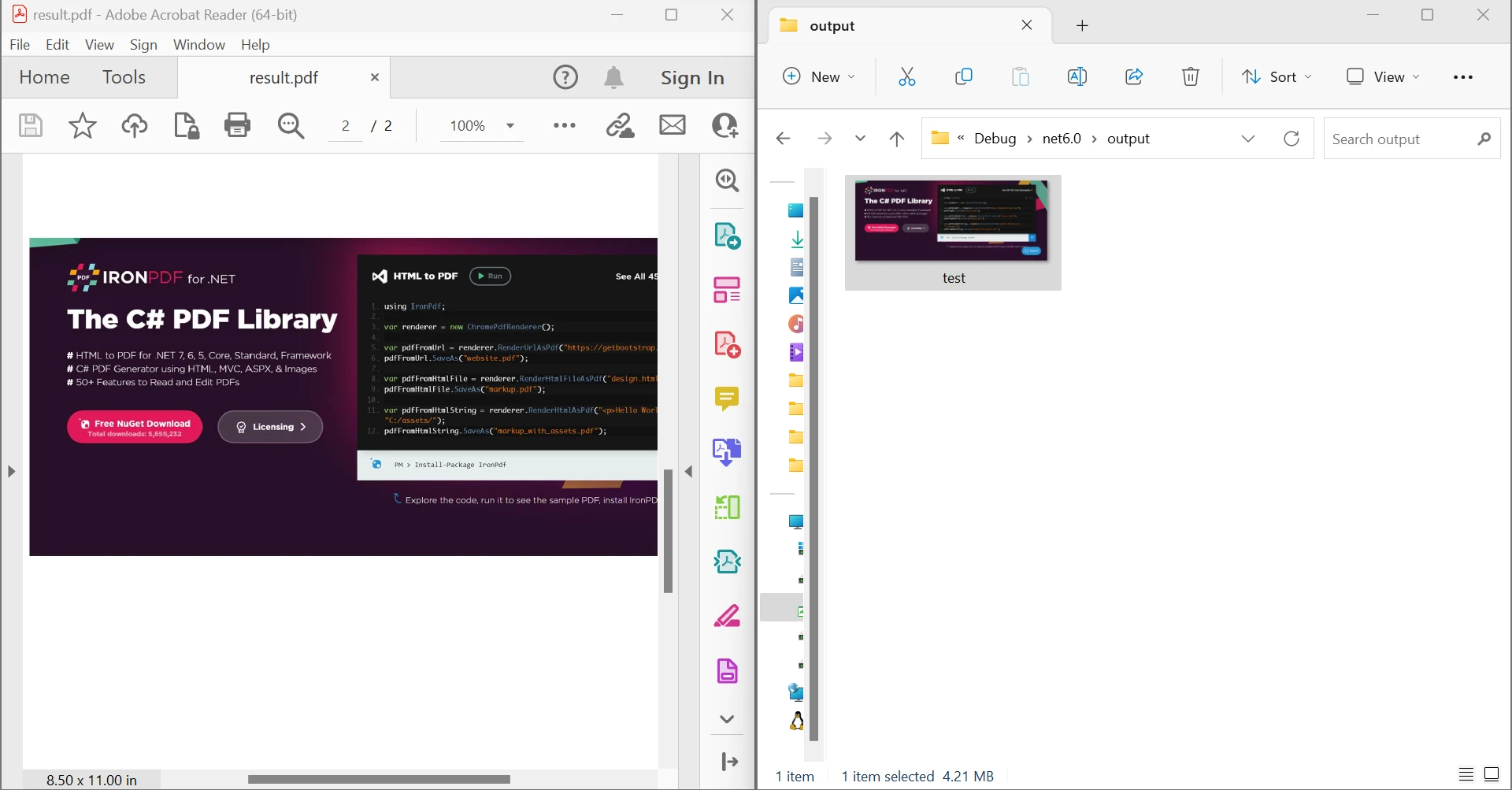
Private Sub LoadHtmlButton_Click(sender As Object, e As EventArgs) Handles LoadHtmlButton.Click
    Dim htmlContent As String = "<html><body><h1>Hello PDF!</h1><p>This is a hardcoded HTML PDF test.</p></body></html>"
    LoadFromHtml(htmlContent)
End Sub
Private Sub LoadFromHtml(htmlContent As String)
    Dim renderer As New ChromePdfRenderer()
    currentPdf = renderer.RenderHtmlAsPdf(htmlContent)
    LoadPdfBitmaps()
End Sub
Private Sub LoadHtmlButton_Click(sender As Object, e As EventArgs) Handles LoadHtmlButton.Click
Dim htmlContent As String = "<html><body><h1>Hello PDF!</h1><p>This is a hardcoded HTML PDF test.</p></body></html>"
LoadFromHtml(htmlContent)
End Sub
Private Sub LoadFromHtml(htmlContent As String)
Dim renderer As New ChromePdfRenderer()
currentPdf = renderer.RenderHtmlAsPdf(htmlContent)
LoadPdfBitmaps()
End Sub這個範例使用RenderHtmlAsPdf方法將HTML內容轉換為PDF。 此過程非常適合動態報告或模板。
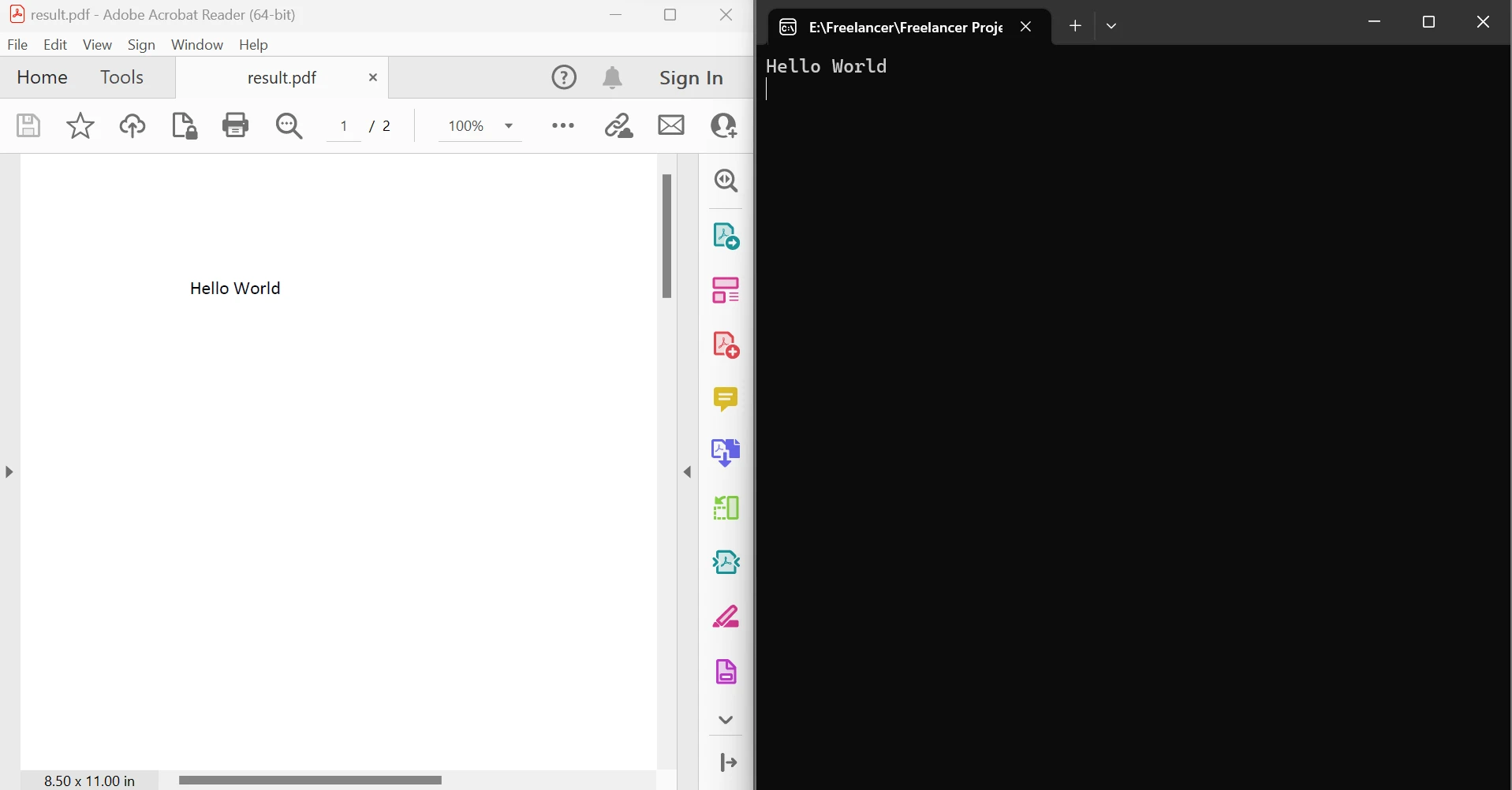
這些方法無需臨時文件就能進行動態PDF生成和查看,提升了效能和安全性。
縮放控制可以改善詳細文件的可讀性。 使用圖像縮放來實現縮放功能:
Private Sub ZoomInButton_Click(sender As Object, e As EventArgs) Handles ZoomInButton.Click
        zoomLevel = Math.Min(zoomLevel + 0.25, 3.0)
        DisplayCurrentPage()
    End Sub
    Private Sub ZoomOutButton_Click(sender As Object, e As EventArgs) Handles ZoomOutButton.Click
        zoomLevel = Math.Max(zoomLevel - 0.25, 0.5)
        DisplayCurrentPage()
    End Sub
    Private Sub ApplyZoom()
        If pdfBitmaps IsNot Nothing AndAlso currentPage < pdfBitmaps.Length Then
            Dim pageImage As Bitmap = pdfBitmaps(currentPage)
            Dim newWidth As Integer = CInt(pageImage.Width * zoomLevel)
            Dim newHeight As Integer = CInt(pageImage.Height * zoomLevel)
            Dim zoomedImage As New Bitmap(pageImage, newWidth, newHeight)
            PictureBox1.Image = zoomedImage
        Else
            PictureBox1.Image = Nothing
        End If
    End Sub
Private Sub ZoomInButton_Click(sender As Object, e As EventArgs) Handles ZoomInButton.Click
zoomLevel = Math.Min(zoomLevel + 0.25, 3.0)
DisplayCurrentPage()
End Sub
Private Sub ZoomOutButton_Click(sender As Object, e As EventArgs) Handles ZoomOutButton.Click
zoomLevel = Math.Max(zoomLevel - 0.25, 0.5)
DisplayCurrentPage()
End Sub
Private Sub ApplyZoom()
If pdfBitmaps IsNot Nothing AndAlso currentPage < pdfBitmaps.Length Then
Dim pageImage As Bitmap = pdfBitmaps(currentPage)
Dim newWidth As Integer = CInt(pageImage.Width * zoomLevel)
Dim newHeight As Integer = CInt(pageImage.Height * zoomLevel)
Dim zoomedImage As New Bitmap(pageImage, newWidth, newHeight)
PictureBox1.Image = zoomedImage
Else
PictureBox1.Image = Nothing
End If
End Sub這段程式碼以步驟調整zoomLevel,並調用DisplayCurrentPage()來應用縮放比例,以提高桌面上的可讀性
列印功能完整了查看器的體驗。 IronPDF透過內建方法簡化了列印功能:
Private Sub PrintButton_Click(sender As Object, e As EventArgs) Handles PrintButton.Click
        If currentPdf IsNot Nothing Then
            ' Simple print with default settings
            currentPdf.Print()
            ' Or with custom settings
            Dim printDoc As PrintDocument = currentPdf.GetPrintDocument()
            Using printDialog As New PrintDialog()
                printDialog.Document = printDoc
                If printDialog.ShowDialog() = DialogResult.OK Then
                    printDoc.Print()
                End If
            End Using
        End If
    End Sub
Private Sub PrintButton_Click(sender As Object, e As EventArgs) Handles PrintButton.Click
If currentPdf IsNot Nothing Then
' Simple print with default settings
currentPdf.Print()
' Or with custom settings
Dim printDoc As PrintDocument = currentPdf.GetPrintDocument()
Using printDialog As New PrintDialog()
printDialog.Document = printDoc
If printDialog.ShowDialog() = DialogResult.OK Then
printDoc.Print()
End If
End Using
End If
End Sub這個Private Sub允許使用者使用預設或自訂的印表機設定來列印PDF文件。 GetPrintDocument()返回一個PrintDocument物件,便於與Windows Forms PrintDialog整合。
儘管Windows Forms主導桌面開發,WPF應用程式也可以利用IronPDF。 其方法略有不同:
' In WPF Window code-behind
Private Sub LoadPdfInWpf(filePath As String)
    Dim pdfDoc As PdfDocument = PdfDocument.FromFile(filePath)
    Dim pageImage As Bitmap = pdfDoc.ToBitmap(0)
    ' Convert to WPF-compatible image
    Dim bitmapImage As New BitmapImage()
    Using memory As New MemoryStream()
        pageImage.Save(memory, ImageFormat.Png)
        memory.Position = 0
        bitmapImage.BeginInit()
        bitmapImage.StreamSource = memory
        bitmapImage.CacheOption = BitmapCacheOption.OnLoad
        bitmapImage.EndInit()
    End Using
    ImageControl.Source = bitmapImage
End SubImports System.IO
Imports System.Drawing
Imports System.Drawing.Imaging
Imports System.Windows.Media.Imaging
' In WPF Window code-behind
Private Sub LoadPdfInWpf(filePath As String)
    Dim pdfDoc As PdfDocument = PdfDocument.FromFile(filePath)
    Dim pageImage As Bitmap = pdfDoc.ToBitmap(0)
    ' Convert to WPF-compatible image
    Dim bitmapImage As New BitmapImage()
    Using memory As New MemoryStream()
        pageImage.Save(memory, ImageFormat.Png)
        memory.Position = 0
        bitmapImage.BeginInit()
        bitmapImage.StreamSource = memory
        bitmapImage.CacheOption = BitmapCacheOption.OnLoad
        bitmapImage.EndInit()
    End Using
    ImageControl.Source = bitmapImage
End Sub優化PDF查看確保流暢的使用者體驗:
完成後始終處置PDF文件:
Protected Overrides Sub OnFormClosed(e As FormClosedEventArgs)
    If currentPdf IsNot Nothing Then
        currentPdf.Dispose()
    End If
    MyBase.OnFormClosed(e)
End Sub
Protected Overrides Sub OnFormClosed(e As FormClosedEventArgs)
If currentPdf IsNot Nothing Then
currentPdf.Dispose()
End If
MyBase.OnFormClosed(e)
End SubIronPDF還支援非同步載入,有助於在不凍結UI的情況下載入大型PDF:
Private Async Sub LoadPdfAsync(filePath As String)
    LoadingLabel.Visible = True
    Await Task.Run(Sub()
        currentPdf = PdfDocument.FromFile(filePath)
    End Sub)
    LoadingLabel.Visible = False
    DisplayCurrentPage()
End Sub
Private Async Sub LoadPdfAsync(filePath As String)
LoadingLabel.Visible = True
Await Task.Run(Sub()
currentPdf = PdfDocument.FromFile(filePath)
End Sub)
LoadingLabel.Visible = False
DisplayCurrentPage()
End Sub使用IronPDF在VB.NET中構建PDF查看器,消除了傳統方法的複雜性,同時提供了專業功能。 從基本的文件查看到高級的PDF表單處理和列印,IronPDF在您的Windows Forms應用程式中處理所有的PDF交互面向。
無論是顯示報告、處理表單還是實施文件管理系統,IronPDF提供了全面的PDF解決方案所需的工具、支援和授權選項。
使用IronPDF的免費試用開始您的VB.NET PDF查看器專案,探索所有功能。 透過彈性授權擴展到生產部署。 想要詳細的API文件和更多範例,請存取IronPDF文件,並探索全面的VB.NET程式碼範例。
 使用NuGet安裝
Curtis Chau擁有Carleton大學的電腦科學學士學位,專精於前端開發,擁有Node.js、TypeScript、JavaScript和React的專業知識。Curtis熱衷於建立直觀且美觀的使用者介面,喜愛使用現代框架並建立結構良好、視覺吸引力的手冊。

IronPDF 是 IRONSUITE 的一部分
10 款適用於辦公室文件的 .NET API 產品

當您需要您的PDF看起來像HTML一樣快速。