




已更新 2026年9月4日
產生每月帳戶報表(PDF 文件)
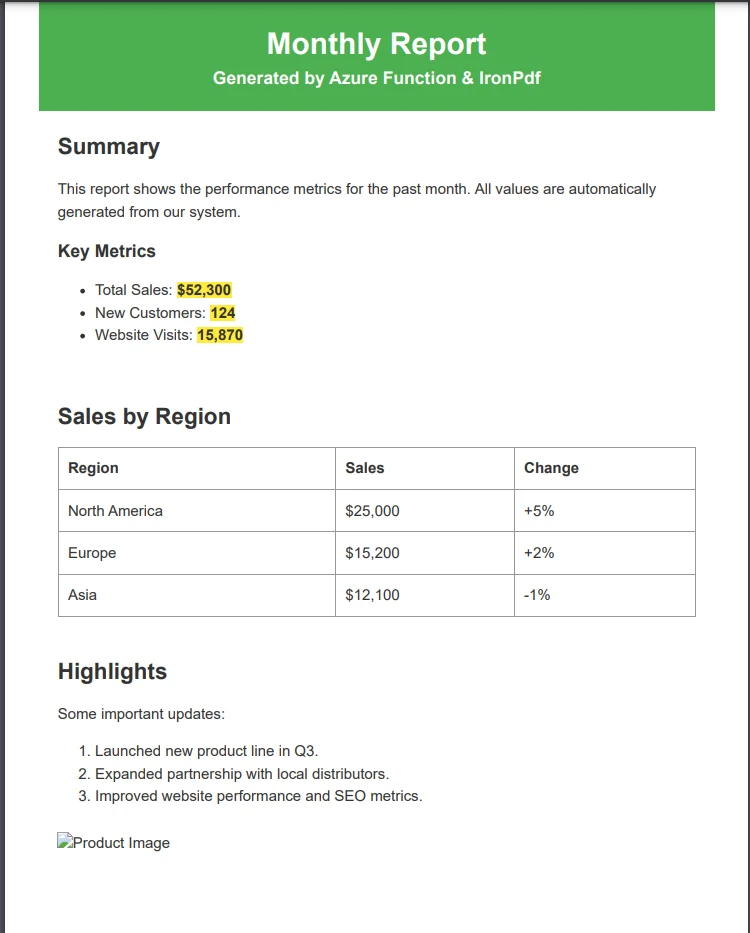
using IronPDF C# PDF 庫,開發人員可以在 .NET 專案中將 HTML 轉換為可靠的 PDF 文件,而無需依賴外部服務。
閱讀更多

結合IronPDF的專業渲染引擎與Azure的靈活雲端基礎設施,Azure PDF生成變得簡單明瞭。 本指南為您展示如何構建、部署和調整一個準備生產的PDF生成器,能夠處理從HTML轉換到複雜文件操作的一切。
構建可靠的基於雲的PDF生成器提出了獨特的挑戰。 在沙箱限制、記憶體限制和分佈式系統複雜性之間,許多開發者努力尋找準備生產的解決方案。 這就是Azure和IronPDF協同工作的地方--IronPDF提供專業的PDF生成,可隨著您的工作負載擴展,同時保持基本功能。
無論您是在生成發票、報告,還是將網頁內容轉換為PDF,本指南會為您展示如何構建可靠的Azure PDF生成器。 您將處理從簡單HTML轉換到複雜文件操作的所有事項,同時調整性能和成本。
開始使用免費的IronPDF試用版並跟隨教程建立您的雲端PDF解決方案。
並非所有的PDF解決方案在雲端環境中都表現良好。 一個準備生產的Azure PDF生成器必須滿足超越基本文件建立的關鍵需求。 了解Azure Functions的部署選擇能確保成功。
性能和可擴展性定義了您的解決方案的成功。 您的生成器必須能夠處理並發請求而不會發生瓶頸,在高峰期自動擴展,並且在處理複雜文件時保持一致的響應時間。 選擇一個為雲環境而設計的程式庫,理解無伺服器架構的細微差別。
Azure的平台帶來了一些特定考量。 應用服務沙箱限制了Win32/圖形API--使用桌面圖形棧的程式庫可能會失敗。 消費計劃中的記憶體限制會導致較大文件的失敗。 分佈式特性要求有效的無狀態操作。 如需詳細的Azure部署疑難解答,請參閱完整的疑難解答文件。
企業級應用需要超越HTML轉換的功能。 現代的PDF生成器必須能支援JavaScript渲染,處理複雜的CSS,並提供像加密和數位簽名這樣的安全功能。 IronPDF使用其基於Chrome的渲染引擎解決了這些問題,使其非常適合Azure部署。
Azure 應用服務s和Azure Functions都承載雲端應用,但用途不同。 選擇正確的選項會影響您的架構、成本模型和部署方法。
Azure 應用服務s提供完全托管的托管服務,用於網頁應用、REST API和移動後端。 它提供持久性資源,支持長時間運行的處理,並包括內建的擴展、部署槽和CI/CD整合。 這些功能使其非常適合持續運行的應用程式。
Azure Functions為事件驅動、短暫任務提供無伺服器計算。 函式僅在觸發(HTTP請求、定時器或消息佇列)時運行,並且您只須為執行時間付費。它們在後臺任務、資料處理、自動化脚本和微服務方面表現出色,而不需要不斷運行的主機。
| 功能 | 應用服務 | Azure Functions |
|---|---|---|
| 計費模式 | 固定月費 | 按次計費 |
| 閒置成本 | 始終計費 | 閒置時為零 |
| 冷啟動風險 | 最低 | 是的(消費計劃) |
| 長時間運行的PDF | 支持 | 適用超時限制 |
| 自訂容器 | 支持 | 僅高級/專用 |
在Azure Functions中設置IronPDF需要選擇正確的套件。 該程式庫提供適用於Windows和Linux環境的選項。 正確的套件選擇可確保優化性能,避免相容性問題。
對於基於Windows的Azure Functions,使用NuGet上的標準IronPDF套件。 對於Linux容器,使用IronPdf.Linux並使用包運行來部署以加快冷啟動。
# NuGet Package Manager (Windows / 應用服務)
Install-Package IronPdf

# .NET CLI (cross-platform)
dotnet add package IronPdf
# Linux / container deployments
Install-Package IronPdf.Linux
# .NET CLI alternative
dotnet add package IronPdf.Linux這是一個完整的Azure Function,它處理PDF生成,使用正確的配置進行 .NET 10的高階陳述式:
using IronPdf;
using Microsoft.Azure.Functions.Worker;
using Microsoft.Azure.Functions.Worker.Http;
using Microsoft.Extensions.Logging;
using System.Net;

// Configure IronPDF once at startup
License.LicenseKey = Environment.GetEnvironmentVariable("IronPdfLicenseKey") ?? string.Empty;
Installation.LinuxAndDockerDependenciesAutoConfig = true;
Installation.ChromeGpuMode = IronPdf.Engines.Chrome.ChromeGpuModes.Disabled;
Installation.CustomDeploymentDirectory = "/tmp";

var host = new HostBuilder()
    .ConfigureFunctionsWorkerDefaults()
    .Build();

host.Run();

// Azure Function class
public class PdfGeneratorFunction
{
    private readonly ILogger _logger;

    public PdfGeneratorFunction(ILoggerFactory loggerFactory)
    {
        _logger = loggerFactory.CreateLogger<PdfGeneratorFunction>();
    }

    [Function("GeneratePdf")]
    public async Task<HttpResponseData> Run(
        [HttpTrigger(AuthorizationLevel.Function, "post", Route = "generate-pdf")] HttpRequestData req)
    {
        string htmlContent = await req.ReadAsStringAsync() ?? string.Empty;
        var response = req.CreateResponse(HttpStatusCode.OK);

        if (string.IsNullOrWhiteSpace(htmlContent))
        {
            response.StatusCode = HttpStatusCode.BadRequest;
            await response.WriteStringAsync("HTML content is required.");
            return response;
        }

        try
        {
            var renderer = new ChromePdfRenderer
            {
                RenderingOptions = new ChromePdfRenderOptions
                {
                    MarginTop = 10,
                    MarginBottom = 10,
                    MarginLeft = 10,
                    MarginRight = 10,
                    EnableJavaScript = true
                }
            };

            using var pdf = renderer.RenderHtmlAsPdf(htmlContent);
            response.Headers.Add("Content-Type", "application/pdf");
            await response.WriteBytesAsync(pdf.BinaryData);
            _logger.LogInformation("Generated PDF with {PageCount} pages.", pdf.PageCount);
            return response;
        }
        catch (Exception ex)
        {
            _logger.LogError(ex, "Error generating PDF.");
            response.StatusCode = HttpStatusCode.InternalServerError;
            await response.WriteStringAsync($"PDF generation failed: {ex.Message}");
            return response;
        }
    }
}Imports IronPdf
Imports Microsoft.Azure.Functions.Worker
Imports Microsoft.Azure.Functions.Worker.Http
Imports Microsoft.Extensions.Logging
Imports System.Net
' Configure IronPDF once at startup
License.LicenseKey = If(Environment.GetEnvironmentVariable("IronPdfLicenseKey"), String.Empty)
Installation.LinuxAndDockerDependenciesAutoConfig = True
Installation.ChromeGpuMode = IronPdf.Engines.Chrome.ChromeGpuModes.Disabled
Installation.CustomDeploymentDirectory = "/tmp"
Dim host = New HostBuilder() _
.ConfigureFunctionsWorkerDefaults() _
.Build()
host.Run()
' Azure Function class
Public Class PdfGeneratorFunction
Private ReadOnly _logger As ILogger
Public Sub New(loggerFactory As ILoggerFactory)
_logger = loggerFactory.CreateLogger(Of PdfGeneratorFunction)()
End Sub
<Function("GeneratePdf")>
Public Async Function Run(
<HttpTrigger(AuthorizationLevel.Function, "post", Route:="generate-pdf")> req As HttpRequestData) As Task(Of HttpResponseData)
Dim htmlContent As String = Await req.ReadAsStringAsync() OrElse String.Empty
Dim response = req.CreateResponse(HttpStatusCode.OK)
If String.IsNullOrWhiteSpace(htmlContent) Then
response.StatusCode = HttpStatusCode.BadRequest
Await response.WriteStringAsync("HTML content is required.")
Return response
End If
Try
Dim renderer = New ChromePdfRenderer With {
.RenderingOptions = New ChromePdfRenderOptions With {
.MarginTop = 10,
.MarginBottom = 10,
.MarginLeft = 10,
.MarginRight = 10,
.EnableJavaScript = True
}
}
Using pdf = renderer.RenderHtmlAsPdf(htmlContent)
response.Headers.Add("Content-Type", "application/pdf")
Await response.WriteBytesAsync(pdf.BinaryData)
_logger.LogInformation("Generated PDF with {PageCount} pages.", pdf.PageCount)
Return response
End Using
Catch ex As Exception
_logger.LogError(ex, "Error generating PDF.")
response.StatusCode = HttpStatusCode.InternalServerError
Await response.WriteStringAsync($"PDF generation failed: {ex.Message}")
Return response
End Try
End Function
End Class配置設置確保Azure部署成功。 LinuxAndDockerDependenciesAutoConfig 正確配置Chrome依賴項,而禁用GPU模式可防止無伺服器渲染問題。 將部署目錄設置為/tmp,在受限的Azure Functions環境中提供寫入存取,這是"存取被拒絕"錯誤的一個常見來源。
IronPDF的PDF生成比輕量級工作負載需要更多的計算和圖形支援。 Microsoft和IronPDF都建議避免使用免費、共享和消費級別,因為GDI+限制、共享計算限制和記憶體不足。
| 階層 | GDI+支援 | 適合PDF | 註釋 |
|---|---|---|---|
| 免費/共享 | 否 | 否 | 受限沙箱 |
| 消費(函式) | 有限 | 有限 | 應用記憶體上限 |
| 基礎/標準 | 是 | 是 | 最低推薦 |
| 高級/隔離 | 是 | 是(最佳) | 完全功能存取 |
對於高容量工作負載,高級或隔離級別提供專用的計算、VNET整合和沒有冷啟動延遲--所有這些因素都直接提高了PDF吞吐量和可靠性。
使用Azure Functions構建無伺服器PDF API,提供自動擴展、按用付費的定價和最少的基礎設施管理。 下面的函式接受JSON請求,帶有可選的安全設置並返回PDF字節流。
using IronPdf;
using IronPdf.Editing;
using Microsoft.Azure.Functions.Worker;
using Microsoft.Azure.Functions.Worker.Http;
using System.Net;
using System.Text.Json;

public class PdfApiFunction
{
    private static readonly ChromePdfRenderer Renderer = new ChromePdfRenderer
    {
        RenderingOptions = new ChromePdfRenderOptions
        {
            PaperSize = IronPdf.Rendering.PdfPaperSize.A4,
            PrintHtmlBackgrounds = true,
            CreatePdfFormsFromHtml = true,
            CssMediaType = IronPdf.Rendering.PdfCssMediaType.Print
        }
    };

    [Function("ConvertUrlToPdf")]
    public async Task<HttpResponseData> ConvertUrl(
        [HttpTrigger(AuthorizationLevel.Function, "post")] HttpRequestData req)
    {
        var body = await req.ReadAsStringAsync() ?? "{}";
        var request = JsonSerializer.Deserialize<ConvertUrlRequest>(body);

        if (string.IsNullOrEmpty(request?.Url))
        {
            var bad = req.CreateResponse(HttpStatusCode.BadRequest);
            await bad.WriteStringAsync("URL is required.");
            return bad;
        }

        using var pdf = Renderer.RenderUrlAsPdf(request.Url);

        if (request.AddWatermark)
        {
            pdf.ApplyWatermark(
                "<h2>CONFIDENTIAL</h2>",
                30,
                VerticalAlignment.Middle,
                HorizontalAlignment.Center);
        }

        if (request.ProtectWithPassword && !string.IsNullOrEmpty(request.Password))
        {
            pdf.SecuritySettings.UserPassword = request.Password;
            pdf.SecuritySettings.AllowUserCopyPasteContent = false;
        }

        var response = req.CreateResponse(HttpStatusCode.OK);
        response.Headers.Add("Content-Type", "application/pdf");
        await response.WriteBytesAsync(pdf.BinaryData);
        return response;
    }
}

public class ConvertUrlRequest
{
    public string Url { get; set; } = string.Empty;
    public bool AddWatermark { get; set; }
    public bool ProtectWithPassword { get; set; }
    public string Password { get; set; } = string.Empty;
}Imports IronPdf
Imports IronPdf.Editing
Imports Microsoft.Azure.Functions.Worker
Imports Microsoft.Azure.Functions.Worker.Http
Imports System.Net
Imports System.Text.Json
Public Class PdfApiFunction
Private Shared ReadOnly Renderer As New ChromePdfRenderer With {
.RenderingOptions = New ChromePdfRenderOptions With {
.PaperSize = IronPdf.Rendering.PdfPaperSize.A4,
.PrintHtmlBackgrounds = True,
.CreatePdfFormsFromHtml = True,
.CssMediaType = IronPdf.Rendering.PdfCssMediaType.Print
}
}
<Function("ConvertUrlToPdf")>
Public Async Function ConvertUrl(
<HttpTrigger(AuthorizationLevel.Function, "post")> req As HttpRequestData) As Task(Of HttpResponseData)
Dim body As String = Await req.ReadAsStringAsync() ?? "{}"
Dim request As ConvertUrlRequest = JsonSerializer.Deserialize(Of ConvertUrlRequest)(body)
If String.IsNullOrEmpty(request?.Url) Then
Dim bad As HttpResponseData = req.CreateResponse(HttpStatusCode.BadRequest)
Await bad.WriteStringAsync("URL is required.")
Return bad
End If
Using pdf = Renderer.RenderUrlAsPdf(request.Url)
If request.AddWatermark Then
pdf.ApplyWatermark(
"<h2>CONFIDENTIAL</h2>",
30,
VerticalAlignment.Middle,
HorizontalAlignment.Center)
End If
If request.ProtectWithPassword AndAlso Not String.IsNullOrEmpty(request.Password) Then
pdf.SecuritySettings.UserPassword = request.Password
pdf.SecuritySettings.AllowUserCopyPasteContent = False
End If
Dim response As HttpResponseData = req.CreateResponse(HttpStatusCode.OK)
response.Headers.Add("Content-Type", "application/pdf")
Await response.WriteBytesAsync(pdf.BinaryData)
Return response
End Using
End Function
End Class
Public Class ConvertUrlRequest
Public Property Url As String = String.Empty
Public Property AddWatermark As Boolean
Public Property ProtectWithPassword As Boolean
Public Property Password As String = String.Empty
End Class這種結構提供靈活性,同時保持清晰分離。 函式接受JSON請求,通過錯誤處理進行處理,並返回帶有可選安全性的PDF。 您可以新增浮水印,進行密碼保護,並應用數位簽名。
生成PDF需要仔細注意性能、可靠性和資源管理。 這些最佳實踐確保在真實條件下,在並發請求下的最佳性能。
在處理並發請求時,記憶體管理變得至關重要。 始終使用using語句處理PDF物件。 對於大文件,將輸出流式化,而不是將整個PDF載入到記憶體中。 實施請求限制,以防止在流量高峰期間記憶體枯竭。
using IronPdf;
using Microsoft.Extensions.Logging;

public static class PdfProductionService
{
    // Limit concurrent PDF operations to avoid memory exhaustion
    private static readonly SemaphoreSlim Throttle = new SemaphoreSlim(5);

    public static async Task<byte[]> GeneratePdfAsync(string html, ILogger log)
    {
        await Throttle.WaitAsync();
        try
        {
            using var renderer = new ChromePdfRenderer
            {
                RenderingOptions = new ChromePdfRenderOptions
                {
                    Timeout = 60,
                    UseMarginsOnHeaderAndFooter = UseMargins.None
                }
            };

            renderer.RenderingOptions.WaitFor.RenderDelay(1000);
            using var pdf = renderer.RenderHtmlAsPdf(html);

            log.LogInformation(
                "PDF generated: {Pages} pages, {Bytes} bytes",
                pdf.PageCount,
                pdf.BinaryData.Length);

            return pdf.BinaryData;
        }
        finally
        {
            Throttle.Release();
        }
    }
}Imports IronPdf
Imports Microsoft.Extensions.Logging
Imports System.Threading
Public Module PdfProductionService
' Limit concurrent PDF operations to avoid memory exhaustion
Private ReadOnly Throttle As New SemaphoreSlim(5)
Public Async Function GeneratePdfAsync(html As String, log As ILogger) As Task(Of Byte())
Await Throttle.WaitAsync()
Try
Using renderer As New ChromePdfRenderer With {
.RenderingOptions = New ChromePdfRenderOptions With {
.Timeout = 60,
.UseMarginsOnHeaderAndFooter = UseMargins.None
}
}
renderer.RenderingOptions.WaitFor.RenderDelay(1000)
Using pdf = renderer.RenderHtmlAsPdf(html)
log.LogInformation("PDF generated: {Pages} pages, {Bytes} bytes", pdf.PageCount, pdf.BinaryData.Length)
Return pdf.BinaryData
End Using
End Using
Finally
Throttle.Release()
End Try
End Function
End Module監控提供PDF生成器健康狀況的可見性。 使用Application Insights追踪生成時間、失敗率和資源消耗。 設置警報,監測如錯誤率增加或響應退化之類的異常情況。 記錄每個請求的詳細資訊以進行故障排除。
using Microsoft.ApplicationInsights;
using Microsoft.ApplicationInsights.Extensibility;

// Track custom metrics using Application Insights
var telemetry = new TelemetryClient(TelemetryConfiguration.CreateDefault());

var sw = System.Diagnostics.Stopwatch.StartNew();
var pdfBytes = await PdfProductionService.GeneratePdfAsync(html, logger);
sw.Stop();

telemetry.TrackMetric("PdfGenerationTimeMs", sw.Elapsed.TotalMilliseconds);
telemetry.TrackMetric("PdfFileSizeBytes", pdfBytes.Length);Imports Microsoft.ApplicationInsights
Imports Microsoft.ApplicationInsights.Extensibility
Imports System.Diagnostics
' Track custom metrics using Application Insights
Dim telemetry As New TelemetryClient(TelemetryConfiguration.CreateDefault())
Dim sw As Stopwatch = Stopwatch.StartNew()
Dim pdfBytes = Await PdfProductionService.GeneratePdfAsync(html, logger)
sw.Stop()
telemetry.TrackMetric("PdfGenerationTimeMs", sw.Elapsed.TotalMilliseconds)
telemetry.TrackMetric("PdfFileSizeBytes", pdfBytes.Length)IronPDF的進階功能將您的PDF生成器擴展到基本建立之外。 這些功能在Azure中完全支持,並可實現專業的文件處理工作流程。
IronPDF支持密碼保護和權限管理以實現細粒度的文件控制。 PDF權限和密碼功能應用AES-256加密:
using IronPdf;

// Load or generate the PDF
using var pdf = new ChromePdfRenderer().RenderHtmlAsPdf("<h1>Secure Report</h1>");

// Apply password protection
pdf.SecuritySettings.UserPassword = "view-password";
pdf.SecuritySettings.OwnerPassword = "admin-password";

// Restrict permissions
pdf.SecuritySettings.AllowUserPrinting = IronPdf.Security.PdfPrintSecurity.FullPrintRights;
pdf.SecuritySettings.AllowUserCopyPasteContent = false;
pdf.SecuritySettings.AllowUserAnnotations = false;

pdf.SaveAs("azure-secure-report.pdf");Imports IronPdf
' Load or generate the PDF
Using pdf = New ChromePdfRenderer().RenderHtmlAsPdf("<h1>Secure Report</h1>")
' Apply password protection
pdf.SecuritySettings.UserPassword = "view-password"
pdf.SecuritySettings.OwnerPassword = "admin-password"
' Restrict permissions
pdf.SecuritySettings.AllowUserPrinting = IronPdf.Security.PdfPrintSecurity.FullPrintRights
pdf.SecuritySettings.AllowUserCopyPasteContent = False
pdf.SecuritySettings.AllowUserAnnotations = False
pdf.SaveAs("azure-secure-report.pdf")
End Using您可以加密與數位簽名結合使用,以建立不可否認、防篡改的文件。
在Azure中新增頁眉和頁腳以及動態頁碼和自定義浮水印與在其他.NET環境中的操作相同:
using IronPdf;

using var pdf = new ChromePdfRenderer().RenderHtmlAsPdf("<h1>Monthly Report</h1><p>Report content goes here.</p>");

// Add dynamic header with page numbers
var header = new HtmlHeaderFooter
{
    HtmlFragment = "<div style='text-align:right;font-size:10px'>Page {page} of {total-pages}</div>",
    Height = 15
};
pdf.AddHTMLHeaders(header);

// Apply a draft watermark when needed
pdf.ApplyWatermark(
    "<h1 style='color:gray;opacity:0.3'>DRAFT</h1>",
    45,
    IronPdf.Editing.VerticalAlignment.Middle,
    IronPdf.Editing.HorizontalAlignment.Center);

pdf.SaveAs("report-with-header.pdf");Imports IronPdf
Using pdf = New ChromePdfRenderer().RenderHtmlAsPdf("<h1>Monthly Report</h1><p>Report content goes here.</p>")
' Add dynamic header with page numbers
Dim header As New HtmlHeaderFooter With {
.HtmlFragment = "<div style='text-align:right;font-size:10px'>Page {page} of {total-pages}</div>",
.Height = 15
}
pdf.AddHTMLHeaders(header)
' Apply a draft watermark when needed
pdf.ApplyWatermark(
"<h1 style='color:gray;opacity:0.3'>DRAFT</h1>",
45,
IronPdf.Editing.VerticalAlignment.Middle,
IronPdf.Editing.HorizontalAlignment.Center)
pdf.SaveAs("report-with-header.pdf")
End Using您還可以合併或拆分PDF,提取文字,將PDF轉換為圖像,並用PDF表單工作。
即使正確設置,將PDF生成器部署到Azure時也經常會出現某些問題。 了解這些問題可以節省寶貴的故障排除時間。
"存取路徑被拒絕"錯誤發生當IronPDF無法寫入臨時文件時。 設置Installation.CustomDeploymentDirectory = "/tmp"以確保寫入存取。 如果您使用包運行部署,請確保應用有單獨的可寫入路徑,因為在該模式下/home/site/wwwroot是只讀的。
超時異常發生於渲染複雜文件超過Azure的函式超時。 增加渲染器超時,為JavaScript多的頁面新增渲染延遲,或將大工作負載分配到持久任務佇列中。
字體渲染問題表現為丟失或錯誤的字體。 使用Base64編碼嵌入字體,使用Azure原生支持的網頁安全字體,或切換到容器部署以獲得完整的字體控制。
記憶體異常源於PDF生成中的記憶體密集特性。 常見問題包括在大或並發請求期間出現的記憶體不足異常。
最佳實踐包括:
PdfDocument物件SemaphoreSlim限制並發請求,如生產服務範例中所示一個完善的部署策略確保您的PDF生成器保持穩定、可觀察且易於更新。 無論您是以目標為Azure 應用服務還是Azure Functions,以下實踐均適用。
/tmp)IronPdf.Linux用於基於容器的部署; 使用標準IronPdf套件對於Windows應用服務Application Insights直接與Azure Functions和應用服務整合。使用TelemetryClient 以每個PDF生成事件跟踪自定義指標:
using Microsoft.ApplicationInsights;

var telemetryClient = new TelemetryClient();
telemetryClient.TrackMetric("PdfGenerationTimeMs", generationTime.TotalMilliseconds);
telemetryClient.TrackMetric("PdfPageCount", pdfPageCount);
telemetryClient.TrackMetric("PdfFileSizeBytes", fileSizeBytes);Imports Microsoft.ApplicationInsights
Dim telemetryClient As New TelemetryClient()
telemetryClient.TrackMetric("PdfGenerationTimeMs", generationTime.TotalMilliseconds)
telemetryClient.TrackMetric("PdfPageCount", pdfPageCount)
telemetryClient.TrackMetric("PdfFileSizeBytes", fileSizeBytes)在Azure門戶中設置基於指標的警報,當生成時間超過可接受的門檻或錯誤率飆升時通知您。
您現已瞭解建構一個準備生產的Azure PDF生成器的全貌:從選擇正確的Azure階層和安裝合適的NuGet包,通過為雲環境配置渲染器,到新增安全性、監控和資源限制。
Azure的雲基礎設施和IronPDF基於Chrome的渲染引擎的結合,創造了一個隨著您的需求擴展的PDF平台。 無論您是在處理少量文件還是每小時數千份,生成器始終保持一致的性能和可預測的成本。
從IronPDF功能概覽入手,以了解所提供的全部功能範圍,然後查看文件以獲取API詳情。 當您準備好部署時,啟用一個免費試用授權以進行完整功能測試,無需每份文件收費。 查看授權選項以選擇適合您的生產工作負載的計畫。
如需額外的文件處理選擇,請探索IronPDF NuGet安裝指南和完整的Iron Software產品套件。


Curtis Chau擁有Carleton大學的電腦科學學士學位,專精於前端開發,擁有Node.js、TypeScript、JavaScript和React的專業知識。Curtis熱衷於建立直觀且美觀的使用者介面,喜愛使用現代框架並建立結構良好、視覺吸引力的手冊。

IronPDF 是 IRONSUITE 的一部分
10 款適用於辦公室文件的 .NET API 產品

當您需要您的PDF看起來像HTML一樣快速。














