




已更新 2026年5月8日
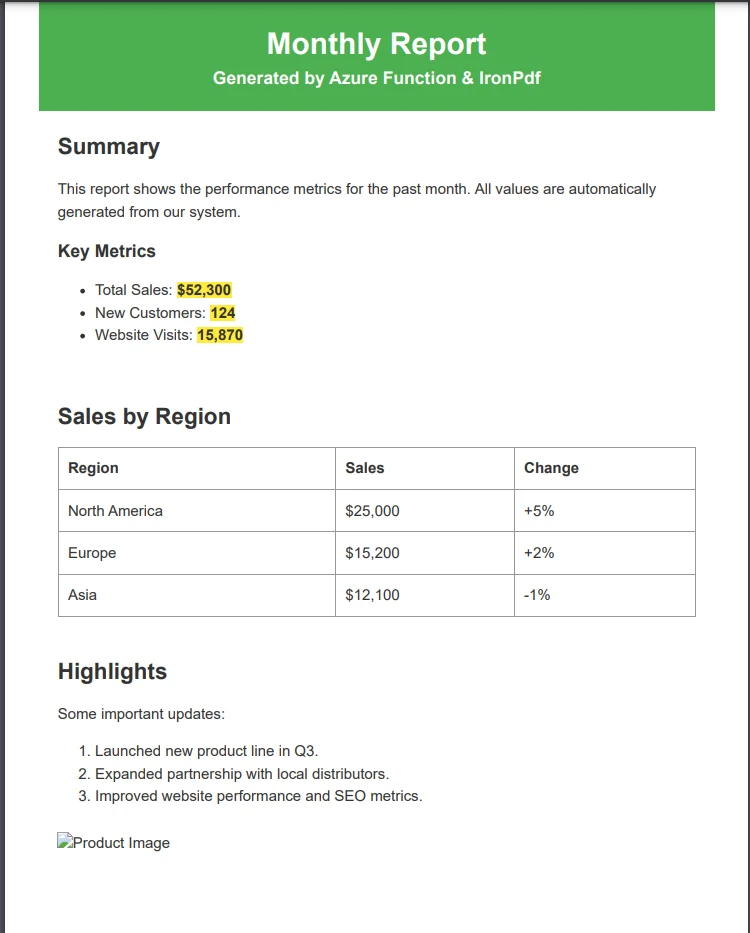
生成每月账户报表(PDF 文档)
using IronPDF C# PDF 库,开发人员可以在 .NET 项目中将 HTML 转换为可靠的 PDF 文件,而无需依赖外部服务。
阅读更多

将 IronPDF 的专业渲染引擎与 Azure 灵活的云基础架构相结合,即可轻松生成 Azure PDF 文件。 本指南将向您展示如何构建、部署和调整一个可用于生产的 PDF 生成器,该生成器可以处理从 HTML 转换到复杂文档操作的所有操作。
构建一个可靠的基于云的PDF生成器带来了独特的挑战。 由于沙箱限制、内存限制和分布式系统复杂性等因素,许多开发人员难以找到可用于生产环境的解决方案。 这就是Azure和IronPDF能够完美配合的地方——IronPDF 提供专业的PDF 生成功能,可以随着工作负载的增加而扩展,同时保持基本功能。
无论您是生成发票、报告,还是将 Web 内容转换为 PDF,本指南都将向您展示如何构建可靠的 Azure PDF 生成器。 您将负责从简单的HTML 转换到复杂的文档操作的所有工作,同时还要兼顾性能和成本。
立即开始免费试用 IronPDF ,并跟随教程构建您的云 PDF 解决方案。
并非所有PDF解决方案都能在云环境中良好运行。 一个可用于生产环境的 Azure PDF 生成器,除了基本的文档创建功能外,还必须满足关键要求。 了解 Azure Functions 部署选项是成功的关键。
性能和可扩展性决定了解决方案的成败。 您的生成器必须能够处理并发请求而不会出现瓶颈,在高峰期自动扩展,并能对复杂文档保持一致的响应时间。 选择一个专为云环境构建、了解无服务器架构细微差别的库。
Azure平台有一些特殊需要考虑的因素。 应用服务沙盒限制了 Win32/图形 API——使用桌面图形堆栈的库可能会失败。 消费计划中的内存限制会导致处理较大文档时出现故障。 分布式特性需要高效的无状态操作。 有关 Azure 部署故障排除的详细步骤,请参阅完整的故障排除文档。
企业应用需要的不只是HTML转换。 现代 PDF 生成器必须支持 JavaScript 渲染,处理复杂的 CSS,并提供加密和数字签名等安全功能。 IronPDF 通过其基于 Chrome 的渲染引擎解决了这些问题,使其非常适合 Azure 部署。
Azure 应用服务和 Azure Functions都托管云应用程序,但用途不同。 选择合适的方案会影响您的架构、成本模型和部署方法。
Azure 应用服务为 Web 应用、REST API 和移动后端提供完全托管服务。 它提供持久资源,支持长时间运行的进程,并包含内置的扩展、部署槽位和 CI/CD 集成。 这些特性使其成为持续运行应用程序的理想选择。
Azure Functions为事件驱动型、短生命周期任务提供无服务器计算。 函数仅在被触发时运行(例如 HTTP 请求、定时器或消息队列触发),您只需为执行时间付费。它们非常适合后台作业、数据处理、自动化脚本和微服务,无需持续运行主机。
| 特征 | 应用服务 | Azure Functions |
|---|---|---|
| 计费模式 | 每月固定金额 | 每次执行 |
| 闲置成本 | 始终计费。 | 怠速时为零 |
| 冷启动风险 | 极简主义 | 是的(消费计划) |
| 运行时间过长的PDF文件 | 支持 | 超时限制适用 |
| 定制容器 | 支持 | 仅限高级/专用 |
在 Azure Functions 中设置 IronPDF 需要选择正确的包。 该库提供适用于 Windows 和 Linux 环境的选项。 选择合适的软件包可以确保最佳性能并避免兼容性问题。
对于基于 Windows 的 Azure Functions,请使用NuGet上提供的标准 IronPDF 包。 对于Linux容器,使用IronPdf.Linux结合包运行部署,以加快冷启动速度。
# NuGet Package Manager (Windows / 应用服务)
Install-Package IronPdf

# .NET CLI (cross-platform)
dotnet add package IronPdf
# Linux / container deployments
Install-Package IronPdf.Linux
# .NET CLI alternative
dotnet add package IronPdf.Linux以下是一个完整的 Azure 函数,它使用顶级语句为 .NET 10 正确配置,用于处理 PDF 生成:
using IronPdf;
using Microsoft.Azure.Functions.Worker;
using Microsoft.Azure.Functions.Worker.Http;
using Microsoft.Extensions.Logging;
using System.Net;

// Configure IronPDF once at startup
License.LicenseKey = Environment.GetEnvironmentVariable("IronPdfLicenseKey") ?? string.Empty;
Installation.LinuxAndDockerDependenciesAutoConfig = true;
Installation.ChromeGpuMode = IronPdf.Engines.Chrome.ChromeGpuModes.Disabled;
Installation.CustomDeploymentDirectory = "/tmp";

var host = new HostBuilder()
    .ConfigureFunctionsWorkerDefaults()
    .Build();

host.Run();

// Azure Function class
public class PdfGeneratorFunction
{
    private readonly ILogger _logger;

    public PdfGeneratorFunction(ILoggerFactory loggerFactory)
    {
        _logger = loggerFactory.CreateLogger<PdfGeneratorFunction>();
    }

    [Function("GeneratePdf")]
    public async Task<HttpResponseData> Run(
        [HttpTrigger(AuthorizationLevel.Function, "post", Route = "generate-pdf")] HttpRequestData req)
    {
        string htmlContent = await req.ReadAsStringAsync() ?? string.Empty;
        var response = req.CreateResponse(HttpStatusCode.OK);

        if (string.IsNullOrWhiteSpace(htmlContent))
        {
            response.StatusCode = HttpStatusCode.BadRequest;
            await response.WriteStringAsync("HTML content is required.");
            return response;
        }

        try
        {
            var renderer = new ChromePdfRenderer
            {
                RenderingOptions = new ChromePdfRenderOptions
                {
                    MarginTop = 10,
                    MarginBottom = 10,
                    MarginLeft = 10,
                    MarginRight = 10,
                    EnableJavaScript = true
                }
            };

            using var pdf = renderer.RenderHtmlAsPdf(htmlContent);
            response.Headers.Add("Content-Type", "application/pdf");
            await response.WriteBytesAsync(pdf.BinaryData);
            _logger.LogInformation("Generated PDF with {PageCount} pages.", pdf.PageCount);
            return response;
        }
        catch (Exception ex)
        {
            _logger.LogError(ex, "Error generating PDF.");
            response.StatusCode = HttpStatusCode.InternalServerError;
            await response.WriteStringAsync($"PDF generation failed: {ex.Message}");
            return response;
        }
    }
}Imports IronPdf
Imports Microsoft.Azure.Functions.Worker
Imports Microsoft.Azure.Functions.Worker.Http
Imports Microsoft.Extensions.Logging
Imports System.Net
' Configure IronPDF once at startup
License.LicenseKey = If(Environment.GetEnvironmentVariable("IronPdfLicenseKey"), String.Empty)
Installation.LinuxAndDockerDependenciesAutoConfig = True
Installation.ChromeGpuMode = IronPdf.Engines.Chrome.ChromeGpuModes.Disabled
Installation.CustomDeploymentDirectory = "/tmp"
Dim host = New HostBuilder() _
.ConfigureFunctionsWorkerDefaults() _
.Build()
host.Run()
' Azure Function class
Public Class PdfGeneratorFunction
Private ReadOnly _logger As ILogger
Public Sub New(loggerFactory As ILoggerFactory)
_logger = loggerFactory.CreateLogger(Of PdfGeneratorFunction)()
End Sub
<Function("GeneratePdf")>
Public Async Function Run(
<HttpTrigger(AuthorizationLevel.Function, "post", Route:="generate-pdf")> req As HttpRequestData) As Task(Of HttpResponseData)
Dim htmlContent As String = Await req.ReadAsStringAsync() OrElse String.Empty
Dim response = req.CreateResponse(HttpStatusCode.OK)
If String.IsNullOrWhiteSpace(htmlContent) Then
response.StatusCode = HttpStatusCode.BadRequest
Await response.WriteStringAsync("HTML content is required.")
Return response
End If
Try
Dim renderer = New ChromePdfRenderer With {
.RenderingOptions = New ChromePdfRenderOptions With {
.MarginTop = 10,
.MarginBottom = 10,
.MarginLeft = 10,
.MarginRight = 10,
.EnableJavaScript = True
}
}
Using pdf = renderer.RenderHtmlAsPdf(htmlContent)
response.Headers.Add("Content-Type", "application/pdf")
Await response.WriteBytesAsync(pdf.BinaryData)
_logger.LogInformation("Generated PDF with {PageCount} pages.", pdf.PageCount)
Return response
End Using
Catch ex As Exception
_logger.LogError(ex, "Error generating PDF.")
response.StatusCode = HttpStatusCode.InternalServerError
Await response.WriteStringAsync($"PDF generation failed: {ex.Message}")
Return response
End Try
End Function
End Class配置设置可确保 Azure 部署成功。 LinuxAndDockerDependenciesAutoConfig正确配置Chrome依赖,同时禁用GPU模式可以防止无服务器渲染问题。 将部署目录设置为/tmp,在受限的Azure Functions环境中提供写入权限,这是"访问被拒绝"错误的常见来源。
与较轻的工作负载相比,使用 IronPDF 生成 PDF 需要更多的计算和图形支持。 微软和 IronPDF 都建议避免使用免费、共享和消耗层级,因为存在 GDI+ 限制、共享计算限制和内存不足等问题。
| 层级 | GDI+ 支持 | 适用于PDF | 注意事项 |
|---|---|---|---|
| 免费/共享 | 无 | 无 | 受限沙盒 |
| 消费(功能) | 数量有限 | 数量有限 | 内存容量限制适用 |
| 基本/标准 | 是 | 是 | 最低推荐 |
| 高级/独立 | 是 | 是的(最好) | 完整功能访问权限 |
对于高容量工作负载,高级版或独立版可提供专用计算、VNET 集成,并且没有冷启动延迟——所有这些因素都直接提高了 PDF 吞吐量和可靠性。
using Azure Functions 构建无服务器 PDF API 可实现自动扩展、按需付费定价和极少的基础设施管理。 以下函数接受带有可选安全设置的 JSON 请求,并返回 PDF 字节流。
using IronPdf;
using IronPdf.Editing;
using Microsoft.Azure.Functions.Worker;
using Microsoft.Azure.Functions.Worker.Http;
using System.Net;
using System.Text.Json;

public class PdfApiFunction
{
    private static readonly ChromePdfRenderer Renderer = new ChromePdfRenderer
    {
        RenderingOptions = new ChromePdfRenderOptions
        {
            PaperSize = IronPdf.Rendering.PdfPaperSize.A4,
            PrintHtmlBackgrounds = true,
            CreatePdfFormsFromHtml = true,
            CssMediaType = IronPdf.Rendering.PdfCssMediaType.Print
        }
    };

    [Function("ConvertUrlToPdf")]
    public async Task<HttpResponseData> ConvertUrl(
        [HttpTrigger(AuthorizationLevel.Function, "post")] HttpRequestData req)
    {
        var body = await req.ReadAsStringAsync() ?? "{}";
        var request = JsonSerializer.Deserialize<ConvertUrlRequest>(body);

        if (string.IsNullOrEmpty(request?.Url))
        {
            var bad = req.CreateResponse(HttpStatusCode.BadRequest);
            await bad.WriteStringAsync("URL is required.");
            return bad;
        }

        using var pdf = Renderer.RenderUrlAsPdf(request.Url);

        if (request.AddWatermark)
        {
            pdf.ApplyWatermark(
                "<h2>CONFIDENTIAL</h2>",
                30,
                VerticalAlignment.Middle,
                HorizontalAlignment.Center);
        }

        if (request.ProtectWithPassword && !string.IsNullOrEmpty(request.Password))
        {
            pdf.SecuritySettings.UserPassword = request.Password;
            pdf.SecuritySettings.AllowUserCopyPasteContent = false;
        }

        var response = req.CreateResponse(HttpStatusCode.OK);
        response.Headers.Add("Content-Type", "application/pdf");
        await response.WriteBytesAsync(pdf.BinaryData);
        return response;
    }
}

public class ConvertUrlRequest
{
    public string Url { get; set; } = string.Empty;
    public bool AddWatermark { get; set; }
    public bool ProtectWithPassword { get; set; }
    public string Password { get; set; } = string.Empty;
}Imports IronPdf
Imports IronPdf.Editing
Imports Microsoft.Azure.Functions.Worker
Imports Microsoft.Azure.Functions.Worker.Http
Imports System.Net
Imports System.Text.Json
Public Class PdfApiFunction
Private Shared ReadOnly Renderer As New ChromePdfRenderer With {
.RenderingOptions = New ChromePdfRenderOptions With {
.PaperSize = IronPdf.Rendering.PdfPaperSize.A4,
.PrintHtmlBackgrounds = True,
.CreatePdfFormsFromHtml = True,
.CssMediaType = IronPdf.Rendering.PdfCssMediaType.Print
}
}
<Function("ConvertUrlToPdf")>
Public Async Function ConvertUrl(
<HttpTrigger(AuthorizationLevel.Function, "post")> req As HttpRequestData) As Task(Of HttpResponseData)
Dim body As String = Await req.ReadAsStringAsync() ?? "{}"
Dim request As ConvertUrlRequest = JsonSerializer.Deserialize(Of ConvertUrlRequest)(body)
If String.IsNullOrEmpty(request?.Url) Then
Dim bad As HttpResponseData = req.CreateResponse(HttpStatusCode.BadRequest)
Await bad.WriteStringAsync("URL is required.")
Return bad
End If
Using pdf = Renderer.RenderUrlAsPdf(request.Url)
If request.AddWatermark Then
pdf.ApplyWatermark(
"<h2>CONFIDENTIAL</h2>",
30,
VerticalAlignment.Middle,
HorizontalAlignment.Center)
End If
If request.ProtectWithPassword AndAlso Not String.IsNullOrEmpty(request.Password) Then
pdf.SecuritySettings.UserPassword = request.Password
pdf.SecuritySettings.AllowUserCopyPasteContent = False
End If
Dim response As HttpResponseData = req.CreateResponse(HttpStatusCode.OK)
response.Headers.Add("Content-Type", "application/pdf")
Await response.WriteBytesAsync(pdf.BinaryData)
Return response
End Using
End Function
End Class
Public Class ConvertUrlRequest
Public Property Url As String = String.Empty
Public Property AddWatermark As Boolean
Public Property ProtectWithPassword As Boolean
Public Property Password As String = String.Empty
End Class这种结构既能提供灵活性,又能保持彻底分离。 该函数接受 JSON 请求,对其进行错误处理,并返回带有可选安全设置的 PDF 文件。 您可以添加水印、实施密码保护和应用数字签名。
生产环境 PDF 生成需要格外关注性能、可靠性和资源管理。 这些最佳实践可确保在实际条件下处理并发请求时达到最佳性能。
当请求并发时,内存管理变得至关重要。 始终使用using语句处理PDF对象。 对于大型文档,采用流式输出而不是将整个 PDF 加载到内存中。 实施请求限流以防止流量高峰期间内存耗尽。
using IronPdf;
using Microsoft.Extensions.Logging;

public static class PdfProductionService
{
    // Limit concurrent PDF operations to avoid memory exhaustion
    private static readonly SemaphoreSlim Throttle = new SemaphoreSlim(5);

    public static async Task<byte[]> GeneratePdfAsync(string html, ILogger log)
    {
        await Throttle.WaitAsync();
        try
        {
            using var renderer = new ChromePdfRenderer
            {
                RenderingOptions = new ChromePdfRenderOptions
                {
                    Timeout = 60,
                    UseMarginsOnHeaderAndFooter = UseMargins.None
                }
            };

            renderer.RenderingOptions.WaitFor.RenderDelay(1000);
            using var pdf = renderer.RenderHtmlAsPdf(html);

            log.LogInformation(
                "PDF generated: {Pages} pages, {Bytes} bytes",
                pdf.PageCount,
                pdf.BinaryData.Length);

            return pdf.BinaryData;
        }
        finally
        {
            Throttle.Release();
        }
    }
}Imports IronPdf
Imports Microsoft.Extensions.Logging
Imports System.Threading
Public Module PdfProductionService
' Limit concurrent PDF operations to avoid memory exhaustion
Private ReadOnly Throttle As New SemaphoreSlim(5)
Public Async Function GeneratePdfAsync(html As String, log As ILogger) As Task(Of Byte())
Await Throttle.WaitAsync()
Try
Using renderer As New ChromePdfRenderer With {
.RenderingOptions = New ChromePdfRenderOptions With {
.Timeout = 60,
.UseMarginsOnHeaderAndFooter = UseMargins.None
}
}
renderer.RenderingOptions.WaitFor.RenderDelay(1000)
Using pdf = renderer.RenderHtmlAsPdf(html)
log.LogInformation("PDF generated: {Pages} pages, {Bytes} bytes", pdf.PageCount, pdf.BinaryData.Length)
Return pdf.BinaryData
End Using
End Using
Finally
Throttle.Release()
End Try
End Function
End Module监控功能可让您了解 PDF 生成器的运行状况。 使用 Application Insights 跟踪生成时间、故障率和资源消耗。 设置异常警报,例如错误率增加或响应速度下降。 记录每次请求的详细信息,以便进行故障排除。
using Microsoft.ApplicationInsights;
using Microsoft.ApplicationInsights.Extensibility;

// Track custom metrics using Application Insights
var telemetry = new TelemetryClient(TelemetryConfiguration.CreateDefault());

var sw = System.Diagnostics.Stopwatch.StartNew();
var pdfBytes = await PdfProductionService.GeneratePdfAsync(html, logger);
sw.Stop();

telemetry.TrackMetric("PdfGenerationTimeMs", sw.Elapsed.TotalMilliseconds);
telemetry.TrackMetric("PdfFileSizeBytes", pdfBytes.Length);Imports Microsoft.ApplicationInsights
Imports Microsoft.ApplicationInsights.Extensibility
Imports System.Diagnostics
' Track custom metrics using Application Insights
Dim telemetry As New TelemetryClient(TelemetryConfiguration.CreateDefault())
Dim sw As Stopwatch = Stopwatch.StartNew()
Dim pdfBytes = Await PdfProductionService.GeneratePdfAsync(html, logger)
sw.Stop()
telemetry.TrackMetric("PdfGenerationTimeMs", sw.Elapsed.TotalMilliseconds)
telemetry.TrackMetric("PdfFileSizeBytes", pdfBytes.Length)IronPDF 的高级功能将您的 PDF 生成器扩展到基本创建之外。 Azure 完全支持这些功能,并可实现专业的文档处理工作流程。
IronPDF 支持密码保护和权限管理,可实现精细的文档控制。 PDF权限和密码功能采用AES-256加密:
using IronPdf;

// Load or generate the PDF
using var pdf = new ChromePdfRenderer().RenderHtmlAsPdf("<h1>Secure Report</h1>");

// Apply password protection
pdf.SecuritySettings.UserPassword = "view-password";
pdf.SecuritySettings.OwnerPassword = "admin-password";

// Restrict permissions
pdf.SecuritySettings.AllowUserPrinting = IronPdf.Security.PdfPrintSecurity.FullPrintRights;
pdf.SecuritySettings.AllowUserCopyPasteContent = false;
pdf.SecuritySettings.AllowUserAnnotations = false;

pdf.SaveAs("azure-secure-report.pdf");Imports IronPdf
' Load or generate the PDF
Using pdf = New ChromePdfRenderer().RenderHtmlAsPdf("<h1>Secure Report</h1>")
' Apply password protection
pdf.SecuritySettings.UserPassword = "view-password"
pdf.SecuritySettings.OwnerPassword = "admin-password"
' Restrict permissions
pdf.SecuritySettings.AllowUserPrinting = IronPdf.Security.PdfPrintSecurity.FullPrintRights
pdf.SecuritySettings.AllowUserCopyPasteContent = False
pdf.SecuritySettings.AllowUserAnnotations = False
pdf.SaveAs("azure-secure-report.pdf")
End Using您可以将加密与数字签名结合起来,创建不可否认、防篡改的文档。
在 Azure 中添加带有动态页码和自定义水印的页眉和页脚的方式与在任何其他 .NET 环境中的方式相同:
using IronPdf;

using var pdf = new ChromePdfRenderer().RenderHtmlAsPdf("<h1>Monthly Report</h1><p>Report content goes here.</p>");

// Add dynamic header with page numbers
var header = new HtmlHeaderFooter
{
    HtmlFragment = "<div style='text-align:right;font-size:10px'>Page {page} of {total-pages}</div>",
    Height = 15
};
pdf.AddHTMLHeaders(header);

// Apply a draft watermark when needed
pdf.ApplyWatermark(
    "<h1 style='color:gray;opacity:0.3'>DRAFT</h1>",
    45,
    IronPdf.Editing.VerticalAlignment.Middle,
    IronPdf.Editing.HorizontalAlignment.Center);

pdf.SaveAs("report-with-header.pdf");Imports IronPdf
Using pdf = New ChromePdfRenderer().RenderHtmlAsPdf("<h1>Monthly Report</h1><p>Report content goes here.</p>")
' Add dynamic header with page numbers
Dim header As New HtmlHeaderFooter With {
.HtmlFragment = "<div style='text-align:right;font-size:10px'>Page {page} of {total-pages}</div>",
.Height = 15
}
pdf.AddHTMLHeaders(header)
' Apply a draft watermark when needed
pdf.ApplyWatermark(
"<h1 style='color:gray;opacity:0.3'>DRAFT</h1>",
45,
IronPdf.Editing.VerticalAlignment.Middle,
IronPdf.Editing.HorizontalAlignment.Center)
pdf.SaveAs("report-with-header.pdf")
End Using您还可以合并或拆分PDF,提取文本,将PDF转换为图像,并处理PDF表单。
即使设置正确,将 PDF 生成器部署到 Azure 时也经常会出现一些问题。 了解这些问题可以节省宝贵的故障排除时间。
当 IronPDF 无法写入临时文件时,会出现**"拒绝访问路径"错误。 设置Installation.CustomDeploymentDirectory = "/tmp"以确保写入权限。 如果您使用包运行部署**,确保应用程序有单独的可写路径,因为在该模式下,/home/site/wwwroot是只读的。
当渲染复杂文档超过 Azure 的函数超时时间时,会发生超时异常。 增加渲染器超时时间,为 JavaScript 密集型页面添加渲染延迟,或将大型作业卸载到持久任务队列。
字体渲染问题表现为字体缺失或错误。 使用 Base64 编码嵌入字体,使用 Azure 原生支持的 Web 安全字体,或者切换到容器部署以实现完全的字体控制。
PDF 生成过程占用大量内存,因此会出现内存异常。 常见问题包括大型或并发请求期间出现内存不足异常。
最佳实践包括:
PdfDocument对象SemaphoreSlim限制并发请求,如生产服务示例所示完善的部署策略可确保您的 PDF 生成器保持稳定、可观察且易于更新。 以下实践适用于 Azure 应用服务或 Azure Functions。
***自动化 CI/CD:**使用 Azure DevOps 或 GitHub Actions 实现可重复、可审计的部署 ***许可证密钥:**将 IronPDF 许可证存储在 Azure Key Vault 中,而不是源代码控制或环境变量中。
/tmp)IronPdf.Linux; 对于Windows 应用服务使用标准IronPdf包Application Insights与Azure Functions和应用服务直接集成。使用TelemetryClient跟踪每个PDF生成事件的自定义指标:
using Microsoft.ApplicationInsights;

var telemetryClient = new TelemetryClient();
telemetryClient.TrackMetric("PdfGenerationTimeMs", generationTime.TotalMilliseconds);
telemetryClient.TrackMetric("PdfPageCount", pdfPageCount);
telemetryClient.TrackMetric("PdfFileSizeBytes", fileSizeBytes);Imports Microsoft.ApplicationInsights
Dim telemetryClient As New TelemetryClient()
telemetryClient.TrackMetric("PdfGenerationTimeMs", generationTime.TotalMilliseconds)
telemetryClient.TrackMetric("PdfPageCount", pdfPageCount)
telemetryClient.TrackMetric("PdfFileSizeBytes", fileSizeBytes)在 Azure 门户中设置基于指标的警报,以便在生成时间超过可接受阈值或错误率飙升时通知您。
现在,您已经对构建可用于生产的 Azure PDF 生成器有了完整的了解:从选择正确的 Azure 层级和安装正确的 NuGet 包,到配置云环境的渲染器,再到添加安全性、监控和资源限制。
Azure 的云基础设施与 IronPDF 基于 Chrome 的渲染引擎相结合,创建了一个可随您的需求扩展的 PDF 平台。 无论您是每小时处理少量文档还是数千份文档,该生成器都能保持稳定的性能和可预测的成本。
首先查看IronPDF 功能概述,了解所有可用功能,然后查阅文档以获取 API 详细信息。 准备部署时,激活免费试用许可证即可进行全功能测试,无需支付任何文档费用。 查看许可选项,选择适合您生产工作负载的方案。
有关其他文档处理选项,请查看IronPDF NuGet安装指南以及完整的Iron Software产品套件。


Curtis Chau 拥有卡尔顿大学的计算机科学学士学位,专注于前端开发,精通 Node.js、TypeScript、JavaScript 和 React。他热衷于打造直观且美观的用户界面,喜欢使用现代框架并创建结构良好、视觉吸引力强的手册。

当您需要PDF看起来像HTML时,速度快。















