Azure PDF generation becomes straightforward when you combine IronPDF's professional rendering engine with Azure's flexible cloud infrastructure. This guide shows you how to build, deploy, and tune a production-ready PDF generator that handles everything from HTML conversion to complex document manipulation.
Building a reliable cloud-based PDF generator presents unique challenges. Between sandbox restrictions, memory limitations, and distributed system complexity, many developers struggle to find a production-ready solution. That's where Azure and IronPDF work well together -- IronPDF offers professional PDF generation that scales with your workload while maintaining essential features.
Whether you're generating invoices, reports, or converting web content to PDFs, this guide shows you how to build a reliable Azure PDF generator. You'll handle everything from simple HTML conversion to complex document manipulation while tuning for performance and cost.
Get started with a free IronPDF trial and follow along to build your cloud PDF solution.
What Makes a Good Azure PDF Generator?
Not all PDF solutions work well in cloud environments. A production-ready Azure PDF generator must meet critical requirements beyond basic document creation. Understanding Azure Functions deployment options ensures success.
Performance and scalability define your solution's success. Your generator must handle concurrent requests without bottlenecks, scale automatically during peaks, and maintain consistent response times with complex documents. Choose a library built for cloud environments that understands serverless architecture nuances.
What Azure-Specific Constraints Should You Consider?
Azure's platform brings specific considerations. The App Service sandbox restricts Win32/graphics APIs -- libraries using desktop graphics stacks may fail. Memory constraints in consumption plans cause failures with larger documents. The distributed nature requires efficient stateless operations. For detailed Azure deployment troubleshooting, consult the complete troubleshooting documentation.
Which Enterprise Features Are Essential?
Enterprise applications need more than HTML conversion. Modern PDF generators must support JavaScript rendering, handle complex CSS, and offer security features like encryption and digital signatures. IronPDF addresses these with its Chrome-based rendering engine, making it well-suited for Azure deployment.
What Is the Difference Between Azure App Services and Azure Functions?
Azure App Services and Azure Functions both host cloud applications but serve different purposes. Choosing the right one affects your architecture, cost model, and deployment approach.
How Do You Choose Azure App Services?
Azure App Services provides fully managed hosting for web apps, REST APIs, and mobile backends. It offers persistent resources, supports long-running processes, and includes built-in scaling, deployment slots, and CI/CD integration. These features make it ideal for continuously running applications.
How Do You Decide When Azure Functions Are the Better Choice?
Azure Functions delivers serverless compute for event-driven, short-lived tasks. Functions run only when triggered (HTTP request, timer, or message queue), and you pay only for execution time. They excel at background jobs, data processing, automation scripts, and microservices without constantly running hosts.
How Do You Install IronPDF for Azure Functions?
Setting up IronPDF in Azure Functions requires choosing the right package. The library offers options for Windows and Linux environments. Proper package selection ensures optimal performance and avoids compatibility issues.
Which IronPDF Package Should You Install?
For Windows-based Azure Functions, use the standard IronPDF package available on NuGet. For Linux containers, use IronPdf.Linux with run-from-package deployment for faster cold starts.
# NuGet Package Manager (Windows / App Service)
Install-Package IronPdf

# .NET CLI (cross-platform)
dotnet add package IronPdf
# NuGet Package Manager (Windows / App Service)
Install-Package IronPdf

# .NET CLI (cross-platform)
dotnet add package IronPdf
SHELL
# Linux / container deployments
Install-Package IronPdf.Linux

# .NET CLI alternative
dotnet add package IronPdf.Linux
# Linux / container deployments
Install-Package IronPdf.Linux

# .NET CLI alternative
dotnet add package IronPdf.Linux
SHELL
Here is a complete Azure Function handling PDF generation with proper configuration for .NET 10 using top-level statements:
using IronPdf;
using Microsoft.Azure.Functions.Worker;
using Microsoft.Azure.Functions.Worker.Http;
using Microsoft.Extensions.Logging;
using System.Net;

// Configure IronPDF once at startup
License.LicenseKey = Environment.GetEnvironmentVariable("IronPdfLicenseKey") ?? string.Empty;
Installation.LinuxAndDockerDependenciesAutoConfig = true;
Installation.ChromeGpuMode = IronPdf.Engines.Chrome.ChromeGpuModes.Disabled;
Installation.CustomDeploymentDirectory = "/tmp";

var host = new HostBuilder()
    .ConfigureFunctionsWorkerDefaults()
    .Build();

host.Run();

// Azure Function class
public class PdfGeneratorFunction
{
    private readonly ILogger _logger;

    public PdfGeneratorFunction(ILoggerFactory loggerFactory)
    {
        _logger = loggerFactory.CreateLogger<PdfGeneratorFunction>();
    }

    [Function("GeneratePdf")]
    public async Task<HttpResponseData> Run(
        [HttpTrigger(AuthorizationLevel.Function, "post", Route = "generate-pdf")] HttpRequestData req)
    {
        string htmlContent = await req.ReadAsStringAsync() ?? string.Empty;
        var response = req.CreateResponse(HttpStatusCode.OK);

        if (string.IsNullOrWhiteSpace(htmlContent))
        {
            response.StatusCode = HttpStatusCode.BadRequest;
            await response.WriteStringAsync("HTML content is required.");
            return response;
        }

        try
        {
            var renderer = new ChromePdfRenderer
            {
                RenderingOptions = new ChromePdfRenderOptions
                {
                    MarginTop = 10,
                    MarginBottom = 10,
                    MarginLeft = 10,
                    MarginRight = 10,
                    EnableJavaScript = true
                }
            };

            using var pdf = renderer.RenderHtmlAsPdf(htmlContent);
            response.Headers.Add("Content-Type", "application/pdf");
            await response.WriteBytesAsync(pdf.BinaryData);
            _logger.LogInformation("Generated PDF with {PageCount} pages.", pdf.PageCount);
            return response;
        }
        catch (Exception ex)
        {
            _logger.LogError(ex, "Error generating PDF.");
            response.StatusCode = HttpStatusCode.InternalServerError;
            await response.WriteStringAsync($"PDF generation failed: {ex.Message}");
            return response;
        }
    }
}
using IronPdf;
using Microsoft.Azure.Functions.Worker;
using Microsoft.Azure.Functions.Worker.Http;
using Microsoft.Extensions.Logging;
using System.Net;

// Configure IronPDF once at startup
License.LicenseKey = Environment.GetEnvironmentVariable("IronPdfLicenseKey") ?? string.Empty;
Installation.LinuxAndDockerDependenciesAutoConfig = true;
Installation.ChromeGpuMode = IronPdf.Engines.Chrome.ChromeGpuModes.Disabled;
Installation.CustomDeploymentDirectory = "/tmp";

var host = new HostBuilder()
    .ConfigureFunctionsWorkerDefaults()
    .Build();

host.Run();

// Azure Function class
public class PdfGeneratorFunction
{
    private readonly ILogger _logger;

    public PdfGeneratorFunction(ILoggerFactory loggerFactory)
    {
        _logger = loggerFactory.CreateLogger<PdfGeneratorFunction>();
    }

    [Function("GeneratePdf")]
    public async Task<HttpResponseData> Run(
        [HttpTrigger(AuthorizationLevel.Function, "post", Route = "generate-pdf")] HttpRequestData req)
    {
        string htmlContent = await req.ReadAsStringAsync() ?? string.Empty;
        var response = req.CreateResponse(HttpStatusCode.OK);

        if (string.IsNullOrWhiteSpace(htmlContent))
        {
            response.StatusCode = HttpStatusCode.BadRequest;
            await response.WriteStringAsync("HTML content is required.");
            return response;
        }

        try
        {
            var renderer = new ChromePdfRenderer
            {
                RenderingOptions = new ChromePdfRenderOptions
                {
                    MarginTop = 10,
                    MarginBottom = 10,
                    MarginLeft = 10,
                    MarginRight = 10,
                    EnableJavaScript = true
                }
            };

            using var pdf = renderer.RenderHtmlAsPdf(htmlContent);
            response.Headers.Add("Content-Type", "application/pdf");
            await response.WriteBytesAsync(pdf.BinaryData);
            _logger.LogInformation("Generated PDF with {PageCount} pages.", pdf.PageCount);
            return response;
        }
        catch (Exception ex)
        {
            _logger.LogError(ex, "Error generating PDF.");
            response.StatusCode = HttpStatusCode.InternalServerError;
            await response.WriteStringAsync($"PDF generation failed: {ex.Message}");
            return response;
        }
    }
}
Imports IronPdf
Imports Microsoft.Azure.Functions.Worker
Imports Microsoft.Azure.Functions.Worker.Http
Imports Microsoft.Extensions.Logging
Imports System.Net
' Configure IronPDF once at startup
License.LicenseKey = If(Environment.GetEnvironmentVariable("IronPdfLicenseKey"), String.Empty)
Installation.LinuxAndDockerDependenciesAutoConfig = True
Installation.ChromeGpuMode = IronPdf.Engines.Chrome.ChromeGpuModes.Disabled
Installation.CustomDeploymentDirectory = "/tmp"
Dim host = New HostBuilder() _
.ConfigureFunctionsWorkerDefaults() _
.Build()
host.Run()
' Azure Function class
Public Class PdfGeneratorFunction
Private ReadOnly _logger As ILogger
Public Sub New(loggerFactory As ILoggerFactory)
_logger = loggerFactory.CreateLogger(Of PdfGeneratorFunction)()
End Sub
<Function("GeneratePdf")>
Public Async Function Run(
<HttpTrigger(AuthorizationLevel.Function, "post", Route:="generate-pdf")> req As HttpRequestData) As Task(Of HttpResponseData)
Dim htmlContent As String = Await req.ReadAsStringAsync() OrElse String.Empty
Dim response = req.CreateResponse(HttpStatusCode.OK)
If String.IsNullOrWhiteSpace(htmlContent) Then
response.StatusCode = HttpStatusCode.BadRequest
Await response.WriteStringAsync("HTML content is required.")
Return response
End If
Try
Dim renderer = New ChromePdfRenderer With {
.RenderingOptions = New ChromePdfRenderOptions With {
.MarginTop = 10,
.MarginBottom = 10,
.MarginLeft = 10,
.MarginRight = 10,
.EnableJavaScript = True
}
}
Using pdf = renderer.RenderHtmlAsPdf(htmlContent)
response.Headers.Add("Content-Type", "application/pdf")
Await response.WriteBytesAsync(pdf.BinaryData)
_logger.LogInformation("Generated PDF with {PageCount} pages.", pdf.PageCount)
Return response
End Using
Catch ex As Exception
_logger.LogError(ex, "Error generating PDF.")
response.StatusCode = HttpStatusCode.InternalServerError
Await response.WriteStringAsync($"PDF generation failed: {ex.Message}")
Return response
End Try
End Function
End Class
Imports IronPdf
Imports Microsoft.Azure.Functions.Worker
Imports Microsoft.Azure.Functions.Worker.Http
Imports Microsoft.Extensions.Logging
Imports System.Net

' Configure IronPDF once at startup
License.LicenseKey = If(Environment.GetEnvironmentVariable("IronPdfLicenseKey"), String.Empty)
Installation.LinuxAndDockerDependenciesAutoConfig = True
Installation.ChromeGpuMode = IronPdf.Engines.Chrome.ChromeGpuModes.Disabled
Installation.CustomDeploymentDirectory = "/tmp"

Dim host = New HostBuilder() _
    .ConfigureFunctionsWorkerDefaults() _
    .Build()

host.Run()

' Azure Function class
Public Class PdfGeneratorFunction
    Private ReadOnly _logger As ILogger

    Public Sub New(loggerFactory As ILoggerFactory)
        _logger = loggerFactory.CreateLogger(Of PdfGeneratorFunction)()
    End Sub

    <Function("GeneratePdf")>
    Public Async Function Run(
        <HttpTrigger(AuthorizationLevel.Function, "post", Route:="generate-pdf")> req As HttpRequestData) As Task(Of HttpResponseData)

        Dim htmlContent As String = Await req.ReadAsStringAsync() OrElse String.Empty
        Dim response = req.CreateResponse(HttpStatusCode.OK)

        If String.IsNullOrWhiteSpace(htmlContent) Then
            response.StatusCode = HttpStatusCode.BadRequest
            Await response.WriteStringAsync("HTML content is required.")
            Return response
        End If

        Try
            Dim renderer = New ChromePdfRenderer With {
                .RenderingOptions = New ChromePdfRenderOptions With {
                    .MarginTop = 10,
                    .MarginBottom = 10,
                    .MarginLeft = 10,
                    .MarginRight = 10,
                    .EnableJavaScript = True
                }
            }

            Using pdf = renderer.RenderHtmlAsPdf(htmlContent)
                response.Headers.Add("Content-Type", "application/pdf")
                Await response.WriteBytesAsync(pdf.BinaryData)
                _logger.LogInformation("Generated PDF with {PageCount} pages.", pdf.PageCount)
                Return response
            End Using
        Catch ex As Exception
            _logger.LogError(ex, "Error generating PDF.")
            response.StatusCode = HttpStatusCode.InternalServerError
            Await response.WriteStringAsync($"PDF generation failed: {ex.Message}")
            Return response
        End Try
    End Function
End Class
Why Are These Configuration Settings Important?
The configuration settings ensure Azure deployment success. LinuxAndDockerDependenciesAutoConfig configures Chrome dependencies correctly, while disabling GPU mode prevents serverless rendering issues. Setting the deployment directory to /tmp provides write access in restricted Azure Functions environments, which is a common source of "access denied" errors.
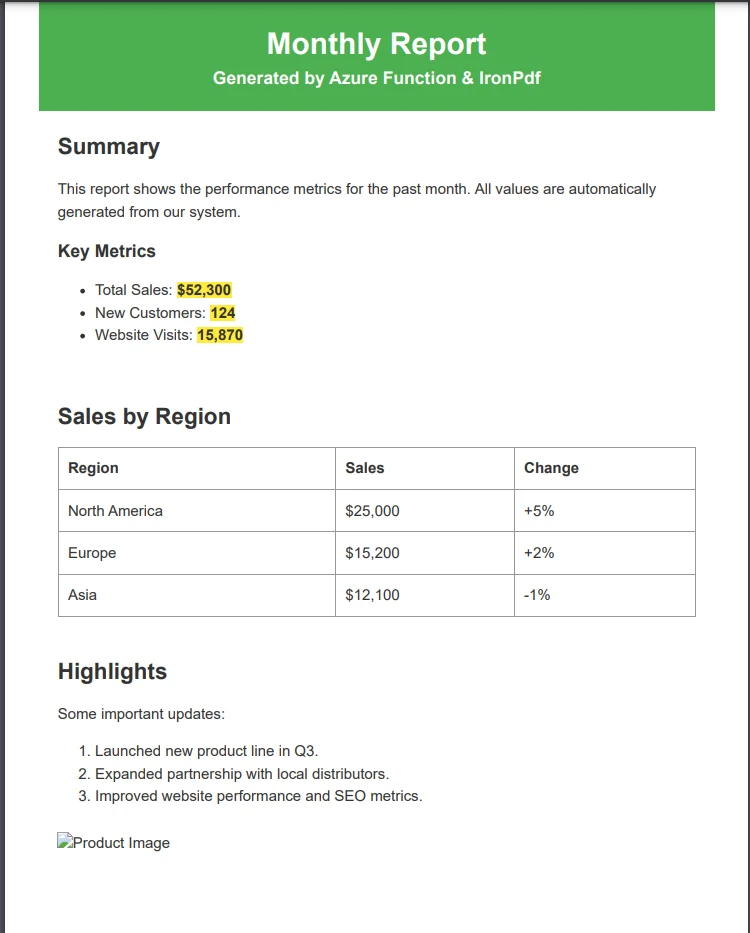
Example Output PDF File
Which Azure Hosting Tier Should You Choose for PDF Generation?
PDF generation with IronPDF requires more compute and graphics support than lighter workloads. Both Microsoft and IronPDF recommend avoiding Free, Shared, and Consumption tiers due to GDI+ restrictions, shared compute limits, and insufficient memory.
For high-volume workloads, the Premium or Isolated tiers give you dedicated compute, VNET integration, and no cold-start delays -- all factors that directly improve PDF throughput and reliability.
How Do You Build a Serverless PDF API with Azure Functions?
Building a serverless PDF API with Azure Functions delivers automatic scaling, pay-per-use pricing, and minimal infrastructure management. The function below accepts JSON requests with optional security settings and returns a PDF byte stream.
How Do You Structure a Production PDF API?
using IronPdf;
using IronPdf.Editing;
using Microsoft.Azure.Functions.Worker;
using Microsoft.Azure.Functions.Worker.Http;
using System.Net;
using System.Text.Json;

public class PdfApiFunction
{
    private static readonly ChromePdfRenderer Renderer = new ChromePdfRenderer
    {
        RenderingOptions = new ChromePdfRenderOptions
        {
            PaperSize = IronPdf.Rendering.PdfPaperSize.A4,
            PrintHtmlBackgrounds = true,
            CreatePdfFormsFromHtml = true,
            CssMediaType = IronPdf.Rendering.PdfCssMediaType.Print
        }
    };

    [Function("ConvertUrlToPdf")]
    public async Task<HttpResponseData> ConvertUrl(
        [HttpTrigger(AuthorizationLevel.Function, "post")] HttpRequestData req)
    {
        var body = await req.ReadAsStringAsync() ?? "{}";
        var request = JsonSerializer.Deserialize<ConvertUrlRequest>(body);

        if (string.IsNullOrEmpty(request?.Url))
        {
            var bad = req.CreateResponse(HttpStatusCode.BadRequest);
            await bad.WriteStringAsync("URL is required.");
            return bad;
        }

        using var pdf = Renderer.RenderUrlAsPdf(request.Url);

        if (request.AddWatermark)
        {
            pdf.ApplyWatermark(
                "<h2>CONFIDENTIAL</h2>",
                30,
                VerticalAlignment.Middle,
                HorizontalAlignment.Center);
        }

        if (request.ProtectWithPassword && !string.IsNullOrEmpty(request.Password))
        {
            pdf.SecuritySettings.UserPassword = request.Password;
            pdf.SecuritySettings.AllowUserCopyPasteContent = false;
        }

        var response = req.CreateResponse(HttpStatusCode.OK);
        response.Headers.Add("Content-Type", "application/pdf");
        await response.WriteBytesAsync(pdf.BinaryData);
        return response;
    }
}

public class ConvertUrlRequest
{
    public string Url { get; set; } = string.Empty;
    public bool AddWatermark { get; set; }
    public bool ProtectWithPassword { get; set; }
    public string Password { get; set; } = string.Empty;
}
using IronPdf;
using IronPdf.Editing;
using Microsoft.Azure.Functions.Worker;
using Microsoft.Azure.Functions.Worker.Http;
using System.Net;
using System.Text.Json;

public class PdfApiFunction
{
    private static readonly ChromePdfRenderer Renderer = new ChromePdfRenderer
    {
        RenderingOptions = new ChromePdfRenderOptions
        {
            PaperSize = IronPdf.Rendering.PdfPaperSize.A4,
            PrintHtmlBackgrounds = true,
            CreatePdfFormsFromHtml = true,
            CssMediaType = IronPdf.Rendering.PdfCssMediaType.Print
        }
    };

    [Function("ConvertUrlToPdf")]
    public async Task<HttpResponseData> ConvertUrl(
        [HttpTrigger(AuthorizationLevel.Function, "post")] HttpRequestData req)
    {
        var body = await req.ReadAsStringAsync() ?? "{}";
        var request = JsonSerializer.Deserialize<ConvertUrlRequest>(body);

        if (string.IsNullOrEmpty(request?.Url))
        {
            var bad = req.CreateResponse(HttpStatusCode.BadRequest);
            await bad.WriteStringAsync("URL is required.");
            return bad;
        }

        using var pdf = Renderer.RenderUrlAsPdf(request.Url);

        if (request.AddWatermark)
        {
            pdf.ApplyWatermark(
                "<h2>CONFIDENTIAL</h2>",
                30,
                VerticalAlignment.Middle,
                HorizontalAlignment.Center);
        }

        if (request.ProtectWithPassword && !string.IsNullOrEmpty(request.Password))
        {
            pdf.SecuritySettings.UserPassword = request.Password;
            pdf.SecuritySettings.AllowUserCopyPasteContent = false;
        }

        var response = req.CreateResponse(HttpStatusCode.OK);
        response.Headers.Add("Content-Type", "application/pdf");
        await response.WriteBytesAsync(pdf.BinaryData);
        return response;
    }
}

public class ConvertUrlRequest
{
    public string Url { get; set; } = string.Empty;
    public bool AddWatermark { get; set; }
    public bool ProtectWithPassword { get; set; }
    public string Password { get; set; } = string.Empty;
}
Imports IronPdf
Imports IronPdf.Editing
Imports Microsoft.Azure.Functions.Worker
Imports Microsoft.Azure.Functions.Worker.Http
Imports System.Net
Imports System.Text.Json
Public Class PdfApiFunction
Private Shared ReadOnly Renderer As New ChromePdfRenderer With {
.RenderingOptions = New ChromePdfRenderOptions With {
.PaperSize = IronPdf.Rendering.PdfPaperSize.A4,
.PrintHtmlBackgrounds = True,
.CreatePdfFormsFromHtml = True,
.CssMediaType = IronPdf.Rendering.PdfCssMediaType.Print
}
}
<Function("ConvertUrlToPdf")>
Public Async Function ConvertUrl(
<HttpTrigger(AuthorizationLevel.Function, "post")> req As HttpRequestData) As Task(Of HttpResponseData)
Dim body As String = Await req.ReadAsStringAsync() ?? "{}"
Dim request As ConvertUrlRequest = JsonSerializer.Deserialize(Of ConvertUrlRequest)(body)
If String.IsNullOrEmpty(request?.Url) Then
Dim bad As HttpResponseData = req.CreateResponse(HttpStatusCode.BadRequest)
Await bad.WriteStringAsync("URL is required.")
Return bad
End If
Using pdf = Renderer.RenderUrlAsPdf(request.Url)
If request.AddWatermark Then
pdf.ApplyWatermark(
"<h2>CONFIDENTIAL</h2>",
30,
VerticalAlignment.Middle,
HorizontalAlignment.Center)
End If
If request.ProtectWithPassword AndAlso Not String.IsNullOrEmpty(request.Password) Then
pdf.SecuritySettings.UserPassword = request.Password
pdf.SecuritySettings.AllowUserCopyPasteContent = False
End If
Dim response As HttpResponseData = req.CreateResponse(HttpStatusCode.OK)
response.Headers.Add("Content-Type", "application/pdf")
Await response.WriteBytesAsync(pdf.BinaryData)
Return response
End Using
End Function
End Class
Public Class ConvertUrlRequest
Public Property Url As String = String.Empty
Public Property AddWatermark As Boolean
Public Property ProtectWithPassword As Boolean
Public Property Password As String = String.Empty
End Class
Imports IronPdf
Imports IronPdf.Editing
Imports Microsoft.Azure.Functions.Worker
Imports Microsoft.Azure.Functions.Worker.Http
Imports System.Net
Imports System.Text.Json

Public Class PdfApiFunction
    Private Shared ReadOnly Renderer As New ChromePdfRenderer With {
        .RenderingOptions = New ChromePdfRenderOptions With {
            .PaperSize = IronPdf.Rendering.PdfPaperSize.A4,
            .PrintHtmlBackgrounds = True,
            .CreatePdfFormsFromHtml = True,
            .CssMediaType = IronPdf.Rendering.PdfCssMediaType.Print
        }
    }

    <Function("ConvertUrlToPdf")>
    Public Async Function ConvertUrl(
        <HttpTrigger(AuthorizationLevel.Function, "post")> req As HttpRequestData) As Task(Of HttpResponseData)

        Dim body As String = Await req.ReadAsStringAsync() ?? "{}"
        Dim request As ConvertUrlRequest = JsonSerializer.Deserialize(Of ConvertUrlRequest)(body)

        If String.IsNullOrEmpty(request?.Url) Then
            Dim bad As HttpResponseData = req.CreateResponse(HttpStatusCode.BadRequest)
            Await bad.WriteStringAsync("URL is required.")
            Return bad
        End If

        Using pdf = Renderer.RenderUrlAsPdf(request.Url)
            If request.AddWatermark Then
                pdf.ApplyWatermark(
                    "<h2>CONFIDENTIAL</h2>",
                    30,
                    VerticalAlignment.Middle,
                    HorizontalAlignment.Center)
            End If

            If request.ProtectWithPassword AndAlso Not String.IsNullOrEmpty(request.Password) Then
                pdf.SecuritySettings.UserPassword = request.Password
                pdf.SecuritySettings.AllowUserCopyPasteContent = False
            End If

            Dim response As HttpResponseData = req.CreateResponse(HttpStatusCode.OK)
            response.Headers.Add("Content-Type", "application/pdf")
            Await response.WriteBytesAsync(pdf.BinaryData)
            Return response
        End Using
    End Function
End Class

Public Class ConvertUrlRequest
    Public Property Url As String = String.Empty
    Public Property AddWatermark As Boolean
    Public Property ProtectWithPassword As Boolean
    Public Property Password As String = String.Empty
End Class
This structure provides flexibility while maintaining clean separation. The function accepts JSON requests, processes them with error handling, and returns PDFs with optional security. You can add watermarks, implement password protection, and apply digital signatures.
What Are the Best Practices for Production PDF Generation?
Production PDF generation requires careful attention to performance, reliability, and resource management. These best practices ensure optimal performance under real conditions across concurrent requests.
How Do You Manage Memory and Resources?
Memory management becomes critical with concurrent requests. Always dispose PDF objects using using statements. For large documents, stream output rather than loading entire PDFs into memory. Implement request throttling to prevent memory exhaustion during traffic spikes.
using IronPdf;
using Microsoft.Extensions.Logging;

public static class PdfProductionService
{
    // Limit concurrent PDF operations to avoid memory exhaustion
    private static readonly SemaphoreSlim Throttle = new SemaphoreSlim(5);

    public static async Task<byte[]> GeneratePdfAsync(string html, ILogger log)
    {
        await Throttle.WaitAsync();
        try
        {
            using var renderer = new ChromePdfRenderer
            {
                RenderingOptions = new ChromePdfRenderOptions
                {
                    Timeout = 60,
                    UseMarginsOnHeaderAndFooter = UseMargins.None
                }
            };

            renderer.RenderingOptions.WaitFor.RenderDelay(1000);
            using var pdf = renderer.RenderHtmlAsPdf(html);

            log.LogInformation(
                "PDF generated: {Pages} pages, {Bytes} bytes",
                pdf.PageCount,
                pdf.BinaryData.Length);

            return pdf.BinaryData;
        }
        finally
        {
            Throttle.Release();
        }
    }
}
using IronPdf;
using Microsoft.Extensions.Logging;

public static class PdfProductionService
{
    // Limit concurrent PDF operations to avoid memory exhaustion
    private static readonly SemaphoreSlim Throttle = new SemaphoreSlim(5);

    public static async Task<byte[]> GeneratePdfAsync(string html, ILogger log)
    {
        await Throttle.WaitAsync();
        try
        {
            using var renderer = new ChromePdfRenderer
            {
                RenderingOptions = new ChromePdfRenderOptions
                {
                    Timeout = 60,
                    UseMarginsOnHeaderAndFooter = UseMargins.None
                }
            };

            renderer.RenderingOptions.WaitFor.RenderDelay(1000);
            using var pdf = renderer.RenderHtmlAsPdf(html);

            log.LogInformation(
                "PDF generated: {Pages} pages, {Bytes} bytes",
                pdf.PageCount,
                pdf.BinaryData.Length);

            return pdf.BinaryData;
        }
        finally
        {
            Throttle.Release();
        }
    }
}
Imports IronPdf
Imports Microsoft.Extensions.Logging
Imports System.Threading
Public Module PdfProductionService
' Limit concurrent PDF operations to avoid memory exhaustion
Private ReadOnly Throttle As New SemaphoreSlim(5)
Public Async Function GeneratePdfAsync(html As String, log As ILogger) As Task(Of Byte())
Await Throttle.WaitAsync()
Try
Using renderer As New ChromePdfRenderer With {
.RenderingOptions = New ChromePdfRenderOptions With {
.Timeout = 60,
.UseMarginsOnHeaderAndFooter = UseMargins.None
}
}
renderer.RenderingOptions.WaitFor.RenderDelay(1000)
Using pdf = renderer.RenderHtmlAsPdf(html)
log.LogInformation("PDF generated: {Pages} pages, {Bytes} bytes", pdf.PageCount, pdf.BinaryData.Length)
Return pdf.BinaryData
End Using
End Using
Finally
Throttle.Release()
End Try
End Function
End Module
Imports IronPdf
Imports Microsoft.Extensions.Logging
Imports System.Threading

Public Module PdfProductionService
    ' Limit concurrent PDF operations to avoid memory exhaustion
    Private ReadOnly Throttle As New SemaphoreSlim(5)

    Public Async Function GeneratePdfAsync(html As String, log As ILogger) As Task(Of Byte())
        Await Throttle.WaitAsync()
        Try
            Using renderer As New ChromePdfRenderer With {
                .RenderingOptions = New ChromePdfRenderOptions With {
                    .Timeout = 60,
                    .UseMarginsOnHeaderAndFooter = UseMargins.None
                }
            }
                renderer.RenderingOptions.WaitFor.RenderDelay(1000)
                Using pdf = renderer.RenderHtmlAsPdf(html)
                    log.LogInformation("PDF generated: {Pages} pages, {Bytes} bytes", pdf.PageCount, pdf.BinaryData.Length)
                    Return pdf.BinaryData
                End Using
            End Using
        Finally
            Throttle.Release()
        End Try
    End Function
End Module
How Do You Monitor PDF Generation Health?
Monitoring provides visibility into your PDF generator's health. Use Application Insights to track generation times, failure rates, and resource consumption. Set alerts for anomalies like increased errors or response degradation. Log detailed information about each request for troubleshooting.
using Microsoft.ApplicationInsights;
using Microsoft.ApplicationInsights.Extensibility;

// Track custom metrics using Application Insights
var telemetry = new TelemetryClient(TelemetryConfiguration.CreateDefault());

var sw = System.Diagnostics.Stopwatch.StartNew();
var pdfBytes = await PdfProductionService.GeneratePdfAsync(html, logger);
sw.Stop();

telemetry.TrackMetric("PdfGenerationTimeMs", sw.Elapsed.TotalMilliseconds);
telemetry.TrackMetric("PdfFileSizeBytes", pdfBytes.Length);
using Microsoft.ApplicationInsights;
using Microsoft.ApplicationInsights.Extensibility;

// Track custom metrics using Application Insights
var telemetry = new TelemetryClient(TelemetryConfiguration.CreateDefault());

var sw = System.Diagnostics.Stopwatch.StartNew();
var pdfBytes = await PdfProductionService.GeneratePdfAsync(html, logger);
sw.Stop();

telemetry.TrackMetric("PdfGenerationTimeMs", sw.Elapsed.TotalMilliseconds);
telemetry.TrackMetric("PdfFileSizeBytes", pdfBytes.Length);
Imports Microsoft.ApplicationInsights
Imports Microsoft.ApplicationInsights.Extensibility
Imports System.Diagnostics
' Track custom metrics using Application Insights
Dim telemetry As New TelemetryClient(TelemetryConfiguration.CreateDefault())
Dim sw As Stopwatch = Stopwatch.StartNew()
Dim pdfBytes = Await PdfProductionService.GeneratePdfAsync(html, logger)
sw.Stop()
telemetry.TrackMetric("PdfGenerationTimeMs", sw.Elapsed.TotalMilliseconds)
telemetry.TrackMetric("PdfFileSizeBytes", pdfBytes.Length)
Imports Microsoft.ApplicationInsights
Imports Microsoft.ApplicationInsights.Extensibility
Imports System.Diagnostics

' Track custom metrics using Application Insights
Dim telemetry As New TelemetryClient(TelemetryConfiguration.CreateDefault())

Dim sw As Stopwatch = Stopwatch.StartNew()
Dim pdfBytes = Await PdfProductionService.GeneratePdfAsync(html, logger)
sw.Stop()

telemetry.TrackMetric("PdfGenerationTimeMs", sw.Elapsed.TotalMilliseconds)
telemetry.TrackMetric("PdfFileSizeBytes", pdfBytes.Length)
How Do You Handle Advanced PDF Features in Azure?
IronPDF's advanced features expand your PDF generator beyond basic creation. These capabilities are fully supported in Azure and enable professional document processing workflows.
How Do You Secure PDFs with Encryption and Permissions?
IronPDF supports password protection and permission management for fine-grained document control. The PDF permissions and passwords feature applies AES-256 encryption:
using IronPdf;

// Load or generate the PDF
using var pdf = new ChromePdfRenderer().RenderHtmlAsPdf("<h1>Secure Report</h1>");

// Apply password protection
pdf.SecuritySettings.UserPassword = "view-password";
pdf.SecuritySettings.OwnerPassword = "admin-password";

// Restrict permissions
pdf.SecuritySettings.AllowUserPrinting = IronPdf.Security.PdfPrintSecurity.FullPrintRights;
pdf.SecuritySettings.AllowUserCopyPasteContent = false;
pdf.SecuritySettings.AllowUserAnnotations = false;

pdf.SaveAs("azure-secure-report.pdf");
using IronPdf;

// Load or generate the PDF
using var pdf = new ChromePdfRenderer().RenderHtmlAsPdf("<h1>Secure Report</h1>");

// Apply password protection
pdf.SecuritySettings.UserPassword = "view-password";
pdf.SecuritySettings.OwnerPassword = "admin-password";

// Restrict permissions
pdf.SecuritySettings.AllowUserPrinting = IronPdf.Security.PdfPrintSecurity.FullPrintRights;
pdf.SecuritySettings.AllowUserCopyPasteContent = false;
pdf.SecuritySettings.AllowUserAnnotations = false;

pdf.SaveAs("azure-secure-report.pdf");
Imports IronPdf
' Load or generate the PDF
Using pdf = New ChromePdfRenderer().RenderHtmlAsPdf("<h1>Secure Report</h1>")
' Apply password protection
pdf.SecuritySettings.UserPassword = "view-password"
pdf.SecuritySettings.OwnerPassword = "admin-password"
' Restrict permissions
pdf.SecuritySettings.AllowUserPrinting = IronPdf.Security.PdfPrintSecurity.FullPrintRights
pdf.SecuritySettings.AllowUserCopyPasteContent = False
pdf.SecuritySettings.AllowUserAnnotations = False
pdf.SaveAs("azure-secure-report.pdf")
End Using
Imports IronPdf

' Load or generate the PDF
Using pdf = New ChromePdfRenderer().RenderHtmlAsPdf("<h1>Secure Report</h1>")

    ' Apply password protection
    pdf.SecuritySettings.UserPassword = "view-password"
    pdf.SecuritySettings.OwnerPassword = "admin-password"

    ' Restrict permissions
    pdf.SecuritySettings.AllowUserPrinting = IronPdf.Security.PdfPrintSecurity.FullPrintRights
    pdf.SecuritySettings.AllowUserCopyPasteContent = False
    pdf.SecuritySettings.AllowUserAnnotations = False

    pdf.SaveAs("azure-secure-report.pdf")
End Using
You can combine encryption with digital signatures to create non-repudiable, tamper-evident documents.
Adding headers and footers with dynamic page numbers and custom watermarks works the same way in Azure as in any other .NET environment:
using IronPdf;

using var pdf = new ChromePdfRenderer().RenderHtmlAsPdf("<h1>Monthly Report</h1><p>Report content goes here.</p>");

// Add dynamic header with page numbers
var header = new HtmlHeaderFooter
{
    HtmlFragment = "<div style='text-align:right;font-size:10px'>Page {page} of {total-pages}</div>",
    Height = 15
};
pdf.AddHTMLHeaders(header);

// Apply a draft watermark when needed
pdf.ApplyWatermark(
    "<h1 style='color:gray;opacity:0.3'>DRAFT</h1>",
    45,
    IronPdf.Editing.VerticalAlignment.Middle,
    IronPdf.Editing.HorizontalAlignment.Center);

pdf.SaveAs("report-with-header.pdf");
using IronPdf;

using var pdf = new ChromePdfRenderer().RenderHtmlAsPdf("<h1>Monthly Report</h1><p>Report content goes here.</p>");

// Add dynamic header with page numbers
var header = new HtmlHeaderFooter
{
    HtmlFragment = "<div style='text-align:right;font-size:10px'>Page {page} of {total-pages}</div>",
    Height = 15
};
pdf.AddHTMLHeaders(header);

// Apply a draft watermark when needed
pdf.ApplyWatermark(
    "<h1 style='color:gray;opacity:0.3'>DRAFT</h1>",
    45,
    IronPdf.Editing.VerticalAlignment.Middle,
    IronPdf.Editing.HorizontalAlignment.Center);

pdf.SaveAs("report-with-header.pdf");
Imports IronPdf
Using pdf = New ChromePdfRenderer().RenderHtmlAsPdf("<h1>Monthly Report</h1><p>Report content goes here.</p>")
' Add dynamic header with page numbers
Dim header As New HtmlHeaderFooter With {
.HtmlFragment = "<div style='text-align:right;font-size:10px'>Page {page} of {total-pages}</div>",
.Height = 15
}
pdf.AddHTMLHeaders(header)
' Apply a draft watermark when needed
pdf.ApplyWatermark(
"<h1 style='color:gray;opacity:0.3'>DRAFT</h1>",
45,
IronPdf.Editing.VerticalAlignment.Middle,
IronPdf.Editing.HorizontalAlignment.Center)
pdf.SaveAs("report-with-header.pdf")
End Using
Imports IronPdf

Using pdf = New ChromePdfRenderer().RenderHtmlAsPdf("<h1>Monthly Report</h1><p>Report content goes here.</p>")
    ' Add dynamic header with page numbers
    Dim header As New HtmlHeaderFooter With {
        .HtmlFragment = "<div style='text-align:right;font-size:10px'>Page {page} of {total-pages}</div>",
        .Height = 15
    }
    pdf.AddHTMLHeaders(header)

    ' Apply a draft watermark when needed
    pdf.ApplyWatermark(
        "<h1 style='color:gray;opacity:0.3'>DRAFT</h1>",
        45,
        IronPdf.Editing.VerticalAlignment.Middle,
        IronPdf.Editing.HorizontalAlignment.Center)

    pdf.SaveAs("report-with-header.pdf")
End Using
You can also merge or split PDFs, extract text, convert PDFs to images, and work with PDF forms.
What Common Errors Should You Watch For?
Even with proper setup, certain issues commonly arise when deploying PDF generators to Azure. Understanding these problems saves valuable troubleshooting time.
Why Do "Access Denied" Errors Occur?
"Access to the path is denied" errors occur when IronPDF cannot write temporary files. Set Installation.CustomDeploymentDirectory = "/tmp" to ensure write access. If you use Run-from-Package deployment, ensure the app has a separate writable path, since /home/site/wwwroot is read-only in that mode.
How Do You Resolve Timeout and Rendering Issues?
Timeout exceptions occur when rendering complex documents exceeds Azure's function timeout. Increase the renderer timeout, add a render delay for JavaScript-heavy pages, or offload large jobs to a durable task queue.
Font rendering issues manifest as missing or incorrect fonts. Embed fonts using Base64 encoding, use web-safe fonts Azure supports natively, or switch to a container deployment for complete font control.
What Causes Memory Exceptions During PDF Generation?
Memory exceptions arise from PDF generation's memory-intensive nature. Common issues include out-of-memory exceptions during large or concurrent requests.
Best practices include:
- Dispose
PdfDocument objects immediately using using statements
- Limit concurrent requests with a
SemaphoreSlim as shown in the production service example
- Use stream-based output for large PDFs rather than loading entire byte arrays
- Upgrade from the Consumption plan to Premium or Dedicated for predictable memory allocation
How Do You Deploy and Monitor Your Azure PDF Generator?
A solid deployment strategy ensures your PDF generator remains stable, observable, and easy to update. The following practices apply whether you are targeting Azure App Service or Azure Functions.
What Deployment Best Practices Should You Follow?
- Automated CI/CD: Use Azure DevOps or GitHub Actions for repeatable, auditable deployments
- License keys: Store IronPDF licenses in Azure Key Vault rather than source control or environment variables
- Writable path: Configure IronPDF temp folders (
/tmp for Linux containers) at application startup
- Package choice: Use
IronPdf.Linux for container-based deployments; use the standard IronPdf package for Windows App Service
How Do You Set Up Monitoring and Metrics?
Application Insights integrates directly with Azure Functions and App Service. Use TelemetryClient to track custom metrics per PDF generation event:
using Microsoft.ApplicationInsights;

var telemetryClient = new TelemetryClient();
telemetryClient.TrackMetric("PdfGenerationTimeMs", generationTime.TotalMilliseconds);
telemetryClient.TrackMetric("PdfPageCount", pdfPageCount);
telemetryClient.TrackMetric("PdfFileSizeBytes", fileSizeBytes);
using Microsoft.ApplicationInsights;

var telemetryClient = new TelemetryClient();
telemetryClient.TrackMetric("PdfGenerationTimeMs", generationTime.TotalMilliseconds);
telemetryClient.TrackMetric("PdfPageCount", pdfPageCount);
telemetryClient.TrackMetric("PdfFileSizeBytes", fileSizeBytes);
Imports Microsoft.ApplicationInsights
Dim telemetryClient As New TelemetryClient()
telemetryClient.TrackMetric("PdfGenerationTimeMs", generationTime.TotalMilliseconds)
telemetryClient.TrackMetric("PdfPageCount", pdfPageCount)
telemetryClient.TrackMetric("PdfFileSizeBytes", fileSizeBytes)
Imports Microsoft.ApplicationInsights

Dim telemetryClient As New TelemetryClient()
telemetryClient.TrackMetric("PdfGenerationTimeMs", generationTime.TotalMilliseconds)
telemetryClient.TrackMetric("PdfPageCount", pdfPageCount)
telemetryClient.TrackMetric("PdfFileSizeBytes", fileSizeBytes)
Set metric-based alerts in the Azure portal to notify you when generation times rise above an acceptable threshold or when error rates spike.
How Do You Get Started with Azure PDF Generation Today?
You now have a complete picture for building a production-ready Azure PDF generator: from choosing the right Azure tier and installing the correct NuGet package, through configuring the renderer for cloud environments, to adding security, monitoring, and resource throttling.
The combination of Azure's cloud infrastructure and IronPDF's Chrome-based rendering engine creates a PDF platform that scales with your needs. Whether you are processing a few documents or thousands per hour, the generator maintains consistent performance with predictable costs.
Start with the IronPDF features overview to understand the full range of capabilities available, then explore the documentation for API details. When you are ready to deploy, activate a free trial license for full-featured testing with no per-document fees. Review the licensing options to select the plan that fits your production workload.
For additional document processing options, explore the IronPDF NuGet installation guide and the complete Iron Software product suite.













