using IronPdf;

// Disable local disk access or cross-origin requests
Installation.EnableWebSecurity = true;

// Instantiate Renderer
var renderer = new ChromePdfRenderer();

// Create a PDF from a HTML string using C#
var pdf = renderer.RenderHtmlAsPdf("<h1>Hello World</h1>");

// Export to a file or Stream
pdf.SaveAs("output.pdf");

// Advanced Example with HTML Assets
// Load external html assets: Images, CSS and JavaScript.
// An optional BasePath 'C:\site\assets\' is set as the file location to load assets from
var myAdvancedPdf = renderer.RenderHtmlAsPdf("<img src='icons/iron.png'>", @"C:\site\assets\");
myAdvancedPdf.SaveAs("html-with-assets.pdf");
using IronPdf;// Disable local disk access or cross-origin requestsInstallation.EnableWebSecurity = true;// Instantiate Renderervar renderer = new ChromePdfRenderer();// Create a PDF from a HTML string using C#var pdf = renderer.RenderHtmlAsPdf("<h1>Hello World</h1>");// Export to a file or Streampdf.SaveAs("output.pdf");// Advanced Example with HTML Assets// Load external html assets: Images, CSS and JavaScript.// An optional BasePath 'C:\site\assets\' is set as the file location to load assets fromvar myAdvancedPdf = renderer.RenderHtmlAsPdf("<img src='icons/iron.png'>", @"C:\site\assets\");myAdvancedPdf.SaveAs("html-with-assets.pdf");
Getting a PDF page count in C# is straightforward with IronPDF. Simply use `PdfDocument.FromFile("file.pdf").PageCount` to retrieve the total number of pages from any PDF file in a single line of code.
While obtaining the page count from a PDF might not seem exciting, it is crucial for building reliable applications. Whether you are managing a [document management system](https://ironpdf.com/how-to/metadata/), calculating printing costs, or [generating reports](https://ironpdf.com/how-to/csharp-pdf-reports/), knowing the total page count is essential. It can mean the difference between a smooth process and a validation issue that stops your application cold.
[IronPDF](https://ironpdf.com/docs/) makes this process simple, requiring just a few lines of code. This guide covers how to use IronPDF to get the page count from any PDF file -- from local files and remote URLs to batch directory processing and error-resistant production code.
## How Do You Get PDF Page Count Quickly?
Here is how to get the page count from a PDF file using IronPDF:
```csharp
using IronPdf;

// Load an existing PDF document
PdfDocument pdf = PdfDocument.FromFile("MultiPageDocument.pdf");

// Get the page count
int pageCount = pdf.PageCount;

// Display the result
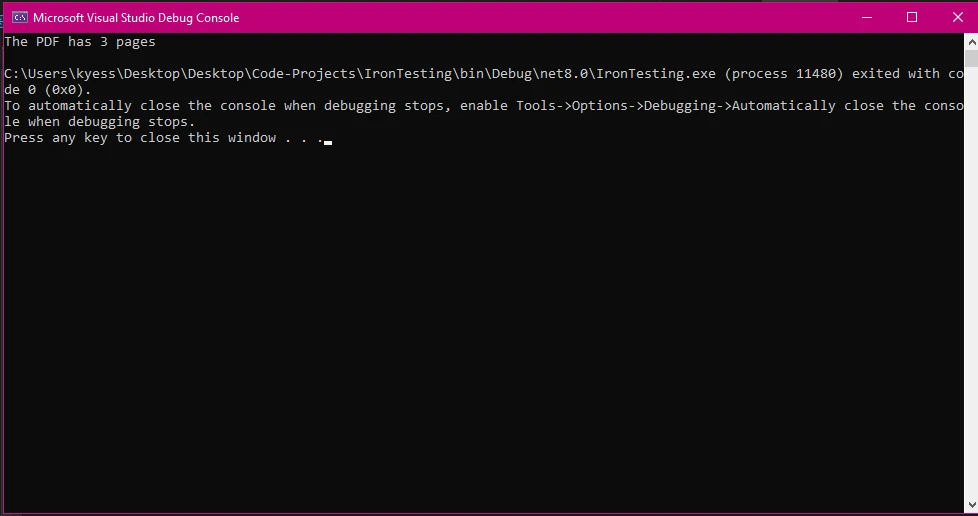
Console.WriteLine($"The PDF has {pageCount} pages");
```
This code demonstrates the core functionality: load a PDF and read its page count through the [PageCount property](https://ironpdf.com/object-reference/api/). The method returns an integer representing the number of pages in the document. You can add this snippet to any C# project -- whether it is a Windows application, a web service, or an Azure Function.
For advanced scenarios, you might want to combine page counting with other PDF operations -- for example, [extracting text](https://ironpdf.com/how-to/extract-text-and-images/) from specific pages, [adding watermarks](https://ironpdf.com/how-to/custom-watermark/) based on page count, or [splitting PDFs](https://ironpdf.com/how-to/merge-or-split-pdfs/) at certain intervals.
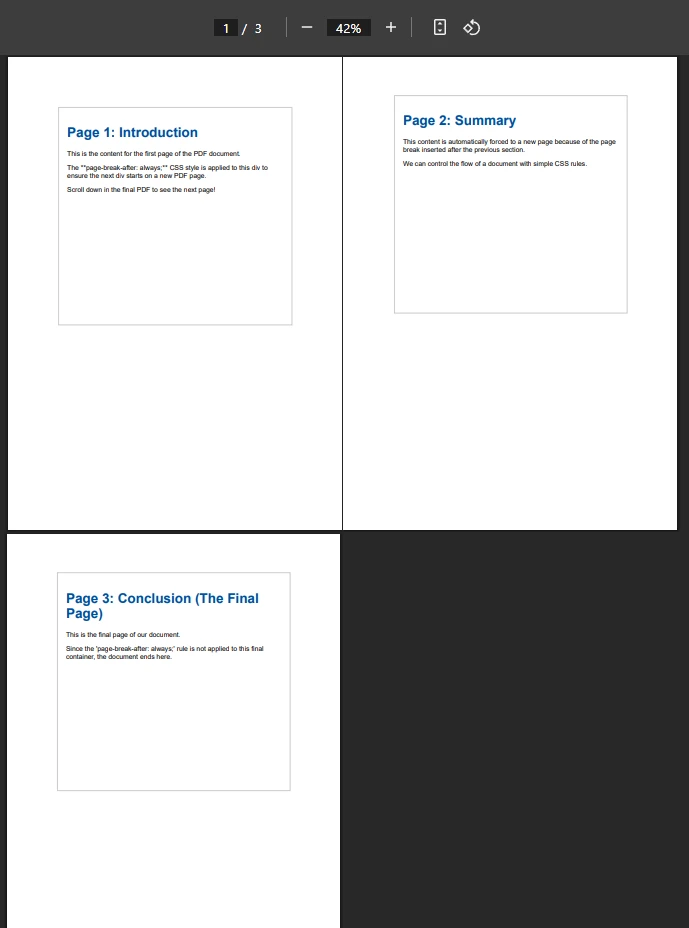
### What Does the Input PDF Look Like?
### What Output Should You Expect?
## How Do You Set Up IronPDF in Your Project?
Before you can start counting PDF pages, install IronPDF via NuGet using either of the following commands:
```bash
:ProductInstall
```
```bash
:InstallCmd dotnet add package IronPdf
```
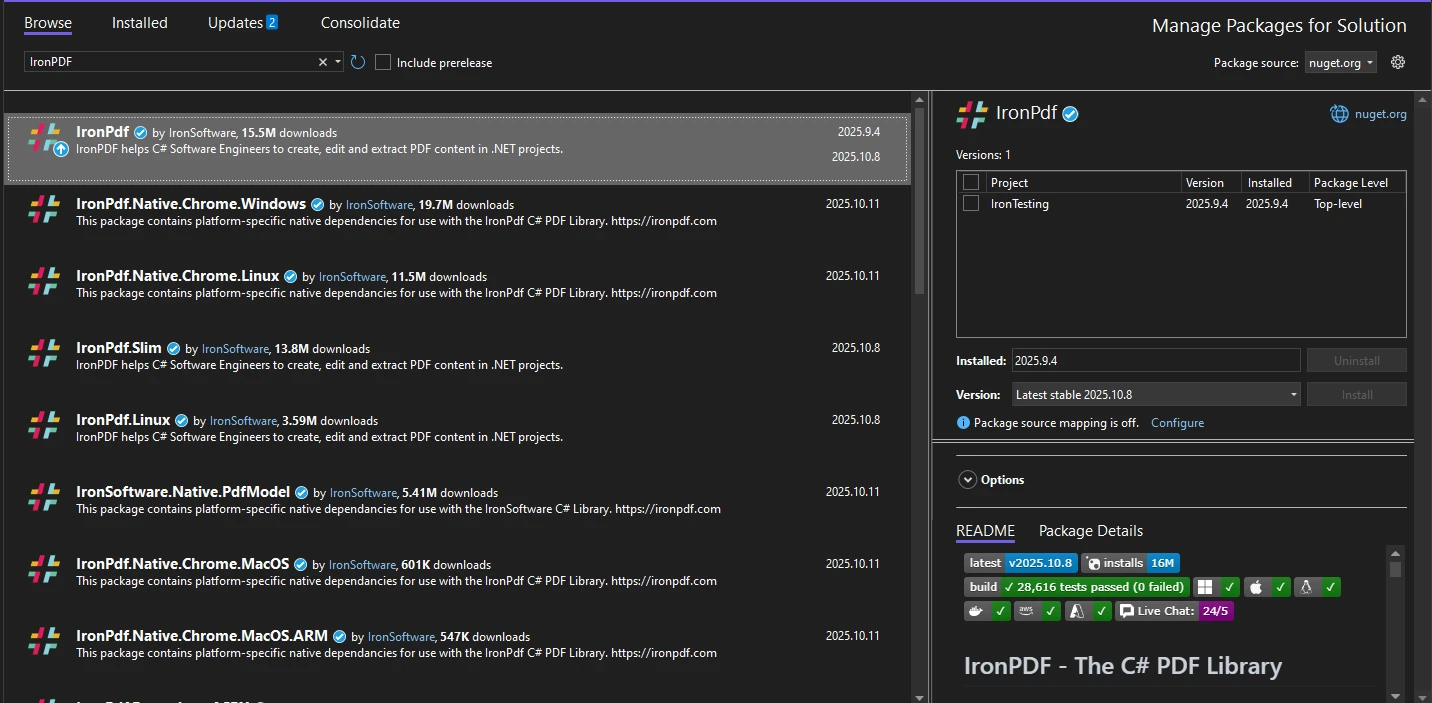
You can also install through Visual Studio by right-clicking References in Solution Explorer, selecting "Manage NuGet Packages", and searching for "IronPDF".
Once installed, you are ready to work with PDF files. IronPDF supports [.NET Framework 4.6.2+](https://ironpdf.com/get-started/installation-overview/) and .NET 5 through .NET 10, providing broad compatibility for your applications. The library works on Windows, Linux, and macOS platforms. For detailed setup instructions, check the [IronPDF installation guide](https://ironpdf.com/get-started/quickstart/).
## How Do You Work with Different PDF Sources?
### How Do You Count Pages from Local Files?
The most common scenario involves counting pages from PDF files stored on your local file system. According to [Stack Overflow discussions on PDF page counting](https://stackoverflow.com/questions/320281/determine-number-of-pages-in-a-pdf-file), IronPDF offers one of the cleanest APIs for this task:
```csharp
using IronPdf;
using System.IO;
string filePath = @"C:\Documents\invoice.pdf";
// Check if file exists before opening
if (File.Exists(filePath))
{
using PdfDocument document = PdfDocument.FromFile(filePath);
int numberOfPages = document.PageCount;
Console.WriteLine($"Document pages: {numberOfPages}");
}
```
This example shows proper file handling with an existence check and resource disposal via the `using` declaration. The `PdfDocument` instance provides immediate access to the page count without parsing the entire file -- IronPDF handles all internal PDF structure (xref tables, trailers, object streams) automatically.
You can extend this functionality to work with [encrypted PDFs](https://ironpdf.com/how-to/pdf-permissions-passwords/), [PDF/A compliant documents](https://ironpdf.com/how-to/pdfa/), or [compressed PDFs](https://ironpdf.com/how-to/pdf-compression/). IronPDF handles all of these formats transparently.
### How Do You Count Pages from URLs?
IronPDF can also handle PDF files directly from web URLs. This feature is useful when working with remote documents stored on cloud platforms or content delivery networks. Learn more about [URL to PDF conversion](https://ironpdf.com/how-to/url-to-pdf/):
```csharp
using IronPdf;
// Download and open PDF from URL
using PdfDocument reader = PdfDocument.FromUrl("https://ironpdf.com/assets/downloads/ironpdf-brochure.pdf");
int pages = reader.PageCount;
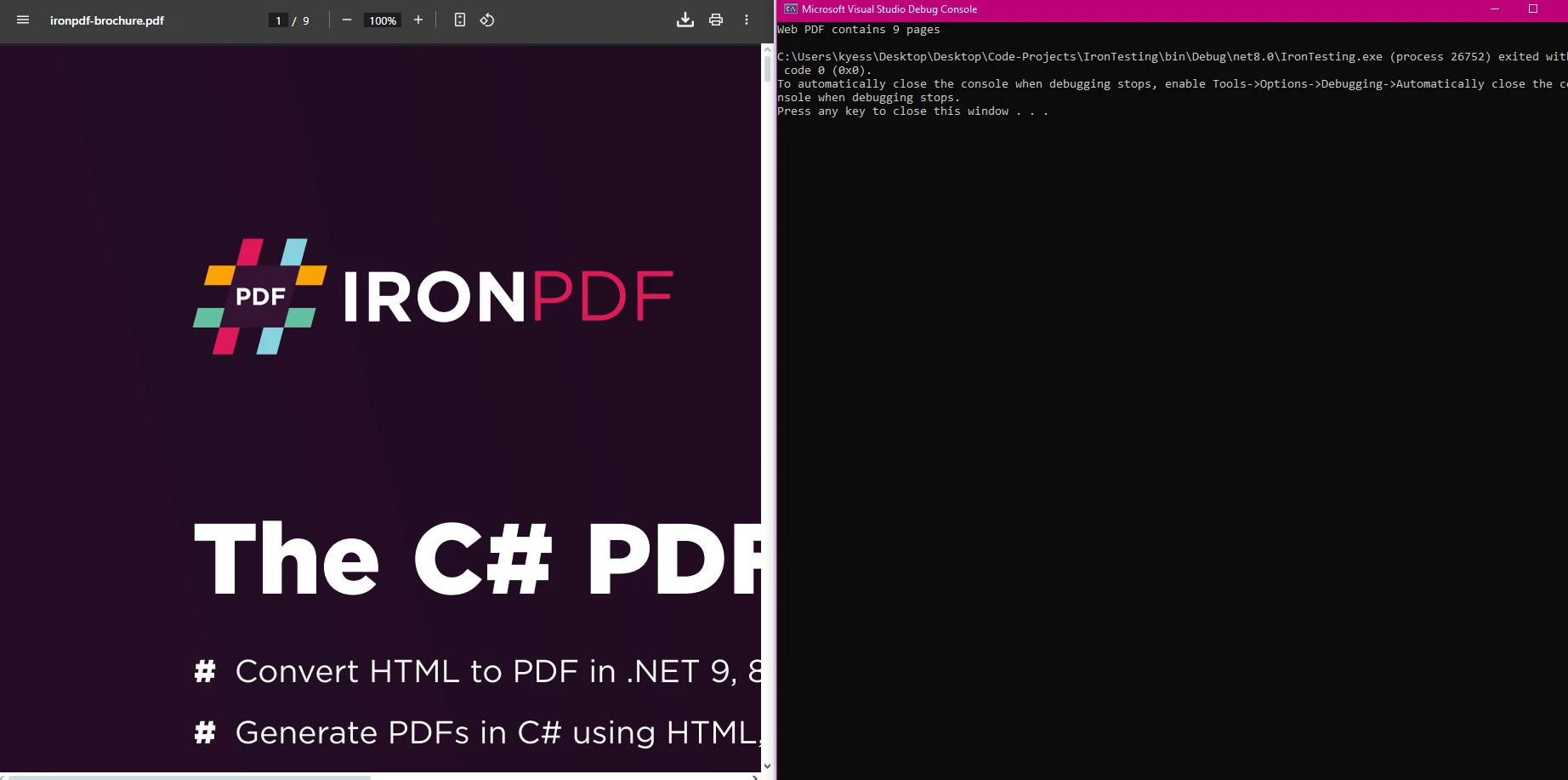
Console.WriteLine($"Web PDF contains {pages} pages");
```
This approach works well with documents hosted on cloud storage or any accessible web server. IronPDF handles the download process internally, managing HTTP headers when needed.
### What Results Will URL Processing Show?
## How Do You Batch Process Multiple PDF Files?
When dealing with multiple PDF files, you can efficiently process them in a loop. This approach is familiar to any developer who works with the .NET file system APIs:
```csharp
using IronPdf;
using System.IO;
string[] pdfFiles = Directory.GetFiles(@"C:\PDFs", "*.pdf");
foreach (string file in pdfFiles)
{
try
{
using PdfDocument pdf = PdfDocument.FromFile(file);
int count = pdf.PageCount;
string fileName = Path.GetFileName(file);
Console.WriteLine($"{fileName}: {count} pages");
}
catch (Exception ex)
{
// Continue processing other files if one fails
Console.WriteLine($"Error processing {file}: {ex.Message}");
}
}
```
This code iterates through all PDF files in a directory and outputs the page count for each. The `using` declaration ensures proper resource cleanup, preventing memory leaks during long batch runs. For high-performance scenarios, consider using [async operations](https://ironpdf.com/how-to/async/) to handle multiple files simultaneously, which can cut processing time significantly for large collections.
### What Does Batch Processing Output Look Like?

## How Does IronPDF Compare to Other PDF Libraries?
Choosing the right library for PDF page counting in .NET depends on your project's requirements. The following table compares the most common options:
<table class="content__data-table" data-content-table>
<caption>Comparison of .NET PDF Libraries for Page Count Retrieval</caption>
<thead>
<tr>
<th>Library</th>
<th>Page Count API</th>
<th>License</th>
<th>.NET 10 Support</th>
<th>Cross-Platform</th>
</tr>
</thead>
<tbody>
<tr>
<td>IronPDF</td>
<td><code>PdfDocument.PageCount</code></td>
<td>Commercial</td>
<td>Yes</td>
<td>Windows, Linux, macOS</td>
</tr>
<tr>
<td>iText / iText</td>
<td><code>PdfDocument.GetNumberOfPages()</code></td>
<td>AGPL / Commercial</td>
<td>Yes</td>
<td>Windows, Linux, macOS</td>
</tr>
<tr>
<td>PDFSharp</td>
<td><code>PdfDocument.PageCount</code></td>
<td>MIT</td>
<td>Partial</td>
<td>Windows primary</td>
</tr>
<tr>
<td>Docnet.Core</td>
<td><code>IDocLib.GetPageCount()</code></td>
<td>MIT</td>
<td>Limited</td>
<td>Windows, Linux</td>
</tr>
</tbody>
</table>
IronPDF's single-property API (`PageCount`) minimizes boilerplate and integrates with a broader set of PDF manipulation features -- merging, stamping, [form editing](https://ironpdf.com/how-to/edit-forms/), and [digital signing](https://ironpdf.com/how-to/signing/) -- all from the same library. According to [Microsoft's .NET System.IO documentation](https://docs.microsoft.com/en-us/dotnet/api/system.io), .NET's native file APIs require you to add a separate PDF parser on top, making a dedicated library the practical choice for production systems.
## What Are the Real-World Applications?
The ability to quickly obtain page counts enables numerous practical applications:
- **Document Management:** Organize files by size for content management systems
- **Print Cost Calculation:** Estimate costs using [print functionality](https://ironpdf.com/how-to/print-pdf/)
- **Upload Validation:** Enforce page limits in web applications
- **Report Generation:** Include document statistics in [summary reports](https://ironpdf.com/how-to/csharp-pdf-reports/)
- **Quality Control:** Verify page requirements for [PDF/A compliance](https://ironpdf.com/how-to/pdfa/)
Consider integrating page counting with other IronPDF features like [OCR text extraction](https://ironpdf.com/how-to/csharp-parse-pdf/) or digital signature verification to build complete, end-to-end document workflows. The page count becomes a gating check that runs before heavier processing steps, which saves CPU cycles and storage on documents that do not meet your business rules.
## What Performance Factors Should You Consider?
IronPDF excels at page count retrieval because it reads PDF metadata rather than parsing entire document content. This ensures fast response times even with large files. The library uses efficient memory management, making it suitable for production environments where throughput matters.
When processing numerous PDF files, follow these best practices:
- Use `using` declarations for automatic resource disposal
- Process files in batches to control memory pressure
- Implement error handling for corrupted or malformed files
- Close documents after reading to free resources promptly
- Consider [memory stream operations](https://ironpdf.com/how-to/pdf-memory-stream/) for in-memory processing
- Use [Docker containers](https://ironpdf.com/get-started/ironpdf-docker/) for horizontal scaling
The simplicity of IronPDF's API means less implementation time and fewer moving parts to debug. For detailed performance guidance, check the [IronPDF performance assistance guide](https://ironpdf.com/troubleshooting/ironpdf-performance-assistance/). You can also review the [NuGet Gallery listing for IronPDF](https://www.nuget.org/packages/IronPdf) to see version history and download statistics that reflect real-world adoption.
[Purchase a license](https://ironpdf.com/licensing/) to unlock IronPDF's full capabilities for enterprise applications.
## What Common Issues Should You Watch For?
### How Do You Handle Corrupted PDF Files?
When a PDF file is corrupted, IronPDF throws an exception. Always wrap your code in try-catch blocks when dealing with user-uploaded files, which are the most common source of malformed documents. The library's internal checks can identify corrupted content automatically, but your application still needs to handle the resulting exception gracefully.
For advanced error handling, implement [custom logging](https://ironpdf.com/how-to/custom-logging/) to track problematic files. Pairing logging with file [sanitization](https://ironpdf.com/how-to/sanitize-pdf/) removes potentially harmful content before processing begins.
### What About Access Permission Issues?
Ensure your application has read permissions for the PDF files it is accessing. This is particularly important for [web applications deployed to IIS](https://ironpdf.com/troubleshooting/ironpdf-and-iis/) and for cloud environments where storage permissions require explicit configuration. Check the [IronPDF troubleshooting guide](https://ironpdf.com/troubleshooting/) for detailed solutions to permission-related errors.
### How Can You Improve Memory Usage?
For applications processing many PDFs, dispose of `PdfDocument` objects promptly to prevent memory leaks. This optimization is critical for long-running services. Consider implementing [garbage collection strategies for batch processing](https://ironpdf.com/troubleshooting/memory-leak-in-ironpdf/) and monitor memory usage in production to catch regressions early.
## What Are the Key Takeaways?
IronPDF simplifies getting PDF page counts in C#. With its straightforward API, you can extract page information from local files, URLs, and encrypted documents with minimal code. The library's efficiency and reliability make it a practical choice for both quick scripts and complex enterprise systems.
Whether you are building a document management system or validating PDF uploads, IronPDF provides the tools to get the job done cleanly. The result is less boilerplate, faster development cycles, and more reliable applications.
The library integrates with modern .NET applications, supporting [Blazor](https://ironpdf.com/how-to/blazor-tutorial/), [MAUI](https://ironpdf.com/tutorials/pdf-viewing/), and [ASP.NET Core](https://ironpdf.com/how-to/cshtml-to-pdf-mvc-core/). Its cross-platform compatibility ensures your page counting functionality works consistently across environments.
Start with a [free trial](https://ironpdf.com/licensing/) and experience what makes IronPDF the preferred choice for .NET developers. Post your questions in the comments or [contact support](https://ironpdf.com/troubleshooting/engineering-support-for-ironpdf/) for hands-on assistance.
Getting a PDF page count in C# is straightforward with IronPDF. Simply use PdfDocument.FromFile("file.pdf").PageCount to retrieve the total number of pages from any PDF file in a single line of code.
While obtaining the page count from a PDF might not seem exciting, it is crucial for building reliable applications. Whether you are managing a document management system, calculating printing costs, or generating reports, knowing the total page count is essential. It can mean the difference between a smooth process and a validation issue that stops your application cold.
IronPDF makes this process simple, requiring just a few lines of code. This guide covers how to use IronPDF to get the page count from any PDF file -- from local files and remote URLs to batch directory processing and error-resistant production code.
How Do You Get PDF Page Count Quickly?
Here is how to get the page count from a PDF file using IronPDF:
using IronPdf;// Load an existing PDF documentPdfDocument pdf = PdfDocument.FromFile("MultiPageDocument.pdf");// Get the page countint pageCount = pdf.PageCount;// Display the resultConsole.WriteLine($"The PDF has {pageCount} pages");
using IronPdf;

// Load an existing PDF document
PdfDocument pdf = PdfDocument.FromFile("MultiPageDocument.pdf");

// Get the page count
int pageCount = pdf.PageCount;

// Display the result
Console.WriteLine($"The PDF has {pageCount} pages");
ImportsIronPdf' Load an existing PDF documentDim pdf AsPdfDocument = PdfDocument.FromFile("MultiPageDocument.pdf")' Get the page countDim pageCount AsInteger = pdf.PageCount' Display the resultConsole.WriteLine($"The PDF has {pageCount} pages")
Imports IronPdf

' Load an existing PDF document
Dim pdf As PdfDocument = PdfDocument.FromFile("MultiPageDocument.pdf")

' Get the page count
Dim pageCount As Integer = pdf.PageCount

' Display the result
Console.WriteLine($"The PDF has {pageCount} pages")
This code demonstrates the core functionality: load a PDF and read its page count through the PageCount property. The method returns an integer representing the number of pages in the document. You can add this snippet to any C# project -- whether it is a Windows application, a web service, or an Azure Function.
For advanced scenarios, you might want to combine page counting with other PDF operations -- for example, extracting text from specific pages, adding watermarks based on page count, or splitting PDFs at certain intervals.
What Does the Input PDF Look Like?
What Output Should You Expect?
How Do You Set Up IronPDF in Your Project?
Before you can start counting PDF pages, install IronPDF via NuGet using either of the following commands:
PM > Install-Package IronPdf
Install-Package IronPdf
> dotnet add package IronPdf
dotnet add package IronPdf
You can also install through Visual Studio by right-clicking References in Solution Explorer, selecting "Manage NuGet Packages", and searching for "IronPDF".
Once installed, you are ready to work with PDF files. IronPDF supports .NET Framework 4.6.2+ and .NET 5 through .NET 10, providing broad compatibility for your applications. The library works on Windows, Linux, and macOS platforms. For detailed setup instructions, check the IronPDF installation guide.
How Do You Work with Different PDF Sources?
How Do You Count Pages from Local Files?
The most common scenario involves counting pages from PDF files stored on your local file system. According to Stack Overflow discussions on PDF page counting, IronPDF offers one of the cleanest APIs for this task:
using IronPdf;using System.IO;string filePath = @"C:\Documents\invoice.pdf";// Check if file exists before openingif (File.Exists(filePath)){ using PdfDocument document = PdfDocument.FromFile(filePath); int numberOfPages = document.PageCount;Console.WriteLine($"Document pages: {numberOfPages}");}
using IronPdf;
using System.IO;

string filePath = @"C:\Documents\invoice.pdf";

// Check if file exists before opening
if (File.Exists(filePath))
{
    using PdfDocument document = PdfDocument.FromFile(filePath);

    int numberOfPages = document.PageCount;
    Console.WriteLine($"Document pages: {numberOfPages}");
}
ImportsIronPdfImportsSystem.IODim filePath AsString = "C:\Documents\invoice.pdf"' Check if file exists before openingIfFile.Exists(filePath) ThenUsing document AsPdfDocument = PdfDocument.FromFile(filePath) Dim numberOfPages AsInteger = document.PageCountConsole.WriteLine($"Document pages: {numberOfPages}")EndUsingEnd If
Imports IronPdf
Imports System.IO

Dim filePath As String = "C:\Documents\invoice.pdf"

' Check if file exists before opening
If File.Exists(filePath) Then
    Using document As PdfDocument = PdfDocument.FromFile(filePath)
        Dim numberOfPages As Integer = document.PageCount
        Console.WriteLine($"Document pages: {numberOfPages}")
    End Using
End If
This example shows proper file handling with an existence check and resource disposal via the using declaration. The PdfDocument instance provides immediate access to the page count without parsing the entire file -- IronPDF handles all internal PDF structure (xref tables, trailers, object streams) automatically.
IronPDF can also handle PDF files directly from web URLs. This feature is useful when working with remote documents stored on cloud platforms or content delivery networks. Learn more about URL to PDF conversion:
using IronPdf;// Download and open PDF from URLusing PdfDocument reader = PdfDocument.FromUrl("https://ironpdf.com/assets/downloads/ironpdf-brochure.pdf");int pages = reader.PageCount;Console.WriteLine($"Web PDF contains {pages} pages");
using IronPdf;

// Download and open PDF from URL
using PdfDocument reader = PdfDocument.FromUrl("https://ironpdf.com/assets/downloads/ironpdf-brochure.pdf");

int pages = reader.PageCount;
Console.WriteLine($"Web PDF contains {pages} pages");
ImportsIronPdf' Download and open PDF from URLUsing reader AsPdfDocument = PdfDocument.FromUrl("https://ironpdf.com/assets/downloads/ironpdf-brochure.pdf") Dim pages AsInteger = reader.PageCountConsole.WriteLine($"Web PDF contains {pages} pages")EndUsing
Imports IronPdf

' Download and open PDF from URL
Using reader As PdfDocument = PdfDocument.FromUrl("https://ironpdf.com/assets/downloads/ironpdf-brochure.pdf")
    Dim pages As Integer = reader.PageCount
    Console.WriteLine($"Web PDF contains {pages} pages")
End Using
This approach works well with documents hosted on cloud storage or any accessible web server. IronPDF handles the download process internally, managing HTTP headers when needed.
What Results Will URL Processing Show?
How Do You Batch Process Multiple PDF Files?
When dealing with multiple PDF files, you can efficiently process them in a loop. This approach is familiar to any developer who works with the .NET file system APIs:
using IronPdf;using System.IO;string[] pdfFiles = Directory.GetFiles(@"C:\PDFs", "*.pdf");foreach (string file in pdfFiles){ try { using PdfDocument pdf = PdfDocument.FromFile(file); int count = pdf.PageCount; string fileName = Path.GetFileName(file);Console.WriteLine($"{fileName}: {count} pages"); } catch (Exception ex) { // Continue processing other files if one failsConsole.WriteLine($"Error processing {file}: {ex.Message}"); }}
using IronPdf;
using System.IO;

string[] pdfFiles = Directory.GetFiles(@"C:\PDFs", "*.pdf");

foreach (string file in pdfFiles)
{
    try
    {
        using PdfDocument pdf = PdfDocument.FromFile(file);

        int count = pdf.PageCount;
        string fileName = Path.GetFileName(file);

        Console.WriteLine($"{fileName}: {count} pages");
    }
    catch (Exception ex)
    {
        // Continue processing other files if one fails
        Console.WriteLine($"Error processing {file}: {ex.Message}");
    }
}
ImportsIronPdfImportsSystem.IODim pdfFiles AsString() = Directory.GetFiles("C:\PDFs", "*.pdf")For Each file AsStringIn pdfFilesTryUsing pdf AsPdfDocument = PdfDocument.FromFile(file) Dim count AsInteger = pdf.PageCount Dim fileName AsString = Path.GetFileName(file)Console.WriteLine($"{fileName}: {count} pages")EndUsingCatch ex AsException ' Continue processing other files if one failsConsole.WriteLine($"Error processing {file}: {ex.Message}")EndTryNext
Imports IronPdf
Imports System.IO

Dim pdfFiles As String() = Directory.GetFiles("C:\PDFs", "*.pdf")

For Each file As String In pdfFiles
    Try
        Using pdf As PdfDocument = PdfDocument.FromFile(file)
            Dim count As Integer = pdf.PageCount
            Dim fileName As String = Path.GetFileName(file)

            Console.WriteLine($"{fileName}: {count} pages")
        End Using
    Catch ex As Exception
        ' Continue processing other files if one fails
        Console.WriteLine($"Error processing {file}: {ex.Message}")
    End Try
Next
This code iterates through all PDF files in a directory and outputs the page count for each. The using declaration ensures proper resource cleanup, preventing memory leaks during long batch runs. For high-performance scenarios, consider using async operations to handle multiple files simultaneously, which can cut processing time significantly for large collections.
What Does Batch Processing Output Look Like?
How Does IronPDF Compare to Other PDF Libraries?
Choosing the right library for PDF page counting in .NET depends on your project's requirements. The following table compares the most common options:
Comparison of .NET PDF Libraries for Page Count Retrieval
Library
Page Count API
License
.NET 10 Support
Cross-Platform
IronPDF
PdfDocument.PageCount
Commercial
Yes
Windows, Linux, macOS
iText / iText
PdfDocument.GetNumberOfPages()
AGPL / Commercial
Yes
Windows, Linux, macOS
PDFSharp
PdfDocument.PageCount
MIT
Partial
Windows primary
Docnet.Core
IDocLib.GetPageCount()
MIT
Limited
Windows, Linux
IronPDF's single-property API (PageCount) minimizes boilerplate and integrates with a broader set of PDF manipulation features -- merging, stamping, form editing, and digital signing -- all from the same library. According to Microsoft's .NET System.IO documentation, .NET's native file APIs require you to add a separate PDF parser on top, making a dedicated library the practical choice for production systems.
What Are the Real-World Applications?
The ability to quickly obtain page counts enables numerous practical applications:
Document Management: Organize files by size for content management systems
Consider integrating page counting with other IronPDF features like OCR text extraction or digital signature verification to build complete, end-to-end document workflows. The page count becomes a gating check that runs before heavier processing steps, which saves CPU cycles and storage on documents that do not meet your business rules.
What Performance Factors Should You Consider?
IronPDF excels at page count retrieval because it reads PDF metadata rather than parsing entire document content. This ensures fast response times even with large files. The library uses efficient memory management, making it suitable for production environments where throughput matters.
When processing numerous PDF files, follow these best practices:
Use using declarations for automatic resource disposal
Process files in batches to control memory pressure
Implement error handling for corrupted or malformed files
Close documents after reading to free resources promptly
The simplicity of IronPDF's API means less implementation time and fewer moving parts to debug. For detailed performance guidance, check the IronPDF performance assistance guide. You can also review the NuGet Gallery listing for IronPDF to see version history and download statistics that reflect real-world adoption.
Purchase a license to unlock IronPDF's full capabilities for enterprise applications.
What Common Issues Should You Watch For?
How Do You Handle Corrupted PDF Files?
When a PDF file is corrupted, IronPDF throws an exception. Always wrap your code in try-catch blocks when dealing with user-uploaded files, which are the most common source of malformed documents. The library's internal checks can identify corrupted content automatically, but your application still needs to handle the resulting exception gracefully.
For advanced error handling, implement custom logging to track problematic files. Pairing logging with file sanitization removes potentially harmful content before processing begins.
What About Access Permission Issues?
Ensure your application has read permissions for the PDF files it is accessing. This is particularly important for web applications deployed to IIS and for cloud environments where storage permissions require explicit configuration. Check the IronPDF troubleshooting guide for detailed solutions to permission-related errors.
How Can You Improve Memory Usage?
For applications processing many PDFs, dispose of PdfDocument objects promptly to prevent memory leaks. This optimization is critical for long-running services. Consider implementing garbage collection strategies for batch processing and monitor memory usage in production to catch regressions early.
What Are the Key Takeaways?
IronPDF simplifies getting PDF page counts in C#. With its straightforward API, you can extract page information from local files, URLs, and encrypted documents with minimal code. The library's efficiency and reliability make it a practical choice for both quick scripts and complex enterprise systems.
Whether you are building a document management system or validating PDF uploads, IronPDF provides the tools to get the job done cleanly. The result is less boilerplate, faster development cycles, and more reliable applications.
The library integrates with modern .NET applications, supporting Blazor, MAUI, and ASP.NET Core. Its cross-platform compatibility ensures your page counting functionality works consistently across environments.
Start with a free trial and experience what makes IronPDF the preferred choice for .NET developers. Post your questions in the comments or contact support for hands-on assistance.
Curtis Chau holds a Bachelor’s degree in Computer Science (Carleton University) and specializes in front-end development with expertise in Node.js, TypeScript, JavaScript, and React. Passionate about crafting intuitive and aesthetically pleasing user interfaces, Curtis enjoys working with modern frameworks and creating well-structured, visually appealing manuals.


















