


C# Print Form to PDF -- Complete Developer Guide

IronPDF lets C# developers convert Windows Forms to PDF documents without complex PDF printer setup or Adobe dependencies. Simply capture your form data as HTML or image, then use IronPDF's rendering engine to create professional PDF files quickly.
Converting Windows Forms to PDF documents in C# is a frequent requirement, but the .NET Framework lacks native PDF printing support. You need a reliable way to generate PDF files from reports, save form data, or create printable documents. Whether you're working with ASP.NET MVC applications or desktop software, the need for PDF generation remains critical.
IronPDF offers a quick and straightforward solution. This tool lets you print forms to PDF files without the hassle of Adobe Reader installs or complex PDF printer setup. With support for HTML to PDF conversion and advanced formatting, IronPDF handles everything from simple forms to complex reports. This complete guide shows you how to do it in minutes.
Why Should You Choose a PDF Library for Form-to-PDF Conversion?
IronPDF is a complete .NET PDF library that simplifies converting Windows Forms and web forms to PDF documents. Unlike traditional approaches that rely on PDF printers or complex drawing operations, IronPDF uses a Chrome-based rendering engine to generate PDF files with pixel-perfect accuracy from your C# projects. This engine supports modern web standards including JavaScript execution, CSS3 styling, and responsive layouts.
The library handles all aspects of PDF content creation, from rendering form controls to managing page layouts, making it ideal for both Windows Forms applications and ASP.NET web applications. It also supports async operations for better performance in multi-user environments and memory stream operations for cloud deployments.
For enterprise applications, IronPDF offers features like PDF/A compliance for archival purposes, digital signatures for document authenticity, and encryption options for security. The library integrates with Azure services, AWS Lambda, and Docker containers, making it suitable for modern cloud architectures.
| Method | Best For | Output Quality | Code Complexity |
|---|---|---|---|
| HTML rendering (ChromePdfRenderer) | Forms with text fields, tables, standard controls | High -- scalable vector output | Low |
| Image capture (DrawToBitmap) | Forms with custom graphics, SVG, WebGL | Medium -- pixel-accurate bitmap | Low |
| URL rendering (RenderUrlAsPdf) | Web forms, ASPX pages, hosted HTML | High -- full browser rendering | Very low |
How Do You Install the PDF Library in a C# Project?
Getting started with IronPDF takes just minutes. The simplest installation method uses the NuGet Package Manager in Visual Studio:
- Right-click your project in Solution Explorer
- Select "Manage NuGet Packages"
- Search for "IronPDF"
- Click Install to add the latest version
Alternatively, use the Package Manager Console:
Install-Package IronPdf
dotnet add package IronPdf
For detailed setup instructions, visit the IronPDF installation guide. Once installed, add using IronPdf; at the top of your file to start using the library's features. The installation process automatically handles native dependencies and runtime requirements, ensuring smooth operation across different environments.
How Do You Convert Windows Forms to PDF with C# Code?
The following code example shows how to capture and convert a Windows Form to a new PdfDocument:
// title: Quickstart - Convert Windows Form to PDF
using IronPdf;
using System.Diagnostics;

// Build HTML representation of the form
var html = new System.Text.StringBuilder();
html.Append("<html><head>");
html.Append("<style>");
html.Append("body { font-family: Arial, sans-serif; }");
html.Append("table { width: 100%; border-collapse: collapse; }");
html.Append("td { padding: 8px; border: 1px solid #ddd; }");
html.Append("</style>");
html.Append("</head><body>");
html.Append("<h1>Form Export</h1>");
html.Append("<table>");

// Simulate form field data (replace with actual control values in a WinForms app)
var formFields = new[]
{
    ("txtFirstName", "Jane"),
    ("txtLastName", "Doe"),
    ("cboSelection", "Option A")
};

foreach (var (name, value) in formFields)
{
    html.AppendFormat("<tr><td>{0}:</td><td>{1}</td></tr>", name, value);
}

html.Append("</table></body></html>");

// Initialize IronPDF's ChromePdfRenderer
var renderer = new ChromePdfRenderer();

// Configure rendering options
renderer.RenderingOptions.MarginTop = 10;
renderer.RenderingOptions.MarginBottom = 10;
renderer.RenderingOptions.MarginLeft = 10;
renderer.RenderingOptions.MarginRight = 10;

// Generate PDF from HTML content
var pdfDocument = renderer.RenderHtmlAsPdf(html.ToString());

// Save the PDF file
string fileName = "FormOutput.pdf";
pdfDocument.SaveAs(fileName);

// Open the generated PDF
Process.Start(new ProcessStartInfo(fileName) { UseShellExecute = true });
// title: Quickstart - Convert Windows Form to PDF
using IronPdf;
using System.Diagnostics;
// Build HTML representation of the form
var html = new System.Text.StringBuilder();
html.Append("<html><head>");
html.Append("<style>");
html.Append("body { font-family: Arial, sans-serif; }");
html.Append("table { width: 100%; border-collapse: collapse; }");
html.Append("td { padding: 8px; border: 1px solid #ddd; }");
html.Append("</style>");
html.Append("</head><body>");
html.Append("<h1>Form Export</h1>");
html.Append("<table>");
// Simulate form field data (replace with actual control values in a WinForms app)
var formFields = new[]
{
("txtFirstName", "Jane"),
("txtLastName", "Doe"),
("cboSelection", "Option A")
};
foreach (var (name, value) in formFields)
{
html.AppendFormat("<tr><td>{0}:</td><td>{1}</td></tr>", name, value);
}
html.Append("</table></body></html>");
// Initialize IronPDF's ChromePdfRenderer
var renderer = new ChromePdfRenderer();
// Configure rendering options
renderer.RenderingOptions.MarginTop = 10;
renderer.RenderingOptions.MarginBottom = 10;
renderer.RenderingOptions.MarginLeft = 10;
renderer.RenderingOptions.MarginRight = 10;
// Generate PDF from HTML content
var pdfDocument = renderer.RenderHtmlAsPdf(html.ToString());
// Save the PDF file
string fileName = "FormOutput.pdf";
pdfDocument.SaveAs(fileName);
// Open the generated PDF
Process.Start(new ProcessStartInfo(fileName) { UseShellExecute = true });Imports IronPdf
Imports System.Diagnostics
Imports System.Text
' Build HTML representation of the form
Dim html As New StringBuilder()
html.Append("<html><head>")
html.Append("<style>")
html.Append("body { font-family: Arial, sans-serif; }")
html.Append("table { width: 100%; border-collapse: collapse; }")
html.Append("td { padding: 8px; border: 1px solid #ddd; }")
html.Append("</style>")
html.Append("</head><body>")
html.Append("<h1>Form Export</h1>")
html.Append("<table>")
' Simulate form field data (replace with actual control values in a WinForms app)
Dim formFields = {
("txtFirstName", "Jane"),
("txtLastName", "Doe"),
("cboSelection", "Option A")
}
For Each field In formFields
Dim name = field.Item1
Dim value = field.Item2
html.AppendFormat("<tr><td>{0}:</td><td>{1}</td></tr>", name, value)
Next
html.Append("</table></body></html>")
' Initialize IronPDF's ChromePdfRenderer
Dim renderer As New ChromePdfRenderer()
' Configure rendering options
renderer.RenderingOptions.MarginTop = 10
renderer.RenderingOptions.MarginBottom = 10
renderer.RenderingOptions.MarginLeft = 10
renderer.RenderingOptions.MarginRight = 10
' Generate PDF from HTML content
Dim pdfDocument = renderer.RenderHtmlAsPdf(html.ToString())
' Save the PDF file
Dim fileName As String = "FormOutput.pdf"
pdfDocument.SaveAs(fileName)
' Open the generated PDF
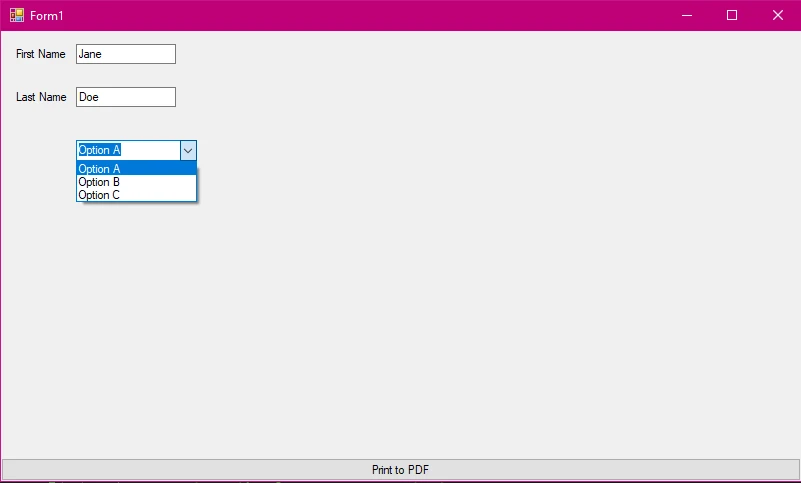
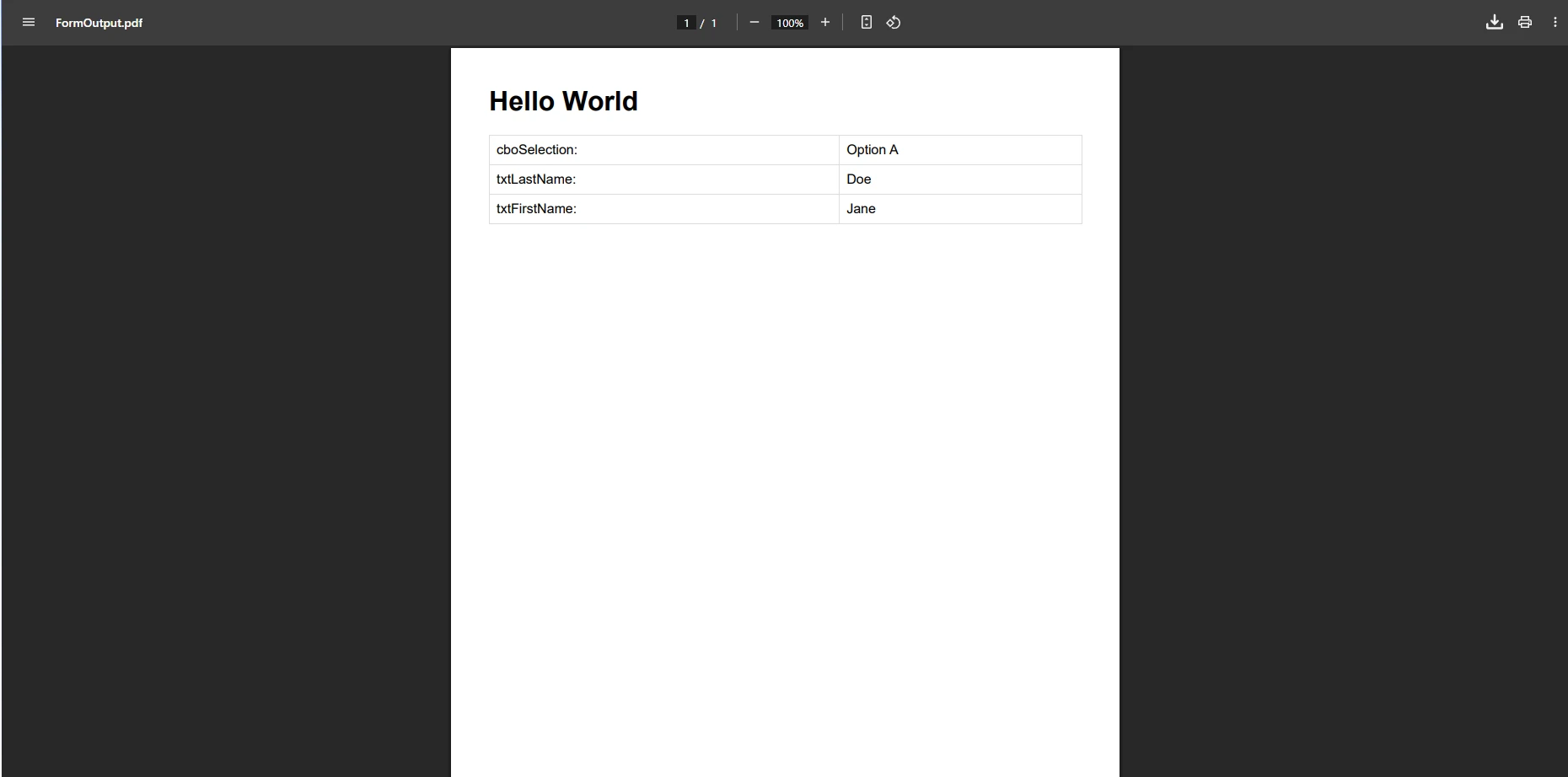
Process.Start(New ProcessStartInfo(fileName) With {.UseShellExecute = True})This example demonstrates several key concepts. It builds an HTML representation of the form data with proper formatting using CSS styles, then IronPDF's RenderHtmlAsPdf method converts this HTML into a polished PDF document. The method handles all content generation automatically. In a real Windows Forms application, replace the sample formFields array with values read directly from your form controls.
The ChromePdfRenderer class provides extensive customization options including paper size, orientation settings, and margin configuration. You can also apply CSS media types to control how content appears in print versus screen mode, and use JavaScript rendering delays for dynamic content that needs time to load. For more on renderer configuration, see the rendering options guide.
What Does the Windows Form Look Like Before Conversion?
How Does the Converted PDF Document Appear?
When Should You Use Image Capture for Complex Forms?
For forms with complex graphics or custom drawing, capturing the form as an image is a reliable alternative. This approach preserves every pixel of your form's visual appearance, including custom-painted controls, charts, or graphics that don't map cleanly to HTML. The following code shows this approach:
using IronPdf;
using System.Drawing;
using System.Drawing.Imaging;

// In a WinForms scenario, replace formWidth/formHeight
// with the form's actual Width and Height properties,
// and call DrawToBitmap on the form instance.
int formWidth = 800;
int formHeight = 600;

// Capture form as bitmap
using var bitmap = new Bitmap(formWidth, formHeight);
// Example: myForm.DrawToBitmap(bitmap, new Rectangle(0, 0, formWidth, formHeight));

// Save bitmap to memory stream
using var ms = new System.IO.MemoryStream();
bitmap.Save(ms, ImageFormat.Png);

// Convert image to PDF using IronPDF
var pdfDocument = ImageToPdfConverter.ImageToPdf(ms.ToArray());
pdfDocument.SaveAs("FormImage.pdf");
using IronPdf;
using System.Drawing;
using System.Drawing.Imaging;
// In a WinForms scenario, replace formWidth/formHeight
// with the form's actual Width and Height properties,
// and call DrawToBitmap on the form instance.
int formWidth = 800;
int formHeight = 600;
// Capture form as bitmap
using var bitmap = new Bitmap(formWidth, formHeight);
// Example: myForm.DrawToBitmap(bitmap, new Rectangle(0, 0, formWidth, formHeight));
// Save bitmap to memory stream
using var ms = new System.IO.MemoryStream();
bitmap.Save(ms, ImageFormat.Png);
// Convert image to PDF using IronPDF
var pdfDocument = ImageToPdfConverter.ImageToPdf(ms.ToArray());
pdfDocument.SaveAs("FormImage.pdf");Imports IronPdf
Imports System.Drawing
Imports System.Drawing.Imaging
' In a WinForms scenario, replace formWidth/formHeight
' with the form's actual Width and Height properties,
' and call DrawToBitmap on the form instance.
Dim formWidth As Integer = 800
Dim formHeight As Integer = 600
' Capture form as bitmap
Using bitmap As New Bitmap(formWidth, formHeight)
' Example: myForm.DrawToBitmap(bitmap, New Rectangle(0, 0, formWidth, formHeight))
' Save bitmap to memory stream
Using ms As New System.IO.MemoryStream()
bitmap.Save(ms, ImageFormat.Png)
' Convert image to PDF using IronPDF
Dim pdfDocument = ImageToPdfConverter.ImageToPdf(ms.ToArray())
pdfDocument.SaveAs("FormImage.pdf")
End Using
End UsingThis approach uses DrawToBitmap to capture the entire form as an image, preserving exact visual appearance including custom graphics and special controls. The ImageToPdfConverter class ensures high-quality conversion from PNG or other image formats to PDF. The image capture approach works particularly well for forms containing custom drawn elements or graphics that might not translate well to HTML. For a deeper look at image conversion options, refer to the image to PDF guide.
When working with image-based conversions, you can also use Base64 encoding for embedding images directly into HTML content. For forms with multiple images or complex layouts, consider using multi-frame TIFF conversion for better organization. You can also combine both approaches -- use image capture for complex visual sections and HTML rendering for text-heavy data sections.
How Do You Print PDF Documents Directly to a Printer?
Once you've generated a PDF file, IronPDF also supports direct printing without opening a viewer:
using IronPdf;

var pdfDocument = PdfDocument.FromFile("FormOutput.pdf");

// Print PDF to default printer
pdfDocument.Print();

// Print with specific printer settings
var printDoc = pdfDocument.GetPrintDocument();
printDoc.PrinterSettings.PrinterName = "My Printer";
printDoc.Print();
using IronPdf;
var pdfDocument = PdfDocument.FromFile("FormOutput.pdf");
// Print PDF to default printer
pdfDocument.Print();
// Print with specific printer settings
var printDoc = pdfDocument.GetPrintDocument();
printDoc.PrinterSettings.PrinterName = "My Printer";
printDoc.Print();Imports IronPdf
Dim pdfDocument = PdfDocument.FromFile("FormOutput.pdf")
' Print PDF to default printer
pdfDocument.Print()
' Print with specific printer settings
Dim printDoc = pdfDocument.GetPrintDocument()
printDoc.PrinterSettings.PrinterName = "My Printer"
printDoc.Print()The first method sends the document to the default printer, while the second lets you specify printer settings programmatically. IronPDF supports both local and network printers, making it suitable for enterprise environments where centralized printing is required. For more detail, see the full PDF printing documentation.
What Professional Features Can You Add to Generated PDFs?
IronPDF enables you to improve your PDF documents with professional features beyond basic conversion. The code below adds headers, footers, watermarks, metadata, and password protection:
using IronPdf;
using IronPdf.Editing;

var renderer = new ChromePdfRenderer();

// Add text header
renderer.RenderingOptions.TextHeader = new TextHeaderFooter
{
    CenterText = "Company Report",
    DrawDividerLine = true
};

// Add page number footer
renderer.RenderingOptions.TextFooter = new TextHeaderFooter
{
    RightText = "Page {page} of {total-pages}",
    FontSize = 10
};

// Generate PDF
var pdfDocument = renderer.RenderHtmlAsPdf("<h1>Report Content</h1><p>Form data here.</p>");

// Apply watermark for confidential documents
new HtmlStamper
{
    Html = "<h2 style='color:red'>CONFIDENTIAL</h2>",
    Opacity = 30,
    VerticalAlignment = VerticalAlignment.Middle,
    HorizontalAlignment = HorizontalAlignment.Center
}.ApplyStamp(pdfDocument);

// Set PDF metadata
pdfDocument.MetaData.Author = "C# Application";
pdfDocument.MetaData.Title = "Form Export Report";
pdfDocument.MetaData.CreationDate = DateTime.Now;

// Apply password protection
pdfDocument.Password = "secretPassword123";
pdfDocument.SaveAs("SecureReport.pdf");
using IronPdf;
using IronPdf.Editing;
var renderer = new ChromePdfRenderer();
// Add text header
renderer.RenderingOptions.TextHeader = new TextHeaderFooter
{
CenterText = "Company Report",
DrawDividerLine = true
};
// Add page number footer
renderer.RenderingOptions.TextFooter = new TextHeaderFooter
{
RightText = "Page {page} of {total-pages}",
FontSize = 10
};
// Generate PDF
var pdfDocument = renderer.RenderHtmlAsPdf("<h1>Report Content</h1><p>Form data here.</p>");
// Apply watermark for confidential documents
new HtmlStamper
{
Html = "<h2 style='color:red'>CONFIDENTIAL</h2>",
Opacity = 30,
VerticalAlignment = VerticalAlignment.Middle,
HorizontalAlignment = HorizontalAlignment.Center
}.ApplyStamp(pdfDocument);
// Set PDF metadata
pdfDocument.MetaData.Author = "C# Application";
pdfDocument.MetaData.Title = "Form Export Report";
pdfDocument.MetaData.CreationDate = DateTime.Now;
// Apply password protection
pdfDocument.Password = "secretPassword123";
pdfDocument.SaveAs("SecureReport.pdf");Imports IronPdf
Imports IronPdf.Editing
Dim renderer As New ChromePdfRenderer()
' Add text header
renderer.RenderingOptions.TextHeader = New TextHeaderFooter With {
.CenterText = "Company Report",
.DrawDividerLine = True
}
' Add page number footer
renderer.RenderingOptions.TextFooter = New TextHeaderFooter With {
.RightText = "Page {page} of {total-pages}",
.FontSize = 10
}
' Generate PDF
Dim pdfDocument = renderer.RenderHtmlAsPdf("<h1>Report Content</h1><p>Form data here.</p>")
' Apply watermark for confidential documents
New HtmlStamper With {
.Html = "<h2 style='color:red'>CONFIDENTIAL</h2>",
.Opacity = 30,
.VerticalAlignment = VerticalAlignment.Middle,
.HorizontalAlignment = HorizontalAlignment.Center
}.ApplyStamp(pdfDocument)
' Set PDF metadata
pdfDocument.MetaData.Author = "C# Application"
pdfDocument.MetaData.Title = "Form Export Report"
pdfDocument.MetaData.CreationDate = DateTime.Now
' Apply password protection
pdfDocument.Password = "secretPassword123"
pdfDocument.SaveAs("SecureReport.pdf")These features transform basic PDF files into professional documents. The library supports complete customization of PDF content, from headers and footers to security settings. You can implement custom headers on specific pages, add HTML-based headers with company logos and CSS styling, or create a table of contents for long documents. For a full overview of available features, explore the IronPDF features page.
You can also add watermarks, implement digital signatures with HSM support, apply compression to reduce file sizes, and work with interactive PDF forms. For compliance requirements, IronPDF supports generating PDF/A documents and PDF/UA accessible documents. Advanced features include text annotations, bookmark creation, and page manipulation for complete document control.
How Do Headers and Footers Look in the Final PDF?

What Are Common Issues When Converting Forms to PDF?
When working with form-to-PDF conversion in .NET applications, keep these points in mind:
- Ensure all required .NET runtime components are installed before running the application
- For web applications, verify IIS permissions for file system access when saving PDF output
- Use UTF-8 encoding for international characters in form data to avoid garbled output
- Test rendering with different form sizes to ensure proper page layout and avoid content clipping
- Store generated PDF files in an appropriate directory with proper write permissions
For rendering issues, verify that your CSS is compatible and consider using render delays for complex JavaScript content. If you encounter font-related problems, ensure the necessary fonts are embedded properly. Common issues also include memory usage in long-running applications, which you can address by properly disposing of PDF objects using C# using statements.
For performance optimization, consider using async methods for better throughput, implement parallel processing for batch operations, and use caching strategies to improve rendering speed. When dealing with large files, tune image resolution and use appropriate compression settings.
For additional support, consult the complete IronPDF documentation or explore community solutions on Stack Overflow. The troubleshooting guides cover common scenarios including Azure deployment, AWS Lambda integration, and Docker containerization. Microsoft's own documentation on PrintDocument in Windows Forms provides helpful background on the native printing model that IronPDF replaces. You can also review the NuGet package page for version history and release notes.
What Are the Next Steps for PDF Generation in C#?
IronPDF simplifies the task of converting forms to PDF. Whether you're developing Windows Forms applications or ASP.NET web forms, the library offers all the tools needed to create PDF documents from your C# projects. Its versatility also covers Blazor applications, MAUI projects, and F# development.
The combination of HTML rendering capabilities and direct form capture methods provides flexibility in managing various form types and requirements. With support for advanced features like headers, footers, and security settings, IronPDF offers a complete solution for PDF generation in .NET 10 applications. Additional capabilities include barcode generation, QR code support, and integration with popular JavaScript charting libraries.
Start with a free trial of IronPDF to explore the full API, or review the complete IronPDF documentation and API reference to discover every available feature. Download IronPDF today and convert your Windows Forms into professional PDF documents with just a few lines of C# code.
Frequently Asked Questions
How can I convert Windows Forms to PDF using VB.NET?
You can convert Windows Forms to PDF in VB.NET by utilizing IronPDF, which offers a straightforward way to generate PDF files from your form data.
Does the .NET Framework support PDF printing natively?
No, the .NET Framework does not support native PDF printing. However, you can use IronPDF to easily convert and print PDF documents from Windows Forms.
What are the benefits of using IronPDF for printing forms?
IronPDF simplifies the process of generating PDFs from Windows Forms, offering features like code examples, an installation guide, and robust troubleshooting support to ensure smooth PDF creation.
Can IronPDF handle complex form data in VB.NET?
Yes, IronPDF is designed to handle complex form data, allowing you to generate accurate and high-quality PDF documents from your VB.NET applications.
Is there a tutorial available for learning to convert forms to PDF with VB.NET?
Yes, the VB.NET Print Form to PDF Developer Guide available on the IronPDF website provides a comprehensive tutorial, including code examples and troubleshooting tips.
What should I do if I encounter issues while converting forms to PDF using IronPDF?
The IronPDF Developer Guide includes troubleshooting tips to help you resolve common issues encountered during the conversion of forms to PDF.
Is IronPDF fully compatible with .NET 10 when printing VB.NET forms to PDF?
Yes, IronPDF is fully compatible with .NET 10. It supports VB.NET and C# projects targeting .NET 10, allowing you to convert forms to PDF and take advantage of the latest performance and runtime improvements in .NET 10 without any special workarounds.










 Get started for FREE
 Get started for FREE
 Book Free Live Demo
















