





已更新 2026年5月8日
生成每月账户报表(PDF 文档)
using IronPDF C# PDF 库,开发人员可以在 .NET 项目中将 HTML 转换为可靠的 PDF 文件,而无需依赖外部服务。
阅读更多

IronPDF 允许 C# 开发人员将 Windows Forms 转换为 PDF 文档,而无需复杂的 PDF 打印机设置或 Adobe 依赖项。 只需将表单数据捕获为 HTML 或图像,然后使用 IronPDF 的渲染引擎快速创建专业的 PDF 文件。
在 C# 中将 Windows Forms 转换为PDF 文档是一个常见的需求,但 .NET Framework 缺乏原生的 PDF 打印支持。 您需要一种可靠的方法来从报告中生成 PDF 文件、保存表单数据或创建可打印的文档。 无论您是使用 ASP.NET MVC 应用程序还是桌面软件,生成 PDF 文件的需求仍然至关重要。
IronPDF 提供了一种快速简便的解决方案。 这款工具让您无需安装 Adobe Reader 或进行复杂的 PDF 打印机设置,即可将表单打印为 PDF 文件。IronPDF 支持 HTML 转 PDF 以及高级格式设置,能够处理从简单表单到复杂报告的各种需求。 这份完整指南将向您展示如何在几分钟内完成操作。
IronPDF 是一个完整的.NET PDF 库,可简化将 Windows 窗体和 Web 窗体转换为 PDF 文档的过程。 与依赖 PDF 打印机或复杂绘图操作的传统方法不同,IronPDF 使用基于 Chrome 的渲染引擎,从您的 C# 项目中生成具有像素级精确度的 PDF 文件。 该引擎支持现代网络标准,包括 JavaScript 执行、CSS3 样式和响应式布局。
该库处理了 PDF 内容创建的所有方面,从渲染表单控件到管理页面布局,这使它非常适合用于 Windows 窗体应用程序和 ASP.NET Web 应用程序。 它还支持异步操作,以提高多用户环境下的性能,并支持内存流操作,以适应云部署。
对于企业应用,IronPDF 提供PDF/A 合规性(用于存档目的)、数字签名(用于文档真实性)和加密选项(用于安全)等功能。 该库与 Azure 服务、AWS Lambda 和 Docker 容器集成,使其适用于现代云架构。
| 方法 | 最适合 | 输出质量 | 代码复杂度 |
|---|---|---|---|
| HTML渲染(ChromePdfRenderer) | 包含文本字段、表格和标准控件的表单 | 高可扩展矢量输出 | 低的 |
| 图像捕获(DrawToBitmap) | 带有自定义图形、SVG、WebGL 的表单 | 中等精度——像素级精确位图 | 低的 |
| URL渲染(RenderUrlAsPdf) | Web 表单、ASPX 页面、托管 HTML | 高画质——全浏览器渲染 | 非常低 |
开始使用 IronPDF 仅需要几分钟。 最简单的安装方法是使用 Visual Studio 中的 NuGet 包管理器:
1.在解决方案资源管理器中右键单击您的项目 2.选择 "管理 NuGet 软件包"。 3. 搜索"IronPDF" 4. 点击安装以添加最新版本
或者,使用软件包管理器控制台:
有关详细的安装说明,请访问IronPDF 安装指南。 安装完成后,在文件顶部添加using IronPdf;以开始使用库的功能。 安装过程会自动处理原生依赖项和运行时要求,确保在不同环境下流畅运行。
以下代码示例展示了如何捕获 Windows 窗体并将其转换为新的 PdfDocument:
// title: Quickstart - Convert Windows Form to PDF
using IronPdf;
using System.Diagnostics;

// Build HTML representation of the form
var html = new System.Text.StringBuilder();
html.Append("<html><head>");
html.Append("<style>");
html.Append("body { font-family: Arial, sans-serif; }");
html.Append("table { width: 100%; border-collapse: collapse; }");
html.Append("td { padding: 8px; border: 1px solid #ddd; }");
html.Append("</style>");
html.Append("</head><body>");
html.Append("<h1>Form Export</h1>");
html.Append("<table>");

// Simulate form field data (replace with actual control values in a WinForms app)
var formFields = new[]
{
    ("txtFirstName", "Jane"),
    ("txtLastName", "Doe"),
    ("cboSelection", "Option A")
};

foreach (var (name, value) in formFields)
{
    html.AppendFormat("<tr><td>{0}:</td><td>{1}</td></tr>", name, value);
}

html.Append("</table></body></html>");

// Initialize IronPDF's ChromePdfRenderer
var renderer = new ChromePdfRenderer();

// Configure rendering options
renderer.RenderingOptions.MarginTop = 10;
renderer.RenderingOptions.MarginBottom = 10;
renderer.RenderingOptions.MarginLeft = 10;
renderer.RenderingOptions.MarginRight = 10;

// Generate PDF from HTML content
var pdfDocument = renderer.RenderHtmlAsPdf(html.ToString());

// Save the PDF file
string fileName = "FormOutput.pdf";
pdfDocument.SaveAs(fileName);

// Open the generated PDF
Process.Start(new ProcessStartInfo(fileName) { UseShellExecute = true });Imports IronPdf
Imports System.Diagnostics
Imports System.Text
' Build HTML representation of the form
Dim html As New StringBuilder()
html.Append("<html><head>")
html.Append("<style>")
html.Append("body { font-family: Arial, sans-serif; }")
html.Append("table { width: 100%; border-collapse: collapse; }")
html.Append("td { padding: 8px; border: 1px solid #ddd; }")
html.Append("</style>")
html.Append("</head><body>")
html.Append("<h1>Form Export</h1>")
html.Append("<table>")
' Simulate form field data (replace with actual control values in a WinForms app)
Dim formFields = {
("txtFirstName", "Jane"),
("txtLastName", "Doe"),
("cboSelection", "Option A")
}
For Each field In formFields
Dim name = field.Item1
Dim value = field.Item2
html.AppendFormat("<tr><td>{0}:</td><td>{1}</td></tr>", name, value)
Next
html.Append("</table></body></html>")
' Initialize IronPDF's ChromePdfRenderer
Dim renderer As New ChromePdfRenderer()
' Configure rendering options
renderer.RenderingOptions.MarginTop = 10
renderer.RenderingOptions.MarginBottom = 10
renderer.RenderingOptions.MarginLeft = 10
renderer.RenderingOptions.MarginRight = 10
' Generate PDF from HTML content
Dim pdfDocument = renderer.RenderHtmlAsPdf(html.ToString())
' Save the PDF file
Dim fileName As String = "FormOutput.pdf"
pdfDocument.SaveAs(fileName)
' Open the generated PDF
Process.Start(New ProcessStartInfo(fileName) With {.UseShellExecute = True})此示例演示了几个关键概念。它使用CSS样式构建表单数据的HTML表示,并通过IronPDF的RenderHtmlAsPdf方法将此HTML转换为一份精美的PDF文档。 该方法可自动处理所有内容生成。 在实际的Windows Forms应用程序中,用直接从表单控件读取的值替换示例formFields数组。
ChromePdfRenderer类提供了广泛的自定义选项,包括纸张大小、方向设置和页边距配置。 您还可以应用 CSS 媒体类型来控制内容在打印模式和屏幕模式下的显示方式,并使用 JavaScript 渲染延迟来处理需要时间加载的动态内容。 有关渲染器配置的更多信息,请参阅渲染选项指南。
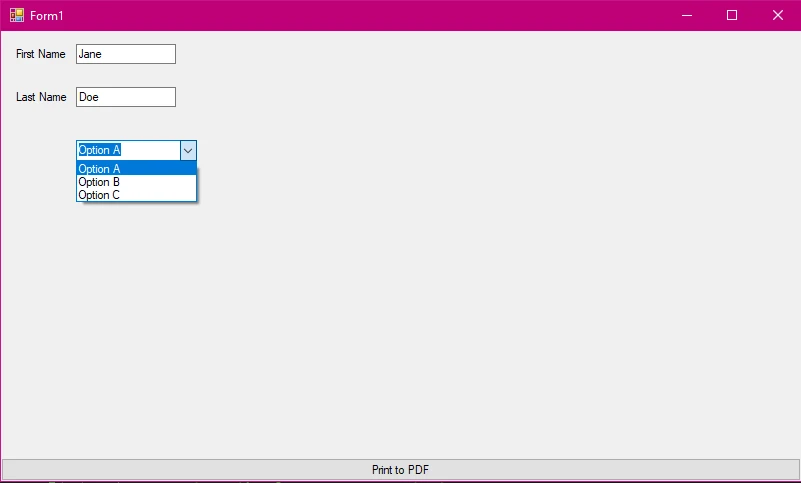
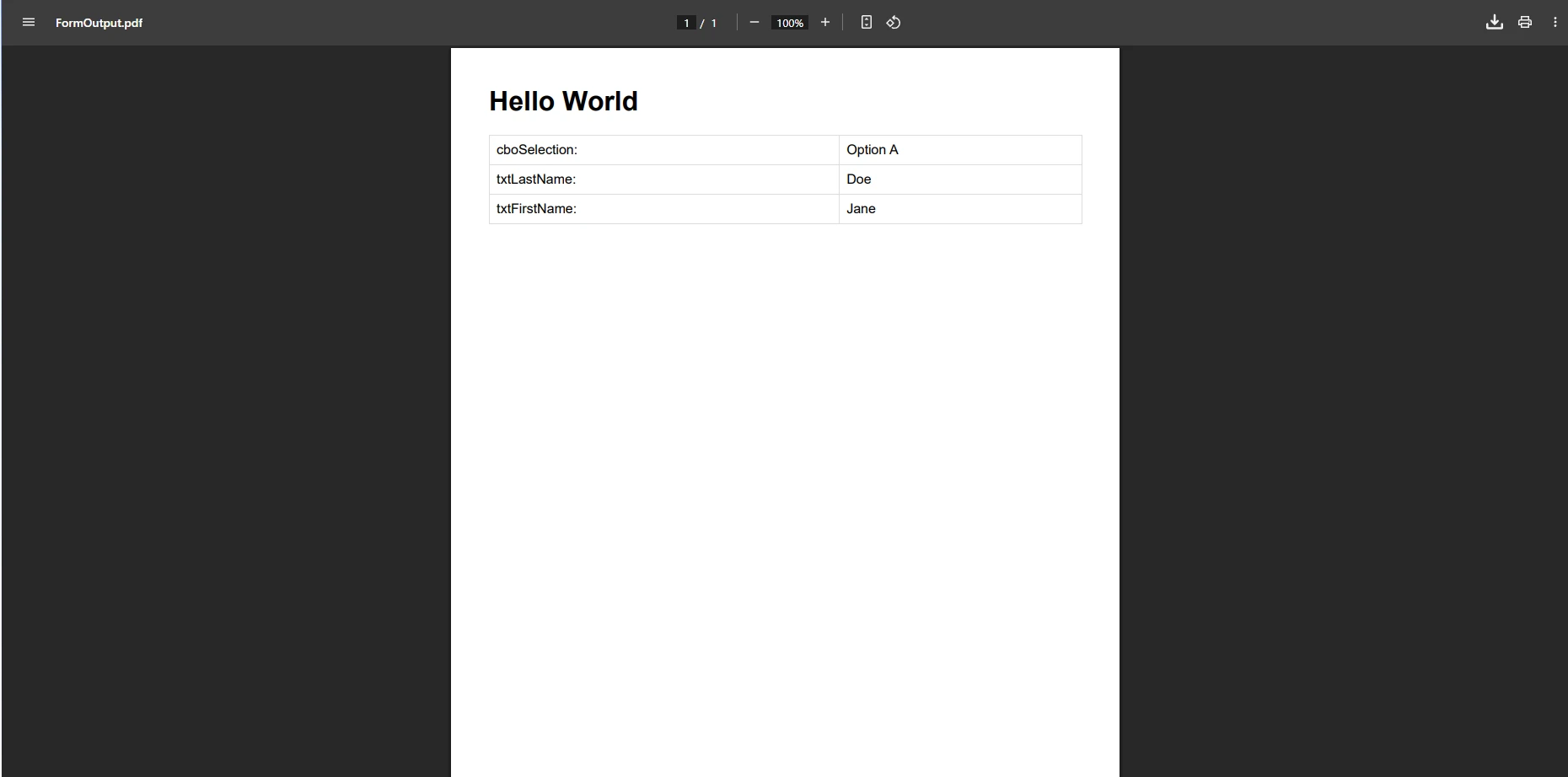
对于包含复杂图形或自定义绘图的表单,将其捕获为图像是一种可靠的替代方案。这种方法可以保留表单视觉外观的每一个像素,包括自定义绘制的控件、图表或无法直接映射到 HTML 的图形。 以下代码展示了这种方法:
using IronPdf;
using System.Drawing;
using System.Drawing.Imaging;

// In a WinForms scenario, replace formWidth/formHeight
// with the form's actual Width and Height properties,
// and call DrawToBitmap on the form instance.
int formWidth = 800;
int formHeight = 600;

// Capture form as bitmap
using var bitmap = new Bitmap(formWidth, formHeight);
// Example: myForm.DrawToBitmap(bitmap, new Rectangle(0, 0, formWidth, formHeight));

// Save bitmap to memory stream
using var ms = new System.IO.MemoryStream();
bitmap.Save(ms, ImageFormat.Png);

// Convert image to PDF using IronPDF
var pdfDocument = ImageToPdfConverter.ImageToPdf(ms.ToArray());
pdfDocument.SaveAs("FormImage.pdf");Imports IronPdf
Imports System.Drawing
Imports System.Drawing.Imaging
' In a WinForms scenario, replace formWidth/formHeight
' with the form's actual Width and Height properties,
' and call DrawToBitmap on the form instance.
Dim formWidth As Integer = 800
Dim formHeight As Integer = 600
' Capture form as bitmap
Using bitmap As New Bitmap(formWidth, formHeight)
' Example: myForm.DrawToBitmap(bitmap, New Rectangle(0, 0, formWidth, formHeight))
' Save bitmap to memory stream
Using ms As New System.IO.MemoryStream()
bitmap.Save(ms, ImageFormat.Png)
' Convert image to PDF using IronPDF
Dim pdfDocument = ImageToPdfConverter.ImageToPdf(ms.ToArray())
pdfDocument.SaveAs("FormImage.pdf")
End Using
End Using这种方法使用DrawToBitmap将整个表单捕获为图像,保留精确的视觉外观,包括自定义图形和特殊控件。 ImageToPdfConverter类确保从PNG或其他图像格式到PDF的高质量转换。 对于包含自定义绘制元素或图形的表单,图像捕获方法尤其有效,因为这些元素或图形可能无法很好地转换为 HTML。 如需深入了解图像转换选项,请参阅图像转 PDF 指南。
在进行基于图像的转换时,您还可以使用 Base64 编码将图像直接嵌入到 HTML 内容中。 对于包含多张图片或复杂布局的表单,建议使用多帧 TIFF 转换以更好地进行组织。 你也可以将这两种方法结合起来——对复杂的视觉部分使用图像捕获,对文本密集的数据部分使用 HTML 渲染。
生成 PDF 文件后,IronPDF 还支持直接打印,无需打开查看器:
using IronPdf;

var pdfDocument = PdfDocument.FromFile("FormOutput.pdf");

// Print PDF to default printer
pdfDocument.Print();

// Print with specific printer settings
var printDoc = pdfDocument.GetPrintDocument();
printDoc.PrinterSettings.PrinterName = "My Printer";
printDoc.Print();Imports IronPdf
Dim pdfDocument = PdfDocument.FromFile("FormOutput.pdf")
' Print PDF to default printer
pdfDocument.Print()
' Print with specific printer settings
Dim printDoc = pdfDocument.GetPrintDocument()
printDoc.PrinterSettings.PrinterName = "My Printer"
printDoc.Print()第一种方法会将文档发送到默认打印机,而第二种方法允许您以编程方式指定打印机设置。 IronPDF 同时支持本地打印机和网络打印机,因此适用于需要集中打印的企业环境。 更多详情请参阅完整的PDF打印文档。
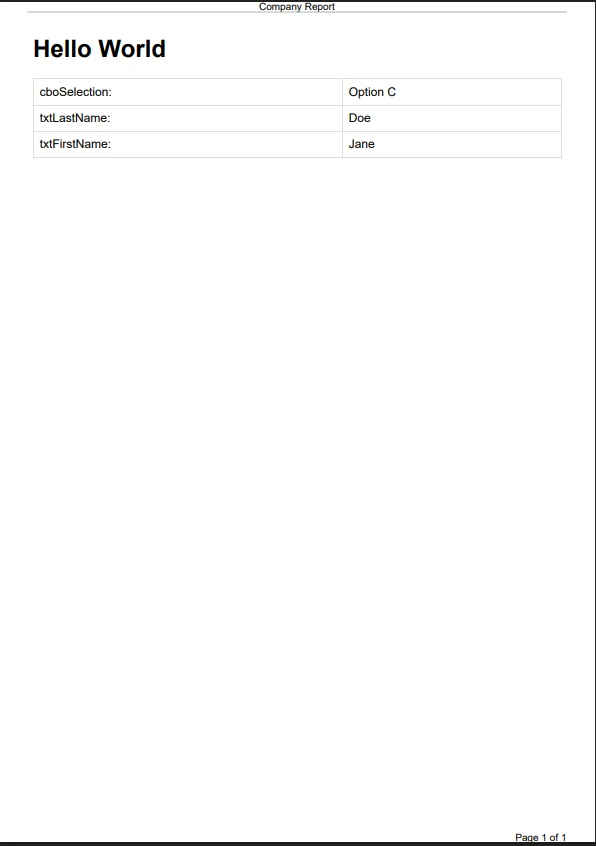
IronPDF 除了基本的转换功能外,还提供专业的功能来改进您的 PDF 文档。 以下代码添加了页眉、页脚、水印、元数据和密码保护:
using IronPdf;
using IronPdf.Editing;

var renderer = new ChromePdfRenderer();

// Add text header
renderer.RenderingOptions.TextHeader = new TextHeaderFooter
{
    CenterText = "Company Report",
    DrawDividerLine = true
};

// Add page number footer
renderer.RenderingOptions.TextFooter = new TextHeaderFooter
{
    RightText = "Page {page} of {total-pages}",
    FontSize = 10
};

// Generate PDF
var pdfDocument = renderer.RenderHtmlAsPdf("<h1>Report Content</h1><p>Form data here.</p>");

// Apply watermark for confidential documents
new HtmlStamper
{
    Html = "<h2 style='color:red'>CONFIDENTIAL</h2>",
    Opacity = 30,
    VerticalAlignment = VerticalAlignment.Middle,
    HorizontalAlignment = HorizontalAlignment.Center
}.ApplyStamp(pdfDocument);

// Set PDF metadata
pdfDocument.MetaData.Author = "C# Application";
pdfDocument.MetaData.Title = "Form Export Report";
pdfDocument.MetaData.CreationDate = DateTime.Now;

// Apply password protection
pdfDocument.Password = "secretPassword123";
pdfDocument.SaveAs("SecureReport.pdf");Imports IronPdf
Imports IronPdf.Editing
Dim renderer As New ChromePdfRenderer()
' Add text header
renderer.RenderingOptions.TextHeader = New TextHeaderFooter With {
.CenterText = "Company Report",
.DrawDividerLine = True
}
' Add page number footer
renderer.RenderingOptions.TextFooter = New TextHeaderFooter With {
.RightText = "Page {page} of {total-pages}",
.FontSize = 10
}
' Generate PDF
Dim pdfDocument = renderer.RenderHtmlAsPdf("<h1>Report Content</h1><p>Form data here.</p>")
' Apply watermark for confidential documents
New HtmlStamper With {
.Html = "<h2 style='color:red'>CONFIDENTIAL</h2>",
.Opacity = 30,
.VerticalAlignment = VerticalAlignment.Middle,
.HorizontalAlignment = HorizontalAlignment.Center
}.ApplyStamp(pdfDocument)
' Set PDF metadata
pdfDocument.MetaData.Author = "C# Application"
pdfDocument.MetaData.Title = "Form Export Report"
pdfDocument.MetaData.CreationDate = DateTime.Now
' Apply password protection
pdfDocument.Password = "secretPassword123"
pdfDocument.SaveAs("SecureReport.pdf")这些功能将基本的 PDF 文件转变为专业文档。 该库支持对 PDF 内容进行完全自定义,从页眉和页脚到安全设置。 您可以为特定页面实现自定义页眉,添加带有公司徽标和 CSS 样式的基于 HTML 的页眉,或者为长文档创建目录。 如需全面了解可用功能,请浏览IronPDF 功能页面。
您还可以添加水印、实现支持 HSM 的数字签名、应用压缩来减小文件大小,以及处理交互式 PDF 表单。 为了满足合规性要求,IronPDF 支持生成 PDF/A 文档和 PDF/UA 可访问文档。 高级功能包括文本注释、书签创建和页面操作,以实现对文档的完全控制。
在 .NET 应用程序中进行表单到 PDF 转换时,请记住以下几点:
如果遇到渲染问题,请检查您的 CSS 是否兼容,并考虑对复杂的 JavaScript 内容使用渲染延迟。 如果遇到字体相关问题,请确保已正确嵌入所需的字体。 常见问题还包括长时间运行的应用程序中的内存使用,您可以通过使用C# using语句适当处理PDF对象来解决这些问题。
为了优化性能,可以考虑使用异步方法来提高吞吐量,实现并行处理以进行批量操作,并使用缓存策略来提高渲染速度。 处理大文件时,请调整图像分辨率并使用适当的压缩设置。
如需更多帮助,请参阅完整的IronPDF 文档或在Stack Overflow上探索社区解决方案。 故障排除指南涵盖常见场景,包括 Azure 部署、AWS Lambda 集成和 Docker 容器化。 微软自身关于Windows Forms 中 PrintDocument 的文档提供了有关 IronPDF 所取代的原生打印模型的有用背景信息。 您还可以查看NuGet 包页面,了解版本历史记录和发行说明。
IronPDF 简化了将表单转换为 PDF 的任务。 无论您是开发 Windows Forms 应用程序还是 ASP.NET Web 窗体,该库都提供了从 C# 项目创建 PDF 文档所需的所有工具。 它的多功能性还涵盖 Blazor 应用程序、MAUI 项目和 F# 开发。
HTML渲染功能与直接表单捕获方法的结合,为管理各种表单类型和要求提供了灵活性。 IronPDF 支持页眉、页脚和安全设置等高级功能,为 .NET 10 应用程序中的 PDF 生成提供了完整的解决方案。 其他功能包括条形码生成、二维码支持以及与流行的 JavaScript 图表库集成。
您可以先试用 IronPDF 的免费版本来探索完整的 API,或者查看完整的IronPDF 文档和API 参考,以了解所有可用功能。 立即下载 IronPDF,只需几行 C# 代码即可将您的 Windows Forms 文档转换为专业的 PDF 文档。
Curtis Chau 拥有卡尔顿大学的计算机科学学士学位,专注于前端开发,精通 Node.js、TypeScript、JavaScript 和 React。他热衷于打造直观且美观的用户界面,喜欢使用现代框架并创建结构良好、视觉吸引力强的手册。

IronPDF 是 IRONSUITE的一部分
10 个 .NET API 产品用于您的办公文档

当您需要PDF看起来像HTML时,速度快。




