





已更新 2026年9月4日
產生每月帳戶報表(PDF 文件)
using IronPDF C# PDF 庫,開發人員可以在 .NET 專案中將 HTML 轉換為可靠的 PDF 文件,而無需依賴外部服務。
閱讀更多

IronPDF讓C#開發者可以將Windows Forms轉換為PDF文件,無需複雜的PDF列印機設置或依賴Adobe。 只需將您的表單資料捕捉為HTML或影像,然後使用IronPDF的渲染引擎快速建立專業的PDF文件。
在C#中將Windows Forms轉換為PDF文件是常見需求,但.NET Framework缺乏原生的PDF列印支持。 您需要一種可靠的方法來從報告生成PDF文件、保存表單資料或建立可列印文件。 無論您從事ASP.NET MVC應用程式或桌面軟體,PDF生成的需求始終至關重要。
IronPDF提供了一個快速而簡單的解決方案。 此工具讓您可以將表單列印到PDF文件中,而無需安裝Adobe Reader或複雜的PDF列印機設置。IronPDF支持HTML到PDF的轉換和高級格式化,從簡單的表單到複雜的報告,皆由IronPDF處理。 本完整指南將教您如何在幾分鐘內完成。
IronPDF是一個完整的.NET PDF 程式庫,可以簡化將Windows Forms和Web表單轉換為PDF文件的過程。 與依賴PDF列印機或複雜繪圖操作的傳統方法不同,IronPDF使用基於Chrome的渲染引擎來從您的C#項目生成像素級準確的PDF文件。 該引擎支持現代Web標準,包括JavaScript執行、CSS3樣式和自適應佈局。
該程式庫處理PDF內容建立的所有方面,從渲染表單控件到管理頁面佈局,使其成為Windows Forms應用程式和ASP.NET Web應用程式的理想選擇。 它還支持非同步操作,以提高多使用者環境中的性能,以及用於雲端部署的記憶體流操作。
對於企業應用程式,IronPDF提供了用於存檔的PDF/A符合性、用於文件真實性的數位簽名,以及安全的加密選項。 該程式庫可與Azure服務、AWS Lambda和Docker容器整合,非常適合現代雲架構。
| 方法 | 最佳用途 | 輸出質量 | 程式碼複雜度 |
|---|---|---|---|
| HTML渲染(ChromePdfRenderer) | 含文字欄位、表格、標準控件的表單 | 高 -- 可擴展的矢量輸出 | 低 |
| 影像捕捉(DrawToBitmap) | 含自定義圖形、SVG、WebGL的表單 | 中 -- 像素準確的位圖 | 低 |
| URL 渲染(RenderUrlAsPdf) | Web表單、ASPX頁面、託管的HTML | 高 -- 完全瀏覽器渲染 | 非常低 |
開始使用IronPDF只需幾分鐘。 最簡單的安裝方法是使用Visual Studio中的NuGet套件管理器:
或者,使用包管理控制台:
如需詳細的設置說明,請存取IronPDF安裝指南。 安裝完成後,在文件頂部新增using IronPdf;以開始使用程式庫的功能。 安裝過程自動處理本機依賴和運行時需求,確保在不同環境下平穩運行。
以下程式碼範例顯示了如何捕獲並將Windows Form轉換為新的PdfDocument:
// title: Quickstart - Convert Windows Form to PDF
using IronPdf;
using System.Diagnostics;

// Build HTML representation of the form
var html = new System.Text.StringBuilder();
html.Append("<html><head>");
html.Append("<style>");
html.Append("body { font-family: Arial, sans-serif; }");
html.Append("table { width: 100%; border-collapse: collapse; }");
html.Append("td { padding: 8px; border: 1px solid #ddd; }");
html.Append("</style>");
html.Append("</head><body>");
html.Append("<h1>Form Export</h1>");
html.Append("<table>");

// Simulate form field data (replace with actual control values in a WinForms app)
var formFields = new[]
{
    ("txtFirstName", "Jane"),
    ("txtLastName", "Doe"),
    ("cboSelection", "Option A")
};

foreach (var (name, value) in formFields)
{
    html.AppendFormat("<tr><td>{0}:</td><td>{1}</td></tr>", name, value);
}

html.Append("</table></body></html>");

// Initialize IronPDF's ChromePdfRenderer
var renderer = new ChromePdfRenderer();

// Configure rendering options
renderer.RenderingOptions.MarginTop = 10;
renderer.RenderingOptions.MarginBottom = 10;
renderer.RenderingOptions.MarginLeft = 10;
renderer.RenderingOptions.MarginRight = 10;

// Generate PDF from HTML content
var pdfDocument = renderer.RenderHtmlAsPdf(html.ToString());

// Save the PDF file
string fileName = "FormOutput.pdf";
pdfDocument.SaveAs(fileName);

// Open the generated PDF
Process.Start(new ProcessStartInfo(fileName) { UseShellExecute = true });Imports IronPdf
Imports System.Diagnostics
Imports System.Text
' Build HTML representation of the form
Dim html As New StringBuilder()
html.Append("<html><head>")
html.Append("<style>")
html.Append("body { font-family: Arial, sans-serif; }")
html.Append("table { width: 100%; border-collapse: collapse; }")
html.Append("td { padding: 8px; border: 1px solid #ddd; }")
html.Append("</style>")
html.Append("</head><body>")
html.Append("<h1>Form Export</h1>")
html.Append("<table>")
' Simulate form field data (replace with actual control values in a WinForms app)
Dim formFields = {
("txtFirstName", "Jane"),
("txtLastName", "Doe"),
("cboSelection", "Option A")
}
For Each field In formFields
Dim name = field.Item1
Dim value = field.Item2
html.AppendFormat("<tr><td>{0}:</td><td>{1}</td></tr>", name, value)
Next
html.Append("</table></body></html>")
' Initialize IronPDF's ChromePdfRenderer
Dim renderer As New ChromePdfRenderer()
' Configure rendering options
renderer.RenderingOptions.MarginTop = 10
renderer.RenderingOptions.MarginBottom = 10
renderer.RenderingOptions.MarginLeft = 10
renderer.RenderingOptions.MarginRight = 10
' Generate PDF from HTML content
Dim pdfDocument = renderer.RenderHtmlAsPdf(html.ToString())
' Save the PDF file
Dim fileName As String = "FormOutput.pdf"
pdfDocument.SaveAs(fileName)
' Open the generated PDF
Process.Start(New ProcessStartInfo(fileName) With {.UseShellExecute = True})此範例演示了幾個關鍵概念。它使用CSS樣式構建了表單資料的HTML表示,然後使用IronPDF的RenderHtmlAsPdf方法將此HTML轉換為精美的PDF文件。 該方法自動處理所有內容生成。 在真實的Windows Forms應用程式中,用從表單控件直接讀取的值替換樣本formFields陣列。
ChromePdfRenderer類提供了廣泛的自定義選項,包括紙張大小、方向設置和邊距配置。 您還可以應用CSS媒體型別,以控制內容在列印模式與螢幕模式下的顯示方式,並使用JavaScript渲染延遲來處理需要載入時間的動態內容。 更多關於渲染器配置的資訊,請參閱渲染選項指南。
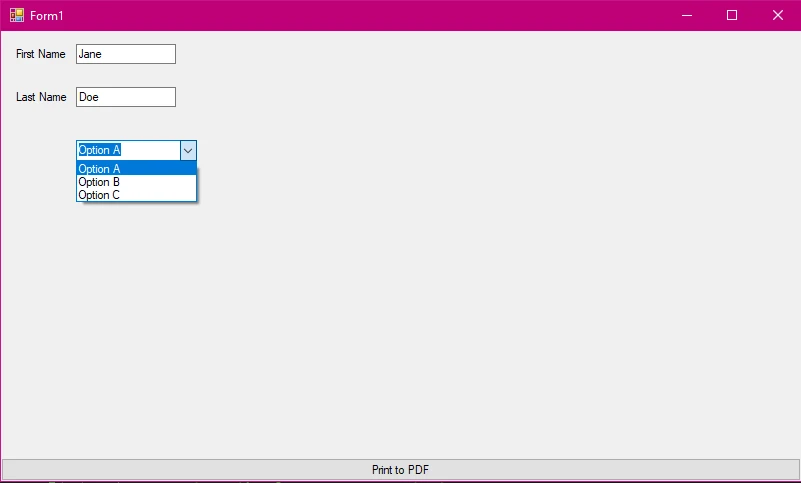
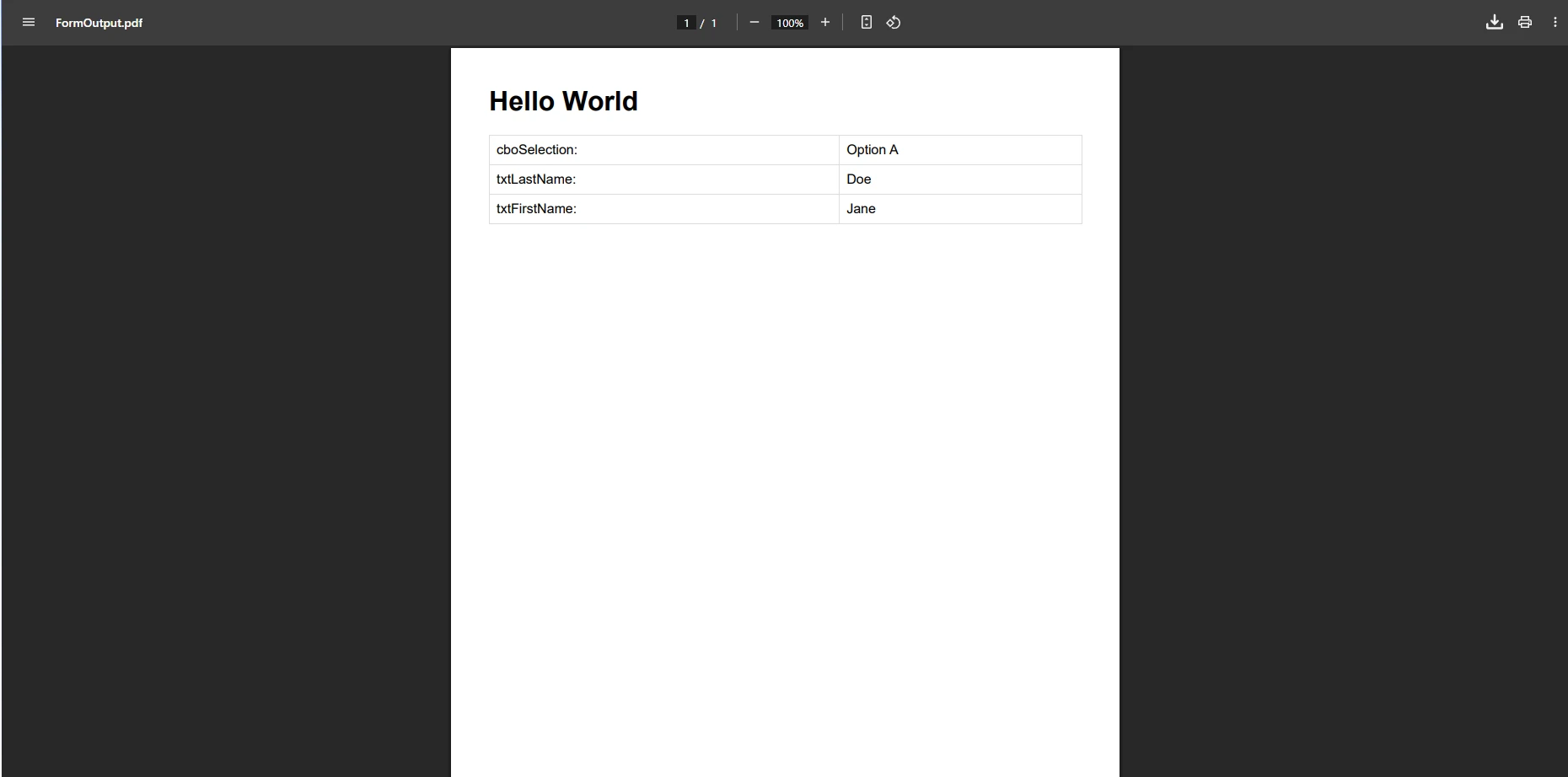
對於帶有複雜圖形或自訂繪圖的表單,將表單作為影像捕捉是一種可靠的替代方案。此方法能夠保留表單的每個像素的視覺效果,包括自訂繪製的控件、圖表或不易映射到HTML中的圖形。 以下程式碼展示了此方法:
using IronPdf;
using System.Drawing;
using System.Drawing.Imaging;

// In a WinForms scenario, replace formWidth/formHeight
// with the form's actual Width and Height properties,
// and call DrawToBitmap on the form instance.
int formWidth = 800;
int formHeight = 600;

// Capture form as bitmap
using var bitmap = new Bitmap(formWidth, formHeight);
// Example: myForm.DrawToBitmap(bitmap, new Rectangle(0, 0, formWidth, formHeight));

// Save bitmap to memory stream
using var ms = new System.IO.MemoryStream();
bitmap.Save(ms, ImageFormat.Png);

// Convert image to PDF using IronPDF
var pdfDocument = ImageToPdfConverter.ImageToPdf(ms.ToArray());
pdfDocument.SaveAs("FormImage.pdf");Imports IronPdf
Imports System.Drawing
Imports System.Drawing.Imaging
' In a WinForms scenario, replace formWidth/formHeight
' with the form's actual Width and Height properties,
' and call DrawToBitmap on the form instance.
Dim formWidth As Integer = 800
Dim formHeight As Integer = 600
' Capture form as bitmap
Using bitmap As New Bitmap(formWidth, formHeight)
' Example: myForm.DrawToBitmap(bitmap, New Rectangle(0, 0, formWidth, formHeight))
' Save bitmap to memory stream
Using ms As New System.IO.MemoryStream()
bitmap.Save(ms, ImageFormat.Png)
' Convert image to PDF using IronPDF
Dim pdfDocument = ImageToPdfConverter.ImageToPdf(ms.ToArray())
pdfDocument.SaveAs("FormImage.pdf")
End Using
End Using此方法使用DrawToBitmap捕捉整個表單為影像,保留精確的視覺效果,包括自訂圖形和特殊控件。 ImageToPdfConverter類確保PNG或其他影像格式到PDF的高質量轉換。 影像捕捉方法特別適合於包含自訂繪製元素或可能不易翻譯為HTML的圖形的表單。 如需更深入的影像轉換選項,請參閱影像到PDF指南。
在處理基於影像的轉換時,您還可以使用Base64編碼將影像直接嵌入到HTML內容中。 對於包含多個影像或複雜佈局的表單,考慮使用多幀TIFF轉換以獲得更好的組織效果。 您還可以結合兩種方法 -- 將影像捕捉用於複雜的視覺部分,將HTML渲染用於文字密集型資料部分。
生成PDF文件後,IronPDF也支持直接列印而無需打開查看器:
using IronPdf;

var pdfDocument = PdfDocument.FromFile("FormOutput.pdf");

// Print PDF to default printer
pdfDocument.Print();

// Print with specific printer settings
var printDoc = pdfDocument.GetPrintDocument();
printDoc.PrinterSettings.PrinterName = "My Printer";
printDoc.Print();Imports IronPdf
Dim pdfDocument = PdfDocument.FromFile("FormOutput.pdf")
' Print PDF to default printer
pdfDocument.Print()
' Print with specific printer settings
Dim printDoc = pdfDocument.GetPrintDocument()
printDoc.PrinterSettings.PrinterName = "My Printer"
printDoc.Print()第一種方法將文件發送至預設列印機,而第二種方法讓您可以以程式化方式指定列印機設置。 IronPDF支持本地和網路列印機,使其適合需要集中列印的企業環境。 更多詳情,請參閱完整的PDF列印文件。
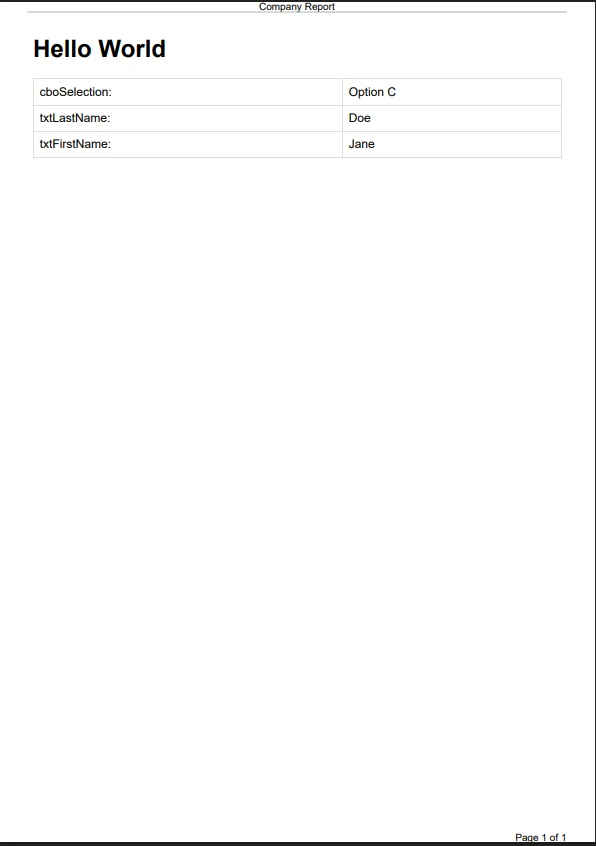
IronPDF使您可以通過專業功能提升您的PDF文件,超出基本轉換。 以下程式碼新增標頭、頁尾、水印、元資料和密碼保護:
using IronPdf;
using IronPdf.Editing;

var renderer = new ChromePdfRenderer();

// Add text header
renderer.RenderingOptions.TextHeader = new TextHeaderFooter
{
    CenterText = "Company Report",
    DrawDividerLine = true
};

// Add page number footer
renderer.RenderingOptions.TextFooter = new TextHeaderFooter
{
    RightText = "Page {page} of {total-pages}",
    FontSize = 10
};

// Generate PDF
var pdfDocument = renderer.RenderHtmlAsPdf("<h1>Report Content</h1><p>Form data here.</p>");

// Apply watermark for confidential documents
new HtmlStamper
{
    Html = "<h2 style='color:red'>CONFIDENTIAL</h2>",
    Opacity = 30,
    VerticalAlignment = VerticalAlignment.Middle,
    HorizontalAlignment = HorizontalAlignment.Center
}.ApplyStamp(pdfDocument);

// Set PDF metadata
pdfDocument.MetaData.Author = "C# Application";
pdfDocument.MetaData.Title = "Form Export Report";
pdfDocument.MetaData.CreationDate = DateTime.Now;

// Apply password protection
pdfDocument.Password = "secretPassword123";
pdfDocument.SaveAs("SecureReport.pdf");Imports IronPdf
Imports IronPdf.Editing
Dim renderer As New ChromePdfRenderer()
' Add text header
renderer.RenderingOptions.TextHeader = New TextHeaderFooter With {
.CenterText = "Company Report",
.DrawDividerLine = True
}
' Add page number footer
renderer.RenderingOptions.TextFooter = New TextHeaderFooter With {
.RightText = "Page {page} of {total-pages}",
.FontSize = 10
}
' Generate PDF
Dim pdfDocument = renderer.RenderHtmlAsPdf("<h1>Report Content</h1><p>Form data here.</p>")
' Apply watermark for confidential documents
New HtmlStamper With {
.Html = "<h2 style='color:red'>CONFIDENTIAL</h2>",
.Opacity = 30,
.VerticalAlignment = VerticalAlignment.Middle,
.HorizontalAlignment = HorizontalAlignment.Center
}.ApplyStamp(pdfDocument)
' Set PDF metadata
pdfDocument.MetaData.Author = "C# Application"
pdfDocument.MetaData.Title = "Form Export Report"
pdfDocument.MetaData.CreationDate = DateTime.Now
' Apply password protection
pdfDocument.Password = "secretPassword123"
pdfDocument.SaveAs("SecureReport.pdf")這些功能將基本的PDF文件轉變為專業文件。 該程式庫支持對PDF內容的完全自定義,從標頭和頁尾到安全設置。 您可以在特定頁面上實施自定義標頭,新增帶公司標誌和CSS樣式的基於HTML的標頭或為長文件建立目錄。 如需瞭解完整功能概述,請探索IronPDF功能頁面。
您還可以新增水印、實現支持HSM的數位簽名、應用壓縮以減小文件大小,並處理互動PDF表單。 為滿足合規需求,IronPDF支持生成PDF/A文件和PDF/UA可接觸的文件。 高級功能包括文字註釋、書籤建立和頁面操作,以便實現完整的文件控制。
在.NET應用中處理表單到PDF轉換時,請記住以下幾點:
對於渲染問題,驗證您的CSS是否相容,並考慮對於複雜的JavaScript內容使用渲染延遲。 如果您遇到字體相關問題,請確保所需字體已正確嵌入。 常見問題還包括長期運行情況下的記憶體使用,您可以通過使用C# using語句妥善處理PDF物件來解決。
為了提高性能,可以考慮使用非同步方法以獲得更好的吞吐量,實施並行處理以進行批量操作,並使用快取策略以提高渲染速度。 在處理大文件時,調整影像解析度並使用適當的壓縮設置。
如需其他支援,請查閱完整的IronPDF文件或在Stack Overflow上探索社群解決方案。 故障排除指南涵蓋了常見場景,包括Azure部署、AWS Lambda整合及Docker容器化。 Microsoft自己的Windows Forms中PrintDocument文件提供了IronPDF所替代的原生列印模型的有用背景資料。 您還可以查看NuGet包頁面以獲取版本歷史和發行說明。
IronPDF簡化了表單轉換為PDF的工作。 無論您是在開發Windows Forms應用程式或ASP.NET Web表單,該程式庫提供了從您的C#專案建立PDF文件所需的所有工具。 其多功能性還涵蓋Blazor應用、MAUI專案和F#開發。
HTML渲染功能和直接表單捕獲方法的組合,提供了處理各種表單型別和需求的靈活性。 憑藉對標頭、頁腳和安全設置等高級功能的支持,IronPDF為.NET 10應用程式中的PDF生成提供了完整的解決方案。 其他功能包括條碼生成、QR碼支持及與流行的JavaScript圖表程式庫整合。
開始免費試用 IronPDF以探索完整的API,或查看完整的IronPDF文件和API參考以發現每個可用功能。 今天下載IronPDF,僅需幾行C#程式碼即可將您的Windows Forms轉換為專業的PDF文件。
Curtis Chau擁有Carleton大學的電腦科學學士學位,專精於前端開發,擁有Node.js、TypeScript、JavaScript和React的專業知識。Curtis熱衷於建立直觀且美觀的使用者介面,喜愛使用現代框架並建立結構良好、視覺吸引力的手冊。

IronPDF 是 IRONSUITE 的一部分
10 款適用於辦公室文件的 .NET API 產品

當您需要您的PDF看起來像HTML一樣快速。




