



Updated September 2, 2026
HTML to PDF in C#: Benchmarking 7 .NET Libraries (2026)
Compare 7 C# HTML to PDF libraries on .NET 10 for cold start, throughput, memory and rendering accuracy. Only 3 rendered the test invoice correctly.
Read More

In today's digital-first world, the need for effective PDF generation and manipulation has never been greater. Whether for report generation, invoice creation, or creating dynamic documents, the Portable Document Format (PDF) remains an essential tool.
One such task is converting PDF files to image formats. This can provide developers with powerful solutions for easy integration of their PDF documents into image-based media such as presentations, web pages, and social media pages.
Two libraries that make PDF conversion and manipulation easy in C# are QuestPDF and IronPDF. This article explores these two libraries and how they compare in their ability to generate and work with PDFs.
QuestPDF is a modern, open-source library designed for creating PDF documents using a highly flexible and fluent API. It excels in layout and design flexibility, allowing users to create complex documents without complex configurations.
IronPDF, on the other hand, is a full-fledged PDF manipulation and generation library, offering comprehensive features for both creation and manipulation. With a rich set of features and extensive documentation, IronPDF can be a one-stop library for all your PDF needs.
One of IronPDF's standout features is the ability to render PDF pages as images, which is particularly useful for creating thumbnails, integrating PDFs into web pages, or extracting visual elements.
To generate PDFs using IronPDF, follow these steps:
Install IronPDF via NuGet:
Load the PDF File:
Use the PdfDocument.FromFile() method to load an existing PDF file.
Render Each Page as an Image:
Use the ToImage() method to render individual pages as images. You can specify the resolution (DPI) to improve quality.
Save the Images: Save the extracted images in your desired format (e.g., PNG, JPEG).
Here's a code example demonstrating how to convert your PDF files to images:
using IronPdf;
using System.Drawing;

class Program
{
    static void Main(string[] args)
    {
        // Create a new instance of ChromePdfRenderer for rendering PDFs
        ChromePdfRenderer renderer = new ChromePdfRenderer();

        // Render PDF from a URL
        PdfDocument pdf = renderer.RenderUrlAsPdf("https://www.nuget.org/packages/IronPdf/#readme-body-tab");

        // Convert rendered PDF pages to image files
        pdf.RasterizeToImageFiles("IronPdfImage.png");
    }
}Imports IronPdf
Imports System.Drawing
Module Program
Sub Main(args As String())
' Create a new instance of ChromePdfRenderer for rendering PDFs
Dim renderer As New ChromePdfRenderer()
' Render PDF from a URL
Dim pdf As PdfDocument = renderer.RenderUrlAsPdf("https://www.nuget.org/packages/IronPdf/#readme-body-tab")
' Convert rendered PDF pages to image files
pdf.RasterizeToImageFiles("IronPdfImage.png")
End Sub
End Module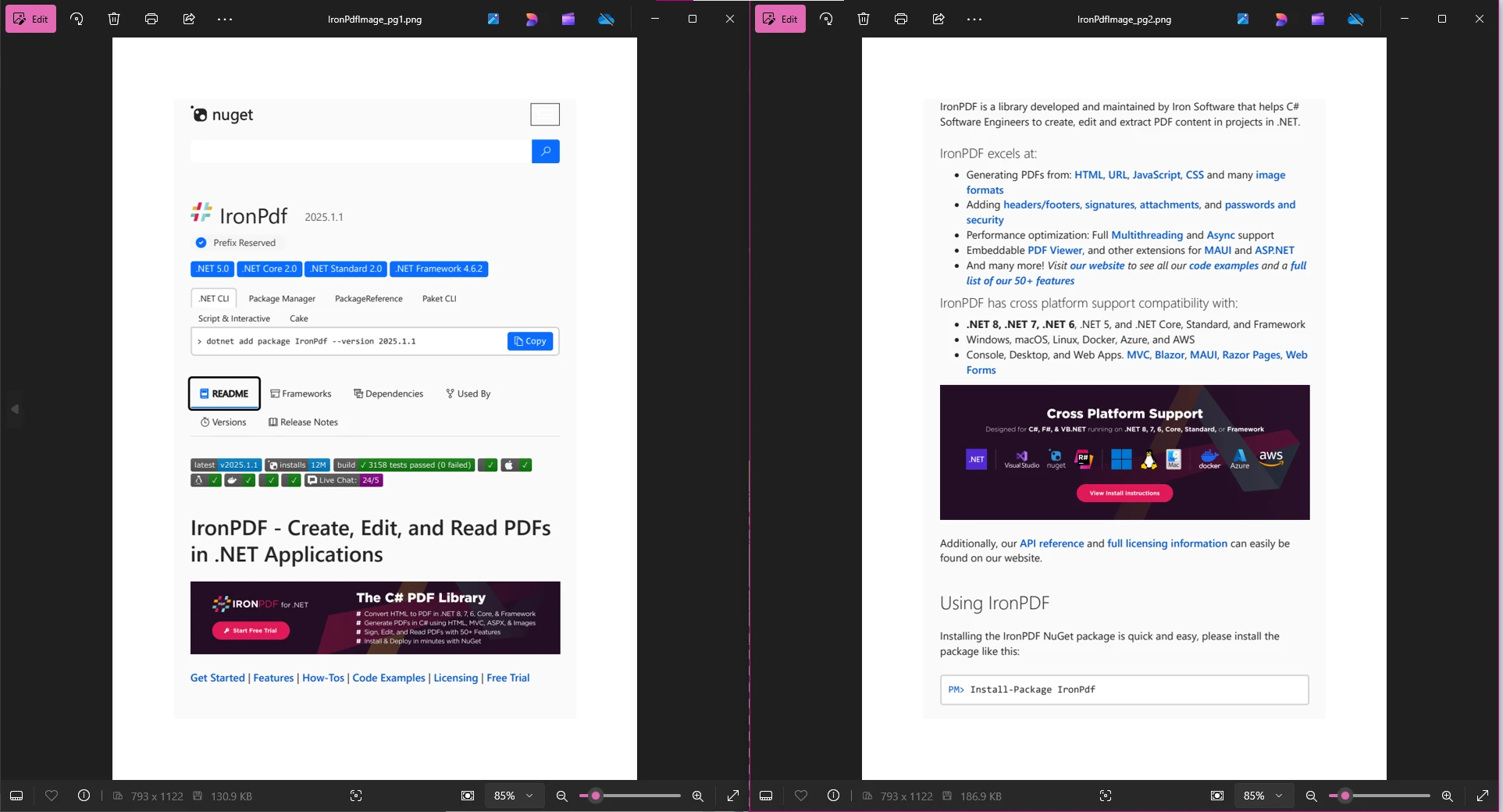
In this example, we create a new PDF document by rendering a URL to PDF using the ChromePdfRenderer rendering engine. We then convert this new PDF to images with the RasterizeToImageFiles method, creating high-quality images for each page in the PDF. To improve error handling, you could wrap this code block in a try-catch structure to gracefully manage exceptions.
QuestPDF does not natively support converting PDF documents to images. QuestPDF is focused primarily on generating PDFs and does not offer built-in functionality for extracting or rendering PDF files as images. Its architecture is designed for generating complex PDF layouts, providing developers with fine-grained control over the PDF creation process and allowing for detailed management of visual elements such as borders, images, and layout components like columns and rows.
If you need to work with existing PDFs (such as converting them to images, extracting text, or editing them), QuestPDF is not suitable for those use cases. Instead, consider alternative libraries designed for such tasks, such as IronPDF, Aspose.PDF, iText, and more. With QuestPDF, you can create the initial PDF document using the Document.Create(container => { ...}) method, but another library will be needed to handle additional operations.
When comparing QuestPDF and IronPDF, it's clear that these libraries serve different purposes. QuestPDF excels in generating complex, dynamic PDFs with its modern, fluent API, but it lacks support for manipulating existing PDFs, including converting PDFs to images.
IronPDF, on the other hand, is a comprehensive solution that excels in both PDF generation and manipulation. Its ability to convert PDF pages to high-quality images makes it ideal for integrating PDF content into presentations, web pages, or social media. Additionally, features like HTML-to-PDF conversion, merging, adding backgrounds to PDFs, and editing make it a versatile tool for diverse workflows.
IronPDF offers flexible licensing options, including a free trial, ensuring compliance and scalability for businesses.
For developers needing PDF-to-image conversion, IronPDF is the superior choice. While QuestPDF is perfect for creating PDFs, libraries like IronPDF, Aspose.PDF, or PDFium.NET SDK are better suited for handling advanced PDF manipulation tasks. Choose the library that aligns with your project's requirements for the best results.

Curtis Chau holds a Bachelor’s degree in Computer Science (Carleton University) and specializes in front-end development with expertise in Node.js, TypeScript, JavaScript, and React. Passionate about crafting intuitive and aesthetically pleasing user interfaces, Curtis enjoys working with modern frameworks and creating well-structured, visually appealing manuals.

IronPDF is a part of IRONSUITE
10 .NET API products for your office documents











When you need your PDF to look like HTML, fast.


