The Problem With Generic and Manual Collateral
 A discount offer that goes to every customer in the database, regardless of what they've bought or browsed, is less an offer than a noise event. The customer who just spent $800 on luggage doesn't need a 10% coupon on luggage. The trial user who only ever opened the reporting features doesn't want an email about collaboration tools. Personalization isn't a marketing luxury, it's the baseline for collateral that actually converts.
The gap between wanting personalized collateral and producing it at scale is where things break down. A travel company with ten destination segments, three customer tiers, and two regional variants doesn't have 60 InDesign files, they have three files someone intended to update, and the rest are in a shared drive folder no one touches. A financial services firm producing tailored investment summaries for different risk profiles can't ask a designer to hand-produce each one. An e-commerce platform with lapsed customer win-back campaigns needs offers generated per recipient, not per segment.
Engineering gets pulled into the gap every time marketing needs "just one more version." The PDF export is rebuilt, the template is duplicated, the data pipeline is extended, and by the time it ships the campaign window has narrowed. The next campaign starts the same cycle.
Third-party personalization platforms abstract some of this but add per-document or per-recipient pricing that scales directly against campaign size, the campaigns with the widest reach are the most expensive to run.
The Solution: Runtime Personalization From Customer Data to PDF Document
IronPDF lets .NET applications generate personalized PDF offers and brochures by merging customer data and segmentation logic with HTML content and CSS marketing templates at runtime. The campaign system identifies the recipient and their attributes, selects the appropriate template variant, populates it with customer-specific content, and ChromePdfRenderer produces the PDF.
Marketing owns and updates the HTML templates. Engineering owns the data pipeline and segmentation logic. Neither blocks the other, a designer can change the template layout, update the imagery, or rewrite the copy without touching a line of C#, and the next render picks up the change automatically. No design tool exports, no per-document vendor fees, no manual variations per campaign. The rendering runs inside the existing .NET application as a single NuGet package.
How It Works in Practice
1. Campaign Trigger Identifies the Recipient and Their Profile
Generation fires when a scheduled campaign job runs for a target segment, a user hits a lifecycle milestone (thirty days since last purchase, trial day 14, first login after a gap), or a sales rep generates a leave-behind offer for a specific prospect in the CRM. All three paths produce the same input: a customer ID and the context that triggered the campaign.
The application retrieves the recipient's profile from the customer database, name, segment label, purchase history, product affinities, loyalty tier, and any behavioral signals relevant to the offer. A travel customer's browsed destinations, an e-commerce shopper's most recent category, a SaaS trial user's most-used features. This is the data that makes the document feel specific rather than generic.
2. Segmentation Logic Selects Template and Content
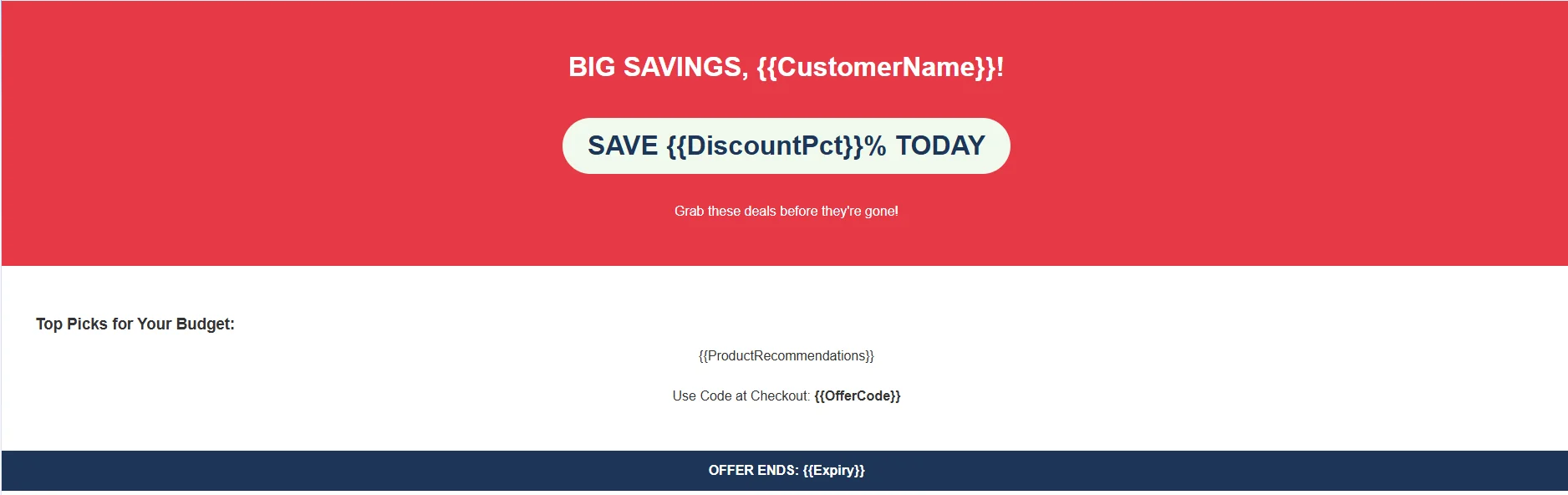
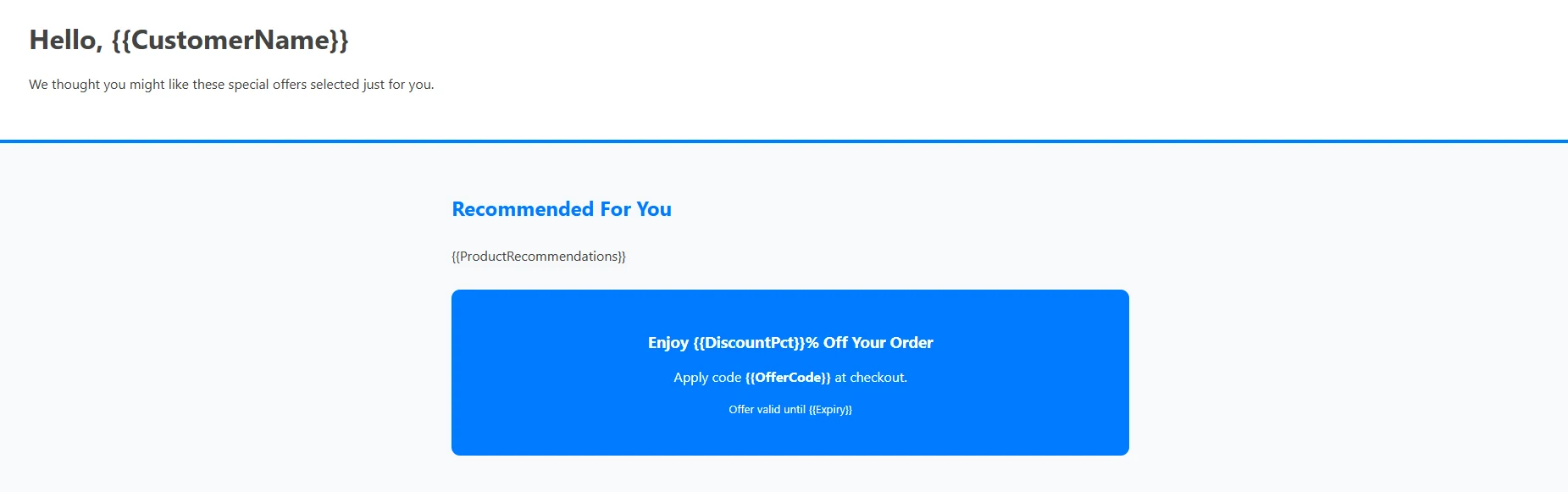
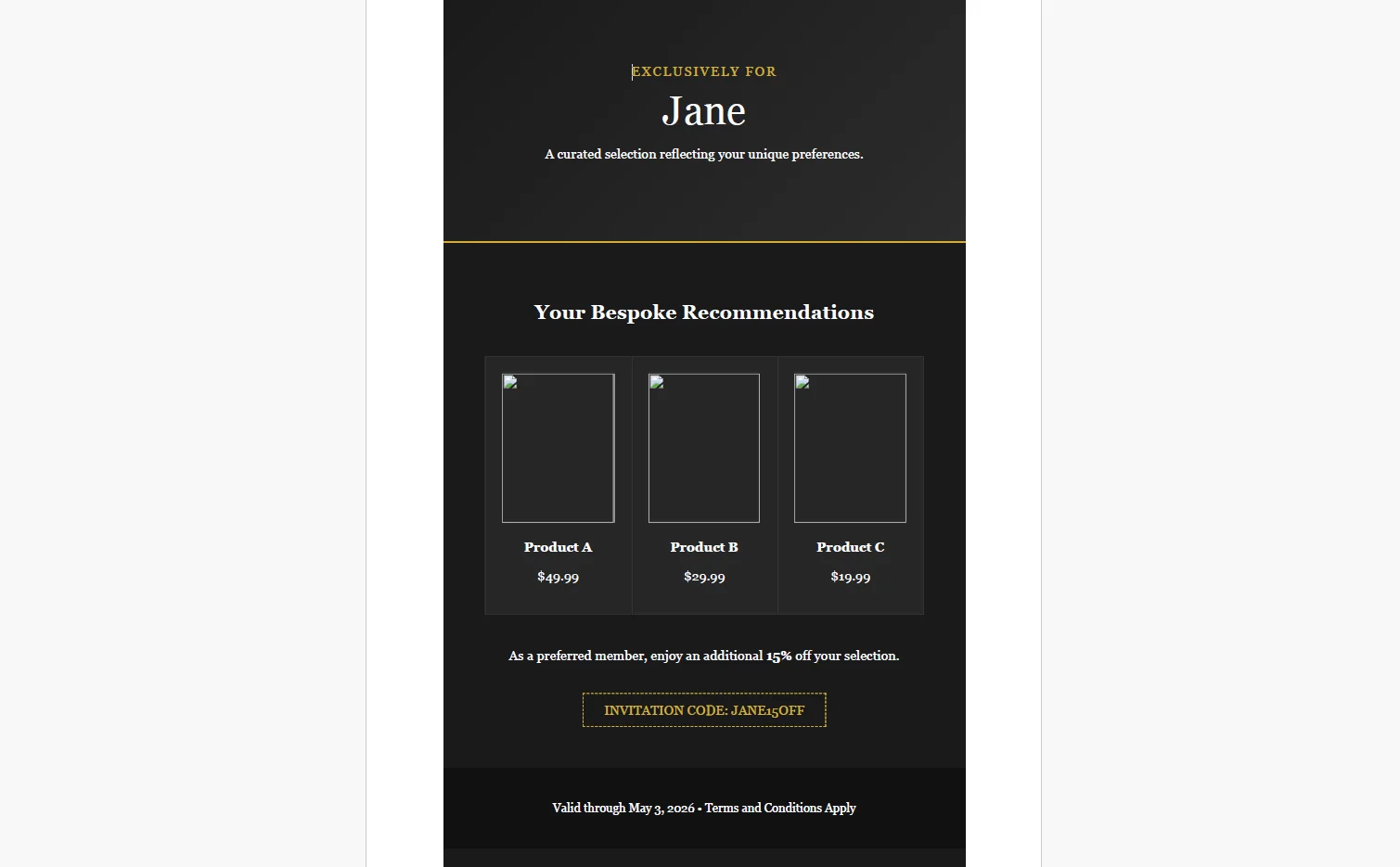
A template selector maps the customer's segment and attributes to a template variant. A high-spend loyalty customer gets the premium template with the highest discount tier and a "valued member" tone. A price-sensitive segment gets a budget-friendly variant with a different headline and value proposition. A lapsed customer gets a win-back framing.
Product recommendations, offer percentages, expiration dates, and redemption codes are calculated at this step, derived from the customer's affinity model, loyalty tier, and campaign configuration. The unique redemption code or tracking URL ties the specific document to the recipient for attribution when the offer is redeemed.
For example:
Budget Offer Example Template
Standard Offer Example Template
Premium Offer Example Template

3. Template Populated and Rendered in HTML to PDF Conversion
using IronPdf;

var renderer = new ChromePdfRenderer();

renderer.RenderingOptions.PaperSize = IronPdf.Rendering.PdfPaperSize.Letter;

renderer.RenderingOptions.MarginTop = 0;

renderer.RenderingOptions.MarginBottom = 0;

string templateFile = customer.Segment switch
{
    "HighValue"     => "Templates/offer-premium.html",
    "PriceSensitive"=> "Templates/offer-budget.html",
    _               => "Templates/offer-standard.html"
};

string productRows = string.Concat(customer.Recommendations.Take(3).Select(p =>

    $"<div class='product'><img src='{p.ImageUrl}'><p><strong>{p.Name}</strong></p><p>{p.Price:C}</p></div>"));

string html = (await File.ReadAllTextAsync(templateFile))
    .Replace("{{CustomerName}}", customer.FirstName)
    .Replace("{{DiscountPct}}", customer.LoyaltyDiscount.ToString())
    .Replace("{{OfferCode}}", customer.UniqueOfferCode)
    .Replace("{{Expiry}}", campaign.ExpiryDate.ToString("MMMM d, yyyy"))
    .Replace("{{ProductRecommendations}}", productRows);

PdfDocument offer = renderer.RenderHtmlAsPdf(html);

offer.SaveAs($"offers/{campaign.Id}/{customer.Id}.pdf");
using IronPdf;

var renderer = new ChromePdfRenderer();

renderer.RenderingOptions.PaperSize = IronPdf.Rendering.PdfPaperSize.Letter;

renderer.RenderingOptions.MarginTop = 0;

renderer.RenderingOptions.MarginBottom = 0;

string templateFile = customer.Segment switch
{
    "HighValue"     => "Templates/offer-premium.html",
    "PriceSensitive"=> "Templates/offer-budget.html",
    _               => "Templates/offer-standard.html"
};

string productRows = string.Concat(customer.Recommendations.Take(3).Select(p =>

    $"<div class='product'><img src='{p.ImageUrl}'><p><strong>{p.Name}</strong></p><p>{p.Price:C}</p></div>"));

string html = (await File.ReadAllTextAsync(templateFile))
    .Replace("{{CustomerName}}", customer.FirstName)
    .Replace("{{DiscountPct}}", customer.LoyaltyDiscount.ToString())
    .Replace("{{OfferCode}}", customer.UniqueOfferCode)
    .Replace("{{Expiry}}", campaign.ExpiryDate.ToString("MMMM d, yyyy"))
    .Replace("{{ProductRecommendations}}", productRows);

PdfDocument offer = renderer.RenderHtmlAsPdf(html);

offer.SaveAs($"offers/{campaign.Id}/{customer.Id}.pdf");
Imports IronPdf
Imports System.IO
Imports System.Linq
Dim renderer As New ChromePdfRenderer()
renderer.RenderingOptions.PaperSize = IronPdf.Rendering.PdfPaperSize.Letter
renderer.RenderingOptions.MarginTop = 0
renderer.RenderingOptions.MarginBottom = 0
Dim templateFile As String = If(customer.Segment = "HighValue", "Templates/offer-premium.html", If(customer.Segment = "PriceSensitive", "Templates/offer-budget.html", "Templates/offer-standard.html"))
Dim productRows As String = String.Concat(customer.Recommendations.Take(3).Select(Function(p) $"<div class='product'><img src='{p.ImageUrl}'><p><strong>{p.Name}</strong></p><p>{p.Price:C}</p></div>"))
Dim html As String = (Await File.ReadAllTextAsync(templateFile)).
Replace("{{CustomerName}}", customer.FirstName).
Replace("{{DiscountPct}}", customer.LoyaltyDiscount.ToString()).
Replace("{{OfferCode}}", customer.UniqueOfferCode).
Replace("{{Expiry}}", campaign.ExpiryDate.ToString("MMMM d, yyyy")).
Replace("{{ProductRecommendations}}", productRows)
Dim offer As PdfDocument = renderer.RenderHtmlAsPdf(html)
offer.SaveAs($"offers/{campaign.Id}/{customer.Id}.pdf")
Imports IronPdf
Imports System.IO
Imports System.Linq

Dim renderer As New ChromePdfRenderer()

renderer.RenderingOptions.PaperSize = IronPdf.Rendering.PdfPaperSize.Letter

renderer.RenderingOptions.MarginTop = 0

renderer.RenderingOptions.MarginBottom = 0

Dim templateFile As String = If(customer.Segment = "HighValue", "Templates/offer-premium.html", If(customer.Segment = "PriceSensitive", "Templates/offer-budget.html", "Templates/offer-standard.html"))

Dim productRows As String = String.Concat(customer.Recommendations.Take(3).Select(Function(p) $"<div class='product'><img src='{p.ImageUrl}'><p><strong>{p.Name}</strong></p><p>{p.Price:C}</p></div>"))

Dim html As String = (Await File.ReadAllTextAsync(templateFile)).
    Replace("{{CustomerName}}", customer.FirstName).
    Replace("{{DiscountPct}}", customer.LoyaltyDiscount.ToString()).
    Replace("{{OfferCode}}", customer.UniqueOfferCode).
    Replace("{{Expiry}}", campaign.ExpiryDate.ToString("MMMM d, yyyy")).
    Replace("{{ProductRecommendations}}", productRows)

Dim offer As PdfDocument = renderer.RenderHtmlAsPdf(html)

offer.SaveAs($"offers/{campaign.Id}/{customer.Id}.pdf")
Example Generated PDF
 ChromePdfRenderer handles the full visual fidelity of the template, product images, custom marketing fonts loaded via @font-face, multi-column layouts, and styled call-to-action buttons render exactly as the marketing team designed them. The output isn't a downgraded version of the template; it's the template.
4. Batch Generation for Campaign Segments
using IronPdf;

var renderer = new ChromePdfRenderer();

renderer.RenderingOptions.PaperSize = IronPdf.Rendering.PdfPaperSize.Letter;

await Parallel.ForEachAsync(campaignRecipients,

    new ParallelOptions { MaxDegreeOfParallelism = 4 },

    async (customer, _) =>
    {
        string html = await BuildPersonalizedHtmlAsync(customer, campaign);
        PdfDocument pdf = renderer.RenderHtmlAsPdf(html);
        pdf.SaveAs($"offers/{campaign.Id}/{customer.Id}.pdf");
    });
using IronPdf;

var renderer = new ChromePdfRenderer();

renderer.RenderingOptions.PaperSize = IronPdf.Rendering.PdfPaperSize.Letter;

await Parallel.ForEachAsync(campaignRecipients,

    new ParallelOptions { MaxDegreeOfParallelism = 4 },

    async (customer, _) =>
    {
        string html = await BuildPersonalizedHtmlAsync(customer, campaign);
        PdfDocument pdf = renderer.RenderHtmlAsPdf(html);
        pdf.SaveAs($"offers/{campaign.Id}/{customer.Id}.pdf");
    });
Imports IronPdf
Dim renderer As New ChromePdfRenderer()
renderer.RenderingOptions.PaperSize = IronPdf.Rendering.PdfPaperSize.Letter
Await Parallel.ForEachAsync(campaignRecipients,
New ParallelOptions With {.MaxDegreeOfParallelism = 4},
Async Function(customer, _)
Dim html As String = Await BuildPersonalizedHtmlAsync(customer, campaign)
Dim pdf As PdfDocument = renderer.RenderHtmlAsPdf(html)
pdf.SaveAs($"offers/{campaign.Id}/{customer.Id}.pdf")
End Function)
Imports IronPdf

Dim renderer As New ChromePdfRenderer()

renderer.RenderingOptions.PaperSize = IronPdf.Rendering.PdfPaperSize.Letter

Await Parallel.ForEachAsync(campaignRecipients,
    New ParallelOptions With {.MaxDegreeOfParallelism = 4},
    Async Function(customer, _)
        Dim html As String = Await BuildPersonalizedHtmlAsync(customer, campaign)
        Dim pdf As PdfDocument = renderer.RenderHtmlAsPdf(html)
        pdf.SaveAs($"offers/{campaign.Id}/{customer.Id}.pdf")
    End Function)
Two PDF Offers Generated with IronPDF Library
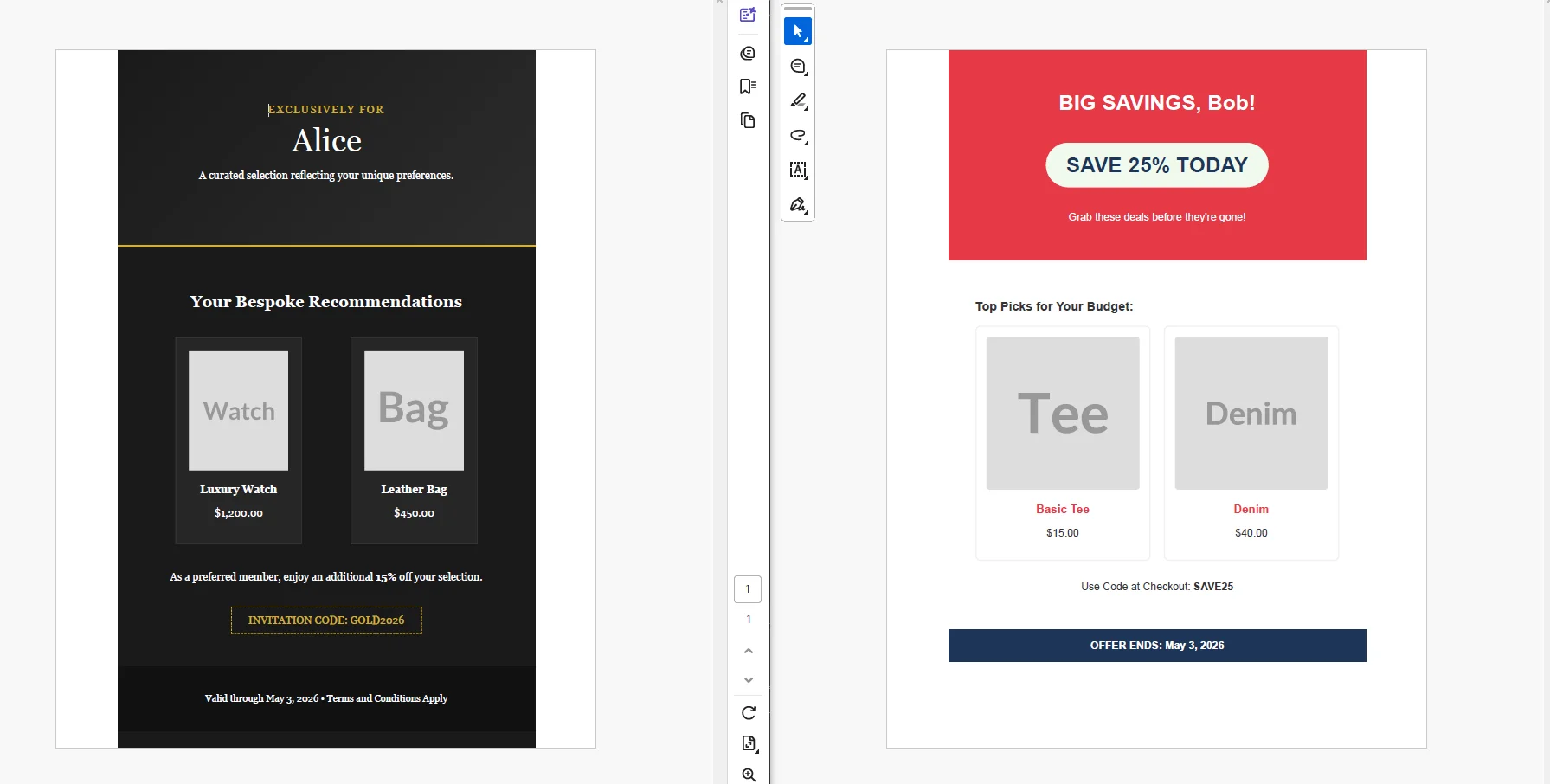 Each rendered PDF is stored keyed by customer ID under the campaign directory, ready to attach to the outbound email, serve as a download link in a personalized landing page, or hand to a sales rep as a printed leave-behind. Campaign analytics track which codes are redeemed, closing attribution back to the specific offer document each recipient received.
Real-World Benefits
Personalization at scale. Every recipient gets a document built from their own data, segment, behavior, purchase history, loyalty tier. The same pipeline serves a list of ten prospects or a campaign segment of fifty thousand.
Tangible format. A PDF is saved to a downloads folder, forwarded to a colleague, or printed and pinned up. It persists beyond the inbox in a way that email body text doesn't, extending the offer's lifespan with no additional effort.
Marketing agility. The HTML and CSS template is edited by the marketing or design team directly, updated imagery, revised copy, new layout. Changes take effect on the next render with no engineering deploy required.
Attribution. A unique redemption code or tracking URL embedded per recipient ties conversions back to the specific document the customer received. Campaign performance isn't inferred from aggregate click rates, it's traceable to individual offers.
Segment flexibility. Adding a new segment means adding a new template variant or adjusting the selector logic. The generation pipeline doesn't change. Engineering doesn't need to rebuild anything to support a new customer tier or campaign theme.
No per-document costs. The rendering runs in-process. There is no third-party personalization API, no per-recipient fee, and no pricing model that penalizes large campaign runs.
Closing
Personalized PDF collateral is the intersection of what customers actually respond to - something that feels relevant to them specifically - and a format that travels further than an email. The gap between a static blast and a document tailored to each recipient is a data pipeline and a template, not a separate platform.
Building that pipeline inside an existing .NET campaign system takes a template file, a data population step, and a render call. IronPDF handles the full lifecycle of PDF generation in C# at ironpdf.com, from rendering HTML content to saving, generating reports, streaming, and manipulating documents. If you're ready to test personalized collateral generation against your own customer segments and campaign data, start your free 30-day trial and have a working pipeline before your next campaign window opens.























