The Problem With Parallel PDF Templates
 The Razor views are already built. The invoice detail page renders line items, calculates totals, and applies the company's stylesheet. The project status page shows task breakdowns with conditional sections that only appear when milestones are overdue. The pay stub view formats earnings, deductions, and YTD figures into a table the HR team spent two weeks getting right. All of that work is done, and then a stakeholder asks for a "Download as PDF" button.
The standard response is to build a second template: an HTML string or report definition that reproduces the same layout for the PDF path. That second template starts out as a copy of the first, then immediately begins to diverge. The UI designer updates the invoice view's table styling in Sprint 14. Nobody updates the PDF template until a user reports that the downloaded invoice looks different from the screen. Now there are two sources of truth, and one of them is always slightly wrong.
Client-side JavaScript PDF libraries avoid the duplication but lose server-rendered data, authenticated data, server-side calculated totals, and conditional sections driven by the ViewModel don't survive the handoff to a browser-side renderer. Headless browser automation from the server is fragile, adds infrastructure overhead, and fails unpredictably in containerized environments. Browser print-to-PDF works for one user printing manually; it's not a "Download PDF" button in a production application.
The real scenarios surface the real cost: an e-commerce admin downloading an order detail page for fulfillment, a client exporting a project status page from a project management tool, an employee downloading their pay stub, a dispatcher printing a route summary. All of them expect the PDF to look exactly like what they see on screen.
The Solution: Render the Existing View, Not a Copy of It
IronPDF lets ASP.NET Core applications render an existing Razor view - the same one that serves the browser - directly into a PDF. The PDF controller action renders the Razor view to an HTML string using the standard view engine, passes that string to ChromePdfRenderer.RenderHtmlAsPdf(), and returns the result as a file download.
One view, two outputs. When the Razor view changes, the PDF output changes with it, automatically, with no coordination required. There are no parallel templates to maintain, no client-side workarounds to debug, and no headless browser process to keep alive. The rendering runs inside the existing .NET application as a single NuGet package.
How It Works in Practice
1. The View Already Exists: The PDF Action Is What's New
An invoice detail page at /invoices/{id} renders the same data model whether it's serving a browser or producing a PDF. The model includes line items, totals, customer details, and company branding, all the data the view needs. The existing InvoicesController has a Details action that populates that model. The PDF action is a sibling of it, not a replacement.
When the user clicks "Download PDF," the request hits /invoices/{id}/pdf. The PDF action fetches the same ViewModel using the same service call, the model is identical. What differs is what happens next.
2. Razor View Rendered to HTML String
Rather than returning a ViewResult, the PDF action uses a view rendering service to invoke the Razor engine against the view file and ViewModel, capturing the output as a string. This is a common pattern in ASP.NET Core, an IViewRenderService injected into the controller that calls ICompositeViewEngine, executes the view in a fake ActionContext, and returns the rendered HTML.
The rendered HTML string is complete: all data is populated, all conditional sections are resolved, all CSS class names are present. It's the same HTML the browser would receive, captured server-side.
using IronPdf;

[HttpGet("{id}/pdf")]
public async Task<IActionResult> DownloadInvoicePdf(int id)
{
    var model = await _invoiceService.GetInvoiceViewModelAsync(id);

    // Render the existing Razor view to an HTML string
    string html = await _viewRenderer.RenderToStringAsync("Invoices/Details", model);

    var renderer = new ChromePdfRenderer();

    renderer.RenderingOptions.CssMediaType = IronPdf.Rendering.PdfCssMediaType.Print;
    renderer.RenderingOptions.MarginTop = 15;
    renderer.RenderingOptions.MarginBottom = 15;

    PdfDocument pdf = renderer.RenderHtmlAsPdf(html);

    return File(pdf.BinaryData, "application/pdf"
        $"Invoice-{model.InvoiceNumber}.pdf");
}
using IronPdf;

[HttpGet("{id}/pdf")]
public async Task<IActionResult> DownloadInvoicePdf(int id)
{
    var model = await _invoiceService.GetInvoiceViewModelAsync(id);

    // Render the existing Razor view to an HTML string
    string html = await _viewRenderer.RenderToStringAsync("Invoices/Details", model);

    var renderer = new ChromePdfRenderer();

    renderer.RenderingOptions.CssMediaType = IronPdf.Rendering.PdfCssMediaType.Print;
    renderer.RenderingOptions.MarginTop = 15;
    renderer.RenderingOptions.MarginBottom = 15;

    PdfDocument pdf = renderer.RenderHtmlAsPdf(html);

    return File(pdf.BinaryData, "application/pdf"
        $"Invoice-{model.InvoiceNumber}.pdf");
}
Imports IronPdf
Imports Microsoft.AspNetCore.Mvc
<HttpGet("{id}/pdf")>
Public Async Function DownloadInvoicePdf(id As Integer) As Task(Of IActionResult)
Dim model = Await _invoiceService.GetInvoiceViewModelAsync(id)
' Render the existing Razor view to an HTML string
Dim html As String = Await _viewRenderer.RenderToStringAsync("Invoices/Details", model)
Dim renderer As New ChromePdfRenderer()
renderer.RenderingOptions.CssMediaType = IronPdf.Rendering.PdfCssMediaType.Print
renderer.RenderingOptions.MarginTop = 15
renderer.RenderingOptions.MarginBottom = 15
Dim pdf As PdfDocument = renderer.RenderHtmlAsPdf(html)
Return File(pdf.BinaryData, "application/pdf", $"Invoice-{model.InvoiceNumber}.pdf")
End Function
Imports IronPdf
Imports Microsoft.AspNetCore.Mvc

<HttpGet("{id}/pdf")>
Public Async Function DownloadInvoicePdf(id As Integer) As Task(Of IActionResult)
    Dim model = Await _invoiceService.GetInvoiceViewModelAsync(id)

    ' Render the existing Razor view to an HTML string
    Dim html As String = Await _viewRenderer.RenderToStringAsync("Invoices/Details", model)

    Dim renderer As New ChromePdfRenderer()

    renderer.RenderingOptions.CssMediaType = IronPdf.Rendering.PdfCssMediaType.Print
    renderer.RenderingOptions.MarginTop = 15
    renderer.RenderingOptions.MarginBottom = 15

    Dim pdf As PdfDocument = renderer.RenderHtmlAsPdf(html)

    Return File(pdf.BinaryData, "application/pdf", $"Invoice-{model.InvoiceNumber}.pdf")
End Function
Generated PDF Document
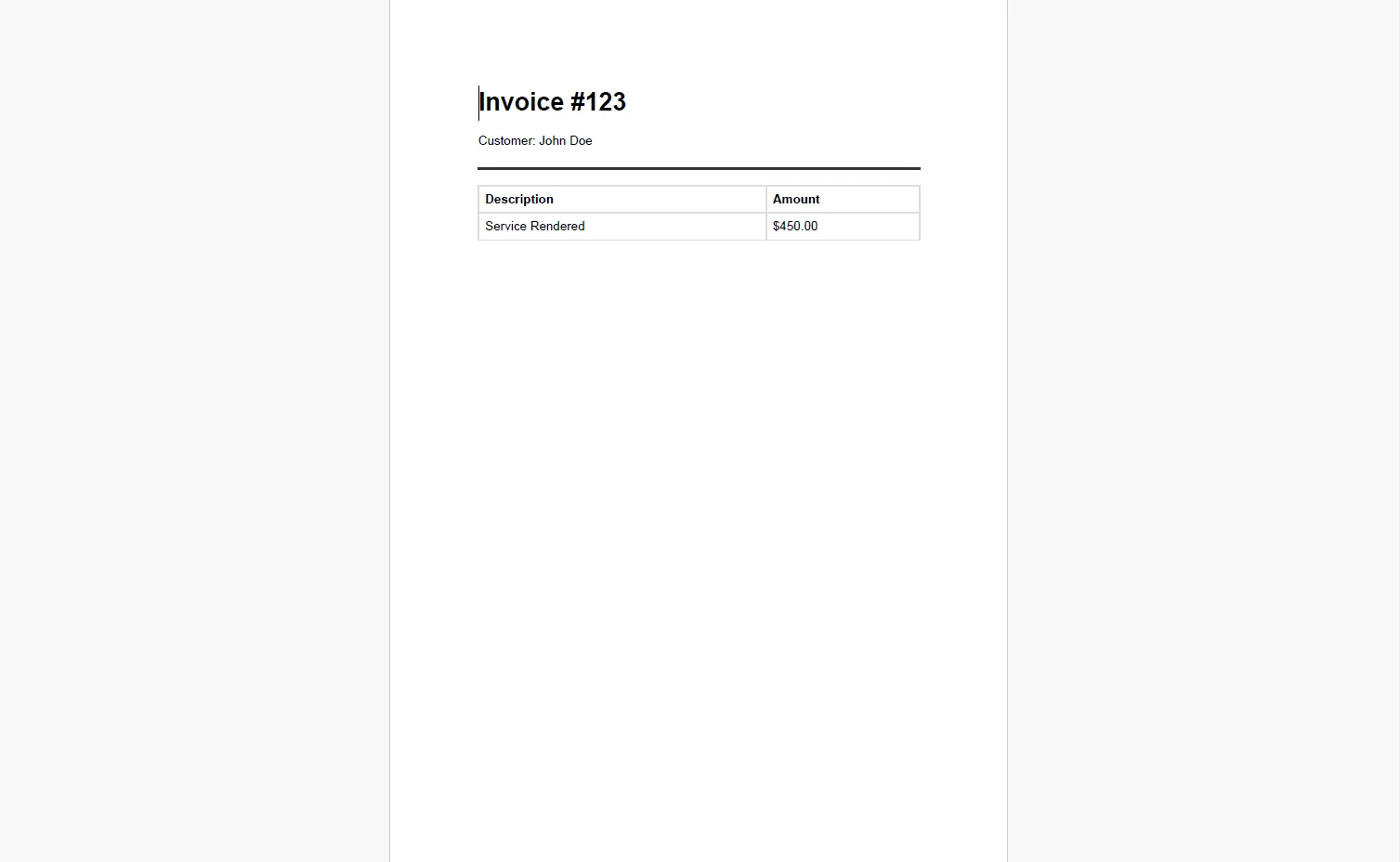 CssMediaType.Print applies any @media print rules already in the view's stylesheet: hiding the navigation bar, suppressing action buttons, and applying print-specific spacing, without requiring any changes to the Razor view itself.
If the Razor view references stylesheets or images via relative paths, set a BaseUrlPath as the second parameter on RenderHtmlAsPdf() so IronPDF resolves those assets correctly during rendering. Without it, CSS and image references that work in a browser context will fail to load in the server-side renderer.
4. Fine-Tuning PDF Output Without Touching the View
PDF-specific adjustments such as page numbers, custom margins, headers with the document title, are configured on the renderer, not in the Razor view. This keeps print logic out of the template:
var renderer = new ChromePdfRenderer();

renderer.RenderingOptions.CssMediaType = IronPdf.Rendering.PdfCssMediaType.Print;
renderer.RenderingOptions.PaperSize = IronPdf.Rendering.PdfPaperSize.A4;
renderer.RenderingOptions.MarginTop = 20;
renderer.RenderingOptions.MarginBottom = 20;
renderer.RenderingOptions.HtmlFooter = new HtmlHeaderFooter
{
    HtmlFragment = @"
        <div style='font-size:9px; color:#888; text-align:center; width:100%;'>
            Invoice — Page {page} of {total-pages}
        </div>",
    DrawDividerLine = true
};

PdfDocument pdf = renderer.RenderHtmlAsPdf(html);
var renderer = new ChromePdfRenderer();

renderer.RenderingOptions.CssMediaType = IronPdf.Rendering.PdfCssMediaType.Print;
renderer.RenderingOptions.PaperSize = IronPdf.Rendering.PdfPaperSize.A4;
renderer.RenderingOptions.MarginTop = 20;
renderer.RenderingOptions.MarginBottom = 20;
renderer.RenderingOptions.HtmlFooter = new HtmlHeaderFooter
{
    HtmlFragment = @"
        <div style='font-size:9px; color:#888; text-align:center; width:100%;'>
            Invoice — Page {page} of {total-pages}
        </div>",
    DrawDividerLine = true
};

PdfDocument pdf = renderer.RenderHtmlAsPdf(html);
Imports IronPdf
Dim renderer As New ChromePdfRenderer()
renderer.RenderingOptions.CssMediaType = IronPdf.Rendering.PdfCssMediaType.Print
renderer.RenderingOptions.PaperSize = IronPdf.Rendering.PdfPaperSize.A4
renderer.RenderingOptions.MarginTop = 20
renderer.RenderingOptions.MarginBottom = 20
renderer.RenderingOptions.HtmlFooter = New HtmlHeaderFooter With {
.HtmlFragment = "
<div style='font-size:9px; color:#888; text-align:center; width:100%;'>
Invoice — Page {page} of {total-pages}
</div>",
.DrawDividerLine = True
}
Dim pdf As PdfDocument = renderer.RenderHtmlAsPdf(html)
Imports IronPdf

Dim renderer As New ChromePdfRenderer()

renderer.RenderingOptions.CssMediaType = IronPdf.Rendering.PdfCssMediaType.Print
renderer.RenderingOptions.PaperSize = IronPdf.Rendering.PdfPaperSize.A4
renderer.RenderingOptions.MarginTop = 20
renderer.RenderingOptions.MarginBottom = 20
renderer.RenderingOptions.HtmlFooter = New HtmlHeaderFooter With {
    .HtmlFragment = "
        <div style='font-size:9px; color:#888; text-align:center; width:100%;'>
            Invoice — Page {page} of {total-pages}
        </div>",
    .DrawDividerLine = True
}

Dim pdf As PdfDocument = renderer.RenderHtmlAsPdf(html)
Output PDF File
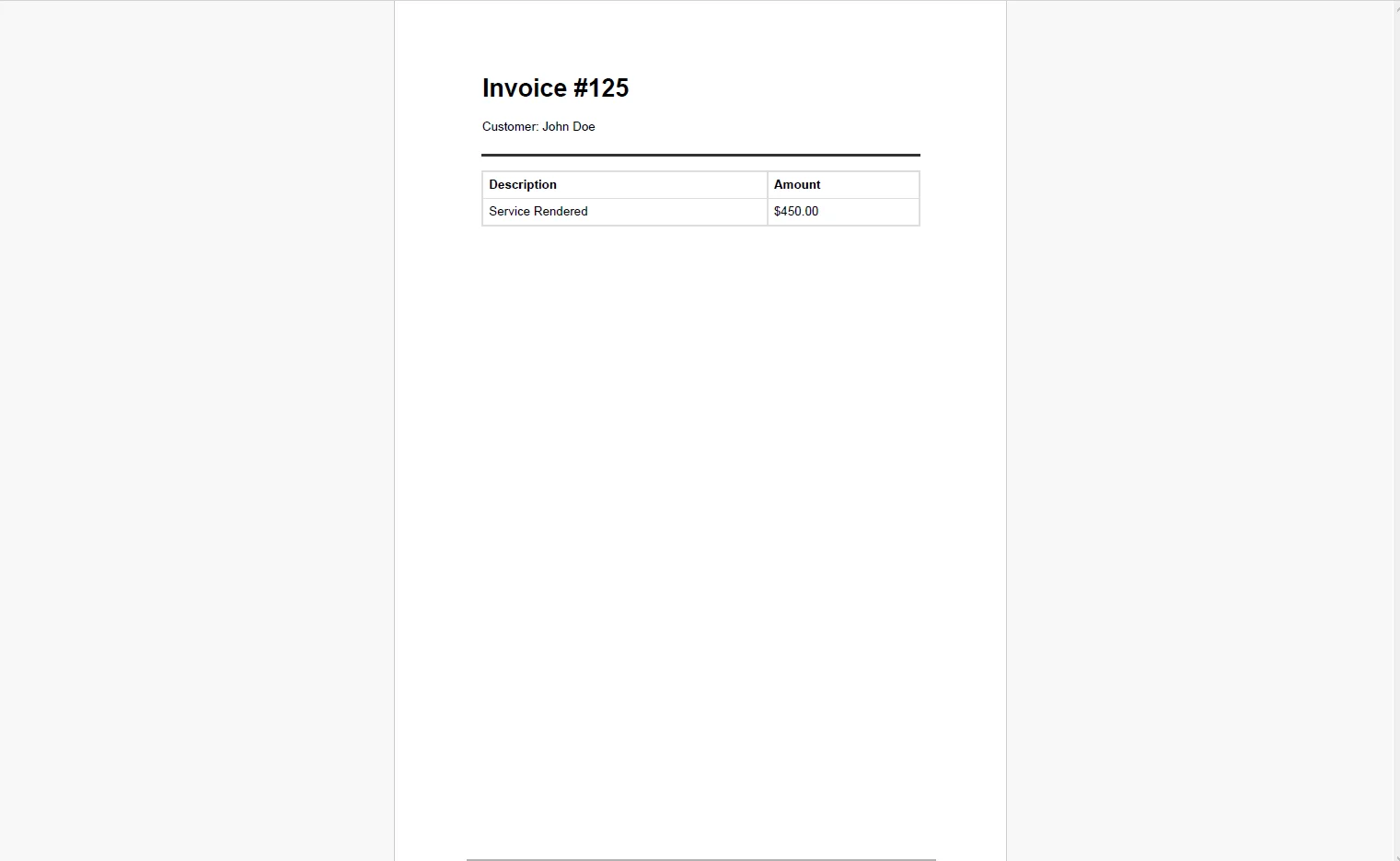 The Razor view never needs to know whether it's rendering to a browser or to a PDF. The controller action owns the PDF-specific configuration, and the view remains a pure display template.
Real-World Benefits
Zero template duplication. The Razor view is the single source of truth for the document's layout and content. The browser and the PDF render from the same file, there is no second template to maintain and no drift to correct.
Instant adoption. If the view already exists, the PDF export is one controller action away. There's no redesigning layouts, rebuilding templates, or porting conditional logic to a different rendering system.
Pixel-accurate output. Chromium-based rendering means CSS grid, flexbox, web fonts, and media queries all work in the PDF. The output matches what the browser produces, not a degraded approximation.
Print-specific styling. @media print rules already in the view's stylesheet control what appears in the PDF: hiding navigation, adjusting column widths for paper, or reflowing content. No separate template, no inline print styles to manage separately.
Maintainability. Update the Razor view and both the browser output and the PDF output reflect the change. There is no second system to coordinate updates with, no risk of a designer's change reaching the browser but not the PDF.
No per-document costs. The rendering runs in-process inside the web application. There are no external API calls, no usage metering, and no cost model that scales against download volume.
Closing
If the Razor view is already built, the PDF export isn't a new feature, it's a new delivery path for existing work. The same model, the same view, the same styling: the only addition is a controller action that captures the view's HTML output and passes it through a renderer before returning it as a file.
That architecture keeps the codebase clean and the PDF output permanently in sync with the browser. IronPDF handles the full lifecycle of PDF generation in C# at ironpdf.com, from rendering HTML to saving, streaming, and manipulating documents. If you're ready to add PDF export to your existing Razor views, start your free 30-day trial and validate the output against your current browser rendering before shipping the feature.























