The Problem With Unprotected PDF Distribution
 A confidential analyst report emailed as a plain PDF attachment has, at that point, left the building. The recipient can forward it, post it publicly, strip the content into a competitor's presentation, or simply leave it in an inbox that gets compromised in a data breach. The organization that produced it has no recourse and, in regulated industries, potentially no defense.
The scenarios where this matters are varied but the underlying risk is consistent. A law firm circulates draft briefs to opposing counsel for review, if those drafts carry no indication they're confidential or pre-final, they can be shared without context or accountability. A research firm distributes analyst reports to paying subscribers as unencrypted PDFs, a single subscriber can redistribute the entire report to a mailing list with two clicks. A real estate platform sends property appraisals to requesting agents, without a recipient-specific marker, there's no way to trace a leak back to its source. A healthcare organization transmitting patient documents over email without encryption is operating outside HIPAA transmission requirements.
Manually watermarking each file in Acrobat before delivery doesn't scale past a handful of documents per day. It's also inconsistent, someone forgets to apply the watermark, or applies the wrong classification label, and the unprotected version goes out.
The protection needs to be built into the delivery pipeline, applied automatically based on the document's classification and the recipient's access level, with no manual step that can be skipped.
The Solution: Programmatic Protection Before Every Delivery
IronPDF lets .NET applications apply watermarks, passwords, and permission restrictions to PDFs as part of the generation or delivery pipeline. After ChromePdfRenderer produces the document, the application stamps a watermark, sets passwords, and configures permission flags, all in code before the file is saved, streamed, or emailed.
Every document leaving the system carries the protection policy appropriate to its classification. An internal draft gets a visual "DRAFT" overlay. A client-facing report gets the recipient's name stamped on every page. An archived regulatory document gets owner-password encryption with editing disabled. No Acrobat, no manual steps, no third-party DRM service. The protection is applied inside the existing .NET application as a single NuGet package.
How It Works in Practice
1. PDF Generated Through the Normal Pipeline
The security layer sits after rendering, not inside it. ChromePdfRenderer produces the PdfDocument from an HTML template or an existing file exactly as it would for an unprotected document. Once the PdfDocument object exists in memory, the protection pipeline begins.
The specific protections applied depend on the document's classification and the recipient's context, determined by the delivery trigger, the document type, or the recipient's access tier. The same PDF can leave the system in three different states: watermarked-only for internal review, watermarked and password-protected for external delivery, and fully locked with permission restrictions for regulatory archival.
2. Watermarking Stamps Every Page
A diagonal text watermark is applied using HtmlStamper, an HTML fragment with CSS controlling font size, color, opacity, and rotation. This gives full design control over the watermark's appearance without requiring an image asset:
using IronPdf;
using IronPdf.Editing;

var renderer = new ChromePdfRenderer();

PdfDocument pdf = renderer.RenderHtmlAsPdf(documentHtml);

// Stamp a recipient-specific diagonal watermark across every page
var stamper = new HtmlStamper
{
    Html = $@"<div style='
        font-size: 48px;
        color: rgba(180, 0, 0, 0.18);
        font-family: Arial, sans-serif;
        font-weight: bold;
        transform: rotate(-40deg);
        white-space: nowrap;'>
        CONFIDENTIAL — {recipient.FullName}
    </div>",
    VerticalAlignment = VerticalAlignment.Middle,
    HorizontalAlignment = HorizontalAlignment.Center,
};

pdf.ApplyStamp(stamper);

pdf.SaveAs($"secured/{documentId}-{recipient.Id}.pdf");
using IronPdf;
using IronPdf.Editing;

var renderer = new ChromePdfRenderer();

PdfDocument pdf = renderer.RenderHtmlAsPdf(documentHtml);

// Stamp a recipient-specific diagonal watermark across every page
var stamper = new HtmlStamper
{
    Html = $@"<div style='
        font-size: 48px;
        color: rgba(180, 0, 0, 0.18);
        font-family: Arial, sans-serif;
        font-weight: bold;
        transform: rotate(-40deg);
        white-space: nowrap;'>
        CONFIDENTIAL — {recipient.FullName}
    </div>",
    VerticalAlignment = VerticalAlignment.Middle,
    HorizontalAlignment = HorizontalAlignment.Center,
};

pdf.ApplyStamp(stamper);

pdf.SaveAs($"secured/{documentId}-{recipient.Id}.pdf");
Imports IronPdf
Imports IronPdf.Editing
Dim renderer As New ChromePdfRenderer()
Dim pdf As PdfDocument = renderer.RenderHtmlAsPdf(documentHtml)
' Stamp a recipient-specific diagonal watermark across every page
Dim stamper As New HtmlStamper With {
.Html = $"<div style='
font-size: 48px;
color: rgba(180, 0, 0, 0.18);
font-family: Arial, sans-serif;
font-weight: bold;
transform: rotate(-40deg);
white-space: nowrap;'>
CONFIDENTIAL — {recipient.FullName}
</div>",
.VerticalAlignment = VerticalAlignment.Middle,
.HorizontalAlignment = HorizontalAlignment.Center
}
pdf.ApplyStamp(stamper)
pdf.SaveAs($"secured/{documentId}-{recipient.Id}.pdf")
Imports IronPdf
Imports IronPdf.Editing

Dim renderer As New ChromePdfRenderer()

Dim pdf As PdfDocument = renderer.RenderHtmlAsPdf(documentHtml)

' Stamp a recipient-specific diagonal watermark across every page
Dim stamper As New HtmlStamper With {
    .Html = $"<div style='
        font-size: 48px;
        color: rgba(180, 0, 0, 0.18);
        font-family: Arial, sans-serif;
        font-weight: bold;
        transform: rotate(-40deg);
        white-space: nowrap;'>
        CONFIDENTIAL — {recipient.FullName}
    </div>",
    .VerticalAlignment = VerticalAlignment.Middle,
    .HorizontalAlignment = HorizontalAlignment.Center
}

pdf.ApplyStamp(stamper)

pdf.SaveAs($"secured/{documentId}-{recipient.Id}.pdf")
Output PDF Document with Applied Watermark
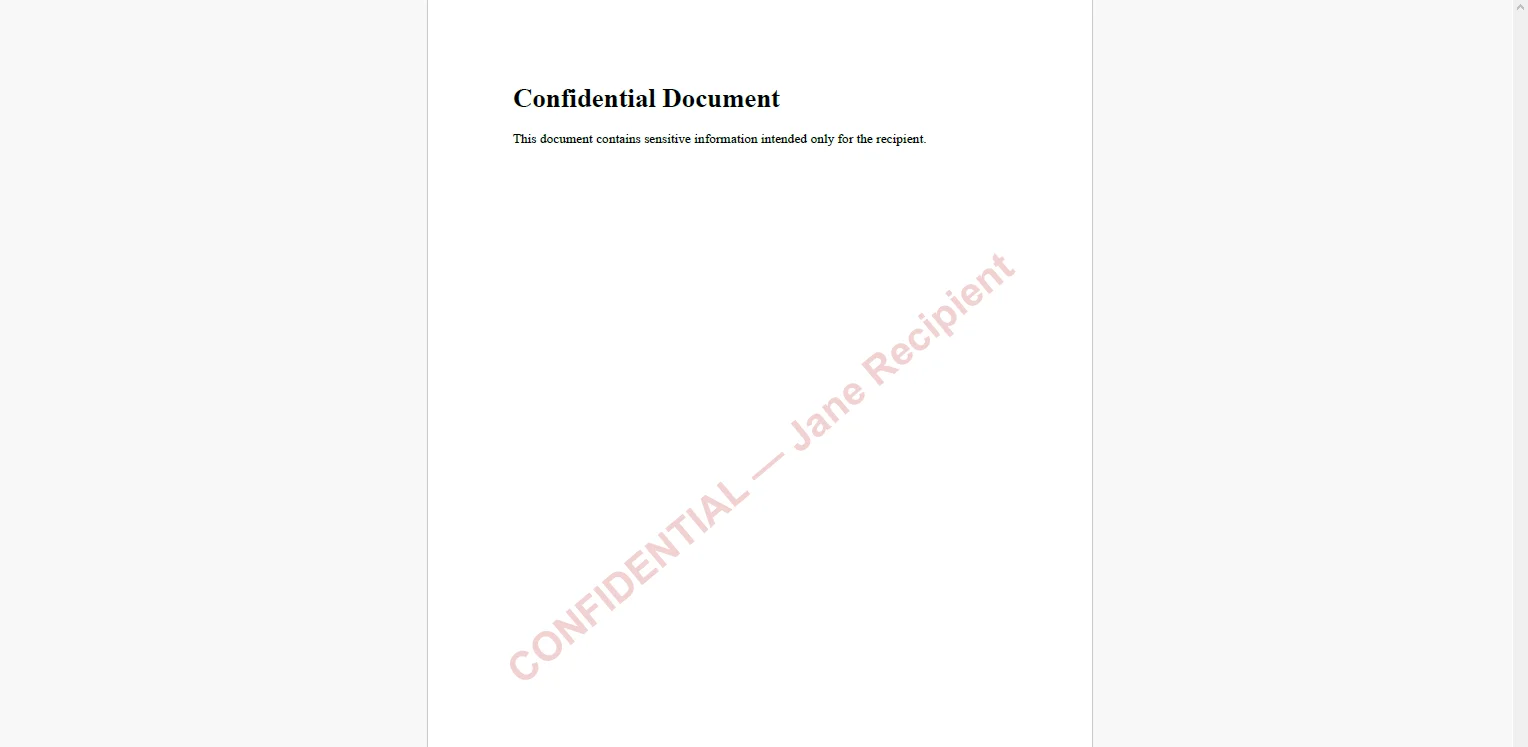 Using the recipient's name rather than a generic label makes any leaked copy traceable back to a specific delivery event. The opacity value - here 0.18 - keeps the watermark visible without obscuring the document's content for legitimate readers.
3. Passwords and Permission Flags Applied to SecuritySettings
using IronPdf;

// Owner password controls who can change security settings
// User password controls who can open the document
pdf.SecuritySettings.OwnerPassword = "internal-owner-secret";
pdf.SecuritySettings.UserPassword = recipientAccessCode;

// Restrict what the recipient can do after opening
pdf.SecuritySettings.AllowUserPrinting = IronPdf.Security.PdfPrintSecurity.FullPrintRights;
pdf.SecuritySettings.AllowUserCopyPasteContent = false;
pdf.SecuritySettings.AllowUserEdits = IronPdf.Security.PdfEditSecurity.NoEdit;

pdf.SaveAs($"secured/{documentId}-{recipient.Id}-protected.pdf");
using IronPdf;

// Owner password controls who can change security settings
// User password controls who can open the document
pdf.SecuritySettings.OwnerPassword = "internal-owner-secret";
pdf.SecuritySettings.UserPassword = recipientAccessCode;

// Restrict what the recipient can do after opening
pdf.SecuritySettings.AllowUserPrinting = IronPdf.Security.PdfPrintSecurity.FullPrintRights;
pdf.SecuritySettings.AllowUserCopyPasteContent = false;
pdf.SecuritySettings.AllowUserEdits = IronPdf.Security.PdfEditSecurity.NoEdit;

pdf.SaveAs($"secured/{documentId}-{recipient.Id}-protected.pdf");
Imports IronPdf
' Owner password controls who can change security settings
' User password controls who can open the document
pdf.SecuritySettings.OwnerPassword = "internal-owner-secret"
pdf.SecuritySettings.UserPassword = recipientAccessCode
' Restrict what the recipient can do after opening
pdf.SecuritySettings.AllowUserPrinting = IronPdf.Security.PdfPrintSecurity.FullPrintRights
pdf.SecuritySettings.AllowUserCopyPasteContent = False
pdf.SecuritySettings.AllowUserEdits = IronPdf.Security.PdfEditSecurity.NoEdit
pdf.SaveAs($"secured/{documentId}-{recipient.Id}-protected.pdf")
Imports IronPdf

' Owner password controls who can change security settings
' User password controls who can open the document
pdf.SecuritySettings.OwnerPassword = "internal-owner-secret"
pdf.SecuritySettings.UserPassword = recipientAccessCode

' Restrict what the recipient can do after opening
pdf.SecuritySettings.AllowUserPrinting = IronPdf.Security.PdfPrintSecurity.FullPrintRights
pdf.SecuritySettings.AllowUserCopyPasteContent = False
pdf.SecuritySettings.AllowUserEdits = IronPdf.Security.PdfEditSecurity.NoEdit

pdf.SaveAs($"secured/{documentId}-{recipient.Id}-protected.pdf")
Output PDF with Custom Encryption Settings
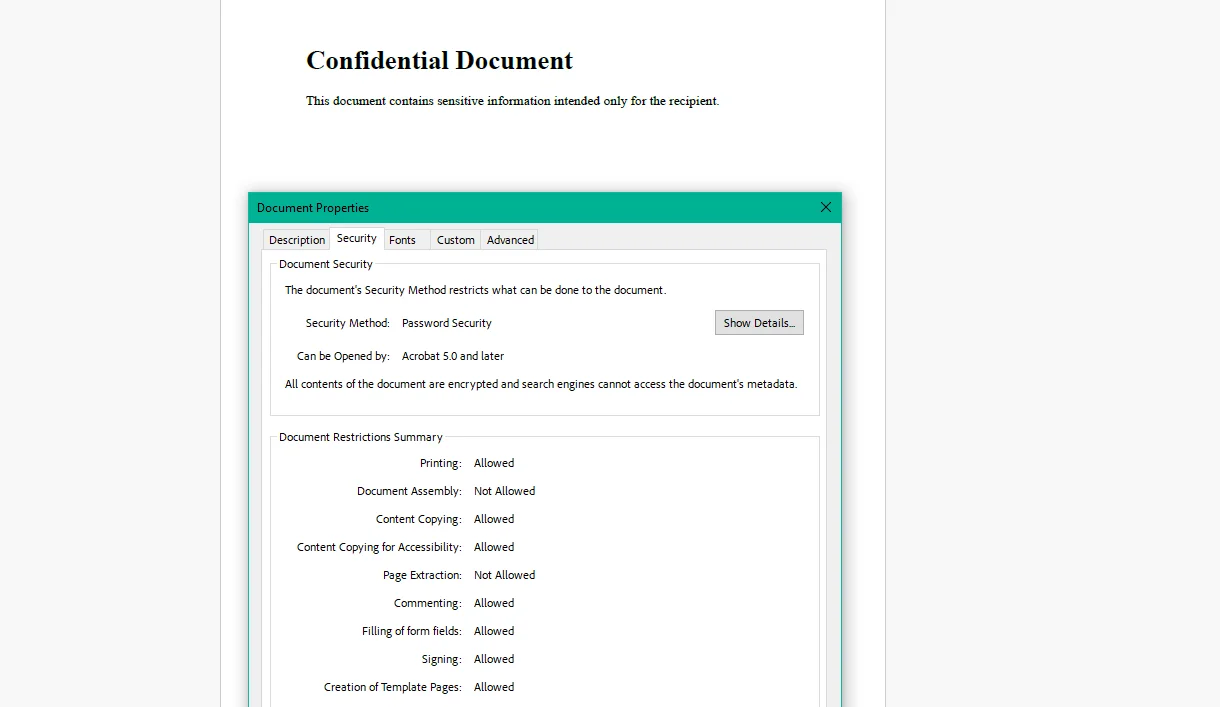 The owner password is stored internally and never distributed, it's used only when the organization needs to modify the document's security settings. The user password is the one communicated to the recipient through a separate channel. Setting AllowUserCopyPasteContent = false prevents the recipient from selecting and extracting text even after opening the document, which matters for proprietary research or legal briefs where the concern is content extraction rather than access.
Real-World Benefits
Leak deterrence. Stamping the recipient's name or email on every page makes unauthorized sharing a traceable act. Most unauthorized sharing happens because it feels consequence-free - a visible recipient-specific watermark changes that calculus without requiring any DRM infrastructure.
Access control. A user password ensures only the intended recipient can open the document. Even if the email is intercepted or the file is found in a forwarded thread, it's unreadable without the password the original recipient received.
Usage restrictions. Permission flags constrain what the recipient can do after opening. A subscriber who paid for a research report can read it but cannot copy the text into a competitor analysis, print unlimited copies, or make annotations they export. The content is accessible; extraction and repurposing are not.
Classification flexibility. The same document gets different protection profiles based on context: a "DRAFT" watermark with no password for internal review cycles, a recipient-specific watermark with a user password for client-facing delivery, and full encryption with editing disabled for regulatory archival. One pipeline, multiple output policies.
Compliance. PDFs encrypted with selectable AES-256 (via EncryptionType) and access controls satisfy transmission security requirements under HIPAA, SOC 2 document handling policies, and FINRA electronic communications standards. The encryption is applied in-process, not through a separate compliance tool.
No per-document costs. Watermarking and encryption run in-process inside the .NET application. There is no third-party DRM or watermarking API, no per-document fee, and no pricing model that makes a high-volume distribution run expensive.
Closing
A PDF that leaves the system without protection is a document the organization has given up control over. That's an acceptable trade-off for public content. For confidential reports, draft contracts, regulated patient documents, and paid research, it isn't.
Building protection into the generation pipeline: applied automatically based on classification, before every delivery event, removes the manual step that gets skipped and the human judgment call that gets it wrong. IronPDF handles the full lifecycle of PDF generation in C# at ironpdf.com, from rendering HTML templates to watermarking, encrypting, and controlling permissions on the output. If you're ready to add security policies to your document delivery pipeline, start your free 30-day trial and validate the watermarks and access controls against your own content classifications before the next sensitive document goes out the door.























