JavaでHTMLからPDFへ Copy for LLMs Copy page as Markdown for LLMs
# JavaでHTMLからPDFへ
IronPDF for Javaは、現代のブラウザに見られるのと同じレンダリングエンジンを使用して、ピクセル完璧なPDFドキュメントにHTMLコンテンツを変換します。 Javaアプリケーションは、追加のレンダリングソフトウェアやGUI環境を必要とせずに、HTML文字列、ローカルのHTMLファイル、またはライブのウェブページからPDFを生成できます。
このチュートリアルは、IronPDF for Javaで利用可能な3つのHTMLからPDFへの変換方法に加えて、インストール、ライセンス、および構成オプションをカバーしています。 すでにIronPDF for .NETを使用している開発者は、Java APIに馴染みがあります; 同等 for .NETチュートリアルは、[HTMLからPDFへ for .NETチュートリアル](/tutorials/html-to-pdf/)で入手可能です。
[[i:(IronPDF for JavaはJava 8以降を必要とし、Spring Boot、Java EE、Micronautなど主要なJVMベースのフレームワークと互換性があります。)]]
*as-heading:2(クイックスタート:HTMLからPDFを生成する)*
次の例は、HTML文字列から1ページのPDFを作成し、それをディスクに保存します。 Maven(ステップ1)を使用してライブラリをインストールした後、必要なすべてのコードはこちらです:
```java
import com.ironsoftware.ironpdf.*;

// Apply your license key before any rendering call
License.setLicenseKey("YOUR-LICENSE-KEY");

// Render an HTML string to a PDF file
PdfDocument pdf = PdfDocument.renderHtmlAsPdf("<h1>Hello from IronPDF!</h1><p>Generated in Java.</p>");
pdf.saveAs("output.pdf");
```
!!!--LIBRARY_START_TRIAL_BLOCK--!!!
*as-heading:2(目次)*
- [JavaプロジェクトにIronPDFをインストールする方法](#install-maven)
- [Maven依存関係としてインストール](#install-maven)
- [JARを手動でインストール](#install-jar)
- [IronPDFパッケージをインポート](#import-package)
- [ライセンスキーを設定する](#set-license-key)
- [ログファイルパスを設定する](#set-log-path)
- [HTML文字列をJavaでPDFに変換する方法](#html-string-to-pdf)
- [HTML文字列でローカルアセットを読み込む方法](#html-string-local-assets)
- [JavaでURLをPDFに変換する方法](#url-to-pdf)
- [JavaでHTMLファイルをPDFに変換する方法](#html-file-to-pdf)
- [PDF出力設定をカスタマイズする方法](#customize-output)
- [PDFにヘッダーとフッターを追加する方法](#headers-footers)
- [カスタムマージンとページサイズを設定する方法](#margins-page-size)
- [PDFに透かしを追加する方法](#add-watermark)
- [JavaでPDFからテキストを抽出する方法](#extract-text)
- [JavaでPDFから画像を抽出する方法](#extract-images)
- [PDFファイルを圧縮する方法](#compress-pdf)
- [プログラムでPDFを印刷する方法](#print-pdf)
- [次のステップ](#next-steps)
!!!--LIBRARY_NUGET_INSTALL_BLOCK--!!!
---------------------
## JavaプロジェクトにIronPDFをインストールする方法
IronPDF for JavaはMaven Centralリポジトリで利用可能です。 推奨されるインストール方法はMavenですが、ビルドシステムを使用しないプロジェクト用にはJARの手動インストールもサポートされています。
### Maven依存関係としてインストール
プロジェクトの`dependencies`セクションに次のアーティファクトを追加します:
```xml
//:path=/static-assets/pdf/content-code-examples/tutorials/generate-pdfs/maven-dependency.xml
<dependency>
  <groupId>com.ironsoftware</groupId>
  <artifactId>ironpdf</artifactId>
  <version>2024.9.1</version>
</dependency>
<dependency>
  <groupId>org.slf4j</groupId>
  <artifactId>slf4j-simple</artifactId>
  <version>2.0.5</version>
</dependency>
```
最初のアーティファクトはIronPDFを取り込みます。 2番目は<a href="https://www.slf4j.org/" target="_blank" rel="nofollow noopener noreferrer">SLF4J</a>ロギング実装です。 IronPDFはレンダリング中に診断メッセージを放出するためにSLF4Jを使用します; それを<a href="https://logback.qos.ch/" target="_blank" rel="nofollow noopener noreferrer">Logback</a>や<a href="https://logging.apache.org/log4j/2.x/" target="_blank" rel="nofollow noopener">Log4j 2</a>に置き換えることや、ログを完全に省略することもできます。
プロジェクトのルートで`mvn install`を実行し、依存関係をダウンロードします。 バージョン番号を指定する前に、[IronPDFの最新バージョン](/java/product-updates/changelog/)を確認してください。変更履歴にはすべての現在および過去のリリースがリストされています。
### JARを手動でインストール
Mavenを使用しない開発者は、[Maven Centralから直接IronPDFファットJARをダウンロード](https://central.sonatype.com/artifact/com.ironsoftware/ironpdf)し、プロジェクトのクラスパスに追加できます。 ファットJARはすべての移動関連依存関係をバンドルします。
[[t:(新しいプロジェクトにはMavenが推奨されるアプローチです。 JARインストールは手動での依存関係管理を必要とし、大規模プロジェクトではバージョンの競合を引き起こす可能性があります。)}
)]]
### IronPDFパッケージをインポートする
すべてのPDFレンダリングと操作クラスは`com.ironsoftware.ironpdf`パッケージにあります。 IronPDFを使用する任意 for Javaソースファイルにこのインポート文を追加してください:
```java
import com.ironsoftware.ironpdf.*;
```
### ライセンスキーを設定する
ライセンスキーがない場合、IronPDFは各ページにタイル透かしの付いたPDFをレンダリングします。 透かしを削除するには、有効なライセンスキーを`License.setLicenseKey`に渡した後、任意のレンダリングメソッドを呼び出す前に実行します。
```java
import com.ironsoftware.ironpdf.*;
// Set the license key before any rendering call
License.setLicenseKey("YOUR-LICENSE-KEY");
```
アプリケーションを起動する際、PDF生成ロジックが実行される前にこの呼び出しを配置してください。 [無料トライアルを始めて](#trial-license)トライアルキーを取得するか、[ライセンスオプションを参照して](#licensing)商用利用する。
### ログファイルパスを設定する
IronPDFはレンダリング診断をアプリケーションの作業ディレクトリにある`IronPdfEngine.log`という名前のログファイルに書き込みます。 ファイル名または場所を変更するには、`Settings.setLogPath`を呼び出します:
```java
import com.ironsoftware.ironpdf.*;
import java.nio.file.Paths;
// Configure logging before calling any rendering methods
Settings.setLogPath(Paths.get("logs/ironpdf.log"));
```
[[n:(任意のPDF変換または操作メソッドを呼び出す前に`Settings.setLogPath`を呼び出します。 レンダリングが開始された後の呼び出しは効果がありません。)}
)]]
## JavaでHTML文字列をPDFに変換する方法
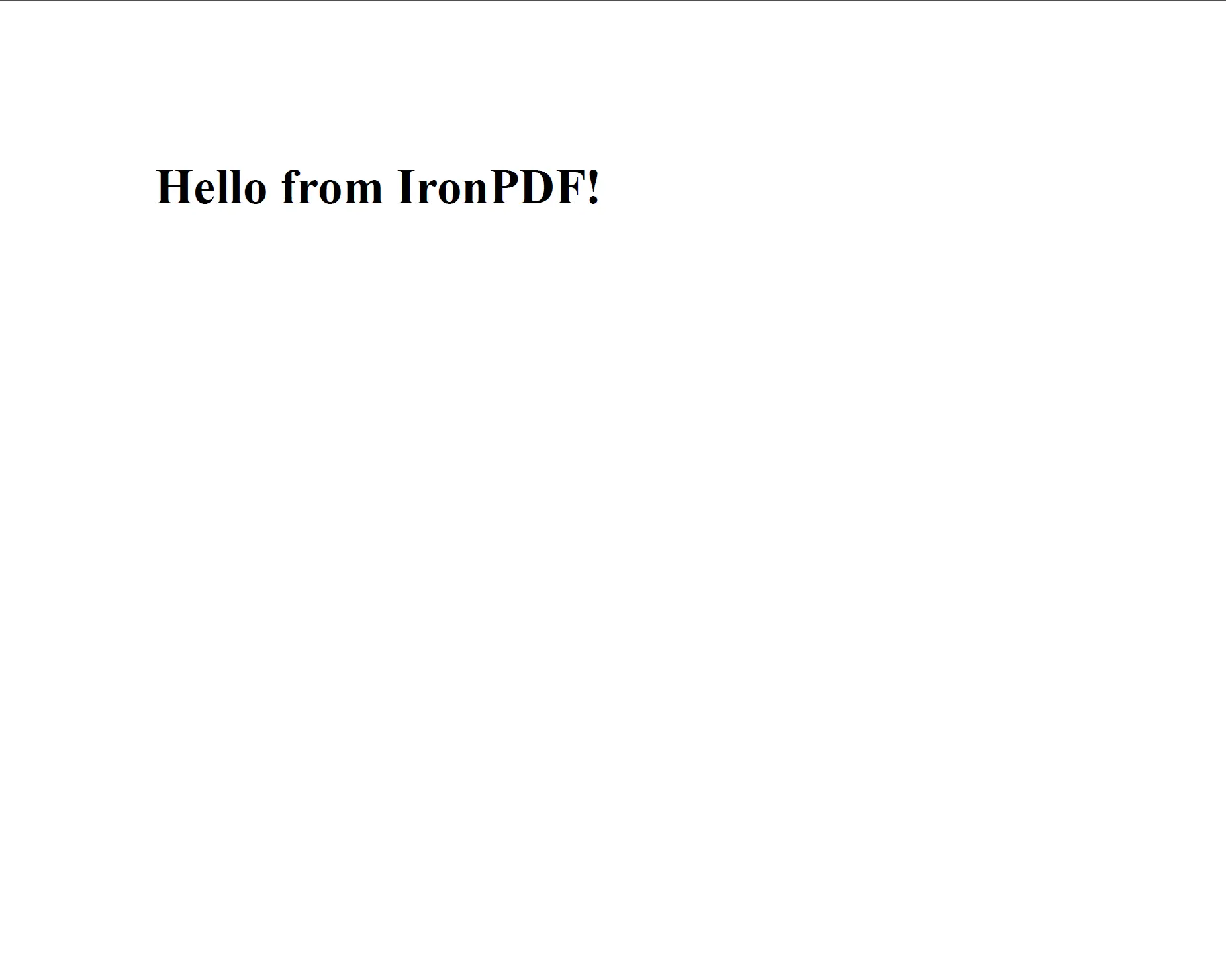
`PdfDocument`オブジェクトに変換し、その後ディスクに保存するか、他の処理メソッドに渡すことができます。 このメソッドは、`<body>`要素を含む完全なページマークアップを含む任意のW3C準拠HTMLを受け入れます。
```java
import com.ironsoftware.ironpdf.*;
// Convert a simple HTML string to PDF
PdfDocument pdf = PdfDocument.renderHtmlAsPdf("<h1>Hello from IronPDF!</h1>");
// Save the resulting PDF to a file
pdf.saveAs("htmlstring_to_pdf.pdf");
```
<div class="content-img-align-center">
<div class="center-image-wrapper">
<a rel="nofollow" href="/static-assets/ironpdf-java/tutorials/html-to-pdf/html-to-pdf-5.webp" target="_blank"><img src="/static-assets/ironpdf-java/tutorials/html-to-pdf/html-to-pdf-5.webp" alt="PdfDocument.renderHtmlAsPdf を使用して HTML 文字列から生成された、レンダリング済みの H1 見出しを示す PDF 出力" class="img-responsive add-shadow" /></a>
<p class="content__image-caption"><code>PdfDocument.renderHtmlAsPdf</code>メソッドは、HTMLマークアップをPDFにレンダリングし、すべてのW3C準拠のスタイリングや構造を保持します。</p>
</div>
</div>
メソッドは`PdfDocument`インスタンスを返します。 ディスクにPDFを書き込むには`getBinaryData`を使用します。
`renderHtmlAsPdf`は、標準準拠のブラウザが行うように、すべてのHTML、CSS、およびJavaScriptコンテンツを処理します。 結果として得られるPDFは、Chromeで閲覧した際のページの見た目を正確に反映します。
このメソッドの詳細については、IronPDF Java例のページ[HTML文字列をPDFに変換するコード例](/java/examples/using-html-to-create-a-pdf/)を参照してください。
## HTML文字列でローカルアセットを読み込む方法
HTML は、相対パスで外部アセット(スタイルシート、画像、スクリプト)を参照することがよくあります。 `renderHtmlAsPdf`はこれらの参照を解決するためのベースパスを設定するオプションの第2引数を受け入れます。 基本パスは、ローカルディレクトリまたは URL を指すことができます。
```java
import com.ironsoftware.ironpdf.*;
// HTML with references to local stylesheets and images
String html = "<html>"
+ "<head>"
+ "<title>Invoice</title>"
+ "<link rel='stylesheet' type='text/css' href='style.css'>"
+ "</head>"
+ "<body>"
+ "<div class='content'>"
+ "<h1>Invoice #1001</h1>"
+ "<img src='logo.png' alt='Company Logo'/>"
+ "</div>"
+ "</body>"
+ "</html>";
// The second argument resolves relative asset paths
PdfDocument pdf = PdfDocument.renderHtmlAsPdf(html, "C:/invoices/");
pdf.saveAs("invoice.pdf");
```
<div class="content-img-align-center">
<div class="center-image-wrapper">
<a rel="nofollow" href="/static-assets/ironpdf-java/tutorials/html-to-pdf/html-to-pdf-24.webp" target="_blank"><img src="/static-assets/ironpdf-java/tutorials/html-to-pdf/html-to-pdf-24.webp" alt="ローカルアセットから適用されたスタイル付きレイアウト、ロゴ画像、CSS フォーマットを含む請求書を表示する PDF 出力" class="img-responsive add-shadow" /></a>
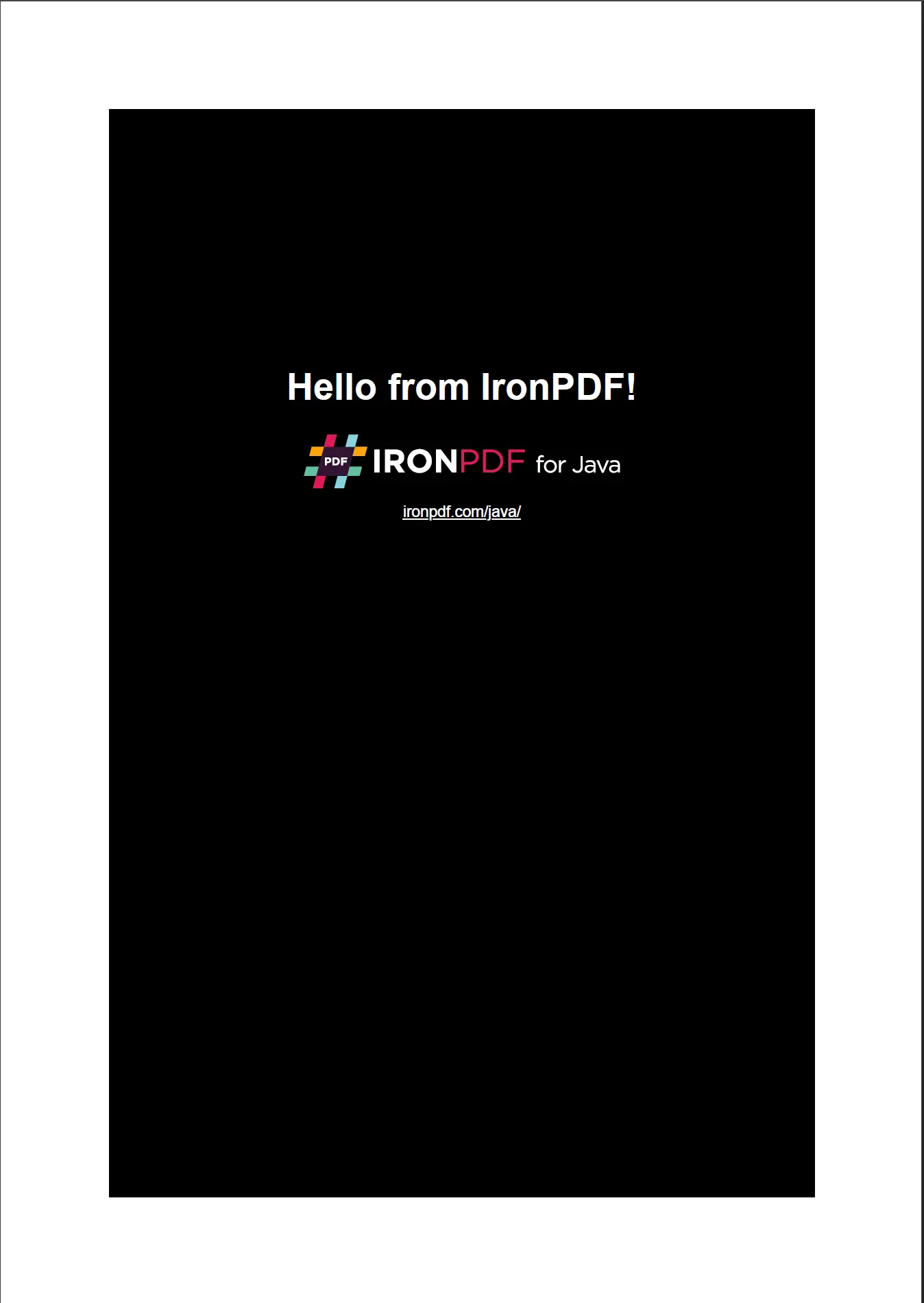
<p class="content__image-caption">基本パスが指定されている場合、<code>renderHtmlAsPdf</code> は、そのディレクトリから相対アセット参照を解決し、完全にスタイリングされたPDFを生成します。</p>
</div>
</div>
基本パス引数は、絶対ファイルシステムパスとURL文字列の両方で機能します。 これにより、`renderHtmlAsPdf`はディスクに保存されているテンプレートまたはWebサーバーから提供されるテンプレートからPDFを生成するのに適しています。
`Paths.get()`を使用するように変換されるべきです。
## どうすればJavaでURLをPDFに変換できますか?
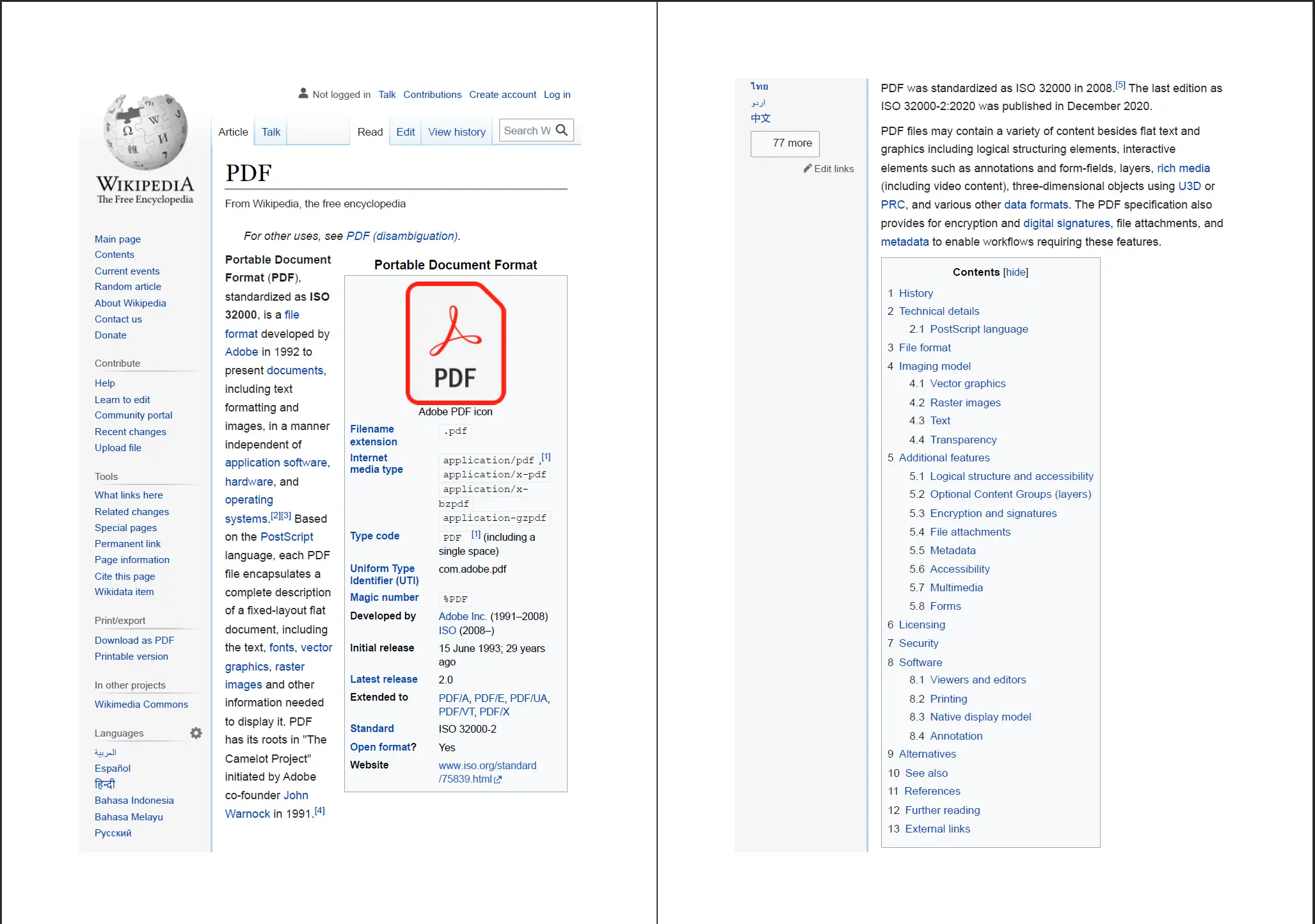
`PdfDocument.renderUrlAsPdf`は指定されたURLのライブWebページを取得し、PDFとしてレンダリングします。 このメソッドは、レンダリング前にすべての外部CSS、JavaScript、および画像を含む完全なページをロードします。
```java
import com.ironsoftware.ironpdf.*;
// Render a live web page as a PDF document
PdfDocument pdf = PdfDocument.renderUrlAsPdf("https://en.wikipedia.org/wiki/PDF");
pdf.saveAs("url_to_pdf.pdf");
```
<div class="content-img-align-center">
<div class="center-image-wrapper">
<a rel="nofollow" href="/static-assets/ironpdf-java/tutorials/html-to-pdf/html-to-pdf-7.webp" target="_blank"><img src="/static-assets/ironpdf-java/tutorials/html-to-pdf/html-to-pdf-7.webp" alt="PDF 形式に関する Wikipedia 記事の PDF 出力。PdfDocument.renderUrlAsPdf によってレンダリングされたページレイアウトと内容を示す" class="img-responsive add-shadow" /></a>
<p class="content__image-caption"><code>PdfDocument.renderUrlAsPdf</code> メソッドは、ウェブページの完全なレンダリング状態をキャプチャし、JavaScriptでレンダリングされたコンテンツを含みます。</p>
</div>
</div>
`renderUrlAsPdf`はJavaScriptの実行が完了するのを待ってからレンダリングされたページをキャプチャするため、動的に生成されたコンテンツ(チャートやAJAX経由で読み込まれるデータなど)は出力PDFに表示されます。
.NETの同等の実装や追加のURLからPDFへのオプションについては、[URLをPDFに変換するコード例](/java/examples/converting-a-url-to-a-pdf/)を参照してください。
## どうすればJavaでHTMLファイルをPDFに変換できますか?
`PdfDocument.renderHtmlFileAsPdf`はローカルHTMLファイルを読み取り、PDFとしてレンダリングします。 HTMLファイルで参照されるすべての相対パス(スタイルシート、画像、スクリプト)は、HTMLファイルのディレクトリを基準に解決されます。
```java
import com.ironsoftware.ironpdf.*;
// Convert a local HTML file to PDF
// IronPDF resolves relative asset paths from the HTML file's directory
PdfDocument pdf = PdfDocument.renderHtmlFileAsPdf("C:/invoices/TestInvoice1.html");
pdf.saveAs("htmlfile_to_pdf.pdf");
```
このアプローチは、テンプレート化されたドキュメント生成に効果的に機能します。例えば、請求書テンプレート、レポート、または関連するCSSおよび画像アセットと共に保存された証明書などです。 IronPDFは、すべてのCSSのレイアウトルールを保持し、ブラウザと同じ精度でファイルをレンダリングします。
[[i:(HTMLファイルパスは絶対でなければなりません。 JVM作業ディレクトリから解決される`renderHtmlFileAsPdf`に渡される相対パスは、サーバー環境では予期しない結果を生むことがあります。)
)]]
## PDF出力設定をカスタマイズするにはどうすればよいですか?
`PdfRenderOptions`クラスはページレイアウトとレンダリング動作を制御します。 インスタンスを作成し、必要なプロパティを設定し、任意のレンダリング方法に渡します。
```java
import com.ironsoftware.ironpdf.*;
import com.ironsoftware.ironpdf.render.*;
// Configure rendering options before generating the PDF
PdfRenderOptions options = new PdfRenderOptions();
// Set the zoom level (100 = normal size)
options.setZoom(100);
// Wait for JavaScript to finish before rendering
options.setJavascriptTimeout(5000);
// Enable printing of background colors and images
options.setPrintBackground(true);
PdfDocument pdf = PdfDocument.renderHtmlAsPdf(
"<h1>Customized PDF</h1>",
options
);
pdf.saveAs("customized.pdf");
```
`PdfRenderOptions`クラスは、DPI、ビューポート幅、用紙の向き、タイムアウト値を制御するための追加のプロパティを提供します。 利用可能なオプションの完全なリストについては、[PDF生成設定コード例](/java/examples/pdf-generation-settings/)を参照してください。
## どうすればPDFにヘッダーとフッターを追加できますか?
IronPDFは、テキストベースおよびHTMLベースの両方のヘッダーとフッターをサポートしています。 テキストヘッダーは、ページ番号やドキュメントタイトルなどの共通値のための事前定義されたマージフィールドを使用します; HTMLヘッダーは、完全にカスタマイズされたレイアウトのための任意のHTMLマークアップを受け入れます。
```java
import com.ironsoftware.ironpdf.*;
import com.ironsoftware.ironpdf.headerfooter.*;
PdfDocument pdf = PdfDocument.renderHtmlAsPdf("<h1>Annual Report</h1><p>Content goes here.</p>");
// Create a text-based header using merge fields
TextHeaderFooter header = new TextHeaderFooter();
header.setCenterText("Annual Report");
header.setRightText("{page} of {total-pages}");
header.setFont(com.ironsoftware.ironpdf.font.FontTypes.Helvetica);
header.setFontSize(10.0);
// Create a text-based footer
TextHeaderFooter footer = new TextHeaderFooter();
footer.setLeftText("Confidential");
footer.setRightText("Generated by IronPDF");
pdf.addTextHeaders(header);
pdf.addTextFooters(footer);
pdf.saveAs("report_with_headers.pdf");
```
レンダリング時に`{total-pages}`マージフィールドが現在のページ番号と総ページ数に置き換えられます。 より高度なレイアウト、例えば企業ロゴを含むフッターには、`HtmlHeaderFooter`を使用します。
HTMLベースのヘッダーとフッターの詳細については、[ヘッダーとフッターを追加するコード例](/java/examples/headers-and-footers/)を参照してください。
[[t:(ヘッダーとフッターはページ余白内にレンダリングされます。 ページコンテンツと重ならないようにヘッダーまたはフッターを適用する前に、上部または下部マージンを増やしてください。)]]
## カスタムマージンとページサイズを設定するにはどうすればよいですか?
ページサイズと余白はPDFがレンダリングされる前に`PdfRenderOptions`オブジェクトで設定されます。 IronPDFは標準的な用紙サイズ(A4、レター、リーガル)および完全にカスタムな寸法をサポートします。
```java
import com.ironsoftware.ironpdf.*;
import com.ironsoftware.ironpdf.render.*;
import com.ironsoftware.ironpdf.page.*;
PdfRenderOptions options = new PdfRenderOptions();
// Set margins in millimeters: top, right, bottom, left
options.setMarginTop(25);
options.setMarginRight(20);
options.setMarginBottom(25);
options.setMarginLeft(20);
// Use A4 paper size
options.setPaperSize(PaperSize.A4);
PdfDocument pdf = PdfDocument.renderHtmlAsPdf("<h1>Formatted Document</h1>", options);
pdf.saveAs("formatted_document.pdf");
```
サポートされている用紙サイズと単位の完全なリストについては、[カスタム用紙サイズコード例](/java/examples/custom-pdf-paper-size/)および[カスタムマージンコード例](/java/examples/ironpdf-set-custom-margins/)を参照してください。
## どうすればPDFに透かしを追加できますか?
`PdfDocument.applyWatermark`は、ドキュメントの各ページにテキストまたは画像の透かしを適用します。 透かしはデフォルトでページコンテンツの下の別のレイヤーにレンダリングされるか、`false`に設定されている場合はその上にレンダリングされます。
```java
import com.ironsoftware.ironpdf.*;
PdfDocument pdf = PdfDocument.renderHtmlAsPdf("<h1>Confidential Document</h1>");
// Apply an HTML watermark; supports full CSS styling
String watermarkHtml = "<h1 style='color: rgba(200, 0, 0, 0.2); transform: rotate(-45deg); font-size: 60px;'>DRAFT</h1>";
// Second argument: opacity (0-100), third: rotation (degrees), fourth: stamp behind content
pdf.applyWatermark(watermarkHtml, 50, 45, true);
pdf.saveAs("draft_watermarked.pdf");
```
HTMLアプローチは、フォント、サイズ、色、透明度を含む透かしのスタイリングを正確に制御することができます。 繰り返しタイルパターンや画像ベースのスタンプなどの高度な透かし設定については、[透かしのハウツーガイド](/java/how-to/custom-watermark/)を参照してください。
## どうすればJavaでPDFからテキストを抽出できますか?
`String`として返します。 この方法は、ドキュメントのすべてのページから選択可能なテキストを抽出します。
```java
import com.ironsoftware.ironpdf.*;
// Load an existing PDF from disk
PdfDocument pdf = PdfDocument.fromFile(java.nio.file.Paths.get("report.pdf"));
// Extract all embedded text from the document
String text = pdf.extractAllText();
System.out.println(text);
```
テキスト抽出は、テキストが選択可能なグリフとして保存されているPDFで機能します。画像ベースのスキャンであるPDFの場合、IronPDFをOCRライブラリと組み合わせてレンダリングされたページ画像からテキストを抽出することを検討してください。
他のオプションについては、ページごとのテキスト抽出を含め、[PDFからテキストを抽出するコード例](/java/examples/extract-text-from-pdf/)を参照してください。
## どうすればJavaでPDFから画像を抽出できますか?
`BufferedImage`オブジェクトのリストを返します。 返された画像は、直接ディスクに保存するか、下流の画像処理ロジックに渡すことができます。
```java
import com.ironsoftware.ironpdf.*;
import java.awt.image.BufferedImage;
import java.io.File;
import java.util.List;
import javax.imageio.ImageIO;
// Load an existing PDF
PdfDocument pdf = PdfDocument.fromFile(java.nio.file.Paths.get("document.pdf"));
// Extract all embedded images
List<BufferedImage> images = pdf.extractAllImages();
for (int i = 0; i < images.size(); i++) {
ImageIO.write(images.get(i), "PNG", new File("extracted_image_" + i + ".png"));
}
System.out.println("Extracted " + images.size() + " image(s).");
```
他の抽出オプションについては、特定のページから画像を抽出することを含め、[PDFから画像を抽出するコード例](/java/examples/extract-image-from-pdf/)を参照してください。
## どうすればPDFファイルを圧縮できますか?
`PdfDocument.compressImages`は、埋め込まれた画像を低品質で再エンコードすることにより、PDFファイルサイズを縮小します。 この方法は、1(最小品質、最小ファイルサイズ)から100(最大品質)までの品質値を受け入れます。
```java
import com.ironsoftware.ironpdf.*;
// Load a large PDF with embedded images
PdfDocument pdf = PdfDocument.fromFile(java.nio.file.Paths.get("large_report.pdf"));
// Compress images to 60% quality to reduce file size
pdf.compressImages(60);
pdf.saveAs("large_report_compressed.pdf");
```
画像圧縮は、写真や高解像度のグラフィックを含むPDFのサイズを削減するための最も効果的な方法です。 埋め込まれたフォントの除去など、その他のファイルサイズ削減戦略については、[PDF圧縮コード例](/java/examples/pdf-compression/)を参照してください。
[[t:( 40から70の間の品質値は、ほとんどのPDFユースケースでファイルサイズ削減と画質のバランスをうまく保ちます。)]]
## どうすればPDFをプログラム的に印刷できますか?
`PdfDocument.print`は、標準 for Java印刷APIを使用して、システムのデフォルトプリンターにPDFを送ります。 この方法は、印刷ダイアログを表示するかどうかを制御するブール値を受け入れます。
```java
import com.ironsoftware.ironpdf.*;
PdfDocument pdf = PdfDocument.fromFile(java.nio.file.Paths.get("document.pdf"));
// Print silently to the default printer (no dialog shown)
pdf.print(false);
```
システムの印刷ダイアログを表示し、ユーザーがプリンターを選択し、ジョブが送信される前に印刷設定を構成できるようにするには、`print`メソッドに渡します。
## 次のステップ
このチュートリアルでは、IronPDF for JavaのHTMLからPDFへの変換の中核メソッドとインストール、構成、一般的なドキュメント処理操作について説明しました。
さらに詳しく知りたい場合は:
1. ここではカバーされていない追加のレンダリングシナリオについて、完全な[HTMLからPDF for Javaコード例](/java/examples/using-html-to-create-a-pdf/)を参照してください。
2. [IronPDF for Javaのドキュメント](/java/docs/)を読んで、デプロイメント、スレッドセーフティ、サーバー構成を理解してください。
3. [IronPDF Java APIリファレンス](/java/object-reference/api/)全体を探索して、詳細なメソッドシグネチャおよびパラメーターの説明を確認してください。
[無料トライアルを開始して](#trial-license),透かしなしのPDFを生成するか,プロジェクトに適したプランを見つけるために[ライセンスオプションを表示します。](#licensing)
<hr class="separator" />
#### チュートリアル クイックアクセス
<div class="tutorial-section">
<div class="row">
<div class="col-sm-4">
<div class="tutorial-image">
<img alt="Java開発用のIntelliJ IDEA IDEロゴ" class="img-responsive add-shadow" src="/img/platforms/cps-intellij.svg" style="width: 160px;" />
</div>
</div>
<div class="col-sm-8">
<h3>このチュートリアルをJavaソースコードとしてダウンロードする</h3>
<p>このチュートリアルの完全なHTMLからPDFへ for Javaソースコードは、zipped IntelliJプロジェクトとしてダウンロードできます。</p>
<a class="btn btn-white3" href="https://github.com/iron-software/IronPdfJava.Examples/archive/refs/heads/master.zip"><i class="fa fa-cloud-download"></i>ダウンロード</a>
</div>
</div>
</div>
<div class="tutorial-section">
<div class="row">
<div class="col-sm-8">
<h3>このチュートリアルをGitHubで探索</h3>
<p>このプロジェクトのソースコードは、IntelliJ IDEAプロジェクトとしてGitHubにあり、EclipseやNetBeansを含む他の一般的なJava IDEにインポートすることができます。</p>
<a class="doc-link" href="https://github.com/iron-software/IronPdfJava.Examples/tree/main/tutorials/generate-pdfs" target="_blank">GitHub上 for Java HTML to PDF/A <i class="fa fa-chevron-right"></i></a>
</div>
<div class="col-sm-4">
<div class="tutorial-image">
<img alt="ソースコードリポジトリのGitHubロゴ" class="img-responsive add-shadow" src="/img/svgs/github-icon.svg" />
</div>
</div>
</div>
</div>
<div class="tutorial-section">
<div class="row">
<div class="col-sm-4">
<div class="tutorial-image">
<img style="max-width: 110px; width: 100px; height: 140px;" alt="IronPDF Java APIリファレンスドキュメントアイコン" class="img-responsive add-shadow" src="/img/svgs/documentation.svg" width="100" height="140" />
</div>
</div>
<div class="col-sm-8">
<h3>APIリファレンスを見る</h3>
<p>すべてのネームスペース、クラス、メソッド、およびライブラリで利用可能な列挙型をカバーするIronPDF Java APIリファレンスを探索してください。</p>
<a class="doc-link" href="/java/object-reference/api/" target="_blank">APIリファレンスを見る <i class="fa fa-chevron-right"></i></a>
</div>
</div>
</div>
Ask ChatGPT about this page
Ask Gemini about this page
Ask Perplexity about this page
IronPDF for Javaは、現代のブラウザに見られるのと同じレンダリングエンジンを使用して、ピクセル完璧なPDFドキュメントにHTMLコンテンツを変換します。 Javaアプリケーションは、追加のレンダリングソフトウェアやGUI環境を必要とせずに、HTML文字列、ローカルのHTMLファイル、またはライブのウェブページからPDFを生成できます。
このチュートリアルは、IronPDF for Javaで利用可能な3つのHTMLからPDFへの変換方法に加えて、インストール、ライセンス、および構成オプションをカバーしています。 すでにIronPDF for .NETを使用している開発者は、Java APIに馴染みがあります; 同等 for .NETチュートリアルは、HTMLからPDFへ for .NETチュートリアル で入手可能です。
IronPDF for JavaはJava 8以降を必要とし、Spring Boot、Java EE、Micronautなど主要なJVMベースのフレームワークと互換性があります。
次の例は、HTML文字列から1ページのPDFを作成し、それをディスクに保存します。 Maven(ステップ1)を使用してライブラリをインストールした後、必要なすべてのコードはこちらです:
import com . ironsoftware . ironpdf . * ; // Apply your license key before any rendering call License .setLicenseKey( "YOUR-LICENSE-KEY" ); // Render an HTML string to a PDF file PdfDocument pdf = PdfDocument .renderHtmlAsPdf( "<h1>Hello from IronPDF!</h1><p>Generated in Java.</p>" ); pdf.saveAs( "output.pdf" ); import com.ironsoftware.ironpdf.*;
// Apply your license key before any rendering call
License.setLicenseKey("YOUR-LICENSE-KEY");
// Render an HTML string to a PDF file
PdfDocument pdf = PdfDocument.renderHtmlAsPdf("<h1>Hello from IronPDF!</h1><p>Generated in Java.</p>");
pdf.saveAs("output.pdf");
Java
Start using IronPDF in your project today with a free trial.
JavaプロジェクトにIronPDFをインストールする方法
IronPDF for JavaはMaven Centralリポジトリで利用可能です。 推奨されるインストール方法はMavenですが、ビルドシステムを使用しないプロジェクト用にはJARの手動インストールもサポートされています。
Maven依存関係としてインストール
プロジェクトのdependenciesセクションに次のアーティファクトを追加します:
//:path=/static-assets/pdf/content-code-examples/tutorials/generate-pdfs/maven-dependency.xml <dependency> <groupId>com.ironsoftware</groupId> <artifactId>ironpdf</artifactId> <version>2024.9.1</version> </dependency> <dependency> <groupId>org.slf4j</groupId> <artifactId>slf4j-simple</artifactId> <version>2.0.5</version> </dependency> //:path=/static-assets/pdf/content-code-examples/tutorials/generate-pdfs/maven-dependency.xml
<dependency>
<groupId>com.ironsoftware</groupId>
<artifactId>ironpdf</artifactId>
<version>2024.9.1</version>
</dependency>
<dependency>
<groupId>org.slf4j</groupId>
<artifactId>slf4j-simple</artifactId>
<version>2.0.5</version>
</dependency>
XML
最初のアーティファクトはIronPDFを取り込みます。 2番目はSLF4J ロギング実装です。 IronPDFはレンダリング中に診断メッセージを放出するためにSLF4Jを使用します; それをLogback やLog4j 2 に置き換えることや、ログを完全に省略することもできます。
プロジェクトのルートでmvn installを実行し、依存関係をダウンロードします。 バージョン番号を指定する前に、IronPDFの最新バージョン を確認してください。変更履歴にはすべての現在および過去のリリースがリストされています。
JARを手動でインストール
Mavenを使用しない開発者は、Maven Centralから直接IronPDFファットJARをダウンロード し、プロジェクトのクラスパスに追加できます。 ファットJARはすべての移動関連依存関係をバンドルします。
新しいプロジェクトにはMavenが推奨されるアプローチです。 JARインストールは手動での依存関係管理を必要とし、大規模プロジェクトではバージョンの競合を引き起こす可能性があります。)}
IronPDFパッケージをインポートする
すべてのPDFレンダリングと操作クラスはcom.ironsoftware.ironpdfパッケージにあります。 IronPDFを使用する任意 for Javaソースファイルにこのインポート文を追加してください:
import com . ironsoftware . ironpdf . * ; import com.ironsoftware.ironpdf.*;
Java
ライセンスキーを設定する
ライセンスキーがない場合、IronPDFは各ページにタイル透かしの付いたPDFをレンダリングします。 透かしを削除するには、有効なライセンスキーをLicense.setLicenseKeyに渡した後、任意のレンダリングメソッドを呼び出す前に実行します。
import com . ironsoftware . ironpdf . * ; // Set the license key before any rendering call License .setLicenseKey( "YOUR-LICENSE-KEY" ); import com.ironsoftware.ironpdf.*;
// Set the license key before any rendering call
License.setLicenseKey("YOUR-LICENSE-KEY");
Java
アプリケーションを起動する際、PDF生成ロジックが実行される前にこの呼び出しを配置してください。 無料トライアルを始めて トライアルキーを取得するか、ライセンスオプションを参照して 商用利用する。
ログファイルパスを設定する
IronPDFはレンダリング診断をアプリケーションの作業ディレクトリにあるIronPdfEngine.logという名前のログファイルに書き込みます。 ファイル名または場所を変更するには、Settings.setLogPathを呼び出します:
import com . ironsoftware . ironpdf . * ; import java . nio . file . Paths ; // Configure logging before calling any rendering methods Settings .setLogPath( Paths .get( "logs/ironpdf.log" )); import com.ironsoftware.ironpdf.*;
import java.nio.file.Paths;
// Configure logging before calling any rendering methods
Settings.setLogPath(Paths.get("logs/ironpdf.log"));
Java
任意のPDF変換または操作メソッドを呼び出す前にSettings.setLogPathを呼び出します。 レンダリングが開始された後の呼び出しは効果がありません。)}
JavaでHTML文字列をPDFに変換する方法
PdfDocumentオブジェクトに変換し、その後ディスクに保存するか、他の処理メソッドに渡すことができます。 このメソッドは、<body>要素を含む完全なページマークアップを含む任意のW3C準拠HTMLを受け入れます。
import com . ironsoftware . ironpdf . * ; // Convert a simple HTML string to PDF PdfDocument pdf = PdfDocument .renderHtmlAsPdf( "<h1>Hello from IronPDF!</h1>" ); // Save the resulting PDF to a file pdf.saveAs( "htmlstring_to_pdf.pdf" ); import com.ironsoftware.ironpdf.*;
// Convert a simple HTML string to PDF
PdfDocument pdf = PdfDocument.renderHtmlAsPdf("<h1>Hello from IronPDF!</h1>");
// Save the resulting PDF to a file
pdf.saveAs("htmlstring_to_pdf.pdf");
Java
PdfDocument.renderHtmlAsPdfメソッドは、HTMLマークアップをPDFにレンダリングし、すべてのW3C準拠のスタイリングや構造を保持します。
メソッドはPdfDocumentインスタンスを返します。 ディスクにPDFを書き込むにはgetBinaryDataを使用します。
renderHtmlAsPdfは、標準準拠のブラウザが行うように、すべてのHTML、CSS、およびJavaScriptコンテンツを処理します。 結果として得られるPDFは、Chromeで閲覧した際のページの見た目を正確に反映します。
このメソッドの詳細については、IronPDF Java例のページHTML文字列をPDFに変換するコード例 を参照してください。
HTML文字列でローカルアセットを読み込む方法
HTML は、相対パスで外部アセット(スタイルシート、画像、スクリプト)を参照することがよくあります。 renderHtmlAsPdfはこれらの参照を解決するためのベースパスを設定するオプションの第2引数を受け入れます。 基本パスは、ローカルディレクトリまたは URL を指すことができます。
import com . ironsoftware . ironpdf . * ; // HTML with references to local stylesheets and images String html = "<html>" + "<head>" + "<title>Invoice</title>" + "<link rel='stylesheet' type='text/css' href='style.css'>" + "</head>" + "<body>" + "<div class='content'>" + "<h1>Invoice #1001</h1>" + "<img src='logo.png' alt='Company Logo'/>" + "</div>" + "</body>" + "</html>" ; // The second argument resolves relative asset paths PdfDocument pdf = PdfDocument .renderHtmlAsPdf(html, "C:/invoices/" ); pdf.saveAs( "invoice.pdf" ); import com.ironsoftware.ironpdf.*;
// HTML with references to local stylesheets and images
String html = "<html>"
+ "<head>"
+ "<title>Invoice</title>"
+ "<link rel='stylesheet' type='text/css' href='style.css'>"
+ "</head>"
+ "<body>"
+ "<div class='content'>"
+ "<h1>Invoice #1001</h1>"
+ "<img src='logo.png' alt='Company Logo'/>"
+ "</div>"
+ "</body>"
+ "</html>";
// The second argument resolves relative asset paths
PdfDocument pdf = PdfDocument.renderHtmlAsPdf(html, "C:/invoices/");
pdf.saveAs("invoice.pdf");
Java
基本パスが指定されている場合、renderHtmlAsPdf は、そのディレクトリから相対アセット参照を解決し、完全にスタイリングされたPDFを生成します。
基本パス引数は、絶対ファイルシステムパスとURL文字列の両方で機能します。 これにより、renderHtmlAsPdfはディスクに保存されているテンプレートまたはWebサーバーから提供されるテンプレートからPDFを生成するのに適しています。
Paths.get()を使用するように変換されるべきです。
どうすればJavaでURLをPDFに変換できますか?
PdfDocument.renderUrlAsPdfは指定されたURLのライブWebページを取得し、PDFとしてレンダリングします。 このメソッドは、レンダリング前にすべての外部CSS、JavaScript、および画像を含む完全なページをロードします。
import com . ironsoftware . ironpdf . * ; // Render a live web page as a PDF document PdfDocument pdf = PdfDocument .renderUrlAsPdf( "https://en.wikipedia.org/wiki/PDF" ); pdf.saveAs( "url_to_pdf.pdf" ); import com.ironsoftware.ironpdf.*;
// Render a live web page as a PDF document
PdfDocument pdf = PdfDocument.renderUrlAsPdf("https://en.wikipedia.org/wiki/PDF");
pdf.saveAs("url_to_pdf.pdf");
Java
PdfDocument.renderUrlAsPdf メソッドは、ウェブページの完全なレンダリング状態をキャプチャし、JavaScriptでレンダリングされたコンテンツを含みます。
renderUrlAsPdfはJavaScriptの実行が完了するのを待ってからレンダリングされたページをキャプチャするため、動的に生成されたコンテンツ(チャートやAJAX経由で読み込まれるデータなど)は出力PDFに表示されます。
.NETの同等の実装や追加のURLからPDFへのオプションについては、URLをPDFに変換するコード例 を参照してください。
どうすればJavaでHTMLファイルをPDFに変換できますか?
PdfDocument.renderHtmlFileAsPdfはローカルHTMLファイルを読み取り、PDFとしてレンダリングします。 HTMLファイルで参照されるすべての相対パス(スタイルシート、画像、スクリプト)は、HTMLファイルのディレクトリを基準に解決されます。
import com . ironsoftware . ironpdf . * ; // Convert a local HTML file to PDF // IronPDF resolves relative asset paths from the HTML file's directory PdfDocument pdf = PdfDocument .renderHtmlFileAsPdf( "C:/invoices/TestInvoice1.html" ); pdf.saveAs( "htmlfile_to_pdf.pdf" ); import com.ironsoftware.ironpdf.*;
// Convert a local HTML file to PDF
// IronPDF resolves relative asset paths from the HTML file's directory
PdfDocument pdf = PdfDocument.renderHtmlFileAsPdf("C:/invoices/TestInvoice1.html");
pdf.saveAs("htmlfile_to_pdf.pdf");
Java
このアプローチは、テンプレート化されたドキュメント生成に効果的に機能します。例えば、請求書テンプレート、レポート、または関連するCSSおよび画像アセットと共に保存された証明書などです。 IronPDFは、すべてのCSSのレイアウトルールを保持し、ブラウザと同じ精度でファイルをレンダリングします。
HTMLファイルパスは絶対でなければなりません。 JVM作業ディレクトリから解決されるrenderHtmlFileAsPdfに渡される相対パスは、サーバー環境では予期しない結果を生むことがあります。)
PDF出力設定をカスタマイズするにはどうすればよいですか?
PdfRenderOptionsクラスはページレイアウトとレンダリング動作を制御します。 インスタンスを作成し、必要なプロパティを設定し、任意のレンダリング方法に渡します。
import com . ironsoftware . ironpdf . * ; import com . ironsoftware . ironpdf . render . * ; // Configure rendering options before generating the PDF PdfRenderOptions options = new PdfRenderOptions (); // Set the zoom level (100 = normal size) options.setZoom( 100 ); // Wait for JavaScript to finish before rendering options.setJavascriptTimeout( 5000 ); // Enable printing of background colors and images options.setPrintBackground( true ); PdfDocument pdf = PdfDocument .renderHtmlAsPdf( "<h1>Customized PDF</h1>" , options ); pdf.saveAs( "customized.pdf" ); import com.ironsoftware.ironpdf.*;
import com.ironsoftware.ironpdf.render.*;
// Configure rendering options before generating the PDF
PdfRenderOptions options = new PdfRenderOptions();
// Set the zoom level (100 = normal size)
options.setZoom(100);
// Wait for JavaScript to finish before rendering
options.setJavascriptTimeout(5000);
// Enable printing of background colors and images
options.setPrintBackground(true);
PdfDocument pdf = PdfDocument.renderHtmlAsPdf(
"<h1>Customized PDF</h1>",
options
);
pdf.saveAs("customized.pdf");
Java
PdfRenderOptionsクラスは、DPI、ビューポート幅、用紙の向き、タイムアウト値を制御するための追加のプロパティを提供します。 利用可能なオプションの完全なリストについては、PDF生成設定コード例 を参照してください。
どうすればPDFにヘッダーとフッターを追加できますか?
IronPDFは、テキストベースおよびHTMLベースの両方のヘッダーとフッターをサポートしています。 テキストヘッダーは、ページ番号やドキュメントタイトルなどの共通値のための事前定義されたマージフィールドを使用します; HTMLヘッダーは、完全にカスタマイズされたレイアウトのための任意のHTMLマークアップを受け入れます。
import com . ironsoftware . ironpdf . * ; import com . ironsoftware . ironpdf . headerfooter . * ; PdfDocument pdf = PdfDocument .renderHtmlAsPdf( "<h1>Annual Report</h1><p>Content goes here.</p>" ); // Create a text-based header using merge fields TextHeaderFooter header = new TextHeaderFooter (); header.setCenterText( "Annual Report" ); header.setRightText( "{page} of {total-pages}" ); header.setFont(com.ironsoftware.ironpdf.font. FontTypes . Helvetica ); header.setFontSize( 10.0 ); // Create a text-based footer TextHeaderFooter footer = new TextHeaderFooter (); footer.setLeftText( "Confidential" ); footer.setRightText( "Generated by IronPDF" ); pdf.addTextHeaders(header); pdf.addTextFooters(footer); pdf.saveAs( "report_with_headers.pdf" ); import com.ironsoftware.ironpdf.*;
import com.ironsoftware.ironpdf.headerfooter.*;
PdfDocument pdf = PdfDocument.renderHtmlAsPdf("<h1>Annual Report</h1><p>Content goes here.</p>");
// Create a text-based header using merge fields
TextHeaderFooter header = new TextHeaderFooter();
header.setCenterText("Annual Report");
header.setRightText("{page} of {total-pages}");
header.setFont(com.ironsoftware.ironpdf.font.FontTypes.Helvetica);
header.setFontSize(10.0);
// Create a text-based footer
TextHeaderFooter footer = new TextHeaderFooter();
footer.setLeftText("Confidential");
footer.setRightText("Generated by IronPDF");
pdf.addTextHeaders(header);
pdf.addTextFooters(footer);
pdf.saveAs("report_with_headers.pdf");
Java
レンダリング時に{total-pages}マージフィールドが現在のページ番号と総ページ数に置き換えられます。 より高度なレイアウト、例えば企業ロゴを含むフッターには、HtmlHeaderFooterを使用します。
HTMLベースのヘッダーとフッターの詳細については、ヘッダーとフッターを追加するコード例 を参照してください。
ヘッダーとフッターはページ余白内にレンダリングされます。 ページコンテンツと重ならないようにヘッダーまたはフッターを適用する前に、上部または下部マージンを増やしてください。
カスタムマージンとページサイズを設定するにはどうすればよいですか?
ページサイズと余白はPDFがレンダリングされる前にPdfRenderOptionsオブジェクトで設定されます。 IronPDFは標準的な用紙サイズ(A4、レター、リーガル)および完全にカスタムな寸法をサポートします。
import com . ironsoftware . ironpdf . * ; import com . ironsoftware . ironpdf . render . * ; import com . ironsoftware . ironpdf . page . * ; PdfRenderOptions options = new PdfRenderOptions (); // Set margins in millimeters: top, right, bottom, left options.setMarginTop( 25 ); options.setMarginRight( 20 ); options.setMarginBottom( 25 ); options.setMarginLeft( 20 ); // Use A4 paper size options.setPaperSize( PaperSize . A4 ); PdfDocument pdf = PdfDocument .renderHtmlAsPdf( "<h1>Formatted Document</h1>" , options); pdf.saveAs( "formatted_document.pdf" ); import com.ironsoftware.ironpdf.*;
import com.ironsoftware.ironpdf.render.*;
import com.ironsoftware.ironpdf.page.*;
PdfRenderOptions options = new PdfRenderOptions();
// Set margins in millimeters: top, right, bottom, left
options.setMarginTop(25);
options.setMarginRight(20);
options.setMarginBottom(25);
options.setMarginLeft(20);
// Use A4 paper size
options.setPaperSize(PaperSize.A4);
PdfDocument pdf = PdfDocument.renderHtmlAsPdf("<h1>Formatted Document</h1>", options);
pdf.saveAs("formatted_document.pdf");
Java
サポートされている用紙サイズと単位の完全なリストについては、カスタム用紙サイズコード例 およびカスタムマージンコード例 を参照してください。
どうすればPDFに透かしを追加できますか?
PdfDocument.applyWatermarkは、ドキュメントの各ページにテキストまたは画像の透かしを適用します。 透かしはデフォルトでページコンテンツの下の別のレイヤーにレンダリングされるか、falseに設定されている場合はその上にレンダリングされます。
import com . ironsoftware . ironpdf . * ; PdfDocument pdf = PdfDocument .renderHtmlAsPdf( "<h1>Confidential Document</h1>" ); // Apply an HTML watermark; supports full CSS styling String watermarkHtml = "<h1 style='color: rgba(200, 0, 0, 0.2); transform: rotate(-45deg); font-size: 60px;'>DRAFT</h1>" ; // Second argument: opacity (0-100), third: rotation (degrees), fourth: stamp behind content pdf.applyWatermark(watermarkHtml, 50 , 45 , true ); pdf.saveAs( "draft_watermarked.pdf" ); import com.ironsoftware.ironpdf.*;
PdfDocument pdf = PdfDocument.renderHtmlAsPdf("<h1>Confidential Document</h1>");
// Apply an HTML watermark; supports full CSS styling
String watermarkHtml = "<h1 style='color: rgba(200, 0, 0, 0.2); transform: rotate(-45deg); font-size: 60px;'>DRAFT</h1>";
// Second argument: opacity (0-100), third: rotation (degrees), fourth: stamp behind content
pdf.applyWatermark(watermarkHtml, 50, 45, true);
pdf.saveAs("draft_watermarked.pdf");
Java
HTMLアプローチは、フォント、サイズ、色、透明度を含む透かしのスタイリングを正確に制御することができます。 繰り返しタイルパターンや画像ベースのスタンプなどの高度な透かし設定については、透かしのハウツーガイド を参照してください。
どうすればJavaでPDFからテキストを抽出できますか?
Stringとして返します。 この方法は、ドキュメントのすべてのページから選択可能なテキストを抽出します。
import com . ironsoftware . ironpdf . * ; // Load an existing PDF from disk PdfDocument pdf = PdfDocument .fromFile(java.nio.file. Paths .get( "report.pdf" )); // Extract all embedded text from the document String text = pdf.extractAllText(); System .out.println(text); import com.ironsoftware.ironpdf.*;
// Load an existing PDF from disk
PdfDocument pdf = PdfDocument.fromFile(java.nio.file.Paths.get("report.pdf"));
// Extract all embedded text from the document
String text = pdf.extractAllText();
System.out.println(text);
Java
テキスト抽出は、テキストが選択可能なグリフとして保存されているPDFで機能します。画像ベースのスキャンであるPDFの場合、IronPDFをOCRライブラリと組み合わせてレンダリングされたページ画像からテキストを抽出することを検討してください。
他のオプションについては、ページごとのテキスト抽出を含め、PDFからテキストを抽出するコード例 を参照してください。
どうすればJavaでPDFから画像を抽出できますか?
BufferedImageオブジェクトのリストを返します。 返された画像は、直接ディスクに保存するか、下流の画像処理ロジックに渡すことができます。
import com . ironsoftware . ironpdf . * ; import java . awt . image . BufferedImage ; import java . io . File ; import java . util . List ; import javax . imageio . ImageIO ; // Load an existing PDF PdfDocument pdf = PdfDocument .fromFile(java.nio.file. Paths .get( "document.pdf" )); // Extract all embedded images List < BufferedImage > images = pdf.extractAllImages(); for ( int i = 0 ; i < images.size(); i++) { ImageIO .write(images.get(i), "PNG" , new File ( "extracted_image_" + i + ".png" )); } System .out.println( "Extracted " + images.size() + " image(s)." ); import com.ironsoftware.ironpdf.*;
import java.awt.image.BufferedImage;
import java.io.File;
import java.util.List;
import javax.imageio.ImageIO;
// Load an existing PDF
PdfDocument pdf = PdfDocument.fromFile(java.nio.file.Paths.get("document.pdf"));
// Extract all embedded images
List<BufferedImage> images = pdf.extractAllImages();
for (int i = 0; i < images.size(); i++) {
ImageIO.write(images.get(i), "PNG", new File("extracted_image_" + i + ".png"));
}
System.out.println("Extracted " + images.size() + " image(s).");
Java
他の抽出オプションについては、特定のページから画像を抽出することを含め、PDFから画像を抽出するコード例 を参照してください。
どうすればPDFファイルを圧縮できますか?
PdfDocument.compressImagesは、埋め込まれた画像を低品質で再エンコードすることにより、PDFファイルサイズを縮小します。 この方法は、1(最小品質、最小ファイルサイズ)から100(最大品質)までの品質値を受け入れます。
import com . ironsoftware . ironpdf . * ; // Load a large PDF with embedded images PdfDocument pdf = PdfDocument .fromFile(java.nio.file. Paths .get( "large_report.pdf" )); // Compress images to 60% quality to reduce file size pdf.compressImages( 60 ); pdf.saveAs( "large_report_compressed.pdf" ); import com.ironsoftware.ironpdf.*;
// Load a large PDF with embedded images
PdfDocument pdf = PdfDocument.fromFile(java.nio.file.Paths.get("large_report.pdf"));
// Compress images to 60% quality to reduce file size
pdf.compressImages(60);
pdf.saveAs("large_report_compressed.pdf");
Java
画像圧縮は、写真や高解像度のグラフィックを含むPDFのサイズを削減するための最も効果的な方法です。 埋め込まれたフォントの除去など、その他のファイルサイズ削減戦略については、PDF圧縮コード例 を参照してください。
40から70の間の品質値は、ほとんどのPDFユースケースでファイルサイズ削減と画質のバランスをうまく保ちます。
どうすればPDFをプログラム的に印刷できますか?
PdfDocument.printは、標準 for Java印刷APIを使用して、システムのデフォルトプリンターにPDFを送ります。 この方法は、印刷ダイアログを表示するかどうかを制御するブール値を受け入れます。
import com . ironsoftware . ironpdf . * ; PdfDocument pdf = PdfDocument .fromFile(java.nio.file. Paths .get( "document.pdf" )); // Print silently to the default printer (no dialog shown) pdf.print( false ); import com.ironsoftware.ironpdf.*;
PdfDocument pdf = PdfDocument.fromFile(java.nio.file.Paths.get("document.pdf"));
// Print silently to the default printer (no dialog shown)
pdf.print(false);
Java
システムの印刷ダイアログを表示し、ユーザーがプリンターを選択し、ジョブが送信される前に印刷設定を構成できるようにするには、printメソッドに渡します。
次のステップ
このチュートリアルでは、IronPDF for JavaのHTMLからPDFへの変換の中核メソッドとインストール、構成、一般的なドキュメント処理操作について説明しました。
さらに詳しく知りたい場合は:
ここではカバーされていない追加のレンダリングシナリオについて、完全なHTMLからPDF for Javaコード例 を参照してください。
IronPDF for Javaのドキュメント を読んで、デプロイメント、スレッドセーフティ、サーバー構成を理解してください。IronPDF Java APIリファレンス 全体を探索して、詳細なメソッドシグネチャおよびパラメーターの説明を確認してください。
無料トライアルを開始して ,透かしなしのPDFを生成するか,プロジェクトに適したプランを見つけるためにライセンスオプションを表示します。
チュートリアル クイックアクセス
このチュートリアルをJavaソースコードとしてダウンロードする このチュートリアルの完全なHTMLからPDFへ for Javaソースコードは、zipped IntelliJプロジェクトとしてダウンロードできます。
APIリファレンスを見る すべてのネームスペース、クラス、メソッド、およびライブラリで利用可能な列挙型をカバーするIronPDF Java APIリファレンスを探索してください。
APIリファレンスを見る よくある質問 IronPDF for Javaは、Javaアプリケーション内でHTMLコンテンツをPDFドキュメントに変換します。HTML文字列、ローカルHTMLファイル、ライブウェブページURLの変換をサポートし、ヘッダーやフッターの追加、透かし、水印、テキスト抽出、画像抽出、ファイル圧縮のツールも提供します。
pom.xmlに二つのMaven依存関係を追加します:com.ironsoftware:ironpdfとorg.slf4j:slf4j-simple、そしてmvn installを実行します。あるいは、Maven Centralからfat JARをダウンロードし、プロジェクトのクラスパスに追加します。
PdfDocument.renderHtmlAsPdf(htmlString)をHTMLマークアップで呼び出します。このメソッドはPdfDocumentオブジェクトを返します。pdf.saveAs("output.pdf")を呼び出してディスクに書き込みます。
PdfDocument.renderUrlAsPdf("https://example.com")を呼び出します。IronPDFがページを取得し、JavaScriptが実行されるのを待ってから、完全に読み込まれたページをPDFとしてレンダリングします。
PdfDocument.renderHtmlFileAsPdf("C:/path/to/file.html")を呼び出します。絶対ファイルパスを使用します。IronPDFはHTMLファイルのディレクトリから相対CSSと画像参照を自動的に解決します。
ライセンスキーがなければ、IronPDFはすべての生成されたPDFにタイル状の透かしを追加します。レンダリング呼び出しの前に、有効なライセンスキーをLicense.setLicenseKey("YOUR-KEY")で設定して透かしを削除します。
IronPDF for JavaはJava 8以上が必要です。Spring Boot、Java EE、Micronaut、その他のJVMベースのフレームワークと互換性があります。
TextHeaderFooterインスタンスを作成し、setRightText("{page} of {total-pages}")を呼び出します。オブジェクトをpdf.addTextFooters(footer)に渡します。マージフィールドはレンダリング時に実際のページ番号に置き換えられます。
はい。PdfDocument.fromFile(Paths.get("file.pdf"))でPDFをロードし、pdf.extractAllText()を呼び出してすべての選択可能なテキストコンテンツをStringとして取得します。
品質が1から100までの整数であるpdf.compressImages(quality)を呼び出します。60の値は、ほとんどのPDFにとってファイルサイズと画像の忠実度の良好なバランスを提供します。
テクニカルライター
Curtis Chauは、カールトン大学でコンピュータサイエンスの学士号を取得し、Node.js、TypeScript、JavaScript、およびReactに精通したフロントエンド開発を専門としています。直感的で美しいユーザーインターフェースを作成することに情熱を持ち、Curtisは現代のフレームワークを用いた開発や、構造の良い視覚的に魅力的なマニュアルの作成を楽しんでいます。
...
詳しく読む