# HTML to PDF in Java
IronPDF for Java converts HTML content into pixel-perfect PDF documents using the same rendering engine found in modern browsers. Java applications can generate PDFs from HTML strings, local HTML files, or live web pages, without requiring any additional rendering software or a GUI environment.
This tutorial covers all three HTML-to-PDF conversion methods available in IronPDF for Java, plus installation, licensing, and configuration options. Developers already using IronPDF for .NET will find the Java API familiar; the equivalent .NET tutorial is available at the [HTML to PDF for .NET Tutorial](/tutorials/html-to-pdf/).
[[i:(IronPDF for Java requires Java 8 or later and is compatible with all major JVM-based frameworks including Spring Boot, Java EE, and Micronaut.)]]
*as-heading:2(Quickstart: Generate a PDF from HTML)*
The following example creates a one-page PDF from an HTML string and saves it to disk. After installing the library via Maven (Step 1), this is all the code required:
```java
import com.ironsoftware.ironpdf.*;

// Apply your license key before any rendering call
License.setLicenseKey("YOUR-LICENSE-KEY");

// Render an HTML string to a PDF file
PdfDocument pdf = PdfDocument.renderHtmlAsPdf("<h1>Hello from IronPDF!</h1><p>Generated in Java.</p>");
pdf.saveAs("output.pdf");
```
!!!--LIBRARY_START_TRIAL_BLOCK--!!!
*as-heading:2(Table of Contents)*
- [How Do I Install IronPDF in a Java Project?](#install-maven)
- [Install as a Maven Dependency](#install-maven)
- [Install the JAR Manually](#install-jar)
- [Import the IronPDF Package](#import-package)
- [Set the License Key](#set-license-key)
- [Configure the Log File Path](#set-log-path)
- [How Do I Convert an HTML String to PDF in Java?](#html-string-to-pdf)
- [How Do I Load Local Assets in an HTML String?](#html-string-local-assets)
- [How Do I Convert a URL to PDF in Java?](#url-to-pdf)
- [How Do I Convert an HTML File to PDF in Java?](#html-file-to-pdf)
- [How Do I Customize PDF Output Settings?](#customize-output)
- [How Do I Add Headers and Footers to a PDF?](#headers-footers)
- [How Do I Set Custom Margins and Page Size?](#margins-page-size)
- [How Do I Add a Watermark to a PDF?](#add-watermark)
- [How Do I Extract Text from a PDF in Java?](#extract-text)
- [How Do I Extract Images from a PDF in Java?](#extract-images)
- [How Do I Compress a PDF File?](#compress-pdf)
- [How Do I Print a PDF Programmatically?](#print-pdf)
- [Next Steps](#next-steps)
!!!--LIBRARY_NUGET_INSTALL_BLOCK--!!!
---------------------
## How Do I Install IronPDF in a Java Project?
IronPDF for Java is available on the Maven Central repository. The recommended installation method is Maven, though manual JAR installation is also supported for projects that do not use a build system.
### Install as a Maven Dependency
Add the following artifacts to the `dependencies` section of your project's `pom.xml` file:
```xml
<dependency>
<groupId>com.ironsoftware</groupId>
<artifactId>ironpdf</artifactId>
<version>2024.9.1</version>
</dependency>
<dependency>
<groupId>org.slf4j</groupId>
<artifactId>slf4j-simple</artifactId>
<version>2.0.5</version>
</dependency>
```
The first artifact pulls in IronPDF. The second is an <a href="https://www.slf4j.org/" target="_blank" rel="nofollow noopener noreferrer">SLF4J</a> logging implementation. IronPDF uses SLF4J to emit diagnostic messages during rendering; you can substitute it with <a href="https://logback.qos.ch/" target="_blank" rel="nofollow noopener noreferrer">Logback</a> or <a href="https://logging.apache.org/log4j/2.x/" target="_blank" rel="nofollow noopener">Log4j 2</a>, or omit logging entirely.
Run `mvn install` at the project root to download the dependencies. Check the [latest version of IronPDF](/java/product-updates/changelog/) before pinning a version number, as the changelog lists all current and past releases.
### Install the JAR Manually
Developers not using Maven can download the [IronPDF fat JAR directly from Maven Central](https://central.sonatype.com/artifact/com.ironsoftware/ironpdf) and add it to the project classpath. The fat JAR bundles all transitive dependencies.
[[t:(Maven is the recommended approach for new projects. JAR installation requires manual dependency management and can lead to version conflicts in larger projects.)]]
### Import the IronPDF Package
All PDF rendering and manipulation classes live in the `com.ironsoftware.ironpdf` package. Add this import statement to any Java source file that uses IronPDF:
```java
import com.ironsoftware.ironpdf.*;
```
### Set the License Key
Without a license key, IronPDF renders PDFs with a tiled watermark across each page. To remove the watermark, pass a valid license key to `License.setLicenseKey` before calling any rendering method:
```java
import com.ironsoftware.ironpdf.*;
// Set the license key before any rendering call
License.setLicenseKey("YOUR-LICENSE-KEY");
```
Place this call at application startup, before any PDF generation logic runs. [Start a free trial](#trial-license) to obtain a trial key, or [view licensing options](#licensing) for production use.
### Configure the Log File Path
IronPDF writes rendering diagnostics to a log file named `IronPdfEngine.log` in the application's working directory. Call `Settings.setLogPath` to change the file name or location:
```java
import com.ironsoftware.ironpdf.*;
import java.nio.file.Paths;
// Configure logging before calling any rendering methods
Settings.setLogPath(Paths.get("logs/ironpdf.log"));
```
[[n:(Call `Settings.setLogPath` before any PDF conversion or manipulation method. Calls made after rendering has started will not take effect.)]]
## How Do I Convert an HTML String to PDF in Java?
`PdfDocument.renderHtmlAsPdf` converts an HTML string to a `PdfDocument` object, which can then be saved to disk or passed to other processing methods. This method accepts any W3C-compliant HTML, including full page markup with `<head>` and `<body>` elements.
```java
import com.ironsoftware.ironpdf.*;
// Convert a simple HTML string to PDF
PdfDocument pdf = PdfDocument.renderHtmlAsPdf("<h1>Hello from IronPDF!</h1>");
// Save the resulting PDF to a file
pdf.saveAs("htmlstring_to_pdf.pdf");
```
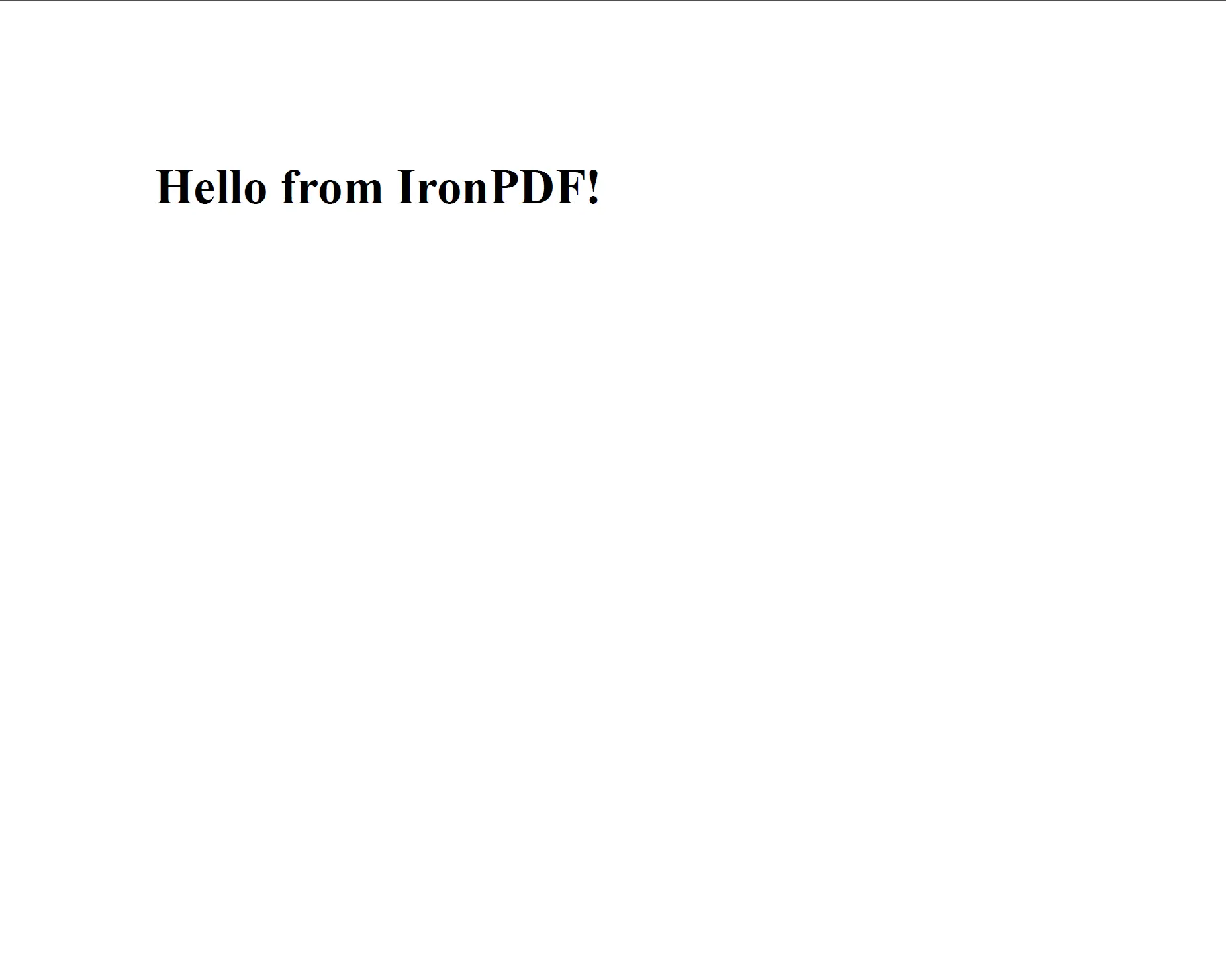
The `PdfDocument.renderHtmlAsPdf` method renders HTML markup into a PDF, preserving all W3C-compliant styling and structure.
The method returns a `PdfDocument` instance. Call `saveAs` to write the PDF to disk, or use `getBinaryData` to retrieve the raw PDF bytes for streaming or storage.
`renderHtmlAsPdf` processes all HTML, CSS, and JavaScript content the same way a standards-compliant browser does. The resulting PDF reflects exactly what the page would look like when viewed in Chrome.
For more details on this method, see the [HTML string to PDF code example](/java/examples/using-html-to-create-a-pdf/) on the IronPDF Java examples page.
## How Do I Load Local Assets in an HTML String?
HTML often references external assets (stylesheets, images, scripts) by relative path. `renderHtmlAsPdf` accepts an optional second argument that sets the base path for resolving these references. The base path can point to a local directory or to a URL.
```java
import com.ironsoftware.ironpdf.*;
// HTML with references to local stylesheets and images
String html = "<html>"
+ "<head>"
+ "<title>Invoice</title>"
+ "<link rel='stylesheet' type='text/css' href='style.css'>"
+ "</head>"
+ "<body>"
+ "<div class='content'>"
+ "<h1>Invoice #1001</h1>"
+ "<img src='logo.png' alt='Company Logo'/>"
+ "</div>"
+ "</body>"
+ "</html>";
// The second argument resolves relative asset paths
PdfDocument pdf = PdfDocument.renderHtmlAsPdf(html, "C:/invoices/");
pdf.saveAs("invoice.pdf");
```
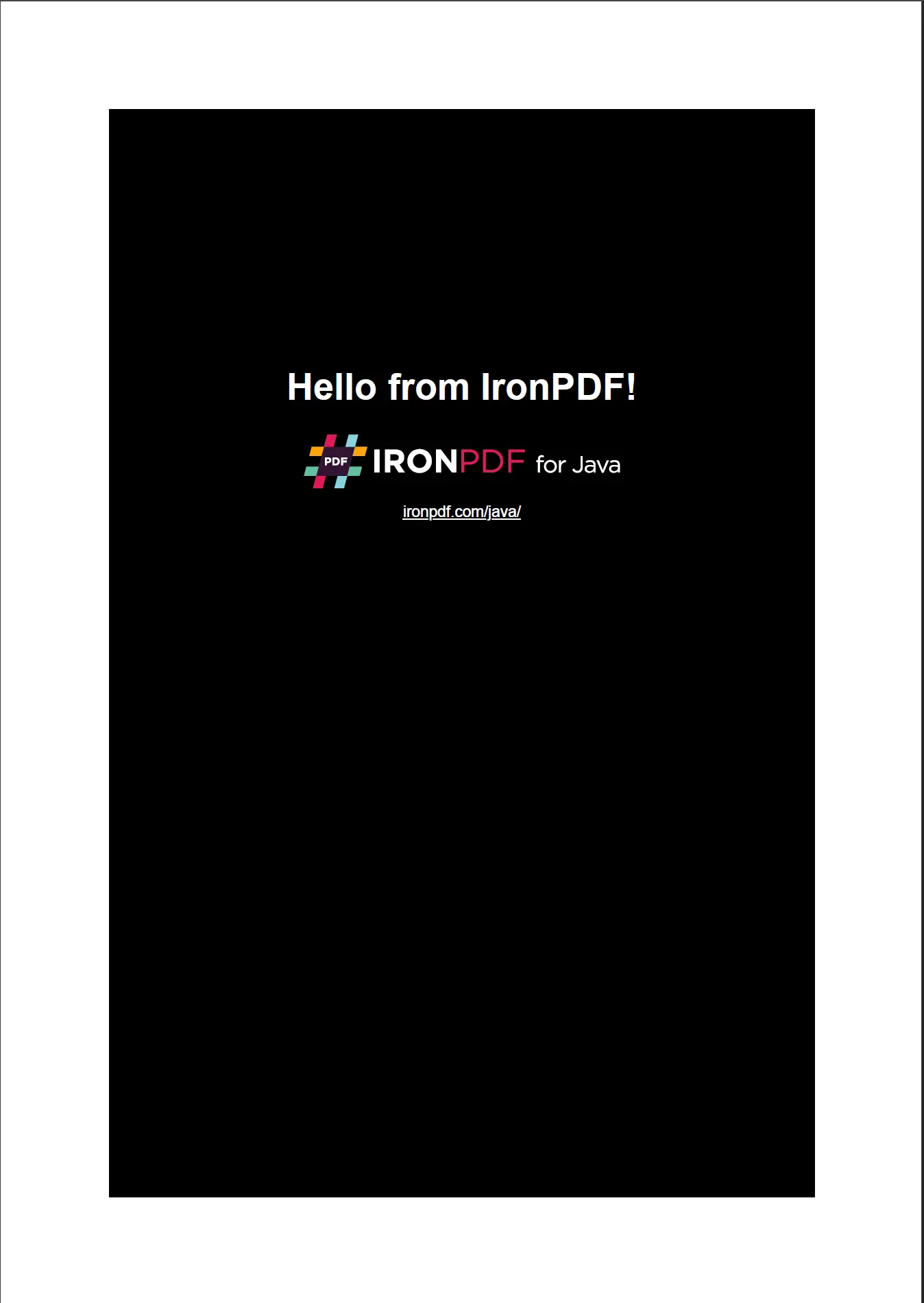
When a base path is provided, `renderHtmlAsPdf` resolves relative asset references from that directory, producing a fully styled PDF.
The base path argument works with both absolute file system paths and URL strings. This makes `renderHtmlAsPdf` suitable for generating PDFs from templates stored on disk or served from a web server.
[[t:(Paths that use Windows-style backslashes (`C:\invoices\`) should be converted to forward slashes or use `Paths.get()` for cross-platform compatibility.)]]
## How Do I Convert a URL to PDF in Java?
`PdfDocument.renderUrlAsPdf` fetches a live web page at the specified URL and renders it as a PDF. The method loads the full page, including all external CSS, JavaScript, and images, before rendering.
```java
import com.ironsoftware.ironpdf.*;
// Render a live web page as a PDF document
PdfDocument pdf = PdfDocument.renderUrlAsPdf("https://en.wikipedia.org/wiki/PDF");
pdf.saveAs("url_to_pdf.pdf");
```
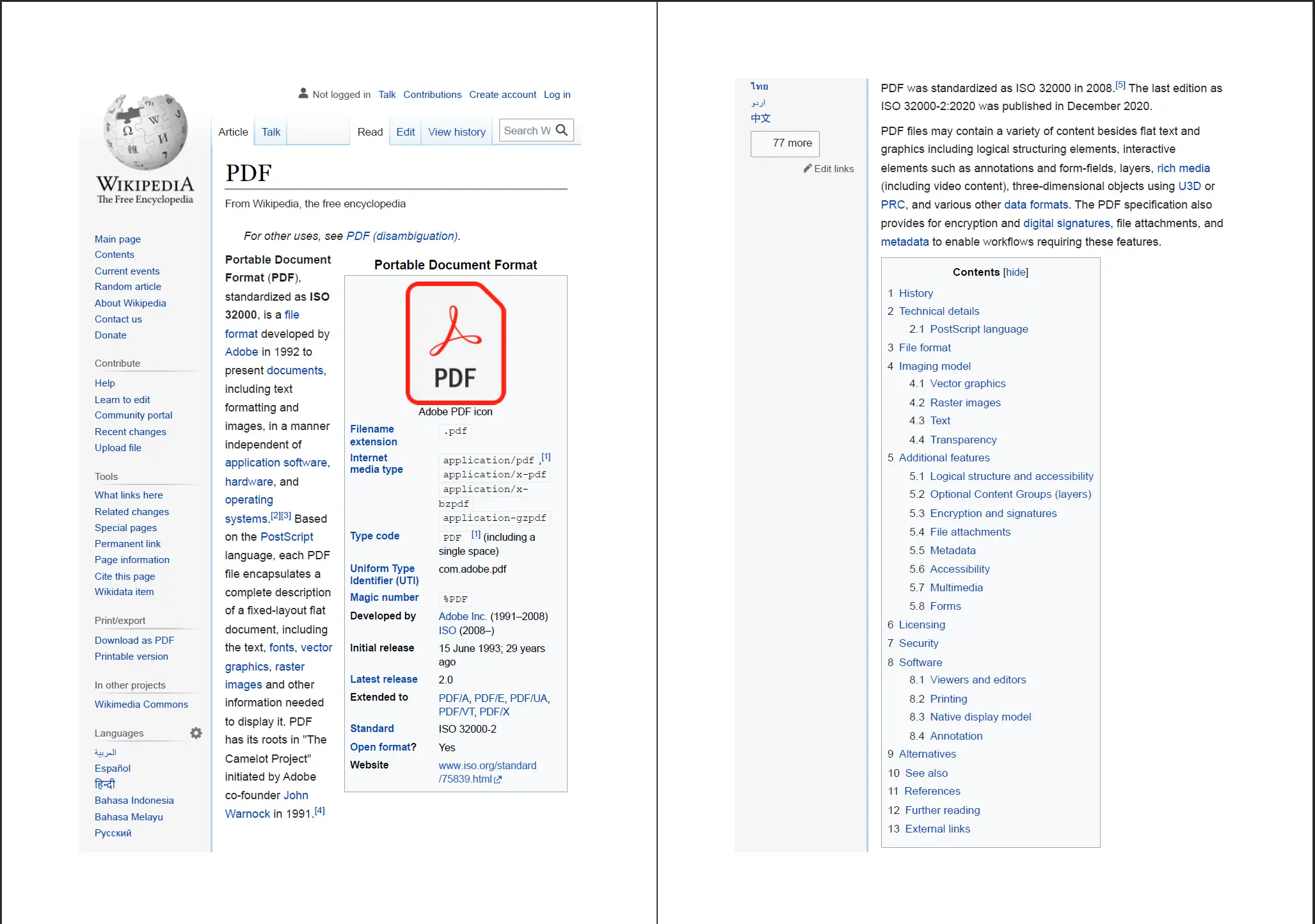
The `PdfDocument.renderUrlAsPdf` method captures the full rendered state of a web page, including JavaScript-rendered content.
`renderUrlAsPdf` waits for JavaScript execution to complete before capturing the rendered page, which means dynamically generated content (such as charts or data loaded via AJAX) will appear in the output PDF.
For the equivalent .NET implementation or additional URL-to-PDF options, see the [converting a URL to a PDF code example](/java/examples/converting-a-url-to-a-pdf/).
## How Do I Convert an HTML File to PDF in Java?
`PdfDocument.renderHtmlFileAsPdf` reads a local HTML file and renders it as a PDF. All relative paths referenced in the HTML file (stylesheets, images, scripts) are resolved relative to the HTML file's directory.
```java
import com.ironsoftware.ironpdf.*;
// Convert a local HTML file to PDF
// IronPDF resolves relative asset paths from the HTML file's directory
PdfDocument pdf = PdfDocument.renderHtmlFileAsPdf("C:/invoices/TestInvoice1.html");
pdf.saveAs("htmlfile_to_pdf.pdf");
```
This approach works well for templated document generation: invoice templates, reports, or certificates stored as HTML files alongside their associated CSS and image assets. IronPDF renders the file with the same accuracy as a browser, preserving all CSS layout rules.
[[i:(The HTML file path must be absolute. Relative paths passed to `renderHtmlFileAsPdf` are resolved from the JVM working directory, which can produce unexpected results in server environments.)]]
## How Do I Customize PDF Output Settings?
The `PdfRenderOptions` class controls page layout and rendering behavior. Create a `PdfRenderOptions` instance, configure the required properties, and pass it to any of the rendering methods.
```java
import com.ironsoftware.ironpdf.*;
import com.ironsoftware.ironpdf.render.*;
// Configure rendering options before generating the PDF
PdfRenderOptions options = new PdfRenderOptions();
// Set the zoom level (100 = normal size)
options.setZoom(100);
// Wait for JavaScript to finish before rendering
options.setJavascriptTimeout(5000);
// Enable printing of background colors and images
options.setPrintBackground(true);
PdfDocument pdf = PdfDocument.renderHtmlAsPdf(
"<h1>Customized PDF</h1>",
options
);
pdf.saveAs("customized.pdf");
```
The `PdfRenderOptions` class provides additional properties for controlling DPI, viewport width, paper orientation, and timeout values. See the [PDF generation settings code example](/java/examples/pdf-generation-settings/) for a full list of available options.
## How Do I Add Headers and Footers to a PDF?
IronPDF supports both text-based and HTML-based headers and footers. Text headers use pre-defined merge fields for common values like page numbers and document titles; HTML headers accept arbitrary HTML markup for fully customized layouts.
```java
import com.ironsoftware.ironpdf.*;
import com.ironsoftware.ironpdf.headerfooter.*;
PdfDocument pdf = PdfDocument.renderHtmlAsPdf("<h1>Annual Report</h1><p>Content goes here.</p>");
// Create a text-based header using merge fields
TextHeaderFooter header = new TextHeaderFooter();
header.setCenterText("Annual Report");
header.setRightText("{page} of {total-pages}");
header.setFont(com.ironsoftware.ironpdf.font.FontTypes.Helvetica);
header.setFontSize(10.0);
// Create a text-based footer
TextHeaderFooter footer = new TextHeaderFooter();
footer.setLeftText("Confidential");
footer.setRightText("Generated by IronPDF");
pdf.addTextHeaders(header);
pdf.addTextFooters(footer);
pdf.saveAs("report_with_headers.pdf");
```
The `{page}` and `{total-pages}` merge fields are replaced at render time with the current page number and total page count. For more advanced layouts, such as a footer with a company logo, use `HtmlHeaderFooter` instead of `TextHeaderFooter`.
For full details on HTML-based headers and footers, see the [add headers and footers code example](/java/examples/headers-and-footers/).
[[t:(Headers and footers are rendered inside the page margins. Increase the top or bottom margin before applying headers or footers to prevent overlap with page content.)]]
## How Do I Set Custom Margins and Page Size?
Page size and margins are configured on the `PdfRenderOptions` object before the PDF is rendered. IronPDF supports standard paper sizes (A4, Letter, Legal) and fully custom dimensions.
```java
import com.ironsoftware.ironpdf.*;
import com.ironsoftware.ironpdf.render.*;
import com.ironsoftware.ironpdf.page.*;
PdfRenderOptions options = new PdfRenderOptions();
// Set margins in millimeters: top, right, bottom, left
options.setMarginTop(25);
options.setMarginRight(20);
options.setMarginBottom(25);
options.setMarginLeft(20);
// Use A4 paper size
options.setPaperSize(PaperSize.A4);
PdfDocument pdf = PdfDocument.renderHtmlAsPdf("<h1>Formatted Document</h1>", options);
pdf.saveAs("formatted_document.pdf");
```
For a complete list of supported paper sizes and units, refer to the [custom paper size code example](/java/examples/custom-pdf-paper-size/) and the [custom margins code example](/java/examples/ironpdf-set-custom-margins/).
## How Do I Add a Watermark to a PDF?
`PdfDocument.applyWatermark` applies a text or image watermark to every page in the document. The watermark renders on a separate layer below the page content by default, or above it when the `isStampBehind` flag is set to `false`.
```java
import com.ironsoftware.ironpdf.*;
PdfDocument pdf = PdfDocument.renderHtmlAsPdf("<h1>Confidential Document</h1>");
// Apply an HTML watermark; supports full CSS styling
String watermarkHtml = "<h1 style='color: rgba(200, 0, 0, 0.2); transform: rotate(-45deg); font-size: 60px;'>DRAFT</h1>";
// Second argument: opacity (0-100), third: rotation (degrees), fourth: stamp behind content
pdf.applyWatermark(watermarkHtml, 50, 45, true);
pdf.saveAs("draft_watermarked.pdf");
```
The HTML approach gives precise control over watermark styling, including font, size, color, and transparency. For advanced watermark configurations such as repeating tile patterns or image-based stamps, see the [watermark how-to guide](/java/how-to/custom-watermark/).
## How Do I Extract Text from a PDF in Java?
`PdfDocument.extractAllText` reads the text content embedded in a PDF and returns it as a single `String`. This method extracts selectable text from all pages in the document.
```java
import com.ironsoftware.ironpdf.*;
// Load an existing PDF from disk
PdfDocument pdf = PdfDocument.fromFile(java.nio.file.Paths.get("report.pdf"));
// Extract all embedded text from the document
String text = pdf.extractAllText();
System.out.println(text);
```
Text extraction works on PDFs where text is stored as selectable glyphs. For PDFs that are image-based scans, consider pairing IronPDF with an OCR library to extract text from the rendered page images.
See the [extract text from PDF code example](/java/examples/extract-text-from-pdf/) for additional options, including per-page text extraction.
## How Do I Extract Images from a PDF in Java?
`PdfDocument.extractAllImages` returns a list of `BufferedImage` objects, one for each image embedded in the PDF. The returned images can be saved directly to disk or passed to downstream image processing logic.
```java
import com.ironsoftware.ironpdf.*;
import java.awt.image.BufferedImage;
import java.io.File;
import java.util.List;
import javax.imageio.ImageIO;
// Load an existing PDF
PdfDocument pdf = PdfDocument.fromFile(java.nio.file.Paths.get("document.pdf"));
// Extract all embedded images
List<BufferedImage> images = pdf.extractAllImages();
for (int i = 0; i < images.size(); i++) {
ImageIO.write(images.get(i), "PNG", new File("extracted_image_" + i + ".png"));
}
System.out.println("Extracted " + images.size() + " image(s).");
```
For more extraction options, including extracting images from specific pages, see the [extract image from PDF code example](/java/examples/extract-image-from-pdf/).
## How Do I Compress a PDF File?
`PdfDocument.compressImages` reduces PDF file size by re-encoding embedded images at a lower quality. The method accepts a quality value from 1 (minimum quality, smallest file) to 100 (maximum quality).
```java
import com.ironsoftware.ironpdf.*;
// Load a large PDF with embedded images
PdfDocument pdf = PdfDocument.fromFile(java.nio.file.Paths.get("large_report.pdf"));
// Compress images to 60% quality to reduce file size
pdf.compressImages(60);
pdf.saveAs("large_report_compressed.pdf");
```
Image compression is the most effective way to reduce the size of PDFs that contain photographs or high-resolution graphics. For additional file size reduction strategies, such as stripping embedded fonts, see the [PDF compression code example](/java/examples/pdf-compression/).
[[t:(A quality value between 40 and 70 typically provides a good balance between file size reduction and visual fidelity for most PDF use cases.)]]
## How Do I Print a PDF Programmatically?
`PdfDocument.print` sends a PDF to the system's default printer using the standard Java printing API. The method accepts a boolean that controls whether to show a print dialog.
```java
import com.ironsoftware.ironpdf.*;
PdfDocument pdf = PdfDocument.fromFile(java.nio.file.Paths.get("document.pdf"));
// Print silently to the default printer (no dialog shown)
pdf.print(false);
```
Pass `true` to the `print` method to show the system print dialog, allowing users to select a printer and configure print settings before the job is sent.
## Next Steps
This tutorial covered the core HTML-to-PDF conversion methods in IronPDF for Java, along with installation, configuration, and common document processing operations.
To go further:
1. Browse the full set of [HTML to PDF Java code examples](/java/examples/using-html-to-create-a-pdf/) for additional rendering scenarios not covered here.
2. Read the [IronPDF for Java documentation](/java/docs/) to understand deployment, thread safety, and server configuration.
3. Explore the complete [IronPDF Java API reference](/java/object-reference/api/) for detailed method signatures and parameter descriptions.
[Start a free trial](#trial-license) to generate PDFs without watermarks, or [view licensing options](#licensing) to find the right plan for your project.
<hr class="separator" />
<h4 class="tutorial-segment-title">Tutorial Quick Access</h4>
<div class="tutorial-section">
<div class="row">
<div class="col-sm-4">
<div class="tutorial-image">
<img alt="IntelliJ IDEA IDE logo for Java development" class="img-responsive add-shadow" src="/img/platforms/cps-intellij.svg" style="width: 160px;" />
</div>
</div>
<div class="col-sm-8">
<h3>Download this Tutorial as Java Source Code</h3>
<p>The full HTML to PDF Java source code for this tutorial is available to download as a zipped IntelliJ project.</p>
<a class="btn btn-white3" href="https://github.com/iron-software/IronPdfJava.Examples/archive/refs/heads/master.zip"><i class="fa fa-cloud-download"></i>Download</a>
</div>
</div>
</div>
<div class="tutorial-section">
<div class="row">
<div class="col-sm-8">
<h3>Explore this Tutorial on GitHub</h3>
<p>The source code for this project is available on GitHub as an IntelliJ IDEA project. It can be imported into other popular Java IDEs including Eclipse and NetBeans.</p>
<a class="doc-link" href="https://github.com/iron-software/IronPdfJava.Examples/tree/main/tutorials/generate-pdfs" target="_blank">Java HTML to PDF on GitHub <i class="fa fa-chevron-right"></i></a>
</div>
<div class="col-sm-4">
<div class="tutorial-image">
<img alt="GitHub logo for source code repository" class="img-responsive add-shadow" src="/img/svgs/github-icon.svg" />
</div>
</div>
</div>
</div>
<div class="tutorial-section">
<div class="row">
<div class="col-sm-4">
<div class="tutorial-image">
<img style="max-width: 110px; width: 100px; height: 140px;" alt="IronPDF Java API reference documentation icon" class="img-responsive add-shadow" src="/img/svgs/documentation.svg" width="100" height="140" />
</div>
</div>
<div class="col-sm-8">
<h3>View the API Reference</h3>
<p>Explore the IronPDF Java API reference, covering all namespaces, classes, methods, and enums available in the library.</p>
<a class="doc-link" href="/java/object-reference/api/" target="_blank">View the API Reference <i class="fa fa-chevron-right"></i></a>
</div>
</div>
</div>
IronPDF for Java converts HTML content into pixel-perfect PDF documents using the same rendering engine found in modern browsers. Java applications can generate PDFs from HTML strings, local HTML files, or live web pages, without requiring any additional rendering software or a GUI environment.
This tutorial covers all three HTML-to-PDF conversion methods available in IronPDF for Java, plus installation, licensing, and configuration options. Developers already using IronPDF for .NET will find the Java API familiar; the equivalent .NET tutorial is available at the HTML to PDF for .NET Tutorial.
Please note: IronPDF for Java requires Java 8 or later and is compatible with all major JVM-based frameworks including Spring Boot, Java EE, and Micronaut.
Quickstart: Generate a PDF from HTML
The following example creates a one-page PDF from an HTML string and saves it to disk. After installing the library via Maven (Step 1), this is all the code required:
import com.ironsoftware.ironpdf.*;// Apply your license key before any rendering callLicense.setLicenseKey("YOUR-LICENSE-KEY");// Render an HTML string to a PDF filePdfDocument pdf = PdfDocument.renderHtmlAsPdf("<h1>Hello from IronPDF!</h1><p>Generated in Java.</p>");pdf.saveAs("output.pdf");
import com.ironsoftware.ironpdf.*;

// Apply your license key before any rendering call
License.setLicenseKey("YOUR-LICENSE-KEY");

// Render an HTML string to a PDF file
PdfDocument pdf = PdfDocument.renderHtmlAsPdf("<h1>Hello from IronPDF!</h1><p>Generated in Java.</p>");
pdf.saveAs("output.pdf");
Java
Start using IronPDF in your project today with a free trial.
IronPDF for Java is available on the Maven Central repository. The recommended installation method is Maven, though manual JAR installation is also supported for projects that do not use a build system.
Install as a Maven Dependency
Add the following artifacts to the dependencies section of your project's pom.xml file:
The first artifact pulls in IronPDF. The second is an SLF4J logging implementation. IronPDF uses SLF4J to emit diagnostic messages during rendering; you can substitute it with Logback or Log4j 2, or omit logging entirely.
Run mvn install at the project root to download the dependencies. Check the latest version of IronPDF before pinning a version number, as the changelog lists all current and past releases.
Install the JAR Manually
Developers not using Maven can download the IronPDF fat JAR directly from Maven Central and add it to the project classpath. The fat JAR bundles all transitive dependencies.
Tips: Maven is the recommended approach for new projects. JAR installation requires manual dependency management and can lead to version conflicts in larger projects.
Import the IronPDF Package
All PDF rendering and manipulation classes live in the com.ironsoftware.ironpdf package. Add this import statement to any Java source file that uses IronPDF:
import com.ironsoftware.ironpdf.*;
import com.ironsoftware.ironpdf.*;
Java
Set the License Key
Without a license key, IronPDF renders PDFs with a tiled watermark across each page. To remove the watermark, pass a valid license key to License.setLicenseKey before calling any rendering method:
import com.ironsoftware.ironpdf.*;// Set the license key before any rendering callLicense.setLicenseKey("YOUR-LICENSE-KEY");
import com.ironsoftware.ironpdf.*;

// Set the license key before any rendering call
License.setLicenseKey("YOUR-LICENSE-KEY");
Java
Place this call at application startup, before any PDF generation logic runs. Start a free trial to obtain a trial key, or view licensing options for production use.
Configure the Log File Path
IronPDF writes rendering diagnostics to a log file named IronPdfEngine.log in the application's working directory. Call Settings.setLogPath to change the file name or location:
import com.ironsoftware.ironpdf.*;import java.nio.file.Paths;// Configure logging before calling any rendering methodsSettings.setLogPath(Paths.get("logs/ironpdf.log"));
import com.ironsoftware.ironpdf.*;
import java.nio.file.Paths;

// Configure logging before calling any rendering methods
Settings.setLogPath(Paths.get("logs/ironpdf.log"));
Java
Important: Call Settings.setLogPath before any PDF conversion or manipulation method. Calls made after rendering has started will not take effect.
How Do I Convert an HTML String to PDF in Java?
PdfDocument.renderHtmlAsPdf converts an HTML string to a PdfDocument object, which can then be saved to disk or passed to other processing methods. This method accepts any W3C-compliant HTML, including full page markup with <head> and <body> elements.
import com.ironsoftware.ironpdf.*;// Convert a simple HTML string to PDFPdfDocument pdf = PdfDocument.renderHtmlAsPdf("<h1>Hello from IronPDF!</h1>");// Save the resulting PDF to a filepdf.saveAs("htmlstring_to_pdf.pdf");
import com.ironsoftware.ironpdf.*;

// Convert a simple HTML string to PDF
PdfDocument pdf = PdfDocument.renderHtmlAsPdf("<h1>Hello from IronPDF!</h1>");
// Save the resulting PDF to a file
pdf.saveAs("htmlstring_to_pdf.pdf");
Java
The PdfDocument.renderHtmlAsPdf method renders HTML markup into a PDF, preserving all W3C-compliant styling and structure.
The method returns a PdfDocument instance. Call saveAs to write the PDF to disk, or use getBinaryData to retrieve the raw PDF bytes for streaming or storage.
renderHtmlAsPdf processes all HTML, CSS, and JavaScript content the same way a standards-compliant browser does. The resulting PDF reflects exactly what the page would look like when viewed in Chrome.
HTML often references external assets (stylesheets, images, scripts) by relative path. renderHtmlAsPdf accepts an optional second argument that sets the base path for resolving these references. The base path can point to a local directory or to a URL.
import com.ironsoftware.ironpdf.*;// HTML with references to local stylesheets and imagesString html = "<html>" + "<head>" + "<title>Invoice</title>" + "<link rel='stylesheet' type='text/css' href='style.css'>" + "</head>" + "<body>" + "<div class='content'>" + "<h1>Invoice #1001</h1>" + "<img src='logo.png' alt='Company Logo'/>" + "</div>" + "</body>" + "</html>";// The second argument resolves relative asset pathsPdfDocument pdf = PdfDocument.renderHtmlAsPdf(html, "C:/invoices/");pdf.saveAs("invoice.pdf");
import com.ironsoftware.ironpdf.*;

// HTML with references to local stylesheets and images
String html = "<html>"
    + "<head>"
    +   "<title>Invoice</title>"
    +   "<link rel='stylesheet' type='text/css' href='style.css'>"
    + "</head>"
    + "<body>"
    +   "<div class='content'>"
    +     "<h1>Invoice #1001</h1>"
    +     "<img src='logo.png' alt='Company Logo'/>"
    +   "</div>"
    + "</body>"
    + "</html>";

// The second argument resolves relative asset paths
PdfDocument pdf = PdfDocument.renderHtmlAsPdf(html, "C:/invoices/");
pdf.saveAs("invoice.pdf");
Java
When a base path is provided, renderHtmlAsPdf resolves relative asset references from that directory, producing a fully styled PDF.
The base path argument works with both absolute file system paths and URL strings. This makes renderHtmlAsPdf suitable for generating PDFs from templates stored on disk or served from a web server.
Tips: Paths that use Windows-style backslashes (C:\invoices\) should be converted to forward slashes or use Paths.get() for cross-platform compatibility.
How Do I Convert a URL to PDF in Java?
PdfDocument.renderUrlAsPdf fetches a live web page at the specified URL and renders it as a PDF. The method loads the full page, including all external CSS, JavaScript, and images, before rendering.
import com.ironsoftware.ironpdf.*;// Render a live web page as a PDF documentPdfDocument pdf = PdfDocument.renderUrlAsPdf("https://en.wikipedia.org/wiki/PDF");pdf.saveAs("url_to_pdf.pdf");
import com.ironsoftware.ironpdf.*;

// Render a live web page as a PDF document
PdfDocument pdf = PdfDocument.renderUrlAsPdf("https://en.wikipedia.org/wiki/PDF");
pdf.saveAs("url_to_pdf.pdf");
Java
The PdfDocument.renderUrlAsPdf method captures the full rendered state of a web page, including JavaScript-rendered content.
renderUrlAsPdf waits for JavaScript execution to complete before capturing the rendered page, which means dynamically generated content (such as charts or data loaded via AJAX) will appear in the output PDF.
PdfDocument.renderHtmlFileAsPdf reads a local HTML file and renders it as a PDF. All relative paths referenced in the HTML file (stylesheets, images, scripts) are resolved relative to the HTML file's directory.
import com.ironsoftware.ironpdf.*;// Convert a local HTML file to PDF// IronPDF resolves relative asset paths from the HTML file's directoryPdfDocument pdf = PdfDocument.renderHtmlFileAsPdf("C:/invoices/TestInvoice1.html");pdf.saveAs("htmlfile_to_pdf.pdf");
import com.ironsoftware.ironpdf.*;

// Convert a local HTML file to PDF
// IronPDF resolves relative asset paths from the HTML file's directory
PdfDocument pdf = PdfDocument.renderHtmlFileAsPdf("C:/invoices/TestInvoice1.html");
pdf.saveAs("htmlfile_to_pdf.pdf");
Java
This approach works well for templated document generation: invoice templates, reports, or certificates stored as HTML files alongside their associated CSS and image assets. IronPDF renders the file with the same accuracy as a browser, preserving all CSS layout rules.
Please note: The HTML file path must be absolute. Relative paths passed to renderHtmlFileAsPdf are resolved from the JVM working directory, which can produce unexpected results in server environments.
How Do I Customize PDF Output Settings?
The PdfRenderOptions class controls page layout and rendering behavior. Create a PdfRenderOptions instance, configure the required properties, and pass it to any of the rendering methods.
import com.ironsoftware.ironpdf.*;import com.ironsoftware.ironpdf.render.*;// Configure rendering options before generating the PDFPdfRenderOptions options = newPdfRenderOptions();// Set the zoom level (100 = normal size)options.setZoom(100);// Wait for JavaScript to finish before renderingoptions.setJavascriptTimeout(5000);// Enable printing of background colors and imagesoptions.setPrintBackground(true);PdfDocument pdf = PdfDocument.renderHtmlAsPdf( "<h1>Customized PDF</h1>", options);pdf.saveAs("customized.pdf");
import com.ironsoftware.ironpdf.*;
import com.ironsoftware.ironpdf.render.*;

// Configure rendering options before generating the PDF
PdfRenderOptions options = new PdfRenderOptions();
// Set the zoom level (100 = normal size)
options.setZoom(100);
// Wait for JavaScript to finish before rendering
options.setJavascriptTimeout(5000);
// Enable printing of background colors and images
options.setPrintBackground(true);

PdfDocument pdf = PdfDocument.renderHtmlAsPdf(
    "<h1>Customized PDF</h1>",
    options
);
pdf.saveAs("customized.pdf");
Java
The PdfRenderOptions class provides additional properties for controlling DPI, viewport width, paper orientation, and timeout values. See the PDF generation settings code example for a full list of available options.
How Do I Add Headers and Footers to a PDF?
IronPDF supports both text-based and HTML-based headers and footers. Text headers use pre-defined merge fields for common values like page numbers and document titles; HTML headers accept arbitrary HTML markup for fully customized layouts.
import com.ironsoftware.ironpdf.*;import com.ironsoftware.ironpdf.headerfooter.*;PdfDocument pdf = PdfDocument.renderHtmlAsPdf("<h1>Annual Report</h1><p>Content goes here.</p>");// Create a text-based header using merge fieldsTextHeaderFooter header = newTextHeaderFooter();header.setCenterText("Annual Report");header.setRightText("{page} of {total-pages}");header.setFont(com.ironsoftware.ironpdf.font.FontTypes.Helvetica);header.setFontSize(10.0);// Create a text-based footerTextHeaderFooter footer = newTextHeaderFooter();footer.setLeftText("Confidential");footer.setRightText("Generated by IronPDF");pdf.addTextHeaders(header);pdf.addTextFooters(footer);pdf.saveAs("report_with_headers.pdf");
import com.ironsoftware.ironpdf.*;
import com.ironsoftware.ironpdf.headerfooter.*;

PdfDocument pdf = PdfDocument.renderHtmlAsPdf("<h1>Annual Report</h1><p>Content goes here.</p>");

// Create a text-based header using merge fields
TextHeaderFooter header = new TextHeaderFooter();
header.setCenterText("Annual Report");
header.setRightText("{page} of {total-pages}");
header.setFont(com.ironsoftware.ironpdf.font.FontTypes.Helvetica);
header.setFontSize(10.0);

// Create a text-based footer
TextHeaderFooter footer = new TextHeaderFooter();
footer.setLeftText("Confidential");
footer.setRightText("Generated by IronPDF");

pdf.addTextHeaders(header);
pdf.addTextFooters(footer);

pdf.saveAs("report_with_headers.pdf");
Java
The {page} and {total-pages} merge fields are replaced at render time with the current page number and total page count. For more advanced layouts, such as a footer with a company logo, use HtmlHeaderFooter instead of TextHeaderFooter.
Tips: Headers and footers are rendered inside the page margins. Increase the top or bottom margin before applying headers or footers to prevent overlap with page content.
How Do I Set Custom Margins and Page Size?
Page size and margins are configured on the PdfRenderOptions object before the PDF is rendered. IronPDF supports standard paper sizes (A4, Letter, Legal) and fully custom dimensions.
import com.ironsoftware.ironpdf.*;import com.ironsoftware.ironpdf.render.*;import com.ironsoftware.ironpdf.page.*;PdfRenderOptions options = newPdfRenderOptions();// Set margins in millimeters: top, right, bottom, leftoptions.setMarginTop(25);options.setMarginRight(20);options.setMarginBottom(25);options.setMarginLeft(20);// Use A4 paper sizeoptions.setPaperSize(PaperSize.A4);PdfDocument pdf = PdfDocument.renderHtmlAsPdf("<h1>Formatted Document</h1>", options);pdf.saveAs("formatted_document.pdf");
import com.ironsoftware.ironpdf.*;
import com.ironsoftware.ironpdf.render.*;
import com.ironsoftware.ironpdf.page.*;

PdfRenderOptions options = new PdfRenderOptions();
// Set margins in millimeters: top, right, bottom, left
options.setMarginTop(25);
options.setMarginRight(20);
options.setMarginBottom(25);
options.setMarginLeft(20);
// Use A4 paper size
options.setPaperSize(PaperSize.A4);

PdfDocument pdf = PdfDocument.renderHtmlAsPdf("<h1>Formatted Document</h1>", options);
pdf.saveAs("formatted_document.pdf");
PdfDocument.applyWatermark applies a text or image watermark to every page in the document. The watermark renders on a separate layer below the page content by default, or above it when the isStampBehind flag is set to false.
import com.ironsoftware.ironpdf.*;PdfDocument pdf = PdfDocument.renderHtmlAsPdf("<h1>Confidential Document</h1>");// Apply an HTML watermark; supports full CSS stylingString watermarkHtml = "<h1 style='color: rgba(200, 0, 0, 0.2); transform: rotate(-45deg); font-size: 60px;'>DRAFT</h1>";// Second argument: opacity (0-100), third: rotation (degrees), fourth: stamp behind contentpdf.applyWatermark(watermarkHtml, 50, 45, true);pdf.saveAs("draft_watermarked.pdf");
import com.ironsoftware.ironpdf.*;

PdfDocument pdf = PdfDocument.renderHtmlAsPdf("<h1>Confidential Document</h1>");

// Apply an HTML watermark; supports full CSS styling
String watermarkHtml = "<h1 style='color: rgba(200, 0, 0, 0.2); transform: rotate(-45deg); font-size: 60px;'>DRAFT</h1>";
// Second argument: opacity (0-100), third: rotation (degrees), fourth: stamp behind content
pdf.applyWatermark(watermarkHtml, 50, 45, true);

pdf.saveAs("draft_watermarked.pdf");
Java
The HTML approach gives precise control over watermark styling, including font, size, color, and transparency. For advanced watermark configurations such as repeating tile patterns or image-based stamps, see the watermark how-to guide.
How Do I Extract Text from a PDF in Java?
PdfDocument.extractAllText reads the text content embedded in a PDF and returns it as a single String. This method extracts selectable text from all pages in the document.
import com.ironsoftware.ironpdf.*;// Load an existing PDF from diskPdfDocument pdf = PdfDocument.fromFile(java.nio.file.Paths.get("report.pdf"));// Extract all embedded text from the documentString text = pdf.extractAllText();System.out.println(text);
import com.ironsoftware.ironpdf.*;

// Load an existing PDF from disk
PdfDocument pdf = PdfDocument.fromFile(java.nio.file.Paths.get("report.pdf"));

// Extract all embedded text from the document
String text = pdf.extractAllText();
System.out.println(text);
Java
Text extraction works on PDFs where text is stored as selectable glyphs. For PDFs that are image-based scans, consider pairing IronPDF with an OCR library to extract text from the rendered page images.
PdfDocument.extractAllImages returns a list of BufferedImage objects, one for each image embedded in the PDF. The returned images can be saved directly to disk or passed to downstream image processing logic.
import com.ironsoftware.ironpdf.*;import java.awt.image.BufferedImage;import java.io.File;import java.util.List;import javax.imageio.ImageIO;// Load an existing PDFPdfDocument pdf = PdfDocument.fromFile(java.nio.file.Paths.get("document.pdf"));// Extract all embedded imagesList<BufferedImage> images = pdf.extractAllImages();for (int i = 0; i < images.size(); i++) {ImageIO.write(images.get(i), "PNG", newFile("extracted_image_" + i + ".png"));}System.out.println("Extracted " + images.size() + " image(s).");
import com.ironsoftware.ironpdf.*;
import java.awt.image.BufferedImage;
import java.io.File;
import java.util.List;
import javax.imageio.ImageIO;

// Load an existing PDF
PdfDocument pdf = PdfDocument.fromFile(java.nio.file.Paths.get("document.pdf"));

// Extract all embedded images
List<BufferedImage> images = pdf.extractAllImages();
for (int i = 0; i < images.size(); i++) {
    ImageIO.write(images.get(i), "PNG", new File("extracted_image_" + i + ".png"));
}
System.out.println("Extracted " + images.size() + " image(s).");
PdfDocument.compressImages reduces PDF file size by re-encoding embedded images at a lower quality. The method accepts a quality value from 1 (minimum quality, smallest file) to 100 (maximum quality).
import com.ironsoftware.ironpdf.*;// Load a large PDF with embedded imagesPdfDocument pdf = PdfDocument.fromFile(java.nio.file.Paths.get("large_report.pdf"));// Compress images to 60% quality to reduce file sizepdf.compressImages(60);pdf.saveAs("large_report_compressed.pdf");
import com.ironsoftware.ironpdf.*;

// Load a large PDF with embedded images
PdfDocument pdf = PdfDocument.fromFile(java.nio.file.Paths.get("large_report.pdf"));

// Compress images to 60% quality to reduce file size
pdf.compressImages(60);

pdf.saveAs("large_report_compressed.pdf");
Java
Image compression is the most effective way to reduce the size of PDFs that contain photographs or high-resolution graphics. For additional file size reduction strategies, such as stripping embedded fonts, see the PDF compression code example.
Tips: A quality value between 40 and 70 typically provides a good balance between file size reduction and visual fidelity for most PDF use cases.
How Do I Print a PDF Programmatically?
PdfDocument.print sends a PDF to the system's default printer using the standard Java printing API. The method accepts a boolean that controls whether to show a print dialog.
import com.ironsoftware.ironpdf.*;PdfDocument pdf = PdfDocument.fromFile(java.nio.file.Paths.get("document.pdf"));// Print silently to the default printer (no dialog shown)pdf.print(false);
import com.ironsoftware.ironpdf.*;

PdfDocument pdf = PdfDocument.fromFile(java.nio.file.Paths.get("document.pdf"));

// Print silently to the default printer (no dialog shown)
pdf.print(false);
Java
Pass true to the print method to show the system print dialog, allowing users to select a printer and configure print settings before the job is sent.
Next Steps
This tutorial covered the core HTML-to-PDF conversion methods in IronPDF for Java, along with installation, configuration, and common document processing operations.
The source code for this project is available on GitHub as an IntelliJ IDEA project. It can be imported into other popular Java IDEs including Eclipse and NetBeans.
IronPDF is used to convert HTML content into high-quality PDF documents in Java applications. It allows Java developers to generate PDFs from HTML strings, local HTML files, or live web pages without requiring additional rendering software.
How can I install IronPDF for use in my Java project?
IronPDF can be installed via Maven by adding the IronPDF artifact to your `pom.xml` file's dependencies section. Alternatively, you can download the JAR manually from Maven Central if you're not using Maven.
Can IronPDF convert live web pages to PDF in Java?
Yes, IronPDF can convert live web pages to PDF by using the `PdfDocument.renderUrlAsPdf` method, which fetches and renders web pages, including their CSS, JavaScript, and images.
How do I resolve local assets when converting an HTML string to a PDF?
When converting an HTML string to a PDF with IronPDF, you can provide a base path for resolving local assets such as stylesheets or images. This can be a file system path or a URL, using `PdfDocument.renderHtmlAsPdf` method's optional second argument.
What are some of the PDF customization options available in IronPDF?
IronPDF allows various PDF customization options through the `PdfRenderOptions` class, including setting paper size, margins, zoom level, and whether to print background colors and images.
How do I add a text watermark to a PDF with IronPDF?
You can add a text or HTML watermark to a PDF using the `PdfDocument.applyWatermark` method, which allows you to style the watermark with CSS and place it either behind or above the content.
Can IronPDF extract text from PDFs, and how?
Yes, IronPDF can extract text from PDFs using the `PdfDocument.extractAllText` method, which retrieves all selectable text content from each page in the document.
Is it possible to apply headers and footers to a PDF using IronPDF?
IronPDF supports adding both text and HTML-based headers and footers to PDF documents, allowing for customized layouts using merge fields or HTML content.
How can I compress a PDF to reduce its file size using IronPDF?
IronPDF provides a `compressImages` method to reduce the file size of PDFs by compressing embedded images. This can be adjusted to balance between quality and size reduction.
How does IronPDF handle JavaScript on web pages when converting to PDFs?
IronPDF captures the full rendered state of a web page, including JavaScript-rendered content, ensuring dynamic elements are included in the final PDF.
Curtis Chau holds a Bachelor’s degree in Computer Science (Carleton University) and specializes in front-end development with expertise in Node.js, TypeScript, JavaScript, and React. Passionate about crafting intuitive and aesthetically pleasing user interfaces, Curtis enjoys working with modern frameworks and creating well-structured, visually appealing manuals.