# HTML to PDF in Java
IronPDF for Java gives developers a direct path from HTML content to PDF output without learning a separate layout API. The library renders HTML, CSS, and JavaScript the same way a modern browser does, so the PDF output matches what you see on screen. This tutorial covers installation, the three core HTML-to-PDF conversion methods, and formatting options including headers, footers, page sizing, and custom margins.
The tutorial uses IronPDF for Java. A parallel guide covering the .NET version is available at the [HTML to PDF conversion tutorial for .NET](/tutorials/html-to-pdf/). IronPDF is also available for [Python](/python/) and [Node.js](/nodejs/).
*as-heading:2(Quickstart: Convert HTML to a PDF File)*
The shortest path to a PDF from an HTML string is three lines of Java code:
```java
import com.ironsoftware.ironpdf.*;
// Convert an HTML string directly to a PDF document
PdfDocument pdf = PdfDocument.renderHtmlAsPdf("<h1>Hello from IronPDF!</h1>");
// Save to disk
pdf.saveAs("output.pdf");
```
!!!--LIBRARY_START_TRIAL_BLOCK--!!!
*as-heading:2(Table of Contents)*
- **Installation**
- [How Do I Add IronPDF to a Maven Project?](#how-do-i-add-ironpdf-to-a-maven-project-in-java)
- [How Do I Install the IronPDF JAR Manually?](#how-do-i-install-the-ironpdf-jar-manually-in-java)
- [How Do I Import IronPDF into My Java Source Files?](#how-do-i-import-ironpdf-into-my-java-source-files)
- [How Do I Set a License Key?](#how-do-i-set-a-license-key-in-ironpdf-for-java)
- **HTML to PDF Conversion**
- [How Do I Convert an HTML String to a PDF?](#how-do-i-convert-an-html-string-to-a-pdf-in-java)
- [How Do I Convert a URL to a PDF?](#how-do-i-convert-a-url-to-a-pdf-in-java)
- [How Do I Convert an HTML File to a PDF?](#how-do-i-convert-an-html-file-to-a-pdf-in-java)
- **PDF Formatting Options**
- [How Do I Set PDF Page Size and Orientation?](#how-do-i-set-pdf-page-size-and-orientation-in-java)
- [How Do I Set Custom Margins on a PDF?](#how-do-i-set-custom-margins-on-a-pdf-in-java)
- [How Do I Add Headers and Footers to a PDF?](#how-do-i-add-headers-and-footers-to-a-pdf-in-java)
- [How Do I Apply a Watermark to a PDF?](#how-do-i-apply-a-watermark-to-a-pdf-in-java)
- [How Do I Compress a PDF File?](#how-do-i-compress-a-pdf-file-in-java)
- [Next Steps](#next-steps)
!!!--LIBRARY_NUGET_INSTALL_BLOCK--!!!
## How Do I Add IronPDF to a Maven Project in Java?
Adding IronPDF to a Maven project requires two entries in the project's `pom.xml` dependency block. The first pulls in the IronPDF library; the second adds an SLF4J logging provider so IronPDF can write engine messages during execution.
```xml
<dependency>
<groupId>com.ironsoftware</groupId>
<artifactId>ironpdf</artifactId>
<version>2024.9.1</version>
</dependency>
<dependency>
<groupId>org.slf4j</groupId>
<artifactId>slf4j-simple</artifactId>
<version>2.0.5</version>
</dependency>
```
The `ironpdf` artifact references the [latest IronPDF for Java release and changelog](/java/product-updates/changelog/). The `slf4j-simple` dependency provides a basic logging backend. You can substitute it with <a href="https://logback.qos.ch/" target="_blank" rel="nofollow noopener noreferrer">Logback</a> or <a href="https://logging.apache.org/log4j/2.x/" target="_blank" rel="nofollow noopener noreferrer">Log4J</a> as needed, or omit it entirely to suppress log output.
After adding both entries, run `mvn install` from the project root to download the artifacts. Maven resolves the dependency against <a href="https://search.maven.org" target="_blank" rel="nofollow noopener noreferrer">Maven Central</a>.
[[t:(Check the Maven Central page for `com.ironsoftware:ironpdf` to confirm the latest version number before adding it to your pom.xml.)]]
## How Do I Install the IronPDF JAR Manually in Java?
Projects that do not use Maven or another dependency manager can add IronPDF by downloading the JAR directly and including it on the classpath. Navigate to the [IronPDF for Java download page](/java/) and download the fat-JAR file.
The fat-JAR bundles all dependencies, so no additional classpath entries are required beyond the main artifact. Optionally download an <a href="https://mvnrepository.com/artifact/org.slf4j/slf4j-simple" target="_blank" rel="nofollow noopener noreferrer">SLF4J implementation JAR</a> to enable logging.
Add both JARs to the project's classpath using your IDE's library management panel, or specify `-classpath` entries when compiling and running from the terminal.
## How Do I Import IronPDF into My Java Source Files?
The `com.ironsoftware.ironpdf` package contains all conversion and processing components. Place the following import statement at the top of every Java file that calls IronPDF methods.
```java
// Import all IronPDF components
import com.ironsoftware.ironpdf.*;
```
A targeted import that names specific classes is also valid: `import com.ironsoftware.ironpdf.PdfDocument;`. The wildcard import is convenient during exploration.
## How Do I Set a License Key in IronPDF for Java?
IronPDF for Java is free to use without a license key, but it applies a tiled watermark to all generated or modified PDF documents. To remove the watermark, supply a valid license key before calling any conversion or manipulation method.
```java
// Set the license key before any PDF operations
License.setLicenseKey("YOUR-LICENSE-KEY");
```
Place the `setLicenseKey` call at application startup, before any `PdfDocument` method is called. [Purchase a license key](/java/licensing/) or [start a free trial](#trial-license) to generate PDFs without watermarks.

A valid license key removes the tiled watermark from generated PDFs. Obtain one at the IronPDF licensing page or request a free trial.
### Setting the Log File Location (Optional)
By default, IronPDF writes engine messages to a file named `IronPdfEngine.log` in the application's root directory. To change the log file path, call `Settings.setLogPath` before performing any PDF operations.
```java
import java.nio.file.Paths;
// Redirect log output before using IronPDF
Settings.setLogPath(Paths.get("logs/ironpdf-engine.log"));
```
[[i:(The `setLogPath` call must precede all `PdfDocument` calls. Calling it after a conversion has started has no effect on that session.)]]
## How Do I Convert an HTML String to a PDF in Java?
`PdfDocument.renderHtmlAsPdf(String html)` converts any valid HTML markup into a PDF document. The method accepts a raw HTML string and returns a `PdfDocument` object that can be saved, merged, or further modified.
```java
// Convert a minimal HTML string to a PDF document
PdfDocument pdf = PdfDocument.renderHtmlAsPdf("<h1>Hello from IronPDF!</h1>");
// Save the resulting document to disk
pdf.saveAs("html-string-output.pdf");
```
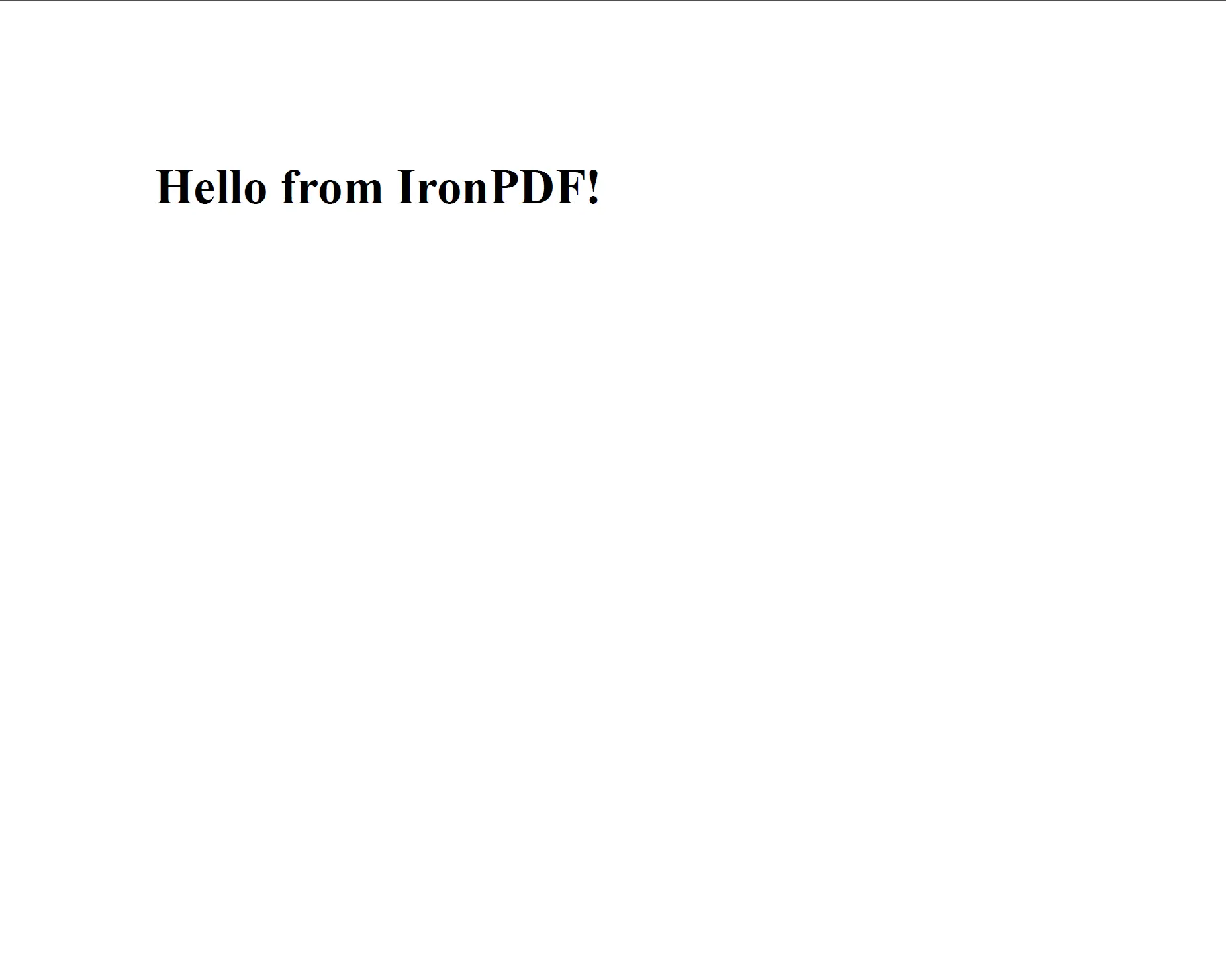
IronPDF renders HTML markup directly into a pixel-accurate PDF. The output shown here was generated by the code example above.
The rendering engine is based on Chromium, so any HTML, CSS, or JavaScript that works in Chrome will render correctly in the PDF. This includes Flexbox layouts, CSS Grid, web fonts, SVGs, and JavaScript-driven charts.
An overloaded version of the method accepts a second argument for a base path: `renderHtmlAsPdf(String html, String basePath)`. This base path is used to resolve relative references to local stylesheets, images, and scripts.
```java
// HTML referencing local stylesheet and image
String html = "<html><head><link rel='stylesheet' href='style.css'></head>"
+ "<body><img src='logo.png'/><h1>Invoice</h1></body></html>";
// Provide the folder containing style.css and logo.png as the base path
PdfDocument pdf = PdfDocument.renderHtmlAsPdf(html, "C:/invoices/");
pdf.saveAs("invoice-output.pdf");
```
The base path can point to a directory on the local filesystem or to a remote URL. IronPDF fetches referenced assets from that location during rendering.
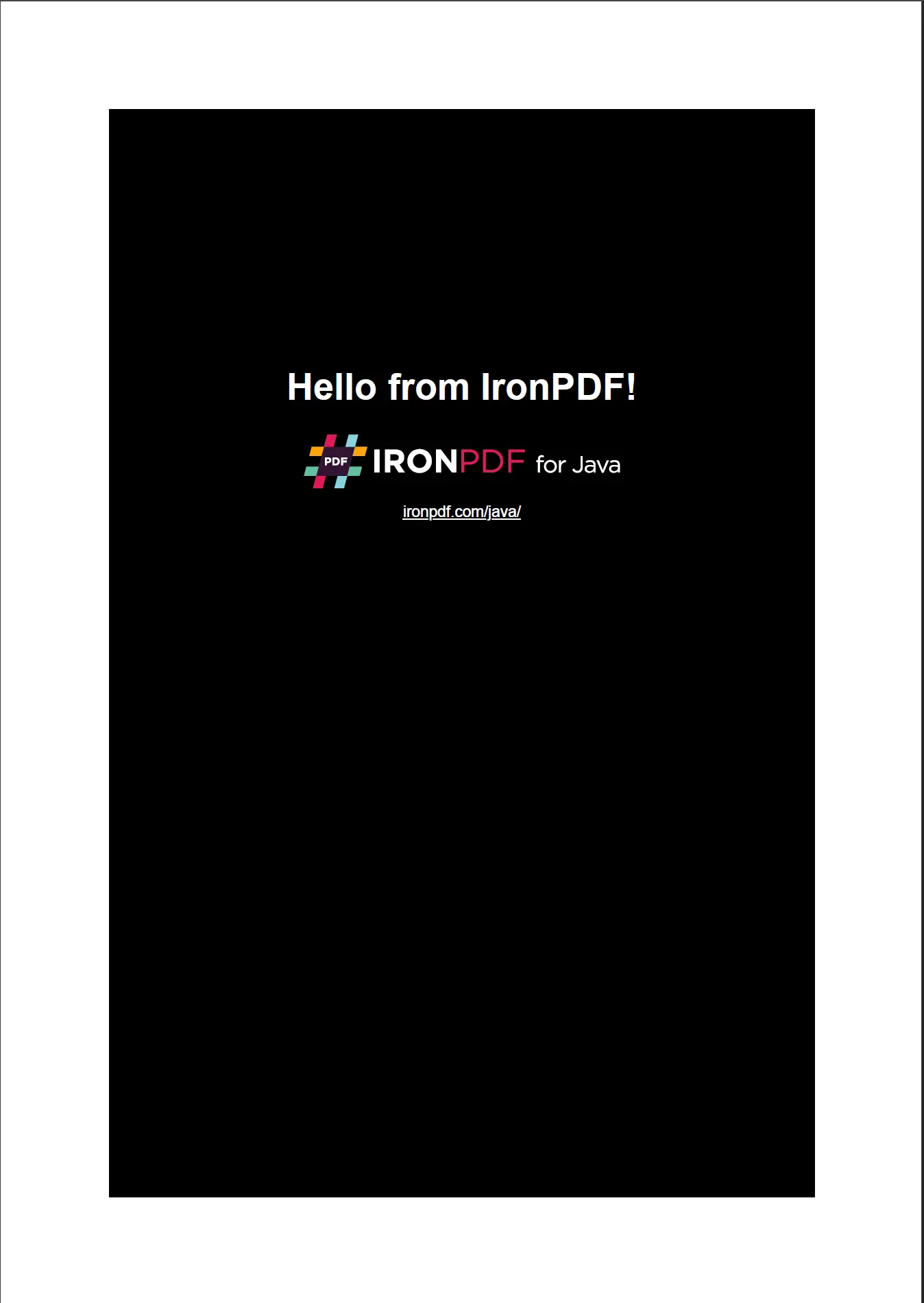
When a base path is provided, IronPDF resolves local CSS and image references to produce a fully styled PDF.
[[t:(For local asset resolution to work, all referenced files must be accessible from the base path. Paths using forward slashes work on both Windows and Linux.)]]
For a focused look at this method, see the [HTML string to PDF code example](/java/examples/using-html-to-create-a-pdf/).
## How Do I Convert a URL to a PDF in Java?
`PdfDocument.renderUrlAsPdf(String url)` fetches the page at the given URL and renders the full DOM (including JavaScript execution) before saving the output as a PDF.
```java
// Render a live web page to PDF by URL
PdfDocument pdf = PdfDocument.renderUrlAsPdf("https://en.wikipedia.org/wiki/PDF");
// Save the rendered document
pdf.saveAs("wikipedia-pdf-article.pdf");
```
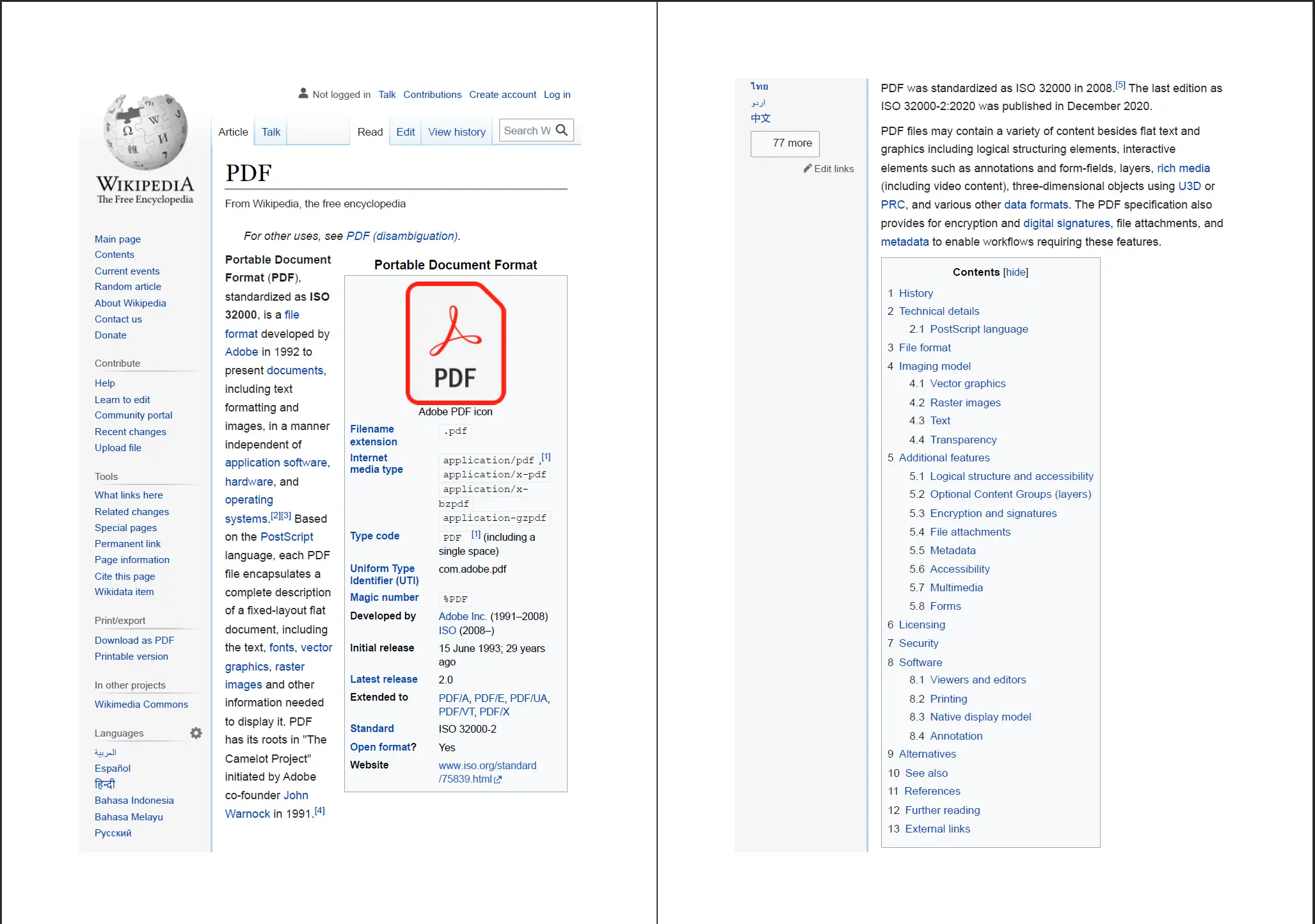
IronPDF captures the full rendered state of a web page, including dynamic content produced by JavaScript.
The Chromium rendering engine fetches external stylesheets, fonts, and JavaScript files, so the resulting PDF accurately reflects the page's visual state. This method is well-suited to report generation from web dashboards, archiving public web content, or converting data visualizations that depend on client-side rendering.
[[n:(URL-to-PDF conversion requires outbound HTTP/HTTPS access from the server running IronPDF. Ensure network policies allow this before deploying to a production environment.)]]
See the dedicated [URL to PDF conversion example](/java/examples/converting-a-url-to-a-pdf/) for additional options such as custom request headers and authentication.
## How Do I Convert an HTML File to a PDF in Java?
`PdfDocument.renderHtmlFileAsPdf(String filePath)` reads an HTML file from the local filesystem and converts it to PDF. The method automatically resolves any relative asset references in the HTML file against the file's directory.
```java
// Convert a local HTML file (with a linked CSS file) to PDF
PdfDocument pdf = PdfDocument.renderHtmlFileAsPdf("C:/invoices/TestInvoice1.html");
// Save the resulting document
pdf.saveAs("invoice-from-file.pdf");
```
The method handles multi-file HTML projects correctly. In the example above, if `TestInvoice1.html` links to a stylesheet in the same directory, IronPDF applies that stylesheet during rendering. The result is a PDF that matches the browser-rendered appearance of the source file.
[[t:(Use absolute file paths when calling `renderHtmlFileAsPdf` from a server application. Relative paths are resolved against the JVM's working directory, which may differ from the HTML file's location.)]]
This method is particularly useful for PDF generation workflows that maintain HTML templates on disk: invoice generators, report templates, and form output systems are common use cases.
## How Do I Set PDF Page Size and Orientation in Java?
Page size and orientation are controlled through the `ChromePdfRenderOptions` class. Create a `ChromePdfRenderOptions` instance, configure the properties, and pass it as the second argument to any `renderHtmlAsPdf` call.
```java
import com.ironsoftware.ironpdf.*;
import com.ironsoftware.ironpdf.render.*;
// Create rendering options for the PDF
ChromePdfRenderOptions options = new ChromePdfRenderOptions();
// Set paper size to A4
options.setPaperSize(PaperSize.A4);
// Set to landscape orientation
options.setPaperOrientation(PaperOrientation.Landscape);
// Apply options to the conversion
PdfDocument pdf = PdfDocument.renderHtmlAsPdf("<h1>Landscape Report</h1>", options);
pdf.saveAs("landscape-a4-report.pdf");
```
`PaperSize` includes standard options such as `A4`, `Letter`, `Legal`, `A3`, and `A5`. `PaperOrientation` accepts `Portrait` (default) or `Landscape`.
For non-standard dimensions, use `setCustomPaperSizeInMillimeters(double width, double height)` or `setCustomPaperSizeInInches(double width, double height)`:
```java
ChromePdfRenderOptions options = new ChromePdfRenderOptions();
// Set a custom 100mm x 150mm page size
options.setCustomPaperSizeInMillimeters(100, 150);
PdfDocument pdf = PdfDocument.renderHtmlAsPdf("<p>Custom size card</p>", options);
pdf.saveAs("custom-size-card.pdf");
```
See the [custom PDF paper size example](/java/examples/custom-pdf-paper-size/) for the full list of `PaperSize` constants and sizing options.
## How Do I Set Custom Margins on a PDF in Java?
Margin sizes are also set through `ChromePdfRenderOptions`. The library exposes separate setters for top, bottom, left, and right margins, all accepting values in millimeters.
```java
ChromePdfRenderOptions options = new ChromePdfRenderOptions();
// Set all four margins in millimeters
options.setMarginTop(20);
options.setMarginBottom(20);
options.setMarginLeft(15);
options.setMarginRight(15);
PdfDocument pdf = PdfDocument.renderHtmlAsPdf(
"<p>Document with custom margins</p>", options);
pdf.saveAs("custom-margins.pdf");
```
Setting all margins to zero removes white space entirely, which is useful for full-bleed designs such as labels, certificates, or graphic layouts.
[[i:(IronPDF margin values are in millimeters. A value of `0` disables the margin on that edge. Note that printer driver margins are separate from IronPDF margins, so content that fills the page edge-to-edge may still be clipped when printed.)]]
For a working code sample, visit the [custom margins example](/java/examples/ironpdf-set-custom-margins/).
## How Do I Add Headers and Footers to a PDF in Java?
IronPDF supports two types of headers and footers: text-based (`TextHeaderFooter`) and HTML-based (`HtmlHeaderFooter`). Text headers are quick to configure; HTML headers support full styling and images.
### Adding a Text Header and Footer
```java
import com.ironsoftware.ironpdf.*;
import com.ironsoftware.ironpdf.headerfooter.*;
import com.ironsoftware.ironpdf.render.*;
ChromePdfRenderOptions options = new ChromePdfRenderOptions();
// Configure a text-based header
TextHeaderFooter header = new TextHeaderFooter();
// Use merge fields: {page}, {total-pages}, {date}, {time}, {url}, {html-title}
header.setCenterText("Report Title");
header.setRightText("Page {page} of {total-pages}");
options.setTextHeader(header);
// Configure a text-based footer
TextHeaderFooter footer = new TextHeaderFooter();
footer.setLeftText("Confidential");
footer.setCenterText("{date}");
options.setTextFooter(footer);
PdfDocument pdf = PdfDocument.renderHtmlAsPdf(
"<h1>Annual Report</h1><p>Content here.</p>", options);
pdf.saveAs("report-with-headers.pdf");
```
The `{page}`, `{total-pages}`, `{date}`, `{time}`, `{url}`, and `{html-title}` merge fields are replaced at render time with document-specific values.
### Adding an HTML Header
For headers that require logos, brand colors, or complex layouts, use `HtmlHeaderFooter`:
```java
import com.ironsoftware.ironpdf.headerfooter.*;
HtmlHeaderFooter header = new HtmlHeaderFooter();
header.setHtmlFragment(
"<div style='background:#003366;color:white;padding:8px;font-family:Arial;'>"
+ "<img src='/images/logo.png' style='height:30px;float:left;'/>"
+ "<span style='line-height:30px;margin-left:10px;'>Company Report</span>"
+ "</div>"
);
ChromePdfRenderOptions options = new ChromePdfRenderOptions();
options.setHtmlHeader(header);
PdfDocument pdf = PdfDocument.renderHtmlAsPdf(
"<h1>Q3 Results</h1>", options);
pdf.saveAs("report-with-html-header.pdf");
```
[[t:(HTML header fragments are rendered in their own page context. External image paths must be absolute URLs or paths accessible from the server running IronPDF.)]]
See the [headers and footers code example](/java/examples/headers-and-footers/) for additional merge field options and multi-page behavior.
## How Do I Apply a Watermark to a PDF in Java?
IronPDF applies watermarks by stamping HTML content onto existing PDF pages. This approach gives full control over positioning, transparency, and styling.
```java
import com.ironsoftware.ironpdf.*;
// Create the base PDF
PdfDocument pdf = PdfDocument.renderHtmlAsPdf("<h1>Confidential Report</h1>");
// Apply a diagonal text watermark using HTML stamping
String watermarkHtml =
"<div style='position:absolute;top:50%;left:50%;transform:translate(-50%,-50%) rotate(-45deg);"
+ "font-size:80px;color:rgba(200,0,0,0.15);font-family:Arial;font-weight:bold;"
+ "white-space:nowrap;pointer-events:none;'>CONFIDENTIAL</div>";
pdf.applyStamp(watermarkHtml);
pdf.saveAs("watermarked-report.pdf");
```
The `applyStamp` method accepts standard HTML/CSS. Using a semi-transparent `rgba` color for the text ensures the watermark is visible without obscuring the document content beneath it.
For image-based watermarks or watermarks applied to specific page ranges, see the [custom watermark how-to guide for Java](/java/how-to/custom-watermark/).
## How Do I Compress a PDF File in Java?
For PDF files that contain images, IronPDF can reduce file size by resampling embedded images to a lower resolution. Use `compressImages` on an existing `PdfDocument`.
```java
// Load an existing PDF or use one created by IronPDF
PdfDocument pdf = PdfDocument.fromFile(Paths.get("large-report.pdf"));
// Reduce image quality to 60% (value range: 1–100)
pdf.compressImages(60);
// Save the compressed document
pdf.saveAs("compressed-report.pdf");
```
The quality parameter is an integer from 1 to 100, where 100 preserves full image quality and lower values reduce file size at the cost of image fidelity. A value of 60 to 80 gives a practical balance between size and visual quality for most business documents.
[[w:(Image compression is destructive. The original image data cannot be recovered from a compressed PDF. Always keep the source file if the original quality may be needed later.)]]
See the [PDF compression example](/java/examples/pdf-compression/) for more details on image quality thresholds.
## Next Steps
This tutorial covered the three HTML-to-PDF conversion methods (string, URL, and file) along with page sizing, margins, headers, footers, watermarks, and compression. These are the most common PDF formatting operations for Java server applications.
To go further with IronPDF for Java:
- Explore the full [code examples for IronPDF for Java](/java/examples/using-html-to-create-a-pdf/) for copy-paste starting points
- Read the [PDF generation settings example](/java/examples/pdf-generation-settings/) for DPI, zoom, and rendering quality options
- See how to [extract text and images from existing PDFs](/java/examples/extract-image-from-pdf/)
- Learn how to [print PDFs programmatically](/java/how-to/print-pdf/) from a Java application
- Browse the [IronPDF for Java API reference](/java/object-reference/api/) for the complete `PdfDocument` method list
[Start a free trial](#trial-license) to generate PDFs without watermarks, or [view licensing options](#licensing) to add IronPDF to a production project.
<hr class="separator" />
<h4 class="tutorial-segment-title">Tutorial Quick Access</h4>
<div class="tutorial-section">
<div class="row">
<div class="col-sm-4">
<div class="tutorial-image">
<img alt="IronPDF for Java IntelliJ project download" class="img-responsive add-shadow" src="/img/platforms/cps-intellij.svg" style="width: 160px;" />
</div>
</div>
<div class="col-sm-8">
<h3>Download this Tutorial as Java Source Code</h3>
<p>The full HTML to PDF Java source code for this tutorial is available to download for free as a zipped IntelliJ project.</p>
<a class="btn btn-white3" href="https://github.com/iron-software/IronPdfJava.Examples/archive/refs/heads/master.zip"><i class="fa fa-cloud-download"></i>Download</a>
</div>
</div>
</div>
<div class="tutorial-section">
<div class="row">
<div class="col-sm-8">
<h3>Explore this Tutorial on GitHub</h3>
<p>The source code for this project is available on GitHub as an IntelliJ IDEA project that can also be imported into Eclipse or other Java IDEs.</p>
<a class="doc-link" href="https://github.com/iron-software/IronPdfJava.Examples/tree/main/tutorials/format-pdfs" target="_blank">IronPDF for Java format-pdfs examples <i class="fa fa-chevron-right"></i></a>
</div>
<div class="col-sm-4">
<div class="tutorial-image">
<img alt="GitHub repository for IronPDF Java tutorial source code" class="img-responsive add-shadow" src="/img/svgs/github-icon.svg" />
</div>
</div>
</div>
</div>
<div class="tutorial-section">
<div class="row">
<div class="col-sm-4">
<div class="tutorial-image">
<img style="max-width: 110px; width: 100px; height: 140px;" alt="IronPDF Java API reference documentation" class="img-responsive add-shadow" src="/img/svgs/documentation.svg" width="100" height="140" />
</div>
</div>
<div class="col-sm-8">
<h3>View the API Reference</h3>
<p>Explore the API reference for IronPDF for Java, covering the details of all classes, methods, fields, and enums in the <code>com.ironsoftware.ironpdf</code> package.</p>
<a class="doc-link" href="/java/object-reference/api/" target="_blank">View the IronPDF Java API Reference <i class="fa fa-chevron-right"></i></a>
</div>
</div>
</div>
IronPDF for Java gives developers a direct path from HTML content to PDF output without learning a separate layout API. The library renders HTML, CSS, and JavaScript the same way a modern browser does, so the PDF output matches what you see on screen. This tutorial covers installation, the three core HTML-to-PDF conversion methods, and formatting options including headers, footers, page sizing, and custom margins.
The shortest path to a PDF from an HTML string is three lines of Java code:
import com.ironsoftware.ironpdf.*;// Convert an HTML string directly to a PDF documentPdfDocument pdf = PdfDocument.renderHtmlAsPdf("<h1>Hello from IronPDF!</h1>");// Save to diskpdf.saveAs("output.pdf");
import com.ironsoftware.ironpdf.*;
// Convert an HTML string directly to a PDF document
PdfDocument pdf = PdfDocument.renderHtmlAsPdf("<h1>Hello from IronPDF!</h1>");
// Save to disk
pdf.saveAs("output.pdf");
Java
Start using IronPDF in your project today with a free trial.
Adding IronPDF to a Maven project requires two entries in the project's pom.xml dependency block. The first pulls in the IronPDF library; the second adds an SLF4J logging provider so IronPDF can write engine messages during execution.
The ironpdf artifact references the latest IronPDF for Java release and changelog. The slf4j-simple dependency provides a basic logging backend. You can substitute it with Logback or Log4J as needed, or omit it entirely to suppress log output.
After adding both entries, run mvn install from the project root to download the artifacts. Maven resolves the dependency against Maven Central.
Tips: Check the Maven Central page for com.ironsoftware:ironpdf to confirm the latest version number before adding it to your pom.xml.
How Do I Install the IronPDF JAR Manually in Java?
Projects that do not use Maven or another dependency manager can add IronPDF by downloading the JAR directly and including it on the classpath. Navigate to the IronPDF for Java download page and download the fat-JAR file.
The fat-JAR bundles all dependencies, so no additional classpath entries are required beyond the main artifact. Optionally download an SLF4J implementation JAR to enable logging.
Add both JARs to the project's classpath using your IDE's library management panel, or specify -classpath entries when compiling and running from the terminal.
How Do I Import IronPDF into My Java Source Files?
The com.ironsoftware.ironpdf package contains all conversion and processing components. Place the following import statement at the top of every Java file that calls IronPDF methods.
// Import all IronPDF componentsimport com.ironsoftware.ironpdf.*;
// Import all IronPDF components
import com.ironsoftware.ironpdf.*;
Java
A targeted import that names specific classes is also valid: import com.ironsoftware.ironpdf.PdfDocument;. The wildcard import is convenient during exploration.
How Do I Set a License Key in IronPDF for Java?
IronPDF for Java is free to use without a license key, but it applies a tiled watermark to all generated or modified PDF documents. To remove the watermark, supply a valid license key before calling any conversion or manipulation method.
// Set the license key before any PDF operationsLicense.setLicenseKey("YOUR-LICENSE-KEY");
// Set the license key before any PDF operations
License.setLicenseKey("YOUR-LICENSE-KEY");
Java
Place the setLicenseKey call at application startup, before any PdfDocument method is called. Purchase a license key or start a free trial to generate PDFs without watermarks.
A valid license key removes the tiled watermark from generated PDFs. Obtain one at the IronPDF licensing page or request a free trial.
Setting the Log File Location (Optional)
By default, IronPDF writes engine messages to a file named IronPdfEngine.log in the application's root directory. To change the log file path, call Settings.setLogPath before performing any PDF operations.
import java.nio.file.Paths;// Redirect log output before using IronPDFSettings.setLogPath(Paths.get("logs/ironpdf-engine.log"));
import java.nio.file.Paths;
// Redirect log output before using IronPDF
Settings.setLogPath(Paths.get("logs/ironpdf-engine.log"));
Java
Please note: The setLogPath call must precede all PdfDocument calls. Calling it after a conversion has started has no effect on that session.
How Do I Convert an HTML String to a PDF in Java?
PdfDocument.renderHtmlAsPdf(String html) converts any valid HTML markup into a PDF document. The method accepts a raw HTML string and returns a PdfDocument object that can be saved, merged, or further modified.
// Convert a minimal HTML string to a PDF documentPdfDocument pdf = PdfDocument.renderHtmlAsPdf("<h1>Hello from IronPDF!</h1>");// Save the resulting document to diskpdf.saveAs("html-string-output.pdf");
// Convert a minimal HTML string to a PDF document
PdfDocument pdf = PdfDocument.renderHtmlAsPdf("<h1>Hello from IronPDF!</h1>");
// Save the resulting document to disk
pdf.saveAs("html-string-output.pdf");
Java
IronPDF renders HTML markup directly into a pixel-accurate PDF. The output shown here was generated by the code example above.
The rendering engine is based on Chromium, so any HTML, CSS, or JavaScript that works in Chrome will render correctly in the PDF. This includes Flexbox layouts, CSS Grid, web fonts, SVGs, and JavaScript-driven charts.
An overloaded version of the method accepts a second argument for a base path: renderHtmlAsPdf(String html, String basePath). This base path is used to resolve relative references to local stylesheets, images, and scripts.
// HTML referencing local stylesheet and imageString html = "<html><head><link rel='stylesheet' href='style.css'></head>" + "<body><img src='logo.png'/><h1>Invoice</h1></body></html>";// Provide the folder containing style.css and logo.png as the base pathPdfDocument pdf = PdfDocument.renderHtmlAsPdf(html, "C:/invoices/");pdf.saveAs("invoice-output.pdf");
// HTML referencing local stylesheet and image
String html = "<html><head><link rel='stylesheet' href='style.css'></head>"
    + "<body><img src='logo.png'/><h1>Invoice</h1></body></html>";
// Provide the folder containing style.css and logo.png as the base path
PdfDocument pdf = PdfDocument.renderHtmlAsPdf(html, "C:/invoices/");
pdf.saveAs("invoice-output.pdf");
Java
The base path can point to a directory on the local filesystem or to a remote URL. IronPDF fetches referenced assets from that location during rendering.
When a base path is provided, IronPDF resolves local CSS and image references to produce a fully styled PDF.
Tips: For local asset resolution to work, all referenced files must be accessible from the base path. Paths using forward slashes work on both Windows and Linux.
PdfDocument.renderUrlAsPdf(String url) fetches the page at the given URL and renders the full DOM (including JavaScript execution) before saving the output as a PDF.
// Render a live web page to PDF by URLPdfDocument pdf = PdfDocument.renderUrlAsPdf("https://en.wikipedia.org/wiki/PDF");// Save the rendered documentpdf.saveAs("wikipedia-pdf-article.pdf");
// Render a live web page to PDF by URL
PdfDocument pdf = PdfDocument.renderUrlAsPdf("https://en.wikipedia.org/wiki/PDF");
// Save the rendered document
pdf.saveAs("wikipedia-pdf-article.pdf");
Java
IronPDF captures the full rendered state of a web page, including dynamic content produced by JavaScript.
The Chromium rendering engine fetches external stylesheets, fonts, and JavaScript files, so the resulting PDF accurately reflects the page's visual state. This method is well-suited to report generation from web dashboards, archiving public web content, or converting data visualizations that depend on client-side rendering.
Important: URL-to-PDF conversion requires outbound HTTP/HTTPS access from the server running IronPDF. Ensure network policies allow this before deploying to a production environment.
See the dedicated URL to PDF conversion example for additional options such as custom request headers and authentication.
How Do I Convert an HTML File to a PDF in Java?
PdfDocument.renderHtmlFileAsPdf(String filePath) reads an HTML file from the local filesystem and converts it to PDF. The method automatically resolves any relative asset references in the HTML file against the file's directory.
// Convert a local HTML file (with a linked CSS file) to PDFPdfDocument pdf = PdfDocument.renderHtmlFileAsPdf("C:/invoices/TestInvoice1.html");// Save the resulting documentpdf.saveAs("invoice-from-file.pdf");
// Convert a local HTML file (with a linked CSS file) to PDF
PdfDocument pdf = PdfDocument.renderHtmlFileAsPdf("C:/invoices/TestInvoice1.html");
// Save the resulting document
pdf.saveAs("invoice-from-file.pdf");
Java
The method handles multi-file HTML projects correctly. In the example above, if TestInvoice1.html links to a stylesheet in the same directory, IronPDF applies that stylesheet during rendering. The result is a PDF that matches the browser-rendered appearance of the source file.
Tips: Use absolute file paths when calling renderHtmlFileAsPdf from a server application. Relative paths are resolved against the JVM's working directory, which may differ from the HTML file's location.
This method is particularly useful for PDF generation workflows that maintain HTML templates on disk: invoice generators, report templates, and form output systems are common use cases.
How Do I Set PDF Page Size and Orientation in Java?
Page size and orientation are controlled through the ChromePdfRenderOptions class. Create a ChromePdfRenderOptions instance, configure the properties, and pass it as the second argument to any renderHtmlAsPdf call.
import com.ironsoftware.ironpdf.*;import com.ironsoftware.ironpdf.render.*;// Create rendering options for the PDFChromePdfRenderOptions options = newChromePdfRenderOptions();// Set paper size to A4options.setPaperSize(PaperSize.A4);// Set to landscape orientationoptions.setPaperOrientation(PaperOrientation.Landscape);// Apply options to the conversionPdfDocument pdf = PdfDocument.renderHtmlAsPdf("<h1>Landscape Report</h1>", options);pdf.saveAs("landscape-a4-report.pdf");
import com.ironsoftware.ironpdf.*;
import com.ironsoftware.ironpdf.render.*;
// Create rendering options for the PDF
ChromePdfRenderOptions options = new ChromePdfRenderOptions();
// Set paper size to A4
options.setPaperSize(PaperSize.A4);
// Set to landscape orientation
options.setPaperOrientation(PaperOrientation.Landscape);
// Apply options to the conversion
PdfDocument pdf = PdfDocument.renderHtmlAsPdf("<h1>Landscape Report</h1>", options);
pdf.saveAs("landscape-a4-report.pdf");
Java
PaperSize includes standard options such as A4, Letter, Legal, A3, and A5. PaperOrientation accepts Portrait (default) or Landscape.
For non-standard dimensions, use setCustomPaperSizeInMillimeters(double width, double height) or setCustomPaperSizeInInches(double width, double height):
ChromePdfRenderOptions options = newChromePdfRenderOptions();// Set a custom 100mm x 150mm page sizeoptions.setCustomPaperSizeInMillimeters(100, 150);PdfDocument pdf = PdfDocument.renderHtmlAsPdf("<p>Custom size card</p>", options);pdf.saveAs("custom-size-card.pdf");
ChromePdfRenderOptions options = new ChromePdfRenderOptions();
// Set a custom 100mm x 150mm page size
options.setCustomPaperSizeInMillimeters(100, 150);
PdfDocument pdf = PdfDocument.renderHtmlAsPdf("<p>Custom size card</p>", options);
pdf.saveAs("custom-size-card.pdf");
Margin sizes are also set through ChromePdfRenderOptions. The library exposes separate setters for top, bottom, left, and right margins, all accepting values in millimeters.
ChromePdfRenderOptions options = newChromePdfRenderOptions();// Set all four margins in millimetersoptions.setMarginTop(20);options.setMarginBottom(20);options.setMarginLeft(15);options.setMarginRight(15);PdfDocument pdf = PdfDocument.renderHtmlAsPdf( "<p>Document with custom margins</p>", options);pdf.saveAs("custom-margins.pdf");
ChromePdfRenderOptions options = new ChromePdfRenderOptions();
// Set all four margins in millimeters
options.setMarginTop(20);
options.setMarginBottom(20);
options.setMarginLeft(15);
options.setMarginRight(15);
PdfDocument pdf = PdfDocument.renderHtmlAsPdf(
    "<p>Document with custom margins</p>", options);
pdf.saveAs("custom-margins.pdf");
Java
Setting all margins to zero removes white space entirely, which is useful for full-bleed designs such as labels, certificates, or graphic layouts.
Please note: IronPDF margin values are in millimeters. A value of 0 disables the margin on that edge. Note that printer driver margins are separate from IronPDF margins, so content that fills the page edge-to-edge may still be clipped when printed.
How Do I Add Headers and Footers to a PDF in Java?
IronPDF supports two types of headers and footers: text-based (TextHeaderFooter) and HTML-based (HtmlHeaderFooter). Text headers are quick to configure; HTML headers support full styling and images.
Adding a Text Header and Footer
import com.ironsoftware.ironpdf.*;import com.ironsoftware.ironpdf.headerfooter.*;import com.ironsoftware.ironpdf.render.*;ChromePdfRenderOptions options = newChromePdfRenderOptions();// Configure a text-based headerTextHeaderFooter header = newTextHeaderFooter();// Use merge fields: {page}, {total-pages}, {date}, {time}, {url}, {html-title}header.setCenterText("Report Title");header.setRightText("Page {page} of {total-pages}");options.setTextHeader(header);// Configure a text-based footerTextHeaderFooter footer = newTextHeaderFooter();footer.setLeftText("Confidential");footer.setCenterText("{date}");options.setTextFooter(footer);PdfDocument pdf = PdfDocument.renderHtmlAsPdf( "<h1>Annual Report</h1><p>Content here.</p>", options);pdf.saveAs("report-with-headers.pdf");
import com.ironsoftware.ironpdf.*;
import com.ironsoftware.ironpdf.headerfooter.*;
import com.ironsoftware.ironpdf.render.*;
ChromePdfRenderOptions options = new ChromePdfRenderOptions();
// Configure a text-based header
TextHeaderFooter header = new TextHeaderFooter();
// Use merge fields: {page}, {total-pages}, {date}, {time}, {url}, {html-title}
header.setCenterText("Report Title");
header.setRightText("Page {page} of {total-pages}");
options.setTextHeader(header);
// Configure a text-based footer
TextHeaderFooter footer = new TextHeaderFooter();
footer.setLeftText("Confidential");
footer.setCenterText("{date}");
options.setTextFooter(footer);
PdfDocument pdf = PdfDocument.renderHtmlAsPdf(
    "<h1>Annual Report</h1><p>Content here.</p>", options);
pdf.saveAs("report-with-headers.pdf");
Java
The {page}, {total-pages}, {date}, {time}, {url}, and {html-title} merge fields are replaced at render time with document-specific values.
Adding an HTML Header
For headers that require logos, brand colors, or complex layouts, use HtmlHeaderFooter:
Tips: HTML header fragments are rendered in their own page context. External image paths must be absolute URLs or paths accessible from the server running IronPDF.
IronPDF applies watermarks by stamping HTML content onto existing PDF pages. This approach gives full control over positioning, transparency, and styling.
import com.ironsoftware.ironpdf.*;// Create the base PDFPdfDocument pdf = PdfDocument.renderHtmlAsPdf("<h1>Confidential Report</h1>");// Apply a diagonal text watermark using HTML stampingString watermarkHtml = "<div style='position:absolute;top:50%;left:50%;transform:translate(-50%,-50%) rotate(-45deg);" + "font-size:80px;color:rgba(200,0,0,0.15);font-family:Arial;font-weight:bold;" + "white-space:nowrap;pointer-events:none;'>CONFIDENTIAL</div>";pdf.applyStamp(watermarkHtml);pdf.saveAs("watermarked-report.pdf");
import com.ironsoftware.ironpdf.*;
// Create the base PDF
PdfDocument pdf = PdfDocument.renderHtmlAsPdf("<h1>Confidential Report</h1>");
// Apply a diagonal text watermark using HTML stamping
String watermarkHtml =
    "<div style='position:absolute;top:50%;left:50%;transform:translate(-50%,-50%) rotate(-45deg);"
    + "font-size:80px;color:rgba(200,0,0,0.15);font-family:Arial;font-weight:bold;"
    + "white-space:nowrap;pointer-events:none;'>CONFIDENTIAL</div>";
pdf.applyStamp(watermarkHtml);
pdf.saveAs("watermarked-report.pdf");
Java
The applyStamp method accepts standard HTML/CSS. Using a semi-transparent rgba color for the text ensures the watermark is visible without obscuring the document content beneath it.
For PDF files that contain images, IronPDF can reduce file size by resampling embedded images to a lower resolution. Use compressImages on an existing PdfDocument.
// Load an existing PDF or use one created by IronPDFPdfDocument pdf = PdfDocument.fromFile(Paths.get("large-report.pdf"));// Reduce image quality to 60% (value range: 1–100)pdf.compressImages(60);// Save the compressed documentpdf.saveAs("compressed-report.pdf");
// Load an existing PDF or use one created by IronPDF
PdfDocument pdf = PdfDocument.fromFile(Paths.get("large-report.pdf"));
// Reduce image quality to 60% (value range: 1–100)
pdf.compressImages(60);
// Save the compressed document
pdf.saveAs("compressed-report.pdf");
Java
The quality parameter is an integer from 1 to 100, where 100 preserves full image quality and lower values reduce file size at the cost of image fidelity. A value of 60 to 80 gives a practical balance between size and visual quality for most business documents.
Warning: Image compression is destructive. The original image data cannot be recovered from a compressed PDF. Always keep the source file if the original quality may be needed later.
This tutorial covered the three HTML-to-PDF conversion methods (string, URL, and file) along with page sizing, margins, headers, footers, watermarks, and compression. These are the most common PDF formatting operations for Java server applications.
Explore the API reference for IronPDF for Java, covering the details of all classes, methods, fields, and enums in the com.ironsoftware.ironpdf package.
How can I convert HTML to PDF in Java using IronPDF?
You can convert HTML to PDF in Java using IronPDF by installing the library and utilizing the method `PdfDocument.renderHtmlAsPdf(String html)` which converts HTML strings directly into PDF documents.
Can IronPDF for Java handle CSS and JavaScript during PDF conversion?
Yes, IronPDF for Java renders HTML, CSS, and JavaScript just like a modern browser, ensuring that the PDF output accurately reflects the on-screen representation.
How do I set a license key in IronPDF for Java?
To set a license key in IronPDF for Java, use `License.setLicenseKey("YOUR-LICENSE-KEY")` before performing any PDF operations to remove watermarks from generated PDFs.
Is it possible to add headers and footers to a PDF using IronPDF for Java?
Yes, you can add text or HTML headers and footers to PDFs using IronPDF for Java with `TextHeaderFooter` and `HtmlHeaderFooter` classes for custom styling and content.
How do I handle page size and orientation in PDFs generated by IronPDF for Java?
You can control PDF page size and orientation by configuring `ChromePdfRenderOptions` and passing it to the conversion method. Options include standard sizes like A4, and orientations like portrait or landscape.
Can IronPDF for Java convert a web page URL directly to a PDF?
Yes, use `PdfDocument.renderUrlAsPdf(String url)` to fetch and render a webpage as a PDF document, including executing JavaScript and fetching stylesheets.
What are the margin customization options in IronPDF for Java?
IronPDF for Java allows you to set custom margins for PDFs using the `ChromePdfRenderOptions` class, with different values for top, bottom, left, and right margins specified in millimeters.
How can I apply a watermark to a PDF using IronPDF for Java?
Apply a watermark to a PDF by using the `applyStamp` method in IronPDF, which allows you to overlay HTML content, such as text or images, on the existing PDF pages.
Does IronPDF for Java support compressing PDF files?
Yes, IronPDF for Java supports file compression by reducing the quality of images in a PDF, which can significantly lower the file size using the `compressImages` method.
How can I convert an HTML file to a PDF with IronPDF for Java?
Convert an HTML file to a PDF by using `PdfDocument.renderHtmlFileAsPdf(String filePath)`, which reads the file and converts it while resolving any relative asset references based on the file’s directory.
Curtis Chau holds a Bachelor’s degree in Computer Science (Carleton University) and specializes in front-end development with expertise in Node.js, TypeScript, JavaScript, and React. Passionate about crafting intuitive and aesthetically pleasing user interfaces, Curtis enjoys working with modern frameworks and creating well-structured, visually appealing manuals.