

ASP.NET PDFジェネレータ
- ASP.NET Web、Windows、またはコンソールアプリケーションでHTMLをPDFに変換
- C#およびVB.NETを使用してPDFを作成、編集、読み取る
- HTML、JS、CSS、画像をサポート
ASP.NET C#およびVBコードサンプル
 PDF 生成設定
using IronPdf;
using IronPdf.Engines.Chrome;
// Instantiate Renderer
var renderer = new ChromePdfRenderer();
// Many rendering options to use to customize!
renderer.RenderingOptions.SetCustomPaperSizeInInches(12.5, 20);
renderer.RenderingOptions.PrintHtmlBackgrounds = true;
renderer.RenderingOptions.PaperOrientation = IronPdf.Rendering.PdfPaperOrientation.Landscape;
renderer.RenderingOptions.Title = "My PDF Document Name";
renderer.RenderingOptions.EnableJavaScript = true;
renderer.RenderingOptions.WaitFor.RenderDelay(50); // in milliseconds
renderer.RenderingOptions.CssMediaType = IronPdf.Rendering.PdfCssMediaType.Screen;
renderer.RenderingOptions.FitToPaperMode = FitToPaperModes.Zoom;
renderer.RenderingOptions.Zoom = 100;
renderer.RenderingOptions.CreatePdfFormsFromHtml = true;
// Supports margin customization!
renderer.RenderingOptions.MarginTop = 40; //millimeters
renderer.RenderingOptions.MarginLeft = 20; //millimeters
renderer.RenderingOptions.MarginRight = 20; //millimeters
renderer.RenderingOptions.MarginBottom = 40; //millimeters
// Can set FirstPageNumber if you have a cover page
renderer.RenderingOptions.FirstPageNumber = 1; // use 2 if a cover page will be appended
// Settings have been set, we can render:
renderer.RenderHtmlFileAsPdf("assets/wikipedia.html").SaveAs("output/my-content.pdf");
Imports IronPdf
Imports IronPdf.Engines.Chrome

' Instantiate Renderer
Dim renderer = New ChromePdfRenderer()

' Many rendering options to use to customize!
renderer.RenderingOptions.SetCustomPaperSizeInInches(12.5, 20)
renderer.RenderingOptions.PrintHtmlBackgrounds = True
renderer.RenderingOptions.PaperOrientation = IronPdf.Rendering.PdfPaperOrientation.Landscape
renderer.RenderingOptions.Title = "My PDF Document Name"
renderer.RenderingOptions.EnableJavaScript = True
renderer.RenderingOptions.WaitFor.RenderDelay(50) ' in milliseconds
renderer.RenderingOptions.CssMediaType = IronPdf.Rendering.PdfCssMediaType.Screen
renderer.RenderingOptions.FitToPaperMode = FitToPaperModes.Zoom
renderer.RenderingOptions.Zoom = 100
renderer.RenderingOptions.CreatePdfFormsFromHtml = True

' Supports margin customization!
renderer.RenderingOptions.MarginTop = 40 'millimeters
renderer.RenderingOptions.MarginLeft = 20 'millimeters
renderer.RenderingOptions.MarginRight = 20 'millimeters
renderer.RenderingOptions.MarginBottom = 40 'millimeters

' Can set FirstPageNumber if you have a cover page
renderer.RenderingOptions.FirstPageNumber = 1 ' use 2 if a cover page will be appended

' Settings have been set, we can render:
renderer.RenderHtmlFileAsPdf("assets/wikipedia.html").SaveAs("output/my-content.pdf")
Install-Package IronPdf
IronPDFは、開発者にとってできるだけ柔軟であることを目指しています。
このC# PDF生成チュートリアル例では、内部機能を自動化するAPIを提供することと、制御を可能にするAPIを提供することのバランスを示します。
IronPDFは、ページサイズ、ページマージン、ヘッダー/フッターの内容、コンテンツのスケーリング、CSSルールセット、JavaScriptの実行を含む、生成されたPDFファイルの多くのカスタマイズをサポートしています。
開発者がChromeがウェブページをPDFに変換する方法を制御できるようにしたいと考えています。 ChromePdfRendererクラス概要がこれを可能にします。
ChromePdfRendererクラスで利用可能な設定の例には、マージン、ヘッダー、フッター、紙のサイズ、およびフォームの作成のための設定が含まれます。
- 上のコード例は、IronPDFライブラリを使用してウェブページからPDFドキュメントを作成する方法を示しています。
- これは、紙のサイズ、マージン、ヘッダー、フッターなどの特定のオプションを使用して
rendererを設定することを伴います。 renderするために使用されます。- 結果のPDFドキュメントは"output.pdf"という名前のファイルに保存されます。
HTML を使用して PDF を作成using IronPdf;
// Disable local disk access or cross-origin requests
Installation.EnableWebSecurity = true;
// Instantiate Renderer
var renderer = new ChromePdfRenderer();
// Create a PDF from a HTML string using C#
var pdf = renderer.RenderHtmlAsPdf("<h1>Hello World</h1>");
// Export to a file or Stream
pdf.SaveAs("output.pdf");
// Advanced Example with HTML Assets
// Load external html assets: Images, CSS and JavaScript.
// An optional BasePath 'C:\site\assets\' is set as the file location to load assets from
var myAdvancedPdf = renderer.RenderHtmlAsPdf("<img src='icons/iron.png'>", @"C:\site\assets\");
myAdvancedPdf.SaveAs("html-with-assets.pdf");
Imports IronPdf

' Disable local disk access or cross-origin requests
Installation.EnableWebSecurity = True

' Instantiate Renderer
Dim renderer As New ChromePdfRenderer()

' Create a PDF from a HTML string using C#
Dim pdf = renderer.RenderHtmlAsPdf("<h1>Hello World</h1>")

' Export to a file or Stream
pdf.SaveAs("output.pdf")

' Advanced Example with HTML Assets
' Load external html assets: Images, CSS and JavaScript.
' An optional BasePath 'C:\site\assets\' is set as the file location to load assets from
Dim myAdvancedPdf = renderer.RenderHtmlAsPdf("<img src='icons/iron.png'>", "C:\site\assets\")
myAdvancedPdf.SaveAs("html-with-assets.pdf")Install-Package IronPdf
IronPDFを使用すると、.NETプロジェクト内で単純なHTML文字列から新しいPDFドキュメントを作成でき、C#、F#、およびVB.NETでIronPDFを使用することができます。 ChromePdfRendererクラスの使用のおかげで、HTML文字列からレンダリングされたPDFドキュメントがピクセルパーフェクトであることを確信できます。 IronPDFの強力なHTMLからPDFへの変換機能を使用して、個々のニーズに合わせた高品質なPDFファイルを作成します。
HTML文字列をPDFに変換する4つのステップ
- IronPDFライブラリをインポートしてください。
- 新しい
ChromePdfRendererオブジェクトを初期化します。 RenderHtmlAsPdfメソッドを使用してください。PdfDocument.SaveAsを使ってPDFを保存してください。
詳細については、以下のコード例をご覧ください:
C#でHTML文字列をPDFに変換するための最初のステップは、IronPDFライブラリがプロジェクト内で適切にセットアップされ、動作していることを確認することです。 using IronPdfを含めることで、HTMLとPDFの変換を実行するためにIronPDFライブラリから必要なクラスにアクセスできるようにします。 次の行、Installation.EnableWebSecurity = trueは、安全な操作を保証するため、ローカルディスクアクセスやクロスオリジンのリクエストを無効にするために概念的に使用されます。 (Note: This line was missing from the example but usually pertains to configuration settings to secure PDF rendering operations.)
例は、HTMLからPDFへの変換を処理するChromePdfRendererインスタンスの作成方法を示しています。 The RenderHtmlAsPdf method is used to convert a simple HTML string ("<h1>Hello World</h1>") into a PDF document. このドキュメントはSaveAsメソッドを使用してディスクに保存されます。
高度な例では、IronPDFが画像、CSS、およびJavaScriptなどの外部アセットを含むHTMLコンテンツを処理できることを示しています。 これらのアセットをロードするために、オプションのBasePathパラメータを使用し、必要なファイルを含むディレクトリを指定します。 外部アセットを含む結果のPDFは、同じSaveAsメソッドを使用して保存されます。 このコード例では、IronPDFが基本的および複雑なHTMLコンテンツの両方を処理できる能力を強調しており、プログラムでPDFを生成するための効率的なツールとなっています。
URL を PDF に変換using IronPdf;
// Instantiate Renderer
var renderer = new ChromePdfRenderer();
// Create a PDF from a URL or local file path
var pdf = renderer.RenderUrlAsPdf("https://ironpdf.com/");
// Export to a file or Stream
pdf.SaveAs("url.pdf");
Imports IronPdf

' Instantiate Renderer
Dim renderer As New ChromePdfRenderer()

' Create a PDF from a URL or local file path
Dim pdf = renderer.RenderUrlAsPdf("https://ironpdf.com/")

' Export to a file or Stream
pdf.SaveAs("url.pdf")Install-Package IronPdf
IronPDFは、既存のURLからHTMLをPDFドキュメントとしてレンダリングするのを非常に簡単にします。 JavaScript、画像、フォーム、およびCSSに対するサポートが非常に高いレベルです。
クエリ文字列変数を受け入れるASP.NET URLからPDFをレンダリングすると、デザイナーとコーダーの協力による円滑なPDF開発を促進できます。
C#でURLをPDFに変換する手順
- IronPDFのURLからPDFへの変換ライブラリをダウンロードしてください。
- NuGetでライブラリをインストールし、その機能をテストする。
- クエリストリング変数を受け入れるASP.NET URLからPDFをレンダリングします。
IronPDFを使用してURLから直接PDFドキュメントを作成します。- PDF出力文書の表示と検証を簡単に行うことができます。
ASPX ページを PDF としてレンダリングusing IronPdf;
private void Form1_Load(object sender, EventArgs e)
{
//Changes the ASPX output into a pdf instead of HTML
IronPdf.AspxToPdf.RenderThisPageAsPdf();
}
Imports IronPdf

Private Sub Form1_Load(sender As Object, e As EventArgs) Handles MyBase.Load
    'Changes the ASPX output into a pdf instead of HTML
    AspxToPdf.RenderThisPageAsPdf()
End SubInstall-Package IronPdf
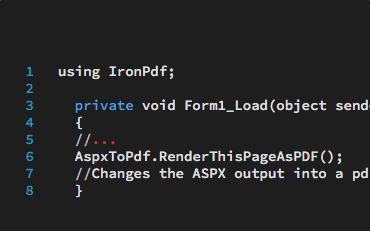
IronPDFライブラリを使用して、ASP.NETウェブページをHTMLの代わりにPDFにレンダリングするには、**Form_Load**イベントに1行のコードを追加します。
この例は、IronPDFがどのようにして複雑なデータ駆動のPDFを生成するかを示しており、最初にHTMLとして設計およびテストされることでシンプルになります。
IronPDFのASPXからPDFへの変換機能では、ASPXページ内で1つのメソッドを呼び出し、HTMLの代わりにPDFを返すことができます。
PDFを"ブラウザ内表示"にするか、ファイルダウンロードとして動作するようにコーディングすることができます。
IronPDFでASPXページをPDFとしてレンダリングする方法を学ぶHTMLまたは画像ファイルをPDFに変換using IronPdf;
// Instantiate Renderer
var renderer = new ChromePdfRenderer();
// Create a PDF from an existing HTML file using C#
var pdf = renderer.RenderHtmlFileAsPdf("example.html");
// Export to a file or Stream
pdf.SaveAs("output.pdf");
Imports IronPdf

' Instantiate Renderer
Dim renderer As New ChromePdfRenderer()

' Create a PDF from an existing HTML file using VB
Dim pdf = renderer.RenderHtmlFileAsPdf("example.html")

' Export to a file or Stream
pdf.SaveAs("output.pdf")Install-Package IronPdf
IronPDFは、HTMLファイルを高品質なPDFファイルに変換可能な強力な.NETライブラリです。 IronPDFを使用すると、わずか数行でHTMLファイルをPDFにレンダリングできます。また、最新のWeb標準をサポートしているため、生成されるPDFファイルはピクセルパーフェクトとなります。 IronPDF の強力な HTML ファイルから PDF への機能を活用することは、HTML を容易に PDF に変換できる ChromePdfRenderer クラスを使用しているため簡単です。
IronPDFでHTMLファイルをPDFに変換する手順
- HTMLをPDFに変換するためにC# IronPDFライブラリをインストールしてください。
IronPDF;を使用しています。var renderer = new ChromePdfRenderer();var pdf = renderer.RenderHtmlFileAsPdf("example.html");。pdf.SaveAs("output.pdf");。
このコードは、HTML ファイルからレンダリングされた新しい PDF ファイルを作成します。これを行うには、最初に IronPDFライブラリがインストールされプロジェクト内に含まれていることを確認する必要があります。次に、HTML コンテンツを PDF としてレンダリングする機能を提供する ChromePdfRenderer クラスを初期化します。 このクラスは、HTMLファイルの元の品質が変換プロセスで失われないよう確保します。
renderer がインスタンス化されたら、既存の HTML ファイルを RenderHtmlFileAsPdf メソッドを使用して PDF に変換できます。 この例では、"example.html"というHTMLファイルがメソッドに渡され、PDFオブジェクトが作成されます。 最後に、生成された PDF を保存するには、希望するファイル名と場所を指定して SaveAs メソッドを使用します。 このシンプルなプロセスにより、C#アプリケーションでHTMLファイルから簡単にPDFを生成することができます。
ASPXをPDFに設定using IronPdf;
var PdfOptions = new IronPdf.ChromePdfRenderOptions()
{
CreatePdfFormsFromHtml = true,
EnableJavaScript = false,
Title = "My ASPX Page Rendered as a PDF"
//.. many more options available
};
AspxToPdf.RenderThisPageAsPdf(AspxToPdf.FileBehavior.Attachment, "MyPdfFile.pdf", PdfOptions);
Imports IronPdf

Dim PdfOptions = New IronPdf.ChromePdfRenderOptions() With {
    .CreatePdfFormsFromHtml = True,
    .EnableJavaScript = False,
    .Title = "My ASPX Page Rendered as a PDF"
    '.. many more options available
}

AspxToPdf.RenderThisPageAsPdf(AspxToPdf.FileBehavior.Attachment, "MyPdfFile.pdf", PdfOptions)Install-Package IronPdf
この例では、ユーザーがHTMLに変える方法を示しています。
IronPDFのASPXからPDF 変換ガイド 機能には、文字列またはファイルからHTML をPDF にレンダリングするための多くのオプションがあります。
特に重要な 2 つのオプションは次のとおりです。
− 開発者がPDFフォームとしてレンダリングするかどうかを指定できるようにしています。
− 開発者がPDF を"ブラウザ内"で表示するか、またはファイルダウンロードとして表示するかを指定できるようにしています。
PDF with IronPDF画像をPDFへusing IronPdf;
using System.IO;
using System.Linq;
// One or more images as IEnumerable. This example selects all JPEG images in a specific 'assets' folder.
var imageFiles = Directory.EnumerateFiles("assets").Where(f => f.EndsWith(".jpg") || f.EndsWith(".jpeg"));
// Converts the images to a PDF and save it.
ImageToPdfConverter.ImageToPdf(imageFiles).SaveAs("composite.pdf");
// Also see PdfDocument.RasterizeToImageFiles() method to flatten a PDF to images or thumbnails
Imports IronPdf
Imports System.IO
Imports System.Linq

' One or more images as IEnumerable. This example selects all JPEG images in a specific 'assets' folder.
Dim imageFiles = Directory.EnumerateFiles("assets").Where(Function(f) f.EndsWith(".jpg") OrElse f.EndsWith(".jpeg"))

' Converts the images to a PDF and save it.
ImageToPdfConverter.ImageToPdf(imageFiles).SaveAs("composite.pdf")

' Also see PdfDocument.RasterizeToImageFiles() method to flatten a PDF to images or thumbnailsInstall-Package IronPdf
コンピュータ上の単一の画像がIronPdf.ImageToPdfConverter.ImageToPdfメソッドを呼び出すことで、それを迅速にPDFドキュメントに変換できます。
複数の画像を単一のPDFドキュメントに変換することもでき、ImageToPdfConverterを使用します。
アプリケーションを向上させるためにIronPDFを使用して画像をPDFに変換することや、IronBarcode、IronOCRなど、Iron Softwareが提供する開発者ツール全スイートについて詳しくは、Iron Softwareのウェブサイトをご覧ください。
IronPDFで画像をPDFに変換する方法を学ぶSystem.IO.Directory.EnumerateFiles
ImageToPdfConverter.ImageToPdf
ヘッダー & フッターusing IronPdf;
// Initiate PDF Renderer
var renderer = new ChromePdfRenderer();
// Add a header to every page easily
renderer.RenderingOptions.FirstPageNumber = 1; // use 2 if a cover page will be appended
renderer.RenderingOptions.TextHeader.DrawDividerLine = true;
renderer.RenderingOptions.TextHeader.CenterText = "{url}";
renderer.RenderingOptions.TextHeader.Font = IronSoftware.Drawing.FontTypes.Helvetica;
renderer.RenderingOptions.TextHeader.FontSize = 12;
renderer.RenderingOptions.MarginTop = 25; //create 25mm space for header
// Add a footer too
renderer.RenderingOptions.TextFooter.DrawDividerLine = true;
renderer.RenderingOptions.TextFooter.Font = IronSoftware.Drawing.FontTypes.Arial;
renderer.RenderingOptions.TextFooter.FontSize = 10;
renderer.RenderingOptions.TextFooter.LeftText = "{date} {time}";
renderer.RenderingOptions.TextFooter.RightText = "{page} of {total-pages}";
renderer.RenderingOptions.MarginTop = 25; //create 25mm space for footer
// Mergeable fields are:
// {page} {total-pages} {url} {date} {time} {html-title} & {pdf-title}
Imports IronPdf

' Initiate PDF Renderer
Dim renderer = New ChromePdfRenderer()

' Add a header to every page easily
renderer.RenderingOptions.FirstPageNumber = 1 ' use 2 if a cover page will be appended
renderer.RenderingOptions.TextHeader.DrawDividerLine = True
renderer.RenderingOptions.TextHeader.CenterText = "{url}"
renderer.RenderingOptions.TextHeader.Font = IronSoftware.Drawing.FontTypes.Helvetica
renderer.RenderingOptions.TextHeader.FontSize = 12
renderer.RenderingOptions.MarginTop = 25 'create 25mm space for header

' Add a footer too
renderer.RenderingOptions.TextFooter.DrawDividerLine = True
renderer.RenderingOptions.TextFooter.Font = IronSoftware.Drawing.FontTypes.Arial
renderer.RenderingOptions.TextFooter.FontSize = 10
renderer.RenderingOptions.TextFooter.LeftText = "{date} {time}"
renderer.RenderingOptions.TextFooter.RightText = "{page} of {total-pages}"
renderer.RenderingOptions.MarginTop = 25 'create 25mm space for footer

' Mergeable fields are:
' {page} {total-pages} {url} {date} {time} {html-title} & {pdf-title}Install-Package IronPdf
PDFドキュメントにヘッダーとフッターを追加する方法は2つあります。 クラシックなテキスト形式として動的データをマージするオプションで追加できます。 また、HTMLコンテンツを通じて動的ヘッダーとフッターをレンダリングできるように、より柔軟なHTML形式で追加することもできます。
IronPDFを使用してPDFにヘッダーとフッターを追加する手順
今日は、PDFドキュメントにクラシックなテキストヘッダーとフッターを追加する方法を、いくつかの簡単な手順で見ていきます。 PDFドキュメントにカスタマイズしたヘッダーとフッターを追加するための最初のステップは、IronPdf ライブラリを using IronPdf; ステートメントでプロジェクトに含めることを確認することです。 次に、ChromePdfRenderer をインスタンス化し、ピクセル単位で完璧なPDFドキュメントにHTMLコンテンツをレンダリングする機能を提供します。
次に、ヘッダー設定を構成します。 FirstPageNumber プロパティは、必要に応じて表紙ページを考慮し、開始ページ番号を指定することができます。 TextHeader プロパティは、区切り線を描画したり、テキスト(この場合、ドキュメントのURL)を中央に配置したり、フォントの種類やサイズを選択したり、ヘッダー用にページの上部に余白を作成したりと、外観をカスタマイズすることを可能にします。
ヘッダーを設定した後、TextFooter プロパティを使用してフッターを設定します。 ヘッダーと同様に、区切り線の描画、フォントの種類とサイズの選択、現在の日付、時刻、総ページ数を含むページ番号などの動的コンテンツを含めることができます。 最後に、フッターを収容するためにページの下部にマージンを作成します。
これらの手順に従うことで、PDFドキュメントに情報豊かなヘッダーとフッターを追加し、そのプロフェッショナリズムと読解性を向上させることができます。
IronPDFでヘッダーとフッターを追加する方法を見るHTMLヘッダー&フッターusing IronPdf;
using System;
// Instantiate Renderer
var renderer = new IronPdf.ChromePdfRenderer();
// Build a footer using html to style the text
// mergeable fields are:
// {page} {total-pages} {url} {date} {time} {html-title} & {pdf-title}
renderer.RenderingOptions.HtmlFooter = new HtmlHeaderFooter()
{
MaxHeight = 15, //millimeters
HtmlFragment = "<center><i>{page} of {total-pages}<i></center>",
DrawDividerLine = true
};
// Use sufficient MarginBottom to ensure that the HtmlFooter does not overlap with the main PDF page content.
renderer.RenderingOptions.MarginBottom = 25; //mm
// Build a header using an image asset
// Note the use of BaseUrl to set a relative path to the assets
renderer.RenderingOptions.HtmlHeader = new HtmlHeaderFooter()
{
MaxHeight = 20, //millimeters
HtmlFragment = "<img src='logo.png'>",
BaseUrl = new Uri(@"C:\assets\images\").AbsoluteUri
};
// Use sufficient MarginTop to ensure that the HtmlHeader does not overlap with the main PDF page content.
renderer.RenderingOptions.MarginTop = 25; //mm
Imports IronPdf
Imports System

' Instantiate Renderer
Dim renderer = New IronPdf.ChromePdfRenderer()

' Build a footer using html to style the text
' mergeable fields are:
' {page} {total-pages} {url} {date} {time} {html-title} & {pdf-title}
renderer.RenderingOptions.HtmlFooter = New HtmlHeaderFooter() With {
    .MaxHeight = 15, 'millimeters
    .HtmlFragment = "<center><i>{page} of {total-pages}<i></center>",
    .DrawDividerLine = True
}

' Use sufficient MarginBottom to ensure that the HtmlFooter does not overlap with the main PDF page content.
renderer.RenderingOptions.MarginBottom = 25 'mm

' Build a header using an image asset
' Note the use of BaseUrl to set a relative path to the assets
renderer.RenderingOptions.HtmlHeader = New HtmlHeaderFooter() With {
    .MaxHeight = 20,  'millimeters
    .HtmlFragment = "<img src='logo.png'>",
    .BaseUrl = New Uri("C:\assets\images\").AbsoluteUri
}

' Use sufficient MarginTop to ensure that the HtmlHeader does not overlap with the main PDF page content.
renderer.RenderingOptions.MarginTop = 25 'mmInstall-Package IronPdf
HTMLヘッダーとフッターは、PDFドキュメント用の動的なヘッダーとフッターを作成するための柔軟な方法を提供します。 この方法でヘッダーとフッターを追加することにより、開発者はヘッダーとフッターの外観を完全にコントロールできます。これらは独立したHTMLドキュメントとしてレンダリングされ、それぞれ独自のアセットとスタイルシートを含むことができます。
IronPDFでPDFにカスタムHTMLヘッダーとフッターを追加する手順
まず初めに、ChromePdfRenderer クラスのインスタンスを作成する必要があります。このクラスはHTMLコンテンツをピクセル完璧なPDFドキュメントにレンダリングします。
次に、HtmlHeaderFooter クラスを使用してフッターを定義します。ここでは、MaxHeight、ページ番号が含まれるHTMLコンテンツ、画像解像度の基準URLを指定します。 フッターは中央にページ情報を表示するようにスタイリングされています。
フッターとPDFのメインコンテンツの重なりを避けるために、MarginBottom プロパティを使用して下部余白を設定します。 同様に、HtmlHeaderFooter クラスを使用して画像(ロゴなど)を含むヘッダーを作成します。 ここでは、画像アセットが含まれるディレクトリへのBaseUrl を設定し、レンダリング中に適切な画像解像度を可能にしています。
最後に、MarginTop プロパティを使用して上部余白を設定し、ヘッダーとコンテンツの重なりを防ぎます。 この例は、IronPDFを使用してPDFドキュメントにカスタムHTMLヘッダーとフッターを実装するのがいかに簡単であるかを示しています。
フォームデータusing IronPdf;
using System;
// Step 1. Creating a PDF with editable forms from HTML using form and input tags
// Radio Button and Checkbox can also be implemented with input type 'radio' and 'checkbox'
const string formHtml = @"
<html>
<body>
<h2>Editable PDF Form</h2>
<form>
First name: <br> <input type='text' name='firstname' value=''> <br>
Last name: <br> <input type='text' name='lastname' value=''> <br>
<br>
<p>Please specify your gender:</p>
<input type='radio' id='female' name='gender' value= 'Female'>
<label for='female'>Female</label> <br>
<br>
<input type='radio' id='male' name='gender' value='Male'>
<label for='male'>Male</label> <br>
<br>
<input type='radio' id='non-binary/other' name='gender' value='Non-Binary / Other'>
<label for='non-binary/other'>Non-Binary / Other</label>
<br>
<p>Please select all medical conditions that apply:</p>
<input type='checkbox' id='condition1' name='Hypertension' value='Hypertension'>
<label for='condition1'> Hypertension</label><br>
<input type='checkbox' id='condition2' name='Heart Disease' value='Heart Disease'>
<label for='condition2'> Heart Disease</label><br>
<input type='checkbox' id='condition3' name='Stoke' value='Stoke'>
<label for='condition3'> Stoke</label><br>
<input type='checkbox' id='condition4' name='Diabetes' value='Diabetes'>
<label for='condition4'> Diabetes</label><br>
<input type='checkbox' id='condition5' name='Kidney Disease' value='Kidney Disease'>
<label for='condition5'> Kidney Disease</label><br>
</form>
</body>
</html>";
// Instantiate Renderer
var renderer = new ChromePdfRenderer();
renderer.RenderingOptions.CreatePdfFormsFromHtml = true;
renderer.RenderHtmlAsPdf(formHtml).SaveAs("BasicForm.pdf");
// Step 2. Reading and Writing PDF form values.
var FormDocument = PdfDocument.FromFile("BasicForm.pdf");
// Set and Read the value of the "firstname" field
var FirstNameField = FormDocument.Form.FindFormField("firstname");
FirstNameField.Value = "Minnie";
Console.WriteLine("FirstNameField value: {0}", FirstNameField.Value);
// Set and Read the value of the "lastname" field
var LastNameField = FormDocument.Form.FindFormField("lastname");
LastNameField.Value = "Mouse";
Console.WriteLine("LastNameField value: {0}", LastNameField.Value);
FormDocument.SaveAs("FilledForm.pdf");
Imports IronPdf
Imports System

' Step 1.  Creating a PDF with editable forms from HTML using form and input tags
' Radio Button and Checkbox can also be implemented with input type 'radio' and 'checkbox'
Const formHtml As String = "
    <html>
        <body>
            <h2>Editable PDF  Form</h2>
            <form>
              First name: <br> <input type='text' name='firstname' value=''> <br>
              Last name: <br> <input type='text' name='lastname' value=''> <br>
              <br>
              <p>Please specify your gender:</p>
              <input type='radio' id='female' name='gender' value= 'Female'>
                <label for='female'>Female</label> <br>
                <br>
              <input type='radio' id='male' name='gender' value='Male'>
                <label for='male'>Male</label> <br>
                <br>
              <input type='radio' id='non-binary/other' name='gender' value='Non-Binary / Other'>
                <label for='non-binary/other'>Non-Binary / Other</label>
              <br>

              <p>Please select all medical conditions that apply:</p>
              <input type='checkbox' id='condition1' name='Hypertension' value='Hypertension'>
              <label for='condition1'> Hypertension</label><br>
              <input type='checkbox' id='condition2' name='Heart Disease' value='Heart Disease'>
              <label for='condition2'> Heart Disease</label><br>
              <input type='checkbox' id='condition3' name='Stoke' value='Stoke'>
              <label for='condition3'> Stoke</label><br>
              <input type='checkbox' id='condition4' name='Diabetes' value='Diabetes'>
              <label for='condition4'> Diabetes</label><br>
              <input type='checkbox' id='condition5' name='Kidney Disease' value='Kidney Disease'>
              <label for='condition5'> Kidney Disease</label><br>
            </form>
        </body>
    </html>"

' Instantiate Renderer
Dim renderer = New ChromePdfRenderer()
renderer.RenderingOptions.CreatePdfFormsFromHtml = True
renderer.RenderHtmlAsPdf(formHtml).SaveAs("BasicForm.pdf")

' Step 2. Reading and Writing PDF form values.
Dim FormDocument = PdfDocument.FromFile("BasicForm.pdf")

' Set and Read the value of the "firstname" field
Dim FirstNameField = FormDocument.Form.FindFormField("firstname")
FirstNameField.Value = "Minnie"
Console.WriteLine("FirstNameField value: {0}", FirstNameField.Value)

' Set and Read the value of the "lastname" field
Dim LastNameField = FormDocument.Form.FindFormField("lastname")
LastNameField.Value = "Mouse"
Console.WriteLine("LastNameField value: {0}", LastNameField.Value)

FormDocument.SaveAs("FilledForm.pdf")Install-Package IronPdf
御社はPDFのセキュリティとコンプライアンスに関する年次サブスクリプション費用が多すぎます。 PDFセキュリティの総合的なソリューションであるIronSecureDocを検討してください。 デジタル署名、削除、暗号化、保護などのSaaSサービスを1回限りの支払いで管理するソリューションを提供。 IronSecureDocドキュメントを探る。
IronPDFを使用して、通常のドキュメントと同様に編集可能なPDFドキュメントを作成できます。 PdfForm クラスは、PDFドキュメント内のユーザー編集可能なフォームフィールドの集合です。 それはPDFレンダーに実装され、フォームまたは編集可能なドキュメントにすることができます。
この例では、IronPDFで編集可能なPDFフォームを作成する方法を示しています。
編集可能なフォームを持つPDFは、ドキュメントの部分に<textarea> タグを追加するだけでHTMLから作成できます。
PdfDocument.Form.FindFormField メソッドは、任意のフォームフィールドの値を読み書きするために使用できます。 フィールドの name 属性は、HTML内でそのフィールドに付与されます。
PdfDocument.Form オブジェクトは、二つの方法で使用できます。
- デフォルト値の設定: これはAdobe ReaderのようなPDFビューアで表示されるフォームフィールドのデフォルト値を設定するために使用されます。
- ユーザー入力の読み取り: ユーザーがフォームに入力した後、フォームフィールドにアクセスしてデータをアプリケーションに戻すことができます。
上記の例では、最初にIronPdf ライブラリをインポートし、CreateEditablePdfDocument メソッドを定義します。 このメソッドには、ユーザー名とコメントの入力フィールドを持つシンプルなフォームのHTML構造が含まれています。 HtmlToPdf レンダラーを使用して、このHTMLコンテンツをPDFドキュメントに変換します。
その後、pdfDocument.Form を使用してフォームフィールドにアクセスし、操作します。 PDFビューアでドキュメントを開くと表示されるデフォルト値を設定します。 最後に、"EditableForm.pdf"という名前でドキュメントを保存し、埋め込み編集可能フィールドを持つドキュメントを保存または共有できるようにします。
PDFを画像にラスター化するusing IronPdf;
using IronSoftware.Drawing;
var pdf = PdfDocument.FromFile("Example.pdf");
// Extract all pages to a folder as image files
pdf.RasterizeToImageFiles(@"C:\image\folder\*.png");
// Dimensions and page ranges may be specified
pdf.RasterizeToImageFiles(@"C:\image\folder\example_pdf_image_*.jpg", 100, 80);
// Extract all pages as AnyBitmap objects
AnyBitmap[] pdfBitmaps = pdf.ToBitmap();
Imports IronPdf
Imports IronSoftware.Drawing

Dim pdf = PdfDocument.FromFile("Example.pdf")

' Extract all pages to a folder as image files
pdf.RasterizeToImageFiles("C:\image\folder\*.png")

' Dimensions and page ranges may be specified
pdf.RasterizeToImageFiles("C:\image\folder\example_pdf_image_*.jpg", 100, 80)

' Extract all pages as AnyBitmap objects
Dim pdfBitmaps As AnyBitmap() = pdf.ToBitmap()Install-Package IronPdf
PDFドキュメントを画像に変換するには、RasterizeToImageFilesメソッドを呼び出します。 PDFドキュメントは、PdfDocument.FromFileメソッドまたは.NET Core用の利用可能なPDF生成メソッドのいずれかを使用してロードすることができます。
RasterizeToImageFilesは、PDFの各ページをラスタライズ画像としてレンダリングします。 最初の引数は、各画像に使用する名前のパターンを指定します。 オプションの引数を使用して、各画像の品質と寸法をカスタマイズできます。 別のオプションでは、メソッドがPDFから選択したページを画像に変換することを可能にします。
注目のコード例の24行目は、ToBitMapメソッドをデモンストレーションします。 任意のAnyBitmapオブジェクトに変換し、ファイルに保存したり、必要に応じて操作することができます。
C#でPDFを画像に変換する方法
- PDF画像化C#ライブラリをインストールする。
- 既存のPDFファイルを
FromFileメソッドで取り込む RasterizeToImageFilesメソッドを使ってPDFを画像に変換する- 保存ディレクトリと画像サイズの指定
- 出力イメージの確認
PDF にデジタル署名using IronPdf;
using IronPdf.Signing;
// Cryptographically sign an existing PDF in 1 line of code!
new IronPdf.Signing.PdfSignature("Iron.p12", "123456").SignPdfFile("any.pdf");
/***** Advanced example for more control *****/
// Step 1. Create a PDF
var renderer = new ChromePdfRenderer();
var doc = renderer.RenderHtmlAsPdf("<h1>Testing 2048 bit digital security</h1>");
// Step 2. Create a Signature.
// You may create a .pfx or .p12 PDF signing certificate using Adobe Acrobat Reader.
// Read: https://helpx.adobe.com/acrobat/using/digital-ids.html
var signature = new IronPdf.Signing.PdfSignature("Iron.pfx", "123456")
{
// Step 3. Optional signing options and a handwritten signature graphic
SigningContact = "support@ironsoftware.com",
SigningLocation = "Chicago, USA",
SigningReason = "To show how to sign a PDF"
};
//Step 3. Sign the PDF with the PdfSignature. Multiple signing certificates may be used
doc.Sign(signature);
//Step 4. The PDF is not signed until saved to file, steam or byte array.
doc.SaveAs("signed.pdf");
Imports IronPdf
Imports IronPdf.Signing

' Cryptographically sign an existing PDF in 1 line of code!
Call (New IronPdf.Signing.PdfSignature("Iron.p12", "123456")).SignPdfFile("any.pdf")

'/***** Advanced example for more control *****/

' Step 1. Create a PDF
Dim renderer = New ChromePdfRenderer()
Dim doc = renderer.RenderHtmlAsPdf("<h1>Testing 2048 bit digital security</h1>")

' Step 2. Create a Signature.
' You may create a .pfx or .p12 PDF signing certificate using Adobe Acrobat Reader.
' Read: https://helpx.adobe.com/acrobat/using/digital-ids.html

Dim signature = New IronPdf.Signing.PdfSignature("Iron.pfx", "123456") With {
    ' Step 3. Optional signing options and a handwritten signature graphic
    .SigningContact = "support@ironsoftware.com",
    .SigningLocation = "Chicago, USA",
    .SigningReason = "To show how to sign a PDF"
}

'Step 3. Sign the PDF with the PdfSignature. Multiple signing certificates may be used
doc.Sign(signature)

'Step 4. The PDF is not signed until saved to file, steam or byte array.
doc.SaveAs("signed.pdf")Install-Package IronPdf
御社はPDFのセキュリティとコンプライアンスに関する年次サブスクリプションにあまりにも多くの費用を費やしています。デジタル署名、削除、暗号化、保護などのSaaSサービスを1回限りの支払いで管理するソリューションを提供するIronSecureDocを検討してください。IronSecureDocのドキュメントを探ります。
PDFドキュメントにデジタル署名をすることは、ドキュメント自体に認証を追加する方法を提供して、その整合性を保証するのに役立ちます。 IronPDFでは、新規または既存のPDFファイルに署名する際にいくつかのオプションがあります。これには、証明書でPDFドキュメントにデジタル署名する、署名の手書きのグラフィカルバージョンをPDFに追加する、証明書の画像をPDFにスタンプする、または署名欄をPDFに作成してユーザーの署名を促すことが含まれます。
IronPDFでPDFにデジタル署名するための手順
このプロセスの最初のステップは、署名したいPDFをロードするか作成することです。 この例では、新しいChromePdfRendererインスタンスを作成します。 これは、HTMLやCSS、JavaScriptを品質を落とさずにPDFにレンダリングするために使用されるIronPDFの強力なレンダリングエンジンです。 次にRenderHtmlAsPdfメソッドを使用して、HTML文字列を署名用に準備された高品質のPDF文書にレンダリングします。 生成されたPDFはdoc変数に保存されます。
次に署名を作成する必要があります。 この例では、PDFドキュメントに証明書で署名します。 SigningReasonは文書が署名される理由を提供します。
次に、作成したPdfSignatureオブジェクトを使用してPDF文書に署名します。 Signメソッドを呼び出すことにより、PDF文書に1行で簡単に署名を適用します。この方法で、複数の署名証明書をPDF文書に適用することができます。
最後に、SaveAsメソッドを使用して署名されたPDF文書を保存します。このメソッドは、指定されたファイルの場所にPDFを保存します。
PDFの編集using IronPdf;
using System.Collections.Generic;
// Instantiate Renderer
var renderer = new ChromePdfRenderer();
// Join Multiple Existing PDFs into a single document
var pdfs = new List<PdfDocument>();
pdfs.Add(PdfDocument.FromFile("A.pdf"));
pdfs.Add(PdfDocument.FromFile("B.pdf"));
pdfs.Add(PdfDocument.FromFile("C.pdf"));
var pdf = PdfDocument.Merge(pdfs);
pdf.SaveAs("merged.pdf");
// Add a cover page
pdf.PrependPdf(renderer.RenderHtmlAsPdf("<h1>Cover Page</h1><hr>"));
// Remove the last page from the PDF and save again
pdf.RemovePage(pdf.PageCount - 1);
pdf.SaveAs("merged.pdf");
// Copy pages 5-7 and save them as a new document.
pdf.CopyPages(4, 6).SaveAs("excerpt.pdf");
foreach (var eachPdf in pdfs)
{
eachPdf.Dispose();
}
Imports IronPdf
Imports System.Collections.Generic

' Instantiate Renderer
Dim renderer = New ChromePdfRenderer()

' Join Multiple Existing PDFs into a single document
Dim pdfs = New List(Of PdfDocument)()
pdfs.Add(PdfDocument.FromFile("A.pdf"))
pdfs.Add(PdfDocument.FromFile("B.pdf"))
pdfs.Add(PdfDocument.FromFile("C.pdf"))
Dim pdf = PdfDocument.Merge(pdfs)
pdf.SaveAs("merged.pdf")

' Add a cover page
pdf.PrependPdf(renderer.RenderHtmlAsPdf("<h1>Cover Page</h1><hr>"))

' Remove the last page from the PDF and save again
pdf.RemovePage(pdf.PageCount - 1)
pdf.SaveAs("merged.pdf")

' Copy pages 5-7 and save them as a new document.
pdf.CopyPages(4, 6).SaveAs("excerpt.pdf")

For Each eachPdf In pdfs
    eachPdf.Dispose()
NextInstall-Package IronPdf
IronPDFは、PDFの読み取りと編集のための50以上の機能を提供します。 最も人気があるのは、PDFの結合、ページのクローン、および回転されたコンテンツからのテキスト抽出です。
IronPDFはまた、ユーザーがウォーターマークを追加したり、ページを回転させたり、注釈を追加したり、PDFページにデジタル署名をしたり、新しいPDFドキュメントを作成したり、カバーページを添付したり、PDFサイズをカスタマイズしたり、PDFファイルを生成およびフォーマットする際に多くのことができます。 さらに、PDFをJPG、BMP、JPEG、GIF、PNG、TIFFなどのすべての従来の画像ファイル形式に変換することが可能です。
C# PDF編集チュートリアルを読んで、プロジェクト要件に最適に合ったPDFドキュメントを変更するためにIronPDFをフル活用する方法を学びます。
C#でPDFファイルを編集する方法
- PDFファイルを編集できるC#ライブラリをインストールする。
FromFileメソッドを使用して複数のPDFファイルをインポートする- C#で直感的なAPIを使用してPDFファイルにアクセスし、変更する
- C#を使用して、更新されたバージョンを新しいPDFとして保存します。
- 新しく編集されたPDFドキュメントを見る
パスワード、セキュリティ、およびメタデータusing IronPdf;
// Open an Encrypted File, alternatively create a new PDF from Html
var pdf = PdfDocument.FromFile("encrypted.pdf", "password");
// Get file metadata
System.Collections.Generic.List<string> metadatakeys = pdf.MetaData.Keys(); // returns {"Title", "Creator", ...}
// Remove file metadata
pdf.MetaData.RemoveMetaDataKey("Title");
metadatakeys = pdf.MetaData.Keys(); // return {"Creator", ...} // title was deleted
// Edit file metadata
pdf.MetaData.Author = "Satoshi Nakamoto";
pdf.MetaData.Keywords = "SEO, Friendly";
pdf.MetaData.ModifiedDate = System.DateTime.Now;
// The following code makes a PDF read only and will disallow copy & paste and printing
pdf.SecuritySettings.RemovePasswordsAndEncryption();
pdf.SecuritySettings.MakePdfDocumentReadOnly("secret-key");
pdf.SecuritySettings.AllowUserAnnotations = false;
pdf.SecuritySettings.AllowUserCopyPasteContent = false;
pdf.SecuritySettings.AllowUserFormData = false;
pdf.SecuritySettings.AllowUserPrinting = IronPdf.Security.PdfPrintSecurity.FullPrintRights;
// Change or set the document encryption password
pdf.SecuritySettings.OwnerPassword = "top-secret"; // password to edit the pdf
pdf.SecuritySettings.UserPassword = "sharable"; // password to open the pdf
pdf.SaveAs("secured.pdf");
Imports IronPdf

' Open an Encrypted File, alternatively create a new PDF from Html
Dim pdf = PdfDocument.FromFile("encrypted.pdf", "password")

' Get file metadata
Dim metadatakeys As System.Collections.Generic.List(Of String) = pdf.MetaData.Keys() ' returns {"Title", "Creator", ...}

' Remove file metadata
pdf.MetaData.RemoveMetaDataKey("Title")
metadatakeys = pdf.MetaData.Keys() ' return {"Creator", ...} ' title was deleted

' Edit file metadata
pdf.MetaData.Author = "Satoshi Nakamoto"
pdf.MetaData.Keywords = "SEO, Friendly"
pdf.MetaData.ModifiedDate = System.DateTime.Now

' The following code makes a PDF read only and will disallow copy & paste and printing
pdf.SecuritySettings.RemovePasswordsAndEncryption()
pdf.SecuritySettings.MakePdfDocumentReadOnly("secret-key")
pdf.SecuritySettings.AllowUserAnnotations = False
pdf.SecuritySettings.AllowUserCopyPasteContent = False
pdf.SecuritySettings.AllowUserFormData = False
pdf.SecuritySettings.AllowUserPrinting = IronPdf.Security.PdfPrintSecurity.FullPrintRights

' Change or set the document encryption password
pdf.SecuritySettings.OwnerPassword = "top-secret" ' password to edit the pdf
pdf.SecuritySettings.UserPassword = "sharable" ' password to open the pdf
pdf.SaveAs("secured.pdf")Install-Package IronPdf
IronPDFは開発者に強力なPDFセキュリティオプションを提供し、PDFメタデータ、パスワード、権限などのカスタマイズと設定をサポートします。 IronPDFのパスワード、セキュリティ、およびメタデータオプションを使用することで、PDF文書のニーズに合ったカスタム権限とセキュリティレベルを作成できます。 これは、MetaDataクラスなどのクラスを使用することで実現されます。 いくつかのオプションには、PDFドキュメントを印刷不可能に制限すること、読み取り専用に設定すること、128ビット暗号化、およびPDFドキュメントのパスワード保護が含まれます。
カスタムメタデータの設定は、さまざまなPDFメタデータオプションにアクセスし、カスタマイズした値に設定するためにMetaDataクラスを実装することによって機能します。 これには、著者、キーワード、変更データなどを変更することが含まれます。 カスタムセキュリティ設定を行うには、カスタムユーザーおよびオーナーパスワードの設定、印刷権限の設定、読み取り専用モードの設定などがあります。
PDFのパスワード、メタデータ、セキュリティを設定する5つのステップ
var pdf = PdfDocument.FromFile("encrypted.pdf", "password");.System.Collections.Generic.List<string> metadatakeys = pdf.MetaData.Keys;.var metadatakeys = pdf.MetaData.Keys;.pdf.MetaData.Author = "Satoshi Nakamoto";pdf.SecuritySettings.MakePdfDocumentReadOnly("secret-key");。
PDFドキュメントのセキュリティをカスタマイズするために、まず既存のPDFをロードするか新しいものを作成する必要があります。 ここでは、パスワード保護された既存のPDFドキュメントをロードし、PDFドキュメントを開くために必要なパスワードを入力しました。 PDFがロードされると、pdf.MetaData.Keysを使用してPDFの現在のメタデータを取得します。 既存のPDFメタデータ値を削除するには、RemoveMetaDataKeyメソッドを使用します。 新しいメタデータ値の設定を開始するには、pdf.MetaData.Keywords)を使用し、新しい値をそれに割り当てます。 メタデータフィールドはModifiedDataフィールドは日付値を取ります。
次に、SecuritySettingsクラスを使用して新しいセキュリティ設定を設定しました。 ご覧の通り、ここで設定できるさまざまな設定があります。 これにより、作業するPDFドキュメントごとに権限とセキュリティレベルを完全に制御できます。 これらの設定にアクセスするには、MakePdfDocumentReadOnlyメソッドはPDFドキュメントを読み取り専用に設定し、内容を128ビットで暗号化します。 SecuritySettings の他のオプションには以下が含まれます:
AllowUserAnnotations: ユーザーがPDFに注釈を付けることができるかどうかを制御します。AllowUserPrinting: ドキュメントの印刷許可を制御します。AllowUserFormData: ユーザーがフォームに記入できるかどうかの権限を設定します。OwnerPassword: 他のセキュリティ設定を無効化または有効化するために使用されるPDFのオーナーパスワードを設定します。UserPassword: ドキュメントを開くまたは印刷するために入力しなければならないユーザーパスワードを設定します。
カスタムメタデータ、パスワード、およびPDFドキュメントのセキュリティ設定を設定したら、pdf.SaveAsメソッドを使用して、PDFを指定した場所に保存します。
PDFに透かしを入れることusing IronPdf;
// Stamps a Watermark onto a new or existing PDF
var renderer = new ChromePdfRenderer();
var pdf = renderer.RenderUrlAsPdf("https://www.nuget.org/packages/IronPdf");
pdf.ApplyWatermark("<h2 style='color:red'>SAMPLE</h2>", 30, IronPdf.Editing.VerticalAlignment.Middle, IronPdf.Editing.HorizontalAlignment.Center);
pdf.SaveAs("watermarked.pdf");
Imports IronPdf

' Stamps a Watermark onto a new or existing PDF
Dim renderer = New ChromePdfRenderer()

Dim pdf = renderer.RenderUrlAsPdf("https://www.nuget.org/packages/IronPdf")
pdf.ApplyWatermark("<h2 style='color:red'>SAMPLE</h2>", 30, IronPdf.Editing.VerticalAlignment.Middle, IronPdf.Editing.HorizontalAlignment.Center)
pdf.SaveAs("watermarked.pdf")Install-Package IronPdf
IronPDFは、HTMLでPDFドキュメントに"ウォーターマーク"を追加する方法を提供します。
ApplyStampメソッドを使用することで、開発者はPDFファイルにHTMLベースの透かしを追加できます。上記の例で示されたように、透かしのHTMLコードはメソッドへの最初の引数として渡します。 ApplyStampに追加の引数を渡すことで、透かしの回転、透明度、および位置を制御します。
透かし配置をより細かく制御するために、ApplyStampメソッドを利用します。 例えば、次のようにApplyStampを使用します:
- PDFに
Image、またはHTMLの透かしを追加します。 - PDFのすべてのページに同じウォーターマークを適用
- 特定のPDFページに異なるウォーターマークを適用
- ウォーターマークをページのコピーの前または後ろに配置する
- ウォーターマークの不透明度、回転、および配置をより正確に調整
C#でPDFファイルに透かしを追加する方法
- NuGetからIronPDFライブラリをダウンロードしてインストールする。
- 新しい
PdfDocumentを作成するか、既存のPdfDocumentファイルを使用してください。 ApplyStampメソッドを呼び出して、PDFに透かしを追加します。SaveAsを呼び出してPDFファイルをエクスポートします。
IronPDFを使用して透かしを適用するC#コードの例
プロジェクトにIronPDFライブラリをインストールしていることを確認してください。 詳細な手順についてはIronPDF NuGetパッケージページをご覧ください。
コードの説明:
IronPdfライブラリをインポートすることから始め、PDFの操作に必要なすべてのクラスとメソッドを提供します。- PDFドキュメントは、
PdfDocument.FromFileを使用して作成またはロードされ、既存のPDFのファイルパスを指定します。 - ウォーターマークのHTMLコンテンツを定義します。 この場合、ウォーターマークは"Confidential"という特定のスタイリングで表示されます。
- @
ApplyStampメソッドはPDFに透かしを重ね合わせます。 このメソッドは詳細なカスタマイズを可能にします:rotationDegrees: 透かしの回転角度を指定します。top: 透かしのX及びYの位置を、左上隅からの距離で決めます。opacity: 透かしの透明度を決定します。pageRange: 透かしが適用されるページを指定し、多様な配置戦略を提供します。
- 最後に、
SaveAsメソッドが修正されたPDFを新しいファイルにエクスポートします。
結論として、IronPDFのApplyStampメソッドは、HTMLを使用してPDFドキュメントに正確な透かし制御を可能にします。 このアプローチは柔軟性があり、位置、スタイルのカスタマイズ、特定のページへのウォーターマークの適用などさまざまなカスタマイズニーズに対応します。
背景 & 前景using IronPdf;
// With IronPDF, we can easily merge 2 PDF files using one as a background or foreground
var renderer = new ChromePdfRenderer();
var pdf = renderer.RenderUrlAsPdf("https://www.nuget.org/packages/IronPdf");
pdf.AddBackgroundPdf(@"MyBackground.pdf");
pdf.AddForegroundOverlayPdfToPage(0, @"MyForeground.pdf", 0);
pdf.SaveAs("complete.pdf");
Imports IronPdf

' With IronPDF, we can easily merge 2 PDF files using one as a background or foreground
Dim renderer = New ChromePdfRenderer()
Dim pdf = renderer.RenderUrlAsPdf("https://www.nuget.org/packages/IronPdf")
pdf.AddBackgroundPdf("MyBackground.pdf")
pdf.AddForegroundOverlayPdfToPage(0, "MyForeground.pdf", 0)
pdf.SaveAs("complete.pdf")Install-Package IronPdf
IronPDF で PDF ドキュメントを作成してレンダリングするときに、特定の背景と前景を使用する必要がある場合があります。 このような場合、既存の PDF またはレンダリングされた PDF を別の PDF ドキュメントの背景または前景として使用できます。 これは、デザインの一貫性とテンプレート化に特に役立ちます。
この例では、PDF ドキュメントを別の PDF ドキュメントの背景または前景として使用する方法を示します。
C#では、マルチページPDFをIronPdf.PdfDocumentオブジェクトとして読み込むか作成することでこれを行うことができます。
背景をPdfDocument.AddBackgroundPdfを使用して追加できます。 背景挿入方法の詳細については、IronPdf.PdfDocument 背景ドキュメント を参照してください。 いくつかのバックグラウンド挿入方法とそのオーバーライドについて説明します。 これにより、作業中の PDF の各ページに背景が追加されます。 背景は別の PDF ドキュメントのページからコピーされます。
前景、いわゆる"オーバーレイ"もPdfDocument.AddForegroundOverlayPdfToPageを使用して追加できます。 前景挿入方法の詳細については、IronPdf.PdfDocument オーバーレイドキュメントを参照してください。
このコードは、IronPDF を使用してベース PDF の上に追加のデザイン要素を統合する方法を示しています。 より高度なテクニックや追加オプションについては、必ず公式ドキュメントを参照してください。
背景と前景を追加するガイドを見る
.NET開発チームからの直接の人間サポート
製品、統合、またはライセンスの問い合わせであろうと、Ironの製品開発チームはすべての質問に対応します。Ironと対話を始め、このライブラリをプロジェクトで最大限に活用してください。
C# & VB HTMLからPDFへ.NETライブラリ
IronPDFは、.NET Chromiumエンジンを使用してHTMLページをPDFファイルにレンダリングします。PDFを配置したり設計するために複雑なAPIを使用する必要はなく、IronPDFは標準のウェブドキュメントHTML、ASPX、JS、CSS、画像をサポートしています。
PDFテキストと画像の抽出と再利用
IronPDFは、C#および.NETアプリケーションとデータストレージソリューションへの自動的にPDFからコンテンツを読み取ることを可能にします。レガシーPDFドキュメントストレージからコンテンツをインポート、移行、インデックス化し、ドキュメント管理およびビジネスプロセスアプリケーションに統合します。
PDFドキュメントを.NETで編集するためのエレガントなツール
マージ、スプリット、PDFの編集まで、開発スキルを使って、正しいタイミングで正しいPDFを出力します。IronPDFは、成長する機能セットを手元に直接提供し、C# / VB.NETプロジェクト内で提供します。
既にあるドキュメントで機能します
既存のHTML、ASPXフォーム、MVCビュー、画像ファイルをPDFに直接変換するようにIronPDFを指定します。これにより、既存のアセットとウェブページを利用して、PDF形式でデータをレンダリングできます。
Microsoft Visual Studioによる迅速なインストール
IronPDFは、PDFの生成と操作ツールを迅速にあなたの手に届け、完全なインテリセンスサポートとVisual Studioインストーラーを備えています。Visual Studioを使用してNuGetから直接インストールするか、DLLをダウンロードするかのいずれかで、すぐにセットアップが完了します。DLLは1つだけで、依存関係はありません。サポート:










コミュニティからのC# PDFチュートリアル

ASPXをPDFへ | ASP.NET チュートリアル
C#やVB.NETでの1行のコードを使用して、HTMLの代わりにASP.NET ASPXページをPDFドキュメントに変換する方法を学びます…
JacobのASPX-To-PDFの例を見る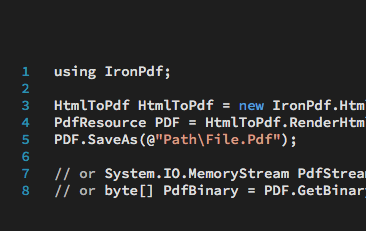

C# HTML to PDF | C Sharp & VB.NET チュートリアル
多くの人にとって、これは追加のAPIを学ぶ必要がなく、複雑な設計システムをナビゲートする必要がないため、.NETからPDFファイルを生成する最も効率的な方法です。
JeanのHTML-To-PDFの例を見る

VB.NET PDFの作成と編集 | VB.NET & ASP.NET PDF
VB.NETアプリケーションやウェブサイトでPDFドキュメントを作成および編集する方法を学びましょう。無料のチュートリアルとコード例付きです。
VeronicaのVB.NET PDFチュートリアルを見る何千もの開発者がIronPDFを使用しています...
会計および財務のシステム
- # 領収書
- # 報告
- # 請求書印刷

ビジネスのデジタル化
- # ドキュメント
- # 注文&ラベリング
- # 用紙の置き換え

エンタープライズコンテンツ管理
- # コンテンツ制作
- # ドキュメント管理
- # コンテンツ配布

データと報告アプリケーション
- # パフォーマンストラッキング
- # トレンドマッピング
- # レポート



何千もの企業、政府、小規模企業、開発者がIronソフトウェア製品を信頼しています。
Ironのチームは、.NETソフトウェアコンポーネント市場で10年以上の経験があります。













IronPDF はIRONSUITEの一部です
オフィス文書向けの.NET API製品10個










準備はできましたか?
Nuget Downloads 21,105,021|バージョン:2026.9リリースされたばかり

PDFがHTMLのように見える必要があるとき、迅速に。

