


IronPDF와 Textcontrol의 비교

IronPDF는 .NET 애플리케이션용 Chrome V8 렌더링 엔진을 사용한 HTML-to-PDF 생성에 특화되어 있으며, GrapeCity PDF는 PDF 보기 및 주석 기능에 중점을 두어, 현대 웹 콘텐츠 지원을 포함한 전체 PDF 생성 기능이 필요한 개발자에게 IronPDF가 우수한 선택이 됩니다.
PDF는 Portable Document Format의 줄임말입니다. 이는 많은 다른 기기에서 문서를 관례적으로 볼 수 있게 해주는 파일 유형입니다. PDF는 종종 이력서와 같은 중요한 문서를 잠재 고용주에게 또는 송장을 고객에게 공유하는 데 사용됩니다.
인기 있음에도 불구하고, PDF에는 몇 가지 제한이 있습니다. 예를 들어, 수신자가 PDF 리더가 필요 없이는 이메일로 PDF를 공유할 수 없습니다. PDF는 Word 문서와 같은 모바일 기기에서 명확히 표시되지 않을 수 있습니다. 또한, PDF는 Word 문서와 달리 편집 소프트웨어가 필요하여 콘텐츠를 수정하거나 업데이트할 수 있습니다. 그러나 PDF 파일은 모든 기기, PC 또는 Mac에서 일관된 모양을 유지합니다. 이러한 신뢰성 때문에 PDF는 JPEG나 GIF 같은 다른 문서 유형에서 찾을 수 없는 표준 형식이 됩니다.
이 기사에서는 두 개의 .NET PDF 라이브러리에 대해 검토할 것입니다:
- IronPDF
GrapeCityPDF
IronPDF는 무엇이며 GrapeCity와 비교해 어떠한가요?
IronPDF는 최소한의 코드로 PDF 문서를 생성, 읽기 및 조작할 수 있는 기능을 제공하는 .NET 라이브러리입니다. 이 글은 IronPDF로 PDF 파일을 만드는 방법을 보여줍니다. Visual Studio 또는 C#에 대한 기본 이해와 HTML에 대한 작업 지식이 필요합니다.
애플리케이션을 작성하고, 컴파일하고, 실행하기 위해 Visual Studio가 필요하고, 논리와 코드를 위해 C#이 필요하며, 제목, 표제, 이미지 및 단락을 포함한 PDF 파일 서식을 위해 HTML이 필요합니다. IronPDF는 .NET Core, .NET 5, Framework, Standard를 완벽하게 지원합니다. ASP.NET 애플리케이션의 경우, IronPDF는 웹 페이지를 PDF로 변환하는 원활한 통합을 제공합니다.
기본적인 C# 및 HTML 지식을 갖춘 경우 최소한의 코드로 C#에서 PDF 파일을 생성할 수 있습니다. 공식 IronPDF 기능 페이지를 방문하여 더 많은 정보를 알아보십시오. 프로그래밍적 PDF 생성을 위해, IronPDF는 기본 HTML 변환을 넘어서 광범위한 기능을 제공합니다.
IronPDF를 내 .NET 프로젝트에 설치하는 방법은 무엇인가요?
솔루션 개발은 IronPDF NuGet 패키지 설치가 필요합니다. 메뉴 바에서 "프로젝트"를 클릭하십시오. 드롭다운 메뉴에서 "NuGet 패키지 관리"를 선택하십시오. 설치 개요에서 자세한 지침을 참조하십시오. 이 창에는 다음이 표시됩니다:
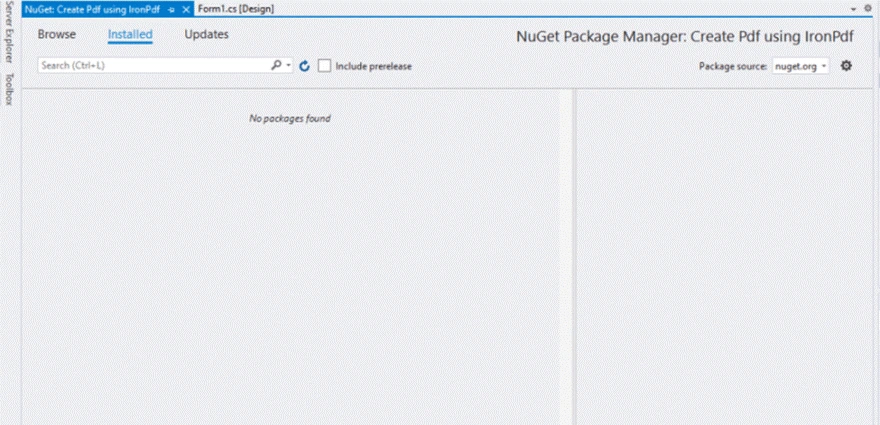
IronPDF를 검색할 때 빈 검색 결과를 표시하는 NuGet 패키지 관리자 인터페이스, 패키지가 없거나 연결 문제일 수 있음을 나타냅니다.
"탐색"을 선택하여 이 창을 봅니다:
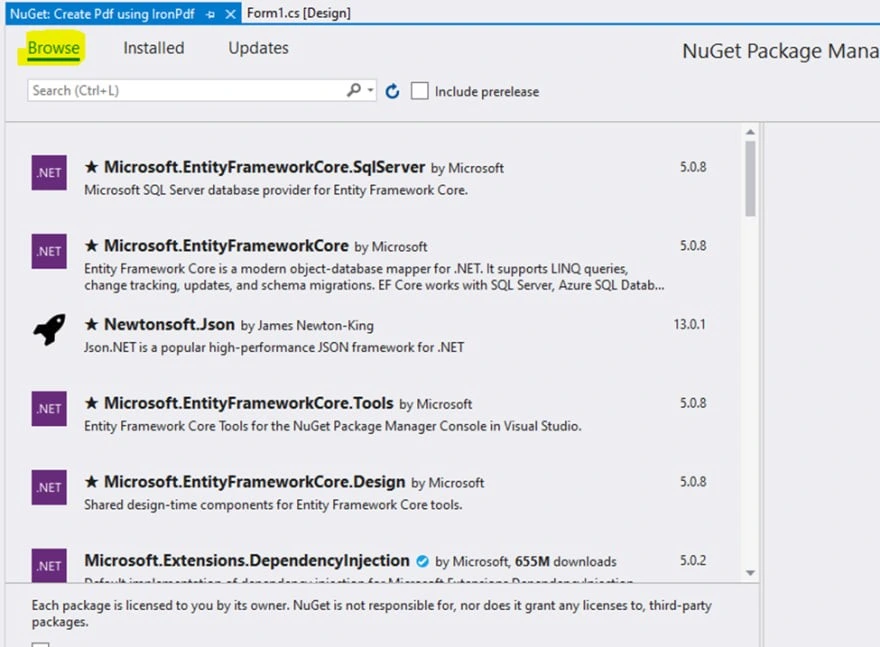
NuGet 패키지 관리자는 필수 .NET 라이브러리에 쉽게 액세스할 수 있도록 하며, Entity Framework Core와 Newtonsoft.Json는 각각 데이터베이스 작업과 JSON 처리에 가장 인기 있는 패키지 중 하나입니다.
검색 상자에 'IronPDF'를 입력하고 'Enter'를 누르세요. 플랫폼 별 구성을 포함한 고급 설치 옵션은 문서를 확인하세요. 다음을 보게 됩니다:
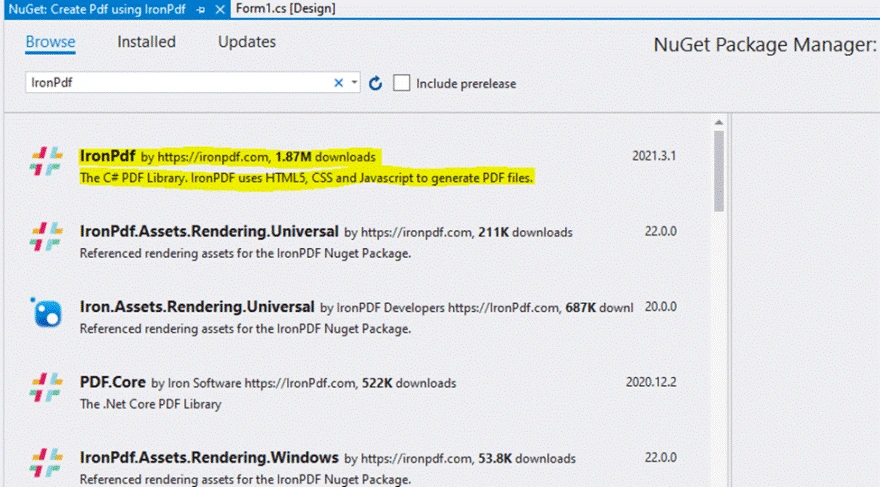
NuGet 패키지 관리자 인터페이스에는 사용 가능한 다양한 IronPDF 패키지가 설치를 위해 표시되며, 각 패키지에 대한 다운로드 수와 버전 번호가 표시됩니다.
IronPDF를 선택하세요:
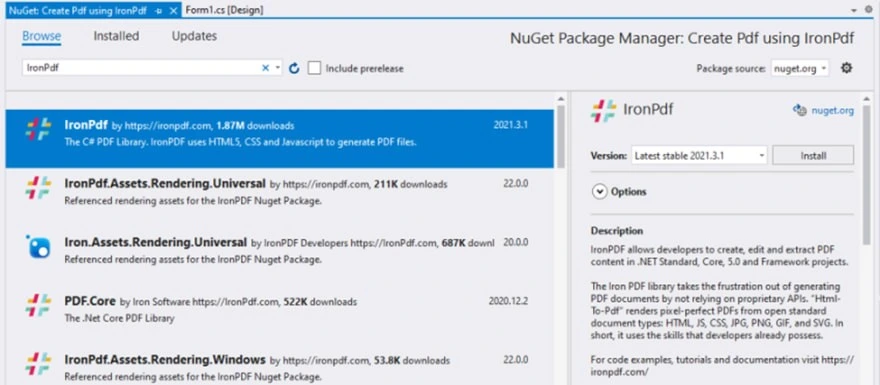
NuGet 패키지 관리자 인터페이스에는 설치를 위해 IronPDF(버전 2021.3.1)가 선택된 패키지로 표시되며 PDFCore 및 다양한 IronPDF 렌더링 자산을 포함한 대체 PDF 라이브러리가 비교를 위해 나열됩니다.
'설치'를 클릭하세요. 설치가 성공하면 다음이 표시됩니다:
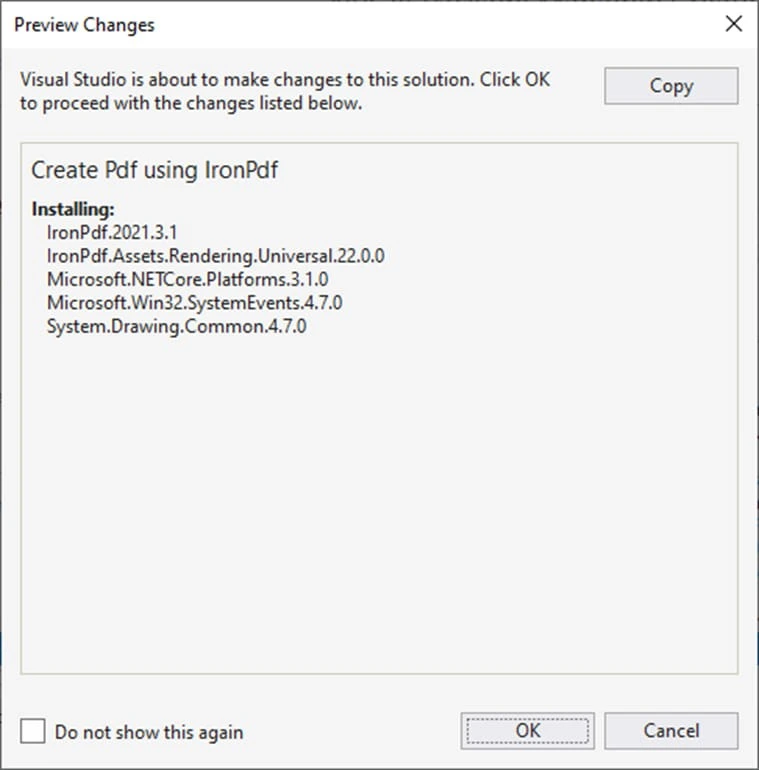
NuGet 패키지 관리자가 IronPDF 버전 2021.3.1과 그 종속성을 설치하는 것을 보여주는 Visual Studio에서의 IronPDF 설치 과정
설치를 완료하려면 '확인'을 누르세요. IronPDF는 Windows 10, 11 및 서버 버전을 포함한 Windows 플랫폼을 지원합니다. 이 라이브러리는 교차 플랫폼 개발을 위해 Linux 및 macOS도 지원합니다.
IronPDF로 PDF를 어떻게 생성하나요?
파일 맨 위에 IronPDF 네임스페이스를 추가하세요. VB.NET 개발자를 위해 비슷한 기능이 가능합니다:
using IronPdf;using IronPdf;Imports IronPdf구성된 PDF를 저장할 파일 경로가 필요합니다. 파일 이름과 경로를 사용자에게 요청하기 위해 SaveFileDialog를 사용하세요. 고급 시나리오의 경우, 디스크 저장 없이 메모리 스트림으로 PDF를 내보내는 방법을 참조하세요:
private void Save_Click(object sender, EventArgs e)
{
    // Code to Select the folder and save the file.
    SaveFileDialog saveFileDialog1 = new SaveFileDialog();
    saveFileDialog1.InitialDirectory = @"D:\";
    saveFileDialog1.Title = "Save Pdf File";
    saveFileDialog1.DefaultExt = "pdf";
    saveFileDialog1.Filter = "Pdf files (*.pdf)|*.pdf|All files (*.*)|*.*";
    saveFileDialog1.FilterIndex = 2;
    saveFileDialog1.RestoreDirectory = true;
    if (saveFileDialog1.ShowDialog() == DialogResult.OK)
    {
        string filename = saveFileDialog1.FileName;
        // actual code that will create Pdf files
        var HtmlLine = new HtmlToPdf();
        HtmlLine.RenderHtmlAsPdf(PdfText.Text).SaveAs(filename);
        // MessageBox to display that file save
        MessageBox.Show("File Saved Successfully!");
    }
}
private void Save_Click(object sender, EventArgs e)
{
// Code to Select the folder and save the file.
SaveFileDialog saveFileDialog1 = new SaveFileDialog();
saveFileDialog1.InitialDirectory = @"D:\";
saveFileDialog1.Title = "Save Pdf File";
saveFileDialog1.DefaultExt = "pdf";
saveFileDialog1.Filter = "Pdf files (*.pdf)|*.pdf|All files (*.*)|*.*";
saveFileDialog1.FilterIndex = 2;
saveFileDialog1.RestoreDirectory = true;
if (saveFileDialog1.ShowDialog() == DialogResult.OK)
{
string filename = saveFileDialog1.FileName;
// actual code that will create Pdf files
var HtmlLine = new HtmlToPdf();
HtmlLine.RenderHtmlAsPdf(PdfText.Text).SaveAs(filename);
// MessageBox to display that file save
MessageBox.Show("File Saved Successfully!");
}
}Private Sub Save_Click(ByVal sender As Object, ByVal e As EventArgs)
' Code to Select the folder and save the file.
Dim saveFileDialog1 As New SaveFileDialog()
saveFileDialog1.InitialDirectory = "D:\"
saveFileDialog1.Title = "Save Pdf File"
saveFileDialog1.DefaultExt = "pdf"
saveFileDialog1.Filter = "Pdf files (*.pdf)|*.pdf|All files (*.*)|*.*"
saveFileDialog1.FilterIndex = 2
saveFileDialog1.RestoreDirectory = True
If saveFileDialog1.ShowDialog() = DialogResult.OK Then
Dim filename As String = saveFileDialog1.FileName
' actual code that will create Pdf files
Dim HtmlLine = New HtmlToPdf()
HtmlLine.RenderHtmlAsPdf(PdfText.Text).SaveAs(filename)
' MessageBox to display that file save
MessageBox.Show("File Saved Successfully!")
End If
End SubSaveFileDialog는 폴더 및 파일 이름 선택을 위한 대화 상자를 엽니다. 기본 디렉토리는 D 드라이브이지만 변경할 수 있습니다. DefaultExtension는 PDF로 설정됩니다. 완전한 변환 옵션을 보려면 HTML to PDF 튜토리얼을 탐색하세요.
"if" 조건에는 PDF를 생성하는 코드가 포함되어 있습니다. 코드 두 줄만 사용하여 PDF를 생성합니다. PdfText는 PDF 내용을 포함하는 Rich Text 상자 이름입니다. 파일 이름은 SaveFileDialog에서 선택한 파일 경로입니다. 웹 애플리케이션을 위해 IronPDF는 URL을 PDF로 변환 및 ASPX를 PDF로 변환을 지원합니다.
IronPDF로 PDF를 어떻게 읽나요?
IronPDF로 PDF 파일을 읽는 것은 코드 두 줄만 필요합니다. 고급 추출을 위해 텍스트와 이미지 추출 가이드를 확인하세요.
다음 임포트를 추가하세요:
using IronPdf;
using System;
using System.Windows.Forms;
using IronPdf;
using System;
using System.Windows.Forms;Imports IronPdf
Imports System
Imports System.Windows.Forms함수 내에 이 코드를 작성하세요. IronPDF는 PDF 파싱 기능 및 PDF DOM 접근을 제공합니다:
private void Read_Click(object sender, EventArgs e)
{
    PdfDocument PDF = PdfDocument.FromFile(FilePath.Text);
    FileContent.Text = PDF.ExtractAllText();
}
private void Read_Click(object sender, EventArgs e)
{
PdfDocument PDF = PdfDocument.FromFile(FilePath.Text);
FileContent.Text = PDF.ExtractAllText();
}Private Sub Read_Click(ByVal sender As Object, ByVal e As EventArgs)
Dim PDF As PdfDocument = PdfDocument.FromFile(FilePath.Text)
FileContent.Text = PDF.ExtractAllText()
End Sub이것은 문서에서 모든 정보를 뷰어로 추출합니다. 보고서 구성 요소는 이 데이터를 소스로 사용합니다. IronPDF는 메모리 스트림에서 PDF를 읽을 수 있는 기능과 웹 디스플레이를 위한 PDF를 HTML로 변환하는 기능을 제공합니다.
GrapeCity PDF는 어떤 기능을 제공하나요?
GrapeCity 문서는 일반 형식을 위한 크로스 플랫폼 문서 관리를 제공합니다. .NET Standard 2.0 라이브러리는 Adobe Acrobat 없이 PDF를 읽고 생성하고 수정 및 저장할 수 있습니다. 폰트 지원, 이미지, 그래픽, 바코드, 코멘트, 아웃라인, 스탬프 및 워터마크를 제공합니다.
어떤 PDF 조작 기능이 제공되나요?
기본 또는 복잡한 비즈니스 요구에 맞는 PDF를 .NET Standard 앱에서 생성할 수 있으며, 모든 출처에서 PDF를 로드, 변경, 저장할 수 있습니다. IronPDF는 PDF 편집에 대한 완전한 기능을 제공하며, PDF 병합/분할, 페이지 추가/제거, 페이지 회전을 포함합니다.
PDF를 이미지로 변환할 수 있나요?
최소한의 코드로 품질 손실 없이 이미지를 PDF로 저장합니다. IronPDF는 PNG, JPEG, TIFF 형식을 지원하는 PDF를 이미지로 래스터화하는 기능을 제공합니다.
GrapeCity PDF 뷰어 구성 요소가 포함되어 있나요?
GrapeCity 문서 PDF 뷰어는 표준 PDF 기능을 지원하는 가벼운 클라이언트 측 뷰어입니다. For .NET MAUI 개발자를 위해 IronPDF는 탐색 및 검색 기능이 있는 MAUI 응용 프로그램에서 PDF 보기를 제공합니다.
어떤 유형의 기능이 지원됩니까?
텍스트, 그래픽, 사진, 주석, 윤곽을 포함한 복잡한 PDF를 생성합니다. IronPDF는 디지털 서명, 양식 생성/채우기, 워터마킹, 메타데이터 관리 기능을 확장합니다.
GrapeCity PDF를 설치하는 방법은 무엇인가요?
두 가지 설치 방법이 있습니다. 컨테이너화된 배포의 경우, IronPDF는 Docker 지원과 유연한 생성을 위한 원격 컨테이너 운영을 제공합니다:
- 소스 파일을 압축 파일로 다운로드합니다.
- 파일을 디렉터리에 추출합니다.
- 해당 디렉토리로 이동하세요.
run.cmd를 실행하여 샘플을 빌드하고,SupportApi서비스를 시작한 후 http://localhost:3003를 엽니다.- 세부 정보는
readme.MD를 참조하세요.
WinForms 에디션을 설치하는 방법은 무엇인가요?
WinForms 에디션 설치를 위한 절차를 따르세요:
- C1ControlPanel을
GrapeCity의ComponentOne에서 다운로드하세요. ControlPanel를ComponentOneC1ControlPanel.exe (Visual Studio를 닫으세요)와 함께 엽니다. 등록된 이메일/비밀번호로 로그인하세요. 새 사용자를 위한 안내:- 계정을 등록하고 생성합니다.
- 이메일 주소를 확인합니다.
- 확인 링크를 통해 활성화합니다.
- 원한다면 익명 사용자로 진행합니다.
WinForms에디션 타일에서 Install을 선택하세요. All Editions 체크박스를 통해 모든 에디션을 설치하세요.
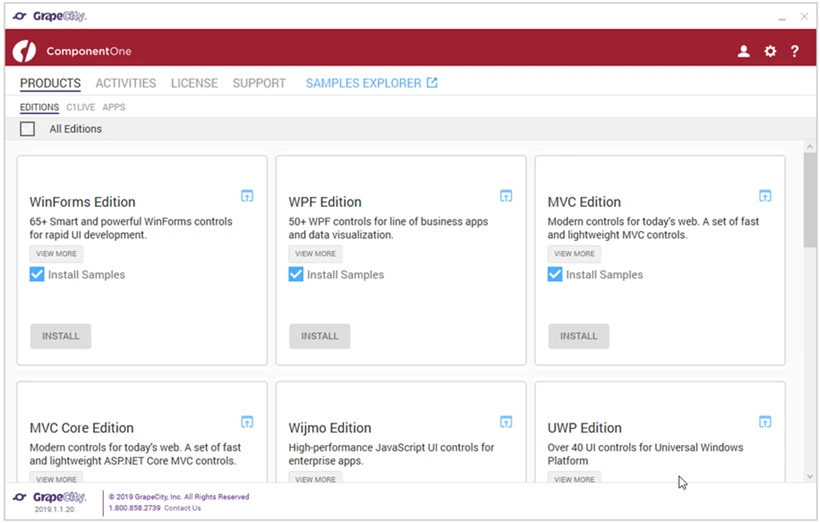
`GrapeCity`의 `ComponentOne`은 다양한 개발 플랫폼과 프레임워크를 위해 각기 다른 에디션 옵션을 제공하며, 샘플 프로젝트를 설치할 옵션도 제공합니다.
설치를 보려면 Install을 클릭하세요. 검토 후 승인합니다. 설정 페이지를 보기 위해 라이선스 동의를 승인합니다. 디렉터리 경로를 확인하고 설치를 시작합니다.
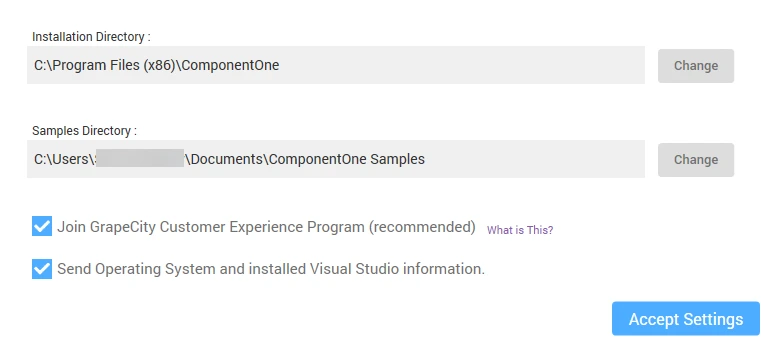
`ComponentOne` 설치 구성 화면은 개인정보 및 데이터 수집 옵션을 제공합니다.
컨트롤 설치 중 설치 프로세스가 진행됩니다. 이 과정 중에는 취소할 수 없습니다. 완료 시 '설치 성공' 화면이 나타납니다. 현재 설치된 버전을 표시합니다.
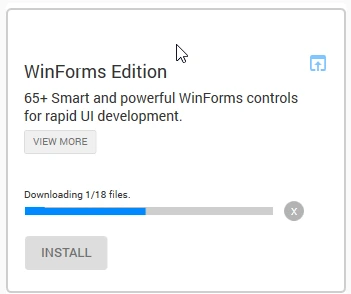
`WinForms` 에디션 설치 인터페이스는 간단한 다운로드 진행 표시줄과 빠른 Windows Forms 개발을 위한 65개 이상의 스마트하고 효과적인 UI 컨트롤을 위한 설치 옵션을 제공합니다.
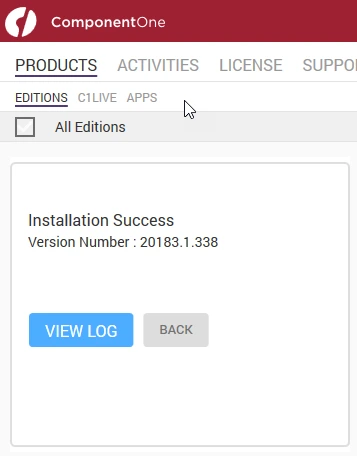
`ComponentOne` 설치 인터페이스는 제품, 작업, 라이선스 및 지원을 위한 탐색 탭을 특징으로 하는 버전 20183.1.338의 성공적인 설치 메시지를 표시합니다.
GrapeCity으로 PDF를 생성하는 방법은 무엇인가요?
다음 코드는 기본 GrapeCity PDF 생성을 설명합니다. JavaScript와 함께 HTML을 PDF로 변환하기, 반응형 CSS, 또는 커스텀 머리글/바닥글과 같은 고급 기능을 위해 IronPDF는 완전한 솔루션을 제공합니다:
using System;
using System.IO;
using System.Drawing;
using System.Text;
using GrapeCity.Documents.Text;
using GrapeCity.Documents.Common;
using GrapeCity.Documents.Drawing;
using GrapeCity.Documents.Pdf;
using GrapeCity.Documents.Pdf.Structure;
using GrapeCity.Documents.Pdf.MarkedContent;
using GrapeCity.Documents.Pdf.Graphics;
using GrapeCity.Documents.Pdf.Annotations;
using GCTEXT = GrapeCity.Documents.Text;
using GCDRAW = GrapeCity.Documents.Drawing;
namespace GcPdfWeb.Samples.Basics
{
    // This sample shows how to create a PDF/A-3u compliant document.
    public class PdfA
    {
        public void CreatePDF(Stream stream)
        {
            var doc = new GcPdfDocument();
            var date = new DateTime(1961, 4, 12, 6, 7, 0, DateTimeKind.Utc);

            // Mark the document as PDF/A-3u conformant:
            doc.ConformanceLevel = PdfAConformanceLevel.PdfA3u;

            var fnt = GCTEXT.Font.FromFile(Path.Combine("Resources", "Fonts", "arial.ttf"));
            var gap = 36;

            // PDF/A-3a requires all content to be tagged so create and populate StructElement when rendering:
            StructElement sePart = new StructElement("Part");
            doc.StructTreeRoot.Children.Add(sePart);

            TextLayout tl = null;
            // Add 3 pages with sample content tagged according to PDF/A rules:
            for (int pageNo = 1; pageNo <= 3; ++pageNo)
            {
                // add page
                var page = doc.Pages.Add();
                var g = page.Graphics;
                float y = 72;
                if (doc.Pages.Count == 1)
                {
                    // Create paragraph element:
                    var seParagraph = new StructElement("P") { DefaultPage = page };
                    // Add it to Part element:
                    sePart.Children.Add(seParagraph);

                    tl = g.CreateTextLayout();
                    tl.MarginAll = 72;
                    tl.MaxWidth = page.Size.Width;

                    tl.DefaultFormat.Font = fnt;
                    tl.DefaultFormat.FontBold = true;
                    tl.DefaultFormat.FontSize = 20;
                    tl.Append("PDF/A-3A Document");

                    // PerformLayout is done automatically in a new TextLayout or after a Clear():
                    //tl.PerformLayout(true);

                    // Draw TextLayout within tagged content:
                    g.BeginMarkedContent(new TagMcid("P", 0));
                    g.DrawTextLayout(tl, PointF.Empty);
                    g.EndMarkedContent();

                    y = tl.ContentRectangle.Bottom + gap;

                    seParagraph.ContentItems.Add(new McidContentItemLink(0));
                }

                // Add some sample paragraphs tagged according to PDF/A rules:
                for (int i = 1; i <= 3; ++i)
                {
                    // Create paragraph element:
                    var seParagraph = new StructElement("P") { DefaultPage = page };
                    // Add it to Part element:
                    sePart.Children.Add(seParagraph);

                    var sb = new StringBuilder();
                    sb.Append(string.Format("Paragraph {0} on page {1}: ", i, pageNo));
                    sb.Append(Common.Util.LoremIpsum(1, 2, 4, 5, 10));
                    var para = sb.ToString();

                    tl.Clear();
                    tl.DefaultFormat.FontSize = 14;
                    tl.DefaultFormat.FontBold = false;
                    tl.MarginTop = y;
                    tl.Append(para);

                    // Draw TextLayout within tagged content:
                    g.BeginMarkedContent(new TagMcid("P", i));
                    g.DrawTextLayout(tl, PointF.Empty);
                    g.EndMarkedContent();

                    y += tl.ContentHeight + gap;

                    // Add content item to paragraph StructElement:
                    seParagraph.ContentItems.Add(new McidContentItemLink(i));

                    // PDF/A-3 allows embedding files into document, but they should be associated with some document element
                    // add embedded file associated with seParagraph:
                    var ef1 = EmbeddedFileStream.FromBytes(doc, Encoding.UTF8.GetBytes(para));
                    // ModificationDate and MimeType should be specified in case of PDF/A:
                    ef1.ModificationDate = date;
                    ef1.MimeType = "text/plain";
                    var fn = string.Format("Page{0}_Paragraph{1}.txt", pageNo, i);
                    var fs1 = FileSpecification.FromEmbeddedStream(fn, ef1);
                    // UnicodeFile.FileName should be specified for PDF/A compliance:
                    fs1.UnicodeFile.FileName = fs1.File.FileName;
                    // Relationship should be specified in case of PDF/A:
                    fs1.Relationship = AFRelationship.Unspecified;
                    doc.EmbeddedFiles.Add(fn, fs1);
                    seParagraph.AssociatedFiles.Add(fs1);
                }
            }

            // PDF/A-3 allows transparency drawing in PDF file, add some:
            var gpage = doc.Pages [0].Graphics;
            gpage.FillRectangle(new RectangleF(20, 20, 200, 200), Color.FromArgb(40, Color.Red));

            // PDF/A-3 allows using FormXObjects, add one with transparency:
            var r = new RectangleF(0, 0, 144, 72);
            var fxo = new FormXObject(doc, r);
            var gfxo = fxo.Graphics;
            gfxo.FillRectangle(r, Color.FromArgb(40, Color.Violet));
            TextFormat tf = new TextFormat()
            {
                Font = fnt,
                FontSize = 16,
                ForeColor = Color.FromArgb(100, Color.Black),
            };
            gfxo.DrawString("FormXObject", tf, r, TextAlignment.Center, ParagraphAlignment.Center);
            gfxo.DrawRectangle(r, Color.Blue, 3);
            gpage.DrawForm(fxo, new RectangleF(300, 250, r.Width, r.Height), null, ImageAlign.ScaleImage);

            // PDF/A-3 allows using embedded files, but each embedded file must be associated with a document's element:
            EmbeddedFileStream ef = EmbeddedFileStream.FromFile(doc, Path.Combine("Resources", "WordDocs", "ProcurementLetter.docx"));
            // ModificationDate and MimeType should be specified for EmbeddedFile in PDF/A:
            ef.ModificationDate = date;
            ef.MimeType = "application/msword";
            var fs = FileSpecification.FromEmbeddedFile(ef);
            fs.UnicodeFile.FileName = fs.File.FileName;
            fs.Relationship = AFRelationship.Unspecified;
            doc.EmbeddedFiles.Add("ProcurementLetter.docx", fs);
            // Associate embedded file with the document:
            doc.AssociatedFiles.Add(fs);

            // Add an attachment associated with an annotation:
            var sa = new StampAnnotation()
            {
                UserName = "Minerva",
                Font = fnt,
                Rect = new RectangleF(300, 36, 220, 72),
            };
            sa.Flags |= AnnotationFlags.Print;
            // Use a FormXObject to represent the stamp annotation:
            var stampFxo = new FormXObject(doc, new RectangleF(PointF.Empty, sa.Rect.Size));
            var gstampFxo = stampFxo.Graphics;
            gstampFxo.FillRectangle(stampFxo.Bounds, Color.FromArgb(40, Color.Green));
            gstampFxo.DrawString("Stamp Annotation\nassociated with minerva.jpg", tf, stampFxo.Bounds, TextAlignment.Center, ParagraphAlignment.Center);
            gstampFxo.DrawRectangle(stampFxo.Bounds, Color.Green, 3);
            //
            sa.AppearanceStreams.Normal.Default = stampFxo;
            doc.Pages [0].Annotations.Add(sa);
            ef = EmbeddedFileStream.FromFile(doc, Path.Combine("Resources", "Images", "minerva.jpg"));
            ef.ModificationDate = date;
            ef.MimeType = "image/jpeg";
            fs = FileSpecification.FromEmbeddedFile(ef);
            fs.UnicodeFile.FileName = fs.File.FileName;
            fs.Relationship = AFRelationship.Unspecified;
            doc.EmbeddedFiles.Add("minerva.jpg", fs);
            sa.AssociatedFiles.Add(fs);

            // Mark the document as conforming to Tagged PDF conventions (required for PDF/A):
            doc.MarkInfo.Marked = true;

            // Metadata.CreatorTool and DocumentInfo.Creator should be the same for a PDF/A document:
            doc.Metadata.CreatorTool = doc.DocumentInfo.Creator;
            // A title should be specified for PDF/A document:
            doc.Metadata.Title = "GcPdf Document";
            doc.ViewerPreferences.DisplayDocTitle = true;

            // Done:
            doc.Save(stream);
        }
    }
}
using System;
using System.IO;
using System.Drawing;
using System.Text;
using GrapeCity.Documents.Text;
using GrapeCity.Documents.Common;
using GrapeCity.Documents.Drawing;
using GrapeCity.Documents.Pdf;
using GrapeCity.Documents.Pdf.Structure;
using GrapeCity.Documents.Pdf.MarkedContent;
using GrapeCity.Documents.Pdf.Graphics;
using GrapeCity.Documents.Pdf.Annotations;
using GCTEXT = GrapeCity.Documents.Text;
using GCDRAW = GrapeCity.Documents.Drawing;
namespace GcPdfWeb.Samples.Basics
{
// This sample shows how to create a PDF/A-3u compliant document.
public class PdfA
{
public void CreatePDF(Stream stream)
{
var doc = new GcPdfDocument();
var date = new DateTime(1961, 4, 12, 6, 7, 0, DateTimeKind.Utc);
// Mark the document as PDF/A-3u conformant:
doc.ConformanceLevel = PdfAConformanceLevel.PdfA3u;
var fnt = GCTEXT.Font.FromFile(Path.Combine("Resources", "Fonts", "arial.ttf"));
var gap = 36;
// PDF/A-3a requires all content to be tagged so create and populate StructElement when rendering:
StructElement sePart = new StructElement("Part");
doc.StructTreeRoot.Children.Add(sePart);
TextLayout tl = null;
// Add 3 pages with sample content tagged according to PDF/A rules:
for (int pageNo = 1; pageNo <= 3; ++pageNo)
{
// add page
var page = doc.Pages.Add();
var g = page.Graphics;
float y = 72;
if (doc.Pages.Count == 1)
{
// Create paragraph element:
var seParagraph = new StructElement("P") { DefaultPage = page };
// Add it to Part element:
sePart.Children.Add(seParagraph);
tl = g.CreateTextLayout();
tl.MarginAll = 72;
tl.MaxWidth = page.Size.Width;
tl.DefaultFormat.Font = fnt;
tl.DefaultFormat.FontBold = true;
tl.DefaultFormat.FontSize = 20;
tl.Append("PDF/A-3A Document");
// PerformLayout is done automatically in a new TextLayout or after a Clear():
//tl.PerformLayout(true);
// Draw TextLayout within tagged content:
g.BeginMarkedContent(new TagMcid("P", 0));
g.DrawTextLayout(tl, PointF.Empty);
g.EndMarkedContent();
y = tl.ContentRectangle.Bottom + gap;
seParagraph.ContentItems.Add(new McidContentItemLink(0));
}
// Add some sample paragraphs tagged according to PDF/A rules:
for (int i = 1; i <= 3; ++i)
{
// Create paragraph element:
var seParagraph = new StructElement("P") { DefaultPage = page };
// Add it to Part element:
sePart.Children.Add(seParagraph);
var sb = new StringBuilder();
sb.Append(string.Format("Paragraph {0} on page {1}: ", i, pageNo));
sb.Append(Common.Util.LoremIpsum(1, 2, 4, 5, 10));
var para = sb.ToString();
tl.Clear();
tl.DefaultFormat.FontSize = 14;
tl.DefaultFormat.FontBold = false;
tl.MarginTop = y;
tl.Append(para);
// Draw TextLayout within tagged content:
g.BeginMarkedContent(new TagMcid("P", i));
g.DrawTextLayout(tl, PointF.Empty);
g.EndMarkedContent();
y += tl.ContentHeight + gap;
// Add content item to paragraph StructElement:
seParagraph.ContentItems.Add(new McidContentItemLink(i));
// PDF/A-3 allows embedding files into document, but they should be associated with some document element
// add embedded file associated with seParagraph:
var ef1 = EmbeddedFileStream.FromBytes(doc, Encoding.UTF8.GetBytes(para));
// ModificationDate and MimeType should be specified in case of PDF/A:
ef1.ModificationDate = date;
ef1.MimeType = "text/plain";
var fn = string.Format("Page{0}_Paragraph{1}.txt", pageNo, i);
var fs1 = FileSpecification.FromEmbeddedStream(fn, ef1);
// UnicodeFile.FileName should be specified for PDF/A compliance:
fs1.UnicodeFile.FileName = fs1.File.FileName;
// Relationship should be specified in case of PDF/A:
fs1.Relationship = AFRelationship.Unspecified;
doc.EmbeddedFiles.Add(fn, fs1);
seParagraph.AssociatedFiles.Add(fs1);
}
}
// PDF/A-3 allows transparency drawing in PDF file, add some:
var gpage = doc.Pages [0].Graphics;
gpage.FillRectangle(new RectangleF(20, 20, 200, 200), Color.FromArgb(40, Color.Red));
// PDF/A-3 allows using FormXObjects, add one with transparency:
var r = new RectangleF(0, 0, 144, 72);
var fxo = new FormXObject(doc, r);
var gfxo = fxo.Graphics;
gfxo.FillRectangle(r, Color.FromArgb(40, Color.Violet));
TextFormat tf = new TextFormat()
{
Font = fnt,
FontSize = 16,
ForeColor = Color.FromArgb(100, Color.Black),
};
gfxo.DrawString("FormXObject", tf, r, TextAlignment.Center, ParagraphAlignment.Center);
gfxo.DrawRectangle(r, Color.Blue, 3);
gpage.DrawForm(fxo, new RectangleF(300, 250, r.Width, r.Height), null, ImageAlign.ScaleImage);
// PDF/A-3 allows using embedded files, but each embedded file must be associated with a document's element:
EmbeddedFileStream ef = EmbeddedFileStream.FromFile(doc, Path.Combine("Resources", "WordDocs", "ProcurementLetter.docx"));
// ModificationDate and MimeType should be specified for EmbeddedFile in PDF/A:
ef.ModificationDate = date;
ef.MimeType = "application/msword";
var fs = FileSpecification.FromEmbeddedFile(ef);
fs.UnicodeFile.FileName = fs.File.FileName;
fs.Relationship = AFRelationship.Unspecified;
doc.EmbeddedFiles.Add("ProcurementLetter.docx", fs);
// Associate embedded file with the document:
doc.AssociatedFiles.Add(fs);
// Add an attachment associated with an annotation:
var sa = new StampAnnotation()
{
UserName = "Minerva",
Font = fnt,
Rect = new RectangleF(300, 36, 220, 72),
};
sa.Flags |= AnnotationFlags.Print;
// Use a FormXObject to represent the stamp annotation:
var stampFxo = new FormXObject(doc, new RectangleF(PointF.Empty, sa.Rect.Size));
var gstampFxo = stampFxo.Graphics;
gstampFxo.FillRectangle(stampFxo.Bounds, Color.FromArgb(40, Color.Green));
gstampFxo.DrawString("Stamp Annotation\nassociated with minerva.jpg", tf, stampFxo.Bounds, TextAlignment.Center, ParagraphAlignment.Center);
gstampFxo.DrawRectangle(stampFxo.Bounds, Color.Green, 3);
//
sa.AppearanceStreams.Normal.Default = stampFxo;
doc.Pages [0].Annotations.Add(sa);
ef = EmbeddedFileStream.FromFile(doc, Path.Combine("Resources", "Images", "minerva.jpg"));
ef.ModificationDate = date;
ef.MimeType = "image/jpeg";
fs = FileSpecification.FromEmbeddedFile(ef);
fs.UnicodeFile.FileName = fs.File.FileName;
fs.Relationship = AFRelationship.Unspecified;
doc.EmbeddedFiles.Add("minerva.jpg", fs);
sa.AssociatedFiles.Add(fs);
// Mark the document as conforming to Tagged PDF conventions (required for PDF/A):
doc.MarkInfo.Marked = true;
// Metadata.CreatorTool and DocumentInfo.Creator should be the same for a PDF/A document:
doc.Metadata.CreatorTool = doc.DocumentInfo.Creator;
// A title should be specified for PDF/A document:
doc.Metadata.Title = "GcPdf Document";
doc.ViewerPreferences.DisplayDocTitle = true;
// Done:
doc.Save(stream);
}
}
}Imports Microsoft.VisualBasic
Imports System
Imports System.IO
Imports System.Drawing
Imports System.Text
Imports GrapeCity.Documents.Text
Imports GrapeCity.Documents.Common
Imports GrapeCity.Documents.Drawing
Imports GrapeCity.Documents.Pdf
Imports GrapeCity.Documents.Pdf.Structure
Imports GrapeCity.Documents.Pdf.MarkedContent
Imports GrapeCity.Documents.Pdf.Graphics
Imports GrapeCity.Documents.Pdf.Annotations
Imports GCTEXT = GrapeCity.Documents.Text
Imports GCDRAW = GrapeCity.Documents.Drawing
Namespace GcPdfWeb.Samples.Basics
' This sample shows how to create a PDF/A-3u compliant document.
Public Class PdfA
Public Sub CreatePDF(ByVal stream As Stream)
Dim doc = New GcPdfDocument()
Dim [date] = New DateTime(1961, 4, 12, 6, 7, 0, DateTimeKind.Utc)
' Mark the document as PDF/A-3u conformant:
doc.ConformanceLevel = PdfAConformanceLevel.PdfA3u
Dim fnt = GCTEXT.Font.FromFile(Path.Combine("Resources", "Fonts", "arial.ttf"))
Dim gap = 36
' PDF/A-3a requires all content to be tagged so create and populate StructElement when rendering:
Dim sePart As New StructElement("Part")
doc.StructTreeRoot.Children.Add(sePart)
Dim tl As TextLayout = Nothing
' Add 3 pages with sample content tagged according to PDF/A rules:
For pageNo As Integer = 1 To 3
' add page
Dim page = doc.Pages.Add()
Dim g = page.Graphics
Dim y As Single = 72
If doc.Pages.Count = 1 Then
' Create paragraph element:
Dim seParagraph = New StructElement("P") With {.DefaultPage = page}
' Add it to Part element:
sePart.Children.Add(seParagraph)
tl = g.CreateTextLayout()
tl.MarginAll = 72
tl.MaxWidth = page.Size.Width
tl.DefaultFormat.Font = fnt
tl.DefaultFormat.FontBold = True
tl.DefaultFormat.FontSize = 20
tl.Append("PDF/A-3A Document")
' PerformLayout is done automatically in a new TextLayout or after a Clear():
'tl.PerformLayout(true);
' Draw TextLayout within tagged content:
g.BeginMarkedContent(New TagMcid("P", 0))
g.DrawTextLayout(tl, PointF.Empty)
g.EndMarkedContent()
y = tl.ContentRectangle.Bottom + gap
seParagraph.ContentItems.Add(New McidContentItemLink(0))
End If
' Add some sample paragraphs tagged according to PDF/A rules:
For i As Integer = 1 To 3
' Create paragraph element:
Dim seParagraph = New StructElement("P") With {.DefaultPage = page}
' Add it to Part element:
sePart.Children.Add(seParagraph)
Dim sb = New StringBuilder()
sb.Append(String.Format("Paragraph {0} on page {1}: ", i, pageNo))
sb.Append(Common.Util.LoremIpsum(1, 2, 4, 5, 10))
Dim para = sb.ToString()
tl.Clear()
tl.DefaultFormat.FontSize = 14
tl.DefaultFormat.FontBold = False
tl.MarginTop = y
tl.Append(para)
' Draw TextLayout within tagged content:
g.BeginMarkedContent(New TagMcid("P", i))
g.DrawTextLayout(tl, PointF.Empty)
g.EndMarkedContent()
y += tl.ContentHeight + gap
' Add content item to paragraph StructElement:
seParagraph.ContentItems.Add(New McidContentItemLink(i))
' PDF/A-3 allows embedding files into document, but they should be associated with some document element
' add embedded file associated with seParagraph:
Dim ef1 = EmbeddedFileStream.FromBytes(doc, Encoding.UTF8.GetBytes(para))
' ModificationDate and MimeType should be specified in case of PDF/A:
ef1.ModificationDate = [date]
ef1.MimeType = "text/plain"
Dim fn = String.Format("Page{0}_Paragraph{1}.txt", pageNo, i)
Dim fs1 = FileSpecification.FromEmbeddedStream(fn, ef1)
' UnicodeFile.FileName should be specified for PDF/A compliance:
fs1.UnicodeFile.FileName = fs1.File.FileName
' Relationship should be specified in case of PDF/A:
fs1.Relationship = AFRelationship.Unspecified
doc.EmbeddedFiles.Add(fn, fs1)
seParagraph.AssociatedFiles.Add(fs1)
Next i
Next pageNo
' PDF/A-3 allows transparency drawing in PDF file, add some:
Dim gpage = doc.Pages (0).Graphics
gpage.FillRectangle(New RectangleF(20, 20, 200, 200), Color.FromArgb(40, Color.Red))
' PDF/A-3 allows using FormXObjects, add one with transparency:
Dim r = New RectangleF(0, 0, 144, 72)
Dim fxo = New FormXObject(doc, r)
Dim gfxo = fxo.Graphics
gfxo.FillRectangle(r, Color.FromArgb(40, Color.Violet))
Dim tf As New TextFormat() With {
.Font = fnt,
.FontSize = 16,
.ForeColor = Color.FromArgb(100, Color.Black)
}
gfxo.DrawString("FormXObject", tf, r, TextAlignment.Center, ParagraphAlignment.Center)
gfxo.DrawRectangle(r, Color.Blue, 3)
gpage.DrawForm(fxo, New RectangleF(300, 250, r.Width, r.Height), Nothing, ImageAlign.ScaleImage)
' PDF/A-3 allows using embedded files, but each embedded file must be associated with a document's element:
Dim ef As EmbeddedFileStream = EmbeddedFileStream.FromFile(doc, Path.Combine("Resources", "WordDocs", "ProcurementLetter.docx"))
' ModificationDate and MimeType should be specified for EmbeddedFile in PDF/A:
ef.ModificationDate = [date]
ef.MimeType = "application/msword"
Dim fs = FileSpecification.FromEmbeddedFile(ef)
fs.UnicodeFile.FileName = fs.File.FileName
fs.Relationship = AFRelationship.Unspecified
doc.EmbeddedFiles.Add("ProcurementLetter.docx", fs)
' Associate embedded file with the document:
doc.AssociatedFiles.Add(fs)
' Add an attachment associated with an annotation:
Dim sa = New StampAnnotation() With {
.UserName = "Minerva",
.Font = fnt,
.Rect = New RectangleF(300, 36, 220, 72)
}
sa.Flags = sa.Flags Or AnnotationFlags.Print
' Use a FormXObject to represent the stamp annotation:
Dim stampFxo = New FormXObject(doc, New RectangleF(PointF.Empty, sa.Rect.Size))
Dim gstampFxo = stampFxo.Graphics
gstampFxo.FillRectangle(stampFxo.Bounds, Color.FromArgb(40, Color.Green))
gstampFxo.DrawString("Stamp Annotation" & vbLf & "associated with minerva.jpg", tf, stampFxo.Bounds, TextAlignment.Center, ParagraphAlignment.Center)
gstampFxo.DrawRectangle(stampFxo.Bounds, Color.Green, 3)
'
sa.AppearanceStreams.Normal.Default = stampFxo
doc.Pages (0).Annotations.Add(sa)
ef = EmbeddedFileStream.FromFile(doc, Path.Combine("Resources", "Images", "minerva.jpg"))
ef.ModificationDate = [date]
ef.MimeType = "image/jpeg"
fs = FileSpecification.FromEmbeddedFile(ef)
fs.UnicodeFile.FileName = fs.File.FileName
fs.Relationship = AFRelationship.Unspecified
doc.EmbeddedFiles.Add("minerva.jpg", fs)
sa.AssociatedFiles.Add(fs)
' Mark the document as conforming to Tagged PDF conventions (required for PDF/A):
doc.MarkInfo.Marked = True
' Metadata.CreatorTool and DocumentInfo.Creator should be the same for a PDF/A document:
doc.Metadata.CreatorTool = doc.DocumentInfo.Creator
' A title should be specified for PDF/A document:
doc.Metadata.Title = "GcPdf Document"
doc.ViewerPreferences.DisplayDocTitle = True
' Done:
doc.Save(stream)
End Sub
End Class
End NamespaceIronPDF에 비해 제공하는 기능이 제한적입니다. IronPDF는 PDF/A 준수, PDF/UA 접근성, 커스텀 용지 크기, 그리고 고급 렌더링 옵션을 지원합니다.
IronPDF의 라이선스 모델과 가격은 무엇인가요?
30일 환불 보증: 라이선스를 구입하면 30일 환불 보증을 받습니다. 라이선스가 필요에 맞지 않으면 IronPDF가 30일 이내에 환불을 보장합니다.
간편한 통합: IronPDF와 작동하는 프로젝트 및 환경의 통합은 단일 코드 줄로 완료되는 매끄러운 프로세스입니다. 이것은 NuGet 패키지 방법을 사용하거나 온라인에서 직접 다운로드하여 환경에 통합할 때 달성할 수 있습니다.
영구 라이선스: 모든 라이선스는 갱신 요구 없이 한 번만 구매됩니다.
무료 지원 및 제품 업데이트: 각 라이선스는 제품 뒤의 팀으로부터 직접 지원을 제공하며 한 해의 무료 제품 업데이트도 포함됩니다. 언제든지 확장을 구매하는 것이 가능합니다. 구매 전에 확장을 볼 수 있습니다.
즉각적인 라이선스: 결제가 완료되면 등록된 라이선스 키가 발송됩니다.
모든 라이선스는 스테이징, 개발 및 프로덕션에 대해 영구적입니다.
IronPDF가 Bootstrap과 같은 최신 웹 프레임워크를 어떻게 지원하나요?
현대적인 PDF 생성은 시각적 프로세스 표현의 이점을 활용합니다. 이 Bootstrap 5 예시는 IronPDF의 카드, 배지, 단계 지표를 통해 워크플로 타임라인을 렌더링하는 기능을 보여줍니다. 완전한 프레임워크 지원을 위해, 부트스트랩 & 플렉스박스 문제 해결 가이드를 참조하세요:
using IronPdf;

var renderer = new ChromePdfRenderer();

string workflowTimeline = @"
<!DOCTYPE html>
<html>
<head>
    <meta charset='utf-8'>
    <link href='___PROTECTED_URL_66___ rel='stylesheet'>
    <style>
        .timeline-item { position: relative; padding-left: 40px; margin-bottom: 30px; }
        .timeline-item::before { content: ''; position: absolute; left: 0; top: 0; width: 20px; height: 20px;
            background: #0d6efd; border-radius: 50%; border: 3px solid white; box-shadow: 0 0 0 2px #0d6efd; }
        .timeline-item::after { content: ''; position: absolute; left: 9px; top: 20px; width: 2px; height: calc(100% + 10px);
            background: #dee2e6; }
        .timeline-item:last-child::after { display: none; }
        @media print { .timeline-item { page-break-inside: avoid; } }
    </style>
</head>
<body class='bg-light'>
    <div class='container py-4'>
        <div class='text-center mb-5'>
            <h1 class='display-6 fw-bold'>PDF Generation Workflow</h1>
            <p class='lead text-muted'>From HTML to Professional PDF Documents</p>
        </div>

        <div class='timeline-item'>
            <div class='card shadow-sm'>
                <div class='card-body'>
                    <div class='d-flex justify-content-between align-items-center mb-2'>
                        <h4 class='card-title mb-0'>Step 1: Initialize Renderer</h4>
                        <span class='badge bg-primary'>Setup</span>
                    </div>
                    <p class='card-text'>Create ChromePdfRenderer instance with Chrome V8 engine for accurate HTML rendering.</p>
                    <div class='bg-light p-2 rounded'>
                        <code>var renderer = new ChromePdfRenderer();</code>
                    </div>
                    <div class='mt-2'>
                        <small class='text-muted'>✓ Chrome V8 Engine • ✓ Full CSS3 Support • ✓ JavaScript Ready</small>
                    </div>
                </div>
            </div>
        </div>

        <div class='timeline-item'>
            <div class='card shadow-sm'>
                <div class='card-body'>
                    <div class='d-flex justify-content-between align-items-center mb-2'>
                        <h4 class='card-title mb-0'>Step 2: Prepare HTML Content</h4>
                        <span class='badge bg-info'>Content</span>
                    </div>
                    <p class='card-text'>Design your document using modern HTML5, CSS3 (Flexbox/Grid), and optional JavaScript.</p>
                    <div class='row g-2'>
                        <div class='col-4'><span class='badge bg-success w-100'>HTML5</span></div>
                        <div class='col-4'><span class='badge bg-success w-100'>CSS3</span></div>
                        <div class='col-4'><span class='badge bg-success w-100'>JavaScript</span></div>
                    </div>
                </div>
            </div>
        </div>

        <div class='timeline-item'>
            <div class='card shadow-sm'>
                <div class='card-body'>
                    <div class='d-flex justify-content-between align-items-center mb-2'>
                        <h4 class='card-title mb-0'>Step 3: Render to PDF</h4>
                        <span class='badge bg-warning text-dark'>Processing</span>
                    </div>
                    <p class='card-text'>Convert HTML to PDF with pixel-perfect accuracy and fast performance.</p>
                    <div class='bg-light p-2 rounded'>
                        <code>var pdf = renderer.RenderHtmlAsPdf(htmlContent);</code>
                    </div>
                    <div class='progress mt-2' style='height: 8px;'>
                        <div class='progress-bar bg-warning' style='width: 100%'></div>
                    </div>
                </div>
            </div>
        </div>

        <div class='timeline-item'>
            <div class='card shadow-sm'>
                <div class='card-body'>
                    <div class='d-flex justify-content-between align-items-center mb-2'>
                        <h4 class='card-title mb-0'>Step 4: Save or Stream</h4>
                        <span class='badge bg-success'>Output</span>
                    </div>
                    <p class='card-text'>Export to file, stream, or byte array for flexible deployment options.</p>
                    <div class='bg-light p-2 rounded'>
                        <code>pdf.SaveAs("document.pdf");</code>
                    </div>
                    <div class='mt-2'>
                        <span class='badge bg-outline-secondary me-1'>File</span>
                        <span class='badge bg-outline-secondary me-1'>Stream</span>
                        <span class='badge bg-outline-secondary'>Byte Array</span>
                    </div>
                </div>
            </div>
        </div>

        <div class='alert alert-info'>
            <strong>Comparison Note:</strong> GrapeCity PDF Viewer focuses on document viewing and annotation, not HTML-to-PDF generation. IronPDF specializes in creating PDFs from modern web content with full Bootstrap and framework support.
        </div>

        <div class='card shadow-sm border-primary'>
            <div class='card-header bg-primary text-white'>
                <h5 class='mb-0'>Key Advantages</h5>
            </div>
            <div class='card-body'>
                <div class='row'>
                    <div class='col-md-6'>
                        <h6 class='text-primary'>IronPDF Strengths</h6>
                        <ul class='small'>
                            <li>Complete HTML-to-PDF workflow</li>
                            <li>Bootstrap 5 framework support</li>
                            <li>Async/await for scalability</li>
                            <li>Cross-platform deployment</li>
                        </ul>
                    </div>
                    <div class='col-md-6'>
                        <h6 class='text-muted'>GrapeCity Focus</h6>
                        <ul class='small'>
                            <li>PDF viewing and annotation</li>
                            <li>UI component for display</li>
                            <li>Limited generation features</li>
                            <li>Viewer-centric approach</li>
                        </ul>
                    </div>
                </div>
            </div>
        </div>
    </div>
</body>
</html>";

var pdf = renderer.RenderHtmlAsPdf(workflowTimeline);
pdf.SaveAs("workflow-timeline.pdf");
using IronPdf;
var renderer = new ChromePdfRenderer();
string workflowTimeline = @"
<!DOCTYPE html>
<html>
<head>
<meta charset='utf-8'>
<link href='___PROTECTED_URL_66___ rel='stylesheet'>
<style>
.timeline-item { position: relative; padding-left: 40px; margin-bottom: 30px; }
.timeline-item::before { content: ''; position: absolute; left: 0; top: 0; width: 20px; height: 20px;
background: #0d6efd; border-radius: 50%; border: 3px solid white; box-shadow: 0 0 0 2px #0d6efd; }
.timeline-item::after { content: ''; position: absolute; left: 9px; top: 20px; width: 2px; height: calc(100% + 10px);
background: #dee2e6; }
.timeline-item:last-child::after { display: none; }
@media print { .timeline-item { page-break-inside: avoid; } }
</style>
</head>
<body class='bg-light'>
<div class='container py-4'>
<div class='text-center mb-5'>
<h1 class='display-6 fw-bold'>PDF Generation Workflow</h1>
<p class='lead text-muted'>From HTML to Professional PDF Documents</p>
</div>
<div class='timeline-item'>
<div class='card shadow-sm'>
<div class='card-body'>
<div class='d-flex justify-content-between align-items-center mb-2'>
<h4 class='card-title mb-0'>Step 1: Initialize Renderer</h4>
<span class='badge bg-primary'>Setup</span>
</div>
<p class='card-text'>Create ChromePdfRenderer instance with Chrome V8 engine for accurate HTML rendering.</p>
<div class='bg-light p-2 rounded'>
<code>var renderer = new ChromePdfRenderer();</code>
</div>
<div class='mt-2'>
<small class='text-muted'>✓ Chrome V8 Engine • ✓ Full CSS3 Support • ✓ JavaScript Ready</small>
</div>
</div>
</div>
</div>
<div class='timeline-item'>
<div class='card shadow-sm'>
<div class='card-body'>
<div class='d-flex justify-content-between align-items-center mb-2'>
<h4 class='card-title mb-0'>Step 2: Prepare HTML Content</h4>
<span class='badge bg-info'>Content</span>
</div>
<p class='card-text'>Design your document using modern HTML5, CSS3 (Flexbox/Grid), and optional JavaScript.</p>
<div class='row g-2'>
<div class='col-4'><span class='badge bg-success w-100'>HTML5</span></div>
<div class='col-4'><span class='badge bg-success w-100'>CSS3</span></div>
<div class='col-4'><span class='badge bg-success w-100'>JavaScript</span></div>
</div>
</div>
</div>
</div>
<div class='timeline-item'>
<div class='card shadow-sm'>
<div class='card-body'>
<div class='d-flex justify-content-between align-items-center mb-2'>
<h4 class='card-title mb-0'>Step 3: Render to PDF</h4>
<span class='badge bg-warning text-dark'>Processing</span>
</div>
<p class='card-text'>Convert HTML to PDF with pixel-perfect accuracy and fast performance.</p>
<div class='bg-light p-2 rounded'>
<code>var pdf = renderer.RenderHtmlAsPdf(htmlContent);</code>
</div>
<div class='progress mt-2' style='height: 8px;'>
<div class='progress-bar bg-warning' style='width: 100%'></div>
</div>
</div>
</div>
</div>
<div class='timeline-item'>
<div class='card shadow-sm'>
<div class='card-body'>
<div class='d-flex justify-content-between align-items-center mb-2'>
<h4 class='card-title mb-0'>Step 4: Save or Stream</h4>
<span class='badge bg-success'>Output</span>
</div>
<p class='card-text'>Export to file, stream, or byte array for flexible deployment options.</p>
<div class='bg-light p-2 rounded'>
<code>pdf.SaveAs("document.pdf");</code>
</div>
<div class='mt-2'>
<span class='badge bg-outline-secondary me-1'>File</span>
<span class='badge bg-outline-secondary me-1'>Stream</span>
<span class='badge bg-outline-secondary'>Byte Array</span>
</div>
</div>
</div>
</div>
<div class='alert alert-info'>
<strong>Comparison Note:</strong> GrapeCity PDF Viewer focuses on document viewing and annotation, not HTML-to-PDF generation. IronPDF specializes in creating PDFs from modern web content with full Bootstrap and framework support.
</div>
<div class='card shadow-sm border-primary'>
<div class='card-header bg-primary text-white'>
<h5 class='mb-0'>Key Advantages</h5>
</div>
<div class='card-body'>
<div class='row'>
<div class='col-md-6'>
<h6 class='text-primary'>IronPDF Strengths</h6>
<ul class='small'>
<li>Complete HTML-to-PDF workflow</li>
<li>Bootstrap 5 framework support</li>
<li>Async/await for scalability</li>
<li>Cross-platform deployment</li>
</ul>
</div>
<div class='col-md-6'>
<h6 class='text-muted'>GrapeCity Focus</h6>
<ul class='small'>
<li>PDF viewing and annotation</li>
<li>UI component for display</li>
<li>Limited generation features</li>
<li>Viewer-centric approach</li>
</ul>
</div>
</div>
</div>
</div>
</div>
</body>
</html>";
var pdf = renderer.RenderHtmlAsPdf(workflowTimeline);
pdf.SaveAs("workflow-timeline.pdf");Imports IronPdf
Dim renderer As New ChromePdfRenderer()
Dim workflowTimeline As String = "
<!DOCTYPE html>
<html>
<head>
<meta charset='utf-8'>
<link href='___PROTECTED_URL_66___ rel='stylesheet'>
<style>
.timeline-item { position: relative; padding-left: 40px; margin-bottom: 30px; }
.timeline-item::before { content: ''; position: absolute; left: 0; top: 0; width: 20px; height: 20px;
background: #0d6efd; border-radius: 50%; border: 3px solid white; box-shadow: 0 0 0 2px #0d6efd; }
.timeline-item::after { content: ''; position: absolute; left: 9px; top: 20px; width: 2px; height: calc(100% + 10px);
background: #dee2e6; }
.timeline-item:last-child::after { display: none; }
@media print { .timeline-item { page-break-inside: avoid; } }
</style>
</head>
<body class='bg-light'>
<div class='container py-4'>
<div class='text-center mb-5'>
<h1 class='display-6 fw-bold'>PDF Generation Workflow</h1>
<p class='lead text-muted'>From HTML to Professional PDF Documents</p>
</div>
<div class='timeline-item'>
<div class='card shadow-sm'>
<div class='card-body'>
<div class='d-flex justify-content-between align-items-center mb-2'>
<h4 class='card-title mb-0'>Step 1: Initialize Renderer</h4>
<span class='badge bg-primary'>Setup</span>
</div>
<p class='card-text'>Create ChromePdfRenderer instance with Chrome V8 engine for accurate HTML rendering.</p>
<div class='bg-light p-2 rounded'>
<code>var renderer = new ChromePdfRenderer();</code>
</div>
<div class='mt-2'>
<small class='text-muted'>✓ Chrome V8 Engine • ✓ Full CSS3 Support • ✓ JavaScript Ready</small>
</div>
</div>
</div>
</div>
<div class='timeline-item'>
<div class='card shadow-sm'>
<div class='card-body'>
<div class='d-flex justify-content-between align-items-center mb-2'>
<h4 class='card-title mb-0'>Step 2: Prepare HTML Content</h4>
<span class='badge bg-info'>Content</span>
</div>
<p class='card-text'>Design your document using modern HTML5, CSS3 (Flexbox/Grid), and optional JavaScript.</p>
<div class='row g-2'>
<div class='col-4'><span class='badge bg-success w-100'>HTML5</span></div>
<div class='col-4'><span class='badge bg-success w-100'>CSS3</span></div>
<div class='col-4'><span class='badge bg-success w-100'>JavaScript</span></div>
</div>
</div>
</div>
</div>
<div class='timeline-item'>
<div class='card shadow-sm'>
<div class='card-body'>
<div class='d-flex justify-content-between align-items-center mb-2'>
<h4 class='card-title mb-0'>Step 3: Render to PDF</h4>
<span class='badge bg-warning text-dark'>Processing</span>
</div>
<p class='card-text'>Convert HTML to PDF with pixel-perfect accuracy and fast performance.</p>
<div class='bg-light p-2 rounded'>
<code>var pdf = renderer.RenderHtmlAsPdf(htmlContent);</code>
</div>
<div class='progress mt-2' style='height: 8px;'>
<div class='progress-bar bg-warning' style='width: 100%'></div>
</div>
</div>
</div>
</div>
<div class='timeline-item'>
<div class='card shadow-sm'>
<div class='card-body'>
<div class='d-flex justify-content-between align-items-center mb-2'>
<h4 class='card-title mb-0'>Step 4: Save or Stream</h4>
<span class='badge bg-success'>Output</span>
</div>
<p class='card-text'>Export to file, stream, or byte array for flexible deployment options.</p>
<div class='bg-light p-2 rounded'>
<code>pdf.SaveAs(""document.pdf"");</code>
</div>
<div class='mt-2'>
<span class='badge bg-outline-secondary me-1'>File</span>
<span class='badge bg-outline-secondary me-1'>Stream</span>
<span class='badge bg-outline-secondary'>Byte Array</span>
</div>
</div>
</div>
</div>
<div class='alert alert-info'>
<strong>Comparison Note:</strong> GrapeCity PDF Viewer focuses on document viewing and annotation, not HTML-to-PDF generation. IronPDF specializes in creating PDFs from modern web content with full Bootstrap and framework support.
</div>
<div class='card shadow-sm border-primary'>
<div class='card-header bg-primary text-white'>
<h5 class='mb-0'>Key Advantages</h5>
</div>
<div class='card-body'>
<div class='row'>
<div class='col-md-6'>
<h6 class='text-primary'>IronPDF Strengths</h6>
<ul class='small'>
<li>Complete HTML-to-PDF workflow</li>
<li>Bootstrap 5 framework support</li>
<li>Async/await for scalability</li>
<li>Cross-platform deployment</li>
</ul>
</div>
<div class='col-md-6'>
<h6 class='text-muted'>GrapeCity Focus</h6>
<ul class='small'>
<li>PDF viewing and annotation</li>
<li>UI component for display</li>
<li>Limited generation features</li>
<li>Viewer-centric approach</li>
</ul>
</div>
</div>
</div>
</div>
</div>
</body>
</html>"
Dim pdf = renderer.RenderHtmlAsPdf(workflowTimeline)
pdf.SaveAs("workflow-timeline.pdf")출력: Bootstrap 5 카드, 배지, 진행 바 및 사용자 지정 타임라인 스타일을 포함한 전문적인 워크플로 타임라인 PDF. IronPDF는 모든 위치 지정, 플렉스박스 레이아웃 및 유틸리티 클래스를 정확하게 렌더링하여 복잡한 시각적 디자인을 위한 포괄적인 CSS3 지원을 보여줍니다.
상세한 Bootstrap 호환성을 위해 부트스트랩 & 플렉스박스 CSS 가이드를 참조하세요. IronPDF는 리치 타이포그래피를 위한 웹 폰트 및 아이콘을 지원합니다.
Lite 패키지 가격은 얼마입니까?
- 1 개발자
- 1 위치
- 1 프로젝트
- 영구 라이선스
이 패키지는 한 명의 개발자가 하나의 애플리케이션을 위해 한 위치에서 Iron Software를 사용할 수 있도록 합니다. 라이선스는 조직 외부 또는 에이전시/클라이언트 관계에서는 양도할 수 없습니다. 추가 커버리지 없이 OEM 재배포 및 SaaS 사용을 제외합니다.
가격: 연 $999부터 시작합니다.
Professional License에는 무엇이 포함되나요?
- 10 개발자
- 10 위치
- 10 프로젝트
- 영구 라이선스
이 라이선스는 최대 10개 위치에서 10명의 개발자가 Iron Software를 사용할 수 있도록 합니다. 무제한 웹사이트, 인트라넷 애플리케이션 또는 데스크탑 소프트웨어에서 사용할 수 있습니다. 라이선스는 조직 외부로 양도할 수 없습니다. 추가 커버리지 없이 OEM 재배포 및 SaaS 사용을 제외합니다. 최대 10개 프로젝트와 통합됩니다.
가격: 연 $1,499부터 시작합니다.
Unlimited License의 장점은 무엇입니까?
- 무제한 개발자
- 무제한 위치
- 무제한 프로젝트
- 영구 라이선스
무제한의 개발자가 하나의 조직 내부에서 무제한 위치에서 Iron Software를 사용할 수 있게 합니다. 무제한 애플리케이션에서 사용하십시오. 라이선스는 조직 외부로 양도할 수 없습니다. 추가 커버리지 없이 OEM 재배포 및 SaaS 사용을 제외합니다.
가격: 연 $2,999부터 시작합니다.
로열티 무료 재배포: 기본 라이선스로 커버된 프로젝트 수에 따라 여러 상업 제품으로 Iron Software를 배포할 수 있습니다 (로열티 없이). 이는 기본 라이선스로 커버된 프로젝트 수를 기준으로 SaaS 소프트웨어 서비스 내에서 Iron Software를 배포할 수 있도록 합니다.
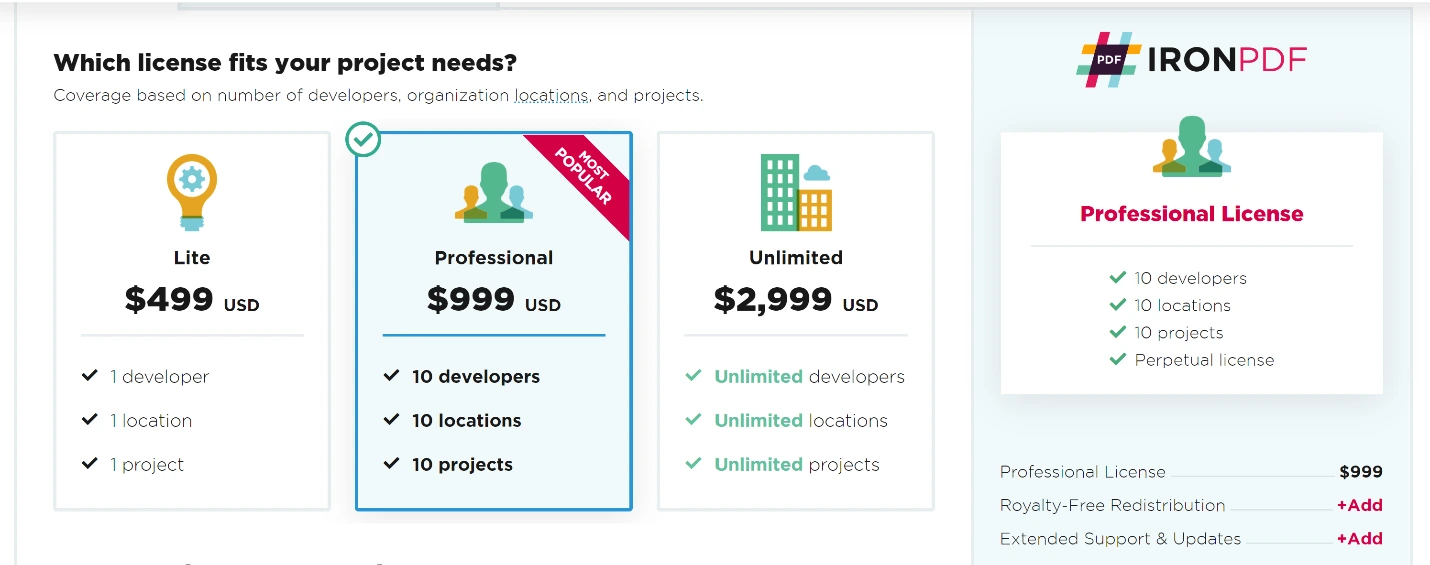
IronPDF는 개별 개발자, 팀, Enterprise 배포에 맞는 여러 라이선스 계층을 제공합니다. IronPDF 라이선스 페이지에서 현재 가격을 확인하세요.
GrapeCity PDF의 라이선스 모델 및 가격은 무엇인가요?
Documents for PDF 라이선스에는 무엇이 포함되나요?
- 1 개발자 라이선스 포함
- 1 배포 위치
지원 및 유지보수 없이 1개의 개발자 라이선스와 1개의 배포 위치가 포함됩니다.
현재 가격은 MESCIUS(구 GrapeCity) 웹사이트를 직접 방문하여 확인하세요, 가격은 구독 기반이며 변경될 수 있습니다.
Documents for PDF Unlimited란 무엇입니까?
- 1 개발자 라이선스 포함
- 무제한 배포 위치
무제한 배포 위치와 함께 하나의 개발자 라이선스가 포함됩니다. 지원 및 유지보수 없음. GrapeCity은 SaaS와 OEM을 지원하지 않습니다.
현재 가격은 MESCIUS(구 GrapeCity) 웹사이트를 직접 방문하여 확인하세요, 가격은 구독 기반이며 변경될 수 있습니다.
Documents for PDF Team Unlimited는 무엇을 제공하나요?
- 포함 5 개발자 라이선스
- 무제한 배포 위치
무제한 배포 위치가 가능한 5개 개발자 라이선스를 포함합니다. 지원 및 유지보수 없음. GrapeCity은 SaaS와 OEM을 지원하지 않습니다.
현재 가격은 MESCIUS(구 GrapeCity) 웹사이트를 직접 방문하여 확인하세요, 가격은 구독 기반이며 변경될 수 있습니다.
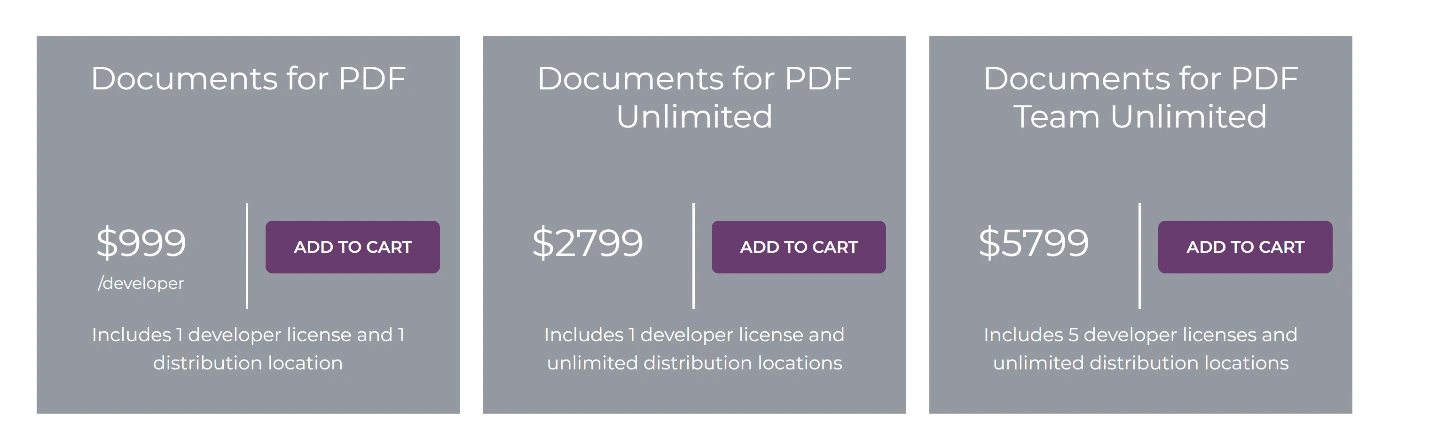
`GrapeCity`의 PDF 문서 가격 구조는 다양한 개발 팀 규모와 배포 요구를 충족하기 위해 세 가지 계층을 제공합니다.
IronPDF Lite One-Developer 패키지는 $999에 대해 1년 지원을 포함합니다. MESCIUS(구 GrapeCity) 문서의 PDF 가격은 구독 기반이며 — 현재 요금은 공식 MESCIUS 웹사이트를 참조하세요. IronPDF Professional Package는 10명의 개발자와 $1,499에 대한 1년 지원을 포함합니다. IronPDF 라이선스 옵션에 관한 더 많은 정보를 원하시면, 공식 라이선스 페이지를 방문하세요.
IronPDF Lite 및 Professional 패키지에는 SaaS 서비스, OEM 및 5년 지원 옵션이 포함됩니다. MESCIUS(구 GrapeCity)의 라이선스 약관 및 SaaS/OEM 커버리지는 다양합니다 — 세부 사항은 공식 MESCIUS 웹사이트를 참조하세요. 라이선스 확장 및 업그레이드 옵션에 대해 알아보세요.
내 .NET 프로젝트에 맞는 PDF 라이브러리는 무엇일까요?
GrapeCity Documents for PDF는 내보내기/가져오기, AcroForms 생성, 및 데스크탑 애플리케이션에서 PDF 실행을 허용합니다. 그러나 양식 생성, 디지털 서명, 및 주석 지원을 포함한 완전한 PDF 조작을 위해 IronPDF는 고급 기능을 제공합니다.
IronPDF는 더 높은 정확성을 제공합니다. 경쟁사들은 이미지 변환 실패나 알 수 없는 문자와 같은 문제를 겪을 수 있습니다. IronPDF는 정확한 결과를 제공합니다. Chrome 렌더링 엔진은 픽셀 완벽 HTML to PDF 가이드를 사용하여 검증된 픽셀 완벽 렌더링을 보장합니다. 최적화를 위해 IronPDF 성능 지원 가이드를 참조하세요.
IronPDF는 경쟁력 있는 라이선스와 지원을 제공하며, 지속적인 비용이 없습니다. IronPDF는 전체 기능 패키지를 포함하여 $999부터 시작합니다. MESCIUS(구 GrapeCity) PDF는 구독 기반 가격을 사용합니다 — 현재 요금은 공식 MESCIUS 웹사이트를 참조하세요. IronPDF는 하나의 가격으로 여러 플랫폼을 지원합니다. Enterprise 배포를 위해 IronPDF는 높은 성능 생성을 위한 비동기 및 멀티스레딩 기능을 제공합니다.
모든 기능을 탐색하기 위해 무료 체험판에 액세스할 수 있습니다. 전체 Iron Suite를 구매하면 두 개의 가격으로 다섯 개의 제품을 제공받습니다. IronPDF 라이선스에 대한 세부 정보는 Iron Software의 Iron Suite 제품 페이지를 방문하여 전체 패키지 정보를 확인하세요.
GrapeCity Documents for PDF는 해당 소유주의 등록 상표입니다. 이 사이트는 GrapeCity Documents for PDF와 관련이 없으며, 보증되거나 후원되지 않습니다. 모든 제품명, 로고 및 브랜드는 해당 소유자의 자산입니다. 비교는 정보 제공 목적으로만 사용되며, 작성 시점에 공개적으로 이용 가능한 정보를 반영합니다.자주 묻는 질문
.NET에서 HTML을 PDF로 어떻게 변환할 수 있나요?
IronPDF의 RenderHtmlAsPdf 메서드를 사용하여 HTML 문자열을 PDF로 변환할 수 있습니다. 또한 RenderHtmlFileAsPdf 메서드를 사용하여 HTML 파일을 PDF로 변환할 수도 있습니다.
NuGet을 사용하여 PDF 라이브러리를 설치하는 단계는 무엇인가요?
NuGet을 사용하여 IronPDF를 설치하려면, Visual Studio를 열고 'NuGet 패키지 관리'로 이동하여 'IronPdf'를 검색한 후 '설치' 를 클릭하여 프로젝트에 추가합니다.
.NET용 GrapeCity PDF Viewer의 몇 가지 대안은 무엇인가요?
IronPDF는 GrapeCity PDF Viewer의 적합한 대안으로 .NET Core, .NET 5, Framework 및 Standard에 대한 광범위한 지원과 사용자 친화적인 경험을 제공합니다.
.NET 라이브러리를 사용하여 PDF 파일을 어떻게 생성하고 읽을 수 있나요?
IronPDF를 사용하여 PDF를 생성하려면 IronPdf 네임스페이스를 포함하고 HtmlToPdf 클래스를 사용하여 HTML을 PDF로 렌더링합니다. PDF를 읽으려면 PdfDocument 클래스를 사용하여 콘텐츠에 접근하고 조작할 수 있습니다.
PDF 라이브러리에 사용할 수 있는 라이센스 옵션은 무엇인가요?
IronPDF는 개인 개발자를 위한 Lite Package, 최대 10명의 개발자를 위한 Professional License, 팀을 위한 Unlimited License를 포함한 다양한 라이센스 옵션을 제공하며, 모든 라이센스는 영구적인 라이센스 및 지원 옵션을 제공합니다.
다른 PDF 솔루션보다 IronPDF를 선택해야 하는 이유는 무엇인가요?
IronPDF는 정확성과 포괄적인 기능, 경쟁력 있는 라이센스, 광범위한 지원 옵션 때문에 추천됩니다. 다양한 플랫폼을 경쟁력 있는 가격으로 지원합니다.
PDF 라이브러리를 구매하기 전에 사용할 수 있나요?
네, IronPDF는 모든 기능을 탐색할 수 있는 무료 체험판을 제공하여 구매 결정을 내리기 전에 모든 기능을 탐색할 수 있습니다. 또한 Iron Suite 패키지는 모든 Iron Software 제품을 할인가로 접근할 수 있게 합니다.
PDF 파일을 사용하는 몇 가지 단점은 무엇인가요?
PDF는 크기 때문에 이메일을 통해 공유하기 어려울 수 있으며, Word 문서에 비해 모바일 장치에서는 명확히 표시되지 않을 수 있으며, 편집하거나 업데이트하기 위해 특정 소프트웨어가 필요할 수 있습니다.









 무료로 시작하세요
 무료로 시작하세요
 무료 라이브 데모 예약하기





 신용카드나 계정 생성은 필요하지 않습니다.










