


IronPDF vs GrapeCity PDF:.NET PDF 程式庫比較

IronPDF專注於使用Chrome V8渲染引擎來進行.NET應用程式的HTML到PDF生成,而GrapeCity PDF側重於PDF查看和註釋功能,使IronPDF成為需要完整PDF建立功能和現代網頁內容支持的開發者的上佳選擇。
PDF代表可攜式文件格式。 這是一種文件型別,允許在許多不同裝置上以常規方式查看文件。 PDF通常用於分享重要文件,如向潛在雇主發送的履歷或與客戶分享的發票。
儘管其受歡迎程度,PDF有一些限制。 例如,您不能通過電子郵件分享PDF,除非接收者擁有PDF閱讀器。 PDF可能不像Word文件那樣清晰地在移動裝置上顯示。 此外,PDF需要編輯軟體來修改或更新內容,這與Word文件不同。 然而,PDF文件能在所有裝置上保持一致的外觀—無論是PC還是Mac。 這種可靠性使PDF成為在JPEG或GIF等其他文件格式中找不到的標準格式。
在本文中,我們將審查兩個.NET PDF程式庫:
* IronPDF
GrapeCityPDF
什麼是IronPDF以及它與GrapeCity相比如何?
IronPDF是一個.NET程式庫,提供建立、閱讀和操作PDF文件的功能,所需程式碼較少。 本文演示如何使用IronPDF建立PDF文件。 您需要對Visual Studio或C#有基本了解,並熟悉HTML。
您需要Visual Studio來編寫、編譯和運行應用程式,C#來進行邏輯和編碼,HTML來格式化PDF文件,包括標題、標題、圖片和段落。IronPDF完全支持.NET Core、.NET 5、Framework和Standard。 對於ASP.NET應用程式,IronPDF提供了將網頁轉換為PDF的無縫整合。
如果有基本的C#和HTML知識,您可以使用非常少的程式碼在C#中建立PDF文件。 了解更多,請存取官方IronPDF功能頁面。 對於程式化PDF建立,IronPDF提供了超出基本HTML轉換的廣泛功能。
如何在我的 .NET 專案中安裝 IronPDF?
開發解決方案需要安裝IronPDF NuGet套件。 從選單欄單擊"專案"。 從下拉選單中選擇"管理NuGet套件"。 有關詳細說明,請參見安裝概述。 此窗口將顯示:
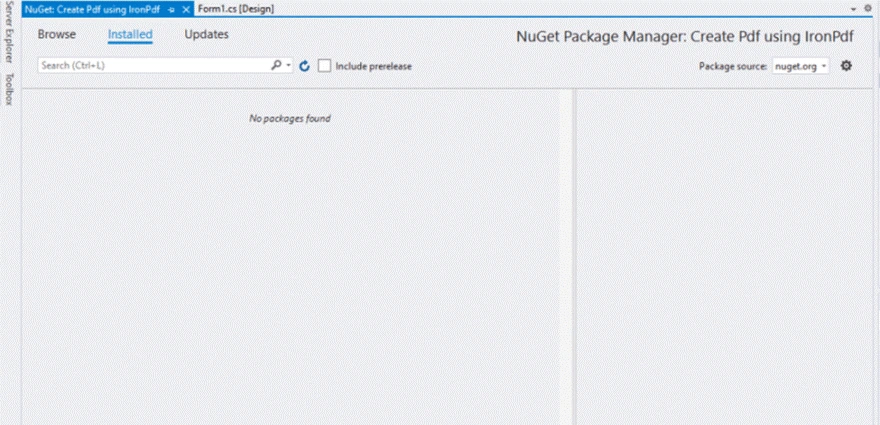
在NuGet套件管理器介面中搜尋IronPDF時顯示空的搜尋結果,表明該套件可能不可用或有連接問題
選擇"瀏覽"以查看此窗口:
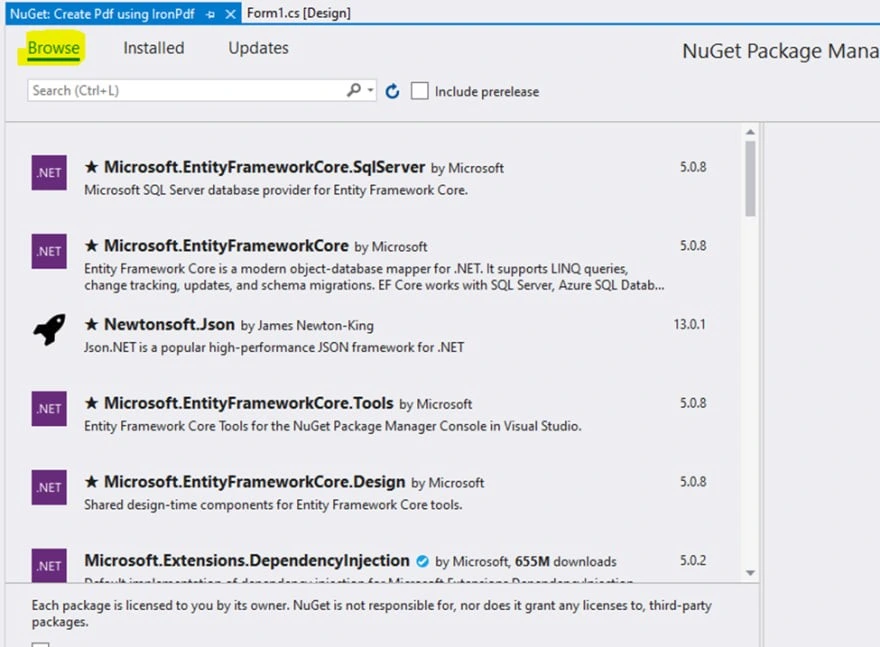
NuGet套件管理器提供了存取重要.NET程式庫的便捷方式,其中Entity Framework Core和Newtonsoft.Json是資料庫操作和JSON處理最流行的套件之一。
在搜尋框中輸入'IronPDF'並按"Enter"。有關進階安裝選項,包括特定平台的配置,請查看文件。 您應該會看到:
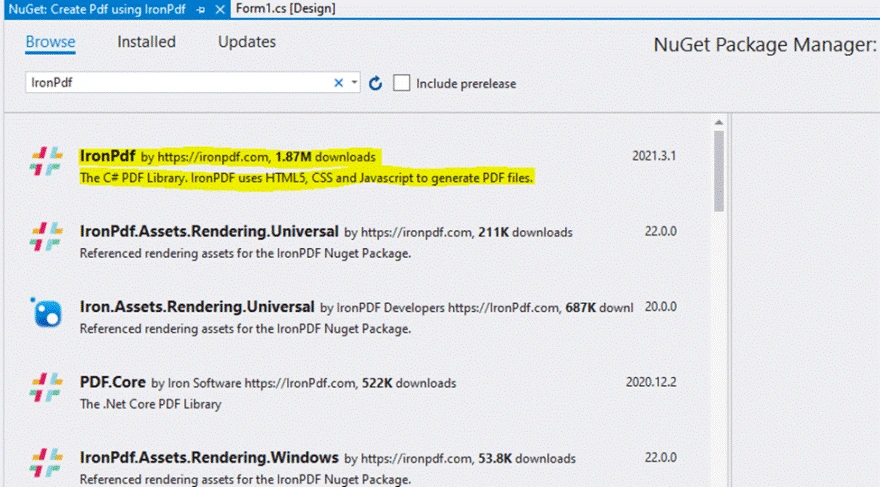
NuGet套件管理器介面顯示多個可供安裝的IronPDF套件,並可見每個套件的下載次數和版本號。
選擇IronPDF:
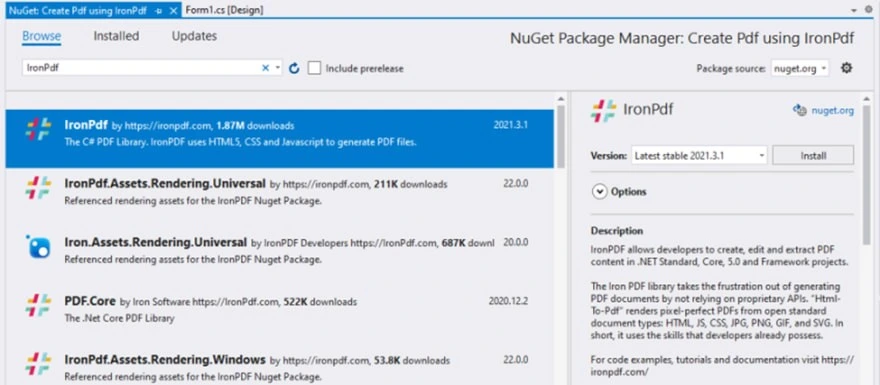
NuGet套件管理器介面顯示IronPDF(版本2021.3.1)為選定的安裝套件,並列出其他PDF程式庫以供比較,包括PDFCore和各種IronPDF渲染資產。
單擊"安裝"。 成功安裝後,您將看到:
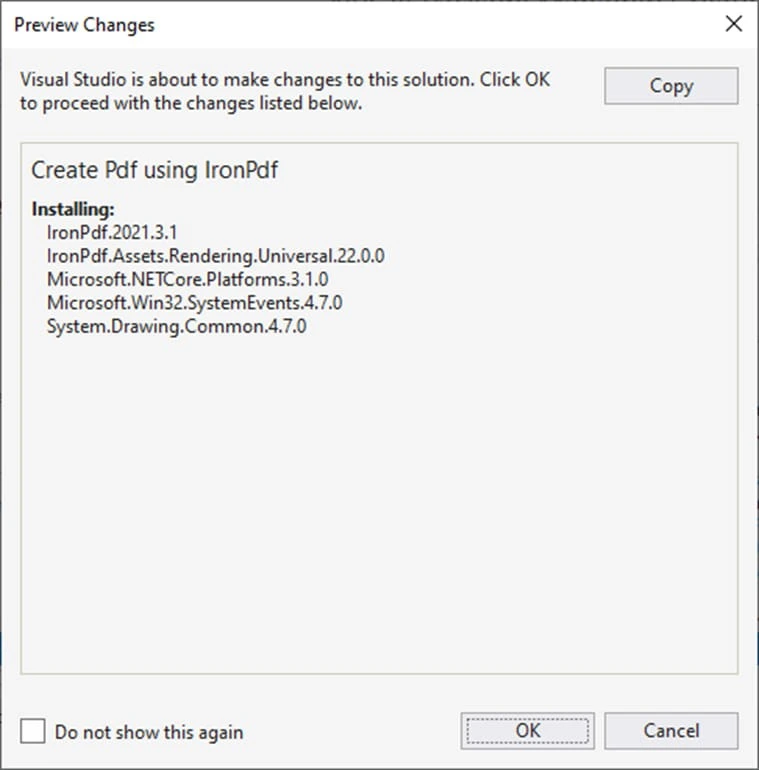
在Visual Studio中安裝IronPDF的過程,顯示NuGet套件管理器正在安裝IronPDF版本2021.3.1及其依賴項
按"確定"完成安裝。 IronPDF支持Windows平台,包括Windows 10、11和伺服器版本。 該程式庫還支持Linux和macOS進行跨平台開發。
如何使用IronPDF建立PDF?
在文件頂部新增IronPDF命名空間。對於VB.NET開發者,類似的功能可用:
using IronPdf;using IronPdf;Imports IronPdf您需要一個文件路徑來儲存構建的PDF。 使用SaveFileDialog提示使用者輸入文件名稱和路徑。 對於進階場景,導出PDF到記憶體流而不保存在磁盤上:
private void Save_Click(object sender, EventArgs e)
{
    // Code to Select the folder and save the file.
    SaveFileDialog saveFileDialog1 = new SaveFileDialog();
    saveFileDialog1.InitialDirectory = @"D:\";
    saveFileDialog1.Title = "Save Pdf File";
    saveFileDialog1.DefaultExt = "pdf";
    saveFileDialog1.Filter = "Pdf files (*.pdf)|*.pdf|All files (*.*)|*.*";
    saveFileDialog1.FilterIndex = 2;
    saveFileDialog1.RestoreDirectory = true;
    if (saveFileDialog1.ShowDialog() == DialogResult.OK)
    {
        string filename = saveFileDialog1.FileName;
        // actual code that will create Pdf files
        var HtmlLine = new HtmlToPdf();
        HtmlLine.RenderHtmlAsPdf(PdfText.Text).SaveAs(filename);
        // MessageBox to display that file save
        MessageBox.Show("File Saved Successfully!");
    }
}
private void Save_Click(object sender, EventArgs e)
{
// Code to Select the folder and save the file.
SaveFileDialog saveFileDialog1 = new SaveFileDialog();
saveFileDialog1.InitialDirectory = @"D:\";
saveFileDialog1.Title = "Save Pdf File";
saveFileDialog1.DefaultExt = "pdf";
saveFileDialog1.Filter = "Pdf files (*.pdf)|*.pdf|All files (*.*)|*.*";
saveFileDialog1.FilterIndex = 2;
saveFileDialog1.RestoreDirectory = true;
if (saveFileDialog1.ShowDialog() == DialogResult.OK)
{
string filename = saveFileDialog1.FileName;
// actual code that will create Pdf files
var HtmlLine = new HtmlToPdf();
HtmlLine.RenderHtmlAsPdf(PdfText.Text).SaveAs(filename);
// MessageBox to display that file save
MessageBox.Show("File Saved Successfully!");
}
}Private Sub Save_Click(ByVal sender As Object, ByVal e As EventArgs)
' Code to Select the folder and save the file.
Dim saveFileDialog1 As New SaveFileDialog()
saveFileDialog1.InitialDirectory = "D:\"
saveFileDialog1.Title = "Save Pdf File"
saveFileDialog1.DefaultExt = "pdf"
saveFileDialog1.Filter = "Pdf files (*.pdf)|*.pdf|All files (*.*)|*.*"
saveFileDialog1.FilterIndex = 2
saveFileDialog1.RestoreDirectory = True
If saveFileDialog1.ShowDialog() = DialogResult.OK Then
Dim filename As String = saveFileDialog1.FileName
' actual code that will create Pdf files
Dim HtmlLine = New HtmlToPdf()
HtmlLine.RenderHtmlAsPdf(PdfText.Text).SaveAs(filename)
' MessageBox to display that file save
MessageBox.Show("File Saved Successfully!")
End If
End SubSaveFileDialog打開一個選擇文件夾和文件名的對話框。 初始目錄預設為D盤,但您可以更改它。 DefaultExtension設定為PDF。 有關完整轉換選項,請參閱HTML到PDF教程。
"如果"條件包含建立PDF的程式碼。 您只需兩行程式碼就可以生成PDF。 PdfText是包含PDF內容的Rich Text框名稱。 文件名是SaveFileDialog選定的文件路徑。 對於Web應用程式,IronPDF支持URL到PDF轉換和ASPX到PDF轉換。
如何使用IronPDF閱讀PDF?
使用IronPDF閱讀PDF文件只需要兩行程式碼。 對於進階提取,請參閱提取文字和圖像指南。
新增這些導入:
using IronPdf;
using System;
using System.Windows.Forms;
using IronPdf;
using System;
using System.Windows.Forms;Imports IronPdf
Imports System
Imports System.Windows.Forms將此程式碼寫入您的函式中。 IronPDF提供PDF解析功能和PDF DOM存取:
private void Read_Click(object sender, EventArgs e)
{
    PdfDocument PDF = PdfDocument.FromFile(FilePath.Text);
    FileContent.Text = PDF.ExtractAllText();
}
private void Read_Click(object sender, EventArgs e)
{
PdfDocument PDF = PdfDocument.FromFile(FilePath.Text);
FileContent.Text = PDF.ExtractAllText();
}Private Sub Read_Click(ByVal sender As Object, ByVal e As EventArgs)
Dim PDF As PdfDocument = PdfDocument.FromFile(FilePath.Text)
FileContent.Text = PDF.ExtractAllText()
End Sub這將提取文件中所有資訊給查看者。 報告組件將使用這些資料作為來源。 IronPDF支持從記憶體流中閱讀PDF和將PDF轉換為HTML以供網頁顯示。
GrapeCity PDF提供了哪些功能?
GrapeCity文件提供常見格式的跨平台文件管理。 .NET Standard 2.0程式庫可讀取、生成、修改和保存PDF而不需要Adobe Acrobat。 它提供字體支持、圖像、圖形、條形碼、註釋、綱要、圖章和水印。
有哪些PDF操作功能可用?
GrapeCityPDF為.NET Standard應用程式建立基本或複雜的業務需求提供PDF。您可以從任何來源載入、更改和保存PDF。 IronPDF提供完整的PDF編輯,包括合併/拆分PDF、新增/刪除頁面和旋轉頁面。
我可以將PDF轉換為圖像嗎?
GrapeCityPDF使用最少的程式碼無損地將PDF保存為圖像。 IronPDF提供將PDF光柵化為圖像的功能,支持PNG、JPEG和TIFF格式。
GrapeCity是否包含PDF查看器組件?
GrapeCity文件PDF查看器是一個輕量級的客戶端查看器,支持標準PDF功能。 對於.NET MAUI開發者,IronPDF提供在MAUI應用程式中查看PDF的導航和搜尋功能。
支持哪些型別的功能?
GrapeCityPDF可建立帶有文字、圖形、相片、註釋和綱要的複雜PDF。 IronPDF擴展了這些功能,提供數位簽名、表單建立/填寫、加水印和元資料管理。
如何安裝GrapeCity PDF?
有兩種安裝方法。對於容器部署,IronPDF提供Docker支持和遠端容器操作以進行靈活生成:
- 下載壓縮的源文件。
- 將文件解壓到一個目錄中。
- 前往該目錄。
- 執行
SupportApi服務及打開http://localhost:3003。 - 有關詳情,請參見
readme.MD。
如何安裝WinForms版本?
按照以下步驟安裝WinForms版:
- 從
ComponentOne下載C1ControlPanel。 - 用
ControlPanel(關閉Visual Studio)。 - 使用註冊的電子郵件/密碼登錄。
- 對於新使用者:
- 註冊並建立賬號。
- 驗證電子郵件地址。
- 通過驗證連結啟用。
- 如有需要,可以匿名使用者身份繼續。
- 在
WinForms版本瓷磚上選擇安裝。通過All Editions核取方塊安裝所有版本。
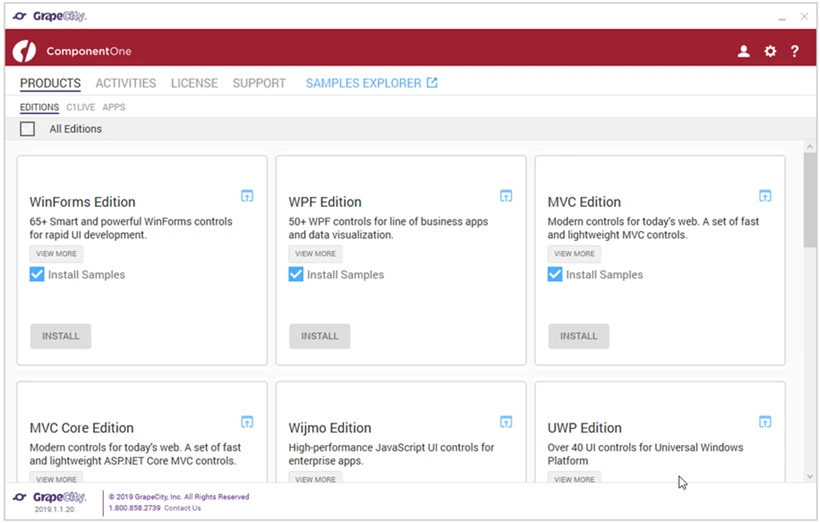
`GrapeCity`的`ComponentOne`提供多個版本選項,適用於不同的開發平台和框架,每個版本都包含安裝範例專案的選項
- 單擊安裝以查看授權協議。 審閱後接受。
- 接受授權協議即可查看設置頁面。 確認目錄路徑並開始安裝。
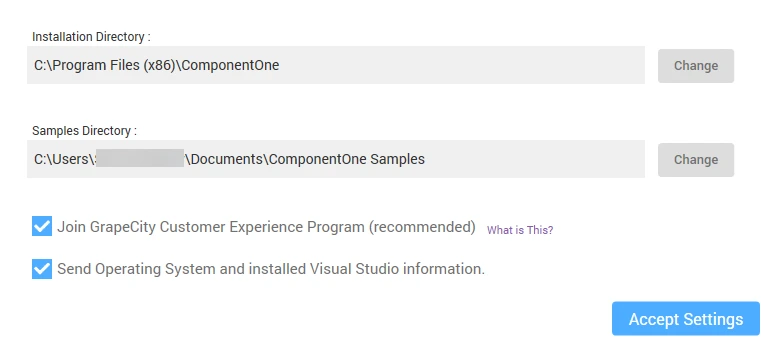
`ComponentOne`安裝配置介面帶有隱私和資料收集選項
- 在控件安裝過程中安裝程式顯示進度。 在此過程中無法取消。
- 當完成時,顯示"安裝成功"螢幕。 顯示當前安裝的版本。
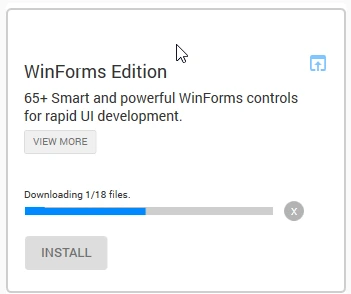
`WinForms`版安裝程式介面顯示了一個簡單的下載進度條和一個65多個智能和有效的UI控制項套件的安裝選項,專為快速Windows Forms開發而設計。
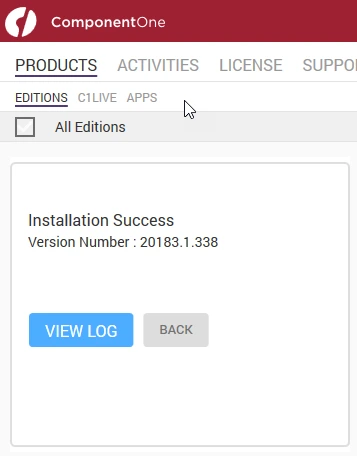
`ComponentOne`安裝介面顯示20183.1.338版本的成功安裝消息,具有產品、活動、許可和支援導航標籤
如何用GrapeCity建立PDF?
以下程式碼演示了基本的GrapeCity PDF建立。 對於進階功能如HTML-to-PDF with JavaScript,響應式CSS或自定義標頭/頁尾,IronPDF提供了完整的解決方案:
using System;
using System.IO;
using System.Drawing;
using System.Text;
using GrapeCity.Documents.Text;
using GrapeCity.Documents.Common;
using GrapeCity.Documents.Drawing;
using GrapeCity.Documents.Pdf;
using GrapeCity.Documents.Pdf.Structure;
using GrapeCity.Documents.Pdf.MarkedContent;
using GrapeCity.Documents.Pdf.Graphics;
using GrapeCity.Documents.Pdf.Annotations;
using GCTEXT = GrapeCity.Documents.Text;
using GCDRAW = GrapeCity.Documents.Drawing;
namespace GcPdfWeb.Samples.Basics
{
    // This sample shows how to create a PDF/A-3u compliant document.
    public class PdfA
    {
        public void CreatePDF(Stream stream)
        {
            var doc = new GcPdfDocument();
            var date = new DateTime(1961, 4, 12, 6, 7, 0, DateTimeKind.Utc);

            // Mark the document as PDF/A-3u conformant:
            doc.ConformanceLevel = PdfAConformanceLevel.PdfA3u;

            var fnt = GCTEXT.Font.FromFile(Path.Combine("Resources", "Fonts", "arial.ttf"));
            var gap = 36;

            // PDF/A-3a requires all content to be tagged so create and populate StructElement when rendering:
            StructElement sePart = new StructElement("Part");
            doc.StructTreeRoot.Children.Add(sePart);

            TextLayout tl = null;
            // Add 3 pages with sample content tagged according to PDF/A rules:
            for (int pageNo = 1; pageNo <= 3; ++pageNo)
            {
                // add page
                var page = doc.Pages.Add();
                var g = page.Graphics;
                float y = 72;
                if (doc.Pages.Count == 1)
                {
                    // Create paragraph element:
                    var seParagraph = new StructElement("P") { DefaultPage = page };
                    // Add it to Part element:
                    sePart.Children.Add(seParagraph);

                    tl = g.CreateTextLayout();
                    tl.MarginAll = 72;
                    tl.MaxWidth = page.Size.Width;

                    tl.DefaultFormat.Font = fnt;
                    tl.DefaultFormat.FontBold = true;
                    tl.DefaultFormat.FontSize = 20;
                    tl.Append("PDF/A-3A Document");

                    // PerformLayout is done automatically in a new TextLayout or after a Clear():
                    //tl.PerformLayout(true);

                    // Draw TextLayout within tagged content:
                    g.BeginMarkedContent(new TagMcid("P", 0));
                    g.DrawTextLayout(tl, PointF.Empty);
                    g.EndMarkedContent();

                    y = tl.ContentRectangle.Bottom + gap;

                    seParagraph.ContentItems.Add(new McidContentItemLink(0));
                }

                // Add some sample paragraphs tagged according to PDF/A rules:
                for (int i = 1; i <= 3; ++i)
                {
                    // Create paragraph element:
                    var seParagraph = new StructElement("P") { DefaultPage = page };
                    // Add it to Part element:
                    sePart.Children.Add(seParagraph);

                    var sb = new StringBuilder();
                    sb.Append(string.Format("Paragraph {0} on page {1}: ", i, pageNo));
                    sb.Append(Common.Util.LoremIpsum(1, 2, 4, 5, 10));
                    var para = sb.ToString();

                    tl.Clear();
                    tl.DefaultFormat.FontSize = 14;
                    tl.DefaultFormat.FontBold = false;
                    tl.MarginTop = y;
                    tl.Append(para);

                    // Draw TextLayout within tagged content:
                    g.BeginMarkedContent(new TagMcid("P", i));
                    g.DrawTextLayout(tl, PointF.Empty);
                    g.EndMarkedContent();

                    y += tl.ContentHeight + gap;

                    // Add content item to paragraph StructElement:
                    seParagraph.ContentItems.Add(new McidContentItemLink(i));

                    // PDF/A-3 allows embedding files into document, but they should be associated with some document element
                    // add embedded file associated with seParagraph:
                    var ef1 = EmbeddedFileStream.FromBytes(doc, Encoding.UTF8.GetBytes(para));
                    // ModificationDate and MimeType should be specified in case of PDF/A:
                    ef1.ModificationDate = date;
                    ef1.MimeType = "text/plain";
                    var fn = string.Format("Page{0}_Paragraph{1}.txt", pageNo, i);
                    var fs1 = FileSpecification.FromEmbeddedStream(fn, ef1);
                    // UnicodeFile.FileName should be specified for PDF/A compliance:
                    fs1.UnicodeFile.FileName = fs1.File.FileName;
                    // Relationship should be specified in case of PDF/A:
                    fs1.Relationship = AFRelationship.Unspecified;
                    doc.EmbeddedFiles.Add(fn, fs1);
                    seParagraph.AssociatedFiles.Add(fs1);
                }
            }

            // PDF/A-3 allows transparency drawing in PDF file, add some:
            var gpage = doc.Pages [0].Graphics;
            gpage.FillRectangle(new RectangleF(20, 20, 200, 200), Color.FromArgb(40, Color.Red));

            // PDF/A-3 allows using FormXObjects, add one with transparency:
            var r = new RectangleF(0, 0, 144, 72);
            var fxo = new FormXObject(doc, r);
            var gfxo = fxo.Graphics;
            gfxo.FillRectangle(r, Color.FromArgb(40, Color.Violet));
            TextFormat tf = new TextFormat()
            {
                Font = fnt,
                FontSize = 16,
                ForeColor = Color.FromArgb(100, Color.Black),
            };
            gfxo.DrawString("FormXObject", tf, r, TextAlignment.Center, ParagraphAlignment.Center);
            gfxo.DrawRectangle(r, Color.Blue, 3);
            gpage.DrawForm(fxo, new RectangleF(300, 250, r.Width, r.Height), null, ImageAlign.ScaleImage);

            // PDF/A-3 allows using embedded files, but each embedded file must be associated with a document's element:
            EmbeddedFileStream ef = EmbeddedFileStream.FromFile(doc, Path.Combine("Resources", "WordDocs", "ProcurementLetter.docx"));
            // ModificationDate and MimeType should be specified for EmbeddedFile in PDF/A:
            ef.ModificationDate = date;
            ef.MimeType = "application/msword";
            var fs = FileSpecification.FromEmbeddedFile(ef);
            fs.UnicodeFile.FileName = fs.File.FileName;
            fs.Relationship = AFRelationship.Unspecified;
            doc.EmbeddedFiles.Add("ProcurementLetter.docx", fs);
            // Associate embedded file with the document:
            doc.AssociatedFiles.Add(fs);

            // Add an attachment associated with an annotation:
            var sa = new StampAnnotation()
            {
                UserName = "Minerva",
                Font = fnt,
                Rect = new RectangleF(300, 36, 220, 72),
            };
            sa.Flags |= AnnotationFlags.Print;
            // Use a FormXObject to represent the stamp annotation:
            var stampFxo = new FormXObject(doc, new RectangleF(PointF.Empty, sa.Rect.Size));
            var gstampFxo = stampFxo.Graphics;
            gstampFxo.FillRectangle(stampFxo.Bounds, Color.FromArgb(40, Color.Green));
            gstampFxo.DrawString("Stamp Annotation\nassociated with minerva.jpg", tf, stampFxo.Bounds, TextAlignment.Center, ParagraphAlignment.Center);
            gstampFxo.DrawRectangle(stampFxo.Bounds, Color.Green, 3);
            //
            sa.AppearanceStreams.Normal.Default = stampFxo;
            doc.Pages [0].Annotations.Add(sa);
            ef = EmbeddedFileStream.FromFile(doc, Path.Combine("Resources", "Images", "minerva.jpg"));
            ef.ModificationDate = date;
            ef.MimeType = "image/jpeg";
            fs = FileSpecification.FromEmbeddedFile(ef);
            fs.UnicodeFile.FileName = fs.File.FileName;
            fs.Relationship = AFRelationship.Unspecified;
            doc.EmbeddedFiles.Add("minerva.jpg", fs);
            sa.AssociatedFiles.Add(fs);

            // Mark the document as conforming to Tagged PDF conventions (required for PDF/A):
            doc.MarkInfo.Marked = true;

            // Metadata.CreatorTool and DocumentInfo.Creator should be the same for a PDF/A document:
            doc.Metadata.CreatorTool = doc.DocumentInfo.Creator;
            // A title should be specified for PDF/A document:
            doc.Metadata.Title = "GcPdf Document";
            doc.ViewerPreferences.DisplayDocTitle = true;

            // Done:
            doc.Save(stream);
        }
    }
}
using System;
using System.IO;
using System.Drawing;
using System.Text;
using GrapeCity.Documents.Text;
using GrapeCity.Documents.Common;
using GrapeCity.Documents.Drawing;
using GrapeCity.Documents.Pdf;
using GrapeCity.Documents.Pdf.Structure;
using GrapeCity.Documents.Pdf.MarkedContent;
using GrapeCity.Documents.Pdf.Graphics;
using GrapeCity.Documents.Pdf.Annotations;
using GCTEXT = GrapeCity.Documents.Text;
using GCDRAW = GrapeCity.Documents.Drawing;
namespace GcPdfWeb.Samples.Basics
{
// This sample shows how to create a PDF/A-3u compliant document.
public class PdfA
{
public void CreatePDF(Stream stream)
{
var doc = new GcPdfDocument();
var date = new DateTime(1961, 4, 12, 6, 7, 0, DateTimeKind.Utc);
// Mark the document as PDF/A-3u conformant:
doc.ConformanceLevel = PdfAConformanceLevel.PdfA3u;
var fnt = GCTEXT.Font.FromFile(Path.Combine("Resources", "Fonts", "arial.ttf"));
var gap = 36;
// PDF/A-3a requires all content to be tagged so create and populate StructElement when rendering:
StructElement sePart = new StructElement("Part");
doc.StructTreeRoot.Children.Add(sePart);
TextLayout tl = null;
// Add 3 pages with sample content tagged according to PDF/A rules:
for (int pageNo = 1; pageNo <= 3; ++pageNo)
{
// add page
var page = doc.Pages.Add();
var g = page.Graphics;
float y = 72;
if (doc.Pages.Count == 1)
{
// Create paragraph element:
var seParagraph = new StructElement("P") { DefaultPage = page };
// Add it to Part element:
sePart.Children.Add(seParagraph);
tl = g.CreateTextLayout();
tl.MarginAll = 72;
tl.MaxWidth = page.Size.Width;
tl.DefaultFormat.Font = fnt;
tl.DefaultFormat.FontBold = true;
tl.DefaultFormat.FontSize = 20;
tl.Append("PDF/A-3A Document");
// PerformLayout is done automatically in a new TextLayout or after a Clear():
//tl.PerformLayout(true);
// Draw TextLayout within tagged content:
g.BeginMarkedContent(new TagMcid("P", 0));
g.DrawTextLayout(tl, PointF.Empty);
g.EndMarkedContent();
y = tl.ContentRectangle.Bottom + gap;
seParagraph.ContentItems.Add(new McidContentItemLink(0));
}
// Add some sample paragraphs tagged according to PDF/A rules:
for (int i = 1; i <= 3; ++i)
{
// Create paragraph element:
var seParagraph = new StructElement("P") { DefaultPage = page };
// Add it to Part element:
sePart.Children.Add(seParagraph);
var sb = new StringBuilder();
sb.Append(string.Format("Paragraph {0} on page {1}: ", i, pageNo));
sb.Append(Common.Util.LoremIpsum(1, 2, 4, 5, 10));
var para = sb.ToString();
tl.Clear();
tl.DefaultFormat.FontSize = 14;
tl.DefaultFormat.FontBold = false;
tl.MarginTop = y;
tl.Append(para);
// Draw TextLayout within tagged content:
g.BeginMarkedContent(new TagMcid("P", i));
g.DrawTextLayout(tl, PointF.Empty);
g.EndMarkedContent();
y += tl.ContentHeight + gap;
// Add content item to paragraph StructElement:
seParagraph.ContentItems.Add(new McidContentItemLink(i));
// PDF/A-3 allows embedding files into document, but they should be associated with some document element
// add embedded file associated with seParagraph:
var ef1 = EmbeddedFileStream.FromBytes(doc, Encoding.UTF8.GetBytes(para));
// ModificationDate and MimeType should be specified in case of PDF/A:
ef1.ModificationDate = date;
ef1.MimeType = "text/plain";
var fn = string.Format("Page{0}_Paragraph{1}.txt", pageNo, i);
var fs1 = FileSpecification.FromEmbeddedStream(fn, ef1);
// UnicodeFile.FileName should be specified for PDF/A compliance:
fs1.UnicodeFile.FileName = fs1.File.FileName;
// Relationship should be specified in case of PDF/A:
fs1.Relationship = AFRelationship.Unspecified;
doc.EmbeddedFiles.Add(fn, fs1);
seParagraph.AssociatedFiles.Add(fs1);
}
}
// PDF/A-3 allows transparency drawing in PDF file, add some:
var gpage = doc.Pages [0].Graphics;
gpage.FillRectangle(new RectangleF(20, 20, 200, 200), Color.FromArgb(40, Color.Red));
// PDF/A-3 allows using FormXObjects, add one with transparency:
var r = new RectangleF(0, 0, 144, 72);
var fxo = new FormXObject(doc, r);
var gfxo = fxo.Graphics;
gfxo.FillRectangle(r, Color.FromArgb(40, Color.Violet));
TextFormat tf = new TextFormat()
{
Font = fnt,
FontSize = 16,
ForeColor = Color.FromArgb(100, Color.Black),
};
gfxo.DrawString("FormXObject", tf, r, TextAlignment.Center, ParagraphAlignment.Center);
gfxo.DrawRectangle(r, Color.Blue, 3);
gpage.DrawForm(fxo, new RectangleF(300, 250, r.Width, r.Height), null, ImageAlign.ScaleImage);
// PDF/A-3 allows using embedded files, but each embedded file must be associated with a document's element:
EmbeddedFileStream ef = EmbeddedFileStream.FromFile(doc, Path.Combine("Resources", "WordDocs", "ProcurementLetter.docx"));
// ModificationDate and MimeType should be specified for EmbeddedFile in PDF/A:
ef.ModificationDate = date;
ef.MimeType = "application/msword";
var fs = FileSpecification.FromEmbeddedFile(ef);
fs.UnicodeFile.FileName = fs.File.FileName;
fs.Relationship = AFRelationship.Unspecified;
doc.EmbeddedFiles.Add("ProcurementLetter.docx", fs);
// Associate embedded file with the document:
doc.AssociatedFiles.Add(fs);
// Add an attachment associated with an annotation:
var sa = new StampAnnotation()
{
UserName = "Minerva",
Font = fnt,
Rect = new RectangleF(300, 36, 220, 72),
};
sa.Flags |= AnnotationFlags.Print;
// Use a FormXObject to represent the stamp annotation:
var stampFxo = new FormXObject(doc, new RectangleF(PointF.Empty, sa.Rect.Size));
var gstampFxo = stampFxo.Graphics;
gstampFxo.FillRectangle(stampFxo.Bounds, Color.FromArgb(40, Color.Green));
gstampFxo.DrawString("Stamp Annotation\nassociated with minerva.jpg", tf, stampFxo.Bounds, TextAlignment.Center, ParagraphAlignment.Center);
gstampFxo.DrawRectangle(stampFxo.Bounds, Color.Green, 3);
//
sa.AppearanceStreams.Normal.Default = stampFxo;
doc.Pages [0].Annotations.Add(sa);
ef = EmbeddedFileStream.FromFile(doc, Path.Combine("Resources", "Images", "minerva.jpg"));
ef.ModificationDate = date;
ef.MimeType = "image/jpeg";
fs = FileSpecification.FromEmbeddedFile(ef);
fs.UnicodeFile.FileName = fs.File.FileName;
fs.Relationship = AFRelationship.Unspecified;
doc.EmbeddedFiles.Add("minerva.jpg", fs);
sa.AssociatedFiles.Add(fs);
// Mark the document as conforming to Tagged PDF conventions (required for PDF/A):
doc.MarkInfo.Marked = true;
// Metadata.CreatorTool and DocumentInfo.Creator should be the same for a PDF/A document:
doc.Metadata.CreatorTool = doc.DocumentInfo.Creator;
// A title should be specified for PDF/A document:
doc.Metadata.Title = "GcPdf Document";
doc.ViewerPreferences.DisplayDocTitle = true;
// Done:
doc.Save(stream);
}
}
}Imports Microsoft.VisualBasic
Imports System
Imports System.IO
Imports System.Drawing
Imports System.Text
Imports GrapeCity.Documents.Text
Imports GrapeCity.Documents.Common
Imports GrapeCity.Documents.Drawing
Imports GrapeCity.Documents.Pdf
Imports GrapeCity.Documents.Pdf.Structure
Imports GrapeCity.Documents.Pdf.MarkedContent
Imports GrapeCity.Documents.Pdf.Graphics
Imports GrapeCity.Documents.Pdf.Annotations
Imports GCTEXT = GrapeCity.Documents.Text
Imports GCDRAW = GrapeCity.Documents.Drawing
Namespace GcPdfWeb.Samples.Basics
' This sample shows how to create a PDF/A-3u compliant document.
Public Class PdfA
Public Sub CreatePDF(ByVal stream As Stream)
Dim doc = New GcPdfDocument()
Dim [date] = New DateTime(1961, 4, 12, 6, 7, 0, DateTimeKind.Utc)
' Mark the document as PDF/A-3u conformant:
doc.ConformanceLevel = PdfAConformanceLevel.PdfA3u
Dim fnt = GCTEXT.Font.FromFile(Path.Combine("Resources", "Fonts", "arial.ttf"))
Dim gap = 36
' PDF/A-3a requires all content to be tagged so create and populate StructElement when rendering:
Dim sePart As New StructElement("Part")
doc.StructTreeRoot.Children.Add(sePart)
Dim tl As TextLayout = Nothing
' Add 3 pages with sample content tagged according to PDF/A rules:
For pageNo As Integer = 1 To 3
' add page
Dim page = doc.Pages.Add()
Dim g = page.Graphics
Dim y As Single = 72
If doc.Pages.Count = 1 Then
' Create paragraph element:
Dim seParagraph = New StructElement("P") With {.DefaultPage = page}
' Add it to Part element:
sePart.Children.Add(seParagraph)
tl = g.CreateTextLayout()
tl.MarginAll = 72
tl.MaxWidth = page.Size.Width
tl.DefaultFormat.Font = fnt
tl.DefaultFormat.FontBold = True
tl.DefaultFormat.FontSize = 20
tl.Append("PDF/A-3A Document")
' PerformLayout is done automatically in a new TextLayout or after a Clear():
'tl.PerformLayout(true);
' Draw TextLayout within tagged content:
g.BeginMarkedContent(New TagMcid("P", 0))
g.DrawTextLayout(tl, PointF.Empty)
g.EndMarkedContent()
y = tl.ContentRectangle.Bottom + gap
seParagraph.ContentItems.Add(New McidContentItemLink(0))
End If
' Add some sample paragraphs tagged according to PDF/A rules:
For i As Integer = 1 To 3
' Create paragraph element:
Dim seParagraph = New StructElement("P") With {.DefaultPage = page}
' Add it to Part element:
sePart.Children.Add(seParagraph)
Dim sb = New StringBuilder()
sb.Append(String.Format("Paragraph {0} on page {1}: ", i, pageNo))
sb.Append(Common.Util.LoremIpsum(1, 2, 4, 5, 10))
Dim para = sb.ToString()
tl.Clear()
tl.DefaultFormat.FontSize = 14
tl.DefaultFormat.FontBold = False
tl.MarginTop = y
tl.Append(para)
' Draw TextLayout within tagged content:
g.BeginMarkedContent(New TagMcid("P", i))
g.DrawTextLayout(tl, PointF.Empty)
g.EndMarkedContent()
y += tl.ContentHeight + gap
' Add content item to paragraph StructElement:
seParagraph.ContentItems.Add(New McidContentItemLink(i))
' PDF/A-3 allows embedding files into document, but they should be associated with some document element
' add embedded file associated with seParagraph:
Dim ef1 = EmbeddedFileStream.FromBytes(doc, Encoding.UTF8.GetBytes(para))
' ModificationDate and MimeType should be specified in case of PDF/A:
ef1.ModificationDate = [date]
ef1.MimeType = "text/plain"
Dim fn = String.Format("Page{0}_Paragraph{1}.txt", pageNo, i)
Dim fs1 = FileSpecification.FromEmbeddedStream(fn, ef1)
' UnicodeFile.FileName should be specified for PDF/A compliance:
fs1.UnicodeFile.FileName = fs1.File.FileName
' Relationship should be specified in case of PDF/A:
fs1.Relationship = AFRelationship.Unspecified
doc.EmbeddedFiles.Add(fn, fs1)
seParagraph.AssociatedFiles.Add(fs1)
Next i
Next pageNo
' PDF/A-3 allows transparency drawing in PDF file, add some:
Dim gpage = doc.Pages (0).Graphics
gpage.FillRectangle(New RectangleF(20, 20, 200, 200), Color.FromArgb(40, Color.Red))
' PDF/A-3 allows using FormXObjects, add one with transparency:
Dim r = New RectangleF(0, 0, 144, 72)
Dim fxo = New FormXObject(doc, r)
Dim gfxo = fxo.Graphics
gfxo.FillRectangle(r, Color.FromArgb(40, Color.Violet))
Dim tf As New TextFormat() With {
.Font = fnt,
.FontSize = 16,
.ForeColor = Color.FromArgb(100, Color.Black)
}
gfxo.DrawString("FormXObject", tf, r, TextAlignment.Center, ParagraphAlignment.Center)
gfxo.DrawRectangle(r, Color.Blue, 3)
gpage.DrawForm(fxo, New RectangleF(300, 250, r.Width, r.Height), Nothing, ImageAlign.ScaleImage)
' PDF/A-3 allows using embedded files, but each embedded file must be associated with a document's element:
Dim ef As EmbeddedFileStream = EmbeddedFileStream.FromFile(doc, Path.Combine("Resources", "WordDocs", "ProcurementLetter.docx"))
' ModificationDate and MimeType should be specified for EmbeddedFile in PDF/A:
ef.ModificationDate = [date]
ef.MimeType = "application/msword"
Dim fs = FileSpecification.FromEmbeddedFile(ef)
fs.UnicodeFile.FileName = fs.File.FileName
fs.Relationship = AFRelationship.Unspecified
doc.EmbeddedFiles.Add("ProcurementLetter.docx", fs)
' Associate embedded file with the document:
doc.AssociatedFiles.Add(fs)
' Add an attachment associated with an annotation:
Dim sa = New StampAnnotation() With {
.UserName = "Minerva",
.Font = fnt,
.Rect = New RectangleF(300, 36, 220, 72)
}
sa.Flags = sa.Flags Or AnnotationFlags.Print
' Use a FormXObject to represent the stamp annotation:
Dim stampFxo = New FormXObject(doc, New RectangleF(PointF.Empty, sa.Rect.Size))
Dim gstampFxo = stampFxo.Graphics
gstampFxo.FillRectangle(stampFxo.Bounds, Color.FromArgb(40, Color.Green))
gstampFxo.DrawString("Stamp Annotation" & vbLf & "associated with minerva.jpg", tf, stampFxo.Bounds, TextAlignment.Center, ParagraphAlignment.Center)
gstampFxo.DrawRectangle(stampFxo.Bounds, Color.Green, 3)
'
sa.AppearanceStreams.Normal.Default = stampFxo
doc.Pages (0).Annotations.Add(sa)
ef = EmbeddedFileStream.FromFile(doc, Path.Combine("Resources", "Images", "minerva.jpg"))
ef.ModificationDate = [date]
ef.MimeType = "image/jpeg"
fs = FileSpecification.FromEmbeddedFile(ef)
fs.UnicodeFile.FileName = fs.File.FileName
fs.Relationship = AFRelationship.Unspecified
doc.EmbeddedFiles.Add("minerva.jpg", fs)
sa.AssociatedFiles.Add(fs)
' Mark the document as conforming to Tagged PDF conventions (required for PDF/A):
doc.MarkInfo.Marked = True
' Metadata.CreatorTool and DocumentInfo.Creator should be the same for a PDF/A document:
doc.Metadata.CreatorTool = doc.DocumentInfo.Creator
' A title should be specified for PDF/A document:
doc.Metadata.Title = "GcPdf Document"
doc.ViewerPreferences.DisplayDocTitle = True
' Done:
doc.Save(stream)
End Sub
End Class
End NamespaceGrapeCityPDF與IronPDF相比功能有限。 IronPDF支持PDF/A合規、PDF/UA可存取性、自定義紙張大小和進階渲染選項。
IronPDF的授權模型和定價是什麼?
30天退款保證:購買授權後,您將獲得30天退款保證。 如果授權不符合您的需求,IronPDF將在30天內保證退款。
輕鬆整合:IronPDF的整合過程非常流暢,只需一行程式碼即可完成與現有專案和您的環境的整合。 這可以通過NuGet套件方法整合或直接在線下載並整合到您的環境中實現。
永久授權:每個授權只需購買一次,不需續訂。
免費支援和產品更新:每個授權都包含產品背後團隊的直接支援以及一年的免費產品更新。 可以在任何時候購買擴展。 購買之前可以查看擴展內容。
即時授權:一旦收到付款,便會發送註冊的授權金鑰。
所有授權對於分期、開發和生產都是永久的。
IronPDF如何支持現代化網頁框架如Bootstrap?
現代PDF生成受益於可視化過程表示。 此Bootstrap 5範例展示IronPDF能夠渲染帶有卡片、標籤和步驟指示的工作流時間表。 有關完整框架支持,請參閱Bootstrap & Flexbox故障排除指南。
using IronPdf;

var renderer = new ChromePdfRenderer();

string workflowTimeline = @"
<!DOCTYPE html>
<html>
<head>
    <meta charset='utf-8'>
    <link href='___PROTECTED_URL_66___ rel='stylesheet'>
    <style>
        .timeline-item { position: relative; padding-left: 40px; margin-bottom: 30px; }
        .timeline-item::before { content: ''; position: absolute; left: 0; top: 0; width: 20px; height: 20px;
            background: #0d6efd; border-radius: 50%; border: 3px solid white; box-shadow: 0 0 0 2px #0d6efd; }
        .timeline-item::after { content: ''; position: absolute; left: 9px; top: 20px; width: 2px; height: calc(100% + 10px);
            background: #dee2e6; }
        .timeline-item:last-child::after { display: none; }
        @media print { .timeline-item { page-break-inside: avoid; } }
    </style>
</head>
<body class='bg-light'>
    <div class='container py-4'>
        <div class='text-center mb-5'>
            <h1 class='display-6 fw-bold'>PDF Generation Workflow</h1>
            <p class='lead text-muted'>From HTML to Professional PDF Documents</p>
        </div>

        <div class='timeline-item'>
            <div class='card shadow-sm'>
                <div class='card-body'>
                    <div class='d-flex justify-content-between align-items-center mb-2'>
                        <h4 class='card-title mb-0'>Step 1: Initialize Renderer</h4>
                        <span class='badge bg-primary'>Setup</span>
                    </div>
                    <p class='card-text'>Create ChromePdfRenderer instance with Chrome V8 engine for accurate HTML rendering.</p>
                    <div class='bg-light p-2 rounded'>
                        <code>var renderer = new ChromePdfRenderer();</code>
                    </div>
                    <div class='mt-2'>
                        <small class='text-muted'>✓ Chrome V8 Engine • ✓ Full CSS3 Support • ✓ JavaScript Ready</small>
                    </div>
                </div>
            </div>
        </div>

        <div class='timeline-item'>
            <div class='card shadow-sm'>
                <div class='card-body'>
                    <div class='d-flex justify-content-between align-items-center mb-2'>
                        <h4 class='card-title mb-0'>Step 2: Prepare HTML Content</h4>
                        <span class='badge bg-info'>Content</span>
                    </div>
                    <p class='card-text'>Design your document using modern HTML5, CSS3 (Flexbox/Grid), and optional JavaScript.</p>
                    <div class='row g-2'>
                        <div class='col-4'><span class='badge bg-success w-100'>HTML5</span></div>
                        <div class='col-4'><span class='badge bg-success w-100'>CSS3</span></div>
                        <div class='col-4'><span class='badge bg-success w-100'>JavaScript</span></div>
                    </div>
                </div>
            </div>
        </div>

        <div class='timeline-item'>
            <div class='card shadow-sm'>
                <div class='card-body'>
                    <div class='d-flex justify-content-between align-items-center mb-2'>
                        <h4 class='card-title mb-0'>Step 3: Render to PDF</h4>
                        <span class='badge bg-warning text-dark'>Processing</span>
                    </div>
                    <p class='card-text'>Convert HTML to PDF with pixel-perfect accuracy and fast performance.</p>
                    <div class='bg-light p-2 rounded'>
                        <code>var pdf = renderer.RenderHtmlAsPdf(htmlContent);</code>
                    </div>
                    <div class='progress mt-2' style='height: 8px;'>
                        <div class='progress-bar bg-warning' style='width: 100%'></div>
                    </div>
                </div>
            </div>
        </div>

        <div class='timeline-item'>
            <div class='card shadow-sm'>
                <div class='card-body'>
                    <div class='d-flex justify-content-between align-items-center mb-2'>
                        <h4 class='card-title mb-0'>Step 4: Save or Stream</h4>
                        <span class='badge bg-success'>Output</span>
                    </div>
                    <p class='card-text'>Export to file, stream, or byte array for flexible deployment options.</p>
                    <div class='bg-light p-2 rounded'>
                        <code>pdf.SaveAs("document.pdf");</code>
                    </div>
                    <div class='mt-2'>
                        <span class='badge bg-outline-secondary me-1'>File</span>
                        <span class='badge bg-outline-secondary me-1'>Stream</span>
                        <span class='badge bg-outline-secondary'>Byte Array</span>
                    </div>
                </div>
            </div>
        </div>

        <div class='alert alert-info'>
            <strong>Comparison Note:</strong> GrapeCity PDF Viewer focuses on document viewing and annotation, not HTML-to-PDF generation. IronPDF specializes in creating PDFs from modern web content with full Bootstrap and framework support.
        </div>

        <div class='card shadow-sm border-primary'>
            <div class='card-header bg-primary text-white'>
                <h5 class='mb-0'>Key Advantages</h5>
            </div>
            <div class='card-body'>
                <div class='row'>
                    <div class='col-md-6'>
                        <h6 class='text-primary'>IronPDF Strengths</h6>
                        <ul class='small'>
                            <li>Complete HTML-to-PDF workflow</li>
                            <li>Bootstrap 5 framework support</li>
                            <li>Async/await for scalability</li>
                            <li>Cross-platform deployment</li>
                        </ul>
                    </div>
                    <div class='col-md-6'>
                        <h6 class='text-muted'>GrapeCity Focus</h6>
                        <ul class='small'>
                            <li>PDF viewing and annotation</li>
                            <li>UI component for display</li>
                            <li>Limited generation features</li>
                            <li>Viewer-centric approach</li>
                        </ul>
                    </div>
                </div>
            </div>
        </div>
    </div>
</body>
</html>";

var pdf = renderer.RenderHtmlAsPdf(workflowTimeline);
pdf.SaveAs("workflow-timeline.pdf");
using IronPdf;
var renderer = new ChromePdfRenderer();
string workflowTimeline = @"
<!DOCTYPE html>
<html>
<head>
<meta charset='utf-8'>
<link href='___PROTECTED_URL_66___ rel='stylesheet'>
<style>
.timeline-item { position: relative; padding-left: 40px; margin-bottom: 30px; }
.timeline-item::before { content: ''; position: absolute; left: 0; top: 0; width: 20px; height: 20px;
background: #0d6efd; border-radius: 50%; border: 3px solid white; box-shadow: 0 0 0 2px #0d6efd; }
.timeline-item::after { content: ''; position: absolute; left: 9px; top: 20px; width: 2px; height: calc(100% + 10px);
background: #dee2e6; }
.timeline-item:last-child::after { display: none; }
@media print { .timeline-item { page-break-inside: avoid; } }
</style>
</head>
<body class='bg-light'>
<div class='container py-4'>
<div class='text-center mb-5'>
<h1 class='display-6 fw-bold'>PDF Generation Workflow</h1>
<p class='lead text-muted'>From HTML to Professional PDF Documents</p>
</div>
<div class='timeline-item'>
<div class='card shadow-sm'>
<div class='card-body'>
<div class='d-flex justify-content-between align-items-center mb-2'>
<h4 class='card-title mb-0'>Step 1: Initialize Renderer</h4>
<span class='badge bg-primary'>Setup</span>
</div>
<p class='card-text'>Create ChromePdfRenderer instance with Chrome V8 engine for accurate HTML rendering.</p>
<div class='bg-light p-2 rounded'>
<code>var renderer = new ChromePdfRenderer();</code>
</div>
<div class='mt-2'>
<small class='text-muted'>✓ Chrome V8 Engine • ✓ Full CSS3 Support • ✓ JavaScript Ready</small>
</div>
</div>
</div>
</div>
<div class='timeline-item'>
<div class='card shadow-sm'>
<div class='card-body'>
<div class='d-flex justify-content-between align-items-center mb-2'>
<h4 class='card-title mb-0'>Step 2: Prepare HTML Content</h4>
<span class='badge bg-info'>Content</span>
</div>
<p class='card-text'>Design your document using modern HTML5, CSS3 (Flexbox/Grid), and optional JavaScript.</p>
<div class='row g-2'>
<div class='col-4'><span class='badge bg-success w-100'>HTML5</span></div>
<div class='col-4'><span class='badge bg-success w-100'>CSS3</span></div>
<div class='col-4'><span class='badge bg-success w-100'>JavaScript</span></div>
</div>
</div>
</div>
</div>
<div class='timeline-item'>
<div class='card shadow-sm'>
<div class='card-body'>
<div class='d-flex justify-content-between align-items-center mb-2'>
<h4 class='card-title mb-0'>Step 3: Render to PDF</h4>
<span class='badge bg-warning text-dark'>Processing</span>
</div>
<p class='card-text'>Convert HTML to PDF with pixel-perfect accuracy and fast performance.</p>
<div class='bg-light p-2 rounded'>
<code>var pdf = renderer.RenderHtmlAsPdf(htmlContent);</code>
</div>
<div class='progress mt-2' style='height: 8px;'>
<div class='progress-bar bg-warning' style='width: 100%'></div>
</div>
</div>
</div>
</div>
<div class='timeline-item'>
<div class='card shadow-sm'>
<div class='card-body'>
<div class='d-flex justify-content-between align-items-center mb-2'>
<h4 class='card-title mb-0'>Step 4: Save or Stream</h4>
<span class='badge bg-success'>Output</span>
</div>
<p class='card-text'>Export to file, stream, or byte array for flexible deployment options.</p>
<div class='bg-light p-2 rounded'>
<code>pdf.SaveAs("document.pdf");</code>
</div>
<div class='mt-2'>
<span class='badge bg-outline-secondary me-1'>File</span>
<span class='badge bg-outline-secondary me-1'>Stream</span>
<span class='badge bg-outline-secondary'>Byte Array</span>
</div>
</div>
</div>
</div>
<div class='alert alert-info'>
<strong>Comparison Note:</strong> GrapeCity PDF Viewer focuses on document viewing and annotation, not HTML-to-PDF generation. IronPDF specializes in creating PDFs from modern web content with full Bootstrap and framework support.
</div>
<div class='card shadow-sm border-primary'>
<div class='card-header bg-primary text-white'>
<h5 class='mb-0'>Key Advantages</h5>
</div>
<div class='card-body'>
<div class='row'>
<div class='col-md-6'>
<h6 class='text-primary'>IronPDF Strengths</h6>
<ul class='small'>
<li>Complete HTML-to-PDF workflow</li>
<li>Bootstrap 5 framework support</li>
<li>Async/await for scalability</li>
<li>Cross-platform deployment</li>
</ul>
</div>
<div class='col-md-6'>
<h6 class='text-muted'>GrapeCity Focus</h6>
<ul class='small'>
<li>PDF viewing and annotation</li>
<li>UI component for display</li>
<li>Limited generation features</li>
<li>Viewer-centric approach</li>
</ul>
</div>
</div>
</div>
</div>
</div>
</body>
</html>";
var pdf = renderer.RenderHtmlAsPdf(workflowTimeline);
pdf.SaveAs("workflow-timeline.pdf");Imports IronPdf
Dim renderer As New ChromePdfRenderer()
Dim workflowTimeline As String = "
<!DOCTYPE html>
<html>
<head>
<meta charset='utf-8'>
<link href='___PROTECTED_URL_66___ rel='stylesheet'>
<style>
.timeline-item { position: relative; padding-left: 40px; margin-bottom: 30px; }
.timeline-item::before { content: ''; position: absolute; left: 0; top: 0; width: 20px; height: 20px;
background: #0d6efd; border-radius: 50%; border: 3px solid white; box-shadow: 0 0 0 2px #0d6efd; }
.timeline-item::after { content: ''; position: absolute; left: 9px; top: 20px; width: 2px; height: calc(100% + 10px);
background: #dee2e6; }
.timeline-item:last-child::after { display: none; }
@media print { .timeline-item { page-break-inside: avoid; } }
</style>
</head>
<body class='bg-light'>
<div class='container py-4'>
<div class='text-center mb-5'>
<h1 class='display-6 fw-bold'>PDF Generation Workflow</h1>
<p class='lead text-muted'>From HTML to Professional PDF Documents</p>
</div>
<div class='timeline-item'>
<div class='card shadow-sm'>
<div class='card-body'>
<div class='d-flex justify-content-between align-items-center mb-2'>
<h4 class='card-title mb-0'>Step 1: Initialize Renderer</h4>
<span class='badge bg-primary'>Setup</span>
</div>
<p class='card-text'>Create ChromePdfRenderer instance with Chrome V8 engine for accurate HTML rendering.</p>
<div class='bg-light p-2 rounded'>
<code>var renderer = new ChromePdfRenderer();</code>
</div>
<div class='mt-2'>
<small class='text-muted'>✓ Chrome V8 Engine • ✓ Full CSS3 Support • ✓ JavaScript Ready</small>
</div>
</div>
</div>
</div>
<div class='timeline-item'>
<div class='card shadow-sm'>
<div class='card-body'>
<div class='d-flex justify-content-between align-items-center mb-2'>
<h4 class='card-title mb-0'>Step 2: Prepare HTML Content</h4>
<span class='badge bg-info'>Content</span>
</div>
<p class='card-text'>Design your document using modern HTML5, CSS3 (Flexbox/Grid), and optional JavaScript.</p>
<div class='row g-2'>
<div class='col-4'><span class='badge bg-success w-100'>HTML5</span></div>
<div class='col-4'><span class='badge bg-success w-100'>CSS3</span></div>
<div class='col-4'><span class='badge bg-success w-100'>JavaScript</span></div>
</div>
</div>
</div>
</div>
<div class='timeline-item'>
<div class='card shadow-sm'>
<div class='card-body'>
<div class='d-flex justify-content-between align-items-center mb-2'>
<h4 class='card-title mb-0'>Step 3: Render to PDF</h4>
<span class='badge bg-warning text-dark'>Processing</span>
</div>
<p class='card-text'>Convert HTML to PDF with pixel-perfect accuracy and fast performance.</p>
<div class='bg-light p-2 rounded'>
<code>var pdf = renderer.RenderHtmlAsPdf(htmlContent);</code>
</div>
<div class='progress mt-2' style='height: 8px;'>
<div class='progress-bar bg-warning' style='width: 100%'></div>
</div>
</div>
</div>
</div>
<div class='timeline-item'>
<div class='card shadow-sm'>
<div class='card-body'>
<div class='d-flex justify-content-between align-items-center mb-2'>
<h4 class='card-title mb-0'>Step 4: Save or Stream</h4>
<span class='badge bg-success'>Output</span>
</div>
<p class='card-text'>Export to file, stream, or byte array for flexible deployment options.</p>
<div class='bg-light p-2 rounded'>
<code>pdf.SaveAs(""document.pdf"");</code>
</div>
<div class='mt-2'>
<span class='badge bg-outline-secondary me-1'>File</span>
<span class='badge bg-outline-secondary me-1'>Stream</span>
<span class='badge bg-outline-secondary'>Byte Array</span>
</div>
</div>
</div>
</div>
<div class='alert alert-info'>
<strong>Comparison Note:</strong> GrapeCity PDF Viewer focuses on document viewing and annotation, not HTML-to-PDF generation. IronPDF specializes in creating PDFs from modern web content with full Bootstrap and framework support.
</div>
<div class='card shadow-sm border-primary'>
<div class='card-header bg-primary text-white'>
<h5 class='mb-0'>Key Advantages</h5>
</div>
<div class='card-body'>
<div class='row'>
<div class='col-md-6'>
<h6 class='text-primary'>IronPDF Strengths</h6>
<ul class='small'>
<li>Complete HTML-to-PDF workflow</li>
<li>Bootstrap 5 framework support</li>
<li>Async/await for scalability</li>
<li>Cross-platform deployment</li>
</ul>
</div>
<div class='col-md-6'>
<h6 class='text-muted'>GrapeCity Focus</h6>
<ul class='small'>
<li>PDF viewing and annotation</li>
<li>UI component for display</li>
<li>Limited generation features</li>
<li>Viewer-centric approach</li>
</ul>
</div>
</div>
</div>
</div>
</div>
</body>
</html>"
Dim pdf = renderer.RenderHtmlAsPdf(workflowTimeline)
pdf.SaveAs("workflow-timeline.pdf")輸出:一份專業的工作流時間表PDF,帶有Bootstrap 5卡片、標籤、進度條和自定義時間線樣式。 IronPDF準確地渲染所有定位、flexbox佈局和實用程式類,顯示了對複雜的CSS3視覺設計的全面支持。
有關詳細的Bootstrap相容性,請參見Bootstrap & Flexbox CSS指南。 IronPDF支持Web字體和圖標以實現豐富的排版效果。
Lite套餐定價是什麼?
- 1位開發者
- 1個地點
- 1個專案
- 永久授權
此套餐允許一位開發者在一個地點內使用Iron Software進行單一應用項目。 授權不可轉讓給非本組織或代理/客戶關係以外的人員。 不包括OEM再分發和缺少其他覆蓋的SaaS使用。
定價:每年從$999起。
專業版授權包含什麼?
- 10位開發者
- 10個地點
- 10個專案
- 永久授權
此授權允許十位開發者在最多十個地點使用Iron Software。 可以在無限多個網站、內部網應用或桌面軟體中使用。 授權不可轉讓給非本組織成員。 不包括OEM再分發和缺少其他覆蓋的SaaS使用。 最多支持與10個專案的整合。
定價:每年從$1,499起。
無限授權的好處是什麼?
- 無限開發者
- 無限地點
- 無限專案
- 永久授權
為一組織內的無限開發者提供使用Iron Software的權限,並可在無限地點使用。 可應用於無限應用程式中。 授權不可轉讓給非本組織成員。 不包括OEM再分發和缺少其他覆蓋的SaaS使用。
定價:每年從$2,399起。
免版稅再分發:這允許您將Iron Software作為多個不同包裝的商業產品的一部分進行再分發(無需支付版稅),這取決於基本授權涵蓋的專案數量。 這將允許Iron Software在SaaS軟體服務中部署,這取決於基本授權所涵蓋的專案數量。
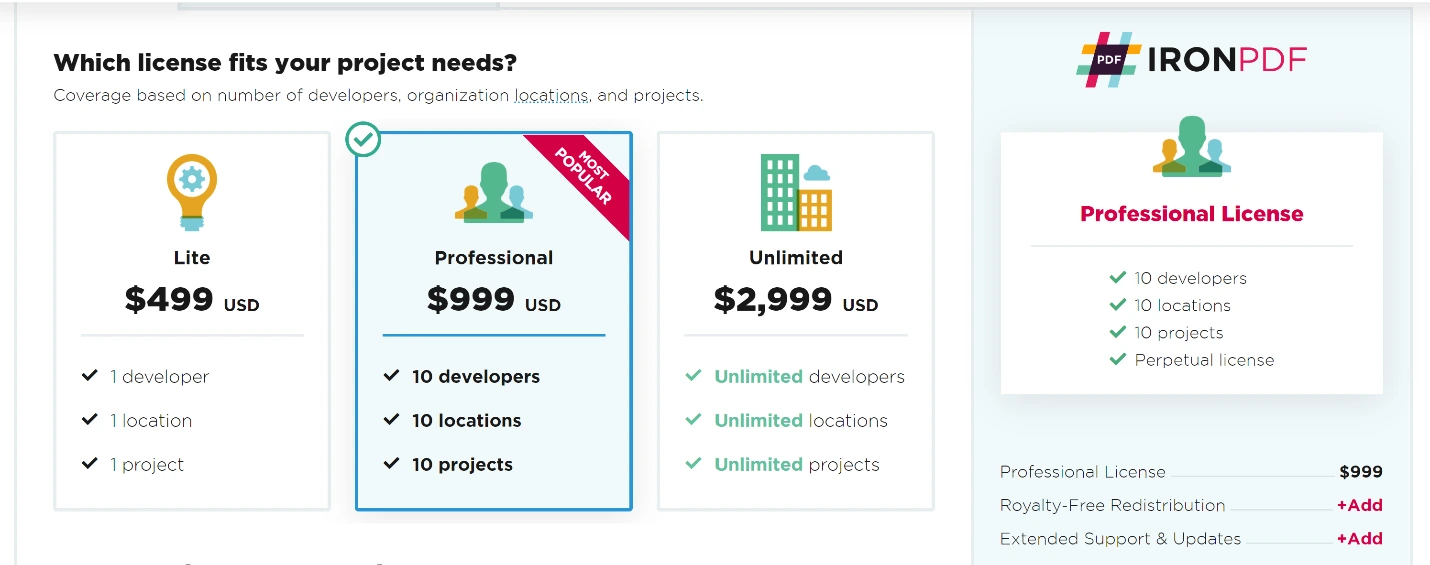
IronPDF提供多個授權級別以適應個人開發者、團隊和企業部署。請存取IronPDF授權章頁以獲取當前定價。
GrapeCity PDF的授權模型和定價是什麼?
Documents for PDF授權包含什麼?
- 包括1位開發者授權
- 1個發行地點
包括一個開發者授權和一個發行地點,不含支援和維護。
有關當前定價,請直接存取MESCIUS(前身為GrapeCity)網站,因為定價基於訂閱且可能會改變。
Documents for PDF為無限版本是什麼?
- 包括1位開發者授權
- 無限發行地點
包括一個開發者授權和無限發行地點。 不含支援和維護。 GrapeCity不支持SaaS和OEM。
有關當前定價,請直接存取MESCIUS(前身為GrapeCity)網站,因為定價基於訂閱且可能會改變。
Documents for PDF團隊無限提供什麼?
- 包括5位開發者授權
- 無限發行地點
包括五位開發者授權和無限發行地點。 不含支援和維護。 GrapeCity不支持SaaS和OEM。
有關當前定價,請直接存取MESCIUS(前身為GrapeCity)網站,因為定價基於訂閱且可能會改變。
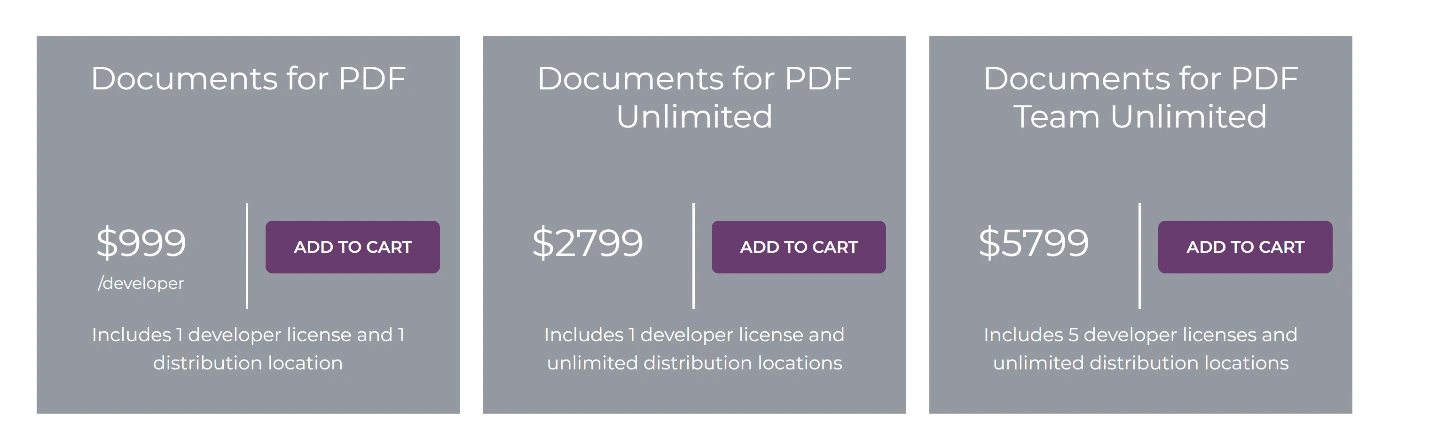
`GrapeCity` 的Documents for PDF定價結構提供三個級別以適應不同的開發團隊規模和覆蓋需求。
IronPDF Lite單開發者套裝包括$999的一年支援。 MESCIUS(前身為GrapeCity)Documents for PDF定價基於訂閱 — 請參閱MESCIUS官方網站以獲得當前價格。 IronPDF專業版包括10位開發者及$1,499的一年支援。 有關IronPDF授權選項的更多資訊,請存取官方授權頁面。
IronPDF Lite和專業版包括SaaS服務、OEM和5年支援選項。 MESCIUS(前身為GrapeCity)授權條款和SaaS/OEM覆蓋範圍有所不同—請諮詢MESCIUS官方網站以獲取詳情。 了解有關授權擴展和升級選項以獲得長期支援。
我應該為我的.NET專案選擇哪個PDF程式庫?
GrapeCity Documents for PDF允許匯出/匯入,AcroForms建立,以及桌面應用程式中的PDF執行。 然而,對於完整的PDF操作,包括表單建立、數位簽名和註釋支持,IronPDF提供了進階功能。
IronPDF提供更高的準確性。 競爭者可能會遇到如圖像轉換失敗或未知字元的問題。 IronPDF提供準確的結果。 Chrome渲染引擎確保像素完美渲染,已使用像素完美HTML到PDF指南驗證。 對於優化,請參閱IronPDF性能輔助指南。
IronPDF提供具有競爭力的授權和支援,且無需持續成本。 IronPDF從$999開始,提供完整功能套裝。 MESCIUS(前身為GrapeCity)PDF使用基於訂閱的定價—請諮詢MESCIUS官方網站以獲取當前價格。 IronPDF支持多平台,以單一價格提供。對於企業部署,IronPDF提供異步和多執行緒功能以實現高性能生成。
您可以存取免費試用以探索所有功能。 購買完整的Iron Suite提供五個產品的價格,只需支付兩個產品的價格。 有關IronPDF授權的詳情,請存取Iron Software的Iron Suite產品頁以獲取完整的套餐資訊。
GrapeCity Documents for PDF是其各自擁有者的註冊商標。 此網站與GrapeCity Documents for PDF無關,亦未經其支持或贊助。 所有產品名稱、徽標和品牌均為其各自所有者的財產。 比較僅供資訊參考,並反映了撰寫時的公開可用資訊。常見問題
我如何在 .NET 中將 HTML 轉換為 PDF?
您可以使用 IronPDF 的 RenderHtmlAsPdf 方法將 HTML 字串轉換為 PDF。此外,您可以使用 RenderHtmlFileAsPdf 方法將 HTML 檔案轉換為 PDF。
using NuGet 安裝 PDF 程式庫的步驟是什麼?
要使用 NuGet 安裝 IronPDF,打開 Visual Studio,導航到 '管理 NuGet 套件',搜尋 'IronPdf',然後點擊 '安裝' 將其新增到您的專案中。
適用於 .NET 的 GrapeCity PDF Viewer 有哪些替代方案?
IronPDF 是一個適合 GrapeCity PDF Viewer 的替代方案,提供使用者友好的體驗,全面支持 .NET Core、.NET 5、Framework 和 Standard。
我如何建立和閱讀 PDF 文件使用 .NET 程式庫?
using IronPDF,您可以通過包含 IronPdf namespace 並使用 HtmlToPdf 類來渲染 HTML 為 PDF 來建立 PDF。要閱讀 PDF,您可以使用 PdfDocument 類來存取和操作內容。
PDF 程式庫可用的授權選項有哪些?
IronPDF 提供一系列授權選項,包括適用於單一開發者的 Lite Package、適用於最多 10 位開發者的 Professional License,以及適用於團隊的 Unlimited License,均擁有永久授權和支援選項。
為什麼我應該選擇 IronPDF 而不是其他 PDF 解決方案?
推薦使用 IronPDF 因為其準確性、全面的功能、具有競爭力的授權和廣泛的支援選項。它以具有競爭力的價格支持多個平臺。
我可以在購買之前試用 PDF 程式庫嗎?
是的,IronPDF 提供免費試用,讓您在做出購買決定前探索所有可用的功能。此外,Iron Suite 套裝包提供了以折扣價格存取所有 Iron Software 產品的機會。
using PDF 文件有哪些缺點?
PDF 文件由於大小問題可能難以通過電子郵件分享,與 Word 文件相比,在移動裝置上可能顯示不清晰,並需要特定的軟體來編輯或更新。









 免費開始
免費開始 免費開始
免費開始 預訂免費直播演示
















