


IronPDF vs XFINIUM.PDF:.NET HTML 到 PDF 程式庫比較

IronPDF在支援完整CSS和JavaScript的HTML到PDF轉換中表現出色,使用Chromium引擎。相比之下,XFINIUM.PDF專注於低層次的PDF操作,不含原生的HTML渲染能力,使IronPDF成為.NET應用程式中現代網頁PDF生成更合適的選擇。
現代科技為開發者提供更聰明的解決方案,自動化促進了軟體開發過程。 處理C# PDF檔案長期以來都是開發者的一個挑戰。 當建立PDF檔案內容時,必須考慮多個因素,當將不同格式轉換為PDF時更是如此。 這些挑戰現在通過設計用於協助閱讀、寫入、建立和轉換PDF的程式庫得到解決。
本文比較了兩個流行的適用於.NET和.NET Core開發者的PDF程式庫:
- IronPDF程式庫
- XFINIUM.PDF程式庫
IronPDF和XFINIUM.PDF都提供用於建立、操作和列印PDF的方法,適用於.NET和.NET Core。 您可以通過查看以下對兩個程式庫的比較及其各自的PDF轉換和操作功能來做出明智的決定。
首先,我們來探討這兩個程式庫提供了什麼功能,然後進行比較。
XFINIUM.PDF程式庫的功能是什麼?
XFINIUM.PDF程式庫是一個跨平台的PDF開發工具,適合初學者和高階PDF開發者。 它允許您建立報告,填寫PDF表單,構建PDF檔案集,從PDF報告中刪除敏感資料,或將PDF報告轉換為多頁TIFF圖像。
XFINIUM.PDF有兩個版本:Generator版本包括PDF製作和編輯,Viewer版本增添了PDF渲染和PDF查看。
XFINIUM.PDF完全用C#編寫,是完全受控程式碼。 它以每位開發者為單位授權,可免版稅分發,允許您以無需額外成本分發您的程式。
Generator版和Viewer版的區別是什麼?
Generator版是Viewer版的子集。 它提供建立和編輯PDF的功能,而Viewer版則增加了PDF渲染能力。 Viewer版可以將PDF頁面轉換為RAW、BMP、GIF、JPG、PNG和TIFF圖像。
XFINIUM.PDF規格
主要功能包括:
安全性
- 使用者和擁有者密碼
- 文件存取權限
- 40位和128位RC4加密
- 128位和256位AES加密
- 內容刪除
- 禁用文字複製/貼上
數位簽名
- 透過X509證書批准和認證
- CMS和PAdES簽名,支援SHA256/384/512
- 簽名時間戳
- 簽名中的OCSP和CRL資訊
- 文件安全性儲存
- 文件時間戳
- 啟用LTV的數位簽名
- 解析簽名至ASN.1物件
- 從簽名中提取證書
- 保存簽名PDF副本
條碼
- 內建向量條碼引擎
- 一維條碼:
- Codabar、Code 11、Code 25、Code 39/93/128
- 醫藥品:Code 32、Pharmacode、PZN
- 二維條碼:
DataMatrix、QR、PDF417、Micro PDF417
欲了解更高階的條碼功能,可參閱IronBarcode文件,該文件提供完整的條碼生成和閱讀功能。
內容提取
- 提取帶位置資訊的文字
- 提取文字作為具有位置的單字
- 從使用者定義區域提取
- 帶著元資料提取圖片
低層次COS API
- 新增、編輯和移除COS物件
- 支援型別:字串、數字、名稱、布林值、null、陣列、字典、流
PDF渲染(僅限Viewer版)
- 將頁面渲染為圖像:RAW、BMP、GIF、JPG、PNG、TIFF
- ARGB、RGBA、BGRA、RGB、BGR和灰階佈局
- PDF到多頁TIFF,支援CCITT G4
IronPDF的主要功能是什麼?
IronPDF .NET PDF程式庫簡化了C#程式設計師的PDF開發。 使用此工具,您可以輕鬆構建.NET的核心PDF程式庫。
IronPDF使用.NET Chromium引擎將HTML頁面轉換為PDF文件。 使用HTML到PDF,您不需要使用複雜的API來定位或設計PDF。 支援標準的網頁文件,包括HTML、ASPX、JS、CSS和圖像。
您可以使用HTML5、CSS、JavaScript和圖像來開發.NET PDF程式庫。 可以用頁首和頁尾編輯、蓋章和改進PDF。 該程式庫有效掌控了PDF文字的閱讀及圖形提取。
免費下載IronPDF,立即在您的.NET專案中開始使用它。
IronPDF C#程式庫的亮點功能
主要功能包括:
生成PDF(HTML到PDF)
- HTML4/5, CSS, and JavaScript support
- 透過網路證書、使用者代理、代理、Cookie、HTTP標頭載入URL
編輯現有的PDF文件
操作PDF文件
- 載入並分析現有PDF
- 合併和分割文件
- Add headers, annotations, bookmarks, watermarks, text, images
轉換多種文件格式
- ASPX WebForms — 使用三行程式碼轉換
- 將HTML文件轉換為PDF
- 用於資源存取的自定義基礎URL
- 用於響應式設計的虛擬視窗
- 支援主要文件編碼(預設UTF-8)
列印和儲存
IronPDF支援所有主要的操作系統和架構:
我該如何安裝IronPDF C#程式庫?
您可以通過四種方式下載和安裝IronPDF:
- 使用Visual Studio
- 開發者命令提示符
- 直接下載NuGet包
- 下載IronPDF .DLL程式庫
使用Visual Studio
Visual Studio提供NuGet包管理器來在您的項目中安裝包。 通過項目選單或在解決方案總管中右擊您的項目來存取它。
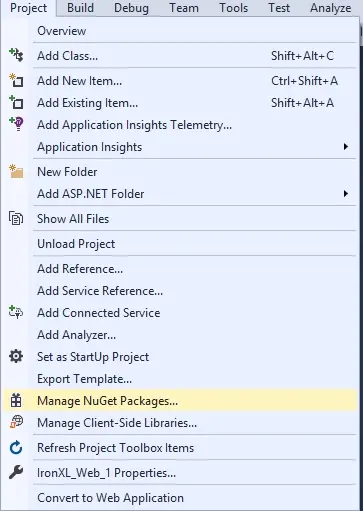
圖1。在Visual Studio中使用項目選單存取NuGet包管理器
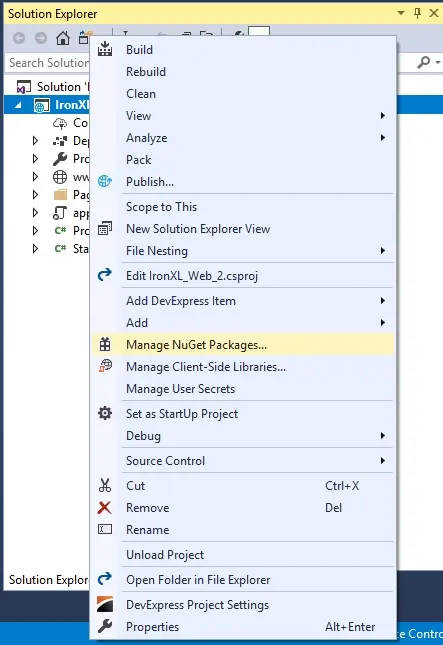
圖2。在Visual Studio中使用上下文選單存取NuGet包管理器
選擇後,瀏覽IronPDF包並安裝它。
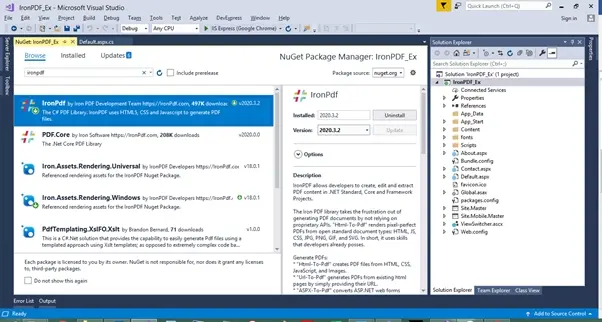
圖3。使用Visual Studio中的NuGET包管理器安裝IronPDF程式庫
使用開發者命令提示符
透過開發者命令提示符安裝IronPDF NuGet包:
- 打開開發者命令提示符
-
鍵入以下命令:
Install-Package IronPdf
- 按下Enter
- 包下載並安裝
- 重新載入您的Visual Studio專案
直接下載NuGet包
直接從NuGet下載並安裝IronPDF:
- 轉到IronPDF NuGet頁面
- 選擇下載包
- 雙擊下載的包
- 包安裝
- 重新載入您的Visual Studio專案
下載程式庫安裝IronPDF
從IronPDF下載中直接下載IronPDF .DLL文件。
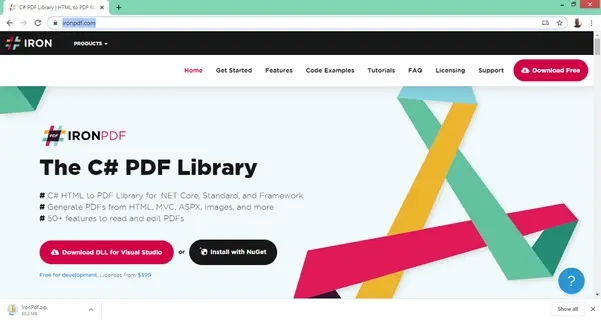
圖4。從IronPDF網站下載IronPDF Library DLL
在您的項目中引用此程式庫:
- 在解決方案總管中右擊解決方案
- 選擇引用
- 瀏覽IronPDF.dll程式庫
- 點擊確定
IronPDF現在已準備好使用。 接下來讓我們安裝XFINIUM.PDF。
如何安裝XFINIUM.PDF?
在.NET Core中,安裝Xfinium PDF作為cake插件或工具:
# Install Xfinium.Pdf.NetCore as a Cake Addin
#addin nuget:?package=Xfinium.Pdf.NetCore&version=10.2.0
# Install Xfinium.Pdf.NetCore as a Cake Addin
#addin nuget:?package=Xfinium.Pdf.NetCore&version=10.2.0# Install Xfinium.Pdf.NetCore as a Cake Tool
#tool nuget:?package=Xfinium.Pdf.NetCore&version=10.2.0# Install Xfinium.Pdf.NetCore as a Cake Tool
#tool nuget:?package=Xfinium.Pdf.NetCore&version=10.2.0現在讓我們比較IronPDF和XFINIUM.PDF。
如何在.NET Core中建立簡單的PDF文件?
軟體開發者必須知道如何使用C#動態建立PDF文件。 您可能需要PDF建立來生成使用者輸入的報告,將使用者文字保存為PDF,提取HTML資訊並轉換為PDF,以及更多。
兩個程式庫都可以將HTML網頁轉換為PDF。 讓我們檢查每個程式庫的方法。
使用IronPDF
IronPDF提供多種方法來建立PDF文件。
現有URL轉為PDF
IronPDF使HTML轉為PDF文件從現有URL的過程變得簡單。 JavaScript、圖像、表單和CSS都獲得了完整支援。
該實現自動處理URL渲染:
// Create an instance of the ChromePdfRenderer
IronPdf.ChromePdfRenderer Renderer = new IronPdf.ChromePdfRenderer();

// Configure rendering options for better performance
Renderer.RenderingOptions.WaitFor.RenderDelay = 500; // Wait for JavaScript to load
Renderer.RenderingOptions.CssMediaType = IronPdf.Rendering.PdfCssMediaType.Print;

// Render a URL to PDF
using var Pdf = Renderer.RenderUrlAsPdf("___PROTECTED_URL_134___");

// Save the PDF with metadata
Pdf.MetaData.Author = "IronPDF";
Pdf.MetaData.Title = "Website to PDF Conversion";
Pdf.SaveAs("url.pdf");
// Create an instance of the ChromePdfRenderer
IronPdf.ChromePdfRenderer Renderer = new IronPdf.ChromePdfRenderer();
// Configure rendering options for better performance
Renderer.RenderingOptions.WaitFor.RenderDelay = 500; // Wait for JavaScript to load
Renderer.RenderingOptions.CssMediaType = IronPdf.Rendering.PdfCssMediaType.Print;
// Render a URL to PDF
using var Pdf = Renderer.RenderUrlAsPdf("___PROTECTED_URL_134___");
// Save the PDF with metadata
Pdf.MetaData.Author = "IronPDF";
Pdf.MetaData.Title = "Website to PDF Conversion";
Pdf.SaveAs("url.pdf");' Create an instance of the ChromePdfRenderer
Dim Renderer As New IronPdf.ChromePdfRenderer()
' Configure rendering options for better performance
Renderer.RenderingOptions.WaitFor.RenderDelay = 500 ' Wait for JavaScript to load
Renderer.RenderingOptions.CssMediaType = IronPdf.Rendering.PdfCssMediaType.Print
' Render a URL to PDF
Using Pdf = Renderer.RenderUrlAsPdf("___PROTECTED_URL_134___")
' Save the PDF with metadata
Pdf.MetaData.Author = "IronPDF"
Pdf.MetaData.Title = "Website to PDF Conversion"
Pdf.SaveAs("url.pdf")
End UsingHTML輸入字串轉為PDF
考慮以下從HTML字串渲染PDF頁面的程式碼範例。 您可以僅使用HTML,也可以將其與CSS、圖像和JavaScript結合使用:
// Create an instance of the ChromePdfRenderer
var Renderer = new IronPdf.ChromePdfRenderer();

// Configure rendering options
Renderer.RenderingOptions.MarginTop = 50; // millimeters
Renderer.RenderingOptions.MarginBottom = 50;
Renderer.RenderingOptions.CssMediaType = IronPdf.Rendering.PdfCssMediaType.Print;

// Render a simple HTML string to PDF
using var PDF = Renderer.RenderHtmlAsPdf("<h1>Html with CSS and Images</h1>");

// Add document properties
PDF.MetaData.Author = "Development Team";
PDF.MetaData.Keywords = "HTML, PDF, C#";
PDF.MetaData.ModifiedDate = DateTime.Now;

// Save the PDF
PDF.SaveAs("pixel-perfect.pdf");

// Load external HTML assets: images, CSS, and javascript
// An optional BasePath 'C:\site\assets\' is set as the file location to load assets from
using var AdvancedPDF = Renderer.RenderHtmlAsPdf("<img src='icons/iron.png'>", @"C:\site\assets\");

// Apply security settings
AdvancedPDF.Password = "pass123";
AdvancedPDF.SecuritySettings.AllowUserPrinting = IronPdf.Security.PdfPrintSecurity.FullPrintRights;

// Save the advanced PDF with external assets
AdvancedPDF.SaveAs("html-with-assets.pdf");
// Create an instance of the ChromePdfRenderer
var Renderer = new IronPdf.ChromePdfRenderer();
// Configure rendering options
Renderer.RenderingOptions.MarginTop = 50; // millimeters
Renderer.RenderingOptions.MarginBottom = 50;
Renderer.RenderingOptions.CssMediaType = IronPdf.Rendering.PdfCssMediaType.Print;
// Render a simple HTML string to PDF
using var PDF = Renderer.RenderHtmlAsPdf("<h1>Html with CSS and Images</h1>");
// Add document properties
PDF.MetaData.Author = "Development Team";
PDF.MetaData.Keywords = "HTML, PDF, C#";
PDF.MetaData.ModifiedDate = DateTime.Now;
// Save the PDF
PDF.SaveAs("pixel-perfect.pdf");
// Load external HTML assets: images, CSS, and javascript
// An optional BasePath 'C:\site\assets\' is set as the file location to load assets from
using var AdvancedPDF = Renderer.RenderHtmlAsPdf("<img src='icons/iron.png'>", @"C:\site\assets\");
// Apply security settings
AdvancedPDF.Password = "pass123";
AdvancedPDF.SecuritySettings.AllowUserPrinting = IronPdf.Security.PdfPrintSecurity.FullPrintRights;
// Save the advanced PDF with external assets
AdvancedPDF.SaveAs("html-with-assets.pdf");' Create an instance of the ChromePdfRenderer
Dim Renderer As New IronPdf.ChromePdfRenderer()
' Configure rendering options
Renderer.RenderingOptions.MarginTop = 50 ' millimeters
Renderer.RenderingOptions.MarginBottom = 50
Renderer.RenderingOptions.CssMediaType = IronPdf.Rendering.PdfCssMediaType.Print
' Render a simple HTML string to PDF
Using PDF = Renderer.RenderHtmlAsPdf("<h1>Html with CSS and Images</h1>")
' Add document properties
PDF.MetaData.Author = "Development Team"
PDF.MetaData.Keywords = "HTML, PDF, C#"
PDF.MetaData.ModifiedDate = DateTime.Now
' Save the PDF
PDF.SaveAs("pixel-perfect.pdf")
End Using
' Load external HTML assets: images, CSS, and javascript
' An optional BasePath 'C:\site\assets\' is set as the file location to load assets from
Using AdvancedPDF = Renderer.RenderHtmlAsPdf("<img src='icons/iron.png'>", "C:\site\assets\")
' Apply security settings
AdvancedPDF.Password = "pass123"
AdvancedPDF.SecuritySettings.AllowUserPrinting = IronPdf.Security.PdfPrintSecurity.FullPrintRights
' Save the advanced PDF with external assets
AdvancedPDF.SaveAs("html-with-assets.pdf")
End Using有關高階的HTML到PDF轉換技術,請參閱HTML到PDF教學。
使用XFINIUM.PDF
使用XFINIUM.PDF建立空白PDF文件需要三行:建立文件、建立頁面和保存:
// Create a new PDF document
PdfFixedDocument document = new PdfFixedDocument();

// Add a page to the document
PdfPage page = document.Pages.Add();

// Save the document as a PDF file
document.Save("empty.pdf");
// Create a new PDF document
PdfFixedDocument document = new PdfFixedDocument();
// Add a page to the document
PdfPage page = document.Pages.Add();
// Save the document as a PDF file
document.Save("empty.pdf");' Create a new PDF document
Dim document As New PdfFixedDocument()
' Add a page to the document
Dim page As PdfPage = document.Pages.Add()
' Save the document as a PDF file
document.Save("empty.pdf")新增文字內容需要額外三行:建立字體、建立顏色的畫筆和繪製文字:
// Create a new PDF document
PdfFixedDocument document = new PdfFixedDocument();
PdfPage page = document.Pages.Add();

// Create a standard font with Helvetica face and 24 point size
PdfStandardFont helvetica = new PdfStandardFont(PdfStandardFontFace.Helvetica, 24);

// Create a solid RGB red brush.
PdfBrush brush = new PdfBrush(PdfRgbColor.Red);

// Draw the text on the page.
page.Graphics.DrawString("Hello World", helvetica, brush, 100, 100);

// Save the document as a PDF file
document.Save("helloworld.pdf");
// Create a new PDF document
PdfFixedDocument document = new PdfFixedDocument();
PdfPage page = document.Pages.Add();
// Create a standard font with Helvetica face and 24 point size
PdfStandardFont helvetica = new PdfStandardFont(PdfStandardFontFace.Helvetica, 24);
// Create a solid RGB red brush.
PdfBrush brush = new PdfBrush(PdfRgbColor.Red);
// Draw the text on the page.
page.Graphics.DrawString("Hello World", helvetica, brush, 100, 100);
// Save the document as a PDF file
document.Save("helloworld.pdf");' Create a new PDF document
Dim document As New PdfFixedDocument()
Dim page As PdfPage = document.Pages.Add()
' Create a standard font with Helvetica face and 24 point size
Dim helvetica As New PdfStandardFont(PdfStandardFontFace.Helvetica, 24)
' Create a solid RGB red brush.
Dim brush As New PdfBrush(PdfRgbColor.Red)
' Draw the text on the page.
page.Graphics.DrawString("Hello World", helvetica, brush, 100, 100)
' Save the document as a PDF file
document.Save("helloworld.pdf")該物件模型非常接近PDF標準。 這種方法可為構建流程文件等複雜抽象提供明確的好處。## 如何建立可填寫的PDF文件
使用XFINIUM.PDF
XFINIUM.PDF允許您建立新的PDF表單及填寫現有的PDF表單。
每個PDF表單字段型別都有相應的類別:
PdfTextBoxField– 文字框字段PdfCheckBoxField– 核取框PdfRadioButtonField– 單選按鈕組PdfComboboxField– 組合框PdfListboxField– 列表框PdfPushbuttonField– 按鈕- PdfSignatureField – 簽名字段
建立表單字段時,指定字段名稱和頁面位置。 在建立字段物件後,將其加入頁面並設置其屬性:
// Create a text box field named "firstname"
PdfTextBoxField firstNameTextBox = new PdfTextBoxField("firstname");

// Add the field to a PDF page
pdfpage.Fields.Add(firstNameTextBox);

// Set the position of the field on the PDF page
firstNameTextBox.Widgets[0].VisualRectangle = new PdfVisualRectangle(150, 45, 200, 20);
// Create a text box field named "firstname"
PdfTextBoxField firstNameTextBox = new PdfTextBoxField("firstname");
// Add the field to a PDF page
pdfpage.Fields.Add(firstNameTextBox);
// Set the position of the field on the PDF page
firstNameTextBox.Widgets[0].VisualRectangle = new PdfVisualRectangle(150, 45, 200, 20);' Create a text box field named "firstname"
Dim firstNameTextBox As New PdfTextBoxField("firstname")
' Add the field to a PDF page
pdfpage.Fields.Add(firstNameTextBox)
' Set the position of the field on the PDF page
firstNameTextBox.Widgets(0).VisualRectangle = New PdfVisualRectangle(150, 45, 200, 20)為了填寫現有的PDF表單,將其裝入PdfFixedDocument物件中。 文件的字段集合自動填充。 您可以通過索引或名稱找到字段,並通過設置值屬性來填寫它們:
// Load an existing PDF document with forms
PdfFixedDocument document = new PdfFixedDocument("form.pdf");

// Fill form fields with values
(document.Form.Fields["firstname"] as PdfTextBoxField).Text = "John";
(document.Form.Fields["lastname"] as PdfTextBoxField).Value = "Doe";
(document.Form.Fields["sex"].Widgets[0] as PdfRadioButtonWidget).Checked = true;
(document.Form.Fields["firstcar"] as PdfComboBoxField).SelectedIndex = 0;
(document.Form.Fields["secondcar"] as PdfListBoxField).SelectedIndex = 1;
(document.Form.Fields["agree"] as PdfCheckBoxField).Checked = true;

// Save the filled form as a new PDF file
document.Save("form_filled.pdf");
// Load an existing PDF document with forms
PdfFixedDocument document = new PdfFixedDocument("form.pdf");
// Fill form fields with values
(document.Form.Fields["firstname"] as PdfTextBoxField).Text = "John";
(document.Form.Fields["lastname"] as PdfTextBoxField).Value = "Doe";
(document.Form.Fields["sex"].Widgets[0] as PdfRadioButtonWidget).Checked = true;
(document.Form.Fields["firstcar"] as PdfComboBoxField).SelectedIndex = 0;
(document.Form.Fields["secondcar"] as PdfListBoxField).SelectedIndex = 1;
(document.Form.Fields["agree"] as PdfCheckBoxField).Checked = true;
// Save the filled form as a new PDF file
document.Save("form_filled.pdf");' Load an existing PDF document with forms
Dim document As New PdfFixedDocument("form.pdf")
' Fill form fields with values
TryCast(document.Form.Fields("firstname"), PdfTextBoxField).Text = "John"
TryCast(document.Form.Fields("lastname"), PdfTextBoxField).Value = "Doe"
TryCast(document.Form.Fields("sex").Widgets(0), PdfRadioButtonWidget).Checked = True
TryCast(document.Form.Fields("firstcar"), PdfComboBoxField).SelectedIndex = 0
TryCast(document.Form.Fields("secondcar"), PdfListBoxField).SelectedIndex = 1
TryCast(document.Form.Fields("agree"), PdfCheckBoxField).Checked = True
' Save the filled form as a new PDF file
document.Save("form_filled.pdf")使用IronPDF
以下是如何使用IronPDF建立可填寫的PDFs的方法:
// PM> Install-Package IronPdf
using IronPdf;
using IronPdf.Rendering;

// Step 1. Creating a PDF with editable forms from HTML using form and input tags
var FormHtml = @"
<html>
    <head>
        <style>
            body { font-family: Arial, sans-serif; margin: 40px; }
            h2 { color: #333; }
            form { background: #f4f4f4; padding: 20px; border-radius: 8px; }
            input[type='text'] {
                width: 100%;
                padding: 8px;
                margin: 10px 0;
                border: 1px solid #ddd;
                border-radius: 4px;
            }
            input[type='checkbox'] { margin-right: 10px; }
            select { width: 100%; padding: 8px; margin: 10px 0; }
        </style>
    </head>
    <body>
        <h2>Editable PDF Form</h2>
        <form>
          First name:<br> <input type='text' name='firstname' value=''> <br>
          Last name:<br> <input type='text' name='lastname' value=''>
          <br><br>
          Email:<br> <input type='text' name='email' value=''>
          <br><br>
          Subscribe to newsletter: <input type='checkbox' name='newsletter' value='yes'>
          <br><br>
          Country:
          <select name='country'>
              <option value='usa'>United States</option>
              <option value='uk'>United Kingdom</option>
              <option value='canada'>Canada</option>
          </select>
        </form>
    </body>
</html>";

// Create a PDF renderer with form creation enabled
IronPdf.ChromePdfRenderer Renderer = new IronPdf.ChromePdfRenderer();
Renderer.RenderingOptions.CreatePdfFormsFromHtml = true;
Renderer.RenderingOptions.CssMediaType = PdfCssMediaType.Print;
Renderer.RenderingOptions.MarginTop = 20;
Renderer.RenderingOptions.MarginBottom = 20;

// Render the HTML as a PDF and save it
var pdfDocument = Renderer.RenderHtmlAsPdf(FormHtml);
pdfDocument.SaveAs("BasicForm.pdf");

// Step 2. Reading and Writing PDF form values.
var FormDocument = PdfDocument.FromFile("BasicForm.pdf");

// Get form field collection
var form = FormDocument.Form;

// Set and Read the value of the "firstname" field
var FirstNameField = form.FindFormField("firstname");
FirstNameField.Value = "Minnie";
Console.WriteLine("FirstNameField value: {0}", FirstNameField.Value);

// Set and Read the value of the "lastname" field
var LastNameField = form.FindFormField("lastname");
LastNameField.Value = "Mouse";
Console.WriteLine("LastNameField value: {0}", LastNameField.Value);

// Set email field
var EmailField = form.FindFormField("email");
EmailField.Value = "minnie.mouse@example.com";

// Set checkbox
var NewsletterField = form.FindFormField("newsletter");
NewsletterField.Value = "yes";

// Set dropdown selection
var CountryField = form.FindFormField("country");
CountryField.Value = "usa";

// Save the form with filled values
FormDocument.SaveAs("FilledForm.pdf");

// Step 3. Flattening the form (making it non-editable)
FormDocument.Form.Flatten();
FormDocument.SaveAs("FlattenedForm.pdf");
// PM> Install-Package IronPdf
using IronPdf;
using IronPdf.Rendering;
// Step 1. Creating a PDF with editable forms from HTML using form and input tags
var FormHtml = @"
<html>
<head>
<style>
body { font-family: Arial, sans-serif; margin: 40px; }
h2 { color: #333; }
form { background: #f4f4f4; padding: 20px; border-radius: 8px; }
input[type='text'] {
width: 100%;
padding: 8px;
margin: 10px 0;
border: 1px solid #ddd;
border-radius: 4px;
}
input[type='checkbox'] { margin-right: 10px; }
select { width: 100%; padding: 8px; margin: 10px 0; }
</style>
</head>
<body>
<h2>Editable PDF Form</h2>
<form>
First name:<br> <input type='text' name='firstname' value=''> <br>
Last name:<br> <input type='text' name='lastname' value=''>
<br><br>
Email:<br> <input type='text' name='email' value=''>
<br><br>
Subscribe to newsletter: <input type='checkbox' name='newsletter' value='yes'>
<br><br>
Country:
<select name='country'>
<option value='usa'>United States</option>
<option value='uk'>United Kingdom</option>
<option value='canada'>Canada</option>
</select>
</form>
</body>
</html>";
// Create a PDF renderer with form creation enabled
IronPdf.ChromePdfRenderer Renderer = new IronPdf.ChromePdfRenderer();
Renderer.RenderingOptions.CreatePdfFormsFromHtml = true;
Renderer.RenderingOptions.CssMediaType = PdfCssMediaType.Print;
Renderer.RenderingOptions.MarginTop = 20;
Renderer.RenderingOptions.MarginBottom = 20;
// Render the HTML as a PDF and save it
var pdfDocument = Renderer.RenderHtmlAsPdf(FormHtml);
pdfDocument.SaveAs("BasicForm.pdf");
// Step 2. Reading and Writing PDF form values.
var FormDocument = PdfDocument.FromFile("BasicForm.pdf");
// Get form field collection
var form = FormDocument.Form;
// Set and Read the value of the "firstname" field
var FirstNameField = form.FindFormField("firstname");
FirstNameField.Value = "Minnie";
Console.WriteLine("FirstNameField value: {0}", FirstNameField.Value);
// Set and Read the value of the "lastname" field
var LastNameField = form.FindFormField("lastname");
LastNameField.Value = "Mouse";
Console.WriteLine("LastNameField value: {0}", LastNameField.Value);
// Set email field
var EmailField = form.FindFormField("email");
EmailField.Value = "minnie.mouse@example.com";
// Set checkbox
var NewsletterField = form.FindFormField("newsletter");
NewsletterField.Value = "yes";
// Set dropdown selection
var CountryField = form.FindFormField("country");
CountryField.Value = "usa";
// Save the form with filled values
FormDocument.SaveAs("FilledForm.pdf");
// Step 3. Flattening the form (making it non-editable)
FormDocument.Form.Flatten();
FormDocument.SaveAs("FlattenedForm.pdf");' PM> Install-Package IronPdf
Imports IronPdf
Imports IronPdf.Rendering
' Step 1. Creating a PDF with editable forms from HTML using form and input tags
Dim FormHtml As String = "
<html>
<head>
<style>
body { font-family: Arial, sans-serif; margin: 40px; }
h2 { color: #333; }
form { background: #f4f4f4; padding: 20px; border-radius: 8px; }
input[type='text'] {
width: 100%;
padding: 8px;
margin: 10px 0;
border: 1px solid #ddd;
border-radius: 4px;
}
input[type='checkbox'] { margin-right: 10px; }
select { width: 100%; padding: 8px; margin: 10px 0; }
</style>
</head>
<body>
<h2>Editable PDF Form</h2>
<form>
First name:<br> <input type='text' name='firstname' value=''> <br>
Last name:<br> <input type='text' name='lastname' value=''>
<br><br>
Email:<br> <input type='text' name='email' value=''>
<br><br>
Subscribe to newsletter: <input type='checkbox' name='newsletter' value='yes'>
<br><br>
Country:
<select name='country'>
<option value='usa'>United States</option>
<option value='uk'>United Kingdom</option>
<option value='canada'>Canada</option>
</select>
</form>
</body>
</html>"
' Create a PDF renderer with form creation enabled
Dim Renderer As New IronPdf.ChromePdfRenderer()
Renderer.RenderingOptions.CreatePdfFormsFromHtml = True
Renderer.RenderingOptions.CssMediaType = PdfCssMediaType.Print
Renderer.RenderingOptions.MarginTop = 20
Renderer.RenderingOptions.MarginBottom = 20
' Render the HTML as a PDF and save it
Dim pdfDocument = Renderer.RenderHtmlAsPdf(FormHtml)
pdfDocument.SaveAs("BasicForm.pdf")
' Step 2. Reading and Writing PDF form values.
Dim FormDocument = PdfDocument.FromFile("BasicForm.pdf")
' Get form field collection
Dim form = FormDocument.Form
' Set and Read the value of the "firstname" field
Dim FirstNameField = form.FindFormField("firstname")
FirstNameField.Value = "Minnie"
Console.WriteLine("FirstNameField value: {0}", FirstNameField.Value)
' Set and Read the value of the "lastname" field
Dim LastNameField = form.FindFormField("lastname")
LastNameField.Value = "Mouse"
Console.WriteLine("LastNameField value: {0}", LastNameField.Value)
' Set email field
Dim EmailField = form.FindFormField("email")
EmailField.Value = "minnie.mouse@example.com"
' Set checkbox
Dim NewsletterField = form.FindFormField("newsletter")
NewsletterField.Value = "yes"
' Set dropdown selection
Dim CountryField = form.FindFormField("country")
CountryField.Value = "usa"
' Save the form with filled values
FormDocument.SaveAs("FilledForm.pdf")
' Step 3. Flattening the form (making it non-editable)
FormDocument.Form.Flatten()
FormDocument.SaveAs("FlattenedForm.pdf")首先建立一個帶有HTML格式標籤的表單。 程式庫在保存為PDF時處理了復雜性。 讀取和寫入表單值是通過FindFormField函式完成的。 您的應用程式可以立即使用該功能以程式方式填寫表單。
要了解有關進階表單處理的更多資訊,包括數位簽名,請參閱Create PDF Forms教學。
如何數位簽署PDF文件
遠端工作需要有效的文件處理。 填寫和簽署表單、傳送文件和處理文件是日常的業務活動。 簽署PDF文件、檔案集和表單可替代紙質文件。 數位簽名使公司能夠在線簽署協議並分享PDF表單。
使用XFINIUM.PDF
簽名字段在PDF文件中應用數位簽名(PdfSignatureField類別)。 儘管簽名字段顯示在一頁上,但數位簽名可簽署整個文件。
簽名過程使用PdfDigitalSignature物件來設定簽名屬性。 根據PDF文件的二進制佈局,於保存文件時形成簽名。
所有XFINIUM簽名均建基於PdfDigitalSignature:
PdfCmsDigitalSignature– CMS標準簽名(來自PdfDigitalSignature)PdfPadesDigitalSignature– PADES標準簽名(來自PdfCmsDigitalSignature)PdfInteractiveCmsDigitalSignature– 使用硬體智慧卡的CMS簽名PdfInteractivePadesDigitalSignature– 支援硬體智慧卡的PADESPdfDocumentTimeStamp– 文件級時間戳(來自PdfDigitalSignature)
使用IronPDF
開發者經常詢問如何使用IronPDF和C#程式地為PDF新增簽名。 這可能意味著:
- 從文件新增圖形簽名圖像
- 密碼簽以防止篡改
- 新增帶有加密簽名的手寫簽名圖示
第一種方法涉及在現有PDF頁面上蓋印簽名PNG。 對於簽名或公司印章使用:
// Open an existing PDF document or create a new one
var Pdf = PdfDocument.FromFile(@"C:\Path\To\ASPX to PDF.pdf");

// Define an HTML stamp with a signature image
var SignatureStamp = new HtmlStamp()
{
    Html = "<img src='signature.png' />",
    Width = 150,
    Height = 50,
    Bottom = 300,
    Left = 85,
    ZIndex = HtmlStamp.StampLayer.OnTopOfExistingPDFContent
};

// Advanced stamp with styling
var StyledSignatureStamp = new HtmlStamp()
{
    Html = @"<div style='border: 2px solid #000; padding: 10px; background: rgba(255,255,255,0.9);'>
                <img src='signature.png' style='width: 120px;' />
                <p style='margin: 5px 0 0 0; font-size: 10px;'>Digitally Signed</p>
                <p style='margin: 0; font-size: 8px;'>{date}</p>
             </div>",
    Width = 150,
    Height = 100,
    Bottom = 50,
    Right = 50,
    ZIndex = HtmlStamp.StampLayer.OnTopOfExistingPDFContent
};

// Stamp the signature on the first page of the PDF
Pdf.StampHTML(SignatureStamp, 1);

// Or apply to all pages
Pdf.StampHTML(StyledSignatureStamp);

// Save the stamped PDF
Pdf.SaveAs(@"C:\Path\To\Stamped_PDF.pdf");
// Open an existing PDF document or create a new one
var Pdf = PdfDocument.FromFile(@"C:\Path\To\ASPX to PDF.pdf");
// Define an HTML stamp with a signature image
var SignatureStamp = new HtmlStamp()
{
Html = "<img src='signature.png' />",
Width = 150,
Height = 50,
Bottom = 300,
Left = 85,
ZIndex = HtmlStamp.StampLayer.OnTopOfExistingPDFContent
};
// Advanced stamp with styling
var StyledSignatureStamp = new HtmlStamp()
{
Html = @"<div style='border: 2px solid #000; padding: 10px; background: rgba(255,255,255,0.9);'>
<img src='signature.png' style='width: 120px;' />
<p style='margin: 5px 0 0 0; font-size: 10px;'>Digitally Signed</p>
<p style='margin: 0; font-size: 8px;'>{date}</p>
</div>",
Width = 150,
Height = 100,
Bottom = 50,
Right = 50,
ZIndex = HtmlStamp.StampLayer.OnTopOfExistingPDFContent
};
// Stamp the signature on the first page of the PDF
Pdf.StampHTML(SignatureStamp, 1);
// Or apply to all pages
Pdf.StampHTML(StyledSignatureStamp);
// Save the stamped PDF
Pdf.SaveAs(@"C:\Path\To\Stamped_PDF.pdf");' Open an existing PDF document or create a new one
Dim Pdf = PdfDocument.FromFile("C:\Path\To\ASPX to PDF.pdf")
' Define an HTML stamp with a signature image
Dim SignatureStamp = New HtmlStamp() With {
.Html = "<img src='signature.png' />",
.Width = 150,
.Height = 50,
.Bottom = 300,
.Left = 85,
.ZIndex = HtmlStamp.StampLayer.OnTopOfExistingPDFContent
}
' Advanced stamp with styling
Dim StyledSignatureStamp = New HtmlStamp() With {
.Html = "<div style='border: 2px solid #000; padding: 10px; background: rgba(255,255,255,0.9);'>" & _
"<img src='signature.png' style='width: 120px;' />" & _
"<p style='margin: 5px 0 0 0; font-size: 10px;'>Digitally Signed</p>" & _
"<p style='margin: 0; font-size: 8px;'>{date}</p>" & _
"</div>",
.Width = 150,
.Height = 100,
.Bottom = 50,
.Right = 50,
.ZIndex = HtmlStamp.StampLayer.OnTopOfExistingPDFContent
}
' Stamp the signature on the first page of the PDF
Pdf.StampHTML(SignatureStamp, 1)
' Or apply to all pages
Pdf.StampHTML(StyledSignatureStamp)
' Save the stamped PDF
Pdf.SaveAs("C:\Path\To\Stamped_PDF.pdf")利用一行程式碼使用.pfx和.p12 X509Certificate2數位證書密碼簽名PDF:
// 123456 below represents the signature password
new IronPdf.PdfSignature("CertificateFile.p12", "123456").SignPdfFile("ASPX to PDF.pdf");

// Or with more control
var signature = new IronPdf.PdfSignature("CertificateFile.p12", "123456")
{
    SigningContact = "john@example.com",
    SigningLocation = "New York, USA",
    SigningReason = "Contract Agreement"
};

// Load the PDF
var pdf = PdfDocument.FromFile("contract.pdf");

// Sign and save
pdf.SignPdfWithDigitalSignature(signature);
pdf.SaveAs("signed-contract.pdf");
// 123456 below represents the signature password
new IronPdf.PdfSignature("CertificateFile.p12", "123456").SignPdfFile("ASPX to PDF.pdf");
// Or with more control
var signature = new IronPdf.PdfSignature("CertificateFile.p12", "123456")
{
SigningContact = "john@example.com",
SigningLocation = "New York, USA",
SigningReason = "Contract Agreement"
};
// Load the PDF
var pdf = PdfDocument.FromFile("contract.pdf");
// Sign and save
pdf.SignPdfWithDigitalSignature(signature);
pdf.SaveAs("signed-contract.pdf");' 123456 below represents the signature password
New IronPdf.PdfSignature("CertificateFile.p12", "123456").SignPdfFile("ASPX to PDF.pdf")
' Or with more control
Dim signature = New IronPdf.PdfSignature("CertificateFile.p12", "123456") With {
.SigningContact = "john@example.com",
.SigningLocation = "New York, USA",
.SigningReason = "Contract Agreement"
}
' Load the PDF
Dim pdf = PdfDocument.FromFile("contract.pdf")
' Sign and save
pdf.SignPdfWithDigitalSignature(signature)
pdf.SaveAs("signed-contract.pdf")此進階範例結合了.pfx / .p12 X509Certificate2數位ID簽名與手寫簽名:
// Create a digital signature using a certificate file
var Signature = new IronPdf.PdfSignature("Iron.pfx", "123456");

// Render a PDF document to be signed
var Renderer = new ChromePdfRenderer();
Renderer.RenderingOptions.MarginBottom = 0;
Renderer.RenderingOptions.MarginTop = 0;
Renderer.RenderingOptions.EnableJavaScript = true;
Renderer.RenderingOptions.CssMediaType = IronPdf.Rendering.PdfCssMediaType.Print;

// Create PDF with security features
string html = @"<h1>Contract Agreement</h1>
                <p>This document is digitally signed and encrypted.</p>
                <p>Agreement Date: " + DateTime.Now.ToString("yyyy-MM-dd") + @"</p>";

PdfDocument doc = Renderer.RenderHtmlAsPdf(html);

// Configure optional signing options and a handwritten signature graphic
Signature.SigningContact = "support@ironsoftware.com";
Signature.SigningLocation = "Chicago, USA";
Signature.SigningReason = "To show how to sign a PDF";

// Load a handwritten signature image
Signature.LoadSignatureImageFromFile("handwriting.png");

// Advanced security: Set permissions
doc.SecuritySettings.AllowUserPrinting = IronPdf.Security.PdfPrintSecurity.NoPrint;
doc.SecuritySettings.AllowUserEdits = IronPdf.Security.PdfEditSecurity.NoEdit;
doc.SecuritySettings.AllowUserCopyPasteContent = false;

// Sign the PDF document with the digital signature
doc.SignPdfWithDigitalSignature(Signature);

// Add password protection
doc.Password = "userpassword";
doc.OwnerPassword = "ownerpassword";

// Save the signed PDF document
doc.SaveAs("Signed_ASPX_to_PDF.pdf");
// Create a digital signature using a certificate file
var Signature = new IronPdf.PdfSignature("Iron.pfx", "123456");
// Render a PDF document to be signed
var Renderer = new ChromePdfRenderer();
Renderer.RenderingOptions.MarginBottom = 0;
Renderer.RenderingOptions.MarginTop = 0;
Renderer.RenderingOptions.EnableJavaScript = true;
Renderer.RenderingOptions.CssMediaType = IronPdf.Rendering.PdfCssMediaType.Print;
// Create PDF with security features
string html = @"<h1>Contract Agreement</h1>
<p>This document is digitally signed and encrypted.</p>
<p>Agreement Date: " + DateTime.Now.ToString("yyyy-MM-dd") + @"</p>";
PdfDocument doc = Renderer.RenderHtmlAsPdf(html);
// Configure optional signing options and a handwritten signature graphic
Signature.SigningContact = "support@ironsoftware.com";
Signature.SigningLocation = "Chicago, USA";
Signature.SigningReason = "To show how to sign a PDF";
// Load a handwritten signature image
Signature.LoadSignatureImageFromFile("handwriting.png");
// Advanced security: Set permissions
doc.SecuritySettings.AllowUserPrinting = IronPdf.Security.PdfPrintSecurity.NoPrint;
doc.SecuritySettings.AllowUserEdits = IronPdf.Security.PdfEditSecurity.NoEdit;
doc.SecuritySettings.AllowUserCopyPasteContent = false;
// Sign the PDF document with the digital signature
doc.SignPdfWithDigitalSignature(Signature);
// Add password protection
doc.Password = "userpassword";
doc.OwnerPassword = "ownerpassword";
// Save the signed PDF document
doc.SaveAs("Signed_ASPX_to_PDF.pdf");' Create a digital signature using a certificate file
Dim Signature = New IronPdf.PdfSignature("Iron.pfx", "123456")
' Render a PDF document to be signed
Dim Renderer = New ChromePdfRenderer()
Renderer.RenderingOptions.MarginBottom = 0
Renderer.RenderingOptions.MarginTop = 0
Renderer.RenderingOptions.EnableJavaScript = True
Renderer.RenderingOptions.CssMediaType = IronPdf.Rendering.PdfCssMediaType.Print
' Create PDF with security features
Dim html As String = "<h1>Contract Agreement</h1>
<p>This document is digitally signed and encrypted.</p>
<p>Agreement Date: " & DateTime.Now.ToString("yyyy-MM-dd") & "</p>"
Dim doc As PdfDocument = Renderer.RenderHtmlAsPdf(html)
' Configure optional signing options and a handwritten signature graphic
Signature.SigningContact = "support@ironsoftware.com"
Signature.SigningLocation = "Chicago, USA"
Signature.SigningReason = "To show how to sign a PDF"
' Load a handwritten signature image
Signature.LoadSignatureImageFromFile("handwriting.png")
' Advanced security: Set permissions
doc.SecuritySettings.AllowUserPrinting = IronPdf.Security.PdfPrintSecurity.NoPrint
doc.SecuritySettings.AllowUserEdits = IronPdf.Security.PdfEditSecurity.NoEdit
doc.SecuritySettings.AllowUserCopyPasteContent = False
' Sign the PDF document with the digital signature
doc.SignPdfWithDigitalSignature(Signature)
' Add password protection
doc.Password = "userpassword"
doc.OwnerPassword = "ownerpassword"
' Save the signed PDF document
doc.SaveAs("Signed_ASPX_to_PDF.pdf")要了解完整的安全實施,請探索IronsecureDoc文件中用於高階文件保護的功能。## 各程式庫如何處理現代CSS框架和Bootstrap?
現代網頁應用程式經常依賴CSS框架,如Bootstrap,用於快速的UI開發和響應式設計。 PDF生成工具必須完全保留這些框架佈局,以確保專業文件的質量。
IronPDF:完整的Bootstrap框架支持
IronPDF的Chromium渲染引擎完全支援現代CSS框架:
- Bootstrap 5:完整的flexbox和CSS Grid渲染,內含所有響應式元件
- Bootstrap 4:完整的卡系統、導航列和實用程式類
- Tailwind CSS:支持所有以實用工具為先的類及響應式變體
- Foundation及其他框架:完整的CSS3支援,意味著所有現代框架均能正常運行
- 進階CSS:Flexbox、CSS Grid、自定義屬性、動畫及變換
現實世界的驗證:Bootstrap首頁及模板可以準確地轉換,達成與瀏覽器一致的效果。
程式碼範例:帶有Bootstrap卡片的事件時間表
using IronPdf;

var renderer = new ChromePdfRenderer();

// Configure rendering for optimal Bootstrap output
renderer.RenderingOptions.CssMediaType = IronPdf.Rendering.PdfCssMediaType.Print;
renderer.RenderingOptions.EnableJavaScript = true;
renderer.RenderingOptions.RenderDelay = 500; // Allow JS to fully load
renderer.RenderingOptions.ViewPortWidth = 1280; // Desktop viewport
renderer.RenderingOptions.MarginTop = 10;
renderer.RenderingOptions.MarginBottom = 10;
renderer.RenderingOptions.MarginLeft = 10;
renderer.RenderingOptions.MarginRight = 10;

string bootstrapSchedule = @"
<!DOCTYPE html>
<html>
<head>
    <link href='___PROTECTED_URL_135___ rel='stylesheet'>
    <style>
        @media print {
            .pagebreak { page-break-after: always; }
        }
    </style>
</head>
<body>
    <div class='container my-5'>
        <h1 class='text-center mb-5'>Tech Conference 2025 - Schedule</h1>

        <div class='row g-4'>
            <div class='col-md-6'>
                <div class='card border-primary'>
                    <div class='card-header bg-primary text-white d-flex justify-content-between align-items-center'>
                        <h5 class='mb-0'>Keynote Session</h5>
                        <span class='badge bg-light text-primary'>9:00 AM</span>
                    </div>
                    <div class='card-body'>
                        <h6 class='card-subtitle mb-2 text-muted'>Main Auditorium</h6>
                        <p class='card-text'><strong>The Future of AI in Software Development</strong></p>
                        <p class='card-text'>Join us for an exploration of how artificial intelligence is transforming the software development environment.</p>
                        <div class='d-flex align-items-center'>
                            <img src='___PROTECTED_URL_136___ class='rounded-circle me-2' alt='Speaker'>
                            <div>
                                <div class='fw-bold'>Dr. Sarah Chen</div>
                                <small class='text-muted'>AI Research Lead</small>
                            </div>
                        </div>
                    </div>
                </div>
            </div>

            <div class='col-md-6'>
                <div class='card border-success'>
                    <div class='card-header bg-success text-white d-flex justify-content-between align-items-center'>
                        <h5 class='mb-0'>Workshop</h5>
                        <span class='badge bg-light text-success'>10:30 AM</span>
                    </div>
                    <div class='card-body'>
                        <h6 class='card-subtitle mb-2 text-muted'>Workshop Room A</h6>
                        <p class='card-text'><strong>Hands-On: Cloud-Native Architecture</strong></p>
                        <p class='card-text'>Learn practical techniques for building flexible, cloud-native applications with modern frameworks.</p>
                        <div class='d-flex align-items-center'>
                            <img src='___PROTECTED_URL_137___ class='rounded-circle me-2' alt='Speaker'>
                            <div>
                                <div class='fw-bold'>Michael Rodriguez</div>
                                <small class='text-muted'>Cloud Architect</small>
                            </div>
                        </div>
                    </div>
                </div>
            </div>

            <div class='col-md-6'>
                <div class='card border-warning'>
                    <div class='card-header bg-warning text-dark d-flex justify-content-between align-items-center'>
                        <h5 class='mb-0'>Panel Discussion</h5>
                        <span class='badge bg-dark'>2:00 PM</span>
                    </div>
                    <div class='card-body'>
                        <h6 class='card-subtitle mb-2 text-muted'>Main Auditorium</h6>
                        <p class='card-text'><strong>Security in Modern Web Applications</strong></p>
                        <p class='card-text'>Industry experts discuss current security challenges and best practices for protecting user data.</p>
                        <small class='text-muted'>Featuring 4 industry experts</small>
                    </div>
                </div>
            </div>

            <div class='col-md-6'>
                <div class='card border-info'>
                    <div class='card-header bg-info text-white d-flex justify-content-between align-items-center'>
                        <h5 class='mb-0'>Technical Talk</h5>
                        <span class='badge bg-light text-info'>3:30 PM</span>
                    </div>
                    <div class='card-body'>
                        <h6 class='card-subtitle mb-2 text-muted'>Room B</h6>
                        <p class='card-text'><strong>Performance Optimization Strategies</strong></p>
                        <p class='card-text'>Deep dive into advanced techniques for improve application performance and reducing latency.</p>
                        <div class='d-flex align-items-center'>
                            <img src='___PROTECTED_URL_138___ class='rounded-circle me-2' alt='Speaker'>
                            <div>
                                <div class='fw-bold'>Alex Kim</div>
                                <small class='text-muted'>Performance Engineer</small>
                            </div>
                        </div>
                    </div>
                </div>
            </div>
        </div>

        <div class='pagebreak'></div>

        <h2 class='mt-5'>Additional Sessions</h2>
        <div class='table-responsive'>
            <table class='table table-striped'>
                <thead>
                    <tr>
                        <th>Time</th>
                        <th>Session</th>
                        <th>Speaker</th>
                        <th>Location</th>
                    </tr>
                </thead>
                <tbody>
                    <tr>
                        <td>11:45 AM</td>
                        <td>Lightning Talks</td>
                        <td>Various</td>
                        <td>Room C</td>
                    </tr>
                    <tr>
                        <td>1:00 PM</td>
                        <td>Networking Lunch</td>
                        <td>-</td>
                        <td>Cafeteria</td>
                    </tr>
                </tbody>
            </table>
        </div>
    </div>
</body>
</html>";

// Generate the PDF
var pdf = renderer.RenderHtmlAsPdf(bootstrapSchedule);

// Add metadata
pdf.MetaData.Author = "Tech Conference Team";
pdf.MetaData.Title = "Conference Schedule 2025";
pdf.MetaData.Subject = "Event Schedule";

// Save the PDF
pdf.SaveAs("conference-schedule.pdf");

// Example: Generate responsive invoice with Bootstrap
string bootstrapInvoice = @"
<!DOCTYPE html>
<html>
<head>
    <link href='___PROTECTED_URL_139___ rel='stylesheet'>
    <link href='___PROTECTED_URL_140___ rel='stylesheet'>
</head>
<body>
    <div class='container mt-5'>
        <div class='row'>
            <div class='col-12'>
                <div class='card'>
                    <div class='card-body'>
                        <div class='row mb-4'>
                            <div class='col-sm-6'>
                                <h2 class='text-primary'><i class='fas fa-file-invoice'></i> INVOICE</h2>
                                <p class='mb-1'><strong>Invoice #:</strong> INV-2025-001</p>
                                <p class='mb-1'><strong>Date:</strong> " + DateTime.Now.ToString("MMMM dd, yyyy") + @"</p>
                            </div>
                            <div class='col-sm-6 text-sm-end'>
                                <h4>Your Company Name</h4>
                                <p class='mb-1'>123 Business St</p>
                                <p class='mb-1'>City, State 12345</p>
                                <p>contact@company.com</p>
                            </div>
                        </div>

                        <hr>

                        <div class='row mb-4'>
                            <div class='col-sm-6'>
                                <h5>Bill To:</h5>
                                <p class='mb-1'><strong>Client Company</strong></p>
                                <p class='mb-1'>456 Client Ave</p>
                                <p>City, State 67890</p>
                            </div>
                        </div>

                        <div class='table-responsive'>
                            <table class='table table-bordered'>
                                <thead class='table-primary'>
                                    <tr>
                                        <th>Description</th>
                                        <th class='text-center'>Quantity</th>
                                        <th class='text-end'>Price</th>
                                        <th class='text-end'>Total</th>
                                    </tr>
                                </thead>
                                <tbody>
                                    <tr>
                                        <td>Web Development Services</td>
                                        <td class='text-center'>40</td>
                                        <td class='text-end'>$150.00</td>
                                        <td class='text-end'>$6,000.00</td>
                                    </tr>
                                    <tr>
                                        <td>UI/UX Design</td>
                                        <td class='text-center'>20</td>
                                        <td class='text-end'>$125.00</td>
                                        <td class='text-end'>$2,500.00</td>
                                    </tr>
                                </tbody>
                                <tfoot>
                                    <tr>
                                        <td colspan='3' class='text-end'><strong>Subtotal:</strong></td>
                                        <td class='text-end'><strong>$8,500.00</strong></td>
                                    </tr>
                                    <tr>
                                        <td colspan='3' class='text-end'>Tax (10%):</td>
                                        <td class='text-end'>$850.00</td>
                                    </tr>
                                    <tr class='table-primary'>
                                        <td colspan='3' class='text-end'><strong>Total Due:</strong></td>
                                        <td class='text-end'><strong>$9,350.00</strong></td>
                                    </tr>
                                </tfoot>
                            </table>
                        </div>

                        <div class='alert alert-info mt-4'>
                            <i class='fas fa-info-circle'></i> Payment is due within 30 days. Thank you for your business!
                        </div>
                    </div>
                </div>
            </div>
        </div>
    </div>
</body>
</html>";

var invoicePdf = renderer.RenderHtmlAsPdf(bootstrapInvoice);
invoicePdf.SaveAs("bootstrap-invoice.pdf");
using IronPdf;
var renderer = new ChromePdfRenderer();
// Configure rendering for optimal Bootstrap output
renderer.RenderingOptions.CssMediaType = IronPdf.Rendering.PdfCssMediaType.Print;
renderer.RenderingOptions.EnableJavaScript = true;
renderer.RenderingOptions.RenderDelay = 500; // Allow JS to fully load
renderer.RenderingOptions.ViewPortWidth = 1280; // Desktop viewport
renderer.RenderingOptions.MarginTop = 10;
renderer.RenderingOptions.MarginBottom = 10;
renderer.RenderingOptions.MarginLeft = 10;
renderer.RenderingOptions.MarginRight = 10;
string bootstrapSchedule = @"
<!DOCTYPE html>
<html>
<head>
<link href='___PROTECTED_URL_135___ rel='stylesheet'>
<style>
@media print {
.pagebreak { page-break-after: always; }
}
</style>
</head>
<body>
<div class='container my-5'>
<h1 class='text-center mb-5'>Tech Conference 2025 - Schedule</h1>
<div class='row g-4'>
<div class='col-md-6'>
<div class='card border-primary'>
<div class='card-header bg-primary text-white d-flex justify-content-between align-items-center'>
<h5 class='mb-0'>Keynote Session</h5>
<span class='badge bg-light text-primary'>9:00 AM</span>
</div>
<div class='card-body'>
<h6 class='card-subtitle mb-2 text-muted'>Main Auditorium</h6>
<p class='card-text'><strong>The Future of AI in Software Development</strong></p>
<p class='card-text'>Join us for an exploration of how artificial intelligence is transforming the software development environment.</p>
<div class='d-flex align-items-center'>
<img src='___PROTECTED_URL_136___ class='rounded-circle me-2' alt='Speaker'>
<div>
<div class='fw-bold'>Dr. Sarah Chen</div>
<small class='text-muted'>AI Research Lead</small>
</div>
</div>
</div>
</div>
</div>
<div class='col-md-6'>
<div class='card border-success'>
<div class='card-header bg-success text-white d-flex justify-content-between align-items-center'>
<h5 class='mb-0'>Workshop</h5>
<span class='badge bg-light text-success'>10:30 AM</span>
</div>
<div class='card-body'>
<h6 class='card-subtitle mb-2 text-muted'>Workshop Room A</h6>
<p class='card-text'><strong>Hands-On: Cloud-Native Architecture</strong></p>
<p class='card-text'>Learn practical techniques for building flexible, cloud-native applications with modern frameworks.</p>
<div class='d-flex align-items-center'>
<img src='___PROTECTED_URL_137___ class='rounded-circle me-2' alt='Speaker'>
<div>
<div class='fw-bold'>Michael Rodriguez</div>
<small class='text-muted'>Cloud Architect</small>
</div>
</div>
</div>
</div>
</div>
<div class='col-md-6'>
<div class='card border-warning'>
<div class='card-header bg-warning text-dark d-flex justify-content-between align-items-center'>
<h5 class='mb-0'>Panel Discussion</h5>
<span class='badge bg-dark'>2:00 PM</span>
</div>
<div class='card-body'>
<h6 class='card-subtitle mb-2 text-muted'>Main Auditorium</h6>
<p class='card-text'><strong>Security in Modern Web Applications</strong></p>
<p class='card-text'>Industry experts discuss current security challenges and best practices for protecting user data.</p>
<small class='text-muted'>Featuring 4 industry experts</small>
</div>
</div>
</div>
<div class='col-md-6'>
<div class='card border-info'>
<div class='card-header bg-info text-white d-flex justify-content-between align-items-center'>
<h5 class='mb-0'>Technical Talk</h5>
<span class='badge bg-light text-info'>3:30 PM</span>
</div>
<div class='card-body'>
<h6 class='card-subtitle mb-2 text-muted'>Room B</h6>
<p class='card-text'><strong>Performance Optimization Strategies</strong></p>
<p class='card-text'>Deep dive into advanced techniques for improve application performance and reducing latency.</p>
<div class='d-flex align-items-center'>
<img src='___PROTECTED_URL_138___ class='rounded-circle me-2' alt='Speaker'>
<div>
<div class='fw-bold'>Alex Kim</div>
<small class='text-muted'>Performance Engineer</small>
</div>
</div>
</div>
</div>
</div>
</div>
<div class='pagebreak'></div>
<h2 class='mt-5'>Additional Sessions</h2>
<div class='table-responsive'>
<table class='table table-striped'>
<thead>
<tr>
<th>Time</th>
<th>Session</th>
<th>Speaker</th>
<th>Location</th>
</tr>
</thead>
<tbody>
<tr>
<td>11:45 AM</td>
<td>Lightning Talks</td>
<td>Various</td>
<td>Room C</td>
</tr>
<tr>
<td>1:00 PM</td>
<td>Networking Lunch</td>
<td>-</td>
<td>Cafeteria</td>
</tr>
</tbody>
</table>
</div>
</div>
</body>
</html>";
// Generate the PDF
var pdf = renderer.RenderHtmlAsPdf(bootstrapSchedule);
// Add metadata
pdf.MetaData.Author = "Tech Conference Team";
pdf.MetaData.Title = "Conference Schedule 2025";
pdf.MetaData.Subject = "Event Schedule";
// Save the PDF
pdf.SaveAs("conference-schedule.pdf");
// Example: Generate responsive invoice with Bootstrap
string bootstrapInvoice = @"
<!DOCTYPE html>
<html>
<head>
<link href='___PROTECTED_URL_139___ rel='stylesheet'>
<link href='___PROTECTED_URL_140___ rel='stylesheet'>
</head>
<body>
<div class='container mt-5'>
<div class='row'>
<div class='col-12'>
<div class='card'>
<div class='card-body'>
<div class='row mb-4'>
<div class='col-sm-6'>
<h2 class='text-primary'><i class='fas fa-file-invoice'></i> INVOICE</h2>
<p class='mb-1'><strong>Invoice #:</strong> INV-2025-001</p>
<p class='mb-1'><strong>Date:</strong> " + DateTime.Now.ToString("MMMM dd, yyyy") + @"</p>
</div>
<div class='col-sm-6 text-sm-end'>
<h4>Your Company Name</h4>
<p class='mb-1'>123 Business St</p>
<p class='mb-1'>City, State 12345</p>
<p>contact@company.com</p>
</div>
</div>
<hr>
<div class='row mb-4'>
<div class='col-sm-6'>
<h5>Bill To:</h5>
<p class='mb-1'><strong>Client Company</strong></p>
<p class='mb-1'>456 Client Ave</p>
<p>City, State 67890</p>
</div>
</div>
<div class='table-responsive'>
<table class='table table-bordered'>
<thead class='table-primary'>
<tr>
<th>Description</th>
<th class='text-center'>Quantity</th>
<th class='text-end'>Price</th>
<th class='text-end'>Total</th>
</tr>
</thead>
<tbody>
<tr>
<td>Web Development Services</td>
<td class='text-center'>40</td>
<td class='text-end'>$150.00</td>
<td class='text-end'>$6,000.00</td>
</tr>
<tr>
<td>UI/UX Design</td>
<td class='text-center'>20</td>
<td class='text-end'>$125.00</td>
<td class='text-end'>$2,500.00</td>
</tr>
</tbody>
<tfoot>
<tr>
<td colspan='3' class='text-end'><strong>Subtotal:</strong></td>
<td class='text-end'><strong>$8,500.00</strong></td>
</tr>
<tr>
<td colspan='3' class='text-end'>Tax (10%):</td>
<td class='text-end'>$850.00</td>
</tr>
<tr class='table-primary'>
<td colspan='3' class='text-end'><strong>Total Due:</strong></td>
<td class='text-end'><strong>$9,350.00</strong></td>
</tr>
</tfoot>
</table>
</div>
<div class='alert alert-info mt-4'>
<i class='fas fa-info-circle'></i> Payment is due within 30 days. Thank you for your business!
</div>
</div>
</div>
</div>
</div>
</div>
</body>
</html>";
var invoicePdf = renderer.RenderHtmlAsPdf(bootstrapInvoice);
invoicePdf.SaveAs("bootstrap-invoice.pdf");Imports IronPdf
Dim renderer As New ChromePdfRenderer()
' Configure rendering for optimal Bootstrap output
renderer.RenderingOptions.CssMediaType = IronPdf.Rendering.PdfCssMediaType.Print
renderer.RenderingOptions.EnableJavaScript = True
renderer.RenderingOptions.RenderDelay = 500 ' Allow JS to fully load
renderer.RenderingOptions.ViewPortWidth = 1280 ' Desktop viewport
renderer.RenderingOptions.MarginTop = 10
renderer.RenderingOptions.MarginBottom = 10
renderer.RenderingOptions.MarginLeft = 10
renderer.RenderingOptions.MarginRight = 10
Dim bootstrapSchedule As String = "
<!DOCTYPE html>
<html>
<head>
<link href='___PROTECTED_URL_135___ rel='stylesheet'>
<style>
@media print {
.pagebreak { page-break-after: always; }
}
</style>
</head>
<body>
<div class='container my-5'>
<h1 class='text-center mb-5'>Tech Conference 2025 - Schedule</h1>
<div class='row g-4'>
<div class='col-md-6'>
<div class='card border-primary'>
<div class='card-header bg-primary text-white d-flex justify-content-between align-items-center'>
<h5 class='mb-0'>Keynote Session</h5>
<span class='badge bg-light text-primary'>9:00 AM</span>
</div>
<div class='card-body'>
<h6 class='card-subtitle mb-2 text-muted'>Main Auditorium</h6>
<p class='card-text'><strong>The Future of AI in Software Development</strong></p>
<p class='card-text'>Join us for an exploration of how artificial intelligence is transforming the software development environment.</p>
<div class='d-flex align-items-center'>
<img src='___PROTECTED_URL_136___ class='rounded-circle me-2' alt='Speaker'>
<div>
<div class='fw-bold'>Dr. Sarah Chen</div>
<small class='text-muted'>AI Research Lead</small>
</div>
</div>
</div>
</div>
</div>
<div class='col-md-6'>
<div class='card border-success'>
<div class='card-header bg-success text-white d-flex justify-content-between align-items-center'>
<h5 class='mb-0'>Workshop</h5>
<span class='badge bg-light text-success'>10:30 AM</span>
</div>
<div class='card-body'>
<h6 class='card-subtitle mb-2 text-muted'>Workshop Room A</h6>
<p class='card-text'><strong>Hands-On: Cloud-Native Architecture</strong></p>
<p class='card-text'>Learn practical techniques for building flexible, cloud-native applications with modern frameworks.</p>
<div class='d-flex align-items-center'>
<img src='___PROTECTED_URL_137___ class='rounded-circle me-2' alt='Speaker'>
<div>
<div class='fw-bold'>Michael Rodriguez</div>
<small class='text-muted'>Cloud Architect</small>
</div>
</div>
</div>
</div>
</div>
<div class='col-md-6'>
<div class='card border-warning'>
<div class='card-header bg-warning text-dark d-flex justify-content-between align-items-center'>
<h5 class='mb-0'>Panel Discussion</h5>
<span class='badge bg-dark'>2:00 PM</span>
</div>
<div class='card-body'>
<h6 class='card-subtitle mb-2 text-muted'>Main Auditorium</h6>
<p class='card-text'><strong>Security in Modern Web Applications</strong></p>
<p class='card-text'>Industry experts discuss current security challenges and best practices for protecting user data.</p>
<small class='text-muted'>Featuring 4 industry experts</small>
</div>
</div>
</div>
<div class='col-md-6'>
<div class='card border-info'>
<div class='card-header bg-info text-white d-flex justify-content-between align-items-center'>
<h5 class='mb-0'>Technical Talk</h5>
<span class='badge bg-light text-info'>3:30 PM</span>
</div>
<div class='card-body'>
<h6 class='card-subtitle mb-2 text-muted'>Room B</h6>
<p class='card-text'><strong>Performance Optimization Strategies</strong></p>
<p class='card-text'>Deep dive into advanced techniques for improve application performance and reducing latency.</p>
<div class='d-flex align-items-center'>
<img src='___PROTECTED_URL_138___ class='rounded-circle me-2' alt='Speaker'>
<div>
<div class='fw-bold'>Alex Kim</div>
<small class='text-muted'>Performance Engineer</small>
</div>
</div>
</div>
</div>
</div>
</div>
<div class='pagebreak'></div>
<h2 class='mt-5'>Additional Sessions</h2>
<div class='table-responsive'>
<table class='table table-striped'>
<thead>
<tr>
<th>Time</th>
<th>Session</th>
<th>Speaker</th>
<th>Location</th>
</tr>
</thead>
<tbody>
<tr>
<td>11:45 AM</td>
<td>Lightning Talks</td>
<td>Various</td>
<td>Room C</td>
</tr>
<tr>
<td>1:00 PM</td>
<td>Networking Lunch</td>
<td>-</td>
<td>Cafeteria</td>
</tr>
</tbody>
</table>
</div>
</div>
</body>
</html>"
' Generate the PDF
Dim pdf = renderer.RenderHtmlAsPdf(bootstrapSchedule)
' Add metadata
pdf.MetaData.Author = "Tech Conference Team"
pdf.MetaData.Title = "Conference Schedule 2025"
pdf.MetaData.Subject = "Event Schedule"
' Save the PDF
pdf.SaveAs("conference-schedule.pdf")
' Example: Generate responsive invoice with Bootstrap
Dim bootstrapInvoice As String = "
<!DOCTYPE html>
<html>
<head>
<link href='___PROTECTED_URL_139___ rel='stylesheet'>
<link href='___PROTECTED_URL_140___ rel='stylesheet'>
</head>
<body>
<div class='container mt-5'>
<div class='row'>
<div class='col-12'>
<div class='card'>
<div class='card-body'>
<div class='row mb-4'>
<div class='col-sm-6'>
<h2 class='text-primary'><i class='fas fa-file-invoice'></i> INVOICE</h2>
<p class='mb-1'><strong>Invoice #:</strong> INV-2025-001</p>
<p class='mb-1'><strong>Date:</strong> " & DateTime.Now.ToString("MMMM dd, yyyy") & "</p>
</div>
<div class='col-sm-6 text-sm-end'>
<h4>Your Company Name</h4>
<p class='mb-1'>123 Business St</p>
<p class='mb-1'>City, State 12345</p>
<p>contact@company.com</p>
</div>
</div>
<hr>
<div class='row mb-4'>
<div class='col-sm-6'>
<h5>Bill To:</h5>
<p class='mb-1'><strong>Client Company</strong></p>
<p class='mb-1'>456 Client Ave</p>
<p>City, State 67890</p>
</div>
</div>
<div class='table-responsive'>
<table class='table table-bordered'>
<thead class='table-primary'>
<tr>
<th>Description</th>
<th class='text-center'>Quantity</th>
<th class='text-end'>Price</th>
<th class='text-end'>Total</th>
</tr>
</thead>
<tbody>
<tr>
<td>Web Development Services</td>
<td class='text-center'>40</td>
<td class='text-end'>$150.00</td>
<td class='text-end'>$6,000.00</td>
</tr>
<tr>
<td>UI/UX Design</td>
<td class='text-center'>20</td>
<td class='text-end'>$125.00</td>
<td class='text-end'>$2,500.00</td>
</tr>
</tbody>
<tfoot>
<tr>
<td colspan='3' class='text-end'><strong>Subtotal:</strong></td>
<td class='text-end'><strong>$8,500.00</strong></td>
</tr>
<tr>
<td colspan='3' class='text-end'>Tax (10%):</td>
<td class='text-end'>$850.00</td>
</tr>
<tr class='table-primary'>
<td colspan='3' class='text-end'><strong>Total Due:</strong></td>
<td class='text-end'><strong>$9,350.00</strong></td>
</tr>
</tfoot>
</table>
</div>
<div class='alert alert-info mt-4'>
<i class='fas fa-info-circle'></i> Payment is due within 30 days. Thank you for your business!
</div>
</div>
</div>
</div>
</div>
</div>
</body>
</html>"
Dim invoicePdf = renderer.RenderHtmlAsPdf(bootstrapInvoice)
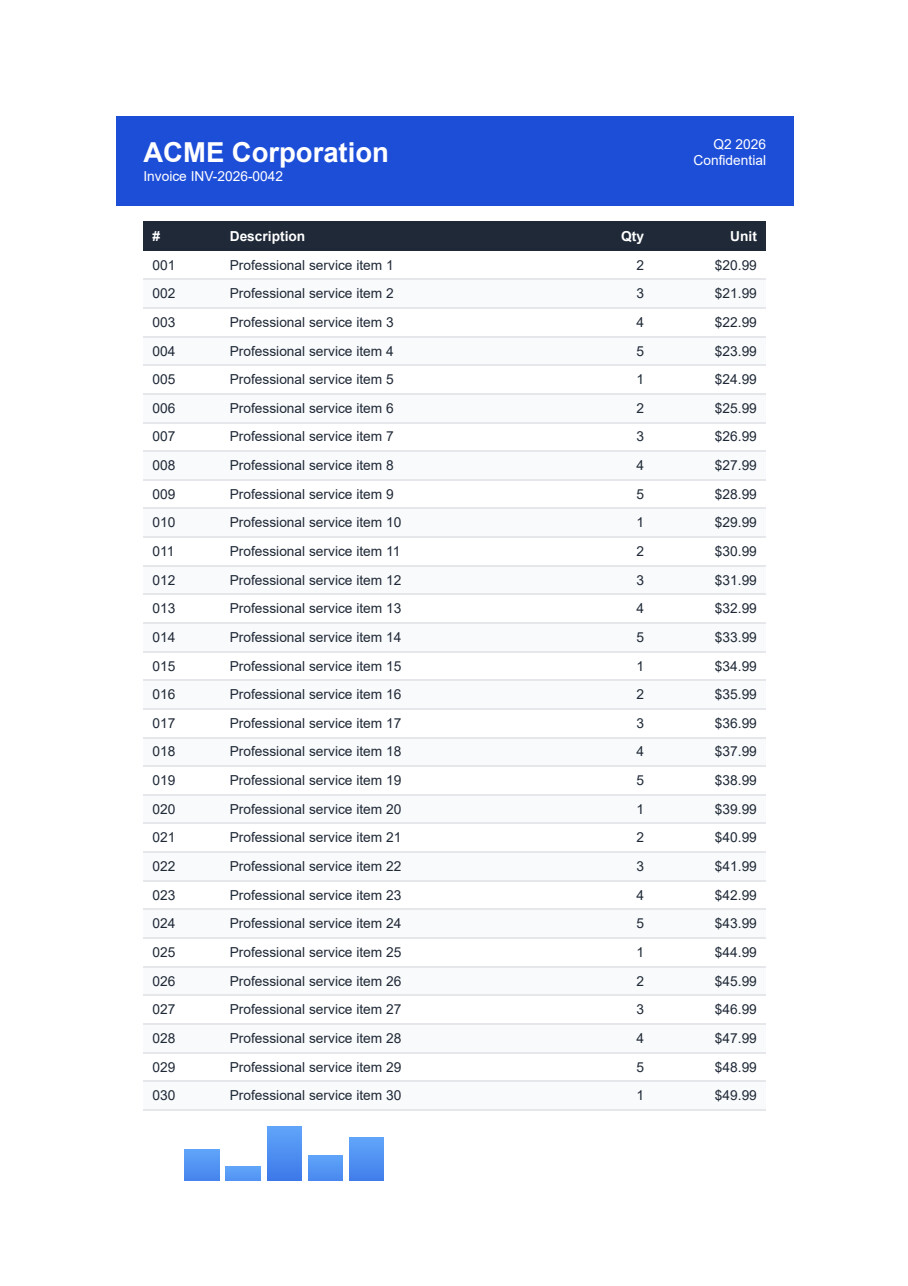
invoicePdf.SaveAs("bootstrap-invoice.pdf")輸出:專業會議的時間表,包含Bootstrap的卡片網格、flexbox對齊、徽章元件及響應式佈局——所有這些均準確渲染在PDF中。
XFINIUM.PDF:有限的HTML和框架支援
XFINIUM.PDF專注於PDF生成和操作,而不是HTML到PDF的轉換。 該程式庫在對Bootstrap和現代CSS框架的支援方面存在重大限制:
- 無原生HTML渲染:XFINIUM.PDF不含內建的HTML到PDF轉換引擎
- 僅支援基本HTML:限制於簡單的HTML結構且不含高階CSS
- 無Bootstrap支援:現代的Bootstrap框架(4及5)及其flexbox和CSS Grid無法被支援
- 需要工坊:開發者必須使用低階PDF API手動重建佈局
- 需要外部工具:可能需要整合第三方HTML渲染引擎
開發影響:使用Bootstrap或現代CSS框架的應用無法直接使用XFINIUM.PDF將其UI轉換為PDF。 開發者必須:
- 使用XFINIUM.PDF的低階繪圖API重建佈局(開發時間很多)
- 整合外部HTML渲染工具(增加複雜性和依賴性)
- 與網頁UI平行維護單獨的PDF佈局程式碼(維護開銷)
需HTML到PDF轉換的專案並使用現代框架,XFINIUM.PDF的限制需額外的開發工作。
對於需完整Bootstrap及現代CSS框架支援的專案,請參閱Bootstrap & Flexbox CSS指南。
定價和授權選項是什麼?
XFINIUM.PDF定價與授權
每個套件都有兩個版本:Generator版適用於PDF生產/編輯,Viewer版包含所有Generator功能,以及PDF渲染和檢視。
- 每位開發者需要授權。
- 免版稅分發到無限的桌面/伺服器。
- 協助訂購包括一年更新支持。
定價範圍從每年$290.00到$872.00不等。
IronPDF定價和授權
IronPDF在開發環境中免費,可隨時用於商業用途。選擇包括單專案授權、單一開發者、代理商、多國組織及SaaS/OEM再發行。 所有授權都包含30天退款保證、一年支援/升級、開發/預演/生產有效性及永久授權(一次性購買)。 Lite包起價為$999,沒有反復費用。
我應選擇哪個PDF程式庫?
IronPDF程式庫簡化了不含專有API的PDF建立功能。"HTML到PDF"可以將HTML、JS、CSS、JPG、PNG、GIF和SVG等開放標準文档轉化為像素級完美的PDF。 它基於現有的開發者技能。 您可以下載文件、發送電子郵件或保存至雲端,用於建立發票、報價單、報告、合同及其他文件。 它適配於ASP.NET、ASP.NET Core、web forms、MVC、.NET Framework及.NET Core Web APIs。
XFINIUM.PDF為初學者及高階PDF開發者提供功能。 無論您是需要建立報告、填寫PDF表單、構建資料集、刪除資訊或將PDF轉換為多頁TIFF,它都提供必要的工具。 它基本的物件模型遵循PDF規範。 程式碼可以在所有平台上編譯而無需修改。
XFINIUM.PDF授權的起價為$290(Generator版)和$387(Viewer版)。 IronPDF起價為$999。 IronPDF提供單使用者和多使用者的授權,而XFINIUM.PDF要求每位開發者都有授權。 IronPDF的專業版授權($999)支持不限使用者數。
IronPDF所需的PDF操作程式碼行數比XFINIUM.PDF少,從而降低了程式設計師的工作負擔。
Iron Software提供完整的套件,只需兩下點擊即可安裝。 花上兩個程式庫的價格,您現在可以獲得所有五個程式庫,持續支援。
常見問題
IronPDF 在 HTML 到 PDF 轉換中有哪些主要功能?
IronPDF 利用 .NET Chromium 引擎將 HTML 轉換為 PDF。它支援 HTML5、CSS、JavaScript 和圖像整合,是從網頁內容建立 PDF 的全面解決方案。
XFINIUM.PDF 與 .NET 的其他 PDF 程式庫相比如何?
XFINIUM.PDF 是一個跨平台程式庫,提供兩個版本:Generator 和 Viewer。它在 PDF 建立、編輯、渲染方面表現出色,並包括安全、數位簽名和條碼支援等功能。
IronPDF 可以用於像 Azure 和 AWS 這樣的雲平台嗎?
是的,IronPDF 與各種平台相容,包括 Azure 和 AWS,允許在雲環境中靈活部署 PDF 方案。
IronPDF 在 .NET 專案中的安裝選項有哪些?
可以通過 Visual Studio 的 NuGet 封裝管理器、開發者命令提示符或直接下載 NuGet 封裝或程式庫 DLL 來安裝 IronPDF。
IronPDF 的 PDF 編輯功能有哪些?
IronPDF 允許廣泛的 PDF 編輯,包括填寫表單欄位、合併文件以及提取文字和圖像。它還支援新增頁眉、頁腳和註釋。
IronPDF 和 XFINIUM.PDF 在授權選項上有什麼區別?
XFINIUM.PDF 的授權從每位開發人員 $290 起,並免版稅再分發。IronPDF 提供更廣泛的授權選項,包括為無限使用者提供專業授權。
XFINIUM.PDF 提供哪些安全功能?
XFINIUM.PDF 支援使用者和擁有者密碼、文件存取權限、RC4 和 AES 加密以及內容編輯等安全功能,確保文件安全。
為什麼開發者可能會選擇 IronPDF 作為他們的專案?
開發者可能選擇 IronPDF 是因為它的簡化 PDF 操作方法,需要的程式碼行數更少,並且具有單使用者及多使用者授權的靈活性。
IronPDF 如何處理 PDF 表單填寫?
IronPDF 提供工具來填寫 PDF 中的表單欄位,允許動態文件建立和使用者互動。
這些 PDF 程式庫有哪些數位簽名功能?
IronPDF 和 XFINIUM.PDF 都支援數位簽名,支持文件真實性和完整性的安全驗證。







 免費開始
免費開始 免費開始
免費開始 預訂免費直播演示
















