


IronPDF vs GrapeCity PDF: Porównanie bibliotek PDF dla .NET

IronPDF wyróżnia się w konwersji HTML do PDF z pełną obsługą CSS i JavaScript przy użyciu silnika Chromium. Natomiast XFINIUM.PDF specjalizuje się w niskopoziomowej manipulacji plikami PDF bez natywnego renderowania HTML, co sprawia, że IronPDF jest bardziej odpowiednim wyborem do nowoczesnego generowania plików PDF w aplikacjach .NET opartych na sieci.
Nowoczesna technologia oferuje programistom inteligentniejsze rozwiązania, a automatyzacja napędza procesy tworzenia oprogramowania. Praca z plikami PDF w języku C# od dawna stanowi wyzwanie dla programistów. Podczas tworzenia treści do plików PDF należy wziąć pod uwagę wiele czynników, a tym bardziej podczas konwersji treści z różnych formatów do formatu PDF. Wyzwania te są obecnie rozwiązywane dzięki bibliotekom zaprojektowanym w celu ułatwienia odczytu, zapisu, tworzenia i konwersji plików PDF z różnych formatów.
W tym artykułe porównano dwie popularne biblioteki PDF dla programistów .NET i .NET Core:
- Biblioteka IronPDF
- Biblioteka XFINIUM.PDF
Zarówno IronPDF, jak i XFINIUM.PDF oferują metody tworzenia, edycji i drukowania plików PDF w środowiskach .NET i .NET Core. Możesz podjąć świadomą decyzję, zapoznając się z poniższym porównaniem obu bibliotek i ich funkcji dotyczących konwersji i edycji plików PDF.
Najpierw przyjrzyjmy się, co oferują te dwie biblioteki, a następnie przejdźmy do porównania.
Jakie są funkcje biblioteki XFINIUM.PDF?
Biblioteka XFINIUM.PDF to wielopłatformowe narzędzie do tworzenia plików PDF, przeznaczone zarówno dla początkujących, jak i zaawansowanych programistów zajmujących się tym formatem. Umożliwia tworzenie raportów, wypełnianie formularzy PDF, tworzenie portfolio PDF, redagowanie poufnych danych z raportów PDF lub konwersję raportów PDF na wielostronicowe obrazy TIFF.
XFINIUM.PDF jest dostępne w dwóch wersjach: Generator Edition, która obejmuje tworzenie i edycję plików PDF, oraz Viewer Edition, która dodatkowo umożliwia renderowanie i przeglądanie plików PDF.
XFINIUM.PDF jest w całości napisany w języku C# jako kod w pełni zarządzany. Licencja jest udzielana na jednego programistę i obejmuje dystrybucję bez opłat licencyjnych, co pozwala na rozpowszechnianie programu bez dodatkowych kosztów.
Jaka jest różnica między wersjami Generator i Viewer?
Wersja Generator Edition jest podzbiorem wersji Viewer Edition. Oferuje funkcje tworzenia i edycji plików PDF, a wersja Viewer Edition dodaje możliwości renderowania plików PDF. Wersja Viewer Edition umożliwia konwersję stron PDF na obrazy w formatach RAW, BMP, GIF, JPG, PNG i TIFF.
Specyfikacja XFINIUM.PDF
Najważniejsze cechy to:
Bezpieczeństwo
- Hasła użytkowników i właścicieli
- Prawa dostępu do dokumentów
- 40-bitowe i 128-bitowe szyfrowanie RC4
- 128-bitowe i 256-bitowe szyfrowanie AES
- Redakcja treści
- Wyłącz kopiowanie/wklejanie tekstu
Podpisy cyfrowe
- Zatwierdzanie i certyfikacja za pomocą certyfikatów X509
- Podpisy CMS i PAdES z algorytmami SHA256/384/512
- Sygnatury z datą i godziną
- Informacje OCSP i CRL w podpisach
- Magazyn zabezpieczeń dokumentów
- Sygnatury czasowe dokumentów
- Podpisy cyfrowe z obsługą LTV
- Dekodowanie podpisów do obiektów ASN.1
- Wyodrębnianie certyfikatów z podpisów
- Zapisz podpisane kopie w formacie PDF
BarCode
- Wbudowany silnik BarCode wektorowy
- Kod kreskowy jednowymiarowy:
- Codabar, Code 11, Code 25, Code 39/93/128
- Farmaceutyka: Kod 32, Pharmacode, PZN
- Kodów kreskowych dwuwymiarowych:
DataMatrix, QR, PDF417, Micro PDF417
Dla zaawansowanej funkcjonalności kodów kreskowych, rozważ Dokumentację IronBarcode, która zapewnia pełne możliwości generowania i odczytywania kodów kreskowych.
Ekstrakcja treści
- Wyodrębnianie tekstu wraz z informacjami o położeniu
- Wyciągnij tekst jako słowa z pozycjami
- Wyciąganie z zdefiniowanych przez użytkownika obszarów
- Wyciąganie obrazów z metadanymi
Niskopoziomowe API COS
- Dodawanie, edycja i usuwanie obiektów COS
- Obsługiwane typy: ciągi, liczby, nazwy, wartość logiczna, null, tablice, słowniki, strumienie
Renderowanie PDF (tylko edycja przeglądarki)
- Render pages to images: RAW, BMP, GIF, JPG, PNG, TIFF
- Układy ARGB, RGBA, BGRA, RGB, BGR i odcienie szarości
- PDF do wielostronicowego TIFF przy użyciu CCITT G4
Jakie są główne funkcje IronPDF?
Biblioteka PDF IronPDF .NET upraszcza rozwój PDF dla programistów C#. Z tym narzędziem łatwo można skonstruować podstawową bibliotekę PDF dla .NET.
IronPDF konwertuje strony HTML na pliki PDF używając silnika Chromium .NET. Nie potrzebujesz skomplikowanych API, aby pozycjonować lub projektować PDF z HTML na PDF. Standardowe dokumenty internetowe są obsługiwane, w tym HTML, ASPX, JS, CSS i obrazy.
Możesz użyć HTML5, CSS, JavaScript, i obrazy do opracowania biblioteki PDF dla .NET. PDF można edytować, stemplować i ulepszać przy użyciu nagłówków i stopek. Biblioteka zarządza czytaniem tekstu PDF i wyciąganiem grafiki skutecznie.
Pobierz IronPDF za darmo i zacznij używać go w swoich projektach .NET już dziś.
Wyróżniające cechy biblioteki IronPDF C
Najważniejsze cechy to:
Twórz dokumenty PDF (HTML do PDF)
- HTML4/5, CSS, and JavaScript support
- Ładuj URL z danymi sieciowymi, agentom użytkownika, proxy, ciasteczkami, nagłówkami HTTP
Edytuj istniejące dokumenty PDF
- Czytaj i wypełniaj pola formularzy
- Wyodrębnij grafiki i tekst
- Aktualizuj strony o nową zawartość HTML
- Dodawaj logiczne lub HTML nagłówki/stopy
Operacje na dokumentach PDF
- Ładuj i parsuj istniejące dokumenty PDF
- Scalaj i dziel dokumenty
- Add headers, annotations, bookmarks, watermarks, text, images
Konwersja różnych formatów plików
- ASPX WebForms — konwersja za pomocą trzech linijek kodu
- Convert HTML files to PDF
- Niestandardowe podstawowe URL dla dostępu do zasobów
- Wirtualna przeglądarka dla projektu responsywnego
- Obsługa głównych kodowań plików (UTF-8 domyślnie)
Drukuj i zapisz
- Zapisuj/ładuj z plików, danych binarnych, MemoryStream
- Typy mediów CSS do drukowania
- Print PDFs without Adobe Acrobat
- Export API logs for debugging
IronPDF obsługuje wszystkie główne systemy operacyjne i frameworki:
Jak zainstalować bibliotekę IronPDF C#?
Możesz pobrać i zainstalować IronPDF na cztery sposoby:
- Korzystanie z programu Visual Studio
- Wiersz poleceń dewelopera
- Pobierz pakiet NuGet bezpośrednio
- Pobierz bibliotekę IronPDF .DLL
Korzystanie z programu Visual Studio
Visual Studio zapewnia Menedżer pakietów NuGet do instalacji pakietów w Twoich projektach. Uzyskaj do niego dostęp przez Menu Projekt lub klikając prawym przyciskiem projektu w Eksploratorze Rozwiązań.
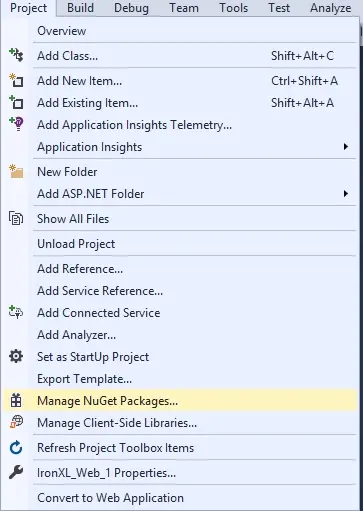
Rysunek 1. Uzyskiwanie dostępu do Menedżera pakietów NuGet za pomocą Menu Projektu w Visual Studio
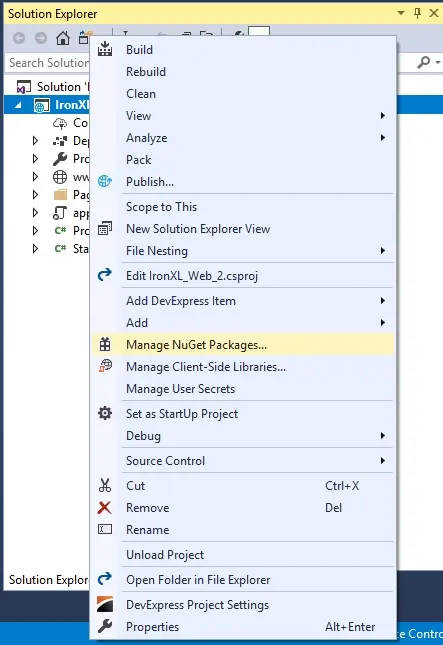
Rysunek 2. Uzyskiwanie dostępu do Menedżera pakietów NuGet za pomocą menu kontekstowego w Visual Studio
Po wybraniu, wyszukaj pakiet IronPDF i zainstaluj go.
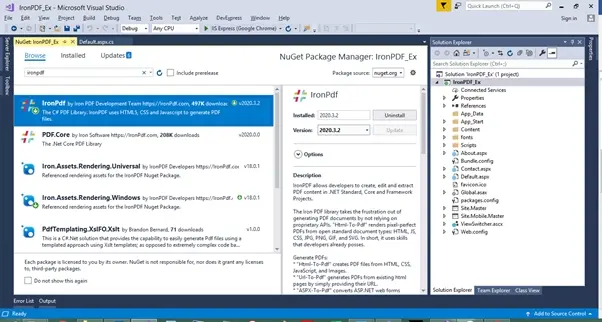
Rysunek 3. Instalacja biblioteki IronPDF za pomocą Menedżera pakietów NuGet w Visual Studio
Wykorzystanie wiersza poleceń dewelopera
Zainstaluj pakiet NuGet IronPDF za pośrednictwem wiersza poleceń dewelopera:
- Otwórz wiersz poleceń dewelopera
-
Wpisz następujące polecenie:
Install-Package IronPdf
- Naciśnij Enter
- Pakiet zostanie pobrany i zainstalowany
- Przeładuj swój projekt Visual Studio
Pobierz pakiet NuGet bezpośrednio
Pobierz i zainstaluj IronPDF bezpośrednio z NuGet:
- Przejdź na stronę NuGet IronPDF
- Wybierz pakiet do pobrania
- Kliknij dwukrotnie pobrany pakiet
- Pakiet zostaje zainstalowany
- Przeładuj swój projekt Visual Studio
Zainstaluj IronPDF pobierając bibliotekę
Pobierz plik IronPDF .DLL bezpośrednio z Pobierz IronPDF.
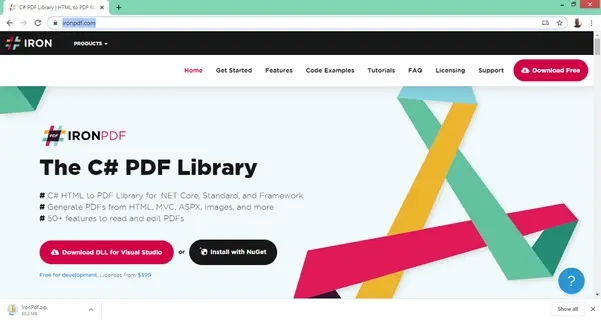
Rysunek 4. Pobieranie pliku DLL biblioteki IronPDF z witryny IronPDF
Dodaj odwołanie do biblioteki w swoim projekcie:
- Kliknij prawym przyciskiem Rozwiązanie w Eksploratorze Rozwiązań
- Wybierz Odwołania
- Wyszukaj bibliotekę IronPDF.dll
- Kliknij OK
IronPDF jest teraz gotowy do użytku. Zainstalujmy teraz XFINIUM.PDF.
Jak zainstalować XFINIUM.PDF?
W .NET Core zainstaluj Xfinium PDF jako dodatek lub narzędzie Cake:
# Install Xfinium.Pdf.NetCore as a Cake Addin
#addin nuget:?package=Xfinium.Pdf.NetCore&version=10.2.0
# Install Xfinium.Pdf.NetCore as a Cake Addin
#addin nuget:?package=Xfinium.Pdf.NetCore&version=10.2.0# Install Xfinium.Pdf.NetCore as a Cake Tool
#tool nuget:?package=Xfinium.Pdf.NetCore&version=10.2.0# Install Xfinium.Pdf.NetCore as a Cake Tool
#tool nuget:?package=Xfinium.Pdf.NetCore&version=10.2.0Teraz porównajmy IronPDF i XFINIUM.PDF.
Jak utworzyć prosty dokument PDF w .NET Core?
Programiści muszą wiedzieć, jak dynamicznie tworzyć pliki PDF za pomocą C#. Możesz potrzebować tworzenia PDF do generowania raportów z danych użytkownika, zapisywania tekstu użytkownika jako PDF, ekstrakcji informacji HTML i przekształcania do PDF, i nie tylko.
Obie biblioteki potrafią konwertować strony HTML do PDF. Przyjrzyjmy się każdemu podejściu do biblioteki.
Korzystanie z IronPDF
IronPDF oferuje wiele metod tworzenia plików PDF.
Istniejący adres URL do pliku PDF
IronPDF umożliwia łatwe konwertowanie HTML na dokumenty PDF z istniejących adresów URL. JavaScript, obrazy, formularze i CSS są w pełni obsługiwane.
Implementacja automatycznie obsługuje renderowanie URL:
// Create an instance of the ChromePdfRenderer
IronPdf.ChromePdfRenderer Renderer = new IronPdf.ChromePdfRenderer();

// Configure rendering options for better performance
Renderer.RenderingOptions.WaitFor.RenderDelay = 500; // Wait for JavaScript to load
Renderer.RenderingOptions.CssMediaType = IronPdf.Rendering.PdfCssMediaType.Print;

// Render a URL to PDF
using var Pdf = Renderer.RenderUrlAsPdf("___PROTECTED_URL_134___");

// Save the PDF with metadata
Pdf.MetaData.Author = "IronPDF";
Pdf.MetaData.Title = "Website to PDF Conversion";
Pdf.SaveAs("url.pdf");
// Create an instance of the ChromePdfRenderer
IronPdf.ChromePdfRenderer Renderer = new IronPdf.ChromePdfRenderer();
// Configure rendering options for better performance
Renderer.RenderingOptions.WaitFor.RenderDelay = 500; // Wait for JavaScript to load
Renderer.RenderingOptions.CssMediaType = IronPdf.Rendering.PdfCssMediaType.Print;
// Render a URL to PDF
using var Pdf = Renderer.RenderUrlAsPdf("___PROTECTED_URL_134___");
// Save the PDF with metadata
Pdf.MetaData.Author = "IronPDF";
Pdf.MetaData.Title = "Website to PDF Conversion";
Pdf.SaveAs("url.pdf");' Create an instance of the ChromePdfRenderer
Dim Renderer As New IronPdf.ChromePdfRenderer()
' Configure rendering options for better performance
Renderer.RenderingOptions.WaitFor.RenderDelay = 500 ' Wait for JavaScript to load
Renderer.RenderingOptions.CssMediaType = IronPdf.Rendering.PdfCssMediaType.Print
' Render a URL to PDF
Using Pdf = Renderer.RenderUrlAsPdf("___PROTECTED_URL_134___")
' Save the PDF with metadata
Pdf.MetaData.Author = "IronPDF"
Pdf.MetaData.Title = "Website to PDF Conversion"
Pdf.SaveAs("url.pdf")
End UsingCiąg znaków z pola HTML do pliku PDF
Rozważ poniższy przykład kodu do renderowania strony PDF z ciągu HTML. Możesz używać samego HTML lub łączyć go z CSS, obrazami i JavaScript:
// Create an instance of the ChromePdfRenderer
var Renderer = new IronPdf.ChromePdfRenderer();

// Configure rendering options
Renderer.RenderingOptions.MarginTop = 50; // millimeters
Renderer.RenderingOptions.MarginBottom = 50;
Renderer.RenderingOptions.CssMediaType = IronPdf.Rendering.PdfCssMediaType.Print;

// Render a simple HTML string to PDF
using var PDF = Renderer.RenderHtmlAsPdf("<h1>Html with CSS and Images</h1>");

// Add document properties
PDF.MetaData.Author = "Development Team";
PDF.MetaData.Keywords = "HTML, PDF, C#";
PDF.MetaData.ModifiedDate = DateTime.Now;

// Save the PDF
PDF.SaveAs("pixel-perfect.pdf");

// Load external HTML assets: images, CSS, and javascript
// An optional BasePath 'C:\site\assets\' is set as the file location to load assets from
using var AdvancedPDF = Renderer.RenderHtmlAsPdf("<img src='icons/iron.png'>", @"C:\site\assets\");

// Apply security settings
AdvancedPDF.Password = "pass123";
AdvancedPDF.SecuritySettings.AllowUserPrinting = IronPdf.Security.PdfPrintSecurity.FullPrintRights;

// Save the advanced PDF with external assets
AdvancedPDF.SaveAs("html-with-assets.pdf");
// Create an instance of the ChromePdfRenderer
var Renderer = new IronPdf.ChromePdfRenderer();
// Configure rendering options
Renderer.RenderingOptions.MarginTop = 50; // millimeters
Renderer.RenderingOptions.MarginBottom = 50;
Renderer.RenderingOptions.CssMediaType = IronPdf.Rendering.PdfCssMediaType.Print;
// Render a simple HTML string to PDF
using var PDF = Renderer.RenderHtmlAsPdf("<h1>Html with CSS and Images</h1>");
// Add document properties
PDF.MetaData.Author = "Development Team";
PDF.MetaData.Keywords = "HTML, PDF, C#";
PDF.MetaData.ModifiedDate = DateTime.Now;
// Save the PDF
PDF.SaveAs("pixel-perfect.pdf");
// Load external HTML assets: images, CSS, and javascript
// An optional BasePath 'C:\site\assets\' is set as the file location to load assets from
using var AdvancedPDF = Renderer.RenderHtmlAsPdf("<img src='icons/iron.png'>", @"C:\site\assets\");
// Apply security settings
AdvancedPDF.Password = "pass123";
AdvancedPDF.SecuritySettings.AllowUserPrinting = IronPdf.Security.PdfPrintSecurity.FullPrintRights;
// Save the advanced PDF with external assets
AdvancedPDF.SaveAs("html-with-assets.pdf");' Create an instance of the ChromePdfRenderer
Dim Renderer As New IronPdf.ChromePdfRenderer()
' Configure rendering options
Renderer.RenderingOptions.MarginTop = 50 ' millimeters
Renderer.RenderingOptions.MarginBottom = 50
Renderer.RenderingOptions.CssMediaType = IronPdf.Rendering.PdfCssMediaType.Print
' Render a simple HTML string to PDF
Using PDF = Renderer.RenderHtmlAsPdf("<h1>Html with CSS and Images</h1>")
' Add document properties
PDF.MetaData.Author = "Development Team"
PDF.MetaData.Keywords = "HTML, PDF, C#"
PDF.MetaData.ModifiedDate = DateTime.Now
' Save the PDF
PDF.SaveAs("pixel-perfect.pdf")
End Using
' Load external HTML assets: images, CSS, and javascript
' An optional BasePath 'C:\site\assets\' is set as the file location to load assets from
Using AdvancedPDF = Renderer.RenderHtmlAsPdf("<img src='icons/iron.png'>", "C:\site\assets\")
' Apply security settings
AdvancedPDF.Password = "pass123"
AdvancedPDF.SecuritySettings.AllowUserPrinting = IronPdf.Security.PdfPrintSecurity.FullPrintRights
' Save the advanced PDF with external assets
AdvancedPDF.SaveAs("html-with-assets.pdf")
End UsingDla zaawansowanych technik konwersji HTML do PDF, zobacz tutorial HTML do PDF.
Wykorzystanie XFINIUM.PDF
Utworzenie pustego dokumentu PDF za pomocą XFINIUM.PDF wymaga trzech linii: utwórz dokument, utwórz stronę i zapisz:
// Create a new PDF document
PdfFixedDocument document = new PdfFixedDocument();

// Add a page to the document
PdfPage page = document.Pages.Add();

// Save the document as a PDF file
document.Save("empty.pdf");
// Create a new PDF document
PdfFixedDocument document = new PdfFixedDocument();
// Add a page to the document
PdfPage page = document.Pages.Add();
// Save the document as a PDF file
document.Save("empty.pdf");' Create a new PDF document
Dim document As New PdfFixedDocument()
' Add a page to the document
Dim page As PdfPage = document.Pages.Add()
' Save the document as a PDF file
document.Save("empty.pdf")Dodawanie zawartości tekstowej wymaga trzech dodatkowych linii: tworzenie czcionki, tworzenie pędzla dla koloru i rysowanie tekstu:
// Create a new PDF document
PdfFixedDocument document = new PdfFixedDocument();
PdfPage page = document.Pages.Add();

// Create a standard font with Helvetica face and 24 point size
PdfStandardFont helvetica = new PdfStandardFont(PdfStandardFontFace.Helvetica, 24);

// Create a solid RGB red brush.
PdfBrush brush = new PdfBrush(PdfRgbColor.Red);

// Draw the text on the page.
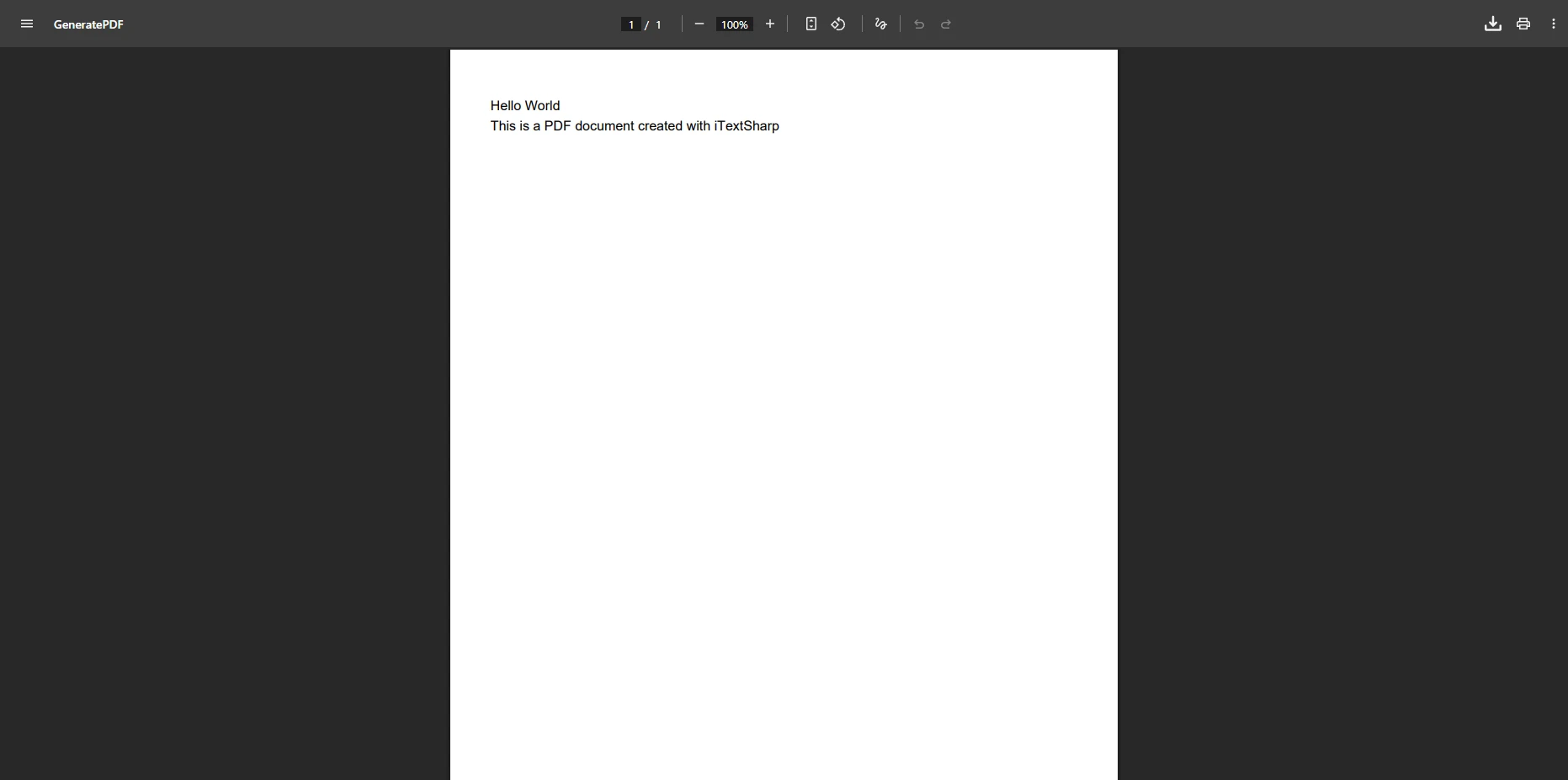
page.Graphics.DrawString("Hello World", helvetica, brush, 100, 100);

// Save the document as a PDF file
document.Save("helloworld.pdf");
// Create a new PDF document
PdfFixedDocument document = new PdfFixedDocument();
PdfPage page = document.Pages.Add();
// Create a standard font with Helvetica face and 24 point size
PdfStandardFont helvetica = new PdfStandardFont(PdfStandardFontFace.Helvetica, 24);
// Create a solid RGB red brush.
PdfBrush brush = new PdfBrush(PdfRgbColor.Red);
// Draw the text on the page.
page.Graphics.DrawString("Hello World", helvetica, brush, 100, 100);
// Save the document as a PDF file
document.Save("helloworld.pdf");' Create a new PDF document
Dim document As New PdfFixedDocument()
Dim page As PdfPage = document.Pages.Add()
' Create a standard font with Helvetica face and 24 point size
Dim helvetica As New PdfStandardFont(PdfStandardFontFace.Helvetica, 24)
' Create a solid RGB red brush.
Dim brush As New PdfBrush(PdfRgbColor.Red)
' Draw the text on the page.
page.Graphics.DrawString("Hello World", helvetica, brush, 100, 100)
' Save the document as a PDF file
document.Save("helloworld.pdf")Model obiektowy ściśle przypomina standard PDF. To podejście zapewnia jasne korzyści dla budowania złożonych abstrakcji jak dokumenty przepływu tekstu.## Jak tworzyć wypełnialne pliki PDF
Wykorzystanie XFINIUM.PDF
XFINIUM.PDF umożliwia tworzenie nowych formularzy PDF i wypełnianie istniejących formularzy PDF.
Każdy typ pola formularza PDF ma odpowiadającą klasę:
PdfTextBoxField– pola tekstowePdfCheckBoxField– pola wyboruPdfRadioButtonField– zestawy przycisków radiowychPdfComboboxField– listy rozwijanePdfListboxField– listyPdfPushbuttonField– przyciski- PdfSignatureField – signature fields
Aby utworzyć pole formularza, określ nazwę pola i lokalizację na stronie. Po utworzeniu obiektu pola, dodaj go do strony i ustaw jego atrybuty:
// Create a text box field named "firstname"
PdfTextBoxField firstNameTextBox = new PdfTextBoxField("firstname");

// Add the field to a PDF page
pdfpage.Fields.Add(firstNameTextBox);

// Set the position of the field on the PDF page
firstNameTextBox.Widgets[0].VisualRectangle = new PdfVisualRectangle(150, 45, 200, 20);
// Create a text box field named "firstname"
PdfTextBoxField firstNameTextBox = new PdfTextBoxField("firstname");
// Add the field to a PDF page
pdfpage.Fields.Add(firstNameTextBox);
// Set the position of the field on the PDF page
firstNameTextBox.Widgets[0].VisualRectangle = new PdfVisualRectangle(150, 45, 200, 20);' Create a text box field named "firstname"
Dim firstNameTextBox As New PdfTextBoxField("firstname")
' Add the field to a PDF page
pdfpage.Fields.Add(firstNameTextBox)
' Set the position of the field on the PDF page
firstNameTextBox.Widgets(0).VisualRectangle = New PdfVisualRectangle(150, 45, 200, 20)Aby wypełnić istniejące formularze PDF, załaduj je do obiektu PdfFixedDocument. Kolekcja pól dokumentu automatycznie się wypełnia. Możesz znaleźć pola po indeksie lub nazwie i wypełniać je ustawiając właściwości wartości:
// Load an existing PDF document with forms
PdfFixedDocument document = new PdfFixedDocument("form.pdf");

// Fill form fields with values
(document.Form.Fields["firstname"] as PdfTextBoxField).Text = "John";
(document.Form.Fields["lastname"] as PdfTextBoxField).Value = "Doe";
(document.Form.Fields["sex"].Widgets[0] as PdfRadioButtonWidget).Checked = true;
(document.Form.Fields["firstcar"] as PdfComboBoxField).SelectedIndex = 0;
(document.Form.Fields["secondcar"] as PdfListBoxField).SelectedIndex = 1;
(document.Form.Fields["agree"] as PdfCheckBoxField).Checked = true;

// Save the filled form as a new PDF file
document.Save("form_filled.pdf");
// Load an existing PDF document with forms
PdfFixedDocument document = new PdfFixedDocument("form.pdf");
// Fill form fields with values
(document.Form.Fields["firstname"] as PdfTextBoxField).Text = "John";
(document.Form.Fields["lastname"] as PdfTextBoxField).Value = "Doe";
(document.Form.Fields["sex"].Widgets[0] as PdfRadioButtonWidget).Checked = true;
(document.Form.Fields["firstcar"] as PdfComboBoxField).SelectedIndex = 0;
(document.Form.Fields["secondcar"] as PdfListBoxField).SelectedIndex = 1;
(document.Form.Fields["agree"] as PdfCheckBoxField).Checked = true;
// Save the filled form as a new PDF file
document.Save("form_filled.pdf");' Load an existing PDF document with forms
Dim document As New PdfFixedDocument("form.pdf")
' Fill form fields with values
TryCast(document.Form.Fields("firstname"), PdfTextBoxField).Text = "John"
TryCast(document.Form.Fields("lastname"), PdfTextBoxField).Value = "Doe"
TryCast(document.Form.Fields("sex").Widgets(0), PdfRadioButtonWidget).Checked = True
TryCast(document.Form.Fields("firstcar"), PdfComboBoxField).SelectedIndex = 0
TryCast(document.Form.Fields("secondcar"), PdfListBoxField).SelectedIndex = 1
TryCast(document.Form.Fields("agree"), PdfCheckBoxField).Checked = True
' Save the filled form as a new PDF file
document.Save("form_filled.pdf")Korzystanie z IronPDF
Oto, jak można tworzyć wypełnialne PDF używając IronPDF:
// PM> Install-Package IronPdf
using IronPdf;
using IronPdf.Rendering;

// Step 1. Creating a PDF with editable forms from HTML using form and input tags
var FormHtml = @"
<html>
    <head>
        <style>
            body { font-family: Arial, sans-serif; margin: 40px; }
            h2 { color: #333; }
            form { background: #f4f4f4; padding: 20px; border-radius: 8px; }
            input[type='text'] {
                width: 100%;
                padding: 8px;
                margin: 10px 0;
                border: 1px solid #ddd;
                border-radius: 4px;
            }
            input[type='checkbox'] { margin-right: 10px; }
            select { width: 100%; padding: 8px; margin: 10px 0; }
        </style>
    </head>
    <body>
        <h2>Editable PDF Form</h2>
        <form>
          First name:<br> <input type='text' name='firstname' value=''> <br>
          Last name:<br> <input type='text' name='lastname' value=''>
          <br><br>
          Email:<br> <input type='text' name='email' value=''>
          <br><br>
          Subscribe to newsletter: <input type='checkbox' name='newsletter' value='yes'>
          <br><br>
          Country:
          <select name='country'>
              <option value='usa'>United States</option>
              <option value='uk'>United Kingdom</option>
              <option value='canada'>Canada</option>
          </select>
        </form>
    </body>
</html>";

// Create a PDF renderer with form creation enabled
IronPdf.ChromePdfRenderer Renderer = new IronPdf.ChromePdfRenderer();
Renderer.RenderingOptions.CreatePdfFormsFromHtml = true;
Renderer.RenderingOptions.CssMediaType = PdfCssMediaType.Print;
Renderer.RenderingOptions.MarginTop = 20;
Renderer.RenderingOptions.MarginBottom = 20;

// Render the HTML as a PDF and save it
var pdfDocument = Renderer.RenderHtmlAsPdf(FormHtml);
pdfDocument.SaveAs("BasicForm.pdf");

// Step 2. Reading and Writing PDF form values.
var FormDocument = PdfDocument.FromFile("BasicForm.pdf");

// Get form field collection
var form = FormDocument.Form;

// Set and Read the value of the "firstname" field
var FirstNameField = form.FindFormField("firstname");
FirstNameField.Value = "Minnie";
Console.WriteLine("FirstNameField value: {0}", FirstNameField.Value);

// Set and Read the value of the "lastname" field
var LastNameField = form.FindFormField("lastname");
LastNameField.Value = "Mouse";
Console.WriteLine("LastNameField value: {0}", LastNameField.Value);

// Set email field
var EmailField = form.FindFormField("email");
EmailField.Value = "minnie.mouse@example.com";

// Set checkbox
var NewsletterField = form.FindFormField("newsletter");
NewsletterField.Value = "yes";

// Set dropdown selection
var CountryField = form.FindFormField("country");
CountryField.Value = "usa";

// Save the form with filled values
FormDocument.SaveAs("FilledForm.pdf");

// Step 3. Flattening the form (making it non-editable)
FormDocument.Form.Flatten();
FormDocument.SaveAs("FlattenedForm.pdf");
// PM> Install-Package IronPdf
using IronPdf;
using IronPdf.Rendering;
// Step 1. Creating a PDF with editable forms from HTML using form and input tags
var FormHtml = @"
<html>
<head>
<style>
body { font-family: Arial, sans-serif; margin: 40px; }
h2 { color: #333; }
form { background: #f4f4f4; padding: 20px; border-radius: 8px; }
input[type='text'] {
width: 100%;
padding: 8px;
margin: 10px 0;
border: 1px solid #ddd;
border-radius: 4px;
}
input[type='checkbox'] { margin-right: 10px; }
select { width: 100%; padding: 8px; margin: 10px 0; }
</style>
</head>
<body>
<h2>Editable PDF Form</h2>
<form>
First name:<br> <input type='text' name='firstname' value=''> <br>
Last name:<br> <input type='text' name='lastname' value=''>
<br><br>
Email:<br> <input type='text' name='email' value=''>
<br><br>
Subscribe to newsletter: <input type='checkbox' name='newsletter' value='yes'>
<br><br>
Country:
<select name='country'>
<option value='usa'>United States</option>
<option value='uk'>United Kingdom</option>
<option value='canada'>Canada</option>
</select>
</form>
</body>
</html>";
// Create a PDF renderer with form creation enabled
IronPdf.ChromePdfRenderer Renderer = new IronPdf.ChromePdfRenderer();
Renderer.RenderingOptions.CreatePdfFormsFromHtml = true;
Renderer.RenderingOptions.CssMediaType = PdfCssMediaType.Print;
Renderer.RenderingOptions.MarginTop = 20;
Renderer.RenderingOptions.MarginBottom = 20;
// Render the HTML as a PDF and save it
var pdfDocument = Renderer.RenderHtmlAsPdf(FormHtml);
pdfDocument.SaveAs("BasicForm.pdf");
// Step 2. Reading and Writing PDF form values.
var FormDocument = PdfDocument.FromFile("BasicForm.pdf");
// Get form field collection
var form = FormDocument.Form;
// Set and Read the value of the "firstname" field
var FirstNameField = form.FindFormField("firstname");
FirstNameField.Value = "Minnie";
Console.WriteLine("FirstNameField value: {0}", FirstNameField.Value);
// Set and Read the value of the "lastname" field
var LastNameField = form.FindFormField("lastname");
LastNameField.Value = "Mouse";
Console.WriteLine("LastNameField value: {0}", LastNameField.Value);
// Set email field
var EmailField = form.FindFormField("email");
EmailField.Value = "minnie.mouse@example.com";
// Set checkbox
var NewsletterField = form.FindFormField("newsletter");
NewsletterField.Value = "yes";
// Set dropdown selection
var CountryField = form.FindFormField("country");
CountryField.Value = "usa";
// Save the form with filled values
FormDocument.SaveAs("FilledForm.pdf");
// Step 3. Flattening the form (making it non-editable)
FormDocument.Form.Flatten();
FormDocument.SaveAs("FlattenedForm.pdf");' PM> Install-Package IronPdf
Imports IronPdf
Imports IronPdf.Rendering
' Step 1. Creating a PDF with editable forms from HTML using form and input tags
Dim FormHtml As String = "
<html>
<head>
<style>
body { font-family: Arial, sans-serif; margin: 40px; }
h2 { color: #333; }
form { background: #f4f4f4; padding: 20px; border-radius: 8px; }
input[type='text'] {
width: 100%;
padding: 8px;
margin: 10px 0;
border: 1px solid #ddd;
border-radius: 4px;
}
input[type='checkbox'] { margin-right: 10px; }
select { width: 100%; padding: 8px; margin: 10px 0; }
</style>
</head>
<body>
<h2>Editable PDF Form</h2>
<form>
First name:<br> <input type='text' name='firstname' value=''> <br>
Last name:<br> <input type='text' name='lastname' value=''>
<br><br>
Email:<br> <input type='text' name='email' value=''>
<br><br>
Subscribe to newsletter: <input type='checkbox' name='newsletter' value='yes'>
<br><br>
Country:
<select name='country'>
<option value='usa'>United States</option>
<option value='uk'>United Kingdom</option>
<option value='canada'>Canada</option>
</select>
</form>
</body>
</html>"
' Create a PDF renderer with form creation enabled
Dim Renderer As New IronPdf.ChromePdfRenderer()
Renderer.RenderingOptions.CreatePdfFormsFromHtml = True
Renderer.RenderingOptions.CssMediaType = PdfCssMediaType.Print
Renderer.RenderingOptions.MarginTop = 20
Renderer.RenderingOptions.MarginBottom = 20
' Render the HTML as a PDF and save it
Dim pdfDocument = Renderer.RenderHtmlAsPdf(FormHtml)
pdfDocument.SaveAs("BasicForm.pdf")
' Step 2. Reading and Writing PDF form values.
Dim FormDocument = PdfDocument.FromFile("BasicForm.pdf")
' Get form field collection
Dim form = FormDocument.Form
' Set and Read the value of the "firstname" field
Dim FirstNameField = form.FindFormField("firstname")
FirstNameField.Value = "Minnie"
Console.WriteLine("FirstNameField value: {0}", FirstNameField.Value)
' Set and Read the value of the "lastname" field
Dim LastNameField = form.FindFormField("lastname")
LastNameField.Value = "Mouse"
Console.WriteLine("LastNameField value: {0}", LastNameField.Value)
' Set email field
Dim EmailField = form.FindFormField("email")
EmailField.Value = "minnie.mouse@example.com"
' Set checkbox
Dim NewsletterField = form.FindFormField("newsletter")
NewsletterField.Value = "yes"
' Set dropdown selection
Dim CountryField = form.FindFormField("country")
CountryField.Value = "usa"
' Save the form with filled values
FormDocument.SaveAs("FilledForm.pdf")
' Step 3. Flattening the form (making it non-editable)
FormDocument.Form.Flatten()
FormDocument.SaveAs("FlattenedForm.pdf")Zaczynasz tworząc formularz z tagami formatowania HTML. Biblioteka obsługuje złożoność podczas zapisywania jako PDF. Odczyt i zapis wartości formularza odbywa się za pomocą funkcji FindFormField. Twoja aplikacja może natychmiast korzystać z tej funkcji do programowego wypełniania formularzy.
Dla zaawansowanego przetwarzania formularzy, w tym podpisów cyfrowych, zobacz tutorial Tworzenia Formularzy PDF.
Jak cyfrowo podpisywać pliki PDF?
Praca zdalna wymaga efektywnego przetwarzania dokumentów. Wypełnianie i podpisywanie formularzy, wysyłanie plików i przetwarzanie dokumentów to codzienne czynności biznesowe. Podpisywanie dokumentów PDF, portfolio i formularzy zastępuje dokumenty papierowe. Podpisy cyfrowe umożliwiają firmom podpisywanie umów i udostępnianie formularzy PDF online.
Wykorzystanie XFINIUM.PDF
Pole podpisu stosuje podpisy cyfrowe w plikach PDF (klasa PdfSignatureField). Chociaż pole podpisowe pojawia się na jednej stronie, podpis cyfrowy podpisuje cały dokument.
Proces podpisywania wykorzystuje obiekt PdfDigitalSignature do ustawienia atrybutu podpisu. Podpis tworzy się przy zapisywaniu dokumentu na podstawie binarnego układu pliku PDF.
PdfDigitalSignature dostarcza podstawy dla wszystkich podpisów XFINIUM:
PdfCmsDigitalSignature– standardowy podpis CMS (dziedziczy zPdfDigitalSignature)PdfPadesDigitalSignature– standardowy podpis PADES (dziedziczy zPdfCmsDigitalSignature)PdfInteractiveCmsDigitalSignature– podpis CMS używający inteligentnej karty sprzętowejPdfInteractivePadesDigitalSignature– PADES z obsługą inteligentnej karty sprzętowejPdfDocumentTimeStamp– Znacznik czasowy poziomu dokumentu (dziedziczy zPdfDigitalSignature)
Korzystanie z IronPDF
Deweloperzy często pytają o programowe dodawanie podpisów do PDF za pomocą IronPDF i C#. To może oznaczać:
- Dodawanie obrazków podpisu graficznego z plików
- Kryptograficzne podpisywanie w celu zapobiegnięcia manipulacji
- Dodawanie ikon podpisu odręcznego z kryptograficznym podpisywaniem
Pierwsze podejście obejmuje przykładanie podpisu PNG do istniejących stron PDF. Użyj go do podpisów lub pieczęci firmowych:
// Open an existing PDF document or create a new one
var Pdf = PdfDocument.FromFile(@"C:\Path\To\ASPX to PDF.pdf");

// Define an HTML stamp with a signature image
var SignatureStamp = new HtmlStamp()
{
    Html = "<img src='signature.png' />",
    Width = 150,
    Height = 50,
    Bottom = 300,
    Left = 85,
    ZIndex = HtmlStamp.StampLayer.OnTopOfExistingPDFContent
};

// Advanced stamp with styling
var StyledSignatureStamp = new HtmlStamp()
{
    Html = @"<div style='border: 2px solid #000; padding: 10px; background: rgba(255,255,255,0.9);'>
                <img src='signature.png' style='width: 120px;' />
                <p style='margin: 5px 0 0 0; font-size: 10px;'>Digitally Signed</p>
                <p style='margin: 0; font-size: 8px;'>{date}</p>
             </div>",
    Width = 150,
    Height = 100,
    Bottom = 50,
    Right = 50,
    ZIndex = HtmlStamp.StampLayer.OnTopOfExistingPDFContent
};

// Stamp the signature on the first page of the PDF
Pdf.StampHTML(SignatureStamp, 1);

// Or apply to all pages
Pdf.StampHTML(StyledSignatureStamp);

// Save the stamped PDF
Pdf.SaveAs(@"C:\Path\To\Stamped_PDF.pdf");
// Open an existing PDF document or create a new one
var Pdf = PdfDocument.FromFile(@"C:\Path\To\ASPX to PDF.pdf");
// Define an HTML stamp with a signature image
var SignatureStamp = new HtmlStamp()
{
Html = "<img src='signature.png' />",
Width = 150,
Height = 50,
Bottom = 300,
Left = 85,
ZIndex = HtmlStamp.StampLayer.OnTopOfExistingPDFContent
};
// Advanced stamp with styling
var StyledSignatureStamp = new HtmlStamp()
{
Html = @"<div style='border: 2px solid #000; padding: 10px; background: rgba(255,255,255,0.9);'>
<img src='signature.png' style='width: 120px;' />
<p style='margin: 5px 0 0 0; font-size: 10px;'>Digitally Signed</p>
<p style='margin: 0; font-size: 8px;'>{date}</p>
</div>",
Width = 150,
Height = 100,
Bottom = 50,
Right = 50,
ZIndex = HtmlStamp.StampLayer.OnTopOfExistingPDFContent
};
// Stamp the signature on the first page of the PDF
Pdf.StampHTML(SignatureStamp, 1);
// Or apply to all pages
Pdf.StampHTML(StyledSignatureStamp);
// Save the stamped PDF
Pdf.SaveAs(@"C:\Path\To\Stamped_PDF.pdf");' Open an existing PDF document or create a new one
Dim Pdf = PdfDocument.FromFile("C:\Path\To\ASPX to PDF.pdf")
' Define an HTML stamp with a signature image
Dim SignatureStamp = New HtmlStamp() With {
.Html = "<img src='signature.png' />",
.Width = 150,
.Height = 50,
.Bottom = 300,
.Left = 85,
.ZIndex = HtmlStamp.StampLayer.OnTopOfExistingPDFContent
}
' Advanced stamp with styling
Dim StyledSignatureStamp = New HtmlStamp() With {
.Html = "<div style='border: 2px solid #000; padding: 10px; background: rgba(255,255,255,0.9);'>" & _
"<img src='signature.png' style='width: 120px;' />" & _
"<p style='margin: 5px 0 0 0; font-size: 10px;'>Digitally Signed</p>" & _
"<p style='margin: 0; font-size: 8px;'>{date}</p>" & _
"</div>",
.Width = 150,
.Height = 100,
.Bottom = 50,
.Right = 50,
.ZIndex = HtmlStamp.StampLayer.OnTopOfExistingPDFContent
}
' Stamp the signature on the first page of the PDF
Pdf.StampHTML(SignatureStamp, 1)
' Or apply to all pages
Pdf.StampHTML(StyledSignatureStamp)
' Save the stamped PDF
Pdf.SaveAs("C:\Path\To\Stamped_PDF.pdf")Kryptograficznie podpisuj PDF używając certyfikatów cyfrowych X509Certificate2 .pfx i .p12 z jedną linią:
// 123456 below represents the signature password
new IronPdf.PdfSignature("CertificateFile.p12", "123456").SignPdfFile("ASPX to PDF.pdf");

// Or with more control
var signature = new IronPdf.PdfSignature("CertificateFile.p12", "123456")
{
    SigningContact = "john@example.com",
    SigningLocation = "New York, USA",
    SigningReason = "Contract Agreement"
};

// Load the PDF
var pdf = PdfDocument.FromFile("contract.pdf");

// Sign and save
pdf.SignPdfWithDigitalSignature(signature);
pdf.SaveAs("signed-contract.pdf");
// 123456 below represents the signature password
new IronPdf.PdfSignature("CertificateFile.p12", "123456").SignPdfFile("ASPX to PDF.pdf");
// Or with more control
var signature = new IronPdf.PdfSignature("CertificateFile.p12", "123456")
{
SigningContact = "john@example.com",
SigningLocation = "New York, USA",
SigningReason = "Contract Agreement"
};
// Load the PDF
var pdf = PdfDocument.FromFile("contract.pdf");
// Sign and save
pdf.SignPdfWithDigitalSignature(signature);
pdf.SaveAs("signed-contract.pdf");' 123456 below represents the signature password
New IronPdf.PdfSignature("CertificateFile.p12", "123456").SignPdfFile("ASPX to PDF.pdf")
' Or with more control
Dim signature = New IronPdf.PdfSignature("CertificateFile.p12", "123456") With {
.SigningContact = "john@example.com",
.SigningLocation = "New York, USA",
.SigningReason = "Contract Agreement"
}
' Load the PDF
Dim pdf = PdfDocument.FromFile("contract.pdf")
' Sign and save
pdf.SignPdfWithDigitalSignature(signature)
pdf.SaveAs("signed-contract.pdf")Ten zaawansowany przykład łączy podpisanie id cyfrowego X509Certificate2 .pfx / .p12 z podpisem odręcznym:
// Create a digital signature using a certificate file
var Signature = new IronPdf.PdfSignature("Iron.pfx", "123456");

// Render a PDF document to be signed
var Renderer = new ChromePdfRenderer();
Renderer.RenderingOptions.MarginBottom = 0;
Renderer.RenderingOptions.MarginTop = 0;
Renderer.RenderingOptions.EnableJavaScript = true;
Renderer.RenderingOptions.CssMediaType = IronPdf.Rendering.PdfCssMediaType.Print;

// Create PDF with security features
string html = @"<h1>Contract Agreement</h1>
                <p>This document is digitally signed and encrypted.</p>
                <p>Agreement Date: " + DateTime.Now.ToString("yyyy-MM-dd") + @"</p>";

PdfDocument doc = Renderer.RenderHtmlAsPdf(html);

// Configure optional signing options and a handwritten signature graphic
Signature.SigningContact = "support@ironsoftware.com";
Signature.SigningLocation = "Chicago, USA";
Signature.SigningReason = "To show how to sign a PDF";

// Load a handwritten signature image
Signature.LoadSignatureImageFromFile("handwriting.png");

// Advanced security: Set permissions
doc.SecuritySettings.AllowUserPrinting = IronPdf.Security.PdfPrintSecurity.NoPrint;
doc.SecuritySettings.AllowUserEdits = IronPdf.Security.PdfEditSecurity.NoEdit;
doc.SecuritySettings.AllowUserCopyPasteContent = false;

// Sign the PDF document with the digital signature
doc.SignPdfWithDigitalSignature(Signature);

// Add password protection
doc.Password = "userpassword";
doc.OwnerPassword = "ownerpassword";

// Save the signed PDF document
doc.SaveAs("Signed_ASPX_to_PDF.pdf");
// Create a digital signature using a certificate file
var Signature = new IronPdf.PdfSignature("Iron.pfx", "123456");
// Render a PDF document to be signed
var Renderer = new ChromePdfRenderer();
Renderer.RenderingOptions.MarginBottom = 0;
Renderer.RenderingOptions.MarginTop = 0;
Renderer.RenderingOptions.EnableJavaScript = true;
Renderer.RenderingOptions.CssMediaType = IronPdf.Rendering.PdfCssMediaType.Print;
// Create PDF with security features
string html = @"<h1>Contract Agreement</h1>
<p>This document is digitally signed and encrypted.</p>
<p>Agreement Date: " + DateTime.Now.ToString("yyyy-MM-dd") + @"</p>";
PdfDocument doc = Renderer.RenderHtmlAsPdf(html);
// Configure optional signing options and a handwritten signature graphic
Signature.SigningContact = "support@ironsoftware.com";
Signature.SigningLocation = "Chicago, USA";
Signature.SigningReason = "To show how to sign a PDF";
// Load a handwritten signature image
Signature.LoadSignatureImageFromFile("handwriting.png");
// Advanced security: Set permissions
doc.SecuritySettings.AllowUserPrinting = IronPdf.Security.PdfPrintSecurity.NoPrint;
doc.SecuritySettings.AllowUserEdits = IronPdf.Security.PdfEditSecurity.NoEdit;
doc.SecuritySettings.AllowUserCopyPasteContent = false;
// Sign the PDF document with the digital signature
doc.SignPdfWithDigitalSignature(Signature);
// Add password protection
doc.Password = "userpassword";
doc.OwnerPassword = "ownerpassword";
// Save the signed PDF document
doc.SaveAs("Signed_ASPX_to_PDF.pdf");' Create a digital signature using a certificate file
Dim Signature = New IronPdf.PdfSignature("Iron.pfx", "123456")
' Render a PDF document to be signed
Dim Renderer = New ChromePdfRenderer()
Renderer.RenderingOptions.MarginBottom = 0
Renderer.RenderingOptions.MarginTop = 0
Renderer.RenderingOptions.EnableJavaScript = True
Renderer.RenderingOptions.CssMediaType = IronPdf.Rendering.PdfCssMediaType.Print
' Create PDF with security features
Dim html As String = "<h1>Contract Agreement</h1>
<p>This document is digitally signed and encrypted.</p>
<p>Agreement Date: " & DateTime.Now.ToString("yyyy-MM-dd") & "</p>"
Dim doc As PdfDocument = Renderer.RenderHtmlAsPdf(html)
' Configure optional signing options and a handwritten signature graphic
Signature.SigningContact = "support@ironsoftware.com"
Signature.SigningLocation = "Chicago, USA"
Signature.SigningReason = "To show how to sign a PDF"
' Load a handwritten signature image
Signature.LoadSignatureImageFromFile("handwriting.png")
' Advanced security: Set permissions
doc.SecuritySettings.AllowUserPrinting = IronPdf.Security.PdfPrintSecurity.NoPrint
doc.SecuritySettings.AllowUserEdits = IronPdf.Security.PdfEditSecurity.NoEdit
doc.SecuritySettings.AllowUserCopyPasteContent = False
' Sign the PDF document with the digital signature
doc.SignPdfWithDigitalSignature(Signature)
' Add password protection
doc.Password = "userpassword"
doc.OwnerPassword = "ownerpassword"
' Save the signed PDF document
doc.SaveAs("Signed_ASPX_to_PDF.pdf")Dla pełnych implementacji zabezpieczeń, zapoznaj się z dokumentacją Ironsecure doc dla zaawansowanych funkcji ochrona dokumentu.## Jak każda bibliotekę obsługują nowoczesne frameworki CSS i Bootstrap?
Nowoczesne aplikacje webowe często polegają na frameworkach CSS jak Bootstrap dla szybkiego tworzenia interfejsu użytkownika i projektu responsywnego. Narzędzia generowania PDF muszą dokładnie zachować te układy frameworków, aby zapewnić profesjonalną jakość dokumentu.
IronPDF: Kompleksowa obsługa frameworku Bootstrap
Silnik renderowania Chromium IronPDF w pełni obsługuje nowoczesne frameworki CSS:
- Bootstrap 5: pełna obsługa flexbox i CSS grid z wszystkimi responsywnymi komponentami
- Bootstrap 4: kompletne systemy kart, paski nawigacyjne i klasy użytkowe
- Tailwind CSS: Wszystkie klasy utility-first i warianty responsywne
- Foundation i inne frameworki: Pełna obsługa CSS3 oznacza, że wszystkie nowoczesne frameworki działają poprawnie
- Zaawansowany CSS: Flexbox, CSS grid, niestandardowe właściwości, animacje i transformacje
Walidacja rzeczywistym świecie: Strona główna Bootstrap i szablony konwertują się z dokładnością przeglądarkową.
Przykład kodu: Ramowy harmonogram z Kartami Bootstrap
using IronPdf;

var renderer = new ChromePdfRenderer();

// Configure rendering for optimal Bootstrap output
renderer.RenderingOptions.CssMediaType = IronPdf.Rendering.PdfCssMediaType.Print;
renderer.RenderingOptions.EnableJavaScript = true;
renderer.RenderingOptions.RenderDelay = 500; // Allow JS to fully load
renderer.RenderingOptions.ViewPortWidth = 1280; // Desktop viewport
renderer.RenderingOptions.MarginTop = 10;
renderer.RenderingOptions.MarginBottom = 10;
renderer.RenderingOptions.MarginLeft = 10;
renderer.RenderingOptions.MarginRight = 10;

string bootstrapSchedule = @"
<!DOCTYPE html>
<html>
<head>
    <link href='___PROTECTED_URL_135___ rel='stylesheet'>
    <style>
        @media print {
            .pagebreak { page-break-after: always; }
        }
    </style>
</head>
<body>
    <div class='container my-5'>
        <h1 class='text-center mb-5'>Tech Conference 2025 - Schedule</h1>

        <div class='row g-4'>
            <div class='col-md-6'>
                <div class='card border-primary'>
                    <div class='card-header bg-primary text-white d-flex justify-content-between align-items-center'>
                        <h5 class='mb-0'>Keynote Session</h5>
                        <span class='badge bg-light text-primary'>9:00 AM</span>
                    </div>
                    <div class='card-body'>
                        <h6 class='card-subtitle mb-2 text-muted'>Main Auditorium</h6>
                        <p class='card-text'><strong>The Future of AI in Software Development</strong></p>
                        <p class='card-text'>Join us for an exploration of how artificial intelligence is transforming the software development environment.</p>
                        <div class='d-flex align-items-center'>
                            <img src='___PROTECTED_URL_136___ class='rounded-circle me-2' alt='Speaker'>
                            <div>
                                <div class='fw-bold'>Dr. Sarah Chen</div>
                                <small class='text-muted'>AI Research Lead</small>
                            </div>
                        </div>
                    </div>
                </div>
            </div>

            <div class='col-md-6'>
                <div class='card border-success'>
                    <div class='card-header bg-success text-white d-flex justify-content-between align-items-center'>
                        <h5 class='mb-0'>Workshop</h5>
                        <span class='badge bg-light text-success'>10:30 AM</span>
                    </div>
                    <div class='card-body'>
                        <h6 class='card-subtitle mb-2 text-muted'>Workshop Room A</h6>
                        <p class='card-text'><strong>Hands-On: Cloud-Native Architecture</strong></p>
                        <p class='card-text'>Learn practical techniques for building flexible, cloud-native applications with modern frameworks.</p>
                        <div class='d-flex align-items-center'>
                            <img src='___PROTECTED_URL_137___ class='rounded-circle me-2' alt='Speaker'>
                            <div>
                                <div class='fw-bold'>Michael Rodriguez</div>
                                <small class='text-muted'>Cloud Architect</small>
                            </div>
                        </div>
                    </div>
                </div>
            </div>

            <div class='col-md-6'>
                <div class='card border-warning'>
                    <div class='card-header bg-warning text-dark d-flex justify-content-between align-items-center'>
                        <h5 class='mb-0'>Panel Discussion</h5>
                        <span class='badge bg-dark'>2:00 PM</span>
                    </div>
                    <div class='card-body'>
                        <h6 class='card-subtitle mb-2 text-muted'>Main Auditorium</h6>
                        <p class='card-text'><strong>Security in Modern Web Applications</strong></p>
                        <p class='card-text'>Industry experts discuss current security challenges and best practices for protecting user data.</p>
                        <small class='text-muted'>Featuring 4 industry experts</small>
                    </div>
                </div>
            </div>

            <div class='col-md-6'>
                <div class='card border-info'>
                    <div class='card-header bg-info text-white d-flex justify-content-between align-items-center'>
                        <h5 class='mb-0'>Technical Talk</h5>
                        <span class='badge bg-light text-info'>3:30 PM</span>
                    </div>
                    <div class='card-body'>
                        <h6 class='card-subtitle mb-2 text-muted'>Room B</h6>
                        <p class='card-text'><strong>Performance Optimization Strategies</strong></p>
                        <p class='card-text'>Deep dive into advanced techniques for improve application performance and reducing latency.</p>
                        <div class='d-flex align-items-center'>
                            <img src='___PROTECTED_URL_138___ class='rounded-circle me-2' alt='Speaker'>
                            <div>
                                <div class='fw-bold'>Alex Kim</div>
                                <small class='text-muted'>Performance Engineer</small>
                            </div>
                        </div>
                    </div>
                </div>
            </div>
        </div>

        <div class='pagebreak'></div>

        <h2 class='mt-5'>Additional Sessions</h2>
        <div class='table-responsive'>
            <table class='table table-striped'>
                <thead>
                    <tr>
                        <th>Time</th>
                        <th>Session</th>
                        <th>Speaker</th>
                        <th>Location</th>
                    </tr>
                </thead>
                <tbody>
                    <tr>
                        <td>11:45 AM</td>
                        <td>Lightning Talks</td>
                        <td>Various</td>
                        <td>Room C</td>
                    </tr>
                    <tr>
                        <td>1:00 PM</td>
                        <td>Networking Lunch</td>
                        <td>-</td>
                        <td>Cafeteria</td>
                    </tr>
                </tbody>
            </table>
        </div>
    </div>
</body>
</html>";

// Generate the PDF
var pdf = renderer.RenderHtmlAsPdf(bootstrapSchedule);

// Add metadata
pdf.MetaData.Author = "Tech Conference Team";
pdf.MetaData.Title = "Conference Schedule 2025";
pdf.MetaData.Subject = "Event Schedule";

// Save the PDF
pdf.SaveAs("conference-schedule.pdf");

// Example: Generate responsive invoice with Bootstrap
string bootstrapInvoice = @"
<!DOCTYPE html>
<html>
<head>
    <link href='___PROTECTED_URL_139___ rel='stylesheet'>
    <link href='___PROTECTED_URL_140___ rel='stylesheet'>
</head>
<body>
    <div class='container mt-5'>
        <div class='row'>
            <div class='col-12'>
                <div class='card'>
                    <div class='card-body'>
                        <div class='row mb-4'>
                            <div class='col-sm-6'>
                                <h2 class='text-primary'><i class='fas fa-file-invoice'></i> INVOICE</h2>
                                <p class='mb-1'><strong>Invoice #:</strong> INV-2025-001</p>
                                <p class='mb-1'><strong>Date:</strong> " + DateTime.Now.ToString("MMMM dd, yyyy") + @"</p>
                            </div>
                            <div class='col-sm-6 text-sm-end'>
                                <h4>Your Company Name</h4>
                                <p class='mb-1'>123 Business St</p>
                                <p class='mb-1'>City, State 12345</p>
                                <p>contact@company.com</p>
                            </div>
                        </div>

                        <hr>

                        <div class='row mb-4'>
                            <div class='col-sm-6'>
                                <h5>Bill To:</h5>
                                <p class='mb-1'><strong>Client Company</strong></p>
                                <p class='mb-1'>456 Client Ave</p>
                                <p>City, State 67890</p>
                            </div>
                        </div>

                        <div class='table-responsive'>
                            <table class='table table-bordered'>
                                <thead class='table-primary'>
                                    <tr>
                                        <th>Description</th>
                                        <th class='text-center'>Quantity</th>
                                        <th class='text-end'>Price</th>
                                        <th class='text-end'>Total</th>
                                    </tr>
                                </thead>
                                <tbody>
                                    <tr>
                                        <td>Web Development Services</td>
                                        <td class='text-center'>40</td>
                                        <td class='text-end'>$150.00</td>
                                        <td class='text-end'>$6,000.00</td>
                                    </tr>
                                    <tr>
                                        <td>UI/UX Design</td>
                                        <td class='text-center'>20</td>
                                        <td class='text-end'>$125.00</td>
                                        <td class='text-end'>$2,500.00</td>
                                    </tr>
                                </tbody>
                                <tfoot>
                                    <tr>
                                        <td colspan='3' class='text-end'><strong>Subtotal:</strong></td>
                                        <td class='text-end'><strong>$8,500.00</strong></td>
                                    </tr>
                                    <tr>
                                        <td colspan='3' class='text-end'>Tax (10%):</td>
                                        <td class='text-end'>$850.00</td>
                                    </tr>
                                    <tr class='table-primary'>
                                        <td colspan='3' class='text-end'><strong>Total Due:</strong></td>
                                        <td class='text-end'><strong>$9,350.00</strong></td>
                                    </tr>
                                </tfoot>
                            </table>
                        </div>

                        <div class='alert alert-info mt-4'>
                            <i class='fas fa-info-circle'></i> Payment is due within 30 days. Thank you for your business!
                        </div>
                    </div>
                </div>
            </div>
        </div>
    </div>
</body>
</html>";

var invoicePdf = renderer.RenderHtmlAsPdf(bootstrapInvoice);
invoicePdf.SaveAs("bootstrap-invoice.pdf");
using IronPdf;
var renderer = new ChromePdfRenderer();
// Configure rendering for optimal Bootstrap output
renderer.RenderingOptions.CssMediaType = IronPdf.Rendering.PdfCssMediaType.Print;
renderer.RenderingOptions.EnableJavaScript = true;
renderer.RenderingOptions.RenderDelay = 500; // Allow JS to fully load
renderer.RenderingOptions.ViewPortWidth = 1280; // Desktop viewport
renderer.RenderingOptions.MarginTop = 10;
renderer.RenderingOptions.MarginBottom = 10;
renderer.RenderingOptions.MarginLeft = 10;
renderer.RenderingOptions.MarginRight = 10;
string bootstrapSchedule = @"
<!DOCTYPE html>
<html>
<head>
<link href='___PROTECTED_URL_135___ rel='stylesheet'>
<style>
@media print {
.pagebreak { page-break-after: always; }
}
</style>
</head>
<body>
<div class='container my-5'>
<h1 class='text-center mb-5'>Tech Conference 2025 - Schedule</h1>
<div class='row g-4'>
<div class='col-md-6'>
<div class='card border-primary'>
<div class='card-header bg-primary text-white d-flex justify-content-between align-items-center'>
<h5 class='mb-0'>Keynote Session</h5>
<span class='badge bg-light text-primary'>9:00 AM</span>
</div>
<div class='card-body'>
<h6 class='card-subtitle mb-2 text-muted'>Main Auditorium</h6>
<p class='card-text'><strong>The Future of AI in Software Development</strong></p>
<p class='card-text'>Join us for an exploration of how artificial intelligence is transforming the software development environment.</p>
<div class='d-flex align-items-center'>
<img src='___PROTECTED_URL_136___ class='rounded-circle me-2' alt='Speaker'>
<div>
<div class='fw-bold'>Dr. Sarah Chen</div>
<small class='text-muted'>AI Research Lead</small>
</div>
</div>
</div>
</div>
</div>
<div class='col-md-6'>
<div class='card border-success'>
<div class='card-header bg-success text-white d-flex justify-content-between align-items-center'>
<h5 class='mb-0'>Workshop</h5>
<span class='badge bg-light text-success'>10:30 AM</span>
</div>
<div class='card-body'>
<h6 class='card-subtitle mb-2 text-muted'>Workshop Room A</h6>
<p class='card-text'><strong>Hands-On: Cloud-Native Architecture</strong></p>
<p class='card-text'>Learn practical techniques for building flexible, cloud-native applications with modern frameworks.</p>
<div class='d-flex align-items-center'>
<img src='___PROTECTED_URL_137___ class='rounded-circle me-2' alt='Speaker'>
<div>
<div class='fw-bold'>Michael Rodriguez</div>
<small class='text-muted'>Cloud Architect</small>
</div>
</div>
</div>
</div>
</div>
<div class='col-md-6'>
<div class='card border-warning'>
<div class='card-header bg-warning text-dark d-flex justify-content-between align-items-center'>
<h5 class='mb-0'>Panel Discussion</h5>
<span class='badge bg-dark'>2:00 PM</span>
</div>
<div class='card-body'>
<h6 class='card-subtitle mb-2 text-muted'>Main Auditorium</h6>
<p class='card-text'><strong>Security in Modern Web Applications</strong></p>
<p class='card-text'>Industry experts discuss current security challenges and best practices for protecting user data.</p>
<small class='text-muted'>Featuring 4 industry experts</small>
</div>
</div>
</div>
<div class='col-md-6'>
<div class='card border-info'>
<div class='card-header bg-info text-white d-flex justify-content-between align-items-center'>
<h5 class='mb-0'>Technical Talk</h5>
<span class='badge bg-light text-info'>3:30 PM</span>
</div>
<div class='card-body'>
<h6 class='card-subtitle mb-2 text-muted'>Room B</h6>
<p class='card-text'><strong>Performance Optimization Strategies</strong></p>
<p class='card-text'>Deep dive into advanced techniques for improve application performance and reducing latency.</p>
<div class='d-flex align-items-center'>
<img src='___PROTECTED_URL_138___ class='rounded-circle me-2' alt='Speaker'>
<div>
<div class='fw-bold'>Alex Kim</div>
<small class='text-muted'>Performance Engineer</small>
</div>
</div>
</div>
</div>
</div>
</div>
<div class='pagebreak'></div>
<h2 class='mt-5'>Additional Sessions</h2>
<div class='table-responsive'>
<table class='table table-striped'>
<thead>
<tr>
<th>Time</th>
<th>Session</th>
<th>Speaker</th>
<th>Location</th>
</tr>
</thead>
<tbody>
<tr>
<td>11:45 AM</td>
<td>Lightning Talks</td>
<td>Various</td>
<td>Room C</td>
</tr>
<tr>
<td>1:00 PM</td>
<td>Networking Lunch</td>
<td>-</td>
<td>Cafeteria</td>
</tr>
</tbody>
</table>
</div>
</div>
</body>
</html>";
// Generate the PDF
var pdf = renderer.RenderHtmlAsPdf(bootstrapSchedule);
// Add metadata
pdf.MetaData.Author = "Tech Conference Team";
pdf.MetaData.Title = "Conference Schedule 2025";
pdf.MetaData.Subject = "Event Schedule";
// Save the PDF
pdf.SaveAs("conference-schedule.pdf");
// Example: Generate responsive invoice with Bootstrap
string bootstrapInvoice = @"
<!DOCTYPE html>
<html>
<head>
<link href='___PROTECTED_URL_139___ rel='stylesheet'>
<link href='___PROTECTED_URL_140___ rel='stylesheet'>
</head>
<body>
<div class='container mt-5'>
<div class='row'>
<div class='col-12'>
<div class='card'>
<div class='card-body'>
<div class='row mb-4'>
<div class='col-sm-6'>
<h2 class='text-primary'><i class='fas fa-file-invoice'></i> INVOICE</h2>
<p class='mb-1'><strong>Invoice #:</strong> INV-2025-001</p>
<p class='mb-1'><strong>Date:</strong> " + DateTime.Now.ToString("MMMM dd, yyyy") + @"</p>
</div>
<div class='col-sm-6 text-sm-end'>
<h4>Your Company Name</h4>
<p class='mb-1'>123 Business St</p>
<p class='mb-1'>City, State 12345</p>
<p>contact@company.com</p>
</div>
</div>
<hr>
<div class='row mb-4'>
<div class='col-sm-6'>
<h5>Bill To:</h5>
<p class='mb-1'><strong>Client Company</strong></p>
<p class='mb-1'>456 Client Ave</p>
<p>City, State 67890</p>
</div>
</div>
<div class='table-responsive'>
<table class='table table-bordered'>
<thead class='table-primary'>
<tr>
<th>Description</th>
<th class='text-center'>Quantity</th>
<th class='text-end'>Price</th>
<th class='text-end'>Total</th>
</tr>
</thead>
<tbody>
<tr>
<td>Web Development Services</td>
<td class='text-center'>40</td>
<td class='text-end'>$150.00</td>
<td class='text-end'>$6,000.00</td>
</tr>
<tr>
<td>UI/UX Design</td>
<td class='text-center'>20</td>
<td class='text-end'>$125.00</td>
<td class='text-end'>$2,500.00</td>
</tr>
</tbody>
<tfoot>
<tr>
<td colspan='3' class='text-end'><strong>Subtotal:</strong></td>
<td class='text-end'><strong>$8,500.00</strong></td>
</tr>
<tr>
<td colspan='3' class='text-end'>Tax (10%):</td>
<td class='text-end'>$850.00</td>
</tr>
<tr class='table-primary'>
<td colspan='3' class='text-end'><strong>Total Due:</strong></td>
<td class='text-end'><strong>$9,350.00</strong></td>
</tr>
</tfoot>
</table>
</div>
<div class='alert alert-info mt-4'>
<i class='fas fa-info-circle'></i> Payment is due within 30 days. Thank you for your business!
</div>
</div>
</div>
</div>
</div>
</div>
</body>
</html>";
var invoicePdf = renderer.RenderHtmlAsPdf(bootstrapInvoice);
invoicePdf.SaveAs("bootstrap-invoice.pdf");Imports IronPdf
Dim renderer As New ChromePdfRenderer()
' Configure rendering for optimal Bootstrap output
renderer.RenderingOptions.CssMediaType = IronPdf.Rendering.PdfCssMediaType.Print
renderer.RenderingOptions.EnableJavaScript = True
renderer.RenderingOptions.RenderDelay = 500 ' Allow JS to fully load
renderer.RenderingOptions.ViewPortWidth = 1280 ' Desktop viewport
renderer.RenderingOptions.MarginTop = 10
renderer.RenderingOptions.MarginBottom = 10
renderer.RenderingOptions.MarginLeft = 10
renderer.RenderingOptions.MarginRight = 10
Dim bootstrapSchedule As String = "
<!DOCTYPE html>
<html>
<head>
<link href='___PROTECTED_URL_135___ rel='stylesheet'>
<style>
@media print {
.pagebreak { page-break-after: always; }
}
</style>
</head>
<body>
<div class='container my-5'>
<h1 class='text-center mb-5'>Tech Conference 2025 - Schedule</h1>
<div class='row g-4'>
<div class='col-md-6'>
<div class='card border-primary'>
<div class='card-header bg-primary text-white d-flex justify-content-between align-items-center'>
<h5 class='mb-0'>Keynote Session</h5>
<span class='badge bg-light text-primary'>9:00 AM</span>
</div>
<div class='card-body'>
<h6 class='card-subtitle mb-2 text-muted'>Main Auditorium</h6>
<p class='card-text'><strong>The Future of AI in Software Development</strong></p>
<p class='card-text'>Join us for an exploration of how artificial intelligence is transforming the software development environment.</p>
<div class='d-flex align-items-center'>
<img src='___PROTECTED_URL_136___ class='rounded-circle me-2' alt='Speaker'>
<div>
<div class='fw-bold'>Dr. Sarah Chen</div>
<small class='text-muted'>AI Research Lead</small>
</div>
</div>
</div>
</div>
</div>
<div class='col-md-6'>
<div class='card border-success'>
<div class='card-header bg-success text-white d-flex justify-content-between align-items-center'>
<h5 class='mb-0'>Workshop</h5>
<span class='badge bg-light text-success'>10:30 AM</span>
</div>
<div class='card-body'>
<h6 class='card-subtitle mb-2 text-muted'>Workshop Room A</h6>
<p class='card-text'><strong>Hands-On: Cloud-Native Architecture</strong></p>
<p class='card-text'>Learn practical techniques for building flexible, cloud-native applications with modern frameworks.</p>
<div class='d-flex align-items-center'>
<img src='___PROTECTED_URL_137___ class='rounded-circle me-2' alt='Speaker'>
<div>
<div class='fw-bold'>Michael Rodriguez</div>
<small class='text-muted'>Cloud Architect</small>
</div>
</div>
</div>
</div>
</div>
<div class='col-md-6'>
<div class='card border-warning'>
<div class='card-header bg-warning text-dark d-flex justify-content-between align-items-center'>
<h5 class='mb-0'>Panel Discussion</h5>
<span class='badge bg-dark'>2:00 PM</span>
</div>
<div class='card-body'>
<h6 class='card-subtitle mb-2 text-muted'>Main Auditorium</h6>
<p class='card-text'><strong>Security in Modern Web Applications</strong></p>
<p class='card-text'>Industry experts discuss current security challenges and best practices for protecting user data.</p>
<small class='text-muted'>Featuring 4 industry experts</small>
</div>
</div>
</div>
<div class='col-md-6'>
<div class='card border-info'>
<div class='card-header bg-info text-white d-flex justify-content-between align-items-center'>
<h5 class='mb-0'>Technical Talk</h5>
<span class='badge bg-light text-info'>3:30 PM</span>
</div>
<div class='card-body'>
<h6 class='card-subtitle mb-2 text-muted'>Room B</h6>
<p class='card-text'><strong>Performance Optimization Strategies</strong></p>
<p class='card-text'>Deep dive into advanced techniques for improve application performance and reducing latency.</p>
<div class='d-flex align-items-center'>
<img src='___PROTECTED_URL_138___ class='rounded-circle me-2' alt='Speaker'>
<div>
<div class='fw-bold'>Alex Kim</div>
<small class='text-muted'>Performance Engineer</small>
</div>
</div>
</div>
</div>
</div>
</div>
<div class='pagebreak'></div>
<h2 class='mt-5'>Additional Sessions</h2>
<div class='table-responsive'>
<table class='table table-striped'>
<thead>
<tr>
<th>Time</th>
<th>Session</th>
<th>Speaker</th>
<th>Location</th>
</tr>
</thead>
<tbody>
<tr>
<td>11:45 AM</td>
<td>Lightning Talks</td>
<td>Various</td>
<td>Room C</td>
</tr>
<tr>
<td>1:00 PM</td>
<td>Networking Lunch</td>
<td>-</td>
<td>Cafeteria</td>
</tr>
</tbody>
</table>
</div>
</div>
</body>
</html>"
' Generate the PDF
Dim pdf = renderer.RenderHtmlAsPdf(bootstrapSchedule)
' Add metadata
pdf.MetaData.Author = "Tech Conference Team"
pdf.MetaData.Title = "Conference Schedule 2025"
pdf.MetaData.Subject = "Event Schedule"
' Save the PDF
pdf.SaveAs("conference-schedule.pdf")
' Example: Generate responsive invoice with Bootstrap
Dim bootstrapInvoice As String = "
<!DOCTYPE html>
<html>
<head>
<link href='___PROTECTED_URL_139___ rel='stylesheet'>
<link href='___PROTECTED_URL_140___ rel='stylesheet'>
</head>
<body>
<div class='container mt-5'>
<div class='row'>
<div class='col-12'>
<div class='card'>
<div class='card-body'>
<div class='row mb-4'>
<div class='col-sm-6'>
<h2 class='text-primary'><i class='fas fa-file-invoice'></i> INVOICE</h2>
<p class='mb-1'><strong>Invoice #:</strong> INV-2025-001</p>
<p class='mb-1'><strong>Date:</strong> " & DateTime.Now.ToString("MMMM dd, yyyy") & "</p>
</div>
<div class='col-sm-6 text-sm-end'>
<h4>Your Company Name</h4>
<p class='mb-1'>123 Business St</p>
<p class='mb-1'>City, State 12345</p>
<p>contact@company.com</p>
</div>
</div>
<hr>
<div class='row mb-4'>
<div class='col-sm-6'>
<h5>Bill To:</h5>
<p class='mb-1'><strong>Client Company</strong></p>
<p class='mb-1'>456 Client Ave</p>
<p>City, State 67890</p>
</div>
</div>
<div class='table-responsive'>
<table class='table table-bordered'>
<thead class='table-primary'>
<tr>
<th>Description</th>
<th class='text-center'>Quantity</th>
<th class='text-end'>Price</th>
<th class='text-end'>Total</th>
</tr>
</thead>
<tbody>
<tr>
<td>Web Development Services</td>
<td class='text-center'>40</td>
<td class='text-end'>$150.00</td>
<td class='text-end'>$6,000.00</td>
</tr>
<tr>
<td>UI/UX Design</td>
<td class='text-center'>20</td>
<td class='text-end'>$125.00</td>
<td class='text-end'>$2,500.00</td>
</tr>
</tbody>
<tfoot>
<tr>
<td colspan='3' class='text-end'><strong>Subtotal:</strong></td>
<td class='text-end'><strong>$8,500.00</strong></td>
</tr>
<tr>
<td colspan='3' class='text-end'>Tax (10%):</td>
<td class='text-end'>$850.00</td>
</tr>
<tr class='table-primary'>
<td colspan='3' class='text-end'><strong>Total Due:</strong></td>
<td class='text-end'><strong>$9,350.00</strong></td>
</tr>
</tfoot>
</table>
</div>
<div class='alert alert-info mt-4'>
<i class='fas fa-info-circle'></i> Payment is due within 30 days. Thank you for your business!
</div>
</div>
</div>
</div>
</div>
</div>
</body>
</html>"
Dim invoicePdf = renderer.RenderHtmlAsPdf(bootstrapInvoice)
invoicePdf.SaveAs("bootstrap-invoice.pdf")Wynik: profesjonalny harmonogram konferencji z siatką kart Bootstrap, wyrównanie flexbox, komponenty odznak i układ responsywny -- wszystko dokładnie renderowane w PDF.
XFINIUM.PDF: Ograniczona obsługa HTML i frameworków
XFINIUM.PDF skupia się na generowaniu i manipulacji PDF, a niekoniecznie na konwersji HTML-PDF. Biblioteka ma znaczące ograniczenia dla Bootstrap i nowoczesnych frameworków CSS:
- Brak natywnego renderowania HTML: XFINIUM.PDF nie zawiera wbudowanego silnika konwersji HTML-PDF
- Podstawowa obsługa HTML: Ograniczona do prostych struktur HTML bez zaawansowanego CSS
- Brak obsługi Bootstrap: Nowoczesne frameworki Bootstrap (4/5) z flexbox i CSS grid nie są obsługiwane
- Wymagane obejścia: Deweloperzy muszą użyć nisko poziomowych API PDF, aby ręcznie odtworzyć układy
- Potrzebne zewnętrzne narzędzia: Może wymagać integracji z zewnętrznymi silnikami renderowania HTML
Wpływ na rozwój: aplikacje używające Bootstrap lub nowoczesnych frameworków CSS nie mogą bezpośrednio przekonwertować swoim UI do PDF z XFINIUM.PDF. Deweloperzy muszą albo:
- Odtworzyć układy używając nisko poziomowych API rysowania XFINIUM.PDF (znaczny czas rozwoju)
- Zintegrować zewnętrzne narzędzia renderowania HTML (dodatkowa złożoność i zależności)
- Utrzymać osobne kodowanie układu PDF równolegle do web UI (nakład pracy utrzymania)
Dla projektów wymagających konwersji HTML do PDF z nowoczesnymi frameworkami, ograniczenia XFINIUM.PDF wymagają znaczącego dodatkowego rozwoju.
Dla pełnej obsługi Bootstrap i nowoczesnych frameworków CSS, zobacz Przewodnik Bootstrap & Flexbox CSS.
Jakie są opcje cenowe i licencyjne?
Ceny i licencjonowanie XFINIUM.PDF
Każdy pakiet jest dostępny w dwóch wydaniach: Generator Edition dla produkcji/edycji PDF i Viewer Edition zawierającym wszystkie funkcje wydania Generator plus renderowanie i wyświetlanie PDF.
- Każdy programista potrzebuje licencji.
- Redystrybucja bez opłat licencyjnych na nieograniczonych desktopach/serwerach.
- Subskrypcja Wsparcia obejmuje rok aktualizacji/wsparcia.
Ceny wahają się od $290,00 do $872,00 rocznie.
Ceny i licencje IronPDF
IronPDF jest darmowy do rozwoju i można go licencjonować do użytku komercyjnego w dowolnym momencie. Opcje obejmują licencje na jednorazowe projekty, pojedynczych twórców, agencje, międzynarodowe organizacje i redystrybucję SaaS/OEM. Wszystkie licencje obejmują 30-dniową gwarancję zwrotu pieniędzy, rok wsparcia/aktualizacji, ważność deweloperską/testową/productową oraz wieczystą licencję (jednorazowy zakup). Pakiet Lite zaczyna się od $999 bez żadnych kosztów cyklicznych.
Którą bibliotekę PDF wybrać?
Biblioteka IronPDF upraszcza tworzenie PDF bez zastrzeżonych API. "HTML-To-PDF" konwertuje dokumenty w otwartych standardach jak HTML, JS, CSS, JPG, PNG, GIF i SVG na perfekcyjne pikselowe PDF. Buduje się na istniejących umiejętnościach programistycznych. Można je pobrać, wysłać emailem lub zapisać w chmurze, tworząc faktury, oferty, raporty, umowy i inne dokumenty. Działa z ASP.NET, ASP.NET Core, Web Forms, MVC, .NET Framework i .NET Core Web APIs.
XFINIUM.PDF zapewnia funkcjonalność zarówno dla początkujących, jak i zaawansowanych deweloperów PDF. Niezależnie od tego, czy potrzebujesz tworzyć raporty, wypełniać formularze PDF, tworzyć portfolia, redagować informacje czy przekształcać PDF w wielostronicowe TIFFy, oferuje niezbędne narzędzia. Podstawowy model obiektowy podąża za specyfikacjami PDF. Kod kompiluje się na wszystkich platformach bez modyfikacji.
Licencje XFINIUM.PDF zaczynają się od $290 (Generator) i $387 (Viewer) wydań. IronPDF zaczyna się od $999. IronPDF oferuje zarówno licencje jednojak i wieloużytkownikowe, podczas gdy XFINIUM.PDF wymaga licencji na dewelopera. Licencja profesjonalna IronPDF ($999) wspiera nieograniczoną ilość użytkowników.
IronPDF wymaga mniej linii kodu do manipulacji PDF niż XFINIUM.PDF, zmniejszając obciążenie programisty.
Iron Software oferuje swoją kompletną suite w dwóch klikach. Za cenę dwóch bibliotek obecnie otrzymujesz wszystkie pięć bibliotek z ciągłym wsparciem.
Często Zadawane Pytania
Jakie są kluczowe funkcje IronPDF do konwersji HTML do PDF?
IronPDF wykorzystuje silnik Chromium .NET do konwersji HTML na PDF. Obsługuje HTML5, CSS, JavaScript oraz integrację obrazów, co czyni go kompleksowym rozwiązaniem do tworzenia plików PDF z treści internetowych.
Jak XFINIUM.PDF wypada w porównaniu z innymi bibliotekami PDF dla .NET?
XFINIUM.PDF to biblioteka wielopłatformowa oferująca dwie edycje: Generator i Viewer. Wyróżnia się w tworzeniu, edycji i renderowaniu plików PDF oraz obejmuje funkcje takie jak bezpieczeństwo, podpisy cyfrowe i obsługa kodów kreskowych.
Czy IronPDF można używać na platformach chmurowych, takich jak Azure i AWS?
Tak, IronPDF jest zgodny z różnymi platformami, w tym Azure i AWS, co pozwala na elastyczne wdrażanie rozwiązań PDF w środowiskach chmurowych.
Jakie są dostępne opcje instalacji IronPDF w projektach .NET?
IronPDF można zainstalować za pomocą Menedżera Pakietów NuGet w Visual Studio, Wiersza Poleceń Dewelopera lub bezpośrednio pobierając pakiet NuGet lub bibliotekę DLL.
Jakie są możliwości edycji PDF w IronPDF?
IronPDF umożliwia rozległą edycję PDF, w tym wypełnianie pól formularzy, łączenie dokumentów i wyodrębnianie tekstu i obrazów. Obsługuje również dodawanie nagłówków, stopek i adnotacji.
Jak różnią się opcje licencyjne między IronPDF a XFINIUM.PDF?
XFINIUM.PDF oferuje licencje zaczynające się od 290 USD za programistę z możliwością bezpłatnej dystrybucji. IronPDF oferuje szersze opcje licencyjne, w tym profesjonalną licencję dla nieograniczonej liczby użytkowników.
Jakie funkcje bezpieczeństwa oferuje XFINIUM.PDF?
XFINIUM.PDF obsługuje funkcje bezpieczeństwa, takie jak hasła użytkownika i właściciela, prawa dostępu do dokumentu, szyfrowanie RC4 i AES oraz zaczernianie treści w celu zapewnienia bezpieczeństwa dokumentów.
Dlaczego programiści mogą wybierać IronPDF do swoich projektów?
Programiści mogą wybierać IronPDF ze względu na uproszczone podejście do manipulacji PDF, wymagające mniej linii kodu, oraz jego elastyczność z licencjami jedno i wieloużytkowymi.
Jak IronPDF obsługuje wypełnianie formularzy w plikach PDF?
IronPDF oferuje narzędzia do wypełniania pól formularzy w plikach PDF, umożliwiając dynamiczne tworzenie dokumentów i interakcje użytkownika.
Jakie możliwości podpisywania cyfrowego są dostępne w tych bibliotekach PDF?
Zarówno IronPDF, jak i XFINIUM.PDF obsługują podpisy cyfrowe, umożliwiając bezpieczną weryfikację autentyczności i integralności dokumentów.







 Rozpocznij za DARMO
 Rozpocznij za DARMO
 Zarezerwuj darmowe Demo na żywo





 Nie wymaga karty kredytowej ani tworzenia konta










