


IronPDF ve GrapeCity PDF: .NET PDF Kütüphanesi Karşılaştırması

IronPDF, Chromium motorunu kullanarak tam CSS ve JavaScript desteği ile HTML'den PDF'ye dönüştürmede başarılıdır. Buna karşılık, XFINIUM.PDF yerel HTML işleme olmadan düşük seviyeli PDF manipülasyonu konusunda uzmanlaşır, bu da IronPDF'yi modern web tabanlı PDF oluşturmanın daha uygun bir seçimi yapar.
Modern teknoloji, geliştiricilere daha akıllı çözümler sunar ve otomasyon yazılım geliştirme süreçlerini yönlendirir. C# PDF dosyaları ile çalışmak uzun zamandır geliştiriciler için bir zorluk olmuştur. PDF dosyaları için içerik oluştururken birçok faktör dikkate alınmalı ve farklı formatlardan PDF'ye içerik dönüştürülürken daha da fazlası göz önünde bulundurulmalıdır. Bu zorluklar artık, çeşitli formatlardan PDF okumak, yazmak, oluşturmak ve dönüştürmek için tasarlanmış kütüphaneler ile karşılanmaktadır.
Bu makale, .NET ve .NET Core geliştiricileri için iki popüler PDF kütüphanesini karşılaştırır:
- IronPDF kütüphanesi
- XFINIUM.PDF kütüphanesi
Hem IronPDF hem de XFINIUM.PDF, oluşturma, manipülasyon ve .NET ve .NET Core'da PDF'leri yazdırma yöntemleri sağlar. PDF dönüştürme ve manipülasyon için iki kütüphane ve onların ilgili özelliklerini karşılaştırarak bilinçli bir karar verebilirsiniz.
Önce iki kütüphanenin neler sunduğunu keşfedin, sonra karşılaştırmaya geçin.
XFINIUM.PDF Kütüphanesinin Özellikleri Nelerdir?
XFINIUM.PDF kütüphanesi, hem başlangıç hem de ileri seviye PDF geliştiricilerini hedefleyen çapraz platformlu bir PDF geliştirme aracıdır. Rapor oluşturma, PDF form doldurma, PDF portföyleri oluşturma, PDF raporlarından hassas veri çıkartma veya PDF raporlarını çok sayfalı TIFF görüntülerine dönüştürme sağlar.
XFINIUM.PDF, PDF üretimi ve düzenlemesi içeren Generator Edition ve PDF işleme ve PDF görüntüleme ekleyen Viewer Edition olmak üzere iki sürümde mevcuttur.
XFINIUM.PDF tamamen yönetilen kod olarak C# dilinde yazılmıştır. Geliştirici başına telifsiz dağıtım ile lisanslanmıştır ve programınızı ek maliyetler olmadan dağıtmanıza olanak tanır.
Generator ve Viewer Sürümleri Arasındaki Fark Nedir?
Generator Edition, Viewer Edition'ın bir alt kümesidir. PDF oluşturma ve düzenleme işlevselliği sunarken, Viewer Edition PDF işleme özellikleri ekler. Viewer Edition, PDF sayfalarını RAW, BMP, GIF, JPG, PNG ve TIFF görüntülerine dönüştürebilir.
XFINIUM.PDF Spesifikasyonu
Önemli özellikler şunları içerir:
Güvenlik
- Kullanıcı ve sahip parolaları
- Belge erişim hakları
- 40-bit ve 128-bit RC4 şifreleme
- 128-bit ve 256-bit AES şifreleme
- İçerik çıkartma
- Metin kopyalama/yapıştırma devre dışı bırakma
Dijital İmzalar
- X509 sertifikaları ile onay ve sertifikasyon
- SHA256/384/512 ile CMS ve PAdES imzaları
- İmza zaman damgaları
- İmzalarda OCSP ve CRL bilgisi
- Belge güvenlik deposu
- Belge zaman damgaları
- LTV etkin dijital imzalar
- İmzaları ASN.1 nesnelerine çözme
- İmzalardan sertifikaları çıkartma
- İmzalı PDF kopyalarını kaydetme
Barkod
- Yerleşik vektör barkod motoru
- Tek boyutlu barkodlar:
- Codabar, Code 11, Code 25, Code 39/93/128
- Eczacılık: Code 32, Pharmacode, PZN
- Çift boyutlu barkodlar:
DataMatrix, QR, PDF417, Micro PDF417
Gelişmiş barkod işlevselliği için, IronBarcode Dokümantasyonu'na göz atın; bu, tam barkod oluşturma ve okuma yetenekleri sağlar.
İçerik Çıkartma
- Konum bilgisi ile metin çıkartma
- Konumlarıyla birlikte kelime olarak metin çıkartma
- Kullanıcı tanımlı bölgelerden çıkartma
- Meta verileri ile görüntü çıkartma
Düşük Seviyeli COS API
- COS nesneleri ekleme, düzenleme ve kaldırma
- Desteklenen türler: dizgiler, sayılar, isimler, booleanlar, null, diziler, sözlükler, akışlar
PDF İşleme (Sadece Viewer Sürümü)
- Sayfaları görüntülere işleme: RAW, BMP, GIF, JPG, PNG, TIFF
- ARGB, RGBA, BGRA, RGB, BGR ve Gri tonlamalı düzenler
- PDF'yi çok sayfalı TIFF'e CCITT G4 ile
IronPDF'nin Ana Özellikleri Nelerdir?
IronPDF .NET PDF kütüphanesi, C# programcıları için PDF geliştirmeyi basitleştirir. Bu araçla, .NET için çekirdek bir PDF kütüphanesini kolayca oluşturabilirsiniz.
IronPDF, HTML sayfalarını PDF dosyalarına dönüştürür .NET Chromium motorunu kullanarak. HTML'den PDF'ye konumlandırma veya tasarım için karmaşık API'lere ihtiyacınız yoktur. HTML, ASPX, JS, CSS ve görüntüler dahil olmak üzere standart web belgeleri desteklenir.
HTML5, CSS, JavaScript ve görüntüler kullanarak .NET PDF kütüphanesi geliştirebilirsiniz. Başlıklar ve altbilgiler ile PDF'ler düzenlenebilir, damgalanabilir ve geliştirilebilir. Kütüphane, PDF metnini okuma ve grafikleri çıkartma işlemlerini verimli bir şekilde yönetir.
IronPDF'yi ücretsiz indirin ve .NET projelerinizde hemen kullanmaya başlayın.
IronPDF C# Kütüphanesinin Öne Çıkan Özellikleri
Önemli özellikler şunları içerir:
PDF Üretme (HTML'den PDF'ye)
- HTML4/5, CSS ve JavaScript desteği
- Ağ kimlik bilgileri, kullanıcı ajanları, proxy'ler, çerezler, HTTP başlıkları ile URL'ler yükleyin
Mevcut PDF Belgelerini Düzenleme
- Form alanlarını okuyun ve doldurun
- Grafikleri ve metni çıkartın
- Sayfaları yeni HTML içeriği ile güncelleyin
- Mantıksal veya HTML başlıkları/altbilgileri ekleyin
PDF Belgelerini Manipüle Etme
- Mevcut PDF'leri yükleyin ve çözümleyin
- Belgeleri birleştirin ve ayırın
- Başlıklar, açıklamalar, yer imleri, filigranlar, metin, görüntüler ekleyin
Çeşitli Dosya Formatlarını Dönüştürme
- ASPX WebForms — Üç satır kodla dönüştürün
- HTML dosyalarını PDF'ye dönüştürün
- Varlık erişimi için özel temel URL'ler
- Duyarlı tasarım için sanal görsel alan
- Temel dosya kodlamaları desteği (varsayılan UTF-8)
Yazdırma ve Kaydetme
- Dosyalardan, ikili verilerden, MemoryStreams'ten kaydedin/yükleyin
- Yazdırmak için CSS medya türleri
- Adobe Acrobat olmadan PDF yazdırın
- Hata ayıklama için API günlüklerini dışa verin
IronPDF tüm büyük işletim sistemleri ve çerçeveleri destekler:
IronPDF C# Kütüphanesini Nasıl Kurarım?
IronPDF'yi indirip dört şekilde yükleyebilirsiniz:
- Visual Studio kullanarak
- Geliştirici Komut İstemi
- NuGet Paketi doğrudan indirin
- IronPDF .DLL Kütüphanesini indirin
Visual Studio Kullanımı
Visual Studio, projelerinizde paket yüklemek için NuGet Paket Yöneticisi sunar. Projeler Menüsü aracılığıyla veya Solution Explorer'da projenize sağ tıklayarak erişebilirsiniz.
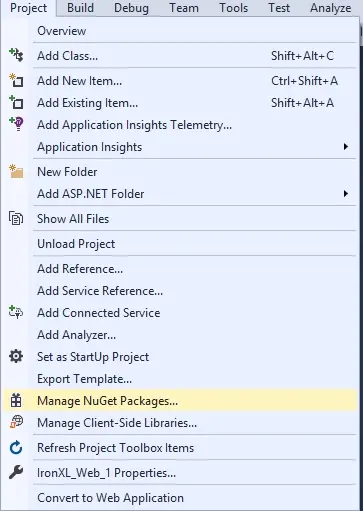
Şekil 1. Visual Studio'da Proje Menüsü aracılığıyla NuGet Paket Yöneticisi'ne erişme
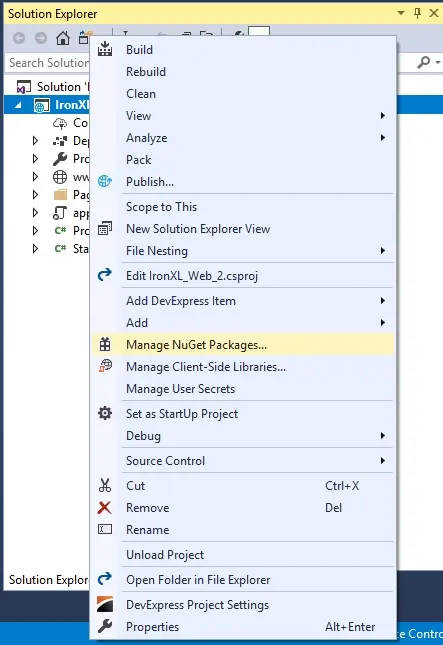
Şekil 2. Visual Studio'da bağlam menüsü aracılığıyla NuGet Paket Yöneticisi'ne erişme
Seçildikten sonra, IronPDF paketini arayın ve yükleyin.
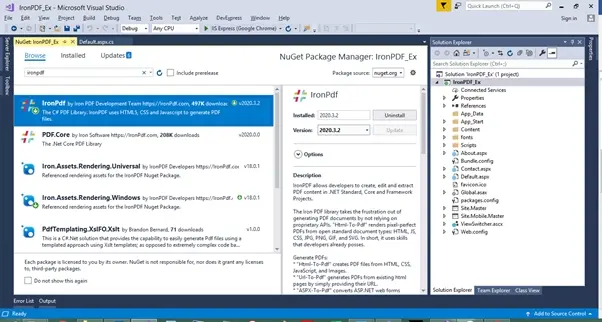
Şekil 3. Visual Studio'da NuGET Paket Yöneticisi kullanarak IronPDF kütüphanesini yükleme
Geliştirici Komut İstemi Kullanarak
IronPDF NuGet paketini Geliştirici Komut İstemi aracılığıyla yükleyin:
- Geliştirici Komut İstemi açın
-
Aşağıdaki komutu yazın:
Install-Package IronPdf
- Enter tuşuna basın
- Paket indirilir ve yüklenir
- Visual Studio projenizi yeniden yükleyin
NuGet Paketini Doğrudan İndirin
IronPDF'yi NuGet'ten doğrudan indirip yükleyin:
- IronPDF NuGet Sayfasına gidin.
- Paket İndir'i seçin
- İndirilen paketi çift tıklayın
- Paket yüklenir
- Visual Studio projenizi yeniden yükleyin
Kütüphaneyi İndirerek IronPDF'yi Yükleyin
IronPDF .DLL dosyasını doğrudan IronPDF İndir sayfasından indirin.
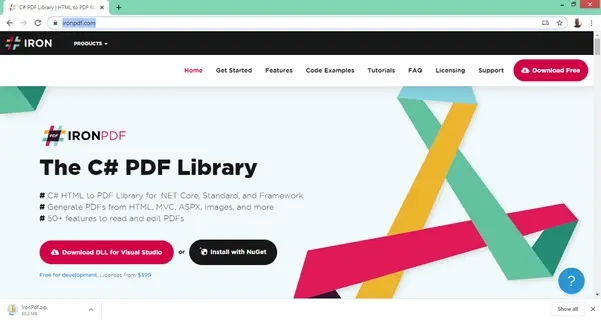
Şekil 4. IronPDF web sitesinden IronPDF Kütüphanesi DLL'sini indirme
Kütüphaneyi projenize referans gösterin:
- Solution Explorer'da Çözüme Sağ Tıklayın
- Referansları Seçin
- IronPDF.dll kütüphanesine göz atın
- Tamam'a tıklayın
IronPDF şimdi kullanıma hazır. Şimdi XFINIUM.PDF'yi yükleyelim.
XFINIUM.PDF Nasıl Yüklenir?
.NET Core'da, Xfinium PDF'yi bir cake eklentisi veya aracı olarak yükleyin:
# Install Xfinium.Pdf.NetCore as a Cake Addin
#addin nuget:?package=Xfinium.Pdf.NetCore&version=10.2.0
# Install Xfinium.Pdf.NetCore as a Cake Addin
#addin nuget:?package=Xfinium.Pdf.NetCore&version=10.2.0# Install Xfinium.Pdf.NetCore as a Cake Tool
#tool nuget:?package=Xfinium.Pdf.NetCore&version=10.2.0# Install Xfinium.Pdf.NetCore as a Cake Tool
#tool nuget:?package=Xfinium.Pdf.NetCore&version=10.2.0Şimdi IronPDF ve XFINIUM.PDF'yi karşılaştıralım.
Basit Bir PDF Belgesi .NET Core'da Nasıl Oluşturulur?
Yazılım geliştiriciler, C# kullanarak PDF dosyalarını dinamik olarak oluşturmayı bilmelidir. Kullanıcı girdilerinden rapor oluşturmak, kullanıcı metnini PDF olarak kaydetmek, HTML bilgisini çıkartmak ve PDF'ye dönüştürmek gibi PDF oluşturma ihtiyacınız olabilir.
Her iki kütüphane de HTML web sayfalarını PDF'ye dönüştürebilir. Her bir kütüphanenin yaklaşımını inceleyelim.
IronPDF Kullanarak
IronPDF, PDF dosyaları oluşturma için çeşitli yöntemler sunar.
Var Olan URL'den PDF'e
IronPDF, mevcut URL'lerden HTML'yi PDF belgelerine dönüştürmeyi kolaylaştırır. JavaScript, görüntüler, formlar ve CSS tam destek alır.
Gerçekleştirme, URL işleme işlemlerini otomatik olarak yönetir:
// Create an instance of the ChromePdfRenderer
IronPdf.ChromePdfRenderer Renderer = new IronPdf.ChromePdfRenderer();

// Configure rendering options for better performance
Renderer.RenderingOptions.WaitFor.RenderDelay = 500; // Wait for JavaScript to load
Renderer.RenderingOptions.CssMediaType = IronPdf.Rendering.PdfCssMediaType.Print;

// Render a URL to PDF
using var Pdf = Renderer.RenderUrlAsPdf("___PROTECTED_URL_134___");

// Save the PDF with metadata
Pdf.MetaData.Author = "IronPDF";
Pdf.MetaData.Title = "Website to PDF Conversion";
Pdf.SaveAs("url.pdf");
// Create an instance of the ChromePdfRenderer
IronPdf.ChromePdfRenderer Renderer = new IronPdf.ChromePdfRenderer();
// Configure rendering options for better performance
Renderer.RenderingOptions.WaitFor.RenderDelay = 500; // Wait for JavaScript to load
Renderer.RenderingOptions.CssMediaType = IronPdf.Rendering.PdfCssMediaType.Print;
// Render a URL to PDF
using var Pdf = Renderer.RenderUrlAsPdf("___PROTECTED_URL_134___");
// Save the PDF with metadata
Pdf.MetaData.Author = "IronPDF";
Pdf.MetaData.Title = "Website to PDF Conversion";
Pdf.SaveAs("url.pdf");' Create an instance of the ChromePdfRenderer
Dim Renderer As New IronPdf.ChromePdfRenderer()
' Configure rendering options for better performance
Renderer.RenderingOptions.WaitFor.RenderDelay = 500 ' Wait for JavaScript to load
Renderer.RenderingOptions.CssMediaType = IronPdf.Rendering.PdfCssMediaType.Print
' Render a URL to PDF
Using Pdf = Renderer.RenderUrlAsPdf("___PROTECTED_URL_134___")
' Save the PDF with metadata
Pdf.MetaData.Author = "IronPDF"
Pdf.MetaData.Title = "Website to PDF Conversion"
Pdf.SaveAs("url.pdf")
End UsingHTML Giriş Dizesinden PDF
HTML dizisinden bir PDF sayfası işlemek için aşağıdaki kod örneğini inceleyin. Yalnızca HTML kullanabilir veya CSS, görüntüler ve JavaScript ile birleştirebilirsiniz:
// Create an instance of the ChromePdfRenderer
var Renderer = new IronPdf.ChromePdfRenderer();

// Configure rendering options
Renderer.RenderingOptions.MarginTop = 50; // millimeters
Renderer.RenderingOptions.MarginBottom = 50;
Renderer.RenderingOptions.CssMediaType = IronPdf.Rendering.PdfCssMediaType.Print;

// Render a simple HTML string to PDF
using var PDF = Renderer.RenderHtmlAsPdf("<h1>Html with CSS and Images</h1>");

// Add document properties
PDF.MetaData.Author = "Development Team";
PDF.MetaData.Keywords = "HTML, PDF, C#";
PDF.MetaData.ModifiedDate = DateTime.Now;

// Save the PDF
PDF.SaveAs("pixel-perfect.pdf");

// Load external HTML assets: images, CSS, and javascript
// An optional BasePath 'C:\site\assets\' is set as the file location to load assets from
using var AdvancedPDF = Renderer.RenderHtmlAsPdf("<img src='icons/iron.png'>", @"C:\site\assets\");

// Apply security settings
AdvancedPDF.Password = "pass123";
AdvancedPDF.SecuritySettings.AllowUserPrinting = IronPdf.Security.PdfPrintSecurity.FullPrintRights;

// Save the advanced PDF with external assets
AdvancedPDF.SaveAs("html-with-assets.pdf");
// Create an instance of the ChromePdfRenderer
var Renderer = new IronPdf.ChromePdfRenderer();
// Configure rendering options
Renderer.RenderingOptions.MarginTop = 50; // millimeters
Renderer.RenderingOptions.MarginBottom = 50;
Renderer.RenderingOptions.CssMediaType = IronPdf.Rendering.PdfCssMediaType.Print;
// Render a simple HTML string to PDF
using var PDF = Renderer.RenderHtmlAsPdf("<h1>Html with CSS and Images</h1>");
// Add document properties
PDF.MetaData.Author = "Development Team";
PDF.MetaData.Keywords = "HTML, PDF, C#";
PDF.MetaData.ModifiedDate = DateTime.Now;
// Save the PDF
PDF.SaveAs("pixel-perfect.pdf");
// Load external HTML assets: images, CSS, and javascript
// An optional BasePath 'C:\site\assets\' is set as the file location to load assets from
using var AdvancedPDF = Renderer.RenderHtmlAsPdf("<img src='icons/iron.png'>", @"C:\site\assets\");
// Apply security settings
AdvancedPDF.Password = "pass123";
AdvancedPDF.SecuritySettings.AllowUserPrinting = IronPdf.Security.PdfPrintSecurity.FullPrintRights;
// Save the advanced PDF with external assets
AdvancedPDF.SaveAs("html-with-assets.pdf");' Create an instance of the ChromePdfRenderer
Dim Renderer As New IronPdf.ChromePdfRenderer()
' Configure rendering options
Renderer.RenderingOptions.MarginTop = 50 ' millimeters
Renderer.RenderingOptions.MarginBottom = 50
Renderer.RenderingOptions.CssMediaType = IronPdf.Rendering.PdfCssMediaType.Print
' Render a simple HTML string to PDF
Using PDF = Renderer.RenderHtmlAsPdf("<h1>Html with CSS and Images</h1>")
' Add document properties
PDF.MetaData.Author = "Development Team"
PDF.MetaData.Keywords = "HTML, PDF, C#"
PDF.MetaData.ModifiedDate = DateTime.Now
' Save the PDF
PDF.SaveAs("pixel-perfect.pdf")
End Using
' Load external HTML assets: images, CSS, and javascript
' An optional BasePath 'C:\site\assets\' is set as the file location to load assets from
Using AdvancedPDF = Renderer.RenderHtmlAsPdf("<img src='icons/iron.png'>", "C:\site\assets\")
' Apply security settings
AdvancedPDF.Password = "pass123"
AdvancedPDF.SecuritySettings.AllowUserPrinting = IronPdf.Security.PdfPrintSecurity.FullPrintRights
' Save the advanced PDF with external assets
AdvancedPDF.SaveAs("html-with-assets.pdf")
End UsingGelişmiş HTML'den PDF'ye dönüştürme teknikleri için HTML'den PDF'ye öğreticisine bakın.
XFINIUM.PDF Kullanımı
XFINIUM.PDF ile boş bir PDF belgesi oluşturmak üç satır gerektirir: belge oluşturma, sayfa oluşturma ve kaydetme:
// Create a new PDF document
PdfFixedDocument document = new PdfFixedDocument();

// Add a page to the document
PdfPage page = document.Pages.Add();

// Save the document as a PDF file
document.Save("empty.pdf");
// Create a new PDF document
PdfFixedDocument document = new PdfFixedDocument();
// Add a page to the document
PdfPage page = document.Pages.Add();
// Save the document as a PDF file
document.Save("empty.pdf");' Create a new PDF document
Dim document As New PdfFixedDocument()
' Add a page to the document
Dim page As PdfPage = document.Pages.Add()
' Save the document as a PDF file
document.Save("empty.pdf")Metin içeriği eklemek üç ek satır gerektirir: bir yazı tipi oluşturma, renk için bir fırça oluşturma ve metin çizme:
// Create a new PDF document
PdfFixedDocument document = new PdfFixedDocument();
PdfPage page = document.Pages.Add();

// Create a standard font with Helvetica face and 24 point size
PdfStandardFont helvetica = new PdfStandardFont(PdfStandardFontFace.Helvetica, 24);

// Create a solid RGB red brush.
PdfBrush brush = new PdfBrush(PdfRgbColor.Red);

// Draw the text on the page.
page.Graphics.DrawString("Hello World", helvetica, brush, 100, 100);

// Save the document as a PDF file
document.Save("helloworld.pdf");
// Create a new PDF document
PdfFixedDocument document = new PdfFixedDocument();
PdfPage page = document.Pages.Add();
// Create a standard font with Helvetica face and 24 point size
PdfStandardFont helvetica = new PdfStandardFont(PdfStandardFontFace.Helvetica, 24);
// Create a solid RGB red brush.
PdfBrush brush = new PdfBrush(PdfRgbColor.Red);
// Draw the text on the page.
page.Graphics.DrawString("Hello World", helvetica, brush, 100, 100);
// Save the document as a PDF file
document.Save("helloworld.pdf");' Create a new PDF document
Dim document As New PdfFixedDocument()
Dim page As PdfPage = document.Pages.Add()
' Create a standard font with Helvetica face and 24 point size
Dim helvetica As New PdfStandardFont(PdfStandardFontFace.Helvetica, 24)
' Create a solid RGB red brush.
Dim brush As New PdfBrush(PdfRgbColor.Red)
' Draw the text on the page.
page.Graphics.DrawString("Hello World", helvetica, brush, 100, 100)
' Save the document as a PDF file
document.Save("helloworld.pdf")Nesne modeli, PDF standardına yakından benzemektedir. Bu yaklaşım, akış belgeleri gibi karmaşık soyutlamalar oluşturmak için net avantajlar sağlar.
XFINIUM.PDF Kullanımı
XFINIUM.PDF, yeni PDF formları oluşturmanızı ve mevcut PDF formlarını doldurmanızı sağlar.
Her PDF form alanı türü için karşılık gelen bir sınıf vardır:
PdfTextBoxField– metin kutusu alanlarıPdfCheckBoxField– onay kutularıPdfRadioButtonField– radyo düğmesi setleriPdfComboboxField– açılır kutularPdfListboxField– liste kutularıPdfPushbuttonField– basma butonları- PdfSignatureField – imza alanları
Bir form alanı oluşturmak için, alan adını ve sayfa konumunu belirtin. Alan nesnesini oluşturduktan sonra, onu sayfaya ekleyin ve özniteliklerini ayarlayın:
// Create a text box field named "firstname"
PdfTextBoxField firstNameTextBox = new PdfTextBoxField("firstname");

// Add the field to a PDF page
pdfpage.Fields.Add(firstNameTextBox);

// Set the position of the field on the PDF page
firstNameTextBox.Widgets[0].VisualRectangle = new PdfVisualRectangle(150, 45, 200, 20);
// Create a text box field named "firstname"
PdfTextBoxField firstNameTextBox = new PdfTextBoxField("firstname");
// Add the field to a PDF page
pdfpage.Fields.Add(firstNameTextBox);
// Set the position of the field on the PDF page
firstNameTextBox.Widgets[0].VisualRectangle = new PdfVisualRectangle(150, 45, 200, 20);' Create a text box field named "firstname"
Dim firstNameTextBox As New PdfTextBoxField("firstname")
' Add the field to a PDF page
pdfpage.Fields.Add(firstNameTextBox)
' Set the position of the field on the PDF page
firstNameTextBox.Widgets(0).VisualRectangle = New PdfVisualRectangle(150, 45, 200, 20)Mevcut PDF formları doldurmak için, onları bir PdfFixedDocument nesnesine yükleyin. Belgenin alanlar koleksiyonu otomatik olarak doldurulur. Alanları indeks veya isme göre bulabilir ve değer özelliklerini ayarlarayarak doldurabilirsiniz.
// Load an existing PDF document with forms
PdfFixedDocument document = new PdfFixedDocument("form.pdf");

// Fill form fields with values
(document.Form.Fields["firstname"] as PdfTextBoxField).Text = "John";
(document.Form.Fields["lastname"] as PdfTextBoxField).Value = "Doe";
(document.Form.Fields["sex"].Widgets[0] as PdfRadioButtonWidget).Checked = true;
(document.Form.Fields["firstcar"] as PdfComboBoxField).SelectedIndex = 0;
(document.Form.Fields["secondcar"] as PdfListBoxField).SelectedIndex = 1;
(document.Form.Fields["agree"] as PdfCheckBoxField).Checked = true;

// Save the filled form as a new PDF file
document.Save("form_filled.pdf");
// Load an existing PDF document with forms
PdfFixedDocument document = new PdfFixedDocument("form.pdf");
// Fill form fields with values
(document.Form.Fields["firstname"] as PdfTextBoxField).Text = "John";
(document.Form.Fields["lastname"] as PdfTextBoxField).Value = "Doe";
(document.Form.Fields["sex"].Widgets[0] as PdfRadioButtonWidget).Checked = true;
(document.Form.Fields["firstcar"] as PdfComboBoxField).SelectedIndex = 0;
(document.Form.Fields["secondcar"] as PdfListBoxField).SelectedIndex = 1;
(document.Form.Fields["agree"] as PdfCheckBoxField).Checked = true;
// Save the filled form as a new PDF file
document.Save("form_filled.pdf");' Load an existing PDF document with forms
Dim document As New PdfFixedDocument("form.pdf")
' Fill form fields with values
TryCast(document.Form.Fields("firstname"), PdfTextBoxField).Text = "John"
TryCast(document.Form.Fields("lastname"), PdfTextBoxField).Value = "Doe"
TryCast(document.Form.Fields("sex").Widgets(0), PdfRadioButtonWidget).Checked = True
TryCast(document.Form.Fields("firstcar"), PdfComboBoxField).SelectedIndex = 0
TryCast(document.Form.Fields("secondcar"), PdfListBoxField).SelectedIndex = 1
TryCast(document.Form.Fields("agree"), PdfCheckBoxField).Checked = True
' Save the filled form as a new PDF file
document.Save("form_filled.pdf")IronPDF Kullanarak
IronPDF kullanarak doldurulabilir PDF'ler oluşturmanın yolu:
// PM> Install-Package IronPdf
using IronPdf;
using IronPdf.Rendering;

// Step 1. Creating a PDF with editable forms from HTML using form and input tags
var FormHtml = @"
<html>
    <head>
        <style>
            body { font-family: Arial, sans-serif; margin: 40px; }
            h2 { color: #333; }
            form { background: #f4f4f4; padding: 20px; border-radius: 8px; }
            input[type='text'] {
                width: 100%;
                padding: 8px;
                margin: 10px 0;
                border: 1px solid #ddd;
                border-radius: 4px;
            }
            input[type='checkbox'] { margin-right: 10px; }
            select { width: 100%; padding: 8px; margin: 10px 0; }
        </style>
    </head>
    <body>
        <h2>Editable PDF Form</h2>
        <form>
          First name:<br> <input type='text' name='firstname' value=''> <br>
          Last name:<br> <input type='text' name='lastname' value=''>
          <br><br>
          Email:<br> <input type='text' name='email' value=''>
          <br><br>
          Subscribe to newsletter: <input type='checkbox' name='newsletter' value='yes'>
          <br><br>
          Country:
          <select name='country'>
              <option value='usa'>United States</option>
              <option value='uk'>United Kingdom</option>
              <option value='canada'>Canada</option>
          </select>
        </form>
    </body>
</html>";

// Create a PDF renderer with form creation enabled
IronPdf.ChromePdfRenderer Renderer = new IronPdf.ChromePdfRenderer();
Renderer.RenderingOptions.CreatePdfFormsFromHtml = true;
Renderer.RenderingOptions.CssMediaType = PdfCssMediaType.Print;
Renderer.RenderingOptions.MarginTop = 20;
Renderer.RenderingOptions.MarginBottom = 20;

// Render the HTML as a PDF and save it
var pdfDocument = Renderer.RenderHtmlAsPdf(FormHtml);
pdfDocument.SaveAs("BasicForm.pdf");

// Step 2. Reading and Writing PDF form values.
var FormDocument = PdfDocument.FromFile("BasicForm.pdf");

// Get form field collection
var form = FormDocument.Form;

// Set and Read the value of the "firstname" field
var FirstNameField = form.FindFormField("firstname");
FirstNameField.Value = "Minnie";
Console.WriteLine("FirstNameField value: {0}", FirstNameField.Value);

// Set and Read the value of the "lastname" field
var LastNameField = form.FindFormField("lastname");
LastNameField.Value = "Mouse";
Console.WriteLine("LastNameField value: {0}", LastNameField.Value);

// Set email field
var EmailField = form.FindFormField("email");
EmailField.Value = "minnie.mouse@example.com";

// Set checkbox
var NewsletterField = form.FindFormField("newsletter");
NewsletterField.Value = "yes";

// Set dropdown selection
var CountryField = form.FindFormField("country");
CountryField.Value = "usa";

// Save the form with filled values
FormDocument.SaveAs("FilledForm.pdf");

// Step 3. Flattening the form (making it non-editable)
FormDocument.Form.Flatten();
FormDocument.SaveAs("FlattenedForm.pdf");
// PM> Install-Package IronPdf
using IronPdf;
using IronPdf.Rendering;
// Step 1. Creating a PDF with editable forms from HTML using form and input tags
var FormHtml = @"
<html>
<head>
<style>
body { font-family: Arial, sans-serif; margin: 40px; }
h2 { color: #333; }
form { background: #f4f4f4; padding: 20px; border-radius: 8px; }
input[type='text'] {
width: 100%;
padding: 8px;
margin: 10px 0;
border: 1px solid #ddd;
border-radius: 4px;
}
input[type='checkbox'] { margin-right: 10px; }
select { width: 100%; padding: 8px; margin: 10px 0; }
</style>
</head>
<body>
<h2>Editable PDF Form</h2>
<form>
First name:<br> <input type='text' name='firstname' value=''> <br>
Last name:<br> <input type='text' name='lastname' value=''>
<br><br>
Email:<br> <input type='text' name='email' value=''>
<br><br>
Subscribe to newsletter: <input type='checkbox' name='newsletter' value='yes'>
<br><br>
Country:
<select name='country'>
<option value='usa'>United States</option>
<option value='uk'>United Kingdom</option>
<option value='canada'>Canada</option>
</select>
</form>
</body>
</html>";
// Create a PDF renderer with form creation enabled
IronPdf.ChromePdfRenderer Renderer = new IronPdf.ChromePdfRenderer();
Renderer.RenderingOptions.CreatePdfFormsFromHtml = true;
Renderer.RenderingOptions.CssMediaType = PdfCssMediaType.Print;
Renderer.RenderingOptions.MarginTop = 20;
Renderer.RenderingOptions.MarginBottom = 20;
// Render the HTML as a PDF and save it
var pdfDocument = Renderer.RenderHtmlAsPdf(FormHtml);
pdfDocument.SaveAs("BasicForm.pdf");
// Step 2. Reading and Writing PDF form values.
var FormDocument = PdfDocument.FromFile("BasicForm.pdf");
// Get form field collection
var form = FormDocument.Form;
// Set and Read the value of the "firstname" field
var FirstNameField = form.FindFormField("firstname");
FirstNameField.Value = "Minnie";
Console.WriteLine("FirstNameField value: {0}", FirstNameField.Value);
// Set and Read the value of the "lastname" field
var LastNameField = form.FindFormField("lastname");
LastNameField.Value = "Mouse";
Console.WriteLine("LastNameField value: {0}", LastNameField.Value);
// Set email field
var EmailField = form.FindFormField("email");
EmailField.Value = "minnie.mouse@example.com";
// Set checkbox
var NewsletterField = form.FindFormField("newsletter");
NewsletterField.Value = "yes";
// Set dropdown selection
var CountryField = form.FindFormField("country");
CountryField.Value = "usa";
// Save the form with filled values
FormDocument.SaveAs("FilledForm.pdf");
// Step 3. Flattening the form (making it non-editable)
FormDocument.Form.Flatten();
FormDocument.SaveAs("FlattenedForm.pdf");' PM> Install-Package IronPdf
Imports IronPdf
Imports IronPdf.Rendering
' Step 1. Creating a PDF with editable forms from HTML using form and input tags
Dim FormHtml As String = "
<html>
<head>
<style>
body { font-family: Arial, sans-serif; margin: 40px; }
h2 { color: #333; }
form { background: #f4f4f4; padding: 20px; border-radius: 8px; }
input[type='text'] {
width: 100%;
padding: 8px;
margin: 10px 0;
border: 1px solid #ddd;
border-radius: 4px;
}
input[type='checkbox'] { margin-right: 10px; }
select { width: 100%; padding: 8px; margin: 10px 0; }
</style>
</head>
<body>
<h2>Editable PDF Form</h2>
<form>
First name:<br> <input type='text' name='firstname' value=''> <br>
Last name:<br> <input type='text' name='lastname' value=''>
<br><br>
Email:<br> <input type='text' name='email' value=''>
<br><br>
Subscribe to newsletter: <input type='checkbox' name='newsletter' value='yes'>
<br><br>
Country:
<select name='country'>
<option value='usa'>United States</option>
<option value='uk'>United Kingdom</option>
<option value='canada'>Canada</option>
</select>
</form>
</body>
</html>"
' Create a PDF renderer with form creation enabled
Dim Renderer As New IronPdf.ChromePdfRenderer()
Renderer.RenderingOptions.CreatePdfFormsFromHtml = True
Renderer.RenderingOptions.CssMediaType = PdfCssMediaType.Print
Renderer.RenderingOptions.MarginTop = 20
Renderer.RenderingOptions.MarginBottom = 20
' Render the HTML as a PDF and save it
Dim pdfDocument = Renderer.RenderHtmlAsPdf(FormHtml)
pdfDocument.SaveAs("BasicForm.pdf")
' Step 2. Reading and Writing PDF form values.
Dim FormDocument = PdfDocument.FromFile("BasicForm.pdf")
' Get form field collection
Dim form = FormDocument.Form
' Set and Read the value of the "firstname" field
Dim FirstNameField = form.FindFormField("firstname")
FirstNameField.Value = "Minnie"
Console.WriteLine("FirstNameField value: {0}", FirstNameField.Value)
' Set and Read the value of the "lastname" field
Dim LastNameField = form.FindFormField("lastname")
LastNameField.Value = "Mouse"
Console.WriteLine("LastNameField value: {0}", LastNameField.Value)
' Set email field
Dim EmailField = form.FindFormField("email")
EmailField.Value = "minnie.mouse@example.com"
' Set checkbox
Dim NewsletterField = form.FindFormField("newsletter")
NewsletterField.Value = "yes"
' Set dropdown selection
Dim CountryField = form.FindFormField("country")
CountryField.Value = "usa"
' Save the form with filled values
FormDocument.SaveAs("FilledForm.pdf")
' Step 3. Flattening the form (making it non-editable)
FormDocument.Form.Flatten()
FormDocument.SaveAs("FlattenedForm.pdf")HTML biçimlendirme etiketleriyle bir form oluşturmakla başlarsınız. Kütüphane, PDF olarak kaydetme sürecindeki karmaşıklığı yönetir. FindFormField işlevi ile form değerlerini okuma ve yazma işlemleri yapılır. Uygulamanız bu özelliği programatik olarak form doldurmak için hemen kullanabilir.
İleri düzey form kullanımı için, dijital imzalar dahil, PDF Formları Oluşturma Eğitimine bakın.
PDF Dosyalarını Dijital Olarak Nasıl İmzalarsınız
Uzaktan çalışma, verimli belge işleme gerektirir. Formları doldurma ve imzalama, dosyaları gönderme ve belgeleri işleme günlük iş etkinlikleridir. PDF belgelerini, portföyleri ve formları imzalama, kağıt belgelerin yerini alır. Dijital imzalar, şirketlerin sözleşmeleri imzalayıp PDF formlarını çevrimiçi paylaşmasını sağlar.
XFINIUM.PDF Kullanımı
Bir imza alanı, PDF dosyalarında dijital imzaları uygular (PdfSignatureField sınıfı). İmza alanı bir sayfada görünse de, dijital imza tüm belgeyi imzalar.
İmzalama süreci, imza özelliğini ayarlamak için bir PdfDigitalSignature nesnesi kullanır. İmza, belgenin PDF dosyasının ikili yerleşimi temel alındığında kaydedildiğinde oluşur.
PdfDigitalSignature, tüm XFINIUM imzaları için temeli sağlar:
PdfCmsDigitalSignature– CMS standart imza (PdfDigitalSignature'den türetilir)PdfPadesDigitalSignature– PADES standart imza (PdfCmsDigitalSignature'den türetilir)PdfInteractiveCmsDigitalSignature– donanım akıllı kartı kullanarak CMS imzasıPdfInteractivePadesDigitalSignature– Donanım akıllı kart desteği ile PADESPdfDocumentTimeStamp– Belge düzeyinde zaman damgası (PdfDigitalSignature'den türetilir)
IronPDF Kullanarak
Geliştiriciler sıkça IronPDF ve C# kullanarak programatik PDF'lere imza eklemeyi sorar. Bu şunları içerebilir:
- Dosyalardan grafiksel imza görüntüleri ekleme
- Kriptografik imzalama ile sahteciliği önleme
- El yazısı imza ikonlarını kriptografik imzalama ile ekleme
İlk yaklaşım, var olan PDF sayfalarına bir imza PNG'si damgalamayı içerir. İmzalar veya şirket damgaları için kullanın:
// Open an existing PDF document or create a new one
var Pdf = PdfDocument.FromFile(@"C:\Path\To\ASPX to PDF.pdf");

// Define an HTML stamp with a signature image
var SignatureStamp = new HtmlStamp()
{
    Html = "<img src='signature.png' />",
    Width = 150,
    Height = 50,
    Bottom = 300,
    Left = 85,
    ZIndex = HtmlStamp.StampLayer.OnTopOfExistingPDFContent
};

// Advanced stamp with styling
var StyledSignatureStamp = new HtmlStamp()
{
    Html = @"<div style='border: 2px solid #000; padding: 10px; background: rgba(255,255,255,0.9);'>
                <img src='signature.png' style='width: 120px;' />
                <p style='margin: 5px 0 0 0; font-size: 10px;'>Digitally Signed</p>
                <p style='margin: 0; font-size: 8px;'>{date}</p>
             </div>",
    Width = 150,
    Height = 100,
    Bottom = 50,
    Right = 50,
    ZIndex = HtmlStamp.StampLayer.OnTopOfExistingPDFContent
};

// Stamp the signature on the first page of the PDF
Pdf.StampHTML(SignatureStamp, 1);

// Or apply to all pages
Pdf.StampHTML(StyledSignatureStamp);

// Save the stamped PDF
Pdf.SaveAs(@"C:\Path\To\Stamped_PDF.pdf");
// Open an existing PDF document or create a new one
var Pdf = PdfDocument.FromFile(@"C:\Path\To\ASPX to PDF.pdf");
// Define an HTML stamp with a signature image
var SignatureStamp = new HtmlStamp()
{
Html = "<img src='signature.png' />",
Width = 150,
Height = 50,
Bottom = 300,
Left = 85,
ZIndex = HtmlStamp.StampLayer.OnTopOfExistingPDFContent
};
// Advanced stamp with styling
var StyledSignatureStamp = new HtmlStamp()
{
Html = @"<div style='border: 2px solid #000; padding: 10px; background: rgba(255,255,255,0.9);'>
<img src='signature.png' style='width: 120px;' />
<p style='margin: 5px 0 0 0; font-size: 10px;'>Digitally Signed</p>
<p style='margin: 0; font-size: 8px;'>{date}</p>
</div>",
Width = 150,
Height = 100,
Bottom = 50,
Right = 50,
ZIndex = HtmlStamp.StampLayer.OnTopOfExistingPDFContent
};
// Stamp the signature on the first page of the PDF
Pdf.StampHTML(SignatureStamp, 1);
// Or apply to all pages
Pdf.StampHTML(StyledSignatureStamp);
// Save the stamped PDF
Pdf.SaveAs(@"C:\Path\To\Stamped_PDF.pdf");' Open an existing PDF document or create a new one
Dim Pdf = PdfDocument.FromFile("C:\Path\To\ASPX to PDF.pdf")
' Define an HTML stamp with a signature image
Dim SignatureStamp = New HtmlStamp() With {
.Html = "<img src='signature.png' />",
.Width = 150,
.Height = 50,
.Bottom = 300,
.Left = 85,
.ZIndex = HtmlStamp.StampLayer.OnTopOfExistingPDFContent
}
' Advanced stamp with styling
Dim StyledSignatureStamp = New HtmlStamp() With {
.Html = "<div style='border: 2px solid #000; padding: 10px; background: rgba(255,255,255,0.9);'>" & _
"<img src='signature.png' style='width: 120px;' />" & _
"<p style='margin: 5px 0 0 0; font-size: 10px;'>Digitally Signed</p>" & _
"<p style='margin: 0; font-size: 8px;'>{date}</p>" & _
"</div>",
.Width = 150,
.Height = 100,
.Bottom = 50,
.Right = 50,
.ZIndex = HtmlStamp.StampLayer.OnTopOfExistingPDFContent
}
' Stamp the signature on the first page of the PDF
Pdf.StampHTML(SignatureStamp, 1)
' Or apply to all pages
Pdf.StampHTML(StyledSignatureStamp)
' Save the stamped PDF
Pdf.SaveAs("C:\Path\To\Stamped_PDF.pdf").pfx ve .p12 X509Certificate2 dijital sertifikalarla PDF'leri kriptografik olarak imzalayın, tek satıra indirgenmiştir:
// 123456 below represents the signature password
new IronPdf.PdfSignature("CertificateFile.p12", "123456").SignPdfFile("ASPX to PDF.pdf");

// Or with more control
var signature = new IronPdf.PdfSignature("CertificateFile.p12", "123456")
{
    SigningContact = "john@example.com",
    SigningLocation = "New York, USA",
    SigningReason = "Contract Agreement"
};

// Load the PDF
var pdf = PdfDocument.FromFile("contract.pdf");

// Sign and save
pdf.SignPdfWithDigitalSignature(signature);
pdf.SaveAs("signed-contract.pdf");
// 123456 below represents the signature password
new IronPdf.PdfSignature("CertificateFile.p12", "123456").SignPdfFile("ASPX to PDF.pdf");
// Or with more control
var signature = new IronPdf.PdfSignature("CertificateFile.p12", "123456")
{
SigningContact = "john@example.com",
SigningLocation = "New York, USA",
SigningReason = "Contract Agreement"
};
// Load the PDF
var pdf = PdfDocument.FromFile("contract.pdf");
// Sign and save
pdf.SignPdfWithDigitalSignature(signature);
pdf.SaveAs("signed-contract.pdf");' 123456 below represents the signature password
New IronPdf.PdfSignature("CertificateFile.p12", "123456").SignPdfFile("ASPX to PDF.pdf")
' Or with more control
Dim signature = New IronPdf.PdfSignature("CertificateFile.p12", "123456") With {
.SigningContact = "john@example.com",
.SigningLocation = "New York, USA",
.SigningReason = "Contract Agreement"
}
' Load the PDF
Dim pdf = PdfDocument.FromFile("contract.pdf")
' Sign and save
pdf.SignPdfWithDigitalSignature(signature)
pdf.SaveAs("signed-contract.pdf")Bu gelişmiş örnek, .pfx / .p12 X509Certificate2 dijital kimlik imzalamayı el yazısı imzalarla birleştirir:
// Create a digital signature using a certificate file
var Signature = new IronPdf.PdfSignature("Iron.pfx", "123456");

// Render a PDF document to be signed
var Renderer = new ChromePdfRenderer();
Renderer.RenderingOptions.MarginBottom = 0;
Renderer.RenderingOptions.MarginTop = 0;
Renderer.RenderingOptions.EnableJavaScript = true;
Renderer.RenderingOptions.CssMediaType = IronPdf.Rendering.PdfCssMediaType.Print;

// Create PDF with security features
string html = @"<h1>Contract Agreement</h1>
                <p>This document is digitally signed and encrypted.</p>
                <p>Agreement Date: " + DateTime.Now.ToString("yyyy-MM-dd") + @"</p>";

PdfDocument doc = Renderer.RenderHtmlAsPdf(html);

// Configure optional signing options and a handwritten signature graphic
Signature.SigningContact = "support@ironsoftware.com";
Signature.SigningLocation = "Chicago, USA";
Signature.SigningReason = "To show how to sign a PDF";

// Load a handwritten signature image
Signature.LoadSignatureImageFromFile("handwriting.png");

// Advanced security: Set permissions
doc.SecuritySettings.AllowUserPrinting = IronPdf.Security.PdfPrintSecurity.NoPrint;
doc.SecuritySettings.AllowUserEdits = IronPdf.Security.PdfEditSecurity.NoEdit;
doc.SecuritySettings.AllowUserCopyPasteContent = false;

// Sign the PDF document with the digital signature
doc.SignPdfWithDigitalSignature(Signature);

// Add password protection
doc.Password = "userpassword";
doc.OwnerPassword = "ownerpassword";

// Save the signed PDF document
doc.SaveAs("Signed_ASPX_to_PDF.pdf");
// Create a digital signature using a certificate file
var Signature = new IronPdf.PdfSignature("Iron.pfx", "123456");
// Render a PDF document to be signed
var Renderer = new ChromePdfRenderer();
Renderer.RenderingOptions.MarginBottom = 0;
Renderer.RenderingOptions.MarginTop = 0;
Renderer.RenderingOptions.EnableJavaScript = true;
Renderer.RenderingOptions.CssMediaType = IronPdf.Rendering.PdfCssMediaType.Print;
// Create PDF with security features
string html = @"<h1>Contract Agreement</h1>
<p>This document is digitally signed and encrypted.</p>
<p>Agreement Date: " + DateTime.Now.ToString("yyyy-MM-dd") + @"</p>";
PdfDocument doc = Renderer.RenderHtmlAsPdf(html);
// Configure optional signing options and a handwritten signature graphic
Signature.SigningContact = "support@ironsoftware.com";
Signature.SigningLocation = "Chicago, USA";
Signature.SigningReason = "To show how to sign a PDF";
// Load a handwritten signature image
Signature.LoadSignatureImageFromFile("handwriting.png");
// Advanced security: Set permissions
doc.SecuritySettings.AllowUserPrinting = IronPdf.Security.PdfPrintSecurity.NoPrint;
doc.SecuritySettings.AllowUserEdits = IronPdf.Security.PdfEditSecurity.NoEdit;
doc.SecuritySettings.AllowUserCopyPasteContent = false;
// Sign the PDF document with the digital signature
doc.SignPdfWithDigitalSignature(Signature);
// Add password protection
doc.Password = "userpassword";
doc.OwnerPassword = "ownerpassword";
// Save the signed PDF document
doc.SaveAs("Signed_ASPX_to_PDF.pdf");' Create a digital signature using a certificate file
Dim Signature = New IronPdf.PdfSignature("Iron.pfx", "123456")
' Render a PDF document to be signed
Dim Renderer = New ChromePdfRenderer()
Renderer.RenderingOptions.MarginBottom = 0
Renderer.RenderingOptions.MarginTop = 0
Renderer.RenderingOptions.EnableJavaScript = True
Renderer.RenderingOptions.CssMediaType = IronPdf.Rendering.PdfCssMediaType.Print
' Create PDF with security features
Dim html As String = "<h1>Contract Agreement</h1>
<p>This document is digitally signed and encrypted.</p>
<p>Agreement Date: " & DateTime.Now.ToString("yyyy-MM-dd") & "</p>"
Dim doc As PdfDocument = Renderer.RenderHtmlAsPdf(html)
' Configure optional signing options and a handwritten signature graphic
Signature.SigningContact = "support@ironsoftware.com"
Signature.SigningLocation = "Chicago, USA"
Signature.SigningReason = "To show how to sign a PDF"
' Load a handwritten signature image
Signature.LoadSignatureImageFromFile("handwriting.png")
' Advanced security: Set permissions
doc.SecuritySettings.AllowUserPrinting = IronPdf.Security.PdfPrintSecurity.NoPrint
doc.SecuritySettings.AllowUserEdits = IronPdf.Security.PdfEditSecurity.NoEdit
doc.SecuritySettings.AllowUserCopyPasteContent = False
' Sign the PDF document with the digital signature
doc.SignPdfWithDigitalSignature(Signature)
' Add password protection
doc.Password = "userpassword"
doc.OwnerPassword = "ownerpassword"
' Save the signed PDF document
doc.SaveAs("Signed_ASPX_to_PDF.pdf")Tam güvenlik uygulamaları için, gelişmiş belge koruması özellikleri için IronSecureDoc Belgelerine göz atın.## Her Kütüphane Modern CSS Çerçeveleri ve Bootstrap'ı Nasıl İdare Eder?
Modern web uygulamaları genellikle hızlı UI geliştirme ve duyarlı tasarım için Bootstrap gibi CSS çerçevelerine bağımlıdır. PDF oluşturma araçları, profesyonel belge kalitesini sağlamak için bu çerçeve düzenlerini doğru bir şekilde korumalıdır.
IronPDF: Eksiksiz Bootstrap Framework Desteği
IronPDF'nin Chromium render motoru, modern CSS çerçevelerini tamamen destekler:
- Bootstrap 5: Tüm duyarlı bileşenlerle birlikte tam flexbox ve CSS Grid render edilebilir
- Bootstrap 4: Tam kart sistemleri, gezinme çubukları ve yardımcı sınıflar
- Tailwind CSS: Tüm yardımcı öncelik sınıfları ve duyarlı varyantlar
- Foundation ve Diğer Çerçeveler: Tam CSS3 desteği, tüm modern çerçevelerin düzgün çalışmasını sağlar
- Gelişmiş CSS: Flexbox, CSS Grid, özel özellikler, animasyonlar ve dönüşümler
Gerçek dünya doğrulaması: Bootstrap ana sayfası ve şablonlar, tarayıcıya uygun hassasiyetle dönüştürülür.
Kod Örneği: Bootstrap Kartlarıyla Etkinlik Programı
using IronPdf;

var renderer = new ChromePdfRenderer();

// Configure rendering for optimal Bootstrap output
renderer.RenderingOptions.CssMediaType = IronPdf.Rendering.PdfCssMediaType.Print;
renderer.RenderingOptions.EnableJavaScript = true;
renderer.RenderingOptions.RenderDelay = 500; // Allow JS to fully load
renderer.RenderingOptions.ViewPortWidth = 1280; // Desktop viewport
renderer.RenderingOptions.MarginTop = 10;
renderer.RenderingOptions.MarginBottom = 10;
renderer.RenderingOptions.MarginLeft = 10;
renderer.RenderingOptions.MarginRight = 10;

string bootstrapSchedule = @"
<!DOCTYPE html>
<html>
<head>
    <link href='___PROTECTED_URL_135___ rel='stylesheet'>
    <style>
        @media print {
            .pagebreak { page-break-after: always; }
        }
    </style>
</head>
<body>
    <div class='container my-5'>
        <h1 class='text-center mb-5'>Tech Conference 2025 - Schedule</h1>

        <div class='row g-4'>
            <div class='col-md-6'>
                <div class='card border-primary'>
                    <div class='card-header bg-primary text-white d-flex justify-content-between align-items-center'>
                        <h5 class='mb-0'>Keynote Session</h5>
                        <span class='badge bg-light text-primary'>9:00 AM</span>
                    </div>
                    <div class='card-body'>
                        <h6 class='card-subtitle mb-2 text-muted'>Main Auditorium</h6>
                        <p class='card-text'><strong>The Future of AI in Software Development</strong></p>
                        <p class='card-text'>Join us for an exploration of how artificial intelligence is transforming the software development environment.</p>
                        <div class='d-flex align-items-center'>
                            <img src='___PROTECTED_URL_136___ class='rounded-circle me-2' alt='Speaker'>
                            <div>
                                <div class='fw-bold'>Dr. Sarah Chen</div>
                                <small class='text-muted'>AI Research Lead</small>
                            </div>
                        </div>
                    </div>
                </div>
            </div>

            <div class='col-md-6'>
                <div class='card border-success'>
                    <div class='card-header bg-success text-white d-flex justify-content-between align-items-center'>
                        <h5 class='mb-0'>Workshop</h5>
                        <span class='badge bg-light text-success'>10:30 AM</span>
                    </div>
                    <div class='card-body'>
                        <h6 class='card-subtitle mb-2 text-muted'>Workshop Room A</h6>
                        <p class='card-text'><strong>Hands-On: Cloud-Native Architecture</strong></p>
                        <p class='card-text'>Learn practical techniques for building flexible, cloud-native applications with modern frameworks.</p>
                        <div class='d-flex align-items-center'>
                            <img src='___PROTECTED_URL_137___ class='rounded-circle me-2' alt='Speaker'>
                            <div>
                                <div class='fw-bold'>Michael Rodriguez</div>
                                <small class='text-muted'>Cloud Architect</small>
                            </div>
                        </div>
                    </div>
                </div>
            </div>

            <div class='col-md-6'>
                <div class='card border-warning'>
                    <div class='card-header bg-warning text-dark d-flex justify-content-between align-items-center'>
                        <h5 class='mb-0'>Panel Discussion</h5>
                        <span class='badge bg-dark'>2:00 PM</span>
                    </div>
                    <div class='card-body'>
                        <h6 class='card-subtitle mb-2 text-muted'>Main Auditorium</h6>
                        <p class='card-text'><strong>Security in Modern Web Applications</strong></p>
                        <p class='card-text'>Industry experts discuss current security challenges and best practices for protecting user data.</p>
                        <small class='text-muted'>Featuring 4 industry experts</small>
                    </div>
                </div>
            </div>

            <div class='col-md-6'>
                <div class='card border-info'>
                    <div class='card-header bg-info text-white d-flex justify-content-between align-items-center'>
                        <h5 class='mb-0'>Technical Talk</h5>
                        <span class='badge bg-light text-info'>3:30 PM</span>
                    </div>
                    <div class='card-body'>
                        <h6 class='card-subtitle mb-2 text-muted'>Room B</h6>
                        <p class='card-text'><strong>Performance Optimization Strategies</strong></p>
                        <p class='card-text'>Deep dive into advanced techniques for improve application performance and reducing latency.</p>
                        <div class='d-flex align-items-center'>
                            <img src='___PROTECTED_URL_138___ class='rounded-circle me-2' alt='Speaker'>
                            <div>
                                <div class='fw-bold'>Alex Kim</div>
                                <small class='text-muted'>Performance Engineer</small>
                            </div>
                        </div>
                    </div>
                </div>
            </div>
        </div>

        <div class='pagebreak'></div>

        <h2 class='mt-5'>Additional Sessions</h2>
        <div class='table-responsive'>
            <table class='table table-striped'>
                <thead>
                    <tr>
                        <th>Time</th>
                        <th>Session</th>
                        <th>Speaker</th>
                        <th>Location</th>
                    </tr>
                </thead>
                <tbody>
                    <tr>
                        <td>11:45 AM</td>
                        <td>Lightning Talks</td>
                        <td>Various</td>
                        <td>Room C</td>
                    </tr>
                    <tr>
                        <td>1:00 PM</td>
                        <td>Networking Lunch</td>
                        <td>-</td>
                        <td>Cafeteria</td>
                    </tr>
                </tbody>
            </table>
        </div>
    </div>
</body>
</html>";

// Generate the PDF
var pdf = renderer.RenderHtmlAsPdf(bootstrapSchedule);

// Add metadata
pdf.MetaData.Author = "Tech Conference Team";
pdf.MetaData.Title = "Conference Schedule 2025";
pdf.MetaData.Subject = "Event Schedule";

// Save the PDF
pdf.SaveAs("conference-schedule.pdf");

// Example: Generate responsive invoice with Bootstrap
string bootstrapInvoice = @"
<!DOCTYPE html>
<html>
<head>
    <link href='___PROTECTED_URL_139___ rel='stylesheet'>
    <link href='___PROTECTED_URL_140___ rel='stylesheet'>
</head>
<body>
    <div class='container mt-5'>
        <div class='row'>
            <div class='col-12'>
                <div class='card'>
                    <div class='card-body'>
                        <div class='row mb-4'>
                            <div class='col-sm-6'>
                                <h2 class='text-primary'><i class='fas fa-file-invoice'></i> INVOICE</h2>
                                <p class='mb-1'><strong>Invoice #:</strong> INV-2025-001</p>
                                <p class='mb-1'><strong>Date:</strong> " + DateTime.Now.ToString("MMMM dd, yyyy") + @"</p>
                            </div>
                            <div class='col-sm-6 text-sm-end'>
                                <h4>Your Company Name</h4>
                                <p class='mb-1'>123 Business St</p>
                                <p class='mb-1'>City, State 12345</p>
                                <p>contact@company.com</p>
                            </div>
                        </div>

                        <hr>

                        <div class='row mb-4'>
                            <div class='col-sm-6'>
                                <h5>Bill To:</h5>
                                <p class='mb-1'><strong>Client Company</strong></p>
                                <p class='mb-1'>456 Client Ave</p>
                                <p>City, State 67890</p>
                            </div>
                        </div>

                        <div class='table-responsive'>
                            <table class='table table-bordered'>
                                <thead class='table-primary'>
                                    <tr>
                                        <th>Description</th>
                                        <th class='text-center'>Quantity</th>
                                        <th class='text-end'>Price</th>
                                        <th class='text-end'>Total</th>
                                    </tr>
                                </thead>
                                <tbody>
                                    <tr>
                                        <td>Web Development Services</td>
                                        <td class='text-center'>40</td>
                                        <td class='text-end'>$150.00</td>
                                        <td class='text-end'>$6,000.00</td>
                                    </tr>
                                    <tr>
                                        <td>UI/UX Design</td>
                                        <td class='text-center'>20</td>
                                        <td class='text-end'>$125.00</td>
                                        <td class='text-end'>$2,500.00</td>
                                    </tr>
                                </tbody>
                                <tfoot>
                                    <tr>
                                        <td colspan='3' class='text-end'><strong>Subtotal:</strong></td>
                                        <td class='text-end'><strong>$8,500.00</strong></td>
                                    </tr>
                                    <tr>
                                        <td colspan='3' class='text-end'>Tax (10%):</td>
                                        <td class='text-end'>$850.00</td>
                                    </tr>
                                    <tr class='table-primary'>
                                        <td colspan='3' class='text-end'><strong>Total Due:</strong></td>
                                        <td class='text-end'><strong>$9,350.00</strong></td>
                                    </tr>
                                </tfoot>
                            </table>
                        </div>

                        <div class='alert alert-info mt-4'>
                            <i class='fas fa-info-circle'></i> Payment is due within 30 days. Thank you for your business!
                        </div>
                    </div>
                </div>
            </div>
        </div>
    </div>
</body>
</html>";

var invoicePdf = renderer.RenderHtmlAsPdf(bootstrapInvoice);
invoicePdf.SaveAs("bootstrap-invoice.pdf");
using IronPdf;
var renderer = new ChromePdfRenderer();
// Configure rendering for optimal Bootstrap output
renderer.RenderingOptions.CssMediaType = IronPdf.Rendering.PdfCssMediaType.Print;
renderer.RenderingOptions.EnableJavaScript = true;
renderer.RenderingOptions.RenderDelay = 500; // Allow JS to fully load
renderer.RenderingOptions.ViewPortWidth = 1280; // Desktop viewport
renderer.RenderingOptions.MarginTop = 10;
renderer.RenderingOptions.MarginBottom = 10;
renderer.RenderingOptions.MarginLeft = 10;
renderer.RenderingOptions.MarginRight = 10;
string bootstrapSchedule = @"
<!DOCTYPE html>
<html>
<head>
<link href='___PROTECTED_URL_135___ rel='stylesheet'>
<style>
@media print {
.pagebreak { page-break-after: always; }
}
</style>
</head>
<body>
<div class='container my-5'>
<h1 class='text-center mb-5'>Tech Conference 2025 - Schedule</h1>
<div class='row g-4'>
<div class='col-md-6'>
<div class='card border-primary'>
<div class='card-header bg-primary text-white d-flex justify-content-between align-items-center'>
<h5 class='mb-0'>Keynote Session</h5>
<span class='badge bg-light text-primary'>9:00 AM</span>
</div>
<div class='card-body'>
<h6 class='card-subtitle mb-2 text-muted'>Main Auditorium</h6>
<p class='card-text'><strong>The Future of AI in Software Development</strong></p>
<p class='card-text'>Join us for an exploration of how artificial intelligence is transforming the software development environment.</p>
<div class='d-flex align-items-center'>
<img src='___PROTECTED_URL_136___ class='rounded-circle me-2' alt='Speaker'>
<div>
<div class='fw-bold'>Dr. Sarah Chen</div>
<small class='text-muted'>AI Research Lead</small>
</div>
</div>
</div>
</div>
</div>
<div class='col-md-6'>
<div class='card border-success'>
<div class='card-header bg-success text-white d-flex justify-content-between align-items-center'>
<h5 class='mb-0'>Workshop</h5>
<span class='badge bg-light text-success'>10:30 AM</span>
</div>
<div class='card-body'>
<h6 class='card-subtitle mb-2 text-muted'>Workshop Room A</h6>
<p class='card-text'><strong>Hands-On: Cloud-Native Architecture</strong></p>
<p class='card-text'>Learn practical techniques for building flexible, cloud-native applications with modern frameworks.</p>
<div class='d-flex align-items-center'>
<img src='___PROTECTED_URL_137___ class='rounded-circle me-2' alt='Speaker'>
<div>
<div class='fw-bold'>Michael Rodriguez</div>
<small class='text-muted'>Cloud Architect</small>
</div>
</div>
</div>
</div>
</div>
<div class='col-md-6'>
<div class='card border-warning'>
<div class='card-header bg-warning text-dark d-flex justify-content-between align-items-center'>
<h5 class='mb-0'>Panel Discussion</h5>
<span class='badge bg-dark'>2:00 PM</span>
</div>
<div class='card-body'>
<h6 class='card-subtitle mb-2 text-muted'>Main Auditorium</h6>
<p class='card-text'><strong>Security in Modern Web Applications</strong></p>
<p class='card-text'>Industry experts discuss current security challenges and best practices for protecting user data.</p>
<small class='text-muted'>Featuring 4 industry experts</small>
</div>
</div>
</div>
<div class='col-md-6'>
<div class='card border-info'>
<div class='card-header bg-info text-white d-flex justify-content-between align-items-center'>
<h5 class='mb-0'>Technical Talk</h5>
<span class='badge bg-light text-info'>3:30 PM</span>
</div>
<div class='card-body'>
<h6 class='card-subtitle mb-2 text-muted'>Room B</h6>
<p class='card-text'><strong>Performance Optimization Strategies</strong></p>
<p class='card-text'>Deep dive into advanced techniques for improve application performance and reducing latency.</p>
<div class='d-flex align-items-center'>
<img src='___PROTECTED_URL_138___ class='rounded-circle me-2' alt='Speaker'>
<div>
<div class='fw-bold'>Alex Kim</div>
<small class='text-muted'>Performance Engineer</small>
</div>
</div>
</div>
</div>
</div>
</div>
<div class='pagebreak'></div>
<h2 class='mt-5'>Additional Sessions</h2>
<div class='table-responsive'>
<table class='table table-striped'>
<thead>
<tr>
<th>Time</th>
<th>Session</th>
<th>Speaker</th>
<th>Location</th>
</tr>
</thead>
<tbody>
<tr>
<td>11:45 AM</td>
<td>Lightning Talks</td>
<td>Various</td>
<td>Room C</td>
</tr>
<tr>
<td>1:00 PM</td>
<td>Networking Lunch</td>
<td>-</td>
<td>Cafeteria</td>
</tr>
</tbody>
</table>
</div>
</div>
</body>
</html>";
// Generate the PDF
var pdf = renderer.RenderHtmlAsPdf(bootstrapSchedule);
// Add metadata
pdf.MetaData.Author = "Tech Conference Team";
pdf.MetaData.Title = "Conference Schedule 2025";
pdf.MetaData.Subject = "Event Schedule";
// Save the PDF
pdf.SaveAs("conference-schedule.pdf");
// Example: Generate responsive invoice with Bootstrap
string bootstrapInvoice = @"
<!DOCTYPE html>
<html>
<head>
<link href='___PROTECTED_URL_139___ rel='stylesheet'>
<link href='___PROTECTED_URL_140___ rel='stylesheet'>
</head>
<body>
<div class='container mt-5'>
<div class='row'>
<div class='col-12'>
<div class='card'>
<div class='card-body'>
<div class='row mb-4'>
<div class='col-sm-6'>
<h2 class='text-primary'><i class='fas fa-file-invoice'></i> INVOICE</h2>
<p class='mb-1'><strong>Invoice #:</strong> INV-2025-001</p>
<p class='mb-1'><strong>Date:</strong> " + DateTime.Now.ToString("MMMM dd, yyyy") + @"</p>
</div>
<div class='col-sm-6 text-sm-end'>
<h4>Your Company Name</h4>
<p class='mb-1'>123 Business St</p>
<p class='mb-1'>City, State 12345</p>
<p>contact@company.com</p>
</div>
</div>
<hr>
<div class='row mb-4'>
<div class='col-sm-6'>
<h5>Bill To:</h5>
<p class='mb-1'><strong>Client Company</strong></p>
<p class='mb-1'>456 Client Ave</p>
<p>City, State 67890</p>
</div>
</div>
<div class='table-responsive'>
<table class='table table-bordered'>
<thead class='table-primary'>
<tr>
<th>Description</th>
<th class='text-center'>Quantity</th>
<th class='text-end'>Price</th>
<th class='text-end'>Total</th>
</tr>
</thead>
<tbody>
<tr>
<td>Web Development Services</td>
<td class='text-center'>40</td>
<td class='text-end'>$150.00</td>
<td class='text-end'>$6,000.00</td>
</tr>
<tr>
<td>UI/UX Design</td>
<td class='text-center'>20</td>
<td class='text-end'>$125.00</td>
<td class='text-end'>$2,500.00</td>
</tr>
</tbody>
<tfoot>
<tr>
<td colspan='3' class='text-end'><strong>Subtotal:</strong></td>
<td class='text-end'><strong>$8,500.00</strong></td>
</tr>
<tr>
<td colspan='3' class='text-end'>Tax (10%):</td>
<td class='text-end'>$850.00</td>
</tr>
<tr class='table-primary'>
<td colspan='3' class='text-end'><strong>Total Due:</strong></td>
<td class='text-end'><strong>$9,350.00</strong></td>
</tr>
</tfoot>
</table>
</div>
<div class='alert alert-info mt-4'>
<i class='fas fa-info-circle'></i> Payment is due within 30 days. Thank you for your business!
</div>
</div>
</div>
</div>
</div>
</div>
</body>
</html>";
var invoicePdf = renderer.RenderHtmlAsPdf(bootstrapInvoice);
invoicePdf.SaveAs("bootstrap-invoice.pdf");Imports IronPdf
Dim renderer As New ChromePdfRenderer()
' Configure rendering for optimal Bootstrap output
renderer.RenderingOptions.CssMediaType = IronPdf.Rendering.PdfCssMediaType.Print
renderer.RenderingOptions.EnableJavaScript = True
renderer.RenderingOptions.RenderDelay = 500 ' Allow JS to fully load
renderer.RenderingOptions.ViewPortWidth = 1280 ' Desktop viewport
renderer.RenderingOptions.MarginTop = 10
renderer.RenderingOptions.MarginBottom = 10
renderer.RenderingOptions.MarginLeft = 10
renderer.RenderingOptions.MarginRight = 10
Dim bootstrapSchedule As String = "
<!DOCTYPE html>
<html>
<head>
<link href='___PROTECTED_URL_135___ rel='stylesheet'>
<style>
@media print {
.pagebreak { page-break-after: always; }
}
</style>
</head>
<body>
<div class='container my-5'>
<h1 class='text-center mb-5'>Tech Conference 2025 - Schedule</h1>
<div class='row g-4'>
<div class='col-md-6'>
<div class='card border-primary'>
<div class='card-header bg-primary text-white d-flex justify-content-between align-items-center'>
<h5 class='mb-0'>Keynote Session</h5>
<span class='badge bg-light text-primary'>9:00 AM</span>
</div>
<div class='card-body'>
<h6 class='card-subtitle mb-2 text-muted'>Main Auditorium</h6>
<p class='card-text'><strong>The Future of AI in Software Development</strong></p>
<p class='card-text'>Join us for an exploration of how artificial intelligence is transforming the software development environment.</p>
<div class='d-flex align-items-center'>
<img src='___PROTECTED_URL_136___ class='rounded-circle me-2' alt='Speaker'>
<div>
<div class='fw-bold'>Dr. Sarah Chen</div>
<small class='text-muted'>AI Research Lead</small>
</div>
</div>
</div>
</div>
</div>
<div class='col-md-6'>
<div class='card border-success'>
<div class='card-header bg-success text-white d-flex justify-content-between align-items-center'>
<h5 class='mb-0'>Workshop</h5>
<span class='badge bg-light text-success'>10:30 AM</span>
</div>
<div class='card-body'>
<h6 class='card-subtitle mb-2 text-muted'>Workshop Room A</h6>
<p class='card-text'><strong>Hands-On: Cloud-Native Architecture</strong></p>
<p class='card-text'>Learn practical techniques for building flexible, cloud-native applications with modern frameworks.</p>
<div class='d-flex align-items-center'>
<img src='___PROTECTED_URL_137___ class='rounded-circle me-2' alt='Speaker'>
<div>
<div class='fw-bold'>Michael Rodriguez</div>
<small class='text-muted'>Cloud Architect</small>
</div>
</div>
</div>
</div>
</div>
<div class='col-md-6'>
<div class='card border-warning'>
<div class='card-header bg-warning text-dark d-flex justify-content-between align-items-center'>
<h5 class='mb-0'>Panel Discussion</h5>
<span class='badge bg-dark'>2:00 PM</span>
</div>
<div class='card-body'>
<h6 class='card-subtitle mb-2 text-muted'>Main Auditorium</h6>
<p class='card-text'><strong>Security in Modern Web Applications</strong></p>
<p class='card-text'>Industry experts discuss current security challenges and best practices for protecting user data.</p>
<small class='text-muted'>Featuring 4 industry experts</small>
</div>
</div>
</div>
<div class='col-md-6'>
<div class='card border-info'>
<div class='card-header bg-info text-white d-flex justify-content-between align-items-center'>
<h5 class='mb-0'>Technical Talk</h5>
<span class='badge bg-light text-info'>3:30 PM</span>
</div>
<div class='card-body'>
<h6 class='card-subtitle mb-2 text-muted'>Room B</h6>
<p class='card-text'><strong>Performance Optimization Strategies</strong></p>
<p class='card-text'>Deep dive into advanced techniques for improve application performance and reducing latency.</p>
<div class='d-flex align-items-center'>
<img src='___PROTECTED_URL_138___ class='rounded-circle me-2' alt='Speaker'>
<div>
<div class='fw-bold'>Alex Kim</div>
<small class='text-muted'>Performance Engineer</small>
</div>
</div>
</div>
</div>
</div>
</div>
<div class='pagebreak'></div>
<h2 class='mt-5'>Additional Sessions</h2>
<div class='table-responsive'>
<table class='table table-striped'>
<thead>
<tr>
<th>Time</th>
<th>Session</th>
<th>Speaker</th>
<th>Location</th>
</tr>
</thead>
<tbody>
<tr>
<td>11:45 AM</td>
<td>Lightning Talks</td>
<td>Various</td>
<td>Room C</td>
</tr>
<tr>
<td>1:00 PM</td>
<td>Networking Lunch</td>
<td>-</td>
<td>Cafeteria</td>
</tr>
</tbody>
</table>
</div>
</div>
</body>
</html>"
' Generate the PDF
Dim pdf = renderer.RenderHtmlAsPdf(bootstrapSchedule)
' Add metadata
pdf.MetaData.Author = "Tech Conference Team"
pdf.MetaData.Title = "Conference Schedule 2025"
pdf.MetaData.Subject = "Event Schedule"
' Save the PDF
pdf.SaveAs("conference-schedule.pdf")
' Example: Generate responsive invoice with Bootstrap
Dim bootstrapInvoice As String = "
<!DOCTYPE html>
<html>
<head>
<link href='___PROTECTED_URL_139___ rel='stylesheet'>
<link href='___PROTECTED_URL_140___ rel='stylesheet'>
</head>
<body>
<div class='container mt-5'>
<div class='row'>
<div class='col-12'>
<div class='card'>
<div class='card-body'>
<div class='row mb-4'>
<div class='col-sm-6'>
<h2 class='text-primary'><i class='fas fa-file-invoice'></i> INVOICE</h2>
<p class='mb-1'><strong>Invoice #:</strong> INV-2025-001</p>
<p class='mb-1'><strong>Date:</strong> " & DateTime.Now.ToString("MMMM dd, yyyy") & "</p>
</div>
<div class='col-sm-6 text-sm-end'>
<h4>Your Company Name</h4>
<p class='mb-1'>123 Business St</p>
<p class='mb-1'>City, State 12345</p>
<p>contact@company.com</p>
</div>
</div>
<hr>
<div class='row mb-4'>
<div class='col-sm-6'>
<h5>Bill To:</h5>
<p class='mb-1'><strong>Client Company</strong></p>
<p class='mb-1'>456 Client Ave</p>
<p>City, State 67890</p>
</div>
</div>
<div class='table-responsive'>
<table class='table table-bordered'>
<thead class='table-primary'>
<tr>
<th>Description</th>
<th class='text-center'>Quantity</th>
<th class='text-end'>Price</th>
<th class='text-end'>Total</th>
</tr>
</thead>
<tbody>
<tr>
<td>Web Development Services</td>
<td class='text-center'>40</td>
<td class='text-end'>$150.00</td>
<td class='text-end'>$6,000.00</td>
</tr>
<tr>
<td>UI/UX Design</td>
<td class='text-center'>20</td>
<td class='text-end'>$125.00</td>
<td class='text-end'>$2,500.00</td>
</tr>
</tbody>
<tfoot>
<tr>
<td colspan='3' class='text-end'><strong>Subtotal:</strong></td>
<td class='text-end'><strong>$8,500.00</strong></td>
</tr>
<tr>
<td colspan='3' class='text-end'>Tax (10%):</td>
<td class='text-end'>$850.00</td>
</tr>
<tr class='table-primary'>
<td colspan='3' class='text-end'><strong>Total Due:</strong></td>
<td class='text-end'><strong>$9,350.00</strong></td>
</tr>
</tfoot>
</table>
</div>
<div class='alert alert-info mt-4'>
<i class='fas fa-info-circle'></i> Payment is due within 30 days. Thank you for your business!
</div>
</div>
</div>
</div>
</div>
</div>
</body>
</html>"
Dim invoicePdf = renderer.RenderHtmlAsPdf(bootstrapInvoice)
invoicePdf.SaveAs("bootstrap-invoice.pdf")Çıktı: Bootstrap'ın kart ızgarası, flexbox hizalaması, rozet bileşenleri ve duyarlı düzeniyle profesyonel bir konferans programı—hepsi PDF'de doğru bir şekilde render edilmiş.
XFINIUM.PDF: Sınırlı HTML ve Çerçeve Desteği
XFINIUM.PDF, HTML-to-PDF dönüşümünden ziyade PDF oluşturma ve manipülasyona odaklanır. Kütüphane, Bootstrap ve modern CSS çerçeveleri için önemli sınırlamalara sahiptir:
- Yerel HTML Destek Yok: XFINIUM.PDF içinde yerleşik bir HTML-to-PDF dönüşüm motoru yoktur
- Sadece Temel HTML Desteği: İleri düzey CSS olmadan basit HTML yapılarıyla sınırlıdır
- Bootstrap Desteği Yok: Modern Bootstrap çerçeveleri (4/5) flexbox ve CSS Grid ile desteklenmemektedir
- Geçici Çözümler Gereklidir: Geliştiriciler, düzenleri manuel olarak yeniden oluşturmak için düşük seviyeli PDF API'lerini kullanmalıdır
- Harici Araçlar Gerekebilir: Harici HTML render motorlarıyla entegrasyon gerektirebilir
Geliştirme etkisi: Bootstrap veya modern CSS çerçevelerini kullanan uygulamalar, XFINIUM.PDF ile UI'larını doğrudan PDF'ye dönüştüremez. Geliştiriciler ya şunları yapmak zorundadır:
- XFINIUM.PDF'nin düşük seviyeli çizim API'lerini kullanarak düzenleri yeniden oluşturmak (önemli geliştirme süresi)
- Harici HTML render araçlarıyla entegrasyon (ek karmaşıklık ve bağımlılıklar ekler)
- Web UI'ına paralel ayrı PDF düzen kodu sürdürmek (bakım yükü)
Modern çerçevelerle HTML-to-PDF dönüşümü gerektiren projeler için, XFINIUM.PDF'nın sınırlamaları önemli ek geliştirme gerektirir.
Tam Bootstrap ve modern CSS çerçeve desteği için, Bootstrap & Flexbox CSS Rehberi'ni inceleyin.
Fiyatlandırma ve Lisanslama Seçenekleri Nelerdir?
XFINIUM.PDF Fiyatlandırma ve Lisanslama
Her paket iki sürümde gelir: PDF üretim/düzenleme için Generator Edition ve PDF render etme ve görüntüleme dahil tüm Generator özelliklerini içeren Viewer Edition.
- Her geliştiricinin bir lisansa ihtiyacı vardır.
- Sınırsız masaüstü/sunuculara telifsiz dağıtım.
- Destek Aboneliği bir yıl boyunca güncellemeleri/desteği içerir.
Fiyatlandırma yıllık 290,00 $ ile 872,00 $ arasında değişir.
IronPDF Fiyatlandırma ve Lisanslama
IronPDF geliştirme için ücretsizdir ve ticari kullanım için istediğiniz zaman lisanslanabilir. Tek proje lisansları, tek geliştiriciler, ajanslar, çok uluslu organizasyonlar ve SaaS/OEM yeniden dağıtım gibi seçenekler içerir. Tüm lisanslar 30 günlük para iade garantisi, bir yıl destek/güncellemeler, dev/staging/production geçerliliği ve süresiz lisansı (tek seferlik satın alma) içerir. Lite paketi, tekrar eden masraflar olmadan $999'dan başlıyor.
Hangi PDF Kütüphanesini Seçmeliyim?
IronPDF kütüphanesi, mülkiyet API'leri olmadan PDF oluşturmayı basitleştirir. "HTML-To-PDF" HTML, JS, CSS, JPG, PNG, GIF ve SVG gibi açık standart belgeleri piksel mükemmeliğinde PDF'lere dönüştürür. Mevcut geliştirici yeteneklerinden faydalanır. Belgeleri indirip, e-posta ile gönderip veya buluta kaydedebilir ve faturalar, teklifler, raporlar, sözleşmeler ve diğer belgeler oluşturabilirsiniz. ASP.NET, ASP.NET Core, web formları, MVC, .NET Framework ve .NET Core Web API'leri ile çalışır.
XFINIUM.PDF, yeni başlayanlar ve ileri düzey PDF geliştiricileri için işlevsellik sağlar. Rapor oluşturma, PDF formlarını doldurma, portföyler oluşturma, bilgileri sansürleme veya PDF'leri çok sayfalı TIFF'lere dönüştürme ihtiyacınız olduğunda, gerekli araçları sunar. Temel nesne modeli, PDF özelliklerine göre belirlenir. Kod, değiştirilmeden tüm platformlarda derlenir.
XFINIUM.PDF lisansları, 290 $ (Generator) ve 387 $ (Viewer) sürümlerinde başlar. IronPDF, $999'dan başlıyor. IronPDF, hem tek hem de çok kullanıcı lisansları sunarken, XFINIUM.PDF her geliştirici için lisans gerektirir. IronPDF'in profesyonel lisansı ($999) sınırsız kullanıcıyı destekler.
IronPDF, XFINIUM.PDF'dan daha az kod satırı gerektirir, bu da programcı iş yükünü azaltır.
Iron Software, tüm suite'ini iki tıklama ile sunar. İki kütüphane fiyatına, şu anda sürekli destekle tüm beş kütüphaneyi alıyorsunuz.
[{i:XFINIUM.PDF, ilgili sahibi tarafından tescilli bir markadır. Bu site, XFINIUM.PDF ile ilişkilendirilmeyen, onaylanmayan veya desteklenmeyen bir site değildir. Tüm ürün adları, logolar ve markalar kendi sahiplerine aittir. Karşılaştırmalar, yalnızca bilgilendirme amaçlıdır ve yazı sırasında halka açık bilgilerle alakalı olarak yansıtılmaktadır.)}]
Sıkça Sorulan Sorular
HTML'den PDF'e dönüştürme için IronPDF'in temel özellikleri nelerdir?
IronPDF, HTML'yi PDF'e dönüştürmek için .NET Chromium motorunu kullanır. HTML5, CSS, JavaScript ve resim entegrasyonunu destekleyerek web içeriğinden PDF oluşturmak için kapsamlı bir çözüm sunar.
XFINIUM.PDF, .NET için diğer PDF kütüphaneleriyle nasıl karşılaştırılır?
XFINIUM.PDF, iki sürüm sunan platformlar arası bir kütüphanedir: Generator ve Viewer. PDF oluşturma, düzenleme, render etmede mükemmel ve güvenlik, dijital imza ve barkod desteği gibi özellikler içerir.
IronPDF, Azure ve AWS gibi bulut platformlarında kullanılabilir mi?
Evet, IronPDF, Azure ve AWS dahil olmak üzere çeşitli platformlarla uyumludur ve bulut ortamlarında esnek PDF çözümleri uygulamaya olanak tanır.
.NET projelerinde IronPDF için hangi kurulum seçenekleri mevcuttur?
IronPDF, Visual Studio'nun NuGet Paket Yöneticisi, Geliştirici Komut İstemi veya doğrudan NuGet paketi ya da kütüphane DLL'ini indirerek kurulabilir.
IronPDF'in PDF düzenleme yetenekleri nelerdir?
IronPDF, form alanlarını doldurma, belgeleri birleştirme ve metin ve görüntüleri çıkarma dahil olmak üzere kapsamlı PDF düzenleme yetenekleri sunar. Ayrıca başlıklar, dipnotlar ve açıklamalar eklemeyi de destekler.
IronPDF ve XFINIUM.PDF arasında lisanslama seçenekleri nasıl farklılık gösterir?
XFINIUM.PDF, geliştirici başına $290'dan başlayan ve telif ücretsiz dağıtım sunan lisanslar sunar. IronPDF, sınırsız kullanıcılar için profesyonel lisans dahil daha geniş lisanslama seçenekleri sunar.
XFINIUM.PDF hangi güvenlik özelliklerini sağlar?
XFINIUM.PDF, belge güvenliğini sağlamak için kullanıcı ve sahip parolaları, belge erişim hakları, RC4 ve AES şifreleme, içerik karartma gibi güvenlik özelliklerini destekler.
Geliştiriciler projeleri için neden IronPDF'i tercih edebilir?
Geliştiriciler, daha az kod satırı gerektiren ve tek veya çok kullanıcılı lisanslar için esneklik sunan sadeleştirilmiş PDF manipülasyonu yaklaşımı nedeniyle IronPDF'i tercih edebilirler.
IronPDF, PDF'de form doldurmayı nasıl ele alır?
IronPDF, PDF'ler içinde form alanlarını doldurma araçları sunarak dinamik belge oluşturma ve kullanıcı etkileşimine olanak tanır.
Bu PDF kütüphanelerinde hangi dijital imzalama yetenekleri mevcut?
Hem IronPDF hem de XFINIUM.PDF, belgenin özgünlüğünü ve bütünlüğünü güvenli bir şekilde doğrulayan dijital imzaları destekler.









 Ücretsiz Başlayın
 Ücretsiz Başlayın
 Ücretsiz Canlı Demo Rezervasyonu





 Kredi kartı veya hesap oluşturma gerektirmez










