IronPDF는 크로미엄 기반의 HTML 렌더링 엔진을 통해 완전한 CSS3 및 JavaScript 지원과 내장된 DOCX 변환 기능을 제공합니다. 반면 iTextPdf는 AGPL 또는 상업적 라이센스를 통해 고급 Enterprise 기능을 제공하지만 최신 웹 표준 및 문서 변환을 위해 외부 종속성이 필요합니다.
PDF를 다루는 개발자에게는 PDF 생성 및 조작을 위한 신뢰할 수 있는 라이브러리가 필수적입니다. .NET 생태계에서는 두 개의 인기 있는 PDF 라이브러리—IronPDF와 iTextPdf—가 눈에 띕니다. 이들 각각은 PDF 문서를 생성, 편집 및 관리하기 위한 효과적인 도구를 제공합니다. 이 문서는 기능 능력, 문서화 품질 및 가격 정책에 기반하여 이들 라이브러리를 깊이 비교합니다.
IronPDF와 iTextPdf는 무엇인가요?
IronPDF는 어떻게 PDF 개발을 간소화하나요?
IronPDF는 다양한 .NET 환경 (Core 8, 7, 6, Framework 등)와 호환되는 신뢰할 수 있는 .NET PDF 관리 라이브러리입니다. 기능 세트를 완비하고 있으며, 여기에는 HTML을 PDF로 변환, PDF 병합, 암호화, 디지털 서명이 포함됩니다. IronPDF의 문서는 직관적이며, 사용자들은 신뢰할 수 있는 기술 지원을 이용할 수 있습니다. 개발자들은 종종 Stack Overflow 토론 및 기타 소스 코드 공유 플랫폼을 통해 일반적인 문제에 대한 해결책을 찾습니다. 이 라이브러리는 자세한 구현 지침을 제공하는 API 참조를 제공하며, NuGet 패키지를 통한 고급 설치 방법도 지원합니다. 빠른 구현을 위해, 빠른 시작 가이드와 설치 개요를 탐색하여 빠르게 시작하세요.
iTextPdf는 Enterprise 애플리케이션에 적합할까요?
iTextPdf는 Java 및 .NET (C#) 용 고급 PDF 라이브러리로, 기업 수준의 문서 처리에 중점을 둡니다. AGPL 및 상업적 라이센스 모두로 이용 가능하여 다양한 프로젝트 요구사항에 대한 유연성을 제공합니다. iTextPdf는 사용자 정의 기능이 뛰어나며, 문서 암호화, 디지털 서명, 양식 생성 같은 복잡한 PDF 작업에 적합합니다. 이 라이브러리는 아카이빙 목적으로 PDF/A 표준을 준수해야 하는 기업 환경에서 중요한 요소로 자리잡고 있습니다. 보편적 접근성 표준을 지원하는 기업급 솔루션을 요구하는 Section 508 접근성 준수가 필요한 조직도 많습니다.
IronPDF와 iTextPdf는 어떤 플랫폼을 지원하나요?
IronPDF와 iTextPdf는 모두 교차 플랫폼 기능을 지원하여 .NET 내 다양한 애플리케이션 요구에 맞게 다양하게 활용할 수 있습니다. 각 라이브러리의 호환성에 대한 상세 내역은 다음과 같습니다.
-
.NET 버전: .NET Core (8, 7, 6, 5, 3.1+), .NET Standard (2.0+), .NET Framework (4.6.2+)와 호환됩니다.
-
앱 환경: Windows, Linux, Mac, Docker, Azure, AWS 환경에서 매끄럽게 작동합니다.
-
지원 IDE: Microsoft Visual Studio 및 JetBrains Rider & ReSharper와 잘 호환됩니다.
-
운영 체제 및 처리기: Windows, Mac, Linux, x64, x86, ARM을 지원합니다.
-
.NET 버전: .NET Core 8, 7, 6, 5, 3.1+, .NET Standard 2.0+, .NET Framework 4.6.2+와 호환
-
앱 환경: Windows, Linux, Mac, Docker, Azure, AWS에서 작동
-
지원되는 IDE: Microsoft Visual Studio 및 JetBrains 라이더 & ReSharper
-
운영 체제 및 처리기: Windows, Mac, Linux, x64, x86, ARM
-
모바일 플랫폼: MAUI를 통한 Android 지원
-
컨테이너 지원: 확장 가능한 아키텍처를 위한 원격 컨테이너 배포
-
.NET 버전: .NET Core (2.x, 3.x), .NET Framework (4.6.1+), 그리고 .NET 5+를 지원합니다.
-
앱 환경: Windows, macOS, Linux 및 Docker와 호환됩니다.
iTextPdf를 어디에 배포할 수 있나요?
- .NET 버전: .NET Core 2.x, 3.x, .NET Framework 4.6.1+, .NET 5+를 지원합니다.
- 앱 환경: Windows, macOS, Linux, Docker와 호환됩니다.
- Enterprise 배포: AGPL 또는 상용 라이선싱으로 서버 환경에 최적화되어 있습니다.
IronPDF vs. iTextPdf의 주요 기능은 무엇인가요?
아래는 각 라이브러리가 제공하는 주요 기능의 자세한 비교입니다.
IronPDF가 제공하는 기능은 무엇인가요?
- HTML을 PDF로 변환: HTML, CSS, JavaScript 및 이미지를 지원합니다.
- PDF 조작: PDF 문서를 분할, 병합, 편집합니다.
- 보안: PDF 암호화 및 복호화 기능을 제공합니다.
- 편집: 주석, 책갈피 및 개요를 허용합니다.
- 템플릿: 머리글, 바닥글 및 페이지 번호 적용.
- 워터마크: HTML/CSS를 사용하여 텍스트 및 이미지 워터마크를 지원합니다.
- PDF 스탬핑: PDF 파일에 이미지와 텍스트 스탬프를 추가합니다.
IronPDF의 기능에 대한 자세한 정보는 IronPDF 기능 페이지를 방문하세요. 이 라이브러리는 또한 다양한 출처로부터 PDF 생성, 형식 간 PDF 변환, 전문 도구를 사용한 PDF 조직화를 지원합니다.
iTextPdf가 제공하는 Enterprise 기능은 무엇인가요?
- PDF 생성: 처음부터 PDF 문서 생성을 지원합니다.
- 양식: PDF 양식의 생성 및 편집을 제공합니다.
- 디지털 서명: PDF 문서 서명.
- 압축: PDF 파일 크기를 최적화합니다.
- 내용 추출: PDF에서 텍스트와 이미지를 추출합니다.
- 커스터마이즈 가능성: 복잡한 프로젝트를 위한 높은 커스터마이즈 가능성을 제공합니다.
두 라이브러리는 HTML을 PDF로 변환하는 것을 어떻게 처리하나요?
두 라이브러리 모두 HTML을 PDF로 변환하는 것을 지원하지만, 접근 방식과 사용 용이성에서 차이가 있습니다. IronPDF는 가장 정확한 픽셀 렌더링 정확성을 위해 Chromium 렌더링 엔진을 사용하고, iTextPdf는 PDFHTML 애드온을 사용하여 CSS 지원이 제한적입니다. IronPDF는 입력 소스로 HTML 파일, HTML 문자열 및 URL을 지원하며, 전체 JavaScript 렌더링을 포함합니다. 복잡한 레이아웃을 위해, IronPDF는 CSS 화면 및 인쇄 매체 유형을 처리하고, 정확한 제어를 위해 커스텀 여백을 지원합니다.
IronPDF
using IronPdf;

// Instantiate the renderer
var renderer = new ChromePdfRenderer();

// Create a PDF from an HTML string
var pdf = renderer.RenderHtmlAsPdf("<h1>Hello World</h1>");
pdf.SaveAs("output.pdf");

// Advanced example with external assets
var myAdvancedPdf = renderer.RenderHtmlAsPdf("<img src='icons/iron.png'>", @"C:\site\assets\");
myAdvancedPdf.SaveAs("html-with-assets.pdf");

// Render with custom options
renderer.RenderingOptions.MarginTop = 50;
renderer.RenderingOptions.MarginBottom = 50;
renderer.RenderingOptions.CssMediaType = IronPdf.Rendering.PdfCssMediaType.Print;
var customPdf = renderer.RenderHtmlAsPdf("<h1>Custom Settings</h1>");
customPdf.SaveAs("custom-settings.pdf");
using IronPdf;

// Instantiate the renderer
var renderer = new ChromePdfRenderer();

// Create a PDF from an HTML string
var pdf = renderer.RenderHtmlAsPdf("<h1>Hello World</h1>");
pdf.SaveAs("output.pdf");

// Advanced example with external assets
var myAdvancedPdf = renderer.RenderHtmlAsPdf("<img src='icons/iron.png'>", @"C:\site\assets\");
myAdvancedPdf.SaveAs("html-with-assets.pdf");

// Render with custom options
renderer.RenderingOptions.MarginTop = 50;
renderer.RenderingOptions.MarginBottom = 50;
renderer.RenderingOptions.CssMediaType = IronPdf.Rendering.PdfCssMediaType.Print;
var customPdf = renderer.RenderHtmlAsPdf("<h1>Custom Settings</h1>");
customPdf.SaveAs("custom-settings.pdf");
Imports IronPdf
' Instantiate the renderer
Dim renderer As New ChromePdfRenderer()
' Create a PDF from an HTML string
Dim pdf = renderer.RenderHtmlAsPdf("<h1>Hello World</h1>")
pdf.SaveAs("output.pdf")
' Advanced example with external assets
Dim myAdvancedPdf = renderer.RenderHtmlAsPdf("<img src='icons/iron.png'>", "C:\site\assets\")
myAdvancedPdf.SaveAs("html-with-assets.pdf")
' Render with custom options
renderer.RenderingOptions.MarginTop = 50
renderer.RenderingOptions.MarginBottom = 50
renderer.RenderingOptions.CssMediaType = IronPdf.Rendering.PdfCssMediaType.Print
Dim customPdf = renderer.RenderHtmlAsPdf("<h1>Custom Settings</h1>")
customPdf.SaveAs("custom-settings.pdf")
Imports IronPdf

' Instantiate the renderer
Dim renderer As New ChromePdfRenderer()

' Create a PDF from an HTML string
Dim pdf = renderer.RenderHtmlAsPdf("<h1>Hello World</h1>")
pdf.SaveAs("output.pdf")

' Advanced example with external assets
Dim myAdvancedPdf = renderer.RenderHtmlAsPdf("<img src='icons/iron.png'>", "C:\site\assets\")
myAdvancedPdf.SaveAs("html-with-assets.pdf")

' Render with custom options
renderer.RenderingOptions.MarginTop = 50
renderer.RenderingOptions.MarginBottom = 50
renderer.RenderingOptions.CssMediaType = IronPdf.Rendering.PdfCssMediaType.Print
Dim customPdf = renderer.RenderHtmlAsPdf("<h1>Custom Settings</h1>")
customPdf.SaveAs("custom-settings.pdf")
iTextPdf
using iText.Html2pdf;
using System.IO;

public class HtmlToPdf
{
    public static void ConvertHtmlToPdf()
    {
        using (FileStream htmlSource = File.Open("input.html", FileMode.Open))
        using (FileStream pdfDest = File.Open("output.pdf", FileMode.Create))
        {
            ConverterProperties converterProperties = new ConverterProperties();
            HtmlConverter.ConvertToPdf(htmlSource, pdfDest, converterProperties);
        }
    }
}
using iText.Html2pdf;
using System.IO;

public class HtmlToPdf
{
    public static void ConvertHtmlToPdf()
    {
        using (FileStream htmlSource = File.Open("input.html", FileMode.Open))
        using (FileStream pdfDest = File.Open("output.pdf", FileMode.Create))
        {
            ConverterProperties converterProperties = new ConverterProperties();
            HtmlConverter.ConvertToPdf(htmlSource, pdfDest, converterProperties);
        }
    }
}
Imports iText.Html2pdf
Imports System.IO
Public Class HtmlToPdf
Public Shared Sub ConvertHtmlToPdf()
Using htmlSource As FileStream = File.Open("input.html", FileMode.Open)
Using pdfDest As FileStream = File.Open("output.pdf", FileMode.Create)
Dim converterProperties As New ConverterProperties()
HtmlConverter.ConvertToPdf(htmlSource, pdfDest, converterProperties)
End Using
End Using
End Sub
End Class
Imports iText.Html2pdf
Imports System.IO

Public Class HtmlToPdf
	Public Shared Sub ConvertHtmlToPdf()
		Using htmlSource As FileStream = File.Open("input.html", FileMode.Open)
		Using pdfDest As FileStream = File.Open("output.pdf", FileMode.Create)
			Dim converterProperties As New ConverterProperties()
			HtmlConverter.ConvertToPdf(htmlSource, pdfDest, converterProperties)
		End Using
		End Using
	End Sub
End Class
IronPDF는 HTML, CSS 및 JavaScript를 지원하는 HTML을 PDF로 변환하는 간단한 접근 방식을 제공합니다. HTML 문자열에서 직접 변환하거나 선택적 기본 경로로 자산을 포함합니다. 이 라이브러리는 복잡한 프로젝트를 위한 HTML ZIP 파일과 향상된 렌더링을 위한 응답형 CSS를 지원합니다. 동적 콘텐츠를 위해, IronPDF는 JavaScript 실행 및 렌더 지연 옵션을 제공하여 완전한 페이지 로딩을 보장합니다. 추가 렌더링 기능에는 뷰포트 제어 및 커스텀 용지 크기가 포함됩니다. iTextPdf는 파일 기반 변환에 초점을 맞추고 있으며 현대 웹 표준 지원이 제한적이어서 더 많은 설정이 필요합니다.
어느 라이브러리가 더 나은 PDF 암호화를 제공하나요?
보안이 중요할 때 암호화는 필수입니다. 각 라이브러리가 이것을 어떻게 처리하는지 설명합니다. IronPDF는 보안 기능을 완전히 제공하며 AES 암호화 및 권한 관리를 포함합니다. 이 라이브러리는 잠재적으로 유해한 콘텐츠를 제거하기 위해 메타데이터 관리 및 조사를 지원합니다.
IronPDF
using IronPdf;

// Load an encrypted PDF or create a new one
var pdf = PdfDocument.FromFile("encrypted.pdf", "password");

// Set document security settings
pdf.SecuritySettings.MakePdfDocumentReadOnly("secret-key");
pdf.SecuritySettings.AllowUserCopyPasteContent = false;
pdf.SecuritySettings.AllowUserAnnotations = false;
pdf.SecuritySettings.AllowUserPrinting = IronPdf.Security.PdfPrintSecurity.NoPrint;
pdf.SecuritySettings.AllowUserFormData = false;
pdf.Password = "my-password";

// Set owner password for administrative access
pdf.SecuritySettings.OwnerPassword = "owner-password";

// Save with encryption
pdf.SaveAs("secured.pdf");
using IronPdf;

// Load an encrypted PDF or create a new one
var pdf = PdfDocument.FromFile("encrypted.pdf", "password");

// Set document security settings
pdf.SecuritySettings.MakePdfDocumentReadOnly("secret-key");
pdf.SecuritySettings.AllowUserCopyPasteContent = false;
pdf.SecuritySettings.AllowUserAnnotations = false;
pdf.SecuritySettings.AllowUserPrinting = IronPdf.Security.PdfPrintSecurity.NoPrint;
pdf.SecuritySettings.AllowUserFormData = false;
pdf.Password = "my-password";

// Set owner password for administrative access
pdf.SecuritySettings.OwnerPassword = "owner-password";

// Save with encryption
pdf.SaveAs("secured.pdf");
Imports IronPdf
' Load an encrypted PDF or create a new one
Dim pdf = PdfDocument.FromFile("encrypted.pdf", "password")
' Set document security settings
pdf.SecuritySettings.MakePdfDocumentReadOnly("secret-key")
pdf.SecuritySettings.AllowUserCopyPasteContent = False
pdf.SecuritySettings.AllowUserAnnotations = False
pdf.SecuritySettings.AllowUserPrinting = IronPdf.Security.PdfPrintSecurity.NoPrint
pdf.SecuritySettings.AllowUserFormData = False
pdf.Password = "my-password"
' Set owner password for administrative access
pdf.SecuritySettings.OwnerPassword = "owner-password"
' Save with encryption
pdf.SaveAs("secured.pdf")
Imports IronPdf

' Load an encrypted PDF or create a new one
Dim pdf = PdfDocument.FromFile("encrypted.pdf", "password")

' Set document security settings
pdf.SecuritySettings.MakePdfDocumentReadOnly("secret-key")
pdf.SecuritySettings.AllowUserCopyPasteContent = False
pdf.SecuritySettings.AllowUserAnnotations = False
pdf.SecuritySettings.AllowUserPrinting = IronPdf.Security.PdfPrintSecurity.NoPrint
pdf.SecuritySettings.AllowUserFormData = False
pdf.Password = "my-password"

' Set owner password for administrative access
pdf.SecuritySettings.OwnerPassword = "owner-password"

' Save with encryption
pdf.SaveAs("secured.pdf")
iTextPdf
using iText.Kernel.Pdf;
using System.Text;

public class EncryptPdf
{
    public static readonly string DEST = "encrypt_pdf.pdf";
    public static readonly string OWNER_PASSWORD = "World";
    public static readonly string USER_PASSWORD = "Hello";

    protected void ManipulatePdf(string dest)
    {
        PdfDocument document = new PdfDocument(new PdfReader("input.pdf"), new PdfWriter(dest,
            new WriterProperties().SetStandardEncryption(
                Encoding.UTF8.GetBytes(USER_PASSWORD),
                Encoding.UTF8.GetBytes(OWNER_PASSWORD),
                EncryptionConstants.ALLOW_PRINTING,
                EncryptionConstants.ENCRYPTION_AES_128)));
        document.Close();
    }
}
using iText.Kernel.Pdf;
using System.Text;

public class EncryptPdf
{
    public static readonly string DEST = "encrypt_pdf.pdf";
    public static readonly string OWNER_PASSWORD = "World";
    public static readonly string USER_PASSWORD = "Hello";

    protected void ManipulatePdf(string dest)
    {
        PdfDocument document = new PdfDocument(new PdfReader("input.pdf"), new PdfWriter(dest,
            new WriterProperties().SetStandardEncryption(
                Encoding.UTF8.GetBytes(USER_PASSWORD),
                Encoding.UTF8.GetBytes(OWNER_PASSWORD),
                EncryptionConstants.ALLOW_PRINTING,
                EncryptionConstants.ENCRYPTION_AES_128)));
        document.Close();
    }
}
Imports iText.Kernel.Pdf
Imports System.Text
Public Class EncryptPdf
Public Shared ReadOnly DEST As String = "encrypt_pdf.pdf"
Public Shared ReadOnly OWNER_PASSWORD As String = "World"
Public Shared ReadOnly USER_PASSWORD As String = "Hello"
Protected Sub ManipulatePdf(ByVal dest As String)
Dim document As New PdfDocument(New PdfReader("input.pdf"), New PdfWriter(dest, (New WriterProperties()).SetStandardEncryption(Encoding.UTF8.GetBytes(USER_PASSWORD), Encoding.UTF8.GetBytes(OWNER_PASSWORD), EncryptionConstants.ALLOW_PRINTING, EncryptionConstants.ENCRYPTION_AES_128)))
document.Close()
End Sub
End Class
Imports iText.Kernel.Pdf
Imports System.Text

Public Class EncryptPdf
	Public Shared ReadOnly DEST As String = "encrypt_pdf.pdf"
	Public Shared ReadOnly OWNER_PASSWORD As String = "World"
	Public Shared ReadOnly USER_PASSWORD As String = "Hello"

	Protected Sub ManipulatePdf(ByVal dest As String)
		Dim document As New PdfDocument(New PdfReader("input.pdf"), New PdfWriter(dest, (New WriterProperties()).SetStandardEncryption(Encoding.UTF8.GetBytes(USER_PASSWORD), Encoding.UTF8.GetBytes(OWNER_PASSWORD), EncryptionConstants.ALLOW_PRINTING, EncryptionConstants.ENCRYPTION_AES_128)))
		document.Close()
	End Sub
End Class
IronPDF는 간단한 암호화 및 문서 권한 제어를 제공합니다. 이 라이브러리는 보안 감사 및 Enterprise 배포를 위한 커스텀 로깅 및 라이선스 키 관리를 지원합니다. 향상된 보안을 위해 IronPDF는 PDF 파일 버전 제어 및 레지스트리 구성 옵션을 제공합니다. iTextPdf는 암호화 표준에 중점을 두고 자세한 설정이 필요합니다. 고급 보안 요구를 위해 IronPDF는 또한 Enterprise 요구를 위한 HSM을 사용한 디지털 서명 및 안전한 환경을 위한 Kerberos 인증을 지원합니다.
IronPDF와 iTextPdf는 콘텐츠 수정 기능을 어떻게 처리하나요?
PDF 파일에서 정보를 수정하는 것은 개인정보 보호 및 보안을 위해 필수적입니다. 각 라이브러리가 이 기능을 지원하는 방법을 설명합니다. IronPDF는 완전한 수정 기능 및 잠재적으로 유해한 콘텐츠를 제거하기 위한 PDF 소독을 제공합니다. 이 라이브러리는 또한 양식과 주석을 정적 콘텐츠로 변환하기 위해 PDF 평면화를 제공합니다.
IronPDF
using IronPdf;

PdfDocument pdf = PdfDocument.FromFile("novel.pdf");

// Redact 'are' from all pages
pdf.RedactTextOnAllPages("are");

// Redact specific text on specific pages
pdf.RedactTextOnPage(0, "confidential");

// Use regular expressions for pattern matching
pdf.RedactTextOnAllPages(@"\b\d{3}-\d{2}-\d{4}\b"); // Redact SSN pattern

pdf.SaveAs("redacted.pdf");
using IronPdf;

PdfDocument pdf = PdfDocument.FromFile("novel.pdf");

// Redact 'are' from all pages
pdf.RedactTextOnAllPages("are");

// Redact specific text on specific pages
pdf.RedactTextOnPage(0, "confidential");

// Use regular expressions for pattern matching
pdf.RedactTextOnAllPages(@"\b\d{3}-\d{2}-\d{4}\b"); // Redact SSN pattern

pdf.SaveAs("redacted.pdf");
Imports IronPdf
Dim pdf As PdfDocument = PdfDocument.FromFile("novel.pdf")
' Redact 'are' from all pages
pdf.RedactTextOnAllPages("are")
' Redact specific text on specific pages
pdf.RedactTextOnPage(0, "confidential")
' Use regular expressions for pattern matching
pdf.RedactTextOnAllPages("\b\d{3}-\d{2}-\d{4}\b") ' Redact SSN pattern
pdf.SaveAs("redacted.pdf")
Imports IronPdf

Dim pdf As PdfDocument = PdfDocument.FromFile("novel.pdf")

' Redact 'are' from all pages
pdf.RedactTextOnAllPages("are")

' Redact specific text on specific pages
pdf.RedactTextOnPage(0, "confidential")

' Use regular expressions for pattern matching
pdf.RedactTextOnAllPages("\b\d{3}-\d{2}-\d{4}\b") ' Redact SSN pattern

pdf.SaveAs("redacted.pdf")
iTextPdf
using iText.Kernel.Pdf;
using iText.Kernel.Colors;

// Define areas to redact on each page
Rectangle[] rectanglesToRedact = { new Rectangle(100, 100, 200, 50) };

// Draw black rectangles to cover sensitive areas
using (PdfDocument pdfDoc = new PdfDocument(new PdfReader("input.pdf"), new PdfWriter("output_redacted.pdf")))
{
    for (int pageNum = 1; pageNum <= pdfDoc.GetNumberOfPages(); pageNum++)
    {
        PdfPage page = pdfDoc.GetPage(pageNum);
        PdfCanvas canvas = new PdfCanvas(page);
        foreach (Rectangle rect in rectanglesToRedact)
        {
            canvas.SetFillColor(ColorConstants.BLACK)
                  .Rectangle(rect.GetX(), rect.GetY(), rect.GetWidth(), rect.GetHeight())
                  .Fill();
        }
    }
}
using iText.Kernel.Pdf;
using iText.Kernel.Colors;

// Define areas to redact on each page
Rectangle[] rectanglesToRedact = { new Rectangle(100, 100, 200, 50) };

// Draw black rectangles to cover sensitive areas
using (PdfDocument pdfDoc = new PdfDocument(new PdfReader("input.pdf"), new PdfWriter("output_redacted.pdf")))
{
    for (int pageNum = 1; pageNum <= pdfDoc.GetNumberOfPages(); pageNum++)
    {
        PdfPage page = pdfDoc.GetPage(pageNum);
        PdfCanvas canvas = new PdfCanvas(page);
        foreach (Rectangle rect in rectanglesToRedact)
        {
            canvas.SetFillColor(ColorConstants.BLACK)
                  .Rectangle(rect.GetX(), rect.GetY(), rect.GetWidth(), rect.GetHeight())
                  .Fill();
        }
    }
}
Imports iText.Kernel.Pdf
Imports iText.Kernel.Colors
' Define areas to redact on each page
Private rectanglesToRedact() As Rectangle = { New Rectangle(100, 100, 200, 50) }
' Draw black rectangles to cover sensitive areas
Using pdfDoc As New PdfDocument(New PdfReader("input.pdf"), New PdfWriter("output_redacted.pdf"))
Dim pageNum As Integer = 1
Do While pageNum <= pdfDoc.GetNumberOfPages()
Dim page As PdfPage = pdfDoc.GetPage(pageNum)
Dim canvas As New PdfCanvas(page)
For Each rect As Rectangle In rectanglesToRedact
canvas.SetFillColor(ColorConstants.BLACK).Rectangle(rect.GetX(), rect.GetY(), rect.GetWidth(), rect.GetHeight()).Fill()
Next rect
pageNum += 1
Loop
End Using
Imports iText.Kernel.Pdf
Imports iText.Kernel.Colors

' Define areas to redact on each page
Private rectanglesToRedact() As Rectangle = { New Rectangle(100, 100, 200, 50) }

' Draw black rectangles to cover sensitive areas
Using pdfDoc As New PdfDocument(New PdfReader("input.pdf"), New PdfWriter("output_redacted.pdf"))
	Dim pageNum As Integer = 1
	Do While pageNum <= pdfDoc.GetNumberOfPages()
		Dim page As PdfPage = pdfDoc.GetPage(pageNum)
		Dim canvas As New PdfCanvas(page)
		For Each rect As Rectangle In rectanglesToRedact
			canvas.SetFillColor(ColorConstants.BLACK).Rectangle(rect.GetX(), rect.GetY(), rect.GetWidth(), rect.GetHeight()).Fill()
		Next rect
		pageNum += 1
	Loop
End Using
IronPDF는 간단하게 민감한 텍스트를 모든 페이지에서 숨기는 수정 도구를 제공합니다. 이 라이브러리는 또한 문서 콘텐츠를 갱신하기 위한 텍스트 교체 기능 및 세부적인 콘텐츠 조작을 위한 PDF DOM 접근을 제공합니다. 적출 전 레드액션을 위해, 텍스트 및 이미지 추출 또는 프로그램적으로 PDF 파일 파싱을 사용하세요. iTextPdf는 민감한 영역을 덮기 위해 검은 사각형을 수동으로 정의하고 적용해야 합니다. 완전한 문서 소독을 위해, IronPDF는 잠재적으로 악의적인 콘텐츠를 제거하는 PDF 소독 기능과 상호활동 요소를 정적 콘텐츠로 변환하는 PDF 평면화를 제공합니다.
어떤 라이브러리가 디지털 서명을 더 쉽게 만드나요?
자동화된 PDF 문서 서명은 상당한 시간을 절약할 수 있습니다. IronPDF와 iTextPdf가 디지털 서명을 처리하는 방법을 비교합니다. IronPDF는 여러 서명 방법을 지원하며 인증서 기반 서명 및 HSM 통합을 포함합니다. 이 라이브러리는 문서 변경 및 서명 유효성을 추적하기 위한 수정 기록도 유지합니다.
IronPDF
using IronPdf;
using IronPdf.Signing;
using System.Security.Cryptography.X509Certificates;

// Create X509Certificate2 object with X509KeyStorageFlags set to Exportable
X509Certificate2 cert = new X509Certificate2("IronSoftware.pfx", "123456", X509KeyStorageFlags.Exportable);

// Create PdfSignature object
var sig = new PdfSignature(cert)
{
    SigningContact = "support@ironsoftware.com",
    SigningLocation = "Chicago, USA",
    SigningReason = "Document Approval"
};

// Sign PDF document
PdfDocument pdf = PdfDocument.FromFile("document.pdf");
pdf.Sign(sig);

// Apply timestamp
var timestampedSig = new PdfSignature(cert)
{
    TimestampHashAlgorithm = TimestampHashAlgorithm.SHA256,
    TimeStampUrl = "___PROTECTED_URL_245___"
};

pdf.SaveAs("signed.pdf");
using IronPdf;
using IronPdf.Signing;
using System.Security.Cryptography.X509Certificates;

// Create X509Certificate2 object with X509KeyStorageFlags set to Exportable
X509Certificate2 cert = new X509Certificate2("IronSoftware.pfx", "123456", X509KeyStorageFlags.Exportable);

// Create PdfSignature object
var sig = new PdfSignature(cert)
{
    SigningContact = "support@ironsoftware.com",
    SigningLocation = "Chicago, USA",
    SigningReason = "Document Approval"
};

// Sign PDF document
PdfDocument pdf = PdfDocument.FromFile("document.pdf");
pdf.Sign(sig);

// Apply timestamp
var timestampedSig = new PdfSignature(cert)
{
    TimestampHashAlgorithm = TimestampHashAlgorithm.SHA256,
    TimeStampUrl = "___PROTECTED_URL_245___"
};

pdf.SaveAs("signed.pdf");
Imports IronPdf
Imports IronPdf.Signing
Imports System.Security.Cryptography.X509Certificates
' Create X509Certificate2 object with X509KeyStorageFlags set to Exportable
Dim cert As New X509Certificate2("IronSoftware.pfx", "123456", X509KeyStorageFlags.Exportable)
' Create PdfSignature object
Dim sig As New PdfSignature(cert) With {
.SigningContact = "support@ironsoftware.com",
.SigningLocation = "Chicago, USA",
.SigningReason = "Document Approval"
}
' Sign PDF document
Dim pdf As PdfDocument = PdfDocument.FromFile("document.pdf")
pdf.Sign(sig)
' Apply timestamp
Dim timestampedSig As New PdfSignature(cert) With {
.TimestampHashAlgorithm = TimestampHashAlgorithm.SHA256,
.TimeStampUrl = "___PROTECTED_URL_245___"
}
pdf.SaveAs("signed.pdf")
Imports IronPdf
Imports IronPdf.Signing
Imports System.Security.Cryptography.X509Certificates

' Create X509Certificate2 object with X509KeyStorageFlags set to Exportable
Dim cert As New X509Certificate2("IronSoftware.pfx", "123456", X509KeyStorageFlags.Exportable)

' Create PdfSignature object
Dim sig As New PdfSignature(cert) With {
    .SigningContact = "support@ironsoftware.com",
    .SigningLocation = "Chicago, USA",
    .SigningReason = "Document Approval"
}

' Sign PDF document
Dim pdf As PdfDocument = PdfDocument.FromFile("document.pdf")
pdf.Sign(sig)

' Apply timestamp
Dim timestampedSig As New PdfSignature(cert) With {
    .TimestampHashAlgorithm = TimestampHashAlgorithm.SHA256,
    .TimeStampUrl = "___PROTECTED_URL_245___"
}

pdf.SaveAs("signed.pdf")
iTextPdf
using System;
using System.IO;
using iText.Kernel.Pdf;
using iText.Signatures;
using Org.BouncyCastle.Crypto;
using Org.BouncyCastle.Pkcs;
using Org.BouncyCastle.X509;

class Program
{
    static void Main(string[] args)
    {
        string src = "input.pdf";
        string dest = "output_signed.pdf";
        string pfxFile = "your_certificate.pfx";
        string pfxPassword = "your_password";

        try
        {
            // Load your certificate
            Pkcs12Store ks = new Pkcs12Store(new FileStream(pfxFile, FileMode.Open), pfxPassword.ToCharArray());
            string alias = null;
            foreach (string al in ks.Aliases)
            {
                if (ks.IsKeyEntry(al))
                {
                    alias = al;
                    break;
                }
            }
            ICipherParameters pk = ks.GetKey(alias).Key;
            X509CertificateEntry[] chain = ks.GetCertificateChain(alias);
            X509Certificate2 cert = new X509Certificate2(chain[0].Certificate.GetEncoded());

            // Create output PDF with signed content
            using (PdfReader reader = new PdfReader(src))
            {
                using (PdfWriter writer = new PdfWriter(dest))
                {
                    using (PdfDocument pdfDoc = new PdfDocument(reader, writer))
                    {
                        // Create the signer
                        PdfSigner signer = new PdfSigner(pdfDoc, writer, new StampingProperties().UseAppendMode());

                        // Configure signature appearance
                        PdfSignatureAppearance appearance = signer.GetSignatureAppearance();
                        appearance.SetReason("Digital Signature");
                        appearance.SetLocation("Your Location");
                        appearance.SetContact("Your Contact");

                        // Create signature
                        IExternalSignature pks = new PrivateKeySignature(pk, "SHA-256");
                        signer.SignDetached(pks, chain, null, null, null, 0, PdfSigner.CryptoStandard.CMS);
                    }
                }
            }
            Console.WriteLine($"PDF digitally signed successfully: {dest}");
        }
        catch (Exception ex)
        {
            Console.WriteLine($"Error signing PDF: {ex.Message}");
        }
    }
}
using System;
using System.IO;
using iText.Kernel.Pdf;
using iText.Signatures;
using Org.BouncyCastle.Crypto;
using Org.BouncyCastle.Pkcs;
using Org.BouncyCastle.X509;

class Program
{
    static void Main(string[] args)
    {
        string src = "input.pdf";
        string dest = "output_signed.pdf";
        string pfxFile = "your_certificate.pfx";
        string pfxPassword = "your_password";

        try
        {
            // Load your certificate
            Pkcs12Store ks = new Pkcs12Store(new FileStream(pfxFile, FileMode.Open), pfxPassword.ToCharArray());
            string alias = null;
            foreach (string al in ks.Aliases)
            {
                if (ks.IsKeyEntry(al))
                {
                    alias = al;
                    break;
                }
            }
            ICipherParameters pk = ks.GetKey(alias).Key;
            X509CertificateEntry[] chain = ks.GetCertificateChain(alias);
            X509Certificate2 cert = new X509Certificate2(chain[0].Certificate.GetEncoded());

            // Create output PDF with signed content
            using (PdfReader reader = new PdfReader(src))
            {
                using (PdfWriter writer = new PdfWriter(dest))
                {
                    using (PdfDocument pdfDoc = new PdfDocument(reader, writer))
                    {
                        // Create the signer
                        PdfSigner signer = new PdfSigner(pdfDoc, writer, new StampingProperties().UseAppendMode());

                        // Configure signature appearance
                        PdfSignatureAppearance appearance = signer.GetSignatureAppearance();
                        appearance.SetReason("Digital Signature");
                        appearance.SetLocation("Your Location");
                        appearance.SetContact("Your Contact");

                        // Create signature
                        IExternalSignature pks = new PrivateKeySignature(pk, "SHA-256");
                        signer.SignDetached(pks, chain, null, null, null, 0, PdfSigner.CryptoStandard.CMS);
                    }
                }
            }
            Console.WriteLine($"PDF digitally signed successfully: {dest}");
        }
        catch (Exception ex)
        {
            Console.WriteLine($"Error signing PDF: {ex.Message}");
        }
    }
}
Imports System
Imports System.IO
Imports iText.Kernel.Pdf
Imports iText.Signatures
Imports Org.BouncyCastle.Crypto
Imports Org.BouncyCastle.Pkcs
Imports Org.BouncyCastle.X509
Friend Class Program
Shared Sub Main(ByVal args() As String)
Dim src As String = "input.pdf"
Dim dest As String = "output_signed.pdf"
Dim pfxFile As String = "your_certificate.pfx"
Dim pfxPassword As String = "your_password"
Try
' Load your certificate
Dim ks As New Pkcs12Store(New FileStream(pfxFile, FileMode.Open), pfxPassword.ToCharArray())
Dim [alias] As String = Nothing
For Each al As String In ks.Aliases
If ks.IsKeyEntry(al) Then
[alias] = al
Exit For
End If
Next al
Dim pk As ICipherParameters = ks.GetKey([alias]).Key
Dim chain() As X509CertificateEntry = ks.GetCertificateChain([alias])
Dim cert As New X509Certificate2(chain(0).Certificate.GetEncoded())
' Create output PDF with signed content
Using reader As New PdfReader(src)
Using writer As New PdfWriter(dest)
Using pdfDoc As New PdfDocument(reader, writer)
' Create the signer
Dim signer As New PdfSigner(pdfDoc, writer, (New StampingProperties()).UseAppendMode())
' Configure signature appearance
Dim appearance As PdfSignatureAppearance = signer.GetSignatureAppearance()
appearance.SetReason("Digital Signature")
appearance.SetLocation("Your Location")
appearance.SetContact("Your Contact")
' Create signature
Dim pks As IExternalSignature = New PrivateKeySignature(pk, "SHA-256")
signer.SignDetached(pks, chain, Nothing, Nothing, Nothing, 0, PdfSigner.CryptoStandard.CMS)
End Using
End Using
End Using
Console.WriteLine($"PDF digitally signed successfully: {dest}")
Catch ex As Exception
Console.WriteLine($"Error signing PDF: {ex.Message}")
End Try
End Sub
End Class
Imports System
Imports System.IO
Imports iText.Kernel.Pdf
Imports iText.Signatures
Imports Org.BouncyCastle.Crypto
Imports Org.BouncyCastle.Pkcs
Imports Org.BouncyCastle.X509

Friend Class Program
	Shared Sub Main(ByVal args() As String)
		Dim src As String = "input.pdf"
		Dim dest As String = "output_signed.pdf"
		Dim pfxFile As String = "your_certificate.pfx"
		Dim pfxPassword As String = "your_password"

		Try
			' Load your certificate
			Dim ks As New Pkcs12Store(New FileStream(pfxFile, FileMode.Open), pfxPassword.ToCharArray())
			Dim [alias] As String = Nothing
			For Each al As String In ks.Aliases
				If ks.IsKeyEntry(al) Then
					[alias] = al
					Exit For
				End If
			Next al
			Dim pk As ICipherParameters = ks.GetKey([alias]).Key
			Dim chain() As X509CertificateEntry = ks.GetCertificateChain([alias])
			Dim cert As New X509Certificate2(chain(0).Certificate.GetEncoded())

			' Create output PDF with signed content
			Using reader As New PdfReader(src)
				Using writer As New PdfWriter(dest)
					Using pdfDoc As New PdfDocument(reader, writer)
						' Create the signer
						Dim signer As New PdfSigner(pdfDoc, writer, (New StampingProperties()).UseAppendMode())

						' Configure signature appearance
						Dim appearance As PdfSignatureAppearance = signer.GetSignatureAppearance()
						appearance.SetReason("Digital Signature")
						appearance.SetLocation("Your Location")
						appearance.SetContact("Your Contact")

						' Create signature
						Dim pks As IExternalSignature = New PrivateKeySignature(pk, "SHA-256")
						signer.SignDetached(pks, chain, Nothing, Nothing, Nothing, 0, PdfSigner.CryptoStandard.CMS)
					End Using
				End Using
			End Using
			Console.WriteLine($"PDF digitally signed successfully: {dest}")
		Catch ex As Exception
			Console.WriteLine($"Error signing PDF: {ex.Message}")
		End Try
	End Sub
End Class
PDF 파일에 디지털 서명을 적용할 때, IronPDF는 X509 인증서를 사용하여 간단하고 효율적인 접근방식을 제공합니다. 그의 API는 보안 제어를 포기하지 않고 통합을 단순화합니다. IronPDF는 또한 문서 무결성을 유지하고 시각적 서명을 포함한 수정 이력 추적과 여러 서명 유형을 지원합니다. 이 라이브러리는 보안을 향상시키기 위해 HSM 디바이스와 통합되며 인증서 유효성 검사를 지원합니다. 보안 문서 워크플로를 위해, PDF 서명 및 보안 기능을 탐색해보세요. iTextPdf의 서명 프로세스는 더 많은 사용자 지정 옵션을 제공하지만 복잡한 설정이 필요합니다. 개발자는 세밀한 제어를 얻지만 인증서 처리 및 서명 구성에 대한 학습 곡선이 더 가파릅니다.
두 라이브러리는 어떻게 PDF에 워터마크를 적용하나요?
PDF에 워터마크를 추가하는 것은 브랜딩, 비밀 유지 및 저작권 보호에 중요합니다. 다음은 IronPDF와 iTextPdf가 PDF 문서에 워터마크를 적용하는 방법입니다. IronPDF는 유연한 워터마크 옵션과 HTML/CSS 지원을 제공합니다. 이 라이브러리는 복잡한 오버레이를 위한 배경 및 전경 레이어도 사용할 수 있게 합니다.
IronPDF
using IronPdf;

// Stamps a Watermark onto a new or existing PDF
var renderer = new ChromePdfRenderer();

var pdf = renderer.RenderUrlAsPdf("___PROTECTED_URL_246___");

// Add text watermark
pdf.ApplyWatermark("<h2 style='color:red'>SAMPLE</h2>", 30, IronPdf.Editing.VerticalAlignment.Middle, IronPdf.Editing.HorizontalAlignment.Center);

// Add image watermark
pdf.ApplyWatermark("<img src='logo.png' style='width:200px'>", 45, IronPdf.Editing.VerticalAlignment.Bottom, IronPdf.Editing.HorizontalAlignment.Right);

// Add complex HTML watermark with transparency
string watermarkHtml = @"
<div style='font-size:80px; color:rgba(255,0,0,0.3); font-family:Arial; transform:rotate(-45deg);'>
    CONFIDENTIAL
</div>";
pdf.ApplyWatermark(watermarkHtml, 0, IronPdf.Editing.VerticalAlignment.Middle, IronPdf.Editing.HorizontalAlignment.Center);

pdf.SaveAs(@"C:\Path\To\Watermarked.pdf");
using IronPdf;

// Stamps a Watermark onto a new or existing PDF
var renderer = new ChromePdfRenderer();

var pdf = renderer.RenderUrlAsPdf("___PROTECTED_URL_246___");

// Add text watermark
pdf.ApplyWatermark("<h2 style='color:red'>SAMPLE</h2>", 30, IronPdf.Editing.VerticalAlignment.Middle, IronPdf.Editing.HorizontalAlignment.Center);

// Add image watermark
pdf.ApplyWatermark("<img src='logo.png' style='width:200px'>", 45, IronPdf.Editing.VerticalAlignment.Bottom, IronPdf.Editing.HorizontalAlignment.Right);

// Add complex HTML watermark with transparency
string watermarkHtml = @"
<div style='font-size:80px; color:rgba(255,0,0,0.3); font-family:Arial; transform:rotate(-45deg);'>
    CONFIDENTIAL
</div>";
pdf.ApplyWatermark(watermarkHtml, 0, IronPdf.Editing.VerticalAlignment.Middle, IronPdf.Editing.HorizontalAlignment.Center);

pdf.SaveAs(@"C:\Path\To\Watermarked.pdf");
Imports IronPdf
' Stamps a Watermark onto a new or existing PDF
Dim renderer As New ChromePdfRenderer()
Dim pdf = renderer.RenderUrlAsPdf("___PROTECTED_URL_246___")
' Add text watermark
pdf.ApplyWatermark("<h2 style='color:red'>SAMPLE</h2>", 30, IronPdf.Editing.VerticalAlignment.Middle, IronPdf.Editing.HorizontalAlignment.Center)
' Add image watermark
pdf.ApplyWatermark("<img src='logo.png' style='width:200px'>", 45, IronPdf.Editing.VerticalAlignment.Bottom, IronPdf.Editing.HorizontalAlignment.Right)
' Add complex HTML watermark with transparency
Dim watermarkHtml As String = "
<div style='font-size:80px; color:rgba(255,0,0,0.3); font-family:Arial; transform:rotate(-45deg);'>
CONFIDENTIAL
</div>"
pdf.ApplyWatermark(watermarkHtml, 0, IronPdf.Editing.VerticalAlignment.Middle, IronPdf.Editing.HorizontalAlignment.Center)
pdf.SaveAs("C:\Path\To\Watermarked.pdf")
Imports IronPdf

' Stamps a Watermark onto a new or existing PDF
Dim renderer As New ChromePdfRenderer()

Dim pdf = renderer.RenderUrlAsPdf("___PROTECTED_URL_246___")

' Add text watermark
pdf.ApplyWatermark("<h2 style='color:red'>SAMPLE</h2>", 30, IronPdf.Editing.VerticalAlignment.Middle, IronPdf.Editing.HorizontalAlignment.Center)

' Add image watermark
pdf.ApplyWatermark("<img src='logo.png' style='width:200px'>", 45, IronPdf.Editing.VerticalAlignment.Bottom, IronPdf.Editing.HorizontalAlignment.Right)

' Add complex HTML watermark with transparency
Dim watermarkHtml As String = "
<div style='font-size:80px; color:rgba(255,0,0,0.3); font-family:Arial; transform:rotate(-45deg);'>
    CONFIDENTIAL
</div>"
pdf.ApplyWatermark(watermarkHtml, 0, IronPdf.Editing.VerticalAlignment.Middle, IronPdf.Editing.HorizontalAlignment.Center)

pdf.SaveAs("C:\Path\To\Watermarked.pdf")
iTextPdf
using iText.IO.Font;
using iText.IO.Font.Constants;
using iText.Kernel.Colors;
using iText.Kernel.Font;
using iText.Kernel.Pdf;
using iText.Kernel.Pdf.Canvas;
using iText.Kernel.Pdf.Extgstate;
using iText.Layout;
using iText.Layout.Element;
using iText.Layout.Properties;

public class TransparentWatermark
{
    public static readonly string DEST = "results/sandbox/stamper/transparent_watermark.pdf";
    public static readonly string SRC = "../../../resources/pdfs/hero.pdf";

    public static void Main(string[] args)
    {
        FileInfo file = new FileInfo(DEST);
        file.Directory.Create();

        new TransparentWatermark().ManipulatePdf(DEST);
    }

    protected void ManipulatePdf(string dest)
    {
        PdfDocument pdfDoc = new PdfDocument(new PdfReader(SRC), new PdfWriter(dest));
        PdfCanvas under = new PdfCanvas(pdfDoc.GetFirstPage().NewContentStreamBefore(), new PdfResources(), pdfDoc);
        PdfFont font = PdfFontFactory.CreateFont(FontProgramFactory.CreateFont(StandardFonts.HELVETICA));
        Paragraph paragraph = new Paragraph("This watermark is added UNDER the existing content")
                .SetFont(font)
                .SetFontSize(15);

        Canvas canvasWatermark1 = new Canvas(under, pdfDoc.GetDefaultPageSize())
                .ShowTextAligned(paragraph, 297, 550, 1, TextAlignment.CENTER, VerticalAlignment.TOP, 0);
        canvasWatermark1.Close();
        PdfCanvas over = new PdfCanvas(pdfDoc.GetFirstPage());
        over.SetFillColor(ColorConstants.BLACK);
        paragraph = new Paragraph("This watermark is added ON TOP OF the existing content")
                .SetFont(font)
                .SetFontSize(15);

        Canvas canvasWatermark2 = new Canvas(over, pdfDoc.GetDefaultPageSize())
                .ShowTextAligned(paragraph, 297, 500, 1, TextAlignment.CENTER, VerticalAlignment.TOP, 0);
        canvasWatermark2.Close();
        paragraph = new Paragraph("This TRANSPARENT watermark is added ON TOP OF the existing content")
                .SetFont(font)
                .SetFontSize(15);
        over.SaveState();

        PdfExtGState gs1 = new PdfExtGState();
        gs1.SetFillOpacity(0.5f);
        over.SetExtGState(gs1);
        Canvas canvasWatermark3 = new Canvas(over, pdfDoc.GetDefaultPageSize())
                .ShowTextAligned(paragraph, 297, 450, 1, TextAlignment.CENTER, VerticalAlignment.TOP, 0);
        canvasWatermark3.Close();
        over.RestoreState();

        pdfDoc.Close();
    }
}
using iText.IO.Font;
using iText.IO.Font.Constants;
using iText.Kernel.Colors;
using iText.Kernel.Font;
using iText.Kernel.Pdf;
using iText.Kernel.Pdf.Canvas;
using iText.Kernel.Pdf.Extgstate;
using iText.Layout;
using iText.Layout.Element;
using iText.Layout.Properties;

public class TransparentWatermark
{
    public static readonly string DEST = "results/sandbox/stamper/transparent_watermark.pdf";
    public static readonly string SRC = "../../../resources/pdfs/hero.pdf";

    public static void Main(string[] args)
    {
        FileInfo file = new FileInfo(DEST);
        file.Directory.Create();

        new TransparentWatermark().ManipulatePdf(DEST);
    }

    protected void ManipulatePdf(string dest)
    {
        PdfDocument pdfDoc = new PdfDocument(new PdfReader(SRC), new PdfWriter(dest));
        PdfCanvas under = new PdfCanvas(pdfDoc.GetFirstPage().NewContentStreamBefore(), new PdfResources(), pdfDoc);
        PdfFont font = PdfFontFactory.CreateFont(FontProgramFactory.CreateFont(StandardFonts.HELVETICA));
        Paragraph paragraph = new Paragraph("This watermark is added UNDER the existing content")
                .SetFont(font)
                .SetFontSize(15);

        Canvas canvasWatermark1 = new Canvas(under, pdfDoc.GetDefaultPageSize())
                .ShowTextAligned(paragraph, 297, 550, 1, TextAlignment.CENTER, VerticalAlignment.TOP, 0);
        canvasWatermark1.Close();
        PdfCanvas over = new PdfCanvas(pdfDoc.GetFirstPage());
        over.SetFillColor(ColorConstants.BLACK);
        paragraph = new Paragraph("This watermark is added ON TOP OF the existing content")
                .SetFont(font)
                .SetFontSize(15);

        Canvas canvasWatermark2 = new Canvas(over, pdfDoc.GetDefaultPageSize())
                .ShowTextAligned(paragraph, 297, 500, 1, TextAlignment.CENTER, VerticalAlignment.TOP, 0);
        canvasWatermark2.Close();
        paragraph = new Paragraph("This TRANSPARENT watermark is added ON TOP OF the existing content")
                .SetFont(font)
                .SetFontSize(15);
        over.SaveState();

        PdfExtGState gs1 = new PdfExtGState();
        gs1.SetFillOpacity(0.5f);
        over.SetExtGState(gs1);
        Canvas canvasWatermark3 = new Canvas(over, pdfDoc.GetDefaultPageSize())
                .ShowTextAligned(paragraph, 297, 450, 1, TextAlignment.CENTER, VerticalAlignment.TOP, 0);
        canvasWatermark3.Close();
        over.RestoreState();

        pdfDoc.Close();
    }
}
Imports iText.IO.Font
Imports iText.IO.Font.Constants
Imports iText.Kernel.Colors
Imports iText.Kernel.Font
Imports iText.Kernel.Pdf
Imports iText.Kernel.Pdf.Canvas
Imports iText.Kernel.Pdf.Extgstate
Imports iText.Layout
Imports iText.Layout.Element
Imports iText.Layout.Properties
Public Class TransparentWatermark
Public Shared ReadOnly DEST As String = "results/sandbox/stamper/transparent_watermark.pdf"
Public Shared ReadOnly SRC As String = "../../../resources/pdfs/hero.pdf"
Public Shared Sub Main(args As String())
Dim file As New FileInfo(DEST)
file.Directory.Create()
Dim watermark As New TransparentWatermark()
watermark.ManipulatePdf(DEST)
End Sub
Protected Sub ManipulatePdf(dest As String)
Dim pdfDoc As New PdfDocument(New PdfReader(SRC), New PdfWriter(dest))
Dim under As New PdfCanvas(pdfDoc.GetFirstPage().NewContentStreamBefore(), New PdfResources(), pdfDoc)
Dim font As PdfFont = PdfFontFactory.CreateFont(FontProgramFactory.CreateFont(StandardFonts.HELVETICA))
Dim paragraph As New Paragraph("This watermark is added UNDER the existing content") _
.SetFont(font) _
.SetFontSize(15)
Dim canvasWatermark1 As New Canvas(under, pdfDoc.GetDefaultPageSize()) _
.ShowTextAligned(paragraph, 297, 550, 1, TextAlignment.CENTER, VerticalAlignment.TOP, 0)
canvasWatermark1.Close()
Dim over As New PdfCanvas(pdfDoc.GetFirstPage())
over.SetFillColor(ColorConstants.BLACK)
paragraph = New Paragraph("This watermark is added ON TOP OF the existing content") _
.SetFont(font) _
.SetFontSize(15)
Dim canvasWatermark2 As New Canvas(over, pdfDoc.GetDefaultPageSize()) _
.ShowTextAligned(paragraph, 297, 500, 1, TextAlignment.CENTER, VerticalAlignment.TOP, 0)
canvasWatermark2.Close()
paragraph = New Paragraph("This TRANSPARENT watermark is added ON TOP OF the existing content") _
.SetFont(font) _
.SetFontSize(15)
over.SaveState()
Dim gs1 As New PdfExtGState()
gs1.SetFillOpacity(0.5F)
over.SetExtGState(gs1)
Dim canvasWatermark3 As New Canvas(over, pdfDoc.GetDefaultPageSize()) _
.ShowTextAligned(paragraph, 297, 450, 1, TextAlignment.CENTER, VerticalAlignment.TOP, 0)
canvasWatermark3.Close()
over.RestoreState()
pdfDoc.Close()
End Sub
End Class
Imports iText.IO.Font
Imports iText.IO.Font.Constants
Imports iText.Kernel.Colors
Imports iText.Kernel.Font
Imports iText.Kernel.Pdf
Imports iText.Kernel.Pdf.Canvas
Imports iText.Kernel.Pdf.Extgstate
Imports iText.Layout
Imports iText.Layout.Element
Imports iText.Layout.Properties

Public Class TransparentWatermark
    Public Shared ReadOnly DEST As String = "results/sandbox/stamper/transparent_watermark.pdf"
    Public Shared ReadOnly SRC As String = "../../../resources/pdfs/hero.pdf"

    Public Shared Sub Main(args As String())
        Dim file As New FileInfo(DEST)
        file.Directory.Create()

        Dim watermark As New TransparentWatermark()
        watermark.ManipulatePdf(DEST)
    End Sub

    Protected Sub ManipulatePdf(dest As String)
        Dim pdfDoc As New PdfDocument(New PdfReader(SRC), New PdfWriter(dest))
        Dim under As New PdfCanvas(pdfDoc.GetFirstPage().NewContentStreamBefore(), New PdfResources(), pdfDoc)
        Dim font As PdfFont = PdfFontFactory.CreateFont(FontProgramFactory.CreateFont(StandardFonts.HELVETICA))
        Dim paragraph As New Paragraph("This watermark is added UNDER the existing content") _
            .SetFont(font) _
            .SetFontSize(15)

        Dim canvasWatermark1 As New Canvas(under, pdfDoc.GetDefaultPageSize()) _
            .ShowTextAligned(paragraph, 297, 550, 1, TextAlignment.CENTER, VerticalAlignment.TOP, 0)
        canvasWatermark1.Close()
        Dim over As New PdfCanvas(pdfDoc.GetFirstPage())
        over.SetFillColor(ColorConstants.BLACK)
        paragraph = New Paragraph("This watermark is added ON TOP OF the existing content") _
            .SetFont(font) _
            .SetFontSize(15)

        Dim canvasWatermark2 As New Canvas(over, pdfDoc.GetDefaultPageSize()) _
            .ShowTextAligned(paragraph, 297, 500, 1, TextAlignment.CENTER, VerticalAlignment.TOP, 0)
        canvasWatermark2.Close()
        paragraph = New Paragraph("This TRANSPARENT watermark is added ON TOP OF the existing content") _
            .SetFont(font) _
            .SetFontSize(15)
        over.SaveState()

        Dim gs1 As New PdfExtGState()
        gs1.SetFillOpacity(0.5F)
        over.SetExtGState(gs1)
        Dim canvasWatermark3 As New Canvas(over, pdfDoc.GetDefaultPageSize()) _
            .ShowTextAligned(paragraph, 297, 450, 1, TextAlignment.CENTER, VerticalAlignment.TOP, 0)
        canvasWatermark3.Close()
        over.RestoreState()

        pdfDoc.Close()
    End Sub
End Class
IronPDF의 API는 HTML 및 CSS 사용자 지정 유연성으로 빠른 워터마크 적용을 가능하게 합니다. 이 방법은 광범위한 설정 없이 시각적으로 독특한 워터마크를 만듭니다. 더 많은 제어를 위해, IronPDF는 복잡한 문서 오버레이를 위한 배경 및 전경 레이어, 여러 워터마크, 및 사용자 지정 위치 설정을 지원합니다. 이 라이브러리는 추적 목적으로 바코드 통합과 확장 가능한 워터마크를 위한 SVG 그래픽 지원도 제공합니다. 고급 요구 사항의 경우, PDF 페이지 변환 및 선 및 사각형 그리기 기능을 탐색해 보십시오. iTextPdf는 상세한 구성 옵션을 통한 매우 사용자 지정 가능한 워터마크 배치를 허용하지만, 더 광범위한 코딩 노력이 필요합니다.### 두 라이브러리는 더 나은 이미지 및 텍스트 스탬핑을 제공하나요?
PDF에 내용을 스탬핑하는 것은 워터마킹과 유사하지만 특정 요소, 예를 들어 이미지나 텍스트를 라벨링 또는 브랜딩 목적으로 추가하는 데 중점을 둡니다. 다음은 IronPDF와 iTextPdf가 이 작업을 수행하는 방법입니다. IronPDF는 포괄적인 스탬핑 기능과 함께 유연한 위치 지정 옵션을 제공합니다. 이 라이브러리는 PDF 페이지에 직접 텍스트 및 비트맵 그리기도 지원합니다.
IronPDF
using IronPdf;
using IronPdf.Editing;

ChromePdfRenderer renderer = new ChromePdfRenderer();

PdfDocument pdf = renderer.RenderHtmlAsPdf("<h1>Example HTML Document!</h1>");

// Create text stamper
TextStamper textStamper = new TextStamper()
{
    Text = "Text Stamper!",
    FontFamily = "Bungee Spice",
    UseGoogleFont = true,
    FontSize = 30,
    IsBold = true,
    IsItalic = true,
    VerticalAlignment = VerticalAlignment.Top,
    HorizontalAlignment = HorizontalAlignment.Center,
    Opacity = 50,
    Rotation = -45
};

// Stamp the text stamper on all pages
pdf.ApplyStamp(textStamper);

// Create HTML stamper for complex layouts
HtmlStamper htmlStamper = new HtmlStamper()
{
    Html = @"<div style='border:2px solid red; padding:10px;'>
             <h3>APPROVED</h3>
             <p>Date: " + DateTime.Now.ToShortDateString() + @"</p>
             </div>",
    VerticalAlignment = VerticalAlignment.Bottom,
    HorizontalAlignment = HorizontalAlignment.Right,
    Width = 200,
    Height = 100
};

pdf.ApplyStamp(htmlStamper);

// Create image stamper
ImageStamper imageStamper = new ImageStamper(new Uri("___PROTECTED_URL_247___"))
{
    VerticalAlignment = VerticalAlignment.Top,
    HorizontalAlignment = HorizontalAlignment.Left,
    MaxWidth = new Length(150),
    MaxHeight = new Length(150)
};

// Stamp the image stamper on specific pages
pdf.ApplyStamp(imageStamper, new[] { 0, 2, 4 });

pdf.SaveAs("stamped.pdf");
using IronPdf;
using IronPdf.Editing;

ChromePdfRenderer renderer = new ChromePdfRenderer();

PdfDocument pdf = renderer.RenderHtmlAsPdf("<h1>Example HTML Document!</h1>");

// Create text stamper
TextStamper textStamper = new TextStamper()
{
    Text = "Text Stamper!",
    FontFamily = "Bungee Spice",
    UseGoogleFont = true,
    FontSize = 30,
    IsBold = true,
    IsItalic = true,
    VerticalAlignment = VerticalAlignment.Top,
    HorizontalAlignment = HorizontalAlignment.Center,
    Opacity = 50,
    Rotation = -45
};

// Stamp the text stamper on all pages
pdf.ApplyStamp(textStamper);

// Create HTML stamper for complex layouts
HtmlStamper htmlStamper = new HtmlStamper()
{
    Html = @"<div style='border:2px solid red; padding:10px;'>
             <h3>APPROVED</h3>
             <p>Date: " + DateTime.Now.ToShortDateString() + @"</p>
             </div>",
    VerticalAlignment = VerticalAlignment.Bottom,
    HorizontalAlignment = HorizontalAlignment.Right,
    Width = 200,
    Height = 100
};

pdf.ApplyStamp(htmlStamper);

// Create image stamper
ImageStamper imageStamper = new ImageStamper(new Uri("___PROTECTED_URL_247___"))
{
    VerticalAlignment = VerticalAlignment.Top,
    HorizontalAlignment = HorizontalAlignment.Left,
    MaxWidth = new Length(150),
    MaxHeight = new Length(150)
};

// Stamp the image stamper on specific pages
pdf.ApplyStamp(imageStamper, new[] { 0, 2, 4 });

pdf.SaveAs("stamped.pdf");
Imports IronPdf
Imports IronPdf.Editing
Dim renderer As New ChromePdfRenderer()
Dim pdf As PdfDocument = renderer.RenderHtmlAsPdf("<h1>Example HTML Document!</h1>")
' Create text stamper
Dim textStamper As New TextStamper() With {
.Text = "Text Stamper!",
.FontFamily = "Bungee Spice",
.UseGoogleFont = True,
.FontSize = 30,
.IsBold = True,
.IsItalic = True,
.VerticalAlignment = VerticalAlignment.Top,
.HorizontalAlignment = HorizontalAlignment.Center,
.Opacity = 50,
.Rotation = -45
}
' Stamp the text stamper on all pages
pdf.ApplyStamp(textStamper)
' Create HTML stamper for complex layouts
Dim htmlStamper As New HtmlStamper() With {
.Html = "<div style='border:2px solid red; padding:10px;'>" &
"<h3>APPROVED</h3>" &
"<p>Date: " & DateTime.Now.ToShortDateString() & "</p>" &
"</div>",
.VerticalAlignment = VerticalAlignment.Bottom,
.HorizontalAlignment = HorizontalAlignment.Right,
.Width = 200,
.Height = 100
}
pdf.ApplyStamp(htmlStamper)
' Create image stamper
Dim imageStamper As New ImageStamper(New Uri("___PROTECTED_URL_247___")) With {
.VerticalAlignment = VerticalAlignment.Top,
.HorizontalAlignment = HorizontalAlignment.Left,
.MaxWidth = New Length(150),
.MaxHeight = New Length(150)
}
' Stamp the image stamper on specific pages
pdf.ApplyStamp(imageStamper, {0, 2, 4})
pdf.SaveAs("stamped.pdf")
Imports IronPdf
Imports IronPdf.Editing

Dim renderer As New ChromePdfRenderer()

Dim pdf As PdfDocument = renderer.RenderHtmlAsPdf("<h1>Example HTML Document!</h1>")

' Create text stamper
Dim textStamper As New TextStamper() With {
    .Text = "Text Stamper!",
    .FontFamily = "Bungee Spice",
    .UseGoogleFont = True,
    .FontSize = 30,
    .IsBold = True,
    .IsItalic = True,
    .VerticalAlignment = VerticalAlignment.Top,
    .HorizontalAlignment = HorizontalAlignment.Center,
    .Opacity = 50,
    .Rotation = -45
}

' Stamp the text stamper on all pages
pdf.ApplyStamp(textStamper)

' Create HTML stamper for complex layouts
Dim htmlStamper As New HtmlStamper() With {
    .Html = "<div style='border:2px solid red; padding:10px;'>" &
            "<h3>APPROVED</h3>" &
            "<p>Date: " & DateTime.Now.ToShortDateString() & "</p>" &
            "</div>",
    .VerticalAlignment = VerticalAlignment.Bottom,
    .HorizontalAlignment = HorizontalAlignment.Right,
    .Width = 200,
    .Height = 100
}

pdf.ApplyStamp(htmlStamper)

' Create image stamper
Dim imageStamper As New ImageStamper(New Uri("___PROTECTED_URL_247___")) With {
    .VerticalAlignment = VerticalAlignment.Top,
    .HorizontalAlignment = HorizontalAlignment.Left,
    .MaxWidth = New Length(150),
    .MaxHeight = New Length(150)
}

' Stamp the image stamper on specific pages
pdf.ApplyStamp(imageStamper, {0, 2, 4})

pdf.SaveAs("stamped.pdf")
iTextPdf
using iText.Kernel.Pdf;
using iText.Layout;
using iText.Layout.Element;

public void StampPDF(string inputPdfPath, string outputPdfPath, string stampText)
{
    PdfDocument pdfDoc = new PdfDocument(new PdfReader(inputPdfPath), new PdfWriter(outputPdfPath));

    Document doc = new Document(pdfDoc);

    // Add stamp (text) to each page
    int numPages = pdfDoc.GetNumberOfPages();
    for (int i = 1; i <= numPages; i++)
    {
        doc.ShowTextAligned(new Paragraph(stampText),
                            36, 36, i, iText.Layout.Properties.TextAlignment.LEFT,
                            iText.Layout.Properties.VerticalAlignment.TOP, 0);
    }

    doc.Close();
}
using iText.Kernel.Pdf;
using iText.Layout;
using iText.Layout.Element;

public void StampPDF(string inputPdfPath, string outputPdfPath, string stampText)
{
    PdfDocument pdfDoc = new PdfDocument(new PdfReader(inputPdfPath), new PdfWriter(outputPdfPath));

    Document doc = new Document(pdfDoc);

    // Add stamp (text) to each page
    int numPages = pdfDoc.GetNumberOfPages();
    for (int i = 1; i <= numPages; i++)
    {
        doc.ShowTextAligned(new Paragraph(stampText),
                            36, 36, i, iText.Layout.Properties.TextAlignment.LEFT,
                            iText.Layout.Properties.VerticalAlignment.TOP, 0);
    }

    doc.Close();
}
Imports iText.Kernel.Pdf
Imports iText.Layout
Imports iText.Layout.Element
Public Sub StampPDF(ByVal inputPdfPath As String, ByVal outputPdfPath As String, ByVal stampText As String)
Dim pdfDoc As New PdfDocument(New PdfReader(inputPdfPath), New PdfWriter(outputPdfPath))
Dim doc As New Document(pdfDoc)
' Add stamp (text) to each page
Dim numPages As Integer = pdfDoc.GetNumberOfPages()
For i As Integer = 1 To numPages
doc.ShowTextAligned(New Paragraph(stampText), 36, 36, i, iText.Layout.Properties.TextAlignment.LEFT, iText.Layout.Properties.VerticalAlignment.TOP, 0)
Next i
doc.Close()
End Sub
Imports iText.Kernel.Pdf
Imports iText.Layout
Imports iText.Layout.Element

Public Sub StampPDF(ByVal inputPdfPath As String, ByVal outputPdfPath As String, ByVal stampText As String)
	Dim pdfDoc As New PdfDocument(New PdfReader(inputPdfPath), New PdfWriter(outputPdfPath))

	Dim doc As New Document(pdfDoc)

	' Add stamp (text) to each page
	Dim numPages As Integer = pdfDoc.GetNumberOfPages()
	For i As Integer = 1 To numPages
		doc.ShowTextAligned(New Paragraph(stampText), 36, 36, i, iText.Layout.Properties.TextAlignment.LEFT, iText.Layout.Properties.VerticalAlignment.TOP, 0)
	Next i

	doc.Close()
End Sub
IronPDF의 이미지 및 텍스트 스탬핑 방법은 간단하고 다재다능하여 PDF 페이지에 브랜딩 콘텐츠나 라벨을 쉽게 추가할 수 있습니다. API는 익숙한 HTML/CSS 스타일링 요소를 사용하여 쉽게 사용자 지정을 할 수 있습니다. 복잡한 스탬핑 필요에 대해, IronPDF는 효율적인 여러 스탬프, Google Fonts 통합, 및 웹 폰트를 지원합니다. 이 라이브러리는 PDF에 직접 텍스트 및 비트맵 그리기를 가능하게 하며, 인벤토리 추적을 위한 바코드 스탬핑도 지원합니다. 세밀한 제어를 위해, PDF 객체 변환 및 PDF 객체 크기 조정 기능을 탐색해 보십시오. iTextPdf는 또한 이미지 및 텍스트 스탬핑 기능을 제공하지만, 구성에는 PDF 레이아웃 구조에 대한 더 많은 수동 설정과 지식이 필요합니다. PDF 페이지에서 콘텐츠를 직접 조작하는 기능은 신뢰할 수 있는 스탬핑 도구를 제공하지만, iTextPdf의 설정은 더 많은 노력을 요구합니다.
두 라이브러리는 DOCX를 PDF로 변환할 수 있나요?
일부 프로젝트에서는 DOCX 파일을 PDF 형식으로 변환해야 합니다. 아래는 IronPDF와 iTextPdf가 이 작업을 처리하는 방법과 그 차이점을 강조한 비교입니다. IronPDF는 DOCX에서 PDF로의 기본 변환을 제공하며, RTF 문서를 포함한 다른 형식도 지원합니다.
IronPDF
using IronPdf;

// Instantiate Renderer
DocxToPdfRenderer renderer = new DocxToPdfRenderer();

// Render from DOCX file
PdfDocument pdf = renderer.RenderDocxAsPdf("Modern-chronological-resume.docx");

// Advanced rendering with options
renderer.RenderingOptions.MarginTop = 50;
renderer.RenderingOptions.MarginBottom = 50;

// Handle mail merge
var mergeFields = new Dictionary<string, string>
{
    ["Name"] = "John Doe",
    ["Date"] = DateTime.Now.ToShortDateString()
};
PdfDocument mergedPdf = renderer.RenderDocxAsPdf("template.docx", mergeFields);

// Save the PDF
pdf.SaveAs("pdfFromDocx.pdf");
using IronPdf;

// Instantiate Renderer
DocxToPdfRenderer renderer = new DocxToPdfRenderer();

// Render from DOCX file
PdfDocument pdf = renderer.RenderDocxAsPdf("Modern-chronological-resume.docx");

// Advanced rendering with options
renderer.RenderingOptions.MarginTop = 50;
renderer.RenderingOptions.MarginBottom = 50;

// Handle mail merge
var mergeFields = new Dictionary<string, string>
{
    ["Name"] = "John Doe",
    ["Date"] = DateTime.Now.ToShortDateString()
};
PdfDocument mergedPdf = renderer.RenderDocxAsPdf("template.docx", mergeFields);

// Save the PDF
pdf.SaveAs("pdfFromDocx.pdf");
Imports IronPdf
' Instantiate Renderer
Dim renderer As New DocxToPdfRenderer()
' Render from DOCX file
Dim pdf As PdfDocument = renderer.RenderDocxAsPdf("Modern-chronological-resume.docx")
' Advanced rendering with options
renderer.RenderingOptions.MarginTop = 50
renderer.RenderingOptions.MarginBottom = 50
' Handle mail merge
Dim mergeFields As New Dictionary(Of String, String) From {
{"Name", "John Doe"},
{"Date", DateTime.Now.ToShortDateString()}
}
Dim mergedPdf As PdfDocument = renderer.RenderDocxAsPdf("template.docx", mergeFields)
' Save the PDF
pdf.SaveAs("pdfFromDocx.pdf")
Imports IronPdf

' Instantiate Renderer
Dim renderer As New DocxToPdfRenderer()

' Render from DOCX file
Dim pdf As PdfDocument = renderer.RenderDocxAsPdf("Modern-chronological-resume.docx")

' Advanced rendering with options
renderer.RenderingOptions.MarginTop = 50
renderer.RenderingOptions.MarginBottom = 50

' Handle mail merge
Dim mergeFields As New Dictionary(Of String, String) From {
    {"Name", "John Doe"},
    {"Date", DateTime.Now.ToShortDateString()}
}
Dim mergedPdf As PdfDocument = renderer.RenderDocxAsPdf("template.docx", mergeFields)

' Save the PDF
pdf.SaveAs("pdfFromDocx.pdf")
iTextPdf
IronPDF와 달리, iTextPdf에는 DOCX에서 PDF로 변환하는 기본 지원이 없습니다. 이 변환을 수행하려면 개발자는 먼저 DOCX 파일을 PDF 호환 형식으로 변환하기 위해 DocX 또는 Aspose.Words와 같은 서드파티 라이브러리에 의존해야 하며, 그런 다음 iTextPdf를 사용하여 처리하거나 수정해야 합니다.
IronPDF는 추가 라이브러리가 필요 없는 DOCX에서 PDF로의 단순하고 내장된 변환 솔루션을 제공합니다. 이는 빠른 통합 변환이 필요한 개발자에게 매우 적합합니다. IronPDF는 또한 레거시 문서 형식을 위한 RTF에서 PDF로의 변환, 문서화 워크플로우를 위한 Markdown에서 PDF로의 변환, 구조화된 데이터를 위한 XML에서 PDF로의 변환 및 이미지에서 PDF로의 변환, 다중 프레임 TIFF 지원을 포함한 이미지에서 PDF 변환을 지원합니다. 향상된 문서 처리를 위해 메일 머지 기능 및 목차 생성을 탐색해보세요. 반면, iTextPdf는 DOCX 변환을 위해 외부 라이브러리에 의존하고 있으며, 추가 설정 및 종속성이 필요하여 프로젝트 복잡성을 증가시킵니다.
IronPDF와 iTextPdf는 Bootstrap 및 현대 CSS를 얼마나 잘 지원하나요?
Bootstrap 스타일의 웹 애플리케이션에서 PDF를 생성할 때, 전체 프레임워크 지원은 병행 CSS 파일이나 레이아웃 수정 없이 디자인 일관성을 보장합니다. HTML에서 PDF로의 페이지 나눔 및 반응형 디자인 고려사항을 이해하는 것은 전문적인 출력을 위해 필수적입니다. 향상된 결과를 위해 CSS 미디어 유형과 맞춤 렌더링 지연을 사용하세요.
IronPDF는 현대적인 CSS 프레임워크를 지원하나요?
IronPDF의 Chromium 엔진은 다음에 대한 완벽한 지원을 제공합니다:
- Bootstrap 5: 완전한 flexbox 레이아웃, CSS Grid, 유틸리티 클래스, 모든 컴포넌트
- Bootstrap 4: 완벽한 카드 시스템, 내비게이션, 플렉스 유틸리티, 반응형 디자인
- Tailwind CSS: 모든 유틸리티 클래스를 브라우저 정확도와 함께 렌더링
- 파운데이션: 완벽한 그리드 시스템 및 구성 요소 라이브러리
- 현대 CSS3: 플렉스박스, CSS Grid, 사용자 정의 속성, 애니메이션, 전환
실제 검증: IronPDF는 Bootstrap 홈페이지와 모든 공식 예제를 반응형 CSS 기능을 사용하여 픽셀 완벽하게 렌더링합니다. 라이브러리는 또한 사용자 정의 용지 크기와 뷰포트 제어를 지원하여 레이아웃 렌더링을 개선합니다. 복잡한 레이아웃의 경우, 렌더링 옵션과 페이지 방향 설정을 사용하십시오. 이 라이브러리는 국제 언어 및 UTF-8을 처리하여 글로벌 응용 프로그램에 대응합니다.
iTextPdf의 CSS 제한 사항은 무엇입니까?
iTextPDF는 선택적 CSS3 지원으로 pdfHTML을 사용합니다:
- 제한된 Flexbox 지원: 버전 7.1.15에 추가되었으나 완료되지 않음
- CSS Grid 없음: 그리드 기반 Bootstrap 레이아웃 지원되지 않음
- Bootstrap 3 제한 사항: 최신 Bootstrap 4/5 구성 요소는 우회가 필요함
- 수동 레이아웃 변환: 복잡한 레이아웃은 종종 PDF에 특화된 코드를 필요로 함
iTextPdf의 문서는 명시적으로 고급 CSS 기능이 예상대로 렌더링되지 않을 수 있음을 명시, 개발자가 각 Bootstrap 구성 요소를 테스트하고 종종 단순화된 레이아웃을 만들도록 요구합니다.
개발 영향: 팀은 PDF 생성을 위한 별도의 레이아웃 코드를 유지하거나 Bootstrap 구성 요소를 광범위하게 테스트하고 수정해야 하며, 이는 개발 시간을 늘리고 디자인 일관성을 줄입니다.
완전한 Bootstrap 프레임워크 지침과 CSS3 렌더링 기능에 관한 내용은 Bootstrap & Flexbox CSS 가이드를 참조하십시오. 추가 리소스로는 일관된 타이포그래피를 위한 픽셀 완벽한 형식화 팁, 폰트 관리, 폰트 커닝 솔루션이 포함되어 있습니다. 웹 응용 프로그램의 경우 ASPX를 PDF로 변환 및 Angular.js PDF 생성 기능을 탐색하십시오.
IronPDF vs iTextPdf의 코드 예제에서 무엇을 알 수 있습니까?
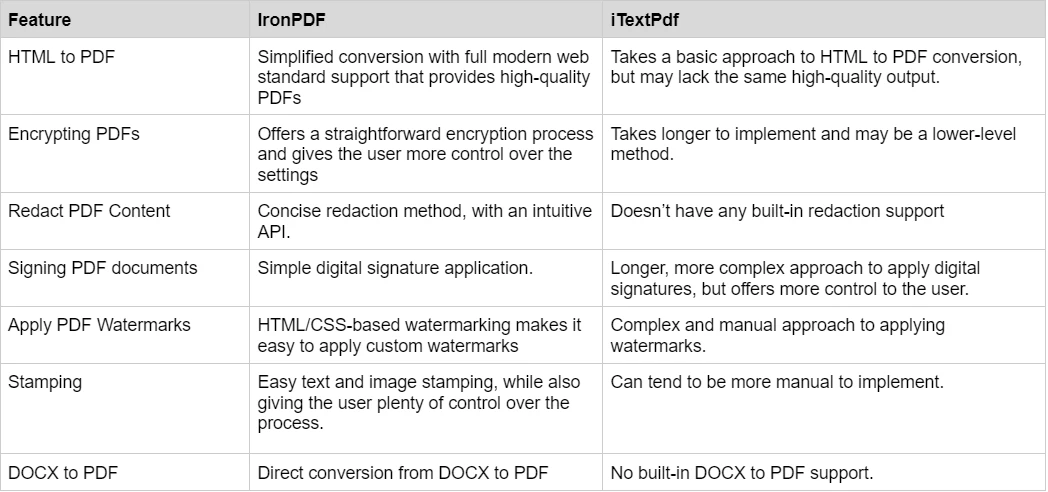
더 자세한 예제는 IronPDF Examples를 방문하거나 코드 예제 라이브러리를 탐색하십시오. 데모 섹션은 IronPDF의 기능을 보여주는 대화형 예제를 제공합니다. 추가 리소스로는 병렬 PDF 생성, 멀티 스레드 처리, 비동기 예제가 있어 고성능 응용 프로그램에 적합합니다.
IronPDF와 iTextPdf는 가격 및 라이선스에서 어떻게 비교됩니까?
IronPDF의 가격 옵션은 무엇입니까?
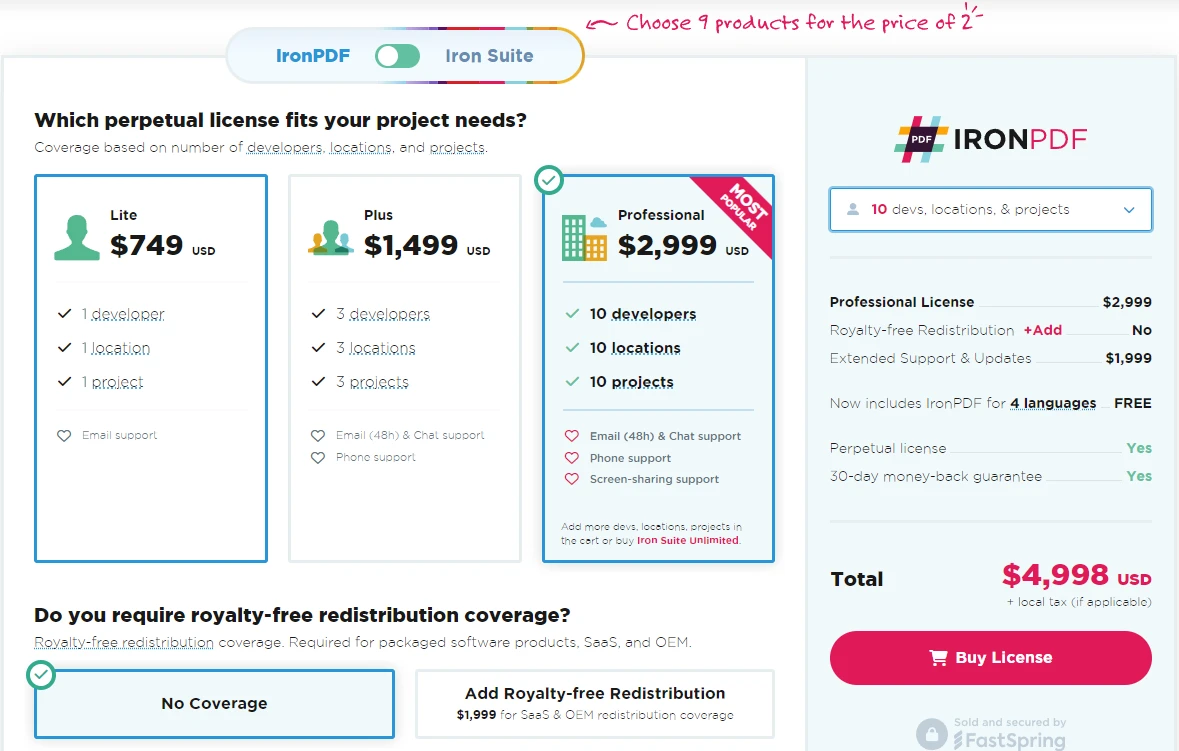
IronPDF는 구매 라이선스를 위한 다양한 레벨과 추가 기능을 제공합니다. 개발자는 또한 Iron Suite를 구매할 수 있으며, 이는 두 가지 가격으로 모든 Iron Software 제품에 액세스할 수 있습니다. 라이선스를 구매할 준비가 되어 있지 않다면, IronPDF는 평가를 위한 모든 기능이 포함된 무료 체험판을 제공합니다. 라이선스 페이지는 사용 가능한 옵션에 대한 세부 정보를 제공합니다. Enterprise 배포의 경우, 라이선스 키 관리 및 라이선스 키를 프로그래밍 방식으로 설정하기를 탐색하십시오.
- 영구 라이선스: 팀의 크기, 프로젝트 요구 사항 및 위치 수에 따라 다양한 영구 라이선스를 제공합니다. 각 라이선스 유형에는 이메일 지원이 포함됩니다.
- Lite License: 이 라이선스는 $999의 비용이 들며, 하나의 개발자, 하나의 위치, 하나의 프로젝트를 지원합니다.
- Plus License: 세 명의 개발자, 세 개의 위치, 세 개의 프로젝트를 지원하며 이 라이선스는 라이트 라이선스에서 다음 단계이며 비용은 $1,499입니다. Plus 라이선스는 기본 이메일 지원 외에도 채팅 지원 및 전화 지원을 제공합니다.
- Professional License: 이 라이선스는 더 큰 팀에 적합하며, 10명의 개발자, 10개의 위치, 10개의 프로젝트를 지원하며 비용은 $2,399입니다. 그것은 이전 등급과 동일한 연락 지원 채널을 제공하면서도 화면 공유 지원을 추가로 제공합니다.
- 무료 로열티 재배포: IronPDF의 라이선스는 추가 $2,399로 무료 로열티 재배포 범위도 제공합니다.
- 끊김 없는 제품 지원: IronPDF는 매년 $999 또는 한 번 구매로 5년 동안 $1,999로 제품 업데이트, 보안 기능 업그레이드 및 엔지니어링 팀의 지원에 액세스할 수 있습니다.
- Iron Suite: $2,998에서는 IronPDF, IronOCR, IronWord, IronXL, IronBarcode, IronQR, IronZIP, IronPrint 및 IronWebScraper를 포함한 모든 Iron Software 제품에 접근할 수 있습니다.
iTextPdf는 라이선스를 어떻게 처리합니까?
- AGPL 라이선스: iTextPDF 코어 라이브러리는 AGPL 라이선스 하의 오픈 소스로, 조건에 따라 무료로 사용 가능합니다. 개발자는 모든 수정 사항을 동일한 라이선스로 출시해야 합니다.
- 상용 라이선스: AGPL 조건을 충족하지 못하는 개발자를 위해 iTextPDF는 인용 기반 모델을 통해 상용 라이선스를 제공합니다.
라이선스 업그레이드 및 전환에 대한 정보는 IronPDF 라이선스 업그레이드를 방문하십시오. 라이선스 키 적용 가이드는 구현을 돕고, 라이선스 키 구성은 배포 옵션을 제공합니다. 라이선스 문제 해결의 경우, 라이선스 서버에 연결할 수 없음 및 라이선스 확장을 참조하십시오.
IronPDF와 iTextPdf는 어떤 문서 및 지원을 제공합니까?
-
포괄적 문서: 제공하는 모든 기능을 포괄하는 방대한 사용자 친화적인 문서
-
24/5 지원: 활동적인 엔지니어 지원이 가능합니다.
-
비디오 튜토리얼: YouTube에서 단계별 비디오 가이드를 제공합니다.
-
커뮤니티 포럼: 추가 지원을 위한 참여 커뮤니티입니다.
-
정기 업데이트: 최신 기능과 보안 패치를 보장하기 위해 월별 제품 업데이트를 제공합니다.
-
완전한 문서: 포괄적이고 사용자 친화적인 문서로 모든 기능을 다루고 있습니다.
-
24/5 지원: 엔지니어링 지원이 제공됩니다.
-
비디오 튜토리얼: YouTube에 대한 단계별 비디오 가이드
-
커뮤니티 포럼: 추가 지원을 위한 Stack Overflow와 GitHub을 통한 참여 커뮤니티
-
정기 업데이트: 매월 제품 업데이트를 통해 최신 기능 및 보안 패치를 보장합니다.
-
코드 예제: 실용적인 구현과 함께 포괄적인 코드 예제 라이브러리
-
문제 해결 가이드: 빠른 문제 해결과 플랫폼별 문제를 위한 상세한 가이드
자세한 문제 해결을 위해, IronPDF는 AWS 배포, Azure 구성, 메모리 관리, Docker 통합, IIS 설정, 및 성능 최적화와 같은 일반적인 문제에 대한 가이드를 제공합니다. 플랫폼별 가이드는 Windows 배포, Linux 구성, 및 macOS 지원을 다룹니다. 추가 리소스로는 엔지니어링 요청 안내, Azure 로그 관리, AWS 로그 파일, 및 보안 CVE 정보가 포함됩니다.
- 문서: iText PDF 문서는 사용 가능한 기능을 철저히 다룹니다.
- 예제 및 튜토리얼: 코드 예제와 튜토리얼은 개발자가 시작하는 데 도움을 줍니다.
- GitHub 커뮤니티: 개발자는 문제를 보고하고 풀 리퀘스트를 제출하며 iTextPDF 팀과 상호작용할 수 있습니다.
- 정기 업데이트: iTextPDF는 자주 업데이트와 개선을 제공합니다.
IronPDF 문서 및 지원에 대한 더 많은 세부 정보는 IronPDF 문서 및 Iron Software YouTube 채널을 참조하십시오. 특정 기능에 대한 사용 방법 가이드, 자세한 구현을 위한 API 참조, 및 포괄적인 학습을 위한 튜토리얼을 살펴보세요. VB.NET PDF 튜토리얼과 F# PDF 라이브러리 가이드는 언어별 리소스를 제공합니다. 현대 애플리케이션 프레임워크를 위해 Blazor 튜토리얼, MAUI PDF 보기, 및 XAML에서 PDF로 변환을 탐색하세요.## 시니어 .NET 개발자는 어떤 PDF 라이브러리를 선택해야 할까요?
.NET을 위한 PDF 조작 도구 분야에서, IronPDF와 iTextPdf 모두 개발자를 위한 유용한 솔루션을 제공합니다. IronPDF는 .NET 플랫폼 전반에 걸친 간단한 통합 및 외부 종속성 없이 DOCX를 PDF로 변환할 수 있는 사용자 친화적인 기능으로 주목받고 있습니다. 고급 렌더링 필요를 위해, IronPDF는 JavaScript 실행, WebGL 지원, 및 동적 콘텐츠를 위한 사용자 정의 렌더 지연을 지원합니다. 라이브러리는 또한 대화형 PDFs를 위한 JavaScript 메시지 리스너 및 맞춤형 JavaScript 실행을 포함하고 있습니다. 복잡한 렌더링 시나리오를 처리하기 위해, 네트워크 유휴 상태 대기, 렌더 지연 구성, 및 초기 렌더 최적화를 탐색하세요. 반면에, iTextPdf는 그 다기능성과 풍부한 기능으로 유명하며, 다른 도구와 결합하여 특히 효과적이지만 DOCX 변환에는 추가 종속성이 필요합니다.
성능 개선을 위해, IronPDF는 비동기 처리, 병렬 생성, 및 고용량 PDF 작업을 효율적으로 처리하기 위한 멀티 스레딩 지원을 제공합니다. 라이브러리는 또한 빠른 웹 보기를 위한 PDF 압축, 선형화, 및 아카이빙 요구에 대한 PDF/A 규정 준수와 같은 고급 기능을 제공합니다. 추가적인 Enterprise 기능에는 전자 송장을 위한 PDF/A-3 및 ZUGFeRD 지원, 접근성을 위한 PDF/UA 규정 준수, 및 PDF 버전 제어가 포함됩니다. 클라우드 배포를 위해, IronPDF는 원격 엔진 옵션, Docker 컨테이너 지원, 및 네이티브 대 원격 엔진 비교를 제공합니다.
궁극적으로, IronPDF와 iTextPdf 중에서 선택하는 것은 프로젝트의 특정 요구 사항, 라이선스 선호도, 및 필요 지원 수준에 따라 달라집니다. 두 라이브러리는 .NET 애플리케이션에서 PDF 워크플로를 단순화하는 신뢰할 수 있는 방법을 제공합니다. 현대 웹 표준과 사용 편의를 우선시하는 개발자를 위해, IronPDF의 Chrome 기반 렌더링과 완전한 API가 훌륭한 선택이 됩니다. 라이브러리의 PDF 생성, PDF 변환, 및 PDF 정리 튜토리얼은 철저한 지침을 제공합니다. 특수 문서 처리를 위해, PDF 보고서 생성, PDF 텍스트 읽기, 및 PDF에서 HTML로 변환을 탐색하세요. 추가적인 기능으로는 종이 인쇄, 네트워크 프린터 지원, 이미지로 래스터화, 및 Base64 변환이 포함됩니다. AGPL 라이선스 또는 광범위한 저수준 PDF 조작이 필요한 경우, iTextPdf가 더 적합할 수 있습니다.
다른 PDF 라이브러리와의 비교를 위해, Aspose vs IronPDF, Apryse vs IronPDF, QuestPDF vs IronPDF, 및 Syncfusion vs IronPDF를 탐색하여 PDF 개발 요구에 대한 정보를 바탕으로 결정을 내리세요. 배포 지침을 위해 IronPDF 설치 프로그램 옵션, 소프트웨어 설치 프로그램 통합, 및 배포 모범 사례를 검토하세요. 라이브러리의 이정표에는 Chrome 렌더링 개선, 호환성 업데이트, PDFium DOM 업데이트, 및 안정성 개선 사항을 포함한 지속적인 개선 사항이 강조되어 있습니다.
iTextPdf는 해당 소유자의 등록 상표입니다. 이 사이트는 iTextPdf와 관련이 없으며 지지를 받거나 후원을 받지 않습니다. 모든 제품명, 로고 및 브랜드는 해당 소유자의 자산입니다. 비교는 정보 제공 목적으로만 사용되며, 작성 시점에 공개적으로 이용 가능한 정보를 반영합니다.























