IronPDF는 Chromium 엔진을 사용하여 전체 CSS 및 JavaScript 지원을 통해 HTML에서 PDF로의 변환에 뛰어나며, 반면, XFINIUM.PDF는 네이티브 HTML 렌더링 없이 저수준의 PDF 조작에 특화되어 있어 IronPDF가 현대 웹 기반의 PDF 생성에 더 적합합니다.
현대 기술은 개발자를 위해 더 똑똑한 솔루션을 제공하며, 소프트웨어 개발 프로세스에 자동화를 가져옵니다. C# PDF 파일을 다루는 것은 오랫동안 개발자에게 도전이었습니다. PDF 파일의 콘텐츠를 생성할 때 여러 요인을 고려해야 하며, 다른 형식에서 PDF로 콘텐츠를 변환할 때는 더욱 그렇습니다. 이러한 문제는 다양한 형식에서 PDF를 읽고, 쓰고, 생성하고, 변환하는 데 도움을 주기 위해 설계된 라이브러리를 통해 이제 해결되었습니다.
이 글은 .NET과 .NET Core 개발자를 위한 두 가지 인기 있는 PDF 라이브러리를 비교합니다:
IronPDF와 XFINIUM.PDF는 모두 .NET 및 .NET Core에서 PDF 생성, 조작, 및 인쇄를 위한 메서드를 제공합니다. 다음의 PDF 변환 및 조작 기능에 대한 두 라이브러리의 비교를 검토하여 정보에 입각한 결정을 내릴 수 있습니다.
먼저 두 라이브러리가 제공하는 기능을 탐색한 다음 비교로 넘어갑니다.
XFINIUM.PDF 라이브러리의 기능은 무엇입니까?
XFINIUM.PDF 라이브러리는 초보자 및 고급 PDF 개발자를 위한 PDF 개발용 크로스플랫폼 도구입니다. 보고서를 생성하고, PDF 양식을 채우기, PDF 포트폴리오를 구성하고, PDF 보고서에서 민감한 데이터를 편집하거나 PDF 보고서를 다중 페이지 TIFF 이미지로 변환할 수 있습니다.
XFINIUM.PDF는 PDF 생성 및 편집을 포함하는 생성기 에디션과 PDF 렌더링 및 PDF 보기를 추가하는 뷰어 에디션으로 제공됩니다.
XFINIUM.PDF는 완전히 관리된 C# 코드로 작성되었습니다. 로열티 없는 배포가 가능한 개발자당 라이선스로, 추가 비용 없이 프로그램을 배포할 수 있습니다.
생성기 에디션과 뷰어 에디션의 차이점은 무엇입니까?
생성기 에디션은 뷰어 에디션의 하위 집합입니다. PDF 생성 및 편집 기능을 제공하며, 뷰어 에디션은 PDF 렌더링 기능을 추가합니다. 뷰어 에디션은 PDF 페이지를 RAW, BMP, GIF, JPG, PNG, 그리고 TIFF 이미지로 변환할 수 있습니다.
XFINIUM.PDF 사양
주요 특징은 다음과 같습니다.
보안
디지털 서명
- X509 인증서로 승인 및 인증
- SHA256/384/512과 함께 CMS 및 PAdES 서명
- 서명 타임스탬프
- 서명 내 OCSP 및 CRL 정보
- 문서 보안 저장소
- 문서 타임스탬프
- LTV 활성화 디지털 서명
- ASN.1 객체로 서명을 디코드
- 서명에서 인증서 추출
- 서명된 PDF 복사본을 저장
바코드
- 내장 벡터 바코드 엔진
- 1차원 바코드:
- Codabar, Code 11, Code 25, Code 39/93/128
- 제약: Code 32, Pharmacode, PZN
- 2차원 바코드:
DataMatrix, QR, PDF417, Micro PDF417
고급 바코드 기능을 위해 IronBarcode 문서를 참고하세요. 이는 완전한 바코드 생성 및 읽기 기능을 제공합니다.
컨텐츠 추출
- 위치 정보를 포함하여 텍스트 추출
- 위치와 함께 텍스트를 단어로 추출
- 사용자 정의 영역에서 추출
- 메타데이터와 함께 이미지 추출
저수준 COS API
- COS 객체 추가, 편집 및 제거
- 지원되는 유형: 문자열, 숫자, 이름, 논리값, null, 배열, 사전, 스트림
PDF 렌더링 (뷰어 에디션 전용)
- 페이지를 이미지로 렌더링: RAW, BMP, GIF, JPG, PNG, TIFF
- ARGB, RGBA, BGRA, RGB, BGR, 그리고 그레이스케일 레이아웃
- PDF를 다중 페이지 TIFF로 CCITT G4를 사용
IronPDF의 주요 기능은 무엇인가요?
IronPDF .NET PDF 라이브러리는 C# 프로그래머를 위한 PDF 개발을 단순화합니다. 이 도구를 사용하면 .NET의 핵심 PDF 라이브러리를 쉽게 구축할 수 있습니다.
IronPDF는 HTML 페이지를 PDF 파일로 변환하며 .NET Chromium 엔진을 사용합니다. HTML to PDF로 PDF를 배치하거나 디자인할 때 복잡한 API가 필요하지 않습니다. HTML, ASPX, JS, CSS, 그리고 이미지를 포함하는 표준 웹 문서를 지원합니다.
HTML5, CSS, JavaScript, 그리고 이미지를 사용하여 .NET PDF 라이브러리를 개발할 수 있습니다. PDF는 헤더와 푸터로 편집, 스탬핑, 개선할 수 있습니다. 이 라이브러리는 PDF 텍스트 읽기 및 그래픽 추출을 효율적으로 관리합니다.
IronPDF를 다운로드하여 지금 바로 .NET 프로젝트에서 사용을 시작하세요.
IronPDF C# 라이브러리의 뛰어난 기능
주요 특징은 다음과 같습니다.
PDF 생성 (HTML to PDF)
기존 PDF 문서 편집
PDF 문서 조작
다양한 파일 형식 변환
인쇄 및 저장
IronPDF는 모든 주요 운영 체제와 프레임워크를 지원합니다:
IronPDF C# 라이브러리를 설치하는 방법은?
IronPDF는 네 가지 방법으로 다운로드하여 설치할 수 있습니다:
- Visual Studio를 사용하여
- 개발자 명령 프롬프트
- NuGet 패키지 직접 다운로드
- IronPDF .DLL 라이브러리 다운로드
Visual Studio 사용하기
Visual Studio는 프로젝트에서 패키지를 설치하기 위한 NuGet 패키지 관리자를 제공합니다. 프로젝트 메뉴를 통해 또는 솔루션 탐색기에서 프로젝트를 마우스 오른쪽 버튼으로 클릭하여 액세스합니다.
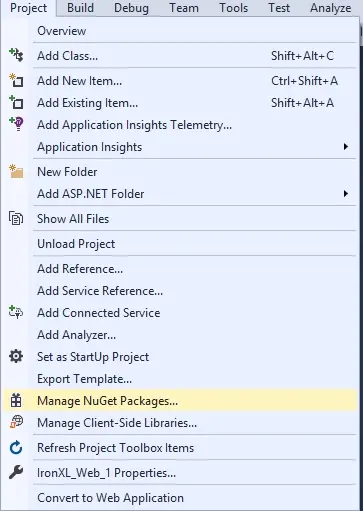
그림 1. Visual Studio에서 프로젝트 메뉴를 사용하여 NuGet 패키지 관리자에 액세스하기
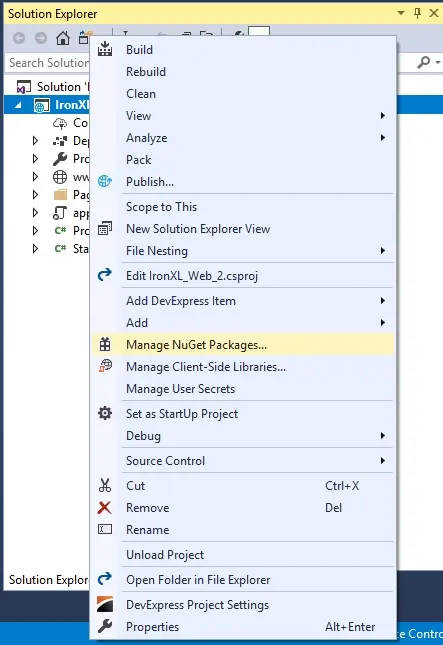
그림 2. Visual Studio에서 컨텍스트 메뉴를 사용하여 NuGet 패키지 관리자에 액세스하기
선택한 후 IronPDF 패키지를 찾아 설치하세요.
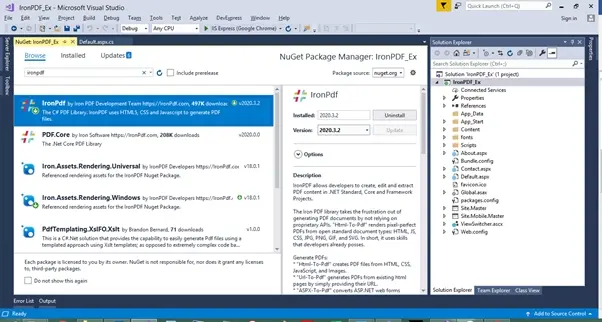
그림 3. Visual Studio의 NuGET 패키지 관리자를 사용하여 IronPDF 라이브러리 설치하기
개발자 명령 프롬프트 사용하기
개발자 명령 프롬프트를 통해 IronPDF NuGet 패키지를 설치하세요:
NuGet 패키지를 직접 다운로드하기
NuGet에서 IronPDF를 직접 다운로드하고 설치하세요:
- IronPDF NuGet 페이지로 이동하세요.
- Download Package를 선택하십시오
- 다운로드한 패키지를 더블 클릭하십시오
- 패키지가 설치됩니다
- Visual Studio 프로젝트를 다시 로드합니다
라이브러리를 다운로드하여 IronPDF 설치하기
IronPDF .DLL 파일을 IronPDF 다운로드에서 직접 다운로드합니다.
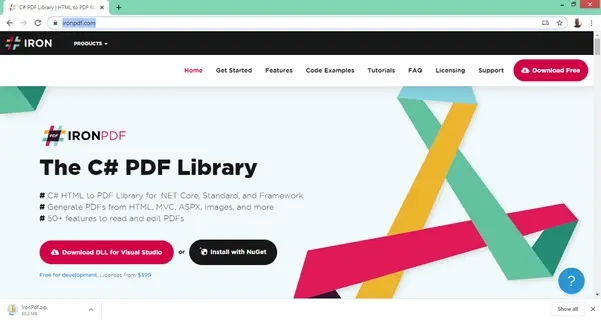
그림 4. IronPDF 웹사이트에서 IronPDF 라이브러리 DLL 다운로드하기
프로젝트에 라이브러리를 참조합니다:
- 솔루션 탐색기에서 솔루션을 마우스 오른쪽 버튼으로 클릭합니다
- 참조를 선택합니다
- IronPDF.dll 라이브러리를 찾습니다
- 확인 버튼을 클릭하세요
IronPDF를 이제 사용할 준비가 되었습니다. 이제 XFINIUM.PDF를 설치합시다.
어떻게 XFINIUM.PDF를 설치하나요?
.NET Core에서 Xfinium PDF를 cake 애드인 또는 도구로 설치합니다:
# Install Xfinium.Pdf.NetCore as a Cake Addin
#addin nuget:?package=Xfinium.Pdf.NetCore&version=10.2.0
# Install Xfinium.Pdf.NetCore as a Cake Addin
#addin nuget:?package=Xfinium.Pdf.NetCore&version=10.2.0
SHELL
# Install Xfinium.Pdf.NetCore as a Cake Tool
#tool nuget:?package=Xfinium.Pdf.NetCore&version=10.2.0
# Install Xfinium.Pdf.NetCore as a Cake Tool
#tool nuget:?package=Xfinium.Pdf.NetCore&version=10.2.0
SHELL
이제 IronPDF와 XFINIUM.PDF를 비교해 봅시다.
.NET Core에서 간단한 PDF 문서를 어떻게 만드나요?
소프트웨어 개발자는 C#을 사용하여 PDF 파일을 동적으로 생성하는 방법을 알아야 합니다. 사용자 입력에서 보고서를 생성, 사용자의 텍스트를 PDF로 저장, HTML 정보를 추출하여 PDF로 변환하는 등 PDF 생성이 필요할 수 있습니다.
두 라이브러리 모두 HTML 웹페이지를 PDF로 변환할 수 있습니다. 각 라이브러리의 접근 방식을 살펴봅시다.
IronPDF 사용하기
IronPDF는 PDF 파일을 생성하는 여러 가지 방법을 제공합니다.
기존 PDF URL
IronPDF는 기존 URL에서 HTML을 PDF 문서로 변환하는 것을 쉽게 만듭니다. JavaScript, 이미지, 폼 및 CSS는 모두 완전히 지원됩니다.
구현에서는 URL 렌더링을 자동으로 처리합니다:
// Create an instance of the ChromePdfRenderer
IronPdf.ChromePdfRenderer Renderer = new IronPdf.ChromePdfRenderer();

// Configure rendering options for better performance
Renderer.RenderingOptions.WaitFor.RenderDelay = 500; // Wait for JavaScript to load
Renderer.RenderingOptions.CssMediaType = IronPdf.Rendering.PdfCssMediaType.Print;

// Render a URL to PDF
using var Pdf = Renderer.RenderUrlAsPdf("___PROTECTED_URL_134___");

// Save the PDF with metadata
Pdf.MetaData.Author = "IronPDF";
Pdf.MetaData.Title = "Website to PDF Conversion";
Pdf.SaveAs("url.pdf");
// Create an instance of the ChromePdfRenderer
IronPdf.ChromePdfRenderer Renderer = new IronPdf.ChromePdfRenderer();

// Configure rendering options for better performance
Renderer.RenderingOptions.WaitFor.RenderDelay = 500; // Wait for JavaScript to load
Renderer.RenderingOptions.CssMediaType = IronPdf.Rendering.PdfCssMediaType.Print;

// Render a URL to PDF
using var Pdf = Renderer.RenderUrlAsPdf("___PROTECTED_URL_134___");

// Save the PDF with metadata
Pdf.MetaData.Author = "IronPDF";
Pdf.MetaData.Title = "Website to PDF Conversion";
Pdf.SaveAs("url.pdf");
' Create an instance of the ChromePdfRenderer
Dim Renderer As New IronPdf.ChromePdfRenderer()
' Configure rendering options for better performance
Renderer.RenderingOptions.WaitFor.RenderDelay = 500 ' Wait for JavaScript to load
Renderer.RenderingOptions.CssMediaType = IronPdf.Rendering.PdfCssMediaType.Print
' Render a URL to PDF
Using Pdf = Renderer.RenderUrlAsPdf("___PROTECTED_URL_134___")
' Save the PDF with metadata
Pdf.MetaData.Author = "IronPDF"
Pdf.MetaData.Title = "Website to PDF Conversion"
Pdf.SaveAs("url.pdf")
End Using
' Create an instance of the ChromePdfRenderer
Dim Renderer As New IronPdf.ChromePdfRenderer()

' Configure rendering options for better performance
Renderer.RenderingOptions.WaitFor.RenderDelay = 500 ' Wait for JavaScript to load
Renderer.RenderingOptions.CssMediaType = IronPdf.Rendering.PdfCssMediaType.Print

' Render a URL to PDF
Using Pdf = Renderer.RenderUrlAsPdf("___PROTECTED_URL_134___")
    ' Save the PDF with metadata
    Pdf.MetaData.Author = "IronPDF"
    Pdf.MetaData.Title = "Website to PDF Conversion"
    Pdf.SaveAs("url.pdf")
End Using
HTML 입력 문자열을 PDF로 변환
HTML 문자열에서 PDF 페이지를 렌더링하는 다음 코드 예제를 고려하세요. HTML만 사용하거나 CSS, 이미지 및 JavaScript와 결합하여 사용할 수 있습니다:
// Create an instance of the ChromePdfRenderer
var Renderer = new IronPdf.ChromePdfRenderer();

// Configure rendering options
Renderer.RenderingOptions.MarginTop = 50; // millimeters
Renderer.RenderingOptions.MarginBottom = 50;
Renderer.RenderingOptions.CssMediaType = IronPdf.Rendering.PdfCssMediaType.Print;

// Render a simple HTML string to PDF
using var PDF = Renderer.RenderHtmlAsPdf("<h1>Html with CSS and Images</h1>");

// Add document properties
PDF.MetaData.Author = "Development Team";
PDF.MetaData.Keywords = "HTML, PDF, C#";
PDF.MetaData.ModifiedDate = DateTime.Now;

// Save the PDF
PDF.SaveAs("pixel-perfect.pdf");

// Load external HTML assets: images, CSS, and javascript
// An optional BasePath 'C:\site\assets\' is set as the file location to load assets from
using var AdvancedPDF = Renderer.RenderHtmlAsPdf("<img src='icons/iron.png'>", @"C:\site\assets\");

// Apply security settings
AdvancedPDF.Password = "pass123";
AdvancedPDF.SecuritySettings.AllowUserPrinting = IronPdf.Security.PdfPrintSecurity.FullPrintRights;

// Save the advanced PDF with external assets
AdvancedPDF.SaveAs("html-with-assets.pdf");
// Create an instance of the ChromePdfRenderer
var Renderer = new IronPdf.ChromePdfRenderer();

// Configure rendering options
Renderer.RenderingOptions.MarginTop = 50; // millimeters
Renderer.RenderingOptions.MarginBottom = 50;
Renderer.RenderingOptions.CssMediaType = IronPdf.Rendering.PdfCssMediaType.Print;

// Render a simple HTML string to PDF
using var PDF = Renderer.RenderHtmlAsPdf("<h1>Html with CSS and Images</h1>");

// Add document properties
PDF.MetaData.Author = "Development Team";
PDF.MetaData.Keywords = "HTML, PDF, C#";
PDF.MetaData.ModifiedDate = DateTime.Now;

// Save the PDF
PDF.SaveAs("pixel-perfect.pdf");

// Load external HTML assets: images, CSS, and javascript
// An optional BasePath 'C:\site\assets\' is set as the file location to load assets from
using var AdvancedPDF = Renderer.RenderHtmlAsPdf("<img src='icons/iron.png'>", @"C:\site\assets\");

// Apply security settings
AdvancedPDF.Password = "pass123";
AdvancedPDF.SecuritySettings.AllowUserPrinting = IronPdf.Security.PdfPrintSecurity.FullPrintRights;

// Save the advanced PDF with external assets
AdvancedPDF.SaveAs("html-with-assets.pdf");
' Create an instance of the ChromePdfRenderer
Dim Renderer As New IronPdf.ChromePdfRenderer()
' Configure rendering options
Renderer.RenderingOptions.MarginTop = 50 ' millimeters
Renderer.RenderingOptions.MarginBottom = 50
Renderer.RenderingOptions.CssMediaType = IronPdf.Rendering.PdfCssMediaType.Print
' Render a simple HTML string to PDF
Using PDF = Renderer.RenderHtmlAsPdf("<h1>Html with CSS and Images</h1>")
' Add document properties
PDF.MetaData.Author = "Development Team"
PDF.MetaData.Keywords = "HTML, PDF, C#"
PDF.MetaData.ModifiedDate = DateTime.Now
' Save the PDF
PDF.SaveAs("pixel-perfect.pdf")
End Using
' Load external HTML assets: images, CSS, and javascript
' An optional BasePath 'C:\site\assets\' is set as the file location to load assets from
Using AdvancedPDF = Renderer.RenderHtmlAsPdf("<img src='icons/iron.png'>", "C:\site\assets\")
' Apply security settings
AdvancedPDF.Password = "pass123"
AdvancedPDF.SecuritySettings.AllowUserPrinting = IronPdf.Security.PdfPrintSecurity.FullPrintRights
' Save the advanced PDF with external assets
AdvancedPDF.SaveAs("html-with-assets.pdf")
End Using
' Create an instance of the ChromePdfRenderer
Dim Renderer As New IronPdf.ChromePdfRenderer()

' Configure rendering options
Renderer.RenderingOptions.MarginTop = 50 ' millimeters
Renderer.RenderingOptions.MarginBottom = 50
Renderer.RenderingOptions.CssMediaType = IronPdf.Rendering.PdfCssMediaType.Print

' Render a simple HTML string to PDF
Using PDF = Renderer.RenderHtmlAsPdf("<h1>Html with CSS and Images</h1>")
    ' Add document properties
    PDF.MetaData.Author = "Development Team"
    PDF.MetaData.Keywords = "HTML, PDF, C#"
    PDF.MetaData.ModifiedDate = DateTime.Now

    ' Save the PDF
    PDF.SaveAs("pixel-perfect.pdf")
End Using

' Load external HTML assets: images, CSS, and javascript
' An optional BasePath 'C:\site\assets\' is set as the file location to load assets from
Using AdvancedPDF = Renderer.RenderHtmlAsPdf("<img src='icons/iron.png'>", "C:\site\assets\")
    ' Apply security settings
    AdvancedPDF.Password = "pass123"
    AdvancedPDF.SecuritySettings.AllowUserPrinting = IronPdf.Security.PdfPrintSecurity.FullPrintRights

    ' Save the advanced PDF with external assets
    AdvancedPDF.SaveAs("html-with-assets.pdf")
End Using
고급 HTML to PDF 변환 기술은 HTML to PDF 튜토리얼을 참조하세요.
XFINIUM.PDF 사용하기
XFINIUM.PDF를 사용하여 빈 PDF 문서를 생성하려면 세 줄이 필요합니다: 문서 생성, 페이지 생성, 저장:
// Create a new PDF document
PdfFixedDocument document = new PdfFixedDocument();

// Add a page to the document
PdfPage page = document.Pages.Add();

// Save the document as a PDF file
document.Save("empty.pdf");
// Create a new PDF document
PdfFixedDocument document = new PdfFixedDocument();

// Add a page to the document
PdfPage page = document.Pages.Add();

// Save the document as a PDF file
document.Save("empty.pdf");
' Create a new PDF document
Dim document As New PdfFixedDocument()
' Add a page to the document
Dim page As PdfPage = document.Pages.Add()
' Save the document as a PDF file
document.Save("empty.pdf")
' Create a new PDF document
Dim document As New PdfFixedDocument()

' Add a page to the document
Dim page As PdfPage = document.Pages.Add()

' Save the document as a PDF file
document.Save("empty.pdf")
텍스트 콘텐츠를 추가하려면 세 줄이 더 필요합니다: 폰트 생성, 색상을 위한 브러시 생성, 텍스트 그리기:
// Create a new PDF document
PdfFixedDocument document = new PdfFixedDocument();
PdfPage page = document.Pages.Add();

// Create a standard font with Helvetica face and 24 point size
PdfStandardFont helvetica = new PdfStandardFont(PdfStandardFontFace.Helvetica, 24);

// Create a solid RGB red brush.
PdfBrush brush = new PdfBrush(PdfRgbColor.Red);

// Draw the text on the page.
page.Graphics.DrawString("Hello World", helvetica, brush, 100, 100);

// Save the document as a PDF file
document.Save("helloworld.pdf");
// Create a new PDF document
PdfFixedDocument document = new PdfFixedDocument();
PdfPage page = document.Pages.Add();

// Create a standard font with Helvetica face and 24 point size
PdfStandardFont helvetica = new PdfStandardFont(PdfStandardFontFace.Helvetica, 24);

// Create a solid RGB red brush.
PdfBrush brush = new PdfBrush(PdfRgbColor.Red);

// Draw the text on the page.
page.Graphics.DrawString("Hello World", helvetica, brush, 100, 100);

// Save the document as a PDF file
document.Save("helloworld.pdf");
' Create a new PDF document
Dim document As New PdfFixedDocument()
Dim page As PdfPage = document.Pages.Add()
' Create a standard font with Helvetica face and 24 point size
Dim helvetica As New PdfStandardFont(PdfStandardFontFace.Helvetica, 24)
' Create a solid RGB red brush.
Dim brush As New PdfBrush(PdfRgbColor.Red)
' Draw the text on the page.
page.Graphics.DrawString("Hello World", helvetica, brush, 100, 100)
' Save the document as a PDF file
document.Save("helloworld.pdf")
' Create a new PDF document
Dim document As New PdfFixedDocument()
Dim page As PdfPage = document.Pages.Add()

' Create a standard font with Helvetica face and 24 point size
Dim helvetica As New PdfStandardFont(PdfStandardFontFace.Helvetica, 24)

' Create a solid RGB red brush.
Dim brush As New PdfBrush(PdfRgbColor.Red)

' Draw the text on the page.
page.Graphics.DrawString("Hello World", helvetica, brush, 100, 100)

' Save the document as a PDF file
document.Save("helloworld.pdf")
객체 모델은 PDF 표준과 밀접하게 유사합니다. 이 접근 방식은 흐름 문서와 같은 복잡한 추상화를 구축하는 데 명확한 이점을 제공합니다.
XFINIUM.PDF 사용하기
XFINIUM.PDF를 사용하면 새로운 PDF 폼을 생성하고 기존 PDF 폼을 작성할 수 있습니다.
각 PDF 양식 필드 유형에는 해당하는 클래스가 있습니다:
PdfTextBoxField – 텍스트박스 필드PdfCheckBoxField – 체크박스PdfRadioButtonField – 라디오 버튼 세트PdfComboboxField – 콤보 박스PdfListboxField – 리스트박스PdfPushbuttonField – 푸시 버튼- PdfSignatureField – 서명 필드
양식 필드를 생성하려면 필드 이름과 페이지 위치를 지정하세요. 필드 객체를 생성한 후 페이지에 추가하고 속성을 설정하세요:
// Create a text box field named "firstname"
PdfTextBoxField firstNameTextBox = new PdfTextBoxField("firstname");

// Add the field to a PDF page
pdfpage.Fields.Add(firstNameTextBox);

// Set the position of the field on the PDF page
firstNameTextBox.Widgets[0].VisualRectangle = new PdfVisualRectangle(150, 45, 200, 20);
// Create a text box field named "firstname"
PdfTextBoxField firstNameTextBox = new PdfTextBoxField("firstname");

// Add the field to a PDF page
pdfpage.Fields.Add(firstNameTextBox);

// Set the position of the field on the PDF page
firstNameTextBox.Widgets[0].VisualRectangle = new PdfVisualRectangle(150, 45, 200, 20);
' Create a text box field named "firstname"
Dim firstNameTextBox As New PdfTextBoxField("firstname")
' Add the field to a PDF page
pdfpage.Fields.Add(firstNameTextBox)
' Set the position of the field on the PDF page
firstNameTextBox.Widgets(0).VisualRectangle = New PdfVisualRectangle(150, 45, 200, 20)
' Create a text box field named "firstname"
Dim firstNameTextBox As New PdfTextBoxField("firstname")

' Add the field to a PDF page
pdfpage.Fields.Add(firstNameTextBox)

' Set the position of the field on the PDF page
firstNameTextBox.Widgets(0).VisualRectangle = New PdfVisualRectangle(150, 45, 200, 20)
기존 PDF 양식을 채우려면, 그것들을 PdfFixedDocument 객체에 로드하세요. 문서의 필드 컬렉션은 자동으로 채워집니다. 인덱스나 이름으로 필드를 찾아 속성 값을 설정하여 채울 수 있습니다:
// Load an existing PDF document with forms
PdfFixedDocument document = new PdfFixedDocument("form.pdf");

// Fill form fields with values
(document.Form.Fields["firstname"] as PdfTextBoxField).Text = "John";
(document.Form.Fields["lastname"] as PdfTextBoxField).Value = "Doe";
(document.Form.Fields["sex"].Widgets[0] as PdfRadioButtonWidget).Checked = true;
(document.Form.Fields["firstcar"] as PdfComboBoxField).SelectedIndex = 0;
(document.Form.Fields["secondcar"] as PdfListBoxField).SelectedIndex = 1;
(document.Form.Fields["agree"] as PdfCheckBoxField).Checked = true;

// Save the filled form as a new PDF file
document.Save("form_filled.pdf");
// Load an existing PDF document with forms
PdfFixedDocument document = new PdfFixedDocument("form.pdf");

// Fill form fields with values
(document.Form.Fields["firstname"] as PdfTextBoxField).Text = "John";
(document.Form.Fields["lastname"] as PdfTextBoxField).Value = "Doe";
(document.Form.Fields["sex"].Widgets[0] as PdfRadioButtonWidget).Checked = true;
(document.Form.Fields["firstcar"] as PdfComboBoxField).SelectedIndex = 0;
(document.Form.Fields["secondcar"] as PdfListBoxField).SelectedIndex = 1;
(document.Form.Fields["agree"] as PdfCheckBoxField).Checked = true;

// Save the filled form as a new PDF file
document.Save("form_filled.pdf");
' Load an existing PDF document with forms
Dim document As New PdfFixedDocument("form.pdf")
' Fill form fields with values
TryCast(document.Form.Fields("firstname"), PdfTextBoxField).Text = "John"
TryCast(document.Form.Fields("lastname"), PdfTextBoxField).Value = "Doe"
TryCast(document.Form.Fields("sex").Widgets(0), PdfRadioButtonWidget).Checked = True
TryCast(document.Form.Fields("firstcar"), PdfComboBoxField).SelectedIndex = 0
TryCast(document.Form.Fields("secondcar"), PdfListBoxField).SelectedIndex = 1
TryCast(document.Form.Fields("agree"), PdfCheckBoxField).Checked = True
' Save the filled form as a new PDF file
document.Save("form_filled.pdf")
' Load an existing PDF document with forms
Dim document As New PdfFixedDocument("form.pdf")

' Fill form fields with values
TryCast(document.Form.Fields("firstname"), PdfTextBoxField).Text = "John"
TryCast(document.Form.Fields("lastname"), PdfTextBoxField).Value = "Doe"
TryCast(document.Form.Fields("sex").Widgets(0), PdfRadioButtonWidget).Checked = True
TryCast(document.Form.Fields("firstcar"), PdfComboBoxField).SelectedIndex = 0
TryCast(document.Form.Fields("secondcar"), PdfListBoxField).SelectedIndex = 1
TryCast(document.Form.Fields("agree"), PdfCheckBoxField).Checked = True

' Save the filled form as a new PDF file
document.Save("form_filled.pdf")
IronPDF 사용하기
IronPDF를 사용하여 채울 수 있는 PDFs을 생성하는 방법은 다음과 같습니다:
// PM> Install-Package IronPdf
using IronPdf;
using IronPdf.Rendering;

// Step 1. Creating a PDF with editable forms from HTML using form and input tags
var FormHtml = @"
<html>
    <head>
        <style>
            body { font-family: Arial, sans-serif; margin: 40px; }
            h2 { color: #333; }
            form { background: #f4f4f4; padding: 20px; border-radius: 8px; }
            input[type='text'] {
                width: 100%;
                padding: 8px;
                margin: 10px 0;
                border: 1px solid #ddd;
                border-radius: 4px;
            }
            input[type='checkbox'] { margin-right: 10px; }
            select { width: 100%; padding: 8px; margin: 10px 0; }
        </style>
    </head>
    <body>
        <h2>Editable PDF Form</h2>
        <form>
          First name:<br> <input type='text' name='firstname' value=''> <br>
          Last name:<br> <input type='text' name='lastname' value=''>
          <br><br>
          Email:<br> <input type='text' name='email' value=''>
          <br><br>
          Subscribe to newsletter: <input type='checkbox' name='newsletter' value='yes'>
          <br><br>
          Country:
          <select name='country'>
              <option value='usa'>United States</option>
              <option value='uk'>United Kingdom</option>
              <option value='canada'>Canada</option>
          </select>
        </form>
    </body>
</html>";

// Create a PDF renderer with form creation enabled
IronPdf.ChromePdfRenderer Renderer = new IronPdf.ChromePdfRenderer();
Renderer.RenderingOptions.CreatePdfFormsFromHtml = true;
Renderer.RenderingOptions.CssMediaType = PdfCssMediaType.Print;
Renderer.RenderingOptions.MarginTop = 20;
Renderer.RenderingOptions.MarginBottom = 20;

// Render the HTML as a PDF and save it
var pdfDocument = Renderer.RenderHtmlAsPdf(FormHtml);
pdfDocument.SaveAs("BasicForm.pdf");

// Step 2. Reading and Writing PDF form values.
var FormDocument = PdfDocument.FromFile("BasicForm.pdf");

// Get form field collection
var form = FormDocument.Form;

// Set and Read the value of the "firstname" field
var FirstNameField = form.FindFormField("firstname");
FirstNameField.Value = "Minnie";
Console.WriteLine("FirstNameField value: {0}", FirstNameField.Value);

// Set and Read the value of the "lastname" field
var LastNameField = form.FindFormField("lastname");
LastNameField.Value = "Mouse";
Console.WriteLine("LastNameField value: {0}", LastNameField.Value);

// Set email field
var EmailField = form.FindFormField("email");
EmailField.Value = "minnie.mouse@example.com";

// Set checkbox
var NewsletterField = form.FindFormField("newsletter");
NewsletterField.Value = "yes";

// Set dropdown selection
var CountryField = form.FindFormField("country");
CountryField.Value = "usa";

// Save the form with filled values
FormDocument.SaveAs("FilledForm.pdf");

// Step 3. Flattening the form (making it non-editable)
FormDocument.Form.Flatten();
FormDocument.SaveAs("FlattenedForm.pdf");
// PM> Install-Package IronPdf
using IronPdf;
using IronPdf.Rendering;

// Step 1. Creating a PDF with editable forms from HTML using form and input tags
var FormHtml = @"
<html>
    <head>
        <style>
            body { font-family: Arial, sans-serif; margin: 40px; }
            h2 { color: #333; }
            form { background: #f4f4f4; padding: 20px; border-radius: 8px; }
            input[type='text'] {
                width: 100%;
                padding: 8px;
                margin: 10px 0;
                border: 1px solid #ddd;
                border-radius: 4px;
            }
            input[type='checkbox'] { margin-right: 10px; }
            select { width: 100%; padding: 8px; margin: 10px 0; }
        </style>
    </head>
    <body>
        <h2>Editable PDF Form</h2>
        <form>
          First name:<br> <input type='text' name='firstname' value=''> <br>
          Last name:<br> <input type='text' name='lastname' value=''>
          <br><br>
          Email:<br> <input type='text' name='email' value=''>
          <br><br>
          Subscribe to newsletter: <input type='checkbox' name='newsletter' value='yes'>
          <br><br>
          Country:
          <select name='country'>
              <option value='usa'>United States</option>
              <option value='uk'>United Kingdom</option>
              <option value='canada'>Canada</option>
          </select>
        </form>
    </body>
</html>";

// Create a PDF renderer with form creation enabled
IronPdf.ChromePdfRenderer Renderer = new IronPdf.ChromePdfRenderer();
Renderer.RenderingOptions.CreatePdfFormsFromHtml = true;
Renderer.RenderingOptions.CssMediaType = PdfCssMediaType.Print;
Renderer.RenderingOptions.MarginTop = 20;
Renderer.RenderingOptions.MarginBottom = 20;

// Render the HTML as a PDF and save it
var pdfDocument = Renderer.RenderHtmlAsPdf(FormHtml);
pdfDocument.SaveAs("BasicForm.pdf");

// Step 2. Reading and Writing PDF form values.
var FormDocument = PdfDocument.FromFile("BasicForm.pdf");

// Get form field collection
var form = FormDocument.Form;

// Set and Read the value of the "firstname" field
var FirstNameField = form.FindFormField("firstname");
FirstNameField.Value = "Minnie";
Console.WriteLine("FirstNameField value: {0}", FirstNameField.Value);

// Set and Read the value of the "lastname" field
var LastNameField = form.FindFormField("lastname");
LastNameField.Value = "Mouse";
Console.WriteLine("LastNameField value: {0}", LastNameField.Value);

// Set email field
var EmailField = form.FindFormField("email");
EmailField.Value = "minnie.mouse@example.com";

// Set checkbox
var NewsletterField = form.FindFormField("newsletter");
NewsletterField.Value = "yes";

// Set dropdown selection
var CountryField = form.FindFormField("country");
CountryField.Value = "usa";

// Save the form with filled values
FormDocument.SaveAs("FilledForm.pdf");

// Step 3. Flattening the form (making it non-editable)
FormDocument.Form.Flatten();
FormDocument.SaveAs("FlattenedForm.pdf");
' PM> Install-Package IronPdf
Imports IronPdf
Imports IronPdf.Rendering
' Step 1. Creating a PDF with editable forms from HTML using form and input tags
Dim FormHtml As String = "
<html>
<head>
<style>
body { font-family: Arial, sans-serif; margin: 40px; }
h2 { color: #333; }
form { background: #f4f4f4; padding: 20px; border-radius: 8px; }
input[type='text'] {
width: 100%;
padding: 8px;
margin: 10px 0;
border: 1px solid #ddd;
border-radius: 4px;
}
input[type='checkbox'] { margin-right: 10px; }
select { width: 100%; padding: 8px; margin: 10px 0; }
</style>
</head>
<body>
<h2>Editable PDF Form</h2>
<form>
First name:<br> <input type='text' name='firstname' value=''> <br>
Last name:<br> <input type='text' name='lastname' value=''>
<br><br>
Email:<br> <input type='text' name='email' value=''>
<br><br>
Subscribe to newsletter: <input type='checkbox' name='newsletter' value='yes'>
<br><br>
Country:
<select name='country'>
<option value='usa'>United States</option>
<option value='uk'>United Kingdom</option>
<option value='canada'>Canada</option>
</select>
</form>
</body>
</html>"
' Create a PDF renderer with form creation enabled
Dim Renderer As New IronPdf.ChromePdfRenderer()
Renderer.RenderingOptions.CreatePdfFormsFromHtml = True
Renderer.RenderingOptions.CssMediaType = PdfCssMediaType.Print
Renderer.RenderingOptions.MarginTop = 20
Renderer.RenderingOptions.MarginBottom = 20
' Render the HTML as a PDF and save it
Dim pdfDocument = Renderer.RenderHtmlAsPdf(FormHtml)
pdfDocument.SaveAs("BasicForm.pdf")
' Step 2. Reading and Writing PDF form values.
Dim FormDocument = PdfDocument.FromFile("BasicForm.pdf")
' Get form field collection
Dim form = FormDocument.Form
' Set and Read the value of the "firstname" field
Dim FirstNameField = form.FindFormField("firstname")
FirstNameField.Value = "Minnie"
Console.WriteLine("FirstNameField value: {0}", FirstNameField.Value)
' Set and Read the value of the "lastname" field
Dim LastNameField = form.FindFormField("lastname")
LastNameField.Value = "Mouse"
Console.WriteLine("LastNameField value: {0}", LastNameField.Value)
' Set email field
Dim EmailField = form.FindFormField("email")
EmailField.Value = "minnie.mouse@example.com"
' Set checkbox
Dim NewsletterField = form.FindFormField("newsletter")
NewsletterField.Value = "yes"
' Set dropdown selection
Dim CountryField = form.FindFormField("country")
CountryField.Value = "usa"
' Save the form with filled values
FormDocument.SaveAs("FilledForm.pdf")
' Step 3. Flattening the form (making it non-editable)
FormDocument.Form.Flatten()
FormDocument.SaveAs("FlattenedForm.pdf")
' PM> Install-Package IronPdf
Imports IronPdf
Imports IronPdf.Rendering

' Step 1. Creating a PDF with editable forms from HTML using form and input tags
Dim FormHtml As String = "
<html>
    <head>
        <style>
            body { font-family: Arial, sans-serif; margin: 40px; }
            h2 { color: #333; }
            form { background: #f4f4f4; padding: 20px; border-radius: 8px; }
            input[type='text'] {
                width: 100%;
                padding: 8px;
                margin: 10px 0;
                border: 1px solid #ddd;
                border-radius: 4px;
            }
            input[type='checkbox'] { margin-right: 10px; }
            select { width: 100%; padding: 8px; margin: 10px 0; }
        </style>
    </head>
    <body>
        <h2>Editable PDF Form</h2>
        <form>
          First name:<br> <input type='text' name='firstname' value=''> <br>
          Last name:<br> <input type='text' name='lastname' value=''>
          <br><br>
          Email:<br> <input type='text' name='email' value=''>
          <br><br>
          Subscribe to newsletter: <input type='checkbox' name='newsletter' value='yes'>
          <br><br>
          Country:
          <select name='country'>
              <option value='usa'>United States</option>
              <option value='uk'>United Kingdom</option>
              <option value='canada'>Canada</option>
          </select>
        </form>
    </body>
</html>"

' Create a PDF renderer with form creation enabled
Dim Renderer As New IronPdf.ChromePdfRenderer()
Renderer.RenderingOptions.CreatePdfFormsFromHtml = True
Renderer.RenderingOptions.CssMediaType = PdfCssMediaType.Print
Renderer.RenderingOptions.MarginTop = 20
Renderer.RenderingOptions.MarginBottom = 20

' Render the HTML as a PDF and save it
Dim pdfDocument = Renderer.RenderHtmlAsPdf(FormHtml)
pdfDocument.SaveAs("BasicForm.pdf")

' Step 2. Reading and Writing PDF form values.
Dim FormDocument = PdfDocument.FromFile("BasicForm.pdf")

' Get form field collection
Dim form = FormDocument.Form

' Set and Read the value of the "firstname" field
Dim FirstNameField = form.FindFormField("firstname")
FirstNameField.Value = "Minnie"
Console.WriteLine("FirstNameField value: {0}", FirstNameField.Value)

' Set and Read the value of the "lastname" field
Dim LastNameField = form.FindFormField("lastname")
LastNameField.Value = "Mouse"
Console.WriteLine("LastNameField value: {0}", LastNameField.Value)

' Set email field
Dim EmailField = form.FindFormField("email")
EmailField.Value = "minnie.mouse@example.com"

' Set checkbox
Dim NewsletterField = form.FindFormField("newsletter")
NewsletterField.Value = "yes"

' Set dropdown selection
Dim CountryField = form.FindFormField("country")
CountryField.Value = "usa"

' Save the form with filled values
FormDocument.SaveAs("FilledForm.pdf")

' Step 3. Flattening the form (making it non-editable)
FormDocument.Form.Flatten()
FormDocument.SaveAs("FlattenedForm.pdf")
HTML 포맷 태그로 양식을 만들어 시작하세요. 라이브러리는 PDF로 저장할 때의 복잡성을 처리합니다. 양식 값을 읽고 쓰는 작업은 FindFormField 기능을 사용하여 수행됩니다. 귀하의 애플리케이션은 이 기능을 사용하여 즉시 양식을 프로그래밍 방식으로 채울 수 있습니다.
고급 양식 처리를 위해 디지털 서명을 포함한 Create PDF Forms tutorial을 참조하세요.
PDF 파일에 디지털 서명하는 방법
원격 근무에는 효율적인 문서 처리가 필요합니다. 양식 채우기 및 서명, 파일 전송, 문서 처리는 일상적인 비즈니스 활동입니다. PDF 문서 서명, 포트폴리오, 양식은 종이 문서를 대체합니다. 디지털 서명은 기업이 온라인에서 계약을 체결하고 PDF 양식을 공유할 수 있도록 합니다.
XFINIUM.PDF 사용하기
서명 필드는 PDF 파일에 디지털 서명을 적용합니다 (PdfSignatureField 클래스). 서명 필드는 한 페이지에 나타나지만 디지털 서명은 전체 문서에 서명합니다.
서명 프로세스는 서명 속성을 설정하기 위해 PdfDigitalSignature 객체를 사용합니다. PDF 파일의 바이너리 레이아웃을 기반으로 문서를 저장할 때 서명이 형성됩니다.
PdfDigitalSignature는 모든 XFINIUM 서명의 기반을 제공합니다:
PdfCmsDigitalSignature – CMS 표준 서명 (inherits from PdfDigitalSignature)PdfPadesDigitalSignature – PADES 표준 서명 (inherits from PdfCmsDigitalSignature)PdfInteractiveCmsDigitalSignature – 하드웨어 스마트카드를 사용하는 CMS 서명PdfInteractivePadesDigitalSignature – 하드웨어 스마트카드 지원의 PADESPdfDocumentTimeStamp – 문서 레벨 타임스탬프 (inherits from PdfDigitalSignature)
IronPDF 사용하기
개발자들은 IronPDF와 C#으로 PDF에 서명을 프로그래밍 방식으로 추가하는 방법에 대해 자주 질문합니다. 이는 다음을 의미할 수 있습니다:
첫 번째 접근법은 기존 PDF 페이지에 서명 PNG를 스탬핑하는 것을 포함합니다. 서명이나 회사 스탬프에 사용하세요:
// Open an existing PDF document or create a new one
var Pdf = PdfDocument.FromFile(@"C:\Path\To\ASPX to PDF.pdf");

// Define an HTML stamp with a signature image
var SignatureStamp = new HtmlStamp()
{
    Html = "<img src='signature.png' />",
    Width = 150,
    Height = 50,
    Bottom = 300,
    Left = 85,
    ZIndex = HtmlStamp.StampLayer.OnTopOfExistingPDFContent
};

// Advanced stamp with styling
var StyledSignatureStamp = new HtmlStamp()
{
    Html = @"<div style='border: 2px solid #000; padding: 10px; background: rgba(255,255,255,0.9);'>
                <img src='signature.png' style='width: 120px;' />
                <p style='margin: 5px 0 0 0; font-size: 10px;'>Digitally Signed</p>
                <p style='margin: 0; font-size: 8px;'>{date}</p>
             </div>",
    Width = 150,
    Height = 100,
    Bottom = 50,
    Right = 50,
    ZIndex = HtmlStamp.StampLayer.OnTopOfExistingPDFContent
};

// Stamp the signature on the first page of the PDF
Pdf.StampHTML(SignatureStamp, 1);

// Or apply to all pages
Pdf.StampHTML(StyledSignatureStamp);

// Save the stamped PDF
Pdf.SaveAs(@"C:\Path\To\Stamped_PDF.pdf");
// Open an existing PDF document or create a new one
var Pdf = PdfDocument.FromFile(@"C:\Path\To\ASPX to PDF.pdf");

// Define an HTML stamp with a signature image
var SignatureStamp = new HtmlStamp()
{
    Html = "<img src='signature.png' />",
    Width = 150,
    Height = 50,
    Bottom = 300,
    Left = 85,
    ZIndex = HtmlStamp.StampLayer.OnTopOfExistingPDFContent
};

// Advanced stamp with styling
var StyledSignatureStamp = new HtmlStamp()
{
    Html = @"<div style='border: 2px solid #000; padding: 10px; background: rgba(255,255,255,0.9);'>
                <img src='signature.png' style='width: 120px;' />
                <p style='margin: 5px 0 0 0; font-size: 10px;'>Digitally Signed</p>
                <p style='margin: 0; font-size: 8px;'>{date}</p>
             </div>",
    Width = 150,
    Height = 100,
    Bottom = 50,
    Right = 50,
    ZIndex = HtmlStamp.StampLayer.OnTopOfExistingPDFContent
};

// Stamp the signature on the first page of the PDF
Pdf.StampHTML(SignatureStamp, 1);

// Or apply to all pages
Pdf.StampHTML(StyledSignatureStamp);

// Save the stamped PDF
Pdf.SaveAs(@"C:\Path\To\Stamped_PDF.pdf");
' Open an existing PDF document or create a new one
Dim Pdf = PdfDocument.FromFile("C:\Path\To\ASPX to PDF.pdf")
' Define an HTML stamp with a signature image
Dim SignatureStamp = New HtmlStamp() With {
.Html = "<img src='signature.png' />",
.Width = 150,
.Height = 50,
.Bottom = 300,
.Left = 85,
.ZIndex = HtmlStamp.StampLayer.OnTopOfExistingPDFContent
}
' Advanced stamp with styling
Dim StyledSignatureStamp = New HtmlStamp() With {
.Html = "<div style='border: 2px solid #000; padding: 10px; background: rgba(255,255,255,0.9);'>" & _
"<img src='signature.png' style='width: 120px;' />" & _
"<p style='margin: 5px 0 0 0; font-size: 10px;'>Digitally Signed</p>" & _
"<p style='margin: 0; font-size: 8px;'>{date}</p>" & _
"</div>",
.Width = 150,
.Height = 100,
.Bottom = 50,
.Right = 50,
.ZIndex = HtmlStamp.StampLayer.OnTopOfExistingPDFContent
}
' Stamp the signature on the first page of the PDF
Pdf.StampHTML(SignatureStamp, 1)
' Or apply to all pages
Pdf.StampHTML(StyledSignatureStamp)
' Save the stamped PDF
Pdf.SaveAs("C:\Path\To\Stamped_PDF.pdf")
' Open an existing PDF document or create a new one
Dim Pdf = PdfDocument.FromFile("C:\Path\To\ASPX to PDF.pdf")

' Define an HTML stamp with a signature image
Dim SignatureStamp = New HtmlStamp() With {
    .Html = "<img src='signature.png' />",
    .Width = 150,
    .Height = 50,
    .Bottom = 300,
    .Left = 85,
    .ZIndex = HtmlStamp.StampLayer.OnTopOfExistingPDFContent
}

' Advanced stamp with styling
Dim StyledSignatureStamp = New HtmlStamp() With {
    .Html = "<div style='border: 2px solid #000; padding: 10px; background: rgba(255,255,255,0.9);'>" & _
            "<img src='signature.png' style='width: 120px;' />" & _
            "<p style='margin: 5px 0 0 0; font-size: 10px;'>Digitally Signed</p>" & _
            "<p style='margin: 0; font-size: 8px;'>{date}</p>" & _
            "</div>",
    .Width = 150,
    .Height = 100,
    .Bottom = 50,
    .Right = 50,
    .ZIndex = HtmlStamp.StampLayer.OnTopOfExistingPDFContent
}

' Stamp the signature on the first page of the PDF
Pdf.StampHTML(SignatureStamp, 1)

' Or apply to all pages
Pdf.StampHTML(StyledSignatureStamp)

' Save the stamped PDF
Pdf.SaveAs("C:\Path\To\Stamped_PDF.pdf")
PDF를 암호학적으로 서명하여 .pfx와 .p12 X509Certificate2 디지털 인증서를 사용하여 한 줄로:
// 123456 below represents the signature password
new IronPdf.PdfSignature("CertificateFile.p12", "123456").SignPdfFile("ASPX to PDF.pdf");

// Or with more control
var signature = new IronPdf.PdfSignature("CertificateFile.p12", "123456")
{
    SigningContact = "john@example.com",
    SigningLocation = "New York, USA",
    SigningReason = "Contract Agreement"
};

// Load the PDF
var pdf = PdfDocument.FromFile("contract.pdf");

// Sign and save
pdf.SignPdfWithDigitalSignature(signature);
pdf.SaveAs("signed-contract.pdf");
// 123456 below represents the signature password
new IronPdf.PdfSignature("CertificateFile.p12", "123456").SignPdfFile("ASPX to PDF.pdf");

// Or with more control
var signature = new IronPdf.PdfSignature("CertificateFile.p12", "123456")
{
    SigningContact = "john@example.com",
    SigningLocation = "New York, USA",
    SigningReason = "Contract Agreement"
};

// Load the PDF
var pdf = PdfDocument.FromFile("contract.pdf");

// Sign and save
pdf.SignPdfWithDigitalSignature(signature);
pdf.SaveAs("signed-contract.pdf");
' 123456 below represents the signature password
New IronPdf.PdfSignature("CertificateFile.p12", "123456").SignPdfFile("ASPX to PDF.pdf")
' Or with more control
Dim signature = New IronPdf.PdfSignature("CertificateFile.p12", "123456") With {
.SigningContact = "john@example.com",
.SigningLocation = "New York, USA",
.SigningReason = "Contract Agreement"
}
' Load the PDF
Dim pdf = PdfDocument.FromFile("contract.pdf")
' Sign and save
pdf.SignPdfWithDigitalSignature(signature)
pdf.SaveAs("signed-contract.pdf")
' 123456 below represents the signature password
New IronPdf.PdfSignature("CertificateFile.p12", "123456").SignPdfFile("ASPX to PDF.pdf")

' Or with more control
Dim signature = New IronPdf.PdfSignature("CertificateFile.p12", "123456") With {
    .SigningContact = "john@example.com",
    .SigningLocation = "New York, USA",
    .SigningReason = "Contract Agreement"
}

' Load the PDF
Dim pdf = PdfDocument.FromFile("contract.pdf")

' Sign and save
pdf.SignPdfWithDigitalSignature(signature)
pdf.SaveAs("signed-contract.pdf")
이 고급 예제는 .pfx / .p12 X509Certificate2 디지털 ID 서명과 손글씨 서명을 결합합니다:
// Create a digital signature using a certificate file
var Signature = new IronPdf.PdfSignature("Iron.pfx", "123456");

// Render a PDF document to be signed
var Renderer = new ChromePdfRenderer();
Renderer.RenderingOptions.MarginBottom = 0;
Renderer.RenderingOptions.MarginTop = 0;
Renderer.RenderingOptions.EnableJavaScript = true;
Renderer.RenderingOptions.CssMediaType = IronPdf.Rendering.PdfCssMediaType.Print;

// Create PDF with security features
string html = @"<h1>Contract Agreement</h1>
                <p>This document is digitally signed and encrypted.</p>
                <p>Agreement Date: " + DateTime.Now.ToString("yyyy-MM-dd") + @"</p>";

PdfDocument doc = Renderer.RenderHtmlAsPdf(html);

// Configure optional signing options and a handwritten signature graphic
Signature.SigningContact = "support@ironsoftware.com";
Signature.SigningLocation = "Chicago, USA";
Signature.SigningReason = "To show how to sign a PDF";

// Load a handwritten signature image
Signature.LoadSignatureImageFromFile("handwriting.png");

// Advanced security: Set permissions
doc.SecuritySettings.AllowUserPrinting = IronPdf.Security.PdfPrintSecurity.NoPrint;
doc.SecuritySettings.AllowUserEdits = IronPdf.Security.PdfEditSecurity.NoEdit;
doc.SecuritySettings.AllowUserCopyPasteContent = false;

// Sign the PDF document with the digital signature
doc.SignPdfWithDigitalSignature(Signature);

// Add password protection
doc.Password = "userpassword";
doc.OwnerPassword = "ownerpassword";

// Save the signed PDF document
doc.SaveAs("Signed_ASPX_to_PDF.pdf");
// Create a digital signature using a certificate file
var Signature = new IronPdf.PdfSignature("Iron.pfx", "123456");

// Render a PDF document to be signed
var Renderer = new ChromePdfRenderer();
Renderer.RenderingOptions.MarginBottom = 0;
Renderer.RenderingOptions.MarginTop = 0;
Renderer.RenderingOptions.EnableJavaScript = true;
Renderer.RenderingOptions.CssMediaType = IronPdf.Rendering.PdfCssMediaType.Print;

// Create PDF with security features
string html = @"<h1>Contract Agreement</h1>
                <p>This document is digitally signed and encrypted.</p>
                <p>Agreement Date: " + DateTime.Now.ToString("yyyy-MM-dd") + @"</p>";

PdfDocument doc = Renderer.RenderHtmlAsPdf(html);

// Configure optional signing options and a handwritten signature graphic
Signature.SigningContact = "support@ironsoftware.com";
Signature.SigningLocation = "Chicago, USA";
Signature.SigningReason = "To show how to sign a PDF";

// Load a handwritten signature image
Signature.LoadSignatureImageFromFile("handwriting.png");

// Advanced security: Set permissions
doc.SecuritySettings.AllowUserPrinting = IronPdf.Security.PdfPrintSecurity.NoPrint;
doc.SecuritySettings.AllowUserEdits = IronPdf.Security.PdfEditSecurity.NoEdit;
doc.SecuritySettings.AllowUserCopyPasteContent = false;

// Sign the PDF document with the digital signature
doc.SignPdfWithDigitalSignature(Signature);

// Add password protection
doc.Password = "userpassword";
doc.OwnerPassword = "ownerpassword";

// Save the signed PDF document
doc.SaveAs("Signed_ASPX_to_PDF.pdf");
' Create a digital signature using a certificate file
Dim Signature = New IronPdf.PdfSignature("Iron.pfx", "123456")
' Render a PDF document to be signed
Dim Renderer = New ChromePdfRenderer()
Renderer.RenderingOptions.MarginBottom = 0
Renderer.RenderingOptions.MarginTop = 0
Renderer.RenderingOptions.EnableJavaScript = True
Renderer.RenderingOptions.CssMediaType = IronPdf.Rendering.PdfCssMediaType.Print
' Create PDF with security features
Dim html As String = "<h1>Contract Agreement</h1>
<p>This document is digitally signed and encrypted.</p>
<p>Agreement Date: " & DateTime.Now.ToString("yyyy-MM-dd") & "</p>"
Dim doc As PdfDocument = Renderer.RenderHtmlAsPdf(html)
' Configure optional signing options and a handwritten signature graphic
Signature.SigningContact = "support@ironsoftware.com"
Signature.SigningLocation = "Chicago, USA"
Signature.SigningReason = "To show how to sign a PDF"
' Load a handwritten signature image
Signature.LoadSignatureImageFromFile("handwriting.png")
' Advanced security: Set permissions
doc.SecuritySettings.AllowUserPrinting = IronPdf.Security.PdfPrintSecurity.NoPrint
doc.SecuritySettings.AllowUserEdits = IronPdf.Security.PdfEditSecurity.NoEdit
doc.SecuritySettings.AllowUserCopyPasteContent = False
' Sign the PDF document with the digital signature
doc.SignPdfWithDigitalSignature(Signature)
' Add password protection
doc.Password = "userpassword"
doc.OwnerPassword = "ownerpassword"
' Save the signed PDF document
doc.SaveAs("Signed_ASPX_to_PDF.pdf")
' Create a digital signature using a certificate file
Dim Signature = New IronPdf.PdfSignature("Iron.pfx", "123456")

' Render a PDF document to be signed
Dim Renderer = New ChromePdfRenderer()
Renderer.RenderingOptions.MarginBottom = 0
Renderer.RenderingOptions.MarginTop = 0
Renderer.RenderingOptions.EnableJavaScript = True
Renderer.RenderingOptions.CssMediaType = IronPdf.Rendering.PdfCssMediaType.Print

' Create PDF with security features
Dim html As String = "<h1>Contract Agreement</h1>
                      <p>This document is digitally signed and encrypted.</p>
                      <p>Agreement Date: " & DateTime.Now.ToString("yyyy-MM-dd") & "</p>"

Dim doc As PdfDocument = Renderer.RenderHtmlAsPdf(html)

' Configure optional signing options and a handwritten signature graphic
Signature.SigningContact = "support@ironsoftware.com"
Signature.SigningLocation = "Chicago, USA"
Signature.SigningReason = "To show how to sign a PDF"

' Load a handwritten signature image
Signature.LoadSignatureImageFromFile("handwriting.png")

' Advanced security: Set permissions
doc.SecuritySettings.AllowUserPrinting = IronPdf.Security.PdfPrintSecurity.NoPrint
doc.SecuritySettings.AllowUserEdits = IronPdf.Security.PdfEditSecurity.NoEdit
doc.SecuritySettings.AllowUserCopyPasteContent = False

' Sign the PDF document with the digital signature
doc.SignPdfWithDigitalSignature(Signature)

' Add password protection
doc.Password = "userpassword"
doc.OwnerPassword = "ownerpassword"

' Save the signed PDF document
doc.SaveAs("Signed_ASPX_to_PDF.pdf")
완전한 보안 구현을 위해 IronSecureDoc 문서를 탐색하여 고급 문서 보호 기능을 알아보세요.## 각 라이브러리가 현대 CSS 프레임워크 및 Bootstrap을 어떻게 처리하는가?
현대 웹 애플리케이션은 빠른 UI 개발과 반응형 디자인을 위해 종종 Bootstrap과 같은 CSS 프레임워크에 의존합니다. PDF 생성 도구는 전문적인 문서 품질을 보장하기 위해 이러한 프레임워크 레이아웃을 정확하게 유지해야 합니다.
IronPDF: 완전한 부트스트랩 프레임워크 지원
IronPDF의 Chromium 렌더링 엔진은 현대 CSS 프레임워크를 완전히 지원합니다:
- Bootstrap 5: 모든 반응형 구성 요소로 완전한 flexbox 및 CSS 그리드 렌더링
- Bootstrap 4: 전체 카드 시스템, 내비게이션 바, 유틸리티 클래스
- Tailwind CSS: 모든 유틸리티 우선 클래스 및 반응형 변형
- Foundation 및 기타 프레임워크: 전체 CSS3 지원은 모든 현대적인 프레임워크가 올바르게 작동한다는 의미
- 고급 CSS: Flexbox, CSS Grid, 사용자 지정 속성, 애니메이션 및 변환
실제 검증: Bootstrap 홈페이지 및 템플릿은 브라우저와 동일한 충실도로 변환됩니다.
코드 예제: Bootstrap 카드로 이벤트 일정 만들기
using IronPdf;

var renderer = new ChromePdfRenderer();

// Configure rendering for optimal Bootstrap output
renderer.RenderingOptions.CssMediaType = IronPdf.Rendering.PdfCssMediaType.Print;
renderer.RenderingOptions.EnableJavaScript = true;
renderer.RenderingOptions.RenderDelay = 500; // Allow JS to fully load
renderer.RenderingOptions.ViewPortWidth = 1280; // Desktop viewport
renderer.RenderingOptions.MarginTop = 10;
renderer.RenderingOptions.MarginBottom = 10;
renderer.RenderingOptions.MarginLeft = 10;
renderer.RenderingOptions.MarginRight = 10;

string bootstrapSchedule = @"
<!DOCTYPE html>
<html>
<head>
    <link href='___PROTECTED_URL_135___ rel='stylesheet'>
    <style>
        @media print {
            .pagebreak { page-break-after: always; }
        }
    </style>
</head>
<body>
    <div class='container my-5'>
        <h1 class='text-center mb-5'>Tech Conference 2025 - Schedule</h1>

        <div class='row g-4'>
            <div class='col-md-6'>
                <div class='card border-primary'>
                    <div class='card-header bg-primary text-white d-flex justify-content-between align-items-center'>
                        <h5 class='mb-0'>Keynote Session</h5>
                        <span class='badge bg-light text-primary'>9:00 AM</span>
                    </div>
                    <div class='card-body'>
                        <h6 class='card-subtitle mb-2 text-muted'>Main Auditorium</h6>
                        <p class='card-text'><strong>The Future of AI in Software Development</strong></p>
                        <p class='card-text'>Join us for an exploration of how artificial intelligence is transforming the software development environment.</p>
                        <div class='d-flex align-items-center'>
                            <img src='___PROTECTED_URL_136___ class='rounded-circle me-2' alt='Speaker'>
                            <div>
                                <div class='fw-bold'>Dr. Sarah Chen</div>
                                <small class='text-muted'>AI Research Lead</small>
                            </div>
                        </div>
                    </div>
                </div>
            </div>

            <div class='col-md-6'>
                <div class='card border-success'>
                    <div class='card-header bg-success text-white d-flex justify-content-between align-items-center'>
                        <h5 class='mb-0'>Workshop</h5>
                        <span class='badge bg-light text-success'>10:30 AM</span>
                    </div>
                    <div class='card-body'>
                        <h6 class='card-subtitle mb-2 text-muted'>Workshop Room A</h6>
                        <p class='card-text'><strong>Hands-On: Cloud-Native Architecture</strong></p>
                        <p class='card-text'>Learn practical techniques for building flexible, cloud-native applications with modern frameworks.</p>
                        <div class='d-flex align-items-center'>
                            <img src='___PROTECTED_URL_137___ class='rounded-circle me-2' alt='Speaker'>
                            <div>
                                <div class='fw-bold'>Michael Rodriguez</div>
                                <small class='text-muted'>Cloud Architect</small>
                            </div>
                        </div>
                    </div>
                </div>
            </div>

            <div class='col-md-6'>
                <div class='card border-warning'>
                    <div class='card-header bg-warning text-dark d-flex justify-content-between align-items-center'>
                        <h5 class='mb-0'>Panel Discussion</h5>
                        <span class='badge bg-dark'>2:00 PM</span>
                    </div>
                    <div class='card-body'>
                        <h6 class='card-subtitle mb-2 text-muted'>Main Auditorium</h6>
                        <p class='card-text'><strong>Security in Modern Web Applications</strong></p>
                        <p class='card-text'>Industry experts discuss current security challenges and best practices for protecting user data.</p>
                        <small class='text-muted'>Featuring 4 industry experts</small>
                    </div>
                </div>
            </div>

            <div class='col-md-6'>
                <div class='card border-info'>
                    <div class='card-header bg-info text-white d-flex justify-content-between align-items-center'>
                        <h5 class='mb-0'>Technical Talk</h5>
                        <span class='badge bg-light text-info'>3:30 PM</span>
                    </div>
                    <div class='card-body'>
                        <h6 class='card-subtitle mb-2 text-muted'>Room B</h6>
                        <p class='card-text'><strong>Performance Optimization Strategies</strong></p>
                        <p class='card-text'>Deep dive into advanced techniques for improve application performance and reducing latency.</p>
                        <div class='d-flex align-items-center'>
                            <img src='___PROTECTED_URL_138___ class='rounded-circle me-2' alt='Speaker'>
                            <div>
                                <div class='fw-bold'>Alex Kim</div>
                                <small class='text-muted'>Performance Engineer</small>
                            </div>
                        </div>
                    </div>
                </div>
            </div>
        </div>

        <div class='pagebreak'></div>

        <h2 class='mt-5'>Additional Sessions</h2>
        <div class='table-responsive'>
            <table class='table table-striped'>
                <thead>
                    <tr>
                        <th>Time</th>
                        <th>Session</th>
                        <th>Speaker</th>
                        <th>Location</th>
                    </tr>
                </thead>
                <tbody>
                    <tr>
                        <td>11:45 AM</td>
                        <td>Lightning Talks</td>
                        <td>Various</td>
                        <td>Room C</td>
                    </tr>
                    <tr>
                        <td>1:00 PM</td>
                        <td>Networking Lunch</td>
                        <td>-</td>
                        <td>Cafeteria</td>
                    </tr>
                </tbody>
            </table>
        </div>
    </div>
</body>
</html>";

// Generate the PDF
var pdf = renderer.RenderHtmlAsPdf(bootstrapSchedule);

// Add metadata
pdf.MetaData.Author = "Tech Conference Team";
pdf.MetaData.Title = "Conference Schedule 2025";
pdf.MetaData.Subject = "Event Schedule";

// Save the PDF
pdf.SaveAs("conference-schedule.pdf");

// Example: Generate responsive invoice with Bootstrap
string bootstrapInvoice = @"
<!DOCTYPE html>
<html>
<head>
    <link href='___PROTECTED_URL_139___ rel='stylesheet'>
    <link href='___PROTECTED_URL_140___ rel='stylesheet'>
</head>
<body>
    <div class='container mt-5'>
        <div class='row'>
            <div class='col-12'>
                <div class='card'>
                    <div class='card-body'>
                        <div class='row mb-4'>
                            <div class='col-sm-6'>
                                <h2 class='text-primary'><i class='fas fa-file-invoice'></i> INVOICE</h2>
                                <p class='mb-1'><strong>Invoice #:</strong> INV-2025-001</p>
                                <p class='mb-1'><strong>Date:</strong> " + DateTime.Now.ToString("MMMM dd, yyyy") + @"</p>
                            </div>
                            <div class='col-sm-6 text-sm-end'>
                                <h4>Your Company Name</h4>
                                <p class='mb-1'>123 Business St</p>
                                <p class='mb-1'>City, State 12345</p>
                                <p>contact@company.com</p>
                            </div>
                        </div>

                        <hr>

                        <div class='row mb-4'>
                            <div class='col-sm-6'>
                                <h5>Bill To:</h5>
                                <p class='mb-1'><strong>Client Company</strong></p>
                                <p class='mb-1'>456 Client Ave</p>
                                <p>City, State 67890</p>
                            </div>
                        </div>

                        <div class='table-responsive'>
                            <table class='table table-bordered'>
                                <thead class='table-primary'>
                                    <tr>
                                        <th>Description</th>
                                        <th class='text-center'>Quantity</th>
                                        <th class='text-end'>Price</th>
                                        <th class='text-end'>Total</th>
                                    </tr>
                                </thead>
                                <tbody>
                                    <tr>
                                        <td>Web Development Services</td>
                                        <td class='text-center'>40</td>
                                        <td class='text-end'>$150.00</td>
                                        <td class='text-end'>$6,000.00</td>
                                    </tr>
                                    <tr>
                                        <td>UI/UX Design</td>
                                        <td class='text-center'>20</td>
                                        <td class='text-end'>$125.00</td>
                                        <td class='text-end'>$2,500.00</td>
                                    </tr>
                                </tbody>
                                <tfoot>
                                    <tr>
                                        <td colspan='3' class='text-end'><strong>Subtotal:</strong></td>
                                        <td class='text-end'><strong>$8,500.00</strong></td>
                                    </tr>
                                    <tr>
                                        <td colspan='3' class='text-end'>Tax (10%):</td>
                                        <td class='text-end'>$850.00</td>
                                    </tr>
                                    <tr class='table-primary'>
                                        <td colspan='3' class='text-end'><strong>Total Due:</strong></td>
                                        <td class='text-end'><strong>$9,350.00</strong></td>
                                    </tr>
                                </tfoot>
                            </table>
                        </div>

                        <div class='alert alert-info mt-4'>
                            <i class='fas fa-info-circle'></i> Payment is due within 30 days. Thank you for your business!
                        </div>
                    </div>
                </div>
            </div>
        </div>
    </div>
</body>
</html>";

var invoicePdf = renderer.RenderHtmlAsPdf(bootstrapInvoice);
invoicePdf.SaveAs("bootstrap-invoice.pdf");
using IronPdf;

var renderer = new ChromePdfRenderer();

// Configure rendering for optimal Bootstrap output
renderer.RenderingOptions.CssMediaType = IronPdf.Rendering.PdfCssMediaType.Print;
renderer.RenderingOptions.EnableJavaScript = true;
renderer.RenderingOptions.RenderDelay = 500; // Allow JS to fully load
renderer.RenderingOptions.ViewPortWidth = 1280; // Desktop viewport
renderer.RenderingOptions.MarginTop = 10;
renderer.RenderingOptions.MarginBottom = 10;
renderer.RenderingOptions.MarginLeft = 10;
renderer.RenderingOptions.MarginRight = 10;

string bootstrapSchedule = @"
<!DOCTYPE html>
<html>
<head>
    <link href='___PROTECTED_URL_135___ rel='stylesheet'>
    <style>
        @media print {
            .pagebreak { page-break-after: always; }
        }
    </style>
</head>
<body>
    <div class='container my-5'>
        <h1 class='text-center mb-5'>Tech Conference 2025 - Schedule</h1>

        <div class='row g-4'>
            <div class='col-md-6'>
                <div class='card border-primary'>
                    <div class='card-header bg-primary text-white d-flex justify-content-between align-items-center'>
                        <h5 class='mb-0'>Keynote Session</h5>
                        <span class='badge bg-light text-primary'>9:00 AM</span>
                    </div>
                    <div class='card-body'>
                        <h6 class='card-subtitle mb-2 text-muted'>Main Auditorium</h6>
                        <p class='card-text'><strong>The Future of AI in Software Development</strong></p>
                        <p class='card-text'>Join us for an exploration of how artificial intelligence is transforming the software development environment.</p>
                        <div class='d-flex align-items-center'>
                            <img src='___PROTECTED_URL_136___ class='rounded-circle me-2' alt='Speaker'>
                            <div>
                                <div class='fw-bold'>Dr. Sarah Chen</div>
                                <small class='text-muted'>AI Research Lead</small>
                            </div>
                        </div>
                    </div>
                </div>
            </div>

            <div class='col-md-6'>
                <div class='card border-success'>
                    <div class='card-header bg-success text-white d-flex justify-content-between align-items-center'>
                        <h5 class='mb-0'>Workshop</h5>
                        <span class='badge bg-light text-success'>10:30 AM</span>
                    </div>
                    <div class='card-body'>
                        <h6 class='card-subtitle mb-2 text-muted'>Workshop Room A</h6>
                        <p class='card-text'><strong>Hands-On: Cloud-Native Architecture</strong></p>
                        <p class='card-text'>Learn practical techniques for building flexible, cloud-native applications with modern frameworks.</p>
                        <div class='d-flex align-items-center'>
                            <img src='___PROTECTED_URL_137___ class='rounded-circle me-2' alt='Speaker'>
                            <div>
                                <div class='fw-bold'>Michael Rodriguez</div>
                                <small class='text-muted'>Cloud Architect</small>
                            </div>
                        </div>
                    </div>
                </div>
            </div>

            <div class='col-md-6'>
                <div class='card border-warning'>
                    <div class='card-header bg-warning text-dark d-flex justify-content-between align-items-center'>
                        <h5 class='mb-0'>Panel Discussion</h5>
                        <span class='badge bg-dark'>2:00 PM</span>
                    </div>
                    <div class='card-body'>
                        <h6 class='card-subtitle mb-2 text-muted'>Main Auditorium</h6>
                        <p class='card-text'><strong>Security in Modern Web Applications</strong></p>
                        <p class='card-text'>Industry experts discuss current security challenges and best practices for protecting user data.</p>
                        <small class='text-muted'>Featuring 4 industry experts</small>
                    </div>
                </div>
            </div>

            <div class='col-md-6'>
                <div class='card border-info'>
                    <div class='card-header bg-info text-white d-flex justify-content-between align-items-center'>
                        <h5 class='mb-0'>Technical Talk</h5>
                        <span class='badge bg-light text-info'>3:30 PM</span>
                    </div>
                    <div class='card-body'>
                        <h6 class='card-subtitle mb-2 text-muted'>Room B</h6>
                        <p class='card-text'><strong>Performance Optimization Strategies</strong></p>
                        <p class='card-text'>Deep dive into advanced techniques for improve application performance and reducing latency.</p>
                        <div class='d-flex align-items-center'>
                            <img src='___PROTECTED_URL_138___ class='rounded-circle me-2' alt='Speaker'>
                            <div>
                                <div class='fw-bold'>Alex Kim</div>
                                <small class='text-muted'>Performance Engineer</small>
                            </div>
                        </div>
                    </div>
                </div>
            </div>
        </div>

        <div class='pagebreak'></div>

        <h2 class='mt-5'>Additional Sessions</h2>
        <div class='table-responsive'>
            <table class='table table-striped'>
                <thead>
                    <tr>
                        <th>Time</th>
                        <th>Session</th>
                        <th>Speaker</th>
                        <th>Location</th>
                    </tr>
                </thead>
                <tbody>
                    <tr>
                        <td>11:45 AM</td>
                        <td>Lightning Talks</td>
                        <td>Various</td>
                        <td>Room C</td>
                    </tr>
                    <tr>
                        <td>1:00 PM</td>
                        <td>Networking Lunch</td>
                        <td>-</td>
                        <td>Cafeteria</td>
                    </tr>
                </tbody>
            </table>
        </div>
    </div>
</body>
</html>";

// Generate the PDF
var pdf = renderer.RenderHtmlAsPdf(bootstrapSchedule);

// Add metadata
pdf.MetaData.Author = "Tech Conference Team";
pdf.MetaData.Title = "Conference Schedule 2025";
pdf.MetaData.Subject = "Event Schedule";

// Save the PDF
pdf.SaveAs("conference-schedule.pdf");

// Example: Generate responsive invoice with Bootstrap
string bootstrapInvoice = @"
<!DOCTYPE html>
<html>
<head>
    <link href='___PROTECTED_URL_139___ rel='stylesheet'>
    <link href='___PROTECTED_URL_140___ rel='stylesheet'>
</head>
<body>
    <div class='container mt-5'>
        <div class='row'>
            <div class='col-12'>
                <div class='card'>
                    <div class='card-body'>
                        <div class='row mb-4'>
                            <div class='col-sm-6'>
                                <h2 class='text-primary'><i class='fas fa-file-invoice'></i> INVOICE</h2>
                                <p class='mb-1'><strong>Invoice #:</strong> INV-2025-001</p>
                                <p class='mb-1'><strong>Date:</strong> " + DateTime.Now.ToString("MMMM dd, yyyy") + @"</p>
                            </div>
                            <div class='col-sm-6 text-sm-end'>
                                <h4>Your Company Name</h4>
                                <p class='mb-1'>123 Business St</p>
                                <p class='mb-1'>City, State 12345</p>
                                <p>contact@company.com</p>
                            </div>
                        </div>

                        <hr>

                        <div class='row mb-4'>
                            <div class='col-sm-6'>
                                <h5>Bill To:</h5>
                                <p class='mb-1'><strong>Client Company</strong></p>
                                <p class='mb-1'>456 Client Ave</p>
                                <p>City, State 67890</p>
                            </div>
                        </div>

                        <div class='table-responsive'>
                            <table class='table table-bordered'>
                                <thead class='table-primary'>
                                    <tr>
                                        <th>Description</th>
                                        <th class='text-center'>Quantity</th>
                                        <th class='text-end'>Price</th>
                                        <th class='text-end'>Total</th>
                                    </tr>
                                </thead>
                                <tbody>
                                    <tr>
                                        <td>Web Development Services</td>
                                        <td class='text-center'>40</td>
                                        <td class='text-end'>$150.00</td>
                                        <td class='text-end'>$6,000.00</td>
                                    </tr>
                                    <tr>
                                        <td>UI/UX Design</td>
                                        <td class='text-center'>20</td>
                                        <td class='text-end'>$125.00</td>
                                        <td class='text-end'>$2,500.00</td>
                                    </tr>
                                </tbody>
                                <tfoot>
                                    <tr>
                                        <td colspan='3' class='text-end'><strong>Subtotal:</strong></td>
                                        <td class='text-end'><strong>$8,500.00</strong></td>
                                    </tr>
                                    <tr>
                                        <td colspan='3' class='text-end'>Tax (10%):</td>
                                        <td class='text-end'>$850.00</td>
                                    </tr>
                                    <tr class='table-primary'>
                                        <td colspan='3' class='text-end'><strong>Total Due:</strong></td>
                                        <td class='text-end'><strong>$9,350.00</strong></td>
                                    </tr>
                                </tfoot>
                            </table>
                        </div>

                        <div class='alert alert-info mt-4'>
                            <i class='fas fa-info-circle'></i> Payment is due within 30 days. Thank you for your business!
                        </div>
                    </div>
                </div>
            </div>
        </div>
    </div>
</body>
</html>";

var invoicePdf = renderer.RenderHtmlAsPdf(bootstrapInvoice);
invoicePdf.SaveAs("bootstrap-invoice.pdf");
Imports IronPdf
Dim renderer As New ChromePdfRenderer()
' Configure rendering for optimal Bootstrap output
renderer.RenderingOptions.CssMediaType = IronPdf.Rendering.PdfCssMediaType.Print
renderer.RenderingOptions.EnableJavaScript = True
renderer.RenderingOptions.RenderDelay = 500 ' Allow JS to fully load
renderer.RenderingOptions.ViewPortWidth = 1280 ' Desktop viewport
renderer.RenderingOptions.MarginTop = 10
renderer.RenderingOptions.MarginBottom = 10
renderer.RenderingOptions.MarginLeft = 10
renderer.RenderingOptions.MarginRight = 10
Dim bootstrapSchedule As String = "
<!DOCTYPE html>
<html>
<head>
<link href='___PROTECTED_URL_135___' rel='stylesheet'>
<style>
@media print {
.pagebreak { page-break-after: always; }
}
</style>
</head>
<body>
<div class='container my-5'>
<h1 class='text-center mb-5'>Tech Conference 2025 - Schedule</h1>
<div class='row g-4'>
<div class='col-md-6'>
<div class='card border-primary'>
<div class='card-header bg-primary text-white d-flex justify-content-between align-items-center'>
<h5 class='mb-0'>Keynote Session</h5>
<span class='badge bg-light text-primary'>9:00 AM</span>
</div>
<div class='card-body'>
<h6 class='card-subtitle mb-2 text-muted'>Main Auditorium</h6>
<p class='card-text'><strong>The Future of AI in Software Development</strong></p>
<p class='card-text'>Join us for an exploration of how artificial intelligence is transforming the software development environment.</p>
<div class='d-flex align-items-center'>
<img src='___PROTECTED_URL_136___' class='rounded-circle me-2' alt='Speaker'>
<div>
<div class='fw-bold'>Dr. Sarah Chen</div>
<small class='text-muted'>AI Research Lead</small>
</div>
</div>
</div>
</div>
</div>
<div class='col-md-6'>
<div class='card border-success'>
<div class='card-header bg-success text-white d-flex justify-content-between align-items-center'>
<h5 class='mb-0'>Workshop</h5>
<span class='badge bg-light text-success'>10:30 AM</span>
</div>
<div class='card-body'>
<h6 class='card-subtitle mb-2 text-muted'>Workshop Room A</h6>
<p class='card-text'><strong>Hands-On: Cloud-Native Architecture</strong></p>
<p class='card-text'>Learn practical techniques for building flexible, cloud-native applications with modern frameworks.</p>
<div class='d-flex align-items-center'>
<img src='___PROTECTED_URL_137___' class='rounded-circle me-2' alt='Speaker'>
<div>
<div class='fw-bold'>Michael Rodriguez</div>
<small class='text-muted'>Cloud Architect</small>
</div>
</div>
</div>
</div>
</div>
<div class='col-md-6'>
<div class='card border-warning'>
<div class='card-header bg-warning text-dark d-flex justify-content-between align-items-center'>
<h5 class='mb-0'>Panel Discussion</h5>
<span class='badge bg-dark'>2:00 PM</span>
</div>
<div class='card-body'>
<h6 class='card-subtitle mb-2 text-muted'>Main Auditorium</h6>
<p class='card-text'><strong>Security in Modern Web Applications</strong></p>
<p class='card-text'>Industry experts discuss current security challenges and best practices for protecting user data.</p>
<small class='text-muted'>Featuring 4 industry experts</small>
</div>
</div>
</div>
<div class='col-md-6'>
<div class='card border-info'>
<div class='card-header bg-info text-white d-flex justify-content-between align-items-center'>
<h5 class='mb-0'>Technical Talk</h5>
<span class='badge bg-light text-info'>3:30 PM</span>
</div>
<div class='card-body'>
<h6 class='card-subtitle mb-2 text-muted'>Room B</h6>
<p class='card-text'><strong>Performance Optimization Strategies</strong></p>
<p class='card-text'>Deep dive into advanced techniques for improve application performance and reducing latency.</p>
<div class='d-flex align-items-center'>
<img src='___PROTECTED_URL_138___' class='rounded-circle me-2' alt='Speaker'>
<div>
<div class='fw-bold'>Alex Kim</div>
<small class='text-muted'>Performance Engineer</small>
</div>
</div>
</div>
</div>
</div>
</div>
<div class='pagebreak'></div>
<h2 class='mt-5'>Additional Sessions</h2>
<div class='table-responsive'>
<table class='table table-striped'>
<thead>
<tr>
<th>Time</th>
<th>Session</th>
<th>Speaker</th>
<th>Location</th>
</tr>
</thead>
<tbody>
<tr>
<td>11:45 AM</td>
<td>Lightning Talks</td>
<td>Various</td>
<td>Room C</td>
</tr>
<tr>
<td>1:00 PM</td>
<td>Networking Lunch</td>
<td>-</td>
<td>Cafeteria</td>
</tr>
</tbody>
</table>
</div>
</div>
</body>
</html>"
' Generate the PDF
Dim pdf = renderer.RenderHtmlAsPdf(bootstrapSchedule)
' Add metadata
pdf.MetaData.Author = "Tech Conference Team"
pdf.MetaData.Title = "Conference Schedule 2025"
pdf.MetaData.Subject = "Event Schedule"
' Save the PDF
pdf.SaveAs("conference-schedule.pdf")
' Example: Generate responsive invoice with Bootstrap
Dim bootstrapInvoice As String = "
<!DOCTYPE html>
<html>
<head>
<link href='___PROTECTED_URL_139___' rel='stylesheet'>
<link href='___PROTECTED_URL_140___' rel='stylesheet'>
</head>
<body>
<div class='container mt-5'>
<div class='row'>
<div class='col-12'>
<div class='card'>
<div class='card-body'>
<div class='row mb-4'>
<div class='col-sm-6'>
<h2 class='text-primary'><i class='fas fa-file-invoice'></i> INVOICE</h2>
<p class='mb-1'><strong>Invoice #:</strong> INV-2025-001</p>
<p class='mb-1'><strong>Date:</strong> " & DateTime.Now.ToString("MMMM dd, yyyy") & "</p>
</div>
<div class='col-sm-6 text-sm-end'>
<h4>Your Company Name</h4>
<p class='mb-1'>123 Business St</p>
<p class='mb-1'>City, State 12345</p>
<p>contact@company.com</p>
</div>
</div>
<hr>
<div class='row mb-4'>
<div class='col-sm-6'>
<h5>Bill To:</h5>
<p class='mb-1'><strong>Client Company</strong></p>
<p class='mb-1'>456 Client Ave</p>
<p>City, State 67890</p>
</div>
</div>
<div class='table-responsive'>
<table class='table table-bordered'>
<thead class='table-primary'>
<tr>
<th>Description</th>
<th class='text-center'>Quantity</th>
<th class='text-end'>Price</th>
<th class='text-end'>Total</th>
</tr>
</thead>
<tbody>
<tr>
<td>Web Development Services</td>
<td class='text-center'>40</td>
<td class='text-end'>$150.00</td>
<td class='text-end'>$6,000.00</td>
</tr>
<tr>
<td>UI/UX Design</td>
<td class='text-center'>20</td>
<td class='text-end'>$125.00</td>
<td class='text-end'>$2,500.00</td>
</tr>
</tbody>
<tfoot>
<tr>
<td colspan='3' class='text-end'><strong>Subtotal:</strong></td>
<td class='text-end'><strong>$8,500.00</strong></td>
</tr>
<tr>
<td colspan='3' class='text-end'>Tax (10%):</td>
<td class='text-end'>$850.00</td>
</tr>
<tr class='table-primary'>
<td colspan='3' class='text-end'><strong>Total Due:</strong></td>
<td class='text-end'><strong>$9,350.00</strong></td>
</tr>
</tfoot>
</table>
</div>
<div class='alert alert-info mt-4'>
<i class='fas fa-info-circle'></i> Payment is due within 30 days. Thank you for your business!
</div>
</div>
</div>
</div>
</div>
</div>
</body>
</html>"
Dim invoicePdf = renderer.RenderHtmlAsPdf(bootstrapInvoice)
invoicePdf.SaveAs("bootstrap-invoice.pdf")
Imports IronPdf

Dim renderer As New ChromePdfRenderer()

' Configure rendering for optimal Bootstrap output
renderer.RenderingOptions.CssMediaType = IronPdf.Rendering.PdfCssMediaType.Print
renderer.RenderingOptions.EnableJavaScript = True
renderer.RenderingOptions.RenderDelay = 500 ' Allow JS to fully load
renderer.RenderingOptions.ViewPortWidth = 1280 ' Desktop viewport
renderer.RenderingOptions.MarginTop = 10
renderer.RenderingOptions.MarginBottom = 10
renderer.RenderingOptions.MarginLeft = 10
renderer.RenderingOptions.MarginRight = 10

Dim bootstrapSchedule As String = "
<!DOCTYPE html>
<html>
<head>
    <link href='___PROTECTED_URL_135___' rel='stylesheet'>
    <style>
        @media print {
            .pagebreak { page-break-after: always; }
        }
    </style>
</head>
<body>
    <div class='container my-5'>
        <h1 class='text-center mb-5'>Tech Conference 2025 - Schedule</h1>

        <div class='row g-4'>
            <div class='col-md-6'>
                <div class='card border-primary'>
                    <div class='card-header bg-primary text-white d-flex justify-content-between align-items-center'>
                        <h5 class='mb-0'>Keynote Session</h5>
                        <span class='badge bg-light text-primary'>9:00 AM</span>
                    </div>
                    <div class='card-body'>
                        <h6 class='card-subtitle mb-2 text-muted'>Main Auditorium</h6>
                        <p class='card-text'><strong>The Future of AI in Software Development</strong></p>
                        <p class='card-text'>Join us for an exploration of how artificial intelligence is transforming the software development environment.</p>
                        <div class='d-flex align-items-center'>
                            <img src='___PROTECTED_URL_136___' class='rounded-circle me-2' alt='Speaker'>
                            <div>
                                <div class='fw-bold'>Dr. Sarah Chen</div>
                                <small class='text-muted'>AI Research Lead</small>
                            </div>
                        </div>
                    </div>
                </div>
            </div>

            <div class='col-md-6'>
                <div class='card border-success'>
                    <div class='card-header bg-success text-white d-flex justify-content-between align-items-center'>
                        <h5 class='mb-0'>Workshop</h5>
                        <span class='badge bg-light text-success'>10:30 AM</span>
                    </div>
                    <div class='card-body'>
                        <h6 class='card-subtitle mb-2 text-muted'>Workshop Room A</h6>
                        <p class='card-text'><strong>Hands-On: Cloud-Native Architecture</strong></p>
                        <p class='card-text'>Learn practical techniques for building flexible, cloud-native applications with modern frameworks.</p>
                        <div class='d-flex align-items-center'>
                            <img src='___PROTECTED_URL_137___' class='rounded-circle me-2' alt='Speaker'>
                            <div>
                                <div class='fw-bold'>Michael Rodriguez</div>
                                <small class='text-muted'>Cloud Architect</small>
                            </div>
                        </div>
                    </div>
                </div>
            </div>

            <div class='col-md-6'>
                <div class='card border-warning'>
                    <div class='card-header bg-warning text-dark d-flex justify-content-between align-items-center'>
                        <h5 class='mb-0'>Panel Discussion</h5>
                        <span class='badge bg-dark'>2:00 PM</span>
                    </div>
                    <div class='card-body'>
                        <h6 class='card-subtitle mb-2 text-muted'>Main Auditorium</h6>
                        <p class='card-text'><strong>Security in Modern Web Applications</strong></p>
                        <p class='card-text'>Industry experts discuss current security challenges and best practices for protecting user data.</p>
                        <small class='text-muted'>Featuring 4 industry experts</small>
                    </div>
                </div>
            </div>

            <div class='col-md-6'>
                <div class='card border-info'>
                    <div class='card-header bg-info text-white d-flex justify-content-between align-items-center'>
                        <h5 class='mb-0'>Technical Talk</h5>
                        <span class='badge bg-light text-info'>3:30 PM</span>
                    </div>
                    <div class='card-body'>
                        <h6 class='card-subtitle mb-2 text-muted'>Room B</h6>
                        <p class='card-text'><strong>Performance Optimization Strategies</strong></p>
                        <p class='card-text'>Deep dive into advanced techniques for improve application performance and reducing latency.</p>
                        <div class='d-flex align-items-center'>
                            <img src='___PROTECTED_URL_138___' class='rounded-circle me-2' alt='Speaker'>
                            <div>
                                <div class='fw-bold'>Alex Kim</div>
                                <small class='text-muted'>Performance Engineer</small>
                            </div>
                        </div>
                    </div>
                </div>
            </div>
        </div>

        <div class='pagebreak'></div>

        <h2 class='mt-5'>Additional Sessions</h2>
        <div class='table-responsive'>
            <table class='table table-striped'>
                <thead>
                    <tr>
                        <th>Time</th>
                        <th>Session</th>
                        <th>Speaker</th>
                        <th>Location</th>
                    </tr>
                </thead>
                <tbody>
                    <tr>
                        <td>11:45 AM</td>
                        <td>Lightning Talks</td>
                        <td>Various</td>
                        <td>Room C</td>
                    </tr>
                    <tr>
                        <td>1:00 PM</td>
                        <td>Networking Lunch</td>
                        <td>-</td>
                        <td>Cafeteria</td>
                    </tr>
                </tbody>
            </table>
        </div>
    </div>
</body>
</html>"

' Generate the PDF
Dim pdf = renderer.RenderHtmlAsPdf(bootstrapSchedule)

' Add metadata
pdf.MetaData.Author = "Tech Conference Team"
pdf.MetaData.Title = "Conference Schedule 2025"
pdf.MetaData.Subject = "Event Schedule"

' Save the PDF
pdf.SaveAs("conference-schedule.pdf")

' Example: Generate responsive invoice with Bootstrap
Dim bootstrapInvoice As String = "
<!DOCTYPE html>
<html>
<head>
    <link href='___PROTECTED_URL_139___' rel='stylesheet'>
    <link href='___PROTECTED_URL_140___' rel='stylesheet'>
</head>
<body>
    <div class='container mt-5'>
        <div class='row'>
            <div class='col-12'>
                <div class='card'>
                    <div class='card-body'>
                        <div class='row mb-4'>
                            <div class='col-sm-6'>
                                <h2 class='text-primary'><i class='fas fa-file-invoice'></i> INVOICE</h2>
                                <p class='mb-1'><strong>Invoice #:</strong> INV-2025-001</p>
                                <p class='mb-1'><strong>Date:</strong> " & DateTime.Now.ToString("MMMM dd, yyyy") & "</p>
                            </div>
                            <div class='col-sm-6 text-sm-end'>
                                <h4>Your Company Name</h4>
                                <p class='mb-1'>123 Business St</p>
                                <p class='mb-1'>City, State 12345</p>
                                <p>contact@company.com</p>
                            </div>
                        </div>

                        <hr>

                        <div class='row mb-4'>
                            <div class='col-sm-6'>
                                <h5>Bill To:</h5>
                                <p class='mb-1'><strong>Client Company</strong></p>
                                <p class='mb-1'>456 Client Ave</p>
                                <p>City, State 67890</p>
                            </div>
                        </div>

                        <div class='table-responsive'>
                            <table class='table table-bordered'>
                                <thead class='table-primary'>
                                    <tr>
                                        <th>Description</th>
                                        <th class='text-center'>Quantity</th>
                                        <th class='text-end'>Price</th>
                                        <th class='text-end'>Total</th>
                                    </tr>
                                </thead>
                                <tbody>
                                    <tr>
                                        <td>Web Development Services</td>
                                        <td class='text-center'>40</td>
                                        <td class='text-end'>$150.00</td>
                                        <td class='text-end'>$6,000.00</td>
                                    </tr>
                                    <tr>
                                        <td>UI/UX Design</td>
                                        <td class='text-center'>20</td>
                                        <td class='text-end'>$125.00</td>
                                        <td class='text-end'>$2,500.00</td>
                                    </tr>
                                </tbody>
                                <tfoot>
                                    <tr>
                                        <td colspan='3' class='text-end'><strong>Subtotal:</strong></td>
                                        <td class='text-end'><strong>$8,500.00</strong></td>
                                    </tr>
                                    <tr>
                                        <td colspan='3' class='text-end'>Tax (10%):</td>
                                        <td class='text-end'>$850.00</td>
                                    </tr>
                                    <tr class='table-primary'>
                                        <td colspan='3' class='text-end'><strong>Total Due:</strong></td>
                                        <td class='text-end'><strong>$9,350.00</strong></td>
                                    </tr>
                                </tfoot>
                            </table>
                        </div>

                        <div class='alert alert-info mt-4'>
                            <i class='fas fa-info-circle'></i> Payment is due within 30 days. Thank you for your business!
                        </div>
                    </div>
                </div>
            </div>
        </div>
    </div>
</body>
</html>"

Dim invoicePdf = renderer.RenderHtmlAsPdf(bootstrapInvoice)
invoicePdf.SaveAs("bootstrap-invoice.pdf")
출력: Bootstrap의 카드 그리드, flexbox 정렬, 배지 구성 요소, 반응형 레이아웃을 사용하여 전문적인 컨퍼런스 일정을 PDF에 정확하게 렌더링합니다.
XFINIUM.PDF: 제한된 HTML 및 프레임워크 지원
XFINIUM.PDF는 HTML에서 PDF로의 변환보다 PDF 생성 및 조작에 중점을 둡니다. 라이브러리는 Bootstrap 및 현대 CSS 프레임워크에 대해 상당한 제한 사항이 있습니다:
- 네이티브 HTML 렌더링 없음: XFINIUM.PDF는 내장된 HTML-로-PDF 변환 엔진이 포함되어 있지 않습니다
- 기본 HTML 지원만: 고급 CSS 없이 간단한 HTML 구조에 제한됨
- Bootstrap 지원 없음: flexbox 및 CSS Grid를 사용하는 최신 Bootstrap 프레임워크(4/5)는 지원되지 않습니다
- 우회 방법 필요: 개발자는 낮은 수준의 PDF API를 사용하여 직접 레이아웃을 재구성해야 합니다
- 외부 도구 필요: 외부 HTML 렌더링 엔진과의 통합이 필요할 수 있습니다
개발 영향: Bootstrap 또는 현대 CSS 프레임워크를 사용하는 애플리케이션은 XFINIUM.PDF를 사용하여 UI를 PDF로 직접 변환할 수 없습니다. 개발자는 다음을 수행해야 합니다:
- XFINIUM.PDF의 저수준 드로잉 API를 사용하여 레이아웃을 재구성하기 (상당한 개발 시간 소요)
- 외부 HTML 렌더링 도구 통합 (추가 복잡성 및 종속성 증가)
- 웹 UI와 병렬로 별도의 PDF 레이아웃 코드를 유지 (유지보수 부담 증가)
현대 프레임워크를 사용하여 HTML-로-PDF 변환을 필요로 하는 프로젝트의 경우, XFINIUM.PDF의 제한 사항은 상당한 추가 개발을 요구합니다.
완전한 Bootstrap 및 현대 CSS 프레임워크 지원을 위해, Bootstrap & Flexbox CSS 가이드를 참조하세요.
가격 및 라이센스 옵션은 무엇인가요?
XFINIUM.PDF 가격 및 라이센스
각 패키지는 두 가지 에디션으로 제공됩니다: PDF 생성/편집을 위한 Generator Edition과 PDF 렌더링 및 보기 기능을 포함하는 Viewer Edition.
- 각 개발자는 라이센스가 필요합니다.
- 무제한 데스크톱/서버에 로열티 무료 배포 가능합니다.
- 지원 구독은 1년간의 업데이트/지원을 포함합니다.
가격은 연간 $290.00에서 $872.00까지 다양합니다.
IronPDF 가격 및 라이선스
IronPDF는 개발을 위해 무료로 제공되며 언제든지 상업용으로 라이센스할 수 있습니다. 옵션에는 단일 프로젝트 라이센스, 단일 개발자, 에이전시, 다국적 조직 및 SaaS/OEM 재배포가 포함됩니다. 모든 라이센스는 30일 환불 보장, 1년 지원/업그레이드, 개발/스테이징/프로덕션 유효성, 및 영구 라이센스(한 번 구매)를 포함합니다. Lite 패키지는 반복 비용 없이 $999에서 시작합니다.
어떤 PDF 라이브러리를 선택해야 할까요?
IronPDF 라이브러리는 독점 API 없이 PDF 작성을 간소화합니다. "HTML-To-PDF"는 HTML, JS, CSS, JPG, PNG, GIF, SVG와 같은 오픈 표준 문서를 픽셀 완벽한 PDF로 변환합니다. 기존 개발자 스킬을 활용합니다. 문서를 다운로드하거나 이메일로 보내거나 클라우드에 저장하여 청구서, 견적서, 보고서, 계약서 및 기타 종이 작업을 생성할 수 있습니다. ASP.NET, ASP.NET Core, 웹 폼, MVC, .NET Framework 및 .NET Core 웹 API와 함께 작동합니다.
XFINIUM.PDF는 초보 및 고급 PDF 개발자를 위한 기능을 제공합니다. 보고서를 생성하거나 PDF 양식을 작성하거나 포트폴리오를 구축하거나 정보를 편집하거나 PDF를 다중 페이지 TIFF로 변환해야 하는 경우 필요한 도구를 제공합니다. 기본 객체 모델은 PDF 사양을 따릅니다. 모든 플랫폼에서 수정 없이 코드를 컴파일합니다.
XFINIUM.PDF 라이센스는 $290(Generator) 및 $387(Viewer) 에디션에서 시작합니다. IronPDF는 $999에서 시작합니다. IronPDF는 단일 및 다중 사용자 라이센스를 제공하며, XFINIUM.PDF는 개발자당 라이센스가 필요합니다. IronPDF의 전문 라이선스 ($999)는 무제한 사용자를 지원합니다.
IronPDF는 PDF 조작을 위해 XFINIUM.PDF보다 적은 코드 줄을 요구하여 프로그래머의 작업량을 줄입니다.
Iron Software는 두 번의 클릭으로 전체 스위트를 제공합니다. 현재 두 개의 라이브러리 가격으로 다섯 개의 라이브러리를 연속 지원과 함께 제공합니다.
XFINIUM.PDF는 해당 소유자의 등록 상표입니다. 이 사이트는 XFINIUM.PDF와 협력하거나 공식 후원을 받지 않았습니다. 모든 제품명, 로고 및 브랜드는 해당 소유자의 자산입니다. 비교는 정보 제공 목적으로만 사용되며, 작성 시점에 공개적으로 이용 가능한 정보를 반영합니다.













