




업데이트됨 2026년 9월 4일
월별 계정 명세서를 PDF 문서로 생성하기
개발자는 IronPDF C# PDF 라이브러리를 사용하여 외부 서비스에 의존하지 않고도 .NET 프로젝트 내에서 HTML을 신뢰할 수 있는 PDF 파일로 변환할 수 있습니다.
더 읽어보기

IronPDF는 ASP.NET 개발자가 콘텐츠 배포 헤더를 "첨부 파일"보다 "인라인"으로 올바르게 설정하여 브라우저 탭에서 PDF 파일을 생성하고 표시할 수 있게 하여 다운로드를 방지하고 안정적인 PDF 보기 경험을 제공합니다.
ASP.NET 웹 응용 프로그램에서 새 창이나 브라우저 탭에서 PDF 파일을 여는 것은 일반적인 요청입니다. 개발자들은 종종 사용자가 링크를 클릭할 때 브라우저에서 표시되지 않고 자동으로 다운로드되는 PDF 문서 때문에 어려움을 겪습니다. 이러한 성가신 동작은 특히 사용자가 현재 페이지에서 작업을 계속하면서 보고서, 송장 또는 문서를 참조해야 할 때 사용자 경험을 저해합니다.
IronPDF는 이 문제에 대한 효과적인 솔루션을 제공하며 PDF 생성 및 표시 기능을 강력하게 제공하여 ASP.NET 응용 프로그램과 안정적으로 통합됩니다. 수작업으로 Response 헤더와 콘텐츠 배포 설정을 조작하는 대신, 개발자는 IronPDF의 ChromePdfRenderer를 사용하여 새 브라우저 탭에서 일관되게 열리는 PDF 파일을 생성하고 제공할 수 있습니다.
ASP.NET을 통해 PDF 파일을 제공할 때 기본 동작은 브라우저 표시보다는 다운로드로 이어집니다. 이는 서버가 HTTP 응답 헤더를 통해 파일을 브라우저에 전송하는 방식 때문입니다. 콘텐츠 배포 헤더는 PDF 파일이 인라인으로 열릴지 다운로드될지를 제어합니다.
전통적인 ASP.NET 코드에서 Response.BinaryWrite를 사용하여 바이트 배열로 다운로드를 유발하는 헤더를 종종 설정합니다. 개발자가 Response.ContentType = "application/pdf"를 설정했을 때도 누락되거나 잘못된 Content-Disposition 값이 있으면 브라우저가 PDF 문서를 표시하지 않고 다운로드합니다. 다양한 브라우저도 PDF 파일을 일관성 없이 처리합니다 -- 일부 데스크톱 브라우저는 기본적으로 파일을 인라인으로 표시하는 반면, 모바일 브라우저는 종종 다운로드하는 것을 기본값으로 설정합니다.
HTML 문자열 또는 데이터베이스 소스에서 동적으로 생성된 PDF 문서로 작업할 때 서버 측 구성은 더 복잡해집니다. 올바른 경로와 적절한 헤더가 없으면 일관된 크로스 브라우저 디스플레이를 달성하는 것은 실제로 어렵습니다. 많은 개발자들이 이 지속적인 문제의 해결책을 찾기 위해 Stack Overflow를 찾습니다. Content-Disposition에 대한 MDN 웹 문서 항목은 인라인 및 첨부 값 모두에 대한 정확한 구문 및 브라우저 동작을 이해하기 위한 권위 있는 참조 자료입니다.
IronPDF는 PDF 생성 및 디스플레이 작업을 간단한 코드로 변환합니다. Chrome 기반의 렌더링 엔진을 사용하여, IronPDF는 HTML 콘텐츠에서 픽셀 완벽한 PDF 문서를 생성하며, 개발자들을 곤란하게 할 수 있는 기술 세부사항을 자동으로 처리합니다.
라이브러리의 ChromePdfRenderer 클래스는 PDF 생성에 대한 현대적인 접근 방식을 제공합니다. 바이트 배열과 응답 스트림을 수동으로 관리하는 대신, 개발자들은 HTML 문자열, HTML 파일 또는 URL에서 간단한 메소드 호출로 PDF를 생성할 수 있습니다. IronPDF는 렌더링 과정을 내부적으로 처리하여 다양한 환경에서 일관된 출력을 보장합니다.
기본적인 생성 외에도, IronPDF는 출력 사용자화를 위한 다양한 렌더링 옵션을 제공하여 종이 크기, 여백 및 JavaScript 실행 지연을 포함합니다. 이 유연성 덕분에 간단한 문서부터 차트 및 동적 콘텐츠가 포함된 복잡한 보고서에 이르기까지 모든 것을 만드는 데 적합합니다.
렌더링 엔진은 또한 사용자 정의 헤더 및 푸터, 워터마크 및 페이지 번호 매기기를 지원하며, 모두 렌더 메소드를 호출하기 전에 간단한 옵션 개체를 통해 구성됩니다. 기존 브랜드 스타일 가이드를 맞출 필요가 있는 개발자에게는 이 수준의 출력 형식 제어가 PDF 바이너리 데이터를 수동으로 생성하는 것보다 큰 장점입니다.
IronPDF를 시작하려면 NuGet 패키지 관리자를 통해 설치합니다:
이 단일 명령어는 프로젝트에 IronPDF와 모든 종속성을 추가합니다. 설치가 완료되면 애플리케이션 전체에서 IronPdf 네임스페이스를 사용할 수 있게 되며, ChromePdfRenderer, PdfDocument 및 관련된 모든 클래스에 접근할 수 있습니다.
다음은 PDF 파일을 생성하고 브라우저 탭에서 열리게 하는 ASP.NET Core의 완전한 예제입니다:
using IronPdf;
using Microsoft.AspNetCore.Mvc;

[Route("[controller]")]
public class PdfController : Controller
{
    [HttpGet("GeneratePdf")]
    public IActionResult GeneratePdf()
    {
        // Create a new ChromePdfRenderer instance
        var renderer = new ChromePdfRenderer();

        // Generate PDF from HTML string -- supports CSS and JavaScript
        string htmlContent = $@"
            <html>
                <body>
                    <h1>Sample PDF Document</h1>
                    <p>This PDF opens in a new browser tab.</p>
                    <p>Generated on: {DateTime.Now}</p>
                </body>
            </html>";

        // Render HTML to a PDF document
        var pdf = renderer.RenderHtmlAsPdf(htmlContent);

        // Get the binary data for streaming
        byte[] pdfBytes = pdf.BinaryData;

        // Set inline display -- this is the key header for browser display
        Response.Headers.Append("Content-Disposition", "inline; filename=document.pdf");
        Response.Headers.Append("Content-Length", pdfBytes.Length.ToString());

        return File(pdfBytes, "application/pdf");
    }
}Imports IronPdf
Imports Microsoft.AspNetCore.Mvc
<Route("[controller]")>
Public Class PdfController
Inherits Controller
<HttpGet("GeneratePdf")>
Public Function GeneratePdf() As IActionResult
' Create a new ChromePdfRenderer instance
Dim renderer As New ChromePdfRenderer()
' Generate PDF from HTML string -- supports CSS and JavaScript
Dim htmlContent As String = $"
<html>
<body>
<h1>Sample PDF Document</h1>
<p>This PDF opens in a new browser tab.</p>
<p>Generated on: {DateTime.Now}</p>
</body>
</html>"
' Render HTML to a PDF document
Dim pdf = renderer.RenderHtmlAsPdf(htmlContent)
' Get the binary data for streaming
Dim pdfBytes As Byte() = pdf.BinaryData
' Set inline display -- this is the key header for browser display
Response.Headers.Append("Content-Disposition", "inline; filename=document.pdf")
Response.Headers.Append("Content-Length", pdfBytes.Length.ToString())
Return File(pdfBytes, "application/pdf")
End Function
End Class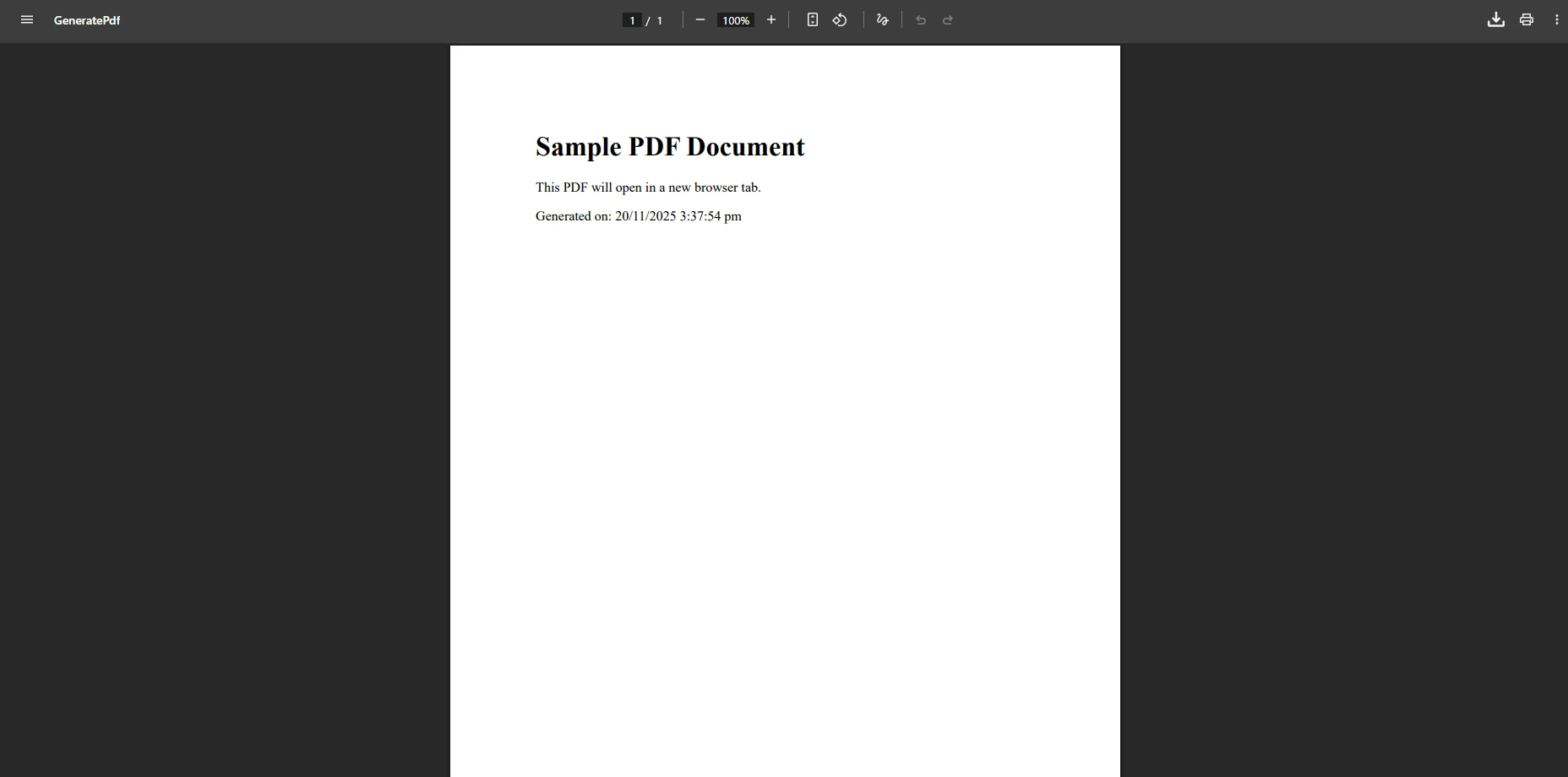
위의 코드는 [HttpGet]를 사용합니다. 사용자가 양식을 제출한 후 PDF를 생성할 때는 [HttpPost] 속성을 대신 사용하십시오. 이 구별이 중요한 이유는 GET 요청은 멱등적이어야 하고, POST 요청은 개인화된 문서를 생성하는 데 사용되는 제출된 양식 데이터를 포함하기 때문입니다.
Response.Headers.Add 대신 Response.Headers.Append가 사용된 것을 주목하세요. ASP.NET Core에서는 이미 헤더가 존재하는 경우 오류를 발생시키지 않으므로 응답 헤더를 추가하는 데 선호되는 API는 Append 메서드입니다. Add를 사용하면 이미 헤더가 일부 설정된 미들웨어 파이프라인에서 예외가 발생할 수 있습니다.
브라우저에서 PDF 파일을 여는 중요한 세부 사항은 Content-Disposition 헤더를 "attachment" 대신 "inline"로 설정하는 것입니다. "attachment" 값은 브라우저에게 파일을 다운로드하고 디스크에 저장하라는 지시입니다. "inline"로 설정하면 브라우저에게 파일을 브라우저 창 내에서 표시하려고 시도하라고 지시합니다. 이는 현대 브라우저들이 기본 PDF 렌더링을 지원할 경우 자동으로 수행됩니다.
WebForms 애플리케이션에서는 PDF를 HTTP 응답을 통해 직접 제공하고 버튼 클릭 이벤트에서 브라우저 디스플레이를 트리거할 수 있습니다:
using IronPdf;

protected void OpenPdf_Click(object sender, EventArgs e)
{
    var renderer = new ChromePdfRenderer();

    // Generate PDF from HTML content
    var pdf = renderer.RenderHtmlAsPdf("<h1>Invoice</h1><p>Your order details</p>");

    // Get byte array from the PDF document
    byte[] data = pdf.BinaryData;

    // Clear any existing response output
    Response.Clear();
    Response.ContentType = "application/pdf";
    Response.AddHeader("Content-Length", data.Length.ToString());
    Response.AddHeader("Content-Disposition", "inline; filename=invoice.pdf");
    Response.BinaryWrite(data);
    Response.End();
}Imports IronPdf
Protected Sub OpenPdf_Click(sender As Object, e As EventArgs)
Dim renderer As New ChromePdfRenderer()
' Generate PDF from HTML content
Dim pdf = renderer.RenderHtmlAsPdf("<h1>Invoice</h1><p>Your order details</p>")
' Get byte array from the PDF document
Dim data As Byte() = pdf.BinaryData
' Clear any existing response output
Response.Clear()
Response.ContentType = "application/pdf"
Response.AddHeader("Content-Length", data.Length.ToString())
Response.AddHeader("Content-Disposition", "inline; filename=invoice.pdf")
Response.BinaryWrite(data)
Response.End()
End SubPDF 양식을 생성하거나 디지털 서명을 추가하려면 IronPDF는 이 두 가지 고급 기능에 대한 내장 지원을 제공합니다.
서버 측 코드는 PDF가 인라인으로 표시되는지 여부를 결정하며, 동일한 탭에서 열리는지 아니면 새로운 탭에서 열리는지를 제어하려면 클라이언트 측 HTML 또는 JavaScript가 필요합니다. HTML 앵커 태그에 대한 target 속성은 가장 간단한 접근 방법을 제공합니다:
<a href="/Pdf/GeneratePdf" target="_blank">View PDF</a>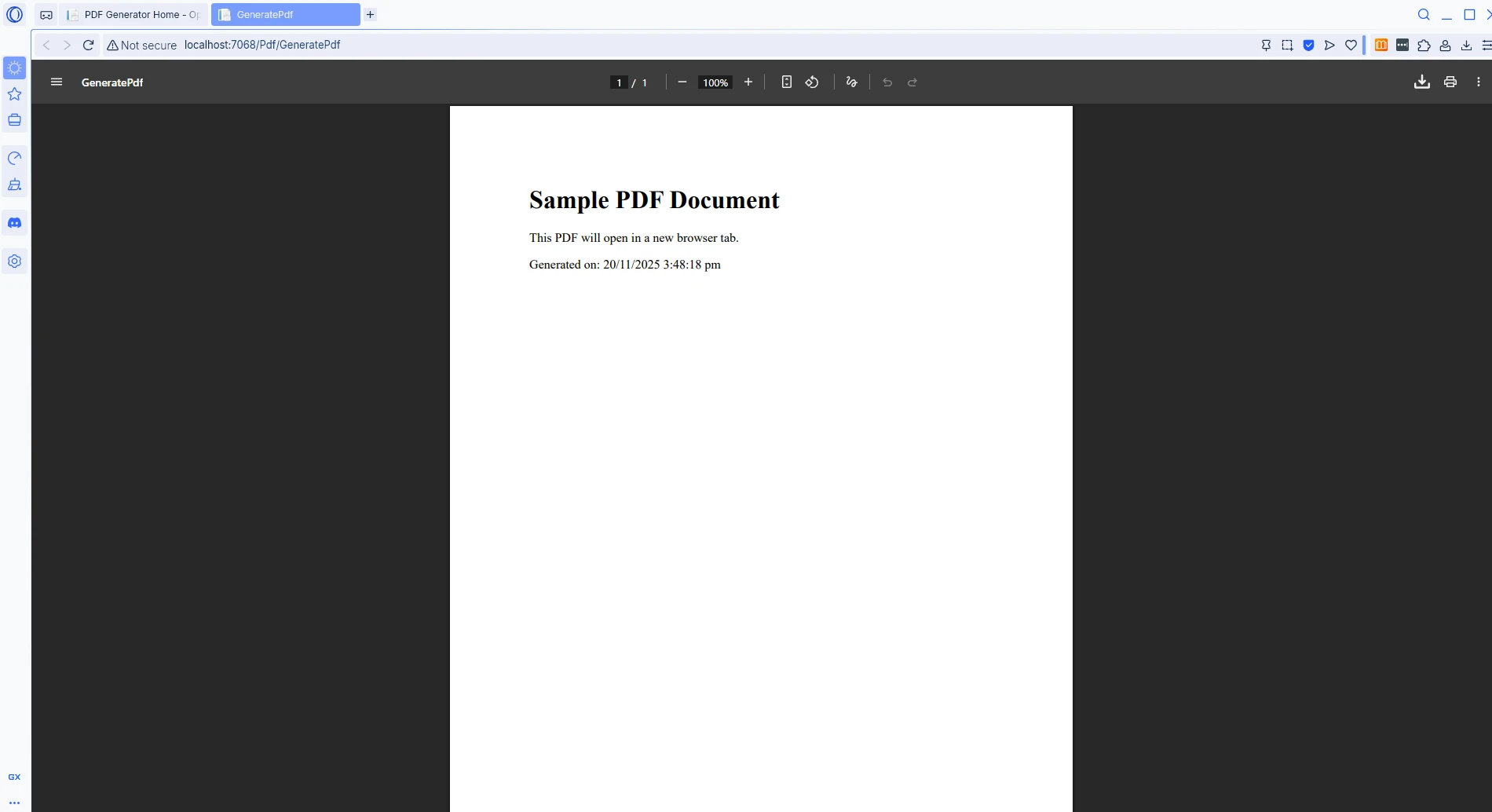
URL이 동적으로 결정되는 시나리오에서는 JavaScript의 window.open 함수가 PDF 탭을 여는 시점과 방법에 대한 정확한 제어를 제공합니다:
function openPdfInNewTab() {
    // Open the PDF endpoint in a new browser tab
    window.open('/Pdf/GeneratePdf', '_blank');
    return false; // Prevent default link or form submission behavior
}ASP.NET WebForms 애플리케이션에서는 JavaScript 호출을 OnClientClick 속성을 사용하여 버튼 컨트롤에 직접 연결하십시오:
<asp:Button ID="btnViewPdf" runat="server"
            OnClientClick="window.open('/Pdf/GeneratePdf', '_blank'); return false;"
            Text="Open PDF in New Tab" />
<asp:Button ID="btnViewPdf" runat="server"
OnClientClick="window.open('/Pdf/GeneratePdf', '_blank'); return false;"
Text="Open PDF in New Tab" />window.open()를 사용할 때 두 번째 인자인 '_blank'는 문서를 새로운 별도의 창이나 탭에서 여는 대상 매개변수입니다. 이것은 표준 HTML 앵커 태그에서 target="_blank"의 동작을 반영합니다.
HTML <object> 태그는 PDF 문서를 현재 페이지에 직접 포함시키기 위한 또 다른 옵션을 제공하며, 사용자가 다른 콘텐츠와 함께 문서를 읽어야 할 때 유용합니다:
<object data="/Pdf/GeneratePdf" type="application/pdf" width="100%" height="600px">
    <embed src="/Pdf/GeneratePdf" type="application/pdf" />
    <p>Your browser does not support embedded PDF documents.
       <a href="/Pdf/GeneratePdf" target="_blank">View the PDF file</a>
    </p>
</object>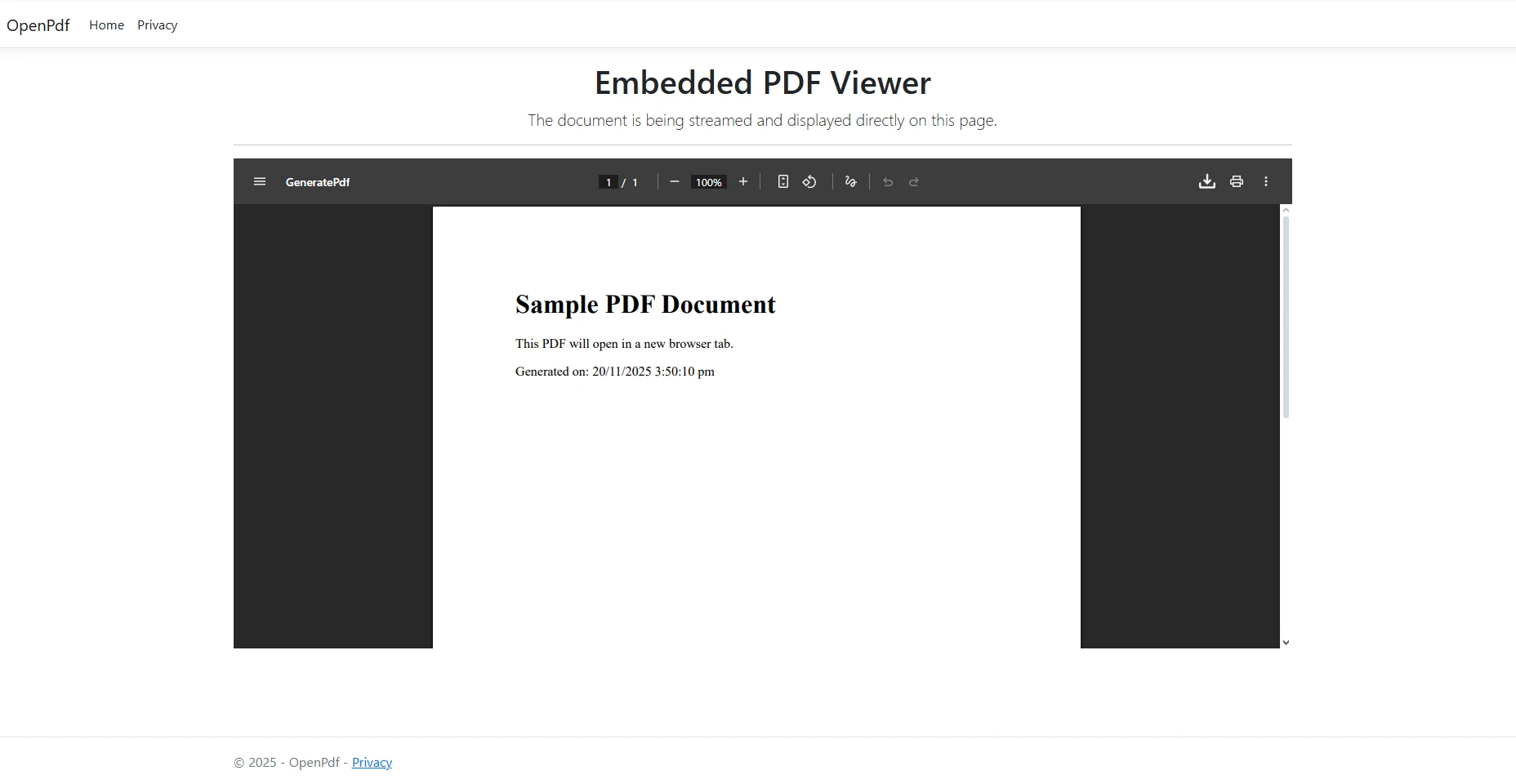
이는 네이티브 PDF 렌더링을 지원하는 현대 브라우저에서 잘 작동합니다. Microsoft의 ASP.NET Core 문서에 따르면, 적절한 HTTP 헤더와 클라이언트 측 코드가 결합된 솔루션은 가장 신뢰할 수 있는 크로스 브라우저 솔루션을 제공합니다. 대체 링크에서 target="_blank" 속성이 필수적입니다.
IronPDF는 HTML 문자열을 넘어 다양한 입력 소스를 처리합니다. 기존 PDF 파일로 작업하거나 다양한 데이터 형식에서 문서를 생성할 때, 라이브러리는 사용자에게 PDF 콘텐츠를 제공하기 위한 유연한 옵션을 제공합니다.
현실 세계의 애플리케이션은 거의 모든 PDF를 처음부터 생성하지 않습니다. 보고서는 공유 드라이브에 PDF 파일로 저장될 수 있고, 서명된 계약서는 blob 스토리지 컨테이너에 있을 수 있으며, 보관된 송장은 종종 관계형 데이터베이스에서 바이트 배열로 검색됩니다. 모든 세 가지 경우에 동일한 Content-Disposition 헤더 전략이 적용됩니다. 주요 차이점은 응답에 기록되기 전에 바이트가 얻어지는 방식입니다.
디스크에서 기존 PDF 문서를 로드하고 온라인으로 제공하려면:
using IronPdf;
using Microsoft.AspNetCore.Mvc;

[Route("[controller]")]
public class PdfController : Controller
{
    private readonly IWebHostEnvironment _env;

    public PdfController(IWebHostEnvironment env) => _env = env;

    [HttpGet("ViewFile")]
    public IActionResult ViewFile(string fileName)
    {
        // Build the full path to the PDF on disk
        string path = Path.Combine(_env.WebRootPath, "pdfs", fileName);

        // Load the existing PDF document
        var pdf = PdfDocument.FromFile(path);

        // Read the binary content from the PDF stream
        byte[] bytes = pdf.Stream.ToArray();

        // Serve inline so the browser displays it directly
        Response.Headers.Append("Content-Disposition", $"inline; filename={fileName}");
        Response.Headers.Append("Content-Length", bytes.Length.ToString());

        return File(bytes, "application/pdf");
    }
}Imports IronPdf
Imports Microsoft.AspNetCore.Mvc
<Route("[controller]")>
Public Class PdfController
Inherits Controller
Private ReadOnly _env As IWebHostEnvironment
Public Sub New(env As IWebHostEnvironment)
_env = env
End Sub
<HttpGet("ViewFile")>
Public Function ViewFile(fileName As String) As IActionResult
' Build the full path to the PDF on disk
Dim path As String = Path.Combine(_env.WebRootPath, "pdfs", fileName)
' Load the existing PDF document
Dim pdf = PdfDocument.FromFile(path)
' Read the binary content from the PDF stream
Dim bytes As Byte() = pdf.Stream.ToArray()
' Serve inline so the browser displays it directly
Response.Headers.Append("Content-Disposition", $"inline; filename={fileName}")
Response.Headers.Append("Content-Length", bytes.Length.ToString())
Return File(bytes, "application/pdf")
End Function
End Class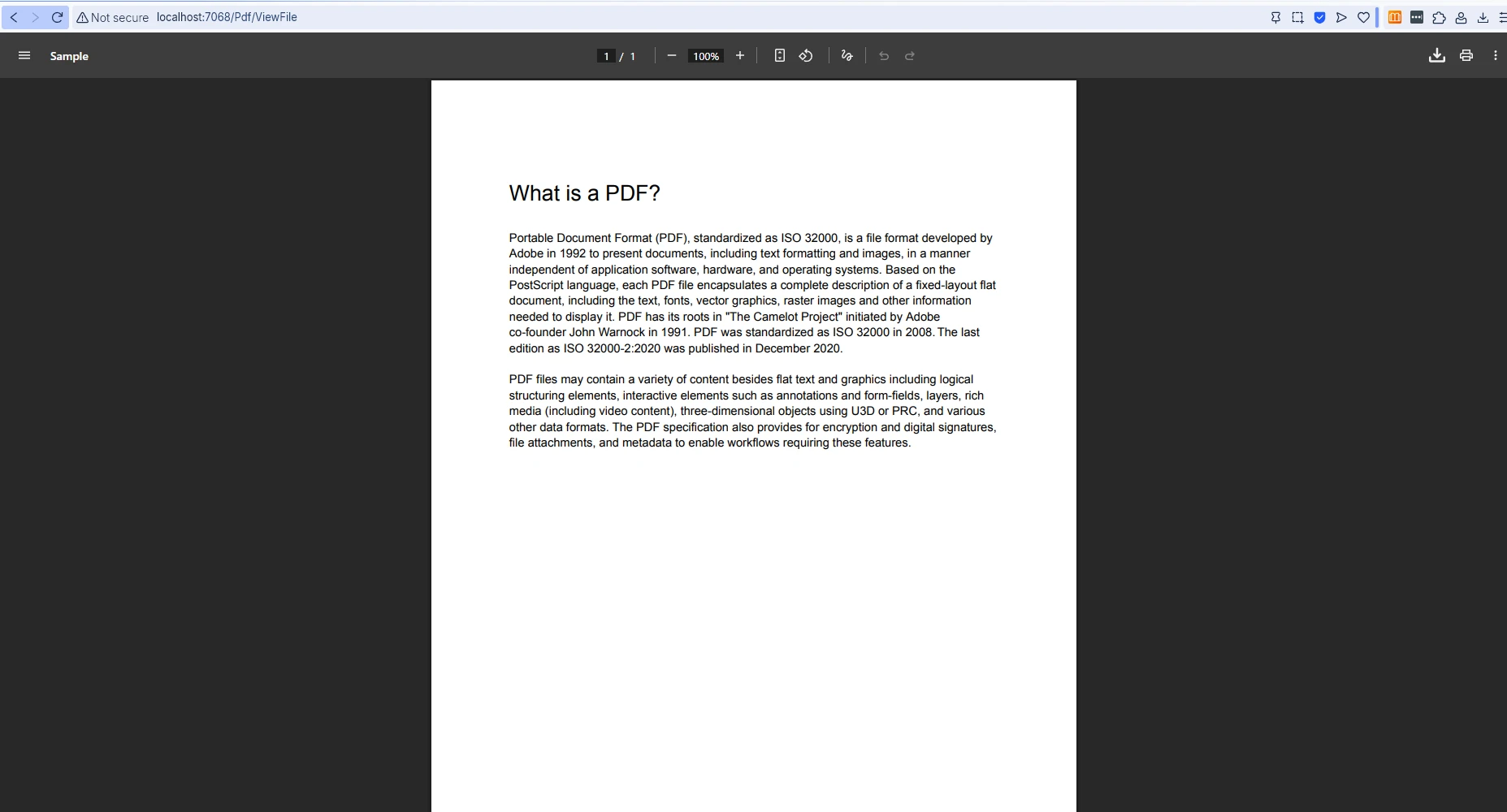
데이터베이스에서 검색한 바이트 배열로 작업할 때 문서를 올바르게 로드하여 제공하기 위해 주의가 필요합니다:
using IronPdf;
using Microsoft.AspNetCore.Mvc;

[Route("[controller]")]
public class PdfController : Controller
{
    [HttpGet("DisplayFromDatabase/{documentId:int}")]
    public IActionResult DisplayFromDatabase(int documentId)
    {
        // Retrieve the stored byte array from the database
        byte[] pdfData = GetPdfFromDatabase(documentId);

        // Load into an IronPDF document object for optional manipulation
        var pdf = PdfDocument.FromBytes(pdfData);

        // Set response headers for inline browser display
        Response.Headers.Append(
            "Content-Disposition",
            $"inline; filename=document_{documentId}.pdf");
        Response.Headers.Append("Content-Length", pdfData.Length.ToString());

        return File(pdfData, "application/pdf");
    }

    private static byte[] GetPdfFromDatabase(int documentId)
    {
        // Replace with actual database retrieval logic
        return Array.Empty<byte>();
    }
}Imports IronPdf
Imports Microsoft.AspNetCore.Mvc
<Route("[controller]")>
Public Class PdfController
Inherits Controller
<HttpGet("DisplayFromDatabase/{documentId:int}")>
Public Function DisplayFromDatabase(documentId As Integer) As IActionResult
' Retrieve the stored byte array from the database
Dim pdfData As Byte() = GetPdfFromDatabase(documentId)
' Load into an IronPDF document object for optional manipulation
Dim pdf = PdfDocument.FromBytes(pdfData)
' Set response headers for inline browser display
Response.Headers.Append("Content-Disposition", $"inline; filename=document_{documentId}.pdf")
Response.Headers.Append("Content-Length", pdfData.Length.ToString())
Return File(pdfData, "application/pdf")
End Function
Private Shared Function GetPdfFromDatabase(documentId As Integer) As Byte()
' Replace with actual database retrieval logic
Return Array.Empty(Of Byte)()
End Function
End ClassIronPDF는 CSS 스타일링, 이미지 및 웹 글꼴을 포함한 고급 HTML to PDF 변환을 지원합니다. 또한 라이브러리는 프로덕션 환경에서 픽셀 완벽한 결과를 얻기 위한 문제 해결 가이드를 제공합니다.
아래 표는 주요 제공 전략과 각 사용 시기를 요약합니다:
| 전략 | 헤더 값 | 탭 행동 | 최적의 용도 |
|---|---|---|---|
| 인라인 표시 | Content-Disposition: inline | 같은 탭 | 페이지를 떠나지 않고 빠른 미리 보기 |
| HTML을 통해 새 탭 | Content-Disposition: inline + target="_blank" | 새 탭 | 사용자가 원래 페이지 옆에서 PDF를 읽습니다. |
| 파일 다운로드 | Content-Disposition: attachment | 다운로드 프롬프트 | 보고서나 송장을 디스크에 저장 |
| 임베디드 객체 | Content-Disposition: inline + <object> | 페이지에 임베디드 | 다른 콘텐츠 옆에 PDF 표시 |
ASP.NET C#에서 새 창에서 PDF를 여는 것이 IronPDF를 사용하여 간단해집니다. PDF 생성의 세부 사항을 처리하고 HTTP 헤더를 올바르게 설정함으로써 개발자는 브라우저 간의 일관된 표시를 보장하면서 깨끗하고 유지 관리하기 쉬운 코드를 유지할 수 있습니다. HTML 문자열, 기존 PDF 문서 또는 데이터베이스에서 가져온 바이트 배열을 작업하든 IronPDF는 사용자가 기대하는 대로 PDF 콘텐츠를 제공하는 데 필요한 도구를 제공합니다.
무료 체험판을 시작하여 IronPDF를 사용하여 어떤 ASP.NET 응용 프로그램에나 전문적인 PDF 기능을 추가하십시오. 프로덕션 배포의 경우 Enterprise 웹 애플리케이션을 위한 전체 기능 세트와 우선 지원을 포함한 라이선스 옵션을 탐색하십시오.

커티스 차우는 칼턴 대학교에서 컴퓨터 과학 학사 학위를 취득했으며, Node.js, TypeScript, JavaScript, React를 전문으로 하는 프론트엔드 개발자입니다. 직관적이고 미적으로 뛰어난 사용자 인터페이스를 만드는 데 열정을 가진 그는 최신 프레임워크를 활용하고, 잘 구성되고 시각적으로 매력적인 매뉴얼을 제작하는 것을 즐깁니다.



IronPDF는 IRON SUITE 의 일부입니다.
10개의 .NET API 제품, 당신의 사무 문서를 위해

PDF 파일을 HTML처럼 빠르게 변환해야 할 때.


