푸터 콘텐츠로 바로가기
JAVA용 IRONPDF 사용

Java로 PDF 파일에 워터마킹하는 방법

Watermarking is a common technique used to protect the authenticity and ownership of digital documents. This article will explore how to add watermarks to PDF files using IronPDF, a powerful library for Java. With IronPDF, you can easily incorporate watermarks into your PDF documents programmatically, ensuring their security and branding. Let's dig deep into the step-by-step process of Java watermarking using IronPDF.

IronPDF - Java PDF Library

IronPDF Java Edition is a library for working with PDFs in Java. It offers fast and accurate operations, making it an excellent choice for many PDF file-related tasks like extracting text from PDFs, extracting images from PDFs, merging PDF files, and splitting PDFs. It is built on the capabilities of IronPDF for .NET, ensuring reliable functionality.

With the IronPDF library, you can convert HTML, URL, and strings into PDF documents using popular open standard document types such as HTML, CSS, JS, JPG, and PNG. The library generates PDFs with HTML to PDF conversion with precise pixel-perfect rendering and utilizes the latest technology.

Prerequisites

Before getting started, make sure you have the following prerequisites in place:

  1. Java Development Kit (JDK) installed on your machine.
  2. A Java IDE (Integrated Development Environment) such as Eclipse, NetBeans, or IntelliJ IDEA.
  3. IronPDF library added as a dependency in your Java project. You can include it by referencing the appropriate Maven artifact or by manually importing the JAR file. You can download it from the IronPDF home page and include it in your project.

Setting up the Project

  1. Create a new Java project in your chosen IDE and include the IronPDF library as a dependency. You can do this by either adding the Maven artifact to your project's pom.xml file or by importing the JAR file manually.
  2. Add the IronPDF library to your project using the dependency manager.

    # Install IronPDF through Maven or another package manager
    # Install IronPDF through Maven or another package manager
    SHELL
  3. Add the following necessary imports to your Java source file(s):

    import com.ironsoftware.ironpdf.PdfDocument;
    import com.ironsoftware.ironpdf.stamp.*;
    
    import java.io.IOException;
    import java.nio.file.Paths;
    import com.ironsoftware.ironpdf.PdfDocument;
    import com.ironsoftware.ironpdf.stamp.*;
    
    import java.io.IOException;
    import java.nio.file.Paths;
    JAVA

Loading the PDF Document

To begin, load the existing PDF document on which you want to add the watermark, or create a new PDF file using the renderHtmlAsPdf method. IronPDF provides convenient methods to open and manipulate PDF files. The following code example will load the example.pdf file as a PdfDocument object:

// Load an existing PDF document
PdfDocument pdf = PdfDocument.fromFile(Paths.get("example.pdf"));
// Load an existing PDF document
PdfDocument pdf = PdfDocument.fromFile(Paths.get("example.pdf"));
JAVA

Adding Watermark to PDF File

IronPDF allows you to add various types of watermarks to your PDF documents, including text watermarks and image watermarks. Let's explore both options:

Add Text Watermark

To add a text confidential watermark, use the applyWatermark method. You can customize the text, font, color, and size, using an HTML string as the first parameter, set its opacity, and align the watermark vertically and horizontally. Then save it using the saveAs method. Here's an example:

// Apply a text watermark to the PDF
pdf.applyWatermark("<h1 style=\"color:red\">Confidential</h1>", 50, VerticalAlignment.MIDDLE, HorizontalAlignment.CENTER);
// Save the modified PDF document with the applied watermark
pdf.saveAs("textwatermarked.pdf");
// Apply a text watermark to the PDF
pdf.applyWatermark("<h1 style=\"color:red\">Confidential</h1>", 50, VerticalAlignment.MIDDLE, HorizontalAlignment.CENTER);
// Save the modified PDF document with the applied watermark
pdf.saveAs("textwatermarked.pdf");
JAVA

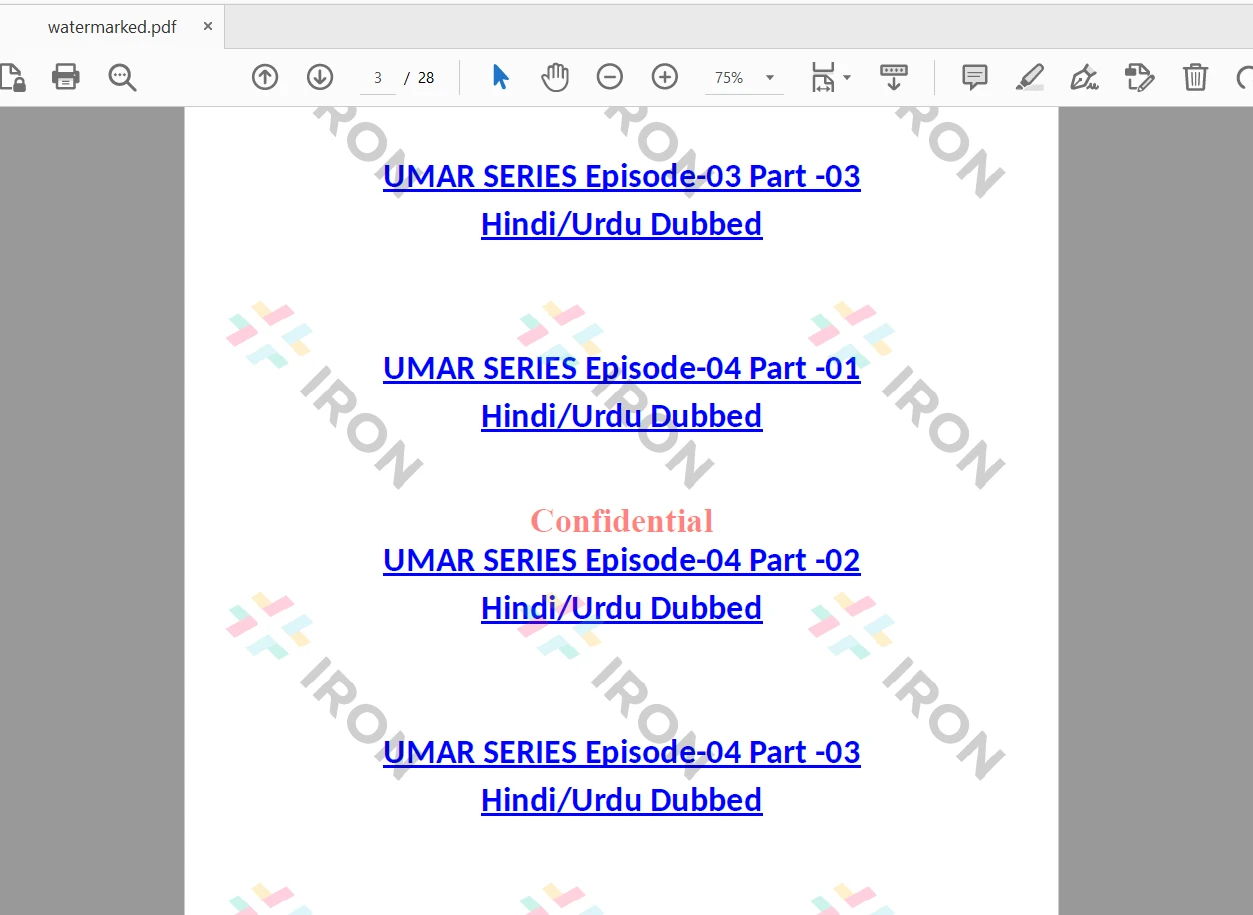
The text-watermarked PDF document will look like this:

How to Watermark PDF Files in Java, Figure 1: The watermarked PDF file The watermarked PDF file

Add Image Watermark

To add an image watermark, use the same applyWatermark method. Now, use the HTML string to set the img tag with the source image. Specify the path to the image file and adjust its position and opacity as needed. Here's an example:

// Apply an image watermark to the PDF
pdf.applyWatermark("<img src='assets/images/iron-pdf-logo.jpg'>", 50, VerticalAlignment.MIDDLE, HorizontalAlignment.CENTER);
// Save the modified PDF document with the applied watermark
pdf.saveAs("imagewatermarked.pdf");
// Apply an image watermark to the PDF
pdf.applyWatermark("<img src='assets/images/iron-pdf-logo.jpg'>", 50, VerticalAlignment.MIDDLE, HorizontalAlignment.CENTER);
// Save the modified PDF document with the applied watermark
pdf.saveAs("imagewatermarked.pdf");
JAVA

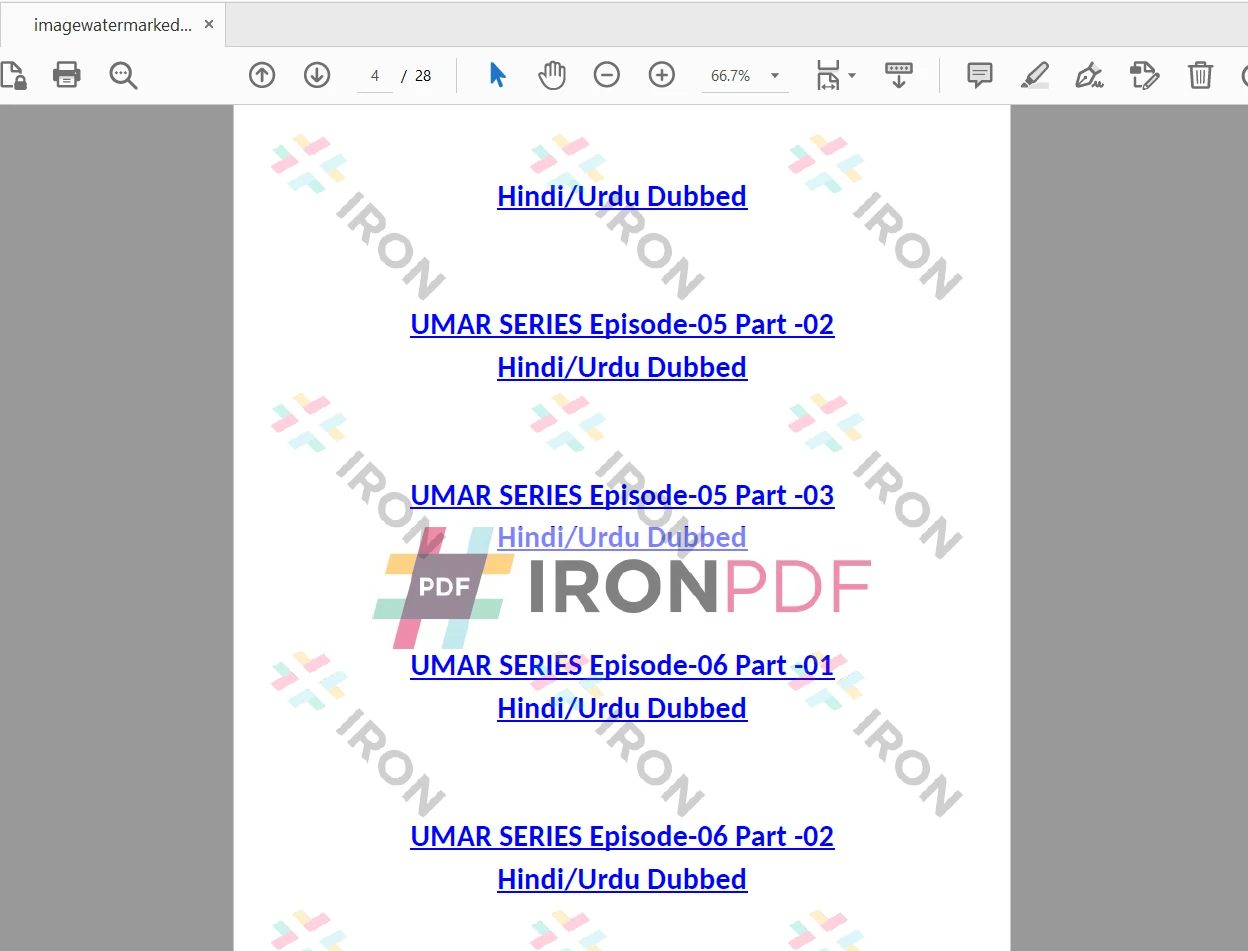
The image-watermarked PDF document looks like this:

How to Watermark PDF Files in Java, Figure 2: The watermarked PDF file The watermarked PDF file

Make Watermarked PDF using Stamper Class

IronPDF for Java provides a Stamper class, which can be used to add text and image watermarks using HtmlStamper, ImageStamper, and TextStamper classes. The Stamper class provides more flexibility over the applyWatermark method.

Text Watermark to PDF

Here this section will use the TextStamper class to apply the watermark to PDF. You can set the rotation angle of the watermark text or image watermark to a PDF document. It also allows you to set horizontal and vertical offsets along with stamping behind the PDF page content.

Here is the code to add a text watermark to an existing PDF document:

// Create a text stamper for watermarking
TextStamper stamper = new TextStamper("Confidential");
stamper.setFontColor("#FF0000");
stamper.setFontSize(60);
stamper.setFontFamily("Times New Roman");
stamper.setHorizontalAlignment(HorizontalAlignment.CENTER);
stamper.setVerticalAlignment(VerticalAlignment.MIDDLE);
stamper.setOpacity(30);
stamper.setRotation(45);
// Apply the stamper to the PDF
pdf.applyStamp(stamper);
// Save the modified PDF document with the watermark
pdf.saveAs("textwatermarked2.pdf");
// Create a text stamper for watermarking
TextStamper stamper = new TextStamper("Confidential");
stamper.setFontColor("#FF0000");
stamper.setFontSize(60);
stamper.setFontFamily("Times New Roman");
stamper.setHorizontalAlignment(HorizontalAlignment.CENTER);
stamper.setVerticalAlignment(VerticalAlignment.MIDDLE);
stamper.setOpacity(30);
stamper.setRotation(45);
// Apply the stamper to the PDF
pdf.applyStamp(stamper);
// Save the modified PDF document with the watermark
pdf.saveAs("textwatermarked2.pdf");
JAVA

In the above code, the IronPDF library's TextStamper class is used to create a text watermark with the content "Confidential" and applies it to a PDF document. The watermark is customized with specific font properties, alignment, opacity, and rotation. Finally, the modified PDF document is saved as a new file with the watermark applied.

How to Watermark PDF Files in Java, Figure 3: The watermarked PDF file The watermarked PDF file

Image Watermark to PDF

Here this section is going to use the ImageStamper class to apply a background image watermark to a PDF document. The Java code is as follows:

// Create an image stamper for watermarking
ImageStamper stamper = new ImageStamper("assets/images/iron-pdf-logo.jpg");
stamper.setHorizontalAlignment(HorizontalAlignment.CENTER);
stamper.setVerticalAlignment(VerticalAlignment.MIDDLE);
stamper.setOpacity(30);
stamper.setStampBehindContent(true);
stamper.setRotation(45);
// Apply the stamper to the PDF
pdf.applyStamp(stamper);
// Save the modified PDF document with the watermark
pdf.saveAs("imagewatermarked.pdf");
// Create an image stamper for watermarking
ImageStamper stamper = new ImageStamper("assets/images/iron-pdf-logo.jpg");
stamper.setHorizontalAlignment(HorizontalAlignment.CENTER);
stamper.setVerticalAlignment(VerticalAlignment.MIDDLE);
stamper.setOpacity(30);
stamper.setStampBehindContent(true);
stamper.setRotation(45);
// Apply the stamper to the PDF
pdf.applyStamp(stamper);
// Save the modified PDF document with the watermark
pdf.saveAs("imagewatermarked.pdf");
JAVA

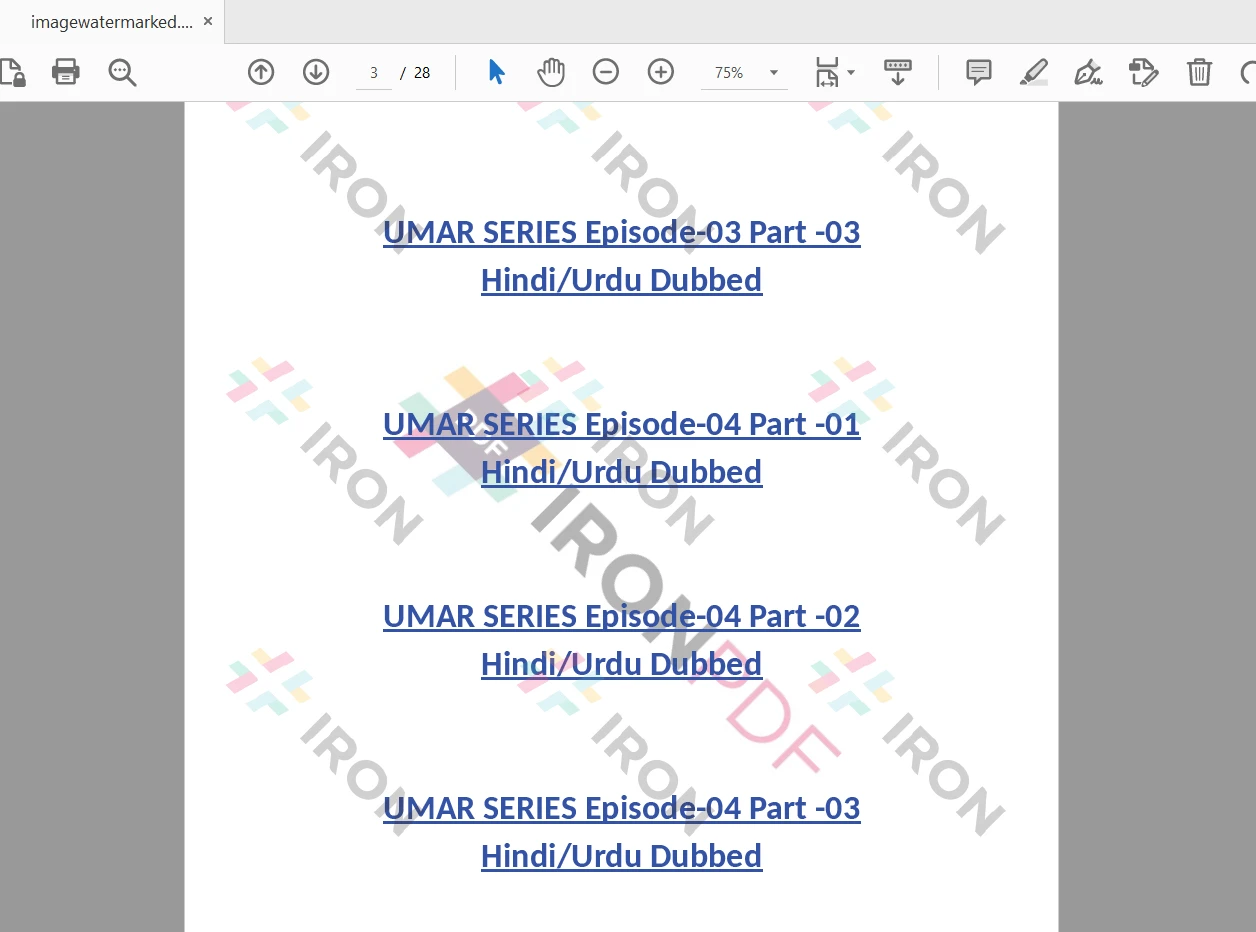
In the above complete code, the IronPDF library's ImageStamper class is used to create an image watermark and apply it to a PDF document. The watermark image is specified by its file path, and its properties such as alignment, opacity, stacking behind the content, and rotation are configured. Finally, the modified PDF document is saved as a new file with the watermark applied.

How to Watermark PDF Files in Java, Figure 4: The watermarked PDF file The watermarked PDF file

Conclusion

This article explored how to add watermarks to PDF documents using IronPDF. With IronPDF's intuitive APIs, you can easily incorporate text or image watermarks into your PDF files, enhancing their security and branding. Experiment with different customization options using the Stamper class to achieve the desired watermarking effects. Now, you can confidently protect and personalize your PDF documents in your Java applications.

For detailed guidance and examples on utilizing IronPDF for Java, you can refer to the code examples, which provide helpful resources and demonstrations.

IronPDF is free for development purposes and offers commercial licensing options for commercial use. To learn more about the licensing details, you can visit the IronPDF Licensing Guide.

You can also get a free API license in a free trial license for commercial use. To obtain the IronPDF software, you can download it from the official IronPDF for Java website.

자주 묻는 질문

Java로 PDF 파일에 텍스트 워터마크를 추가하려면 어떻게 해야 하나요?

IronPDF를 사용하여 Java로 PDF에 텍스트 워터마크를 추가하려면 applyWatermark 메서드를 활용하면 됩니다. 이 방법을 사용하면 글꼴, 색상, 크기, 불투명도 및 정렬을 포함하여 텍스트를 사용자 지정할 수 있습니다. HTML 문자열을 사용하여 워터마크를 생성한 다음 saveAs 메서드를 사용하여 수정된 문서를 저장할 수 있습니다.

Java에서 워터마킹을 위해 PDF 라이브러리를 사용하려면 무엇이 필요하나요?

Java에서 PDF 워터마킹에 IronPDF를 사용하려면 Java 개발 키트(JDK), Eclipse 또는 IntelliJ IDEA와 같은 Java IDE, 프로젝트에 종속성으로 추가된 IronPDF 라이브러리가 있어야 합니다.

Java로 PDF에 이미지 워터마크를 추가하려면 어떻게 해야 하나요?

IronPDF를 사용하면 applyWatermark 메서드와 함께 img 태그가 포함된 HTML 문자열을 사용하여 PDF에 이미지 워터마크를 추가할 수 있습니다. 이미지 경로를 지정하고 이미지의 위치와 불투명도를 사용자 지정할 수 있습니다.

IronPDF의 스탬퍼 클래스의 목적은 무엇인가요?

IronPDF의 Stamper 클래스는 PDF 문서에 워터마크를 추가하기 위한 고급 옵션을 제공합니다. 여기에는 회전, 불투명도 및 정렬을 포함하여 워터마크를 세부적으로 사용자 정의할 수 있는 HtmlStamper, ImageStamper 및 TextStamper와 같은 하위 클래스가 포함되어 있습니다.

Java에서 HTML 파일을 PDF 문서로 변환하려면 어떻게 해야 하나요?

IronPDF를 사용하면 HTML 파일 경로를 가져와 PDF로 변환하는 RenderHtmlFileAsPdf 메서드를 사용하여 Java에서 HTML 파일을 PDF 문서로 변환할 수 있습니다.

Java 프로젝트에서 IronPDF를 사용하기 위한 라이선스 옵션은 무엇인가요?

IronPDF는 개발 목적으로는 무료로 사용할 수 있지만 배포하려면 상업용 라이선스가 필요합니다. 개발자가 라이브러리의 기능을 평가할 수 있도록 상업적 사용을 위한 무료 평가판 라이선스도 제공됩니다.

Java에서 워터마크를 추가한 후 PDF에 변경 사항을 저장하려면 어떻게 해야 하나요?

IronPDF의 applyWatermark 또는 applyStamp 메서드를 사용하여 워터마크를 추가한 후 saveAs 메서드를 호출하고 출력 PDF에 원하는 파일 이름을 지정하여 변경 사항을 저장할 수 있습니다.

Java용 IronPDF 라이브러리를 다운로드할 수 있는 리소스는 어디에서 찾을 수 있나요?

Java용 IronPDF 라이브러리는 공식 IronPDF 웹사이트에서 다운로드할 수 있으며, 여기에서 Java 프로젝트에 통합하기 위한 최신 버전과 설명서를 찾을 수 있습니다.

커티스 차우
기술 문서 작성자

커티스 차우는 칼턴 대학교에서 컴퓨터 과학 학사 학위를 취득했으며, Node.js, TypeScript, JavaScript, React를 전문으로 하는 프론트엔드 개발자입니다. 직관적이고 미적으로 뛰어난 사용자 인터페이스를 만드는 데 열정을 가진 그는 최신 프레임워크를 활용하고, 잘 구성되고 시각적으로 매력적인 매뉴얼을 제작하는 것을 즐깁니다.


커티스는 개발 분야 외에도 사물 인터넷(IoT)에 깊은 관심을 가지고 있으며, 하드웨어와 소프트웨어를 통합하는 혁신적인 방법을 연구합니다. 여가 시간에는 게임을 즐기거나 디스코드 봇을 만들면서 기술에 대한 애정과 창의성을 결합합니다.