


把PDF變小(免費在線工具)

Full Comparison
Looking for a detailed feature-by-feature breakdown? See how IronPDF stacks up against Itext on pricing, HTML support, and licensing.
IronPDF提供了一個現代化的C# API來讀取PDF,語法比iText更簡單。 它支持文字提取、圖像解析以及表單資料存取,而iText在商業用途上需要AGPL授權,使得IronPDF成為企業應用的首選。
PDF(可攜式文件格式)是一種廣泛使用的文件格式,用於一致且安全地共享文件。 在C#中讀取和操作此類文件在各種應用中很常見,如文件管理系統和報告工具。 本文比較了兩個流行的C# PDF文件讀取庫:IronPDF和iText(最新的.NET庫iText)。
IronPDF是Iron Software的一個完整C#庫,提供豐富的功能以處理PDF文件。 它允許您順暢地建立、編輯和操作PDF文件。 IronPDF以其簡單性和易用性而聞名,使其成為快速整合PDF功能到您的應用中的絕佳選擇。 該程式庫使用Chrome渲染引擎,確保精確渲染和現代網頁標準支持。
iText是另一個流行的C#處理PDF文件庫。 多年來它在業界被廣泛使用。 然而,了解iText的授權已改為AGPL(Affero公眾授權條款)是很重要的,這對商業應用有重大影響。 根據AGPL規定,如果您的應用使用iText,則必須將整個應用的源程式碼提供給使用者—這一要求通常與專有軟體開發不相容。 這一授權變革促使許多企業尋求IronPDF這樣的替代品,提供對商業友好的授權。
如何在C#中使用IronPDF與iText讀取PDF?
- 在Visual Studio中建立一個新的C#項目以比較IronPDF和iText讀取PDF文件。
- 通過NuGet Package Manager將IronPDF和iText庫安裝到您的項目中。
- 使用IronPDF的直觀API進行文字提取來讀取PDF文件。
- 使用iText更複雜的物件模型來讀取PDF文件。
這個教程的先決條件是什麼?
- Visual Studio:確保您已安裝Visual Studio或其他C#開發環境。 IronPDF支持Windows、Linux和macOS環境。
- NuGet Package Manager:確保您能在項目中使用NuGet來管理套件以進行高級安裝。
如何設置開發環境?
首先設置一個C#控制台應用程式。 打開Visual Studio並選擇新建項目。 選擇控制台應用型別。 對於生產應用,如果您計劃基於雲的PDF處理,請考慮查看我們的Azure部署或AWS部署指南。
提供您的項目名稱,如下所示。 遵循.NET命名約定,使用PascalCase作為您的項目名稱,以保持與企業標準的一致性。
選擇項目所需的.NET版本。 IronPDF支持.NET Framework、.NET Core 和 .NET 5+,提供了對傳統和現代應用的靈活性。
完成後,Visual Studio將生成一個結構必要的新項目以比較PDF讀取能力。
如何安裝IronPDF和iText庫?
應使用哪種包管理器來安裝iText?
您可以從NuGet Package Manager安裝iText。 最新版本可以作為iText包獲取。 注意iText相對較低的下載數量,這反映了許多開發者對AGPL的授權擔憂。
或者從如下圖所示的Visual Studio包管理器安裝。 在包管理器中搜尋iText並點擊安裝。 請注意,接受AGPL授權對您的項目分發具有法律影響。
如何通過NuGet安裝IronPDF?
您可以從NuGet Package Manager安裝IronPDF,如下所示。 注意這較高的下載數量(8.3M),表明在商業應用中的更廣泛採用。
或者從如下圖所示的Visual Studio包管理器安裝。 在包管理器中搜尋 IronPDF: C# PDF Library並點擊安裝。 安裝過程簡便,包括所有Chrome渲染所需的依賴。
如何使用IronPDF從PDF中讀取文字?
將以下程式碼新增到您的Program.cs文件中,並提供包含指定內容的PDF樣本文件。 IronPDF在從複雜的PDF中提取文字方面表現出色,包括多列、嵌入字體和各種編碼。
using IronPdf;

// Begin the comparison of IronPDF and iTextSharp for reading PDFs in C#
Console.WriteLine("Comparison of IronPDF And iTextSharp Read PDF Files in C#");

// Read PDF using IronPDF
ReadUsingIronPDF.Read();

public class ReadUsingIronPDF
{
    public static void Read()
    {
        // Specify the path to the PDF document
        string filename = "C:\\code\\articles\\ITextSharp\\ITextSharpIronPdfDemo\\Example.pdf";

        // Create a PDF Reader instance to read the PDF
        // IronPDF automatically handles various PDF versions and encryption
        var pdfReader = PdfDocument.FromFile(filename);

        // Extract all text from the PDF - maintains formatting and structure
        var allText = pdfReader.ExtractAllText();
        Console.WriteLine("------------------Text From PDF-----------------");
        Console.WriteLine(allText);
        Console.WriteLine("------------------Text From PDF-----------------");

        // Extract all images from the PDF - supports various image formats
        var allImages = pdfReader.ExtractAllImages();
        Console.WriteLine("------------------Image Count From PDF-----------------");
        Console.WriteLine($"Total Images = {allImages.Count()}");

        // Save extracted images if needed (production example)
        for (int i = 0; i < allImages.Count(); i++)
        {
            // allImages[i].SaveAs($"image_{i}.png");
        }
        Console.WriteLine("------------------Image Count From PDF-----------------");

        // Iterate through each page to extract text from them
        Console.WriteLine("------------------One Page Text From PDF-----------------");
        var pageCount = pdfReader.PageCount;
        for (int page = 0; page < pageCount; page++)
        {
            string text = pdfReader.ExtractTextFromPage(page);
            Console.WriteLine($"Page {page + 1} content:");
            Console.WriteLine(text);
        }

        // Additional IronPDF capabilities for production use
        // Extract form data
        var form = pdfReader.Form;
        if (form != null)
        {
            foreach (var field in form.Fields)
            {
                Console.WriteLine($"Form Field: {field.Name} = {field.Value}");
            }
        }

        // Access metadata
        Console.WriteLine($"Author: {pdfReader.MetaData.Author}");
        Console.WriteLine($"Title: {pdfReader.MetaData.Title}");
        Console.WriteLine($"Created: {pdfReader.MetaData.CreationDate}");
    }
}
using IronPdf;
// Begin the comparison of IronPDF and iTextSharp for reading PDFs in C#
Console.WriteLine("Comparison of IronPDF And iTextSharp Read PDF Files in C#");
// Read PDF using IronPDF
ReadUsingIronPDF.Read();
public class ReadUsingIronPDF
{
public static void Read()
{
// Specify the path to the PDF document
string filename = "C:\\code\\articles\\ITextSharp\\ITextSharpIronPdfDemo\\Example.pdf";
// Create a PDF Reader instance to read the PDF
// IronPDF automatically handles various PDF versions and encryption
var pdfReader = PdfDocument.FromFile(filename);
// Extract all text from the PDF - maintains formatting and structure
var allText = pdfReader.ExtractAllText();
Console.WriteLine("------------------Text From PDF-----------------");
Console.WriteLine(allText);
Console.WriteLine("------------------Text From PDF-----------------");
// Extract all images from the PDF - supports various image formats
var allImages = pdfReader.ExtractAllImages();
Console.WriteLine("------------------Image Count From PDF-----------------");
Console.WriteLine($"Total Images = {allImages.Count()}");
// Save extracted images if needed (production example)
for (int i = 0; i < allImages.Count(); i++)
{
// allImages[i].SaveAs($"image_{i}.png");
}
Console.WriteLine("------------------Image Count From PDF-----------------");
// Iterate through each page to extract text from them
Console.WriteLine("------------------One Page Text From PDF-----------------");
var pageCount = pdfReader.PageCount;
for (int page = 0; page < pageCount; page++)
{
string text = pdfReader.ExtractTextFromPage(page);
Console.WriteLine($"Page {page + 1} content:");
Console.WriteLine(text);
}
// Additional IronPDF capabilities for production use
// Extract form data
var form = pdfReader.Form;
if (form != null)
{
foreach (var field in form.Fields)
{
Console.WriteLine($"Form Field: {field.Name} = {field.Value}");
}
}
// Access metadata
Console.WriteLine($"Author: {pdfReader.MetaData.Author}");
Console.WriteLine($"Title: {pdfReader.MetaData.Title}");
Console.WriteLine($"Created: {pdfReader.MetaData.CreationDate}");
}
}Imports IronPdf
' Begin the comparison of IronPDF and iTextSharp for reading PDFs in VB.NET
Console.WriteLine("Comparison of IronPDF And iTextSharp Read PDF Files in VB.NET")
' Read PDF using IronPDF
ReadUsingIronPDF.Read()
Public Class ReadUsingIronPDF
Public Shared Sub Read()
' Specify the path to the PDF document
Dim filename As String = "C:\code\articles\ITextSharp\ITextSharpIronPdfDemo\Example.pdf"
' Create a PDF Reader instance to read the PDF
' IronPDF automatically handles various PDF versions and encryption
Dim pdfReader = PdfDocument.FromFile(filename)
' Extract all text from the PDF - maintains formatting and structure
Dim allText = pdfReader.ExtractAllText()
Console.WriteLine("------------------Text From PDF-----------------")
Console.WriteLine(allText)
Console.WriteLine("------------------Text From PDF-----------------")
' Extract all images from the PDF - supports various image formats
Dim allImages = pdfReader.ExtractAllImages()
Console.WriteLine("------------------Image Count From PDF-----------------")
Console.WriteLine($"Total Images = {allImages.Count()}")
' Save extracted images if needed (production example)
For i As Integer = 0 To allImages.Count() - 1
' allImages(i).SaveAs($"image_{i}.png")
Next
Console.WriteLine("------------------Image Count From PDF-----------------")
' Iterate through each page to extract text from them
Console.WriteLine("------------------One Page Text From PDF-----------------")
Dim pageCount = pdfReader.PageCount
For page As Integer = 0 To pageCount - 1
Dim text As String = pdfReader.ExtractTextFromPage(page)
Console.WriteLine($"Page {page + 1} content:")
Console.WriteLine(text)
Next
' Additional IronPDF capabilities for production use
' Extract form data
Dim form = pdfReader.Form
If form IsNot Nothing Then
For Each field In form.Fields
Console.WriteLine($"Form Field: {field.Name} = {field.Value}")
Next
End If
' Access metadata
Console.WriteLine($"Author: {pdfReader.MetaData.Author}")
Console.WriteLine($"Title: {pdfReader.MetaData.Title}")
Console.WriteLine($"Created: {pdfReader.MetaData.CreationDate}")
End Sub
End ClassIronPDF程式碼的作用是什麼?
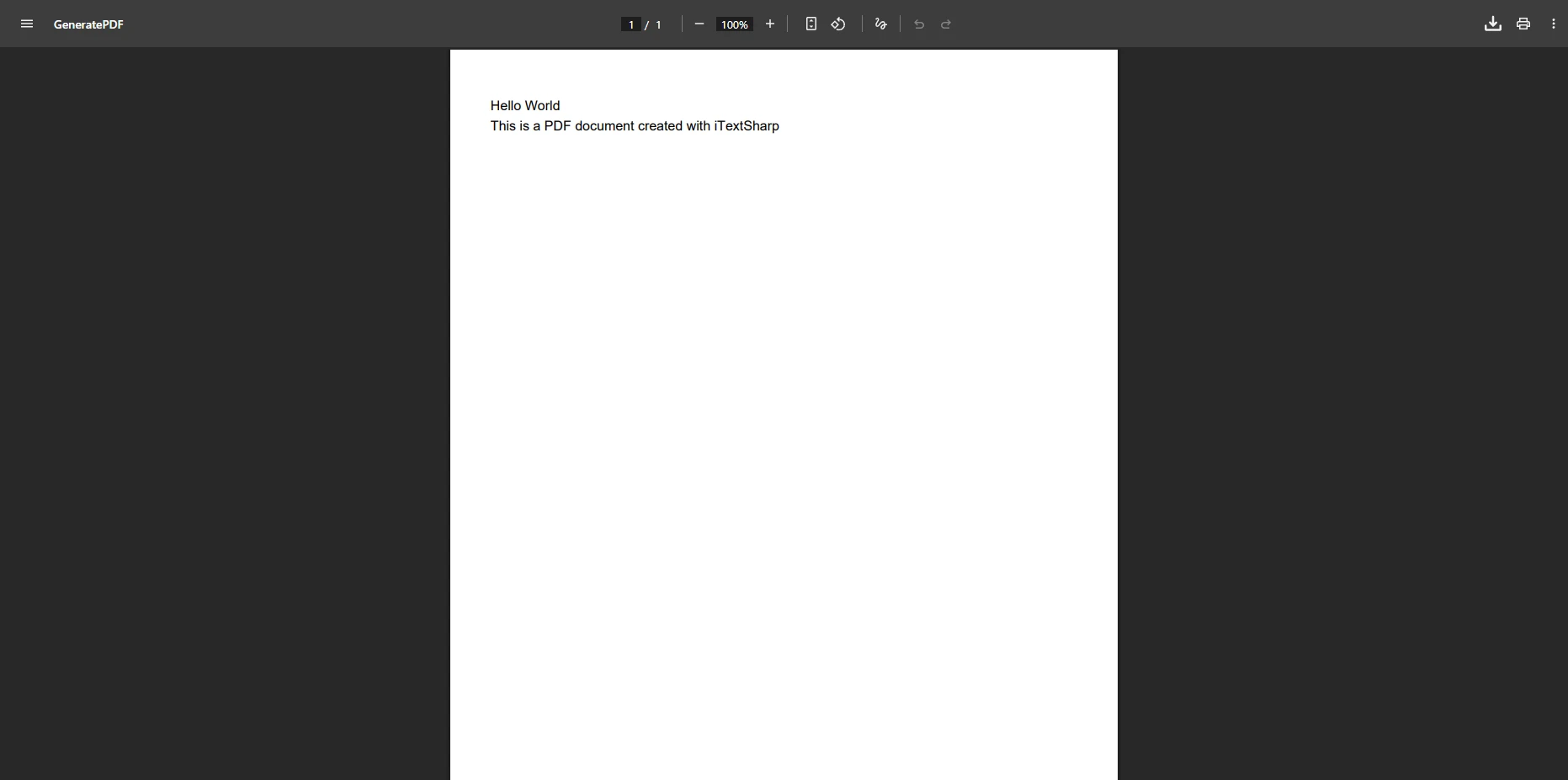
- 建立Word文件:最初建立一個Word文件,其中包含所需的文字內容並將其保存為名為
Example.pdf的PDF文件。 - PDFReader實例:程式碼使用PDF文件路徑建立一個
PdfDocument物件來提取文字和圖像。 - 提取文字和圖像:該
ExtractAllImages提取圖像。 - 每頁提取文字:使用
ExtractTextFromPage方法從每頁提取文字。
我應該從IronPDF中期望看到什麼輸出?
如何使用iText從PDF中讀取文字?
現在為了比較iText的文字提取,將以下程式碼新增到相同的Program.cs文件中。為了簡單,我們並未將類分隔到不同文件中。 注意iText如何需要更複雜的程式碼來進行基本操作。
using IronPdf;
using iText.Kernel.Pdf;
using iText.Kernel.Pdf.Canvas.Parser.Listener;
using iText.Kernel.Pdf.Canvas.Parser;
using iText.Kernel.Pdf.Xobject;

// Begin the comparison of IronPDF and iTextSharp for reading PDFs in C#
Console.WriteLine("Comparison of IronPDF And iTextSharp Read PDF Files in C#");

// Call method to read PDF using iTextSharp library
ReadUsingITextSharp.Read();

public class ReadUsingITextSharp
{
    public static void Read()
    {
        // Specify the path to the PDF document
        string pdfFile = "C:\\code\\articles\\ITextSharp\\ITextSharpIronPdfDemo\\Example.pdf";

        // Create a PDF Reader instance - more verbose than IronPDF
        PdfReader pdfReader = new PdfReader(pdfFile);

        // Initialize a new PDF Document - additional step required
        iText.Kernel.Pdf.PdfDocument pdfDocument = new iText.Kernel.Pdf.PdfDocument(pdfReader);

        // Extract text from all pages - more complex than IronPDF
        Console.WriteLine("------------------Text From PDF (iTextSharp)-----------------");
        for (int page = 1; page <= pdfDocument.GetNumberOfPages(); page++)
        {
            // Use a text extraction strategy to extract plain text from the PDF
            LocationTextExtractionStrategy strategy = new LocationTextExtractionStrategy();
            string pdfText = PdfTextExtractor.GetTextFromPage(pdfDocument.GetPage(page), strategy);
            Console.WriteLine($"Page {page} content:");
            Console.WriteLine(pdfText);
        }

        // Extract images - significantly more complex than IronPDF
        Console.WriteLine("------------------Images From PDF (iTextSharp)-----------------");
        int imageCount = 0;
        for (int pageNum = 1; pageNum <= pdfDocument.GetNumberOfPages(); pageNum++)
        {
            var page = pdfDocument.GetPage(pageNum);
            var resources = page.GetResources();
            var xobjects = resources.GetResource(PdfName.XObject);

            if (xobjects != null)
            {
                foreach (var key in xobjects.KeySet())
                {
                    var xobject = xobjects.GetAsStream(key);
                    if (xobject != null)
                    {
                        var pdfObject = xobjects.Get(key);
                        if (pdfObject.IsStream())
                        {
                            var stream = (PdfStream)pdfObject;
                            var subtype = stream.GetAsName(PdfName.Subtype);
                            if (PdfName.Image.Equals(subtype))
                            {
                                imageCount++;
                                // Extracting the actual image requires additional complex code
                            }
                        }
                    }
                }
            }
        }
        Console.WriteLine($"Total Images Found: {imageCount}");

        // Close the document - manual resource management required
        pdfDocument.Close();
        pdfReader.Close();
    }
}
using IronPdf;
using iText.Kernel.Pdf;
using iText.Kernel.Pdf.Canvas.Parser.Listener;
using iText.Kernel.Pdf.Canvas.Parser;
using iText.Kernel.Pdf.Xobject;
// Begin the comparison of IronPDF and iTextSharp for reading PDFs in C#
Console.WriteLine("Comparison of IronPDF And iTextSharp Read PDF Files in C#");
// Call method to read PDF using iTextSharp library
ReadUsingITextSharp.Read();
public class ReadUsingITextSharp
{
public static void Read()
{
// Specify the path to the PDF document
string pdfFile = "C:\\code\\articles\\ITextSharp\\ITextSharpIronPdfDemo\\Example.pdf";
// Create a PDF Reader instance - more verbose than IronPDF
PdfReader pdfReader = new PdfReader(pdfFile);
// Initialize a new PDF Document - additional step required
iText.Kernel.Pdf.PdfDocument pdfDocument = new iText.Kernel.Pdf.PdfDocument(pdfReader);
// Extract text from all pages - more complex than IronPDF
Console.WriteLine("------------------Text From PDF (iTextSharp)-----------------");
for (int page = 1; page <= pdfDocument.GetNumberOfPages(); page++)
{
// Use a text extraction strategy to extract plain text from the PDF
LocationTextExtractionStrategy strategy = new LocationTextExtractionStrategy();
string pdfText = PdfTextExtractor.GetTextFromPage(pdfDocument.GetPage(page), strategy);
Console.WriteLine($"Page {page} content:");
Console.WriteLine(pdfText);
}
// Extract images - significantly more complex than IronPDF
Console.WriteLine("------------------Images From PDF (iTextSharp)-----------------");
int imageCount = 0;
for (int pageNum = 1; pageNum <= pdfDocument.GetNumberOfPages(); pageNum++)
{
var page = pdfDocument.GetPage(pageNum);
var resources = page.GetResources();
var xobjects = resources.GetResource(PdfName.XObject);
if (xobjects != null)
{
foreach (var key in xobjects.KeySet())
{
var xobject = xobjects.GetAsStream(key);
if (xobject != null)
{
var pdfObject = xobjects.Get(key);
if (pdfObject.IsStream())
{
var stream = (PdfStream)pdfObject;
var subtype = stream.GetAsName(PdfName.Subtype);
if (PdfName.Image.Equals(subtype))
{
imageCount++;
// Extracting the actual image requires additional complex code
}
}
}
}
}
}
Console.WriteLine($"Total Images Found: {imageCount}");
// Close the document - manual resource management required
pdfDocument.Close();
pdfReader.Close();
}
}Imports IronPdf
Imports iText.Kernel.Pdf
Imports iText.Kernel.Pdf.Canvas.Parser.Listener
Imports iText.Kernel.Pdf.Canvas.Parser
Imports iText.Kernel.Pdf.Xobject
' Begin the comparison of IronPDF and iTextSharp for reading PDFs in VB.NET
Console.WriteLine("Comparison of IronPDF And iTextSharp Read PDF Files in VB.NET")
' Call method to read PDF using iTextSharp library
ReadUsingITextSharp.Read()
Public Class ReadUsingITextSharp
Public Shared Sub Read()
' Specify the path to the PDF document
Dim pdfFile As String = "C:\code\articles\ITextSharp\ITextSharpIronPdfDemo\Example.pdf"
' Create a PDF Reader instance - more verbose than IronPDF
Dim pdfReader As New PdfReader(pdfFile)
' Initialize a new PDF Document - additional step required
Dim pdfDocument As New iText.Kernel.Pdf.PdfDocument(pdfReader)
' Extract text from all pages - more complex than IronPDF
Console.WriteLine("------------------Text From PDF (iTextSharp)-----------------")
For page As Integer = 1 To pdfDocument.GetNumberOfPages()
' Use a text extraction strategy to extract plain text from the PDF
Dim strategy As New LocationTextExtractionStrategy()
Dim pdfText As String = PdfTextExtractor.GetTextFromPage(pdfDocument.GetPage(page), strategy)
Console.WriteLine($"Page {page} content:")
Console.WriteLine(pdfText)
Next
' Extract images - significantly more complex than IronPDF
Console.WriteLine("------------------Images From PDF (iTextSharp)-----------------")
Dim imageCount As Integer = 0
For pageNum As Integer = 1 To pdfDocument.GetNumberOfPages()
Dim page = pdfDocument.GetPage(pageNum)
Dim resources = page.GetResources()
Dim xobjects = resources.GetResource(PdfName.XObject)
If xobjects IsNot Nothing Then
For Each key In xobjects.KeySet()
Dim xobject = xobjects.GetAsStream(key)
If xobject IsNot Nothing Then
Dim pdfObject = xobjects.Get(key)
If pdfObject.IsStream() Then
Dim stream As PdfStream = CType(pdfObject, PdfStream)
Dim subtype = stream.GetAsName(PdfName.Subtype)
If PdfName.Image.Equals(subtype) Then
imageCount += 1
' Extracting the actual image requires additional complex code
End If
End If
End If
Next
End If
Next
Console.WriteLine($"Total Images Found: {imageCount}")
' Close the document - manual resource management required
pdfDocument.Close()
pdfReader.Close()
End Sub
End ClassiText生成了什麼輸出?
iText有什麼限制?
- 學習曲線:尤其對新手而言,學習曲線較陡。
- 授權:AGPL授權要求公開您的應用源程式碼。
- 複雜的API:簡單操作需要多個對像和手動管理。
- HTML支持有限:與IronPDF相比,HTML渲染很少。
-
手動資源管理:必須明確關閉資源。
- 學習曲線:iText學習曲線較陡,尤其對新手而言。
-
授權:iText的授權模型可能不適合所有項目,特別是預算有限的項目。
- 易用性:簡單明了的API,符合.NET約定。
- 文件渲染:像素完美的渲染保持了原始格式。
- 對商業友好的授權:透明的授權,沒有AGPL限制。
- 完整功能:內建對表單、簽名和註釋的支持。
-
更佳性能:針對多執行緒和大型文件處理優化。
- 易用性:IronPDF以其簡單明了的API而聞名,使開發者易於入門。
- 文件渲染:IronPDF為PDF文件提供準確的渲染,確保提取的文字忠於原文。
現在對於目前使用iText的團隊,遷移到IronPDF是很簡單的。 考慮以下程式碼範例:
// Migration Example: Text Extraction
// iTextSharp (old way)
PdfReader reader = new PdfReader(filename);
PdfDocument doc = new PdfDocument(reader);
string text = PdfTextExtractor.GetTextFromPage(doc.GetPage(1));
doc.Close();

// IronPDF (new way)
var pdf = PdfDocument.FromFile(filename);
string text = pdf.ExtractTextFromPage(0); // 0-based indexing

// Migration Example: Form Field Reading
// iTextSharp (complex)
PdfAcroForm form = PdfAcroForm.GetAcroForm(pdfDocument, false);
IDictionary<string, PdfFormField> fields = form.GetFormFields();
foreach (var field in fields)
{
    string value = field.Value.GetValueAsString();
}

// IronPDF (simple)
var form = pdf.Form;
foreach (var field in form.Fields)
{
    string value = field.Value;
}
// Migration Example: Text Extraction
// iTextSharp (old way)
PdfReader reader = new PdfReader(filename);
PdfDocument doc = new PdfDocument(reader);
string text = PdfTextExtractor.GetTextFromPage(doc.GetPage(1));
doc.Close();
// IronPDF (new way)
var pdf = PdfDocument.FromFile(filename);
string text = pdf.ExtractTextFromPage(0); // 0-based indexing
// Migration Example: Form Field Reading
// iTextSharp (complex)
PdfAcroForm form = PdfAcroForm.GetAcroForm(pdfDocument, false);
IDictionary<string, PdfFormField> fields = form.GetFormFields();
foreach (var field in fields)
{
string value = field.Value.GetValueAsString();
}
// IronPDF (simple)
var form = pdf.Form;
foreach (var field in form.Fields)
{
string value = field.Value;
}' Migration Example: Text Extraction
' iTextSharp (old way)
Dim reader As New PdfReader(filename)
Dim doc As New PdfDocument(reader)
Dim text As String = PdfTextExtractor.GetTextFromPage(doc.GetPage(1))
doc.Close()
' IronPDF (new way)
Dim pdf = PdfDocument.FromFile(filename)
Dim text As String = pdf.ExtractTextFromPage(0) ' 0-based indexing
' Migration Example: Form Field Reading
' iTextSharp (complex)
Dim form As PdfAcroForm = PdfAcroForm.GetAcroForm(pdfDocument, False)
Dim fields As IDictionary(Of String, PdfFormField) = form.GetFormFields()
For Each field In fields
Dim value As String = field.Value.GetValueAsString()
Next
' IronPDF (simple)
Dim form = pdf.Form
For Each field In form.Fields
Dim value As String = field.Value
Next文字提取準確性如何比較?
IronPDF在處理其他庫面臨挑戰的複雜PDF方面表現突出:
- 掃描文件:OCR處理的PDF有更好的文字流
- 多欄佈局:更好地處理報紙風格的佈局
- 加密文件:自動處理密碼保護的PDF
- Unicode支持:完整的UTF-8和國際語言支持
- 嵌入字體:無論字體嵌入與否,都能準確提取
如何配置IronPDF的授權?
將您的IronPDF授權金鑰插入appsettings.json文件。對於生產部署,考慮使用環境變數進行安全的金鑰管理。
{
  "IronPdf.LicenseKey": "your license key",
  "IronPdf.LoggingMode": "Custom",
  "IronPdf.ChromeGpuMode": "Disabled"
}
要獲取試用授權,請在我們的授權頁面提供您的電子郵件。 IronPDF提供靈活的授權選項,包括開發、暫存和生產授權。## 我的項目應選擇哪個庫?
在IronPDF和iText之間選擇取決於您的項目具體需求。 對於需要商業授權的企業應用,由於iText的AGPL授權限制,IronPDF是首選。 如果您需要一個簡單易用的庫來進行常見的PDF操作,IronPDF以其直觀的API提供了優越的開發者體驗。
做出決定時考慮這些因素:
- 授權需求:AGPL與商業友好型授權
- API複雜性:簡單、直觀的API與複雜、低層次的API
- 功能集:IronPDF提供了全面的PDF操作功能
- 性能:IronPDF提供了更好的性能改進
- 支援:積極的開發和24/5技術支援
IronPDF旨在順利整合PDF生成到您的應用中,高效處理格式化文件轉換為PDF。 當您需要將網頁表單、本地HTML頁面和其他網頁內容轉換為PDF時,這一方法帶來了明顯的好處。 您的應用可以方便地下載、發送電子郵件或將文件儲存在雲端。 無論您需要生成發票、報價、報告、合同或其他專業文件,IronPDF的PDF生成功能已為您提供保障。 該程式庫還支持高級功能,如PDF壓縮、快速網頁視圖線性化和長期歸檔的PDF/A合規性。 使用IronPDF的直觀而高效的PDF生成能力來提升您的應用。
常見問題
我如何在C#中讀取PDF檔案?
您可以通過建立PdfDocument實例並使用ExtractAllText和ExtractAllImages等方法來使用IronPDF程式庫讀取PDF檔案中的內容。
選擇C# PDF程式庫時應考慮哪些因素?
選擇如IronPDF和iTextSharp等程式庫進行C#的PDF操作時,應考慮使用的便利性、授權方式、學習曲線及項目的具體需求。
如何在我的C#項目中安裝PDF程式庫?
您可以在Visual Studio的NuGet套件管理器中搜尋'IronPDF: C# PDF 程式庫'並點選'安裝'按鈕以安裝IronPDF。
使用IronPDF進行PDF操作有什麼優勢?
IronPDF提供使用上的便利、簡單明瞭的API,以及精確的檔案渲染,對於需要快速將PDF功能整合到應用中的開發者來說非常理想。
使用IronPDF和iTextSharp的複雜性有區別嗎?
是的,IronPDF以其簡單而聞名,而iTextSharp則提供更大的靈活性和可擴展性,這可能涉及到更陡峭的學習曲線。
IronPDF能轉換HTML內容為PDF嗎?
是的,IronPDF可以順利地將HTML內容,如網頁表單和頁面,轉換為PDF文件,促進如下載和電郵PDF的任務。
使用iTextSharp進行PDF操作有哪些限制?
iTextSharp可能會帶來更陡峭的學習曲線,其授權模式可能不適合所有項目預算,特別是如果您尋求簡單明瞭的解決方案時。
IronPDF如何增強應用功能?
IronPDF允許將PDF生成和操作功能整合到應用程式中,允許將網頁內容轉換為PDF,處理專業文件如發票及報告。







 免費開始
免費開始 免費開始
免費開始 預訂免費直播演示
















