


C# WebRTC(對於開發者的運行原理)

WebRTC 代表網路即時通訊,一種技術允許不同平台間的網頁瀏覽器直接進行即時溝通,資料傳輸不需要中介伺服器,除初始連接設置外。它支持影片、音訊和通用資料在對等點之間共享,使其成為開發即時通訊應用程式的強大工具。
本教程介紹如何使用C#建立一個WebRTC解決方案,重點是.NET Core框架,並提供設置訊號伺服器、理解TURN伺服器及將WebRTC整合到您的IronPDFC#應用程式中的深入見解。
設置您的環境
要在C#中開始開發WebRTC應用程式,您需要設置您的開發環境。 這需要安裝.NET Core,它是一個跨平台的.NET版本,用於建立網站、服務和控制台應用程式。您可以從Microsoft的官方網站下載並安裝.NET Core。安裝後,您可以使用Visual Studio這個受歡迎的C#開發整合開發環境(IDE),或選擇其他編輯器來編寫您的程式碼。
建立一個新控制台應用程式
首先設置一個新的控制台應用程式專案。 開啟您的終端或命令行介面,移動到計劃建立專案的目錄。 接下來,執行以下命令:
dotnet new console -n WebRTCSampledotnet new console -n WebRTCSample此命令建立一個名為WebRTCSample的新目錄,其中包含一個簡單的"Hello World"控制台應用程式。 進入您的專案目錄,您就準備開始編寫WebRTC應用程式的程式碼。
了解WebRTC和訊號
WebRTC使實時通信成為可能,但需要一種機制來協調通信並發送控制消息,這個過程稱為訊號。 訊號用於交換有關通信會議的元資料,例如會議描述和建立連接的候選資訊。 C#應用程式可以通過任何消息傳輸機制來實現訊號,例如WebSockets或REST API。
在.NET Core中實現一個訊號伺服器
訊號伺服器在建立直接的對等連接之前充當交換對等間消息的中介。 您可以通過建立一個處理WebSocket連接的簡單網頁程式來使用.NET Core實現一個訊號伺服器。
using Microsoft.AspNetCore.Builder;
using Microsoft.AspNetCore.Hosting;
using Microsoft.Extensions.DependencyInjection;
using Microsoft.Extensions.Hosting;

public class Startup
{
    // Configures services for the web application.
    public void ConfigureServices(IServiceCollection services)
    {
        services.AddCors(options => options.AddDefaultPolicy(
            builder => builder.AllowAnyOrigin().AllowAnyMethod().AllowAnyHeader()));
        services.AddSignalR();
    }

    // Configures the HTTP request pipeline.
    public void Configure(IApplicationBuilder app, IWebHostEnvironment env)
    {
        if (env.IsDevelopment())
        {
            app.UseDeveloperExceptionPage();
        }
        app.UseCors();
        app.UseRouting();
        app.UseEndpoints(endpoints =>
        {
            endpoints.MapHub<SignalingHub>("/signal");
        });
    }
}
using Microsoft.AspNetCore.Builder;
using Microsoft.AspNetCore.Hosting;
using Microsoft.Extensions.DependencyInjection;
using Microsoft.Extensions.Hosting;
public class Startup
{
// Configures services for the web application.
public void ConfigureServices(IServiceCollection services)
{
services.AddCors(options => options.AddDefaultPolicy(
builder => builder.AllowAnyOrigin().AllowAnyMethod().AllowAnyHeader()));
services.AddSignalR();
}
// Configures the HTTP request pipeline.
public void Configure(IApplicationBuilder app, IWebHostEnvironment env)
{
if (env.IsDevelopment())
{
app.UseDeveloperExceptionPage();
}
app.UseCors();
app.UseRouting();
app.UseEndpoints(endpoints =>
{
endpoints.MapHub<SignalingHub>("/signal");
});
}
}Imports Microsoft.AspNetCore.Builder
Imports Microsoft.AspNetCore.Hosting
Imports Microsoft.Extensions.DependencyInjection
Imports Microsoft.Extensions.Hosting
Public Class Startup
' Configures services for the web application.
Public Sub ConfigureServices(ByVal services As IServiceCollection)
services.AddCors(Function(options) options.AddDefaultPolicy(Function(builder) builder.AllowAnyOrigin().AllowAnyMethod().AllowAnyHeader()))
services.AddSignalR()
End Sub
' Configures the HTTP request pipeline.
Public Sub Configure(ByVal app As IApplicationBuilder, ByVal env As IWebHostEnvironment)
If env.IsDevelopment() Then
app.UseDeveloperExceptionPage()
End If
app.UseCors()
app.UseRouting()
app.UseEndpoints(Sub(endpoints)
endpoints.MapHub(Of SignalingHub)("/signal")
End Sub)
End Sub
End Class這段程式碼片段設置了一個基本的.NET Core應用程式,其中包含SignalR,一個用於向應用程式新增實時網頁功能的程式庫。SignalR簡化了向應用程式新增實時網頁功能的過程,使其成為我們的訊號伺服器的一個不錯選擇。
使用WebRTC連接對等端
設置好訊號伺服器後,下一步是使用WebRTC在客戶端之間建立對等連接。 這涉及到在每個客戶端上建立RTCPeerConnection物件,交換邀約和應答消息,並協商連接細節。
建立對等連接
在您的C#應用程式中,您將主要管理訊號部分,並可能通過瀏覽器或像React Native這樣的平台進行WebRTC API的互動。以下是一個從網頁客戶端啟動對等連接的範例:
// Create a new RTCPeerConnection instance
const peerConnection = new RTCPeerConnection();

// Listen for ICE candidates and send them to the signaling server
peerConnection.onicecandidate = event => {
  if (event.candidate) {
    sendMessage('new-ice-candidate', event.candidate);
  }
};

// Handle incoming media streams
peerConnection.ontrack = event => {
  // Display the video or audio stream
};
// Create a new RTCPeerConnection instance
const peerConnection = new RTCPeerConnection();
// Listen for ICE candidates and send them to the signaling server
peerConnection.onicecandidate = event => {
if (event.candidate) {
sendMessage('new-ice-candidate', event.candidate);
}
};
// Handle incoming media streams
peerConnection.ontrack = event => {
// Display the video or audio stream
};這個JavaScript程式碼片段展示了如何建立一個新的對等連接,處理ICE候選者,並設置回調以顯示傳入的媒體流。
交換邀約和應答
為了建立連接,一個對等建立一個邀約,另一個則用應答做出回應。 這些是通過之前實現的訊號伺服器交換的。
// Create an offer for the peer connection
async function createOffer() {
  const offer = await peerConnection.createOffer();
  await peerConnection.setLocalDescription(offer);
  sendMessage('offer', offer);
}

// Create an answer after receiving an offer
async function createAnswer(offer) {
  await peerConnection.setRemoteDescription(new RTCSessionDescription(offer));
  const answer = await peerConnection.createAnswer();
  await peerConnection.setLocalDescription(answer);
  sendMessage('answer', answer);
}
// Create an offer for the peer connection
async function createOffer() {
const offer = await peerConnection.createOffer();
await peerConnection.setLocalDescription(offer);
sendMessage('offer', offer);
}
// Create an answer after receiving an offer
async function createAnswer(offer) {
await peerConnection.setRemoteDescription(new RTCSessionDescription(offer));
const answer = await peerConnection.createAnswer();
await peerConnection.setLocalDescription(answer);
sendMessage('answer', answer);
}將WebRTC整合到.NET應用程式中
雖然核心的WebRTC執行通常在瀏覽器或其他客戶端環境中處理,但.NET應用程式可以促進訊號過程,管理會議控制,並與其他服務像是TURN伺服器進行NAT穿透互動。 對於桌面或伺服器端應用程式,可以使用類似Pion WebRTC(適用於Go的開源程式庫)這樣的程式庫進行包裝或與C#結合使用來處理WebRTC流量。
運行您的應用程式
要運行您的.NET Core應用程式,請在終端中導航到專案目錄並執行:
dotnet rundotnet run該命令編譯並運行您的應用程式,啟動您所實現的訊號伺服器。 現在您的網頁客戶可以連接到該伺服器以開始交換訊號消息。
IronPDF簡介
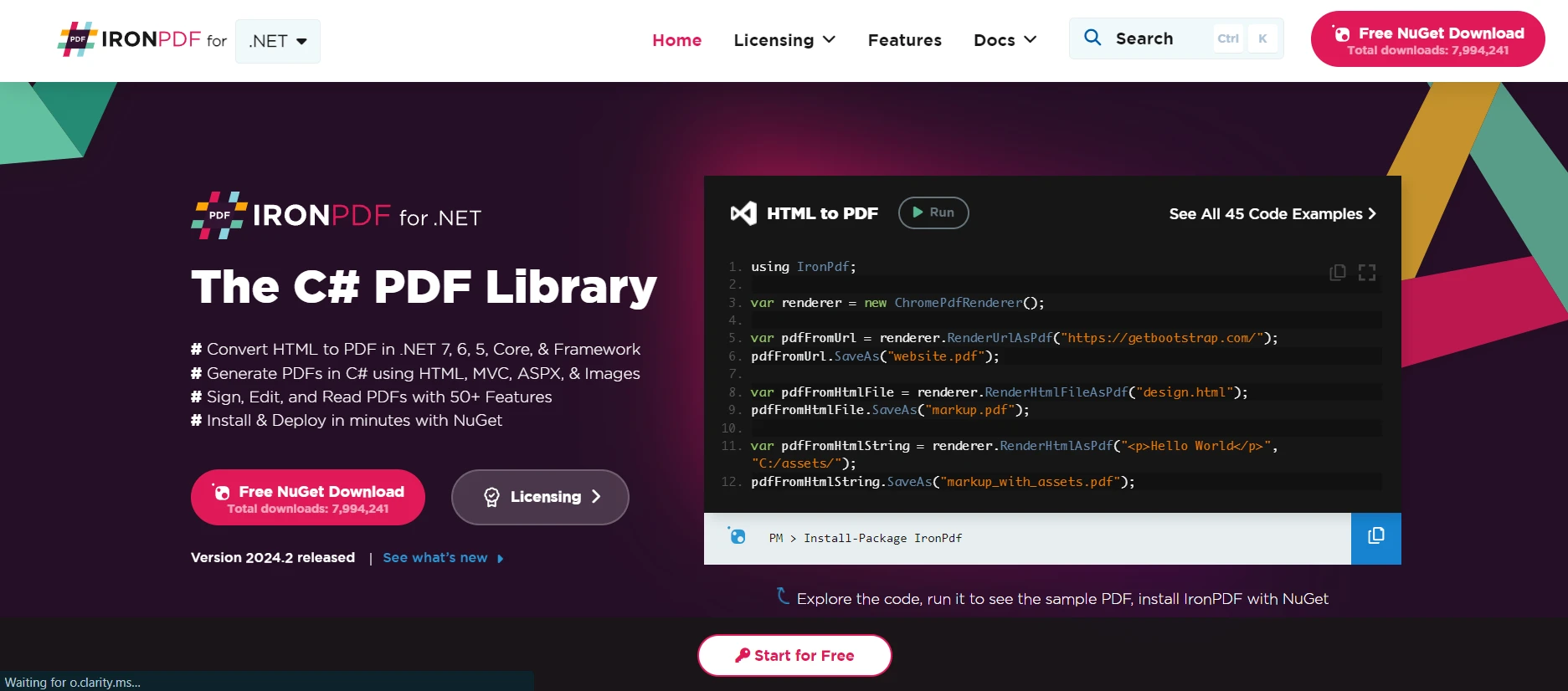
IronPDF是一個多功能的程式庫,為.NET應用程式提供PDF生成和操作功能,使開發人員能夠以程式方式建立、讀取和編輯PDF文件。 IronPDF支持多種任務,包括從HTML生成PDF、填寫表單、提取文字和保護文件。 這使得它在根據使用者資料或應用程式輸出生成報告、發票和動態文件時非常有用。
IronPDF的一個關鍵特點是其HTML轉PDF功能,能保持您的版面和樣式完整無虞。 它將網頁內容生成PDF,使其非常適合報告、發票和文件。 您可以輕鬆地將HTML文件、URL和HTML字串轉換為PDF。
using IronPdf;

class Program
{
    static void Main(string[] args)
    {
        var renderer = new ChromePdfRenderer();

        // 1. Convert HTML String to PDF
        var htmlContent = "<h1>Hello, IronPDF!</h1><p>This is a PDF from an HTML string.</p>";
        var pdfFromHtmlString = renderer.RenderHtmlAsPdf(htmlContent);
        pdfFromHtmlString.SaveAs("HTMLStringToPDF.pdf");

        // 2. Convert HTML File to PDF
        var htmlFilePath = "path_to_your_html_file.html"; // Specify the path to your HTML file
        var pdfFromHtmlFile = renderer.RenderHtmlFileAsPdf(htmlFilePath);
        pdfFromHtmlFile.SaveAs("HTMLFileToPDF.pdf");

        // 3. Convert URL to PDF
        var url = "http://ironpdf.com"; // Specify the URL
        var pdfFromUrl = renderer.RenderUrlAsPdf(url);
        pdfFromUrl.SaveAs("URLToPDF.pdf");
    }
}
using IronPdf;
class Program
{
static void Main(string[] args)
{
var renderer = new ChromePdfRenderer();
// 1. Convert HTML String to PDF
var htmlContent = "<h1>Hello, IronPDF!</h1><p>This is a PDF from an HTML string.</p>";
var pdfFromHtmlString = renderer.RenderHtmlAsPdf(htmlContent);
pdfFromHtmlString.SaveAs("HTMLStringToPDF.pdf");
// 2. Convert HTML File to PDF
var htmlFilePath = "path_to_your_html_file.html"; // Specify the path to your HTML file
var pdfFromHtmlFile = renderer.RenderHtmlFileAsPdf(htmlFilePath);
pdfFromHtmlFile.SaveAs("HTMLFileToPDF.pdf");
// 3. Convert URL to PDF
var url = "http://ironpdf.com"; // Specify the URL
var pdfFromUrl = renderer.RenderUrlAsPdf(url);
pdfFromUrl.SaveAs("URLToPDF.pdf");
}
}Imports IronPdf
Friend Class Program
Shared Sub Main(ByVal args() As String)
Dim renderer = New ChromePdfRenderer()
' 1. Convert HTML String to PDF
Dim htmlContent = "<h1>Hello, IronPDF!</h1><p>This is a PDF from an HTML string.</p>"
Dim pdfFromHtmlString = renderer.RenderHtmlAsPdf(htmlContent)
pdfFromHtmlString.SaveAs("HTMLStringToPDF.pdf")
' 2. Convert HTML File to PDF
Dim htmlFilePath = "path_to_your_html_file.html" ' Specify the path to your HTML file
Dim pdfFromHtmlFile = renderer.RenderHtmlFileAsPdf(htmlFilePath)
pdfFromHtmlFile.SaveAs("HTMLFileToPDF.pdf")
' 3. Convert URL to PDF
Dim url = "http://ironpdf.com" ' Specify the URL
Dim pdfFromUrl = renderer.RenderUrlAsPdf(url)
pdfFromUrl.SaveAs("URLToPDF.pdf")
End Sub
End Class安裝IronPDF
在您能夠在專案中使用IronPDF之前,您需要將其新增到您的.NET應用程式中。 這可以使用NuGet套件管理器進行,這簡化了在您的專案中管理外部程式庫的過程。 要安裝IronPDF,您可以在NuGet套件管理器控制台中使用以下命令:
Install-Package IronPdf
使用案例:在WebRTC應用程式中使用IronPDF生成會議紀要PDF
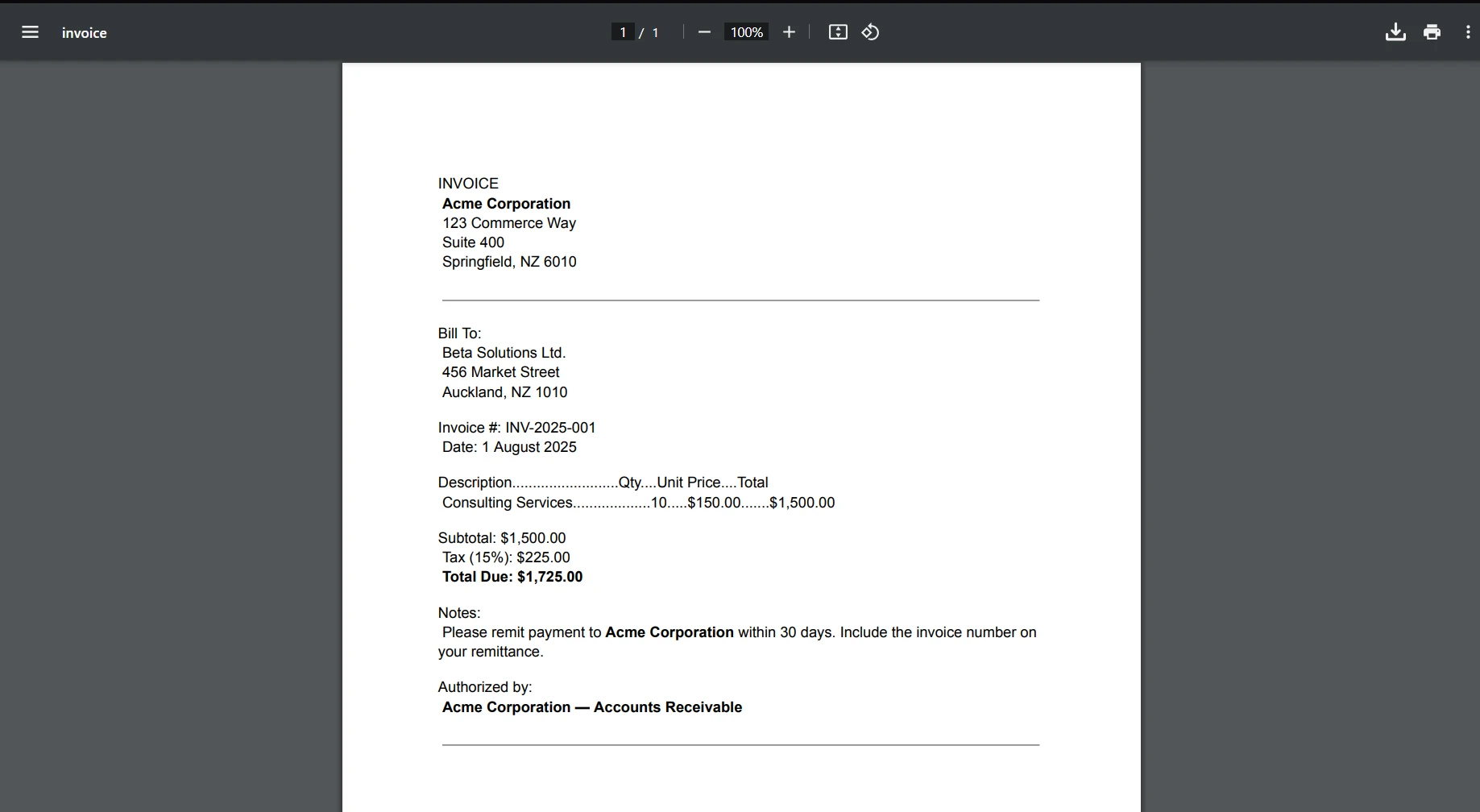
想象一下開發一個使用WebRTC的實時通訊應用程式,旨在用於線上會議或虛擬教室。 這個應用程式允許使用者進行音影片通話、分享螢幕並實時協作文件。此應用程式的一個有價值的功能是能夠自動生成並分發會議紀要或會議摘要,其中包括討論的要點、做出的決策和行動項,並以PDF格式呈現。 這就是IronPDF發揮作用的地方。
實施步驟
- 捕捉會議內容:在整個WebRTC會議期間,記錄基於文字的內容,如聊天消息、共享筆記或強調的行動項。 這些內容可以被格式化成HTML,允許輕鬆的樣式和組織(例如,使用清單表示行動項或標題表示關鍵話題)。
- 生成HTML模板:在會議結束時,將捕捉到的內容格式化到一個HTML模板中。 這個模板包括會議的標題、日期、參與者以及不同型別內容的結構化部分(討論要點、決策、行動項)。
- 將HTML轉換為PDF:會議結束且HTML模板準備好後,使用IronPDF將該HTML內容轉換成PDF文件。 這種轉換確保HTML中定義的樣式和版面在PDF中得到保留,使文件易於閱讀且外觀專業。
以下是一個範例的PDF程式碼:
using IronPdf;

public class MeetingMinutesGenerator
{
    public static void GenerateMeetingMinutesPdf(string htmlContent, string outputPath)
    {
        // Initialize the HTML to PDF converter
        var renderer = new HtmlToPdf();
        renderer.PrintOptions.MarginTop = 40;
        renderer.PrintOptions.MarginBottom = 40;
        renderer.RenderingOptions.HtmlHeader = new HtmlHeaderFooter()
        {
            CenterText = "{pdf-title}",
            DrawDividerLine = true,
            FontSize = 12
        };
        renderer.RenderingOptions.HtmlFooter = new HtmlHeaderFooter()
        {
            LeftText = "{date} {time}",
            RightText = "Page {page} of {total-pages}",
            DrawDividerLine = true,
            FontSize = 12
        };
        // Convert the HTML content to a PDF document
        var pdfDocument = renderer.RenderHtmlAsPdf(htmlContent);
        // Save the PDF document
        pdfDocument.SaveAs(outputPath);
        Console.WriteLine("Meeting minutes PDF generated.");
    }
}
using IronPdf;
public class MeetingMinutesGenerator
{
public static void GenerateMeetingMinutesPdf(string htmlContent, string outputPath)
{
// Initialize the HTML to PDF converter
var renderer = new HtmlToPdf();
renderer.PrintOptions.MarginTop = 40;
renderer.PrintOptions.MarginBottom = 40;
renderer.RenderingOptions.HtmlHeader = new HtmlHeaderFooter()
{
CenterText = "{pdf-title}",
DrawDividerLine = true,
FontSize = 12
};
renderer.RenderingOptions.HtmlFooter = new HtmlHeaderFooter()
{
LeftText = "{date} {time}",
RightText = "Page {page} of {total-pages}",
DrawDividerLine = true,
FontSize = 12
};
// Convert the HTML content to a PDF document
var pdfDocument = renderer.RenderHtmlAsPdf(htmlContent);
// Save the PDF document
pdfDocument.SaveAs(outputPath);
Console.WriteLine("Meeting minutes PDF generated.");
}
}Imports IronPdf
Public Class MeetingMinutesGenerator
Public Shared Sub GenerateMeetingMinutesPdf(ByVal htmlContent As String, ByVal outputPath As String)
' Initialize the HTML to PDF converter
Dim renderer = New HtmlToPdf()
renderer.PrintOptions.MarginTop = 40
renderer.PrintOptions.MarginBottom = 40
renderer.RenderingOptions.HtmlHeader = New HtmlHeaderFooter() With {
.CenterText = "{pdf-title}",
.DrawDividerLine = True,
.FontSize = 12
}
renderer.RenderingOptions.HtmlFooter = New HtmlHeaderFooter() With {
.LeftText = "{date} {time}",
.RightText = "Page {page} of {total-pages}",
.DrawDividerLine = True,
.FontSize = 12
}
' Convert the HTML content to a PDF document
Dim pdfDocument = renderer.RenderHtmlAsPdf(htmlContent)
' Save the PDF document
pdfDocument.SaveAs(outputPath)
Console.WriteLine("Meeting minutes PDF generated.")
End Sub
End Class結論
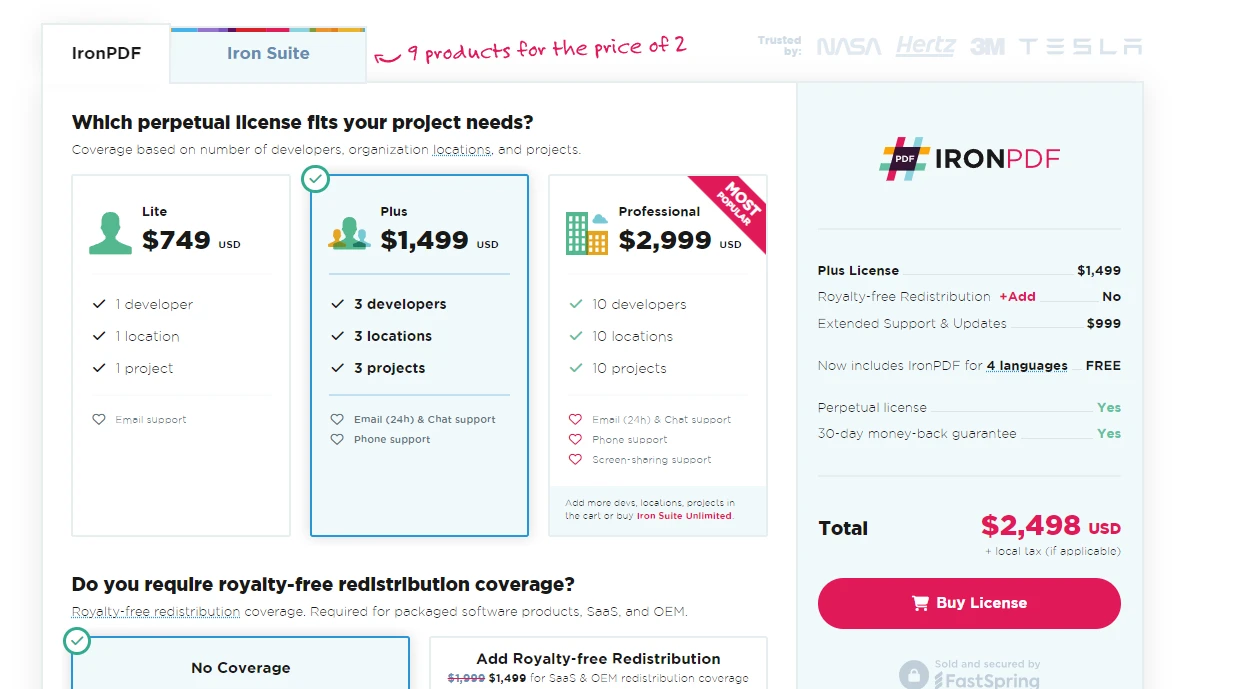
在本文中,我們探討了如何使用C#和.NET Core建立一個基本的WebRTC應用程式。 我們涵蓋了設置開發環境、建立新控制台應用程式、實現信號伺服器以及啟動對等連接以進行實時通信。 WebRTC為實時通信應用程式打開了眾多可能性,透過C#和.NET Core,您可以建立跨平台和裝置運行的強大且可擴展的解決方案。 欲獲取授權和購買資訊,請存取IronPDF授權頁面。 一旦您決定購買,許可證從$999起始。
常見問題
使用C#和.NET Core進行WebRTC有什麼好處?
將WebRTC與C#和.NET Core結合起來,讓開發人員可以建立利用WebRTC和C#編程環境強大功能的即時通訊應用程式。此組合支持直接的點對點資料傳輸,並可與像IronPDF一樣的.NET程式庫整合以獲得更多功能。
如何在C#中設置WebRTC開發環境?
要在C#中設置WebRTC開發環境,您需要從微軟的官方網站安裝.NET Core SDK。使用例如Visual Studio等IDE來有效地管理和編寫程式碼。此設置將允許您建立控制臺應用程式並整合WebRTC功能。
信令伺服器在WebRTC應用程式中扮演什麼角色?
信令伺服器在WebRTC應用程式中至關重要,因為它促進了對等方之間的控制消息和元資料的交換,以建立連接。它幫助在建立直接的點對點連接之前協商會話描述和候選資訊。
如何使用.NET Core建立信令伺服器?
您可以通過開發一個管理WebSocket連接的簡單Web應用程式來使用.NET Core建立信令伺服器。使用SignalR,一個新增即時Web功能的程式庫,可以簡化實現信令伺服器的過程。
如何在WebRTC應用程式中使用IronPDF生成PDF?
IronPDF可以整合到WebRTC應用程式中,從HTML內容生成PDF。這在建立像會議記錄或會話概要之類的文件時特別有用,增強了即時通訊應用程式的功能。
建立WebRTC中的點對點連接涉及哪些步驟?
在WebRTC中建立點對點連接涉及建立RTCPeerConnection物件、交換邀約和應答消息,以及使用ICE候選人協商連接細節。這個過程對於啟用對等方之間的直接通信是必不可少的。
TURN伺服器如何促進WebRTC連接?
TURN伺服器通過在直接連接不可行時轉發對等方之間的媒體來協助WebRTC連接,特別是在限制性的網路環境中。這確保了即使在需要NAT穿越的情況下也能保持連接。
HTML能夠在.NET應用程式中轉換為PDF嗎?
是的,可以使用像IronPDF這樣的程式庫將HTML在.NET應用程式中轉換為PDF。可使用RenderHtmlAsPdf等方法將HTML內容轉換為PDF文件,同時保留原始的樣式和佈局。







 免費開始
免費開始 免費開始
免費開始 預訂免費直播演示
















