



Updated September 2, 2026
HTML to PDF in C#: Benchmarking 7 .NET Libraries (2026)
Compare 7 C# HTML to PDF libraries on .NET 10 for cold start, throughput, memory and rendering accuracy. Only 3 rendered the test invoice correctly.
Read More

IronPDF simplifies PDF header and footer creation with property-based configuration and native HTML support, while iText requires implementing PdfPageEventHelper with manual coordinate calculations for precise positioning.
When producing professional PDF documents -- business reports, invoices, technical documentation -- consistent headers and footers signal quality and reinforce branding. Developers who have worked with iText know the challenge: adding headers and footers means writing page-event handlers, calculating coordinates, and managing fonts at a low level. IronPDF takes a fundamentally different approach, letting you describe what you want rather than specifying every pixel. This guide walks through both libraries side by side so you can make an informed decision for your next project.
Before diving into comparisons, here is how to add IronPDF to a .NET 10 project. Use the .NET CLI or the NuGet Package Manager Console in Visual Studio:
dotnet add package IronPdf
# Or in the NuGet Package Manager Console:
# Install-Package IronPdfAfter installation, add a one-time license key call at application startup:
IronPdf.License.LicenseKey = "YOUR-LICENSE-KEY-HERE";IronPdf.License.LicenseKey = "YOUR-LICENSE-KEY-HERE"The IronPDF NuGet package targets .NET 8+ and ships with a bundled Chromium engine, so no additional runtime dependencies are needed. A free trial license is available so you can evaluate IronPDF in your environment before committing.
Working with iText requires implementing the PdfPageEventHelper class and overriding the OnEndPage method to add headers and footers. This approach involves direct manipulation of the PdfContentByte object and precise coordinate calculations. Unlike modern HTML to PDF solutions, iText's event-driven architecture requires deep understanding of PDF structure and coordinate systems.
The coordinate system starts from the bottom-left corner of the page, which runs counter to how most developers think about layouts. This is a direct consequence of how the PDF specification defines the page coordinate space. Any time the page size changes -- say, switching from A4 to Letter -- every coordinate value needs recalculating. Adding an underline below the header, centering text, or aligning a footer to the right margin all require explicit numeric offsets.
public class HeaderFooterEvent : PdfPageEventHelper
{
    private readonly Font headerFont = new Font(Font.FontFamily.HELVETICA, 12, Font.BOLD);
    private readonly Font footerFont = new Font(Font.FontFamily.HELVETICA, 10);

    public override void OnEndPage(PdfWriter writer, Document document)
    {
        PdfContentByte cb = writer.DirectContent;

        // Add header text -- requires precise Y coordinate calculation
        float headerY = document.PageSize.Height - 30;
        ColumnText.ShowTextAligned(cb, Element.ALIGN_CENTER,
            new Phrase("Company Report", headerFont),
            document.PageSize.Width / 2, headerY, 0);

        // Draw underline manually
        cb.MoveTo(40, headerY - 5);
        cb.LineTo(document.PageSize.Width - 40, headerY - 5);
        cb.Stroke();

        // Add footer with page number
        string footerText = $"Page {writer.PageNumber}";
        ColumnText.ShowTextAligned(cb, Element.ALIGN_RIGHT,
            new Phrase(footerText, footerFont),
            document.PageSize.Width - 40, 30, 0);

        // Add date on left side
        ColumnText.ShowTextAligned(cb, Element.ALIGN_LEFT,
            new Phrase(DateTime.Now.ToString("MM/dd/yyyy"), footerFont),
            40, 30, 0);
    }
}

// Usage
PdfWriter writer = PdfWriter.GetInstance(document, stream);
writer.PageEvent = new HeaderFooterEvent();Imports iTextSharp.text
Imports iTextSharp.text.pdf
Public Class HeaderFooterEvent
Inherits PdfPageEventHelper
Private ReadOnly headerFont As Font = New Font(Font.FontFamily.HELVETICA, 12, Font.BOLD)
Private ReadOnly footerFont As Font = New Font(Font.FontFamily.HELVETICA, 10)
Public Overrides Sub OnEndPage(writer As PdfWriter, document As Document)
Dim cb As PdfContentByte = writer.DirectContent
' Add header text -- requires precise Y coordinate calculation
Dim headerY As Single = document.PageSize.Height - 30
ColumnText.ShowTextAligned(cb, Element.ALIGN_CENTER,
New Phrase("Company Report", headerFont),
document.PageSize.Width / 2, headerY, 0)
' Draw underline manually
cb.MoveTo(40, headerY - 5)
cb.LineTo(document.PageSize.Width - 40, headerY - 5)
cb.Stroke()
' Add footer with page number
Dim footerText As String = $"Page {writer.PageNumber}"
ColumnText.ShowTextAligned(cb, Element.ALIGN_RIGHT,
New Phrase(footerText, footerFont),
document.PageSize.Width - 40, 30, 0)
' Add date on left side
ColumnText.ShowTextAligned(cb, Element.ALIGN_LEFT,
New Phrase(DateTime.Now.ToString("MM/dd/yyyy"), footerFont),
40, 30, 0)
End Sub
End Class
' Usage
Dim writer As PdfWriter = PdfWriter.GetInstance(document, stream)
writer.PageEvent = New HeaderFooterEvent()This manual positioning approach becomes more complex when handling different page orientations, custom paper sizes, or varying margin requirements. For production systems requiring PDF/A compliance or digital signatures, the manual approach adds substantial maintenance overhead.

The code above demonstrates the manual work required -- you calculate exact coordinates, manage fonts separately, and handle rendering through DirectContent. Every design change means editing numeric constants scattered throughout the event handler.
When a design change arrives -- move the logo, adjust the font size, shift the date to the center -- a developer must trace through pixel offsets to understand what to change. There is no visual layer; the code itself is the only specification of the layout. This makes handoffs between developers error-prone and increases the time needed to produce even minor visual revisions.
IronPDF transforms the header and footer creation process with an intuitive API. Instead of implementing event handlers, you configure headers and footers through simple property settings on the ChromePdfRenderer. This approach aligns with modern .NET development practices and reduces the learning curve considerably.
using IronPdf;

var renderer = new ChromePdfRenderer();

// Configure text header with multiple properties
renderer.RenderingOptions.TextHeader = new TextHeaderFooter
{
    CenterText = "Company Report",
    LeftText = "CONFIDENTIAL",
    RightText = DateTime.Now.ToString("MMMM yyyy"),
    DrawDividerLine = true,
    FontSize = 12,
    FontFamily = "Arial",
    Spacing = 5
};

// Configure text footer with dynamic placeholders
renderer.RenderingOptions.TextFooter = new TextHeaderFooter
{
    LeftText = "{date} {time}",
    CenterText = "© 2024 Company Name",
    RightText = "Page {page} of {total-pages}",
    DrawDividerLine = true,
    FontSize = 10,
    Spacing = 10
};

// Set margins to ensure proper spacing
renderer.RenderingOptions.MarginTop = 30;
renderer.RenderingOptions.MarginBottom = 25;

var pdf = renderer.RenderHtmlAsPdf(htmlContent);
pdf.SaveAs("report.pdf");Imports IronPdf
Dim renderer As New ChromePdfRenderer()
' Configure text header with multiple properties
renderer.RenderingOptions.TextHeader = New TextHeaderFooter With {
.CenterText = "Company Report",
.LeftText = "CONFIDENTIAL",
.RightText = DateTime.Now.ToString("MMMM yyyy"),
.DrawDividerLine = True,
.FontSize = 12,
.FontFamily = "Arial",
.Spacing = 5
}
' Configure text footer with dynamic placeholders
renderer.RenderingOptions.TextFooter = New TextHeaderFooter With {
.LeftText = "{date} {time}",
.CenterText = "© 2024 Company Name",
.RightText = "Page {page} of {total-pages}",
.DrawDividerLine = True,
.FontSize = 10,
.Spacing = 10
}
' Set margins to ensure proper spacing
renderer.RenderingOptions.MarginTop = 30
renderer.RenderingOptions.MarginBottom = 25
Dim pdf = renderer.RenderHtmlAsPdf(htmlContent)
pdf.SaveAs("report.pdf")The rendering options in IronPDF provide fine-grained control over PDF generation while keeping code readable. This property-based approach makes it easy to maintain and modify headers and footers without diving into low-level PDF manipulation.
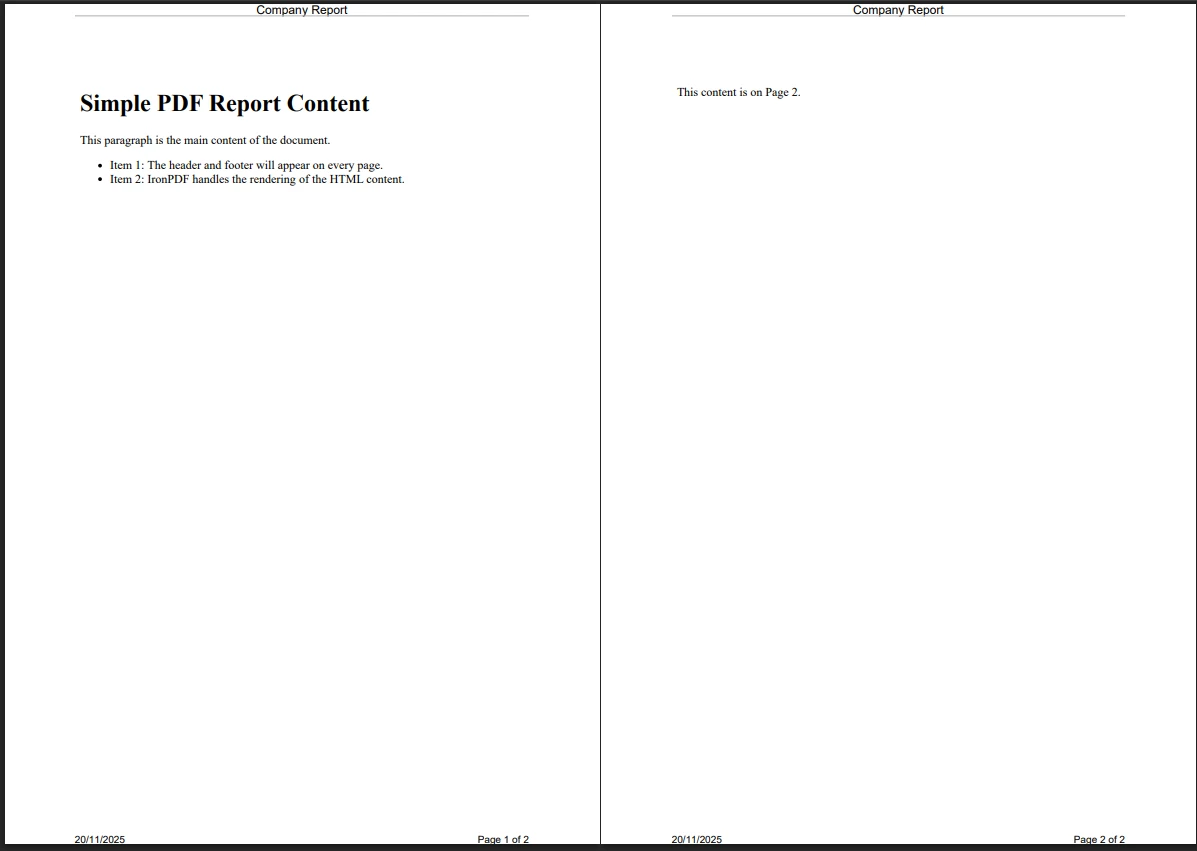
The difference is immediately apparent -- IronPDF handles positioning, margins, and rendering automatically while providing built-in placeholders for dynamic content. The library's Chrome rendering engine ensures pixel-perfect output that matches your HTML preview.
| Feature | iText | IronPDF |
|---|---|---|
| Implementation Method | PdfPageEventHelper class | RenderingOptions properties |
| Code Complexity | Manual coordinate calculations | Simple property assignment |
| Page Numbers | Manual tracking with writer.PageNumber | Built-in {page} placeholder |
| HTML Support | Limited, requires XMLWorker | Native HTML header support |
| Margin Management | Manual calculation | Automatic adjustment |
| Dynamic Content | Custom implementation required | Predefined placeholders |
| First Page Different | Complex conditional logic | FirstPageNumber property |
| Learning Curve | Steep | Gradual |
Page numbering is a standard requirement for PDF documents. With iText, you must track the current page number and total pages manually, often requiring a two-pass approach to get accurate total page counts:
// iTextSharp approach with complete page numbering
public class CompleteHeaderFooterEvent : PdfPageEventHelper
{
    private readonly PdfTemplate totalPageCount;
    private readonly Font normalFont = new Font(Font.FontFamily.HELVETICA, 10);

    public CompleteHeaderFooterEvent(PdfWriter writer)
    {
        // Create placeholder for total page count
        totalPageCount = writer.DirectContent.CreateTemplate(30, 16);
    }

    public override void OnEndPage(PdfWriter writer, Document document)
    {
        PdfPTable footerTable = new PdfPTable(3);
        footerTable.TotalWidth = document.PageSize.Width - document.LeftMargin - document.RightMargin;
        footerTable.SetWidths(new float[] { 1, 1, 1 });

        PdfPCell leftCell = new PdfPCell(new Phrase(DateTime.Now.ToString("dd/MM/yyyy"), normalFont));
        leftCell.Border = Rectangle.NO_BORDER;
        leftCell.HorizontalAlignment = Element.ALIGN_LEFT;

        PdfPCell centerCell = new PdfPCell(new Phrase("Confidential", normalFont));
        centerCell.Border = Rectangle.NO_BORDER;
        centerCell.HorizontalAlignment = Element.ALIGN_CENTER;

        PdfPCell rightCell = new PdfPCell();
        rightCell.Border = Rectangle.NO_BORDER;
        rightCell.HorizontalAlignment = Element.ALIGN_RIGHT;

        Chunk pageNum = new Chunk($"Page {writer.PageNumber} of ", normalFont);
        rightCell.AddElement(pageNum);
        rightCell.AddElement(Image.GetInstance(totalPageCount));

        footerTable.AddCell(leftCell);
        footerTable.AddCell(centerCell);
        footerTable.AddCell(rightCell);

        footerTable.WriteSelectedRows(0, -1, document.LeftMargin,
            document.PageSize.GetBottom(document.BottomMargin), writer.DirectContent);
    }

    public override void OnCloseDocument(PdfWriter writer, Document document)
    {
        ColumnText.ShowTextAligned(totalPageCount, Element.ALIGN_LEFT,
            new Phrase(writer.PageNumber.ToString(), normalFont), 0, 0, 0);
    }
}Imports System
Imports iTextSharp.text
Imports iTextSharp.text.pdf
' iTextSharp approach with complete page numbering
Public Class CompleteHeaderFooterEvent
Inherits PdfPageEventHelper
Private ReadOnly totalPageCount As PdfTemplate
Private ReadOnly normalFont As Font = New Font(Font.FontFamily.HELVETICA, 10)
Public Sub New(writer As PdfWriter)
' Create placeholder for total page count
totalPageCount = writer.DirectContent.CreateTemplate(30, 16)
End Sub
Public Overrides Sub OnEndPage(writer As PdfWriter, document As Document)
Dim footerTable As New PdfPTable(3)
footerTable.TotalWidth = document.PageSize.Width - document.LeftMargin - document.RightMargin
footerTable.SetWidths(New Single() {1, 1, 1})
Dim leftCell As New PdfPCell(New Phrase(DateTime.Now.ToString("dd/MM/yyyy"), normalFont))
leftCell.Border = Rectangle.NO_BORDER
leftCell.HorizontalAlignment = Element.ALIGN_LEFT
Dim centerCell As New PdfPCell(New Phrase("Confidential", normalFont))
centerCell.Border = Rectangle.NO_BORDER
centerCell.HorizontalAlignment = Element.ALIGN_CENTER
Dim rightCell As New PdfPCell()
rightCell.Border = Rectangle.NO_BORDER
rightCell.HorizontalAlignment = Element.ALIGN_RIGHT
Dim pageNum As New Chunk($"Page {writer.PageNumber} of ", normalFont)
rightCell.AddElement(pageNum)
rightCell.AddElement(Image.GetInstance(totalPageCount))
footerTable.AddCell(leftCell)
footerTable.AddCell(centerCell)
footerTable.AddCell(rightCell)
footerTable.WriteSelectedRows(0, -1, document.LeftMargin, document.PageSize.GetBottom(document.BottomMargin), writer.DirectContent)
End Sub
Public Overrides Sub OnCloseDocument(writer As PdfWriter, document As Document)
ColumnText.ShowTextAligned(totalPageCount, Element.ALIGN_LEFT, New Phrase(writer.PageNumber.ToString(), normalFont), 0, 0, 0)
End Sub
End ClassThis pattern requires creating a PDF template object as a placeholder, then back-filling the total page count after the document closes. The two-pass nature of the operation is non-obvious to anyone unfamiliar with iText internals, and getting it wrong produces incorrect page counts in the final PDF.
IronPDF handles page numbering with built-in placeholders and automatic page number handling:
using IronPdf;

var renderer = new ChromePdfRenderer();

renderer.RenderingOptions.TextFooter = new TextHeaderFooter
{
    LeftText = "{date} {time}",
    CenterText = "Confidential -- Internal Use Only",
    RightText = "Page {page} of {total-pages}",
    DrawDividerLine = true,
    FontSize = 10,
    FontFamily = "Calibri",
    Spacing = 8
};

// Skip numbering on cover page
renderer.RenderingOptions.FirstPageNumber = 0;

renderer.RenderingOptions.MarginBottom = 25;
renderer.RenderingOptions.MarginTop = 30;

var pdf = renderer.RenderHtmlAsPdf(htmlContent);Imports IronPdf
Dim renderer As New ChromePdfRenderer()
renderer.RenderingOptions.TextFooter = New TextHeaderFooter With {
.LeftText = "{date} {time}",
.CenterText = "Confidential -- Internal Use Only",
.RightText = "Page {page} of {total-pages}",
.DrawDividerLine = True,
.FontSize = 10,
.FontFamily = "Calibri",
.Spacing = 8
}
' Skip numbering on cover page
renderer.RenderingOptions.FirstPageNumber = 0
renderer.RenderingOptions.MarginBottom = 25
renderer.RenderingOptions.MarginTop = 30
Dim pdf = renderer.RenderHtmlAsPdf(htmlContent)The built-in placeholders support {page}, {total-pages}, {date}, {time}, {html-title}, {pdf-title}, and {url}. There is no need for complex post-processing or two-pass rendering. The library resolves total page count internally and injects it automatically at every placeholder site.
For layouts that include company logos, styled typography, or structured tables, HTML headers provide far greater flexibility than text-based headers. IronPDF excels here with native HTML header and footer support:
using IronPdf;
var renderer = new ChromePdfRenderer();
renderer.RenderingOptions.HtmlHeader = new HtmlHeaderFooter
{
HtmlFragment = @"
<div style='width: 100%; display: flex; justify-content: space-between; align-items: center; padding: 10px 0;'>
<img src='logo.png' style='height: 40px;'>
<div style='text-align: center;'>
<h2 style='margin: 0; color: #2c3e50;'>Annual Report 2024</h2>
<p style='margin: 0; font-size: 12px; color: #7f8c8d;'>Financial Performance & Strategic Overview</p>
</div>
<div style='text-align: right; font-size: 11px; color: #95a5a6;'>
Document ID: AR-2024-001<br>
Classification: Public
</div>
</div>",
MaxHeight = 80,
DrawDividerLine = true,
BaseUrl = new Uri(System.IO.Path.GetFullPath("assets/")).AbsoluteUri
};
renderer.RenderingOptions.HtmlFooter = new HtmlHeaderFooter
{
HtmlFragment = @"
<table style='width: 100%; font-size: 10px; color: #34495e;'>
<tr>
<td style='width: 33%; text-align: left;'>Generated: {date} at {time}</td>
<td style='width: 34%; text-align: center;'>Page {page} of {total-pages}</td>
<td style='width: 33%; text-align: right;'>Annual Report 2024</td>
</tr>
</table>",
MaxHeight = 30,
DrawDividerLine = true
};
var pdf = renderer.RenderHtmlAsPdf(htmlContent);
pdf.SaveAs("annual-report.pdf");Imports IronPdf
Dim renderer As New ChromePdfRenderer()
renderer.RenderingOptions.HtmlHeader = New HtmlHeaderFooter With {
.HtmlFragment = "
<div style='width: 100%; display: flex; justify-content: space-between; align-items: center; padding: 10px 0;'>
<img src='logo.png' style='height: 40px;'>
<div style='text-align: center;'>
<h2 style='margin: 0; color: #2c3e50;'>Annual Report 2024</h2>
<p style='margin: 0; font-size: 12px; color: #7f8c8d;'>Financial Performance & Strategic Overview</p>
</div>
<div style='text-align: right; font-size: 11px; color: #95a5a6;'>
Document ID: AR-2024-001<br>
Classification: Public
</div>
</div>",
.MaxHeight = 80,
.DrawDividerLine = True,
.BaseUrl = New Uri(System.IO.Path.GetFullPath("assets/")).AbsoluteUri
}
renderer.RenderingOptions.HtmlFooter = New HtmlHeaderFooter With {
.HtmlFragment = "
<table style='width: 100%; font-size: 10px; color: #34495e;'>
<tr>
<td style='width: 33%; text-align: left;'>Generated: {date} at {time}</td>
<td style='width: 34%; text-align: center;'>Page {page} of {total-pages}</td>
<td style='width: 33%; text-align: right;'>Annual Report 2024</td>
</tr>
</table>",
.MaxHeight = 30,
.DrawDividerLine = True
}
Dim pdf = renderer.RenderHtmlAsPdf(htmlContent)
pdf.SaveAs("annual-report.pdf")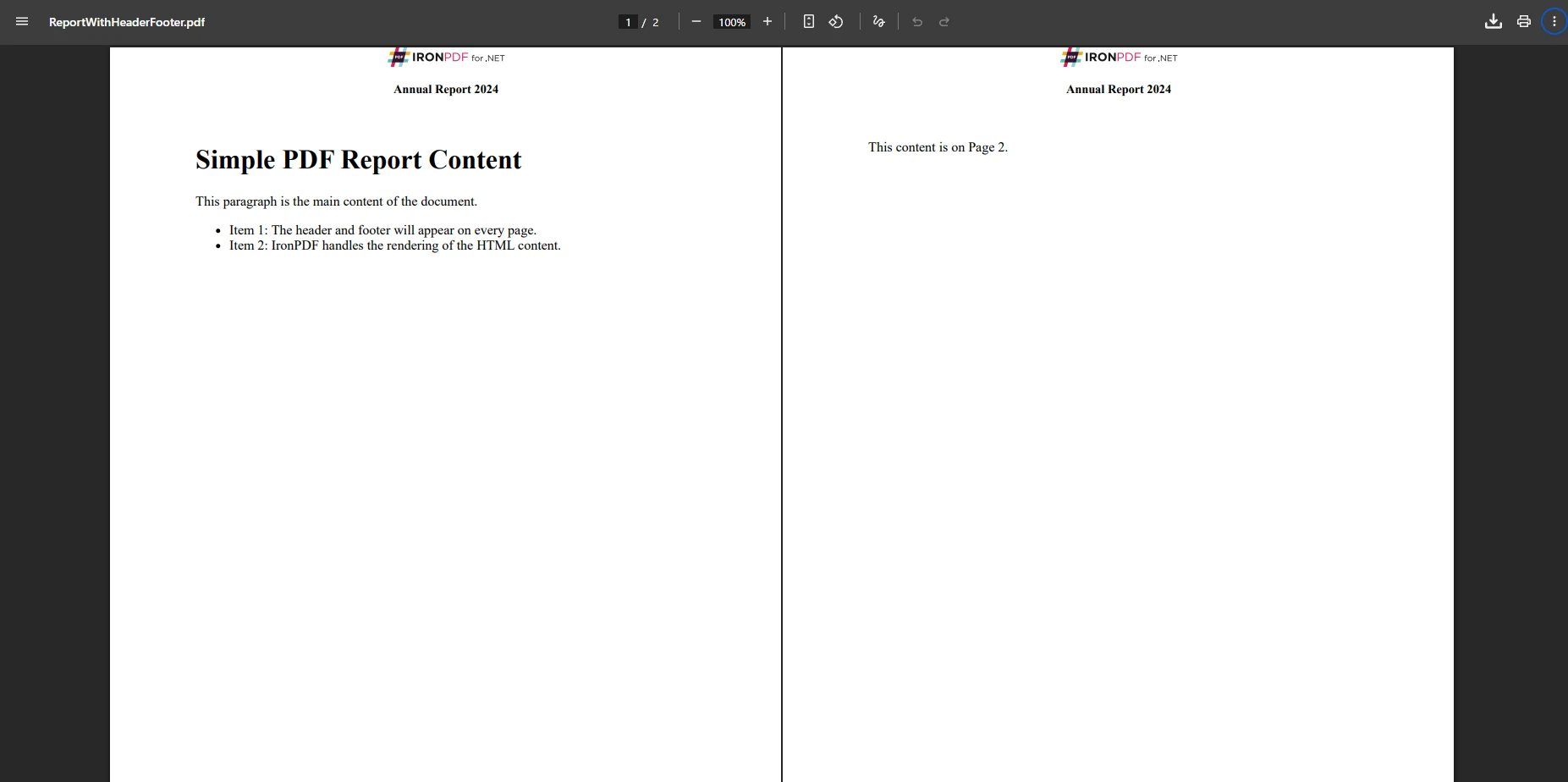
With iText, achieving HTML headers requires adding the XMLWorker extension and writing complex parsing code. The library's limited CSS support makes it difficult to produce modern layouts that work reliably across different paper sizes. Images, flex layouts, and web fonts require workarounds that add significant code complexity.
Many professional documents require a different header on the cover page -- a large logo for the title page, then a compact header for subsequent pages. IronPDF supports this pattern through conditional HTML and CSS:
using IronPdf;

var renderer = new ChromePdfRenderer();

string firstPageHeader = @"
    <div style='text-align: center; padding: 20px 0;'>
        <img src='logo-large.png' style='height: 80px; margin-bottom: 10px;'>
        <h1 style='margin: 0; color: #2c3e50;'>2024 Annual Report</h1>
        <h3 style='margin: 5px 0; color: #7f8c8d;'>Fiscal Year Ending December 31, 2024</h3>
    </div>";

string subsequentPageHeader = @"
    <div style='display: flex; justify-content: space-between; align-items: center;'>
        <img src='logo-small.png' style='height: 30px;'>
        <span>Annual Report 2024</span>
        <span>Page {page}</span>
    </div>";

renderer.RenderingOptions.HtmlHeader = new HtmlHeaderFooter
{
    HtmlFragment = $@"
        <style>
            .first-page {{ display: none; }}
            .other-pages {{ display: block; }}
            @page:first {{
                .first-page {{ display: block; }}
                .other-pages {{ display: none; }}
            }}
        </style>
        <div class='first-page'>{firstPageHeader}</div>
        <div class='other-pages'>{subsequentPageHeader}</div>",
    MaxHeight = 100
};

var pdf = renderer.RenderHtmlAsPdf(htmlContent);
pdf.SaveAs("report-with-cover.pdf");Imports IronPdf
Dim renderer As New ChromePdfRenderer()
Dim firstPageHeader As String = "
<div style='text-align: center; padding: 20px 0;'>
<img src='logo-large.png' style='height: 80px; margin-bottom: 10px;'>
<h1 style='margin: 0; color: #2c3e50;'>2024 Annual Report</h1>
<h3 style='margin: 5px 0; color: #7f8c8d;'>Fiscal Year Ending December 31, 2024</h3>
</div>"
Dim subsequentPageHeader As String = "
<div style='display: flex; justify-content: space-between; align-items: center;'>
<img src='logo-small.png' style='height: 30px;'>
<span>Annual Report 2024</span>
<span>Page {page}</span>
</div>"
renderer.RenderingOptions.HtmlHeader = New HtmlHeaderFooter With {
.HtmlFragment = $"
<style>
.first-page {{ display: none; }}
.other-pages {{ display: block; }}
@page:first {{
.first-page {{ display: block; }}
.other-pages {{ display: none; }}
}}
</style>
<div class='first-page'>{firstPageHeader}</div>
<div class='other-pages'>{subsequentPageHeader}</div>",
.MaxHeight = 100
}
Dim pdf = renderer.RenderHtmlAsPdf(htmlContent)
pdf.SaveAs("report-with-cover.pdf")This approach keeps the header definition in a single place, making it easy to update both the cover and interior header simultaneously. You can also explore async PDF rendering for high-throughput scenarios.
Performance becomes critical when generating large documents or processing many PDFs concurrently. IronPDF's Chrome rendering engine provides several advantages for production workloads:
PdfContentByte manipulationusing IronPdf;
public async Task GenerateReportsAsync(List<ReportData> reports)
{
var renderer = new ChromePdfRenderer();
renderer.RenderingOptions.TextHeader = new TextHeaderFooter
{
CenterText = "Monthly Report",
DrawDividerLine = true
};
renderer.RenderingOptions.TextFooter = new TextHeaderFooter
{
RightText = "Page {page} of {total-pages}",
DrawDividerLine = true
};
// Disable JavaScript if not required for faster rendering
renderer.RenderingOptions.EnableJavaScript = false;
renderer.RenderingOptions.CssMediaType = PdfCssMediaType.Print;
var tasks = reports.Select(async report =>
{
string html = await GenerateHtmlAsync(report);
return await renderer.RenderHtmlAsPdfAsync(html);
});
PdfDocument[] pdfs = await Task.WhenAll(tasks);
}Imports IronPdf
Public Async Function GenerateReportsAsync(reports As List(Of ReportData)) As Task
Dim renderer As New ChromePdfRenderer()
renderer.RenderingOptions.TextHeader = New TextHeaderFooter With {
.CenterText = "Monthly Report",
.DrawDividerLine = True
}
renderer.RenderingOptions.TextFooter = New TextHeaderFooter With {
.RightText = "Page {page} of {total-pages}",
.DrawDividerLine = True
}
' Disable JavaScript if not required for faster rendering
renderer.RenderingOptions.EnableJavaScript = False
renderer.RenderingOptions.CssMediaType = PdfCssMediaType.Print
Dim tasks = reports.Select(Async Function(report)
Dim html As String = Await GenerateHtmlAsync(report)
Return Await renderer.RenderHtmlAsPdfAsync(html)
End Function)
Dim pdfs As PdfDocument() = Await Task.WhenAll(tasks)
End FunctionIronPDF's licensing model offers commercial-friendly terms compared to iText's AGPL license, which requires open-sourcing your application code unless you purchase a separate commercial iText license. For production systems, IronPDF provides:
For developers familiar with iText's page event system, there is an adjustment period, but IronPDF's documentation and examples keep it manageable. The ability to use CSS for styling and HTML for layout opens possibilities that would require extensive custom code in iText. The documentation includes:
Professional document layouts require precise margin control. IronPDF simplifies this with measurements in millimeters -- a natural unit for print layouts:
using IronPdf;

var renderer = new ChromePdfRenderer();

// Set margins in millimeters
renderer.RenderingOptions.MarginTop = 25.4;    // 1 inch
renderer.RenderingOptions.MarginBottom = 25.4;
renderer.RenderingOptions.MarginLeft = 19.05;  // 0.75 inch
renderer.RenderingOptions.MarginRight = 19.05;

renderer.RenderingOptions.TextHeader = new TextHeaderFooter
{
    CenterText = "Internal Report",
    DrawDividerLine = true,
    Spacing = 5
};

// Use print CSS media type for accurate page layout
// See MDN reference: https://developer.mozilla.org/en-US/docs/Web/CSS/@media/print
renderer.RenderingOptions.CssMediaType = PdfCssMediaType.Print;

var pdf = renderer.RenderHtmlAsPdf(htmlContent);
pdf.SaveAs("margin-report.pdf");Imports IronPdf
Dim renderer As New ChromePdfRenderer()
' Set margins in millimeters
renderer.RenderingOptions.MarginTop = 25.4 ' 1 inch
renderer.RenderingOptions.MarginBottom = 25.4
renderer.RenderingOptions.MarginLeft = 19.05 ' 0.75 inch
renderer.RenderingOptions.MarginRight = 19.05
renderer.RenderingOptions.TextHeader = New TextHeaderFooter With {
.CenterText = "Internal Report",
.DrawDividerLine = True,
.Spacing = 5
}
' Use print CSS media type for accurate page layout
' See MDN reference: https://developer.mozilla.org/en-US/docs/Web/CSS/@media/print
renderer.RenderingOptions.CssMediaType = PdfCssMediaType.Print
Dim pdf = renderer.RenderHtmlAsPdf(htmlContent)
pdf.SaveAs("margin-report.pdf")Compare this to iText's coordinate-based approach where you must compute positions relative to page boundaries and manually verify that content does not overlap with headers or footers.
Adding headers and footers to PDF documents does not have to involve complex event handling and coordinate calculations. While iText's approach offers granular control through page events and direct content manipulation, IronPDF provides a more intuitive solution with property-based configuration and native HTML support.
The choice becomes clear when considering development speed, maintainability, and the ease of producing professional-looking documents. IronPDF's approach to headers and footers exemplifies modern PDF generation -- powerful yet accessible. For teams prioritizing clean architecture and maintainable code, IronPDF's API aligns well with .NET development practices.
Key advantages for production systems include:
Start by installing IronPDF via NuGet, then work through the quickstart guide to build your first header and footer in minutes. When you are ready to move to production, review the licensing options to find the plan that fits your deployment requirements. If you run into anything during integration, the support team is available to help.

Curtis Chau holds a Bachelor’s degree in Computer Science (Carleton University) and specializes in front-end development with expertise in Node.js, TypeScript, JavaScript, and React. Passionate about crafting intuitive and aesthetically pleasing user interfaces, Curtis enjoys working with modern frameworks and creating well-structured, visually appealing manuals.



IronPDF is a part of IRONSUITE
10 .NET API products for your office documents











When you need your PDF to look like HTML, fast.


