



Updated September 2, 2026
HTML to PDF in C#: Benchmarking 7 .NET Libraries (2026)
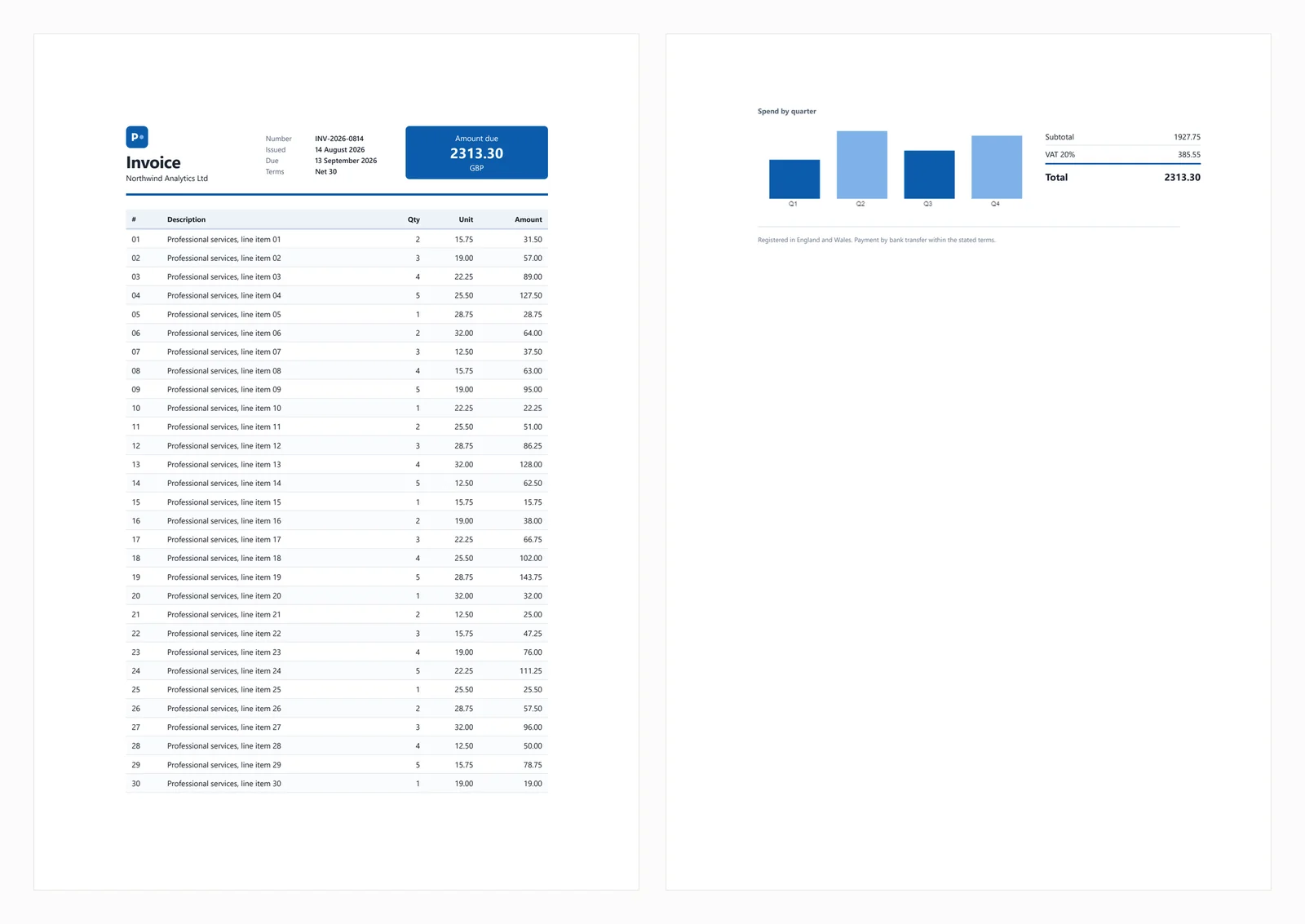
Compare 7 C# HTML to PDF libraries on .NET 10 for cold start, throughput, memory and rendering accuracy. Only 3 rendered the test invoice correctly.
Read More

The iText "document has no pages" error occurs when XMLWorker fails to parse HTML content, but IronPDF's Chrome-based renderer eliminates this issue by processing HTML exactly as browsers do, providing reliable PDF generation without parsing exceptions.
Converting HTML to PDF is a common requirement in .NET applications, but developers using iText frequently encounter the "document has no pages" error. This error appears when the PDF document generation process fails, leaving developers searching for solutions. This analysis explores why this happens and how to resolve it effectively with IronPDF's HTML to PDF capabilities.
The "document has no pages" exception occurs when iText's parser fails to process HTML content into a valid PDF document. This error typically appears during the document close operation, as detailed in many Stack Overflow threads about this issue. Understanding the root cause helps developers choose the right PDF library for their needs.
The error surfaces because XMLWorker -- iText's HTML parsing component -- silently fails when it encounters HTML structures it cannot process. Instead of raising an exception during parsing, it produces an empty document. When the document closes, iText detects that no content was written and throws the "document has no pages" exception. This silent failure mode makes debugging particularly frustrating, as the stack trace points to the close operation rather than the actual parsing failure.
static void Main(string[] args)
{
    Document pdfDoc = new Document(PageSize.A4);
    FileStream stream = new FileStream("output.pdf", FileMode.Create);
    PdfWriter writer = PdfWriter.GetInstance(pdfDoc, stream);
    pdfDoc.Open();
    // HTML parsing fails silently -- no exception here
    var sr = new StringReader("<div>Complex HTML</div>");
    XMLWorkerHelper.GetInstance().ParseXHtml(writer, pdfDoc, sr);
    pdfDoc.Close(); // Exception: The document has no pages
    Console.WriteLine("Error: Document has no pages");
}Imports System.IO
Imports iTextSharp.text
Imports iTextSharp.text.pdf
Imports iTextSharp.tool.xml
Module Program
Sub Main(args As String())
Dim pdfDoc As New Document(PageSize.A4)
Dim stream As New FileStream("output.pdf", FileMode.Create)
Dim writer As PdfWriter = PdfWriter.GetInstance(pdfDoc, stream)
pdfDoc.Open()
' HTML parsing fails silently -- no exception here
Dim sr As New StringReader("<div>Complex HTML</div>")
XMLWorkerHelper.GetInstance().ParseXHtml(writer, pdfDoc, sr)
pdfDoc.Close() ' Exception: The document has no pages
Console.WriteLine("Error: Document has no pages")
End Sub
End Module
This code attempts to create a PDF file from HTML but encounters the exception because XMLWorker couldn't parse the HTML content successfully. The write operation completes, but no content gets added to the document, resulting in an empty file. This parsing failure is one of the most common issues developers face when working with HTML to PDF conversion in ASP.NET applications. The issue grows more complex when dealing with custom CSS styles or JavaScript-rendered content.
While XMLWorker replaced the deprecated HTMLWorker, it still encounters the same issue with certain HTML structures. The problem persists because XMLWorker has strict parsing requirements, as documented in iText's official forums. This limitation affects developers trying to implement pixel-perfect HTML to PDF conversion or working with responsive CSS layouts in modern web applications.
The common workaround is to pre-populate the document with an empty paragraph before parsing HTML. This prevents the "no pages" exception by ensuring at least one content element exists when the document closes:
public static void CreatePDF(string html, string path)
{
    using (var fs = new FileStream(path, FileMode.Create))
    {
        var document = new Document();
        var writer = PdfWriter.GetInstance(document, fs);
        document.Open();
        document.Add(new Paragraph("")); // Workaround to avoid error
        var phrase = new Phrase("Draft version", FontFactory.GetFont("Arial", 8));
        document.Add(phrase);
        using (var sr = new StringReader(html))
        {
            XMLWorkerHelper.GetInstance().ParseXHtml(writer, document, sr);
        }
        document.Close();
    }
}Imports System.IO
Imports iTextSharp.text
Imports iTextSharp.text.pdf
Imports iTextSharp.tool.xml
Public Shared Sub CreatePDF(html As String, path As String)
Using fs As New FileStream(path, FileMode.Create)
Dim document As New Document()
Dim writer As PdfWriter = PdfWriter.GetInstance(document, fs)
document.Open()
document.Add(New Paragraph("")) ' Workaround to avoid error
Dim phrase As New Phrase("Draft version", FontFactory.GetFont("Arial", 8))
document.Add(phrase)
Using sr As New StringReader(html)
XMLWorkerHelper.GetInstance().ParseXHtml(writer, document, sr)
End Using
document.Close()
End Using
End Sub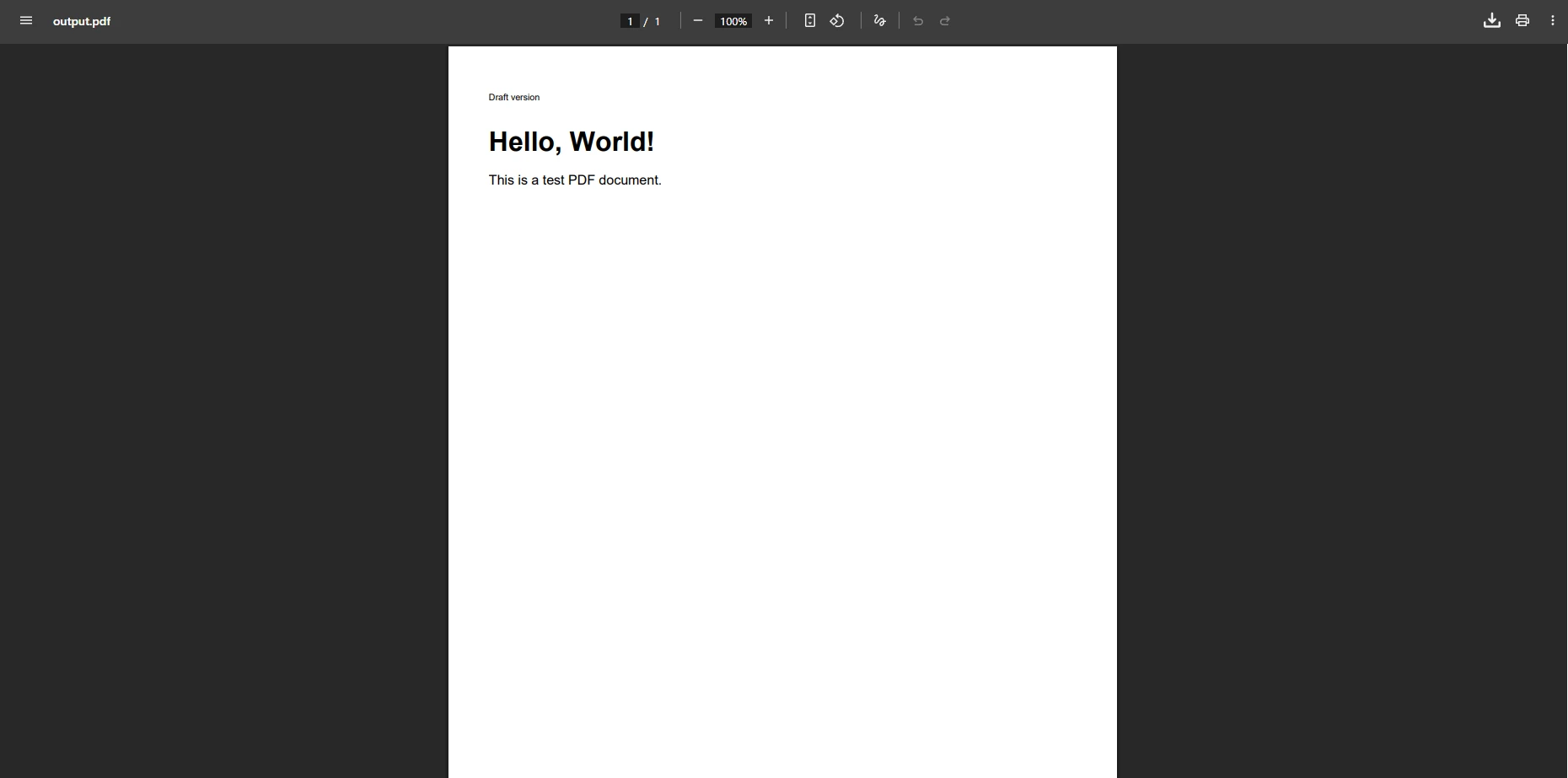
Adding an empty paragraph prevents the immediate error, but complex HTML with table elements, images, or custom fonts often fails to render correctly. The content may be missing or malformed in the resulting PDF document. Developers encounter the same issue when processing HTML with embedded styles, hyperlink elements, or specific width properties. Null references and missing element rendering create additional problems that require further resolution.
XMLWorker was designed to handle a subset of HTML 4 and basic CSS 2. Modern web pages routinely use features well beyond this scope: CSS Grid, Flexbox, CSS variables, calc() expressions, SVG graphics, and JavaScript-driven rendering. Any of these can trigger the "no pages" error or produce broken output silently -- and with no descriptive error message to guide the fix.
// Common XMLWorker limitations that require manual handling
public void ProcessComplexHTML(string htmlContent)
{
    // CSS flexbox -- not supported by XMLWorker
    if (htmlContent.Contains("display: flex"))
        throw new NotSupportedException("Flexbox layout not supported");

    // JavaScript content -- silently ignored
    if (htmlContent.Contains("<script>"))
        Console.WriteLine("Warning: JavaScript will be ignored");

    // Custom fonts -- require manual embedding
    if (htmlContent.Contains("@font-face"))
        Console.WriteLine("Warning: Web fonts need manual setup");
}' Common XMLWorker limitations that require manual handling
Public Sub ProcessComplexHTML(htmlContent As String)
' CSS flexbox -- not supported by XMLWorker
If htmlContent.Contains("display: flex") Then
Throw New NotSupportedException("Flexbox layout not supported")
End If
' JavaScript content -- silently ignored
If htmlContent.Contains("<script>") Then
Console.WriteLine("Warning: JavaScript will be ignored")
End If
' Custom fonts -- require manual embedding
If htmlContent.Contains("@font-face") Then
Console.WriteLine("Warning: Web fonts need manual setup")
End If
End SubThis real-world scenario demonstrates converting a styled invoice from HTML to PDF. The sample includes common elements that often cause issues: inline CSS, media queries, table layouts, and hyperlinks. These are the kinds of structures that trigger the "no pages" error in XMLWorker:
<!-- Invoice HTML with modern styling -->
<!DOCTYPE html>
<html>
<head>
    <title>Invoice Sample</title>
    <style>
        .invoice-header {
            background-color: #f0f0f0;
            padding: 20px;
        }
        .invoice-table {
            margin-top: 20px;
        }
        @media print {
            .no-print { display: none; }
        }
    </style>
</head>
<body>
    <div style="font-family: Arial; width: 100%;">
        <div class="invoice-header">
            <h1 style="color: #2e6c80;">Invoice #12345</h1>
            <p>Date: <span id="date">2025-01-15</span></p>
        </div>
        <table class="invoice-table" style="width: 100%; border-collapse: collapse;">
            <thead>
                <tr>
                    <th style="border: 1px solid #ddd; padding: 8px;">Item</th>
                    <th style="border: 1px solid #ddd; padding: 8px;">Price</th>
                </tr>
            </thead>
            <tbody>
                <tr>
                    <td style="border: 1px solid #ddd; padding: 8px;">Service</td>
                    <td style="border: 1px solid #ddd; padding: 8px;">$100.00</td>
                </tr>
            </tbody>
        </table>
        <a href="https://example.com/terms" class="no-print">View Terms</a>
    </div>
</body>
</html>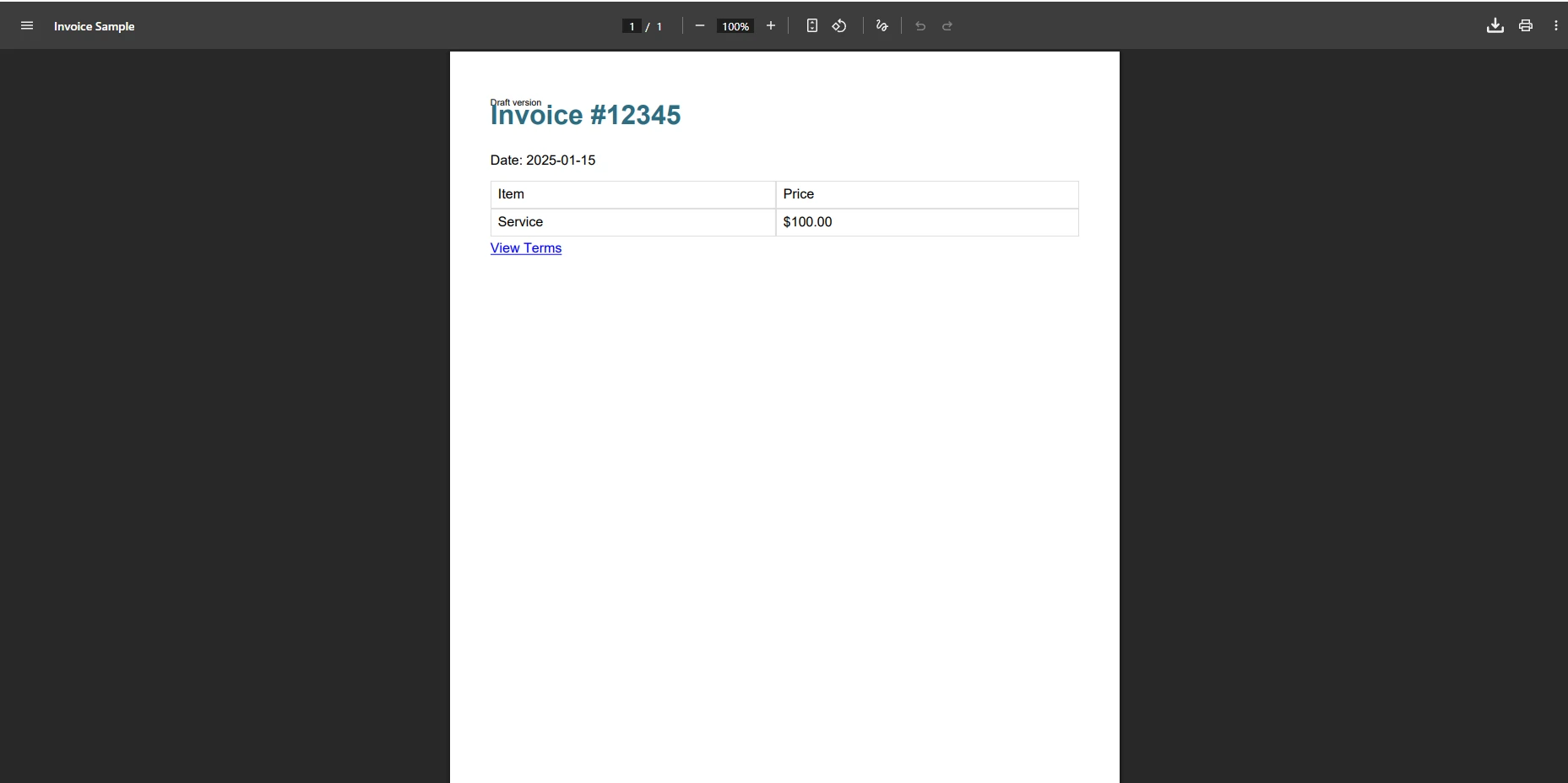
When iText processes this invoice template, the output is often stripped of CSS styling, missing background colors, and losing table borders. The @media print query is ignored, and any web font references cause silent parsing failures. If the HTML contains a CSS property that XMLWorker does not recognize, the entire block may fail to render -- resulting in missing content without any error being thrown at parsing time.
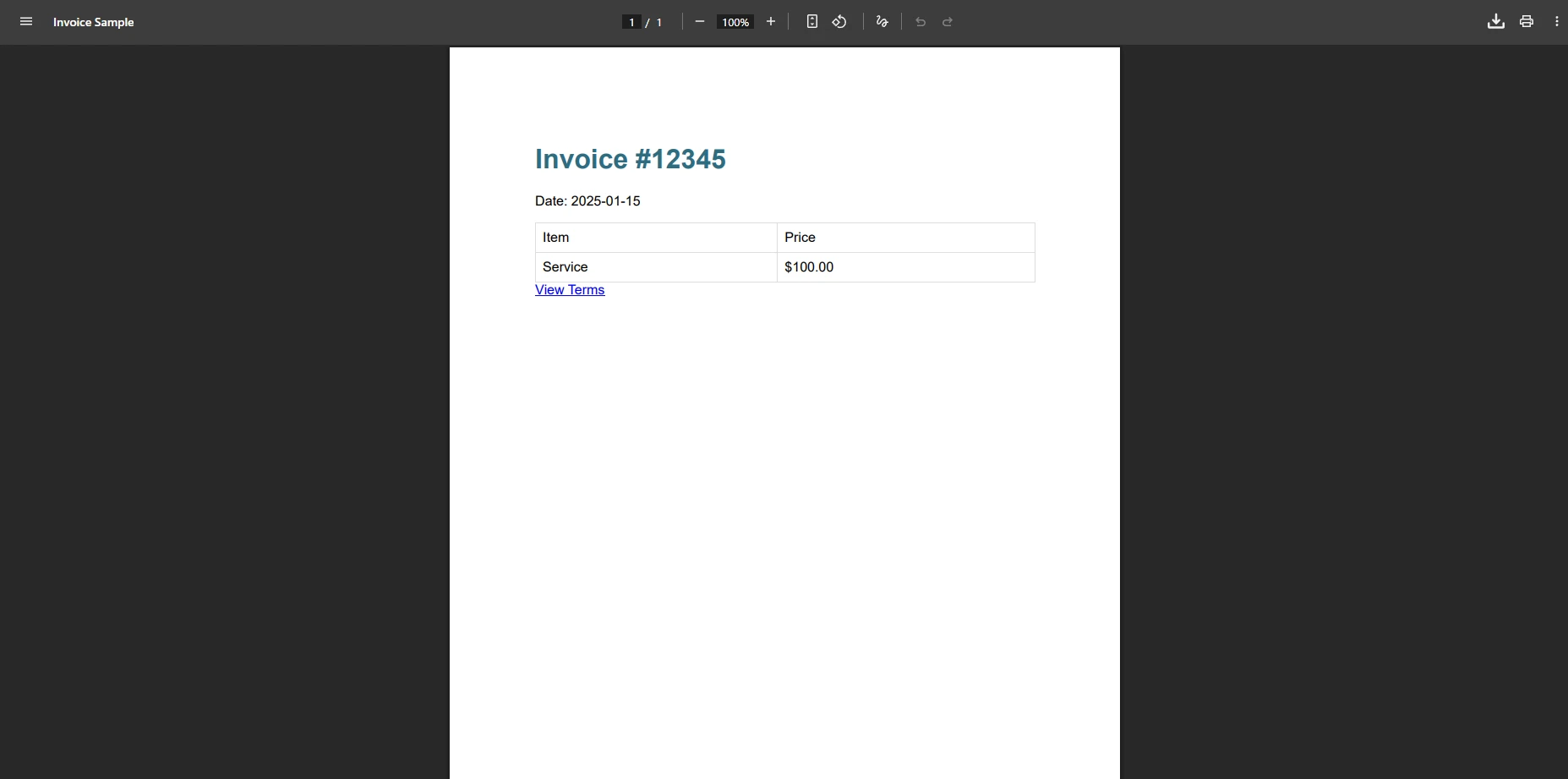
With iText's XMLWorker, this invoice might fail due to table styling, width properties, or font specifications. The "document has no pages" error often appears when these elements are not supported. Hyperlinks and media query references may not render correctly either. These limitations become critical when implementing advanced PDF features like digital signatures or page numbers in business applications.
According to the Mozilla Developer Network documentation on CSS, modern CSS includes hundreds of properties and values that browsers support natively. XMLWorker covers only a small fraction of these, which is why real-world web content consistently triggers parsing failures.
IronPDF uses a Chrome-based rendering engine that processes HTML exactly as it appears in a web browser. This approach eliminates parsing errors and supports all modern HTML and CSS features. You can explore the ChromePdfRenderer API reference for the full list of configuration options. The Chrome engine provides support for JavaScript execution, web fonts, and responsive layouts that XMLWorker cannot handle.
Before writing any code, install the IronPDF NuGet package. You can do this from the .NET CLI:
Or from the NuGet Package Manager Console in Visual Studio:
Once installed, you have access to ChromePdfRenderer, which replaces the entire iText + XMLWorker pipeline with a single, reliable call.
The following example renders the same invoice HTML that caused failures in iText. Notice there are no workarounds, no empty paragraphs to prepend, and no silent failures to manage:
using IronPdf;

ChromePdfRenderer renderer = new ChromePdfRenderer();

// Configure rendering options for production use
renderer.RenderingOptions.MarginTop = 40;
renderer.RenderingOptions.MarginBottom = 40;
renderer.RenderingOptions.CssMediaType = PdfCssMediaType.Print;
renderer.RenderingOptions.PrintHtmlBackgrounds = true;

string html = @"<div style='font-family: Arial; width: 100%;'>
    <h1 style='color: #2e6c80;'>Invoice #12345</h1>
    <table style='width: 100%; border-collapse: collapse;'>
        <tr>
            <th style='border: 1px solid #ddd; padding: 8px;'>Item</th>
            <th style='border: 1px solid #ddd; padding: 8px;'>Price</th>
        </tr>
        <tr>
            <td style='border: 1px solid #ddd; padding: 8px;'>Service</td>
            <td style='border: 1px solid #ddd; padding: 8px;'>$100.00</td>
        </tr>
    </table>
</div>";

PdfDocument pdf = renderer.RenderHtmlAsPdf(html);
pdf.SaveAs("invoice.pdf");Imports IronPdf
Dim renderer As New ChromePdfRenderer()
' Configure rendering options for production use
renderer.RenderingOptions.MarginTop = 40
renderer.RenderingOptions.MarginBottom = 40
renderer.RenderingOptions.CssMediaType = PdfCssMediaType.Print
renderer.RenderingOptions.PrintHtmlBackgrounds = True
Dim html As String = "<div style='font-family: Arial; width: 100%;'>" & _
"<h1 style='color: #2e6c80;'>Invoice #12345</h1>" & _
"<table style='width: 100%; border-collapse: collapse;'>" & _
"<tr>" & _
"<th style='border: 1px solid #ddd; padding: 8px;'>Item</th>" & _
"<th style='border: 1px solid #ddd; padding: 8px;'>Price</th>" & _
"</tr>" & _
"<tr>" & _
"<td style='border: 1px solid #ddd; padding: 8px;'>Service</td>" & _
"<td style='border: 1px solid #ddd; padding: 8px;'>$100.00</td>" & _
"</tr>" & _
"</table>" & _
"</div>"
Dim pdf As PdfDocument = renderer.RenderHtmlAsPdf(html)
pdf.SaveAs("invoice.pdf")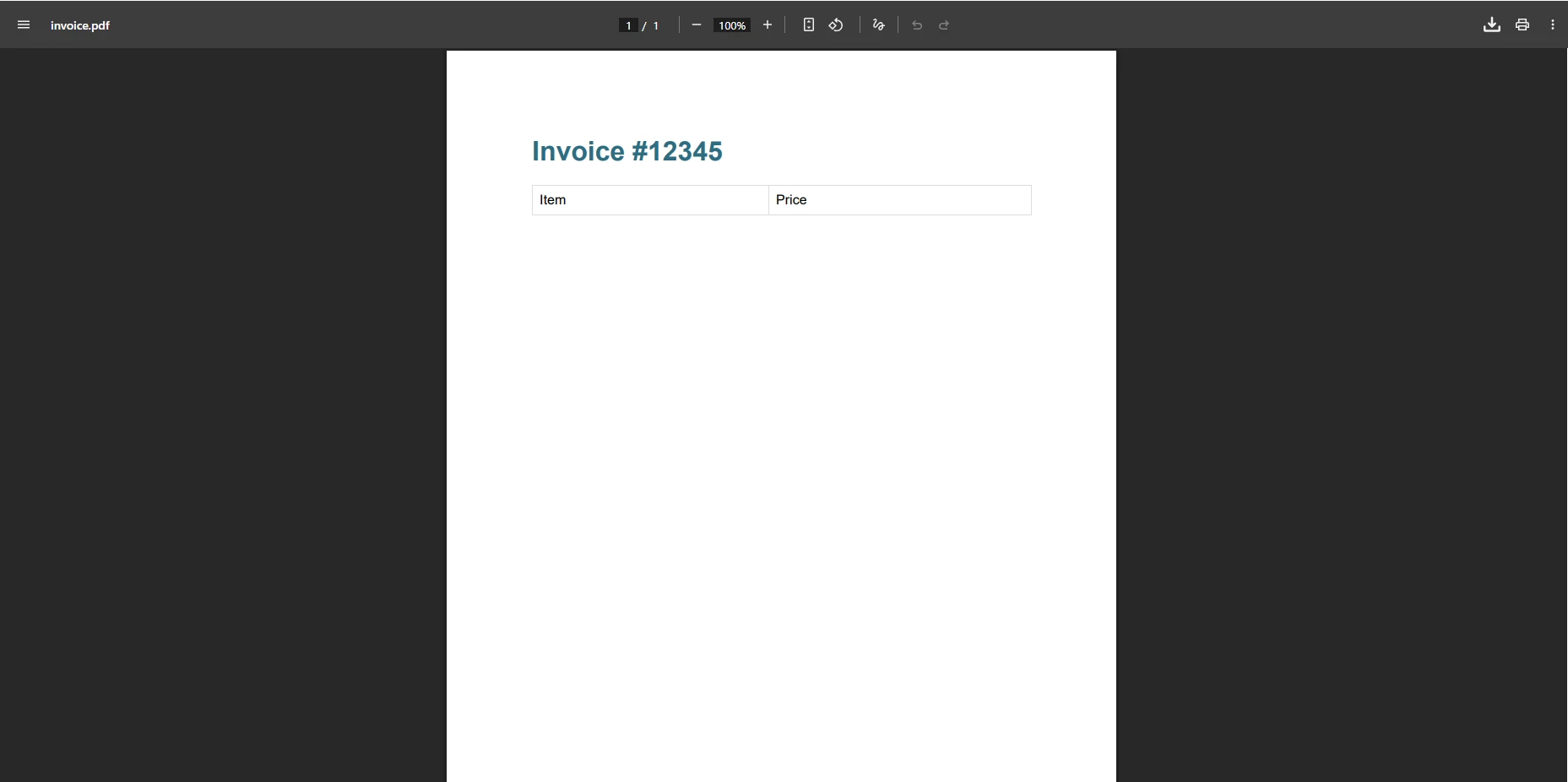
This code successfully creates the PDF file without any exception. The method handles complex HTML and CSS automatically, eliminating the need for workarounds. The content renders pixel-perfect, matching the browser preview. IronPDF also supports async rendering, custom margins, and PDF compression for optimized file sizes.
For scenarios that involve JavaScript-heavy content or single-page applications, IronPDF's RenderDelay option lets the JavaScript execute before the PDF is captured -- something XMLWorker cannot do at all. The following example adds headers, footers, and security settings in a production-ready async pattern:
using IronPdf;
using Microsoft.Extensions.Logging;

// Production-ready PDF generation with IronPDF
public class PdfGenerator
{
    private readonly ChromePdfRenderer _renderer;
    private readonly ILogger<PdfGenerator> _logger;

    public PdfGenerator(ILogger<PdfGenerator> logger)
    {
        _logger = logger;
        _renderer = new ChromePdfRenderer();
        _renderer.RenderingOptions.Timeout = 60;
        _renderer.RenderingOptions.EnableJavaScript = true;
        _renderer.RenderingOptions.RenderDelay = 2000;
        _renderer.RenderingOptions.HtmlHeader = new HtmlHeaderFooter
        {
            Height = 25,
            HtmlFragment = "<div style='text-align: center;'>{page} of {total-pages}</div>"
        };
    }

    public async Task<PdfDocument> GenerateWithRetry(string html, int maxRetries = 3)
    {
        for (int i = 0; i < maxRetries; i++)
        {
            try
            {
                _logger.LogInformation("Generating PDF, attempt {Attempt}", i + 1);
                return await _renderer.RenderHtmlAsPdfAsync(html);
            }
            catch (Exception ex)
            {
                _logger.LogWarning("PDF generation failed: {Message}", ex.Message);
                if (i == maxRetries - 1) throw;
                await Task.Delay(1000 * (i + 1));
            }
        }
        throw new InvalidOperationException("PDF generation failed after retries");
    }
}Imports IronPdf
Imports Microsoft.Extensions.Logging
' Production-ready PDF generation with IronPDF
Public Class PdfGenerator
Private ReadOnly _renderer As ChromePdfRenderer
Private ReadOnly _logger As ILogger(Of PdfGenerator)
Public Sub New(logger As ILogger(Of PdfGenerator))
_logger = logger
_renderer = New ChromePdfRenderer()
_renderer.RenderingOptions.Timeout = 60
_renderer.RenderingOptions.EnableJavaScript = True
_renderer.RenderingOptions.RenderDelay = 2000
_renderer.RenderingOptions.HtmlHeader = New HtmlHeaderFooter With {
.Height = 25,
.HtmlFragment = "<div style='text-align: center;'>{page} of {total-pages}</div>"
}
End Sub
Public Async Function GenerateWithRetry(html As String, Optional maxRetries As Integer = 3) As Task(Of PdfDocument)
For i As Integer = 0 To maxRetries - 1
Try
_logger.LogInformation("Generating PDF, attempt {Attempt}", i + 1)
Return Await _renderer.RenderHtmlAsPdfAsync(html)
Catch ex As Exception
_logger.LogWarning("PDF generation failed: {Message}", ex.Message)
If i = maxRetries - 1 Then Throw
Await Task.Delay(1000 * (i + 1))
End Try
Next
Throw New InvalidOperationException("PDF generation failed after retries")
End Function
End ClassWhen comparing the two libraries for HTML to PDF conversion, the differences in capability directly affect PDF quality and deployment reliability:
| Feature | iText + XMLWorker | IronPDF |
|---|---|---|
| Modern HTML/CSS support | Limited (HTML 4, CSS 2) | Full (Chrome rendering engine) |
| JavaScript execution | No | Yes |
| Error handling | Parse exceptions common | Reliable rendering |
| Complex tables | Often fails | Full support |
| Custom fonts | Manual embedding required | Automatic handling |
| SVG support | No | Yes |
| Async rendering | No | Yes |
| Docker/Linux support | Limited | Full native support |
| CSS media types | Basic | Screen and Print |
| Debugging tools | Limited | Chrome DevTools integration |
For developers experiencing the "document has no pages" error, migrating to IronPDF provides an immediate solution. The conversion process is straightforward, and IronPDF offers complete documentation and code examples. The following before-and-after comparison shows the reduction in complexity:
// Before (iTextSharp) -- error-prone approach requiring workarounds
public byte[] CreatePdfWithIText(string htmlContent)
{
    using var ms = new MemoryStream();
    var document = new Document();
    var writer = PdfWriter.GetInstance(document, ms);
    document.Open();

    // Must add empty paragraph to avoid "no pages" error
    document.Add(new Paragraph(""));

    try
    {
        using var sr = new StringReader(htmlContent);
        XMLWorkerHelper.GetInstance().ParseXHtml(writer, document, sr);
    }
    catch (Exception ex)
    {
        document.Add(new Paragraph("Error: " + ex.Message));
    }

    document.Close();
    return ms.ToArray();
}

// After (IronPDF) -- reliable, no workarounds needed
public byte[] CreatePdfWithIron(string htmlContent)
{
    ChromePdfRenderer renderer = new ChromePdfRenderer();
    renderer.RenderingOptions.EnableJavaScript = true;
    renderer.RenderingOptions.RenderDelay = 500;

    PdfDocument pdf = renderer.RenderHtmlAsPdf(htmlContent);
    return pdf.BinaryData;
}Imports System.IO
Imports iTextSharp.text
Imports iTextSharp.text.pdf
Imports iTextSharp.tool.xml
Public Class PdfCreator
' Before (iTextSharp) -- error-prone approach requiring workarounds
Public Function CreatePdfWithIText(htmlContent As String) As Byte()
Using ms As New MemoryStream()
Dim document As New Document()
Dim writer As PdfWriter = PdfWriter.GetInstance(document, ms)
document.Open()
' Must add empty paragraph to avoid "no pages" error
document.Add(New Paragraph(""))
Try
Using sr As New StringReader(htmlContent)
XMLWorkerHelper.GetInstance().ParseXHtml(writer, document, sr)
End Using
Catch ex As Exception
document.Add(New Paragraph("Error: " & ex.Message))
End Try
document.Close()
Return ms.ToArray()
End Using
End Function
' After (IronPDF) -- reliable, no workarounds needed
Public Function CreatePdfWithIron(htmlContent As String) As Byte()
Dim renderer As New ChromePdfRenderer()
renderer.RenderingOptions.EnableJavaScript = True
renderer.RenderingOptions.RenderDelay = 500
Dim pdf As PdfDocument = renderer.RenderHtmlAsPdf(htmlContent)
Return pdf.BinaryData
End Function
End ClassThe simplified API means less code to maintain and no parsing errors to debug. IronPDF also provides features for adding headers and footers, merging PDFs, and applying digital signatures without complex workarounds. For teams working in Docker environments or deploying to Linux servers, IronPDF offers consistent behavior across platforms.
 Install with NuGet
Start your free trial to experience error-free HTML to PDF conversion.
The "document has no pages" error stems from fundamental parsing limitations built into iText's XMLWorker. While workarounds exist -- such as pre-populating the document with an empty paragraph -- they do not solve the underlying issue with complex HTML processing. IronPDF's Chrome-based rendering provides a reliable solution that handles modern web content without parsing exceptions.
For production applications requiring consistent PDF generation from HTML, IronPDF eliminates the frustration of debugging parser errors and delivers professional results. The engine handles all HTML elements, CSS styles, and JavaScript, ensuring documents render correctly every time. Whether you are creating invoices, reports, or any document with text, tables, and images, IronPDF provides the solution you need.
To move forward, here are the recommended next steps:
dotnet add package IronPdf) and run the quickstart guide
Curtis Chau holds a Bachelor’s degree in Computer Science (Carleton University) and specializes in front-end development with expertise in Node.js, TypeScript, JavaScript, and React. Passionate about crafting intuitive and aesthetically pleasing user interfaces, Curtis enjoys working with modern frameworks and creating well-structured, visually appealing manuals.



IronPDF is a part of IRONSUITE
10 .NET API products for your office documents











When you need your PDF to look like HTML, fast.


