using IronPdf;

// Disable local disk access or cross-origin requests
Installation.EnableWebSecurity = true;

// Instantiate Renderer
var renderer = new ChromePdfRenderer();

// Create a PDF from a HTML string using C#
var pdf = renderer.RenderHtmlAsPdf("<h1>Hello World</h1>");

// Export to a file or Stream
pdf.SaveAs("output.pdf");

// Advanced Example with HTML Assets
// Load external html assets: Images, CSS and JavaScript.
// An optional BasePath 'C:\site\assets\' is set as the file location to load assets from
var myAdvancedPdf = renderer.RenderHtmlAsPdf("<img src='icons/iron.png'>", @"C:\site\assets\");
myAdvancedPdf.SaveAs("html-with-assets.pdf");
using IronPdf;// Disable local disk access or cross-origin requestsInstallation.EnableWebSecurity = true;// Instantiate Renderervar renderer = new ChromePdfRenderer();// Create a PDF from a HTML string using C#var pdf = renderer.RenderHtmlAsPdf("<h1>Hello World</h1>");// Export to a file or Streampdf.SaveAs("output.pdf");// Advanced Example with HTML Assets// Load external html assets: Images, CSS and JavaScript.// An optional BasePath 'C:\site\assets\' is set as the file location to load assets fromvar myAdvancedPdf = renderer.RenderHtmlAsPdf("<img src='icons/iron.png'>", @"C:\site\assets\");myAdvancedPdf.SaveAs("html-with-assets.pdf");
When working with modern applications, .NET developers like yourself may find themselves needing to build a centralized PDF generation service. Whether you're generating invoices, reports, certificates, or contracts, having a dedicated .NET PDF API can be beneficial for efficiently managing PDF files. So how can it improve your PDF generation tasks? It does this through providing consistency, maintainability, and scalability across your desktop and web applications. Never before has it been easier to manage document content, PDF pages, and PDF form fields.
In this tutorial, you'll learn how to build a production-ready PDF API using ASP.NET Core and IronPDF, a powerful .NET PDF library. We'll create RESTful endpoints that can generate PDFs from HTML, merge documents, add watermarks, and handle various real-world PDF generation scenarios in your Web API.
Why Build a Dedicated PDF API?
Before diving into the code, let's understand why creating a dedicated PDF API makes sense:
Centralized Logic: All PDF generation logic lives in one place, making maintenance and updates easier
Microservice Architecture: Perfect for service-oriented architectures where different applications need PDF capabilities
Performance Optimization: Easier to scale and optimize a dedicated service for large PDF files, multiple pages, and dynamic data.
Language Agnostic: Any client application can consume the API regardless of programming language
Consistent Output: Ensures all PDF documents across your organization maintain consistent document layout, paragraph formatting, and PDF content.
Ready to start building? Download IronPDF's free trial and follow along with this tutorial to programmatically create PDF files in your .NET Framework projects.
IronPDF: The Complete .NET PDF Library
IronPDF stands out as the premier PDF library for .NET developers, offering a comprehensive set of features that make PDF generation in Web API projects straightforward and reliable. It's built on a Chrome rendering engine, which ensures pixel-perfect HTML-to-PDF conversions, often in just a few lines of code. It does all of this while maintaining all styling, JavaScript execution, and responsive layouts.
Key capabilities that make IronPDF ideal for .NET PDF API development:
Chrome-Based Rendering: Leverages Google Chrome's rendering engine for converting PDF documents from HTML content accurately, with full support for embedded images and other web assets
Rich Feature Set: Supports the editing of new and existing documents with digital signatures, PDF forms, annotations, encryption, compression, and more
Create Secure PDF Documents: Manage sensitive PDF content with encryption, digital signatures, and document protection.
Multiple Input Formats: Use HTML, URLs, images, and Office documents to create PDF documents
Advanced Manipulation: Merge PDF pages, split documents, apply watermarks, create interactive PDF forms, and manipulate PDF files programmatically.
Cross-Platform Support: Works on Windows, Linux, macOS, Docker, and cloud platforms
Performance Optimized:Async operations, efficient memory management, and fast rendering
How to Set Up Your PDF Document API Project?
Let's start by creating a new ASP.NET Core Web API project and installing the necessary packages.
PublicInterfaceIPdfService Function GeneratePdfFromHtml(htmlContent AsString) AsByte() Function GeneratePdfFromUrl(url AsString) AsByte()EndInterface
Public Interface IPdfService
    Function GeneratePdfFromHtml(htmlContent As String) As Byte()
    Function GeneratePdfFromUrl(url As String) As Byte()
End Interface
In the PdfService.cs file, we will add this:
using IronPdf;public class PdfService : IPdfService{ private readonly ChromePdfRenderer _renderer; publicPdfService() { _renderer = new ChromePdfRenderer(); // Configure rendering options for optimal PDF generation in .NET _renderer.RenderingOptions.MarginTop = 20; _renderer.RenderingOptions.MarginBottom = 20; _renderer.RenderingOptions.PrintHtmlBackgrounds = true; } public byte[] GeneratePdfFromHtml(string htmlContent) { // Generate PDF from HTML using the .NET PDF API var pdf = _renderer.RenderHtmlAsPdf(htmlContent); return pdf.BinaryData; } public byte[] GeneratePdfFromUrl(string url) { // Convert URL to PDF in the REST API var pdf = _renderer.RenderUrlAsPdf(url); return pdf.BinaryData; }}
using IronPdf;
public class PdfService : IPdfService
{
    private readonly ChromePdfRenderer _renderer;
    public PdfService()
    {
        _renderer = new ChromePdfRenderer();
        // Configure rendering options for optimal PDF generation in .NET
        _renderer.RenderingOptions.MarginTop = 20;
        _renderer.RenderingOptions.MarginBottom = 20;
        _renderer.RenderingOptions.PrintHtmlBackgrounds = true;
    }
    public byte[] GeneratePdfFromHtml(string htmlContent)
    {
        // Generate PDF from HTML using the .NET PDF API
        var pdf = _renderer.RenderHtmlAsPdf(htmlContent);
        return pdf.BinaryData;
    }
    public byte[] GeneratePdfFromUrl(string url)
    {
        // Convert URL to PDF in the REST API
        var pdf = _renderer.RenderUrlAsPdf(url);
        return pdf.BinaryData;
    }
}
ImportsIronPdfPublic Class PdfServiceImplementsIPdfService PrivateReadOnly _renderer AsChromePdfRenderer Public Sub New() _renderer = New ChromePdfRenderer() ' Configure rendering options for optimal PDF generation in .NET _renderer.RenderingOptions.MarginTop = 20 _renderer.RenderingOptions.MarginBottom = 20 _renderer.RenderingOptions.PrintHtmlBackgrounds = True End Sub Public Function GeneratePdfFromHtml(htmlContent AsString) AsByte() ' Generate PDF from HTML using the .NET PDF API Dim pdf = _renderer.RenderHtmlAsPdf(htmlContent) Return pdf.BinaryData End Function Public Function GeneratePdfFromUrl(url AsString) AsByte() ' Convert URL to PDF in the REST API Dim pdf = _renderer.RenderUrlAsPdf(url) Return pdf.BinaryData End FunctionEnd Class
Imports IronPdf

Public Class PdfService
    Implements IPdfService

    Private ReadOnly _renderer As ChromePdfRenderer

    Public Sub New()
        _renderer = New ChromePdfRenderer()
        ' Configure rendering options for optimal PDF generation in .NET
        _renderer.RenderingOptions.MarginTop = 20
        _renderer.RenderingOptions.MarginBottom = 20
        _renderer.RenderingOptions.PrintHtmlBackgrounds = True
    End Sub

    Public Function GeneratePdfFromHtml(htmlContent As String) As Byte()
        ' Generate PDF from HTML using the .NET PDF API
        Dim pdf = _renderer.RenderHtmlAsPdf(htmlContent)
        Return pdf.BinaryData
    End Function

    Public Function GeneratePdfFromUrl(url As String) As Byte()
        ' Convert URL to PDF in the REST API
        Dim pdf = _renderer.RenderUrlAsPdf(url)
        Return pdf.BinaryData
    End Function

End Class
The PdfService handles the core process of converting HTML into PDF. Utilizing IronPDF's ChromePdfRenderer, this class is set up with sensible defaults like page margins and background rendering to produce a polished final document.
When the controller passes in raw HTML, the service uses IronPDF to render it into a professional-quality PDF and returns the result as byte data, ready to download. Additionally, it can also handle entire web pages by converting a URL directly into a PDF.
Creating the Controller
Now it's time to create the controller for our API. This will provide an API endpoint capable of generating PDF files from HTML. It will then be able to download and save PDF documents to your system for further use or sharing.
// Controllers/PdfController.cs
using Microsoft.AspNetCore.Mvc;
[ApiController]
[Route("api/[controller]")]
public class PdfController : ControllerBase
{
    private readonly IPdfService _pdfService;
    public PdfController(IPdfService pdfService)
    {
        _pdfService = pdfService;
    }
    [HttpPost("html-to-pdf")]
    public IActionResult ConvertHtmlToPdf([FromBody] HtmlRequest request)
    {
        try
        {
            var pdfBytes = _pdfService.GeneratePdfFromHtml(request.HtmlContent);
            // Return as downloadable file
            return File(pdfBytes, "application/pdf", "document.pdf");
        }
        catch (Exception ex)
        {
            return BadRequest($"Error generating PDF: {ex.Message}");
        }
    }
}
ImportsMicrosoft.AspNetCore.Mvc<ApiController><Route("api/[controller]")>Public Class PdfControllerInheritsControllerBase PrivateReadOnly _pdfService AsIPdfService Public Sub New(pdfService AsIPdfService) _pdfService = pdfService End Sub <HttpPost("html-to-pdf")> Public Function ConvertHtmlToPdf(<FromBody> request AsHtmlRequest) AsIActionResultTry Dim pdfBytes = _pdfService.GeneratePdfFromHtml(request.HtmlContent) ' Return as downloadable file ReturnFile(pdfBytes, "application/pdf", "document.pdf")Catch ex AsException ReturnBadRequest($"Error generating PDF: {ex.Message}")EndTry End FunctionEnd Class
Imports Microsoft.AspNetCore.Mvc

<ApiController>
<Route("api/[controller]")>
Public Class PdfController
    Inherits ControllerBase

    Private ReadOnly _pdfService As IPdfService

    Public Sub New(pdfService As IPdfService)
        _pdfService = pdfService
    End Sub

    <HttpPost("html-to-pdf")>
    Public Function ConvertHtmlToPdf(<FromBody> request As HtmlRequest) As IActionResult
        Try
            Dim pdfBytes = _pdfService.GeneratePdfFromHtml(request.HtmlContent)
            ' Return as downloadable file
            Return File(pdfBytes, "application/pdf", "document.pdf")
        Catch ex As Exception
            Return BadRequest($"Error generating PDF: {ex.Message}")
        End Try
    End Function
End Class
Then, in the HtmlRequest.cs file, we will add this:
// Models/HtmlRequest.cspublic class HtmlRequest{ public stringHtmlContent { get; set; } public stringFileName { get; set; } = "document.pdf";}
// Models/HtmlRequest.cs
public class HtmlRequest
{
    public string HtmlContent { get; set; }
    public string FileName { get; set; } = "document.pdf";
}
' Models/HtmlRequest.vbPublic Class HtmlRequest Public Property HtmlContentAsString Public Property FileNameAsString = "document.pdf"End Class
' Models/HtmlRequest.vb
Public Class HtmlRequest
    Public Property HtmlContent As String
    Public Property FileName As String = "document.pdf"
End Class
In the first file, we set up a straightforward API endpoint that turns HTML into a downloadable PDF. When someone sends HTML content to the api/pdf/html-to-pdf route with a simple POST request, the PdfController passes the job of converting it into a PDF to a dedicated service.
Once the PDF is created, the controller hands it back to the user as a ready-to-download file. The request itself is structured using the HtmlRequest model, which carries both the raw HTML and an optional file name for the final document. In short, this setup makes it easy for clients to send HTML and instantly receive a polished PDF in return.
Registering Services
Update your Program.cs to register the PDF service:
var builder = WebApplication.CreateBuilder(args);builder.Services.AddControllers();builder.Services.AddEndpointsApiExplorer();builder.Services.AddSwaggerGen();// Register PDF servicebuilder.Services.AddSingleton<IPdfService, PdfService>();var app = builder.Build();if (app.Environment.IsDevelopment()){ app.UseSwagger(); app.UseSwaggerUI();}app.UseHttpsRedirection();app.MapControllers();app.Run();
var builder = WebApplication.CreateBuilder(args);
builder.Services.AddControllers();
builder.Services.AddEndpointsApiExplorer();
builder.Services.AddSwaggerGen();
// Register PDF service
builder.Services.AddSingleton<IPdfService, PdfService>();
var app = builder.Build();
if (app.Environment.IsDevelopment())
{
    app.UseSwagger();
    app.UseSwaggerUI();
}
app.UseHttpsRedirection();
app.MapControllers();
app.Run();
ImportsMicrosoft.AspNetCore.BuilderImportsMicrosoft.Extensions.DependencyInjectionDim builder = WebApplication.CreateBuilder(args)builder.Services.AddControllers()builder.Services.AddEndpointsApiExplorer()builder.Services.AddSwaggerGen()' Register PDF servicebuilder.Services.AddSingleton(OfIPdfService, PdfService)()Dim app = builder.Build()If app.Environment.IsDevelopment() Then app.UseSwagger() app.UseSwaggerUI()End Ifapp.UseHttpsRedirection()app.MapControllers()app.Run()
Imports Microsoft.AspNetCore.Builder
Imports Microsoft.Extensions.DependencyInjection

Dim builder = WebApplication.CreateBuilder(args)
builder.Services.AddControllers()
builder.Services.AddEndpointsApiExplorer()
builder.Services.AddSwaggerGen()
' Register PDF service
builder.Services.AddSingleton(Of IPdfService, PdfService)()
Dim app = builder.Build()
If app.Environment.IsDevelopment() Then
    app.UseSwagger()
    app.UseSwaggerUI()
End If
app.UseHttpsRedirection()
app.MapControllers()
app.Run()
How to Handle Different Response Types?
Your API should support different ways of returning PDFs based on client needs:
[HttpPost("generate")] public IActionResultGeneratePdf([FromBody] PdfRequest request) { var pdfBytes = _pdfService.GeneratePdfFromHtml(request.HtmlContent); switch (request.ResponseType?.ToLower()) { case "base64": returnOk(new { data = Convert.ToBase64String(pdfBytes), filename = request.FileName }); case "inline": returnFile(pdfBytes, "application/pdf"); default: // download returnFile(pdfBytes, "application/pdf", request.FileName); } }
[HttpPost("generate")]
 public IActionResult GeneratePdf([FromBody] PdfRequest request)
 {
     var pdfBytes = _pdfService.GeneratePdfFromHtml(request.HtmlContent);
     switch (request.ResponseType?.ToLower())
     {
         case "base64":
             return Ok(new
             {
                 data = Convert.ToBase64String(pdfBytes),
                 filename = request.FileName
             });
         case "inline":
             return File(pdfBytes, "application/pdf");
         default: // download
             return File(pdfBytes, "application/pdf", request.FileName);
     }
 }
ImportsMicrosoft.AspNetCore.Mvc<HttpPost("generate")>Public Function GeneratePdf(<FromBody> request AsPdfRequest) AsIActionResult Dim pdfBytes = _pdfService.GeneratePdfFromHtml(request.HtmlContent) Select Case request.ResponseType?.ToLower() Case "base64" ReturnOk(New With { .data = Convert.ToBase64String(pdfBytes), .filename = request.FileName }) Case "inline" ReturnFile(pdfBytes, "application/pdf") Case Else ' download ReturnFile(pdfBytes, "application/pdf", request.FileName) End SelectEnd Function
Imports Microsoft.AspNetCore.Mvc

<HttpPost("generate")>
Public Function GeneratePdf(<FromBody> request As PdfRequest) As IActionResult
    Dim pdfBytes = _pdfService.GeneratePdfFromHtml(request.HtmlContent)
    Select Case request.ResponseType?.ToLower()
        Case "base64"
            Return Ok(New With {
                .data = Convert.ToBase64String(pdfBytes),
                .filename = request.FileName
            })
        Case "inline"
            Return File(pdfBytes, "application/pdf")
        Case Else ' download
            Return File(pdfBytes, "application/pdf", request.FileName)
    End Select
End Function
Here, we have added a more flexible PDF generation endpoint to the controller. Instead of always forcing a file download, the GeneratePdf method lets the client choose how they want the result returned. This option offers flexibility, allowing PDFs to be displayed in various formats: as a downloadable file, directly in the browser, or encoded as a Base64 string for easy use in APIs.
The request is defined by the PdfRequest model, which builds on the earlier HtmlRequest and adds a ResponseType option. In short, this gives users more control over how they receive their PDFs, making the API more versatile and user-friendly.
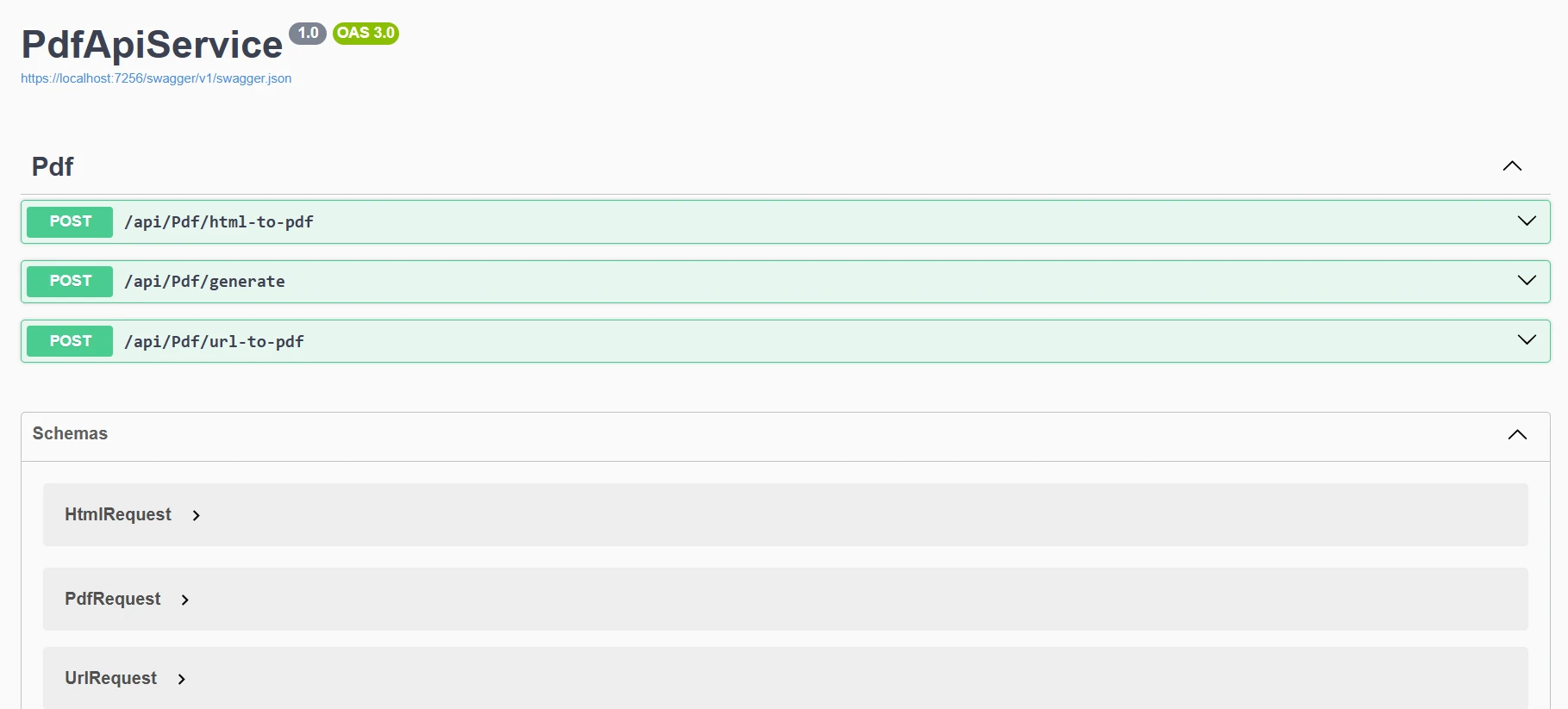
Now, when we run our program, we'll see this output on Swagger.
How to Implement Common PDF Operations?
Let's expand our service to handle various PDF generation scenarios:
URL to PDF Conversion
[HttpPost("url-to-pdf")]public async Task<IActionResult> ConvertUrlToPdf([FromBody] UrlRequest request){ try { var pdfBytes = awaitTask.Run(() => _pdfService.GeneratePdfFromUrl(request.Url)); returnFile(pdfBytes, "application/pdf", $"{request.FileName ?? "website"}.pdf"); } catch (Exception ex) { returnBadRequest($"Failed to convert URL: {ex.Message}"); }}public class UrlRequest{ public stringUrl { get; set; } public stringFileName { get; set; }}
[HttpPost("url-to-pdf")]
public async Task<IActionResult> ConvertUrlToPdf([FromBody] UrlRequest request)
{
    try
    {
        var pdfBytes = await Task.Run(() =>
            _pdfService.GeneratePdfFromUrl(request.Url));
        return File(pdfBytes, "application/pdf",
            $"{request.FileName ?? "website"}.pdf");
    }
    catch (Exception ex)
    {
        return BadRequest($"Failed to convert URL: {ex.Message}");
    }
}
public class UrlRequest
{
    public string Url { get; set; }
    public string FileName { get; set; }
}
ImportsSystem.Threading.TasksImportsMicrosoft.AspNetCore.Mvc<HttpPost("url-to-pdf")>PublicAsync Function ConvertUrlToPdf(<FromBody> request AsUrlRequest) AsTask(OfIActionResult)Try Dim pdfBytes = AwaitTask.Run(Function() _pdfService.GeneratePdfFromUrl(request.Url)) ReturnFile(pdfBytes, "application/pdf", $"{If(request.FileName, "website")}.pdf")Catch ex AsException ReturnBadRequest($"Failed to convert URL: {ex.Message}")EndTryEnd FunctionPublic Class UrlRequest Public Property UrlAsString Public Property FileNameAsStringEnd Class
Imports System.Threading.Tasks
Imports Microsoft.AspNetCore.Mvc

<HttpPost("url-to-pdf")>
Public Async Function ConvertUrlToPdf(<FromBody> request As UrlRequest) As Task(Of IActionResult)
    Try
        Dim pdfBytes = Await Task.Run(Function() _pdfService.GeneratePdfFromUrl(request.Url))
        Return File(pdfBytes, "application/pdf", $"{If(request.FileName, "website")}.pdf")
    Catch ex As Exception
        Return BadRequest($"Failed to convert URL: {ex.Message}")
    End Try
End Function

Public Class UrlRequest
    Public Property Url As String
    Public Property FileName As String
End Class
This endpoint lets clients send a URL and get back a ready-to-download PDF of that webpage. When a POST /api/pdf/url-to-pdf request comes in, the controller uses _pdfService to convert the given URL into PDF bytes in the background, then returns them as a file download. If something goes wrong during conversion, it gracefully responds with a clear error message.
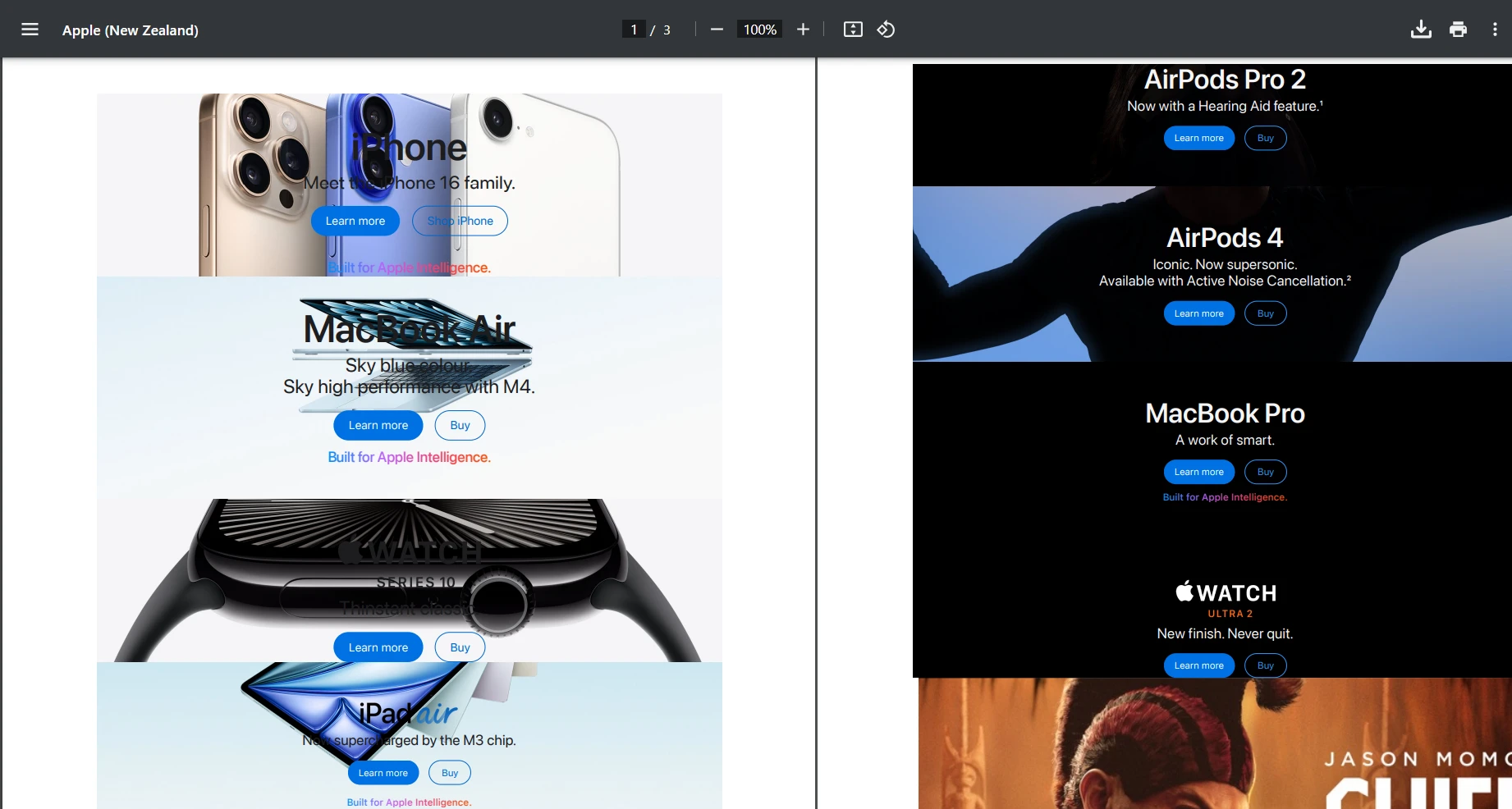
Let's try using the URL "https://www.apple.com/nz" and test the POST request. Below is the output we obtained.
Output
Adding Custom Watermarks
public byte[] AddWatermarkFromFile(string filePath, string watermarkText){ // Load PDF directly from file var pdf = PdfDocument.FromFile(filePath); pdf.ApplyWatermark( $"<h1 style='color:red;font-size:72px;'>{watermarkText}</h1>", 75,IronPdf.Editing.VerticalAlignment.Middle,IronPdf.Editing.HorizontalAlignment.Center ); return pdf.BinaryData;}
public byte[] AddWatermarkFromFile(string filePath, string watermarkText)
{
    // Load PDF directly from file
    var pdf = PdfDocument.FromFile(filePath);
    pdf.ApplyWatermark(
        $"<h1 style='color:red;font-size:72px;'>{watermarkText}</h1>",
        75,
        IronPdf.Editing.VerticalAlignment.Middle,
        IronPdf.Editing.HorizontalAlignment.Center
    );
    return pdf.BinaryData;
}
ImportsIronPdfPublic Function AddWatermarkFromFile(filePath AsString, watermarkText AsString) AsByte() ' Load PDF directly from file Dim pdf = PdfDocument.FromFile(filePath) pdf.ApplyWatermark( $"<h1 style='color:red;font-size:72px;'>{watermarkText}</h1>", 75,IronPdf.Editing.VerticalAlignment.Middle,IronPdf.Editing.HorizontalAlignment.Center ) Return pdf.BinaryDataEnd Function
Imports IronPdf

Public Function AddWatermarkFromFile(filePath As String, watermarkText As String) As Byte()
    ' Load PDF directly from file
    Dim pdf = PdfDocument.FromFile(filePath)
    pdf.ApplyWatermark(
        $"<h1 style='color:red;font-size:72px;'>{watermarkText}</h1>",
        75,
        IronPdf.Editing.VerticalAlignment.Middle,
        IronPdf.Editing.HorizontalAlignment.Center
    )
    Return pdf.BinaryData
End Function
Here, we are just manually loading a local file for testing purposes. However, you can adjust this so your PDF API generates a PDF document, and then apply a custom watermark to it with ease.
Watermark Output
How to Add Dynamic Data with Templates
For real-world applications, you'll often need to generate PDFs from templates with dynamic data:
[HttpPost("from-template")]public IActionResultGenerateFromTemplate([FromBody] TemplateRequest request){ // Simple template replacement var html = request.Template; foreach (var item in request.Data) { html = html.Replace($"{{{{{item.Key}}}}}", item.Value); } var pdfBytes = _pdfService.GeneratePdfFromHtml(html); returnFile(pdfBytes, "application/pdf", request.FileName);}public class TemplateRequest{ public stringTemplate { get; set; } public Dictionary<string, string> Data { get; set; } public stringFileName { get; set; } = "document.pdf";}
[HttpPost("from-template")]
public IActionResult GenerateFromTemplate([FromBody] TemplateRequest request)
{
    // Simple template replacement
    var html = request.Template;
    foreach (var item in request.Data)
    {
        html = html.Replace($"{{{{{item.Key}}}}}", item.Value);
    }
    var pdfBytes = _pdfService.GeneratePdfFromHtml(html);
    return File(pdfBytes, "application/pdf", request.FileName);
}
public class TemplateRequest
{
    public string Template { get; set; }
    public Dictionary<string, string> Data { get; set; }
    public string FileName { get; set; } = "document.pdf";
}
ImportsMicrosoft.AspNetCore.Mvc<HttpPost("from-template")>Public Function GenerateFromTemplate(<FromBody> request AsTemplateRequest) AsIActionResult ' Simple template replacement Dim html AsString = request.Template For Each item Inrequest.Data html = html.Replace($"{{{{{item.Key}}}}}", item.Value) Next Dim pdfBytes AsByte() = _pdfService.GeneratePdfFromHtml(html) ReturnFile(pdfBytes, "application/pdf", request.FileName)End FunctionPublic Class TemplateRequest Public Property TemplateAsString Public Property DataAsDictionary(OfString, String) Public Property FileNameAsString = "document.pdf"End Class
Imports Microsoft.AspNetCore.Mvc

<HttpPost("from-template")>
Public Function GenerateFromTemplate(<FromBody> request As TemplateRequest) As IActionResult
    ' Simple template replacement
    Dim html As String = request.Template
    For Each item In request.Data
        html = html.Replace($"{{{{{item.Key}}}}}", item.Value)
    Next
    Dim pdfBytes As Byte() = _pdfService.GeneratePdfFromHtml(html)
    Return File(pdfBytes, "application/pdf", request.FileName)
End Function

Public Class TemplateRequest
    Public Property Template As String
    Public Property Data As Dictionary(Of String, String)
    Public Property FileName As String = "document.pdf"
End Class
When building a production PDF API, performance is crucial. Here are key optimization strategies:
Async Operations
When building projects that involve the use of I/O operations, it is wise to use asynchronous coding. This is especially helpful if your PDF content comes from external resources like:
Downloading HTML pages (RenderUrlAsPdf)
Fetching images, CSS, or fonts over HTTP
Reading/writing files to disk or cloud storage
These operations can then block a thread, but using async prevents your API thread from waiting idle.
Example:
public async Task<byte[]> GeneratePdfFromHtmlAsync(string htmlContent){ return awaitTask.Run(() => { var pdf = _renderer.RenderHtmlAsPdf(htmlContent); return pdf.BinaryData; });}
public async Task<byte[]> GeneratePdfFromHtmlAsync(string htmlContent)
{
    return await Task.Run(() =>
    {
        var pdf = _renderer.RenderHtmlAsPdf(htmlContent);
        return pdf.BinaryData;
    });
}
ImportsSystem.Threading.TasksPublicAsync Function GeneratePdfFromHtmlAsync(htmlContent AsString) AsTask(OfByte()) ReturnAwaitTask.Run(Function() Dim pdf = _renderer.RenderHtmlAsPdf(htmlContent) Return pdf.BinaryData End Function)End Function
Imports System.Threading.Tasks

Public Async Function GeneratePdfFromHtmlAsync(htmlContent As String) As Task(Of Byte())
    Return Await Task.Run(Function()
                              Dim pdf = _renderer.RenderHtmlAsPdf(htmlContent)
                              Return pdf.BinaryData
                          End Function)
End Function
Rendering Options
Configure IronPDF for optimal performance:
_renderer.RenderingOptions.EnableJavaScript = false; // If JS not needed_renderer.RenderingOptions.CssMediaType = PdfCssMediaType.Print;_renderer.RenderingOptions.RenderDelay = 0; // Remove if no JS_renderer.RenderingOptions.Timeout = 30; // Set reasonable timeout
_renderer.RenderingOptions.EnableJavaScript = false; // If JS not needed
_renderer.RenderingOptions.CssMediaType = PdfCssMediaType.Print;
_renderer.RenderingOptions.RenderDelay = 0; // Remove if no JS
_renderer.RenderingOptions.Timeout = 30; // Set reasonable timeout
net
net
How to Secure Your PDF API?
Security is essential for any production API. Here's a simple API key authentication approach:
// Middleware/ApiKeyMiddleware.cspublic class ApiKeyMiddleware{ private readonly RequestDelegate _next; private const stringApiKeyHeader = "X-API-Key"; publicApiKeyMiddleware(RequestDelegate next) { _next = next; } public async TaskInvokeAsync(HttpContext context) { if (!context.Request.Headers.TryGetValue(ApiKeyHeader, out var apiKey)) { context.Response.StatusCode = 401; await context.Response.WriteAsync("API Key required"); return; } // Validate API key (in production, check against database) var validApiKey = context.RequestServices .GetRequiredService<IConfiguration>()["ApiKey"]; if (apiKey != validApiKey) { context.Response.StatusCode = 403; await context.Response.WriteAsync("Invalid API Key"); return; } await _next(context); }}// In Program.csapp.UseMiddleware<ApiKeyMiddleware>();
// Middleware/ApiKeyMiddleware.cs
public class ApiKeyMiddleware
{
    private readonly RequestDelegate _next;
    private const string ApiKeyHeader = "X-API-Key";
    public ApiKeyMiddleware(RequestDelegate next)
    {
        _next = next;
    }
    public async Task InvokeAsync(HttpContext context)
    {
        if (!context.Request.Headers.TryGetValue(ApiKeyHeader, out var apiKey))
        {
            context.Response.StatusCode = 401;
            await context.Response.WriteAsync("API Key required");
            return;
        }
        // Validate API key (in production, check against database)
        var validApiKey = context.RequestServices
            .GetRequiredService<IConfiguration>()["ApiKey"];
        if (apiKey != validApiKey)
        {
            context.Response.StatusCode = 403;
            await context.Response.WriteAsync("Invalid API Key");
            return;
        }
        await _next(context);
    }
}
// In Program.cs
app.UseMiddleware<ApiKeyMiddleware>();
ImportsMicrosoft.AspNetCore.HttpImportsMicrosoft.Extensions.ConfigurationImportsSystem.Threading.Tasks' Middleware/ApiKeyMiddleware.vbPublic Class ApiKeyMiddleware PrivateReadOnly _next AsRequestDelegate Private Const ApiKeyHeaderAsString = "X-API-Key" Public Sub New(nextAsRequestDelegate) _next = next End Sub PublicAsync Function InvokeAsync(context AsHttpContext) AsTask Dim apiKey AsString = Nothing IfNot context.Request.Headers.TryGetValue(ApiKeyHeader, apiKey) Then context.Response.StatusCode = 401Await context.Response.WriteAsync("API Key required") Return End If ' Validate API key (in production, check against database) Dim validApiKey AsString = context.RequestServices.GetRequiredService(OfIConfiguration)()("ApiKey") If apiKey <> validApiKey Then context.Response.StatusCode = 403Await context.Response.WriteAsync("Invalid API Key") Return End IfAwait _next(context) End FunctionEnd Class' In Program.vbapp.UseMiddleware(OfApiKeyMiddleware)()
Imports Microsoft.AspNetCore.Http
Imports Microsoft.Extensions.Configuration
Imports System.Threading.Tasks

' Middleware/ApiKeyMiddleware.vb
Public Class ApiKeyMiddleware
    Private ReadOnly _next As RequestDelegate
    Private Const ApiKeyHeader As String = "X-API-Key"

    Public Sub New(next As RequestDelegate)
        _next = next
    End Sub

    Public Async Function InvokeAsync(context As HttpContext) As Task
        Dim apiKey As String = Nothing
        If Not context.Request.Headers.TryGetValue(ApiKeyHeader, apiKey) Then
            context.Response.StatusCode = 401
            Await context.Response.WriteAsync("API Key required")
            Return
        End If

        ' Validate API key (in production, check against database)
        Dim validApiKey As String = context.RequestServices.GetRequiredService(Of IConfiguration)()("ApiKey")
        If apiKey <> validApiKey Then
            context.Response.StatusCode = 403
            Await context.Response.WriteAsync("Invalid API Key")
            Return
        End If

        Await _next(context)
    End Function
End Class

' In Program.vb
app.UseMiddleware(Of ApiKeyMiddleware)()
For more advanced authentication scenarios, consider:
Let's build a practical invoice generation endpoint that demonstrates a complete implementation. This example shows how a production .NET PDF API can generate professional invoices with dynamic data.
First Step:
First, we'll create a new file in our Models folder. Here, I've called mine Invoice.cs. Then, add the following code to your new file.
public class Invoice{ public stringInvoiceNumber { get; set; } public DateTimeDate { get; set; } public stringCustomerName { get; set; } public stringCustomerAddress { get; set; } public List<InvoiceItem> Items { get; set; } public decimalTax { get; set; }}public class InvoiceItem{ public stringDescription { get; set; } public intQuantity { get; set; } public decimalUnitPrice { get; set; } public decimalTotal => Quantity * UnitPrice;}
public class Invoice
{
    public string InvoiceNumber { get; set; }
    public DateTime Date { get; set; }
    public string CustomerName { get; set; }
    public string CustomerAddress { get; set; }
    public List<InvoiceItem> Items { get; set; }
    public decimal Tax { get; set; }
}
public class InvoiceItem
{
    public string Description { get; set; }
    public int Quantity { get; set; }
    public decimal UnitPrice { get; set; }
    public decimal Total => Quantity * UnitPrice;
}
Public Class Invoice Public Property InvoiceNumberAsString Public Property [Date] AsDateTime Public Property CustomerNameAsString Public Property CustomerAddressAsString Public Property ItemsAsList(OfInvoiceItem) Public Property TaxAsDecimalEnd ClassPublic Class InvoiceItem Public Property DescriptionAsString Public Property QuantityAsInteger Public Property UnitPriceAsDecimal PublicReadOnlyPropertyTotalAsDecimal Get ReturnQuantity * UnitPriceEnd Get End PropertyEnd Class
Public Class Invoice
    Public Property InvoiceNumber As String
    Public Property [Date] As DateTime
    Public Property CustomerName As String
    Public Property CustomerAddress As String
    Public Property Items As List(Of InvoiceItem)
    Public Property Tax As Decimal
End Class

Public Class InvoiceItem
    Public Property Description As String
    Public Property Quantity As Integer
    Public Property UnitPrice As Decimal
    Public ReadOnly Property Total As Decimal
        Get
            Return Quantity * UnitPrice
        End Get
    End Property
End Class
Then, we'll need to create a new service file for our invoice generator. In your Services folder, add the following code. For mine, I made a new file called InvoiceService.cs. This code will handle the styling and layout of our Invoice PDF file.
[ApiController]
[Route("api/[controller]")]
public class InvoiceController : ControllerBase
{
    private readonly InvoiceService _invoiceService;
    public InvoiceController(InvoiceService invoiceService)
    {
        _invoiceService = invoiceService;
    }
    [HttpPost("generate")]
    public IActionResult GenerateInvoice([FromBody] Invoice invoice)
    {
        try
        {
            var pdfBytes = _invoiceService.GenerateInvoice(invoice);
            var fileName = $"Invoice_{invoice.InvoiceNumber}.pdf";
            return File(pdfBytes, "application/pdf", fileName);
        }
        catch (Exception ex)
        {
            return StatusCode(500, $"Error generating invoice: {ex.Message}");
        }
    }
}
ImportsMicrosoft.AspNetCore.Mvc<ApiController><Route("api/[controller]")>Public Class InvoiceControllerInheritsControllerBase PrivateReadOnly _invoiceService AsInvoiceService Public Sub New(invoiceService AsInvoiceService) _invoiceService = invoiceService End Sub <HttpPost("generate")> Public Function GenerateInvoice(<FromBody> invoice AsInvoice) AsIActionResultTry Dim pdfBytes = _invoiceService.GenerateInvoice(invoice) Dim fileName = $"Invoice_{invoice.InvoiceNumber}.pdf" ReturnFile(pdfBytes, "application/pdf", fileName)Catch ex AsException ReturnStatusCode(500, $"Error generating invoice: {ex.Message}")EndTry End FunctionEnd Class
Imports Microsoft.AspNetCore.Mvc

<ApiController>
<Route("api/[controller]")>
Public Class InvoiceController
    Inherits ControllerBase

    Private ReadOnly _invoiceService As InvoiceService

    Public Sub New(invoiceService As InvoiceService)
        _invoiceService = invoiceService
    End Sub

    <HttpPost("generate")>
    Public Function GenerateInvoice(<FromBody> invoice As Invoice) As IActionResult
        Try
            Dim pdfBytes = _invoiceService.GenerateInvoice(invoice)
            Dim fileName = $"Invoice_{invoice.InvoiceNumber}.pdf"
            Return File(pdfBytes, "application/pdf", fileName)
        Catch ex As Exception
            Return StatusCode(500, $"Error generating invoice: {ex.Message}")
        End Try
    End Function
End Class
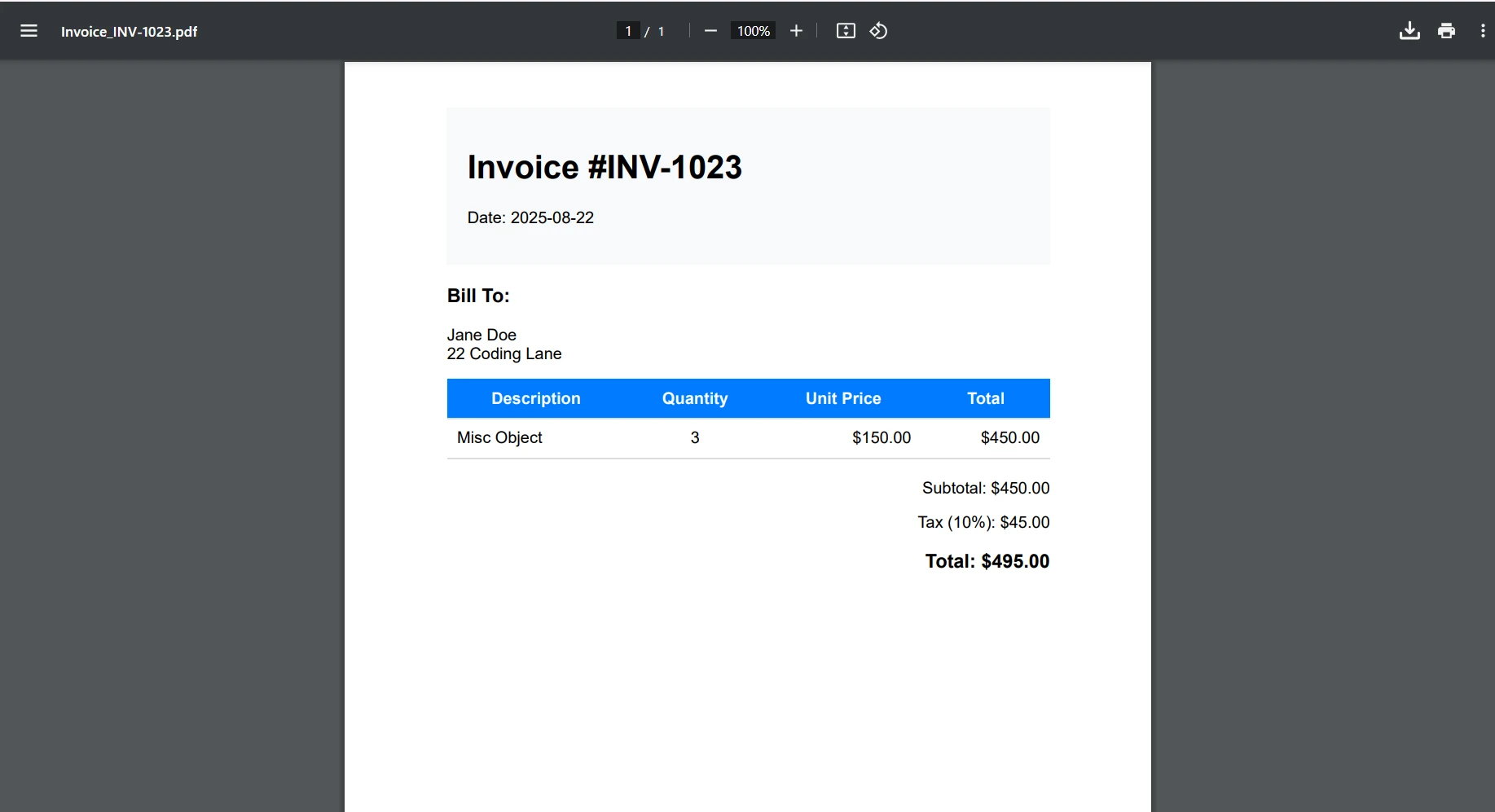
Invoice Output
Container Deployment Considerations
While this tutorial focuses on local development, here's a brief overview of containerizing your PDF API:
FROM mcr.microsoft.com/dotnet/aspnet:6.0 AS base
WORKDIR /app
EXPOSE 80
FROM mcr.microsoft.com/dotnet/sdk:6.0 AS build
WORKDIR /src
COPY ["PdfApiService.csproj", "."]
RUN dotnet restore
COPY . .
RUN dotnet build -c Release -o /app/build
FROM build AS publish
RUN dotnet publish -c Release -o /app/publish
FROM base AS final
WORKDIR /app
COPY --from=publish /app/publish .
# IronPDF requires additional dependencies on Linux
RUN apt-get update && apt-get install -y \
    libgdiplus \
    libc6-dev \
    libx11-dev \
    && rm -rf /var/lib/apt/lists/*
ENTRYPOINT ["dotnet", "PdfApiService.dll"]
The provided code is a Dockerfile written for building and running a .NETapplication, not C# code. Dockerfiles are not converted toVB.NET as they are not programming language code but configuration scripts forDocker. If you have C# code that needs conversion toVB.NET, please provide that code instead.
The provided code is a Dockerfile written for building and running a .NET application, not C# code. Dockerfiles are not converted to VB.NET as they are not programming language code but configuration scripts for Docker. If you have C# code that needs conversion to VB.NET, please provide that code instead.
For detailed deployment guides for your .NET PDF API, see:
ImportsSystem.Text.JsonImportsMicrosoft.AspNetCore.HttpImportsSystem.Threading.TasksPublic Class ErrorHandlingMiddleware PrivateReadOnly _next AsRequestDelegate Public Sub New(nextAsRequestDelegate) _next = next End Sub PublicAsync Function InvokeAsync(context AsHttpContext) AsTaskTryAwait _next(context)Catch ex AsExceptionAwaitHandleExceptionAsync(context, ex)EndTry End Function PrivateSharedAsync Function HandleExceptionAsync(context AsHttpContext, ex AsException) AsTask context.Response.ContentType = "application/json" context.Response.StatusCode = 500 Dim response = New With { .error = "An error occurred processing your request", .message = ex.Message }Await context.Response.WriteAsync(JsonSerializer.Serialize(response)) End FunctionEnd Class
Imports System.Text.Json
Imports Microsoft.AspNetCore.Http
Imports System.Threading.Tasks

Public Class ErrorHandlingMiddleware
    Private ReadOnly _next As RequestDelegate

    Public Sub New(next As RequestDelegate)
        _next = next
    End Sub

    Public Async Function InvokeAsync(context As HttpContext) As Task
        Try
            Await _next(context)
        Catch ex As Exception
            Await HandleExceptionAsync(context, ex)
        End Try
    End Function

    Private Shared Async Function HandleExceptionAsync(context As HttpContext, ex As Exception) As Task
        context.Response.ContentType = "application/json"
        context.Response.StatusCode = 500
        Dim response = New With {
            .error = "An error occurred processing your request",
            .message = ex.Message
        }
        Await context.Response.WriteAsync(JsonSerializer.Serialize(response))
    End Function
End Class
You've now built a robust .NET PDF API using ASP.NET Core and IronPDF that can handle various document generation scenarios. This REST API provides a solid foundation for centralized PDF operations in your applications.
Key takeaways:
IronPDF makes PDF generation in Web API projects straightforward with its Chrome-based rendering
You can easily adjust your Web API to edit existing PDF documents with IronPDF's advanced editing tools
RESTful design principles ensure your PDF API is intuitive and maintainable
Proper error handling and security measures are essential for production
Performance optimization through async operations and caching improves scalability
You will have support for desktop and web applications with scalable document solutions
IronPDF allows developers to create PDF documents, save PDF files, and convert HTML efficiently, making it the essential PDF document API for modern .NET Framework applications.
Next Steps
Ready to implement IronPDF in your production .NET PDF API? Here are your next actions:
Start your free trial - Test IronPDF with full functionality in your development environment
Curtis Chau holds a Bachelor’s degree in Computer Science (Carleton University) and specializes in front-end development with expertise in Node.js, TypeScript, JavaScript, and React. Passionate about crafting intuitive and aesthetically pleasing user interfaces, Curtis enjoys working with modern frameworks and creating well-structured, visually appealing manuals.