using IronPdf;

// Disable local disk access or cross-origin requests
Installation.EnableWebSecurity = true;

// Instantiate Renderer
var renderer = new ChromePdfRenderer();

// Create a PDF from a HTML string using C#
var pdf = renderer.RenderHtmlAsPdf("<h1>Hello World</h1>");

// Export to a file or Stream
pdf.SaveAs("output.pdf");

// Advanced Example with HTML Assets
// Load external html assets: Images, CSS and JavaScript.
// An optional BasePath 'C:\site\assets\' is set as the file location to load assets from
var myAdvancedPdf = renderer.RenderHtmlAsPdf("<img src='icons/iron.png'>", @"C:\site\assets\");
myAdvancedPdf.SaveAs("html-with-assets.pdf");
using IronPdf;// Disable local disk access or cross-origin requestsInstallation.EnableWebSecurity = true;// Instantiate Renderervar renderer = new ChromePdfRenderer();// Create a PDF from a HTML string using C#var pdf = renderer.RenderHtmlAsPdf("<h1>Hello World</h1>");// Export to a file or Streampdf.SaveAs("output.pdf");// Advanced Example with HTML Assets// Load external html assets: Images, CSS and JavaScript.// An optional BasePath 'C:\site\assets\' is set as the file location to load assets fromvar myAdvancedPdf = renderer.RenderHtmlAsPdf("<img src='icons/iron.png'>", @"C:\site\assets\");myAdvancedPdf.SaveAs("html-with-assets.pdf");
PM >Install-Package IronPdf
Install-Package IronPdf
USING IRONPDF
How to Convert HTML to PDF Using Azure and IronPDF
Converting HTML to PDF in Azure Functions requires IronPDF's Chrome rendering engine and proper Azure configuration (B1 tier minimum), enabling you to transform any HTML content - from simple strings to JavaScript-heavy pages - into pixel-perfect PDFs while handling Azure's sandbox restrictions and GDI+ limitations.
What Makes HTML to PDF Conversion Worth Learning?
Converting HTML content into PDF documents in cloud environments can be surprisingly challenging. If you've ever tried to deploy a PDF generator to Azure Functions, you've probably hit mysterious errors about GDI+ or sandbox limitations. The good news? With IronPDF and the right setup, you can convert any HTML content into pixel-perfect PDF files.
This tutorial shows you how to deploy a production-ready HTML to PDF converter in Azure Functions using IronPDF. You'll learn how to handle everything from simple HTML strings to JavaScript-heavy web pages while navigating Azure's unique environment constraints. Whether you're creating straightforward invoices or complex reports, by the end, you'll have mastered HTML to PDF conversion with IronPDF and Azure.
First Step:
Why is HTML to PDF Conversion Challenging in Azure?
Before diving into PDF conversion, let's understand why this task challenges developers in Azure. Azure's serverless and app services run within a security sandbox that restricts operations traditional PDF libraries depend on:
Limited GDI+ Access: Windows Graphics calls are blocked in lower tiers.
Today we'll focus on the container approach, which provides an isolated environment with minimal configuration and improved compatibility with IronPDF's rendering engine. For specialized environments like Azure Government Cloud or Azure China, the same principles apply - just adjust your deployment endpoints accordingly.
using IronPdf;using Microsoft.Azure.Functions.Worker;using Microsoft.Azure.Functions.Worker.Http;using Microsoft.Extensions.Logging;public class HtmlToPdfFunction{private readonly ILogger _logger;publicHtmlToPdfFunction(ILoggerFactory loggerFactory){ _logger = loggerFactory.CreateLogger<HtmlToPdfFunction>(); // Configure IronPDF for AzureConfigureIronPdf();}private voidConfigureIronPdf(){ // Set your license key (get a trial key from https://ironpdf.com/licensing/IronPdf.License.LicenseKey = "YOUR-LICENSE-KEY"; // Essential Azure configurationsIronPdf.Installation.LinuxAndDockerDependenciesAutoConfig = true;IronPdf.Installation.ChromeGpuMode = IronPdf.Engines.Chrome.ChromeGpuModes.Disabled;IronPdf.Installation.CustomDeploymentDirectory = "/tmp"; // Optional: Enable logging for troubleshootingIronPdf.Logging.Logger.LoggingMode = IronPdf.Logging.Logger.LoggingModes.All;}}
using IronPdf;
using Microsoft.Azure.Functions.Worker;
using Microsoft.Azure.Functions.Worker.Http;
using Microsoft.Extensions.Logging;
public class HtmlToPdfFunction
{
private readonly ILogger _logger;
public HtmlToPdfFunction(ILoggerFactory loggerFactory)
{
    _logger = loggerFactory.CreateLogger<HtmlToPdfFunction>();
    // Configure IronPDF for Azure
        ConfigureIronPdf();
}
private void ConfigureIronPdf()
{
    // Set your license key (get a trial key from https://ironpdf.com/licensing/
        IronPdf.License.LicenseKey = "YOUR-LICENSE-KEY";
    // Essential Azure configurations
        IronPdf.Installation.LinuxAndDockerDependenciesAutoConfig = true;
        IronPdf.Installation.ChromeGpuMode = IronPdf.Engines.Chrome.ChromeGpuModes.Disabled;
        IronPdf.Installation.CustomDeploymentDirectory = "/tmp";
    // Optional: Enable logging for troubleshooting
        IronPdf.Logging.Logger.LoggingMode = IronPdf.Logging.Logger.LoggingModes.All;
}
}
ImportsIronPdfImportsMicrosoft.Azure.Functions.WorkerImportsMicrosoft.Azure.Functions.Worker.HttpImportsMicrosoft.Extensions.LoggingPublic Class HtmlToPdfFunction PrivateReadOnly _logger AsILogger Public Sub New(loggerFactory AsILoggerFactory) _logger = loggerFactory.CreateLogger(OfHtmlToPdfFunction)() ' Configure IronPDF for AzureConfigureIronPdf() End Sub Private Sub ConfigureIronPdf() ' Set your license key (get a trial key from https://ironpdf.com/licensing/IronPdf.License.LicenseKey = "YOUR-LICENSE-KEY" ' Essential Azure configurationsIronPdf.Installation.LinuxAndDockerDependenciesAutoConfig = TrueIronPdf.Installation.ChromeGpuMode = IronPdf.Engines.Chrome.ChromeGpuModes.DisabledIronPdf.Installation.CustomDeploymentDirectory = "/tmp" ' Optional: Enable logging for troubleshootingIronPdf.Logging.Logger.LoggingMode = IronPdf.Logging.Logger.LoggingModes.All End SubEnd Class
Imports IronPdf
Imports Microsoft.Azure.Functions.Worker
Imports Microsoft.Azure.Functions.Worker.Http
Imports Microsoft.Extensions.Logging

Public Class HtmlToPdfFunction
    Private ReadOnly _logger As ILogger

    Public Sub New(loggerFactory As ILoggerFactory)
        _logger = loggerFactory.CreateLogger(Of HtmlToPdfFunction)()
        ' Configure IronPDF for Azure
        ConfigureIronPdf()
    End Sub

    Private Sub ConfigureIronPdf()
        ' Set your license key (get a trial key from https://ironpdf.com/licensing/
        IronPdf.License.LicenseKey = "YOUR-LICENSE-KEY"
        ' Essential Azure configurations
        IronPdf.Installation.LinuxAndDockerDependenciesAutoConfig = True
        IronPdf.Installation.ChromeGpuMode = IronPdf.Engines.Chrome.ChromeGpuModes.Disabled
        IronPdf.Installation.CustomDeploymentDirectory = "/tmp"
        ' Optional: Enable logging for troubleshooting
        IronPdf.Logging.Logger.LoggingMode = IronPdf.Logging.Logger.LoggingModes.All
    End Sub
End Class
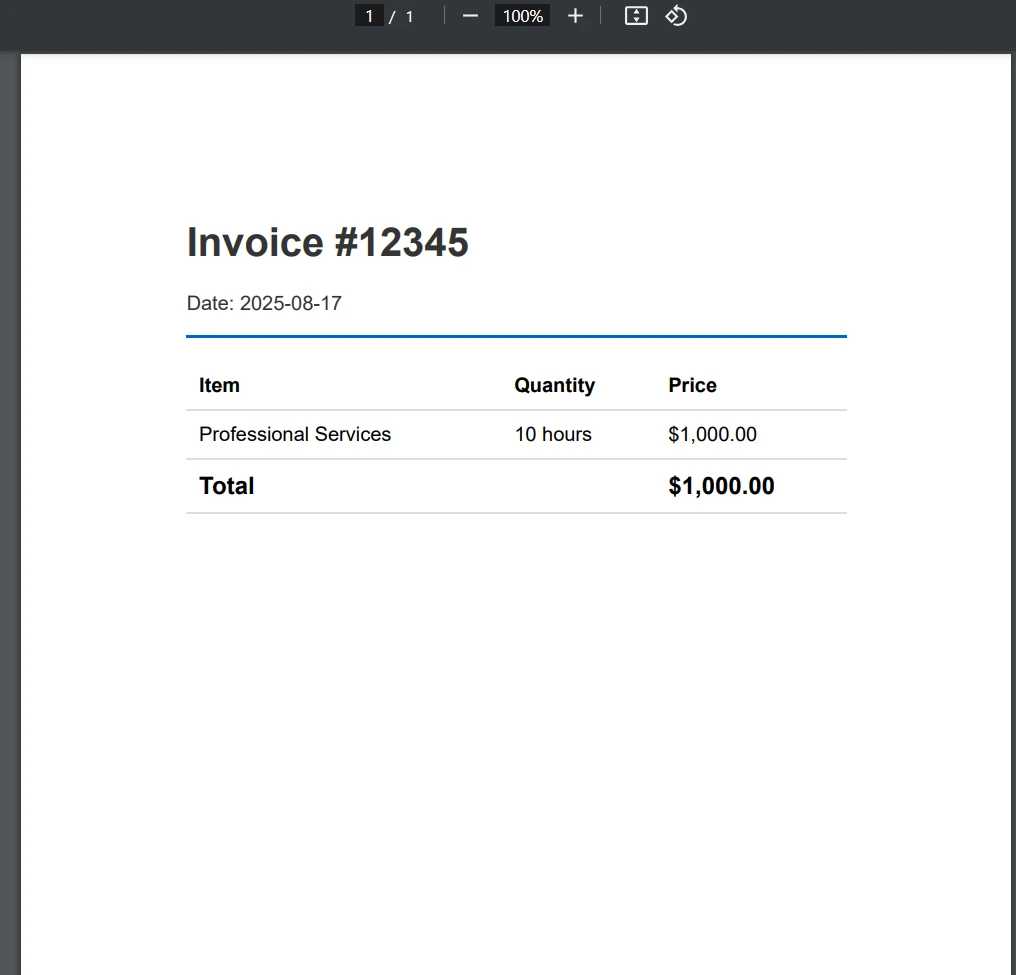
ImportsSystemImportsSystem.NetImportsSystem.Threading.TasksImportsMicrosoft.Azure.Functions.WorkerImportsMicrosoft.Azure.Functions.Worker.HttpImportsIronPdf<Function("ConvertHtmlToPdf")>Public Class PdfConverter PrivateReadOnly _logger AsILogger Public Sub New(logger AsILogger) _logger = logger End Sub PublicAsync Function ConvertHtmlToPdf( <HttpTrigger(AuthorizationLevel.Function, "post")> req AsHttpRequestData, executionContext AsFunctionContext) AsTask(OfHttpResponseData) _logger.LogInformation("Starting HTML to PDF conversion")Try ' Simple HTML invoice example Dim htmlContent AsString = " <!DOCTYPE html> <html> <head> <meta charset='UTF-8'> <style> body { font-family: Arial, sans-serif; margin: 40px; } .header { color: #333; border-bottom: 2px solid #0066cc; } .invoice-details { margin: 20px 0; } table { width: 100%; border-collapse: collapse; } th, td { padding: 10px; text-align: left; border-bottom: 1px solid #ddd; } .total { font-weight: bold; font-size: 1.2em; } </style> </head> <body> <div class='header'> <h1>Invoice #12345</h1> <p>Date: " & DateTime.Now.ToString("yyyy-MM-dd") & "</p> </div> <div class='invoice-details'> <table> <tr> <th>Item</th> <th>Quantity</th> <th>Price</th> </tr> <tr> <td>Professional Services</td> <td>10 hours</td> <td>$1,000.00</td> </tr> <tr> <td colspan='2' class='total'>Total</td> <td class='total'>$1,000.00</td> </tr> </table> </div> </body> </html>" ' Create Chrome renderer Dim renderer As New ChromePdfRenderer() ' Configure rendering options renderer.RenderingOptions.PaperSize = IronPdf.Rendering.PdfPaperSize.A4 renderer.RenderingOptions.MarginTop = 25 renderer.RenderingOptions.MarginBottom = 25 renderer.RenderingOptions.MarginLeft = 25 renderer.RenderingOptions.MarginRight = 25 ' Convert HTML to PDF Dim pdf = renderer.RenderHtmlAsPdf(htmlContent) ' Return PDF as response Dim response = req.CreateResponse(HttpStatusCode.OK) response.Headers.Add("Content-Type", "application/pdf") response.Headers.Add("Content-Disposition", "attachment; filename=invoice.pdf")Awaitresponse.Body.WriteAsync(pdf.BinaryData) _logger.LogInformation("PDF generated successfully") Return responseCatch ex AsException _logger.LogError(ex, "Error generating PDF") Dim errorResponse = req.CreateResponse(HttpStatusCode.InternalServerError)Await errorResponse.WriteStringAsync($"Error: {ex.Message}") Return errorResponseEndTry End FunctionEnd Class
Imports System
Imports System.Net
Imports System.Threading.Tasks
Imports Microsoft.Azure.Functions.Worker
Imports Microsoft.Azure.Functions.Worker.Http
Imports IronPdf

<Function("ConvertHtmlToPdf")>
Public Class PdfConverter
    Private ReadOnly _logger As ILogger

    Public Sub New(logger As ILogger)
        _logger = logger
    End Sub

    Public Async Function ConvertHtmlToPdf(
        <HttpTrigger(AuthorizationLevel.Function, "post")> req As HttpRequestData,
        executionContext As FunctionContext) As Task(Of HttpResponseData)

        _logger.LogInformation("Starting HTML to PDF conversion")
        Try
            ' Simple HTML invoice example
            Dim htmlContent As String = "
            <!DOCTYPE html>
            <html>
            <head>
                <meta charset='UTF-8'>
                <style>
                    body { font-family: Arial, sans-serif; margin: 40px; }
                    .header { color: #333; border-bottom: 2px solid #0066cc; }
                    .invoice-details { margin: 20px 0; }
                    table { width: 100%; border-collapse: collapse; }
                    th, td { padding: 10px; text-align: left; border-bottom: 1px solid #ddd; }
                    .total { font-weight: bold; font-size: 1.2em; }
                </style>
            </head>
            <body>
                <div class='header'>
                    <h1>Invoice #12345</h1>
                    <p>Date: " & DateTime.Now.ToString("yyyy-MM-dd") & "</p>
                </div>
                <div class='invoice-details'>
                    <table>
                        <tr>
                            <th>Item</th>
                            <th>Quantity</th>
                            <th>Price</th>
                        </tr>
                        <tr>
                            <td>Professional Services</td>
                            <td>10 hours</td>
                            <td>$1,000.00</td>
                        </tr>
                        <tr>
                            <td colspan='2' class='total'>Total</td>
                            <td class='total'>$1,000.00</td>
                        </tr>
                    </table>
                </div>
            </body>
            </html>"

            ' Create Chrome renderer
            Dim renderer As New ChromePdfRenderer()

            ' Configure rendering options
            renderer.RenderingOptions.PaperSize = IronPdf.Rendering.PdfPaperSize.A4
            renderer.RenderingOptions.MarginTop = 25
            renderer.RenderingOptions.MarginBottom = 25
            renderer.RenderingOptions.MarginLeft = 25
            renderer.RenderingOptions.MarginRight = 25

            ' Convert HTML to PDF
            Dim pdf = renderer.RenderHtmlAsPdf(htmlContent)

            ' Return PDF as response
            Dim response = req.CreateResponse(HttpStatusCode.OK)
            response.Headers.Add("Content-Type", "application/pdf")
            response.Headers.Add("Content-Disposition", "attachment; filename=invoice.pdf")
            Await response.Body.WriteAsync(pdf.BinaryData)
            _logger.LogInformation("PDF generated successfully")
            Return response
        Catch ex As Exception
            _logger.LogError(ex, "Error generating PDF")
            Dim errorResponse = req.CreateResponse(HttpStatusCode.InternalServerError)
            Await errorResponse.WriteStringAsync($"Error: {ex.Message}")
            Return errorResponse
        End Try
    End Function
End Class
This takes the given HTML string and renders it into a high-quality PDF document, complete with the custom rendering options we configured using the RenderingOptions class.
[Function("ConvertUrlToPdf")]public async Task<HttpResponseData> ConvertUrlToPdf( [HttpTrigger(AuthorizationLevel.Function, "post")] HttpRequestData req,FunctionContext executionContext){var requestBody = await req.ReadAsStringAsync();var urlRequest = JsonSerializer.Deserialize<UrlRequest>(requestBody);try{ var renderer = new ChromePdfRenderer(); // Configure for web page rendering renderer.RenderingOptions.PaperSize = IronPdf.Rendering.PdfPaperSize.A4; renderer.RenderingOptions.PrintHtmlBackgrounds = true; renderer.RenderingOptions.CreatePdfFormsFromHtml = true; // Enable JavaScript execution (important for dynamic content) renderer.RenderingOptions.EnableJavaScript = true; renderer.RenderingOptions.RenderDelay = 1000; // Wait for JS to execute // Convert URL to PDF var pdf = renderer.RenderUrlAsPdf(urlRequest.Url); var response = req.CreateResponse(HttpStatusCode.OK); response.Headers.Add("Content-Type", "application/pdf"); await response.Body.WriteAsync(pdf.BinaryData); return response;}catch (Exception ex){ _logger.LogError(ex, "Error converting URL to PDF"); throw;}}public class UrlRequest{public stringUrl { get; set; }}
[Function("ConvertUrlToPdf")]
public async Task<HttpResponseData> ConvertUrlToPdf(
    [HttpTrigger(AuthorizationLevel.Function, "post")] HttpRequestData req,
FunctionContext executionContext)
{
var requestBody = await req.ReadAsStringAsync();
var urlRequest = JsonSerializer.Deserialize<UrlRequest>(requestBody);
try
{
    var renderer = new ChromePdfRenderer();
    // Configure for web page rendering
        renderer.RenderingOptions.PaperSize = IronPdf.Rendering.PdfPaperSize.A4;
        renderer.RenderingOptions.PrintHtmlBackgrounds = true;
        renderer.RenderingOptions.CreatePdfFormsFromHtml = true;
    // Enable JavaScript execution (important for dynamic content)
        renderer.RenderingOptions.EnableJavaScript = true;
        renderer.RenderingOptions.RenderDelay = 1000; // Wait for JS to execute
    // Convert URL to PDF
    var pdf = renderer.RenderUrlAsPdf(urlRequest.Url);
    var response = req.CreateResponse(HttpStatusCode.OK);
        response.Headers.Add("Content-Type", "application/pdf");
    await response.Body.WriteAsync(pdf.BinaryData);
    return response;
}
catch (Exception ex)
{
        _logger.LogError(ex, "Error converting URL to PDF");
    throw;
}
}
public class UrlRequest
{
public string Url { get; set; }
}
ImportsSystemImportsSystem.NetImportsSystem.Text.JsonImportsSystem.Threading.TasksImportsIronPdfImportsMicrosoft.Azure.Functions.WorkerImportsMicrosoft.Azure.Functions.Worker.HttpImportsMicrosoft.Extensions.Logging<Function("ConvertUrlToPdf")>Public Class ConvertUrlToPdfFunction PrivateReadOnly _logger AsILogger Public Sub New(loggerFactory AsILoggerFactory) _logger = loggerFactory.CreateLogger(OfConvertUrlToPdfFunction)() End Sub PublicAsync Function ConvertUrlToPdf( <HttpTrigger(AuthorizationLevel.Function, "post")> req AsHttpRequestData, executionContext AsFunctionContext) AsTask(OfHttpResponseData) Dim requestBody AsString = Await req.ReadAsStringAsync() Dim urlRequest AsUrlRequest = JsonSerializer.Deserialize(OfUrlRequest)(requestBody)Try Dim renderer As New ChromePdfRenderer() ' Configure for web page rendering renderer.RenderingOptions.PaperSize = IronPdf.Rendering.PdfPaperSize.A4 renderer.RenderingOptions.PrintHtmlBackgrounds = True renderer.RenderingOptions.CreatePdfFormsFromHtml = True ' Enable JavaScript execution (important for dynamic content) renderer.RenderingOptions.EnableJavaScript = True renderer.RenderingOptions.RenderDelay = 1000 ' Wait for JS to execute ' Convert URL to PDF Dim pdf = renderer.RenderUrlAsPdf(urlRequest.Url) Dim response = req.CreateResponse(HttpStatusCode.OK) response.Headers.Add("Content-Type", "application/pdf")Awaitresponse.Body.WriteAsync(pdf.BinaryData) Return responseCatch ex AsException _logger.LogError(ex, "Error converting URL to PDF")ThrowEndTry End FunctionEnd ClassPublic Class UrlRequest Public Property UrlAsStringEnd Class
Imports System
Imports System.Net
Imports System.Text.Json
Imports System.Threading.Tasks
Imports IronPdf
Imports Microsoft.Azure.Functions.Worker
Imports Microsoft.Azure.Functions.Worker.Http
Imports Microsoft.Extensions.Logging

<Function("ConvertUrlToPdf")>
Public Class ConvertUrlToPdfFunction
    Private ReadOnly _logger As ILogger

    Public Sub New(loggerFactory As ILoggerFactory)
        _logger = loggerFactory.CreateLogger(Of ConvertUrlToPdfFunction)()
    End Sub

    Public Async Function ConvertUrlToPdf(
        <HttpTrigger(AuthorizationLevel.Function, "post")> req As HttpRequestData,
        executionContext As FunctionContext) As Task(Of HttpResponseData)

        Dim requestBody As String = Await req.ReadAsStringAsync()
        Dim urlRequest As UrlRequest = JsonSerializer.Deserialize(Of UrlRequest)(requestBody)

        Try
            Dim renderer As New ChromePdfRenderer()
            ' Configure for web page rendering
            renderer.RenderingOptions.PaperSize = IronPdf.Rendering.PdfPaperSize.A4
            renderer.RenderingOptions.PrintHtmlBackgrounds = True
            renderer.RenderingOptions.CreatePdfFormsFromHtml = True
            ' Enable JavaScript execution (important for dynamic content)
            renderer.RenderingOptions.EnableJavaScript = True
            renderer.RenderingOptions.RenderDelay = 1000 ' Wait for JS to execute
            ' Convert URL to PDF
            Dim pdf = renderer.RenderUrlAsPdf(urlRequest.Url)
            Dim response = req.CreateResponse(HttpStatusCode.OK)
            response.Headers.Add("Content-Type", "application/pdf")
            Await response.Body.WriteAsync(pdf.BinaryData)
            Return response
        Catch ex As Exception
            _logger.LogError(ex, "Error converting URL to PDF")
            Throw
        End Try
    End Function
End Class

Public Class UrlRequest
    Public Property Url As String
End Class
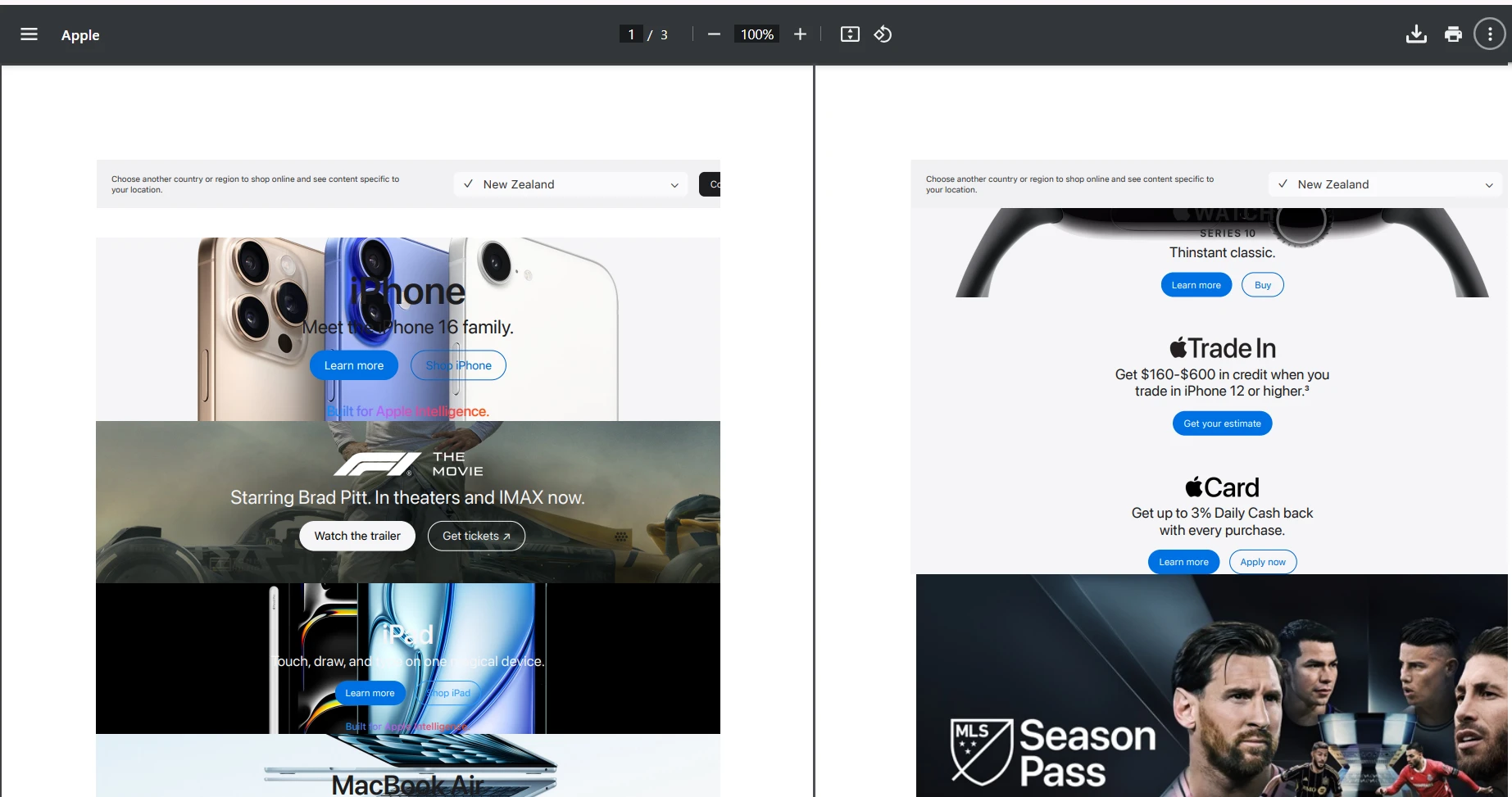
What Does URL Conversion Output Look Like?
How to Handle Complex HTML Content with JavaScript?
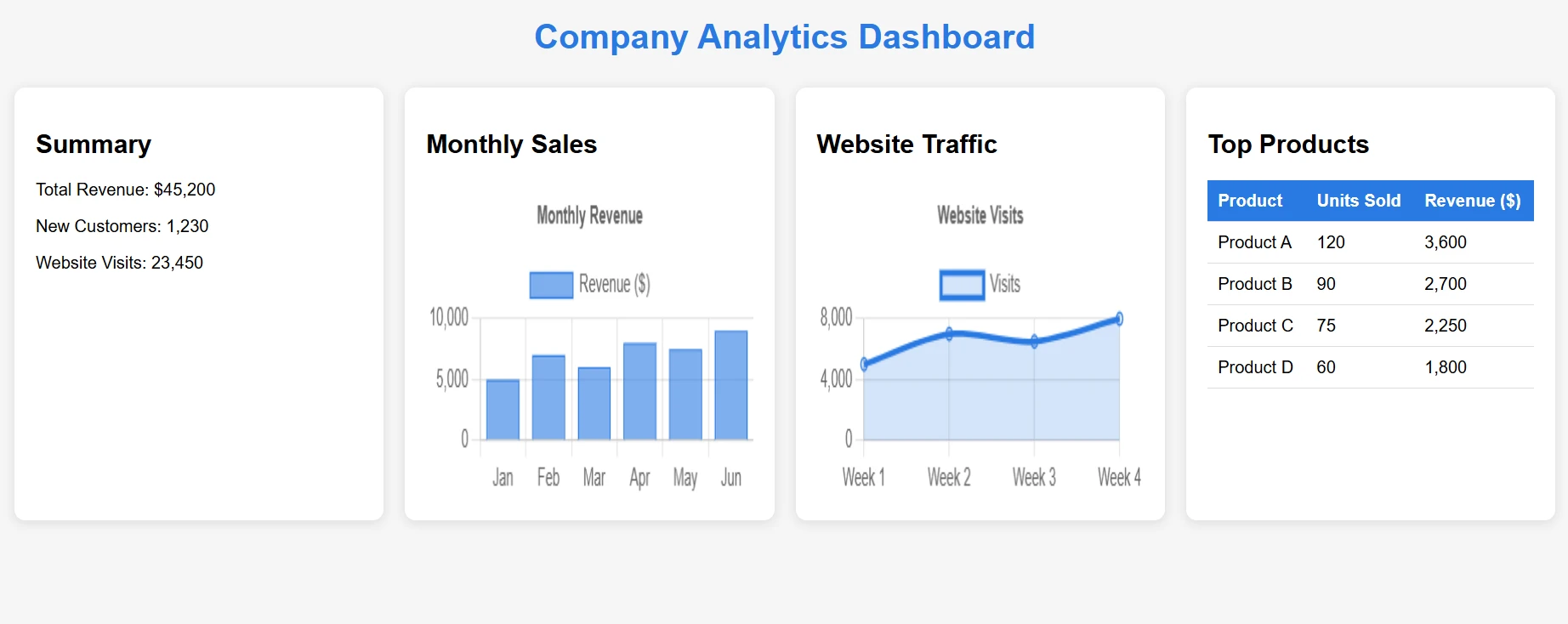
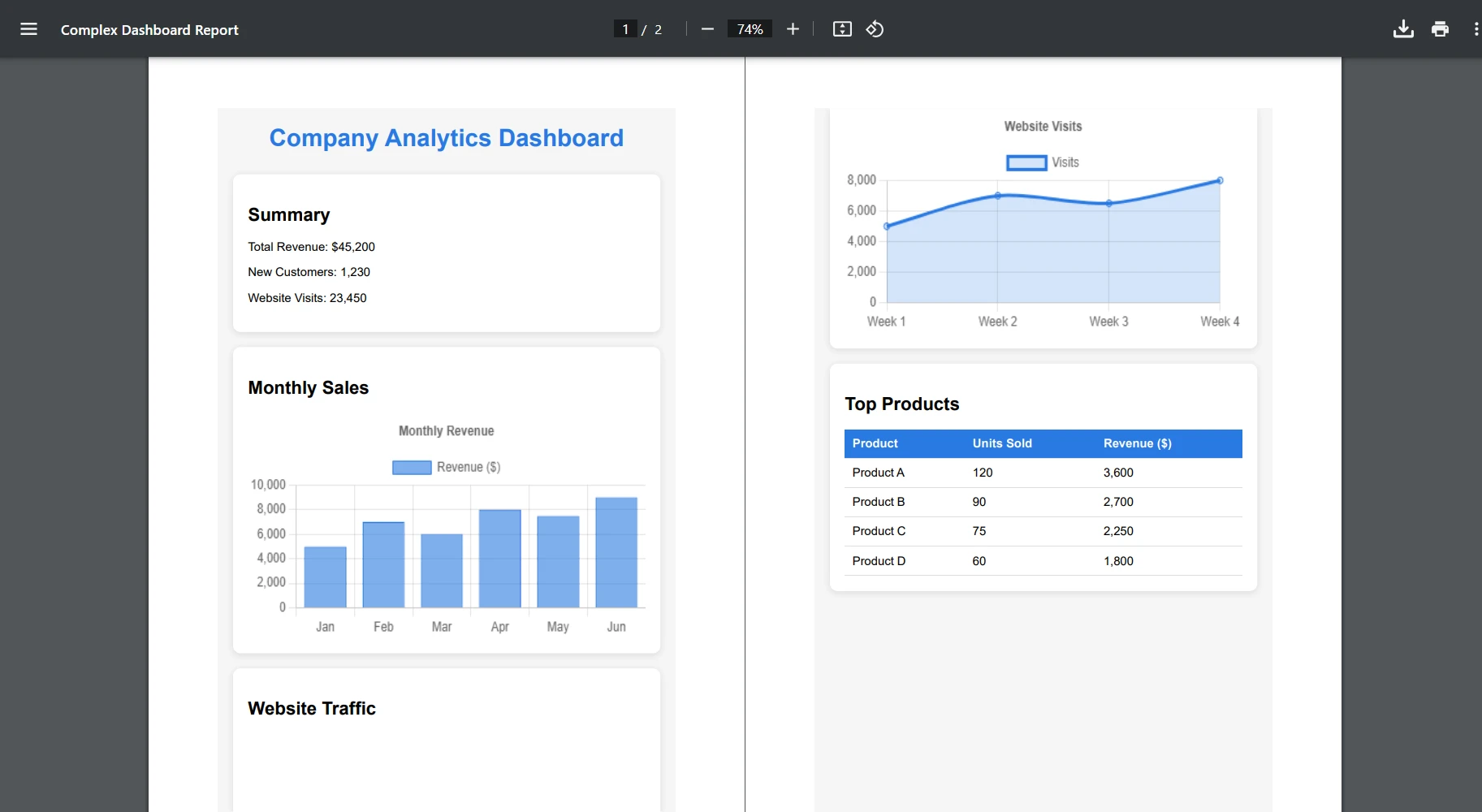
For this example, we'll take an HTML file with JavaScript content and convert it to PDF.
[Function("ConvertComplexHtmlToPdf")]public async Task<HttpResponseData> ConvertComplexHtmlToPdf([HttpTrigger(AuthorizationLevel.Function, "post")] HttpRequestData req,FunctionContext executionContext){ try { // Load complex HTML from file // [USER TO PROVIDE: complex-dashboard.html with charts and JavaScript] string complexHtml = File.ReadAllText("Templates/complex-dashboard.html"); var renderer = new ChromePdfRenderer(); // JavaScript-specific configurations renderer.RenderingOptions.EnableJavaScript = true; renderer.RenderingOptions.WaitFor.JavaScript(3000); // Wait 3 seconds for JS // Optional: Set the CSS media type for print or screen styles renderer.RenderingOptions.CssMediaType = IronPdf.Rendering.PdfCssMediaType.Print; // Set viewport for responsive designs renderer.RenderingOptions.ViewPortWidth = 1920; renderer.RenderingOptions.ViewPortHeight = 1080; var pdf = renderer.RenderHtmlAsPdf(complexHtml); // Add metadata pdf.MetaData.Author = "Azure Function"; pdf.MetaData.CreationDate = DateTime.Now; pdf.MetaData.Title = "Complex Dashboard Report"; var response = req.CreateResponse(HttpStatusCode.OK); response.Headers.Add("Content-Type", "application/pdf"); await response.Body.WriteAsync(pdf.BinaryData); return response; } catch (Exception ex) { _logger.LogError(ex, "Error with complex HTML conversion"); throw; }}
[Function("ConvertComplexHtmlToPdf")]
public async Task<HttpResponseData> ConvertComplexHtmlToPdf(
[HttpTrigger(AuthorizationLevel.Function, "post")] HttpRequestData req,
FunctionContext executionContext)
{
    try
    {
        // Load complex HTML from file
        // [USER TO PROVIDE: complex-dashboard.html with charts and JavaScript]
        string complexHtml = File.ReadAllText("Templates/complex-dashboard.html");
        var renderer = new ChromePdfRenderer();
        // JavaScript-specific configurations
        renderer.RenderingOptions.EnableJavaScript = true;
        renderer.RenderingOptions.WaitFor.JavaScript(3000); // Wait 3 seconds for JS
        // Optional: Set the CSS media type for print or screen styles
        renderer.RenderingOptions.CssMediaType = IronPdf.Rendering.PdfCssMediaType.Print;
        // Set viewport for responsive designs
        renderer.RenderingOptions.ViewPortWidth = 1920;
        renderer.RenderingOptions.ViewPortHeight = 1080;
        var pdf = renderer.RenderHtmlAsPdf(complexHtml);
        // Add metadata
        pdf.MetaData.Author = "Azure Function";
        pdf.MetaData.CreationDate = DateTime.Now;
        pdf.MetaData.Title = "Complex Dashboard Report";
        var response = req.CreateResponse(HttpStatusCode.OK);
        response.Headers.Add("Content-Type", "application/pdf");
        await response.Body.WriteAsync(pdf.BinaryData);
        return response;
    }
    catch (Exception ex)
    {
        _logger.LogError(ex, "Error with complex HTML conversion");
        throw;
    }
}
ImportsSystemImportsSystem.IOImportsSystem.NetImportsSystem.Threading.TasksImportsIronPdfImportsMicrosoft.Azure.Functions.WorkerImportsMicrosoft.Azure.Functions.Worker.Http<Function("ConvertComplexHtmlToPdf")>Public Class ConvertComplexHtmlToPdfFunction PrivateReadOnly _logger AsILogger Public Sub New(loggerFactory AsILoggerFactory) _logger = loggerFactory.CreateLogger(OfConvertComplexHtmlToPdfFunction)() End Sub PublicAsync Function ConvertComplexHtmlToPdf( <HttpTrigger(AuthorizationLevel.Function, "post")> req AsHttpRequestData, executionContext AsFunctionContext) AsTask(OfHttpResponseData)Try ' Load complex HTML from file ' [USER TO PROVIDE: complex-dashboard.html with charts and JavaScript] Dim complexHtml AsString = File.ReadAllText("Templates/complex-dashboard.html") Dim renderer As New ChromePdfRenderer() ' JavaScript-specific configurations renderer.RenderingOptions.EnableJavaScript = True renderer.RenderingOptions.WaitFor.JavaScript(3000) ' Wait 3 seconds for JS ' Optional: Set the CSS media type for print or screen styles renderer.RenderingOptions.CssMediaType = IronPdf.Rendering.PdfCssMediaType.Print ' Set viewport for responsive designs renderer.RenderingOptions.ViewPortWidth = 1920 renderer.RenderingOptions.ViewPortHeight = 1080 Dim pdf = renderer.RenderHtmlAsPdf(complexHtml) ' Add metadata pdf.MetaData.Author = "Azure Function" pdf.MetaData.CreationDate = DateTime.Now pdf.MetaData.Title = "Complex Dashboard Report" Dim response = req.CreateResponse(HttpStatusCode.OK) response.Headers.Add("Content-Type", "application/pdf")Awaitresponse.Body.WriteAsync(pdf.BinaryData) Return responseCatch ex AsException _logger.LogError(ex, "Error with complex HTML conversion")ThrowEndTry End FunctionEnd Class
Imports System
Imports System.IO
Imports System.Net
Imports System.Threading.Tasks
Imports IronPdf
Imports Microsoft.Azure.Functions.Worker
Imports Microsoft.Azure.Functions.Worker.Http

<Function("ConvertComplexHtmlToPdf")>
Public Class ConvertComplexHtmlToPdfFunction
    Private ReadOnly _logger As ILogger

    Public Sub New(loggerFactory As ILoggerFactory)
        _logger = loggerFactory.CreateLogger(Of ConvertComplexHtmlToPdfFunction)()
    End Sub

    Public Async Function ConvertComplexHtmlToPdf(
        <HttpTrigger(AuthorizationLevel.Function, "post")> req As HttpRequestData,
        executionContext As FunctionContext) As Task(Of HttpResponseData)

        Try
            ' Load complex HTML from file
            ' [USER TO PROVIDE: complex-dashboard.html with charts and JavaScript]
            Dim complexHtml As String = File.ReadAllText("Templates/complex-dashboard.html")
            Dim renderer As New ChromePdfRenderer()
            ' JavaScript-specific configurations
            renderer.RenderingOptions.EnableJavaScript = True
            renderer.RenderingOptions.WaitFor.JavaScript(3000) ' Wait 3 seconds for JS
            ' Optional: Set the CSS media type for print or screen styles
            renderer.RenderingOptions.CssMediaType = IronPdf.Rendering.PdfCssMediaType.Print
            ' Set viewport for responsive designs
            renderer.RenderingOptions.ViewPortWidth = 1920
            renderer.RenderingOptions.ViewPortHeight = 1080
            Dim pdf = renderer.RenderHtmlAsPdf(complexHtml)
            ' Add metadata
            pdf.MetaData.Author = "Azure Function"
            pdf.MetaData.CreationDate = DateTime.Now
            pdf.MetaData.Title = "Complex Dashboard Report"
            Dim response = req.CreateResponse(HttpStatusCode.OK)
            response.Headers.Add("Content-Type", "application/pdf")
            Await response.Body.WriteAsync(pdf.BinaryData)
            Return response
        Catch ex As Exception
            _logger.LogError(ex, "Error with complex HTML conversion")
            Throw
        End Try
    End Function
End Class
[Function("ConvertChartToPdf")] public async Task<HttpResponseData> ConvertChartToPdf( [HttpTrigger(AuthorizationLevel.Function, "post")] HttpRequestData req, FunctionContext executionContext) { try { // Load chart template string chartHtml = File.ReadAllText("Templates/chart-template.html"); // Replace placeholders with actual data var chartData = awaitGetChartDataAsync(); chartHtml = chartHtml.Replace("{{CHART_DATA}}", JsonSerializer.Serialize(chartData)); var renderer = new ChromePdfRenderer(); // Ensure charts render completely renderer.RenderingOptions.EnableJavaScript = true; renderer.RenderingOptions.WaitFor.RenderDelay(2000); // Set paper orientation for charts renderer.RenderingOptions.PaperOrientation = IronPdf.Rendering.PdfPaperOrientation.Landscape; var pdf = renderer.RenderHtmlAsPdf(chartHtml); var response = req.CreateResponse(HttpStatusCode.OK); response.Headers.Add("Content-Type", "application/pdf"); await response.Body.WriteAsync(pdf.BinaryData); return response; } catch (Exception ex) { _logger.LogError(ex, "Chart conversion error"); throw; } }
[Function("ConvertChartToPdf")]
    public async Task<HttpResponseData> ConvertChartToPdf(
    [HttpTrigger(AuthorizationLevel.Function, "post")] HttpRequestData req,
    FunctionContext executionContext)
    {
        try
        {
            // Load chart template
            string chartHtml = File.ReadAllText("Templates/chart-template.html");
            // Replace placeholders with actual data
            var chartData = await GetChartDataAsync();
            chartHtml = chartHtml.Replace("{{CHART_DATA}}", JsonSerializer.Serialize(chartData));
            var renderer = new ChromePdfRenderer();
            // Ensure charts render completely
            renderer.RenderingOptions.EnableJavaScript = true;
            renderer.RenderingOptions.WaitFor.RenderDelay(2000);
            // Set paper orientation for charts
            renderer.RenderingOptions.PaperOrientation = IronPdf.Rendering.PdfPaperOrientation.Landscape;
            var pdf = renderer.RenderHtmlAsPdf(chartHtml);
            var response = req.CreateResponse(HttpStatusCode.OK);
            response.Headers.Add("Content-Type", "application/pdf");
            await response.Body.WriteAsync(pdf.BinaryData);
            return response;
        }
        catch (Exception ex)
        {
            _logger.LogError(ex, "Chart conversion error");
            throw;
        }
    }
ImportsSystemImportsSystem.IOImportsSystem.NetImportsSystem.Text.JsonImportsSystem.Threading.TasksImportsIronPdfImportsMicrosoft.Azure.Functions.WorkerImportsMicrosoft.Azure.Functions.Worker.Http<Function("ConvertChartToPdf")>Public Class ChartConverter PrivateReadOnly _logger AsILogger Public Sub New(logger AsILogger) _logger = logger End Sub PublicAsync Function ConvertChartToPdf( <HttpTrigger(AuthorizationLevel.Function, "post")> req AsHttpRequestData, executionContext AsFunctionContext) AsTask(OfHttpResponseData)Try ' Load chart template Dim chartHtml AsString = File.ReadAllText("Templates/chart-template.html") ' Replace placeholders with actual data Dim chartData = AwaitGetChartDataAsync() chartHtml = chartHtml.Replace("{{CHART_DATA}}", JsonSerializer.Serialize(chartData)) Dim renderer As New ChromePdfRenderer() ' Ensure charts render completely renderer.RenderingOptions.EnableJavaScript = True renderer.RenderingOptions.WaitFor.RenderDelay(2000) ' Set paper orientation for charts renderer.RenderingOptions.PaperOrientation = IronPdf.Rendering.PdfPaperOrientation.Landscape Dim pdf = renderer.RenderHtmlAsPdf(chartHtml) Dim response = req.CreateResponse(HttpStatusCode.OK) response.Headers.Add("Content-Type", "application/pdf")Awaitresponse.Body.WriteAsync(pdf.BinaryData) Return responseCatch ex AsException _logger.LogError(ex, "Chart conversion error")ThrowEndTry End Function PrivateAsync Function GetChartDataAsync() AsTask(OfObject) ' Placeholder for actual implementation ReturnAwaitTask.FromResult(New Object()) End FunctionEnd Class
Imports System
Imports System.IO
Imports System.Net
Imports System.Text.Json
Imports System.Threading.Tasks
Imports IronPdf
Imports Microsoft.Azure.Functions.Worker
Imports Microsoft.Azure.Functions.Worker.Http

<Function("ConvertChartToPdf")>
Public Class ChartConverter
    Private ReadOnly _logger As ILogger

    Public Sub New(logger As ILogger)
        _logger = logger
    End Sub

    Public Async Function ConvertChartToPdf(
        <HttpTrigger(AuthorizationLevel.Function, "post")> req As HttpRequestData,
        executionContext As FunctionContext) As Task(Of HttpResponseData)

        Try
            ' Load chart template
            Dim chartHtml As String = File.ReadAllText("Templates/chart-template.html")
            ' Replace placeholders with actual data
            Dim chartData = Await GetChartDataAsync()
            chartHtml = chartHtml.Replace("{{CHART_DATA}}", JsonSerializer.Serialize(chartData))
            Dim renderer As New ChromePdfRenderer()
            ' Ensure charts render completely
            renderer.RenderingOptions.EnableJavaScript = True
            renderer.RenderingOptions.WaitFor.RenderDelay(2000)
            ' Set paper orientation for charts
            renderer.RenderingOptions.PaperOrientation = IronPdf.Rendering.PdfPaperOrientation.Landscape
            Dim pdf = renderer.RenderHtmlAsPdf(chartHtml)
            Dim response = req.CreateResponse(HttpStatusCode.OK)
            response.Headers.Add("Content-Type", "application/pdf")
            Await response.Body.WriteAsync(pdf.BinaryData)
            Return response
        Catch ex As Exception
            _logger.LogError(ex, "Chart conversion error")
            Throw
        End Try
    End Function

    Private Async Function GetChartDataAsync() As Task(Of Object)
        ' Placeholder for actual implementation
        Return Await Task.FromResult(New Object())
    End Function
End Class
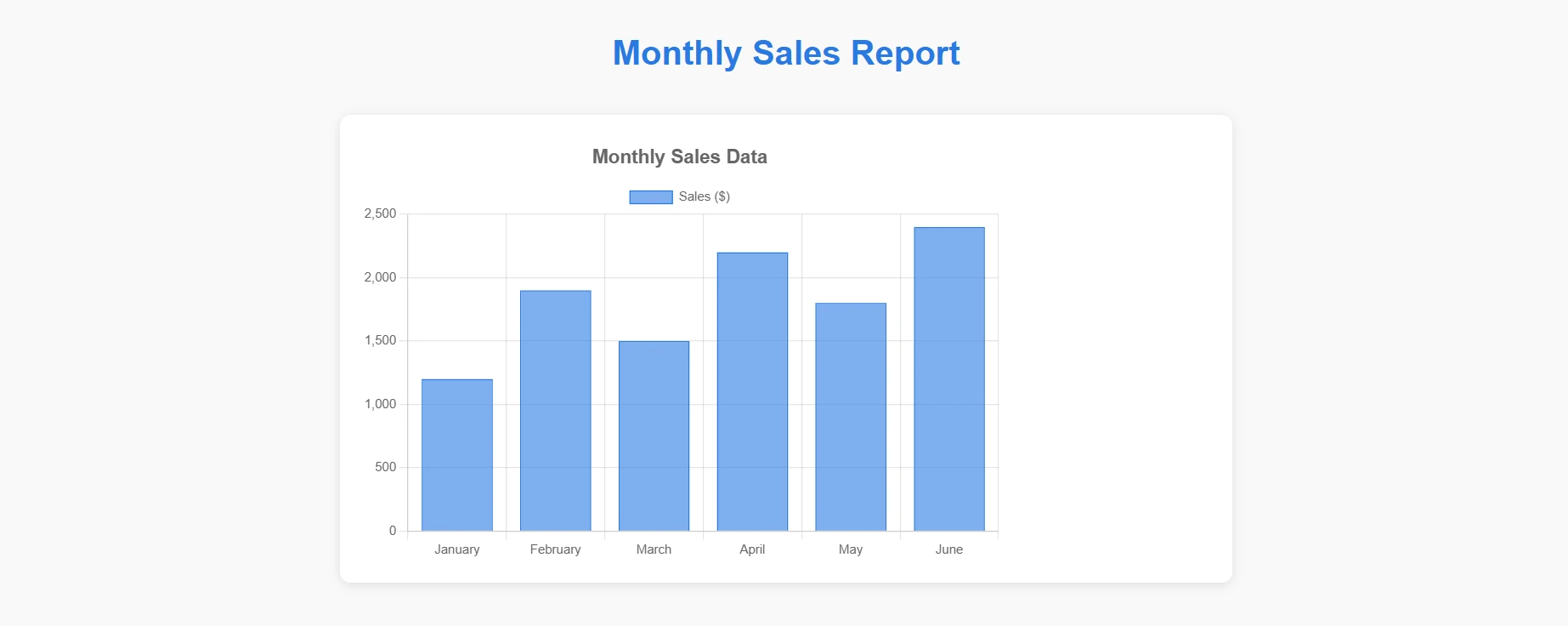
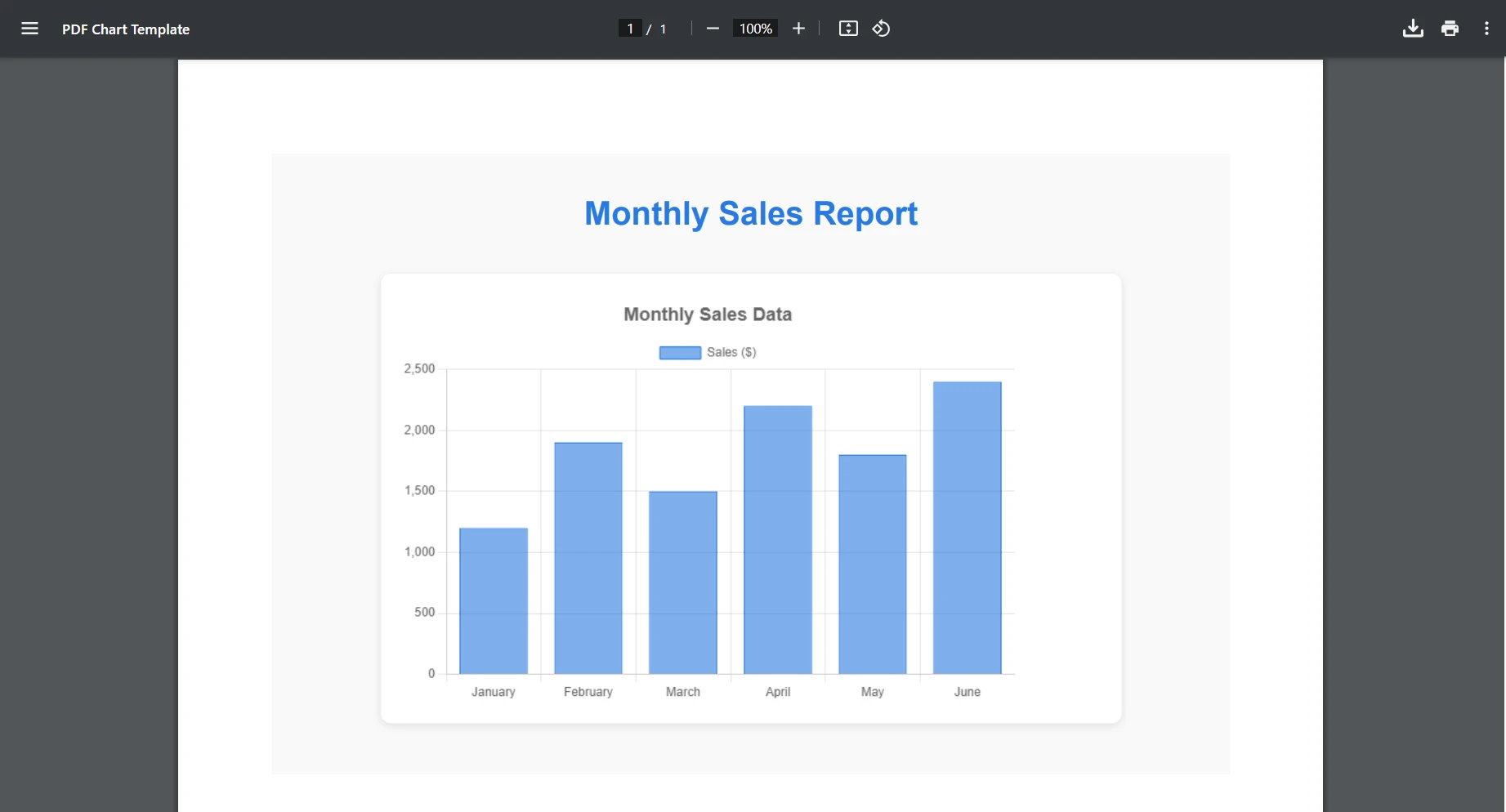
What Does Chart Visualization Look Like in PDF?
IronPDF maintains original JavaScript interactivity in the final PDF output.
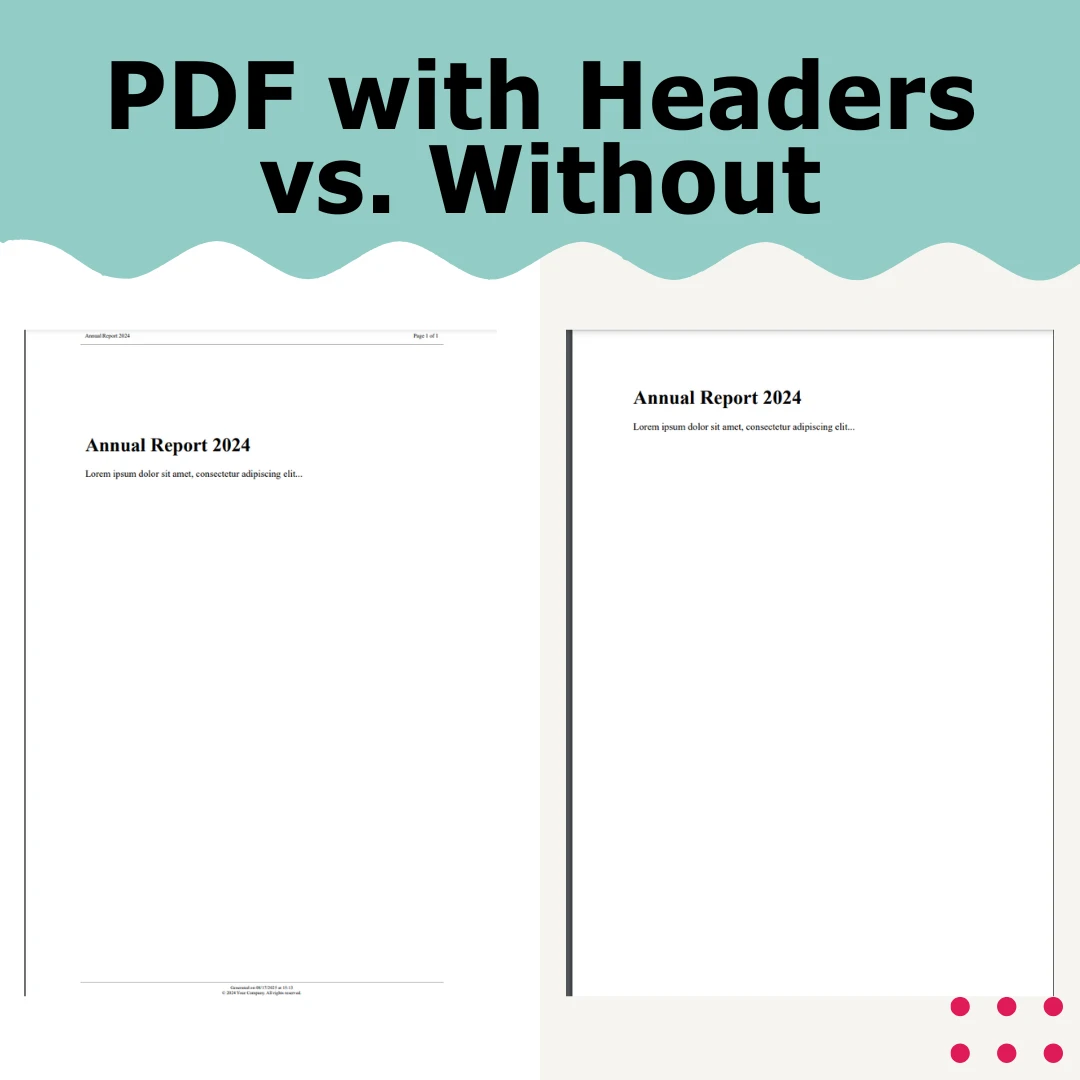
How Do I Apply Custom Headers for Different Page Ranges?
public async Task<PdfDocument> CreatePdfWithCustomHeaders(string htmlContent){var renderer = new ChromePdfRenderer();// First page header (cover page) renderer.RenderingOptions.FirstPageNumber = 0; // Cover page is page 0 renderer.RenderingOptions.HtmlHeader = new HtmlHeaderFooter{Height = 50,HtmlFragment = "<div style='text-align: center; font-size: 24px;'>Company Logo</div>",DrawDividerLine = false};// Different header for content pagesvar pdf = renderer.RenderHtmlAsPdf(htmlContent);// Apply different headers to specific pages after renderingfor (int i = 1; i < pdf.PageCount; i++){ // Add page-specific content if needed pdf.StampHtml(i, @" <div style='position: absolute; top: 10px; right: 10px; font-size: 10px;'> Section " + GetSectionName(i) + @" </div>");}return pdf;}private stringGetSectionName(int pageNumber){// Logic to determine section based on page numberreturn pageNumber <= 5 ? "Introduction" : "Main Content";}
public async Task<PdfDocument> CreatePdfWithCustomHeaders(string htmlContent)
{
var renderer = new ChromePdfRenderer();
// First page header (cover page)
    renderer.RenderingOptions.FirstPageNumber = 0; // Cover page is page 0
    renderer.RenderingOptions.HtmlHeader = new HtmlHeaderFooter
{
    Height = 50,
    HtmlFragment = "<div style='text-align: center; font-size: 24px;'>Company Logo</div>",
        DrawDividerLine = false
};
// Different header for content pages
var pdf = renderer.RenderHtmlAsPdf(htmlContent);
// Apply different headers to specific pages after rendering
for (int i = 1; i < pdf.PageCount; i++)
{
    // Add page-specific content if needed
        pdf.StampHtml(i, @"
        <div style='position: absolute; top: 10px; right: 10px; font-size: 10px;'>
                Section " + GetSectionName(i) + @"
            </div>");
}
return pdf;
}
private string GetSectionName(int pageNumber)
{
// Logic to determine section based on page number
return pageNumber <= 5 ? "Introduction" : "Main Content";
}
ImportsSystem.Threading.TasksPublic Class PdfCreator PublicAsync Function CreatePdfWithCustomHeaders(htmlContent AsString) AsTask(OfPdfDocument) Dim renderer As New ChromePdfRenderer() ' First page header (cover page) renderer.RenderingOptions.FirstPageNumber = 0 ' Cover page is page 0 renderer.RenderingOptions.HtmlHeader = New HtmlHeaderFooterWith { .Height = 50, .HtmlFragment = "<div style='text-align: center; font-size: 24px;'>Company Logo</div>", .DrawDividerLine = False } ' Different header for content pages Dim pdf = renderer.RenderHtmlAsPdf(htmlContent) ' Apply different headers to specific pages after rendering For i AsInteger = 1 To pdf.PageCount - 1 ' Add page-specific content if needed pdf.StampHtml(i, " <div style='position: absolute; top: 10px; right: 10px; font-size: 10px;'> Section " & GetSectionName(i) & " </div>") Next Return pdf End Function Private Function GetSectionName(pageNumber AsInteger) AsString ' Logic to determine section based on page number Return If(pageNumber <= 5, "Introduction", "Main Content") End FunctionEnd Class
Imports System.Threading.Tasks

Public Class PdfCreator
    Public Async Function CreatePdfWithCustomHeaders(htmlContent As String) As Task(Of PdfDocument)
        Dim renderer As New ChromePdfRenderer()
        ' First page header (cover page)
        renderer.RenderingOptions.FirstPageNumber = 0 ' Cover page is page 0
        renderer.RenderingOptions.HtmlHeader = New HtmlHeaderFooter With {
            .Height = 50,
            .HtmlFragment = "<div style='text-align: center; font-size: 24px;'>Company Logo</div>",
            .DrawDividerLine = False
        }
        ' Different header for content pages
        Dim pdf = renderer.RenderHtmlAsPdf(htmlContent)
        ' Apply different headers to specific pages after rendering
        For i As Integer = 1 To pdf.PageCount - 1
            ' Add page-specific content if needed
            pdf.StampHtml(i, "
            <div style='position: absolute; top: 10px; right: 10px; font-size: 10px;'>
                Section " & GetSectionName(i) & "
            </div>")
        Next
        Return pdf
    End Function

    Private Function GetSectionName(pageNumber As Integer) As String
        ' Logic to determine section based on page number
        Return If(pageNumber <= 5, "Introduction", "Main Content")
    End Function
End Class
Even with proper configuration, you might encounter Azure-specific challenges. Here are common issues and solutions:
Why Are My Fonts Not Rendering Correctly?
Problem:Custom fonts aren't displaying correctly or falling back to system fonts.
Solutions: Azure's shared hosting tiers restrict GDI+ access needed for custom fonts. Ensure you're using at least the B1 tier and embed fonts using Base64 encoding.
What Causes "Run from Package file" Configuration Errors?
Problem: IronPDF fails to load dependencies when "Run from package file" is enabled.
Solution: This option creates a read-only environment preventing IronPDF from extracting necessary files. Either disable this option in your publish settings or use the IronPdf.Slim package, which handles this scenario better.
How Do I Handle Memory and Timeout Issues?
Problem: Large HTML documents are causing timeouts or memory exceptions.
Solution: Configure appropriate timeout and memory settings:
// In your Function App configurationrenderer.RenderingOptions.Timeout = 120000; // 2 minutesrenderer.RenderingOptions.RequestContext = new RequestContext{MaxResponseContentBufferSize = 100 * 1024 * 1024 // 100MB};
// In your Function App configuration
renderer.RenderingOptions.Timeout = 120000; // 2 minutes
renderer.RenderingOptions.RequestContext = new RequestContext
{
    MaxResponseContentBufferSize = 100 * 1024 * 1024 // 100MB
};
' In your Function App configurationrenderer.RenderingOptions.Timeout = 120000 ' 2 minutesrenderer.RenderingOptions.RequestContext = New RequestContextWith { .MaxResponseContentBufferSize = 100 * 1024 * 1024 ' 100MB}
' In your Function App configuration
renderer.RenderingOptions.Timeout = 120000 ' 2 minutes
renderer.RenderingOptions.RequestContext = New RequestContext With {
    .MaxResponseContentBufferSize = 100 * 1024 * 1024 ' 100MB
}
For high-volume scenarios, properly dispose of resources:
using (var renderer = new ChromePdfRenderer()){using (var pdf = renderer.RenderHtmlAsPdf(html)){ // Process PDF return pdf.BinaryData;}}
using (var renderer = new ChromePdfRenderer())
{
using (var pdf = renderer.RenderHtmlAsPdf(html))
{
    // Process PDF
    return pdf.BinaryData;
}
}
ImportsSystemUsing renderer As New ChromePdfRenderer()Using pdf = renderer.RenderHtmlAsPdf(html) ' Process PDF Return pdf.BinaryDataEndUsingEndUsing
Imports System

Using renderer As New ChromePdfRenderer()
    Using pdf = renderer.RenderHtmlAsPdf(html)
        ' Process PDF
        Return pdf.BinaryData
    End Using
End Using
What Caching Strategies Should I Use?
Cache generated PDFs when content doesn't change frequently:
private static readonly MemoryCache _pdfCache = new MemoryCache(new MemoryCacheOptions{SizeLimit = 100 // Limit cache size});public async Task<byte[]> GetCachedPdf(string cacheKey, string html){if (!_pdfCache.TryGetValue(cacheKey, out byte[] cachedPdf)){ var renderer = new ChromePdfRenderer(); var pdf = renderer.RenderHtmlAsPdf(html); cachedPdf = pdf.BinaryData; _pdfCache.Set(cacheKey, cachedPdf, new MemoryCacheEntryOptions {Size = 1,SlidingExpiration = TimeSpan.FromMinutes(10) });}return cachedPdf;}
private static readonly MemoryCache _pdfCache = new MemoryCache(new MemoryCacheOptions
{
SizeLimit = 100 // Limit cache size
});
public async Task<byte[]> GetCachedPdf(string cacheKey, string html)
{
if (!_pdfCache.TryGetValue(cacheKey, out byte[] cachedPdf))
{
    var renderer = new ChromePdfRenderer();
    var pdf = renderer.RenderHtmlAsPdf(html);
    cachedPdf = pdf.BinaryData;
        _pdfCache.Set(cacheKey, cachedPdf, new MemoryCacheEntryOptions
    {
        Size = 1,
        SlidingExpiration = TimeSpan.FromMinutes(10)
    });
}
return cachedPdf;
}
ImportsSystemImportsSystem.Threading.TasksImportsMicrosoft.Extensions.Caching.MemoryPrivateSharedReadOnly _pdfCache As New MemoryCache(New MemoryCacheOptionsWith { .SizeLimit = 100 ' Limit cache size})PublicAsync Function GetCachedPdf(cacheKey AsString, html AsString) AsTask(OfByte()) Dim cachedPdf AsByte() = Nothing IfNot _pdfCache.TryGetValue(cacheKey, cachedPdf) Then Dim renderer As New ChromePdfRenderer() Dim pdf = renderer.RenderHtmlAsPdf(html) cachedPdf = pdf.BinaryData _pdfCache.Set(cacheKey, cachedPdf, New MemoryCacheEntryOptionsWith { .Size = 1, .SlidingExpiration = TimeSpan.FromMinutes(10) }) End If Return cachedPdfEnd Function
Imports System
Imports System.Threading.Tasks
Imports Microsoft.Extensions.Caching.Memory

Private Shared ReadOnly _pdfCache As New MemoryCache(New MemoryCacheOptions With {
    .SizeLimit = 100 ' Limit cache size
})

Public Async Function GetCachedPdf(cacheKey As String, html As String) As Task(Of Byte())
    Dim cachedPdf As Byte() = Nothing
    If Not _pdfCache.TryGetValue(cacheKey, cachedPdf) Then
        Dim renderer As New ChromePdfRenderer()
        Dim pdf = renderer.RenderHtmlAsPdf(html)
        cachedPdf = pdf.BinaryData
        _pdfCache.Set(cacheKey, cachedPdf, New MemoryCacheEntryOptions With {
            .Size = 1,
            .SlidingExpiration = TimeSpan.FromMinutes(10)
        })
    End If
    Return cachedPdf
End Function
Implement caching and optimization for production workloads.
IronPDF offers more than simple HTML-to-PDF conversion. This article demonstrated its capabilities for advanced PDF manipulation and PDF images support. IronPDF integrates easily into any application you're developing, including Console Apps and .NET Core applications.
Ready to Start Converting HTML to PDF in Your Azure Applications?
Start using IronPDF in your project today with a free trial.
First Step:
Try the IronPDF free trial to access its powerful features and start converting HTML to PDF in your Azure applications today!
Curtis Chau holds a Bachelor’s degree in Computer Science (Carleton University) and specializes in front-end development with expertise in Node.js, TypeScript, JavaScript, and React. Passionate about crafting intuitive and aesthetically pleasing user interfaces, Curtis enjoys working with modern frameworks and creating well-structured, visually appealing manuals.