




已更新 2026年5月8日
生成每月账户报表(PDF 文档)
using IronPDF C# PDF 库,开发人员可以在 .NET 项目中将 HTML 转换为可靠的 PDF 文件,而无需依赖外部服务。
阅读更多

在 Azure Functions 中将 HTML 转换为 PDF 需要IronPDF 的 Chrome 渲染引擎和正确的Azure 配置(最低 B1 层),使您能够将任何 HTML 内容(从简单的字符串到 JavaScript 密集的页面)转换为像素级完美的 PDF,同时处理 Azure 的沙盒限制和 GDI+ 限制。
在云环境中将 HTML 内容转换为PDF 文档可能比想象中更具挑战性。 如果您曾经尝试将PDF 生成器部署到 Azure Functions,您可能遇到过有关 GDI+ 或沙箱限制的神秘错误。 好消息是什么? 使用IronPDF和正确的设置,您可以将任何 HTML 内容转换为像素级完美的 PDF 文件。
本教程将向您展示如何使用 IronPDF 在 Azure Functions 中部署可用于生产的HTML 到 PDF 转换器。 您将学习如何处理从简单的HTML 字符串到 JavaScript 密集型网页的所有内容,同时还要应对Azure 独特的环境限制。 无论您是创建简单的发票还是复杂的报告,到最后,您都将掌握使用 IronPDF 和 Azure将 HTML 转换为 PDF 的技巧。

在深入了解PDF 转换之前,让我们先来了解一下为什么这项任务对 Azure 中的开发人员来说是一个挑战。 Azure 的无服务器服务和应用服务运行在安全沙箱中,限制了传统PDF 库所依赖的操作:
***有限的 GDI+ 访问:**较低层级的 Windows 图形调用被阻止。 *字体渲染限制:自定义字体和SVG 字体面临限制。 *内存限制: HTML 转 PDF需要大量资源。 ***进程隔离:**运行浏览器引擎需要特殊权限。
这些限制在 Azure 的按需付费计划和免费/共享层级中最为严格。 因此,要成功将 HTML 转换为 PDF,至少需要 Azure Basic B1 层或高级订阅。 这些权限和资源为IronPDF 的 Chrome 渲染引擎正常运行提供了必要的权限和资源。 有关 Azure 托管层和PDF 渲染性能的更多信息,请查看IronPDF 的 Azure 部署指南。
您有三种部署选项( Windows 、 Linux或容器)。 虽然推荐使用Azure 函数应用容器,但任何选项都可以正常工作。
今天我们将重点介绍容器方法,它提供了一个隔离的环境,配置最少,并且与IronPDF 的渲染引擎具有更好的兼容性。 对于 Azure 政府云或 Azure 中国等特殊环境,同样的原则也适用——只需相应地调整部署终结点即可。
IronPDF凭借其Chrome渲染引擎,在Azure中实现了强大的HTML到PDF转换功能,因此脱颖而出。 这不仅仅是一个基本的 HTML 解析器——它采用的是与 Google Chrome 相同的技术,确保您的PDF 文档与在现代浏览器中显示的效果完全相同。
Chrome 引擎为HTML 转 PDF带来了关键优势:
***完全支持 CSS3:**现代CSS 样式完美呈现。
这意味着您可以将任何现代网页(包括Bootstrap 样式、JavaScript 框架或复杂的视觉效果)转换为 PDF,而不会出现兼容性问题。 IronPDF在Azure的受限环境中运行一个无头Chrome实例。 了解更多关于IronPDF 的 Chrome 渲染功能和像素级完美 PDF 渲染的信息。
让我们一起来了解如何使用 IronPDF 设置针对HTML 到 PDF 转换进行优化的Azure 函数应用。
在开始之前,请确保您有:
有关 Azure Functions 中PDF 生成的完整设置说明,请参阅IronPDF 的 Azure Functions 教程。
导航至 Azure 门户并单击"创建资源"
搜索"Function App"并单击"创建"
配置基础设置:
1.**选择主机方案:**选择符合您需求的方案
**订阅:**选择您的Azure订阅
**资源组:**创建新的或选择现有的
**函数应用名称:**选择一个唯一的名称
**发布:**选择"容器"
**区域:**选择您偏好的位置
配置托管计划:
单击Azure应用服务计划下的"创建新"
**定价层:**选择至少B1(基本)或更高
请注意:免费、共享和按需付费套餐不适用于PDF 渲染。
查看并创建您的Function应用
首先,在Visual Studio中创建一个新的Azure Functions项目(或加载现有项目)并添加IronPDF包。
对于Windows部署:
对于Docker容器部署(推荐)
有关详细的安装说明,包括NuGet 程序包配置和特定于平台的注意事项,请访问IronPDF 安装指南。
配置函数应用的 .cs 文件,以获得最佳的HTML 到 PDF 转换效果:
using IronPdf;
using Microsoft.Azure.Functions.Worker;
using Microsoft.Azure.Functions.Worker.Http;
using Microsoft.Extensions.Logging;
public class HtmlToPdfFunction
{
private readonly ILogger _logger;
public HtmlToPdfFunction(ILoggerFactory loggerFactory)
{
    _logger = loggerFactory.CreateLogger<HtmlToPdfFunction>();
    // Configure IronPDF for Azure
        ConfigureIronPdf();
}
private void ConfigureIronPdf()
{
    // Set your license key (get a trial key from ___PROTECTED_URL_132___
        IronPdf.License.LicenseKey = "YOUR-LICENSE-KEY";
    // Essential Azure configurations
        IronPdf.Installation.LinuxAndDockerDependenciesAutoConfig = true;
        IronPdf.Installation.ChromeGpuMode = IronPdf.Engines.Chrome.ChromeGpuModes.Disabled;
        IronPdf.Installation.CustomDeploymentDirectory = "/tmp";
    // Optional: Enable logging for troubleshooting
        IronPdf.Logging.Logger.LoggingMode = IronPdf.Logging.Logger.LoggingModes.All;
}
}Imports IronPdf
Imports Microsoft.Azure.Functions.Worker
Imports Microsoft.Azure.Functions.Worker.Http
Imports Microsoft.Extensions.Logging
Public Class HtmlToPdfFunction
Private ReadOnly _logger As ILogger
Public Sub New(loggerFactory As ILoggerFactory)
_logger = loggerFactory.CreateLogger(Of HtmlToPdfFunction)()
' Configure IronPDF for Azure
ConfigureIronPdf()
End Sub
Private Sub ConfigureIronPdf()
' Set your license key (get a trial key from ___PROTECTED_URL_132___)
IronPdf.License.LicenseKey = "YOUR-LICENSE-KEY"
' Essential Azure configurations
IronPdf.Installation.LinuxAndDockerDependenciesAutoConfig = True
IronPdf.Installation.ChromeGpuMode = IronPdf.Engines.Chrome.ChromeGpuModes.Disabled
IronPdf.Installation.CustomDeploymentDirectory = "/tmp"
' Optional: Enable logging for troubleshooting
IronPdf.Logging.Logger.LoggingMode = IronPdf.Logging.Logger.LoggingModes.All
End Sub
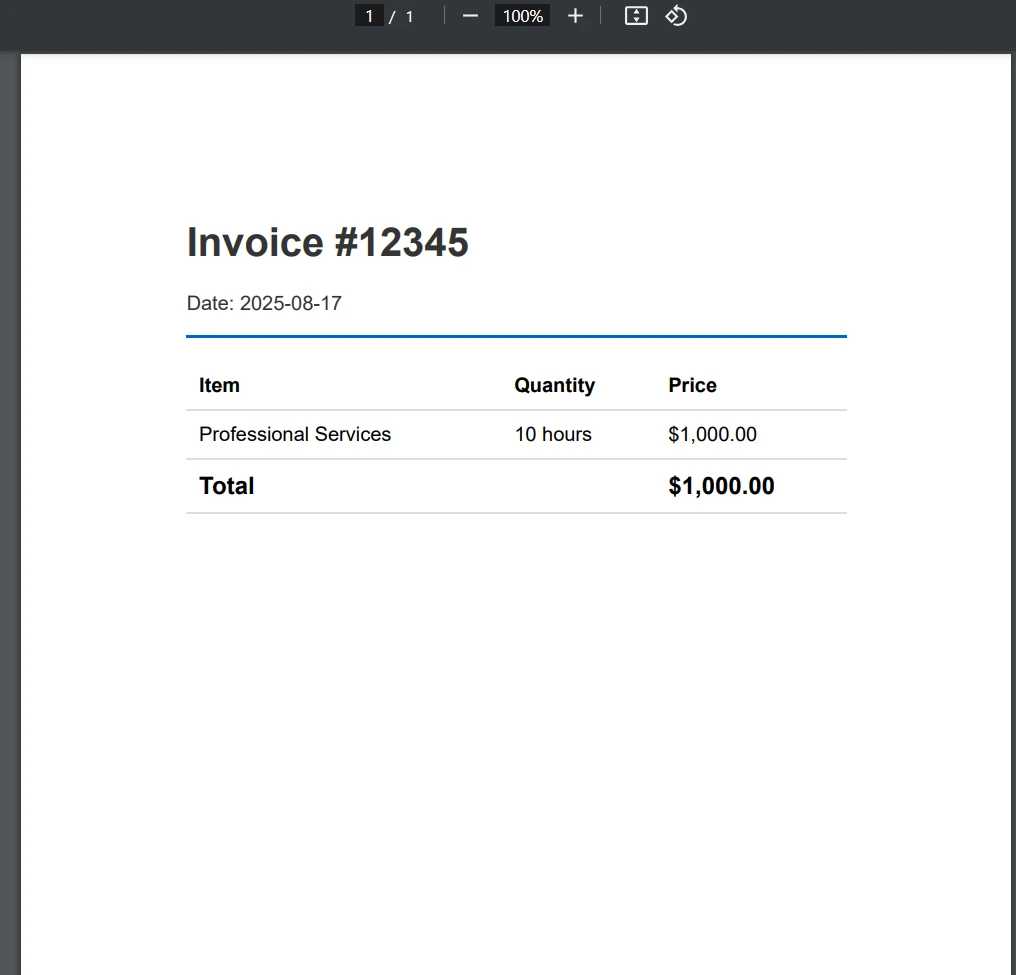
End Class让我们从最常见的场景开始:将HTML 字符串直接转换为 PDF 。 这种方法适用于动态生成的内容,例如发票、报告或确认电子邮件。
[Function("ConvertHtmlToPdf")]
public async Task<HttpResponseData> ConvertHtmlToPdf(
[HttpTrigger(AuthorizationLevel.Function, "post")] HttpRequestData req,
FunctionContext executionContext)
{
    _logger.LogInformation("Starting HTML to PDF conversion");
try
{
    // Simple HTML invoice example
    string htmlContent = @"
            <!DOCTYPE html>
            <html>
            <head>
                <meta charset='UTF-8'>
                <style>
                    body { font-family: Arial, sans-serif; margin: 40px; }
                    .header { color: #333; border-bottom: 2px solid #0066cc; }
                    .invoice-details { margin: 20px 0; }
                    table { width: 100%; border-collapse: collapse; }
                    th, td { padding: 10px; text-align: left; border-bottom: 1px solid #ddd; }
                    .total { font-weight: bold; font-size: 1.2em; }
                </style>
            </head>
            <body>
                <div class='header'>
                    <h1>Invoice #12345</h1>
                    <p>Date: " + DateTime.Now.ToString("yyyy-MM-dd") + @"</p>
                </div>
                <div class='invoice-details'>
                    <table>
                        <tr>
                            <th>Item</th>
                            <th>Quantity</th>
                        <th>Price</th>
                        </tr>
                        <tr>
                            <td>Professional Services</td>
                            <td>10 hours</td>
                            <td>$1,000.00</td>
                        </tr>
                        <tr>
                            <td colspan='2' class='total'>Total</td>
                            <td class='total'>$1,000.00</td>
                        </tr>
                    </table>
                </div>
            </body>
            </html>";
    // Create Chrome renderer
    var renderer = new ChromePdfRenderer();
    // Configure rendering options
        renderer.RenderingOptions.PaperSize = IronPdf.Rendering.PdfPaperSize.A4;
        renderer.RenderingOptions.MarginTop = 25;
        renderer.RenderingOptions.MarginBottom = 25;
        renderer.RenderingOptions.MarginLeft = 25;
        renderer.RenderingOptions.MarginRight = 25;
    // Convert HTML to PDF
    var pdf = renderer.RenderHtmlAsPdf(htmlContent);
    // Return PDF as response
    var response = req.CreateResponse(HttpStatusCode.OK);
        response.Headers.Add("Content-Type", "application/pdf");
        response.Headers.Add("Content-Disposition", "attachment; filename=invoice.pdf");
    await response.Body.WriteAsync(pdf.BinaryData);
        _logger.LogInformation("PDF generated successfully");
    return response;
}
catch (Exception ex)
{
        _logger.LogError(ex, "Error generating PDF");
    var errorResponse = req.CreateResponse(HttpStatusCode.InternalServerError);
    await errorResponse.WriteStringAsync($"Error: {ex.Message}");
    return errorResponse;
}
}Imports System
Imports System.Net
Imports System.Threading.Tasks
Imports Microsoft.Azure.Functions.Worker
Imports Microsoft.Azure.Functions.Worker.Http
Imports IronPdf
<Function("ConvertHtmlToPdf")>
Public Class PdfConverter
Private ReadOnly _logger As ILogger
Public Sub New(logger As ILogger)
_logger = logger
End Sub
Public Async Function ConvertHtmlToPdf(
<HttpTrigger(AuthorizationLevel.Function, "post")> req As HttpRequestData,
executionContext As FunctionContext) As Task(Of HttpResponseData)
_logger.LogInformation("Starting HTML to PDF conversion")
Try
' Simple HTML invoice example
Dim htmlContent As String = "
<!DOCTYPE html>
<html>
<head>
<meta charset='UTF-8'>
<style>
body { font-family: Arial, sans-serif; margin: 40px; }
.header { color: #333; border-bottom: 2px solid #0066cc; }
.invoice-details { margin: 20px 0; }
table { width: 100%; border-collapse: collapse; }
th, td { padding: 10px; text-align: left; border-bottom: 1px solid #ddd; }
.total { font-weight: bold; font-size: 1.2em; }
</style>
</head>
<body>
<div class='header'>
<h1>Invoice #12345</h1>
<p>Date: " & DateTime.Now.ToString("yyyy-MM-dd") & "</p>
</div>
<div class='invoice-details'>
<table>
<tr>
<th>Item</th>
<th>Quantity</th>
<th>Price</th>
</tr>
<tr>
<td>Professional Services</td>
<td>10 hours</td>
<td>$1,000.00</td>
</tr>
<tr>
<td colspan='2' class='total'>Total</td>
<td class='total'>$1,000.00</td>
</tr>
</table>
</div>
</body>
</html>"
' Create Chrome renderer
Dim renderer As New ChromePdfRenderer()
' Configure rendering options
renderer.RenderingOptions.PaperSize = IronPdf.Rendering.PdfPaperSize.A4
renderer.RenderingOptions.MarginTop = 25
renderer.RenderingOptions.MarginBottom = 25
renderer.RenderingOptions.MarginLeft = 25
renderer.RenderingOptions.MarginRight = 25
' Convert HTML to PDF
Dim pdf = renderer.RenderHtmlAsPdf(htmlContent)
' Return PDF as response
Dim response = req.CreateResponse(HttpStatusCode.OK)
response.Headers.Add("Content-Type", "application/pdf")
response.Headers.Add("Content-Disposition", "attachment; filename=invoice.pdf")
Await response.Body.WriteAsync(pdf.BinaryData)
_logger.LogInformation("PDF generated successfully")
Return response
Catch ex As Exception
_logger.LogError(ex, "Error generating PDF")
Dim errorResponse = req.CreateResponse(HttpStatusCode.InternalServerError)
Await errorResponse.WriteStringAsync($"Error: {ex.Message}")
Return errorResponse
End Try
End Function
End Class这将获取给定的HTML字符串并将其渲染为高质量的PDF文档,其中包含使用RenderingOptions类配置的自定义渲染选项。
对于现有网页或复杂应用程序,您可以直接转换 URL :
[Function("ConvertUrlToPdf")]
public async Task<HttpResponseData> ConvertUrlToPdf(
    [HttpTrigger(AuthorizationLevel.Function, "post")] HttpRequestData req,
FunctionContext executionContext)
{
var requestBody = await req.ReadAsStringAsync();
var urlRequest = JsonSerializer.Deserialize<UrlRequest>(requestBody);
try
{
    var renderer = new ChromePdfRenderer();
    // Configure for web page rendering
        renderer.RenderingOptions.PaperSize = IronPdf.Rendering.PdfPaperSize.A4;
        renderer.RenderingOptions.PrintHtmlBackgrounds = true;
        renderer.RenderingOptions.CreatePdfFormsFromHtml = true;
    // Enable JavaScript execution (important for dynamic content)
        renderer.RenderingOptions.EnableJavaScript = true;
        renderer.RenderingOptions.RenderDelay = 1000; // Wait for JS to execute
    // Convert URL to PDF
    var pdf = renderer.RenderUrlAsPdf(urlRequest.Url);
    var response = req.CreateResponse(HttpStatusCode.OK);
        response.Headers.Add("Content-Type", "application/pdf");
    await response.Body.WriteAsync(pdf.BinaryData);
    return response;
}
catch (Exception ex)
{
        _logger.LogError(ex, "Error converting URL to PDF");
    throw;
}
}
public class UrlRequest
{
public string Url { get; set; }
}Imports System
Imports System.Net
Imports System.Text.Json
Imports System.Threading.Tasks
Imports IronPdf
Imports Microsoft.Azure.Functions.Worker
Imports Microsoft.Azure.Functions.Worker.Http
Imports Microsoft.Extensions.Logging
<Function("ConvertUrlToPdf")>
Public Class ConvertUrlToPdfFunction
Private ReadOnly _logger As ILogger
Public Sub New(loggerFactory As ILoggerFactory)
_logger = loggerFactory.CreateLogger(Of ConvertUrlToPdfFunction)()
End Sub
Public Async Function ConvertUrlToPdf(
<HttpTrigger(AuthorizationLevel.Function, "post")> req As HttpRequestData,
executionContext As FunctionContext) As Task(Of HttpResponseData)
Dim requestBody As String = Await req.ReadAsStringAsync()
Dim urlRequest As UrlRequest = JsonSerializer.Deserialize(Of UrlRequest)(requestBody)
Try
Dim renderer As New ChromePdfRenderer()
' Configure for web page rendering
renderer.RenderingOptions.PaperSize = IronPdf.Rendering.PdfPaperSize.A4
renderer.RenderingOptions.PrintHtmlBackgrounds = True
renderer.RenderingOptions.CreatePdfFormsFromHtml = True
' Enable JavaScript execution (important for dynamic content)
renderer.RenderingOptions.EnableJavaScript = True
renderer.RenderingOptions.RenderDelay = 1000 ' Wait for JS to execute
' Convert URL to PDF
Dim pdf = renderer.RenderUrlAsPdf(urlRequest.Url)
Dim response = req.CreateResponse(HttpStatusCode.OK)
response.Headers.Add("Content-Type", "application/pdf")
Await response.Body.WriteAsync(pdf.BinaryData)
Return response
Catch ex As Exception
_logger.LogError(ex, "Error converting URL to PDF")
Throw
End Try
End Function
End Class
Public Class UrlRequest
Public Property Url As String
End Class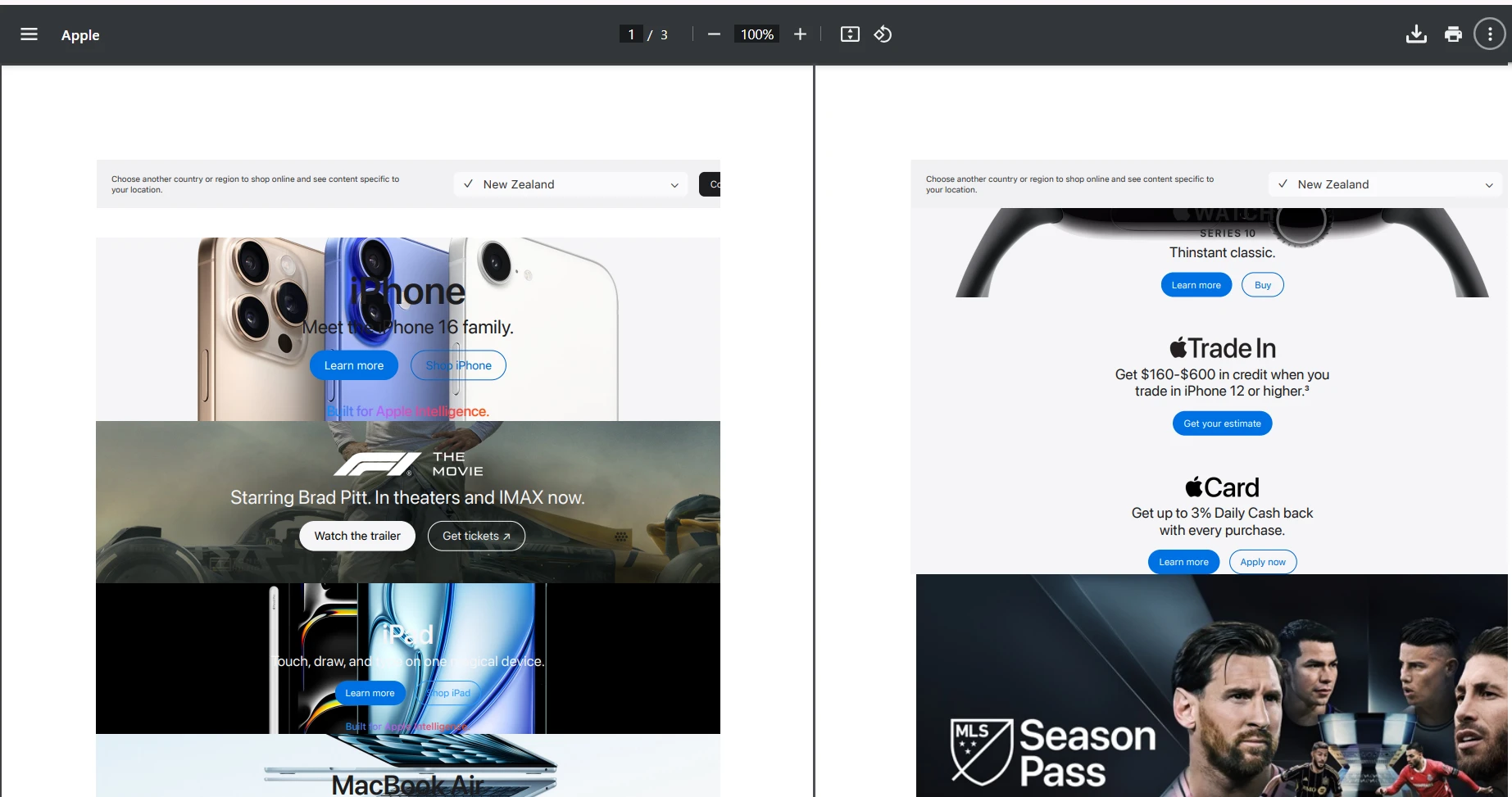
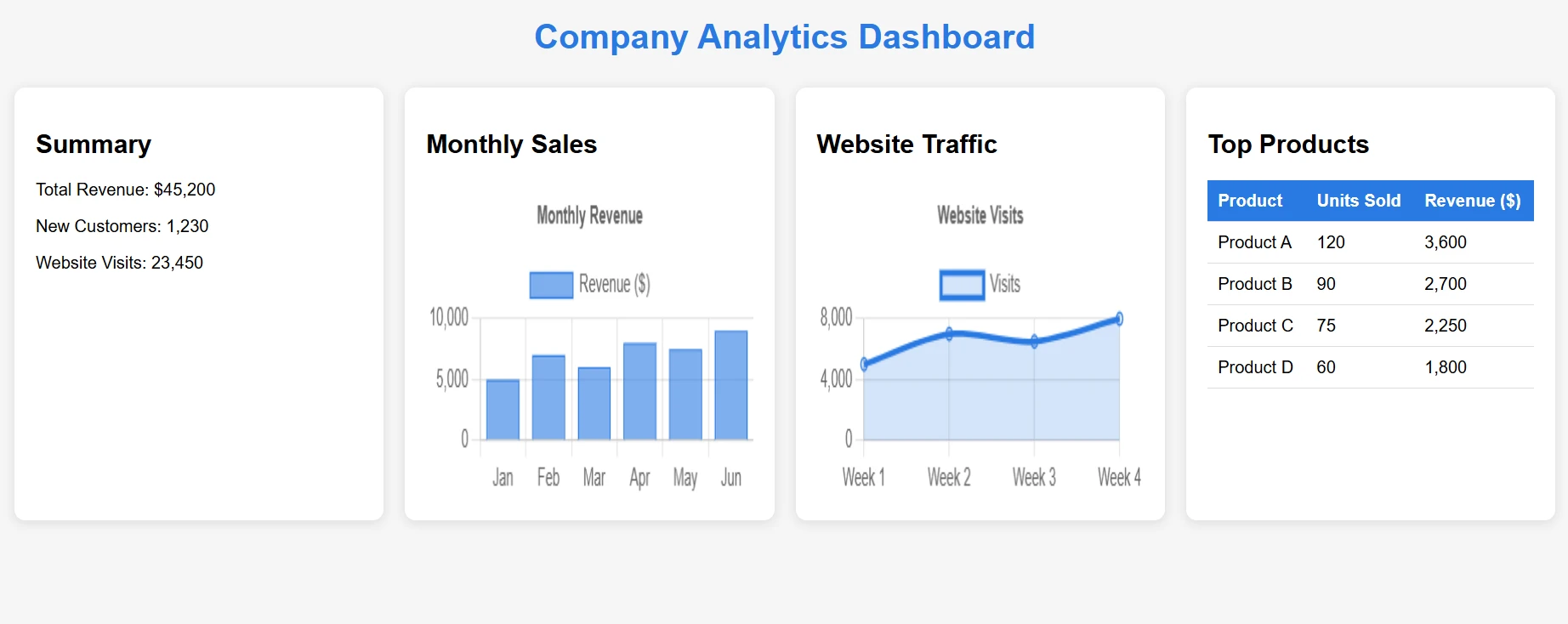
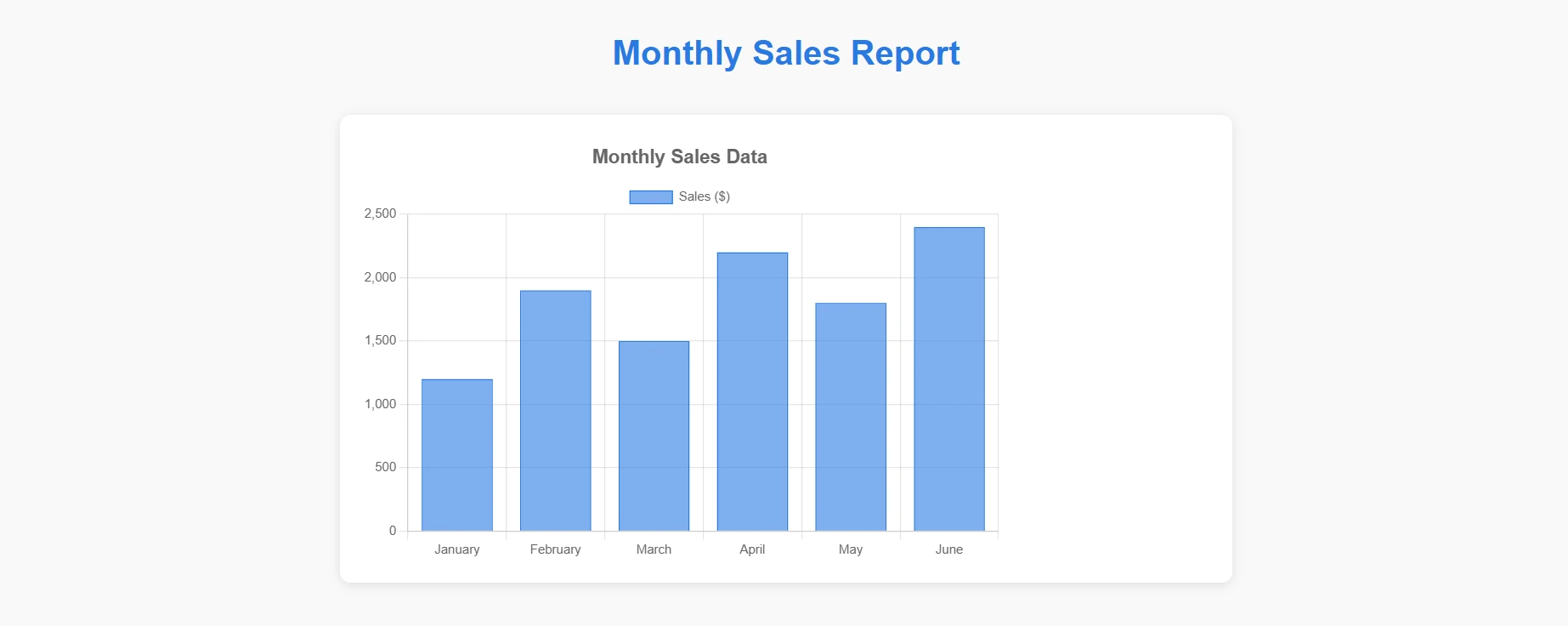
现代Web应用程序严重依赖JavaScript来渲染内容。 无论是图表、动态表单还是单页应用程序, IronPDF 的渲染引擎都能轻松应对。
在这个例子中,我们将使用一个包含JavaScript 内容的HTML 文件,并将其转换为 PDF 文件。
[Function("ConvertComplexHtmlToPdf")]
public async Task<HttpResponseData> ConvertComplexHtmlToPdf(
[HttpTrigger(AuthorizationLevel.Function, "post")] HttpRequestData req,
FunctionContext executionContext)
{
    try
    {
        // Load complex HTML from file
        // [USER TO PROVIDE: complex-dashboard.html with charts and JavaScript]
        string complexHtml = File.ReadAllText("Templates/complex-dashboard.html");
        var renderer = new ChromePdfRenderer();
        // JavaScript-specific configurations
        renderer.RenderingOptions.EnableJavaScript = true;
        renderer.RenderingOptions.WaitFor.JavaScript(3000); // Wait 3 seconds for JS
        // Optional: Set the CSS media type for print or screen styles
        renderer.RenderingOptions.CssMediaType = IronPdf.Rendering.PdfCssMediaType.Print;
        // Set viewport for responsive designs
        renderer.RenderingOptions.ViewPortWidth = 1920;
        renderer.RenderingOptions.ViewPortHeight = 1080;
        var pdf = renderer.RenderHtmlAsPdf(complexHtml);
        // Add metadata
        pdf.MetaData.Author = "Azure Function";
        pdf.MetaData.CreationDate = DateTime.Now;
        pdf.MetaData.Title = "Complex Dashboard Report";
        var response = req.CreateResponse(HttpStatusCode.OK);
        response.Headers.Add("Content-Type", "application/pdf");
        await response.Body.WriteAsync(pdf.BinaryData);
        return response;
    }
    catch (Exception ex)
    {
        _logger.LogError(ex, "Error with complex HTML conversion");
        throw;
    }
}Imports System
Imports System.IO
Imports System.Net
Imports System.Threading.Tasks
Imports IronPdf
Imports Microsoft.Azure.Functions.Worker
Imports Microsoft.Azure.Functions.Worker.Http
<Function("ConvertComplexHtmlToPdf")>
Public Class ConvertComplexHtmlToPdfFunction
Private ReadOnly _logger As ILogger
Public Sub New(loggerFactory As ILoggerFactory)
_logger = loggerFactory.CreateLogger(Of ConvertComplexHtmlToPdfFunction)()
End Sub
Public Async Function ConvertComplexHtmlToPdf(
<HttpTrigger(AuthorizationLevel.Function, "post")> req As HttpRequestData,
executionContext As FunctionContext) As Task(Of HttpResponseData)
Try
' Load complex HTML from file
' [USER TO PROVIDE: complex-dashboard.html with charts and JavaScript]
Dim complexHtml As String = File.ReadAllText("Templates/complex-dashboard.html")
Dim renderer As New ChromePdfRenderer()
' JavaScript-specific configurations
renderer.RenderingOptions.EnableJavaScript = True
renderer.RenderingOptions.WaitFor.JavaScript(3000) ' Wait 3 seconds for JS
' Optional: Set the CSS media type for print or screen styles
renderer.RenderingOptions.CssMediaType = IronPdf.Rendering.PdfCssMediaType.Print
' Set viewport for responsive designs
renderer.RenderingOptions.ViewPortWidth = 1920
renderer.RenderingOptions.ViewPortHeight = 1080
Dim pdf = renderer.RenderHtmlAsPdf(complexHtml)
' Add metadata
pdf.MetaData.Author = "Azure Function"
pdf.MetaData.CreationDate = DateTime.Now
pdf.MetaData.Title = "Complex Dashboard Report"
Dim response = req.CreateResponse(HttpStatusCode.OK)
response.Headers.Add("Content-Type", "application/pdf")
Await response.Body.WriteAsync(pdf.BinaryData)
Return response
Catch ex As Exception
_logger.LogError(ex, "Error with complex HTML conversion")
Throw
End Try
End Function
End Class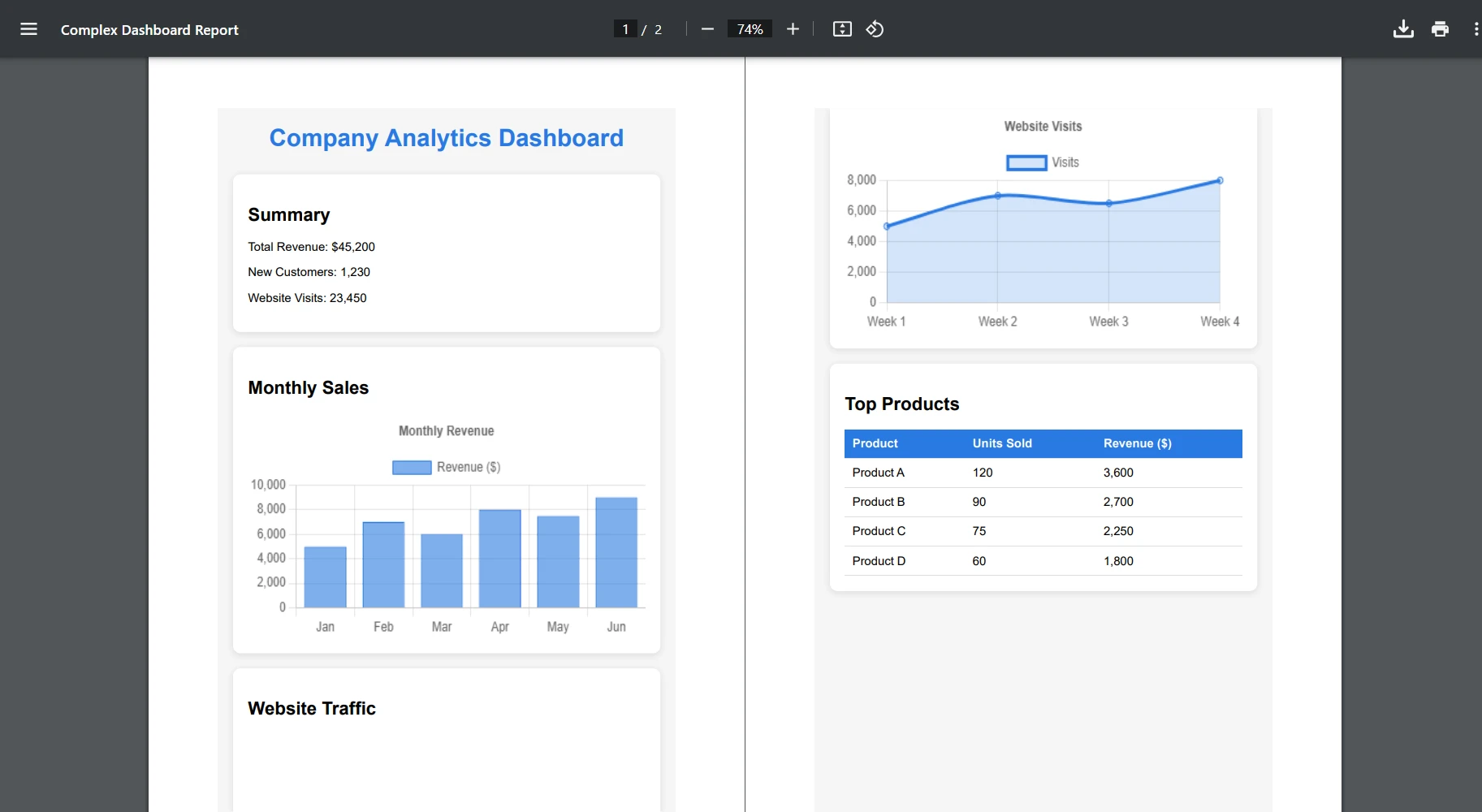
现在让我们转换一个包含图表的HTML文件:
[Function("ConvertChartToPdf")]
    public async Task<HttpResponseData> ConvertChartToPdf(
    [HttpTrigger(AuthorizationLevel.Function, "post")] HttpRequestData req,
    FunctionContext executionContext)
    {
        try
        {
            // Load chart template
            string chartHtml = File.ReadAllText("Templates/chart-template.html");
            // Replace placeholders with actual data
            var chartData = await GetChartDataAsync();
            chartHtml = chartHtml.Replace("{{CHART_DATA}}", JsonSerializer.Serialize(chartData));
            var renderer = new ChromePdfRenderer();
            // Ensure charts render completely
            renderer.RenderingOptions.EnableJavaScript = true;
            renderer.RenderingOptions.WaitFor.RenderDelay(2000);
            // Set paper orientation for charts
            renderer.RenderingOptions.PaperOrientation = IronPdf.Rendering.PdfPaperOrientation.Landscape;
            var pdf = renderer.RenderHtmlAsPdf(chartHtml);
            var response = req.CreateResponse(HttpStatusCode.OK);
            response.Headers.Add("Content-Type", "application/pdf");
            await response.Body.WriteAsync(pdf.BinaryData);
            return response;
        }
        catch (Exception ex)
        {
            _logger.LogError(ex, "Chart conversion error");
            throw;
        }
}Imports System
Imports System.IO
Imports System.Net
Imports System.Text.Json
Imports System.Threading.Tasks
Imports IronPdf
Imports Microsoft.Azure.Functions.Worker
Imports Microsoft.Azure.Functions.Worker.Http
<Function("ConvertChartToPdf")>
Public Class ChartConverter
Private ReadOnly _logger As ILogger
Public Sub New(logger As ILogger)
_logger = logger
End Sub
Public Async Function ConvertChartToPdf(
<HttpTrigger(AuthorizationLevel.Function, "post")> req As HttpRequestData,
executionContext As FunctionContext) As Task(Of HttpResponseData)
Try
' Load chart template
Dim chartHtml As String = File.ReadAllText("Templates/chart-template.html")
' Replace placeholders with actual data
Dim chartData = Await GetChartDataAsync()
chartHtml = chartHtml.Replace("{{CHART_DATA}}", JsonSerializer.Serialize(chartData))
Dim renderer As New ChromePdfRenderer()
' Ensure charts render completely
renderer.RenderingOptions.EnableJavaScript = True
renderer.RenderingOptions.WaitFor.RenderDelay(2000)
' Set paper orientation for charts
renderer.RenderingOptions.PaperOrientation = IronPdf.Rendering.PdfPaperOrientation.Landscape
Dim pdf = renderer.RenderHtmlAsPdf(chartHtml)
Dim response = req.CreateResponse(HttpStatusCode.OK)
response.Headers.Add("Content-Type", "application/pdf")
Await response.Body.WriteAsync(pdf.BinaryData)
Return response
Catch ex As Exception
_logger.LogError(ex, "Chart conversion error")
Throw
End Try
End Function
Private Async Function GetChartDataAsync() As Task(Of Object)
' Placeholder for actual implementation
Return Await Task.FromResult(New Object())
End Function
End Class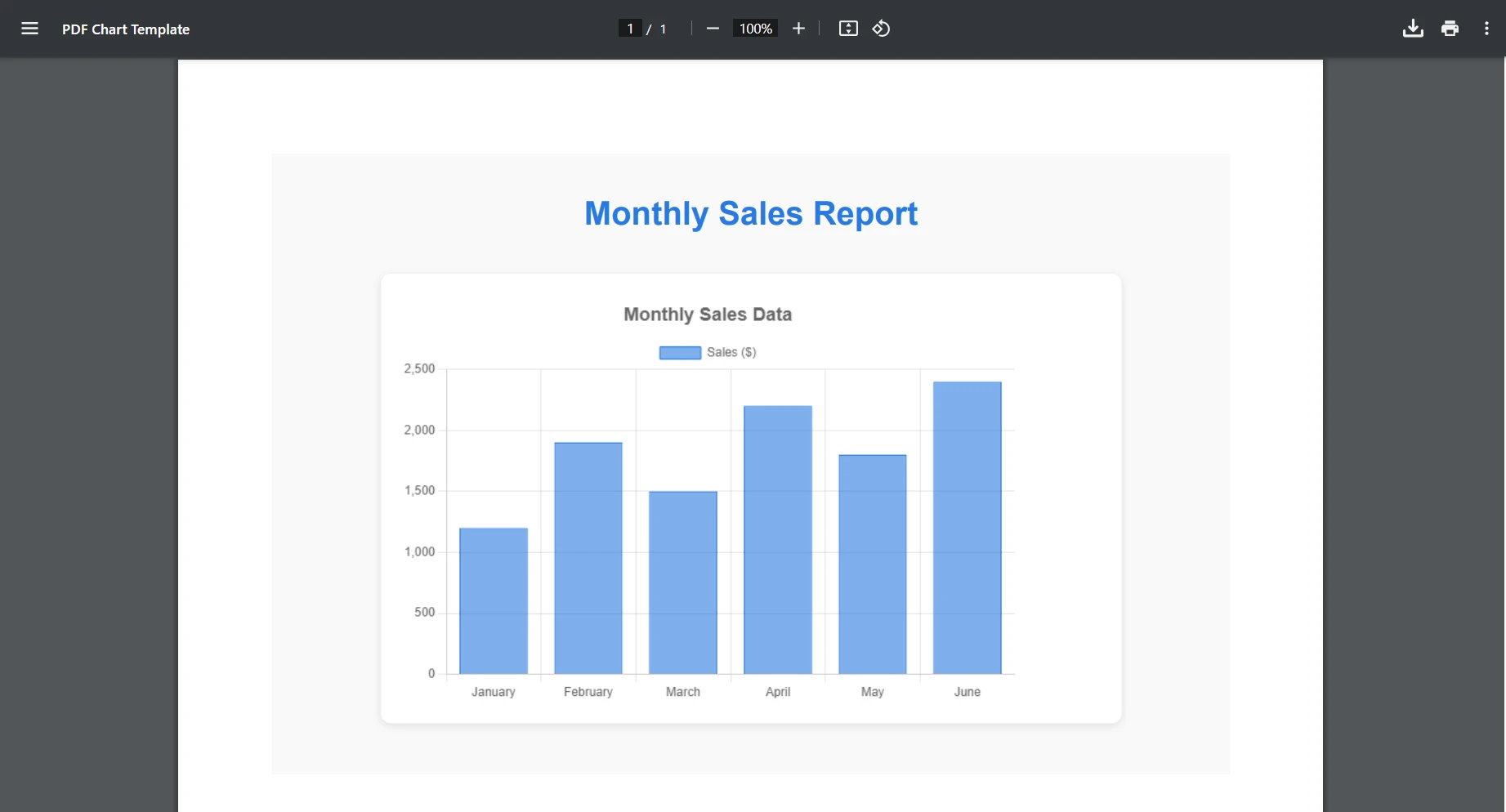
IronPDF 在最终的PDF 输出中保留了原始的 JavaScript 交互性。
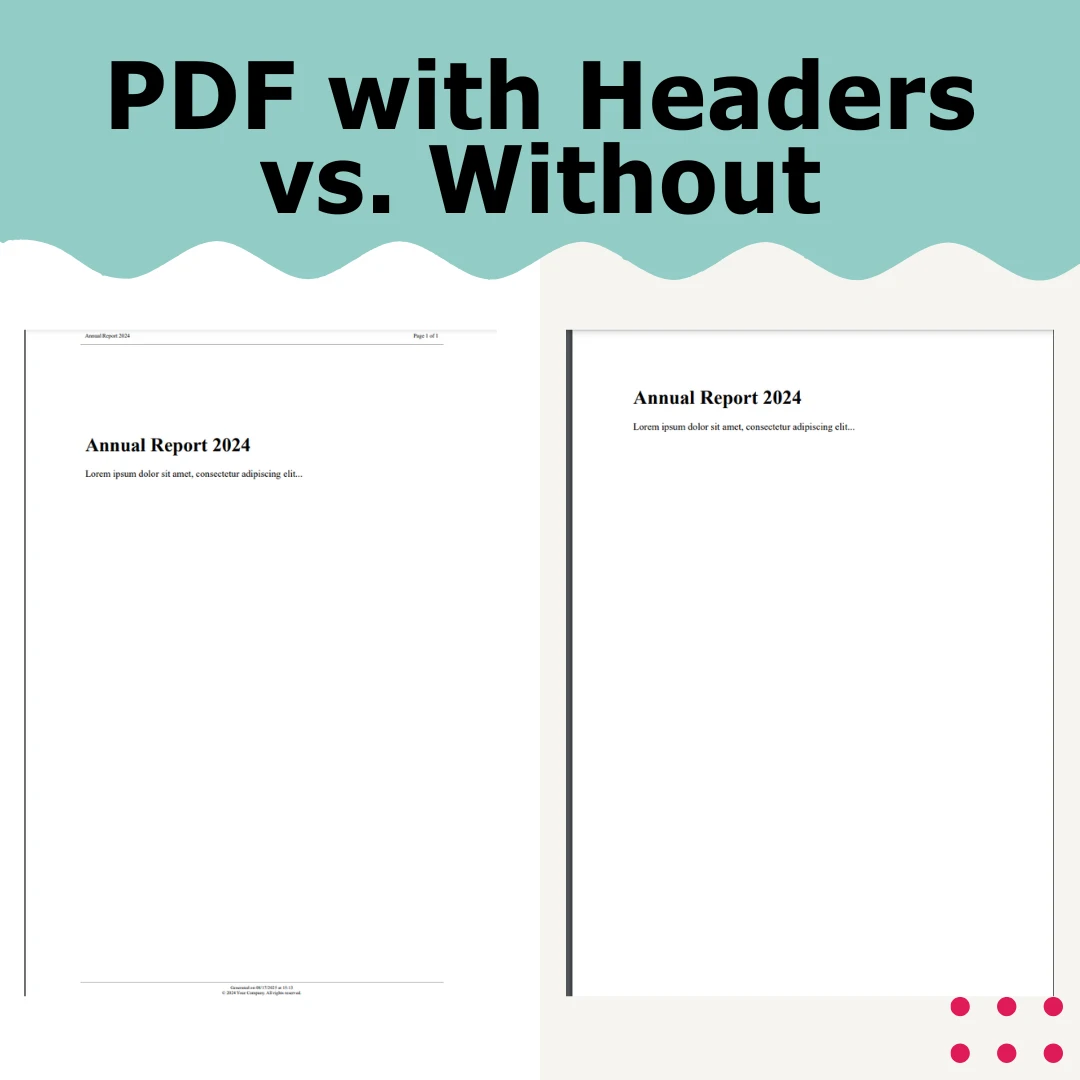
专业PDF文件通常要求所有页面都使用一致的页眉和页脚。 IronPDF 通过基于 HTML 的模板,为高级页眉和页脚选项提供了简单易用的方案。
[Function("ConvertWithHeaderFooter")]
public async Task<HttpResponseData> ConvertWithHeaderFooter(
[HttpTrigger(AuthorizationLevel.Function, "post")] HttpRequestData req,
FunctionContext executionContext)
{
try
{
    string mainContent = @"
            <html>
            <body>
                <h1>Annual Report 2024</h1>
                <p>Lorem ipsum dolor sit amet, consectetur adipiscing elit...</p>
                <!-- Your main content here -->
            </body>
            </html>";
    var renderer = new ChromePdfRenderer();
    // Configure margins to accommodate headers/footers
        renderer.RenderingOptions.MarginTop = 45;
        renderer.RenderingOptions.MarginBottom = 45;
        renderer.RenderingOptions.MarginLeft = 25;
        renderer.RenderingOptions.MarginRight = 25;
    // HTML Header with merge fields
        renderer.RenderingOptions.HtmlHeader = new HtmlHeaderFooter
    {
        Height = 35,
            HtmlFragment = @"
            <div style='text-align: center; font-size: 12px; padding: 10px;'>
                    <div style='float: left;'>Annual Report 2024</div>
                    <div style='float: right;'>Page {page} of {total-pages}</div>
                    <div style='clear: both;'></div>
                </div>",
            DrawDividerLine = true
    };
    // HTML Footer
        renderer.RenderingOptions.HtmlFooter = new HtmlHeaderFooter
    {
        Height = 30,
            HtmlFragment = @"
                <div style='text-align: center; font-size: 10px; padding: 5px;'>
                    <div>Generated on {date} at {time}</div>
                    <div>© 2024 Your Company. All rights reserved.</div>
                </div>",
            DrawDividerLine = true
    };
    var pdf = renderer.RenderHtmlAsPdf(mainContent);
    var response = req.CreateResponse(HttpStatusCode.OK);
        response.Headers.Add("Content-Type", "application/pdf");
    await response.Body.WriteAsync(pdf.BinaryData);
    return response;
}
catch (Exception ex)
{
        _logger.LogError(ex, "Header/Footer conversion error");
    throw;
}
}
public async Task<PdfDocument> CreatePdfWithCustomHeaders(string htmlContent)
{
var renderer = new ChromePdfRenderer();
// First page header (cover page)
    renderer.RenderingOptions.FirstPageNumber = 0; // Cover page is page 0
    renderer.RenderingOptions.HtmlHeader = new HtmlHeaderFooter
{
    Height = 50,
    HtmlFragment = "<div style='text-align: center; font-size: 24px;'>Company Logo</div>",
        DrawDividerLine = false
};
// Different header for content pages
var pdf = renderer.RenderHtmlAsPdf(htmlContent);
// Apply different headers to specific pages after rendering
for (int i = 1; i < pdf.PageCount; i++)
{
    // Add page-specific content if needed
        pdf.StampHtml(i, @"
        <div style='position: absolute; top: 10px; right: 10px; font-size: 10px;'>
                Section " + GetSectionName(i) + @"
            </div>");
}
return pdf;
}
private string GetSectionName(int pageNumber)
{
// Logic to determine section based on page number
return pageNumber <= 5 ? "Introduction" : "Main Content";
}Imports System.Threading.Tasks
Public Class PdfCreator
Public Async Function CreatePdfWithCustomHeaders(htmlContent As String) As Task(Of PdfDocument)
Dim renderer As New ChromePdfRenderer()
' First page header (cover page)
renderer.RenderingOptions.FirstPageNumber = 0 ' Cover page is page 0
renderer.RenderingOptions.HtmlHeader = New HtmlHeaderFooter With {
.Height = 50,
.HtmlFragment = "<div style='text-align: center; font-size: 24px;'>Company Logo</div>",
.DrawDividerLine = False
}
' Different header for content pages
Dim pdf = renderer.RenderHtmlAsPdf(htmlContent)
' Apply different headers to specific pages after rendering
For i As Integer = 1 To pdf.PageCount - 1
' Add page-specific content if needed
pdf.StampHtml(i, "
<div style='position: absolute; top: 10px; right: 10px; font-size: 10px;'>
Section " & GetSectionName(i) & "
</div>")
Next
Return pdf
End Function
Private Function GetSectionName(pageNumber As Integer) As String
' Logic to determine section based on page number
Return If(pageNumber <= 5, "Introduction", "Main Content")
End Function
End ClassIronPDF 的多功能性使其适用于多种用途:
***发票生成:**转换带有动态数据的 HTML 模板。 ***报表生成:**将可视化内容转换为可共享的PDF 文件。 ***证书创建:**生成个性化证书。 ***文档导出:**将在线文档转换为离线 PDF 。 ***电子邮件存档:**保存格式完整的 HTML 电子邮件。 ***合同生成:**根据HTML 模板创建文档。 ***营销材料:**将网页设计转换为可印刷的 PDF 文件。
即使配置正确,您也可能会遇到 Azure 特有的挑战。 以下是一些常见问题及解决方法:
问题:自定义字体显示不正确或回退到系统字体。
解决方案: Azure 的共享主机层限制了自定义字体所需的 GDI+ 访问权限。 请确保您至少使用 B1 级别,并使用Base64 编码嵌入字体。
string htmlWithEmbeddedFont = @"
<style>
    @font-face {
            font-family: 'CustomFont';
        src: url(data:font/woff2;base64,YOUR_BASE64_FONT_HERE) format('woff2');
    }
    body { font-family: 'CustomFont', Arial, sans-serif; }
</style>";Dim htmlWithEmbeddedFont As String = "
<style>
@font-face {
font-family: 'CustomFont';
src: url(data:font/woff2;base64,YOUR_BASE64_FONT_HERE) format('woff2');
}
body { font-family: 'CustomFont', Arial, sans-serif; }
</style>"如果字体问题持续存在,请参阅IronPDF 的字体故障排除指南。
**问题:**启用"包文件运行"时,IronPDF无法加载依赖项。
**解决方案:**此选项会创建一个只读环境,阻止 IronPDF 提取必要的文件。 您可以在发布设置中禁用此选项,或者使用IronPdf.Slim 包,该包能更好地处理这种情况。
**问题:**大型 HTML 文档导致超时或内存异常。
**解决方案:**配置合适的超时和内存设置:
// In your Function App configuration
renderer.RenderingOptions.Timeout = 120000; // 2 minutes
renderer.RenderingOptions.RequestContext = new RequestContext
{
    MaxResponseContentBufferSize = 100 * 1024 * 1024 // 100MB
};' In your Function App configuration
renderer.RenderingOptions.Timeout = 120000 ' 2 minutes
renderer.RenderingOptions.RequestContext = New RequestContext With {
.MaxResponseContentBufferSize = 100 * 1024 * 1024 ' 100MB
}有关 Azure Functions 超时配置,请参阅Microsoft 的超时文档。 开发者们还在Stack Overflow 的 Azure Functions 标签下分享了处理大型文档的解决方案。
有关 Azure 中HTML 到 PDF 转换的更多故障排除方案,请访问IronPDF 的 Azure 故障排除文档。
根据内容复杂程度, HTML 转 PDF可能需要消耗大量资源。 以下是 Azure Functions 的一些关键优化策略:
处理大量使用 JavaScript 的页面时,请配置适当的渲染延迟:
renderer.RenderingOptions.WaitFor.RenderDelay = 500; // Simple pages
renderer.RenderingOptions.WaitFor.RenderDelay = 2000; // Complex JavaScript
renderer.RenderingOptions.WaitFor.RenderDelay = 500 ' Simple pages
renderer.RenderingOptions.WaitFor.RenderDelay = 2000 ' Complex JavaScript对于高容量场景,妥善处理资源:
using (var renderer = new ChromePdfRenderer())
{
using (var pdf = renderer.RenderHtmlAsPdf(html))
{
    // Process PDF
    return pdf.BinaryData;
}
}Imports System
Using renderer As New ChromePdfRenderer()
Using pdf = renderer.RenderHtmlAsPdf(html)
' Process PDF
Return pdf.BinaryData
End Using
End Using当内容不经常更改时,缓存生成的PDF:
private static readonly MemoryCache _pdfCache = new MemoryCache(new MemoryCacheOptions
{
SizeLimit = 100 // Limit cache size
});
public async Task<byte[]> GetCachedPdf(string cacheKey, string html)
{
if (!_pdfCache.TryGetValue(cacheKey, out byte[] cachedPdf))
{
    var renderer = new ChromePdfRenderer();
    var pdf = renderer.RenderHtmlAsPdf(html);
    cachedPdf = pdf.BinaryData;
        _pdfCache.Set(cacheKey, cachedPdf, new MemoryCacheEntryOptions
    {
        Size = 1,
        SlidingExpiration = TimeSpan.FromMinutes(10)
    });
}
return cachedPdf;
}Imports System
Imports System.Threading.Tasks
Imports Microsoft.Extensions.Caching.Memory
Private Shared ReadOnly _pdfCache As New MemoryCache(New MemoryCacheOptions With {
.SizeLimit = 100 ' Limit cache size
})
Public Async Function GetCachedPdf(cacheKey As String, html As String) As Task(Of Byte())
Dim cachedPdf As Byte() = Nothing
If Not _pdfCache.TryGetValue(cacheKey, cachedPdf) Then
Dim renderer As New ChromePdfRenderer()
Dim pdf = renderer.RenderHtmlAsPdf(html)
cachedPdf = pdf.BinaryData
_pdfCache.Set(cacheKey, cachedPdf, New MemoryCacheEntryOptions With {
.Size = 1,
.SlidingExpiration = TimeSpan.FromMinutes(10)
})
End If
Return cachedPdf
End Function在 Azure 中运行HTML 转 PDF 转换涉及两个成本部分:
*基础(B1)层级: PDF渲染的入门层级,适合轻量级工作负载 ***标准 (S1) 层级:**更佳的常规 PDF 生成性能 ***高级版 (P1V2):**推荐用于高容量或复杂的 PDF 操作
价格因地区而异,并会随时间变化。请参阅 IronPDF 的这份指南,选择最适合您需求的套餐。
IronPDF许可
IronPDF提供多种许可选项:
*试用许可证: 免费试用 30 天 ***精简版许可:**单个开发者,单个项目
请访问IronPDF 的许可页面,了解详细的定价和功能比较。
1.**实施缓存:**减少冗余的 PDF 生成 2.**批量处理:**在一次函数执行中处理多个 PDF 文件 3.**使用基于队列的处理:**将负载分散到一段时间内,以避免扩展需求。
虽然我们一直专注于HTML 到 PDF 的转换,但在处理敏感PDF 文件时,安全性至关重要。 为防止PDF 内容被恶意篡改,请了解更多关于保护 Azure Functions 的信息:
在 Azure 中将HTML 转换为 PDF并不复杂。 借助IronPDF 的 Chrome 渲染引擎和正确的Azure 配置,您可以将任何 HTML 内容转换为专业的 PDF。
在 Azure 中成功将HTML 转换为 PDF 的关键要点:
IronPDF提供的功能不仅限于简单的HTML转PDF。 本文展示了其在高级 PDF 处理和PDF 图像支持方面的功能。 IronPDF 可以轻松集成到您正在开发的任何应用程序中,包括控制台应用程序和.NET Core 应用程序。
Start using IronPDF in your project today with a free trial.
立即试用IronPDF 免费试用版,体验其强大的功能,并开始在 Azure 应用程序中将 HTML 转换为 PDF!
对于生产环境部署,请探索IronPDF 的许可选项,找到适合您需求的方案。 IronPDF 提供全面的文档、快速响应的支持和持续的更新,为在 Azure Functions 及其他环境中进行可靠的HTML 到 PDF 转换提供所需的一切。

Curtis Chau 拥有卡尔顿大学的计算机科学学士学位,专注于前端开发,精通 Node.js、TypeScript、JavaScript 和 React。他热衷于打造直观且美观的用户界面,喜欢使用现代框架并创建结构良好、视觉吸引力强的手册。

当您需要PDF看起来像HTML时,速度快。















