




已更新 2026年9月4日
產生每月帳戶報表(PDF 文件)
using IronPDF C# PDF 庫,開發人員可以在 .NET 專案中將 HTML 轉換為可靠的 PDF 文件,而無需依賴外部服務。
閱讀更多

在Azure Functions中將HTML轉換為PDF需要IronPDF的Chrome渲染引擎和正確的Azure配置(至少B1等級),這使您能夠將任何HTML內容——從簡單字串到JavaScript密集的頁面——轉換為像素完美的PDF,同時處理Azure的沙盒限制和GDI+限制。
在雲端環境中將HTML內容轉換為PDF文件可能會出乎意料地具有挑戰性。 如果您曾嘗試將PDF生成器部署到Azure Functions,您可能遇到過關於GDI+或沙盒限制的神秘錯誤。 好消息? 借助IronPDF和正確的設置,您可以將任何HTML內容轉換為像素完美的PDF文件。
本教程將向您展示如何使用IronPDF在Azure Functions中部署現成的HTML到PDF轉換器。 您將學習如何處理從簡單的HTML字串到JavaScript繁重的網頁,同時穿越Azure的獨特環境限制。 無論您是在建立簡單的發票還是複雜的報告,到最後,您都將掌握使用IronPDF和Azure進行的HTML到PDF轉換。

在深入瞭解PDF轉換之前,讓我們了解為什麼這項任務在Azure中會讓開發人員感到困擾。 Azure的無伺服器和應用程式服務運行在一個安全的沙盒環境中,該環境限制了傳統PDF程式庫所需的操作:
這些限制在Azure的Consumption計劃和免費/共享等級中最為嚴格。 這就是為什麼成功的HTML到PDF轉換至少需要Azure Basic B1等級或Premium訂閱。 這些提供了必要的權限和資源,讓IronPDF的Chrome渲染引擎正常工作。 查看IronPDF的Azure部署指南以了解有關Azure託管等級和PDF渲染性能的更多資訊。
您有三個部署選項(Windows,Linux或容器)。 雖然建議使用Azure Function App容器,但任何選項都能很好地運作。
今天我們將專注於容器方法,它提供了一個隔離的環境,具有最小的配置和與IronPDF渲染引擎的改進相容性。 對於像Azure Government Cloud或Azure China這樣的專用環境,原則相同——只需相應調整您的部署端點即可。
IronPDF因其Chrome渲染引擎而在Azure中HTML轉換為PDF能力方面脫穎而出。 這不僅僅是一個基本的HTML解析器——它是驅動Google Chrome的相同技術,保證您的PDF文件出現得就像在現代瀏覽器中一樣。
Chrome引擎為HTML轉換為PDF帶來關鍵的好處:
這意味著您可以拿任何現代網頁——完成Bootstrap樣式,JavaScript框架,或複雜的可視化——並將其轉換為PDF而無相容性問題。 IronPDF在Azure的受限環境中運行Headless Chrome實例。 了解更多有關IronPDF的Chrome渲染能力和像素完美的PDF渲染。
讓我們逐步講解如何設置一個Azure Function App,以最佳化使用IronPDF的HTML到PDF轉換。
在開始之前,請確保您擁有:
有關特定於在Azure Functions中進行PDF生成的完整安裝說明,請參見IronPDF的Azure Functions教程。
導航到Azure Portal並點擊"建立資源"
搜索"Function App"並點擊"建立"
配置基本資訊:
配置託管計畫:
記住:免費,共享和消耗計畫不適用於PDF渲染
審查並建立您的Function App
首先,在Visual Studio中建立一個新的Azure Functions項目(或載入現有的)並新增IronPDF包。
針對Windows部署:
針對Docker容器部署(推薦)
有關詳細的安裝說明,包括NuGet Packages配置和特定平台考慮因素,請存取IronPDF安裝指南。
為了實現最佳的HTML轉換為PDF,配置您的Function App .cs文件:
using IronPdf;
using Microsoft.Azure.Functions.Worker;
using Microsoft.Azure.Functions.Worker.Http;
using Microsoft.Extensions.Logging;
public class HtmlToPdfFunction
{
private readonly ILogger _logger;
public HtmlToPdfFunction(ILoggerFactory loggerFactory)
{
    _logger = loggerFactory.CreateLogger<HtmlToPdfFunction>();
    // Configure IronPDF for Azure
        ConfigureIronPdf();
}
private void ConfigureIronPdf()
{
    // Set your license key (get a trial key from ___PROTECTED_URL_132___
        IronPdf.License.LicenseKey = "YOUR-LICENSE-KEY";
    // Essential Azure configurations
        IronPdf.Installation.LinuxAndDockerDependenciesAutoConfig = true;
        IronPdf.Installation.ChromeGpuMode = IronPdf.Engines.Chrome.ChromeGpuModes.Disabled;
        IronPdf.Installation.CustomDeploymentDirectory = "/tmp";
    // Optional: Enable logging for troubleshooting
        IronPdf.Logging.Logger.LoggingMode = IronPdf.Logging.Logger.LoggingModes.All;
}
}Imports IronPdf
Imports Microsoft.Azure.Functions.Worker
Imports Microsoft.Azure.Functions.Worker.Http
Imports Microsoft.Extensions.Logging
Public Class HtmlToPdfFunction
Private ReadOnly _logger As ILogger
Public Sub New(loggerFactory As ILoggerFactory)
_logger = loggerFactory.CreateLogger(Of HtmlToPdfFunction)()
' Configure IronPDF for Azure
ConfigureIronPdf()
End Sub
Private Sub ConfigureIronPdf()
' Set your license key (get a trial key from ___PROTECTED_URL_132___)
IronPdf.License.LicenseKey = "YOUR-LICENSE-KEY"
' Essential Azure configurations
IronPdf.Installation.LinuxAndDockerDependenciesAutoConfig = True
IronPdf.Installation.ChromeGpuMode = IronPdf.Engines.Chrome.ChromeGpuModes.Disabled
IronPdf.Installation.CustomDeploymentDirectory = "/tmp"
' Optional: Enable logging for troubleshooting
IronPdf.Logging.Logger.LoggingMode = IronPdf.Logging.Logger.LoggingModes.All
End Sub
End Class讓我們從最常見的場景開始:將HTML字串直接轉換為PDF。 這種方法對於動態生成的內容,如發票,報告或確認電子郵件效果良好。
[Function("ConvertHtmlToPdf")]
public async Task<HttpResponseData> ConvertHtmlToPdf(
[HttpTrigger(AuthorizationLevel.Function, "post")] HttpRequestData req,
FunctionContext executionContext)
{
    _logger.LogInformation("Starting HTML to PDF conversion");
try
{
    // Simple HTML invoice example
    string htmlContent = @"
            <!DOCTYPE html>
            <html>
            <head>
                <meta charset='UTF-8'>
                <style>
                    body { font-family: Arial, sans-serif; margin: 40px; }
                    .header { color: #333; border-bottom: 2px solid #0066cc; }
                    .invoice-details { margin: 20px 0; }
                    table { width: 100%; border-collapse: collapse; }
                    th, td { padding: 10px; text-align: left; border-bottom: 1px solid #ddd; }
                    .total { font-weight: bold; font-size: 1.2em; }
                </style>
            </head>
            <body>
                <div class='header'>
                    <h1>Invoice #12345</h1>
                    <p>Date: " + DateTime.Now.ToString("yyyy-MM-dd") + @"</p>
                </div>
                <div class='invoice-details'>
                    <table>
                        <tr>
                            <th>Item</th>
                            <th>Quantity</th>
                        <th>Price</th>
                        </tr>
                        <tr>
                            <td>Professional Services</td>
                            <td>10 hours</td>
                            <td>$1,000.00</td>
                        </tr>
                        <tr>
                            <td colspan='2' class='total'>Total</td>
                            <td class='total'>$1,000.00</td>
                        </tr>
                    </table>
                </div>
            </body>
            </html>";
    // Create Chrome renderer
    var renderer = new ChromePdfRenderer();
    // Configure rendering options
        renderer.RenderingOptions.PaperSize = IronPdf.Rendering.PdfPaperSize.A4;
        renderer.RenderingOptions.MarginTop = 25;
        renderer.RenderingOptions.MarginBottom = 25;
        renderer.RenderingOptions.MarginLeft = 25;
        renderer.RenderingOptions.MarginRight = 25;
    // Convert HTML to PDF
    var pdf = renderer.RenderHtmlAsPdf(htmlContent);
    // Return PDF as response
    var response = req.CreateResponse(HttpStatusCode.OK);
        response.Headers.Add("Content-Type", "application/pdf");
        response.Headers.Add("Content-Disposition", "attachment; filename=invoice.pdf");
    await response.Body.WriteAsync(pdf.BinaryData);
        _logger.LogInformation("PDF generated successfully");
    return response;
}
catch (Exception ex)
{
        _logger.LogError(ex, "Error generating PDF");
    var errorResponse = req.CreateResponse(HttpStatusCode.InternalServerError);
    await errorResponse.WriteStringAsync($"Error: {ex.Message}");
    return errorResponse;
}
}Imports System
Imports System.Net
Imports System.Threading.Tasks
Imports Microsoft.Azure.Functions.Worker
Imports Microsoft.Azure.Functions.Worker.Http
Imports IronPdf
<Function("ConvertHtmlToPdf")>
Public Class PdfConverter
Private ReadOnly _logger As ILogger
Public Sub New(logger As ILogger)
_logger = logger
End Sub
Public Async Function ConvertHtmlToPdf(
<HttpTrigger(AuthorizationLevel.Function, "post")> req As HttpRequestData,
executionContext As FunctionContext) As Task(Of HttpResponseData)
_logger.LogInformation("Starting HTML to PDF conversion")
Try
' Simple HTML invoice example
Dim htmlContent As String = "
<!DOCTYPE html>
<html>
<head>
<meta charset='UTF-8'>
<style>
body { font-family: Arial, sans-serif; margin: 40px; }
.header { color: #333; border-bottom: 2px solid #0066cc; }
.invoice-details { margin: 20px 0; }
table { width: 100%; border-collapse: collapse; }
th, td { padding: 10px; text-align: left; border-bottom: 1px solid #ddd; }
.total { font-weight: bold; font-size: 1.2em; }
</style>
</head>
<body>
<div class='header'>
<h1>Invoice #12345</h1>
<p>Date: " & DateTime.Now.ToString("yyyy-MM-dd") & "</p>
</div>
<div class='invoice-details'>
<table>
<tr>
<th>Item</th>
<th>Quantity</th>
<th>Price</th>
</tr>
<tr>
<td>Professional Services</td>
<td>10 hours</td>
<td>$1,000.00</td>
</tr>
<tr>
<td colspan='2' class='total'>Total</td>
<td class='total'>$1,000.00</td>
</tr>
</table>
</div>
</body>
</html>"
' Create Chrome renderer
Dim renderer As New ChromePdfRenderer()
' Configure rendering options
renderer.RenderingOptions.PaperSize = IronPdf.Rendering.PdfPaperSize.A4
renderer.RenderingOptions.MarginTop = 25
renderer.RenderingOptions.MarginBottom = 25
renderer.RenderingOptions.MarginLeft = 25
renderer.RenderingOptions.MarginRight = 25
' Convert HTML to PDF
Dim pdf = renderer.RenderHtmlAsPdf(htmlContent)
' Return PDF as response
Dim response = req.CreateResponse(HttpStatusCode.OK)
response.Headers.Add("Content-Type", "application/pdf")
response.Headers.Add("Content-Disposition", "attachment; filename=invoice.pdf")
Await response.Body.WriteAsync(pdf.BinaryData)
_logger.LogInformation("PDF generated successfully")
Return response
Catch ex As Exception
_logger.LogError(ex, "Error generating PDF")
Dim errorResponse = req.CreateResponse(HttpStatusCode.InternalServerError)
Await errorResponse.WriteStringAsync($"Error: {ex.Message}")
Return errorResponse
End Try
End Function
End Class這將獲取給定的HTML字串並將其呈現為高品質的PDF文件,並包括我們使用RenderingOptions類配置的自定義渲染選項。
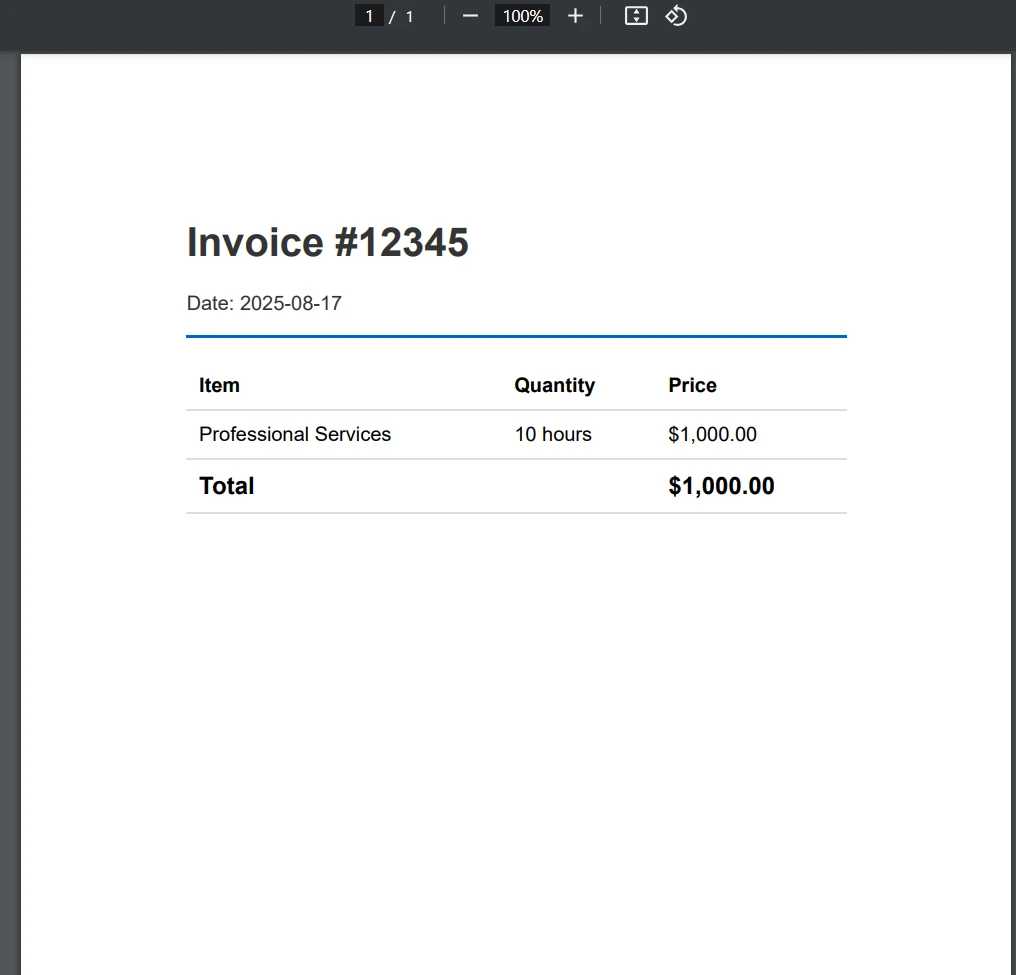
對於現有的網頁或復雜的應用程式,您可以直接轉換URL:
[Function("ConvertUrlToPdf")]
public async Task<HttpResponseData> ConvertUrlToPdf(
    [HttpTrigger(AuthorizationLevel.Function, "post")] HttpRequestData req,
FunctionContext executionContext)
{
var requestBody = await req.ReadAsStringAsync();
var urlRequest = JsonSerializer.Deserialize<UrlRequest>(requestBody);
try
{
    var renderer = new ChromePdfRenderer();
    // Configure for web page rendering
        renderer.RenderingOptions.PaperSize = IronPdf.Rendering.PdfPaperSize.A4;
        renderer.RenderingOptions.PrintHtmlBackgrounds = true;
        renderer.RenderingOptions.CreatePdfFormsFromHtml = true;
    // Enable JavaScript execution (important for dynamic content)
        renderer.RenderingOptions.EnableJavaScript = true;
        renderer.RenderingOptions.RenderDelay = 1000; // Wait for JS to execute
    // Convert URL to PDF
    var pdf = renderer.RenderUrlAsPdf(urlRequest.Url);
    var response = req.CreateResponse(HttpStatusCode.OK);
        response.Headers.Add("Content-Type", "application/pdf");
    await response.Body.WriteAsync(pdf.BinaryData);
    return response;
}
catch (Exception ex)
{
        _logger.LogError(ex, "Error converting URL to PDF");
    throw;
}
}
public class UrlRequest
{
public string Url { get; set; }
}Imports System
Imports System.Net
Imports System.Text.Json
Imports System.Threading.Tasks
Imports IronPdf
Imports Microsoft.Azure.Functions.Worker
Imports Microsoft.Azure.Functions.Worker.Http
Imports Microsoft.Extensions.Logging
<Function("ConvertUrlToPdf")>
Public Class ConvertUrlToPdfFunction
Private ReadOnly _logger As ILogger
Public Sub New(loggerFactory As ILoggerFactory)
_logger = loggerFactory.CreateLogger(Of ConvertUrlToPdfFunction)()
End Sub
Public Async Function ConvertUrlToPdf(
<HttpTrigger(AuthorizationLevel.Function, "post")> req As HttpRequestData,
executionContext As FunctionContext) As Task(Of HttpResponseData)
Dim requestBody As String = Await req.ReadAsStringAsync()
Dim urlRequest As UrlRequest = JsonSerializer.Deserialize(Of UrlRequest)(requestBody)
Try
Dim renderer As New ChromePdfRenderer()
' Configure for web page rendering
renderer.RenderingOptions.PaperSize = IronPdf.Rendering.PdfPaperSize.A4
renderer.RenderingOptions.PrintHtmlBackgrounds = True
renderer.RenderingOptions.CreatePdfFormsFromHtml = True
' Enable JavaScript execution (important for dynamic content)
renderer.RenderingOptions.EnableJavaScript = True
renderer.RenderingOptions.RenderDelay = 1000 ' Wait for JS to execute
' Convert URL to PDF
Dim pdf = renderer.RenderUrlAsPdf(urlRequest.Url)
Dim response = req.CreateResponse(HttpStatusCode.OK)
response.Headers.Add("Content-Type", "application/pdf")
Await response.Body.WriteAsync(pdf.BinaryData)
Return response
Catch ex As Exception
_logger.LogError(ex, "Error converting URL to PDF")
Throw
End Try
End Function
End Class
Public Class UrlRequest
Public Property Url As String
End Class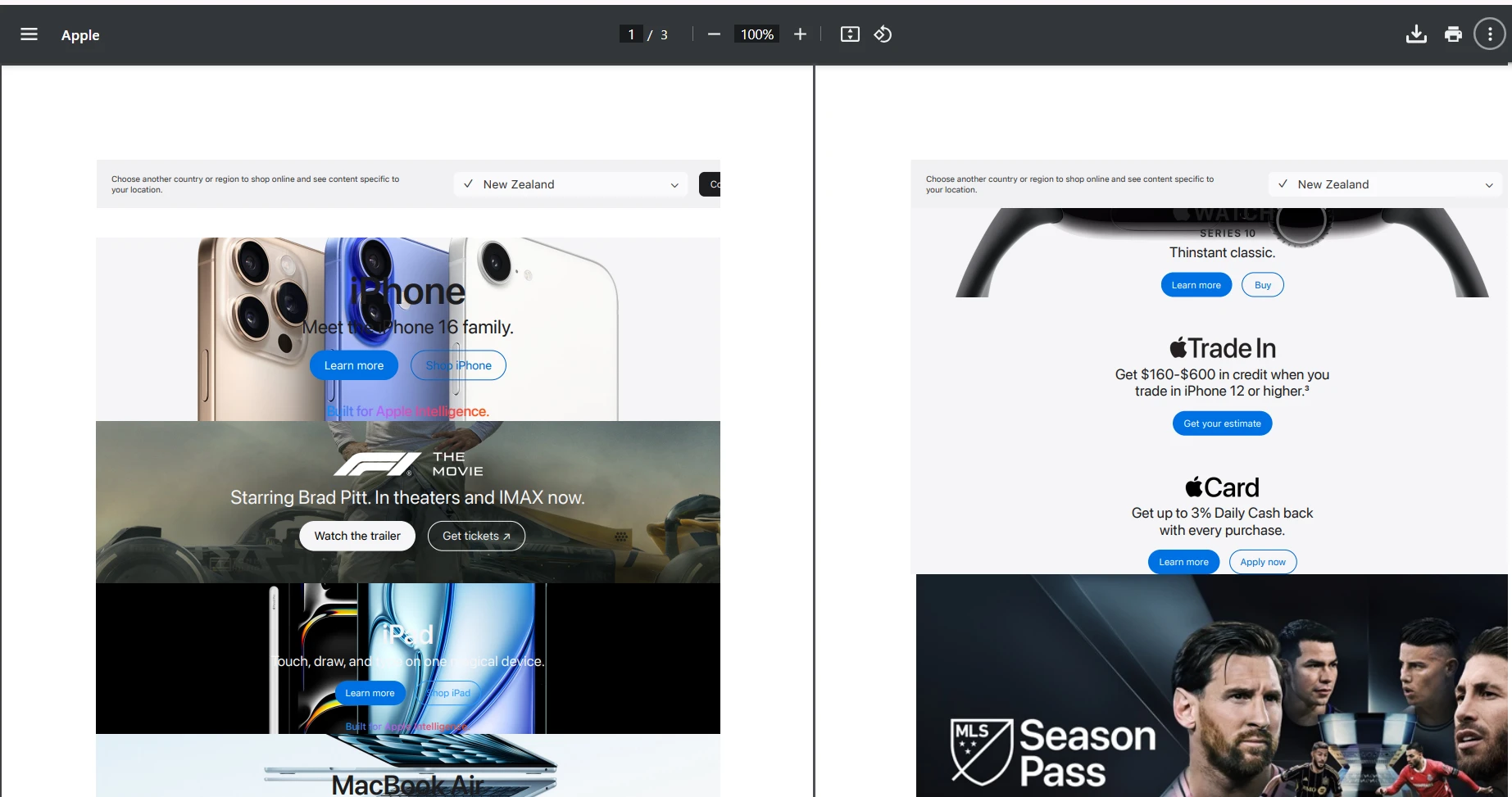
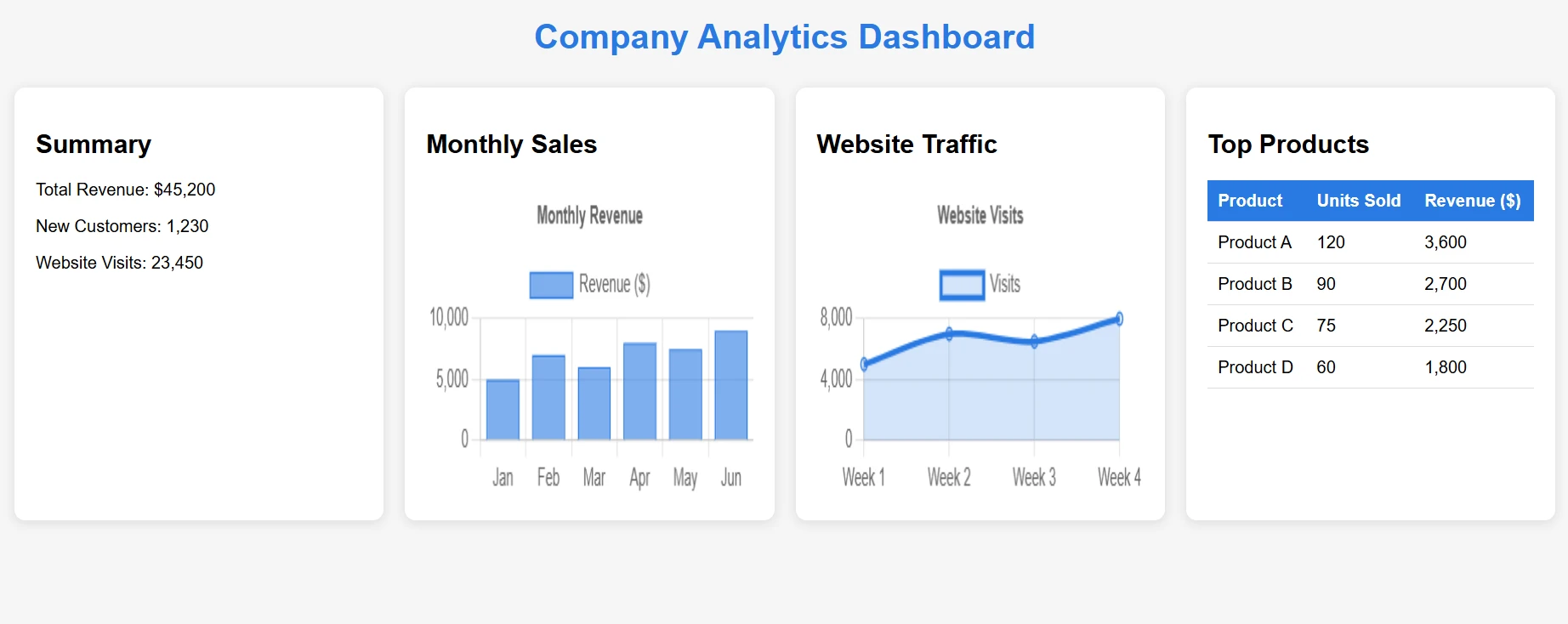
現代Web應用程式大量依賴JavaScript渲染內容。 無論是圖表、動態表單還是單頁應用程式,IronPDF的渲染引擎能處理它們。
在這個例子中,我們將獲取一個包含JavaScript內容的HTML文件並將其轉換為PDF。
[Function("ConvertComplexHtmlToPdf")]
public async Task<HttpResponseData> ConvertComplexHtmlToPdf(
[HttpTrigger(AuthorizationLevel.Function, "post")] HttpRequestData req,
FunctionContext executionContext)
{
    try
    {
        // Load complex HTML from file
        // [USER TO PROVIDE: complex-dashboard.html with charts and JavaScript]
        string complexHtml = File.ReadAllText("Templates/complex-dashboard.html");
        var renderer = new ChromePdfRenderer();
        // JavaScript-specific configurations
        renderer.RenderingOptions.EnableJavaScript = true;
        renderer.RenderingOptions.WaitFor.JavaScript(3000); // Wait 3 seconds for JS
        // Optional: Set the CSS media type for print or screen styles
        renderer.RenderingOptions.CssMediaType = IronPdf.Rendering.PdfCssMediaType.Print;
        // Set viewport for responsive designs
        renderer.RenderingOptions.ViewPortWidth = 1920;
        renderer.RenderingOptions.ViewPortHeight = 1080;
        var pdf = renderer.RenderHtmlAsPdf(complexHtml);
        // Add metadata
        pdf.MetaData.Author = "Azure Function";
        pdf.MetaData.CreationDate = DateTime.Now;
        pdf.MetaData.Title = "Complex Dashboard Report";
        var response = req.CreateResponse(HttpStatusCode.OK);
        response.Headers.Add("Content-Type", "application/pdf");
        await response.Body.WriteAsync(pdf.BinaryData);
        return response;
    }
    catch (Exception ex)
    {
        _logger.LogError(ex, "Error with complex HTML conversion");
        throw;
    }
}Imports System
Imports System.IO
Imports System.Net
Imports System.Threading.Tasks
Imports IronPdf
Imports Microsoft.Azure.Functions.Worker
Imports Microsoft.Azure.Functions.Worker.Http
<Function("ConvertComplexHtmlToPdf")>
Public Class ConvertComplexHtmlToPdfFunction
Private ReadOnly _logger As ILogger
Public Sub New(loggerFactory As ILoggerFactory)
_logger = loggerFactory.CreateLogger(Of ConvertComplexHtmlToPdfFunction)()
End Sub
Public Async Function ConvertComplexHtmlToPdf(
<HttpTrigger(AuthorizationLevel.Function, "post")> req As HttpRequestData,
executionContext As FunctionContext) As Task(Of HttpResponseData)
Try
' Load complex HTML from file
' [USER TO PROVIDE: complex-dashboard.html with charts and JavaScript]
Dim complexHtml As String = File.ReadAllText("Templates/complex-dashboard.html")
Dim renderer As New ChromePdfRenderer()
' JavaScript-specific configurations
renderer.RenderingOptions.EnableJavaScript = True
renderer.RenderingOptions.WaitFor.JavaScript(3000) ' Wait 3 seconds for JS
' Optional: Set the CSS media type for print or screen styles
renderer.RenderingOptions.CssMediaType = IronPdf.Rendering.PdfCssMediaType.Print
' Set viewport for responsive designs
renderer.RenderingOptions.ViewPortWidth = 1920
renderer.RenderingOptions.ViewPortHeight = 1080
Dim pdf = renderer.RenderHtmlAsPdf(complexHtml)
' Add metadata
pdf.MetaData.Author = "Azure Function"
pdf.MetaData.CreationDate = DateTime.Now
pdf.MetaData.Title = "Complex Dashboard Report"
Dim response = req.CreateResponse(HttpStatusCode.OK)
response.Headers.Add("Content-Type", "application/pdf")
Await response.Body.WriteAsync(pdf.BinaryData)
Return response
Catch ex As Exception
_logger.LogError(ex, "Error with complex HTML conversion")
Throw
End Try
End Function
End Class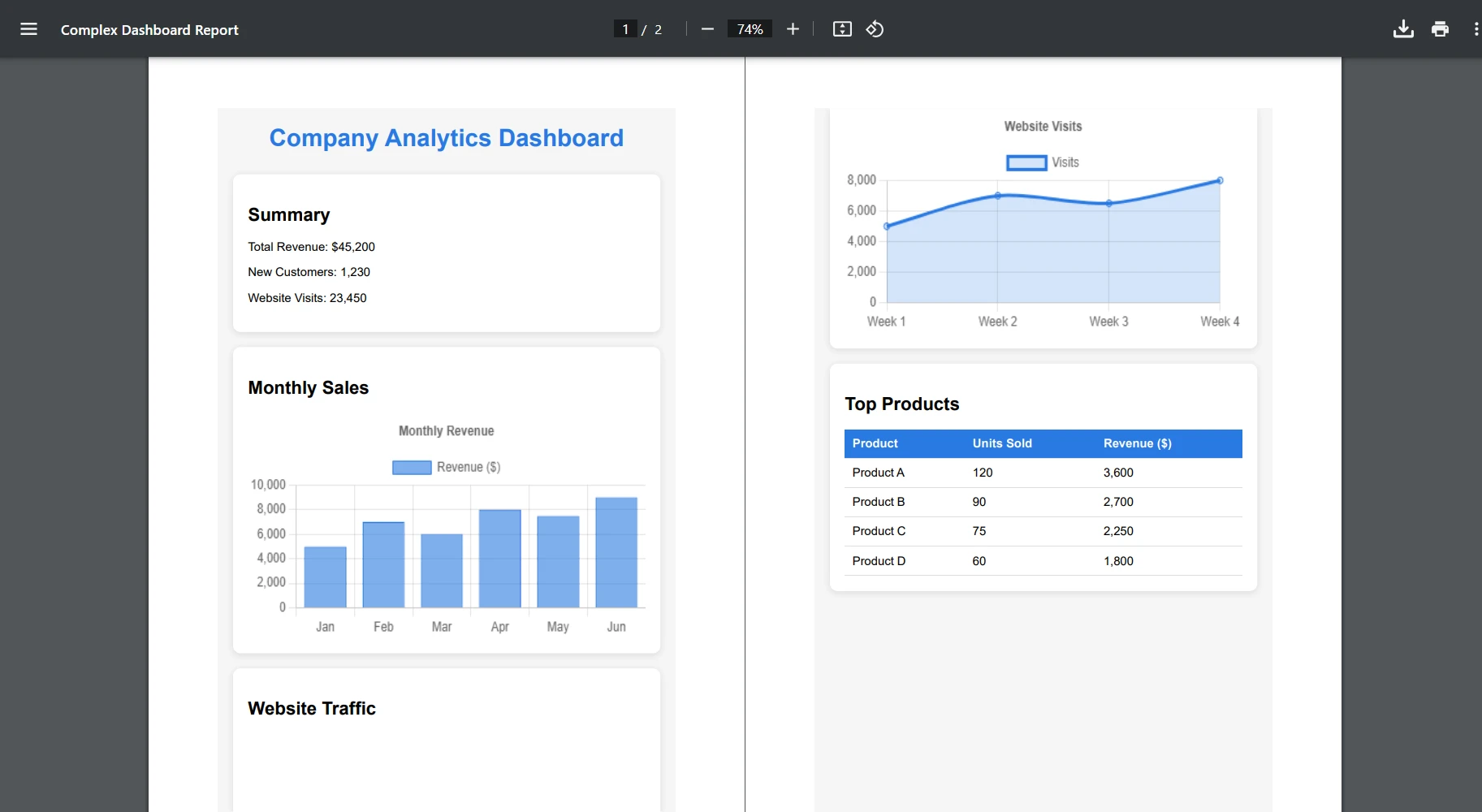
現在讓我們轉換一個包含圖表的HTML文件:
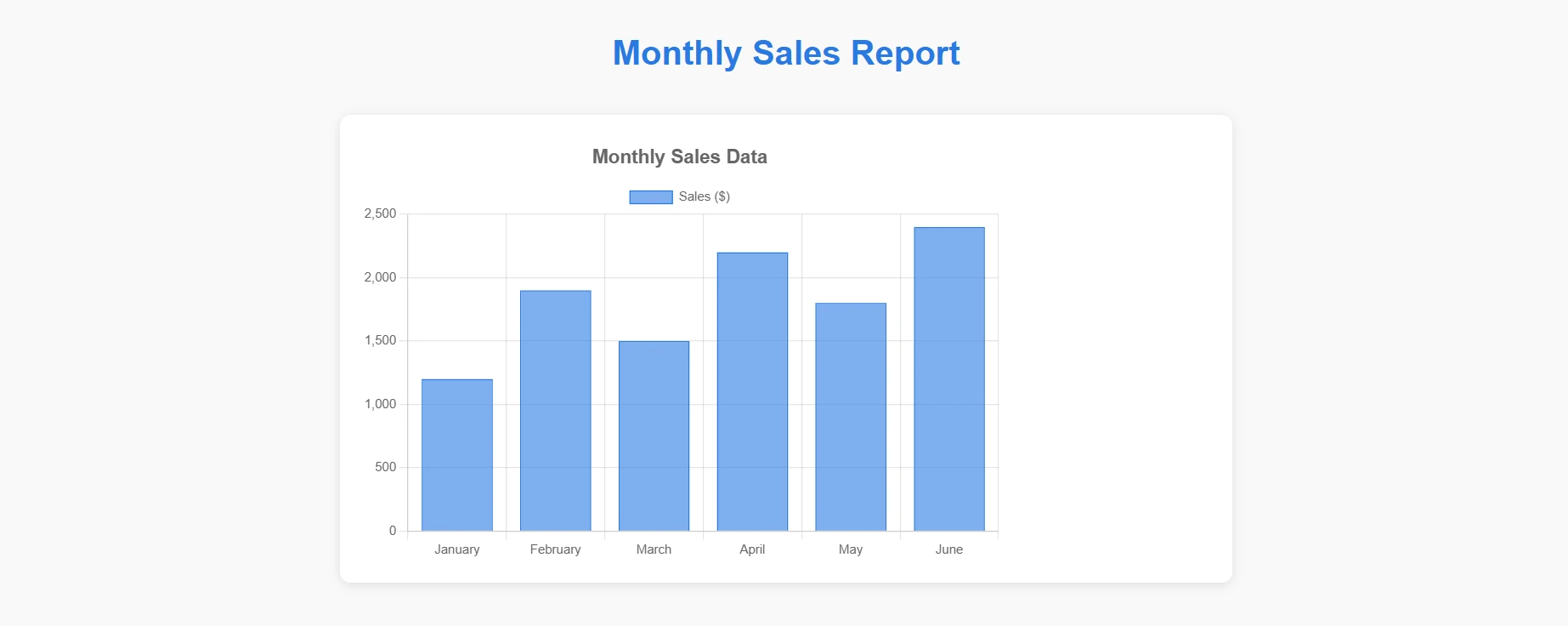
[Function("ConvertChartToPdf")]
    public async Task<HttpResponseData> ConvertChartToPdf(
    [HttpTrigger(AuthorizationLevel.Function, "post")] HttpRequestData req,
    FunctionContext executionContext)
    {
        try
        {
            // Load chart template
            string chartHtml = File.ReadAllText("Templates/chart-template.html");
            // Replace placeholders with actual data
            var chartData = await GetChartDataAsync();
            chartHtml = chartHtml.Replace("{{CHART_DATA}}", JsonSerializer.Serialize(chartData));
            var renderer = new ChromePdfRenderer();
            // Ensure charts render completely
            renderer.RenderingOptions.EnableJavaScript = true;
            renderer.RenderingOptions.WaitFor.RenderDelay(2000);
            // Set paper orientation for charts
            renderer.RenderingOptions.PaperOrientation = IronPdf.Rendering.PdfPaperOrientation.Landscape;
            var pdf = renderer.RenderHtmlAsPdf(chartHtml);
            var response = req.CreateResponse(HttpStatusCode.OK);
            response.Headers.Add("Content-Type", "application/pdf");
            await response.Body.WriteAsync(pdf.BinaryData);
            return response;
        }
        catch (Exception ex)
        {
            _logger.LogError(ex, "Chart conversion error");
            throw;
        }
}Imports System
Imports System.IO
Imports System.Net
Imports System.Text.Json
Imports System.Threading.Tasks
Imports IronPdf
Imports Microsoft.Azure.Functions.Worker
Imports Microsoft.Azure.Functions.Worker.Http
<Function("ConvertChartToPdf")>
Public Class ChartConverter
Private ReadOnly _logger As ILogger
Public Sub New(logger As ILogger)
_logger = logger
End Sub
Public Async Function ConvertChartToPdf(
<HttpTrigger(AuthorizationLevel.Function, "post")> req As HttpRequestData,
executionContext As FunctionContext) As Task(Of HttpResponseData)
Try
' Load chart template
Dim chartHtml As String = File.ReadAllText("Templates/chart-template.html")
' Replace placeholders with actual data
Dim chartData = Await GetChartDataAsync()
chartHtml = chartHtml.Replace("{{CHART_DATA}}", JsonSerializer.Serialize(chartData))
Dim renderer As New ChromePdfRenderer()
' Ensure charts render completely
renderer.RenderingOptions.EnableJavaScript = True
renderer.RenderingOptions.WaitFor.RenderDelay(2000)
' Set paper orientation for charts
renderer.RenderingOptions.PaperOrientation = IronPdf.Rendering.PdfPaperOrientation.Landscape
Dim pdf = renderer.RenderHtmlAsPdf(chartHtml)
Dim response = req.CreateResponse(HttpStatusCode.OK)
response.Headers.Add("Content-Type", "application/pdf")
Await response.Body.WriteAsync(pdf.BinaryData)
Return response
Catch ex As Exception
_logger.LogError(ex, "Chart conversion error")
Throw
End Try
End Function
Private Async Function GetChartDataAsync() As Task(Of Object)
' Placeholder for actual implementation
Return Await Task.FromResult(New Object())
End Function
End Class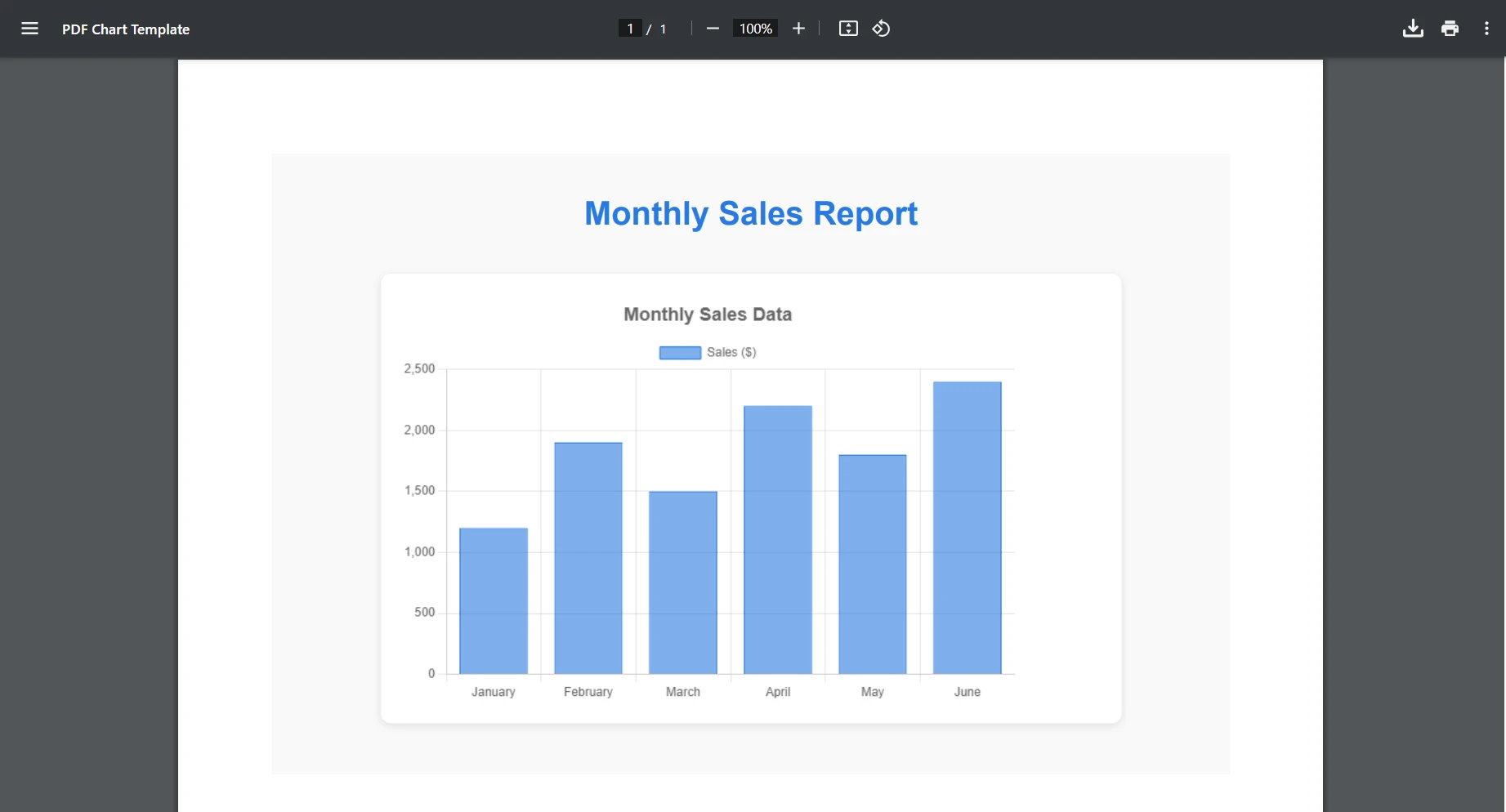
IronPDF在最終的PDF輸出中保留了原始的JavaScript交互性。
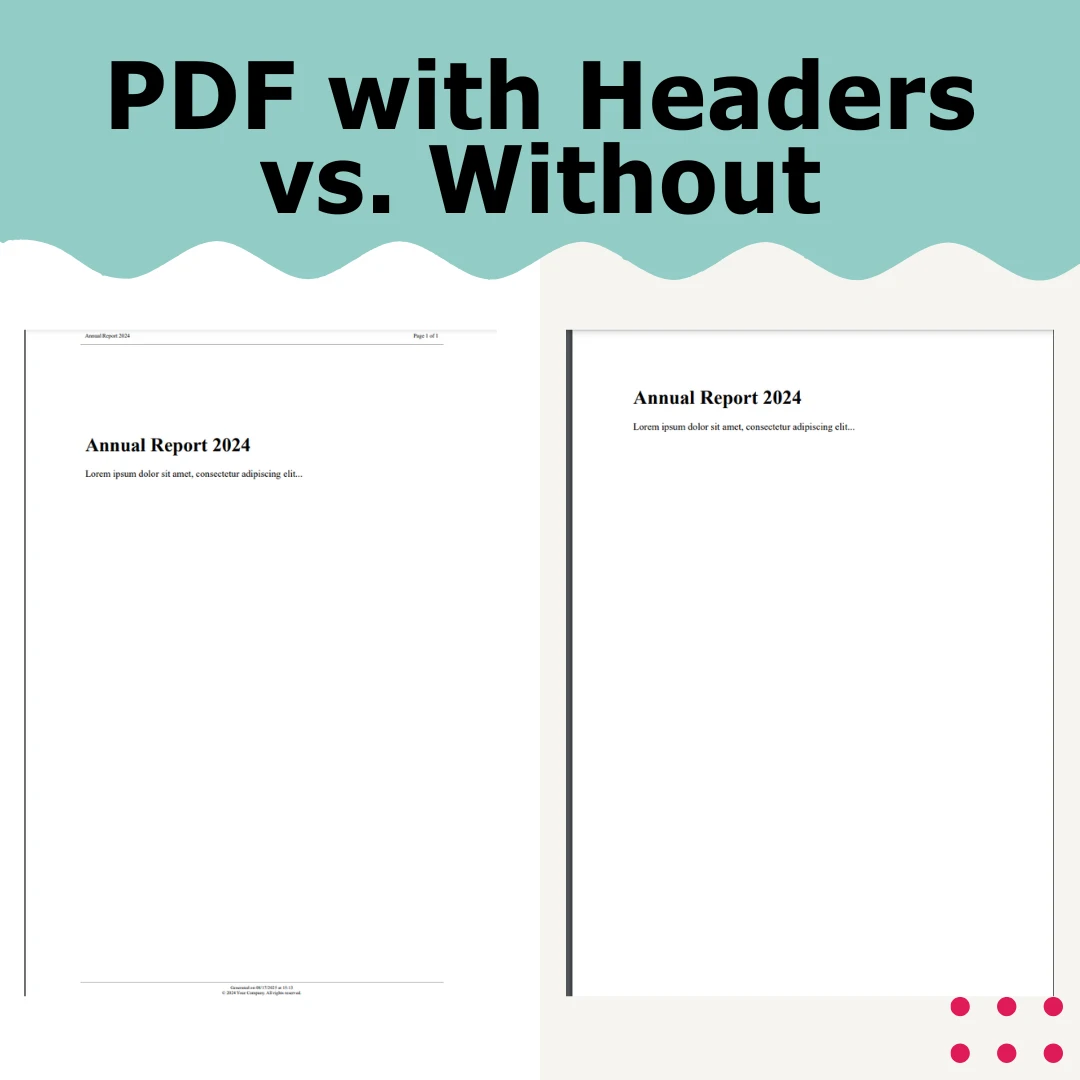
專業的PDF通常需要在所有頁面上保持一致的頁眉和頁腳。 IronPDF通過基於HTML的模板提供了這一點,使頁眉和頁腳的高級選項變得簡單。
[Function("ConvertWithHeaderFooter")]
public async Task<HttpResponseData> ConvertWithHeaderFooter(
[HttpTrigger(AuthorizationLevel.Function, "post")] HttpRequestData req,
FunctionContext executionContext)
{
try
{
    string mainContent = @"
            <html>
            <body>
                <h1>Annual Report 2024</h1>
                <p>Lorem ipsum dolor sit amet, consectetur adipiscing elit...</p>
                <!-- Your main content here -->
            </body>
            </html>";
    var renderer = new ChromePdfRenderer();
    // Configure margins to accommodate headers/footers
        renderer.RenderingOptions.MarginTop = 45;
        renderer.RenderingOptions.MarginBottom = 45;
        renderer.RenderingOptions.MarginLeft = 25;
        renderer.RenderingOptions.MarginRight = 25;
    // HTML Header with merge fields
        renderer.RenderingOptions.HtmlHeader = new HtmlHeaderFooter
    {
        Height = 35,
            HtmlFragment = @"
            <div style='text-align: center; font-size: 12px; padding: 10px;'>
                    <div style='float: left;'>Annual Report 2024</div>
                    <div style='float: right;'>Page {page} of {total-pages}</div>
                    <div style='clear: both;'></div>
                </div>",
            DrawDividerLine = true
    };
    // HTML Footer
        renderer.RenderingOptions.HtmlFooter = new HtmlHeaderFooter
    {
        Height = 30,
            HtmlFragment = @"
                <div style='text-align: center; font-size: 10px; padding: 5px;'>
                    <div>Generated on {date} at {time}</div>
                    <div>© 2024 Your Company. All rights reserved.</div>
                </div>",
            DrawDividerLine = true
    };
    var pdf = renderer.RenderHtmlAsPdf(mainContent);
    var response = req.CreateResponse(HttpStatusCode.OK);
        response.Headers.Add("Content-Type", "application/pdf");
    await response.Body.WriteAsync(pdf.BinaryData);
    return response;
}
catch (Exception ex)
{
        _logger.LogError(ex, "Header/Footer conversion error");
    throw;
}
}
public async Task<PdfDocument> CreatePdfWithCustomHeaders(string htmlContent)
{
var renderer = new ChromePdfRenderer();
// First page header (cover page)
    renderer.RenderingOptions.FirstPageNumber = 0; // Cover page is page 0
    renderer.RenderingOptions.HtmlHeader = new HtmlHeaderFooter
{
    Height = 50,
    HtmlFragment = "<div style='text-align: center; font-size: 24px;'>Company Logo</div>",
        DrawDividerLine = false
};
// Different header for content pages
var pdf = renderer.RenderHtmlAsPdf(htmlContent);
// Apply different headers to specific pages after rendering
for (int i = 1; i < pdf.PageCount; i++)
{
    // Add page-specific content if needed
        pdf.StampHtml(i, @"
        <div style='position: absolute; top: 10px; right: 10px; font-size: 10px;'>
                Section " + GetSectionName(i) + @"
            </div>");
}
return pdf;
}
private string GetSectionName(int pageNumber)
{
// Logic to determine section based on page number
return pageNumber <= 5 ? "Introduction" : "Main Content";
}Imports System.Threading.Tasks
Public Class PdfCreator
Public Async Function CreatePdfWithCustomHeaders(htmlContent As String) As Task(Of PdfDocument)
Dim renderer As New ChromePdfRenderer()
' First page header (cover page)
renderer.RenderingOptions.FirstPageNumber = 0 ' Cover page is page 0
renderer.RenderingOptions.HtmlHeader = New HtmlHeaderFooter With {
.Height = 50,
.HtmlFragment = "<div style='text-align: center; font-size: 24px;'>Company Logo</div>",
.DrawDividerLine = False
}
' Different header for content pages
Dim pdf = renderer.RenderHtmlAsPdf(htmlContent)
' Apply different headers to specific pages after rendering
For i As Integer = 1 To pdf.PageCount - 1
' Add page-specific content if needed
pdf.StampHtml(i, "
<div style='position: absolute; top: 10px; right: 10px; font-size: 10px;'>
Section " & GetSectionName(i) & "
</div>")
Next
Return pdf
End Function
Private Function GetSectionName(pageNumber As Integer) As String
' Logic to determine section based on page number
Return If(pageNumber <= 5, "Introduction", "Main Content")
End Function
End ClassIronPDF的多功能性使其適合多種用途:
即便有正確的配置,您可能還是會遇到Azure特有的挑戰。 以下是常見問題和解決方案:
問題:自定義字型未正確顯示或回退為系統字型。
**解決方案:**Azure的共享託管等級限制了自定義字型所需的GDI+存取。 確保您至少使用B1等級並使用Base64編碼嵌入字型。
string htmlWithEmbeddedFont = @"
<style>
    @font-face {
            font-family: 'CustomFont';
        src: url(data:font/woff2;base64,YOUR_BASE64_FONT_HERE) format('woff2');
    }
    body { font-family: 'CustomFont', Arial, sans-serif; }
</style>";Dim htmlWithEmbeddedFont As String = "
<style>
@font-face {
font-family: 'CustomFont';
src: url(data:font/woff2;base64,YOUR_BASE64_FONT_HERE) format('woff2');
}
body { font-family: 'CustomFont', Arial, sans-serif; }
</style>"如遇持久性的字型問題,請參閱IronPDF字型故障排除指南。
問題:"從包文件運行"啟用時,IronPDF無法載入依賴項。
**解決方案:**此選項建立了一個只讀環境,防止IronPDF提取必要的文件。 要麼在發布設置中禁用此選項,要麼使用更適合處理此場景的IronPdf.Slim包。
**問題:**大HTML文件引起超時或記憶體異常。
**解決方案:**配置適當的超時和記憶體設置:
// In your Function App configuration
renderer.RenderingOptions.Timeout = 120000; // 2 minutes
renderer.RenderingOptions.RequestContext = new RequestContext
{
    MaxResponseContentBufferSize = 100 * 1024 * 1024 // 100MB
};' In your Function App configuration
renderer.RenderingOptions.Timeout = 120000 ' 2 minutes
renderer.RenderingOptions.RequestContext = New RequestContext With {
.MaxResponseContentBufferSize = 100 * 1024 * 1024 ' 100MB
}有關Azure Functions超時配置,請參見Microsoft的超時文件。 開發者還在Stack Overflow的Azure Functions標籤上分享了解決大量文件處理的方案。
有關特定於在Azure中進行HTML轉換為PDF的更多故障排除場景,請存取IronPDF的Azure故障排除文件。
HTML到PDF轉換可能是資源密集型的,這取決於內容的複雜性。 以下是Azure Functions的關鍵優化策略:
當處理JavaScript密集型頁面時,配置適當的渲染延遲:
renderer.RenderingOptions.WaitFor.RenderDelay = 500; // Simple pages
renderer.RenderingOptions.WaitFor.RenderDelay = 2000; // Complex JavaScript
renderer.RenderingOptions.WaitFor.RenderDelay = 500 ' Simple pages
renderer.RenderingOptions.WaitFor.RenderDelay = 2000 ' Complex JavaScript對於高容量場景,妥善處理資源:
using (var renderer = new ChromePdfRenderer())
{
using (var pdf = renderer.RenderHtmlAsPdf(html))
{
    // Process PDF
    return pdf.BinaryData;
}
}Imports System
Using renderer As New ChromePdfRenderer()
Using pdf = renderer.RenderHtmlAsPdf(html)
' Process PDF
Return pdf.BinaryData
End Using
End Using當內容不經常發生變化時,快取生成的PDF:
private static readonly MemoryCache _pdfCache = new MemoryCache(new MemoryCacheOptions
{
SizeLimit = 100 // Limit cache size
});
public async Task<byte[]> GetCachedPdf(string cacheKey, string html)
{
if (!_pdfCache.TryGetValue(cacheKey, out byte[] cachedPdf))
{
    var renderer = new ChromePdfRenderer();
    var pdf = renderer.RenderHtmlAsPdf(html);
    cachedPdf = pdf.BinaryData;
        _pdfCache.Set(cacheKey, cachedPdf, new MemoryCacheEntryOptions
    {
        Size = 1,
        SlidingExpiration = TimeSpan.FromMinutes(10)
    });
}
return cachedPdf;
}Imports System
Imports System.Threading.Tasks
Imports Microsoft.Extensions.Caching.Memory
Private Shared ReadOnly _pdfCache As New MemoryCache(New MemoryCacheOptions With {
.SizeLimit = 100 ' Limit cache size
})
Public Async Function GetCachedPdf(cacheKey As String, html As String) As Task(Of Byte())
Dim cachedPdf As Byte() = Nothing
If Not _pdfCache.TryGetValue(cacheKey, cachedPdf) Then
Dim renderer As New ChromePdfRenderer()
Dim pdf = renderer.RenderHtmlAsPdf(html)
cachedPdf = pdf.BinaryData
_pdfCache.Set(cacheKey, cachedPdf, New MemoryCacheEntryOptions With {
.Size = 1,
.SlidingExpiration = TimeSpan.FromMinutes(10)
})
End If
Return cachedPdf
End Function在Azure中運行HTML到PDF轉換涉及到兩個成本組成部分:
價格因地區而異,且隨時間變化。請參考此IronPDF指南以選擇最適合您需求的等級。
IronPDF授權
IronPDF提供多種授權選擇:
存取IronPDF的授權頁面以瞭解詳細的價格和功能比較。
雖然我們專注於HTML到PDF轉換,但在處理敏感的PDF文件時,安全性至關重要。 為了保護PDF內容安全免受不必要的篡改,瞭解有關保護您的Azure Functions的更多資訊:
在Azure中進行HTML到PDF轉換不必很複雜。 使用IronPDF的Chrome渲染引擎和正確的Azure配置,您可以將任何HTML內容轉化為專業的PDF。
在Azure中成功進行HTML到PDF轉換的關鍵要點:
IronPDF提供的不僅僅是簡單的HTML到PDF轉換。 本文介紹了其在高級PDF操作和PDF圖像支持方面的功能。 IronPDF能夠輕鬆整合到您正在開發的任何應用程式中,包括控制台應用程式和.NET Core應用程式。
Start using IronPDF in your project today with a free trial.
嘗試IronPDF免費試用以存取其強大的功能並立即在您的Azure應用程式中開始進行HTML到PDF轉換!
對於生產部署,請探索IronPDF的授權選項以尋找適合您需求的計畫。 IronPDF提供了全面的文件支持、響應迅速的服務以及持續更新,滿足您在Azure Functions及其他環境中可靠的HTML到PDF轉換的所有需求。

Curtis Chau擁有Carleton大學的電腦科學學士學位,專精於前端開發,擁有Node.js、TypeScript、JavaScript和React的專業知識。Curtis熱衷於建立直觀且美觀的使用者介面,喜愛使用現代框架並建立結構良好、視覺吸引力的手冊。

IronPDF 是 IRONSUITE 的一部分
10 款適用於辦公室文件的 .NET API 產品

當您需要您的PDF看起來像HTML一樣快速。














