using IronPdf;

// Disable local disk access or cross-origin requests
Installation.EnableWebSecurity = true;

// Instantiate Renderer
var renderer = new ChromePdfRenderer();

// Create a PDF from a HTML string using C#
var pdf = renderer.RenderHtmlAsPdf("<h1>Hello World</h1>");

// Export to a file or Stream
pdf.SaveAs("output.pdf");

// Advanced Example with HTML Assets
// Load external html assets: Images, CSS and JavaScript.
// An optional BasePath 'C:\site\assets\' is set as the file location to load assets from
var myAdvancedPdf = renderer.RenderHtmlAsPdf("<img src='icons/iron.png'>", @"C:\site\assets\");
myAdvancedPdf.SaveAs("html-with-assets.pdf");
using IronPdf;// Disable local disk access or cross-origin requestsInstallation.EnableWebSecurity = true;// Instantiate Renderervar renderer = new ChromePdfRenderer();// Create a PDF from a HTML string using C#var pdf = renderer.RenderHtmlAsPdf("<h1>Hello World</h1>");// Export to a file or Streampdf.SaveAs("output.pdf");// Advanced Example with HTML Assets// Load external html assets: Images, CSS and JavaScript.// An optional BasePath 'C:\site\assets\' is set as the file location to load assets fromvar myAdvancedPdf = renderer.RenderHtmlAsPdf("<img src='icons/iron.png'>", @"C:\site\assets\");myAdvancedPdf.SaveAs("html-with-assets.pdf");
IronPDF simplifies the process of creating PDFs in C# by converting HTML to PDF, allowing developers to generate professional PDFs with minimal code, avoiding manual positioning or excessive boilerplate.
Creating PDF documents programmatically in C# used to be genuinely difficult. Most C# PDFWriter solutions involve complex APIs and extensive boilerplate code just to produce a simple PDF file. If you've tried older open-source libraries, you know how frustrating it can be dealing with cryptic positioning methods, memory management quirks, and limited CSS support.
[IronPDF](https://ironpdf.com/) changes all that. With just a few lines of code, you can create PDF documents, add new pages, paragraphs, images, headers, and page numbers, and save them without dealing with low-level details. The library is built on top of the Chromium rendering engine, which means HTML and CSS you already know translate directly into pixel-perfect PDF output.
In this tutorial, you'll learn how to use IronPDF's `ChromePdfRenderer`, the central rendering class, and PDF generation methods to build professional PDF documents in .NET 10. By the end, you'll be ready to generate your own PDF files -- whether it's a quick "Hello World" test or a full-fledged invoice with custom fonts and embedded images.
## What Is a PDFWriter in C#?
A PDFWriter is a document object or library that lets developers generate PDF documents, add paragraphs, images, headers, and manipulate pages programmatically. Traditional libraries often require manual positioning, complex calculations, and explicit resource management. They may also struggle with international languages and complex Unicode characters.
IronPDF simplifies all of this. You can [create PDF documents from HTML content and CSS](https://ironpdf.com/how-to/html-string-to-pdf/) using simple code from a familiar C# environment -- whether that's a console application, an ASP.NET Core web API, or a background service. The library handles font kerning and metadata management automatically.
Some libraries, like iText, have a class named `PdfWriter`, but in C# the term PDFWriter generally refers to any component or library that programmatically generates PDF documents. IronPDF takes a different approach entirely: instead of building a document element by element through a low-level API, you write HTML and CSS, then render it. This approach means you can prototype a layout in a browser and convert it to a PDF without changing a single line of markup.
Moving from low-level manipulation to high-level generation boosts productivity significantly. With a `ChromePdfRenderer` instance, you can create PDFs with minimal code. The Chrome rendering engine ensures pixel-perfect output every time, supporting modern CSS media types and responsive layouts.
As shown below, traditional PDFWriter libraries like iText need lots of boilerplate, while IronPDF produces the same PDF document in just a few lines -- faster, simpler, and less error-prone.
## How Do You Install IronPDF in Your C# Project?
Getting started with IronPDF takes less than a minute. The package is available on [NuGet.org](https://www.nuget.org/packages/IronPdf). Install it via the .NET CLI or the NuGet Package Manager Console:
```bash
:InstallCmd dotnet add package IronPdf
```
Or, if you prefer the NuGet Package Manager Console inside Visual Studio:
```bash
:ProductInstall
```
Alternatively, in Visual Studio:
1. Right-click your project in Solution Explorer
2. Select "Manage NuGet Packages"
3. Search for "IronPDF"
4. Click Install
For detailed platform-specific installations, check the [IronPDF installation guide](https://ironpdf.com/docs/) and the [NuGet package setup walkthrough](https://ironpdf.com/docs/). If you're deploying to Azure, AWS Lambda, or Docker containers, Iron Software maintains specific environment guides for each platform. Linux deployments may require additional native dependencies, and the documentation covers those steps clearly.
Once installed, add `using IronPdf;` to the top of your file and you're ready to start generating PDFs.
## How Do You Create Your First PDF with IronPDF?
Unlike traditional PDFWriter implementations, IronPDF doesn't need a separate PDFWriter class variable. The `ChromePdfRenderer` and `PdfDocument` objects handle all writing tasks internally. Here's a complete working example using .NET 10 top-level statements:
```csharp
using IronPdf;

// Instantiate the PDF renderer
var renderer = new ChromePdfRenderer();

// Create a PDF from an HTML string
var pdf = renderer.RenderHtmlAsPdf("<h1>Hello World</h1><p>This is my first PDF!</p>");

// Save the PDF to disk
pdf.SaveAs("output.pdf");
```
That's the entire program. The `ChromePdfRenderer` handles all the complexity internally, producing a PDF that accurately reflects the HTML structure and styling. You don't manage page breaks, coordinate systems, or glyph paths -- the engine does that for you.
If you need to work with streams instead of files, you can export the PDF to a `MemoryStream`:
```csharp
using IronPdf;
var renderer = new ChromePdfRenderer();
var pdf = renderer.RenderHtmlAsPdf("<h1>Hello World</h1><p>This is my first PDF!</p>");
// Work with the PDF as a byte array
byte[] pdfBytes = pdf.BinaryData;
// Or use the built-in stream
using var ms = pdf.Stream;
// Pass ms to an HttpResponse, Azure Blob Storage, or another destination
```
You can also save PDFs in specialized formats for specific use cases:
```csharp
using IronPdf;
var renderer = new ChromePdfRenderer();
var pdf = renderer.RenderHtmlAsPdf("<h1>Archived Report</h1><p>Long-term storage version.</p>");
// Save as PDF/A-3b for long-term archival
pdf.SaveAsPdfA("archived-document.pdf", PdfAVersions.PdfA3b);
// Save as a linearized PDF for fast web viewing
pdf.SaveAsLinearized("web-optimized.pdf");
```
PDF/A is the [ISO 19005 standard](https://www.iso.org/standard/38920.html) for archival-quality documents, and linearized PDFs load faster in web browsers by allowing page-by-page streaming. Both options require no extra configuration beyond the method call.
## How Do You Convert HTML to PDF Documents?
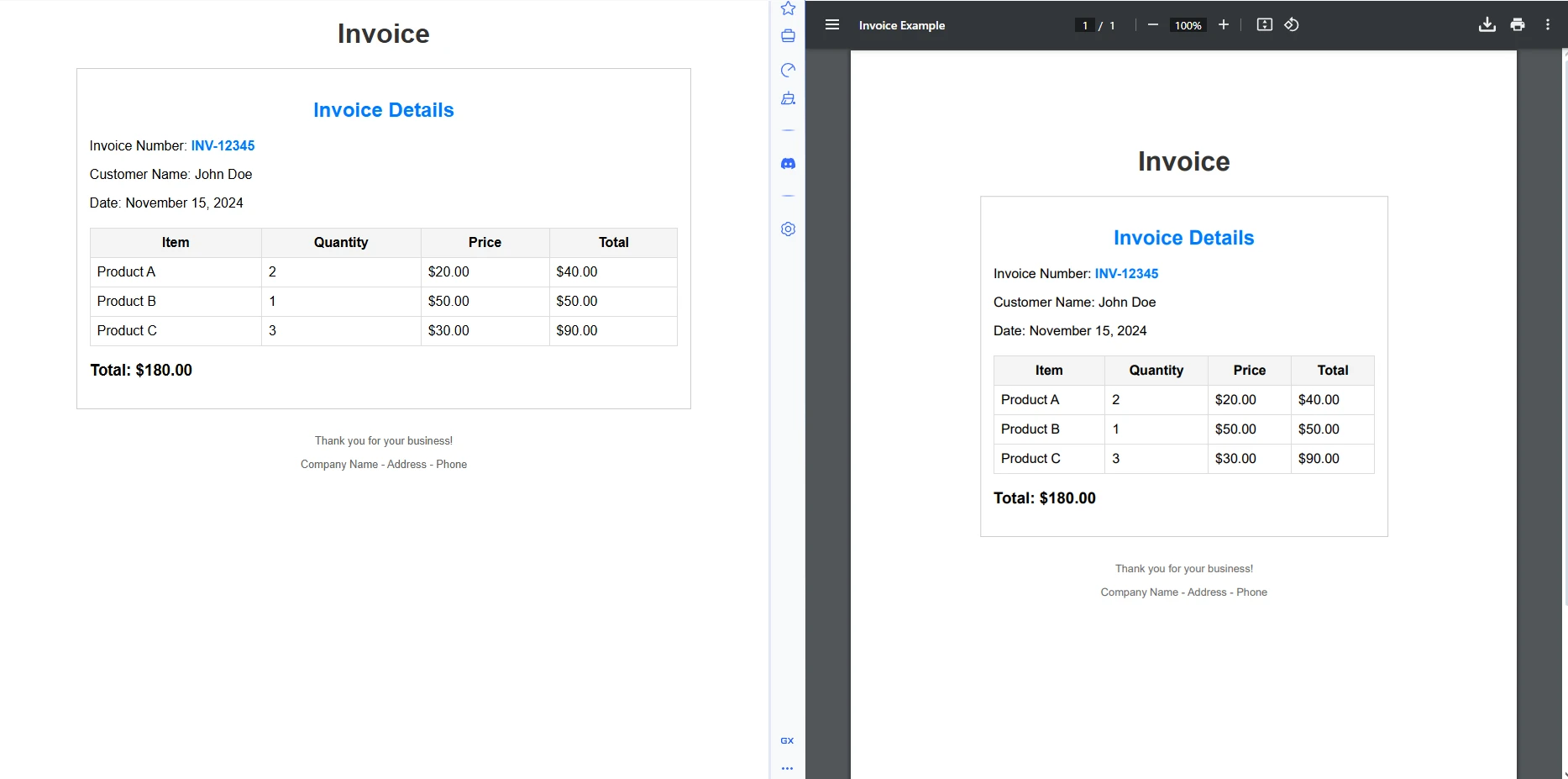
The real power of IronPDF emerges when generating complex PDF documents. Whether converting HTML from an existing web page or building a dynamic report from a template, the HTML-to-PDF conversion maintains full CSS fidelity. The library supports Bootstrap, Flexbox, SVG graphics, and JavaScript-rendered content.
```csharp
using IronPdf;
var renderer = new ChromePdfRenderer();
// Convert a live URL to PDF
var urlPdf = renderer.RenderUrlAsPdf("https://example.com");
urlPdf.SaveAs("website.pdf");
// Convert a local HTML file to PDF
var filePdf = renderer.RenderHtmlFileAsPdf("invoice.html");
filePdf.SaveAs("invoice.pdf");
// Apply rendering options for precise control
renderer.RenderingOptions.PaperSize = IronPdf.Rendering.PdfPaperSize.A4;
renderer.RenderingOptions.MarginTop = 20;
renderer.RenderingOptions.EnableJavaScript = true;
renderer.RenderingOptions.WaitFor.RenderDelay(500); // wait for dynamic content
```
The `WaitFor.RenderDelay` method is useful when the target page relies on JavaScript frameworks like [React](https://react.dev/) or Angular that populate content after the initial DOM render. Setting a delay of 500 -- 1000 ms usually captures the final rendered state correctly.
For more details on rendering options, see the [IronPDF documentation](https://ironpdf.com/docs/).
### What Does the HTML File Output Look Like?
## How Do You Generate Real-World PDF Documents with IronPDF?
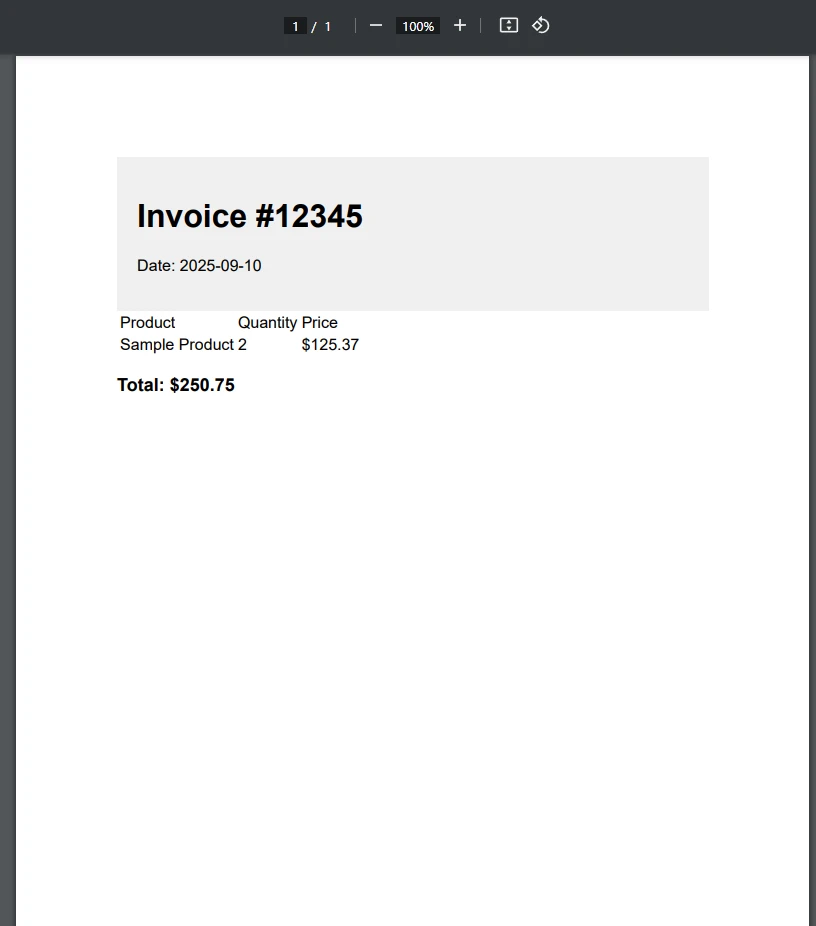
Real-world PDF generation in C# often involves dynamic data. Here's how to create a professional invoice using IronPDF. The example uses C# string interpolation to build an HTML template and renders it directly:
```csharp
using IronPdf;
int invoiceNumber = 12345;
decimal totalAmount = 250.75m;
string invoiceHtml = $@"
<html>
<head>
<style>
body {{ font-family: Arial, sans-serif; margin: 40px; }}
.header {{ background: #f0f0f0; padding: 20px; border-radius: 4px; }}
table {{ width: 100%; border-collapse: collapse; margin-top: 20px; }}
td, th {{ padding: 8px 12px; border: 1px solid #ddd; }}
.total {{ font-weight: bold; font-size: 18px; margin-top: 20px; }}
</style>
</head>
<body>
<div class='header'>
<h1>Invoice #{invoiceNumber}</h1>
<p>Date: {DateTime.Now:yyyy-MM-dd}</p>
</div>
<table>
<tr><th>Product</th><th>Quantity</th><th>Price</th></tr>
<tr><td>IronPDF License</td><td>1</td><td>$250.75</td></tr>
</table>
<p class='total'>Total: ${totalAmount:F2}</p>
</body>
</html>";
var renderer = new ChromePdfRenderer();
var invoicePdf = renderer.RenderHtmlAsPdf(invoiceHtml);
// Apply a digital signature for authenticity
invoicePdf.Sign(new PdfSignature("cert.pfx", "password"));
invoicePdf.SaveAs($"invoice-{invoiceNumber}.pdf");
```
This approach combines the flexibility of HTML templating with the reliability of PDF output. You can use any CSS framework, embed base64-encoded images, and inject data from a database or API call directly into the template string. The result is a professionally formatted PDF that looks exactly like the HTML preview in a browser.
[Signing PDFs with IronPDF](https://ironpdf.com/how-to/signing/) uses standard PFX certificate files, making it compatible with Windows Certificate Store and third-party certificate authorities.
### What Does the Generated Invoice Look Like?
## How Do You Add Headers, Footers, and Watermarks?
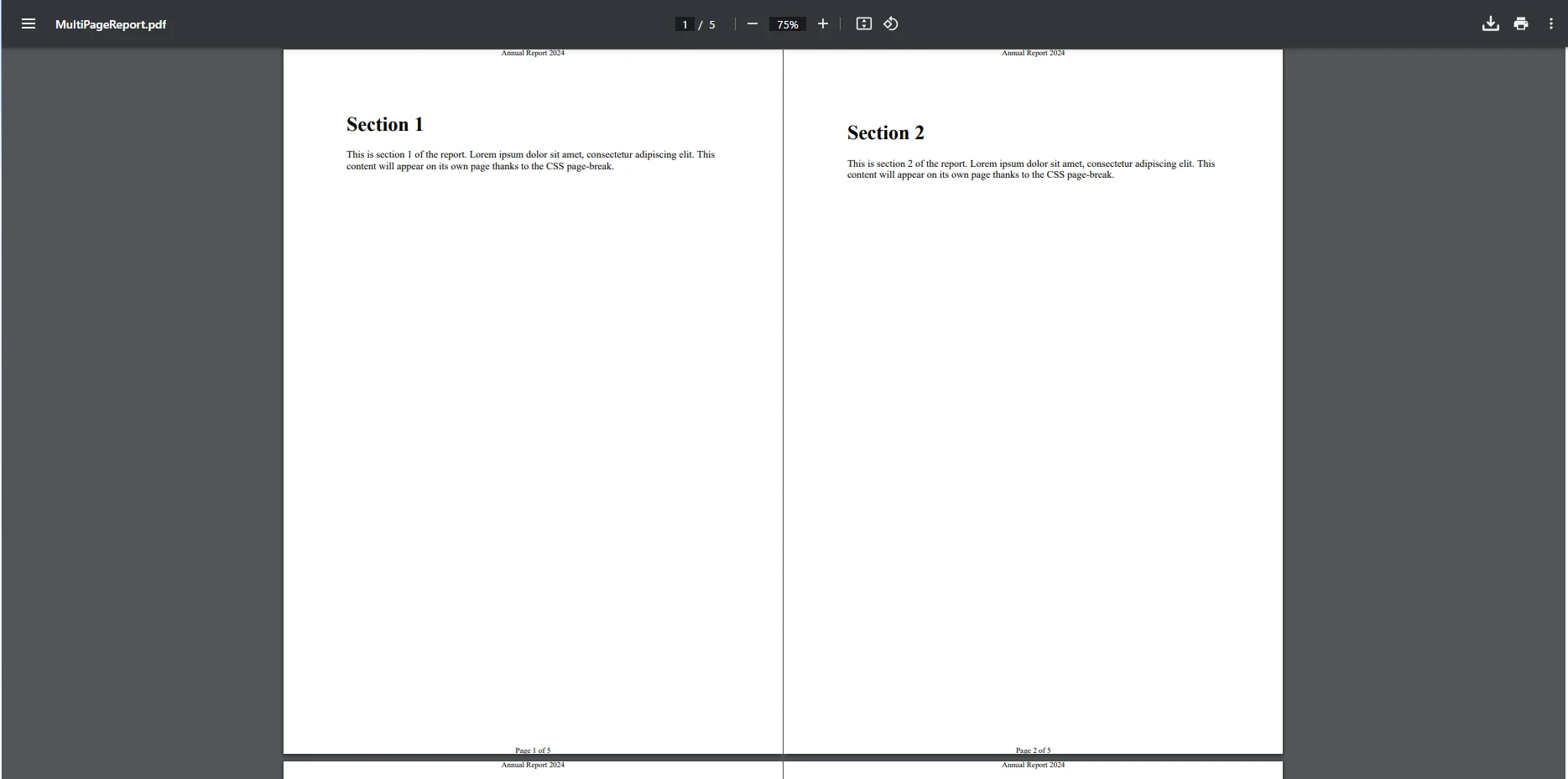
IronPDF makes it straightforward to add professional headers, footers, and watermarks to every page of a generated document. These are configured through `RenderingOptions` before rendering:
```csharp
using IronPdf;
var renderer = new ChromePdfRenderer();
// Add an HTML-based header
renderer.RenderingOptions.HtmlHeader = new HtmlHeaderFooter()
{
HtmlFragment = "<div style='text-align:center; font-family:Arial; font-size:12px;'>Annual Report 2025</div>",
MaxHeight = 25
};
// Add a footer with automatic page numbers
renderer.RenderingOptions.HtmlFooter = new HtmlHeaderFooter()
{
HtmlFragment = "<div style='text-align:center; font-size:10px;'>Page {page} of {total-pages}</div>",
MaxHeight = 20
};
// Generate a multi-page document to demonstrate the header/footer
string multiPageHtml = string.Empty;
for (int i = 1; i <= 5; i++)
{
multiPageHtml += $@"
<div style='page-break-after: always;'>
<h2>Section {i}</h2>
<p>This is section {i} of the report. Content continues here with supporting analysis and data.</p>
</div>";
}
var report = renderer.RenderHtmlAsPdf(multiPageHtml);
report.SaveAs("annual-report.pdf");
```
The `{page}` and `{total-pages}` tokens are replaced automatically by IronPDF during rendering. You can also use `{date}` and `{time}` for dynamic timestamps.
For [watermarks](https://ironpdf.com/how-to/custom-watermark/), IronPDF uses the `ApplyStamp()` method, which accepts HTML-based stamp definitions. This means you can create text watermarks with custom fonts, opacity, and rotation, or image-based stamps with precise positioning. See the [custom watermark guide](https://ironpdf.com/how-to/custom-watermark/) for full configuration options.
For headers and footers with more control, visit the [headers and footers documentation](https://ironpdf.com/how-to/headers-and-footers/).
### How Do Page Numbers Appear in the Final PDF?
## What Advanced Features Does IronPDF Offer?
IronPDF extends beyond basic PDF creation with a wide range of enterprise-ready capabilities. The table below summarizes the most commonly used advanced features:
<table class="content__data-table" data-content-table>
<caption>IronPDF Advanced Features Overview</caption>
<thead>
<tr>
<th>Feature</th>
<th>Description</th>
<th>Primary Use Case</th>
</tr>
</thead>
<tbody>
<tr>
<td>Text Extraction</td>
<td>Extract plain text and structured content from existing PDFs</td>
<td>Data mining, indexing, search integration</td>
</tr>
<tr>
<td>Page Merging / Splitting</td>
<td>Combine multiple PDFs or extract specific page ranges</td>
<td>Report assembly, invoice batching</td>
</tr>
<tr>
<td>Form Fields</td>
<td>Create and populate fillable PDF forms programmatically</td>
<td>HR onboarding, government forms, surveys</td>
</tr>
<tr>
<td>Digital Signatures</td>
<td>Apply cryptographic signatures using PFX certificates</td>
<td>Legal documents, contracts, audit trails</td>
</tr>
<tr>
<td>Encryption</td>
<td>Password-protect PDFs with RC4-128 or selectable AES encryption</td>
<td>Confidential reports, secure distribution</td>
</tr>
<tr>
<td>Watermarks</td>
<td>Overlay text or image stamps on any page</td>
<td>Draft labeling, branding, copyright notices</td>
</tr>
<tr>
<td>PDF/A Compliance</td>
<td>Generate ISO-standard archival PDFs</td>
<td>Legal archiving, government submissions</td>
</tr>
<tr>
<td>Image to PDF</td>
<td>Convert JPEG, PNG, TIFF, and other images to PDF</td>
<td>Scanned documents, photo albums</td>
</tr>
</tbody>
</table>
[Extracting text from PDF files](https://ironpdf.com/how-to/extract-text-and-images/) is a common requirement for document processing pipelines. IronPDF provides `PdfDocument.ExtractAllText()` for full-document extraction and page-level methods for more granular access.
[Merging or splitting PDFs](https://ironpdf.com/how-to/merge-or-split-pdfs/) requires only a single method call. You can combine an array of `PdfDocument` objects into one, or extract specific pages into a new document without loading the entire file into memory.
[PDF forms](https://ironpdf.com/tutorials/pdf-forms-csharp-article/) can be created from scratch in HTML using standard `<input>`, `<select>`, and `<textarea>` elements, which IronPDF converts into interactive PDF form fields. Existing forms can also be read and filled programmatically.
[Converting images to PDF](https://ironpdf.com/how-to/rasterize-pdf-to-images/) and back is also supported, making IronPDF useful for document scanning workflows, thumbnail generation, and image archiving pipelines.
## How Do You License and Deploy IronPDF?
IronPDF requires a license key for production use. You can set the license key in code before any rendering call:
```csharp
using IronPdf;
// Set your license key before using any IronPDF features
License.LicenseKey = "YOUR-LICENSE-KEY-HERE";
var renderer = new ChromePdfRenderer();
var pdf = renderer.RenderHtmlAsPdf("<h1>Licensed Output</h1>");
pdf.SaveAs("licensed.pdf");
```
A [free trial license](trial-license) is available with no credit card required. It allows full-feature evaluation with a watermark on output. When you're ready to remove the watermark and deploy to production, check the [licensing page](https://ironpdf.com/licensing/) for pricing details covering single-developer, team, and OEM deployment scenarios.
For deployment environments:
- **Windows IIS:** Works out of the box with standard application pool identity permissions.
- **Docker/Linux:** Requires the `IronPdf.Linux` or `IronPdf.Slim` NuGet packages, which bundle the Chromium dependencies.
- **Azure/AWS Lambda:** IronPDF supports serverless deployment, but the Chrome engine requires a minimum memory allocation of 512 MB for stable operation.
- **macOS (Apple Silicon):** Fully supported with native ARM binaries in recent releases.
The [IronPDF features page](https://ironpdf.com/features/) provides a full breakdown of capabilities by deployment environment. For complex rendering workflows, the [IronPDF docs](https://ironpdf.com/docs/) contain architecture diagrams and thread-safety guidance for high-concurrency applications.
## Why Is IronPDF a Practical Choice for .NET PDF Generation?
IronPDF makes PDF generation in C# straightforward and reliable. You don't need a dedicated `PdfWriter` class; instead, the `ChromePdfRenderer` and `PdfDocument` object handle everything from HTML content to page size, headers, and footers. Whether you're creating invoices, reports, or certificates, IronPDF gets the job done in just a few lines of code.
The HTML-to-PDF approach has a concrete productivity advantage: your templates are standard HTML and CSS files that you can preview and iterate in a browser without a rebuild cycle. When the design is right, you point IronPDF at the same markup and get a PDF that matches the browser preview precisely.
The library supports parallel processing for high-volume scenarios and async operations for responsive applications. You can render thousands of documents concurrently in a background service without blocking request threads.
With complete [documentation](https://ironpdf.com/docs/), a [free trial](trial-license), and responsive engineering support, getting started is simple. You can experiment with new PDF documents, add images, or adjust font size and page layout without headaches. IronPDF turns PDF creation from a technical chore into a productive part of your development workflow.
Ready to modernize your C# PDF writer workflow? [Start your free trial](trial-license) and experience how IronPDF simplifies PDF creation in .NET 10. With complete [documentation](https://ironpdf.com/docs/) and responsive support, you'll be generating professional PDFs in minutes, not hours.
!!!--LIBRARY_GET_STARTED_WITH_PRODUCT_TRIAL_BLOCK--!!!
IronPDF simplifies the process of creating PDFs in C# by converting HTML to PDF, allowing developers to generate professional PDFs with minimal code, avoiding manual positioning or excessive boilerplate.
Creating PDF documents programmatically in C# used to be genuinely difficult. Most C# PDFWriter solutions involve complex APIs and extensive boilerplate code just to produce a simple PDF file. If you've tried older open-source libraries, you know how frustrating it can be dealing with cryptic positioning methods, memory management quirks, and limited CSS support.
IronPDF changes all that. With just a few lines of code, you can create PDF documents, add new pages, paragraphs, images, headers, and page numbers, and save them without dealing with low-level details. The library is built on top of the Chromium rendering engine, which means HTML and CSS you already know translate directly into pixel-perfect PDF output.
In this tutorial, you'll learn how to use IronPDF's ChromePdfRenderer, the central rendering class, and PDF generation methods to build professional PDF documents in .NET 10. By the end, you'll be ready to generate your own PDF files -- whether it's a quick "Hello World" test or a full-fledged invoice with custom fonts and embedded images.
What Is a PDFWriter in C#?
A PDFWriter is a document object or library that lets developers generate PDF documents, add paragraphs, images, headers, and manipulate pages programmatically. Traditional libraries often require manual positioning, complex calculations, and explicit resource management. They may also struggle with international languages and complex Unicode characters.
IronPDF simplifies all of this. You can create PDF documents from HTML content and CSS using simple code from a familiar C# environment -- whether that's a console application, an ASP.NET Core web API, or a background service. The library handles font kerning and metadata management automatically.
Some libraries, like iText, have a class named PdfWriter, but in C# the term PDFWriter generally refers to any component or library that programmatically generates PDF documents. IronPDF takes a different approach entirely: instead of building a document element by element through a low-level API, you write HTML and CSS, then render it. This approach means you can prototype a layout in a browser and convert it to a PDF without changing a single line of markup.
Moving from low-level manipulation to high-level generation boosts productivity significantly. With a ChromePdfRenderer instance, you can create PDFs with minimal code. The Chrome rendering engine ensures pixel-perfect output every time, supporting modern CSS media types and responsive layouts.
As shown below, traditional PDFWriter libraries like iText need lots of boilerplate, while IronPDF produces the same PDF document in just a few lines -- faster, simpler, and less error-prone.
How Do You Install IronPDF in Your C# Project?
Getting started with IronPDF takes less than a minute. The package is available on NuGet.org. Install it via the .NET CLI or the NuGet Package Manager Console:
> dotnet add package IronPdf
dotnet add package IronPdf
Or, if you prefer the NuGet Package Manager Console inside Visual Studio:
PM > Install-Package IronPdf
Install-Package IronPdf
Alternatively, in Visual Studio:
Right-click your project in Solution Explorer
Select "Manage NuGet Packages"
Search for "IronPDF"
Click Install
For detailed platform-specific installations, check the IronPDF installation guide and the NuGet package setup walkthrough. If you're deploying to Azure, AWS Lambda, or Docker containers, Iron Software maintains specific environment guides for each platform. Linux deployments may require additional native dependencies, and the documentation covers those steps clearly.
Once installed, add using IronPdf; to the top of your file and you're ready to start generating PDFs.
How Do You Create Your First PDF with IronPDF?
Unlike traditional PDFWriter implementations, IronPDF doesn't need a separate PDFWriter class variable. The ChromePdfRenderer and PdfDocument objects handle all writing tasks internally. Here's a complete working example using .NET 10 top-level statements:
using IronPdf;// Instantiate the PDF renderervar renderer = new ChromePdfRenderer();// Create a PDF from an HTML stringvar pdf = renderer.RenderHtmlAsPdf("<h1>Hello World</h1><p>This is my first PDF!</p>");// Save the PDF to diskpdf.SaveAs("output.pdf");
using IronPdf;

// Instantiate the PDF renderer
var renderer = new ChromePdfRenderer();

// Create a PDF from an HTML string
var pdf = renderer.RenderHtmlAsPdf("<h1>Hello World</h1><p>This is my first PDF!</p>");

// Save the PDF to disk
pdf.SaveAs("output.pdf");
ImportsIronPdf' Instantiate the PDF rendererDim renderer As New ChromePdfRenderer()' Create a PDF from an HTML stringDim pdf = renderer.RenderHtmlAsPdf("<h1>Hello World</h1><p>This is my first PDF!</p>")' Save the PDF to diskpdf.SaveAs("output.pdf")
Imports IronPdf

' Instantiate the PDF renderer
Dim renderer As New ChromePdfRenderer()

' Create a PDF from an HTML string
Dim pdf = renderer.RenderHtmlAsPdf("<h1>Hello World</h1><p>This is my first PDF!</p>")

' Save the PDF to disk
pdf.SaveAs("output.pdf")
That's the entire program. The ChromePdfRenderer handles all the complexity internally, producing a PDF that accurately reflects the HTML structure and styling. You don't manage page breaks, coordinate systems, or glyph paths -- the engine does that for you.
If you need to work with streams instead of files, you can export the PDF to a MemoryStream:
using IronPdf;var renderer = new ChromePdfRenderer();var pdf = renderer.RenderHtmlAsPdf("<h1>Hello World</h1><p>This is my first PDF!</p>");// Work with the PDF as a byte arraybyte[] pdfBytes = pdf.BinaryData;// Or use the built-in streamusing var ms = pdf.Stream;// Pass ms to an HttpResponse, Azure Blob Storage, or another destination
using IronPdf;

var renderer = new ChromePdfRenderer();
var pdf = renderer.RenderHtmlAsPdf("<h1>Hello World</h1><p>This is my first PDF!</p>");

// Work with the PDF as a byte array
byte[] pdfBytes = pdf.BinaryData;

// Or use the built-in stream
using var ms = pdf.Stream;
// Pass ms to an HttpResponse, Azure Blob Storage, or another destination
ImportsIronPdfDim renderer As New ChromePdfRenderer()Dim pdf = renderer.RenderHtmlAsPdf("<h1>Hello World</h1><p>This is my first PDF!</p>")' Work with the PDF as a byte arrayDim pdfBytes AsByte() = pdf.BinaryData' Or use the built-in streamUsing ms = pdf.Stream ' Pass ms to an HttpResponse, Azure Blob Storage, or another destinationEndUsing
Imports IronPdf

Dim renderer As New ChromePdfRenderer()
Dim pdf = renderer.RenderHtmlAsPdf("<h1>Hello World</h1><p>This is my first PDF!</p>")

' Work with the PDF as a byte array
Dim pdfBytes As Byte() = pdf.BinaryData

' Or use the built-in stream
Using ms = pdf.Stream
    ' Pass ms to an HttpResponse, Azure Blob Storage, or another destination
End Using
You can also save PDFs in specialized formats for specific use cases:
using IronPdf;var renderer = new ChromePdfRenderer();var pdf = renderer.RenderHtmlAsPdf("<h1>Archived Report</h1><p>Long-term storage version.</p>");// Save as PDF/A-3b for long-term archivalpdf.SaveAsPdfA("archived-document.pdf", PdfAVersions.PdfA3b);// Save as a linearized PDF for fast web viewingpdf.SaveAsLinearized("web-optimized.pdf");
using IronPdf;

var renderer = new ChromePdfRenderer();
var pdf = renderer.RenderHtmlAsPdf("<h1>Archived Report</h1><p>Long-term storage version.</p>");

// Save as PDF/A-3b for long-term archival
pdf.SaveAsPdfA("archived-document.pdf", PdfAVersions.PdfA3b);

// Save as a linearized PDF for fast web viewing
pdf.SaveAsLinearized("web-optimized.pdf");
ImportsIronPdfDim renderer As New ChromePdfRenderer()Dim pdf = renderer.RenderHtmlAsPdf("<h1>Archived Report</h1><p>Long-term storage version.</p>")' Save as PDF/A-3b for long-term archivalpdf.SaveAsPdfA("archived-document.pdf", PdfAVersions.PdfA3b)' Save as a linearized PDF for fast web viewingpdf.SaveAsLinearized("web-optimized.pdf")
Imports IronPdf

Dim renderer As New ChromePdfRenderer()
Dim pdf = renderer.RenderHtmlAsPdf("<h1>Archived Report</h1><p>Long-term storage version.</p>")

' Save as PDF/A-3b for long-term archival
pdf.SaveAsPdfA("archived-document.pdf", PdfAVersions.PdfA3b)

' Save as a linearized PDF for fast web viewing
pdf.SaveAsLinearized("web-optimized.pdf")
PDF/A is the ISO 19005 standard for archival-quality documents, and linearized PDFs load faster in web browsers by allowing page-by-page streaming. Both options require no extra configuration beyond the method call.
How Do You Convert HTML to PDF Documents?
The real power of IronPDF emerges when generating complex PDF documents. Whether converting HTML from an existing web page or building a dynamic report from a template, the HTML-to-PDF conversion maintains full CSS fidelity. The library supports Bootstrap, Flexbox, SVG graphics, and JavaScript-rendered content.
using IronPdf;var renderer = new ChromePdfRenderer();// Convert a live URL to PDFvar urlPdf = renderer.RenderUrlAsPdf("https://example.com");urlPdf.SaveAs("website.pdf");// Convert a local HTML file to PDFvar filePdf = renderer.RenderHtmlFileAsPdf("invoice.html");filePdf.SaveAs("invoice.pdf");// Apply rendering options for precise controlrenderer.RenderingOptions.PaperSize = IronPdf.Rendering.PdfPaperSize.A4;renderer.RenderingOptions.MarginTop = 20;renderer.RenderingOptions.EnableJavaScript = true;renderer.RenderingOptions.WaitFor.RenderDelay(500); // wait for dynamic content
using IronPdf;

var renderer = new ChromePdfRenderer();

// Convert a live URL to PDF
var urlPdf = renderer.RenderUrlAsPdf("https://example.com");
urlPdf.SaveAs("website.pdf");

// Convert a local HTML file to PDF
var filePdf = renderer.RenderHtmlFileAsPdf("invoice.html");
filePdf.SaveAs("invoice.pdf");

// Apply rendering options for precise control
renderer.RenderingOptions.PaperSize = IronPdf.Rendering.PdfPaperSize.A4;
renderer.RenderingOptions.MarginTop = 20;
renderer.RenderingOptions.EnableJavaScript = true;
renderer.RenderingOptions.WaitFor.RenderDelay(500); // wait for dynamic content
ImportsIronPdfDim renderer As New ChromePdfRenderer()' Convert a live URL to PDFDim urlPdf = renderer.RenderUrlAsPdf("https://example.com")urlPdf.SaveAs("website.pdf")' Convert a local HTML file to PDFDim filePdf = renderer.RenderHtmlFileAsPdf("invoice.html")filePdf.SaveAs("invoice.pdf")' Apply rendering options for precise controlrenderer.RenderingOptions.PaperSize = IronPdf.Rendering.PdfPaperSize.A4renderer.RenderingOptions.MarginTop = 20renderer.RenderingOptions.EnableJavaScript = Truerenderer.RenderingOptions.WaitFor.RenderDelay(500) ' wait for dynamic content
Imports IronPdf

Dim renderer As New ChromePdfRenderer()

' Convert a live URL to PDF
Dim urlPdf = renderer.RenderUrlAsPdf("https://example.com")
urlPdf.SaveAs("website.pdf")

' Convert a local HTML file to PDF
Dim filePdf = renderer.RenderHtmlFileAsPdf("invoice.html")
filePdf.SaveAs("invoice.pdf")

' Apply rendering options for precise control
renderer.RenderingOptions.PaperSize = IronPdf.Rendering.PdfPaperSize.A4
renderer.RenderingOptions.MarginTop = 20
renderer.RenderingOptions.EnableJavaScript = True
renderer.RenderingOptions.WaitFor.RenderDelay(500) ' wait for dynamic content
The WaitFor.RenderDelay method is useful when the target page relies on JavaScript frameworks like React or Angular that populate content after the initial DOM render. Setting a delay of 500 -- 1000 ms usually captures the final rendered state correctly.
How Do You Generate Real-World PDF Documents with IronPDF?
Real-world PDF generation in C# often involves dynamic data. Here's how to create a professional invoice using IronPDF. The example uses C# string interpolation to build an HTML template and renders it directly:
Imports IronPdf

Dim invoiceNumber As Integer = 12345
Dim totalAmount As Decimal = 250.75D

Dim invoiceHtml As String = $"
    <html>
    <head>
        <style>
            body {{ font-family: Arial, sans-serif; margin: 40px; }}
            .header {{ background: #f0f0f0; padding: 20px; border-radius: 4px; }}
            table {{ width: 100%; border-collapse: collapse; margin-top: 20px; }}
            td, th {{ padding: 8px 12px; border: 1px solid #ddd; }}
            .total {{ font-weight: bold; font-size: 18px; margin-top: 20px; }}
        </style>
    </head>
    <body>
        <div class='header'>
            <h1>Invoice #{invoiceNumber}</h1>
            <p>Date: {DateTime.Now:yyyy-MM-dd}</p>
        </div>
        <table>
            <tr><th>Product</th><th>Quantity</th><th>Price</th></tr>
            <tr><td>IronPDF License</td><td>1</td><td>$250.75</td></tr>
        </table>
        <p class='total'>Total: ${totalAmount:F2}</p>
    </body>
    </html>"

Dim renderer As New ChromePdfRenderer()
Dim invoicePdf = renderer.RenderHtmlAsPdf(invoiceHtml)

' Apply a digital signature for authenticity
invoicePdf.Sign(New PdfSignature("cert.pfx", "password"))
invoicePdf.SaveAs($"invoice-{invoiceNumber}.pdf")
This approach combines the flexibility of HTML templating with the reliability of PDF output. You can use any CSS framework, embed base64-encoded images, and inject data from a database or API call directly into the template string. The result is a professionally formatted PDF that looks exactly like the HTML preview in a browser.
Signing PDFs with IronPDF uses standard PFX certificate files, making it compatible with Windows Certificate Store and third-party certificate authorities.
What Does the Generated Invoice Look Like?
How Do You Add Headers, Footers, and Watermarks?
IronPDF makes it straightforward to add professional headers, footers, and watermarks to every page of a generated document. These are configured through RenderingOptions before rendering:
using IronPdf;var renderer = new ChromePdfRenderer();// Add an HTML-based headerrenderer.RenderingOptions.HtmlHeader = new HtmlHeaderFooter(){HtmlFragment = "<div style='text-align:center; font-family:Arial; font-size:12px;'>Annual Report 2025</div>",MaxHeight = 25};// Add a footer with automatic page numbersrenderer.RenderingOptions.HtmlFooter = new HtmlHeaderFooter(){HtmlFragment = "<div style='text-align:center; font-size:10px;'>Page {page} of {total-pages}</div>",MaxHeight = 20};// Generate a multi-page document to demonstrate the header/footerstring multiPageHtml = string.Empty;for (int i = 1; i <= 5; i++){ multiPageHtml += $@" <div style='page-break-after: always;'> <h2>Section {i}</h2> <p>This is section {i} of the report. Content continues here with supporting analysis and data.</p> </div>";}var report = renderer.RenderHtmlAsPdf(multiPageHtml);report.SaveAs("annual-report.pdf");
using IronPdf;

var renderer = new ChromePdfRenderer();

// Add an HTML-based header
renderer.RenderingOptions.HtmlHeader = new HtmlHeaderFooter()
{
    HtmlFragment = "<div style='text-align:center; font-family:Arial; font-size:12px;'>Annual Report 2025</div>",
    MaxHeight = 25
};

// Add a footer with automatic page numbers
renderer.RenderingOptions.HtmlFooter = new HtmlHeaderFooter()
{
    HtmlFragment = "<div style='text-align:center; font-size:10px;'>Page {page} of {total-pages}</div>",
    MaxHeight = 20
};

// Generate a multi-page document to demonstrate the header/footer
string multiPageHtml = string.Empty;
for (int i = 1; i <= 5; i++)
{
    multiPageHtml += $@"
        <div style='page-break-after: always;'>
            <h2>Section {i}</h2>
            <p>This is section {i} of the report. Content continues here with supporting analysis and data.</p>
        </div>";
}

var report = renderer.RenderHtmlAsPdf(multiPageHtml);
report.SaveAs("annual-report.pdf");
ImportsIronPdfDim renderer As New ChromePdfRenderer()' Add an HTML-based headerrenderer.RenderingOptions.HtmlHeader = New HtmlHeaderFooter() With { .HtmlFragment = "<div style='text-align:center; font-family:Arial; font-size:12px;'>Annual Report 2025</div>", .MaxHeight = 25}' Add a footer with automatic page numbersrenderer.RenderingOptions.HtmlFooter = New HtmlHeaderFooter() With { .HtmlFragment = "<div style='text-align:center; font-size:10px;'>Page {page} of {total-pages}</div>", .MaxHeight = 20}' Generate a multi-page document to demonstrate the header/footerDim multiPageHtml AsString = String.EmptyFor i AsInteger = 1 To 5 multiPageHtml &= $" <div style='page-break-after: always;'> <h2>Section {i}</h2> <p>This is section {i} of the report. Content continues here with supporting analysis and data.</p> </div>"NextDim report = renderer.RenderHtmlAsPdf(multiPageHtml)report.SaveAs("annual-report.pdf")
Imports IronPdf

Dim renderer As New ChromePdfRenderer()

' Add an HTML-based header
renderer.RenderingOptions.HtmlHeader = New HtmlHeaderFooter() With {
    .HtmlFragment = "<div style='text-align:center; font-family:Arial; font-size:12px;'>Annual Report 2025</div>",
    .MaxHeight = 25
}

' Add a footer with automatic page numbers
renderer.RenderingOptions.HtmlFooter = New HtmlHeaderFooter() With {
    .HtmlFragment = "<div style='text-align:center; font-size:10px;'>Page {page} of {total-pages}</div>",
    .MaxHeight = 20
}

' Generate a multi-page document to demonstrate the header/footer
Dim multiPageHtml As String = String.Empty
For i As Integer = 1 To 5
    multiPageHtml &= $"
        <div style='page-break-after: always;'>
            <h2>Section {i}</h2>
            <p>This is section {i} of the report. Content continues here with supporting analysis and data.</p>
        </div>"
Next

Dim report = renderer.RenderHtmlAsPdf(multiPageHtml)
report.SaveAs("annual-report.pdf")
The {page} and {total-pages} tokens are replaced automatically by IronPDF during rendering. You can also use {date} and {time} for dynamic timestamps.
For watermarks, IronPDF uses the ApplyStamp() method, which accepts HTML-based stamp definitions. This means you can create text watermarks with custom fonts, opacity, and rotation, or image-based stamps with precise positioning. See the custom watermark guide for full configuration options.
IronPDF extends beyond basic PDF creation with a wide range of enterprise-ready capabilities. The table below summarizes the most commonly used advanced features:
IronPDF Advanced Features Overview
Feature
Description
Primary Use Case
Text Extraction
Extract plain text and structured content from existing PDFs
Data mining, indexing, search integration
Page Merging / Splitting
Combine multiple PDFs or extract specific page ranges
Report assembly, invoice batching
Form Fields
Create and populate fillable PDF forms programmatically
HR onboarding, government forms, surveys
Digital Signatures
Apply cryptographic signatures using PFX certificates
Legal documents, contracts, audit trails
Encryption
Password-protect PDFs with RC4-128 or selectable AES encryption
Confidential reports, secure distribution
Watermarks
Overlay text or image stamps on any page
Draft labeling, branding, copyright notices
PDF/A Compliance
Generate ISO-standard archival PDFs
Legal archiving, government submissions
Image to PDF
Convert JPEG, PNG, TIFF, and other images to PDF
Scanned documents, photo albums
Extracting text from PDF files is a common requirement for document processing pipelines. IronPDF provides PdfDocument.ExtractAllText() for full-document extraction and page-level methods for more granular access.
Merging or splitting PDFs requires only a single method call. You can combine an array of PdfDocument objects into one, or extract specific pages into a new document without loading the entire file into memory.
PDF forms can be created from scratch in HTML using standard <input>, <select>, and <textarea> elements, which IronPDF converts into interactive PDF form fields. Existing forms can also be read and filled programmatically.
Converting images to PDF and back is also supported, making IronPDF useful for document scanning workflows, thumbnail generation, and image archiving pipelines.
How Do You License and Deploy IronPDF?
IronPDF requires a license key for production use. You can set the license key in code before any rendering call:
using IronPdf;// Set your license key before using any IronPDF featuresLicense.LicenseKey = "YOUR-LICENSE-KEY-HERE";var renderer = new ChromePdfRenderer();var pdf = renderer.RenderHtmlAsPdf("<h1>Licensed Output</h1>");pdf.SaveAs("licensed.pdf");
using IronPdf;

// Set your license key before using any IronPDF features
License.LicenseKey = "YOUR-LICENSE-KEY-HERE";

var renderer = new ChromePdfRenderer();
var pdf = renderer.RenderHtmlAsPdf("<h1>Licensed Output</h1>");
pdf.SaveAs("licensed.pdf");
ImportsIronPdf' Set your license key before using any IronPDF featuresLicense.LicenseKey = "YOUR-LICENSE-KEY-HERE"Dim renderer As New ChromePdfRenderer()Dim pdf = renderer.RenderHtmlAsPdf("<h1>Licensed Output</h1>")pdf.SaveAs("licensed.pdf")
Imports IronPdf

' Set your license key before using any IronPDF features
License.LicenseKey = "YOUR-LICENSE-KEY-HERE"

Dim renderer As New ChromePdfRenderer()
Dim pdf = renderer.RenderHtmlAsPdf("<h1>Licensed Output</h1>")
pdf.SaveAs("licensed.pdf")
A free trial license is available with no credit card required. It allows full-feature evaluation with a watermark on output. When you're ready to remove the watermark and deploy to production, check the licensing page for pricing details covering single-developer, team, and OEM deployment scenarios.
For deployment environments:
Windows IIS: Works out of the box with standard application pool identity permissions.
Docker/Linux: Requires the IronPdf.Linux or IronPdf.Slim NuGet packages, which bundle the Chromium dependencies.
Azure/AWS Lambda: IronPDF supports serverless deployment, but the Chrome engine requires a minimum memory allocation of 512 MB for stable operation.
macOS (Apple Silicon): Fully supported with native ARM binaries in recent releases.
The IronPDF features page provides a full breakdown of capabilities by deployment environment. For complex rendering workflows, the IronPDF docs contain architecture diagrams and thread-safety guidance for high-concurrency applications.
Why Is IronPDF a Practical Choice for .NET PDF Generation?
IronPDF makes PDF generation in C# straightforward and reliable. You don't need a dedicated PdfWriter class; instead, the ChromePdfRenderer and PdfDocument object handle everything from HTML content to page size, headers, and footers. Whether you're creating invoices, reports, or certificates, IronPDF gets the job done in just a few lines of code.
The HTML-to-PDF approach has a concrete productivity advantage: your templates are standard HTML and CSS files that you can preview and iterate in a browser without a rebuild cycle. When the design is right, you point IronPDF at the same markup and get a PDF that matches the browser preview precisely.
The library supports parallel processing for high-volume scenarios and async operations for responsive applications. You can render thousands of documents concurrently in a background service without blocking request threads.
With complete documentation, a free trial, and responsive engineering support, getting started is simple. You can experiment with new PDF documents, add images, or adjust font size and page layout without headaches. IronPDF turns PDF creation from a technical chore into a productive part of your development workflow.
Ready to modernize your C# PDF writer workflow? Start your free trial and experience how IronPDF simplifies PDF creation in .NET 10. With complete documentation and responsive support, you'll be generating professional PDFs in minutes, not hours.
Curtis Chau holds a Bachelor’s degree in Computer Science (Carleton University) and specializes in front-end development with expertise in Node.js, TypeScript, JavaScript, and React. Passionate about crafting intuitive and aesthetically pleasing user interfaces, Curtis enjoys working with modern frameworks and creating well-structured, visually appealing manuals.