


One-Click Export to PDF in C# for Admin Dashboards

The Problem With Exporting Dashboards
 Internal dashboards are built to be viewed in a web browser. The moment someone needs to share one outside it: a board meeting deck, a weekly KPI snapshot for the leadership team, or a compliance audit report, things fall apart quickly.
Browser print-to-PDF is the first thing people try and the first thing that fails. Pages break and cut through charts, navigation sidebars bleed into the layout, and the resulting PDF looks nothing like the live dashboard. Screenshots are worse: resolution degrades when scaled to A4, text isn't searchable, and a multi-section KPI view rarely fits in one image without losing half the data.
The deeper problem is JavaScript-rendered charts. Since Chart.js, ApexCharts, and Highcharts draw to an HTML
The result is a developer receiving a message icon every Monday asking them to manually pull and format a report. That is not a scalable workflow. Today, we'll look at an IronPDF example to see how it can create PDF documents from HTML content.
The Solution: Server-Side Dashboard Rendering With IronPDF
IronPDF renders the same HTML that powers your dashboard into a pixel-perfect PDF document. The user clicks an "Export to PDF" button (perhaps marked with a key in blue circle or blue key in circle), an API endpoint handles the convert HTML logic, and the browser downloads the PDF content.
There is no Puppeteer sidecar to deploy, no wkhtmltopdf binary to manage, and no third-party export API to pay for and monitor. IronPDF runs inside your existing ASP.NET application as a C# NuGet library for PDF tasks. It embeds a Chromium engine that executes JavaScript the same way a real browser does, which means Chart.js and ApexCharts render correctly, because they actually run before the page is captured.
The export button becomes a self-service feature any business user can operate, without pulling a developer into the loop.
How It Works in Practice
1. The User Clicks "Export to PDF"
A standard JavaScript fetch call on the dashboard page sends the user's active filters and date range to an API endpoint, to help create a PDF document:
document.getElementById('export-btn').addEventListener('click', async () => {
    const params = new URLSearchParams({ from: dateFrom, to: dateTo, region: selectedRegion });
    const response = await fetch(`/api/reports/export?${params}`);
    const blob = await response.blob();
    const url = URL.createObjectURL(blob);
    const a = document.createElement('a');
    a.href = url;
    a.download = 'dashboard-report.pdf';
    a.click();
});
document.getElementById('export-btn').addEventListener('click', async () => {
    const params = new URLSearchParams({ from: dateFrom, to: dateTo, region: selectedRegion });
    const response = await fetch(`/api/reports/export?${params}`);
    const blob = await response.blob();
    const url = URL.createObjectURL(blob);
    const a = document.createElement('a');
    a.href = url;
    a.download = 'dashboard-report.pdf';
    a.click();
});
Button with Our JavaScript Code
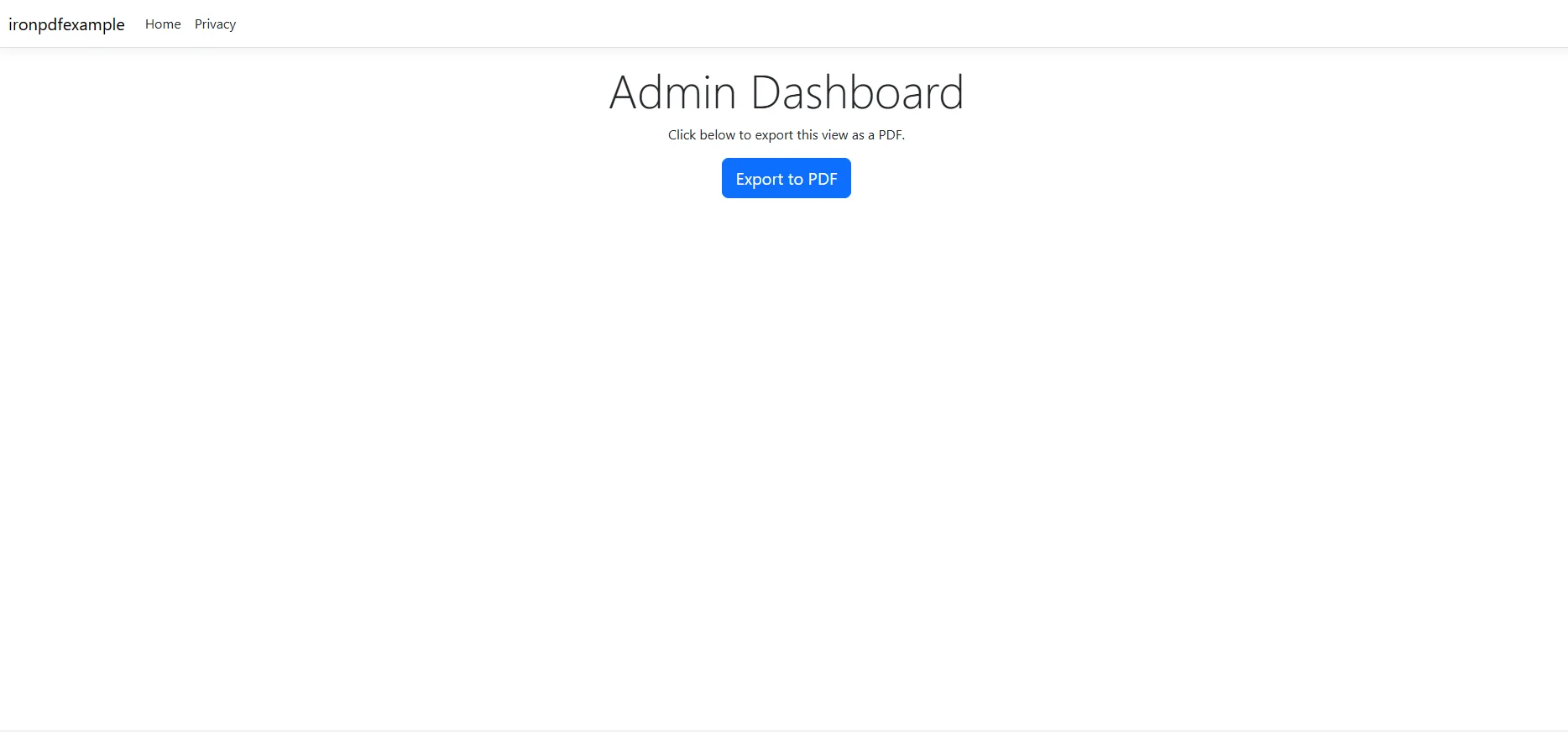 No page reload, no redirect, just a file download triggered from the existing dashboard view.
2. Server Builds the Dashboard HTML Content
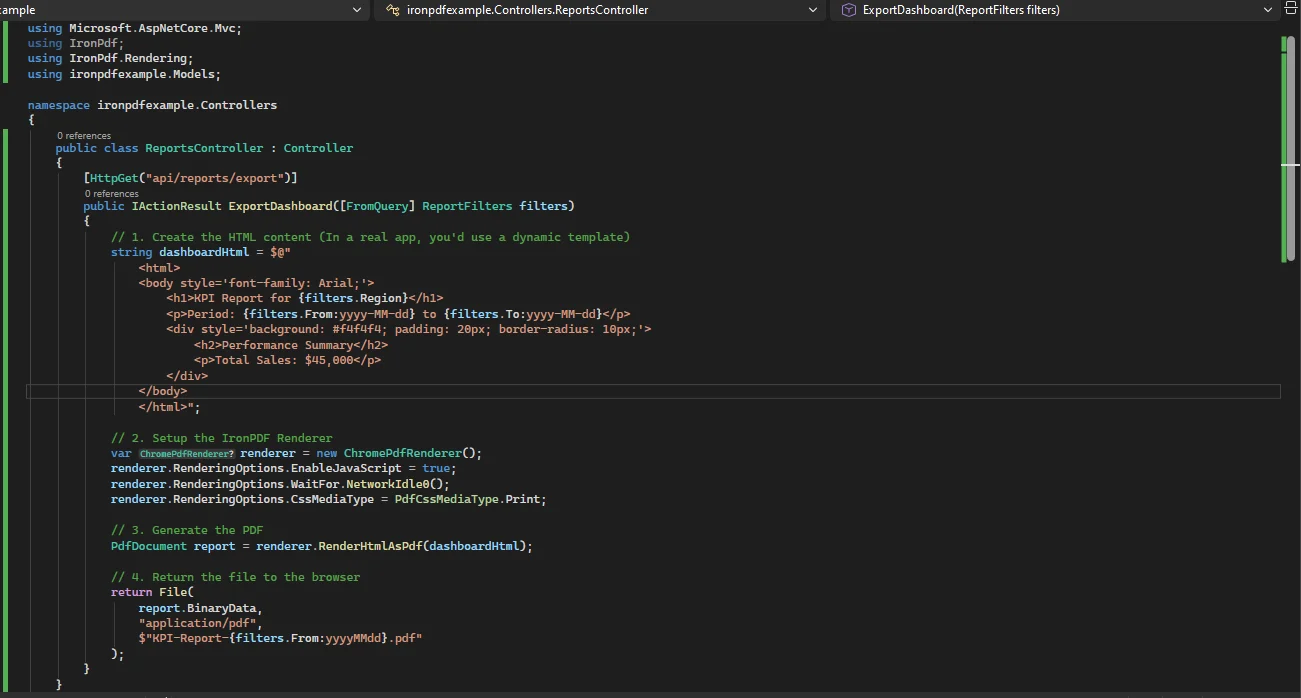
The controller or service layer queries the same data the user sees on screen and populates an HTML template — either a rendered Razor view or a constructed HTML string — with KPI cards, data tables, and the chart configuration JSON that Chart.js or ApexCharts will execute.
The HTML can reference your brand's stylesheet, include the Iron Software logo, or use Iron Software's customer logos. It can also include @media print CSS rules to suppress navigation elements and control page breaks.
Example Controller File
3. ChromePdfRenderer Renders the HTML File or Content With JavaScript Enabled
This is where IronPDF handles the hard part. EnableJavaScript = true tells the renderer to execute scripts before capture. WaitFor.NetworkIdle0() holds the snapshot until all async resources, including chart data loaded via fetch, have settled.
Once you have IronPDF installed via the C# PDF DLL, you can use the following code:
using IronPdf;
using IronPdf.Rendering;

var renderer = new ChromePdfRenderer();

renderer.RenderingOptions.EnableJavaScript = true;

renderer.RenderingOptions.WaitFor.NetworkIdle0();

renderer.RenderingOptions.CssMediaType = PdfCssMediaType.Print;

renderer.RenderingOptions.MarginTop = 15;

renderer.RenderingOptions.MarginBottom = 15;

var pdf = renderer.RenderHtmlAsPdf(dashboardHtml);
using IronPdf;
using IronPdf.Rendering;

var renderer = new ChromePdfRenderer();

renderer.RenderingOptions.EnableJavaScript = true;

renderer.RenderingOptions.WaitFor.NetworkIdle0();

renderer.RenderingOptions.CssMediaType = PdfCssMediaType.Print;

renderer.RenderingOptions.MarginTop = 15;

renderer.RenderingOptions.MarginBottom = 15;

var pdf = renderer.RenderHtmlAsPdf(dashboardHtml);
Imports IronPdf
Imports IronPdf.Rendering

Dim renderer As New ChromePdfRenderer()

renderer.RenderingOptions.EnableJavaScript = True

renderer.RenderingOptions.WaitFor.NetworkIdle0()

renderer.RenderingOptions.CssMediaType = PdfCssMediaType.Print

renderer.RenderingOptions.MarginTop = 15

renderer.RenderingOptions.MarginBottom = 15

Dim pdf = renderer.RenderHtmlAsPdf(dashboardHtml)For dashboards where charts initialize on a timer rather than a network request, swap NetworkIdle0() for WaitFor.JavaScript() and signal readiness from within your chart's onComplete callback. Either strategy ensures the C# PDF library captures the chart after it has finished drawing, not before.
4. Controller Returns the PDF Document as a File Download
The API endpoint wraps the PDF content in a FileContentResult. Whether you are a PDF association member or an AWS partner network user, the delivery is seamless:
[HttpGet("api/reports/export")]

public IActionResult ExportDashboard([FromQuery] ReportFilters filters)

{

    var dashboardHtml = _reportService.BuildDashboardHtml(filters);

    var renderer = new ChromePdfRenderer();

    renderer.RenderingOptions.EnableJavaScript = true;

    renderer.RenderingOptions.WaitFor.NetworkIdle0();

    renderer.RenderingOptions.CssMediaType = IronPdf.Rendering.PdfCssMediaType.Print;

    PdfDocument report = renderer.RenderHtmlAsPdf(dashboardHtml);

    return File(

        report.BinaryData,

        "application/pdf",

        $"KPI-Report-{filters.From:yyyyMMdd}.pdf"

    );

}
[HttpGet("api/reports/export")]

public IActionResult ExportDashboard([FromQuery] ReportFilters filters)

{

    var dashboardHtml = _reportService.BuildDashboardHtml(filters);

    var renderer = new ChromePdfRenderer();

    renderer.RenderingOptions.EnableJavaScript = true;

    renderer.RenderingOptions.WaitFor.NetworkIdle0();

    renderer.RenderingOptions.CssMediaType = IronPdf.Rendering.PdfCssMediaType.Print;

    PdfDocument report = renderer.RenderHtmlAsPdf(dashboardHtml);

    return File(

        report.BinaryData,

        "application/pdf",

        $"KPI-Report-{filters.From:yyyyMMdd}.pdf"

    );

}
Imports Microsoft.AspNetCore.Mvc
Imports IronPdf

<HttpGet("api/reports/export")>
Public Function ExportDashboard(<FromQuery> filters As ReportFilters) As IActionResult

    Dim dashboardHtml = _reportService.BuildDashboardHtml(filters)

    Dim renderer = New ChromePdfRenderer()

    renderer.RenderingOptions.EnableJavaScript = True

    renderer.RenderingOptions.WaitFor.NetworkIdle0()

    renderer.RenderingOptions.CssMediaType = IronPdf.Rendering.PdfCssMediaType.Print

    Dim report As PdfDocument = renderer.RenderHtmlAsPdf(dashboardHtml)

    Return File(report.BinaryData, "application/pdf", $"KPI-Report-{filters.From:yyyyMMdd}.pdf")

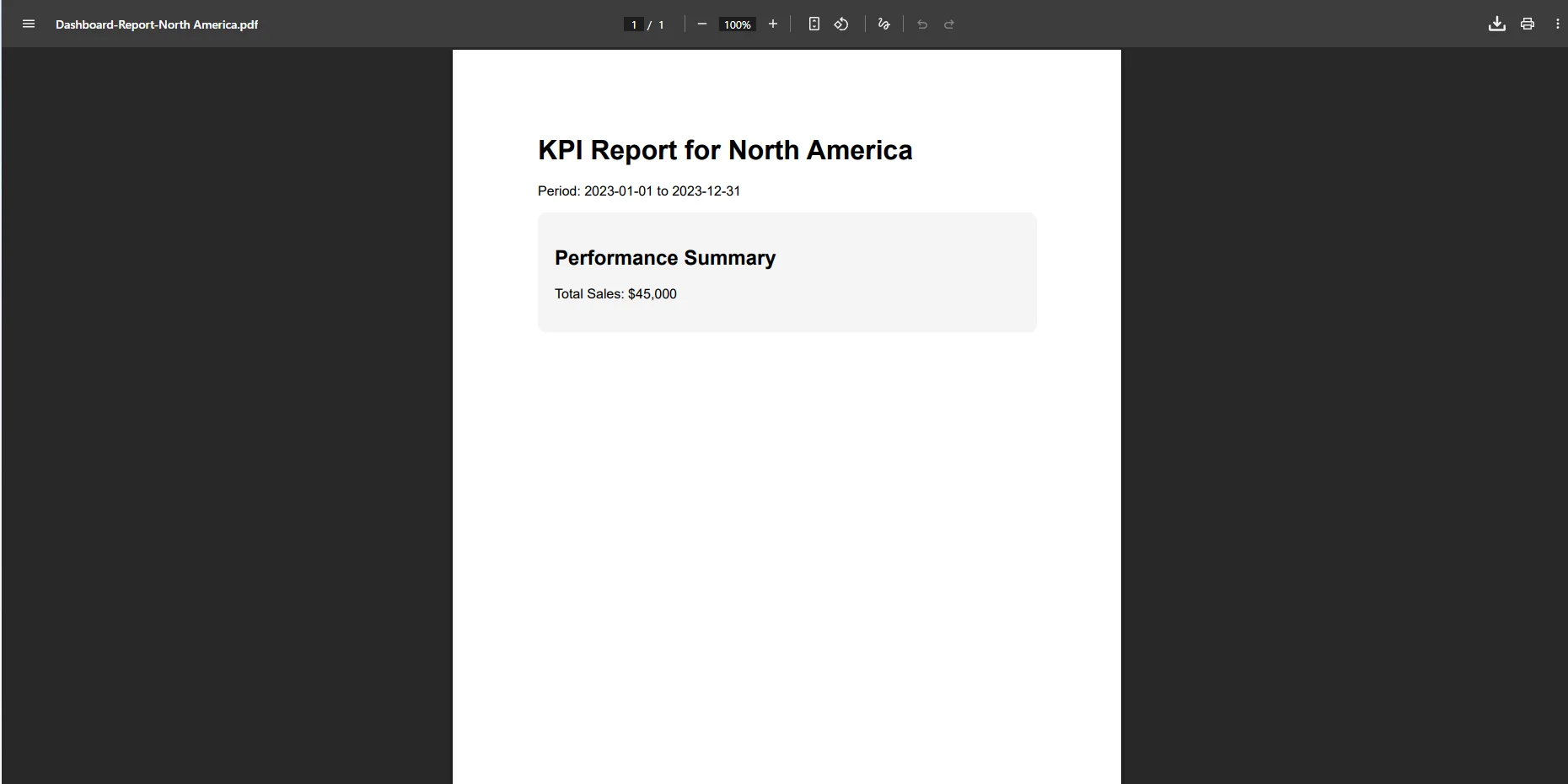
End FunctionContent-Disposition: attachment is set automatically by File() with a filename, so the browser triggers a download rather than opening the PDF in a new tab.
Downloaded PDF File
5. Optional: Scheduled Report Distribution
The same rendering call can run inside a background job, a Hangfire recurring task or a hosted IHostedService, that generates the weekly KPI PDF every Monday morning and emails it to the leadership distribution list. No user interaction required.
Real-World Benefits
Self-service for business users. Once the export button is live, the "can you pull a report for me?" Slack messages stop. Any user with access to the dashboard can download their own PDF without filing a request.
Chart fidelity. Because Chromium executes the JavaScript inside IronPDF, Chart.js, ApexCharts, and Highcharts charts render in the PDF exactly as they appear on screen — including colors, tooltips rendered as static labels, and responsive sizing.
Brand consistency. Every exported report carries the company logo, color palette, and typography defined in the dashboard's stylesheet. There is no reformatting step between export and distribution.
Scheduled generation. Pair the rendering call with a background job to email weekly or monthly PDFs to stakeholders automatically. Leadership receives a polished report without anyone generating it manually.
No external dependencies. IronPDF runs in-process. There is no Puppeteer Node.js process to keep alive, no wkhtmltopdf binary to bundle per platform, and no SaaS export API with rate limits or per-document pricing.
Print-optimized layout. CssMediaType.Print applies your @media print rules at render time, letting you define a clean, export-specific layout in CSS without maintaining a separate HTML template.
Closing
Adding a "Export to PDF" button to an admin dashboard sounds like a small feature. In practice, it eliminates a recurring manual task, gives non-technical users a capability they have been working around for years, and produces a document that reflects how the data actually looks rather than a broken print-dialog approximation.
IronPDF handles the rendering complexity — JavaScript execution, CSS media types, chart capture — so the implementation on your end is a controller action and an HTML template. If you want to test it against your own dashboard, a 30-day free trial with full features and no watermarks is available at ironpdf.com.
Frequently Asked Questions
What is the main purpose of IronPDF in admin dashboards?
IronPDF allows users to export dynamic admin dashboards to PDF with a single click, simplifying the process of sharing and preserving dashboard data.
How does IronPDF improve the export process for admin dashboards?
IronPDF enhances the export process by converting complex and dynamic dashboard content directly into a PDF format, ensuring that all visual elements and data are accurately retained.
Can IronPDF handle dynamic content when exporting to PDF?
Yes, IronPDF is designed to handle dynamic content efficiently, ensuring that any updates or changes in the dashboard are accurately reflected in the exported PDF.
Is it possible to customize the PDF export settings using IronPDF?
IronPDF provides various customization options for PDF exports, allowing users to tailor the output to meet specific requirements, such as adjusting page size, orientation, and margins.
What programming language is supported by IronPDF for exporting dashboards?
IronPDF supports C# for exporting dashboards to PDF, making it an ideal choice for developers working within the .NET framework.
Does IronPDF maintain the layout of the admin dashboard in the PDF?
IronPDF ensures that the layout of the admin dashboard is preserved in the exported PDF, maintaining the integrity and appearance of the original content.
What are the benefits of using IronPDF for exporting dashboards compared to other methods?
IronPDF offers a streamlined, one-click export process that maintains high-quality output, supports dynamic content, and integrates seamlessly with C#, providing significant advantages over manual export methods.
Can IronPDF export dashboards with interactive elements to PDF?
While IronPDF excels at exporting static and dynamic content, interactive elements such as live charts may require additional handling to be accurately represented in a PDF format.
Is IronPDF suitable for enterprise-level dashboard exports?
Yes, IronPDF is well-suited for enterprise-level applications, offering robust performance and reliability for exporting complex and data-rich dashboards to PDF.
How easy is it to integrate IronPDF into existing C# projects?
Integrating IronPDF into existing C# projects is straightforward, thanks to its comprehensive documentation and support, allowing developers to quickly add PDF export functionality to their applications.










 Get started for FREE
 Get started for FREE
 Book Free Live Demo





 No credit card or account creation required










