using IronPdf;

// Disable local disk access or cross-origin requests
Installation.EnableWebSecurity = true;

// Instantiate Renderer
var renderer = new ChromePdfRenderer();

// Create a PDF from a HTML string using C#
var pdf = renderer.RenderHtmlAsPdf("<h1>Hello World</h1>");

// Export to a file or Stream
pdf.SaveAs("output.pdf");

// Advanced Example with HTML Assets
// Load external html assets: Images, CSS and JavaScript.
// An optional BasePath 'C:\site\assets\' is set as the file location to load assets from
var myAdvancedPdf = renderer.RenderHtmlAsPdf("<img src='icons/iron.png'>", @"C:\site\assets\");
myAdvancedPdf.SaveAs("html-with-assets.pdf");
using IronPdf;// Disable local disk access or cross-origin requestsInstallation.EnableWebSecurity = true;// Instantiate Renderervar renderer = new ChromePdfRenderer();// Create a PDF from a HTML string using C#var pdf = renderer.RenderHtmlAsPdf("<h1>Hello World</h1>");// Export to a file or Streampdf.SaveAs("output.pdf");// Advanced Example with HTML Assets// Load external html assets: Images, CSS and JavaScript.// An optional BasePath 'C:\site\assets\' is set as the file location to load assets fromvar myAdvancedPdf = renderer.RenderHtmlAsPdf("<img src='icons/iron.png'>", @"C:\site\assets\");myAdvancedPdf.SaveAs("html-with-assets.pdf");
IronPDF simplifies PDF data extraction in ASP.NET Core by providing methods to read text, form data, and tables from PDF files using straightforward C# code without complex dependencies or manual parsing.
Working with PDF files in .NET applications can be more challenging than it first appears. You might need to extract text from uploaded invoices, retrieve form data from surveys, or parse tables for your database. Many projects slow down because developers reach for overly complex libraries that require extensive custom parsing code. [IronPDF](https://ironpdf.com/) offers a straightforward alternative, letting you read and process PDF documents with minimal setup.
Whether you're handling simple text, interactive form fields, or structured tabular data, IronPDF's API gives you direct access to PDF content without low-level parsing. This guide walks through how to read data from PDF files in ASP.NET Core, covering text extraction, form data retrieval, table parsing, and asynchronous file upload handling -- all with C# code you can drop into your project.
## How Do You Set Up IronPDF in an ASP.NET Core Project?
Getting started is straightforward. Install the IronPDF NuGet package from the [NuGet Package Manager Console](https://ironpdf.com/docs/) or the [.NET CLI](https://learn.microsoft.com/en-us/dotnet/core/tools/dotnet-add-package) using either of these commands:
```shell
:ProductInstall
```
Once the package is installed, add the IronPDF namespace at the top of any file that works with PDF documents:
```csharp
using IronPdf;
```
That's all the setup required for most projects. IronPDF does not depend on external rendering processes or additional native dependencies on Windows. For Linux or Docker environments, consult the [IronPDF documentation](https://ironpdf.com/docs/) for platform-specific guidance.
A free trial license lets you test the full feature set before you commit to production use. You can get a [trial license](trial-license) directly from the IronPDF site and apply it in a single line of code before your first PDF operation.
## How Do You Extract Text from a PDF File?
Text extraction is the most common PDF reading task. IronPDF provides `ExtractAllText` to pull all readable text from a document and `ExtractTextFromPage` for page-level access. Both methods preserve reading order and handle standard text encodings.
```csharp
// Load a PDF document from disk
var pdf = PdfDocument.FromFile("document.pdf");

// Extract all text from every page
string allText = pdf.ExtractAllText();

// Extract text from a specific page (zero-based index)
string pageOneText = pdf.ExtractTextFromPage(0);

Console.WriteLine(allText);
```
`ExtractAllText` returns the complete text content as a single string, preserving line breaks. `ExtractTextFromPage` targets a single page using a zero-based index, which is useful when you only need content from a specific section of a multi-page document.
For an in-depth look at text and image extraction options, the [extract text from PDF guide](https://ironpdf.com/how-to/extract-text-and-images/) covers advanced scenarios including region-based extraction.
### How Do You Wire Text Extraction Into an ASP.NET Core Controller?
The following controller action accepts an uploaded PDF via `IFormFile`, reads it into a `MemoryStream`, and returns the extracted text as JSON:
```csharp
using IronPdf;
using Microsoft.AspNetCore.Http;
using Microsoft.AspNetCore.Mvc;
using System.IO;
[ApiController]
[Route("api/[controller]")]
public class PdfController : ControllerBase
{
[HttpPost("extract-text")]
public IActionResult ExtractText(IFormFile pdfFile)
{
if (pdfFile == null || pdfFile.Length == 0)
return BadRequest("No PDF file uploaded.");
using var stream = new MemoryStream();
pdfFile.CopyTo(stream);
var pdf = new PdfDocument(stream.ToArray());
string extractedText = pdf.ExtractAllText();
return Ok(new { text = extractedText });
}
}
```
This endpoint converts the uploaded file to a byte array and passes it directly to `PdfDocument`. No temporary files are written to disk, which keeps the code clean and avoids unnecessary storage overhead. The [`IFormFile`](https://learn.microsoft.com/en-us/dotnet/api/microsoft.aspnetcore.http.iformfile) interface works naturally with both multipart form submissions and API clients like Postman.
## How Do You Read PDF Form Data in ASP.NET Core?
PDF forms -- also called [AcroForms](https://en.wikipedia.org/wiki/PDF#Interactive_elements) -- contain interactive fields that users fill in. IronPDF exposes form fields through the `Form` property of `PdfDocument`, giving you the name and value of every field in the document.
The following endpoint reads an uploaded form PDF and returns all field values as a JSON dictionary:
```csharp
[HttpPost("extract-form")]
public IActionResult ExtractForm([FromForm] IFormFile pdfFile)
{
if (pdfFile == null || pdfFile.Length == 0)
return BadRequest("No PDF file uploaded.");
using var stream = new MemoryStream();
pdfFile.CopyTo(stream);
var pdf = new PdfDocument(stream.ToArray());
var formData = new Dictionary<string, string>();
if (pdf.Form != null)
{
foreach (var field in pdf.Form)
{
formData[field.Name] = field.Value;
}
}
return Ok(new { formFields = formData });
}
```
Each field in `pdf.Form` has a `Name` property (the field identifier set in the PDF authoring tool) and a `Value` property (the text or selection the user entered). Text boxes, checkboxes, radio buttons, and dropdowns all appear in this collection.
The JSON response makes it easy to forward form submissions to a database, a third-party API, or a message queue without any additional parsing. For workflows that involve creating or editing PDF forms programmatically, the [PDF forms guide](https://ironpdf.com/tutorials/pdf-forms-csharp-article/) shows how to add fields and pre-fill values.
### What Does a Typical Form Extraction Response Look Like?

The response above shows a 200 OK result containing the field names and values from a sample contact form PDF. The structure is a flat key-value map, which maps cleanly to most database schemas or REST payloads.
## How Do You Extract Table Data from a PDF?
Tables in PDF files are stored as positioned text -- there is no native table data structure in the PDF format. Extracting tabular data therefore means extracting the raw text and then applying parsing logic to reconstruct rows and columns.
IronPDF's `ExtractAllText` preserves whitespace and tab characters, which makes it possible to split lines into columns programmatically. The following controller action demonstrates this approach:
```csharp
[HttpPost("extract-table")]
public IActionResult ExtractTable([FromForm] IFormFile pdfFile)
{
if (pdfFile == null || pdfFile.Length == 0)
return BadRequest("No PDF file uploaded.");
using var memoryStream = new MemoryStream();
pdfFile.CopyTo(memoryStream);
var pdf = new PdfDocument(memoryStream.ToArray());
string text = pdf.ExtractAllText();
// Split into lines, then split each line into columns
string[] lines = text.Split(
new[] { '\r', '\n' },
StringSplitOptions.RemoveEmptyEntries
);
var tableData = new List<string[]>();
foreach (string line in lines)
{
string[] columns = line
.Split('\t')
.Where(c => !string.IsNullOrWhiteSpace(c))
.ToArray();
if (columns.Length > 0)
tableData.Add(columns);
}
var table = tableData.Select(r => string.Join(" | ", r)).ToList();
return Ok(new { Table = table });
}
```
This approach works well for PDFs whose tables use consistent tab-separated columns. For documents where columns are separated by variable whitespace, you may need to apply a minimum-gap heuristic or inspect character positions. The [merge or split PDFs guide](https://ironpdf.com/how-to/merge-or-split-pdfs/) is useful when you need to isolate specific pages that contain tables before extraction.
### When Should You Parse Tables Manually?
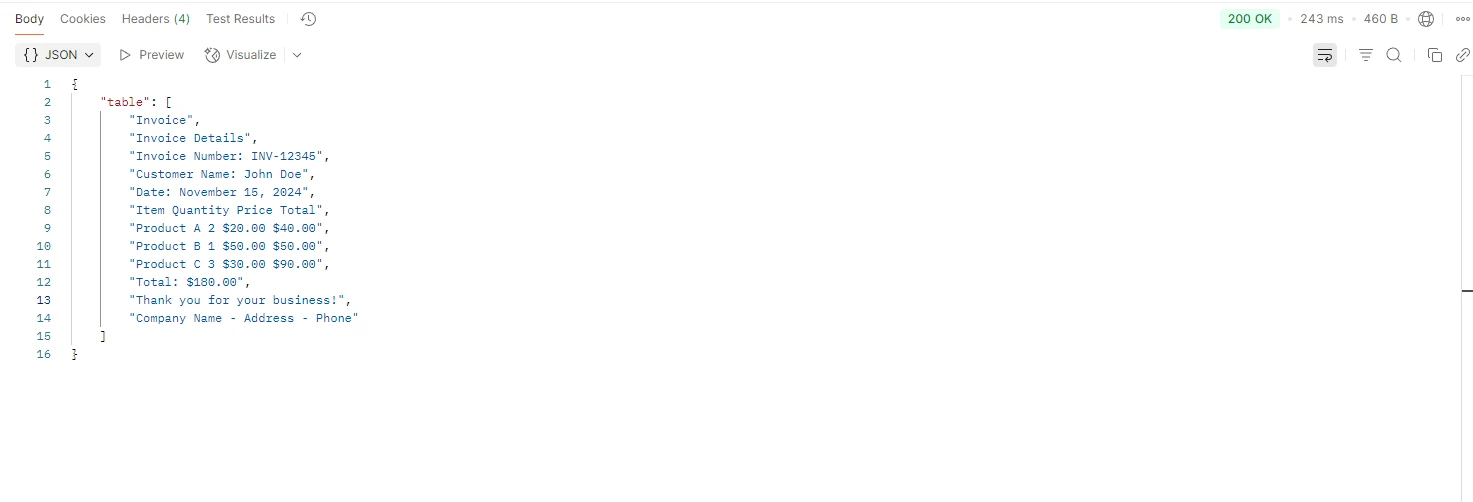
Manual parsing is the right choice when the PDF was not generated from HTML or a structured data source -- for example, scanned invoices or documents created in desktop publishing tools. The tab-split approach handles many standard PDFs reliably. When column boundaries are irregular, you can refine the logic by inspecting raw character coordinates through IronPDF's DOM access API.
For documents generated from HTML, consider round-tripping through an HTML intermediary. Generating your PDF from a data-driven HTML template (covered in the [HTML string to PDF guide](https://ironpdf.com/how-to/html-string-to-pdf/)) means the text positions will be predictable and extraction will be straightforward.
## How Do You Handle Asynchronous PDF File Uploads?
Production ASP.NET Core applications should handle file uploads asynchronously to avoid blocking the thread pool. The `IFormFile.CopyToAsync` method combined with `async`/`await` keeps the controller non-blocking:
```csharp
[HttpPost("process-upload")]
public async Task<IActionResult> ProcessPdf([FromForm] IFormFile file)
{
if (file == null || file.Length == 0)
return BadRequest("No PDF file uploaded.");
using var ms = new MemoryStream();
await file.CopyToAsync(ms);
var pdf = new PdfDocument(ms.ToArray());
string text = pdf.ExtractAllText();
int pageCount = pdf.PageCount;
return Ok(new
{
text,
pages = pageCount
});
}
```
The `PdfDocument` constructor is synchronous, but the upload step -- often the slowest part of the pipeline -- runs asynchronously. This pattern scales well under concurrent load and is compatible with minimal API endpoints, Razor Pages handlers, and gRPC services.
### How Do You Limit Upload File Size?
ASP.NET Core enforces a [default request body size limit](https://learn.microsoft.com/en-us/aspnet/core/mvc/models/file-uploads#kestrel-maximum-request-body-size) of 30 MB. For larger PDFs, increase the limit in `Program.cs`:
```csharp
builder.Services.Configure<FormOptions>(options =>
{
options.MultipartBodyLengthLimit = 100 * 1024 * 1024; // 100 MB
});
```
Kestrel has its own limit that you may also need to raise:
```csharp
builder.WebHost.ConfigureKestrel(options =>
{
options.Limits.MaxRequestBodySize = 100 * 1024 * 1024;
});
```
Set these values based on the realistic maximum size of the PDFs your application will process. Always validate the uploaded file's MIME type and extension before passing it to IronPDF to guard against unexpected input.
## How Do You Convert Extracted PDF Content to Other Formats?
Once you have text or form data, you can pipe it into any downstream process your application requires -- database writes, search indexing, report generation, or API calls. IronPDF also supports converting in the other direction: rendering HTML to PDF.
For cases where you want to display extracted content visually, you can render the original PDF as images using the [PDF to image conversion guide](https://ironpdf.com/how-to/rasterize-pdf-to-images/). This is useful for document preview features where you want to show page thumbnails without loading the full PDF in the browser.
If you need to protect the output documents before delivering them to users, IronPDF supports [digital signatures](https://ironpdf.com/how-to/signing/) and [watermarks](https://ironpdf.com/how-to/custom-watermark/) as post-processing steps. Adding headers and footers -- covered in the [headers and footers guide](https://ironpdf.com/how-to/headers-and-footers/) -- is similarly straightforward.
<table class="content__data-table" data-content-table>
<caption>Common PDF data extraction scenarios and recommended IronPDF methods</caption>
<thead>
<tr>
<th>Scenario</th>
<th>IronPDF Method / Property</th>
<th>Notes</th>
</tr>
</thead>
<tbody>
<tr>
<td>Extract all page text</td>
<td><code>pdf.ExtractAllText()</code></td>
<td>Returns full document text in reading order</td>
</tr>
<tr>
<td>Extract text from one page</td>
<td><code>pdf.ExtractTextFromPage(n)</code></td>
<td>Zero-based page index</td>
</tr>
<tr>
<td>Read AcroForm fields</td>
<td><code>pdf.Form</code></td>
<td>Enumerate <code>field.Name</code> and <code>field.Value</code></td>
</tr>
<tr>
<td>Parse table rows</td>
<td><code>ExtractAllText()</code> + split logic</td>
<td>Split on tab or whitespace gaps</td>
</tr>
<tr>
<td>Count pages</td>
<td><code>pdf.PageCount</code></td>
<td>Useful for pagination and validation</td>
</tr>
<tr>
<td>Load from byte array</td>
<td><code>new PdfDocument(bytes)</code></td>
<td>No temporary files required</td>
</tr>
<tr>
<td>Load from file path</td>
<td><code>PdfDocument.FromFile(path)</code></td>
<td>For server-side file access</td>
</tr>
</tbody>
</table>
## What Are the Next Steps After Setting Up PDF Data Extraction?
You now have working patterns for text extraction, form data reading, table parsing, and asynchronous uploads. Here are a few directions to explore next based on your application's requirements.
If you need to generate PDF reports alongside your extraction workflow, the [IronPDF features overview](https://ironpdf.com/features/) covers HTML-to-PDF rendering, stamp overlays, and page manipulation. For applications that merge reports from multiple sources, the [merge or split PDFs guide](https://ironpdf.com/how-to/merge-or-split-pdfs/) walks through combining and splitting documents.
For secure document delivery, [digital signatures](https://ironpdf.com/how-to/signing/) let you certify PDFs before sending them to clients. [Custom watermarks](https://ironpdf.com/how-to/custom-watermark/) add visual branding or draft labels to generated documents.
If your project extracts data from scanned PDFs (images rather than searchable text), you will need an OCR step before calling `ExtractAllText`. [IronOCR](https://ironsoftware.com/csharp/ocr/) from Iron Software integrates with IronPDF to handle scanned document workflows.
IronPDF is available under [flexible licensing options](https://ironpdf.com/licensing/) for individual developers and teams. Start with a [free trial](trial-license) to test all features without restrictions. The [complete documentation](https://ironpdf.com/docs/) includes API reference, getting started guides, and deployment notes for Windows, Linux, Docker, and cloud environments.
Reading data from PDF files in ASP.NET Core no longer requires low-level parsing code or heavyweight dependencies. With IronPDF, the path from uploaded file to extracted content is a handful of lines that fit naturally into any controller or service layer.
IronPDF simplifies PDF data extraction in ASP.NET Core by providing methods to read text, form data, and tables from PDF files using straightforward C# code without complex dependencies or manual parsing.
Working with PDF files in .NET applications can be more challenging than it first appears. You might need to extract text from uploaded invoices, retrieve form data from surveys, or parse tables for your database. Many projects slow down because developers reach for overly complex libraries that require extensive custom parsing code. IronPDF offers a straightforward alternative, letting you read and process PDF documents with minimal setup.
Whether you're handling simple text, interactive form fields, or structured tabular data, IronPDF's API gives you direct access to PDF content without low-level parsing. This guide walks through how to read data from PDF files in ASP.NET Core, covering text extraction, form data retrieval, table parsing, and asynchronous file upload handling -- all with C# code you can drop into your project.
How Do You Set Up IronPDF in an ASP.NET Core Project?
Getting started is straightforward. Install the IronPDF NuGet package from the NuGet Package Manager Console or the .NET CLI using either of these commands:
PM > Install-Package IronPdf
Install-Package IronPdf
Once the package is installed, add the IronPDF namespace at the top of any file that works with PDF documents:
using IronPdf;
using IronPdf;
ImportsIronPdf
Imports IronPdf
That's all the setup required for most projects. IronPDF does not depend on external rendering processes or additional native dependencies on Windows. For Linux or Docker environments, consult the IronPDF documentation for platform-specific guidance.
A free trial license lets you test the full feature set before you commit to production use. You can get a trial license directly from the IronPDF site and apply it in a single line of code before your first PDF operation.
How Do You Extract Text from a PDF File?
Text extraction is the most common PDF reading task. IronPDF provides ExtractAllText to pull all readable text from a document and ExtractTextFromPage for page-level access. Both methods preserve reading order and handle standard text encodings.
// Load a PDF document from diskvar pdf = PdfDocument.FromFile("document.pdf");// Extract all text from every pagestring allText = pdf.ExtractAllText();// Extract text from a specific page (zero-based index)string pageOneText = pdf.ExtractTextFromPage(0);Console.WriteLine(allText);
// Load a PDF document from disk
var pdf = PdfDocument.FromFile("document.pdf");

// Extract all text from every page
string allText = pdf.ExtractAllText();

// Extract text from a specific page (zero-based index)
string pageOneText = pdf.ExtractTextFromPage(0);

Console.WriteLine(allText);
ImportsSystem' Load a PDF document from diskDim pdf = PdfDocument.FromFile("document.pdf")' Extract all text from every pageDim allText AsString = pdf.ExtractAllText()' Extract text from a specific page (zero-based index)Dim pageOneText AsString = pdf.ExtractTextFromPage(0)Console.WriteLine(allText)
Imports System

' Load a PDF document from disk
Dim pdf = PdfDocument.FromFile("document.pdf")

' Extract all text from every page
Dim allText As String = pdf.ExtractAllText()

' Extract text from a specific page (zero-based index)
Dim pageOneText As String = pdf.ExtractTextFromPage(0)

Console.WriteLine(allText)
ExtractAllText returns the complete text content as a single string, preserving line breaks. ExtractTextFromPage targets a single page using a zero-based index, which is useful when you only need content from a specific section of a multi-page document.
For an in-depth look at text and image extraction options, the extract text from PDF guide covers advanced scenarios including region-based extraction.
How Do You Wire Text Extraction Into an ASP.NET Core Controller?
The following controller action accepts an uploaded PDF via IFormFile, reads it into a MemoryStream, and returns the extracted text as JSON:
using IronPdf;using Microsoft.AspNetCore.Http;using Microsoft.AspNetCore.Mvc;using System.IO;[ApiController][Route("api/[controller]")]public class PdfController : ControllerBase{ [HttpPost("extract-text")] public IActionResultExtractText(IFormFile pdfFile) { if (pdfFile == null || pdfFile.Length == 0) returnBadRequest("No PDF file uploaded."); using var stream = new MemoryStream(); pdfFile.CopyTo(stream); var pdf = new PdfDocument(stream.ToArray()); string extractedText = pdf.ExtractAllText(); returnOk(new { text = extractedText }); }}
using IronPdf;
using Microsoft.AspNetCore.Http;
using Microsoft.AspNetCore.Mvc;
using System.IO;

[ApiController]
[Route("api/[controller]")]
public class PdfController : ControllerBase
{
    [HttpPost("extract-text")]
    public IActionResult ExtractText(IFormFile pdfFile)
    {
        if (pdfFile == null || pdfFile.Length == 0)
            return BadRequest("No PDF file uploaded.");

        using var stream = new MemoryStream();
        pdfFile.CopyTo(stream);

        var pdf = new PdfDocument(stream.ToArray());
        string extractedText = pdf.ExtractAllText();

        return Ok(new { text = extractedText });
    }
}
ImportsIronPdfImportsMicrosoft.AspNetCore.HttpImportsMicrosoft.AspNetCore.MvcImportsSystem.IO<ApiController><Route("api/[controller]")>Public Class PdfControllerInheritsControllerBase <HttpPost("extract-text")> Public Function ExtractText(pdfFile AsIFormFile) AsIActionResult If pdfFile Is NothingOrElse pdfFile.Length = 0 Then ReturnBadRequest("No PDF file uploaded.") End IfUsing stream As New MemoryStream() pdfFile.CopyTo(stream) Dim pdf As New PdfDocument(stream.ToArray()) Dim extractedText AsString = pdf.ExtractAllText() ReturnOk(New With {.text = extractedText})EndUsing End FunctionEnd Class
Imports IronPdf
Imports Microsoft.AspNetCore.Http
Imports Microsoft.AspNetCore.Mvc
Imports System.IO

<ApiController>
<Route("api/[controller]")>
Public Class PdfController
    Inherits ControllerBase

    <HttpPost("extract-text")>
    Public Function ExtractText(pdfFile As IFormFile) As IActionResult
        If pdfFile Is Nothing OrElse pdfFile.Length = 0 Then
            Return BadRequest("No PDF file uploaded.")
        End If

        Using stream As New MemoryStream()
            pdfFile.CopyTo(stream)

            Dim pdf As New PdfDocument(stream.ToArray())
            Dim extractedText As String = pdf.ExtractAllText()

            Return Ok(New With {.text = extractedText})
        End Using
    End Function
End Class
This endpoint converts the uploaded file to a byte array and passes it directly to PdfDocument. No temporary files are written to disk, which keeps the code clean and avoids unnecessary storage overhead. The IFormFile interface works naturally with both multipart form submissions and API clients like Postman.
How Do You Read PDF Form Data in ASP.NET Core?
PDF forms -- also called AcroForms -- contain interactive fields that users fill in. IronPDF exposes form fields through the Form property of PdfDocument, giving you the name and value of every field in the document.
The following endpoint reads an uploaded form PDF and returns all field values as a JSON dictionary:
[HttpPost("extract-form")]public IActionResultExtractForm([FromForm] IFormFile pdfFile){ if (pdfFile == null || pdfFile.Length == 0) returnBadRequest("No PDF file uploaded."); using var stream = new MemoryStream(); pdfFile.CopyTo(stream); var pdf = new PdfDocument(stream.ToArray()); var formData = new Dictionary<string, string>(); if (pdf.Form != null) { foreach (var field in pdf.Form) { formData[field.Name] = field.Value; } } returnOk(new { formFields = formData });}
[HttpPost("extract-form")]
public IActionResult ExtractForm([FromForm] IFormFile pdfFile)
{
    if (pdfFile == null || pdfFile.Length == 0)
        return BadRequest("No PDF file uploaded.");

    using var stream = new MemoryStream();
    pdfFile.CopyTo(stream);

    var pdf = new PdfDocument(stream.ToArray());
    var formData = new Dictionary<string, string>();

    if (pdf.Form != null)
    {
        foreach (var field in pdf.Form)
        {
            formData[field.Name] = field.Value;
        }
    }

    return Ok(new { formFields = formData });
}
ImportsMicrosoft.AspNetCore.MvcImportsSystem.IO<HttpPost("extract-form")>Public Function ExtractForm(<FromForm> pdfFile AsIFormFile) AsIActionResult If pdfFile Is NothingOrElse pdfFile.Length = 0 Then ReturnBadRequest("No PDF file uploaded.") End IfUsing stream As New MemoryStream() pdfFile.CopyTo(stream) Dim pdf = New PdfDocument(stream.ToArray()) Dim formData As New Dictionary(OfString, String)() If pdf.FormIsNot Nothing Then For Each field In pdf.Form formData(field.Name) = field.Value Next End If ReturnOk(New With {.formFields = formData})EndUsingEnd Function
Imports Microsoft.AspNetCore.Mvc
Imports System.IO

<HttpPost("extract-form")>
Public Function ExtractForm(<FromForm> pdfFile As IFormFile) As IActionResult
    If pdfFile Is Nothing OrElse pdfFile.Length = 0 Then
        Return BadRequest("No PDF file uploaded.")
    End If

    Using stream As New MemoryStream()
        pdfFile.CopyTo(stream)

        Dim pdf = New PdfDocument(stream.ToArray())
        Dim formData As New Dictionary(Of String, String)()

        If pdf.Form IsNot Nothing Then
            For Each field In pdf.Form
                formData(field.Name) = field.Value
            Next
        End If

        Return Ok(New With {.formFields = formData})
    End Using
End Function
Each field in pdf.Form has a Name property (the field identifier set in the PDF authoring tool) and a Value property (the text or selection the user entered). Text boxes, checkboxes, radio buttons, and dropdowns all appear in this collection.
The JSON response makes it easy to forward form submissions to a database, a third-party API, or a message queue without any additional parsing. For workflows that involve creating or editing PDF forms programmatically, the PDF forms guide shows how to add fields and pre-fill values.
What Does a Typical Form Extraction Response Look Like?
The response above shows a 200 OK result containing the field names and values from a sample contact form PDF. The structure is a flat key-value map, which maps cleanly to most database schemas or REST payloads.
How Do You Extract Table Data from a PDF?
Tables in PDF files are stored as positioned text -- there is no native table data structure in the PDF format. Extracting tabular data therefore means extracting the raw text and then applying parsing logic to reconstruct rows and columns.
IronPDF's ExtractAllText preserves whitespace and tab characters, which makes it possible to split lines into columns programmatically. The following controller action demonstrates this approach:
[HttpPost("extract-table")]public IActionResultExtractTable([FromForm] IFormFile pdfFile){ if (pdfFile == null || pdfFile.Length == 0) returnBadRequest("No PDF file uploaded."); using var memoryStream = new MemoryStream(); pdfFile.CopyTo(memoryStream); var pdf = new PdfDocument(memoryStream.ToArray()); string text = pdf.ExtractAllText(); // Split into lines, then split each line into columns string[] lines = text.Split( new[] { '\r', '\n' },StringSplitOptions.RemoveEmptyEntries ); var tableData = new List<string[]>(); foreach (string line in lines) { string[] columns = line .Split('\t') .Where(c => !string.IsNullOrWhiteSpace(c)) .ToArray(); if (columns.Length > 0) tableData.Add(columns); } var table = tableData.Select(r => string.Join(" | ", r)).ToList(); returnOk(new { Table = table });}
[HttpPost("extract-table")]
public IActionResult ExtractTable([FromForm] IFormFile pdfFile)
{
    if (pdfFile == null || pdfFile.Length == 0)
        return BadRequest("No PDF file uploaded.");

    using var memoryStream = new MemoryStream();
    pdfFile.CopyTo(memoryStream);

    var pdf = new PdfDocument(memoryStream.ToArray());
    string text = pdf.ExtractAllText();

    // Split into lines, then split each line into columns
    string[] lines = text.Split(
        new[] { '\r', '\n' },
        StringSplitOptions.RemoveEmptyEntries
    );

    var tableData = new List<string[]>();
    foreach (string line in lines)
    {
        string[] columns = line
            .Split('\t')
            .Where(c => !string.IsNullOrWhiteSpace(c))
            .ToArray();

        if (columns.Length > 0)
            tableData.Add(columns);
    }

    var table = tableData.Select(r => string.Join(" | ", r)).ToList();
    return Ok(new { Table = table });
}
ImportsMicrosoft.AspNetCore.MvcImportsSystem.IOImportsSystem.Linq<HttpPost("extract-table")>Public Function ExtractTable(<FromForm> pdfFile AsIFormFile) AsIActionResult If pdfFile Is NothingOrElse pdfFile.Length = 0 Then ReturnBadRequest("No PDF file uploaded.") End IfUsing memoryStream As New MemoryStream() pdfFile.CopyTo(memoryStream) Dim pdf As New PdfDocument(memoryStream.ToArray()) Dim text AsString = pdf.ExtractAllText() ' Split into lines, then split each line into columns Dim lines AsString() = text.Split(New Char() {ControlChars.Cr, ControlChars.Lf}, StringSplitOptions.RemoveEmptyEntries) Dim tableData As New List(OfString())() For Each line AsStringIn lines Dim columns AsString() = line.Split(ControlChars.Tab).Where(Function(c) NotString.IsNullOrWhiteSpace(c)).ToArray() If columns.Length > 0 Then tableData.Add(columns) End If Next Dim table = tableData.Select(Function(r) String.Join(" | ", r)).ToList() ReturnOk(New With {.Table = table})EndUsingEnd Function
Imports Microsoft.AspNetCore.Mvc
Imports System.IO
Imports System.Linq

<HttpPost("extract-table")>
Public Function ExtractTable(<FromForm> pdfFile As IFormFile) As IActionResult
    If pdfFile Is Nothing OrElse pdfFile.Length = 0 Then
        Return BadRequest("No PDF file uploaded.")
    End If

    Using memoryStream As New MemoryStream()
        pdfFile.CopyTo(memoryStream)

        Dim pdf As New PdfDocument(memoryStream.ToArray())
        Dim text As String = pdf.ExtractAllText()

        ' Split into lines, then split each line into columns
        Dim lines As String() = text.Split(New Char() {ControlChars.Cr, ControlChars.Lf}, StringSplitOptions.RemoveEmptyEntries)

        Dim tableData As New List(Of String())()
        For Each line As String In lines
            Dim columns As String() = line.Split(ControlChars.Tab).Where(Function(c) Not String.IsNullOrWhiteSpace(c)).ToArray()

            If columns.Length > 0 Then
                tableData.Add(columns)
            End If
        Next

        Dim table = tableData.Select(Function(r) String.Join(" | ", r)).ToList()
        Return Ok(New With {.Table = table})
    End Using
End Function
This approach works well for PDFs whose tables use consistent tab-separated columns. For documents where columns are separated by variable whitespace, you may need to apply a minimum-gap heuristic or inspect character positions. The merge or split PDFs guide is useful when you need to isolate specific pages that contain tables before extraction.
When Should You Parse Tables Manually?
Manual parsing is the right choice when the PDF was not generated from HTML or a structured data source -- for example, scanned invoices or documents created in desktop publishing tools. The tab-split approach handles many standard PDFs reliably. When column boundaries are irregular, you can refine the logic by inspecting raw character coordinates through IronPDF's DOM access API.
For documents generated from HTML, consider round-tripping through an HTML intermediary. Generating your PDF from a data-driven HTML template (covered in the HTML string to PDF guide) means the text positions will be predictable and extraction will be straightforward.
How Do You Handle Asynchronous PDF File Uploads?
Production ASP.NET Core applications should handle file uploads asynchronously to avoid blocking the thread pool. The IFormFile.CopyToAsync method combined with async/await keeps the controller non-blocking:
[HttpPost("process-upload")]public async Task<IActionResult> ProcessPdf([FromForm] IFormFile file){ if (file == null || file.Length == 0) returnBadRequest("No PDF file uploaded."); using var ms = new MemoryStream(); await file.CopyToAsync(ms); var pdf = new PdfDocument(ms.ToArray()); string text = pdf.ExtractAllText(); int pageCount = pdf.PageCount; returnOk(new { text, pages = pageCount });}
[HttpPost("process-upload")]
public async Task<IActionResult> ProcessPdf([FromForm] IFormFile file)
{
    if (file == null || file.Length == 0)
        return BadRequest("No PDF file uploaded.");

    using var ms = new MemoryStream();
    await file.CopyToAsync(ms);

    var pdf = new PdfDocument(ms.ToArray());
    string text = pdf.ExtractAllText();
    int pageCount = pdf.PageCount;

    return Ok(new
    {
        text,
        pages = pageCount
    });
}
ImportsSystem.IOImportsMicrosoft.AspNetCore.Mvc<HttpPost("process-upload")>PublicAsync Function ProcessPdf(<FromForm> file AsIFormFile) AsTask(OfIActionResult) If file Is NothingOrElse file.Length = 0 Then ReturnBadRequest("No PDF file uploaded.") End IfUsing ms As New MemoryStream()Await file.CopyToAsync(ms) Dim pdf As New PdfDocument(ms.ToArray()) Dim text AsString = pdf.ExtractAllText() Dim pageCount AsInteger = pdf.PageCount ReturnOk(New With { .text = text, .pages = pageCount })EndUsingEnd Function
Imports System.IO
Imports Microsoft.AspNetCore.Mvc

<HttpPost("process-upload")>
Public Async Function ProcessPdf(<FromForm> file As IFormFile) As Task(Of IActionResult)
    If file Is Nothing OrElse file.Length = 0 Then
        Return BadRequest("No PDF file uploaded.")
    End If

    Using ms As New MemoryStream()
        Await file.CopyToAsync(ms)

        Dim pdf As New PdfDocument(ms.ToArray())
        Dim text As String = pdf.ExtractAllText()
        Dim pageCount As Integer = pdf.PageCount

        Return Ok(New With {
            .text = text,
            .pages = pageCount
        })
    End Using
End Function
The PdfDocument constructor is synchronous, but the upload step -- often the slowest part of the pipeline -- runs asynchronously. This pattern scales well under concurrent load and is compatible with minimal API endpoints, Razor Pages handlers, and gRPC services.
builder.WebHost.ConfigureKestrel(Sub(options)
    options.Limits.MaxRequestBodySize = 100 * 1024 * 1024
End Sub)
Set these values based on the realistic maximum size of the PDFs your application will process. Always validate the uploaded file's MIME type and extension before passing it to IronPDF to guard against unexpected input.
How Do You Convert Extracted PDF Content to Other Formats?
Once you have text or form data, you can pipe it into any downstream process your application requires -- database writes, search indexing, report generation, or API calls. IronPDF also supports converting in the other direction: rendering HTML to PDF.
For cases where you want to display extracted content visually, you can render the original PDF as images using the PDF to image conversion guide. This is useful for document preview features where you want to show page thumbnails without loading the full PDF in the browser.
If you need to protect the output documents before delivering them to users, IronPDF supports digital signatures and watermarks as post-processing steps. Adding headers and footers -- covered in the headers and footers guide -- is similarly straightforward.
Common PDF data extraction scenarios and recommended IronPDF methods
Scenario
IronPDF Method / Property
Notes
Extract all page text
pdf.ExtractAllText()
Returns full document text in reading order
Extract text from one page
pdf.ExtractTextFromPage(n)
Zero-based page index
Read AcroForm fields
pdf.Form
Enumerate field.Name and field.Value
Parse table rows
ExtractAllText() + split logic
Split on tab or whitespace gaps
Count pages
pdf.PageCount
Useful for pagination and validation
Load from byte array
new PdfDocument(bytes)
No temporary files required
Load from file path
PdfDocument.FromFile(path)
For server-side file access
What Are the Next Steps After Setting Up PDF Data Extraction?
You now have working patterns for text extraction, form data reading, table parsing, and asynchronous uploads. Here are a few directions to explore next based on your application's requirements.
If you need to generate PDF reports alongside your extraction workflow, the IronPDF features overview covers HTML-to-PDF rendering, stamp overlays, and page manipulation. For applications that merge reports from multiple sources, the merge or split PDFs guide walks through combining and splitting documents.
For secure document delivery, digital signatures let you certify PDFs before sending them to clients. Custom watermarks add visual branding or draft labels to generated documents.
If your project extracts data from scanned PDFs (images rather than searchable text), you will need an OCR step before calling ExtractAllText. IronOCR from Iron Software integrates with IronPDF to handle scanned document workflows.
IronPDF is available under flexible licensing options for individual developers and teams. Start with a free trial to test all features without restrictions. The complete documentation includes API reference, getting started guides, and deployment notes for Windows, Linux, Docker, and cloud environments.
Reading data from PDF files in ASP.NET Core no longer requires low-level parsing code or heavyweight dependencies. With IronPDF, the path from uploaded file to extracted content is a handful of lines that fit naturally into any controller or service layer.
Curtis Chau holds a Bachelor’s degree in Computer Science (Carleton University) and specializes in front-end development with expertise in Node.js, TypeScript, JavaScript, and React. Passionate about crafting intuitive and aesthetically pleasing user interfaces, Curtis enjoys working with modern frameworks and creating well-structured, visually appealing manuals.















