The Problem With Manual Slip and Label Generation
 On a warehouse floor processing 500 orders a day across two shifts, the pick-pack-ship cycle has no tolerance for friction. Printing packing slips one at a time from an OMS screen, copying order details into a label template by hand, or waiting on a label software tool that doesn't integrate cleanly with the .NET backend, each of these adds seconds per order that compound into real throughput losses by end of shift.
The error risk compounds alongside the time cost. When shipping addresses are manually transcribed rather than pulled directly from the order record, mishaps with shipping happen. A returned shipment due to a wrong address costs more in labor and carrier fees than the margin on most individual orders. Carrier-provided label tools solve the address problem but don't produce the itemized packing slip the warehouse floor needs to verify box contents before sealing, those still require a separate print from a different system.
Batch printing is where most approaches break down entirely. An operations manager releasing a wave of 200 orders needs those packing slips ready at shift start, not generated one at a time through a web interface that opens a new print dialog per order. The format needs to work on every printer on the floor whether it's laser, inkjet, or thermal, without installing proprietary drivers on warehouse workstations.
The scenarios are consistent: a direct-to-consumer brand packing hundreds of orders per day, a B2B distributor generating multi-line slips for pallet shipments, a subscription box service printing item checklists for assembly line workers, a 3PL provider producing branded slips on behalf of multiple merchant clients with different logos and return addresses.
The Solution: Print-Ready PDF Files Generated Directly From Order Data with the IronPDF Library
IronPDF lets the .NET OMS generate print-ready PDF packing slips and labels directly from order data. When an order enters the "ready to pack" stage, the application pulls line items, shipping address, carrier info, and special instructions, populates an HTML template sized for the target paper format, and ChromePdfRenderer produces the PDF.
Warehouse staff print the output on any standard or thermal printer, one document per order or a batched multi-page PDF covering an entire pick wave in a single print job. There is no proprietary label software to install, no manual data entry step, and no per-label API fee. The rendering runs inside the existing .NET application as a single NuGet package with no external processes.
How It Works in Practice
1. Orders Enter the Packing Queue
An order transitions to "ready to pack" either automatically after payment confirmation or when a warehouse lead releases a pick wave from the OMS. The application queries the order database for every order in the batch, line items with SKU, product name, and quantity; shipping address; carrier and service level; pre-assigned tracking number if available; and any special handling instructions or gift messages.
Each order in the wave gets its own PDF generated from the same HTML template, populated with its specific data. For a wave of 200 orders, that's 200 renders - each taking milliseconds - before the results are merged into a single document for the print job.
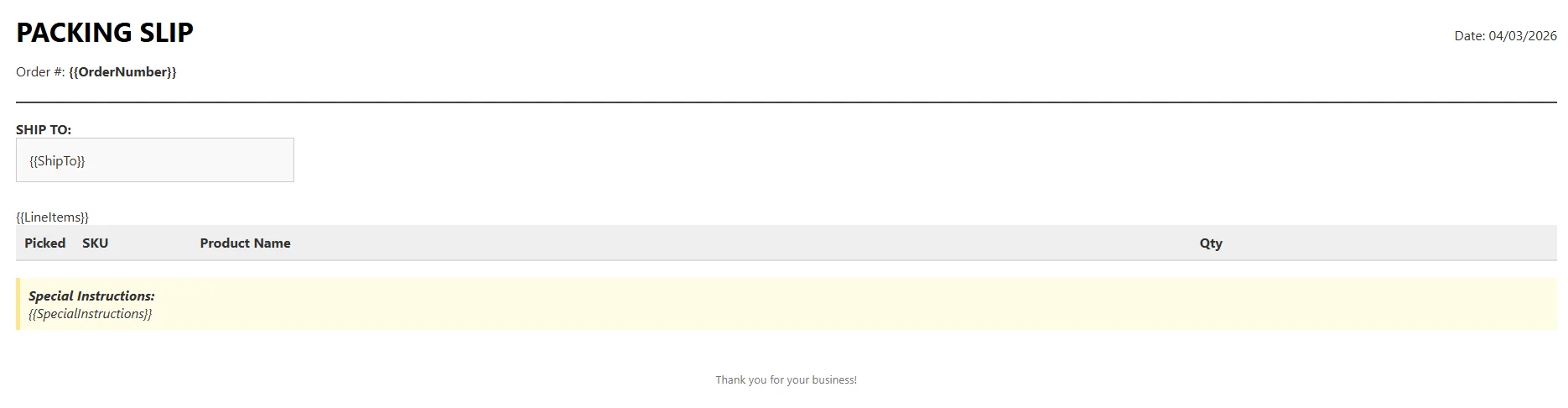
The packing slip template (letter or A4) includes a line-item table with checkboxes for the packer to verify each item, the order number, ship-to address, and a scannable order ID. The label template targets 4×6 inches (the standard thermal label size) and includes the ship-to and return addresses, carrier barcode area, and shipment weight.
Both templates are HTML and CSS files owned by the application team. Updating the packing slip to add a new column, changing a merchant's logo on a 3PL slip, or adjusting label margins for a new thermal printer model is a template file change, no recompilation, no redeployment of business logic.
Example HTML File Template
3. Batch Rendered and Merged Into One Print Job
using IronPdf;

var renderer = new ChromePdfRenderer();

renderer.RenderingOptions.PaperSize = IronPdf.Rendering.PdfPaperSize.Letter;

renderer.RenderingOptions.MarginTop = 10;

renderer.RenderingOptions.MarginBottom = 10;

string slipTemplate = await File.ReadAllTextAsync("Templates/packing-slip.html");

var slipPdfs = new List<PdfDocument>();

foreach (var order in pickWave)
{
    string lineItemRows = string.Concat(order.Items.Select(i =>
        $"<tr><td><input type='checkbox'></td><td>{i.Sku}</td><td>{i.ProductName}</td><td>{i.Quantity}</td></tr>"));

    string html = slipTemplate
        .Replace("{{OrderNumber}}", order.OrderNumber)
        .Replace("{{ShipTo}}", order.ShippingAddress.Formatted)
        .Replace("{{LineItems}}", lineItemRows)
        .Replace("{{SpecialInstructions}}", order.SpecialInstructions ?? "None");

    slipPdfs.Add(renderer.RenderHtmlAsPdf(html));
}

PdfDocument waveBatch = PdfDocument.Merge(slipPdfs);

waveBatch.SaveAs($"wave-{pickWave.WaveId}-slips.pdf");
using IronPdf;

var renderer = new ChromePdfRenderer();

renderer.RenderingOptions.PaperSize = IronPdf.Rendering.PdfPaperSize.Letter;

renderer.RenderingOptions.MarginTop = 10;

renderer.RenderingOptions.MarginBottom = 10;

string slipTemplate = await File.ReadAllTextAsync("Templates/packing-slip.html");

var slipPdfs = new List<PdfDocument>();

foreach (var order in pickWave)
{
    string lineItemRows = string.Concat(order.Items.Select(i =>
        $"<tr><td><input type='checkbox'></td><td>{i.Sku}</td><td>{i.ProductName}</td><td>{i.Quantity}</td></tr>"));

    string html = slipTemplate
        .Replace("{{OrderNumber}}", order.OrderNumber)
        .Replace("{{ShipTo}}", order.ShippingAddress.Formatted)
        .Replace("{{LineItems}}", lineItemRows)
        .Replace("{{SpecialInstructions}}", order.SpecialInstructions ?? "None");

    slipPdfs.Add(renderer.RenderHtmlAsPdf(html));
}

PdfDocument waveBatch = PdfDocument.Merge(slipPdfs);

waveBatch.SaveAs($"wave-{pickWave.WaveId}-slips.pdf");
Imports IronPdf
Imports System.IO
Dim renderer As New ChromePdfRenderer()
renderer.RenderingOptions.PaperSize = IronPdf.Rendering.PdfPaperSize.Letter
renderer.RenderingOptions.MarginTop = 10
renderer.RenderingOptions.MarginBottom = 10
Dim slipTemplate As String = Await File.ReadAllTextAsync("Templates/packing-slip.html")
Dim slipPdfs As New List(Of PdfDocument)()
For Each order In pickWave
Dim lineItemRows As String = String.Concat(order.Items.Select(Function(i) $"<tr><td><input type='checkbox'></td><td>{i.Sku}</td><td>{i.ProductName}</td><td>{i.Quantity}</td></tr>"))
Dim html As String = slipTemplate _
.Replace("{{OrderNumber}}", order.OrderNumber) _
.Replace("{{ShipTo}}", order.ShippingAddress.Formatted) _
.Replace("{{LineItems}}", lineItemRows) _
.Replace("{{SpecialInstructions}}", If(order.SpecialInstructions, "None"))
slipPdfs.Add(renderer.RenderHtmlAsPdf(html))
Next
Dim waveBatch As PdfDocument = PdfDocument.Merge(slipPdfs)
waveBatch.SaveAs($"wave-{pickWave.WaveId}-slips.pdf")
Imports IronPdf
Imports System.IO

Dim renderer As New ChromePdfRenderer()

renderer.RenderingOptions.PaperSize = IronPdf.Rendering.PdfPaperSize.Letter

renderer.RenderingOptions.MarginTop = 10

renderer.RenderingOptions.MarginBottom = 10

Dim slipTemplate As String = Await File.ReadAllTextAsync("Templates/packing-slip.html")

Dim slipPdfs As New List(Of PdfDocument)()

For Each order In pickWave
    Dim lineItemRows As String = String.Concat(order.Items.Select(Function(i) $"<tr><td><input type='checkbox'></td><td>{i.Sku}</td><td>{i.ProductName}</td><td>{i.Quantity}</td></tr>"))

    Dim html As String = slipTemplate _
        .Replace("{{OrderNumber}}", order.OrderNumber) _
        .Replace("{{ShipTo}}", order.ShippingAddress.Formatted) _
        .Replace("{{LineItems}}", lineItemRows) _
        .Replace("{{SpecialInstructions}}", If(order.SpecialInstructions, "None"))

    slipPdfs.Add(renderer.RenderHtmlAsPdf(html))
Next

Dim waveBatch As PdfDocument = PdfDocument.Merge(slipPdfs)

waveBatch.SaveAs($"wave-{pickWave.WaveId}-slips.pdf")
Example Output PDF Document
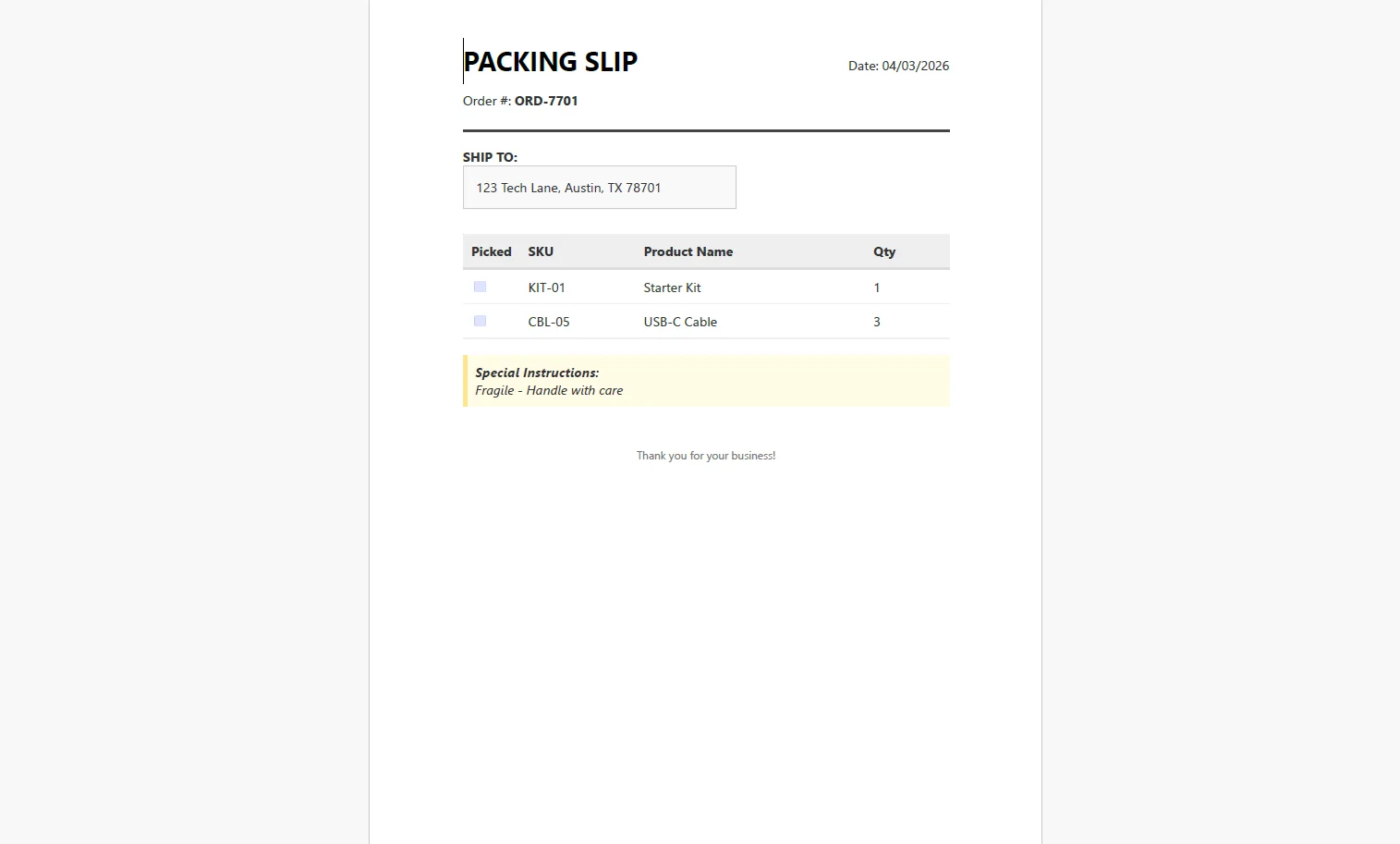 PdfDocument.Merge() combines every individual slip into a single multi-page PDF. The warehouse team sends one print job for the entire wave, one click at a workstation, one output tray to collect from.
4. Label Dimensions Set via Rendering Options
using IronPdf;

var renderer = new ChromePdfRenderer();

// 4x6 inch thermal label — 288 x 432 points
renderer.RenderingOptions.PaperSize = IronPdf.Rendering.PdfPaperSize.Custom;
renderer.RenderingOptions.CustomPaperWidth = 4;
renderer.RenderingOptions.CustomPaperHeight = 6;
renderer.RenderingOptions.MarginTop = 0;
renderer.RenderingOptions.MarginBottom = 0;
renderer.RenderingOptions.MarginLeft = 0;
renderer.RenderingOptions.MarginRight = 0;

string labelHtml = $@"
    <div style='font-family:monospace; padding:4px;'>
        <p><strong>SHIP TO:</strong><br/>{order.ShippingAddress.Formatted}</p>
        <p><strong>FROM:</strong><br/>{order.ReturnAddress.Formatted}</p>
        <p>Order: {order.OrderNumber} | Weight: {order.WeightLbs:F1} lbs</p>
        <p>Carrier: {order.CarrierName} — {order.ServiceLevel}</p>
    </div>";

PdfDocument label = renderer.RenderHtmlAsPdf(labelHtml);

label.SaveAs($"label-{order.OrderNumber}.pdf");
using IronPdf;

var renderer = new ChromePdfRenderer();

// 4x6 inch thermal label — 288 x 432 points
renderer.RenderingOptions.PaperSize = IronPdf.Rendering.PdfPaperSize.Custom;
renderer.RenderingOptions.CustomPaperWidth = 4;
renderer.RenderingOptions.CustomPaperHeight = 6;
renderer.RenderingOptions.MarginTop = 0;
renderer.RenderingOptions.MarginBottom = 0;
renderer.RenderingOptions.MarginLeft = 0;
renderer.RenderingOptions.MarginRight = 0;

string labelHtml = $@"
    <div style='font-family:monospace; padding:4px;'>
        <p><strong>SHIP TO:</strong><br/>{order.ShippingAddress.Formatted}</p>
        <p><strong>FROM:</strong><br/>{order.ReturnAddress.Formatted}</p>
        <p>Order: {order.OrderNumber} | Weight: {order.WeightLbs:F1} lbs</p>
        <p>Carrier: {order.CarrierName} — {order.ServiceLevel}</p>
    </div>";

PdfDocument label = renderer.RenderHtmlAsPdf(labelHtml);

label.SaveAs($"label-{order.OrderNumber}.pdf");
Imports IronPdf
Dim renderer As New ChromePdfRenderer()
' 4x6 inch thermal label — 288 x 432 points
renderer.RenderingOptions.PaperSize = IronPdf.Rendering.PdfPaperSize.Custom
renderer.RenderingOptions.CustomPaperWidth = 4
renderer.RenderingOptions.CustomPaperHeight = 6
renderer.RenderingOptions.MarginTop = 0
renderer.RenderingOptions.MarginBottom = 0
renderer.RenderingOptions.MarginLeft = 0
renderer.RenderingOptions.MarginRight = 0
Dim labelHtml As String = $"
<div style='font-family:monospace; padding:4px;'>
<p><strong>SHIP TO:</strong><br/>{order.ShippingAddress.Formatted}</p>
<p><strong>FROM:</strong><br/>{order.ReturnAddress.Formatted}</p>
<p>Order: {order.OrderNumber} | Weight: {order.WeightLbs:F1} lbs</p>
<p>Carrier: {order.CarrierName} — {order.ServiceLevel}</p>
</div>"
Dim label As PdfDocument = renderer.RenderHtmlAsPdf(labelHtml)
label.SaveAs($"label-{order.OrderNumber}.pdf")
Imports IronPdf

Dim renderer As New ChromePdfRenderer()

' 4x6 inch thermal label — 288 x 432 points
renderer.RenderingOptions.PaperSize = IronPdf.Rendering.PdfPaperSize.Custom
renderer.RenderingOptions.CustomPaperWidth = 4
renderer.RenderingOptions.CustomPaperHeight = 6
renderer.RenderingOptions.MarginTop = 0
renderer.RenderingOptions.MarginBottom = 0
renderer.RenderingOptions.MarginLeft = 0
renderer.RenderingOptions.MarginRight = 0

Dim labelHtml As String = $"
    <div style='font-family:monospace; padding:4px;'>
        <p><strong>SHIP TO:</strong><br/>{order.ShippingAddress.Formatted}</p>
        <p><strong>FROM:</strong><br/>{order.ReturnAddress.Formatted}</p>
        <p>Order: {order.OrderNumber} | Weight: {order.WeightLbs:F1} lbs</p>
        <p>Carrier: {order.CarrierName} — {order.ServiceLevel}</p>
    </div>"

Dim label As PdfDocument = renderer.RenderHtmlAsPdf(labelHtml)

label.SaveAs($"label-{order.OrderNumber}.pdf")
Example Output PDF File and Shipping Label
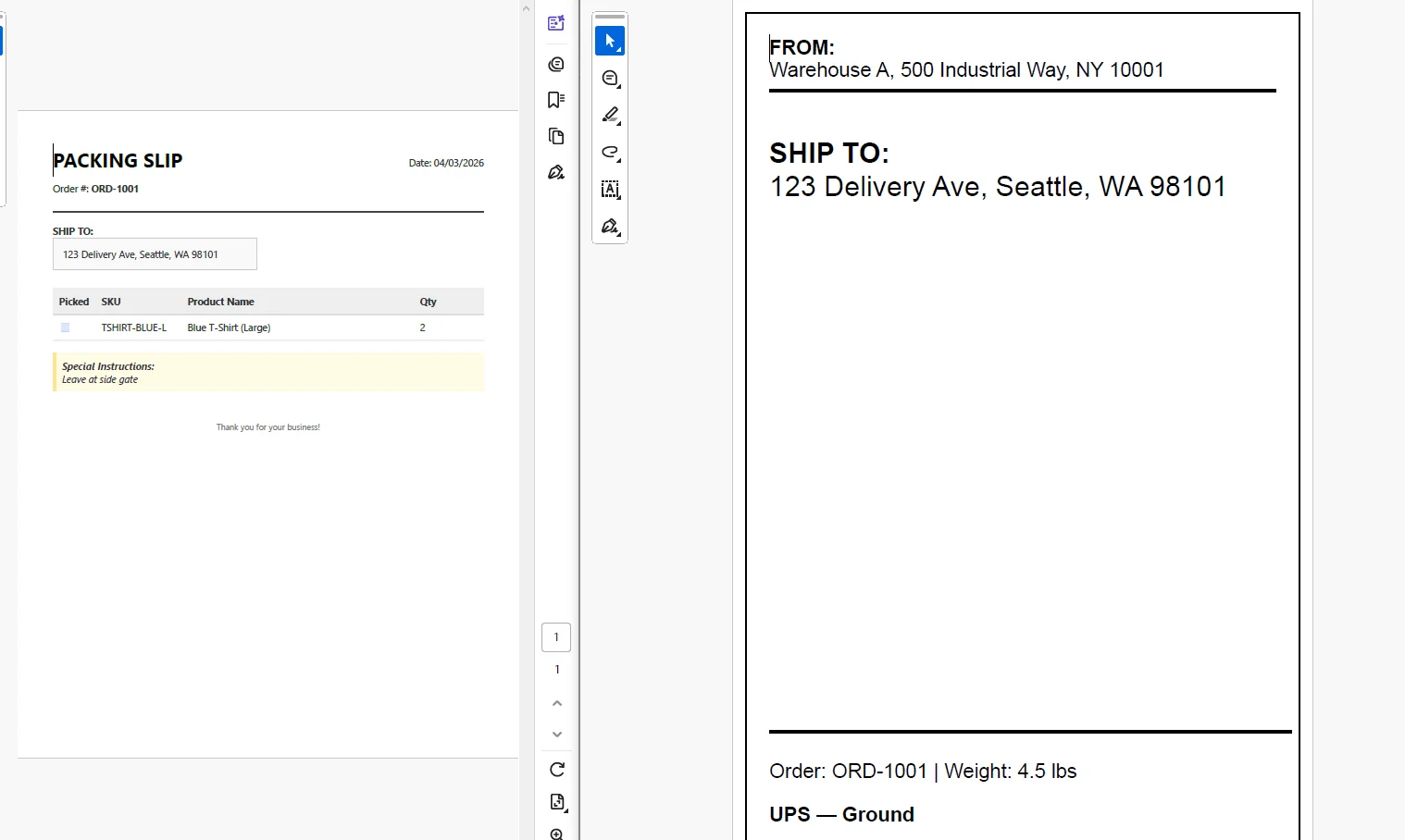 Zero margins let the CSS control all spacing up to the label edge, critical for thermal label formats where the carrier barcode area must reach within a few millimeters of the paper boundary.
Real-World Benefits
Batch efficiency. An entire pick wave merged into one PDF means one print job instead of hundreds. Shift start time drops when warehouse staff aren't waiting on individual print dialogs to load per order.
Print compatibility. PDF renders consistently on laser, inkjet, and thermal printers without installing proprietary drivers or label software on warehouse workstations. The format the OMS produces is the format every printer on the floor accepts.
Accuracy. Line items and addresses are pulled directly from the order record. There is no manual transcription step and no path for an address or SKU to be entered incorrectly before it reaches the packer.
Flexible formats. The same generation pipeline produces letter-sized packing slips and 4×6 labels by switching the HTML template and the page size options. No separate tool, no separate integration.
Multi-tenant branding. 3PL providers populate a merchantId variable in the template path and load a merchant-specific HTML file, each client's slips carry their own logo, return address, and brand colors through the same pipeline with no additional logic.
No per-label costs. The rendering runs in-process. There is no third-party label API being called per print, no usage metering, and no pricing model that makes a high-volume shift more expensive than a low-volume one.
Closing
The pick-pack-ship cycle is a throughput problem. Every manual step between an order entering the packing queue and a labeled box leaving the dock is a constraint, and packing slip and label generation is one that's straightforward to automate inside the OMS itself.
One HTML template per format, one render call per order, one merged PDF per wave, one print job per shift. IronPDF handles the full lifecycle of PDF generation in C# at ironpdf.com, from rendering HTML templates to merging, saving, and streaming documents. If you're ready to test the pipeline against your own order data and print setup, start your free 30-day trial and have a working batch slip generator running before the week is out.























