using IronPdf;

// Disable local disk access or cross-origin requests
Installation.EnableWebSecurity = true;

// Instantiate Renderer
var renderer = new ChromePdfRenderer();

// Create a PDF from a HTML string using C#
var pdf = renderer.RenderHtmlAsPdf("<h1>Hello World</h1>");

// Export to a file or Stream
pdf.SaveAs("output.pdf");

// Advanced Example with HTML Assets
// Load external html assets: Images, CSS and JavaScript.
// An optional BasePath 'C:\site\assets\' is set as the file location to load assets from
var myAdvancedPdf = renderer.RenderHtmlAsPdf("<img src='icons/iron.png'>", @"C:\site\assets\");
myAdvancedPdf.SaveAs("html-with-assets.pdf");
using IronPdf;// Disable local disk access or cross-origin requestsInstallation.EnableWebSecurity = true;// Instantiate Renderervar renderer = new ChromePdfRenderer();// Create a PDF from a HTML string using C#var pdf = renderer.RenderHtmlAsPdf("<h1>Hello World</h1>");// Export to a file or Streampdf.SaveAs("output.pdf");// Advanced Example with HTML Assets// Load external html assets: Images, CSS and JavaScript.// An optional BasePath 'C:\site\assets\' is set as the file location to load assets fromvar myAdvancedPdf = renderer.RenderHtmlAsPdf("<img src='icons/iron.png'>", @"C:\site\assets\");myAdvancedPdf.SaveAs("html-with-assets.pdf");
PM >Install-Package IronPdf
Install-Package IronPdf
USING IRONPDF
Render PDF Pages in Windows Forms PictureBox | C# Guide
Displaying PDF pages inside a Windows Forms application is a common requirement for document management tools, report viewers, and file preview utilities. The `PictureBox` control is a natural candidate because it already handles image rendering in your form. The challenge is that PDF files are not images -- they require specialized rendering before any standard image control can display them. This guide walks through how to use IronPDF to convert PDF pages to bitmap images and display them inside a `PictureBox` control, along with page navigation, printing, and saving support.
!!!--LIBRARY_GET_STARTED_WITH_PRODUCT_TRIAL_BLOCK--!!!
## Why Can't PictureBox Display PDF Files Directly?
The [`PictureBox` control](https://learn.microsoft.com/en-us/dotnet/desktop/winforms/controls/picturebox-control-overview-windows-forms) in Windows Forms is designed strictly for image formats: BMP, PNG, JPG, GIF, TIFF, and a handful of others. When you attempt to assign a PDF file path to `PictureBox.ImageLocation` or load a PDF stream into `PictureBox.Image`, the control throws an exception because the PDF binary format is not a recognized image format.
Some approaches attempt to work around this by embedding Adobe Acrobat through COM interop. This creates a hard dependency on Adobe Reader being installed on every machine that runs your application -- a deployment constraint that is difficult to manage in enterprise environments. It also locks the rendering engine to whatever version of Acrobat the user has, which can cause compatibility issues across different machines.
A cleaner approach is to use a .NET PDF library that converts PDF pages into bitmap images at runtime. [IronPDF](https://ironpdf.com/) provides exactly this capability through its `ToBitmap` method, which renders each page of a PDF document into an `AnyBitmap` object. You can then convert that object into a standard `System.Drawing.Bitmap` and assign it directly to `PictureBox.Image`. No Adobe installation required, no COM registration, and no external viewer embedded in your application window.
This technique works across .NET Framework 4.6.2 and above, as well as .NET 6, 8, and 10 on Windows. The rendering engine inside IronPDF is Chrome-based, which means it produces high-fidelity output even for PDFs with complex layouts, embedded fonts, and mixed image/text content.
## How Do You Install IronPDF for a Windows Forms Project?
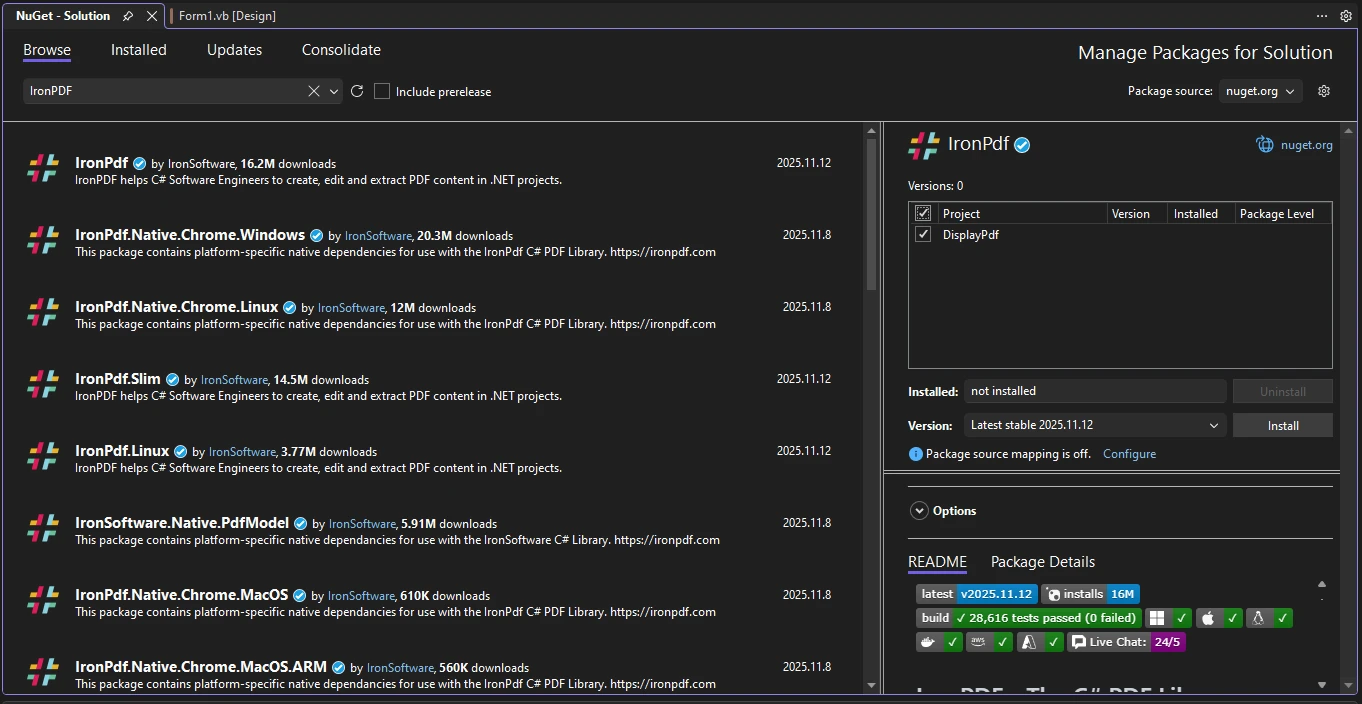
Before writing any code, you need to add IronPDF to your project. The fastest way is through the NuGet Package Manager CLI:
```bash
:InstallCmd dotnet add package IronPdf
```
Alternatively, use the Visual Studio Package Manager Console:
```bash
:ProductInstall
```
After installation, confirm the package reference appears in your `.csproj` file. IronPDF targets Windows on .NET 6 and later, so if you are using a cross-platform target in your project file, add a `<RuntimeIdentifiers>` or `<Platforms>` restriction for Windows. For Windows Forms projects this is usually already configured when you create the project template in Visual Studio.
For licensing in production, place your license key in your application startup code before any IronPDF calls:
```csharp
IronPdf.License.LicenseKey = "YOUR-LICENSE-KEY";
```
During development and evaluation, IronPDF runs in trial mode, which adds a watermark to rendered output. A [free trial license](https://ironpdf.com/licensing/) removes the watermark for testing purposes.
## How Do You Set Up the Windows Forms Project Structure?
Open Visual Studio and create a new Windows Forms App project targeting .NET 10. The project template generates a `Form1.cs` and a `Program.cs` entry point.
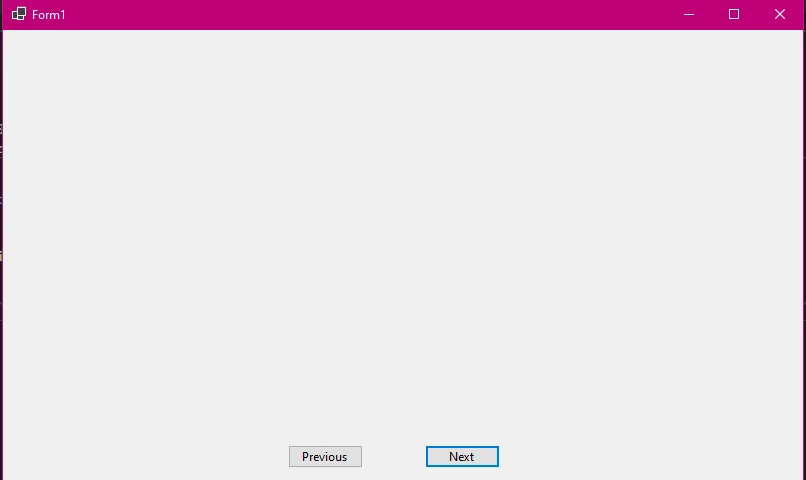
On the designer surface, add the following controls to your form:
- A `PictureBox` named `pictureBoxPdf` covering most of the form, with `SizeMode` set to `Zoom`
- A `Button` named `btnOpen` with text "Open PDF"
- A `Button` named `btnPrevious` with text "Previous"
- A `Button` named `btnNext` with text "Next"
- A `Button` named `btnSave` with text "Save Page"
- A `Button` named `btnPrint` with text "Print"
- A `Label` named `lblPageInfo` for showing the current page number
The `SizeMode = Zoom` setting on the `PictureBox` ensures that PDF pages scale proportionally to fit the control without distorting the aspect ratio. This is important because PDF pages vary in size -- letter, A4, and legal formats all have different dimensions, and you want the viewer to handle all of them gracefully.
Below is the complete form code for the PDF viewer application. This uses top-level statements in `Program.cs` and puts the full viewer logic inside `Form1.cs`:
```csharp
using IronPdf;
using IronSoftware.Drawing;
using System.Drawing;

public partial class Form1 : Form
{
    private PdfDocument? currentPdf;
    private AnyBitmap[]? pageImages;
    private int currentPageIndex = 0;

    public Form1()
    {
        InitializeComponent();
        pictureBoxPdf.SizeMode = PictureBoxSizeMode.Zoom;
        UpdateNavigationState();
    }

    private void UpdateNavigationState()
    {
        bool hasPdf = pageImages != null && pageImages.Length > 0;
        btnPrevious.Enabled = hasPdf && currentPageIndex > 0;
        btnNext.Enabled = hasPdf && currentPageIndex < (pageImages?.Length - 1 ?? 0);
        btnSave.Enabled = hasPdf;
        btnPrint.Enabled = hasPdf;
        lblPageInfo.Text = hasPdf
            ? $"Page {currentPageIndex + 1} of {pageImages!.Length}"
            : "No document loaded";
    }
}
```
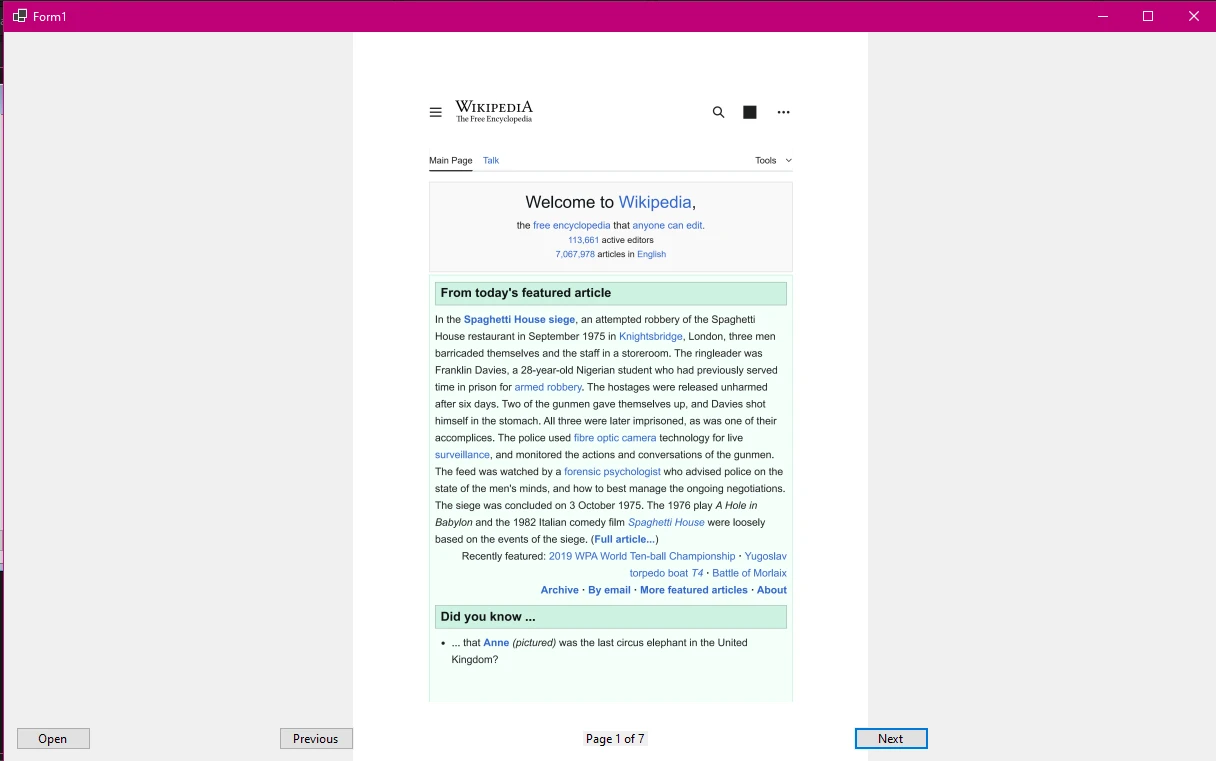
The `UpdateNavigationState` helper method disables or enables navigation and action buttons based on whether a PDF has been loaded and which page the viewer is currently showing. This prevents null reference errors when users click buttons before loading a document.
## How Do You Load and Render PDF Pages into a PictureBox?
Loading a PDF and rendering it into the `PictureBox` involves two steps: loading the document with `PdfDocument.FromFile`, and then calling `ToBitmap` to convert all pages into an array of bitmap objects.
The [PDF to image conversion](https://ironpdf.com/how-to/rasterize-pdf-to-images/) method `ToBitmap` renders every page in the PDF at the requested DPI. Higher DPI produces sharper images but uses more memory. A value of 150 DPI is usually a good balance for a document viewer -- readable on screen without requiring gigabytes of RAM for large documents.
```csharp
private void btnOpen_Click(object sender, EventArgs e)
{
using OpenFileDialog openDialog = new OpenFileDialog();
openDialog.Filter = "PDF Files|*.pdf";
openDialog.Title = "Select a PDF Document";
if (openDialog.ShowDialog() == DialogResult.OK)
{
LoadPdfDocument(openDialog.FileName);
}
}
private void LoadPdfDocument(string filePath)
{
currentPdf?.Dispose();
currentPdf = PdfDocument.FromFile(filePath);
// Render all pages as bitmaps at 150 DPI
pageImages = currentPdf.ToBitmap(150);
currentPageIndex = 0;
DisplayCurrentPage();
UpdateNavigationState();
}
private void DisplayCurrentPage()
{
if (pageImages == null || pageImages.Length == 0) return;
// Convert AnyBitmap to System.Drawing.Bitmap for PictureBox
System.Drawing.Bitmap bitmap = pageImages[currentPageIndex].ToImage<System.Drawing.Bitmap>();
pictureBoxPdf.Image?.Dispose();
pictureBoxPdf.Image = bitmap;
UpdateNavigationState();
}
```
The `PdfDocument.FromFile` method loads the PDF from disk into memory. Calling `ToBitmap` with a DPI parameter returns an array of `AnyBitmap` objects, one per page. The `AnyBitmap` type is IronPDF's format-agnostic bitmap class, and `ToImage<System.Drawing.Bitmap>()` converts it to the `System.Drawing.Bitmap` type that `PictureBox.Image` expects.
Notice that the previous `PictureBox.Image` is disposed before assigning a new one. This is important -- each `Bitmap` object holds unmanaged GDI+ resources, and failing to dispose old bitmaps causes memory leaks in long-running applications.
After loading, the viewer displays the first page immediately. The `lblPageInfo` label updates to show the current page number and total page count.
## How Do You Add Page Navigation Between PDF Pages?
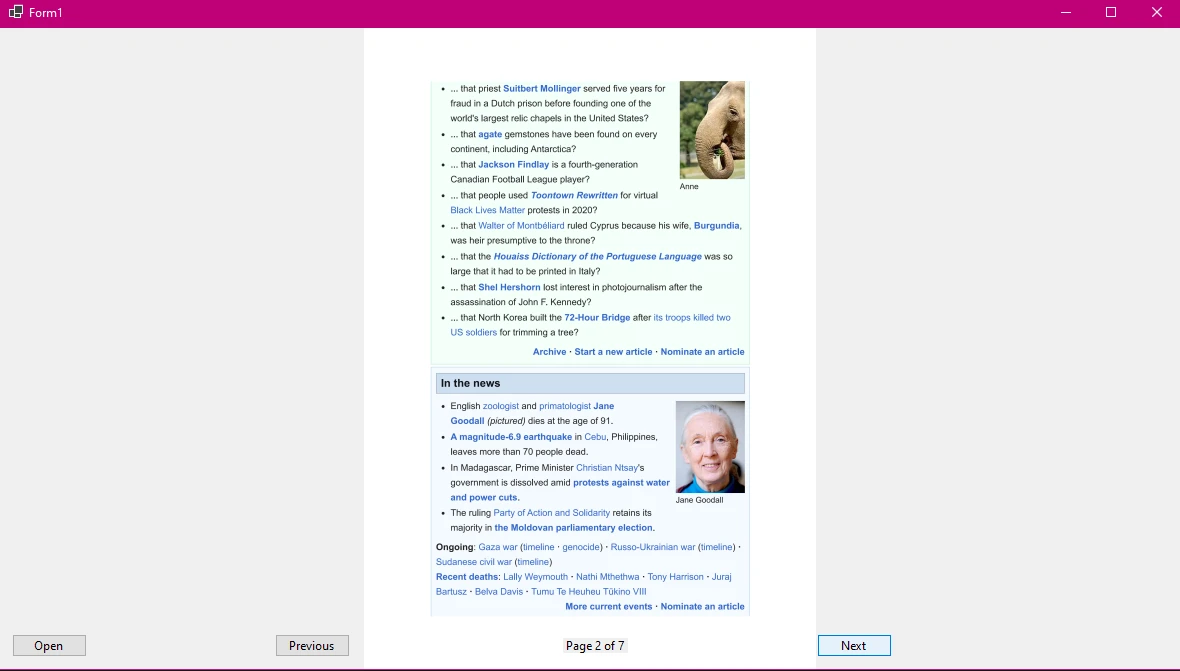
A PDF viewer that only shows the first page is not useful for multi-page documents. The navigation buttons allow users to move forward and backward through the rendered page array:
```csharp
private void btnPrevious_Click(object sender, EventArgs e)
{
if (currentPageIndex > 0)
{
currentPageIndex--;
DisplayCurrentPage();
}
}
private void btnNext_Click(object sender, EventArgs e)
{
if (pageImages != null && currentPageIndex < pageImages.Length - 1)
{
currentPageIndex++;
DisplayCurrentPage();
}
}
```
Each click handler adjusts the `currentPageIndex` by one and calls `DisplayCurrentPage`, which swaps the `PictureBox.Image` to the corresponding bitmap. The bounds checks (`currentPageIndex > 0` and `currentPageIndex < pageImages.Length - 1`) prevent index-out-of-bounds exceptions, though `UpdateNavigationState` also disables the buttons when they would be out of range.
For larger documents, you might also consider adding a page number input field where users can type a specific page number to jump directly to that page, or a scrollable thumbnail strip on the side. The `pageImages` array already contains all rendered pages, so jumping to an arbitrary page is simply a matter of setting `currentPageIndex` to the target index and calling `DisplayCurrentPage`.
## How Do You Save and Print PDF Pages from the Viewer?
Document viewers usually need to support both saving the current page as an image file and sending the document to a printer. IronPDF makes both straightforward.
### Saving the Current Page as an Image File
The current page is already available as a `System.Drawing.Bitmap` in `PictureBox.Image`. Save it using `Image.Save` with the format inferred from the file extension the user chooses:
```csharp
private void btnSave_Click(object sender, EventArgs e)
{
if (pictureBoxPdf.Image == null) return;
using SaveFileDialog saveDialog = new SaveFileDialog();
saveDialog.Filter = "PNG Image|*.png|JPEG Image|*.jpg|TIFF Image|*.tif";
saveDialog.Title = "Save Page As Image";
saveDialog.FileName = $"page_{currentPageIndex + 1}";
if (saveDialog.ShowDialog() == DialogResult.OK)
{
pictureBoxPdf.Image.Save(saveDialog.FileName);
}
}
```
### Printing the PDF Document
For printing, use IronPDF's [Print method](https://ironpdf.com/how-to/print-pdf/), which sends the PDF directly to the Windows print infrastructure -- not the rendered images, but the actual PDF content. This produces much sharper output than printing a bitmap, because the printer driver receives the vector PDF instructions rather than a rasterized image:
```csharp
private void btnPrint_Click(object sender, EventArgs e)
{
if (currentPdf == null) return;
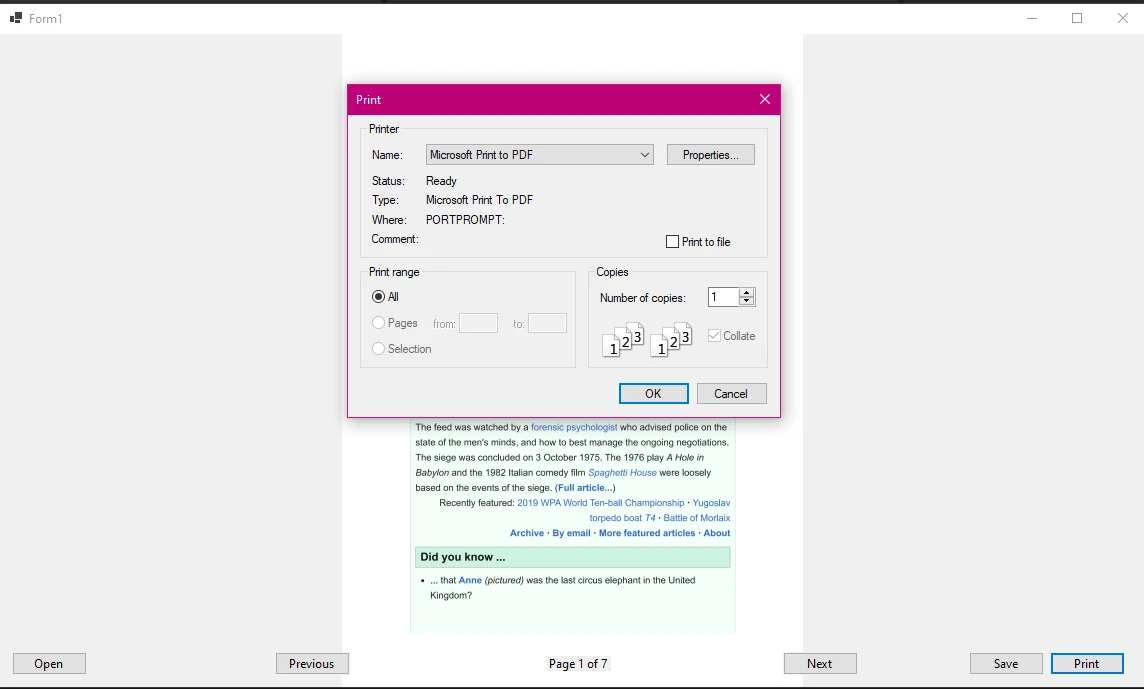
using PrintDialog printDialog = new PrintDialog();
if (printDialog.ShowDialog() == DialogResult.OK)
{
currentPdf.Print();
}
}
```
The `PrintDialog` lets the user select the target printer and configure settings before printing begins. The actual print job is handled by IronPDF's internal rendering engine, which integrates with the Windows print spooler.
## How Do You Handle Memory and Disposal Correctly?
PDF documents and rendered bitmaps consume significant memory, especially at higher DPI settings or for large documents. Without proper disposal, a long-running viewer application will gradually exhaust available memory.
### Disposal Checklist
The key points for correct disposal in this pattern are:
- Call `currentPdf?.Dispose()` before loading a new document. `PdfDocument` implements `IDisposable` and holds unmanaged resources.
- Call `pictureBoxPdf.Image?.Dispose()` before assigning a new bitmap to `PictureBox.Image`. Each rendered page is a separate unmanaged GDI+ object.
- The `pageImages` array holds `AnyBitmap` objects. When you navigate away from a page and no longer need the old bitmap, the `Dispose` call on the `PictureBox.Image` handles the `System.Drawing.Bitmap` copy, but you may also want to dispose `AnyBitmap` objects in the array when loading a new document.
Override `Form1.Dispose` to clean up when the form closes:
```csharp
protected override void Dispose(bool disposing)
{
if (disposing)
{
currentPdf?.Dispose();
pictureBoxPdf.Image?.Dispose();
if (pageImages != null)
{
foreach (var bitmap in pageImages)
bitmap.Dispose();
}
components?.Dispose();
}
base.Dispose(disposing);
}
```
This pattern ensures that all IronPDF and GDI+ resources are released when the form is closed, preventing memory leaks in production deployments.
## How Do You Render Only the Visible Page Instead of All Pages?
For large PDFs with dozens or hundreds of pages, rendering all pages upfront with `ToBitmap` can be slow and memory-intensive. A more efficient approach is to render only the page the user wants to see, on demand.
IronPDF's [RasterizeToImageFiles](https://ironpdf.com/how-to/rasterize-pdf-to-images/) approach supports per-page rendering, but for in-memory use you can also use `PageCount` and render a single page at a time:
```csharp
private void DisplayPageLazy(int pageIndex)
{
if (currentPdf == null) return;
// Render only the requested page
AnyBitmap[] singlePage = currentPdf.ToBitmap(150, pageIndex, pageIndex);
System.Drawing.Bitmap bitmap = singlePage[0].ToImage<System.Drawing.Bitmap>();
pictureBoxPdf.Image?.Dispose();
pictureBoxPdf.Image = bitmap;
singlePage[0].Dispose();
lblPageInfo.Text = $"Page {pageIndex + 1} of {currentPdf.PageCount}";
UpdateNavigationState();
}
```
The `ToBitmap(dpi, startPage, endPage)` overload renders a specific range of pages. By passing the same index for both `startPage` and `endPage`, only one page is rendered at a time. This trades per-navigation rendering time for lower peak memory usage, which can be worthwhile for very large documents.
For more on IronPDF's image output capabilities, see the [PDF to image documentation](https://ironpdf.com/how-to/rasterize-pdf-to-images/) and the [PDF rasterization guide](https://ironpdf.com/how-to/rasterize-pdf-to-images/).
A practical PDF viewer should also allow users to zoom in on content and rotate pages. For zoom, adjust the DPI passed to `ToBitmap` dynamically -- store a `currentDpi` field (starting at 150), increment or decrement it by 50 on zoom button clicks, then call the lazy page renderer with the updated DPI. Higher DPI produces a larger image, which the `PictureBox` in `Zoom` mode scales to fit the control. Cap the range between 72 and 400 DPI using `Math.Min` and `Math.Max` to avoid either blurry output at the low end or excessive memory consumption at the high end.
For more advanced rendering options, including extracting text from PDFs alongside image rendering, see the [PDF text extraction guide](https://ironpdf.com/how-to/extract-text-and-images/) and the [PDF image extraction documentation](https://ironpdf.com/how-to/custom-watermark/).
You can also explore IronPDF's support for [merging PDF documents](https://ironpdf.com/how-to/merge-or-split-pdfs/), [adding watermarks](https://ironpdf.com/how-to/custom-watermark/), [rotating PDF pages](https://ironpdf.com/how-to/rotating-text/), and [adding annotations](https://ironpdf.com/how-to/annotations/) as features in a more advanced viewer.
## How Do You Choose a PDF Rendering Library for Windows Forms?
When choosing a PDF rendering library for Windows Forms, several alternatives exist. Here is a quick comparison to help you evaluate the options:
<table class="content__data-table" data-content-table>
<caption>PDF Rendering Options for Windows Forms Applications</caption>
<thead>
<tr>
<th>Option</th>
<th>External Dependency</th>
<th>.NET Support</th>
<th>Commercial License</th>
<th>Image Output</th>
</tr>
</thead>
<tbody>
<tr>
<td>IronPDF</td>
<td>None (self-contained)</td>
<td>.NET 4.6.2 -- .NET 10</td>
<td>Yes (trial available)</td>
<td>High-fidelity at configurable DPI</td>
</tr>
<tr>
<td>Adobe Acrobat COM</td>
<td>Adobe Reader/Acrobat installed</td>
<td>Windows .NET Framework only</td>
<td>Adobe license</td>
<td>Dependent on installed version</td>
</tr>
<tr>
<td>PDFium.NET</td>
<td>PDFium native binaries</td>
<td>.NET 5+</td>
<td>BSD (open source)</td>
<td>Good quality, manual DPI control</td>
</tr>
<tr>
<td>GhostScript wrappers</td>
<td>GhostScript installed</td>
<td>Any (via CLI or COM)</td>
<td>AGPL or commercial</td>
<td>Good quality, slower rendering</td>
</tr>
</tbody>
</table>
IronPDF's main advantage for Windows Forms use cases is that it is fully self-contained -- no external software needs to be installed on end-user machines. The [IronPDF licensing page](https://ironpdf.com/licensing/) has full details on pricing and the free trial option. You can find the package on [NuGet.org](https://www.nuget.org/packages/IronPdf/) along with download statistics and version history. For a deeper look at how the PDF specification defines page rendering, the [ISO 32000-2 PDF standard](https://www.iso.org/standard/75839.html) published by ISO describes the format that IronPDF and other renderers must implement.
For additional context on IronPDF's capabilities beyond image rendering, the [IronPDF documentation home](https://ironpdf.com/docs/) covers PDF creation, HTML-to-PDF conversion, form handling, digital signatures, and much more.
## What Are Your Next Steps?
The pattern shown in this tutorial -- render with `ToBitmap`, display in `PictureBox`, navigate with index-based controls -- gives you a functional, dependency-free PDF viewer in Windows Forms. From here, several directions are worth exploring depending on your application's requirements.
For a production-quality viewer, consider lazy page rendering to handle large documents efficiently, adding a scrollable thumbnail panel alongside the main viewer, and exposing zoom controls tied to the DPI parameter. For document management applications, combine the viewer with IronPDF's [text extraction](https://ironpdf.com/how-to/extract-text-and-images/) and [form field reading](https://ironpdf.com/how-to/edit-forms/) capabilities to build searchable document indexes.
If your workflow involves generating PDFs programmatically before displaying them, IronPDF also supports [HTML to PDF conversion](https://ironpdf.com/how-to/html-string-to-pdf/) and [PDF creation from scratch](https://ironpdf.com/how-to/create-new-pdfs/), so the same library handles both generation and viewing.
[Start a free trial](https://ironpdf.com/licensing/) to get a watermark-free license key for development, or [review the full API reference](https://ironpdf.com/object-reference/api/) to see the complete set of methods available on `PdfDocument`, `AnyBitmap`, and the supporting rendering classes. The [IronPDF examples gallery](https://ironpdf.com/examples/using-html-to-create-a-pdf/) also has ready-to-run code samples covering common PDF tasks in C#.
Displaying PDF pages inside a Windows Forms application is a common requirement for document management tools, report viewers, and file preview utilities. The PictureBox control is a natural candidate because it already handles image rendering in your form. The challenge is that PDF files are not images -- they require specialized rendering before any standard image control can display them. This guide walks through how to use IronPDF to convert PDF pages to bitmap images and display them inside a PictureBox control, along with page navigation, printing, and saving support.
First Step:
Why Can't PictureBox Display PDF Files Directly?
The PictureBox control in Windows Forms is designed strictly for image formats: BMP, PNG, JPG, GIF, TIFF, and a handful of others. When you attempt to assign a PDF file path to PictureBox.ImageLocation or load a PDF stream into PictureBox.Image, the control throws an exception because the PDF binary format is not a recognized image format.
Some approaches attempt to work around this by embedding Adobe Acrobat through COM interop. This creates a hard dependency on Adobe Reader being installed on every machine that runs your application -- a deployment constraint that is difficult to manage in enterprise environments. It also locks the rendering engine to whatever version of Acrobat the user has, which can cause compatibility issues across different machines.
A cleaner approach is to use a .NET PDF library that converts PDF pages into bitmap images at runtime. IronPDF provides exactly this capability through its ToBitmap method, which renders each page of a PDF document into an AnyBitmap object. You can then convert that object into a standard System.Drawing.Bitmap and assign it directly to PictureBox.Image. No Adobe installation required, no COM registration, and no external viewer embedded in your application window.
This technique works across .NET Framework 4.6.2 and above, as well as .NET 6, 8, and 10 on Windows. The rendering engine inside IronPDF is Chrome-based, which means it produces high-fidelity output even for PDFs with complex layouts, embedded fonts, and mixed image/text content.
How Do You Install IronPDF for a Windows Forms Project?
Before writing any code, you need to add IronPDF to your project. The fastest way is through the NuGet Package Manager CLI:
> dotnet add package IronPdf
dotnet add package IronPdf
Alternatively, use the Visual Studio Package Manager Console:
PM > Install-Package IronPdf
Install-Package IronPdf
After installation, confirm the package reference appears in your .csproj file. IronPDF targets Windows on .NET 6 and later, so if you are using a cross-platform target in your project file, add a <RuntimeIdentifiers> or <Platforms> restriction for Windows. For Windows Forms projects this is usually already configured when you create the project template in Visual Studio.
For licensing in production, place your license key in your application startup code before any IronPDF calls:
IronPdf.License.LicenseKey = "YOUR-LICENSE-KEY";
IronPdf.License.LicenseKey = "YOUR-LICENSE-KEY";
IronPdf.License.LicenseKey = "YOUR-LICENSE-KEY"
IronPdf.License.LicenseKey = "YOUR-LICENSE-KEY"
During development and evaluation, IronPDF runs in trial mode, which adds a watermark to rendered output. A free trial license removes the watermark for testing purposes.
How Do You Set Up the Windows Forms Project Structure?
Open Visual Studio and create a new Windows Forms App project targeting .NET 10. The project template generates a Form1.cs and a Program.cs entry point.
On the designer surface, add the following controls to your form:
A PictureBox named pictureBoxPdf covering most of the form, with SizeMode set to Zoom
A Button named btnOpen with text "Open PDF"
A Button named btnPrevious with text "Previous"
A Button named btnNext with text "Next"
A Button named btnSave with text "Save Page"
A Button named btnPrint with text "Print"
A Label named lblPageInfo for showing the current page number
The SizeMode = Zoom setting on the PictureBox ensures that PDF pages scale proportionally to fit the control without distorting the aspect ratio. This is important because PDF pages vary in size -- letter, A4, and legal formats all have different dimensions, and you want the viewer to handle all of them gracefully.
Below is the complete form code for the PDF viewer application. This uses top-level statements in Program.cs and puts the full viewer logic inside Form1.cs:
using IronPdf;
using IronSoftware.Drawing;
using System.Drawing;

public partial class Form1 : Form
{
    private PdfDocument? currentPdf;
    private AnyBitmap[]? pageImages;
    private int currentPageIndex = 0;

    public Form1()
    {
        InitializeComponent();
        pictureBoxPdf.SizeMode = PictureBoxSizeMode.Zoom;
        UpdateNavigationState();
    }

    private void UpdateNavigationState()
    {
        bool hasPdf = pageImages != null && pageImages.Length > 0;
        btnPrevious.Enabled = hasPdf && currentPageIndex > 0;
        btnNext.Enabled = hasPdf && currentPageIndex < (pageImages?.Length - 1 ?? 0);
        btnSave.Enabled = hasPdf;
        btnPrint.Enabled = hasPdf;
        lblPageInfo.Text = hasPdf
            ? $"Page {currentPageIndex + 1} of {pageImages!.Length}"
            : "No document loaded";
    }
}
ImportsIronPdfImportsIronSoftware.DrawingImportsSystem.DrawingPublicPartial Class Form1InheritsForm Private currentPdf AsPdfDocument Private pageImages AsAnyBitmap() Private currentPageIndex AsInteger = 0 Public Sub New()InitializeComponent() pictureBoxPdf.SizeMode = PictureBoxSizeMode.ZoomUpdateNavigationState() End Sub Private Sub UpdateNavigationState() Dim hasPdf AsBoolean = pageImages IsNot NothingAndAlso pageImages.Length > 0 btnPrevious.Enabled = hasPdf AndAlso currentPageIndex > 0 btnNext.Enabled = hasPdf AndAlso currentPageIndex < If(pageImages?.Length - 1, 0) btnSave.Enabled = hasPdf btnPrint.Enabled = hasPdf lblPageInfo.Text = If(hasPdf, $"Page {currentPageIndex + 1} of {pageImages.Length}", "No document loaded") End SubEnd Class
Imports IronPdf
Imports IronSoftware.Drawing
Imports System.Drawing

Public Partial Class Form1
    Inherits Form

    Private currentPdf As PdfDocument
    Private pageImages As AnyBitmap()
    Private currentPageIndex As Integer = 0

    Public Sub New()
        InitializeComponent()
        pictureBoxPdf.SizeMode = PictureBoxSizeMode.Zoom
        UpdateNavigationState()
    End Sub

    Private Sub UpdateNavigationState()
        Dim hasPdf As Boolean = pageImages IsNot Nothing AndAlso pageImages.Length > 0
        btnPrevious.Enabled = hasPdf AndAlso currentPageIndex > 0
        btnNext.Enabled = hasPdf AndAlso currentPageIndex < If(pageImages?.Length - 1, 0)
        btnSave.Enabled = hasPdf
        btnPrint.Enabled = hasPdf
        lblPageInfo.Text = If(hasPdf, $"Page {currentPageIndex + 1} of {pageImages.Length}", "No document loaded")
    End Sub
End Class
The UpdateNavigationState helper method disables or enables navigation and action buttons based on whether a PDF has been loaded and which page the viewer is currently showing. This prevents null reference errors when users click buttons before loading a document.
How Do You Load and Render PDF Pages into a PictureBox?
Loading a PDF and rendering it into the PictureBox involves two steps: loading the document with PdfDocument.FromFile, and then calling ToBitmap to convert all pages into an array of bitmap objects.
The PDF to image conversion method ToBitmap renders every page in the PDF at the requested DPI. Higher DPI produces sharper images but uses more memory. A value of 150 DPI is usually a good balance for a document viewer -- readable on screen without requiring gigabytes of RAM for large documents.
private void btnOpen_Click(object sender, EventArgs e){ using OpenFileDialog openDialog = new OpenFileDialog(); openDialog.Filter = "PDF Files|*.pdf"; openDialog.Title = "Select a PDF Document"; if (openDialog.ShowDialog() == DialogResult.OK) {LoadPdfDocument(openDialog.FileName); }}private voidLoadPdfDocument(string filePath){ currentPdf?.Dispose(); currentPdf = PdfDocument.FromFile(filePath); // Render all pages as bitmaps at 150 DPI pageImages = currentPdf.ToBitmap(150); currentPageIndex = 0;DisplayCurrentPage();UpdateNavigationState();}private voidDisplayCurrentPage(){ if (pageImages == null || pageImages.Length == 0) return; // Convert AnyBitmap to System.Drawing.Bitmap for PictureBox System.Drawing.Bitmap bitmap = pageImages[currentPageIndex].ToImage<System.Drawing.Bitmap>(); pictureBoxPdf.Image?.Dispose(); pictureBoxPdf.Image = bitmap;UpdateNavigationState();}
private void btnOpen_Click(object sender, EventArgs e)
{
    using OpenFileDialog openDialog = new OpenFileDialog();
    openDialog.Filter = "PDF Files|*.pdf";
    openDialog.Title = "Select a PDF Document";

    if (openDialog.ShowDialog() == DialogResult.OK)
    {
        LoadPdfDocument(openDialog.FileName);
    }
}

private void LoadPdfDocument(string filePath)
{
    currentPdf?.Dispose();
    currentPdf = PdfDocument.FromFile(filePath);

    // Render all pages as bitmaps at 150 DPI
    pageImages = currentPdf.ToBitmap(150);
    currentPageIndex = 0;

    DisplayCurrentPage();
    UpdateNavigationState();
}

private void DisplayCurrentPage()
{
    if (pageImages == null || pageImages.Length == 0) return;

    // Convert AnyBitmap to System.Drawing.Bitmap for PictureBox
    System.Drawing.Bitmap bitmap = pageImages[currentPageIndex].ToImage<System.Drawing.Bitmap>();
    pictureBoxPdf.Image?.Dispose();
    pictureBoxPdf.Image = bitmap;

    UpdateNavigationState();
}
Private Sub btnOpen_Click(sender AsObject, e AsEventArgs) Handles btnOpen.ClickUsing openDialog As New OpenFileDialog() openDialog.Filter = "PDF Files|*.pdf" openDialog.Title = "Select a PDF Document" If openDialog.ShowDialog() = DialogResult.OKThenLoadPdfDocument(openDialog.FileName) End IfEndUsingEnd SubPrivate Sub LoadPdfDocument(filePath AsString) currentPdf?.Dispose() currentPdf = PdfDocument.FromFile(filePath) ' Render all pages as bitmaps at 150 DPI pageImages = currentPdf.ToBitmap(150) currentPageIndex = 0DisplayCurrentPage()UpdateNavigationState()End SubPrivate Sub DisplayCurrentPage() If pageImages Is NothingOrElse pageImages.Length = 0 Then Return ' Convert AnyBitmap to System.Drawing.Bitmap for PictureBox Dim bitmap AsSystem.Drawing.Bitmap = pageImages(currentPageIndex).ToImage(OfSystem.Drawing.Bitmap)() pictureBoxPdf.Image?.Dispose() pictureBoxPdf.Image = bitmapUpdateNavigationState()End Sub
Private Sub btnOpen_Click(sender As Object, e As EventArgs) Handles btnOpen.Click
    Using openDialog As New OpenFileDialog()
        openDialog.Filter = "PDF Files|*.pdf"
        openDialog.Title = "Select a PDF Document"

        If openDialog.ShowDialog() = DialogResult.OK Then
            LoadPdfDocument(openDialog.FileName)
        End If
    End Using
End Sub

Private Sub LoadPdfDocument(filePath As String)
    currentPdf?.Dispose()
    currentPdf = PdfDocument.FromFile(filePath)

    ' Render all pages as bitmaps at 150 DPI
    pageImages = currentPdf.ToBitmap(150)
    currentPageIndex = 0

    DisplayCurrentPage()
    UpdateNavigationState()
End Sub

Private Sub DisplayCurrentPage()
    If pageImages Is Nothing OrElse pageImages.Length = 0 Then Return

    ' Convert AnyBitmap to System.Drawing.Bitmap for PictureBox
    Dim bitmap As System.Drawing.Bitmap = pageImages(currentPageIndex).ToImage(Of System.Drawing.Bitmap)()
    pictureBoxPdf.Image?.Dispose()
    pictureBoxPdf.Image = bitmap

    UpdateNavigationState()
End Sub
The PdfDocument.FromFile method loads the PDF from disk into memory. Calling ToBitmap with a DPI parameter returns an array of AnyBitmap objects, one per page. The AnyBitmap type is IronPDF's format-agnostic bitmap class, and ToImage<System.Drawing.Bitmap>() converts it to the System.Drawing.Bitmap type that PictureBox.Image expects.
Notice that the previous PictureBox.Image is disposed before assigning a new one. This is important -- each Bitmap object holds unmanaged GDI+ resources, and failing to dispose old bitmaps causes memory leaks in long-running applications.
After loading, the viewer displays the first page immediately. The lblPageInfo label updates to show the current page number and total page count.
How Do You Add Page Navigation Between PDF Pages?
A PDF viewer that only shows the first page is not useful for multi-page documents. The navigation buttons allow users to move forward and backward through the rendered page array:
Private Sub btnPrevious_Click(sender AsObject, e AsEventArgs) If currentPageIndex > 0 Then currentPageIndex -= 1DisplayCurrentPage() End IfEnd SubPrivate Sub btnNext_Click(sender AsObject, e AsEventArgs) If pageImages IsNot NothingAndAlso currentPageIndex < pageImages.Length - 1 Then currentPageIndex += 1DisplayCurrentPage() End IfEnd Sub
Private Sub btnPrevious_Click(sender As Object, e As EventArgs)
    If currentPageIndex > 0 Then
        currentPageIndex -= 1
        DisplayCurrentPage()
    End If
End Sub

Private Sub btnNext_Click(sender As Object, e As EventArgs)
    If pageImages IsNot Nothing AndAlso currentPageIndex < pageImages.Length - 1 Then
        currentPageIndex += 1
        DisplayCurrentPage()
    End If
End Sub
Each click handler adjusts the currentPageIndex by one and calls DisplayCurrentPage, which swaps the PictureBox.Image to the corresponding bitmap. The bounds checks (currentPageIndex > 0 and currentPageIndex < pageImages.Length - 1) prevent index-out-of-bounds exceptions, though UpdateNavigationState also disables the buttons when they would be out of range.
For larger documents, you might also consider adding a page number input field where users can type a specific page number to jump directly to that page, or a scrollable thumbnail strip on the side. The pageImages array already contains all rendered pages, so jumping to an arbitrary page is simply a matter of setting currentPageIndex to the target index and calling DisplayCurrentPage.
How Do You Save and Print PDF Pages from the Viewer?
Document viewers usually need to support both saving the current page as an image file and sending the document to a printer. IronPDF makes both straightforward.
Saving the Current Page as an Image File
The current page is already available as a System.Drawing.Bitmap in PictureBox.Image. Save it using Image.Save with the format inferred from the file extension the user chooses:
private void btnSave_Click(object sender, EventArgs e){ if (pictureBoxPdf.Image == null) return; using SaveFileDialog saveDialog = new SaveFileDialog(); saveDialog.Filter = "PNG Image|*.png|JPEG Image|*.jpg|TIFF Image|*.tif"; saveDialog.Title = "Save Page As Image"; saveDialog.FileName = $"page_{currentPageIndex + 1}"; if (saveDialog.ShowDialog() == DialogResult.OK) { pictureBoxPdf.Image.Save(saveDialog.FileName); }}
private void btnSave_Click(object sender, EventArgs e)
{
    if (pictureBoxPdf.Image == null) return;

    using SaveFileDialog saveDialog = new SaveFileDialog();
    saveDialog.Filter = "PNG Image|*.png|JPEG Image|*.jpg|TIFF Image|*.tif";
    saveDialog.Title = "Save Page As Image";
    saveDialog.FileName = $"page_{currentPageIndex + 1}";

    if (saveDialog.ShowDialog() == DialogResult.OK)
    {
        pictureBoxPdf.Image.Save(saveDialog.FileName);
    }
}
Private Sub btnSave_Click(sender AsObject, e AsEventArgs) If pictureBoxPdf.ImageIs Nothing Then ReturnUsing saveDialog As New SaveFileDialog() saveDialog.Filter = "PNG Image|*.png|JPEG Image|*.jpg|TIFF Image|*.tif" saveDialog.Title = "Save Page As Image" saveDialog.FileName = $"page_{currentPageIndex + 1}" If saveDialog.ShowDialog() = DialogResult.OKThen pictureBoxPdf.Image.Save(saveDialog.FileName) End IfEndUsingEnd Sub
Private Sub btnSave_Click(sender As Object, e As EventArgs)
    If pictureBoxPdf.Image Is Nothing Then Return

    Using saveDialog As New SaveFileDialog()
        saveDialog.Filter = "PNG Image|*.png|JPEG Image|*.jpg|TIFF Image|*.tif"
        saveDialog.Title = "Save Page As Image"
        saveDialog.FileName = $"page_{currentPageIndex + 1}"

        If saveDialog.ShowDialog() = DialogResult.OK Then
            pictureBoxPdf.Image.Save(saveDialog.FileName)
        End If
    End Using
End Sub
Printing the PDF Document
For printing, use IronPDF's Print method, which sends the PDF directly to the Windows print infrastructure -- not the rendered images, but the actual PDF content. This produces much sharper output than printing a bitmap, because the printer driver receives the vector PDF instructions rather than a rasterized image:
private void btnPrint_Click(object sender, EventArgs e){ if (currentPdf == null) return; using PrintDialog printDialog = new PrintDialog(); if (printDialog.ShowDialog() == DialogResult.OK) { currentPdf.Print(); }}
private void btnPrint_Click(object sender, EventArgs e)
{
    if (currentPdf == null) return;

    using PrintDialog printDialog = new PrintDialog();
    if (printDialog.ShowDialog() == DialogResult.OK)
    {
        currentPdf.Print();
    }
}
Private Sub btnPrint_Click(sender AsObject, e AsEventArgs) If currentPdf Is Nothing Then ReturnUsing printDialog As New PrintDialog() If printDialog.ShowDialog() = DialogResult.OKThen currentPdf.Print() End IfEndUsingEnd Sub
Private Sub btnPrint_Click(sender As Object, e As EventArgs)
    If currentPdf Is Nothing Then Return

    Using printDialog As New PrintDialog()
        If printDialog.ShowDialog() = DialogResult.OK Then
            currentPdf.Print()
        End If
    End Using
End Sub
The PrintDialog lets the user select the target printer and configure settings before printing begins. The actual print job is handled by IronPDF's internal rendering engine, which integrates with the Windows print spooler.
How Do You Handle Memory and Disposal Correctly?
PDF documents and rendered bitmaps consume significant memory, especially at higher DPI settings or for large documents. Without proper disposal, a long-running viewer application will gradually exhaust available memory.
Disposal Checklist
The key points for correct disposal in this pattern are:
Call currentPdf?.Dispose() before loading a new document. PdfDocument implements IDisposable and holds unmanaged resources.
Call pictureBoxPdf.Image?.Dispose() before assigning a new bitmap to PictureBox.Image. Each rendered page is a separate unmanaged GDI+ object.
The pageImages array holds AnyBitmap objects. When you navigate away from a page and no longer need the old bitmap, the Dispose call on the PictureBox.Image handles the System.Drawing.Bitmap copy, but you may also want to dispose AnyBitmap objects in the array when loading a new document.
Override Form1.Dispose to clean up when the form closes:
protected override voidDispose(bool disposing){ if (disposing) { currentPdf?.Dispose(); pictureBoxPdf.Image?.Dispose(); if (pageImages != null) { foreach (var bitmap in pageImages) bitmap.Dispose(); } components?.Dispose(); } base.Dispose(disposing);}
protected override void Dispose(bool disposing)
{
    if (disposing)
    {
        currentPdf?.Dispose();
        pictureBoxPdf.Image?.Dispose();

        if (pageImages != null)
        {
            foreach (var bitmap in pageImages)
                bitmap.Dispose();
        }

        components?.Dispose();
    }
    base.Dispose(disposing);
}
ProtectedOverrides Sub Dispose(disposing AsBoolean) If disposing Then currentPdf?.Dispose() pictureBoxPdf.Image?.Dispose() If pageImages IsNot Nothing Then For Each bitmap In pageImages bitmap.Dispose() Next End If components?.Dispose() End IfMyBase.Dispose(disposing)End Sub
Protected Overrides Sub Dispose(disposing As Boolean)
    If disposing Then
        currentPdf?.Dispose()
        pictureBoxPdf.Image?.Dispose()

        If pageImages IsNot Nothing Then
            For Each bitmap In pageImages
                bitmap.Dispose()
            Next
        End If

        components?.Dispose()
    End If
    MyBase.Dispose(disposing)
End Sub
This pattern ensures that all IronPDF and GDI+ resources are released when the form is closed, preventing memory leaks in production deployments.
How Do You Render Only the Visible Page Instead of All Pages?
For large PDFs with dozens or hundreds of pages, rendering all pages upfront with ToBitmap can be slow and memory-intensive. A more efficient approach is to render only the page the user wants to see, on demand.
IronPDF's RasterizeToImageFiles approach supports per-page rendering, but for in-memory use you can also use PageCount and render a single page at a time:
private voidDisplayPageLazy(int pageIndex){ if (currentPdf == null) return; // Render only the requested page AnyBitmap[] singlePage = currentPdf.ToBitmap(150, pageIndex, pageIndex); System.Drawing.Bitmap bitmap = singlePage[0].ToImage<System.Drawing.Bitmap>(); pictureBoxPdf.Image?.Dispose(); pictureBoxPdf.Image = bitmap; singlePage[0].Dispose(); lblPageInfo.Text = $"Page {pageIndex + 1} of {currentPdf.PageCount}";UpdateNavigationState();}
Private Sub DisplayPageLazy(pageIndex AsInteger) If currentPdf Is Nothing Then Return ' Render only the requested page Dim singlePage AsAnyBitmap() = currentPdf.ToBitmap(150, pageIndex, pageIndex) Dim bitmap AsSystem.Drawing.Bitmap = singlePage(0).ToImage(OfSystem.Drawing.Bitmap)() pictureBoxPdf.Image?.Dispose() pictureBoxPdf.Image = bitmap singlePage(0).Dispose() lblPageInfo.Text = $"Page {pageIndex + 1} of {currentPdf.PageCount}"UpdateNavigationState()End Sub
Private Sub DisplayPageLazy(pageIndex As Integer)
    If currentPdf Is Nothing Then Return

    ' Render only the requested page
    Dim singlePage As AnyBitmap() = currentPdf.ToBitmap(150, pageIndex, pageIndex)

    Dim bitmap As System.Drawing.Bitmap = singlePage(0).ToImage(Of System.Drawing.Bitmap)()
    pictureBoxPdf.Image?.Dispose()
    pictureBoxPdf.Image = bitmap

    singlePage(0).Dispose()

    lblPageInfo.Text = $"Page {pageIndex + 1} of {currentPdf.PageCount}"
    UpdateNavigationState()
End Sub
The ToBitmap(dpi, startPage, endPage) overload renders a specific range of pages. By passing the same index for both startPage and endPage, only one page is rendered at a time. This trades per-navigation rendering time for lower peak memory usage, which can be worthwhile for very large documents.
A practical PDF viewer should also allow users to zoom in on content and rotate pages. For zoom, adjust the DPI passed to ToBitmap dynamically -- store a currentDpi field (starting at 150), increment or decrement it by 50 on zoom button clicks, then call the lazy page renderer with the updated DPI. Higher DPI produces a larger image, which the PictureBox in Zoom mode scales to fit the control. Cap the range between 72 and 400 DPI using Math.Min and Math.Max to avoid either blurry output at the low end or excessive memory consumption at the high end.
How Do You Choose a PDF Rendering Library for Windows Forms?
When choosing a PDF rendering library for Windows Forms, several alternatives exist. Here is a quick comparison to help you evaluate the options:
PDF Rendering Options for Windows Forms Applications
Option
External Dependency
.NET Support
Commercial License
Image Output
IronPDF
None (self-contained)
.NET 4.6.2 -- .NET 10
Yes (trial available)
High-fidelity at configurable DPI
Adobe Acrobat COM
Adobe Reader/Acrobat installed
Windows .NET Framework only
Adobe license
Dependent on installed version
PDFium.NET
PDFium native binaries
.NET 5+
BSD (open source)
Good quality, manual DPI control
GhostScript wrappers
GhostScript installed
Any (via CLI or COM)
AGPL or commercial
Good quality, slower rendering
IronPDF's main advantage for Windows Forms use cases is that it is fully self-contained -- no external software needs to be installed on end-user machines. The IronPDF licensing page has full details on pricing and the free trial option. You can find the package on NuGet.org along with download statistics and version history. For a deeper look at how the PDF specification defines page rendering, the ISO 32000-2 PDF standard published by ISO describes the format that IronPDF and other renderers must implement.
For additional context on IronPDF's capabilities beyond image rendering, the IronPDF documentation home covers PDF creation, HTML-to-PDF conversion, form handling, digital signatures, and much more.
What Are Your Next Steps?
The pattern shown in this tutorial -- render with ToBitmap, display in PictureBox, navigate with index-based controls -- gives you a functional, dependency-free PDF viewer in Windows Forms. From here, several directions are worth exploring depending on your application's requirements.
For a production-quality viewer, consider lazy page rendering to handle large documents efficiently, adding a scrollable thumbnail panel alongside the main viewer, and exposing zoom controls tied to the DPI parameter. For document management applications, combine the viewer with IronPDF's text extraction and form field reading capabilities to build searchable document indexes.
If your workflow involves generating PDFs programmatically before displaying them, IronPDF also supports HTML to PDF conversion and PDF creation from scratch, so the same library handles both generation and viewing.
Start a free trial to get a watermark-free license key for development, or review the full API reference to see the complete set of methods available on PdfDocument, AnyBitmap, and the supporting rendering classes. The IronPDF examples gallery also has ready-to-run code samples covering common PDF tasks in C#.
Curtis Chau holds a Bachelor’s degree in Computer Science (Carleton University) and specializes in front-end development with expertise in Node.js, TypeScript, JavaScript, and React. Passionate about crafting intuitive and aesthetically pleasing user interfaces, Curtis enjoys working with modern frameworks and creating well-structured, visually appealing manuals.





























