ChromePdfRenderer와 Accusoft PDF Viewer는 모두 .NET에서 HTML을 PDF로 변환합니다. ChromePdfRenderer는 명료한 구문, 클라우드 종속성 없는 로컬 처리, 그리고 $999에서 시작하는 무제한 변환을 제공합니다. 반면 Accusoft는 인터넷 연결을 요구하며, 트랜잭션당 비용을 청구합니다.
ChromePdfRenderer와 Accusoft PDF Viewer 비교
- HTML을 PDF로 변환
- PDF의 헤더 및 바닥글 설정
- PDF를 이미지 파일로 변환
- 라이선스 비교, 무료 체험판 옵션 및 기타 정보
개요
ChromePdfRenderer란 무엇이며 어떻게 작동하나요?
ChromePdfRenderer는 C# HTML to PDF 라이브러리로, 개발자가 HTML 문자열, 웹 페이지, URL 등의 소스로부터 PDF 파일을 생성할 수 있게 해줍니다. 또한 워터마크, 북마크, 머리말 및 바닥글 같은 속성을 설정할 수 있습니다. 추가적으로 개발자는 여러 PDF 파일을 하나로 병합하거나 PDF 페이지를 이미지로 변환할 수 있으며, 이를 이미지를 PDF로 변환하여 반대로 사용할 수도 있습니다.
ChromePdfRenderer는 개발용 무료이며, 실제 프로젝트를 위한 30일 배포 체험판을 제공합니다. 완벽한 문서, 코드 예제, API 참조를 제공하여 개발자가 빠르게 시작할 수 있도록 돕습니다.
개발자는 이 링크에서 파일 프로젝트를 다운로드할 수 있습니다.
Accusoft PrizmDoc 뷰어란 무엇이며 어떻게 작동하나요?
PrizmDoc Viewer는 PDF 파일을 원격으로 다른 형식으로 변환하는 REST API입니다. PrizmDoc은 100개 이상의 다른 파일 형식을 PDF로, PDF를 PNG, JPG, TIFF, 및 SVG로 변환할 수 있습니다. 또한 응용 프로그램에 다양한 전자 서명 옵션을 제공합니다.
ChromePdfRenderer와 PrizmDoc 뷰어의 비교는 어떻게 되나요?
두 라이브러리를 설치하고 코드를 비교해 봅시다.
단계 1: 설치
ChromePdfRenderer를 내 .NET 프로젝트에 설치하는 방법은 무엇인가요?
프로젝트에 ChromePdfRenderer를 설치하는 방법은 두 가지가 있으며 접근 방식에는 차이가 없습니다. ChromePdfRenderer는 Azure 배포, AWS Lambda, Docker 컨테이너, Blazor 애플리케이션을 포함한 다양한 환경을 지원합니다.
ChromePdfRenderer를 다운로드하는 다양한 방법은 무엇인가요?
ChromePdfRenderer.dll을 다운로드하고 프로젝트에 참조를 추가하세요. 개발자는 시스템 전역 설치를 위해 Windows Installer를 사용할 수도 있습니다. 이후에는 다음을 사용하여 ChromePdfRenderer 네임스페이스에 접근할 수 있습니다:
using IronPdf;
using IronPdf;
Imports IronPdf
Imports IronPdf
이제 개발자는 ChromePdfRenderer의 제공된 기능과 클래스를 쉽게 접근할 수 있으며, ChromePdfRenderer를 이용한 렌더링, PDF 문서 조작, 보안 기능을 포함할 수 있습니다.
NuGet 패키지 관리자를 통해 ChromePdfRenderer를 설치하는 방법은 무엇인가요?
-
패키지 관리자 콘솔:
패키지 관리자 콘솔을 사용하는 경우, 다음 명령을 실행하세요:
CODEBLOCK_1
-
솔루션을 위한 패키지 관리:
NuGet 패키지 관리자 GUI를 사용하는 경우, 검색창에서 ChromePdfRenderer를 찾아 설치하세요. 고급 설치 옵션을 포함하여 리눅스, macOS, 또는 윈도우즈에 대한 플랫폼별 패키지를 포함하여, 설치 가이드를 참조하세요.
Accusoft에서 PrizmDoc 뷰어를 설치하는 방법은 무엇인가요?
PrizmDoc 뷰어는 RESTful API로 작동하는 서버 측 구성 요소 PrizmDoc Server과 API에 요청을 보내고 응답을 받는 클라이언트 프로젝트로 두 부분으로 나뉩니다. 외부 종속성 없이 로컬로 작동하는 ChromePdfRenderer와는 달리, PrizmDoc은 클라우드 기반 작업을 위해 네트워크 연결이 필요합니다.
PrizmDoc 서버에 어떻게 접근할 수 있습니까?
PrizmDoc 서버는 요청(입력)으로 문서와 기본적인 정보를 받아 문서를 PDF 파일로 변환한 다음 변환된 PDF 파일을 응답(출력)으로 보냅니다. 이 제품의 기술적 중심부로서 문서 처리 및 변환 엔진 역할을 합니다. 개발자는 두 가지 다른 방법으로 사용할 수 있으며, 두 방법 모두 동일한 프로그래밍 구조와 기법을 가집니다:
- 자체 호스팅:
이 옵션은 서버를 마련해야 합니다. PrizmDoc 서버 다운로드 후 설치하십시오. 자세히 알아보기: Windows에 PrizmDoc 서버를 설치하는 방법.
Note: 사내 호스팅 PrizmDoc 서버는 상당한 메모리 및 처리 자원이 필요합니다 — 최신 요구 사항에 대한 Accusoft의 크기 조정 가이드를 참조하십시오. 대조적으로, ChromePdfRenderer의 시스템 요구사항은 훨씬 더 겸손합니다.
- 클라우드 호스팅:
이 클라우드 기반 서비스는 서버를 마련할 필요를 없애줍니다. 이 옵션을 사용하려면 계정을 생성한 다음, 홈페이지의 API key 메뉴에서 API Key을 복사하십시오.
먼저 PrizmDoc 뷰어로 문서를 PDF 파일로 변환하기 위해 Accusoft server와 직접 상호작용하는 C# 콘솔 애플리케이션 내에서 기본 구조를 살펴보겠습니다.
Note: 다음 예제는 PrizmDoc이 PDF 파일을 개념적으로 처리하는 방법을 보여줍니다. 길기 때문에 이 예제를 건너뛰고 비교로 직접 이동하십시오.
Accusoft의 작업 구조는 어떻게 기능합니까?
이 예제는 myWebpage.html을 sample.pdf로 변환합니다. ChromePdfRenderer의 간단한 HTML to PDF 변환과는 달리, PrizmDoc은 여러 API 호출이 필요합니다.
Note: 프로젝트에는 Newtonsoft.Json 라이브러리가 설치되고 참조되어야 합니다.
먼저, 프로젝트에 다음 라이브러리를 추가하십시오:
using System;
using System.IO;
using System.Net;
using System.Text;
using System.Threading.Tasks;
using Newtonsoft.Json.Linq; // Install Newtonsoft.Json via NuGet Package Manager
using System;
using System.IO;
using System.Net;
using System.Text;
using System.Threading.Tasks;
using Newtonsoft.Json.Linq; // Install Newtonsoft.Json via NuGet Package Manager
Imports System
Imports System.IO
Imports System.Net
Imports System.Text
Imports System.Threading.Tasks
Imports Newtonsoft.Json.Linq ' Install Newtonsoft.Json via NuGet Package Manager
Imports System
Imports System.IO
Imports System.Net
Imports System.Text
Imports System.Threading.Tasks
Imports Newtonsoft.Json.Linq ' Install Newtonsoft.Json via NuGet Package Manager
그런 다음, 공용 변수 Accusoft API Key을 생성하고 API 키를 그 안에 붙여 넣으십시오:
static string ApiKey = "Your-API-KEY";
static string ApiKey = "Your-API-KEY";
Private Shared ApiKey As String = "Your-API-KEY"
Private Shared ApiKey As String = "Your-API-KEY"
PrizmDoc 뷰어를 사용하여 PDF 파일을 처리하기 위한 3단계:
- 파일을
PrizmDoc 서버에 업로드하십시오.
- 업로드된 파일을 변환하십시오.
PrizmDoc 서버에서 변환된 파일을 다운로드 하십시오.
각 단계는 별도의 함수로 처리됩니다:
static void Main(string[] args)
{
    //---Upload file to Server---
    JObject uploadResults = UploadToServer("myWebpage.html").Result;
    string fileID = (string)uploadResults.SelectToken("fileId");
    string affinityToken = (string)uploadResults.SelectToken("affinityToken");

    //---Convert the uploaded file to PDF---
    JObject convertResults = Convert(affinityToken, fileID).Result;
    string processId = (string)convertResults.SelectToken("processId");
    affinityToken = (string)convertResults.SelectToken("affinityToken");

    //---Check the status that conversion is completed---
    JObject convertStatusResults = ConvertStatus(processId, affinityToken).Result;
    string convertStatus = (string)convertStatusResults.SelectToken("state");

    //---Continuously checking whether conversion completed---
    while (!(convertStatus.Equals("complete")))
    {
        System.Threading.Thread.Sleep(30000);
        convertStatusResults = ConvertStatus(processId, affinityToken).Result;
        convertStatus = (string)convertStatusResults.SelectToken("state");
    }

    //---Download the converted file from server---
    string newFileID = (string)convertStatusResults.SelectToken("output.results[0].fileId");
    DownloadFromServer(affinityToken, newFileID, "sample.pdf").Wait();

    Console.WriteLine("PDF file created successfully...!");
    Console.ReadKey();
}
static void Main(string[] args)
{
    //---Upload file to Server---
    JObject uploadResults = UploadToServer("myWebpage.html").Result;
    string fileID = (string)uploadResults.SelectToken("fileId");
    string affinityToken = (string)uploadResults.SelectToken("affinityToken");

    //---Convert the uploaded file to PDF---
    JObject convertResults = Convert(affinityToken, fileID).Result;
    string processId = (string)convertResults.SelectToken("processId");
    affinityToken = (string)convertResults.SelectToken("affinityToken");

    //---Check the status that conversion is completed---
    JObject convertStatusResults = ConvertStatus(processId, affinityToken).Result;
    string convertStatus = (string)convertStatusResults.SelectToken("state");

    //---Continuously checking whether conversion completed---
    while (!(convertStatus.Equals("complete")))
    {
        System.Threading.Thread.Sleep(30000);
        convertStatusResults = ConvertStatus(processId, affinityToken).Result;
        convertStatus = (string)convertStatusResults.SelectToken("state");
    }

    //---Download the converted file from server---
    string newFileID = (string)convertStatusResults.SelectToken("output.results[0].fileId");
    DownloadFromServer(affinityToken, newFileID, "sample.pdf").Wait();

    Console.WriteLine("PDF file created successfully...!");
    Console.ReadKey();
}
Shared Sub Main(ByVal args() As String)
'---Upload file to Server---
Dim uploadResults As JObject = UploadToServer("myWebpage.html").Result
Dim fileID As String = CStr(uploadResults.SelectToken("fileId"))
Dim affinityToken As String = CStr(uploadResults.SelectToken("affinityToken"))
'---Convert the uploaded file to PDF---
Dim convertResults As JObject = Convert(affinityToken, fileID).Result
Dim processId As String = CStr(convertResults.SelectToken("processId"))
affinityToken = CStr(convertResults.SelectToken("affinityToken"))
'---Check the status that conversion is completed---
Dim convertStatusResults As JObject = ConvertStatus(processId, affinityToken).Result
Dim convertStatus As String = CStr(convertStatusResults.SelectToken("state"))
'---Continuously checking whether conversion completed---
Do While Not (convertStatus.Equals("complete"))
System.Threading.Thread.Sleep(30000)
convertStatusResults = ConvertStatus(processId, affinityToken).Result
convertStatus = CStr(convertStatusResults.SelectToken("state"))
Loop
'---Download the converted file from server---
Dim newFileID As String = CStr(convertStatusResults.SelectToken("output.results[0].fileId"))
DownloadFromServer(affinityToken, newFileID, "sample.pdf").Wait()
Console.WriteLine("PDF file created successfully...!")
Console.ReadKey()
End Sub
Shared Sub Main(ByVal args() As String)
	'---Upload file to Server---
	Dim uploadResults As JObject = UploadToServer("myWebpage.html").Result
	Dim fileID As String = CStr(uploadResults.SelectToken("fileId"))
	Dim affinityToken As String = CStr(uploadResults.SelectToken("affinityToken"))

	'---Convert the uploaded file to PDF---
	Dim convertResults As JObject = Convert(affinityToken, fileID).Result
	Dim processId As String = CStr(convertResults.SelectToken("processId"))
	affinityToken = CStr(convertResults.SelectToken("affinityToken"))

	'---Check the status that conversion is completed---
	Dim convertStatusResults As JObject = ConvertStatus(processId, affinityToken).Result
	Dim convertStatus As String = CStr(convertStatusResults.SelectToken("state"))

	'---Continuously checking whether conversion completed---
	Do While Not (convertStatus.Equals("complete"))
		System.Threading.Thread.Sleep(30000)
		convertStatusResults = ConvertStatus(processId, affinityToken).Result
		convertStatus = CStr(convertStatusResults.SelectToken("state"))
	Loop

	'---Download the converted file from server---
	Dim newFileID As String = CStr(convertStatusResults.SelectToken("output.results[0].fileId"))
	DownloadFromServer(affinityToken, newFileID, "sample.pdf").Wait()

	Console.WriteLine("PDF file created successfully...!")
	Console.ReadKey()
End Sub
1. 파일을 서버에 업로드:
public static async Task<JObject> UploadToServer(string fileToUpload)
{
    FileInfo input = new FileInfo(fileToUpload);
    if (input == null)
    {
        throw new ArgumentException("Missing parameter input", nameof(input));
    }
    var fileName = input.Name;
    var endpoint = new Uri("___PROTECTED_URL_123___");
    using (var client = new WebClient())
    {
        client.Headers.Add("acs-api-key", ApiKey);
        client.Headers.Add("Content-Type", "application/octet-stream");
        using (var reader = new BinaryReader(input.OpenRead()))
        {
            var data = reader.ReadBytes((int)reader.BaseStream.Length);
            var results = await client.UploadDataTaskAsync(endpoint, "POST", data);
            string getResult = Encoding.ASCII.GetString(results);
            return JObject.Parse(getResult);
        }
    }
}
public static async Task<JObject> UploadToServer(string fileToUpload)
{
    FileInfo input = new FileInfo(fileToUpload);
    if (input == null)
    {
        throw new ArgumentException("Missing parameter input", nameof(input));
    }
    var fileName = input.Name;
    var endpoint = new Uri("___PROTECTED_URL_123___");
    using (var client = new WebClient())
    {
        client.Headers.Add("acs-api-key", ApiKey);
        client.Headers.Add("Content-Type", "application/octet-stream");
        using (var reader = new BinaryReader(input.OpenRead()))
        {
            var data = reader.ReadBytes((int)reader.BaseStream.Length);
            var results = await client.UploadDataTaskAsync(endpoint, "POST", data);
            string getResult = Encoding.ASCII.GetString(results);
            return JObject.Parse(getResult);
        }
    }
}
Public Shared Async Function UploadToServer(fileToUpload As String) As Task(Of JObject)
Dim input As New FileInfo(fileToUpload)
If input Is Nothing Then
Throw New ArgumentException("Missing parameter input", NameOf(input))
End If
Dim fileName = input.Name
Dim endpoint As New Uri("___PROTECTED_URL_123___")
Using client As New WebClient()
client.Headers.Add("acs-api-key", ApiKey)
client.Headers.Add("Content-Type", "application/octet-stream")
Using reader As New BinaryReader(input.OpenRead())
Dim data = reader.ReadBytes(CInt(reader.BaseStream.Length))
Dim results = Await client.UploadDataTaskAsync(endpoint, "POST", data)
Dim getResult As String = Encoding.ASCII.GetString(results)
Return JObject.Parse(getResult)
End Using
End Using
End Function
Public Shared Async Function UploadToServer(fileToUpload As String) As Task(Of JObject)
    Dim input As New FileInfo(fileToUpload)
    If input Is Nothing Then
        Throw New ArgumentException("Missing parameter input", NameOf(input))
    End If

    Dim fileName = input.Name
    Dim endpoint As New Uri("___PROTECTED_URL_123___")
    Using client As New WebClient()
        client.Headers.Add("acs-api-key", ApiKey)
        client.Headers.Add("Content-Type", "application/octet-stream")
        Using reader As New BinaryReader(input.OpenRead())
            Dim data = reader.ReadBytes(CInt(reader.BaseStream.Length))
            Dim results = Await client.UploadDataTaskAsync(endpoint, "POST", data)
            Dim getResult As String = Encoding.ASCII.GetString(results)
            Return JObject.Parse(getResult)
        End Using
    End Using
End Function
2. 업로드된 파일을 PDF로 변환:
public static async Task<JObject> Convert(string affinityToken, string fileID)
{
    var endpoint = new Uri("___PROTECTED_URL_124___");
    using (var client = new WebClient())
    {
        client.Headers.Add("Content-Type", "application/json");
        client.Headers.Add("acs-api-key", ApiKey);
        client.Headers.Add("Accusoft-Affinity-Token", affinityToken);
        JObject myJson =
            new JObject(
                new JProperty("input",
                    new JObject(
                        new JProperty("sources",
                            new JArray(
                                new JObject(
                                    new JProperty("fileId", fileID)
                                )
                            )
                        ),
                        new JProperty("dest",
                            new JObject(
                                new JProperty("format", "pdf")
                            )
                        )
                    )
                )
            );
        string results = await client.UploadStringTaskAsync(endpoint, "POST", myJson.ToString());
        return JObject.Parse(results);
    }
}
public static async Task<JObject> Convert(string affinityToken, string fileID)
{
    var endpoint = new Uri("___PROTECTED_URL_124___");
    using (var client = new WebClient())
    {
        client.Headers.Add("Content-Type", "application/json");
        client.Headers.Add("acs-api-key", ApiKey);
        client.Headers.Add("Accusoft-Affinity-Token", affinityToken);
        JObject myJson =
            new JObject(
                new JProperty("input",
                    new JObject(
                        new JProperty("sources",
                            new JArray(
                                new JObject(
                                    new JProperty("fileId", fileID)
                                )
                            )
                        ),
                        new JProperty("dest",
                            new JObject(
                                new JProperty("format", "pdf")
                            )
                        )
                    )
                )
            );
        string results = await client.UploadStringTaskAsync(endpoint, "POST", myJson.ToString());
        return JObject.Parse(results);
    }
}
Public Shared Async Function Convert(affinityToken As String, fileID As String) As Task(Of JObject)
Dim endpoint = New Uri("___PROTECTED_URL_124___")
Using client = New WebClient()
client.Headers.Add("Content-Type", "application/json")
client.Headers.Add("acs-api-key", ApiKey)
client.Headers.Add("Accusoft-Affinity-Token", affinityToken)
Dim myJson As JObject =
New JObject(
New JProperty("input",
New JObject(
New JProperty("sources",
New JArray(
New JObject(
New JProperty("fileId", fileID)
)
)
),
New JProperty("dest",
New JObject(
New JProperty("format", "pdf")
)
)
)
)
)
Dim results As String = Await client.UploadStringTaskAsync(endpoint, "POST", myJson.ToString())
Return JObject.Parse(results)
End Using
End Function
Public Shared Async Function Convert(affinityToken As String, fileID As String) As Task(Of JObject)
    Dim endpoint = New Uri("___PROTECTED_URL_124___")
    Using client = New WebClient()
        client.Headers.Add("Content-Type", "application/json")
        client.Headers.Add("acs-api-key", ApiKey)
        client.Headers.Add("Accusoft-Affinity-Token", affinityToken)
        Dim myJson As JObject =
            New JObject(
                New JProperty("input",
                    New JObject(
                        New JProperty("sources",
                            New JArray(
                                New JObject(
                                    New JProperty("fileId", fileID)
                                )
                            )
                        ),
                        New JProperty("dest",
                            New JObject(
                                New JProperty("format", "pdf")
                            )
                        )
                    )
                )
            )
        Dim results As String = Await client.UploadStringTaskAsync(endpoint, "POST", myJson.ToString())
        Return JObject.Parse(results)
    End Using
End Function
다음 JSON은 myJson 객체의 결과 값입니다:
{
  "input": {
    "sources":
    [
      {"fileId": "Auto Generated FileId Value"}
    ],
    "dest": {
      "format": "pdf"
    }
  }
}
{
  "input": {
    "sources":
    [
      {"fileId": "Auto Generated FileId Value"}
    ],
    "dest": {
      "format": "pdf"
    }
  }
}
JSON
변환이 완료되었는지의 상태를 확인하십시오
public static async Task<JObject> ConvertStatus(string processId, string affinityToken)
{
    string endpoint = "___PROTECTED_URL_125___" + processId;
    using (var client = new WebClient())
    {
        client.BaseAddress = endpoint;
        client.Headers.Add("acs-api-key", ApiKey);
        client.Headers.Add("Accusoft-Affinity-Token", affinityToken);
        string results = await client.DownloadStringTaskAsync(endpoint);
        return JObject.Parse(results);
    }
}
public static async Task<JObject> ConvertStatus(string processId, string affinityToken)
{
    string endpoint = "___PROTECTED_URL_125___" + processId;
    using (var client = new WebClient())
    {
        client.BaseAddress = endpoint;
        client.Headers.Add("acs-api-key", ApiKey);
        client.Headers.Add("Accusoft-Affinity-Token", affinityToken);
        string results = await client.DownloadStringTaskAsync(endpoint);
        return JObject.Parse(results);
    }
}
Public Shared Async Function ConvertStatus(processId As String, affinityToken As String) As Task(Of JObject)
Dim endpoint As String = "___PROTECTED_URL_125___" & processId
Using client As New WebClient()
client.BaseAddress = endpoint
client.Headers.Add("acs-api-key", ApiKey)
client.Headers.Add("Accusoft-Affinity-Token", affinityToken)
Dim results As String = Await client.DownloadStringTaskAsync(endpoint)
Return JObject.Parse(results)
End Using
End Function
Public Shared Async Function ConvertStatus(processId As String, affinityToken As String) As Task(Of JObject)
    Dim endpoint As String = "___PROTECTED_URL_125___" & processId
    Using client As New WebClient()
        client.BaseAddress = endpoint
        client.Headers.Add("acs-api-key", ApiKey)
        client.Headers.Add("Accusoft-Affinity-Token", affinityToken)
        Dim results As String = Await client.DownloadStringTaskAsync(endpoint)
        Return JObject.Parse(results)
    End Using
End Function
3. 서버에서 변환된 파일 다운로드
public static async Task DownloadFromServer(string affinityToken, string fileId, string outfile)
{
    var endpoint = new Uri("___PROTECTED_URL_126___" + fileId);

    using (var client = new WebClient())
    {
        client.Headers.Add("acs-api-key", ApiKey);
        client.Headers.Add("Accusoft-Affinity-Token", affinityToken);
        FileInfo output = new FileInfo(outfile);

        using (var writeStream = output.Create())
        {
            var results = await client.DownloadDataTaskAsync(endpoint);
            await writeStream.WriteAsync(results, 0, results.Length);
        }
    }
}
public static async Task DownloadFromServer(string affinityToken, string fileId, string outfile)
{
    var endpoint = new Uri("___PROTECTED_URL_126___" + fileId);

    using (var client = new WebClient())
    {
        client.Headers.Add("acs-api-key", ApiKey);
        client.Headers.Add("Accusoft-Affinity-Token", affinityToken);
        FileInfo output = new FileInfo(outfile);

        using (var writeStream = output.Create())
        {
            var results = await client.DownloadDataTaskAsync(endpoint);
            await writeStream.WriteAsync(results, 0, results.Length);
        }
    }
}
Public Shared Async Function DownloadFromServer(affinityToken As String, fileId As String, outfile As String) As Task
Dim endpoint As New Uri("___PROTECTED_URL_126___" & fileId)
Using client As New WebClient()
client.Headers.Add("acs-api-key", ApiKey)
client.Headers.Add("Accusoft-Affinity-Token", affinityToken)
Dim output As New FileInfo(outfile)
Using writeStream As FileStream = output.Create()
Dim results As Byte() = Await client.DownloadDataTaskAsync(endpoint)
Await writeStream.WriteAsync(results, 0, results.Length)
End Using
End Using
End Function
Public Shared Async Function DownloadFromServer(affinityToken As String, fileId As String, outfile As String) As Task
    Dim endpoint As New Uri("___PROTECTED_URL_126___" & fileId)

    Using client As New WebClient()
        client.Headers.Add("acs-api-key", ApiKey)
        client.Headers.Add("Accusoft-Affinity-Token", affinityToken)
        Dim output As New FileInfo(outfile)

        Using writeStream As FileStream = output.Create()
            Dim results As Byte() = Await client.DownloadDataTaskAsync(endpoint)
            Await writeStream.WriteAsync(results, 0, results.Length)
        End Using
    End Using
End Function
위의 예제는 상당한 노력을 필요로 합니다. 작업량을 최소화하려고 Accusoft는 PrizmDoc 서버 REST API 주위에 래퍼로서 Accusoft.PrizmDocServerSDK라는 .NET 라이브러리를 도입했습니다. .NET 프로젝트에 이 라이브러리를 설치하고 사용하는 방법을 살펴보겠습니다.
Accusoft.PrizmDocServerSDK를 어떻게 설치합니까?
래퍼를 설치하는 두 가지 방법이 있습니다.
-
패키지 관리자 콘솔:
패키지 관리자 콘솔을 사용하는 경우, 다음 명령을 실행하세요:
CODEBLOCK_10
-
솔루션을 위한 패키지 관리:
NuGet 패키지 관리자 GUI를 사용하는 경우, 검색 창에서 Accusoft.PrizmDocServerSDK을 찾아 설치하십시오.
이제 개발자는 쉽게 Accusoft.PrizmDocServer 네임스페이스에 접근하고 사용할 수 있습니다:
using Accusoft.PrizmDocServer;
using Accusoft.PrizmDocServer;
Imports Accusoft.PrizmDocServer
Imports Accusoft.PrizmDocServer
튜토리얼 사용법
ChromePdfRenderer와 PrizmDoc 뷰어가 코드 예시에서 어떻게 비교되는가?
두 구성 요소의 소개 및 설치를 검토한 후, 이제 두 가지를 사용해 작업을 해야 할 때입니다. 다음 사용 사례는 구현을 보여주어 프로그래밍 구조를 이해하고 프로젝트 요구 사항에 맞는 것을 결정하는 데 도움을 줍니다.
ChromePdfRenderer vs PrizmDoc 뷰어를 사용하여 HTML을 PDF로 변환하는 방법?
이 비교를 위해, myWebPage.html라는 웹 페이지를 PDF 파일로 변환하고 대상 위치에 저장해보겠습니다. ChromePdfRenderer의 Chrome 렌더링 엔진은 픽셀 단위 일치 변환을 제공하며 CSS, JavaScript, 및 웹 폰트를 완벽히 지원합니다.
ChromePdfRenderer는 HTML을 PDF로 어떻게 변환합니까?
using IronPdf;

static void Main(string[] args)
{
    // Create rendering converter
    var converter = new ChromePdfRenderer();
    // Render HTML file to PDF
    using var PDF = converter.RenderHTMLFileAsPdf("myWebPage.html");
    // Save to target location
    PDF.SaveAs("sample.pdf");
}
using IronPdf;

static void Main(string[] args)
{
    // Create rendering converter
    var converter = new ChromePdfRenderer();
    // Render HTML file to PDF
    using var PDF = converter.RenderHTMLFileAsPdf("myWebPage.html");
    // Save to target location
    PDF.SaveAs("sample.pdf");
}
Imports IronPdf
Shared Sub Main(ByVal args() As String)
' Create rendering converter
Dim converter = New ChromePdfRenderer()
' Render HTML file to PDF
Dim PDF = converter.RenderHTMLFileAsPdf("myWebPage.html")
' Save to target location
PDF.SaveAs("sample.pdf")
End Sub
Imports IronPdf

Shared Sub Main(ByVal args() As String)
	' Create rendering converter
	Dim converter = New ChromePdfRenderer()
	' Render HTML file to PDF
	Dim PDF = converter.RenderHTMLFileAsPdf("myWebPage.html")
	' Save to target location
	PDF.SaveAs("sample.pdf")
End Sub
위의 코드는 sample.pdf 파일을 생성하고 프로젝트의 bin>debug 폴더에 저장합니다. ChromePdfRenderer는 HTML 문자열, URLs, 심지어 HTML이 포함된 ZIP 파일 도 입력 소스로 지원합니다.
개발자는 또한 PDF.SaveAs("E:/sample.pdf"); 등의 경로를 지정하거나 클라우드 배포를 위해 메모리 스트림에 저장할 수 있습니다.
자세히 읽기: ChromePdfRenderer를 사용하여 PDF 파일을 처리하는 방법.
이제 비교를 위해 PrizmDoc 뷰어를 사용하여 동일한 작업을 수행하겠습니다.
PrizmDoc 뷰어가 HTML을 PDF로 변환하는 방법은?
PrizmDoc 뷰어 설치 섹션에서 Accusoft API Key 획득에 대해 논의했습니다. 사용 방법은 다음과 같습니다.
먼저, PrizmDoc 서버에 요청을 보내고 응답을 받습니다. 이 프로세스는 시간이 걸리며, 비동기 프로그래밍이 필요합니다. ChromePdfRenderer는 또한 성능 향상을 위해 비동기 메서드를 지원합니다.
Note: PrizmDoc 뷰어의 클라우드 서비스를 사용하여 PDF 파일을 생성할 때 시스템이 인터넷에 연결되어 있는지 확인하십시오.
using Accusoft.PrizmDocServer;
using Accusoft.PrizmDocServer.Conversion;

static void Main(string[] args)
{
    ChromePdfRenderer().GetAwaiter().GetResult();
}

private static async Task ChromePdfRenderer()
{
    // Instantiate PrizmDocServerClient object
    var prizmDocServer = new PrizmDocServerClient("___PROTECTED_URL_127___", "Your-API-KEY");
    // Specify HTML file and convert it to a PDF.
    ConversionResult result = await prizmDocServer.ConvertToPdfAsync("myWebPage.html");
    // Save PDF file to the target location
    await result.RemoteWorkFile.SaveAsync("sample.pdf");
}
using Accusoft.PrizmDocServer;
using Accusoft.PrizmDocServer.Conversion;

static void Main(string[] args)
{
    ChromePdfRenderer().GetAwaiter().GetResult();
}

private static async Task ChromePdfRenderer()
{
    // Instantiate PrizmDocServerClient object
    var prizmDocServer = new PrizmDocServerClient("___PROTECTED_URL_127___", "Your-API-KEY");
    // Specify HTML file and convert it to a PDF.
    ConversionResult result = await prizmDocServer.ConvertToPdfAsync("myWebPage.html");
    // Save PDF file to the target location
    await result.RemoteWorkFile.SaveAsync("sample.pdf");
}
Imports Accusoft.PrizmDocServer
Imports Accusoft.PrizmDocServer.Conversion
Module Program
Sub Main(args As String())
ChromePdfRenderer().GetAwaiter().GetResult()
End Sub
Private Async Function ChromePdfRenderer() As Task
' Instantiate PrizmDocServerClient object
Dim prizmDocServer = New PrizmDocServerClient("___PROTECTED_URL_127___", "Your-API-KEY")
' Specify HTML file and convert it to a PDF.
Dim result As ConversionResult = Await prizmDocServer.ConvertToPdfAsync("myWebPage.html")
' Save PDF file to the target location
Await result.RemoteWorkFile.SaveAsync("sample.pdf")
End Function
End Module
Imports Accusoft.PrizmDocServer
Imports Accusoft.PrizmDocServer.Conversion

Module Program
    Sub Main(args As String())
        ChromePdfRenderer().GetAwaiter().GetResult()
    End Sub

    Private Async Function ChromePdfRenderer() As Task
        ' Instantiate PrizmDocServerClient object
        Dim prizmDocServer = New PrizmDocServerClient("___PROTECTED_URL_127___", "Your-API-KEY")
        ' Specify HTML file and convert it to a PDF.
        Dim result As ConversionResult = Await prizmDocServer.ConvertToPdfAsync("myWebPage.html")
        ' Save PDF file to the target location
        Await result.RemoteWorkFile.SaveAsync("sample.pdf")
    End Function
End Module
PrizmDoc 뷰어와 작업하는 방법에 대한 자세한 내용을 읽어보십시오.
어떤 라이브러리가 더 간단한 HTML에서 PDF 변환을 제공합니까?
이 예제들은 ChromePdfRenderer가 PDF 파일을 생성하는 더 간단한 접근 방식을 제공하며 시간이 덜 걸린다는 것을 보여줍니다. ChromePdfRenderer는 또한 사용자 정의 용지 크기, 여백, 뷰포트 설정을 포함한 출력 조정을 위한 렌더링 옵션을 제공합니다.
ChromePdfRenderer와 PrizmDoc 뷰어를 사용하여 이미지를 PDF로 변환하는 방법?
이 비교는 프로젝트의 debug 폴더에 위치한 이미지에서 PDF 파일을 생성하는 방법을 보여줍니다. 개발자는 ChromePdfRenderer에서 시작합니다.
ChromePdfRenderer는 이미지를 PDF로 어떻게 변환합니까?
using IronPdf;

static void Main(string[] args)
{
    // Specify the image to be converted
    using var converted = ImageToPdfConverter.ImageToPdf("google.png");
    // Save PDF file to the target location
    converted.SaveAs("sample.pdf");
}
using IronPdf;

static void Main(string[] args)
{
    // Specify the image to be converted
    using var converted = ImageToPdfConverter.ImageToPdf("google.png");
    // Save PDF file to the target location
    converted.SaveAs("sample.pdf");
}
Imports IronPdf
Shared Sub Main(ByVal args() As String)
' Specify the image to be converted
Dim converted = ImageToPdfConverter.ImageToPdf("google.png")
' Save PDF file to the target location
converted.SaveAs("sample.pdf")
End Sub
Imports IronPdf

Shared Sub Main(ByVal args() As String)
	' Specify the image to be converted
	Dim converted = ImageToPdfConverter.ImageToPdf("google.png")
	' Save PDF file to the target location
	converted.SaveAs("sample.pdf")
End Sub
ChromePdfRenderer는 다중 프레임 TIFF 변환, Azure Blob Storage에서 이미지 포함, 그리고 Base64 이미지 삽입을 지원합니다.
산출:
이 스크린샷은 위의 코드를 사용하여 새로 생성된 PDF 파일 sample.pdf을 보여 줍니다:
ChromePdfRenderer를 사용하여 이미지에서 PDF 파일을 생성하는 것은 간단합니다. 이제 PrizmDoc 뷰어를 사용하여 동일한 작업을 수행하고 생성된 PDF 파일을 검사해보겠습니다.
PrizmDoc 뷰어가 이미지를 PDF로 변환하는 방법은?
using Accusoft.PrizmDocServer;
using Accusoft.PrizmDocServer.Conversion;

static void Main(string[] args)
{
    ImageToPDF().GetAwaiter().GetResult();
}

private static async Task ImageToPDF()
{
    // Instantiate PrizmDocServerClient object
    var prizmDocServer = new PrizmDocServerClient("___PROTECTED_URL_128___", "Your-API-KEY");
    // Specify the image to be converted
    ConversionResult results = await prizmDocServer.ConvertToPdfAsync("google.png");
    // Save PDF file to the target location
    await results.RemoteWorkFile.SaveAsync("sample.pdf");
}
using Accusoft.PrizmDocServer;
using Accusoft.PrizmDocServer.Conversion;

static void Main(string[] args)
{
    ImageToPDF().GetAwaiter().GetResult();
}

private static async Task ImageToPDF()
{
    // Instantiate PrizmDocServerClient object
    var prizmDocServer = new PrizmDocServerClient("___PROTECTED_URL_128___", "Your-API-KEY");
    // Specify the image to be converted
    ConversionResult results = await prizmDocServer.ConvertToPdfAsync("google.png");
    // Save PDF file to the target location
    await results.RemoteWorkFile.SaveAsync("sample.pdf");
}
Imports Accusoft.PrizmDocServer
Imports Accusoft.PrizmDocServer.Conversion
Module Module1
Sub Main()
ImageToPDF().GetAwaiter().GetResult()
End Sub
Private Async Function ImageToPDF() As Task
' Instantiate PrizmDocServerClient object
Dim prizmDocServer As New PrizmDocServerClient("___PROTECTED_URL_128___", "Your-API-KEY")
' Specify the image to be converted
Dim results As ConversionResult = Await prizmDocServer.ConvertToPdfAsync("google.png")
' Save PDF file to the target location
Await results.RemoteWorkFile.SaveAsync("sample.pdf")
End Function
End Module
Imports Accusoft.PrizmDocServer
Imports Accusoft.PrizmDocServer.Conversion

Module Module1

    Sub Main()
        ImageToPDF().GetAwaiter().GetResult()
    End Sub

    Private Async Function ImageToPDF() As Task
        ' Instantiate PrizmDocServerClient object
        Dim prizmDocServer As New PrizmDocServerClient("___PROTECTED_URL_128___", "Your-API-KEY")
        ' Specify the image to be converted
        Dim results As ConversionResult = Await prizmDocServer.ConvertToPdfAsync("google.png")
        ' Save PDF file to the target location
        Await results.RemoteWorkFile.SaveAsync("sample.pdf")
    End Function

End Module
출력: 이 스크린샷은 위의 코드에서 새로 생성한 PDF 파일 sample.pdf을 보여줍니다:
이미지를 PDF로 변환할 때 코드가 더 적게 필요한 라이브러리는?
ChromePdfRenderer는 단 두 줄의 코드만 필요합니다. 반대로, PrizmDoc 서버를 사용하면 비동기 프로그래밍 상의 코드 줄이 더 많아짐을 유의하십시오. ChromePdfRenderer의 출력은 또한 자동으로 사용 가능한 전체 페이지 문서를 제공합니다. ChromePdfRenderer는 이미지 위치 지정 및 여러 이미지 변환을 위한 추가 옵션을 제공합니다.
ChromePdfRenderer와 PrizmDoc 뷰어를 사용하여 여러 PDF 파일을 병합하는 방법?
이 비교를 위해, A.pdf, B.pdf, C.pdf라는 세 개의 PDF 파일이 존재한다고 가정합니다. 이들을 하나의 PDF 파일로 병합하는 것이 작업입니다. 두 구성 요소 모두 이 작업을 수행할 수 있습니다. 첫째, 예제는 ChromePdfRenderer를 사용하여 이를 수행하는 방법을 보여줍니다.
ChromePdfRenderer는 PDF 파일을 어떻게 병합합니까?
using IronPdf;
using System.Collections.Generic;

static void Main(string[] args)
{
    // Create rendering converter
    var Renderer = new IronPdf.ChromePdfRenderer();
    // Create a list of pdf files
    var PDFs = new List<PdfDocument>();
    PDFs.Add(PdfDocument.FromFile("A.pdf"));
    PDFs.Add(PdfDocument.FromFile("B.pdf"));
    PDFs.Add(PdfDocument.FromFile("C.pdf"));
    // Merge the list of pdf file
    using PdfDocument PDF = PdfDocument.Merge(PDFs);
    // Save merged file to the target location
    PDF.SaveAs("sample.pdf");

    foreach(var pdf in PDFs)
    {
        pdf.Dispose();
    }
}
using IronPdf;
using System.Collections.Generic;

static void Main(string[] args)
{
    // Create rendering converter
    var Renderer = new IronPdf.ChromePdfRenderer();
    // Create a list of pdf files
    var PDFs = new List<PdfDocument>();
    PDFs.Add(PdfDocument.FromFile("A.pdf"));
    PDFs.Add(PdfDocument.FromFile("B.pdf"));
    PDFs.Add(PdfDocument.FromFile("C.pdf"));
    // Merge the list of pdf file
    using PdfDocument PDF = PdfDocument.Merge(PDFs);
    // Save merged file to the target location
    PDF.SaveAs("sample.pdf");

    foreach(var pdf in PDFs)
    {
        pdf.Dispose();
    }
}
Imports IronPdf
Imports System.Collections.Generic
Shared Sub Main(ByVal args() As String)
' Create rendering converter
Dim Renderer = New IronPdf.ChromePdfRenderer()
' Create a list of pdf files
Dim PDFs = New List(Of PdfDocument)()
PDFs.Add(PdfDocument.FromFile("A.pdf"))
PDFs.Add(PdfDocument.FromFile("B.pdf"))
PDFs.Add(PdfDocument.FromFile("C.pdf"))
' Merge the list of pdf file
Using PDF As PdfDocument = PdfDocument.Merge(PDFs)
' Save merged file to the target location
PDF.SaveAs("sample.pdf")
'INSTANT VB NOTE: The variable pdf was renamed since Visual Basic will not allow local variables with the same name as parameters or other local variables:
For Each .pdf_Conflict In PDFs
.pdf_Conflict.Dispose()
Next pdf_Conflict
End Using
End Sub
Imports IronPdf
Imports System.Collections.Generic

Shared Sub Main(ByVal args() As String)
	' Create rendering converter
	Dim Renderer = New IronPdf.ChromePdfRenderer()
	' Create a list of pdf files
	Dim PDFs = New List(Of PdfDocument)()
	PDFs.Add(PdfDocument.FromFile("A.pdf"))
	PDFs.Add(PdfDocument.FromFile("B.pdf"))
	PDFs.Add(PdfDocument.FromFile("C.pdf"))
	' Merge the list of pdf file
	Using PDF As PdfDocument = PdfDocument.Merge(PDFs)
		' Save merged file to the target location
		PDF.SaveAs("sample.pdf")

'INSTANT VB NOTE: The variable pdf was renamed since Visual Basic will not allow local variables with the same name as parameters or other local variables:
		For Each .pdf_Conflict In PDFs
			.pdf_Conflict.Dispose()
		Next pdf_Conflict
	End Using
End Sub
위의 코드는 sample.pdf 파일을 생성하며, A.pdf, B.pdf, C.pdf을 결합합니다. ChromePdfRenderer는 또한 PDF 간의 페이지 추가 및 복사와 PDF 분할을 지원합니다.
이제 PrizmDoc 뷰어를 사용하여 동일한 작업을 수행하겠습니다.
PrizmDoc 뷰어가 PDF 파일을 병합하는 방법은?
using System.Threading.Tasks;
using Accusoft.PrizmDocServer;
using Accusoft.PrizmDocServer.Conversion;

static void Main(string[] args)
{
    PdfMerge().GetAwaiter().GetResult();
}

private static async Task PdfMerge()
{
    // Instantiate PrizmDocServerClient object
    var prizmDocServer = new PrizmDocServerClient("___PROTECTED_URL_129___", "Your-API-KEY");
    // Pass the list of pdf files to PrizmDoc Server
    ConversionResult result = await prizmDocServer.CombineToPdfAsync(
        new []
        {
            new ConversionSourceDocument("A.pdf"),
            new ConversionSourceDocument("B.pdf"),
            new ConversionSourceDocument("C.pdf"),
        });
    // Save merged file to the target location
    await result.RemoteWorkFile.SaveAsync("sample.pdf");
}
using System.Threading.Tasks;
using Accusoft.PrizmDocServer;
using Accusoft.PrizmDocServer.Conversion;

static void Main(string[] args)
{
    PdfMerge().GetAwaiter().GetResult();
}

private static async Task PdfMerge()
{
    // Instantiate PrizmDocServerClient object
    var prizmDocServer = new PrizmDocServerClient("___PROTECTED_URL_129___", "Your-API-KEY");
    // Pass the list of pdf files to PrizmDoc Server
    ConversionResult result = await prizmDocServer.CombineToPdfAsync(
        new []
        {
            new ConversionSourceDocument("A.pdf"),
            new ConversionSourceDocument("B.pdf"),
            new ConversionSourceDocument("C.pdf"),
        });
    // Save merged file to the target location
    await result.RemoteWorkFile.SaveAsync("sample.pdf");
}
Imports System.Threading.Tasks
Imports Accusoft.PrizmDocServer
Imports Accusoft.PrizmDocServer.Conversion
Module Module1
Sub Main()
PdfMerge().GetAwaiter().GetResult()
End Sub
Private Async Function PdfMerge() As Task
' Instantiate PrizmDocServerClient object
Dim prizmDocServer = New PrizmDocServerClient("___PROTECTED_URL_129___", "Your-API-KEY")
' Pass the list of pdf files to PrizmDoc Server
Dim result As ConversionResult = Await prizmDocServer.CombineToPdfAsync(
New ConversionSourceDocument() {
New ConversionSourceDocument("A.pdf"),
New ConversionSourceDocument("B.pdf"),
New ConversionSourceDocument("C.pdf")
})
' Save merged file to the target location
Await result.RemoteWorkFile.SaveAsync("sample.pdf")
End Function
End Module
Imports System.Threading.Tasks
Imports Accusoft.PrizmDocServer
Imports Accusoft.PrizmDocServer.Conversion

Module Module1
    Sub Main()
        PdfMerge().GetAwaiter().GetResult()
    End Sub

    Private Async Function PdfMerge() As Task
        ' Instantiate PrizmDocServerClient object
        Dim prizmDocServer = New PrizmDocServerClient("___PROTECTED_URL_129___", "Your-API-KEY")
        ' Pass the list of pdf files to PrizmDoc Server
        Dim result As ConversionResult = Await prizmDocServer.CombineToPdfAsync(
            New ConversionSourceDocument() {
                New ConversionSourceDocument("A.pdf"),
                New ConversionSourceDocument("B.pdf"),
                New ConversionSourceDocument("C.pdf")
            })
        ' Save merged file to the target location
        Await result.RemoteWorkFile.SaveAsync("sample.pdf")
    End Function
End Module
위의 코드도 sample.pdf 파일을 생성하여 A.pdf, B.pdf, C.pdf 파일들을 결합합니다.
ChromePdfRenderer와 PrizmDoc 뷰어를 사용하여 PDF에 헤더와 푸터를 추가하는 방법?
이 비교를 위해, 다음 HTML 및 CSS가 포함된 WebPage 이름의 myWebPage.html이 있다고 가정합니다.
<html>
<head>
    <style>
        li {
            font-size: x-large;
            color: rgba(156, 89, 13, 0.897);
            list-style: square;
        }
    </style>
</head>
<body>
    <h1 style="text-align: center;">Hello World..!</h1>
    <h1>Main Menu</h1>
    <ul>
        <li>SubMenu 1</li>
        <li>SubMenu 2</li>
        <li>SubMenu 3</li>
        <li>SubMenu 4</li>
        <li>SubMenu 5</li>
    </ul>
</body>
</html>
<html>
<head>
    <style>
        li {
            font-size: x-large;
            color: rgba(156, 89, 13, 0.897);
            list-style: square;
        }
    </style>
</head>
<body>
    <h1 style="text-align: center;">Hello World..!</h1>
    <h1>Main Menu</h1>
    <ul>
        <li>SubMenu 1</li>
        <li>SubMenu 2</li>
        <li>SubMenu 3</li>
        <li>SubMenu 4</li>
        <li>SubMenu 5</li>
    </ul>
</body>
</html>
HTML
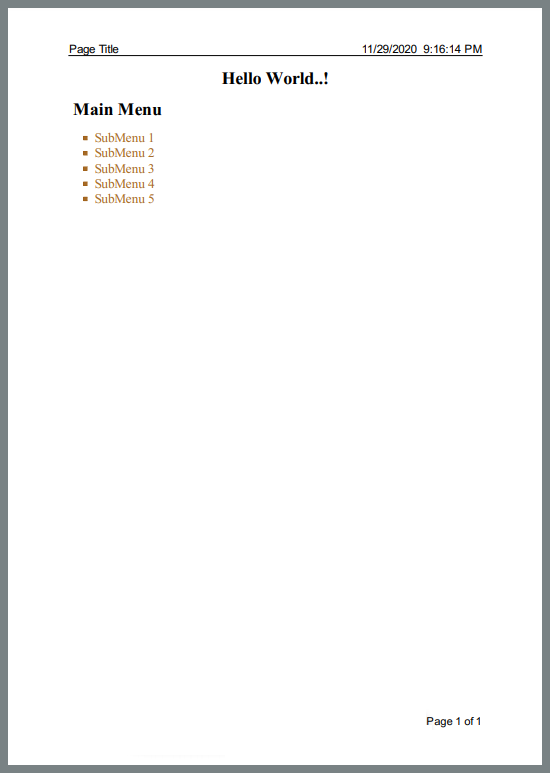
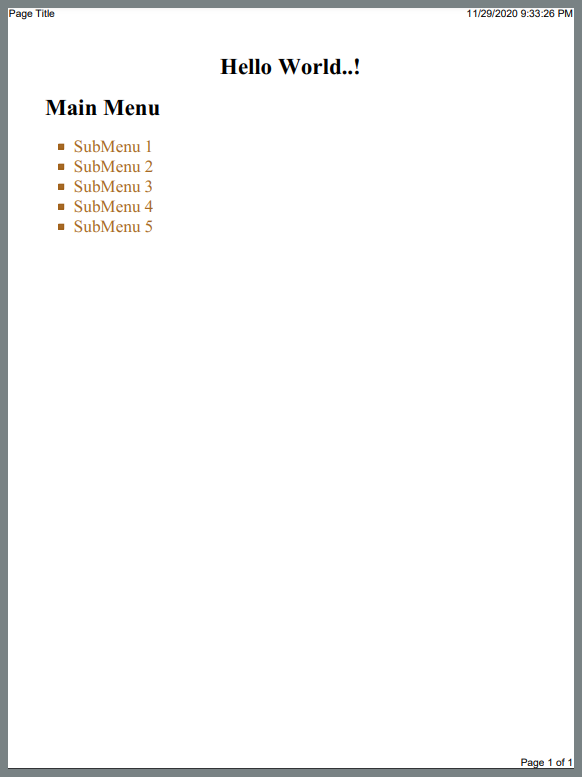
이 WebPage을 PDF 파일로 변환하여 다음 헤더와 푸터 속성을 갖는 것이 목표입니다:
- 헤더 왼쪽에
Page Title
- 헤더 오른쪽에
DateTime
- 푸터 오른쪽에
Page Number of Total Pages
먼저, ChromePdfRenderer가 헤더와 풋터를 어떻게 처리하는지 살펴봅시다.
ChromePdfRenderer는 PDF 헤더와 풋터를 어떻게 처리합니까?
PDF 파일의 헤더와 푸터를 처리하기 위해, ChromePdfRenderer는 RenderingOptions라는 ChromePdfRenderer 클래스에 속성을 제공하며 다음과 같이 사용할 수 있습니다:
-
헤더용으로:
CODEBLOCK_19
-
푸터용으로:
CODEBLOCK_20
다음 속성들은 TextHeaderFooter() 초기화 시 설정할 수 있습니다:
CenterText 헤더 또는 푸터의 중앙에 텍스트를 인쇄합니다LeftText 헤더 또는 푸터의 왼쪽에 텍스트를 인쇄합니다RightText 헤더 또는 푸터의 오른쪽에 텍스트를 인쇄합니다DrawDividerLine 페이지 내용과 헤더 또는 푸터를 구분하는 선을 그립니다FontFamily 헤더 또는 푸터의 글꼴 패밀리를 지정합니다FontSize 헤더 또는 푸터의 글꼴 크기를 지정합니다- 간격은 페이지 콘텐츠와 헤더 또는 푸터 사이의 공간을 조정합니다
다음의 사전 정의된 속성들은 헤더 또는 푸터 콘텐츠를 설정하는 데 도움을 줍니다. 그들은 중괄호 { } 안에 작성됩니다:
- **
{page}**는 헤더 또는 푸터에 현재 페이지 번호를 인쇄합니다
- **
{total-pages}**는 헤더 또는 푸터에 총 페이지 수를 인쇄합니다
- **
{url}**는 렌더링된 페이지의 URL을 인쇄합니다
- **
{date}**는 헤더 또는 푸터에 현재 날짜를 인쇄합니다
- **
{time}**는 헤더 또는 푸터에 현재 시간을 인쇄합니다
- **
{html-title}**는 헤더 또는 푸터에 렌더링된 웹 페이지의 제목을 인쇄합니다
- **
{pdf-title}**는 문서 제목을 헤더 또는 푸터에 인쇄합니다
헤더 및 푸터 사용법에 대해 ChromePdfRenderer를 사용하여 자세히 읽어보십시오. ChromePdfRenderer는 더 복잡한 디자인을 위해 HTML 헤더 및 푸터도 지원합니다.
using 사례를 구현하고 위의 속성을 사용하는 방법을 보여주는 다음 예제를 보입니다:
using IronPdf;

static void Main(string[] args)
{
    // Create rendering converter
    var converter = new ChromePdfRenderer();
    // Setting Header properties
    converter.RenderingOptions.TextHeader = new TextHeaderFooter()
    {
        DrawDividerLine = true,
        LeftText = "Page Title",
        RightText = "{date} {time}",
        FontSize = 13
    };
    // Setting footer properties
    converter.RenderingOptions.TextFooter = new TextHeaderFooter()
    {
        RightText = "Page {page} of {total-pages}",
        FontSize = 12
    };
    // Specify the file to be converted
    using var PDF = converter.RenderHTMLFileAsPdf("myWebPage.html");
    // Save to target location
    PDF.SaveAs("sample.pdf");
}
using IronPdf;

static void Main(string[] args)
{
    // Create rendering converter
    var converter = new ChromePdfRenderer();
    // Setting Header properties
    converter.RenderingOptions.TextHeader = new TextHeaderFooter()
    {
        DrawDividerLine = true,
        LeftText = "Page Title",
        RightText = "{date} {time}",
        FontSize = 13
    };
    // Setting footer properties
    converter.RenderingOptions.TextFooter = new TextHeaderFooter()
    {
        RightText = "Page {page} of {total-pages}",
        FontSize = 12
    };
    // Specify the file to be converted
    using var PDF = converter.RenderHTMLFileAsPdf("myWebPage.html");
    // Save to target location
    PDF.SaveAs("sample.pdf");
}
Imports IronPdf
Shared Sub Main(ByVal args() As String)
' Create rendering converter
Dim converter = New ChromePdfRenderer()
' Setting Header properties
converter.RenderingOptions.TextHeader = New TextHeaderFooter() With {
.DrawDividerLine = True,
.LeftText = "Page Title",
.RightText = "{date} {time}",
.FontSize = 13
}
' Setting footer properties
converter.RenderingOptions.TextFooter = New TextHeaderFooter() With {
.RightText = "Page {page} of {total-pages}",
.FontSize = 12
}
' Specify the file to be converted
Dim PDF = converter.RenderHTMLFileAsPdf("myWebPage.html")
' Save to target location
PDF.SaveAs("sample.pdf")
End Sub
Imports IronPdf

Shared Sub Main(ByVal args() As String)
	' Create rendering converter
	Dim converter = New ChromePdfRenderer()
	' Setting Header properties
	converter.RenderingOptions.TextHeader = New TextHeaderFooter() With {
		.DrawDividerLine = True,
		.LeftText = "Page Title",
		.RightText = "{date} {time}",
		.FontSize = 13
	}
	' Setting footer properties
	converter.RenderingOptions.TextFooter = New TextHeaderFooter() With {
		.RightText = "Page {page} of {total-pages}",
		.FontSize = 12
	}
	' Specify the file to be converted
	Dim PDF = converter.RenderHTMLFileAsPdf("myWebPage.html")
	' Save to target location
	PDF.SaveAs("sample.pdf")
End Sub
출력: 위의 코드에 의해 새로 생성된 PDF 파일 sample.pdf의 스크린샷입니다:
ChromePdfRenderer를 사용한 헤더 및 푸터 작업은 PDF 파일을 생성하는 동안 직관적인 언어를 사용합니다. 이제 이 예는 PrizmDoc 뷰어가 헤더와 푸터를 어떻게 처리하는지를 보여줍니다.
PrizmDoc 뷰어는 PDF 헤더와 푸터를 어떻게 처리합니까?
PrizmDoc 뷰어는 헤더 및 푸터를 처리하기 위해 HeaderFooterOptions 클래스를 제공하며, 다음의 속성을 가지고 있습니다:
- Lines는 헤더 및 푸터의 라인(s)을 지정하며, 각 라인은 다음 속성을 가지고 있습니다:
- 왼쪽 헤더 또는 푸터 라인의 왼쪽에 텍스트를 인쇄합니다
- Center는 헤더 또는 푸터 라인의 중앙에 텍스트를 인쇄합니다
- Right는 헤더 또는 푸터 라인의 오른쪽에 텍스트를 인쇄합니다
FontFamily 헤더 또는 푸터 텍스트의 글꼴 패밀리를 지정합니다FontSize 헤더 또는 푸터 텍스트의 글꼴 크기를 지정합니다- 색상은 헤더 또는 푸터 텍스트의 색상을 지정합니다
더 읽기 PrizmDoc 서버를 사용하여 PDF 페이지의 헤더와 푸터 설정에 대해 알아보세요.
위의 속성을 사용하여 사용 사례를 구현하는 방법을 예제가 보여줍니다:
using System.Threading.Tasks;
using System.Collections.Generic;
using Accusoft.PrizmDocServer;
using Accusoft.PrizmDocServer.Conversion;

static void Main(string[] args)
{
    SetHeaderFooter().GetAwaiter().GetResult();
}

private static async Task SetHeaderFooter()
{
    // Instantiate PrizmDocServerClient object with Header and footer properties
    var prizmDocServer = new PrizmDocServerClient("___PROTECTED_URL_130___", "Your-API-KEY");

    ConversionResult result = await prizmDocServer.ConvertToPdfAsync(
        "myWebPage.html",
        header: new HeaderFooterOptions
        {
            Lines = new List<HeaderFooterLine>
            {
                new HeaderFooterLine { Left = "Page Title", Right = DateTime.Now.ToString() }
            },
        },
        footer: new HeaderFooterOptions
        {
            Lines = new List<HeaderFooterLine>
            {
                new HeaderFooterLine { Right = "Page {{pageNumber}} of {{pageCount}}" },
            },
        });

    // Save to the target location
    await result.RemoteWorkFile.SaveAsync("sample.pdf");
}
using System.Threading.Tasks;
using System.Collections.Generic;
using Accusoft.PrizmDocServer;
using Accusoft.PrizmDocServer.Conversion;

static void Main(string[] args)
{
    SetHeaderFooter().GetAwaiter().GetResult();
}

private static async Task SetHeaderFooter()
{
    // Instantiate PrizmDocServerClient object with Header and footer properties
    var prizmDocServer = new PrizmDocServerClient("___PROTECTED_URL_130___", "Your-API-KEY");

    ConversionResult result = await prizmDocServer.ConvertToPdfAsync(
        "myWebPage.html",
        header: new HeaderFooterOptions
        {
            Lines = new List<HeaderFooterLine>
            {
                new HeaderFooterLine { Left = "Page Title", Right = DateTime.Now.ToString() }
            },
        },
        footer: new HeaderFooterOptions
        {
            Lines = new List<HeaderFooterLine>
            {
                new HeaderFooterLine { Right = "Page {{pageNumber}} of {{pageCount}}" },
            },
        });

    // Save to the target location
    await result.RemoteWorkFile.SaveAsync("sample.pdf");
}
Imports System.Threading.Tasks
Imports System.Collections.Generic
Imports Accusoft.PrizmDocServer
Imports Accusoft.PrizmDocServer.Conversion
Module Program
Sub Main(args As String())
SetHeaderFooter().GetAwaiter().GetResult()
End Sub
Private Async Function SetHeaderFooter() As Task
' Instantiate PrizmDocServerClient object with Header and footer properties
Dim prizmDocServer As New PrizmDocServerClient("___PROTECTED_URL_130___", "Your-API-KEY")
Dim result As ConversionResult = Await prizmDocServer.ConvertToPdfAsync(
"myWebPage.html",
header:=New HeaderFooterOptions With {
.Lines = New List(Of HeaderFooterLine) From {
New HeaderFooterLine With {.Left = "Page Title", .Right = DateTime.Now.ToString()}
}
},
footer:=New HeaderFooterOptions With {
.Lines = New List(Of HeaderFooterLine) From {
New HeaderFooterLine With {.Right = "Page {{pageNumber}} of {{pageCount}}"}
}
})
' Save to the target location
Await result.RemoteWorkFile.SaveAsync("sample.pdf")
End Function
End Module
Imports System.Threading.Tasks
Imports System.Collections.Generic
Imports Accusoft.PrizmDocServer
Imports Accusoft.PrizmDocServer.Conversion

Module Program
    Sub Main(args As String())
        SetHeaderFooter().GetAwaiter().GetResult()
    End Sub

    Private Async Function SetHeaderFooter() As Task
        ' Instantiate PrizmDocServerClient object with Header and footer properties
        Dim prizmDocServer As New PrizmDocServerClient("___PROTECTED_URL_130___", "Your-API-KEY")

        Dim result As ConversionResult = Await prizmDocServer.ConvertToPdfAsync(
            "myWebPage.html",
            header:=New HeaderFooterOptions With {
                .Lines = New List(Of HeaderFooterLine) From {
                    New HeaderFooterLine With {.Left = "Page Title", .Right = DateTime.Now.ToString()}
                }
            },
            footer:=New HeaderFooterOptions With {
                .Lines = New List(Of HeaderFooterLine) From {
                    New HeaderFooterLine With {.Right = "Page {{pageNumber}} of {{pageCount}}"}
                }
            })

        ' Save to the target location
        Await result.RemoteWorkFile.SaveAsync("sample.pdf")
    End Function
End Module
산출:
위의 코드로 새로 생성된 PDF 파일의 스크린샷:
헤더 및 푸터에 더 많은 유연성을 제공하는 라이브러리는 무엇입니까?
ChromePdfRenderer는 PrizmDoc 뷰어에 비해 간단한 프로그래밍 구조로 헤더와 푸터 속성을 설정하는 더 많은 기능을 제공합니다. ChromePdfRenderer에 의해 생성된 PDF 파일은 PrizmDoc 뷰어에 의해 생성된 파일보다도 더 읽기 쉬우며 매력적입니다. ChromePdfRenderer는 페이지 번호와 페이지 구분도 지원하여 문서 제어를 개선합니다.
ChromePdfRenderer와 PrizmDoc 뷰어를 사용하여 PDF 페이지를 어떻게 이미지로 변환합니까?
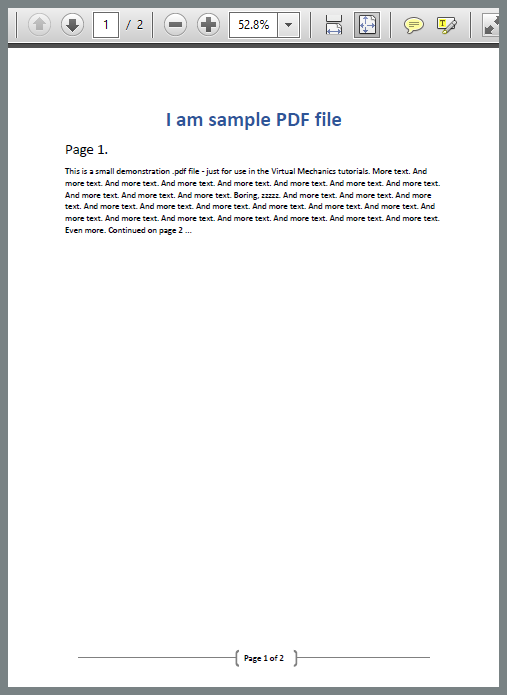
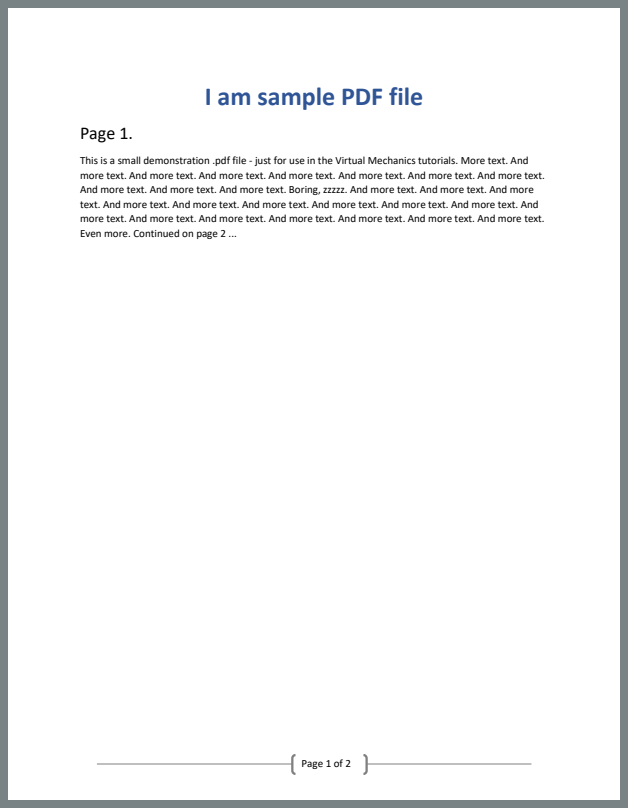
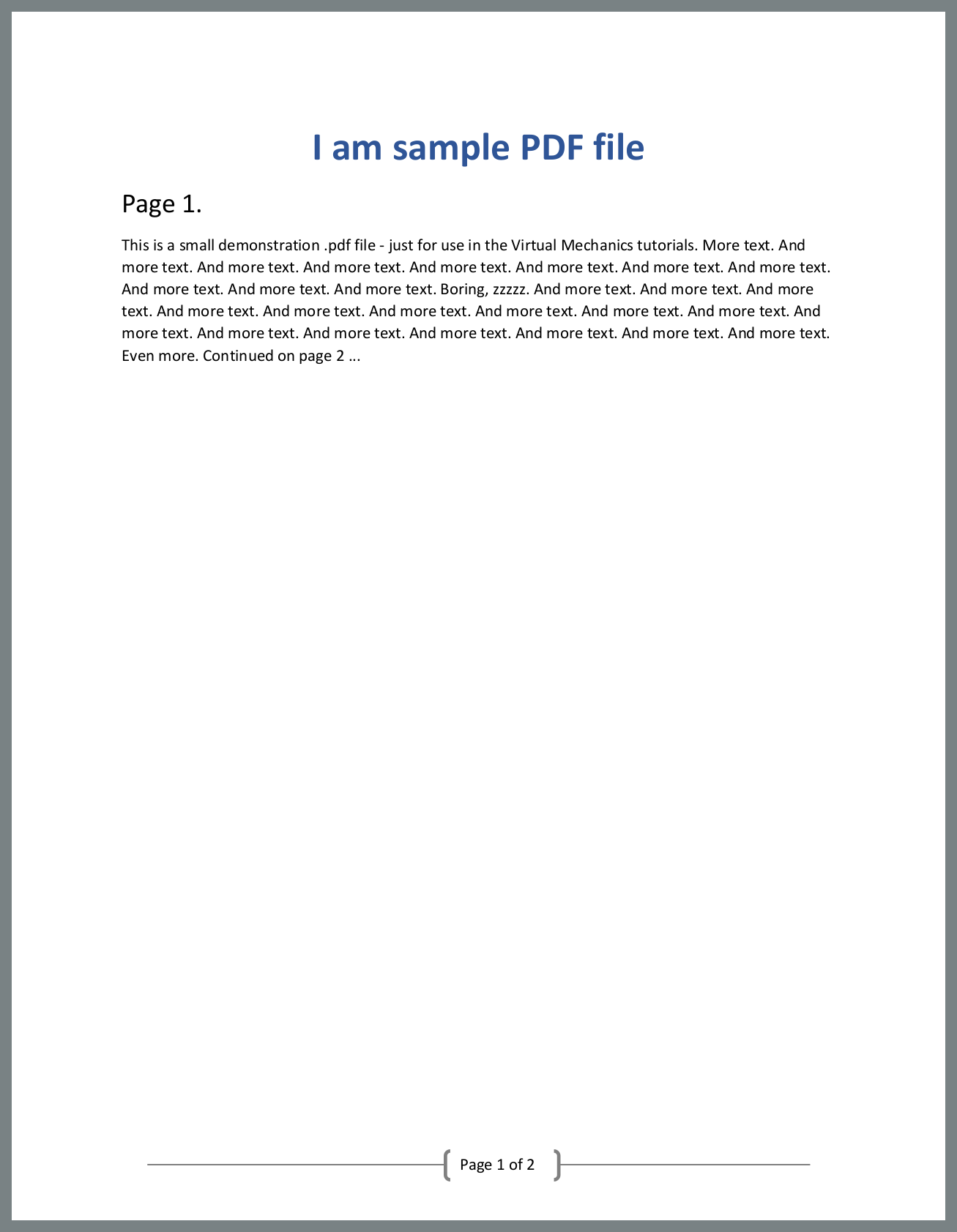
이 비교를 위해, 두 페이지를 가진 간단한 PDF 파일 Sample_PDF.pdf가 있다고 가정해 봅시다.
작업은 각 페이지의 이미지를 만드는 것입니다. 먼저, 예제에서는 ChromePdfRenderer를 사용하여 이를 수행하는 방법을 확인할 것입니다.
ChromePdfRenderer는 PDF 페이지를 이미지로 어떻게 변환하나요?
using IronPdf;

static void Main(string[] args)
{
    // Specify file to be converted
    var pdf = PdfDocument.FromFile("Sample_PDF.pdf");
    // Save images to the target location
    pdf.RasterizeToImageFiles("image_*.png");
}
using IronPdf;

static void Main(string[] args)
{
    // Specify file to be converted
    var pdf = PdfDocument.FromFile("Sample_PDF.pdf");
    // Save images to the target location
    pdf.RasterizeToImageFiles("image_*.png");
}
Imports IronPdf
Shared Sub Main(ByVal args() As String)
' Specify file to be converted
Dim pdf = PdfDocument.FromFile("Sample_PDF.pdf")
' Save images to the target location
pdf.RasterizeToImageFiles("image_*.png")
End Sub
Imports IronPdf

Shared Sub Main(ByVal args() As String)
	' Specify file to be converted
	Dim pdf = PdfDocument.FromFile("Sample_PDF.pdf")
	' Save images to the target location
	pdf.RasterizeToImageFiles("image_*.png")
End Sub
ChromePdfRenderer는 또한 메모리 스트림에 이미지를 저장하는 것과 JPEG, TIFF 등을 포함한 다양한 이미지 형식을 지원합니다.
산출:
위의 코드는 다음 두 .png 이미지를 생성합니다:
ChromePdfRenderer를 사용하여 PDF 페이지의 이미지를 만드는 것은 간단합니다. 이제 PrizmDoc 뷰어를 사용하여 동일한 작업을 수행하겠습니다.
PrizmDoc 뷰어는 PDF 페이지를 이미지로 어떻게 변환합니까?
using System.Linq;
using System.Collections.Generic;
using System.Threading.Tasks;
using Accusoft.PrizmDocServer;
using Accusoft.PrizmDocServer.Conversion;

static void Main(string[] args)
{
    PdfToImage().GetAwaiter().GetResult();
}

private static async Task PdfToImage()
{
    // Instantiate PrizmDocServerClient object
    var prizmDocServer = new PrizmDocServerClient("___PROTECTED_URL_131___", "Your-API-KEY");
    // Convert PDF file to images
    IEnumerable<ConversionResult> results = await prizmDocServer.ConvertAsync("Sample_PDF.pdf", DestinationFileFormat.Png);

    // Save each image.
    for (int i = 0; i < results.Count(); i++)
    {
        await results.ElementAt(i).RemoteWorkFile.SaveAsync($"page-{i + 1}.png");
    }
}
using System.Linq;
using System.Collections.Generic;
using System.Threading.Tasks;
using Accusoft.PrizmDocServer;
using Accusoft.PrizmDocServer.Conversion;

static void Main(string[] args)
{
    PdfToImage().GetAwaiter().GetResult();
}

private static async Task PdfToImage()
{
    // Instantiate PrizmDocServerClient object
    var prizmDocServer = new PrizmDocServerClient("___PROTECTED_URL_131___", "Your-API-KEY");
    // Convert PDF file to images
    IEnumerable<ConversionResult> results = await prizmDocServer.ConvertAsync("Sample_PDF.pdf", DestinationFileFormat.Png);

    // Save each image.
    for (int i = 0; i < results.Count(); i++)
    {
        await results.ElementAt(i).RemoteWorkFile.SaveAsync($"page-{i + 1}.png");
    }
}
Imports System.Linq
Imports System.Collections.Generic
Imports System.Threading.Tasks
Imports Accusoft.PrizmDocServer
Imports Accusoft.PrizmDocServer.Conversion
Module Module1
Sub Main()
PdfToImage().GetAwaiter().GetResult()
End Sub
Private Async Function PdfToImage() As Task
' Instantiate PrizmDocServerClient object
Dim prizmDocServer As New PrizmDocServerClient("___PROTECTED_URL_131___", "Your-API-KEY")
' Convert PDF file to images
Dim results As IEnumerable(Of ConversionResult) = Await prizmDocServer.ConvertAsync("Sample_PDF.pdf", DestinationFileFormat.Png)
' Save each image.
For i As Integer = 0 To results.Count() - 1
Await results.ElementAt(i).RemoteWorkFile.SaveAsync($"page-{i + 1}.png")
Next
End Function
End Module
Imports System.Linq
Imports System.Collections.Generic
Imports System.Threading.Tasks
Imports Accusoft.PrizmDocServer
Imports Accusoft.PrizmDocServer.Conversion

Module Module1
    Sub Main()
        PdfToImage().GetAwaiter().GetResult()
    End Sub

    Private Async Function PdfToImage() As Task
        ' Instantiate PrizmDocServerClient object
        Dim prizmDocServer As New PrizmDocServerClient("___PROTECTED_URL_131___", "Your-API-KEY")
        ' Convert PDF file to images
        Dim results As IEnumerable(Of ConversionResult) = Await prizmDocServer.ConvertAsync("Sample_PDF.pdf", DestinationFileFormat.Png)

        ' Save each image.
        For i As Integer = 0 To results.Count() - 1
            Await results.ElementAt(i).RemoteWorkFile.SaveAsync($"page-{i + 1}.png")
        Next
    End Function
End Module
산출:
위의 코드는 또한 다음 두 .png 이미지를 생성합니다:
어떤 라이브러리가 PDF를 이미지로 변환하기 더 쉬운가요?
PrizmDoc 뷰어와 비교했을 때, ChromePdfRenderer는 개발자가 페이지를 반복하지 않고도 적은 코드 줄로 각 페이지의 이미지를 쉽게 만들 수 있게 합니다.
ChromePdfRenderer와 함께 부트스트랩 5 데이터 테이블을 사용할 수 있나요?
ChromePdfRenderer의 Chrome V8 렌더링 엔진은 부트스트랩 5 데이터 테이블에 대해 뛰어난 지원을 제공하며, 개발자가 복잡한 테이블 레이아웃을 사용하여 전문적인 PDF 보고서를 생성할 수 있도록 합니다. 이 예는 그라데이션 헤더, 상태 배지, 페이지 매김 컨트롤 및 요약 메트릭을 보여주며 - 전통적인 PDF 보기 도구와 비교하여 ChromePdfRenderer의 장점을 강조합니다, 예를 들어 PrizmDoc. ChromePdfRenderer는 현대적인 CSS 기능을 완전히 지원하며, flexbox 레이아웃, 그라데이션, 반응형 디자인을 포함합니다.
using IronPdf;

var renderer = new ChromePdfRenderer();

string dataTableReport = @"
<!DOCTYPE html>
<html>
<head>
    <meta charset='utf-8'>
    <link href='___PROTECTED_URL_132___ rel='stylesheet'>
    <style>
        .table-header {
            background: linear-gradient(135deg, #667eea 0%, #764ba2 100%);
            color: white;
            padding: 30px;
            border-radius: 10px 10px 0 0;
        }
        .table-container {
            background: white;
            border-radius: 0 0 10px 10px;
            box-shadow: 0 10px 30px rgba(0,0,0,0.1);
            overflow: hidden;
        }
        .table th {
            background: #f8f9fa;
            font-weight: 600;
            text-transform: uppercase;
            font-size: 0.85rem;
            letter-spacing: 0.5px;
        }
        .status-badge {
            padding: 0.35em 0.65em;
            border-radius: 0.25rem;
            font-weight: 600;
            font-size: 0.75rem;
        }
        .trend-positive { color: #198754; font-weight: 700; }
        .trend-negative { color: #dc3545; font-weight: 700; }
        @media print {
            .table-container { page-break-inside: avoid; }
        }
    </style>
</head>
<body class='bg-light'>
    <div class='container py-5'>
        <div class='table-container'>
            <div class='table-header'>
                <div class='row align-items-center'>
                    <div class='col-md-8'>
                        <h2 class='mb-2'>Sales Performance Report</h2>
                        <p class='mb-0 opacity-75'>Q4 2024 Regional Analysis</p>
                    </div>
                    <div class='col-md-4 text-end'>
                        <div class='btn-group btn-group-sm'>
                            <button class='btn btn-light'>Export</button>
                            <button class='btn btn-light'>Filter</button>
                            <button class='btn btn-light'>Sort</button>
                        </div>
                    </div>
                </div>
            </div>

            <div class='p-4'>
                <div class='row mb-3'>
                    <div class='col-md-4'>
                        <input type='text' class='form-control form-control-sm' placeholder='Search regions...'>
                    </div>
                    <div class='col-md-8 text-end'>
                        <span class='text-muted small'>Showing 1-10 of 48 results</span>
                    </div>
                </div>

                <div class='table-responsive'>
                    <table class='table table-hover align-middle'>
                        <thead>
                            <tr>
                                <th>Region</th>
                                <th>Revenue</th>
                                <th>Units Sold</th>
                                <th>Growth</th>
                                <th>Status</th>
                                <th>Action</th>
                            </tr>
                        </thead>
                        <tbody>
                            <tr>
                                <td>
                                    <strong>North America</strong><br>
                                    <small class='text-muted'>USA, Canada, Mexico</small>
                                </td>
                                <td>$4,280,000</td>
                                <td>12,450</td>
                                <td><span class='trend-positive'>↑ 18.5%</span></td>
                                <td><span class='status-badge bg-success text-white'>Exceeding</span></td>
                                <td><button class='btn btn-sm btn-outline-primary'>Details</button></td>
                            </tr>
                            <tr>
                                <td>
                                    <strong>Europe</strong><br>
                                    <small class='text-muted'>EU, UK, Switzerland</small>
                                </td>
                                <td>$3,650,000</td>
                                <td>10,890</td>
                                <td><span class='trend-positive'>↑ 12.3%</span></td>
                                <td><span class='status-badge bg-success text-white'>On Track</span></td>
                                <td><button class='btn btn-sm btn-outline-primary'>Details</button></td>
                            </tr>
                            <tr>
                                <td>
                                    <strong>Asia Pacific</strong><br>
                                    <small class='text-muted'>Japan, Australia, Singapore</small>
                                </td>
                                <td>$2,940,000</td>
                                <td>8,320</td>
                                <td><span class='trend-positive'>↑ 24.7%</span></td>
                                <td><span class='status-badge bg-primary text-white'>Growing</span></td>
                                <td><button class='btn btn-sm btn-outline-primary'>Details</button></td>
                            </tr>
                            <tr>
                                <td>
                                    <strong>Latin America</strong><br>
                                    <small class='text-muted'>Brazil, Argentina, Chile</small>
                                </td>
                                <td>$1,580,000</td>
                                <td>4,670</td>
                                <td><span class='trend-positive'>↑ 8.9%</span></td>
                                <td><span class='status-badge bg-info text-white'>Stable</span></td>
                                <td><button class='btn btn-sm btn-outline-primary'>Details</button></td>
                            </tr>
                            <tr>
                                <td>
                                    <strong>Middle East</strong><br>
                                    <small class='text-muted'>UAE, Saudi Arabia, Israel</small>
                                </td>
                                <td>$980,000</td>
                                <td>2,890</td>
                                <td><span class='trend-negative'>↓ 3.2%</span></td>
                                <td><span class='status-badge bg-warning text-dark'>Review</span></td>
                                <td><button class='btn btn-sm btn-outline-primary'>Details</button></td>
                            </tr>
                        </tbody>
                        <tfoot class='table-light'>
                            <tr>
                                <td><strong>Total</strong></td>
                                <td><strong>$13,430,000</strong></td>
                                <td><strong>39,220</strong></td>
                                <td><strong class='trend-positive'>↑ 14.8%</strong></td>
                                <td colspan='2'></td>
                            </tr>
                        </tfoot>
                    </table>
                </div>

                <div class='d-flex justify-content-between align-items-center mt-4'>
                    <div>
                        <select class='form-select form-select-sm' style='width: auto; display: inline-block;'>
                            <option>10 per page</option>
                            <option>25 per page</option>
                            <option>50 per page</option>
                        </select>
                    </div>
                    <nav>
                        <ul class='pagination pagination-sm mb-0'>
                            <li class='page-item disabled'><a class='page-link' href='#'>Previous</a></li>
                            <li class='page-item active'><a class='page-link' href='#'>1</a></li>
                            <li class='page-item'><a class='page-link' href='#'>2</a></li>
                            <li class='page-item'><a class='page-link' href='#'>3</a></li>
                            <li class='page-item'><a class='page-link' href='#'>Next</a></li>
                        </ul>
                    </nav>
                </div>
            </div>
        </div>

        <div class='row g-3 mt-4'>
            <div class='col-md-3'>
                <div class='card text-center'>
                    <div class='card-body'>
                        <h3 class='text-primary mb-1'>$13.4M</h3>
                        <small class='text-muted'>Total Revenue</small>
                    </div>
                </div>
            </div>
            <div class='col-md-3'>
                <div class='card text-center'>
                    <div class='card-body'>
                        <h3 class='text-success mb-1'>39,220</h3>
                        <small class='text-muted'>Units Sold</small>
                    </div>
                </div>
            </div>
            <div class='col-md-3'>
                <div class='card text-center'>
                    <div class='card-body'>
                        <h3 class='text-info mb-1'>14.8%</h3>
                        <small class='text-muted'>Growth Rate</small>
                    </div>
                </div>
            </div>
            <div class='col-md-3'>
                <div class='card text-center'>
                    <div class='card-body'>
                        <h3 class='text-warning mb-1'>5</h3>
                        <small class='text-muted'>Active Regions</small>
                    </div>
                </div>
            </div>
        </div>
    </div>
</body>
</html>";

var pdf = renderer.RenderHtmlAsPdf(dataTableReport);
pdf.SaveAs("data-table-report.pdf");
using IronPdf;

var renderer = new ChromePdfRenderer();

string dataTableReport = @"
<!DOCTYPE html>
<html>
<head>
    <meta charset='utf-8'>
    <link href='___PROTECTED_URL_132___ rel='stylesheet'>
    <style>
        .table-header {
            background: linear-gradient(135deg, #667eea 0%, #764ba2 100%);
            color: white;
            padding: 30px;
            border-radius: 10px 10px 0 0;
        }
        .table-container {
            background: white;
            border-radius: 0 0 10px 10px;
            box-shadow: 0 10px 30px rgba(0,0,0,0.1);
            overflow: hidden;
        }
        .table th {
            background: #f8f9fa;
            font-weight: 600;
            text-transform: uppercase;
            font-size: 0.85rem;
            letter-spacing: 0.5px;
        }
        .status-badge {
            padding: 0.35em 0.65em;
            border-radius: 0.25rem;
            font-weight: 600;
            font-size: 0.75rem;
        }
        .trend-positive { color: #198754; font-weight: 700; }
        .trend-negative { color: #dc3545; font-weight: 700; }
        @media print {
            .table-container { page-break-inside: avoid; }
        }
    </style>
</head>
<body class='bg-light'>
    <div class='container py-5'>
        <div class='table-container'>
            <div class='table-header'>
                <div class='row align-items-center'>
                    <div class='col-md-8'>
                        <h2 class='mb-2'>Sales Performance Report</h2>
                        <p class='mb-0 opacity-75'>Q4 2024 Regional Analysis</p>
                    </div>
                    <div class='col-md-4 text-end'>
                        <div class='btn-group btn-group-sm'>
                            <button class='btn btn-light'>Export</button>
                            <button class='btn btn-light'>Filter</button>
                            <button class='btn btn-light'>Sort</button>
                        </div>
                    </div>
                </div>
            </div>

            <div class='p-4'>
                <div class='row mb-3'>
                    <div class='col-md-4'>
                        <input type='text' class='form-control form-control-sm' placeholder='Search regions...'>
                    </div>
                    <div class='col-md-8 text-end'>
                        <span class='text-muted small'>Showing 1-10 of 48 results</span>
                    </div>
                </div>

                <div class='table-responsive'>
                    <table class='table table-hover align-middle'>
                        <thead>
                            <tr>
                                <th>Region</th>
                                <th>Revenue</th>
                                <th>Units Sold</th>
                                <th>Growth</th>
                                <th>Status</th>
                                <th>Action</th>
                            </tr>
                        </thead>
                        <tbody>
                            <tr>
                                <td>
                                    <strong>North America</strong><br>
                                    <small class='text-muted'>USA, Canada, Mexico</small>
                                </td>
                                <td>$4,280,000</td>
                                <td>12,450</td>
                                <td><span class='trend-positive'>↑ 18.5%</span></td>
                                <td><span class='status-badge bg-success text-white'>Exceeding</span></td>
                                <td><button class='btn btn-sm btn-outline-primary'>Details</button></td>
                            </tr>
                            <tr>
                                <td>
                                    <strong>Europe</strong><br>
                                    <small class='text-muted'>EU, UK, Switzerland</small>
                                </td>
                                <td>$3,650,000</td>
                                <td>10,890</td>
                                <td><span class='trend-positive'>↑ 12.3%</span></td>
                                <td><span class='status-badge bg-success text-white'>On Track</span></td>
                                <td><button class='btn btn-sm btn-outline-primary'>Details</button></td>
                            </tr>
                            <tr>
                                <td>
                                    <strong>Asia Pacific</strong><br>
                                    <small class='text-muted'>Japan, Australia, Singapore</small>
                                </td>
                                <td>$2,940,000</td>
                                <td>8,320</td>
                                <td><span class='trend-positive'>↑ 24.7%</span></td>
                                <td><span class='status-badge bg-primary text-white'>Growing</span></td>
                                <td><button class='btn btn-sm btn-outline-primary'>Details</button></td>
                            </tr>
                            <tr>
                                <td>
                                    <strong>Latin America</strong><br>
                                    <small class='text-muted'>Brazil, Argentina, Chile</small>
                                </td>
                                <td>$1,580,000</td>
                                <td>4,670</td>
                                <td><span class='trend-positive'>↑ 8.9%</span></td>
                                <td><span class='status-badge bg-info text-white'>Stable</span></td>
                                <td><button class='btn btn-sm btn-outline-primary'>Details</button></td>
                            </tr>
                            <tr>
                                <td>
                                    <strong>Middle East</strong><br>
                                    <small class='text-muted'>UAE, Saudi Arabia, Israel</small>
                                </td>
                                <td>$980,000</td>
                                <td>2,890</td>
                                <td><span class='trend-negative'>↓ 3.2%</span></td>
                                <td><span class='status-badge bg-warning text-dark'>Review</span></td>
                                <td><button class='btn btn-sm btn-outline-primary'>Details</button></td>
                            </tr>
                        </tbody>
                        <tfoot class='table-light'>
                            <tr>
                                <td><strong>Total</strong></td>
                                <td><strong>$13,430,000</strong></td>
                                <td><strong>39,220</strong></td>
                                <td><strong class='trend-positive'>↑ 14.8%</strong></td>
                                <td colspan='2'></td>
                            </tr>
                        </tfoot>
                    </table>
                </div>

                <div class='d-flex justify-content-between align-items-center mt-4'>
                    <div>
                        <select class='form-select form-select-sm' style='width: auto; display: inline-block;'>
                            <option>10 per page</option>
                            <option>25 per page</option>
                            <option>50 per page</option>
                        </select>
                    </div>
                    <nav>
                        <ul class='pagination pagination-sm mb-0'>
                            <li class='page-item disabled'><a class='page-link' href='#'>Previous</a></li>
                            <li class='page-item active'><a class='page-link' href='#'>1</a></li>
                            <li class='page-item'><a class='page-link' href='#'>2</a></li>
                            <li class='page-item'><a class='page-link' href='#'>3</a></li>
                            <li class='page-item'><a class='page-link' href='#'>Next</a></li>
                        </ul>
                    </nav>
                </div>
            </div>
        </div>

        <div class='row g-3 mt-4'>
            <div class='col-md-3'>
                <div class='card text-center'>
                    <div class='card-body'>
                        <h3 class='text-primary mb-1'>$13.4M</h3>
                        <small class='text-muted'>Total Revenue</small>
                    </div>
                </div>
            </div>
            <div class='col-md-3'>
                <div class='card text-center'>
                    <div class='card-body'>
                        <h3 class='text-success mb-1'>39,220</h3>
                        <small class='text-muted'>Units Sold</small>
                    </div>
                </div>
            </div>
            <div class='col-md-3'>
                <div class='card text-center'>
                    <div class='card-body'>
                        <h3 class='text-info mb-1'>14.8%</h3>
                        <small class='text-muted'>Growth Rate</small>
                    </div>
                </div>
            </div>
            <div class='col-md-3'>
                <div class='card text-center'>
                    <div class='card-body'>
                        <h3 class='text-warning mb-1'>5</h3>
                        <small class='text-muted'>Active Regions</small>
                    </div>
                </div>
            </div>
        </div>
    </div>
</body>
</html>";

var pdf = renderer.RenderHtmlAsPdf(dataTableReport);
pdf.SaveAs("data-table-report.pdf");
Imports IronPdf
Dim renderer = New ChromePdfRenderer()
Dim dataTableReport As String = "
<!DOCTYPE html>
<html>
<head>
<meta charset='utf-8'>
<link href='___PROTECTED_URL_132___ rel='stylesheet'>
<style>
.table-header {
background: linear-gradient(135deg, #667eea 0%, #764ba2 100%);
color: white;
padding: 30px;
border-radius: 10px 10px 0 0;
}
.table-container {
background: white;
border-radius: 0 0 10px 10px;
box-shadow: 0 10px 30px rgba(0,0,0,0.1);
overflow: hidden;
}
.table th {
background: #f8f9fa;
font-weight: 600;
text-transform: uppercase;
font-size: 0.85rem;
letter-spacing: 0.5px;
}
.status-badge {
padding: 0.35em 0.65em;
border-radius: 0.25rem;
font-weight: 600;
font-size: 0.75rem;
}
.trend-positive { color: #198754; font-weight: 700; }
.trend-negative { color: #dc3545; font-weight: 700; }
@media print {
.table-container { page-break-inside: avoid; }
}
</style>
</head>
<body class='bg-light'>
<div class='container py-5'>
<div class='table-container'>
<div class='table-header'>
<div class='row align-items-center'>
<div class='col-md-8'>
<h2 class='mb-2'>Sales Performance Report</h2>
<p class='mb-0 opacity-75'>Q4 2024 Regional Analysis</p>
</div>
<div class='col-md-4 text-end'>
<div class='btn-group btn-group-sm'>
<button class='btn btn-light'>Export</button>
<button class='btn btn-light'>Filter</button>
<button class='btn btn-light'>Sort</button>
</div>
</div>
</div>
</div>
<div class='p-4'>
<div class='row mb-3'>
<div class='col-md-4'>
<input type='text' class='form-control form-control-sm' placeholder='Search regions...'>
</div>
<div class='col-md-8 text-end'>
<span class='text-muted small'>Showing 1-10 of 48 results</span>
</div>
</div>
<div class='table-responsive'>
<table class='table table-hover align-middle'>
<thead>
<tr>
<th>Region</th>
<th>Revenue</th>
<th>Units Sold</th>
<th>Growth</th>
<th>Status</th>
<th>Action</th>
</tr>
</thead>
<tbody>
<tr>
<td>
<strong>North America</strong><br>
<small class='text-muted'>USA, Canada, Mexico</small>
</td>
<td>$4,280,000</td>
<td>12,450</td>
<td><span class='trend-positive'>↑ 18.5%</span></td>
<td><span class='status-badge bg-success text-white'>Exceeding</span></td>
<td><button class='btn btn-sm btn-outline-primary'>Details</button></td>
</tr>
<tr>
<td>
<strong>Europe</strong><br>
<small class='text-muted'>EU, UK, Switzerland</small>
</td>
<td>$3,650,000</td>
<td>10,890</td>
<td><span class='trend-positive'>↑ 12.3%</span></td>
<td><span class='status-badge bg-success text-white'>On Track</span></td>
<td><button class='btn btn-sm btn-outline-primary'>Details</button></td>
</tr>
<tr>
<td>
<strong>Asia Pacific</strong><br>
<small class='text-muted'>Japan, Australia, Singapore</small>
</td>
<td>$2,940,000</td>
<td>8,320</td>
<td><span class='trend-positive'>↑ 24.7%</span></td>
<td><span class='status-badge bg-primary text-white'>Growing</span></td>
<td><button class='btn btn-sm btn-outline-primary'>Details</button></td>
</tr>
<tr>
<td>
<strong>Latin America</strong><br>
<small class='text-muted'>Brazil, Argentina, Chile</small>
</td>
<td>$1,580,000</td>
<td>4,670</td>
<td><span class='trend-positive'>↑ 8.9%</span></td>
<td><span class='status-badge bg-info text-white'>Stable</span></td>
<td><button class='btn btn-sm btn-outline-primary'>Details</button></td>
</tr>
<tr>
<td>
<strong>Middle East</strong><br>
<small class='text-muted'>UAE, Saudi Arabia, Israel</small>
</td>
<td>$980,000</td>
<td>2,890</td>
<td><span class='trend-negative'>↓ 3.2%</span></td>
<td><span class='status-badge bg-warning text-dark'>Review</span></td>
<td><button class='btn btn-sm btn-outline-primary'>Details</button></td>
</tr>
</tbody>
<tfoot class='table-light'>
<tr>
<td><strong>Total</strong></td>
<td><strong>$13,430,000</strong></td>
<td><strong>39,220</strong></td>
<td><strong class='trend-positive'>↑ 14.8%</strong></td>
<td colspan='2'></td>
</tr>
</tfoot>
</table>
</div>
<div class='d-flex justify-content-between align-items-center mt-4'>
<div>
<select class='form-select form-select-sm' style='width: auto; display: inline-block;'>
<option>10 per page</option>
<option>25 per page</option>
<option>50 per page</option>
</select>
</div>
<nav>
<ul class='pagination pagination-sm mb-0'>
<li class='page-item disabled'><a class='page-link' href='#'>Previous</a></li>
<li class='page-item active'><a class='page-link' href='#'>1</a></li>
<li class='page-item'><a class='page-link' href='#'>2</a></li>
<li class='page-item'><a class='page-link' href='#'>3</a></li>
<li class='page-item'><a class='page-link' href='#'>Next</a></li>
</ul>
</nav>
</div>
</div>
</div>
<div class='row g-3 mt-4'>
<div class='col-md-3'>
<div class='card text-center'>
<div class='card-body'>
<h3 class='text-primary mb-1'>$13.4M</h3>
<small class='text-muted'>Total Revenue</small>
</div>
</div>
</div>
<div class='col-md-3'>
<div class='card text-center'>
<div class='card-body'>
<h3 class='text-success mb-1'>39,220</h3>
<small class='text-muted'>Units Sold</small>
</div>
</div>
</div>
<div class='col-md-3'>
<div class='card text-center'>
<div class='card-body'>
<h3 class='text-info mb-1'>14.8%</h3>
<small class='text-muted'>Growth Rate</small>
</div>
</div>
</div>
<div class='col-md-3'>
<div class='card text-center'>
<div class='card-body'>
<h3 class='text-warning mb-1'>5</h3>
<small class='text-muted'>Active Regions</small>
</div>
</div>
</div>
</div>
</div>
</body>
</html>"
Dim pdf = renderer.RenderHtmlAsPdf(dataTableReport)
pdf.SaveAs("data-table-report.pdf")
Imports IronPdf

Dim renderer = New ChromePdfRenderer()

Dim dataTableReport As String = "
<!DOCTYPE html>
<html>
<head>
    <meta charset='utf-8'>
    <link href='___PROTECTED_URL_132___ rel='stylesheet'>
    <style>
        .table-header {
            background: linear-gradient(135deg, #667eea 0%, #764ba2 100%);
            color: white;
            padding: 30px;
            border-radius: 10px 10px 0 0;
        }
        .table-container {
            background: white;
            border-radius: 0 0 10px 10px;
            box-shadow: 0 10px 30px rgba(0,0,0,0.1);
            overflow: hidden;
        }
        .table th {
            background: #f8f9fa;
            font-weight: 600;
            text-transform: uppercase;
            font-size: 0.85rem;
            letter-spacing: 0.5px;
        }
        .status-badge {
            padding: 0.35em 0.65em;
            border-radius: 0.25rem;
            font-weight: 600;
            font-size: 0.75rem;
        }
        .trend-positive { color: #198754; font-weight: 700; }
        .trend-negative { color: #dc3545; font-weight: 700; }
        @media print {
            .table-container { page-break-inside: avoid; }
        }
    </style>
</head>
<body class='bg-light'>
    <div class='container py-5'>
        <div class='table-container'>
            <div class='table-header'>
                <div class='row align-items-center'>
                    <div class='col-md-8'>
                        <h2 class='mb-2'>Sales Performance Report</h2>
                        <p class='mb-0 opacity-75'>Q4 2024 Regional Analysis</p>
                    </div>
                    <div class='col-md-4 text-end'>
                        <div class='btn-group btn-group-sm'>
                            <button class='btn btn-light'>Export</button>
                            <button class='btn btn-light'>Filter</button>
                            <button class='btn btn-light'>Sort</button>
                        </div>
                    </div>
                </div>
            </div>

            <div class='p-4'>
                <div class='row mb-3'>
                    <div class='col-md-4'>
                        <input type='text' class='form-control form-control-sm' placeholder='Search regions...'>
                    </div>
                    <div class='col-md-8 text-end'>
                        <span class='text-muted small'>Showing 1-10 of 48 results</span>
                    </div>
                </div>

                <div class='table-responsive'>
                    <table class='table table-hover align-middle'>
                        <thead>
                            <tr>
                                <th>Region</th>
                                <th>Revenue</th>
                                <th>Units Sold</th>
                                <th>Growth</th>
                                <th>Status</th>
                                <th>Action</th>
                            </tr>
                        </thead>
                        <tbody>
                            <tr>
                                <td>
                                    <strong>North America</strong><br>
                                    <small class='text-muted'>USA, Canada, Mexico</small>
                                </td>
                                <td>$4,280,000</td>
                                <td>12,450</td>
                                <td><span class='trend-positive'>↑ 18.5%</span></td>
                                <td><span class='status-badge bg-success text-white'>Exceeding</span></td>
                                <td><button class='btn btn-sm btn-outline-primary'>Details</button></td>
                            </tr>
                            <tr>
                                <td>
                                    <strong>Europe</strong><br>
                                    <small class='text-muted'>EU, UK, Switzerland</small>
                                </td>
                                <td>$3,650,000</td>
                                <td>10,890</td>
                                <td><span class='trend-positive'>↑ 12.3%</span></td>
                                <td><span class='status-badge bg-success text-white'>On Track</span></td>
                                <td><button class='btn btn-sm btn-outline-primary'>Details</button></td>
                            </tr>
                            <tr>
                                <td>
                                    <strong>Asia Pacific</strong><br>
                                    <small class='text-muted'>Japan, Australia, Singapore</small>
                                </td>
                                <td>$2,940,000</td>
                                <td>8,320</td>
                                <td><span class='trend-positive'>↑ 24.7%</span></td>
                                <td><span class='status-badge bg-primary text-white'>Growing</span></td>
                                <td><button class='btn btn-sm btn-outline-primary'>Details</button></td>
                            </tr>
                            <tr>
                                <td>
                                    <strong>Latin America</strong><br>
                                    <small class='text-muted'>Brazil, Argentina, Chile</small>
                                </td>
                                <td>$1,580,000</td>
                                <td>4,670</td>
                                <td><span class='trend-positive'>↑ 8.9%</span></td>
                                <td><span class='status-badge bg-info text-white'>Stable</span></td>
                                <td><button class='btn btn-sm btn-outline-primary'>Details</button></td>
                            </tr>
                            <tr>
                                <td>
                                    <strong>Middle East</strong><br>
                                    <small class='text-muted'>UAE, Saudi Arabia, Israel</small>
                                </td>
                                <td>$980,000</td>
                                <td>2,890</td>
                                <td><span class='trend-negative'>↓ 3.2%</span></td>
                                <td><span class='status-badge bg-warning text-dark'>Review</span></td>
                                <td><button class='btn btn-sm btn-outline-primary'>Details</button></td>
                            </tr>
                        </tbody>
                        <tfoot class='table-light'>
                            <tr>
                                <td><strong>Total</strong></td>
                                <td><strong>$13,430,000</strong></td>
                                <td><strong>39,220</strong></td>
                                <td><strong class='trend-positive'>↑ 14.8%</strong></td>
                                <td colspan='2'></td>
                            </tr>
                        </tfoot>
                    </table>
                </div>

                <div class='d-flex justify-content-between align-items-center mt-4'>
                    <div>
                        <select class='form-select form-select-sm' style='width: auto; display: inline-block;'>
                            <option>10 per page</option>
                            <option>25 per page</option>
                            <option>50 per page</option>
                        </select>
                    </div>
                    <nav>
                        <ul class='pagination pagination-sm mb-0'>
                            <li class='page-item disabled'><a class='page-link' href='#'>Previous</a></li>
                            <li class='page-item active'><a class='page-link' href='#'>1</a></li>
                            <li class='page-item'><a class='page-link' href='#'>2</a></li>
                            <li class='page-item'><a class='page-link' href='#'>3</a></li>
                            <li class='page-item'><a class='page-link' href='#'>Next</a></li>
                        </ul>
                    </nav>
                </div>
            </div>
        </div>

        <div class='row g-3 mt-4'>
            <div class='col-md-3'>
                <div class='card text-center'>
                    <div class='card-body'>
                        <h3 class='text-primary mb-1'>$13.4M</h3>
                        <small class='text-muted'>Total Revenue</small>
                    </div>
                </div>
            </div>
            <div class='col-md-3'>
                <div class='card text-center'>
                    <div class='card-body'>
                        <h3 class='text-success mb-1'>39,220</h3>
                        <small class='text-muted'>Units Sold</small>
                    </div>
                </div>
            </div>
            <div class='col-md-3'>
                <div class='card text-center'>
                    <div class='card-body'>
                        <h3 class='text-info mb-1'>14.8%</h3>
                        <small class='text-muted'>Growth Rate</small>
                    </div>
                </div>
            </div>
            <div class='col-md-3'>
                <div class='card text-center'>
                    <div class='card-body'>
                        <h3 class='text-warning mb-1'>5</h3>
                        <small class='text-muted'>Active Regions</small>
                    </div>
                </div>
            </div>
        </div>
    </div>
</body>
</html>"

Dim pdf = renderer.RenderHtmlAsPdf(dataTableReport)
pdf.SaveAs("data-table-report.pdf")
이 코드는 그라데이션 헤더, 반응형 테이블, 상태 배지 및 요약 지표를 포함한 정교한 데이터 테이블 보고서를 생성합니다. ChromePdfRenderer의 Chrome 렌더링 엔진은 전통적인 PDF 뷰어를 넘어 테이블 호버 효과, 배지 색상 및 페이지 매김 제어를 포함한 모든 Bootstrap 스타일을 보존합니다. 엔진은 또한 동적 콘텐츠를 위한 JavaScript 렌더링, 사용자 지정 글꼴, UTF-8 국제 문자를 지원합니다.
PrizmDoc 뷰어와의 주요 장점:
Bootstrap PDF 생성에 대한 자세한 내용은 전체 렌더링 문서를 참조하세요. 개발자들은 Angular에서 PDF로의 변환 및 기타 JavaScript 프레임워크 지원도 탐색할 수 있습니다. ## ChromePdfRenderer와 PrizmDoc 뷰어 사이의 라이선스 비용을 비교하면 어떻게 될까요?
두 구성 요소의 기술 구조와 사용 가능한 기능을 검토한 후, 다음은 라이선스 가격을 개요로 제공합니다. 이는 개발자가 예산 제약 내에서 요구를 충족시키려는 것이 중요합니다.
ChromePdfRenderer의 라이선스 옵션은 무엇인가요?
ChromePdfRenderer 라이선스는 $999에서 시작되며, 단일 개발자를 위한 가격입니다. ChromePdfRenderer는 개발 라이선스, 배포 라이선스 및 지속적인 지원과 업데이트를 위한 확장 옵션을 포함한 유연한 라이선스 옵션을 제공합니다.
여러 고객을 지원하는 회사나 기관의 개발자에게는 ChromePdfRenderer는 팀 크기 및 프로젝트 수에 따라 조정 가능한 계층형 라이선스를 제공합니다. ChromePdfRenderer는 필요에 따라 라이선스 업그레이드 경로를 제공합니다.
모든 ChromePdfRenderer 라이선스 패키지는 1년 간의 지원 및 업데이트를 포함합니다. 더 읽기 이용 가능한 라이선스 패키지, 계층 및 가격에 대해 알아보세요. 개발자는 또한 라이선스 키를 적용할 수 있으며, Web.config 및 환경 변수를 포함한 다양한 방법으로 가능합니다.
PrizmDoc 뷰어's 라이선스 옵션은 무엇입니까?
셀프-호스팅된 PrizmDoc의 비용은 얼마인가요?
자체 호스팅된 PrizmDoc 서버는 연간 라이선스 하에 사용할 수 있습니다. Accusoft에 연락하여 PrizmDoc 뷰어에 대한 현재 가격 및 사용 가능한 패키지를 확인하세요.
클라우드 기반 PrizmDoc는 얼마인가요?
이 라이선스는 PrizmDoc 뷰어의 클라우드 기반 서비스에 대한 권한을 포함하며, 트랜잭션 수에 따라 확장됩니다.
용어 해설:
*Transaction*는 PrizmDoc 뷰어 서버에 요청을 보내고 결과 문서를 받는 것을 의미합니다.
*Prepaid Buckets*는 한 번의 결제로 사용 기간이 만료되지 않는 트랜잭션을 받는 것을 의미합니다.
클라우드 가격은 사용량 기반이며 트랜잭션 볼륨에 따라 확장됩니다. Accusoft에 연락하여 현재 클라우드 가격 계층 및 요율을 확인하세요.
튜토리얼 바로가기
C# ChromePdfRenderer 빠른 시작 핸드북 받기
.NET용 PDF 개발을 간소화하는 무료 PDF 리소스 가이드로, 일반 기능의 단계별 설명과 프로젝트용 C# 및 VB.NET의 PDF 조작, 편집, 생성, 저장 예제가 포함되어 있습니다.
가이드 다운로드ChromePdfRenderer API 참조 탐색
ChromePdfRenderer C# 라이브러리의 API 참조 탐색, ChromePdfRenderer의 모든 기능, 클래스, 메소드 필드, 네임스페이스, 열거형의 세부 정보 포함.
API 참조를 확인하세요. Accusoft의 PrizmDoc 뷰어는 해당 소유자의 등록 상표입니다. 이 사이트는 Accusoft의 PrizmDoc 뷰어와 제휴하거나 그 승인을 받지 않았으며, 그 후원을 받지 않았습니다. 모든 제품명, 로고 및 브랜드는 해당 소유자의 자산입니다. 비교는 정보 제공 목적으로만 사용되며, 작성 시점에 공개적으로 이용 가능한 정보를 반영합니다.