IronPDF和 Accusoft PDF Viewer 都可以在.NET中将HTML 转换为 PDF 。 IronPDF提供简单的语法、本地处理而无需云依赖,并且无限转换,起价$999。 相反,Accusoft需要互联网连接并按每次交易收费。
比较 IronPDF 与 Accusoft PDF Viewer
- 将 HTML 转换为 PDF
- 为 PDF 文件设置页眉和页脚
- 将 PDF 转换为图像文件
- 比较许可、免费试用选项等
概述
IronPDF是什么?它是如何工作的?
IronPDF是一个C# HTML 转 PDF 库,它使开发人员能够从HTML 字符串、网页和URL等源创建 PDF 文件。 它还允许设置水印、书签、页眉和页脚等属性。 此外,开发人员可以使用图像转 PDF 功能将多个 PDF 文件合并为一个文件,或将PDF 页面转换为图像,反之亦然。
IronPDF对开发用户免费,并为实际项目提供30 天的部署试用期。 它提供完整的文档、代码示例和API 参考,帮助开发者快速入门。
开发者可以从这个链接下载项目文件。
Accusoft PrizmDoc查看器是什么?它是如何工作的?
PrizmDoc Viewer是一个 REST API,可以处理PDF 文件并将其远程转换为其他格式。 PrizmDoc可以将超过100种不同的文件格式转换为PDF,并将PDF转换为PNG, JPG, TIFF, 和SVG。 它还为应用程序提供多种电子签名选项。
IronPDF和PrizmDoc查看器 有什么区别?
我们来安装这两个库,然后比较一下代码。
第 1 步:安装
如何在我的.NET项目中安装IronPDF?
在项目中安装IronPDF有两种方法,两种方法之间没有任何区别。 IronPDF支持多种环境,包括Azure 部署、 AWS Lambda 、 Docker 容器和Blazor应用程序。
下载IronPDF有哪些不同的方法?
下载IronPDF并将其引用添加到项目中。 开发人员还可以使用Windows Installer进行系统级安装。 之后,可以使用以下方式访问IronPDF命名空间:
using IronPdf;
using IronPdf;
Imports IronPdf
Imports IronPdf
现在,开发人员可以轻松访问IronPDF提供的函数和类,包括用于渲染、 PDF 文档操作和安全功能的ChromePdfRenderer 。
如何通过NuGet包管理器安装IronPDF ?
如何从 Accusoft 安装PrizmDoc查看器?
PrizmDoc查看器有两部分:一个名为PrizmDoc Server的服务器端组件,作为RESTful API运行,以及发送请求到API并接收响应的客户端项目。 与IronPDF的本地无外部依赖操作不同,PrizmDoc需要网络连接进行基于云的操作。
我如何访问PrizmDoc服务器?
PrizmDoc 服务器是一个服务器端应用程序,它接收带有文档作为请求(输入)的基本信息,并将文档转换为PDF文件,然后将转换后的PDF文件作为响应(输出)返回。 它是产品的技术核心——一个文档处理和转换引擎。开发人员可以通过两种不同的方法使用它,这两种方法都具有相同的编程结构和技术:
1.自行托管:
此选项需要安排服务器。 下载 PrizmDoc 服务器并安装。 阅读更多关于如何在Windows上安装PrizmDoc服务器。
**注意:**自托管PrizmDoc Server需要大量内存和处理资源——请查阅Accusoft的规模指南以获得当前要求。 相比之下, IronPDF 的系统要求要低得多。
2.云托管:
这项基于云的服务省去了部署服务器的麻烦。 要使用此选项,请创建一个帐户并从主页的API key。
首先,让我们检查使用PrizmDoc查看器将文档转换为PDF文件的基本结构,并通过在C#控制台应用程序中直接与Accusoft server交互来实现。
**注意:**以下示例演示了PrizmDoc如何概念性地处理PDF文件。 篇幅较长,您可以跳过此示例,直接进行比较。
Accusoft 的工作结构是如何运作的?
此示例将sample.pdf。 与IronPDF的简单HTML到PDF转换不同,PrizmDoc需要多次API调用。
注意:Newtonsoft.Json库必须安装并在项目中引用。
首先,将以下库添加到项目中:
using System;
using System.IO;
using System.Net;
using System.Text;
using System.Threading.Tasks;
using Newtonsoft.Json.Linq; // Install Newtonsoft.Json via NuGet Package Manager
using System;
using System.IO;
using System.Net;
using System.Text;
using System.Threading.Tasks;
using Newtonsoft.Json.Linq; // Install Newtonsoft.Json via NuGet Package Manager
Imports System
Imports System.IO
Imports System.Net
Imports System.Text
Imports System.Threading.Tasks
Imports Newtonsoft.Json.Linq ' Install Newtonsoft.Json via NuGet Package Manager
Imports System
Imports System.IO
Imports System.Net
Imports System.Text
Imports System.Threading.Tasks
Imports Newtonsoft.Json.Linq ' Install Newtonsoft.Json via NuGet Package Manager
然后创建一个公共变量Accusoft API Key并在其中粘贴API密钥:
static string ApiKey = "Your-API-KEY";
static string ApiKey = "Your-API-KEY";
Private Shared ApiKey As String = "Your-API-KEY"
Private Shared ApiKey As String = "Your-API-KEY"
使用PrizmDoc查看器处理PDF文件分为3个步骤:
- 将文件上传至
PrizmDoc服务器。
2.转换上传的文件。
- 从
PrizmDoc服务器下载已转换文件。
每个步骤都由一个单独的函数处理:
static void Main(string[] args)
{
    //---Upload file to Server---
    JObject uploadResults = UploadToServer("myWebpage.html").Result;
    string fileID = (string)uploadResults.SelectToken("fileId");
    string affinityToken = (string)uploadResults.SelectToken("affinityToken");

    //---Convert the uploaded file to PDF---
    JObject convertResults = Convert(affinityToken, fileID).Result;
    string processId = (string)convertResults.SelectToken("processId");
    affinityToken = (string)convertResults.SelectToken("affinityToken");

    //---Check the status that conversion is completed---
    JObject convertStatusResults = ConvertStatus(processId, affinityToken).Result;
    string convertStatus = (string)convertStatusResults.SelectToken("state");

    //---Continuously checking whether conversion completed---
    while (!(convertStatus.Equals("complete")))
    {
        System.Threading.Thread.Sleep(30000);
        convertStatusResults = ConvertStatus(processId, affinityToken).Result;
        convertStatus = (string)convertStatusResults.SelectToken("state");
    }

    //---Download the converted file from server---
    string newFileID = (string)convertStatusResults.SelectToken("output.results[0].fileId");
    DownloadFromServer(affinityToken, newFileID, "sample.pdf").Wait();

    Console.WriteLine("PDF file created successfully...!");
    Console.ReadKey();
}
static void Main(string[] args)
{
    //---Upload file to Server---
    JObject uploadResults = UploadToServer("myWebpage.html").Result;
    string fileID = (string)uploadResults.SelectToken("fileId");
    string affinityToken = (string)uploadResults.SelectToken("affinityToken");

    //---Convert the uploaded file to PDF---
    JObject convertResults = Convert(affinityToken, fileID).Result;
    string processId = (string)convertResults.SelectToken("processId");
    affinityToken = (string)convertResults.SelectToken("affinityToken");

    //---Check the status that conversion is completed---
    JObject convertStatusResults = ConvertStatus(processId, affinityToken).Result;
    string convertStatus = (string)convertStatusResults.SelectToken("state");

    //---Continuously checking whether conversion completed---
    while (!(convertStatus.Equals("complete")))
    {
        System.Threading.Thread.Sleep(30000);
        convertStatusResults = ConvertStatus(processId, affinityToken).Result;
        convertStatus = (string)convertStatusResults.SelectToken("state");
    }

    //---Download the converted file from server---
    string newFileID = (string)convertStatusResults.SelectToken("output.results[0].fileId");
    DownloadFromServer(affinityToken, newFileID, "sample.pdf").Wait();

    Console.WriteLine("PDF file created successfully...!");
    Console.ReadKey();
}
Shared Sub Main(ByVal args() As String)
'---Upload file to Server---
Dim uploadResults As JObject = UploadToServer("myWebpage.html").Result
Dim fileID As String = CStr(uploadResults.SelectToken("fileId"))
Dim affinityToken As String = CStr(uploadResults.SelectToken("affinityToken"))
'---Convert the uploaded file to PDF---
Dim convertResults As JObject = Convert(affinityToken, fileID).Result
Dim processId As String = CStr(convertResults.SelectToken("processId"))
affinityToken = CStr(convertResults.SelectToken("affinityToken"))
'---Check the status that conversion is completed---
Dim convertStatusResults As JObject = ConvertStatus(processId, affinityToken).Result
Dim convertStatus As String = CStr(convertStatusResults.SelectToken("state"))
'---Continuously checking whether conversion completed---
Do While Not (convertStatus.Equals("complete"))
System.Threading.Thread.Sleep(30000)
convertStatusResults = ConvertStatus(processId, affinityToken).Result
convertStatus = CStr(convertStatusResults.SelectToken("state"))
Loop
'---Download the converted file from server---
Dim newFileID As String = CStr(convertStatusResults.SelectToken("output.results[0].fileId"))
DownloadFromServer(affinityToken, newFileID, "sample.pdf").Wait()
Console.WriteLine("PDF file created successfully...!")
Console.ReadKey()
End Sub
Shared Sub Main(ByVal args() As String)
	'---Upload file to Server---
	Dim uploadResults As JObject = UploadToServer("myWebpage.html").Result
	Dim fileID As String = CStr(uploadResults.SelectToken("fileId"))
	Dim affinityToken As String = CStr(uploadResults.SelectToken("affinityToken"))

	'---Convert the uploaded file to PDF---
	Dim convertResults As JObject = Convert(affinityToken, fileID).Result
	Dim processId As String = CStr(convertResults.SelectToken("processId"))
	affinityToken = CStr(convertResults.SelectToken("affinityToken"))

	'---Check the status that conversion is completed---
	Dim convertStatusResults As JObject = ConvertStatus(processId, affinityToken).Result
	Dim convertStatus As String = CStr(convertStatusResults.SelectToken("state"))

	'---Continuously checking whether conversion completed---
	Do While Not (convertStatus.Equals("complete"))
		System.Threading.Thread.Sleep(30000)
		convertStatusResults = ConvertStatus(processId, affinityToken).Result
		convertStatus = CStr(convertStatusResults.SelectToken("state"))
	Loop

	'---Download the converted file from server---
	Dim newFileID As String = CStr(convertStatusResults.SelectToken("output.results[0].fileId"))
	DownloadFromServer(affinityToken, newFileID, "sample.pdf").Wait()

	Console.WriteLine("PDF file created successfully...!")
	Console.ReadKey()
End Sub
1.将文件上传到服务器: 2.
public static async Task<JObject> UploadToServer(string fileToUpload)
{
    FileInfo input = new FileInfo(fileToUpload);
    if (input == null)
    {
        throw new ArgumentException("Missing parameter input", nameof(input));
    }
    var fileName = input.Name;
    var endpoint = new Uri("___PROTECTED_URL_123___");
    using (var client = new WebClient())
    {
        client.Headers.Add("acs-api-key", ApiKey);
        client.Headers.Add("Content-Type", "application/octet-stream");
        using (var reader = new BinaryReader(input.OpenRead()))
        {
            var data = reader.ReadBytes((int)reader.BaseStream.Length);
            var results = await client.UploadDataTaskAsync(endpoint, "POST", data);
            string getResult = Encoding.ASCII.GetString(results);
            return JObject.Parse(getResult);
        }
    }
}
public static async Task<JObject> UploadToServer(string fileToUpload)
{
    FileInfo input = new FileInfo(fileToUpload);
    if (input == null)
    {
        throw new ArgumentException("Missing parameter input", nameof(input));
    }
    var fileName = input.Name;
    var endpoint = new Uri("___PROTECTED_URL_123___");
    using (var client = new WebClient())
    {
        client.Headers.Add("acs-api-key", ApiKey);
        client.Headers.Add("Content-Type", "application/octet-stream");
        using (var reader = new BinaryReader(input.OpenRead()))
        {
            var data = reader.ReadBytes((int)reader.BaseStream.Length);
            var results = await client.UploadDataTaskAsync(endpoint, "POST", data);
            string getResult = Encoding.ASCII.GetString(results);
            return JObject.Parse(getResult);
        }
    }
}
Public Shared Async Function UploadToServer(fileToUpload As String) As Task(Of JObject)
Dim input As New FileInfo(fileToUpload)
If input Is Nothing Then
Throw New ArgumentException("Missing parameter input", NameOf(input))
End If
Dim fileName = input.Name
Dim endpoint As New Uri("___PROTECTED_URL_123___")
Using client As New WebClient()
client.Headers.Add("acs-api-key", ApiKey)
client.Headers.Add("Content-Type", "application/octet-stream")
Using reader As New BinaryReader(input.OpenRead())
Dim data = reader.ReadBytes(CInt(reader.BaseStream.Length))
Dim results = Await client.UploadDataTaskAsync(endpoint, "POST", data)
Dim getResult As String = Encoding.ASCII.GetString(results)
Return JObject.Parse(getResult)
End Using
End Using
End Function
Public Shared Async Function UploadToServer(fileToUpload As String) As Task(Of JObject)
    Dim input As New FileInfo(fileToUpload)
    If input Is Nothing Then
        Throw New ArgumentException("Missing parameter input", NameOf(input))
    End If

    Dim fileName = input.Name
    Dim endpoint As New Uri("___PROTECTED_URL_123___")
    Using client As New WebClient()
        client.Headers.Add("acs-api-key", ApiKey)
        client.Headers.Add("Content-Type", "application/octet-stream")
        Using reader As New BinaryReader(input.OpenRead())
            Dim data = reader.ReadBytes(CInt(reader.BaseStream.Length))
            Dim results = Await client.UploadDataTaskAsync(endpoint, "POST", data)
            Dim getResult As String = Encoding.ASCII.GetString(results)
            Return JObject.Parse(getResult)
        End Using
    End Using
End Function
2.将上传的文件转换为 PDF:
public static async Task<JObject> Convert(string affinityToken, string fileID)
{
    var endpoint = new Uri("___PROTECTED_URL_124___");
    using (var client = new WebClient())
    {
        client.Headers.Add("Content-Type", "application/json");
        client.Headers.Add("acs-api-key", ApiKey);
        client.Headers.Add("Accusoft-Affinity-Token", affinityToken);
        JObject myJson =
            new JObject(
                new JProperty("input",
                    new JObject(
                        new JProperty("sources",
                            new JArray(
                                new JObject(
                                    new JProperty("fileId", fileID)
                                )
                            )
                        ),
                        new JProperty("dest",
                            new JObject(
                                new JProperty("format", "pdf")
                            )
                        )
                    )
                )
            );
        string results = await client.UploadStringTaskAsync(endpoint, "POST", myJson.ToString());
        return JObject.Parse(results);
    }
}
public static async Task<JObject> Convert(string affinityToken, string fileID)
{
    var endpoint = new Uri("___PROTECTED_URL_124___");
    using (var client = new WebClient())
    {
        client.Headers.Add("Content-Type", "application/json");
        client.Headers.Add("acs-api-key", ApiKey);
        client.Headers.Add("Accusoft-Affinity-Token", affinityToken);
        JObject myJson =
            new JObject(
                new JProperty("input",
                    new JObject(
                        new JProperty("sources",
                            new JArray(
                                new JObject(
                                    new JProperty("fileId", fileID)
                                )
                            )
                        ),
                        new JProperty("dest",
                            new JObject(
                                new JProperty("format", "pdf")
                            )
                        )
                    )
                )
            );
        string results = await client.UploadStringTaskAsync(endpoint, "POST", myJson.ToString());
        return JObject.Parse(results);
    }
}
Public Shared Async Function Convert(affinityToken As String, fileID As String) As Task(Of JObject)
Dim endpoint = New Uri("___PROTECTED_URL_124___")
Using client = New WebClient()
client.Headers.Add("Content-Type", "application/json")
client.Headers.Add("acs-api-key", ApiKey)
client.Headers.Add("Accusoft-Affinity-Token", affinityToken)
Dim myJson As JObject =
New JObject(
New JProperty("input",
New JObject(
New JProperty("sources",
New JArray(
New JObject(
New JProperty("fileId", fileID)
)
)
),
New JProperty("dest",
New JObject(
New JProperty("format", "pdf")
)
)
)
)
)
Dim results As String = Await client.UploadStringTaskAsync(endpoint, "POST", myJson.ToString())
Return JObject.Parse(results)
End Using
End Function
Public Shared Async Function Convert(affinityToken As String, fileID As String) As Task(Of JObject)
    Dim endpoint = New Uri("___PROTECTED_URL_124___")
    Using client = New WebClient()
        client.Headers.Add("Content-Type", "application/json")
        client.Headers.Add("acs-api-key", ApiKey)
        client.Headers.Add("Accusoft-Affinity-Token", affinityToken)
        Dim myJson As JObject =
            New JObject(
                New JProperty("input",
                    New JObject(
                        New JProperty("sources",
                            New JArray(
                                New JObject(
                                    New JProperty("fileId", fileID)
                                )
                            )
                        ),
                        New JProperty("dest",
                            New JObject(
                                New JProperty("format", "pdf")
                            )
                        )
                    )
                )
            )
        Dim results As String = Await client.UploadStringTaskAsync(endpoint, "POST", myJson.ToString())
        Return JObject.Parse(results)
    End Using
End Function
以下JSON是myJson对象的结果值:
{
  "input": {
    "sources":
    [
      {"fileId": "Auto Generated FileId Value"}
    ],
    "dest": {
      "format": "pdf"
    }
  }
}
{
  "input": {
    "sources":
    [
      {"fileId": "Auto Generated FileId Value"}
    ],
    "dest": {
      "format": "pdf"
    }
  }
}
JSON
检查转换是否完成。
public static async Task<JObject> ConvertStatus(string processId, string affinityToken)
{
    string endpoint = "___PROTECTED_URL_125___" + processId;
    using (var client = new WebClient())
    {
        client.BaseAddress = endpoint;
        client.Headers.Add("acs-api-key", ApiKey);
        client.Headers.Add("Accusoft-Affinity-Token", affinityToken);
        string results = await client.DownloadStringTaskAsync(endpoint);
        return JObject.Parse(results);
    }
}
public static async Task<JObject> ConvertStatus(string processId, string affinityToken)
{
    string endpoint = "___PROTECTED_URL_125___" + processId;
    using (var client = new WebClient())
    {
        client.BaseAddress = endpoint;
        client.Headers.Add("acs-api-key", ApiKey);
        client.Headers.Add("Accusoft-Affinity-Token", affinityToken);
        string results = await client.DownloadStringTaskAsync(endpoint);
        return JObject.Parse(results);
    }
}
Public Shared Async Function ConvertStatus(processId As String, affinityToken As String) As Task(Of JObject)
Dim endpoint As String = "___PROTECTED_URL_125___" & processId
Using client As New WebClient()
client.BaseAddress = endpoint
client.Headers.Add("acs-api-key", ApiKey)
client.Headers.Add("Accusoft-Affinity-Token", affinityToken)
Dim results As String = Await client.DownloadStringTaskAsync(endpoint)
Return JObject.Parse(results)
End Using
End Function
Public Shared Async Function ConvertStatus(processId As String, affinityToken As String) As Task(Of JObject)
    Dim endpoint As String = "___PROTECTED_URL_125___" & processId
    Using client As New WebClient()
        client.BaseAddress = endpoint
        client.Headers.Add("acs-api-key", ApiKey)
        client.Headers.Add("Accusoft-Affinity-Token", affinityToken)
        Dim results As String = Await client.DownloadStringTaskAsync(endpoint)
        Return JObject.Parse(results)
    End Using
End Function
3.从服务器下载转换后的文件
public static async Task DownloadFromServer(string affinityToken, string fileId, string outfile)
{
    var endpoint = new Uri("___PROTECTED_URL_126___" + fileId);

    using (var client = new WebClient())
    {
        client.Headers.Add("acs-api-key", ApiKey);
        client.Headers.Add("Accusoft-Affinity-Token", affinityToken);
        FileInfo output = new FileInfo(outfile);

        using (var writeStream = output.Create())
        {
            var results = await client.DownloadDataTaskAsync(endpoint);
            await writeStream.WriteAsync(results, 0, results.Length);
        }
    }
}
public static async Task DownloadFromServer(string affinityToken, string fileId, string outfile)
{
    var endpoint = new Uri("___PROTECTED_URL_126___" + fileId);

    using (var client = new WebClient())
    {
        client.Headers.Add("acs-api-key", ApiKey);
        client.Headers.Add("Accusoft-Affinity-Token", affinityToken);
        FileInfo output = new FileInfo(outfile);

        using (var writeStream = output.Create())
        {
            var results = await client.DownloadDataTaskAsync(endpoint);
            await writeStream.WriteAsync(results, 0, results.Length);
        }
    }
}
Public Shared Async Function DownloadFromServer(affinityToken As String, fileId As String, outfile As String) As Task
Dim endpoint As New Uri("___PROTECTED_URL_126___" & fileId)
Using client As New WebClient()
client.Headers.Add("acs-api-key", ApiKey)
client.Headers.Add("Accusoft-Affinity-Token", affinityToken)
Dim output As New FileInfo(outfile)
Using writeStream As FileStream = output.Create()
Dim results As Byte() = Await client.DownloadDataTaskAsync(endpoint)
Await writeStream.WriteAsync(results, 0, results.Length)
End Using
End Using
End Function
Public Shared Async Function DownloadFromServer(affinityToken As String, fileId As String, outfile As String) As Task
    Dim endpoint As New Uri("___PROTECTED_URL_126___" & fileId)

    Using client As New WebClient()
        client.Headers.Add("acs-api-key", ApiKey)
        client.Headers.Add("Accusoft-Affinity-Token", affinityToken)
        Dim output As New FileInfo(outfile)

        Using writeStream As FileStream = output.Create()
            Dim results As Byte() = Await client.DownloadDataTaskAsync(endpoint)
            Await writeStream.WriteAsync(results, 0, results.Length)
        End Using
    End Using
End Function
上述例子需要付出大量努力。 为了减轻工作负载,Accusoft推出了一个名为Accusoft.PrizmDocServerSDK的.NET库,它是PrizmDoc服务器REST API的包装。 让我们来看看如何在.NET项目中安装和使用这个库。
如何安装 Accusoft PrizmDocServer SDK?
有两种安装包装器的方法。
-
软件包管理器控制台:
如果使用程序包管理器控制台,请运行以下命令:
CODEBLOCK_10
-
管理解决方案的软件包:
如果使用NuGet包管理器GUI,请在搜索栏中浏览Accusoft.PrizmDocServerSDK并安装。
现在,开发者可以轻松访问Accusoft.PrizmDocServer命名空间并使用它:
using Accusoft.PrizmDocServer;
using Accusoft.PrizmDocServer;
Imports Accusoft.PrizmDocServer
Imports Accusoft.PrizmDocServer
教程
在代码示例中,IronPDF和PrizmDoc查看器如何比较?
在回顾了两个组件的介绍和安装之后,现在是时候使用这两个组件了。 以下用例演示了使用这两个组件的实现,以帮助理解编程结构并确定哪个适合项目需求。
如何使用IronPDF和PrizmDoc查看器将HTML转换为PDF?
在此比较中,让我们将名为myWebPage.html的网页转换为PDF文件并将其保存到目标位置。 IronPDF 的Chrome 渲染引擎提供像素级完美转换,并完全支持CSS 、 JavaScript和Web 字体。
IronPDF如何将 HTML 转换为 PDF?
using IronPdf;

static void Main(string[] args)
{
    // Create rendering converter
    var converter = new ChromePdfRenderer();
    // Render HTML file to PDF
    using var PDF = converter.RenderHTMLFileAsPdf("myWebPage.html");
    // Save to target location
    PDF.SaveAs("sample.pdf");
}
using IronPdf;

static void Main(string[] args)
{
    // Create rendering converter
    var converter = new ChromePdfRenderer();
    // Render HTML file to PDF
    using var PDF = converter.RenderHTMLFileAsPdf("myWebPage.html");
    // Save to target location
    PDF.SaveAs("sample.pdf");
}
Imports IronPdf
Shared Sub Main(ByVal args() As String)
' Create rendering converter
Dim converter = New ChromePdfRenderer()
' Render HTML file to PDF
Dim PDF = converter.RenderHTMLFileAsPdf("myWebPage.html")
' Save to target location
PDF.SaveAs("sample.pdf")
End Sub
Imports IronPdf

Shared Sub Main(ByVal args() As String)
	' Create rendering converter
	Dim converter = New ChromePdfRenderer()
	' Render HTML file to PDF
	Dim PDF = converter.RenderHTMLFileAsPdf("myWebPage.html")
	' Save to target location
	PDF.SaveAs("sample.pdf")
End Sub
上述代码创建了一个bin>debug文件夹中。 IronPDF还支持HTML 字符串、 URL ,甚至包含 HTML 的 ZIP 文件作为输入源。
开发人员也可以指定类似PDF.SaveAs("E:/sample.pdf");的路径,或保存到内存流中用于云部署。
阅读更多关于使用IronPDF处理 PDF 文件的信息。
现在,让我们使用PrizmDoc查看器执行相同的任务以进行比较。
PrizmDoc查看器如何将HTML转换为PDF?
在PrizmDoc查看器安装章节中,已讨论了获取Accusoft API Key的问题。 使用方法如下。
首先,向PrizmDoc服务器发送请求并接收响应。 这个过程需要时间,因此需要异步编程。 IronPDF还支持异步方法,以提高性能。
**注意:**确保系统在使用PrizmDoc查看器的云服务创建PDF文件时已连接到互联网。
using Accusoft.PrizmDocServer;
using Accusoft.PrizmDocServer.Conversion;

static void Main(string[] args)
{
    ChromePdfRenderer().GetAwaiter().GetResult();
}

private static async Task ChromePdfRenderer()
{
    // Instantiate PrizmDocServerClient object
    var prizmDocServer = new PrizmDocServerClient("___PROTECTED_URL_127___", "Your-API-KEY");
    // Specify HTML file and convert it to a PDF.
    ConversionResult result = await prizmDocServer.ConvertToPdfAsync("myWebPage.html");
    // Save PDF file to the target location
    await result.RemoteWorkFile.SaveAsync("sample.pdf");
}
using Accusoft.PrizmDocServer;
using Accusoft.PrizmDocServer.Conversion;

static void Main(string[] args)
{
    ChromePdfRenderer().GetAwaiter().GetResult();
}

private static async Task ChromePdfRenderer()
{
    // Instantiate PrizmDocServerClient object
    var prizmDocServer = new PrizmDocServerClient("___PROTECTED_URL_127___", "Your-API-KEY");
    // Specify HTML file and convert it to a PDF.
    ConversionResult result = await prizmDocServer.ConvertToPdfAsync("myWebPage.html");
    // Save PDF file to the target location
    await result.RemoteWorkFile.SaveAsync("sample.pdf");
}
Imports Accusoft.PrizmDocServer
Imports Accusoft.PrizmDocServer.Conversion
Module Program
Sub Main(args As String())
ChromePdfRenderer().GetAwaiter().GetResult()
End Sub
Private Async Function ChromePdfRenderer() As Task
' Instantiate PrizmDocServerClient object
Dim prizmDocServer = New PrizmDocServerClient("___PROTECTED_URL_127___", "Your-API-KEY")
' Specify HTML file and convert it to a PDF.
Dim result As ConversionResult = Await prizmDocServer.ConvertToPdfAsync("myWebPage.html")
' Save PDF file to the target location
Await result.RemoteWorkFile.SaveAsync("sample.pdf")
End Function
End Module
Imports Accusoft.PrizmDocServer
Imports Accusoft.PrizmDocServer.Conversion

Module Program
    Sub Main(args As String())
        ChromePdfRenderer().GetAwaiter().GetResult()
    End Sub

    Private Async Function ChromePdfRenderer() As Task
        ' Instantiate PrizmDocServerClient object
        Dim prizmDocServer = New PrizmDocServerClient("___PROTECTED_URL_127___", "Your-API-KEY")
        ' Specify HTML file and convert it to a PDF.
        Dim result As ConversionResult = Await prizmDocServer.ConvertToPdfAsync("myWebPage.html")
        ' Save PDF file to the target location
        Await result.RemoteWorkFile.SaveAsync("sample.pdf")
    End Function
End Module
阅读更多关于使用PrizmDoc查看器工作的内容。
哪个库提供更简单的 HTML 转 PDF 转换?
这些示例表明, IronPDF提供了一种更简便的 PDF 文件创建方法,并且耗时更短。IronPDF 还提供IronPDF渲染选项,用于微调输出,包括自定义纸张尺寸、边距和视口设置。
如何使用IronPDF和PrizmDoc查看器将图像转换为PDF?
此比较展示了如何从位于项目的debug文件夹中的 创建PDF文件。 开发者们从IronPDF开始。
IronPDF如何将图像转换为 PDF?
using IronPdf;

static void Main(string[] args)
{
    // Specify the image to be converted
    using var converted = ImageToPdfConverter.ImageToPdf("google.png");
    // Save PDF file to the target location
    converted.SaveAs("sample.pdf");
}
using IronPdf;

static void Main(string[] args)
{
    // Specify the image to be converted
    using var converted = ImageToPdfConverter.ImageToPdf("google.png");
    // Save PDF file to the target location
    converted.SaveAs("sample.pdf");
}
Imports IronPdf
Shared Sub Main(ByVal args() As String)
' Specify the image to be converted
Dim converted = ImageToPdfConverter.ImageToPdf("google.png")
' Save PDF file to the target location
converted.SaveAs("sample.pdf")
End Sub
Imports IronPdf

Shared Sub Main(ByVal args() As String)
	' Specify the image to be converted
	Dim converted = ImageToPdfConverter.ImageToPdf("google.png")
	' Save PDF file to the target location
	converted.SaveAs("sample.pdf")
End Sub
IronPDF还支持多帧 TIFF 转换、嵌入 Azure Blob 存储中的图像以及Base64 图像嵌入。
输出:
此屏幕截图显示了使用上述代码新创建的PDF文件sample.pdf:
使用IronPDF从图像创建 PDF 文件非常简单。 现在,让我们使用PrizmDoc查看器执行相同的任务并检查其生成的PDF文件。
PrizmDoc查看器如何将图像转换为PDF?
using Accusoft.PrizmDocServer;
using Accusoft.PrizmDocServer.Conversion;

static void Main(string[] args)
{
    ImageToPDF().GetAwaiter().GetResult();
}

private static async Task ImageToPDF()
{
    // Instantiate PrizmDocServerClient object
    var prizmDocServer = new PrizmDocServerClient("___PROTECTED_URL_128___", "Your-API-KEY");
    // Specify the image to be converted
    ConversionResult results = await prizmDocServer.ConvertToPdfAsync("google.png");
    // Save PDF file to the target location
    await results.RemoteWorkFile.SaveAsync("sample.pdf");
}
using Accusoft.PrizmDocServer;
using Accusoft.PrizmDocServer.Conversion;

static void Main(string[] args)
{
    ImageToPDF().GetAwaiter().GetResult();
}

private static async Task ImageToPDF()
{
    // Instantiate PrizmDocServerClient object
    var prizmDocServer = new PrizmDocServerClient("___PROTECTED_URL_128___", "Your-API-KEY");
    // Specify the image to be converted
    ConversionResult results = await prizmDocServer.ConvertToPdfAsync("google.png");
    // Save PDF file to the target location
    await results.RemoteWorkFile.SaveAsync("sample.pdf");
}
Imports Accusoft.PrizmDocServer
Imports Accusoft.PrizmDocServer.Conversion
Module Module1
Sub Main()
ImageToPDF().GetAwaiter().GetResult()
End Sub
Private Async Function ImageToPDF() As Task
' Instantiate PrizmDocServerClient object
Dim prizmDocServer As New PrizmDocServerClient("___PROTECTED_URL_128___", "Your-API-KEY")
' Specify the image to be converted
Dim results As ConversionResult = Await prizmDocServer.ConvertToPdfAsync("google.png")
' Save PDF file to the target location
Await results.RemoteWorkFile.SaveAsync("sample.pdf")
End Function
End Module
Imports Accusoft.PrizmDocServer
Imports Accusoft.PrizmDocServer.Conversion

Module Module1

    Sub Main()
        ImageToPDF().GetAwaiter().GetResult()
    End Sub

    Private Async Function ImageToPDF() As Task
        ' Instantiate PrizmDocServerClient object
        Dim prizmDocServer As New PrizmDocServerClient("___PROTECTED_URL_128___", "Your-API-KEY")
        ' Specify the image to be converted
        Dim results As ConversionResult = Await prizmDocServer.ConvertToPdfAsync("google.png")
        ' Save PDF file to the target location
        Await results.RemoteWorkFile.SaveAsync("sample.pdf")
    End Function

End Module
**输出:**此屏幕截图显示了上述代码生成的新PDF文件sample.pdf:
哪个库在图像转 PDF 转换方面需要的代码最少?
IronPDF只需要两行代码。 相比之下,使用PrizmDoc服务器涉及更多行代码和异步编程。 IronPDF的输出还会自动提供一个可用的完整页面文档。 IronPDF提供图像定位和多图像转换等附加选项。
如何使用IronPDF和PrizmDoc查看器合并多个PDF文件?
在此比较中,假设存在三个名为A.pdf, C.pdf的PDF文件。 任务是将它们合并成一个PDF文件。 这两个组件都能执行此任务。 首先,该示例展示了如何使用IronPDF执行此操作。
IronPDF如何合并PDF文件?
using IronPdf;
using System.Collections.Generic;

static void Main(string[] args)
{
    // Create rendering converter
    var Renderer = new IronPdf.ChromePdfRenderer();
    // Create a list of pdf files
    var PDFs = new List<PdfDocument>();
    PDFs.Add(PdfDocument.FromFile("A.pdf"));
    PDFs.Add(PdfDocument.FromFile("B.pdf"));
    PDFs.Add(PdfDocument.FromFile("C.pdf"));
    // Merge the list of pdf file
    using PdfDocument PDF = PdfDocument.Merge(PDFs);
    // Save merged file to the target location
    PDF.SaveAs("sample.pdf");

    foreach(var pdf in PDFs)
    {
        pdf.Dispose();
    }
}
using IronPdf;
using System.Collections.Generic;

static void Main(string[] args)
{
    // Create rendering converter
    var Renderer = new IronPdf.ChromePdfRenderer();
    // Create a list of pdf files
    var PDFs = new List<PdfDocument>();
    PDFs.Add(PdfDocument.FromFile("A.pdf"));
    PDFs.Add(PdfDocument.FromFile("B.pdf"));
    PDFs.Add(PdfDocument.FromFile("C.pdf"));
    // Merge the list of pdf file
    using PdfDocument PDF = PdfDocument.Merge(PDFs);
    // Save merged file to the target location
    PDF.SaveAs("sample.pdf");

    foreach(var pdf in PDFs)
    {
        pdf.Dispose();
    }
}
Imports IronPdf
Imports System.Collections.Generic
Shared Sub Main(ByVal args() As String)
' Create rendering converter
Dim Renderer = New IronPdf.ChromePdfRenderer()
' Create a list of pdf files
Dim PDFs = New List(Of PdfDocument)()
PDFs.Add(PdfDocument.FromFile("A.pdf"))
PDFs.Add(PdfDocument.FromFile("B.pdf"))
PDFs.Add(PdfDocument.FromFile("C.pdf"))
' Merge the list of pdf file
Using PDF As PdfDocument = PdfDocument.Merge(PDFs)
' Save merged file to the target location
PDF.SaveAs("sample.pdf")
'INSTANT VB NOTE: The variable pdf was renamed since Visual Basic will not allow local variables with the same name as parameters or other local variables:
For Each .pdf_Conflict In PDFs
.pdf_Conflict.Dispose()
Next pdf_Conflict
End Using
End Sub
Imports IronPdf
Imports System.Collections.Generic

Shared Sub Main(ByVal args() As String)
	' Create rendering converter
	Dim Renderer = New IronPdf.ChromePdfRenderer()
	' Create a list of pdf files
	Dim PDFs = New List(Of PdfDocument)()
	PDFs.Add(PdfDocument.FromFile("A.pdf"))
	PDFs.Add(PdfDocument.FromFile("B.pdf"))
	PDFs.Add(PdfDocument.FromFile("C.pdf"))
	' Merge the list of pdf file
	Using PDF As PdfDocument = PdfDocument.Merge(PDFs)
		' Save merged file to the target location
		PDF.SaveAs("sample.pdf")

'INSTANT VB NOTE: The variable pdf was renamed since Visual Basic will not allow local variables with the same name as parameters or other local variables:
		For Each .pdf_Conflict In PDFs
			.pdf_Conflict.Dispose()
		Next pdf_Conflict
	End Using
End Sub
上述代码创建了一个A.pdf, C.pdf合并在一起。 IronPDF还支持在 PDF 之间添加和复制页面以及拆分 PDF 。
现在,让我们使用PrizmDoc查看器执行相同的任务。
PrizmDoc查看器如何合并PDF文件?
using System.Threading.Tasks;
using Accusoft.PrizmDocServer;
using Accusoft.PrizmDocServer.Conversion;

static void Main(string[] args)
{
    PdfMerge().GetAwaiter().GetResult();
}

private static async Task PdfMerge()
{
    // Instantiate PrizmDocServerClient object
    var prizmDocServer = new PrizmDocServerClient("___PROTECTED_URL_129___", "Your-API-KEY");
    // Pass the list of pdf files to PrizmDoc Server
    ConversionResult result = await prizmDocServer.CombineToPdfAsync(
        new []
        {
            new ConversionSourceDocument("A.pdf"),
            new ConversionSourceDocument("B.pdf"),
            new ConversionSourceDocument("C.pdf"),
        });
    // Save merged file to the target location
    await result.RemoteWorkFile.SaveAsync("sample.pdf");
}
using System.Threading.Tasks;
using Accusoft.PrizmDocServer;
using Accusoft.PrizmDocServer.Conversion;

static void Main(string[] args)
{
    PdfMerge().GetAwaiter().GetResult();
}

private static async Task PdfMerge()
{
    // Instantiate PrizmDocServerClient object
    var prizmDocServer = new PrizmDocServerClient("___PROTECTED_URL_129___", "Your-API-KEY");
    // Pass the list of pdf files to PrizmDoc Server
    ConversionResult result = await prizmDocServer.CombineToPdfAsync(
        new []
        {
            new ConversionSourceDocument("A.pdf"),
            new ConversionSourceDocument("B.pdf"),
            new ConversionSourceDocument("C.pdf"),
        });
    // Save merged file to the target location
    await result.RemoteWorkFile.SaveAsync("sample.pdf");
}
Imports System.Threading.Tasks
Imports Accusoft.PrizmDocServer
Imports Accusoft.PrizmDocServer.Conversion
Module Module1
Sub Main()
PdfMerge().GetAwaiter().GetResult()
End Sub
Private Async Function PdfMerge() As Task
' Instantiate PrizmDocServerClient object
Dim prizmDocServer = New PrizmDocServerClient("___PROTECTED_URL_129___", "Your-API-KEY")
' Pass the list of pdf files to PrizmDoc Server
Dim result As ConversionResult = Await prizmDocServer.CombineToPdfAsync(
New ConversionSourceDocument() {
New ConversionSourceDocument("A.pdf"),
New ConversionSourceDocument("B.pdf"),
New ConversionSourceDocument("C.pdf")
})
' Save merged file to the target location
Await result.RemoteWorkFile.SaveAsync("sample.pdf")
End Function
End Module
Imports System.Threading.Tasks
Imports Accusoft.PrizmDocServer
Imports Accusoft.PrizmDocServer.Conversion

Module Module1
    Sub Main()
        PdfMerge().GetAwaiter().GetResult()
    End Sub

    Private Async Function PdfMerge() As Task
        ' Instantiate PrizmDocServerClient object
        Dim prizmDocServer = New PrizmDocServerClient("___PROTECTED_URL_129___", "Your-API-KEY")
        ' Pass the list of pdf files to PrizmDoc Server
        Dim result As ConversionResult = Await prizmDocServer.CombineToPdfAsync(
            New ConversionSourceDocument() {
                New ConversionSourceDocument("A.pdf"),
                New ConversionSourceDocument("B.pdf"),
                New ConversionSourceDocument("C.pdf")
            })
        ' Save merged file to the target location
        Await result.RemoteWorkFile.SaveAsync("sample.pdf")
    End Function
End Module
上述代码还创建了一个C.pdf文件合并在一起。
如何使用IronPDF和PrizmDoc查看器向PDF添加页眉和页脚?
在此比较中,假设存在一个简单的myWebPage.html,其中包含以下HTML和CSS:
<html>
<head>
    <style>
        li {
            font-size: x-large;
            color: rgba(156, 89, 13, 0.897);
            list-style: square;
        }
    </style>
</head>
<body>
    <h1 style="text-align: center;">Hello World..!</h1>
    <h1>Main Menu</h1>
    <ul>
        <li>SubMenu 1</li>
        <li>SubMenu 2</li>
        <li>SubMenu 3</li>
        <li>SubMenu 4</li>
        <li>SubMenu 5</li>
    </ul>
</body>
</html>
<html>
<head>
    <style>
        li {
            font-size: x-large;
            color: rgba(156, 89, 13, 0.897);
            list-style: square;
        }
    </style>
</head>
<body>
    <h1 style="text-align: center;">Hello World..!</h1>
    <h1>Main Menu</h1>
    <ul>
        <li>SubMenu 1</li>
        <li>SubMenu 2</li>
        <li>SubMenu 3</li>
        <li>SubMenu 4</li>
        <li>SubMenu 5</li>
    </ul>
</body>
</html>
HTML
目标是将这个WebPage转换为具有以下页眉和页脚属性的PDF文件:
- 页眉左侧的
Page Title
- 页眉右侧的
DateTime
- 页脚右侧的
Page Number of Total Pages
首先,我们来看看IronPDF是如何处理页眉和页脚的。
IronPDF如何处理 PDF 的页眉和页脚?
为了处理PDF文件的页眉和页脚,IronPDF在RenderingOptions的属性,可以如下使用:
-
供标题:
CODEBLOCK_19
-
页脚:
CODEBLOCK_20
初始化TextHeaderFooter()时可以设置以下属性:
- **
CenterText**在页眉或页脚中间打印文本
- **
LeftText**在页眉或页脚左侧打印文本
- **
RightText**在页眉或页脚右侧打印文本
- **
DrawDividerLine**绘制一条线将页面内容与页眉或页脚分开
- **
FontFamily**指定页眉或页脚的字体家族
- **
FontSize**指定页眉或页脚的字体大小
*间距调整页面内容与页眉或页脚之间的空间
以下预定义属性有助于设置页眉或页脚内容。 它们写在花括号中{ }:
- **
{page}**在页眉或页脚中打印当前页码
- **
{total-pages}**在页眉或页脚中打印总页数
- **
{url}**会打印渲染后页面的 URL
- **
{date}**在页眉或页脚中打印当前日期
- **
{time}**在页眉或页脚中打印当前时间
- **
{html-title}**在页眉或页脚中打印渲染后的网页标题
- **
{pdf-title}**在页眉或页脚中打印文档标题
阅读更多关于使用IronPDF处理页眉和页脚的详细信息。 IronPDF还支持HTML 页眉和页脚,以适应更复杂的设计。
以下示例展示了如何实现上述用例并演示如何使用上述属性:
using IronPdf;

static void Main(string[] args)
{
    // Create rendering converter
    var converter = new ChromePdfRenderer();
    // Setting Header properties
    converter.RenderingOptions.TextHeader = new TextHeaderFooter()
    {
        DrawDividerLine = true,
        LeftText = "Page Title",
        RightText = "{date} {time}",
        FontSize = 13
    };
    // Setting footer properties
    converter.RenderingOptions.TextFooter = new TextHeaderFooter()
    {
        RightText = "Page {page} of {total-pages}",
        FontSize = 12
    };
    // Specify the file to be converted
    using var PDF = converter.RenderHTMLFileAsPdf("myWebPage.html");
    // Save to target location
    PDF.SaveAs("sample.pdf");
}
using IronPdf;

static void Main(string[] args)
{
    // Create rendering converter
    var converter = new ChromePdfRenderer();
    // Setting Header properties
    converter.RenderingOptions.TextHeader = new TextHeaderFooter()
    {
        DrawDividerLine = true,
        LeftText = "Page Title",
        RightText = "{date} {time}",
        FontSize = 13
    };
    // Setting footer properties
    converter.RenderingOptions.TextFooter = new TextHeaderFooter()
    {
        RightText = "Page {page} of {total-pages}",
        FontSize = 12
    };
    // Specify the file to be converted
    using var PDF = converter.RenderHTMLFileAsPdf("myWebPage.html");
    // Save to target location
    PDF.SaveAs("sample.pdf");
}
Imports IronPdf
Shared Sub Main(ByVal args() As String)
' Create rendering converter
Dim converter = New ChromePdfRenderer()
' Setting Header properties
converter.RenderingOptions.TextHeader = New TextHeaderFooter() With {
.DrawDividerLine = True,
.LeftText = "Page Title",
.RightText = "{date} {time}",
.FontSize = 13
}
' Setting footer properties
converter.RenderingOptions.TextFooter = New TextHeaderFooter() With {
.RightText = "Page {page} of {total-pages}",
.FontSize = 12
}
' Specify the file to be converted
Dim PDF = converter.RenderHTMLFileAsPdf("myWebPage.html")
' Save to target location
PDF.SaveAs("sample.pdf")
End Sub
Imports IronPdf

Shared Sub Main(ByVal args() As String)
	' Create rendering converter
	Dim converter = New ChromePdfRenderer()
	' Setting Header properties
	converter.RenderingOptions.TextHeader = New TextHeaderFooter() With {
		.DrawDividerLine = True,
		.LeftText = "Page Title",
		.RightText = "{date} {time}",
		.FontSize = 13
	}
	' Setting footer properties
	converter.RenderingOptions.TextFooter = New TextHeaderFooter() With {
		.RightText = "Page {page} of {total-pages}",
		.FontSize = 12
	}
	' Specify the file to be converted
	Dim PDF = converter.RenderHTMLFileAsPdf("myWebPage.html")
	' Save to target location
	PDF.SaveAs("sample.pdf")
End Sub
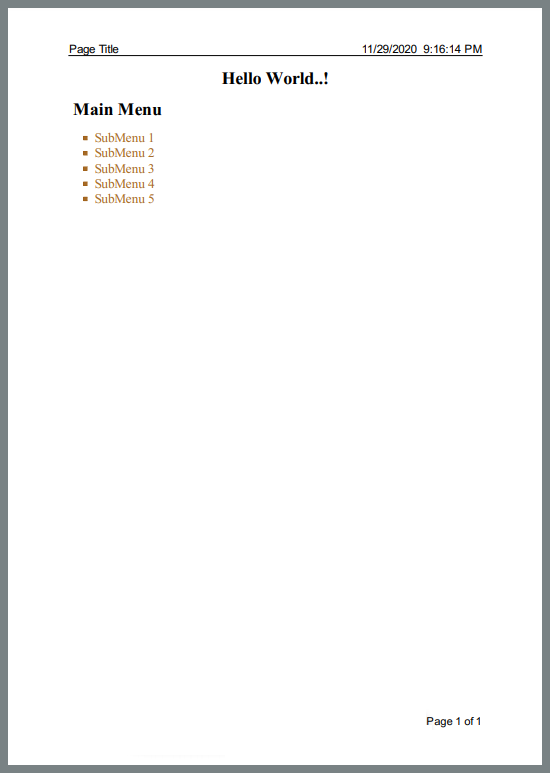
**输出:**上述代码生成的新PDF文件sample.pdf的屏幕截图:
使用IronPDF处理页眉和页脚时,创建 PDF 文件会使用直观的语言。 现在,示例展示了PrizmDoc查看器如何处理页眉和页脚。
PrizmDoc查看器如何处理PDF页眉和页脚?
PrizmDoc查看器提供HeaderFooterOptions类来处理页眉和页脚,具有以下属性:
*行数指定页眉和页脚的行数,每行具有以下属性:
- 左侧 在页眉或页脚行的左侧打印文本
**居中 * 将文本打印在页眉或页脚行的中间。
**右 * 表示在页眉或页脚行的右侧打印文本
- **
FontFamily**指定页眉或页脚文本的字体家族
- **
FontSize**指定页眉或页脚文本的字体大小
***颜色:**用于指定页眉或页脚文本的颜色
阅读更多关于使用PrizmDoc服务器设置PDF页面的页眉和页脚。
以下示例展示了如何使用上述属性来实现该用例:
using System.Threading.Tasks;
using System.Collections.Generic;
using Accusoft.PrizmDocServer;
using Accusoft.PrizmDocServer.Conversion;

static void Main(string[] args)
{
    SetHeaderFooter().GetAwaiter().GetResult();
}

private static async Task SetHeaderFooter()
{
    // Instantiate PrizmDocServerClient object with Header and footer properties
    var prizmDocServer = new PrizmDocServerClient("___PROTECTED_URL_130___", "Your-API-KEY");

    ConversionResult result = await prizmDocServer.ConvertToPdfAsync(
        "myWebPage.html",
        header: new HeaderFooterOptions
        {
            Lines = new List<HeaderFooterLine>
            {
                new HeaderFooterLine { Left = "Page Title", Right = DateTime.Now.ToString() }
            },
        },
        footer: new HeaderFooterOptions
        {
            Lines = new List<HeaderFooterLine>
            {
                new HeaderFooterLine { Right = "Page {{pageNumber}} of {{pageCount}}" },
            },
        });

    // Save to the target location
    await result.RemoteWorkFile.SaveAsync("sample.pdf");
}
using System.Threading.Tasks;
using System.Collections.Generic;
using Accusoft.PrizmDocServer;
using Accusoft.PrizmDocServer.Conversion;

static void Main(string[] args)
{
    SetHeaderFooter().GetAwaiter().GetResult();
}

private static async Task SetHeaderFooter()
{
    // Instantiate PrizmDocServerClient object with Header and footer properties
    var prizmDocServer = new PrizmDocServerClient("___PROTECTED_URL_130___", "Your-API-KEY");

    ConversionResult result = await prizmDocServer.ConvertToPdfAsync(
        "myWebPage.html",
        header: new HeaderFooterOptions
        {
            Lines = new List<HeaderFooterLine>
            {
                new HeaderFooterLine { Left = "Page Title", Right = DateTime.Now.ToString() }
            },
        },
        footer: new HeaderFooterOptions
        {
            Lines = new List<HeaderFooterLine>
            {
                new HeaderFooterLine { Right = "Page {{pageNumber}} of {{pageCount}}" },
            },
        });

    // Save to the target location
    await result.RemoteWorkFile.SaveAsync("sample.pdf");
}
Imports System.Threading.Tasks
Imports System.Collections.Generic
Imports Accusoft.PrizmDocServer
Imports Accusoft.PrizmDocServer.Conversion
Module Program
Sub Main(args As String())
SetHeaderFooter().GetAwaiter().GetResult()
End Sub
Private Async Function SetHeaderFooter() As Task
' Instantiate PrizmDocServerClient object with Header and footer properties
Dim prizmDocServer As New PrizmDocServerClient("___PROTECTED_URL_130___", "Your-API-KEY")
Dim result As ConversionResult = Await prizmDocServer.ConvertToPdfAsync(
"myWebPage.html",
header:=New HeaderFooterOptions With {
.Lines = New List(Of HeaderFooterLine) From {
New HeaderFooterLine With {.Left = "Page Title", .Right = DateTime.Now.ToString()}
}
},
footer:=New HeaderFooterOptions With {
.Lines = New List(Of HeaderFooterLine) From {
New HeaderFooterLine With {.Right = "Page {{pageNumber}} of {{pageCount}}"}
}
})
' Save to the target location
Await result.RemoteWorkFile.SaveAsync("sample.pdf")
End Function
End Module
Imports System.Threading.Tasks
Imports System.Collections.Generic
Imports Accusoft.PrizmDocServer
Imports Accusoft.PrizmDocServer.Conversion

Module Program
    Sub Main(args As String())
        SetHeaderFooter().GetAwaiter().GetResult()
    End Sub

    Private Async Function SetHeaderFooter() As Task
        ' Instantiate PrizmDocServerClient object with Header and footer properties
        Dim prizmDocServer As New PrizmDocServerClient("___PROTECTED_URL_130___", "Your-API-KEY")

        Dim result As ConversionResult = Await prizmDocServer.ConvertToPdfAsync(
            "myWebPage.html",
            header:=New HeaderFooterOptions With {
                .Lines = New List(Of HeaderFooterLine) From {
                    New HeaderFooterLine With {.Left = "Page Title", .Right = DateTime.Now.ToString()}
                }
            },
            footer:=New HeaderFooterOptions With {
                .Lines = New List(Of HeaderFooterLine) From {
                    New HeaderFooterLine With {.Right = "Page {{pageNumber}} of {{pageCount}}"}
                }
            })

        ' Save to the target location
        Await result.RemoteWorkFile.SaveAsync("sample.pdf")
    End Function
End Module
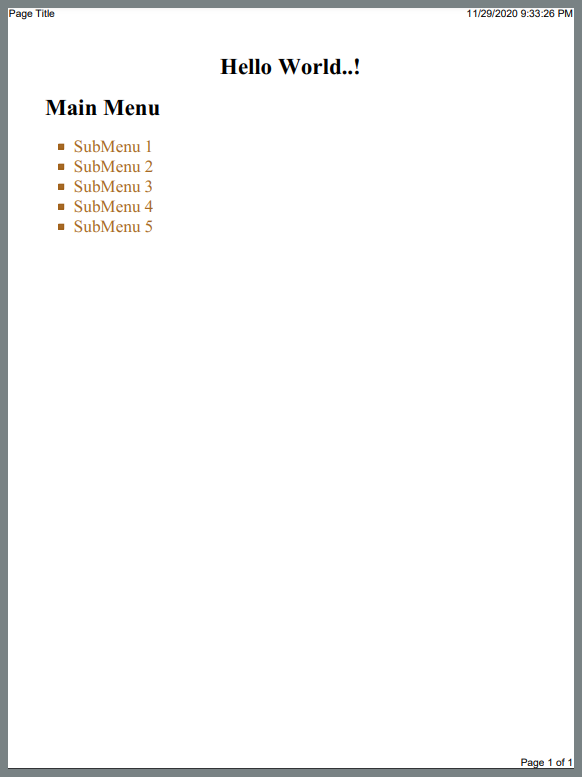
输出:
以下是上述代码生成的PDF文件的屏幕截图:
哪个库在页眉和页脚方面提供了更大的灵活性?
与PrizmDoc查看器相比,IronPDF提供了更多的功能,通过简单的编程结构来设置页眉和页脚属性。 IronPDF生成的PDF文件不仅更具可读性和吸引力,还比PrizmDoc查看器生成的文件更好。IronPDF还支持页码和分页符以改善文档控制。
如何使用IronPDF和PrizmDoc查看器将PDF页面转换为图像?
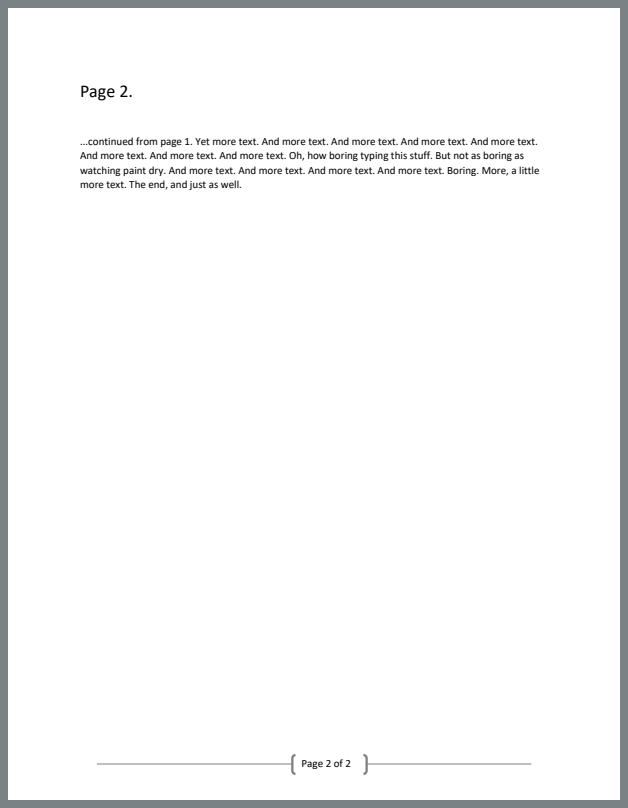
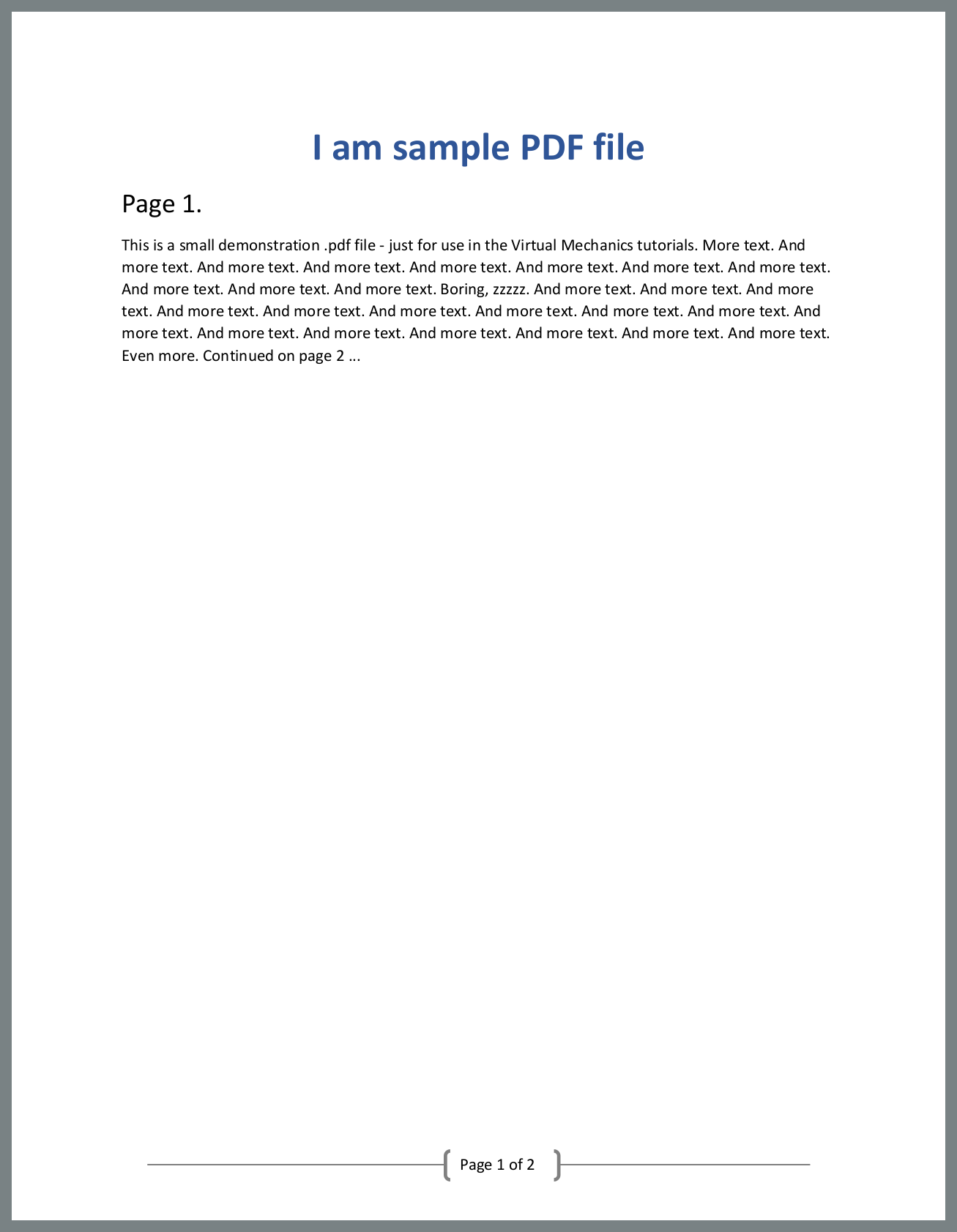
在此比较中,假设您有一个名为Sample_PDF.pdf的简单PDF文件,包含两页。
任务是为每一页创建图像。 首先,示例将展示如何使用IronPDF执行此操作。
IronPDF如何将 PDF 页面转换为图像?
using IronPdf;

static void Main(string[] args)
{
    // Specify file to be converted
    var pdf = PdfDocument.FromFile("Sample_PDF.pdf");
    // Save images to the target location
    pdf.RasterizeToImageFiles("image_*.png");
}
using IronPdf;

static void Main(string[] args)
{
    // Specify file to be converted
    var pdf = PdfDocument.FromFile("Sample_PDF.pdf");
    // Save images to the target location
    pdf.RasterizeToImageFiles("image_*.png");
}
Imports IronPdf
Shared Sub Main(ByVal args() As String)
' Specify file to be converted
Dim pdf = PdfDocument.FromFile("Sample_PDF.pdf")
' Save images to the target location
pdf.RasterizeToImageFiles("image_*.png")
End Sub
Imports IronPdf

Shared Sub Main(ByVal args() As String)
	' Specify file to be converted
	Dim pdf = PdfDocument.FromFile("Sample_PDF.pdf")
	' Save images to the target location
	pdf.RasterizeToImageFiles("image_*.png")
End Sub
IronPDF还支持将图像保存到内存流,并支持多种图像格式,包括 JPEG、TIFF 等。
输出:
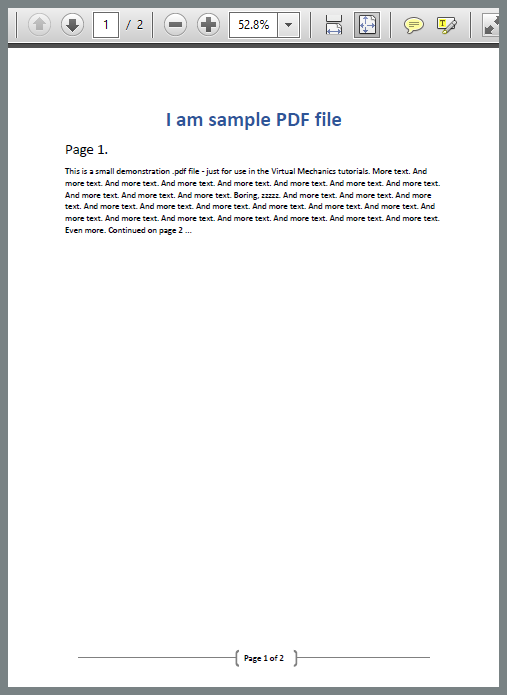
上述代码创建了以下两个.png图像:
使用IronPDF创建 PDF 页面图像非常简单。 现在,让我们使用PrizmDoc查看器执行相同的任务。
PrizmDoc查看器如何将PDF页面转换为图像?
using System.Linq;
using System.Collections.Generic;
using System.Threading.Tasks;
using Accusoft.PrizmDocServer;
using Accusoft.PrizmDocServer.Conversion;

static void Main(string[] args)
{
    PdfToImage().GetAwaiter().GetResult();
}

private static async Task PdfToImage()
{
    // Instantiate PrizmDocServerClient object
    var prizmDocServer = new PrizmDocServerClient("___PROTECTED_URL_131___", "Your-API-KEY");
    // Convert PDF file to images
    IEnumerable<ConversionResult> results = await prizmDocServer.ConvertAsync("Sample_PDF.pdf", DestinationFileFormat.Png);

    // Save each image.
    for (int i = 0; i < results.Count(); i++)
    {
        await results.ElementAt(i).RemoteWorkFile.SaveAsync($"page-{i + 1}.png");
    }
}
using System.Linq;
using System.Collections.Generic;
using System.Threading.Tasks;
using Accusoft.PrizmDocServer;
using Accusoft.PrizmDocServer.Conversion;

static void Main(string[] args)
{
    PdfToImage().GetAwaiter().GetResult();
}

private static async Task PdfToImage()
{
    // Instantiate PrizmDocServerClient object
    var prizmDocServer = new PrizmDocServerClient("___PROTECTED_URL_131___", "Your-API-KEY");
    // Convert PDF file to images
    IEnumerable<ConversionResult> results = await prizmDocServer.ConvertAsync("Sample_PDF.pdf", DestinationFileFormat.Png);

    // Save each image.
    for (int i = 0; i < results.Count(); i++)
    {
        await results.ElementAt(i).RemoteWorkFile.SaveAsync($"page-{i + 1}.png");
    }
}
Imports System.Linq
Imports System.Collections.Generic
Imports System.Threading.Tasks
Imports Accusoft.PrizmDocServer
Imports Accusoft.PrizmDocServer.Conversion
Module Module1
Sub Main()
PdfToImage().GetAwaiter().GetResult()
End Sub
Private Async Function PdfToImage() As Task
' Instantiate PrizmDocServerClient object
Dim prizmDocServer As New PrizmDocServerClient("___PROTECTED_URL_131___", "Your-API-KEY")
' Convert PDF file to images
Dim results As IEnumerable(Of ConversionResult) = Await prizmDocServer.ConvertAsync("Sample_PDF.pdf", DestinationFileFormat.Png)
' Save each image.
For i As Integer = 0 To results.Count() - 1
Await results.ElementAt(i).RemoteWorkFile.SaveAsync($"page-{i + 1}.png")
Next
End Function
End Module
Imports System.Linq
Imports System.Collections.Generic
Imports System.Threading.Tasks
Imports Accusoft.PrizmDocServer
Imports Accusoft.PrizmDocServer.Conversion

Module Module1
    Sub Main()
        PdfToImage().GetAwaiter().GetResult()
    End Sub

    Private Async Function PdfToImage() As Task
        ' Instantiate PrizmDocServerClient object
        Dim prizmDocServer As New PrizmDocServerClient("___PROTECTED_URL_131___", "Your-API-KEY")
        ' Convert PDF file to images
        Dim results As IEnumerable(Of ConversionResult) = Await prizmDocServer.ConvertAsync("Sample_PDF.pdf", DestinationFileFormat.Png)

        ' Save each image.
        For i As Integer = 0 To results.Count() - 1
            Await results.ElementAt(i).RemoteWorkFile.SaveAsync($"page-{i + 1}.png")
        Next
    End Function
End Module
输出:
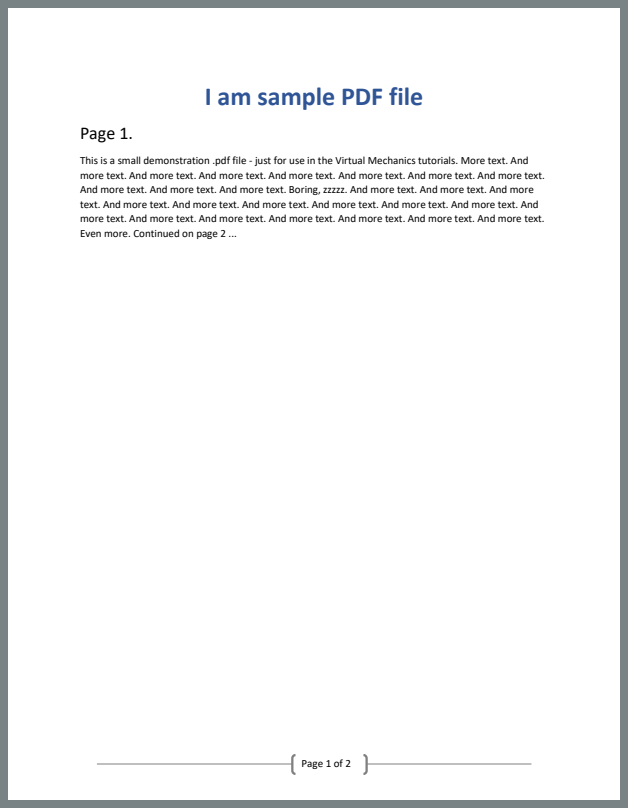
上述代码也创建了以下两个.png图像:
哪个库能让PDF转图像转换更轻松?
与PrizmDoc查看器相比,IronPDF允许开发人员轻松创建每页图像,且代码行数更少,甚至无需遍历页面。
我可以在IronPDF中使用 Bootstrap 5 数据表吗?
IronPDF 的Chrome V8 渲染引擎为Bootstrap 5 数据表提供了出色的支持,使开发人员能够生成具有复杂表格布局的ProfessionalPDF 报告。 此示例展示了渐变页眉、状态徽章、分页控件和摘要指标——这些功能突显了IronPDF与传统PDF查看器如PrizmDoc的优势。 IronPDF完全支持现代 CSS 功能,包括flexbox 布局、渐变和响应式设计。
using IronPdf;

var renderer = new ChromePdfRenderer();

string dataTableReport = @"
<!DOCTYPE html>
<html>
<head>
    <meta charset='utf-8'>
    <link href='___PROTECTED_URL_132___ rel='stylesheet'>
    <style>
        .table-header {
            background: linear-gradient(135deg, #667eea 0%, #764ba2 100%);
            color: white;
            padding: 30px;
            border-radius: 10px 10px 0 0;
        }
        .table-container {
            background: white;
            border-radius: 0 0 10px 10px;
            box-shadow: 0 10px 30px rgba(0,0,0,0.1);
            overflow: hidden;
        }
        .table th {
            background: #f8f9fa;
            font-weight: 600;
            text-transform: uppercase;
            font-size: 0.85rem;
            letter-spacing: 0.5px;
        }
        .status-badge {
            padding: 0.35em 0.65em;
            border-radius: 0.25rem;
            font-weight: 600;
            font-size: 0.75rem;
        }
        .trend-positive { color: #198754; font-weight: 700; }
        .trend-negative { color: #dc3545; font-weight: 700; }
        @media print {
            .table-container { page-break-inside: avoid; }
        }
    </style>
</head>
<body class='bg-light'>
    <div class='container py-5'>
        <div class='table-container'>
            <div class='table-header'>
                <div class='row align-items-center'>
                    <div class='col-md-8'>
                        <h2 class='mb-2'>Sales Performance Report</h2>
                        <p class='mb-0 opacity-75'>Q4 2024 Regional Analysis</p>
                    </div>
                    <div class='col-md-4 text-end'>
                        <div class='btn-group btn-group-sm'>
                            <button class='btn btn-light'>Export</button>
                            <button class='btn btn-light'>Filter</button>
                            <button class='btn btn-light'>Sort</button>
                        </div>
                    </div>
                </div>
            </div>

            <div class='p-4'>
                <div class='row mb-3'>
                    <div class='col-md-4'>
                        <input type='text' class='form-control form-control-sm' placeholder='Search regions...'>
                    </div>
                    <div class='col-md-8 text-end'>
                        <span class='text-muted small'>Showing 1-10 of 48 results</span>
                    </div>
                </div>

                <div class='table-responsive'>
                    <table class='table table-hover align-middle'>
                        <thead>
                            <tr>
                                <th>Region</th>
                                <th>Revenue</th>
                                <th>Units Sold</th>
                                <th>Growth</th>
                                <th>Status</th>
                                <th>Action</th>
                            </tr>
                        </thead>
                        <tbody>
                            <tr>
                                <td>
                                    <strong>North America</strong><br>
                                    <small class='text-muted'>USA, Canada, Mexico</small>
                                </td>
                                <td>$4,280,000</td>
                                <td>12,450</td>
                                <td><span class='trend-positive'>↑ 18.5%</span></td>
                                <td><span class='status-badge bg-success text-white'>Exceeding</span></td>
                                <td><button class='btn btn-sm btn-outline-primary'>Details</button></td>
                            </tr>
                            <tr>
                                <td>
                                    <strong>Europe</strong><br>
                                    <small class='text-muted'>EU, UK, Switzerland</small>
                                </td>
                                <td>$3,650,000</td>
                                <td>10,890</td>
                                <td><span class='trend-positive'>↑ 12.3%</span></td>
                                <td><span class='status-badge bg-success text-white'>On Track</span></td>
                                <td><button class='btn btn-sm btn-outline-primary'>Details</button></td>
                            </tr>
                            <tr>
                                <td>
                                    <strong>Asia Pacific</strong><br>
                                    <small class='text-muted'>Japan, Australia, Singapore</small>
                                </td>
                                <td>$2,940,000</td>
                                <td>8,320</td>
                                <td><span class='trend-positive'>↑ 24.7%</span></td>
                                <td><span class='status-badge bg-primary text-white'>Growing</span></td>
                                <td><button class='btn btn-sm btn-outline-primary'>Details</button></td>
                            </tr>
                            <tr>
                                <td>
                                    <strong>Latin America</strong><br>
                                    <small class='text-muted'>Brazil, Argentina, Chile</small>
                                </td>
                                <td>$1,580,000</td>
                                <td>4,670</td>
                                <td><span class='trend-positive'>↑ 8.9%</span></td>
                                <td><span class='status-badge bg-info text-white'>Stable</span></td>
                                <td><button class='btn btn-sm btn-outline-primary'>Details</button></td>
                            </tr>
                            <tr>
                                <td>
                                    <strong>Middle East</strong><br>
                                    <small class='text-muted'>UAE, Saudi Arabia, Israel</small>
                                </td>
                                <td>$980,000</td>
                                <td>2,890</td>
                                <td><span class='trend-negative'>↓ 3.2%</span></td>
                                <td><span class='status-badge bg-warning text-dark'>Review</span></td>
                                <td><button class='btn btn-sm btn-outline-primary'>Details</button></td>
                            </tr>
                        </tbody>
                        <tfoot class='table-light'>
                            <tr>
                                <td><strong>Total</strong></td>
                                <td><strong>$13,430,000</strong></td>
                                <td><strong>39,220</strong></td>
                                <td><strong class='trend-positive'>↑ 14.8%</strong></td>
                                <td colspan='2'></td>
                            </tr>
                        </tfoot>
                    </table>
                </div>

                <div class='d-flex justify-content-between align-items-center mt-4'>
                    <div>
                        <select class='form-select form-select-sm' style='width: auto; display: inline-block;'>
                            <option>10 per page</option>
                            <option>25 per page</option>
                            <option>50 per page</option>
                        </select>
                    </div>
                    <nav>
                        <ul class='pagination pagination-sm mb-0'>
                            <li class='page-item disabled'><a class='page-link' href='#'>Previous</a></li>
                            <li class='page-item active'><a class='page-link' href='#'>1</a></li>
                            <li class='page-item'><a class='page-link' href='#'>2</a></li>
                            <li class='page-item'><a class='page-link' href='#'>3</a></li>
                            <li class='page-item'><a class='page-link' href='#'>Next</a></li>
                        </ul>
                    </nav>
                </div>
            </div>
        </div>

        <div class='row g-3 mt-4'>
            <div class='col-md-3'>
                <div class='card text-center'>
                    <div class='card-body'>
                        <h3 class='text-primary mb-1'>$13.4M</h3>
                        <small class='text-muted'>Total Revenue</small>
                    </div>
                </div>
            </div>
            <div class='col-md-3'>
                <div class='card text-center'>
                    <div class='card-body'>
                        <h3 class='text-success mb-1'>39,220</h3>
                        <small class='text-muted'>Units Sold</small>
                    </div>
                </div>
            </div>
            <div class='col-md-3'>
                <div class='card text-center'>
                    <div class='card-body'>
                        <h3 class='text-info mb-1'>14.8%</h3>
                        <small class='text-muted'>Growth Rate</small>
                    </div>
                </div>
            </div>
            <div class='col-md-3'>
                <div class='card text-center'>
                    <div class='card-body'>
                        <h3 class='text-warning mb-1'>5</h3>
                        <small class='text-muted'>Active Regions</small>
                    </div>
                </div>
            </div>
        </div>
    </div>
</body>
</html>";

var pdf = renderer.RenderHtmlAsPdf(dataTableReport);
pdf.SaveAs("data-table-report.pdf");
using IronPdf;

var renderer = new ChromePdfRenderer();

string dataTableReport = @"
<!DOCTYPE html>
<html>
<head>
    <meta charset='utf-8'>
    <link href='___PROTECTED_URL_132___ rel='stylesheet'>
    <style>
        .table-header {
            background: linear-gradient(135deg, #667eea 0%, #764ba2 100%);
            color: white;
            padding: 30px;
            border-radius: 10px 10px 0 0;
        }
        .table-container {
            background: white;
            border-radius: 0 0 10px 10px;
            box-shadow: 0 10px 30px rgba(0,0,0,0.1);
            overflow: hidden;
        }
        .table th {
            background: #f8f9fa;
            font-weight: 600;
            text-transform: uppercase;
            font-size: 0.85rem;
            letter-spacing: 0.5px;
        }
        .status-badge {
            padding: 0.35em 0.65em;
            border-radius: 0.25rem;
            font-weight: 600;
            font-size: 0.75rem;
        }
        .trend-positive { color: #198754; font-weight: 700; }
        .trend-negative { color: #dc3545; font-weight: 700; }
        @media print {
            .table-container { page-break-inside: avoid; }
        }
    </style>
</head>
<body class='bg-light'>
    <div class='container py-5'>
        <div class='table-container'>
            <div class='table-header'>
                <div class='row align-items-center'>
                    <div class='col-md-8'>
                        <h2 class='mb-2'>Sales Performance Report</h2>
                        <p class='mb-0 opacity-75'>Q4 2024 Regional Analysis</p>
                    </div>
                    <div class='col-md-4 text-end'>
                        <div class='btn-group btn-group-sm'>
                            <button class='btn btn-light'>Export</button>
                            <button class='btn btn-light'>Filter</button>
                            <button class='btn btn-light'>Sort</button>
                        </div>
                    </div>
                </div>
            </div>

            <div class='p-4'>
                <div class='row mb-3'>
                    <div class='col-md-4'>
                        <input type='text' class='form-control form-control-sm' placeholder='Search regions...'>
                    </div>
                    <div class='col-md-8 text-end'>
                        <span class='text-muted small'>Showing 1-10 of 48 results</span>
                    </div>
                </div>

                <div class='table-responsive'>
                    <table class='table table-hover align-middle'>
                        <thead>
                            <tr>
                                <th>Region</th>
                                <th>Revenue</th>
                                <th>Units Sold</th>
                                <th>Growth</th>
                                <th>Status</th>
                                <th>Action</th>
                            </tr>
                        </thead>
                        <tbody>
                            <tr>
                                <td>
                                    <strong>North America</strong><br>
                                    <small class='text-muted'>USA, Canada, Mexico</small>
                                </td>
                                <td>$4,280,000</td>
                                <td>12,450</td>
                                <td><span class='trend-positive'>↑ 18.5%</span></td>
                                <td><span class='status-badge bg-success text-white'>Exceeding</span></td>
                                <td><button class='btn btn-sm btn-outline-primary'>Details</button></td>
                            </tr>
                            <tr>
                                <td>
                                    <strong>Europe</strong><br>
                                    <small class='text-muted'>EU, UK, Switzerland</small>
                                </td>
                                <td>$3,650,000</td>
                                <td>10,890</td>
                                <td><span class='trend-positive'>↑ 12.3%</span></td>
                                <td><span class='status-badge bg-success text-white'>On Track</span></td>
                                <td><button class='btn btn-sm btn-outline-primary'>Details</button></td>
                            </tr>
                            <tr>
                                <td>
                                    <strong>Asia Pacific</strong><br>
                                    <small class='text-muted'>Japan, Australia, Singapore</small>
                                </td>
                                <td>$2,940,000</td>
                                <td>8,320</td>
                                <td><span class='trend-positive'>↑ 24.7%</span></td>
                                <td><span class='status-badge bg-primary text-white'>Growing</span></td>
                                <td><button class='btn btn-sm btn-outline-primary'>Details</button></td>
                            </tr>
                            <tr>
                                <td>
                                    <strong>Latin America</strong><br>
                                    <small class='text-muted'>Brazil, Argentina, Chile</small>
                                </td>
                                <td>$1,580,000</td>
                                <td>4,670</td>
                                <td><span class='trend-positive'>↑ 8.9%</span></td>
                                <td><span class='status-badge bg-info text-white'>Stable</span></td>
                                <td><button class='btn btn-sm btn-outline-primary'>Details</button></td>
                            </tr>
                            <tr>
                                <td>
                                    <strong>Middle East</strong><br>
                                    <small class='text-muted'>UAE, Saudi Arabia, Israel</small>
                                </td>
                                <td>$980,000</td>
                                <td>2,890</td>
                                <td><span class='trend-negative'>↓ 3.2%</span></td>
                                <td><span class='status-badge bg-warning text-dark'>Review</span></td>
                                <td><button class='btn btn-sm btn-outline-primary'>Details</button></td>
                            </tr>
                        </tbody>
                        <tfoot class='table-light'>
                            <tr>
                                <td><strong>Total</strong></td>
                                <td><strong>$13,430,000</strong></td>
                                <td><strong>39,220</strong></td>
                                <td><strong class='trend-positive'>↑ 14.8%</strong></td>
                                <td colspan='2'></td>
                            </tr>
                        </tfoot>
                    </table>
                </div>

                <div class='d-flex justify-content-between align-items-center mt-4'>
                    <div>
                        <select class='form-select form-select-sm' style='width: auto; display: inline-block;'>
                            <option>10 per page</option>
                            <option>25 per page</option>
                            <option>50 per page</option>
                        </select>
                    </div>
                    <nav>
                        <ul class='pagination pagination-sm mb-0'>
                            <li class='page-item disabled'><a class='page-link' href='#'>Previous</a></li>
                            <li class='page-item active'><a class='page-link' href='#'>1</a></li>
                            <li class='page-item'><a class='page-link' href='#'>2</a></li>
                            <li class='page-item'><a class='page-link' href='#'>3</a></li>
                            <li class='page-item'><a class='page-link' href='#'>Next</a></li>
                        </ul>
                    </nav>
                </div>
            </div>
        </div>

        <div class='row g-3 mt-4'>
            <div class='col-md-3'>
                <div class='card text-center'>
                    <div class='card-body'>
                        <h3 class='text-primary mb-1'>$13.4M</h3>
                        <small class='text-muted'>Total Revenue</small>
                    </div>
                </div>
            </div>
            <div class='col-md-3'>
                <div class='card text-center'>
                    <div class='card-body'>
                        <h3 class='text-success mb-1'>39,220</h3>
                        <small class='text-muted'>Units Sold</small>
                    </div>
                </div>
            </div>
            <div class='col-md-3'>
                <div class='card text-center'>
                    <div class='card-body'>
                        <h3 class='text-info mb-1'>14.8%</h3>
                        <small class='text-muted'>Growth Rate</small>
                    </div>
                </div>
            </div>
            <div class='col-md-3'>
                <div class='card text-center'>
                    <div class='card-body'>
                        <h3 class='text-warning mb-1'>5</h3>
                        <small class='text-muted'>Active Regions</small>
                    </div>
                </div>
            </div>
        </div>
    </div>
</body>
</html>";

var pdf = renderer.RenderHtmlAsPdf(dataTableReport);
pdf.SaveAs("data-table-report.pdf");
Imports IronPdf
Dim renderer = New ChromePdfRenderer()
Dim dataTableReport As String = "
<!DOCTYPE html>
<html>
<head>
<meta charset='utf-8'>
<link href='___PROTECTED_URL_132___ rel='stylesheet'>
<style>
.table-header {
background: linear-gradient(135deg, #667eea 0%, #764ba2 100%);
color: white;
padding: 30px;
border-radius: 10px 10px 0 0;
}
.table-container {
background: white;
border-radius: 0 0 10px 10px;
box-shadow: 0 10px 30px rgba(0,0,0,0.1);
overflow: hidden;
}
.table th {
background: #f8f9fa;
font-weight: 600;
text-transform: uppercase;
font-size: 0.85rem;
letter-spacing: 0.5px;
}
.status-badge {
padding: 0.35em 0.65em;
border-radius: 0.25rem;
font-weight: 600;
font-size: 0.75rem;
}
.trend-positive { color: #198754; font-weight: 700; }
.trend-negative { color: #dc3545; font-weight: 700; }
@media print {
.table-container { page-break-inside: avoid; }
}
</style>
</head>
<body class='bg-light'>
<div class='container py-5'>
<div class='table-container'>
<div class='table-header'>
<div class='row align-items-center'>
<div class='col-md-8'>
<h2 class='mb-2'>Sales Performance Report</h2>
<p class='mb-0 opacity-75'>Q4 2024 Regional Analysis</p>
</div>
<div class='col-md-4 text-end'>
<div class='btn-group btn-group-sm'>
<button class='btn btn-light'>Export</button>
<button class='btn btn-light'>Filter</button>
<button class='btn btn-light'>Sort</button>
</div>
</div>
</div>
</div>
<div class='p-4'>
<div class='row mb-3'>
<div class='col-md-4'>
<input type='text' class='form-control form-control-sm' placeholder='Search regions...'>
</div>
<div class='col-md-8 text-end'>
<span class='text-muted small'>Showing 1-10 of 48 results</span>
</div>
</div>
<div class='table-responsive'>
<table class='table table-hover align-middle'>
<thead>
<tr>
<th>Region</th>
<th>Revenue</th>
<th>Units Sold</th>
<th>Growth</th>
<th>Status</th>
<th>Action</th>
</tr>
</thead>
<tbody>
<tr>
<td>
<strong>North America</strong><br>
<small class='text-muted'>USA, Canada, Mexico</small>
</td>
<td>$4,280,000</td>
<td>12,450</td>
<td><span class='trend-positive'>↑ 18.5%</span></td>
<td><span class='status-badge bg-success text-white'>Exceeding</span></td>
<td><button class='btn btn-sm btn-outline-primary'>Details</button></td>
</tr>
<tr>
<td>
<strong>Europe</strong><br>
<small class='text-muted'>EU, UK, Switzerland</small>
</td>
<td>$3,650,000</td>
<td>10,890</td>
<td><span class='trend-positive'>↑ 12.3%</span></td>
<td><span class='status-badge bg-success text-white'>On Track</span></td>
<td><button class='btn btn-sm btn-outline-primary'>Details</button></td>
</tr>
<tr>
<td>
<strong>Asia Pacific</strong><br>
<small class='text-muted'>Japan, Australia, Singapore</small>
</td>
<td>$2,940,000</td>
<td>8,320</td>
<td><span class='trend-positive'>↑ 24.7%</span></td>
<td><span class='status-badge bg-primary text-white'>Growing</span></td>
<td><button class='btn btn-sm btn-outline-primary'>Details</button></td>
</tr>
<tr>
<td>
<strong>Latin America</strong><br>
<small class='text-muted'>Brazil, Argentina, Chile</small>
</td>
<td>$1,580,000</td>
<td>4,670</td>
<td><span class='trend-positive'>↑ 8.9%</span></td>
<td><span class='status-badge bg-info text-white'>Stable</span></td>
<td><button class='btn btn-sm btn-outline-primary'>Details</button></td>
</tr>
<tr>
<td>
<strong>Middle East</strong><br>
<small class='text-muted'>UAE, Saudi Arabia, Israel</small>
</td>
<td>$980,000</td>
<td>2,890</td>
<td><span class='trend-negative'>↓ 3.2%</span></td>
<td><span class='status-badge bg-warning text-dark'>Review</span></td>
<td><button class='btn btn-sm btn-outline-primary'>Details</button></td>
</tr>
</tbody>
<tfoot class='table-light'>
<tr>
<td><strong>Total</strong></td>
<td><strong>$13,430,000</strong></td>
<td><strong>39,220</strong></td>
<td><strong class='trend-positive'>↑ 14.8%</strong></td>
<td colspan='2'></td>
</tr>
</tfoot>
</table>
</div>
<div class='d-flex justify-content-between align-items-center mt-4'>
<div>
<select class='form-select form-select-sm' style='width: auto; display: inline-block;'>
<option>10 per page</option>
<option>25 per page</option>
<option>50 per page</option>
</select>
</div>
<nav>
<ul class='pagination pagination-sm mb-0'>
<li class='page-item disabled'><a class='page-link' href='#'>Previous</a></li>
<li class='page-item active'><a class='page-link' href='#'>1</a></li>
<li class='page-item'><a class='page-link' href='#'>2</a></li>
<li class='page-item'><a class='page-link' href='#'>3</a></li>
<li class='page-item'><a class='page-link' href='#'>Next</a></li>
</ul>
</nav>
</div>
</div>
</div>
<div class='row g-3 mt-4'>
<div class='col-md-3'>
<div class='card text-center'>
<div class='card-body'>
<h3 class='text-primary mb-1'>$13.4M</h3>
<small class='text-muted'>Total Revenue</small>
</div>
</div>
</div>
<div class='col-md-3'>
<div class='card text-center'>
<div class='card-body'>
<h3 class='text-success mb-1'>39,220</h3>
<small class='text-muted'>Units Sold</small>
</div>
</div>
</div>
<div class='col-md-3'>
<div class='card text-center'>
<div class='card-body'>
<h3 class='text-info mb-1'>14.8%</h3>
<small class='text-muted'>Growth Rate</small>
</div>
</div>
</div>
<div class='col-md-3'>
<div class='card text-center'>
<div class='card-body'>
<h3 class='text-warning mb-1'>5</h3>
<small class='text-muted'>Active Regions</small>
</div>
</div>
</div>
</div>
</div>
</body>
</html>"
Dim pdf = renderer.RenderHtmlAsPdf(dataTableReport)
pdf.SaveAs("data-table-report.pdf")
Imports IronPdf

Dim renderer = New ChromePdfRenderer()

Dim dataTableReport As String = "
<!DOCTYPE html>
<html>
<head>
    <meta charset='utf-8'>
    <link href='___PROTECTED_URL_132___ rel='stylesheet'>
    <style>
        .table-header {
            background: linear-gradient(135deg, #667eea 0%, #764ba2 100%);
            color: white;
            padding: 30px;
            border-radius: 10px 10px 0 0;
        }
        .table-container {
            background: white;
            border-radius: 0 0 10px 10px;
            box-shadow: 0 10px 30px rgba(0,0,0,0.1);
            overflow: hidden;
        }
        .table th {
            background: #f8f9fa;
            font-weight: 600;
            text-transform: uppercase;
            font-size: 0.85rem;
            letter-spacing: 0.5px;
        }
        .status-badge {
            padding: 0.35em 0.65em;
            border-radius: 0.25rem;
            font-weight: 600;
            font-size: 0.75rem;
        }
        .trend-positive { color: #198754; font-weight: 700; }
        .trend-negative { color: #dc3545; font-weight: 700; }
        @media print {
            .table-container { page-break-inside: avoid; }
        }
    </style>
</head>
<body class='bg-light'>
    <div class='container py-5'>
        <div class='table-container'>
            <div class='table-header'>
                <div class='row align-items-center'>
                    <div class='col-md-8'>
                        <h2 class='mb-2'>Sales Performance Report</h2>
                        <p class='mb-0 opacity-75'>Q4 2024 Regional Analysis</p>
                    </div>
                    <div class='col-md-4 text-end'>
                        <div class='btn-group btn-group-sm'>
                            <button class='btn btn-light'>Export</button>
                            <button class='btn btn-light'>Filter</button>
                            <button class='btn btn-light'>Sort</button>
                        </div>
                    </div>
                </div>
            </div>

            <div class='p-4'>
                <div class='row mb-3'>
                    <div class='col-md-4'>
                        <input type='text' class='form-control form-control-sm' placeholder='Search regions...'>
                    </div>
                    <div class='col-md-8 text-end'>
                        <span class='text-muted small'>Showing 1-10 of 48 results</span>
                    </div>
                </div>

                <div class='table-responsive'>
                    <table class='table table-hover align-middle'>
                        <thead>
                            <tr>
                                <th>Region</th>
                                <th>Revenue</th>
                                <th>Units Sold</th>
                                <th>Growth</th>
                                <th>Status</th>
                                <th>Action</th>
                            </tr>
                        </thead>
                        <tbody>
                            <tr>
                                <td>
                                    <strong>North America</strong><br>
                                    <small class='text-muted'>USA, Canada, Mexico</small>
                                </td>
                                <td>$4,280,000</td>
                                <td>12,450</td>
                                <td><span class='trend-positive'>↑ 18.5%</span></td>
                                <td><span class='status-badge bg-success text-white'>Exceeding</span></td>
                                <td><button class='btn btn-sm btn-outline-primary'>Details</button></td>
                            </tr>
                            <tr>
                                <td>
                                    <strong>Europe</strong><br>
                                    <small class='text-muted'>EU, UK, Switzerland</small>
                                </td>
                                <td>$3,650,000</td>
                                <td>10,890</td>
                                <td><span class='trend-positive'>↑ 12.3%</span></td>
                                <td><span class='status-badge bg-success text-white'>On Track</span></td>
                                <td><button class='btn btn-sm btn-outline-primary'>Details</button></td>
                            </tr>
                            <tr>
                                <td>
                                    <strong>Asia Pacific</strong><br>
                                    <small class='text-muted'>Japan, Australia, Singapore</small>
                                </td>
                                <td>$2,940,000</td>
                                <td>8,320</td>
                                <td><span class='trend-positive'>↑ 24.7%</span></td>
                                <td><span class='status-badge bg-primary text-white'>Growing</span></td>
                                <td><button class='btn btn-sm btn-outline-primary'>Details</button></td>
                            </tr>
                            <tr>
                                <td>
                                    <strong>Latin America</strong><br>
                                    <small class='text-muted'>Brazil, Argentina, Chile</small>
                                </td>
                                <td>$1,580,000</td>
                                <td>4,670</td>
                                <td><span class='trend-positive'>↑ 8.9%</span></td>
                                <td><span class='status-badge bg-info text-white'>Stable</span></td>
                                <td><button class='btn btn-sm btn-outline-primary'>Details</button></td>
                            </tr>
                            <tr>
                                <td>
                                    <strong>Middle East</strong><br>
                                    <small class='text-muted'>UAE, Saudi Arabia, Israel</small>
                                </td>
                                <td>$980,000</td>
                                <td>2,890</td>
                                <td><span class='trend-negative'>↓ 3.2%</span></td>
                                <td><span class='status-badge bg-warning text-dark'>Review</span></td>
                                <td><button class='btn btn-sm btn-outline-primary'>Details</button></td>
                            </tr>
                        </tbody>
                        <tfoot class='table-light'>
                            <tr>
                                <td><strong>Total</strong></td>
                                <td><strong>$13,430,000</strong></td>
                                <td><strong>39,220</strong></td>
                                <td><strong class='trend-positive'>↑ 14.8%</strong></td>
                                <td colspan='2'></td>
                            </tr>
                        </tfoot>
                    </table>
                </div>

                <div class='d-flex justify-content-between align-items-center mt-4'>
                    <div>
                        <select class='form-select form-select-sm' style='width: auto; display: inline-block;'>
                            <option>10 per page</option>
                            <option>25 per page</option>
                            <option>50 per page</option>
                        </select>
                    </div>
                    <nav>
                        <ul class='pagination pagination-sm mb-0'>
                            <li class='page-item disabled'><a class='page-link' href='#'>Previous</a></li>
                            <li class='page-item active'><a class='page-link' href='#'>1</a></li>
                            <li class='page-item'><a class='page-link' href='#'>2</a></li>
                            <li class='page-item'><a class='page-link' href='#'>3</a></li>
                            <li class='page-item'><a class='page-link' href='#'>Next</a></li>
                        </ul>
                    </nav>
                </div>
            </div>
        </div>

        <div class='row g-3 mt-4'>
            <div class='col-md-3'>
                <div class='card text-center'>
                    <div class='card-body'>
                        <h3 class='text-primary mb-1'>$13.4M</h3>
                        <small class='text-muted'>Total Revenue</small>
                    </div>
                </div>
            </div>
            <div class='col-md-3'>
                <div class='card text-center'>
                    <div class='card-body'>
                        <h3 class='text-success mb-1'>39,220</h3>
                        <small class='text-muted'>Units Sold</small>
                    </div>
                </div>
            </div>
            <div class='col-md-3'>
                <div class='card text-center'>
                    <div class='card-body'>
                        <h3 class='text-info mb-1'>14.8%</h3>
                        <small class='text-muted'>Growth Rate</small>
                    </div>
                </div>
            </div>
            <div class='col-md-3'>
                <div class='card text-center'>
                    <div class='card-body'>
                        <h3 class='text-warning mb-1'>5</h3>
                        <small class='text-muted'>Active Regions</small>
                    </div>
                </div>
            </div>
        </div>
    </div>
</body>
</html>"

Dim pdf = renderer.RenderHtmlAsPdf(dataTableReport)
pdf.SaveAs("data-table-report.pdf")
该代码会生成一份复杂的数据表格报告,其中包含渐变标题、响应式表格、状态徽章和汇总指标。 IronPDF 的 Chrome 渲染引擎保留了所有 Bootstrap 样式,包括表格悬停效果、徽章颜色和分页控件——这些功能超越了传统的 PDF 查看器。 该引擎还支持动态内容的JavaScript渲染、自定义字体和UTF-8 国际字符。
与PrizmDoc查看器相比的关键优势:
有关 Bootstrap PDF 生成的更多详细信息,请参阅完整的渲染文档。 开发人员还可以探索Angular到PDF转换和其他JavaScript框架支持。## IronPDF与PrizmDoc查看器的许可费用比较如何?
在审查了两个组件的技术结构和可用功能后,以下概述了许可定价。 这一点至关重要,因为开发人员的目标是在预算限制内满足需求。
IronPDF有哪些许可选项?
IronPDF许可证起价为**$999**,适用于单个开发人员。 IronPDF提供灵活的许可选项,包括开发许可、部署许可和扩展选项,以提供持续的支持和更新。
对于服务多个客户的公司或代理机构的开发人员,IronPDF提供分级许可,可根据团队规模和项目数量进行调整。 IronPDF提供随着需求变化而调整的许可证升级方案。
所有IronPDF许可证包均包括1年支持和更新。 阅读更多关于可用的许可证包、等级和定价。 开发人员还可以通过多种方式应用许可证密钥,包括Web.config和环境变量。
PrizmDoc查看器's许可证选项是什么?
自托管PrizmDoc的成本是多少?
自托管的PrizmDoc服务器可通过年度许可证获得。 联系Accusoft以获取PrizmDoc查看器的当前定价和可用包。
基于云端的PrizmDoc费用是多少?
此许可证涵盖PrizmDoc查看器的云服务,根据交易次数进行缩放。
术语:
PrizmDoc查看器服务器并接收输出(结果文档)。
*Prepaid Buckets*意味着一次付费并获得不失效的交易。
云定价基于使用情况并随交易量而扩展。 联系Accusoft以获取当前云定价等级和费率。
教程快速访问
获取 C# IronPDF 快速入门手册
这是一份免费的 PDF 资源指南,它简化了.NET中 PDF 的开发,提供了常用函数的演练以及在 C# 和 VB .NET中操作、编辑、生成和保存 PDF 的示例,适用于各种项目。
下载指南探索 IronPDF API 参考资料
探索IronPDF C# 库的 API 参考,包括 IronPDF 的所有功能、类、方法字段、命名空间和枚举的详细信息。
查看 API 参考 Accusoft的PrizmDoc查看器是其各自所有者的注册商标。 本网站与Accusoft的PrizmDoc查看器无关、未被认可或赞助。 所有产品名称、徽标和品牌均为各自所有者的财产。 比较仅供参考,反映撰写时公开可用的信息。