


IronPDF対Accusoft PDF Viewer: HTMLからPDFに最適なC#ライブラリはどれか?

IronPDFと Accusoft PDF Viewer はどちらも.NETでHTML を PDF に変換します。 IronPDFは、明確な構文、クラウド依存なしのローカル処理、および$999から始める無制限の変換を提供します。 対照的に、Accusoftはインターネット接続を必要とし、取引ごとに料金を請求します。
IronPDFとAccusoft PDF Viewerの比較
- HTMLをPDFに変換
- PDFのヘッダーとフッターの設定
- PDFを画像ファイルに変換
- ライセンス、無料トライアルオプションなどを比較する
概要
IronPDFとは何ですか? どのように機能しますか?
IronPDFは、開発者がHTML 文字列、 Web ページ、 URLなどのソースから PDF ファイルを作成できるようにするC# HTML から PDF へのライブラリです。 また、透かし、ブックマーク、ヘッダーとフッターなどのプロパティを設定することもできます。 さらに、開発者は、画像から PDF への変換を使用して、複数の PDF ファイルを 1 つに結合したり、 PDF ページを画像に変換したり、その逆を行ったりすることができます。
IronPDF は開発には無料で、ライブ プロジェクト向けに30 日間の展開トライアルを提供しています。 開発者がすぐに作業を開始できるように、完全なドキュメント、コード例、 API リファレンスを提供します。
開発者はこのリンクからファイル プロジェクトをダウンロードできます。
Accusoft `PrizmDoc`ビューア とは何ですか? どのように機能しますか?
PrizmDoc Viewer は、 PDF ファイルを操作し、リモートで他の形式に変換する REST API です。 PrizmDocは、100以上の異なるファイル形式をPDFに変換し、PNG、JPG、TIFF、およびSVGに変換できます。 また、アプリケーションに対してさまざまな電子署名オプションも提供します。
IronPDFと`PrizmDoc`ビューア を比較するとどうなりますか?
| IronPDF | `PrizmDoc`ビューア |
|---|---|
| Work with [PDF files programmatically](/how-to/csharp-parse-pdf/). | プログラム的にPDFファイルを扱う。 |
| Supports [.NET Core](/docs/) with [Windows](/get-started/windows/), [Mac](/get-started/macos/), or [Linux](/get-started/linux/). | Windows、Mac、またはLinuxを使用する.NET Coreをサポートします。 |
| [Works Locally](/get-started/installation-overview/) | Sends Documents to a [remote server](/get-started/ironpdfengine/). |
| Work with or without [Asynchronous Programming](/how-to/async/). | `System.Threading.Tasks`を使用した非同期プログラミングを使用する必要があります。 |
| Works offline once [installed](/get-started/installation-overview/). | `PrizmDoc`サーバー要求にはインターネット接続が必要です。 |
| Provides many [predefined functions](/features/). | いくつかの定義済みの機能を提供します。 |
| Often requires [minimal lines of code](/tutorials/html-to-pdf/). | 多くのコード行を必要とすることがよくあります。 |
| [Unlimited conversions](/licensing/) per project in each license. | クラウド ホスト ライセンスのトランザクションは制限されています。 |
| [Free for development](/get-started/quickstart/) without time limits. | トライアルでは取引が制限されています。 |
両方のライブラリをインストールしてコードを比較してみましょう。
ステップ1:インストール
私 for .NETプロジェクトにIronPDFをインストールする方法は?
プロジェクトにIronPDFをインストールするには 2 つの方法があり、方法に違いはありません。 IronPDF は、 Azure デプロイメント、 AWS Lambda 、 Docker コンテナー、 Blazorアプリケーションなど、さまざまな環境をサポートしています。
IronPDFをダウンロードするにはどのような方法がありますか?
IronPDF.dll をダウンロードし、その参照をプロジェクトに追加します。 開発者は、システム全体のインストールにWindows インストーラーを使用することもできます。 その後、namespace IronPDFは次のように使用可能になります:
using IronPdf;using IronPdf;Imports IronPdfこれで、開発者はレンダリング、 PDF ドキュメント操作、セキュリティ機能用のChromePdfRendererを含むIronPDFの提供されている機能とクラスに簡単にアクセスできるようになりました。
NuGetパッケージ マネージャー経由でIronPDFをインストールするにはどうすればよいですか?
-
パッケージマネージャコンソールを使っている場合:
パッケージ マネージャー コンソールを使用する場合は、次のコマンドを実行します。
_コードブロック1
-
ソリューションのパッケージの管理:
NuGetパッケージ マネージャーGUI を使用する場合は、検索バーでIronPDFを参照してインストールします。 Linux 、 macOS 、 Windowsのプラットフォーム固有のパッケージを含む高度なインストール オプションについては、インストール ガイドを参照してください。
Accusoft から`PrizmDoc`ビューア をインストールするにはどうすればよいですか?
PrizmDocビューワーは2つのパートに分かれています:APIとして機能するRESTful APIと呼ばれるサーバー側のコンポーネントPrizmDoc Server、およびAPIに要求を送信し、応答を受け取るクライアントプロジェクト。 外部依存なしでローカルに動作する IronPDFとは異なり、PrizmDocはネットワーク接続を必要とし、クラウドベースの操作を行います。
`PrizmDoc`サーバーにアクセスするにはどうすればいいですか?
基本情報の要求(入力)としてのドキュメントを受け取り、ドキュメントをPDFファイルに変換し、変換されたPDFファイルを応答(出力)として返すサーバー側アプリケーションであるPrizmDocサーバー。 これは製品の技術的な中核を成す、ドキュメント処理および変換エンジンです。開発者は、同じプログラミング構造と技術を持つ2つの異なる方法でこれを利用できます。
-
セルフホスト:
このオプションでは、サーバーを用意する必要があります。 PrizmDoc Server をダウンロードしてインストールします。 Windowsに
PrizmDocサーバーをインストールする方法の詳細はここをクリック。注: 自己ホストPrizmDoc Serverは、十分なメモリおよびプロセッシングリソースを必要とします—現時点での要件についてはAccusoftのサイズガイドを参照してください。 対照的に、 IronPDF のシステム要件ははるかに控えめです。
-
クラウドホスト:
クラウドベースのサービスなのでサーバーを用意する必要がありません。 このオプションを使用するには、アカウントを作成し、ホームページの
API Keyをコピーします。
まず、C#コンソールアプリケーションでPrizmDocビューワーの基本的な構造を検討しましょう。
注: 以下の例はPrizmDocがPDFファイルを概念的に扱う方法を示します。 長いので、この例は飛ばして直接比較に進んでください。
Accusoft の作業構造はどのように機能しますか?
この例では、sample.pdfに変換します。 IronPDFの簡単なHTMLからPDFへの変換とは異なり、PrizmDocは複数のAPI呼び出しが必要です。
注: Newtonsoft.Jsonライブラリはプロジェクトにインストールされ、参照されている必要があります。
まず、次のライブラリをプロジェクトに追加します。
using System;
using System.IO;
using System.Net;
using System.Text;
using System.Threading.Tasks;
using Newtonsoft.Json.Linq; // Install Newtonsoft.Json via NuGet Package Manager
using System;
using System.IO;
using System.Net;
using System.Text;
using System.Threading.Tasks;
using Newtonsoft.Json.Linq; // Install Newtonsoft.Json via NuGet Package ManagerImports System
Imports System.IO
Imports System.Net
Imports System.Text
Imports System.Threading.Tasks
Imports Newtonsoft.Json.Linq ' Install Newtonsoft.Json via NuGet Package Manager次に、公開変数Accusoft API Keyを作成し、APIキーをそれにペーストします:
static string ApiKey = "Your-API-KEY";static string ApiKey = "Your-API-KEY";Private Shared ApiKey As String = "Your-API-KEY"PrizmDocビューワーを使用してPDFファイルを処理するための3つのステップがあります:
PrizmDocサーバーにファイルをアップロードします。- アップロードされたファイルを変換します。
PrizmDocサーバーから変換されたファイルをダウンロードします。
個別の関数が各ステップを処理します。
static void Main(string[] args)
{
    //---Upload file to Server---
    JObject uploadResults = UploadToServer("myWebpage.html").Result;
    string fileID = (string)uploadResults.SelectToken("fileId");
    string affinityToken = (string)uploadResults.SelectToken("affinityToken");

    //---Convert the uploaded file to PDF---
    JObject convertResults = Convert(affinityToken, fileID).Result;
    string processId = (string)convertResults.SelectToken("processId");
    affinityToken = (string)convertResults.SelectToken("affinityToken");

    //---Check the status that conversion is completed---
    JObject convertStatusResults = ConvertStatus(processId, affinityToken).Result;
    string convertStatus = (string)convertStatusResults.SelectToken("state");

    //---Continuously checking whether conversion completed---
    while (!(convertStatus.Equals("complete")))
    {
        System.Threading.Thread.Sleep(30000);
        convertStatusResults = ConvertStatus(processId, affinityToken).Result;
        convertStatus = (string)convertStatusResults.SelectToken("state");
    }

    //---Download the converted file from server---
    string newFileID = (string)convertStatusResults.SelectToken("output.results[0].fileId");
    DownloadFromServer(affinityToken, newFileID, "sample.pdf").Wait();

    Console.WriteLine("PDF file created successfully...!");
    Console.ReadKey();
}
static void Main(string[] args)
{
//---Upload file to Server---
JObject uploadResults = UploadToServer("myWebpage.html").Result;
string fileID = (string)uploadResults.SelectToken("fileId");
string affinityToken = (string)uploadResults.SelectToken("affinityToken");
//---Convert the uploaded file to PDF---
JObject convertResults = Convert(affinityToken, fileID).Result;
string processId = (string)convertResults.SelectToken("processId");
affinityToken = (string)convertResults.SelectToken("affinityToken");
//---Check the status that conversion is completed---
JObject convertStatusResults = ConvertStatus(processId, affinityToken).Result;
string convertStatus = (string)convertStatusResults.SelectToken("state");
//---Continuously checking whether conversion completed---
while (!(convertStatus.Equals("complete")))
{
System.Threading.Thread.Sleep(30000);
convertStatusResults = ConvertStatus(processId, affinityToken).Result;
convertStatus = (string)convertStatusResults.SelectToken("state");
}
//---Download the converted file from server---
string newFileID = (string)convertStatusResults.SelectToken("output.results[0].fileId");
DownloadFromServer(affinityToken, newFileID, "sample.pdf").Wait();
Console.WriteLine("PDF file created successfully...!");
Console.ReadKey();
}Shared Sub Main(ByVal args() As String)
'---Upload file to Server---
Dim uploadResults As JObject = UploadToServer("myWebpage.html").Result
Dim fileID As String = CStr(uploadResults.SelectToken("fileId"))
Dim affinityToken As String = CStr(uploadResults.SelectToken("affinityToken"))
'---Convert the uploaded file to PDF---
Dim convertResults As JObject = Convert(affinityToken, fileID).Result
Dim processId As String = CStr(convertResults.SelectToken("processId"))
affinityToken = CStr(convertResults.SelectToken("affinityToken"))
'---Check the status that conversion is completed---
Dim convertStatusResults As JObject = ConvertStatus(processId, affinityToken).Result
Dim convertStatus As String = CStr(convertStatusResults.SelectToken("state"))
'---Continuously checking whether conversion completed---
Do While Not (convertStatus.Equals("complete"))
System.Threading.Thread.Sleep(30000)
convertStatusResults = ConvertStatus(processId, affinityToken).Result
convertStatus = CStr(convertStatusResults.SelectToken("state"))
Loop
'---Download the converted file from server---
Dim newFileID As String = CStr(convertStatusResults.SelectToken("output.results[0].fileId"))
DownloadFromServer(affinityToken, newFileID, "sample.pdf").Wait()
Console.WriteLine("PDF file created successfully...!")
Console.ReadKey()
End Sub1. サーバーへのファイルのアップロード:
public static async Task<JObject> UploadToServer(string fileToUpload)
{
    FileInfo input = new FileInfo(fileToUpload);
    if (input == null)
    {
        throw new ArgumentException("Missing parameter input", nameof(input));
    }
    var fileName = input.Name;
    var endpoint = new Uri("___PROTECTED_URL_123___");
    using (var client = new WebClient())
    {
        client.Headers.Add("acs-api-key", ApiKey);
        client.Headers.Add("Content-Type", "application/octet-stream");
        using (var reader = new BinaryReader(input.OpenRead()))
        {
            var data = reader.ReadBytes((int)reader.BaseStream.Length);
            var results = await client.UploadDataTaskAsync(endpoint, "POST", data);
            string getResult = Encoding.ASCII.GetString(results);
            return JObject.Parse(getResult);
        }
    }
}
public static async Task<JObject> UploadToServer(string fileToUpload)
{
FileInfo input = new FileInfo(fileToUpload);
if (input == null)
{
throw new ArgumentException("Missing parameter input", nameof(input));
}
var fileName = input.Name;
var endpoint = new Uri("___PROTECTED_URL_123___");
using (var client = new WebClient())
{
client.Headers.Add("acs-api-key", ApiKey);
client.Headers.Add("Content-Type", "application/octet-stream");
using (var reader = new BinaryReader(input.OpenRead()))
{
var data = reader.ReadBytes((int)reader.BaseStream.Length);
var results = await client.UploadDataTaskAsync(endpoint, "POST", data);
string getResult = Encoding.ASCII.GetString(results);
return JObject.Parse(getResult);
}
}
}Public Shared Async Function UploadToServer(fileToUpload As String) As Task(Of JObject)
Dim input As New FileInfo(fileToUpload)
If input Is Nothing Then
Throw New ArgumentException("Missing parameter input", NameOf(input))
End If
Dim fileName = input.Name
Dim endpoint As New Uri("___PROTECTED_URL_123___")
Using client As New WebClient()
client.Headers.Add("acs-api-key", ApiKey)
client.Headers.Add("Content-Type", "application/octet-stream")
Using reader As New BinaryReader(input.OpenRead())
Dim data = reader.ReadBytes(CInt(reader.BaseStream.Length))
Dim results = Await client.UploadDataTaskAsync(endpoint, "POST", data)
Dim getResult As String = Encoding.ASCII.GetString(results)
Return JObject.Parse(getResult)
End Using
End Using
End Function2. アップロードされたファイルをPDFに変換:
public static async Task<JObject> Convert(string affinityToken, string fileID)
{
    var endpoint = new Uri("___PROTECTED_URL_124___");
    using (var client = new WebClient())
    {
        client.Headers.Add("Content-Type", "application/json");
        client.Headers.Add("acs-api-key", ApiKey);
        client.Headers.Add("Accusoft-Affinity-Token", affinityToken);
        JObject myJson =
            new JObject(
                new JProperty("input",
                    new JObject(
                        new JProperty("sources",
                            new JArray(
                                new JObject(
                                    new JProperty("fileId", fileID)
                                )
                            )
                        ),
                        new JProperty("dest",
                            new JObject(
                                new JProperty("format", "pdf")
                            )
                        )
                    )
                )
            );
        string results = await client.UploadStringTaskAsync(endpoint, "POST", myJson.ToString());
        return JObject.Parse(results);
    }
}
public static async Task<JObject> Convert(string affinityToken, string fileID)
{
var endpoint = new Uri("___PROTECTED_URL_124___");
using (var client = new WebClient())
{
client.Headers.Add("Content-Type", "application/json");
client.Headers.Add("acs-api-key", ApiKey);
client.Headers.Add("Accusoft-Affinity-Token", affinityToken);
JObject myJson =
new JObject(
new JProperty("input",
new JObject(
new JProperty("sources",
new JArray(
new JObject(
new JProperty("fileId", fileID)
)
)
),
new JProperty("dest",
new JObject(
new JProperty("format", "pdf")
)
)
)
)
);
string results = await client.UploadStringTaskAsync(endpoint, "POST", myJson.ToString());
return JObject.Parse(results);
}
}Public Shared Async Function Convert(affinityToken As String, fileID As String) As Task(Of JObject)
Dim endpoint = New Uri("___PROTECTED_URL_124___")
Using client = New WebClient()
client.Headers.Add("Content-Type", "application/json")
client.Headers.Add("acs-api-key", ApiKey)
client.Headers.Add("Accusoft-Affinity-Token", affinityToken)
Dim myJson As JObject =
New JObject(
New JProperty("input",
New JObject(
New JProperty("sources",
New JArray(
New JObject(
New JProperty("fileId", fileID)
)
)
),
New JProperty("dest",
New JObject(
New JProperty("format", "pdf")
)
)
)
)
)
Dim results As String = Await client.UploadStringTaskAsync(endpoint, "POST", myJson.ToString())
Return JObject.Parse(results)
End Using
End Function以下のJSONは、myJsonオブジェクトの結果値です:
{
  "input": {
    "sources":
    [
      {"fileId": "Auto Generated FileId Value"}
    ],
    "dest": {
      "format": "pdf"
    }
  }
}
変換が完了しているか状態を確認
public static async Task<JObject> ConvertStatus(string processId, string affinityToken)
{
    string endpoint = "___PROTECTED_URL_125___" + processId;
    using (var client = new WebClient())
    {
        client.BaseAddress = endpoint;
        client.Headers.Add("acs-api-key", ApiKey);
        client.Headers.Add("Accusoft-Affinity-Token", affinityToken);
        string results = await client.DownloadStringTaskAsync(endpoint);
        return JObject.Parse(results);
    }
}
public static async Task<JObject> ConvertStatus(string processId, string affinityToken)
{
string endpoint = "___PROTECTED_URL_125___" + processId;
using (var client = new WebClient())
{
client.BaseAddress = endpoint;
client.Headers.Add("acs-api-key", ApiKey);
client.Headers.Add("Accusoft-Affinity-Token", affinityToken);
string results = await client.DownloadStringTaskAsync(endpoint);
return JObject.Parse(results);
}
}Public Shared Async Function ConvertStatus(processId As String, affinityToken As String) As Task(Of JObject)
Dim endpoint As String = "___PROTECTED_URL_125___" & processId
Using client As New WebClient()
client.BaseAddress = endpoint
client.Headers.Add("acs-api-key", ApiKey)
client.Headers.Add("Accusoft-Affinity-Token", affinityToken)
Dim results As String = Await client.DownloadStringTaskAsync(endpoint)
Return JObject.Parse(results)
End Using
End Function3. サーバーから変換されたファイルをダウンロードする
public static async Task DownloadFromServer(string affinityToken, string fileId, string outfile)
{
    var endpoint = new Uri("___PROTECTED_URL_126___" + fileId);

    using (var client = new WebClient())
    {
        client.Headers.Add("acs-api-key", ApiKey);
        client.Headers.Add("Accusoft-Affinity-Token", affinityToken);
        FileInfo output = new FileInfo(outfile);

        using (var writeStream = output.Create())
        {
            var results = await client.DownloadDataTaskAsync(endpoint);
            await writeStream.WriteAsync(results, 0, results.Length);
        }
    }
}
public static async Task DownloadFromServer(string affinityToken, string fileId, string outfile)
{
var endpoint = new Uri("___PROTECTED_URL_126___" + fileId);
using (var client = new WebClient())
{
client.Headers.Add("acs-api-key", ApiKey);
client.Headers.Add("Accusoft-Affinity-Token", affinityToken);
FileInfo output = new FileInfo(outfile);
using (var writeStream = output.Create())
{
var results = await client.DownloadDataTaskAsync(endpoint);
await writeStream.WriteAsync(results, 0, results.Length);
}
}
}Public Shared Async Function DownloadFromServer(affinityToken As String, fileId As String, outfile As String) As Task
Dim endpoint As New Uri("___PROTECTED_URL_126___" & fileId)
Using client As New WebClient()
client.Headers.Add("acs-api-key", ApiKey)
client.Headers.Add("Accusoft-Affinity-Token", affinityToken)
Dim output As New FileInfo(outfile)
Using writeStream As FileStream = output.Create()
Dim results As Byte() = Await client.DownloadDataTaskAsync(endpoint)
Await writeStream.WriteAsync(results, 0, results.Length)
End Using
End Using
End Function上記の例ではかなりの労力が必要です。 負荷を最小限に抑えるために、Accusoftは、PrizmDocサーバーREST APIのラッパーであるAccusoft.PrizmDocServerSDKという.NETライブラリを導入しました。 このライブラリを.NETプロジェクトにインストールして使用する方法を調べてみましょう。
Accusoft. `PrizmDocServer` SDK をインストールするにはどうすればよいですか?
ラッパーをインストールする方法は2つあります。
-
パッケージマネージャコンソールを使っている場合:
パッケージ マネージャー コンソールを使用する場合は、次のコマンドを実行します。
_コードブロック10
-
ソリューションのパッケージの管理:
NuGet Package Manager GUIを使用する場合、検索バーで
Accusoft.PrizmDocServerSDKを検索してインストールします。
これで、開発者はAccusoft.PrizmDocServer名前空間に簡単にアクセスでき、使用できます:
using Accusoft.PrizmDocServer;using Accusoft.PrizmDocServer;Imports Accusoft.PrizmDocServerハウツーチュートリアル
IronPDFとPrizmDocビューワーはコード例でどう比較されますか?
両方のコンポーネントの導入とインストールを確認した後、両方を操作してみましょう。 以下のユースケースは、プログラミング構造を理解し、どちらがプロジェクトの要件に合うかを判断するために、両方のコンポーネントを使用して実装を示します。
IronPDFとPrizmDocビューワーを使用してHTMLをPDFに変換するにはどうすればいいですか?
この比較のために、myWebPage.htmlというWebページをPDFファイルに変換し、ターゲットの場所に保存します。 IronPDF のChrome レンダリング エンジンは、 CSS 、 JavaScript 、 Web フォントを完全にサポートし、ピクセル単位の完璧な変換を実現します。
IronPDF はどのようにして HTML を PDF に変換するのでしょうか?
using IronPdf;

static void Main(string[] args)
{
    // Create rendering converter
    var converter = new ChromePdfRenderer();
    // Render HTML file to PDF
    using var PDF = converter.RenderHTMLFileAsPdf("myWebPage.html");
    // Save to target location
    PDF.SaveAs("sample.pdf");
}
using IronPdf;
static void Main(string[] args)
{
// Create rendering converter
var converter = new ChromePdfRenderer();
// Render HTML file to PDF
using var PDF = converter.RenderHTMLFileAsPdf("myWebPage.html");
// Save to target location
PDF.SaveAs("sample.pdf");
}Imports IronPdf
Shared Sub Main(ByVal args() As String)
' Create rendering converter
Dim converter = New ChromePdfRenderer()
' Render HTML file to PDF
Dim PDF = converter.RenderHTMLFileAsPdf("myWebPage.html")
' Save to target location
PDF.SaveAs("sample.pdf")
End Sub上記のコードはbin>debugフォルダに保存します。 IronPDF は、入力ソースとしてHTML 文字列、 URL 、さらにはHTML を含む ZIP ファイルもサポートします。
開発者は、このように任意のパスを指定することもできます:PDF.SaveAs("E:/sample.pdf");、またはクラウド展開用にメモリストリームに保存できます。
IronPDFを使用して PDF ファイルを処理する方法の詳細については、こちらをご覧ください。
では、PrizmDocビューワーを使用して同じタスクを実行し、比較しましょう。
PrizmDocビューワーはHTMLをPDFにどのように変換しますか?
Accusoft API Keyの取得が議論されました。 使い方は次のとおりです。
まず、PrizmDocサーバーにリクエストを送信して応答を受信します。 このプロセスには時間がかかるため、非同期プログラミングが必要になります。 IronPDF はパフォーマンス向上のために非同期メソッドもサポートしています。
注: インターネットに接続されていることを確認してください。PrizmDocビューワーのクラウドサービスを使用してPDFファイルを作成する際に。
using Accusoft.PrizmDocServer;
using Accusoft.PrizmDocServer.Conversion;

static void Main(string[] args)
{
    ChromePdfRenderer().GetAwaiter().GetResult();
}

private static async Task ChromePdfRenderer()
{
    // Instantiate PrizmDocServerClient object
    var prizmDocServer = new PrizmDocServerClient("___PROTECTED_URL_127___", "Your-API-KEY");
    // Specify HTML file and convert it to a PDF.
    ConversionResult result = await prizmDocServer.ConvertToPdfAsync("myWebPage.html");
    // Save PDF file to the target location
    await result.RemoteWorkFile.SaveAsync("sample.pdf");
}
using Accusoft.PrizmDocServer;
using Accusoft.PrizmDocServer.Conversion;
static void Main(string[] args)
{
ChromePdfRenderer().GetAwaiter().GetResult();
}
private static async Task ChromePdfRenderer()
{
// Instantiate PrizmDocServerClient object
var prizmDocServer = new PrizmDocServerClient("___PROTECTED_URL_127___", "Your-API-KEY");
// Specify HTML file and convert it to a PDF.
ConversionResult result = await prizmDocServer.ConvertToPdfAsync("myWebPage.html");
// Save PDF file to the target location
await result.RemoteWorkFile.SaveAsync("sample.pdf");
}Imports Accusoft.PrizmDocServer
Imports Accusoft.PrizmDocServer.Conversion
Module Program
Sub Main(args As String())
ChromePdfRenderer().GetAwaiter().GetResult()
End Sub
Private Async Function ChromePdfRenderer() As Task
' Instantiate PrizmDocServerClient object
Dim prizmDocServer = New PrizmDocServerClient("___PROTECTED_URL_127___", "Your-API-KEY")
' Specify HTML file and convert it to a PDF.
Dim result As ConversionResult = Await prizmDocServer.ConvertToPdfAsync("myWebPage.html")
' Save PDF file to the target location
Await result.RemoteWorkFile.SaveAsync("sample.pdf")
End Function
End Moduleより簡単な HTML から PDF への変換を提供するライブラリはどれですか?
これらの例は、 IronPDFシンプルな PDF ファイル作成方法を提供し、時間を短縮できることを示しています。IronPDFには、カスタム用紙サイズ、余白、ビューポート設定など、出力を微調整するためのレンダリングオプションも用意されています。
IronPDFとPrizmDocビューワーを使用して画像をPDFに変換するにはどうすればいいですか?
この比較は、プロジェクトのdebugフォルダにある画像からPDFファイルを作成する方法を示します。 開発者はIronPDFから始めます。
IronPDF はどのようにして画像を PDF に変換するのでしょうか?
using IronPdf;

static void Main(string[] args)
{
    // Specify the image to be converted
    using var converted = ImageToPdfConverter.ImageToPdf("google.png");
    // Save PDF file to the target location
    converted.SaveAs("sample.pdf");
}
using IronPdf;
static void Main(string[] args)
{
// Specify the image to be converted
using var converted = ImageToPdfConverter.ImageToPdf("google.png");
// Save PDF file to the target location
converted.SaveAs("sample.pdf");
}Imports IronPdf
Shared Sub Main(ByVal args() As String)
' Specify the image to be converted
Dim converted = ImageToPdfConverter.ImageToPdf("google.png")
' Save PDF file to the target location
converted.SaveAs("sample.pdf")
End SubIronPDF は、マルチフレーム TIFF 変換、 Azure Blob Storage からの画像の埋め込み、 Base64 画像の埋め込みもサポートしています。
出力:
このスクリーンショットは、上記のコードを使用して新しく作成されたPDFファイルsample.pdfを示しています:

IronPDFを使用して画像から PDF ファイルを作成するのは簡単です。 では、PrizmDocビューワーを使用して同じタスクを実行し、生成されたPDFファイルを検証しましょう。
PrizmDocビューワーは画像をPDFにどのように変換しますか?
using Accusoft.PrizmDocServer;
using Accusoft.PrizmDocServer.Conversion;

static void Main(string[] args)
{
    ImageToPDF().GetAwaiter().GetResult();
}

private static async Task ImageToPDF()
{
    // Instantiate PrizmDocServerClient object
    var prizmDocServer = new PrizmDocServerClient("___PROTECTED_URL_128___", "Your-API-KEY");
    // Specify the image to be converted
    ConversionResult results = await prizmDocServer.ConvertToPdfAsync("google.png");
    // Save PDF file to the target location
    await results.RemoteWorkFile.SaveAsync("sample.pdf");
}
using Accusoft.PrizmDocServer;
using Accusoft.PrizmDocServer.Conversion;
static void Main(string[] args)
{
ImageToPDF().GetAwaiter().GetResult();
}
private static async Task ImageToPDF()
{
// Instantiate PrizmDocServerClient object
var prizmDocServer = new PrizmDocServerClient("___PROTECTED_URL_128___", "Your-API-KEY");
// Specify the image to be converted
ConversionResult results = await prizmDocServer.ConvertToPdfAsync("google.png");
// Save PDF file to the target location
await results.RemoteWorkFile.SaveAsync("sample.pdf");
}Imports Accusoft.PrizmDocServer
Imports Accusoft.PrizmDocServer.Conversion
Module Module1
Sub Main()
ImageToPDF().GetAwaiter().GetResult()
End Sub
Private Async Function ImageToPDF() As Task
' Instantiate PrizmDocServerClient object
Dim prizmDocServer As New PrizmDocServerClient("___PROTECTED_URL_128___", "Your-API-KEY")
' Specify the image to be converted
Dim results As ConversionResult = Await prizmDocServer.ConvertToPdfAsync("google.png")
' Save PDF file to the target location
Await results.RemoteWorkFile.SaveAsync("sample.pdf")
End Function
End Module出力: 上記のコードから新しく作成されたPDFファイルsample.pdfを示すこのスクリーンショット:

画像から PDF への変換に必要なコードが少ないライブラリはどれですか?
IronPDFに必要なのは 2 行のコードだけです。 対照的に、PrizmDocサーバーを使用する場合、非同期プログラミングでより多くのコード行が必要です。 IronPDFからの出力では、使用可能なフルページのドキュメントも自動的に提供されます。 IronPDF は、画像の配置と複数の画像の変換用の追加オプションを提供します。
IronPDF対PrizmDocビューアーを使用して複数のPDFファイルを結合するにはどうすればよいですか?
この比較のために、C.pdfという名前の3つのPDFファイルが存在すると仮定します。 タスクはそれらを 1 つの PDF ファイルに結合することです。 両方のコンポーネントがこのタスクを実行できます。 まず、例ではIronPDFを使用してこれを実行する方法を示します。
IronPDF はどのようにして PDF ファイルを結合するのでしょうか?
using IronPdf;
using System.Collections.Generic;

static void Main(string[] args)
{
    // Create rendering converter
    var Renderer = new IronPdf.ChromePdfRenderer();
    // Create a list of pdf files
    var PDFs = new List<PdfDocument>();
    PDFs.Add(PdfDocument.FromFile("A.pdf"));
    PDFs.Add(PdfDocument.FromFile("B.pdf"));
    PDFs.Add(PdfDocument.FromFile("C.pdf"));
    // Merge the list of pdf file
    using PdfDocument PDF = PdfDocument.Merge(PDFs);
    // Save merged file to the target location
    PDF.SaveAs("sample.pdf");

    foreach(var pdf in PDFs)
    {
        pdf.Dispose();
    }
}
using IronPdf;
using System.Collections.Generic;
static void Main(string[] args)
{
// Create rendering converter
var Renderer = new IronPdf.ChromePdfRenderer();
// Create a list of pdf files
var PDFs = new List<PdfDocument>();
PDFs.Add(PdfDocument.FromFile("A.pdf"));
PDFs.Add(PdfDocument.FromFile("B.pdf"));
PDFs.Add(PdfDocument.FromFile("C.pdf"));
// Merge the list of pdf file
using PdfDocument PDF = PdfDocument.Merge(PDFs);
// Save merged file to the target location
PDF.SaveAs("sample.pdf");
foreach(var pdf in PDFs)
{
pdf.Dispose();
}
}Imports IronPdf
Imports System.Collections.Generic
Shared Sub Main(ByVal args() As String)
' Create rendering converter
Dim Renderer = New IronPdf.ChromePdfRenderer()
' Create a list of pdf files
Dim PDFs = New List(Of PdfDocument)()
PDFs.Add(PdfDocument.FromFile("A.pdf"))
PDFs.Add(PdfDocument.FromFile("B.pdf"))
PDFs.Add(PdfDocument.FromFile("C.pdf"))
' Merge the list of pdf file
Using PDF As PdfDocument = PdfDocument.Merge(PDFs)
' Save merged file to the target location
PDF.SaveAs("sample.pdf")
'INSTANT VB NOTE: The variable pdf was renamed since Visual Basic will not allow local variables with the same name as parameters or other local variables:
For Each .pdf_Conflict In PDFs
.pdf_Conflict.Dispose()
Next pdf_Conflict
End Using
End Sub上記のコードは、C.pdfを結合します。 IronPDF は、PDF 間でのページの追加とコピー、およびPDF の分割もサポートしています。
さて、同じタスクをPrizmDocビューアーを使用して実行します。
PrizmDocビューアーはどのようにPDFファイルを結合しますか?
using System.Threading.Tasks;
using Accusoft.PrizmDocServer;
using Accusoft.PrizmDocServer.Conversion;

static void Main(string[] args)
{
    PdfMerge().GetAwaiter().GetResult();
}

private static async Task PdfMerge()
{
    // Instantiate PrizmDocServerClient object
    var prizmDocServer = new PrizmDocServerClient("___PROTECTED_URL_129___", "Your-API-KEY");
    // Pass the list of pdf files to PrizmDoc Server
    ConversionResult result = await prizmDocServer.CombineToPdfAsync(
        new []
        {
            new ConversionSourceDocument("A.pdf"),
            new ConversionSourceDocument("B.pdf"),
            new ConversionSourceDocument("C.pdf"),
        });
    // Save merged file to the target location
    await result.RemoteWorkFile.SaveAsync("sample.pdf");
}
using System.Threading.Tasks;
using Accusoft.PrizmDocServer;
using Accusoft.PrizmDocServer.Conversion;
static void Main(string[] args)
{
PdfMerge().GetAwaiter().GetResult();
}
private static async Task PdfMerge()
{
// Instantiate PrizmDocServerClient object
var prizmDocServer = new PrizmDocServerClient("___PROTECTED_URL_129___", "Your-API-KEY");
// Pass the list of pdf files to PrizmDoc Server
ConversionResult result = await prizmDocServer.CombineToPdfAsync(
new []
{
new ConversionSourceDocument("A.pdf"),
new ConversionSourceDocument("B.pdf"),
new ConversionSourceDocument("C.pdf"),
});
// Save merged file to the target location
await result.RemoteWorkFile.SaveAsync("sample.pdf");
}Imports System.Threading.Tasks
Imports Accusoft.PrizmDocServer
Imports Accusoft.PrizmDocServer.Conversion
Module Module1
Sub Main()
PdfMerge().GetAwaiter().GetResult()
End Sub
Private Async Function PdfMerge() As Task
' Instantiate PrizmDocServerClient object
Dim prizmDocServer = New PrizmDocServerClient("___PROTECTED_URL_129___", "Your-API-KEY")
' Pass the list of pdf files to PrizmDoc Server
Dim result As ConversionResult = Await prizmDocServer.CombineToPdfAsync(
New ConversionSourceDocument() {
New ConversionSourceDocument("A.pdf"),
New ConversionSourceDocument("B.pdf"),
New ConversionSourceDocument("C.pdf")
})
' Save merged file to the target location
Await result.RemoteWorkFile.SaveAsync("sample.pdf")
End Function
End Module上記のコードもまた、C.pdfファイルを結合します。
IronPDF対PrizmDocビューアーを使用してPDFにヘッダーとフッターを追加するにはどうすればよいですか?
この比較の場合、myWebPage.htmlが次のHTMLおよびCSSを含んで存在すると仮定します。
<html>
<head>
    <style>
        li {
            font-size: x-large;
            color: rgba(156, 89, 13, 0.897);
            list-style: square;
        }
    </style>
</head>
<body>
    <h1 style="text-align: center;">Hello World..!</h1>
    <h1>Main Menu</h1>
    <ul>
        <li>SubMenu 1</li>
        <li>SubMenu 2</li>
        <li>SubMenu 3</li>
        <li>SubMenu 4</li>
        <li>SubMenu 5</li>
    </ul>
</body>
</html>
<html>
<head>
<style>
li {
font-size: x-large;
color: rgba(156, 89, 13, 0.897);
list-style: square;
}
</style>
</head>
<body>
<h1 style="text-align: center;">Hello World..!</h1>
<h1>Main Menu</h1>
<ul>
<li>SubMenu 1</li>
<li>SubMenu 2</li>
<li>SubMenu 3</li>
<li>SubMenu 4</li>
<li>SubMenu 5</li>
</ul>
</body>
</html>このWebPageを次のヘッダーとフッターのプロパティを持つPDFファイルに変換することを目的としています。
- ヘッダーの左側に
Page Titleを表示します。 - ヘッダーの右側に
DateTimeを表示します。 - フッターの右側に
Page Number of Total Pagesを表示します。
まず、 IronPDF がヘッダーとフッターをどのように処理するかを見てみましょう。
IronPDF はPDF のヘッダーとフッターをどのように処理しますか?
PDFファイルのヘッダーとフッターを処理するために、IronPDFはRenderingOptionsという名前のプロパティを提供し、次のように使用できます。
-
ヘッダー:
_コードブロック19
-
フッター:
_コードブロック20
TextHeaderFooter()を初期化する際に設定できる次のプロパティがあります。
CenterTextはヘッダーまたはフッターの中央にテキストを印刷します。LeftTextはヘッダーまたはフッターの左側にテキストを印刷します。RightTextはヘッダーまたはフッターの右側にテキストを印刷します。DrawDividerLineは、ページの内容をヘッダーまたはフッターから分ける線を描画します。FontFamilyはヘッダーまたはフッターのフォントファミリーを指定します。FontSizeはヘッダーまたはフッターのフォントサイズを指定します。 *間隔は、ページコンテンツとヘッダーまたはフッターの間のスペースを調整します
次の定義済み属性は、ヘッダーまたはフッターのコンテンツを設定するのに役立ちます。 { { } } で書かれています。
{page}はヘッダーまたはフッターに現在のページ番号を印刷します{total-pages}はヘッダーまたはフッターの合計ページ数を出力します{url}はレンダリングされたページのURLを出力します{date}はヘッダーまたはフッターに現在の日付を出力します{time}はヘッダーまたはフッターに現在の時刻を表示します{html-title}はレンダリングされたウェブページのタイトルをヘッダーまたはフッターに出力します。{pdf-title}はヘッダーまたはフッターに文書のタイトルを印刷します
IronPDFを使用してヘッダーとフッターを操作する方法の詳細については、こちらをご覧ください。 IronPDF は、より複雑なデザインのためのHTML ヘッダーとフッターもサポートしています。
この例では、ユースケースを実装し、上記のプロパティの使用方法を示す次の例を示します。
using IronPdf;

static void Main(string[] args)
{
    // Create rendering converter
    var converter = new ChromePdfRenderer();
    // Setting Header properties
    converter.RenderingOptions.TextHeader = new TextHeaderFooter()
    {
        DrawDividerLine = true,
        LeftText = "Page Title",
        RightText = "{date} {time}",
        FontSize = 13
    };
    // Setting footer properties
    converter.RenderingOptions.TextFooter = new TextHeaderFooter()
    {
        RightText = "Page {page} of {total-pages}",
        FontSize = 12
    };
    // Specify the file to be converted
    using var PDF = converter.RenderHTMLFileAsPdf("myWebPage.html");
    // Save to target location
    PDF.SaveAs("sample.pdf");
}
using IronPdf;
static void Main(string[] args)
{
// Create rendering converter
var converter = new ChromePdfRenderer();
// Setting Header properties
converter.RenderingOptions.TextHeader = new TextHeaderFooter()
{
DrawDividerLine = true,
LeftText = "Page Title",
RightText = "{date} {time}",
FontSize = 13
};
// Setting footer properties
converter.RenderingOptions.TextFooter = new TextHeaderFooter()
{
RightText = "Page {page} of {total-pages}",
FontSize = 12
};
// Specify the file to be converted
using var PDF = converter.RenderHTMLFileAsPdf("myWebPage.html");
// Save to target location
PDF.SaveAs("sample.pdf");
}Imports IronPdf
Shared Sub Main(ByVal args() As String)
' Create rendering converter
Dim converter = New ChromePdfRenderer()
' Setting Header properties
converter.RenderingOptions.TextHeader = New TextHeaderFooter() With {
.DrawDividerLine = True,
.LeftText = "Page Title",
.RightText = "{date} {time}",
.FontSize = 13
}
' Setting footer properties
converter.RenderingOptions.TextFooter = New TextHeaderFooter() With {
.RightText = "Page {page} of {total-pages}",
.FontSize = 12
}
' Specify the file to be converted
Dim PDF = converter.RenderHTMLFileAsPdf("myWebPage.html")
' Save to target location
PDF.SaveAs("sample.pdf")
End Sub出力: 上記のコードによって新しく作成されたPDFファイルのsample.pdfのスクリーンショット:
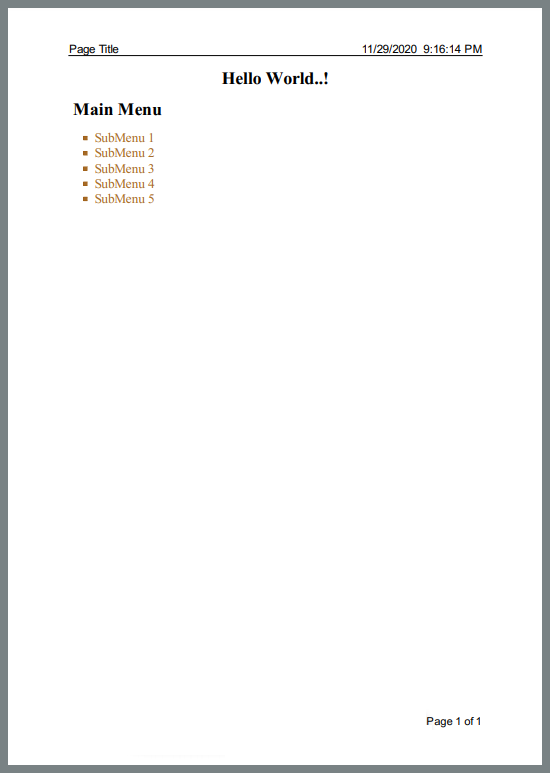
IronPDFを使用してヘッダーとフッターを操作する場合、PDF ファイルを作成するときに直感的な言語が使用されます。 今、例ではPrizmDocビューアーがヘッダーとフッターをどのように処理するかを示しています。
PrizmDocビューアーはどのようにPDFのヘッダーとフッターを処理しますか?
HeaderFooterOptionsクラスを提供しています。
*行はヘッダーとフッターの行を指定します。各行には次のプロパティがあります。
- 左 ヘッダーまたはフッター行の左側にテキストを印刷します。
中央 ヘッダーまたはフッター行の中央にテキストを印刷します
右はヘッダーまたはフッター行の右側にテキストを印刷します
FontFamilyはヘッダーまたはフッターテキストのフォントファミリーを指定します。FontSizeはヘッダーまたはフッターテキストのフォントサイズを指定します。- ヘッダーまたはフッターのテキストの色を指定する色
続きを読む PrizmDocサーバーを使用してPDFページのヘッダーとフッターを設定する方法について。
この例では、上記のプロパティを使用してユースケースを実装する方法を示しています。
using System.Threading.Tasks;
using System.Collections.Generic;
using Accusoft.PrizmDocServer;
using Accusoft.PrizmDocServer.Conversion;

static void Main(string[] args)
{
    SetHeaderFooter().GetAwaiter().GetResult();
}

private static async Task SetHeaderFooter()
{
    // Instantiate PrizmDocServerClient object with Header and footer properties
    var prizmDocServer = new PrizmDocServerClient("___PROTECTED_URL_130___", "Your-API-KEY");

    ConversionResult result = await prizmDocServer.ConvertToPdfAsync(
        "myWebPage.html",
        header: new HeaderFooterOptions
        {
            Lines = new List<HeaderFooterLine>
            {
                new HeaderFooterLine { Left = "Page Title", Right = DateTime.Now.ToString() }
            },
        },
        footer: new HeaderFooterOptions
        {
            Lines = new List<HeaderFooterLine>
            {
                new HeaderFooterLine { Right = "Page {{pageNumber}} of {{pageCount}}" },
            },
        });

    // Save to the target location
    await result.RemoteWorkFile.SaveAsync("sample.pdf");
}
using System.Threading.Tasks;
using System.Collections.Generic;
using Accusoft.PrizmDocServer;
using Accusoft.PrizmDocServer.Conversion;
static void Main(string[] args)
{
SetHeaderFooter().GetAwaiter().GetResult();
}
private static async Task SetHeaderFooter()
{
// Instantiate PrizmDocServerClient object with Header and footer properties
var prizmDocServer = new PrizmDocServerClient("___PROTECTED_URL_130___", "Your-API-KEY");
ConversionResult result = await prizmDocServer.ConvertToPdfAsync(
"myWebPage.html",
header: new HeaderFooterOptions
{
Lines = new List<HeaderFooterLine>
{
new HeaderFooterLine { Left = "Page Title", Right = DateTime.Now.ToString() }
},
},
footer: new HeaderFooterOptions
{
Lines = new List<HeaderFooterLine>
{
new HeaderFooterLine { Right = "Page {{pageNumber}} of {{pageCount}}" },
},
});
// Save to the target location
await result.RemoteWorkFile.SaveAsync("sample.pdf");
}Imports System.Threading.Tasks
Imports System.Collections.Generic
Imports Accusoft.PrizmDocServer
Imports Accusoft.PrizmDocServer.Conversion
Module Program
Sub Main(args As String())
SetHeaderFooter().GetAwaiter().GetResult()
End Sub
Private Async Function SetHeaderFooter() As Task
' Instantiate PrizmDocServerClient object with Header and footer properties
Dim prizmDocServer = New PrizmDocServerClient("___PROTECTED_URL_130___", "Your-API-KEY")
Dim result As ConversionResult = Await prizmDocServer.ConvertToPdfAsync(
"myWebPage.html",
header:=New HeaderFooterOptions With {
.Lines = New List(Of HeaderFooterLine) From {
New HeaderFooterLine With {.Left = "Page Title", .Right = DateTime.Now.ToString()}
}
},
footer:=New HeaderFooterOptions With {
.Lines = New List(Of HeaderFooterLine) From {
New HeaderFooterLine With {.Right = "Page {{pageNumber}} of {{pageCount}}"}
}
})
' Save to the target location
Await result.RemoteWorkFile.SaveAsync("sample.pdf")
End Function
End Module出力:
上記のコードによって新しく作成された PDF ファイルのスクリーンショット:
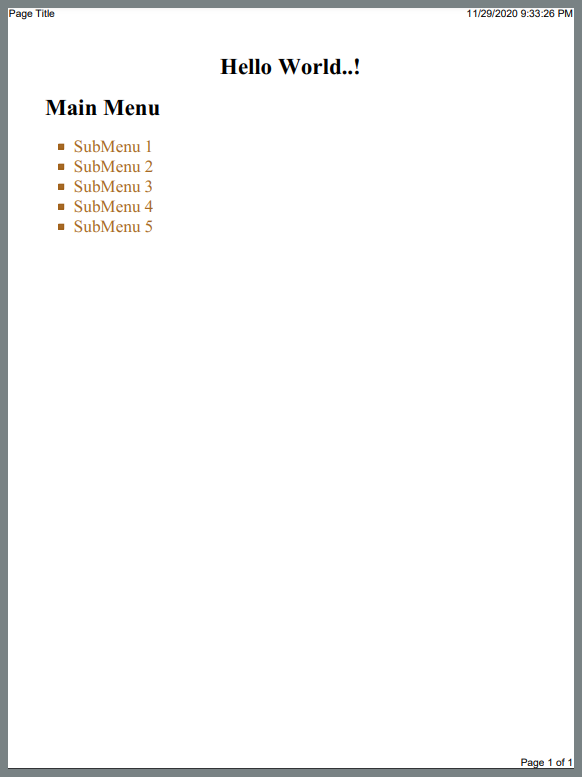
ヘッダーとフッターに対してより柔軟性を提供するライブラリはどれですか?
IronPDFは、PrizmDocビューアーと比較して、簡単なプログラミング構造でヘッダーとフッターのプロパティを設定するためのより多くの機能を提供します。 IronPDFによって生成されたPDFファイルは、PrizmDocビューアーによって生成されたファイルよりも読みやすく魅力的です。また、IronPDFは、改善された文書制御のためにページ番号とページ分割をサポートしています。
IronPDF対PrizmDocビューアーを使用してPDFページを画像に変換する方法
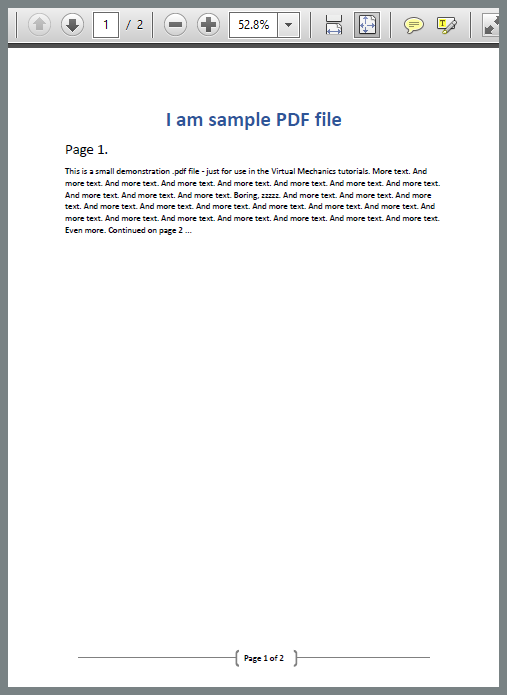
この比較のために、Sample_PDF.pdfという名前の2ページの単純なPDFファイルがあると仮定します。
| ページ1 | ページ2 |
|---|---|
|
|
タスクは各ページのイメージを作成することです。 まず、この例ではIronPDFを使用してこれを実行する方法を確認します。
IronPDF はどのようにして PDF ページを画像に変換するのでしょうか?
using IronPdf;

static void Main(string[] args)
{
    // Specify file to be converted
    var pdf = PdfDocument.FromFile("Sample_PDF.pdf");
    // Save images to the target location
    pdf.RasterizeToImageFiles("image_*.png");
}
using IronPdf;
static void Main(string[] args)
{
// Specify file to be converted
var pdf = PdfDocument.FromFile("Sample_PDF.pdf");
// Save images to the target location
pdf.RasterizeToImageFiles("image_*.png");
}Imports IronPdf
Shared Sub Main(ByVal args() As String)
' Specify file to be converted
Dim pdf = PdfDocument.FromFile("Sample_PDF.pdf")
' Save images to the target location
pdf.RasterizeToImageFiles("image_*.png")
End SubIronPDF は、メモリ ストリームへの画像の保存や、JPEG、TIFF などのさまざまな画像形式の保存もサポートしています。
出力:
上記のコードは、次の2つの.png画像を作成します。
| ページ1イメージ | ページ2 イメージ |
|---|---|
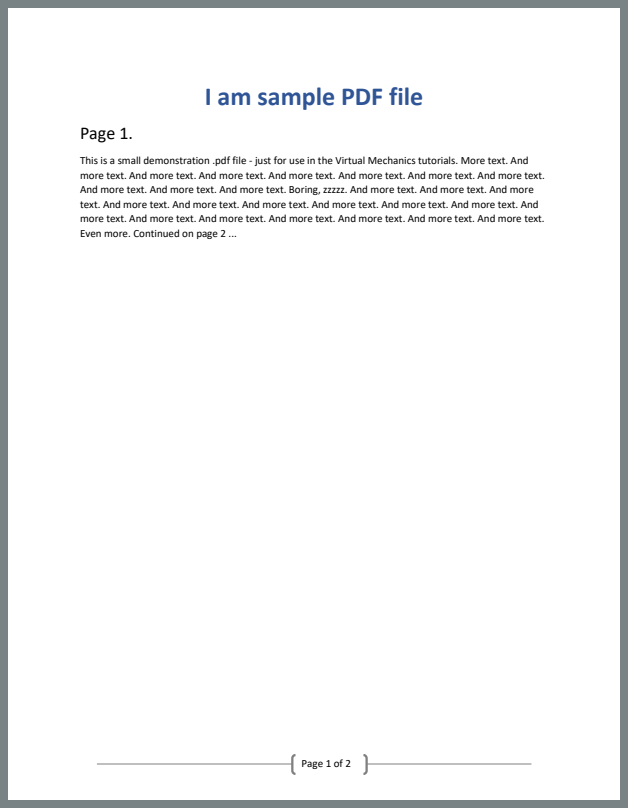
|

|
IronPDFを使用して PDF ページの画像を作成するのは簡単です。 さて、同じタスクをPrizmDocビューアーを使用して実行します。
PrizmDocビューアーはどのようにPDFページを画像に変換しますか?
using System.Linq;
using System.Collections.Generic;
using System.Threading.Tasks;
using Accusoft.PrizmDocServer;
using Accusoft.PrizmDocServer.Conversion;

static void Main(string[] args)
{
    PdfToImage().GetAwaiter().GetResult();
}

private static async Task PdfToImage()
{
    // Instantiate PrizmDocServerClient object
    var prizmDocServer = new PrizmDocServerClient("___PROTECTED_URL_131___", "Your-API-KEY");
    // Convert PDF file to images
    IEnumerable<ConversionResult> results = await prizmDocServer.ConvertAsync("Sample_PDF.pdf", DestinationFileFormat.Png);

    // Save each image.
    for (int i = 0; i < results.Count(); i++)
    {
        await results.ElementAt(i).RemoteWorkFile.SaveAsync($"page-{i + 1}.png");
    }
}
using System.Linq;
using System.Collections.Generic;
using System.Threading.Tasks;
using Accusoft.PrizmDocServer;
using Accusoft.PrizmDocServer.Conversion;
static void Main(string[] args)
{
PdfToImage().GetAwaiter().GetResult();
}
private static async Task PdfToImage()
{
// Instantiate PrizmDocServerClient object
var prizmDocServer = new PrizmDocServerClient("___PROTECTED_URL_131___", "Your-API-KEY");
// Convert PDF file to images
IEnumerable<ConversionResult> results = await prizmDocServer.ConvertAsync("Sample_PDF.pdf", DestinationFileFormat.Png);
// Save each image.
for (int i = 0; i < results.Count(); i++)
{
await results.ElementAt(i).RemoteWorkFile.SaveAsync($"page-{i + 1}.png");
}
}Imports System.Linq
Imports System.Collections.Generic
Imports System.Threading.Tasks
Imports Accusoft.PrizmDocServer
Imports Accusoft.PrizmDocServer.Conversion
Module Program
Sub Main(args As String())
PdfToImage().GetAwaiter().GetResult()
End Sub
Private Async Function PdfToImage() As Task
' Instantiate PrizmDocServerClient object
Dim prizmDocServer = New PrizmDocServerClient("___PROTECTED_URL_131___", "Your-API-KEY")
' Convert PDF file to images
Dim results As IEnumerable(Of ConversionResult) = Await prizmDocServer.ConvertAsync("Sample_PDF.pdf", DestinationFileFormat.Png)
' Save each image.
For i As Integer = 0 To results.Count() - 1
Await results.ElementAt(i).RemoteWorkFile.SaveAsync($"page-{i + 1}.png")
Next
End Function
End Module出力:
上記のコードは次の2つの.png画像も作成します。
| ページ1 | ページ2 |
|---|---|
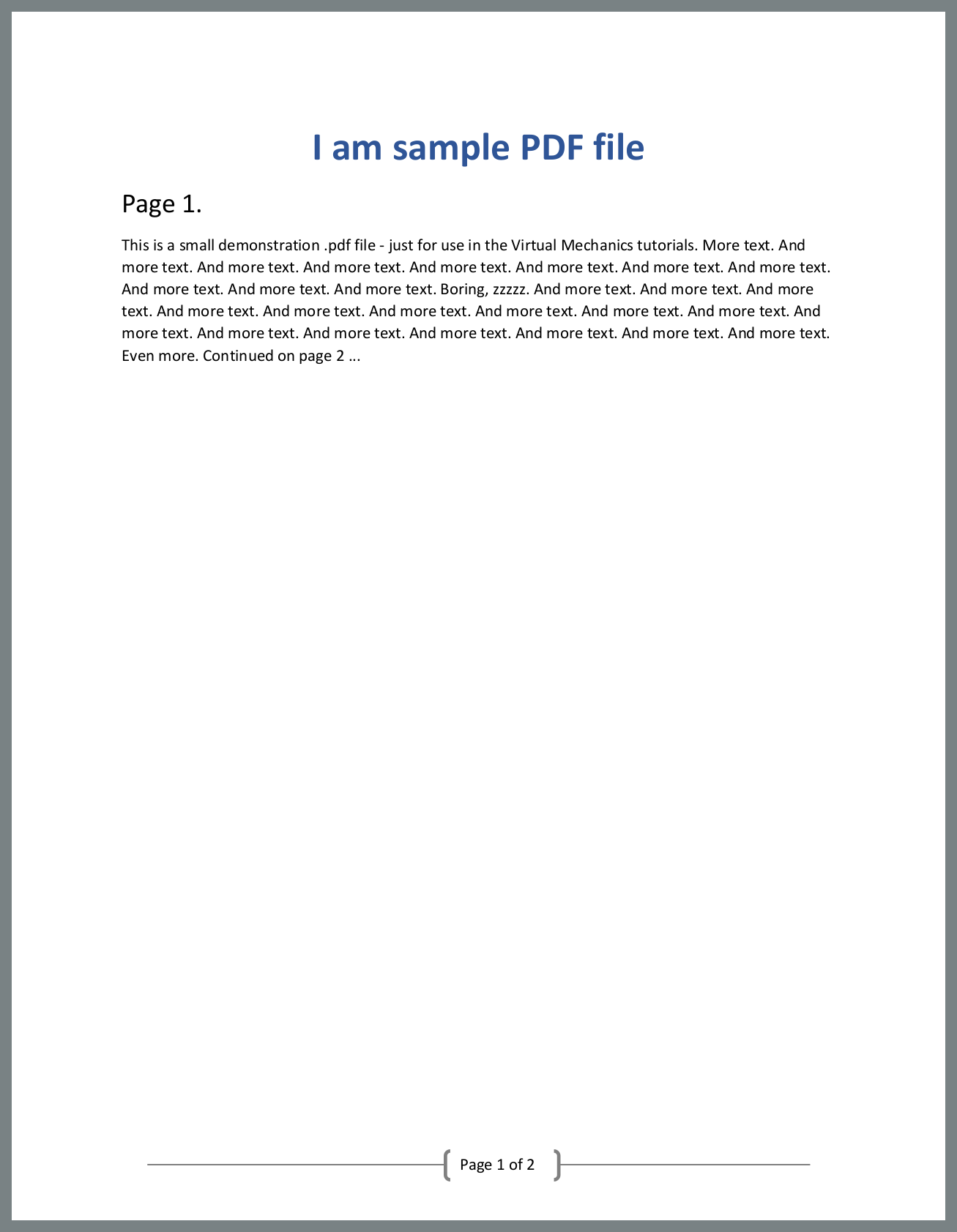
|

|
PDF から画像への変換を簡単にするライブラリはどれですか?
PrizmDocビューアーと比較して、IronPDFを使用すると、ページを反復することなく最小限の行数で、各ページの画像を簡単に作成することができます。
Bootstrap 5 データ テーブルをIronPDFで使用できますか?
IronPDF のChrome V8 レンダリング エンジンは、 Bootstrap 5 データ テーブルを強力にサポートし、開発者が複雑な表形式レイアウトを備えたプロフェッショナルなPDF レポートを生成できるようにします。 この例は、Gradientヘッダー、ステータスバッジ、ページネーション制御、および要約指標を実演しています - これらはPrizmDocのような従来のPDFビューアに対するIronPDFの利点を強調しています。 IronPDF は、フレックスボックス レイアウト、グラデーション、レスポンシブ デザインなどの最新の CSS 機能を完全にサポートしています。
using IronPdf;

var renderer = new ChromePdfRenderer();

string dataTableReport = @"
<!DOCTYPE html>
<html>
<head>
    <meta charset='utf-8'>
    <link href='___PROTECTED_URL_132___ rel='stylesheet'>
    <style>
        .table-header {
            background: linear-gradient(135deg, #667eea 0%, #764ba2 100%);
            color: white;
            padding: 30px;
            border-radius: 10px 10px 0 0;
        }
        .table-container {
            background: white;
            border-radius: 0 0 10px 10px;
            box-shadow: 0 10px 30px rgba(0,0,0,0.1);
            overflow: hidden;
        }
        .table th {
            background: #f8f9fa;
            font-weight: 600;
            text-transform: uppercase;
            font-size: 0.85rem;
            letter-spacing: 0.5px;
        }
        .status-badge {
            padding: 0.35em 0.65em;
            border-radius: 0.25rem;
            font-weight: 600;
            font-size: 0.75rem;
        }
        .trend-positive { color: #198754; font-weight: 700; }
        .trend-negative { color: #dc3545; font-weight: 700; }
        @media print {
            .table-container { page-break-inside: avoid; }
        }
    </style>
</head>
<body class='bg-light'>
    <div class='container py-5'>
        <div class='table-container'>
            <div class='table-header'>
                <div class='row align-items-center'>
                    <div class='col-md-8'>
                        <h2 class='mb-2'>Sales Performance Report</h2>
                        <p class='mb-0 opacity-75'>Q4 2024 Regional Analysis</p>
                    </div>
                    <div class='col-md-4 text-end'>
                        <div class='btn-group btn-group-sm'>
                            <button class='btn btn-light'>Export</button>
                            <button class='btn btn-light'>Filter</button>
                            <button class='btn btn-light'>Sort</button>
                        </div>
                    </div>
                </div>
            </div>

            <div class='p-4'>
                <div class='row mb-3'>
                    <div class='col-md-4'>
                        <input type='text' class='form-control form-control-sm' placeholder='Search regions...'>
                    </div>
                    <div class='col-md-8 text-end'>
                        <span class='text-muted small'>Showing 1-10 of 48 results</span>
                    </div>
                </div>

                <div class='table-responsive'>
                    <table class='table table-hover align-middle'>
                        <thead>
                            <tr>
                                <th>Region</th>
                                <th>Revenue</th>
                                <th>Units Sold</th>
                                <th>Growth</th>
                                <th>Status</th>
                                <th>Action</th>
                            </tr>
                        </thead>
                        <tbody>
                            <tr>
                                <td>
                                    <strong>North America</strong><br>
                                    <small class='text-muted'>USA, Canada, Mexico</small>
                                </td>
                                <td>$4,280,000</td>
                                <td>12,450</td>
                                <td><span class='trend-positive'>↑ 18.5%</span></td>
                                <td><span class='status-badge bg-success text-white'>Exceeding</span></td>
                                <td><button class='btn btn-sm btn-outline-primary'>Details</button></td>
                            </tr>
                            <tr>
                                <td>
                                    <strong>Europe</strong><br>
                                    <small class='text-muted'>EU, UK, Switzerland</small>
                                </td>
                                <td>$3,650,000</td>
                                <td>10,890</td>
                                <td><span class='trend-positive'>↑ 12.3%</span></td>
                                <td><span class='status-badge bg-success text-white'>On Track</span></td>
                                <td><button class='btn btn-sm btn-outline-primary'>Details</button></td>
                            </tr>
                            <tr>
                                <td>
                                    <strong>Asia Pacific</strong><br>
                                    <small class='text-muted'>Japan, Australia, Singapore</small>
                                </td>
                                <td>$2,940,000</td>
                                <td>8,320</td>
                                <td><span class='trend-positive'>↑ 24.7%</span></td>
                                <td><span class='status-badge bg-primary text-white'>Growing</span></td>
                                <td><button class='btn btn-sm btn-outline-primary'>Details</button></td>
                            </tr>
                            <tr>
                                <td>
                                    <strong>Latin America</strong><br>
                                    <small class='text-muted'>Brazil, Argentina, Chile</small>
                                </td>
                                <td>$1,580,000</td>
                                <td>4,670</td>
                                <td><span class='trend-positive'>↑ 8.9%</span></td>
                                <td><span class='status-badge bg-info text-white'>Stable</span></td>
                                <td><button class='btn btn-sm btn-outline-primary'>Details</button></td>
                            </tr>
                            <tr>
                                <td>
                                    <strong>Middle East</strong><br>
                                    <small class='text-muted'>UAE, Saudi Arabia, Israel</small>
                                </td>
                                <td>$980,000</td>
                                <td>2,890</td>
                                <td><span class='trend-negative'>↓ 3.2%</span></td>
                                <td><span class='status-badge bg-warning text-dark'>Review</span></td>
                                <td><button class='btn btn-sm btn-outline-primary'>Details</button></td>
                            </tr>
                        </tbody>
                        <tfoot class='table-light'>
                            <tr>
                                <td><strong>Total</strong></td>
                                <td><strong>$13,430,000</strong></td>
                                <td><strong>39,220</strong></td>
                                <td><strong class='trend-positive'>↑ 14.8%</strong></td>
                                <td colspan='2'></td>
                            </tr>
                        </tfoot>
                    </table>
                </div>

                <div class='d-flex justify-content-between align-items-center mt-4'>
                    <div>
                        <select class='form-select form-select-sm' style='width: auto; display: inline-block;'>
                            <option>10 per page</option>
                            <option>25 per page</option>
                            <option>50 per page</option>
                        </select>
                    </div>
                    <nav>
                        <ul class='pagination pagination-sm mb-0'>
                            <li class='page-item disabled'><a class='page-link' href='#'>Previous</a></li>
                            <li class='page-item active'><a class='page-link' href='#'>1</a></li>
                            <li class='page-item'><a class='page-link' href='#'>2</a></li>
                            <li class='page-item'><a class='page-link' href='#'>3</a></li>
                            <li class='page-item'><a class='page-link' href='#'>Next</a></li>
                        </ul>
                    </nav>
                </div>
            </div>
        </div>

        <div class='row g-3 mt-4'>
            <div class='col-md-3'>
                <div class='card text-center'>
                    <div class='card-body'>
                        <h3 class='text-primary mb-1'>$13.4M</h3>
                        <small class='text-muted'>Total Revenue</small>
                    </div>
                </div>
            </div>
            <div class='col-md-3'>
                <div class='card text-center'>
                    <div class='card-body'>
                        <h3 class='text-success mb-1'>39,220</h3>
                        <small class='text-muted'>Units Sold</small>
                    </div>
                </div>
            </div>
            <div class='col-md-3'>
                <div class='card text-center'>
                    <div class='card-body'>
                        <h3 class='text-info mb-1'>14.8%</h3>
                        <small class='text-muted'>Growth Rate</small>
                    </div>
                </div>
            </div>
            <div class='col-md-3'>
                <div class='card text-center'>
                    <div class='card-body'>
                        <h3 class='text-warning mb-1'>5</h3>
                        <small class='text-muted'>Active Regions</small>
                    </div>
                </div>
            </div>
        </div>
    </div>
</body>
</html>";

var pdf = renderer.RenderHtmlAsPdf(dataTableReport);
pdf.SaveAs("data-table-report.pdf");
using IronPdf;
var renderer = new ChromePdfRenderer();
string dataTableReport = @"
<!DOCTYPE html>
<html>
<head>
<meta charset='utf-8'>
<link href='___PROTECTED_URL_132___ rel='stylesheet'>
<style>
.table-header {
background: linear-gradient(135deg, #667eea 0%, #764ba2 100%);
color: white;
padding: 30px;
border-radius: 10px 10px 0 0;
}
.table-container {
background: white;
border-radius: 0 0 10px 10px;
box-shadow: 0 10px 30px rgba(0,0,0,0.1);
overflow: hidden;
}
.table th {
background: #f8f9fa;
font-weight: 600;
text-transform: uppercase;
font-size: 0.85rem;
letter-spacing: 0.5px;
}
.status-badge {
padding: 0.35em 0.65em;
border-radius: 0.25rem;
font-weight: 600;
font-size: 0.75rem;
}
.trend-positive { color: #198754; font-weight: 700; }
.trend-negative { color: #dc3545; font-weight: 700; }
@media print {
.table-container { page-break-inside: avoid; }
}
</style>
</head>
<body class='bg-light'>
<div class='container py-5'>
<div class='table-container'>
<div class='table-header'>
<div class='row align-items-center'>
<div class='col-md-8'>
<h2 class='mb-2'>Sales Performance Report</h2>
<p class='mb-0 opacity-75'>Q4 2024 Regional Analysis</p>
</div>
<div class='col-md-4 text-end'>
<div class='btn-group btn-group-sm'>
<button class='btn btn-light'>Export</button>
<button class='btn btn-light'>Filter</button>
<button class='btn btn-light'>Sort</button>
</div>
</div>
</div>
</div>
<div class='p-4'>
<div class='row mb-3'>
<div class='col-md-4'>
<input type='text' class='form-control form-control-sm' placeholder='Search regions...'>
</div>
<div class='col-md-8 text-end'>
<span class='text-muted small'>Showing 1-10 of 48 results</span>
</div>
</div>
<div class='table-responsive'>
<table class='table table-hover align-middle'>
<thead>
<tr>
<th>Region</th>
<th>Revenue</th>
<th>Units Sold</th>
<th>Growth</th>
<th>Status</th>
<th>Action</th>
</tr>
</thead>
<tbody>
<tr>
<td>
<strong>North America</strong><br>
<small class='text-muted'>USA, Canada, Mexico</small>
</td>
<td>$4,280,000</td>
<td>12,450</td>
<td><span class='trend-positive'>↑ 18.5%</span></td>
<td><span class='status-badge bg-success text-white'>Exceeding</span></td>
<td><button class='btn btn-sm btn-outline-primary'>Details</button></td>
</tr>
<tr>
<td>
<strong>Europe</strong><br>
<small class='text-muted'>EU, UK, Switzerland</small>
</td>
<td>$3,650,000</td>
<td>10,890</td>
<td><span class='trend-positive'>↑ 12.3%</span></td>
<td><span class='status-badge bg-success text-white'>On Track</span></td>
<td><button class='btn btn-sm btn-outline-primary'>Details</button></td>
</tr>
<tr>
<td>
<strong>Asia Pacific</strong><br>
<small class='text-muted'>Japan, Australia, Singapore</small>
</td>
<td>$2,940,000</td>
<td>8,320</td>
<td><span class='trend-positive'>↑ 24.7%</span></td>
<td><span class='status-badge bg-primary text-white'>Growing</span></td>
<td><button class='btn btn-sm btn-outline-primary'>Details</button></td>
</tr>
<tr>
<td>
<strong>Latin America</strong><br>
<small class='text-muted'>Brazil, Argentina, Chile</small>
</td>
<td>$1,580,000</td>
<td>4,670</td>
<td><span class='trend-positive'>↑ 8.9%</span></td>
<td><span class='status-badge bg-info text-white'>Stable</span></td>
<td><button class='btn btn-sm btn-outline-primary'>Details</button></td>
</tr>
<tr>
<td>
<strong>Middle East</strong><br>
<small class='text-muted'>UAE, Saudi Arabia, Israel</small>
</td>
<td>$980,000</td>
<td>2,890</td>
<td><span class='trend-negative'>↓ 3.2%</span></td>
<td><span class='status-badge bg-warning text-dark'>Review</span></td>
<td><button class='btn btn-sm btn-outline-primary'>Details</button></td>
</tr>
</tbody>
<tfoot class='table-light'>
<tr>
<td><strong>Total</strong></td>
<td><strong>$13,430,000</strong></td>
<td><strong>39,220</strong></td>
<td><strong class='trend-positive'>↑ 14.8%</strong></td>
<td colspan='2'></td>
</tr>
</tfoot>
</table>
</div>
<div class='d-flex justify-content-between align-items-center mt-4'>
<div>
<select class='form-select form-select-sm' style='width: auto; display: inline-block;'>
<option>10 per page</option>
<option>25 per page</option>
<option>50 per page</option>
</select>
</div>
<nav>
<ul class='pagination pagination-sm mb-0'>
<li class='page-item disabled'><a class='page-link' href='#'>Previous</a></li>
<li class='page-item active'><a class='page-link' href='#'>1</a></li>
<li class='page-item'><a class='page-link' href='#'>2</a></li>
<li class='page-item'><a class='page-link' href='#'>3</a></li>
<li class='page-item'><a class='page-link' href='#'>Next</a></li>
</ul>
</nav>
</div>
</div>
</div>
<div class='row g-3 mt-4'>
<div class='col-md-3'>
<div class='card text-center'>
<div class='card-body'>
<h3 class='text-primary mb-1'>$13.4M</h3>
<small class='text-muted'>Total Revenue</small>
</div>
</div>
</div>
<div class='col-md-3'>
<div class='card text-center'>
<div class='card-body'>
<h3 class='text-success mb-1'>39,220</h3>
<small class='text-muted'>Units Sold</small>
</div>
</div>
</div>
<div class='col-md-3'>
<div class='card text-center'>
<div class='card-body'>
<h3 class='text-info mb-1'>14.8%</h3>
<small class='text-muted'>Growth Rate</small>
</div>
</div>
</div>
<div class='col-md-3'>
<div class='card text-center'>
<div class='card-body'>
<h3 class='text-warning mb-1'>5</h3>
<small class='text-muted'>Active Regions</small>
</div>
</div>
</div>
</div>
</div>
</body>
</html>";
var pdf = renderer.RenderHtmlAsPdf(dataTableReport);
pdf.SaveAs("data-table-report.pdf");Imports IronPdf
Dim renderer = New ChromePdfRenderer()
Dim dataTableReport As String = "
<!DOCTYPE html>
<html>
<head>
<meta charset='utf-8'>
<link href='___PROTECTED_URL_132___ rel='stylesheet'>
<style>
.table-header {
background: linear-gradient(135deg, #667eea 0%, #764ba2 100%);
color: white;
padding: 30px;
border-radius: 10px 10px 0 0;
}
.table-container {
background: white;
border-radius: 0 0 10px 10px;
box-shadow: 0 10px 30px rgba(0,0,0,0.1);
overflow: hidden;
}
.table th {
background: #f8f9fa;
font-weight: 600;
text-transform: uppercase;
font-size: 0.85rem;
letter-spacing: 0.5px;
}
.status-badge {
padding: 0.35em 0.65em;
border-radius: 0.25rem;
font-weight: 600;
font-size: 0.75rem;
}
.trend-positive { color: #198754; font-weight: 700; }
.trend-negative { color: #dc3545; font-weight: 700; }
@media print {
.table-container { page-break-inside: avoid; }
}
</style>
</head>
<body class='bg-light'>
<div class='container py-5'>
<div class='table-container'>
<div class='table-header'>
<div class='row align-items-center'>
<div class='col-md-8'>
<h2 class='mb-2'>Sales Performance Report</h2>
<p class='mb-0 opacity-75'>Q4 2024 Regional Analysis</p>
</div>
<div class='col-md-4 text-end'>
<div class='btn-group btn-group-sm'>
<button class='btn btn-light'>Export</button>
<button class='btn btn-light'>Filter</button>
<button class='btn btn-light'>Sort</button>
</div>
</div>
</div>
</div>
<div class='p-4'>
<div class='row mb-3'>
<div class='col-md-4'>
<input type='text' class='form-control form-control-sm' placeholder='Search regions...'>
</div>
<div class='col-md-8 text-end'>
<span class='text-muted small'>Showing 1-10 of 48 results</span>
</div>
</div>
<div class='table-responsive'>
<table class='table table-hover align-middle'>
<thead>
<tr>
<th>Region</th>
<th>Revenue</th>
<th>Units Sold</th>
<th>Growth</th>
<th>Status</th>
<th>Action</th>
</tr>
</thead>
<tbody>
<tr>
<td>
<strong>North America</strong><br>
<small class='text-muted'>USA, Canada, Mexico</small>
</td>
<td>$4,280,000</td>
<td>12,450</td>
<td><span class='trend-positive'>↑ 18.5%</span></td>
<td><span class='status-badge bg-success text-white'>Exceeding</span></td>
<td><button class='btn btn-sm btn-outline-primary'>Details</button></td>
</tr>
<tr>
<td>
<strong>Europe</strong><br>
<small class='text-muted'>EU, UK, Switzerland</small>
</td>
<td>$3,650,000</td>
<td>10,890</td>
<td><span class='trend-positive'>↑ 12.3%</span></td>
<td><span class='status-badge bg-success text-white'>On Track</span></td>
<td><button class='btn btn-sm btn-outline-primary'>Details</button></td>
</tr>
<tr>
<td>
<strong>Asia Pacific</strong><br>
<small class='text-muted'>Japan, Australia, Singapore</small>
</td>
<td>$2,940,000</td>
<td>8,320</td>
<td><span class='trend-positive'>↑ 24.7%</span></td>
<td><span class='status-badge bg-primary text-white'>Growing</span></td>
<td><button class='btn btn-sm btn-outline-primary'>Details</button></td>
</tr>
<tr>
<td>
<strong>Latin America</strong><br>
<small class='text-muted'>Brazil, Argentina, Chile</small>
</td>
<td>$1,580,000</td>
<td>4,670</td>
<td><span class='trend-positive'>↑ 8.9%</span></td>
<td><span class='status-badge bg-info text-white'>Stable</span></td>
<td><button class='btn btn-sm btn-outline-primary'>Details</button></td>
</tr>
<tr>
<td>
<strong>Middle East</strong><br>
<small class='text-muted'>UAE, Saudi Arabia, Israel</small>
</td>
<td>$980,000</td>
<td>2,890</td>
<td><span class='trend-negative'>↓ 3.2%</span></td>
<td><span class='status-badge bg-warning text-dark'>Review</span></td>
<td><button class='btn btn-sm btn-outline-primary'>Details</button></td>
</tr>
</tbody>
<tfoot class='table-light'>
<tr>
<td><strong>Total</strong></td>
<td><strong>$13,430,000</strong></td>
<td><strong>39,220</strong></td>
<td><strong class='trend-positive'>↑ 14.8%</strong></td>
<td colspan='2'></td>
</tr>
</tfoot>
</table>
</div>
<div class='d-flex justify-content-between align-items-center mt-4'>
<div>
<select class='form-select form-select-sm' style='width: auto; display: inline-block;'>
<option>10 per page</option>
<option>25 per page</option>
<option>50 per page</option>
</select>
</div>
<nav>
<ul class='pagination pagination-sm mb-0'>
<li class='page-item disabled'><a class='page-link' href='#'>Previous</a></li>
<li class='page-item active'><a class='page-link' href='#'>1</a></li>
<li class='page-item'><a class='page-link' href='#'>2</a></li>
<li class='page-item'><a class='page-link' href='#'>3</a></li>
<li class='page-item'><a class='page-link' href='#'>Next</a></li>
</ul>
</nav>
</div>
</div>
</div>
<div class='row g-3 mt-4'>
<div class='col-md-3'>
<div class='card text-center'>
<div class='card-body'>
<h3 class='text-primary mb-1'>$13.4M</h3>
<small class='text-muted'>Total Revenue</small>
</div>
</div>
</div>
<div class='col-md-3'>
<div class='card text-center'>
<div class='card-body'>
<h3 class='text-success mb-1'>39,220</h3>
<small class='text-muted'>Units Sold</small>
</div>
</div>
</div>
<div class='col-md-3'>
<div class='card text-center'>
<div class='card-body'>
<h3 class='text-info mb-1'>14.8%</h3>
<small class='text-muted'>Growth Rate</small>
</div>
</div>
</div>
<div class='col-md-3'>
<div class='card text-center'>
<div class='card-body'>
<h3 class='text-warning mb-1'>5</h3>
<small class='text-muted'>Active Regions</small>
</div>
</div>
</div>
</div>
</div>
</body>
</html>"
Dim pdf = renderer.RenderHtmlAsPdf(dataTableReport)
pdf.SaveAs("data-table-report.pdf")このコードは、グラデーションヘッダー、レスポンシブテーブル、ステータスバッジ、要約指標を備えた洗練されたデータテーブルレポートを生成します。 IronPDF の Chrome レンダリング エンジンは、テーブルのホバー効果、バッジの色、ページ区切りのコントロールなど、すべての Bootstrap スタイルを保持します。これは、従来の PDF ビューアを超える機能です。 このエンジンは、動的コンテンツ、カスタム フォント、 UTF-8 国際文字のJavaScriptレンダリングもサポートしています。
PrizmDocビューアに対する主な利点:
- 変換なしでの直接HTML表のレンダリング
- フルBootstrapコンポーネントのサポート
- グラデーション背景と最新のCSS
- 適切なページネーションを持つレスポンシブテーブルレイアウト -複雑なJavaScriptチャートのサポート -印刷メディアのCSS処理
Bootstrap PDF 生成の詳細については、完全なレンダリング ドキュメントを参照してください。 開発者はAngular to PDF変換およびその他のJavaScriptフレームワークサポートも探索できます。## IronPDFとPrizmDocビューアとの間のライセンスコストはどのように比較されますか?
両コンポーネントの技術構造と利用可能な機能を確認した後、ライセンスの価格を概説します。 開発者は予算の制約内で要件を満たすことを目指しているため、これは非常に重要です。
IronPDF のライセンス オプションは何ですか?
IronPDFライセンスは、シングル開発者用の$999から始まります。 IronPDF は、開発ライセンス、展開ライセンス、継続的なサポートと更新のための拡張オプションなど、柔軟なライセンス オプションを提供します。
複数のクライアントを対象とする企業や代理店の開発者に対しては、IronPDFは、チームサイズとプロジェクト数に応じて調整可能な段階的ライセンスを提供しています。 IronPDF は、ニーズの変化に応じてライセンスのアップグレード パスを提供します。
すべてのIronPDFライセンスパッケージには、1年のサポートと更新が含まれています。 続きを読む利用可能なライセンスパッケージ、レベル、および価格について。 開発者は、Web.configや環境変数など、さまざまな方法でライセンス キーを適用することもできます。
PrizmDocビューアのライセンスオプションはどれですか?
セルフホスト型`PrizmDoc`のコストはいくらですか?
セルフホストされているPrizmDocサーバーは年間ライセンスの対象です。 Accusoftに連絡して、PrizmDocビューアの最新の価格および利用可能なパッケージの情報を得てください。
クラウドベースの`PrizmDoc`料金はいくらですか?
このライセンスは、PrizmDocビューアのクラウドベースのサービスをカバーしており、トランザクション数に基づいてスケールされます。
用語集:
PrizmDocビューアーサーバーにリクエストを送信し、出力(結果文書)を受信することを指します。
Prepaid Bucketsは、一度支払いを行い、期限切れにならないトランザクションを受け取ることを意味します。
クラウド価格は使用量に基づき、トランザクションボリュームと共にスケールされます。 Accusoftに連絡して、最新のクラウド価格およびレートの情報を得てください。
チュートリアル クイックアクセス

C#IronPDFクイックスタート・ハンドブックを入手する
.NET用 PDF の開発を簡素化する無料の PDF リソース ガイドです。プロジェクトで C# および VB .NETで PDF を操作、編集、生成、保存するための一般的な機能と例のチュートリアルが含まれています。
ガイドのダウンロードIronPDF APIリファレンスを見る
IronPDF のすべての機能、クラス、メソッド フィールド、名前空間、列挙型の詳細を含む、 IronPDF C# ライブラリの API リファレンスを調べます。
APIリファレンスを見る
PrizmDocビューアは、それぞれの所有者の登録商標です。 このサイトは、AccusoftのPrizmDocビューアと提携、承認、または支援していません。 すべての製品名、ロゴ、およびブランドは各所有者の所有物です。 比較は情報提供のみを目的としており、執筆時点で公開されている情報を反映しています。よくある質問
C# で HTML を PDF に変換するにはどうすればいいですか?
IronPDF の RenderHtmlAsPdf メソッドを使用して、HTML 文字列を PDF に変換できます。RenderHtmlFileAsPdf を使用して HTML ファイルを PDF に変換することもできます。
IronPDF を使用する利点は、PrizmDoc Viewer と比較してどのようなものですか?
IronPDF は、オフライン作業をサポートし、非同期プログラミングを必要としないシンプルなローカル PDF レンダリング ソリューションを提供します。対照的に、PrizmDoc Viewer は REST API を通じて動作し、リモートサーバーとのやり取りにインターネット接続を必要とします。
PDF ライブラリを使用して複数の PDF ドキュメントをマージできますか?
はい、IronPDF を使用して、MergePdf メソッドを使用して複数の PDF をマージし、ドキュメントをシームレスに結合できます。
IronPDF は、PDF から画像への変換をどのように処理しますか?
IronPDF は、組み込みメソッドを使用して PDF ページを画像に簡単に変換でき、他のソフトウェアと比較してスムーズなアプローチを提供します。
IronPDF のヘッダーとフッターのカスタマイズ オプションは何ですか?
IronPDF は、シンプルなプログラミング構造でヘッダーとフッターのプロパティを設定するための幅広い機能を提供し、ドキュメントを簡単にカスタマイズできます。
IronPDF はオフライン PDF 処理に適していますか?
はい、IronPDFはオフラインPDF処理をサポートしており、インターネット接続なしで作業できます。
IronPDF のライセンスの価格構造はどのようになっていますか?
IronPDF \u306e\u30e9\u30a4\u30bb\u30f3\u30b9\u306f\u30011 \u4eba\u306e\u958b\u767a\u8005\u306b\u3088\u308b\u5358\u4e00\u30d7\u30ed\u30b8\u30a7\u30af\u30c8\u3067 $699 \u304b\u3089\u59cb\u307e\u308a\u3001\u4f01\u696d\u3084 SaaS \u30b5\u30fc\u30d3\u30b9\u5411\u3051\u306b\u30b9\u30b1\u30fc\u30e9\u30d6\u30eb\u306a\u30aa\u30d7\u30b7\u30e7\u30f3\u3092\u63d0\u4f9b\u3057\u3001\u30b3\u30b9\u30c8\u52b9\u679c\u306e\u9ad8\u3044\u4e00\u56de\u6255\u3044\u306e\u30bd\u30ea\u30e5\u30fc\u30b7\u30e7\u30f3\u3092\u63d0\u4f9b\u3057\u307e\u3059\u3002
IronPDF での開発は無料でできますか?
\u306f\u3044\u3001IronPDF \u306f\u958b\u767a\u306b\u7121\u5236\u9650\u3067\u7121\u6599\u3067\u63d0\u4f9b\u3055\u308c\u3066\u304a\u308a\u3001\u30d7\u30ed\u30b8\u30a7\u30af\u30c8\u3092\u516c\u958b\u3059\u308b\u305f\u3081\u306e 30 \u65e5\u9593\u306e\u30c7\u30d7\u30ed\u30a4\u30e1\u30f3\u30c8\u30c8\u30e9\u30a4\u30a2\u30eb\u304c\u3042\u308a\u307e\u3059\u3002
PrizmDoc Viewer は HTML から PDF への変換をどのように処理しますか?
PrizmDoc Viewer は、非同期プログラミングとリモートサーバーとのやり取りのためのインターネット接続を必要とする REST API を使用して HTML を PDF に変換します。
PrizmDoc Server をホストするためのシステム要件は何ですか?
Self-hosting PrizmDoc Server には、処理ニーズに対応するために最低 32 GB の RAM と 4 コアの CPU が必要です。
IronPDF は .NET 10 と完全に互換性がありますか?
はい。IronPDFは.NET 10(および.NET 9、8、7、6、.NET Core、.NET Standard、.NET Framework)をサポートしています。NuGet経由でインストールでき、Windows、Linux、macOSで動作します。また、Chromeベースのネイティブレンダラーを使用することで、.NET 10アプリケーションでピクセルパーフェクトなHTMLからPDFへのレンダリングを実現します。









 無料で始めましょう
 無料で始めましょう
 無料ライブデモを予約
















