




업데이트됨 2026년 5월 8일
월별 계정 명세서를 PDF 문서로 생성하기
개발자는 IronPDF C# PDF 라이브러리를 사용하여 외부 서비스에 의존하지 않고도 .NET 프로젝트 내에서 HTML을 신뢰할 수 있는 PDF 파일로 변환할 수 있습니다.
더 읽어보기

Azure Functions에서 HTML을 PDF로 변환하려면 IronPDF의 Chrome 렌더링 엔진과 적절한 Azure 구성 (B1 티어 이상)이 필요합니다. 이를 통해 단순 문자열에서 JavaScript가 많은 페이지에 이르기까지 모든 HTML 콘텐츠를 픽셀 완벽한 PDF로 변환할 수 있으며 Azure의 샌드박스 제한 및 GDI+ 제약을 처리할 수 있습니다.
클라우드 환경에서 HTML 콘텐츠를 PDF 문서로 변환하는 것은 놀랍도록 도전적일 수 있습니다. 만약에 당신이 PDF 생성기를 Azure Functions에 배포하려고 시도해본 적이 있다면, GDI+ 또는 샌드박스 제한에 대한 의문의 오류에 부딪쳤을 가능성이 큽니다. 좋은 소식은? IronPDF와 적절한 설정을 통해 모든 HTML 콘텐츠를 픽셀 완벽한 PDF 파일로 변환할 수 있습니다.
이 튜토리얼은 IronPDF를 사용하여 Azure Functions에서 프로덕션 준비가 된 HTML에서 PDF로의 변환기를 배포하는 방법을 보여줍니다. 간단한 HTML 문자열에서 JavaScript가 많은 웹 페이지에 이르기까지 모든 것을 처리하는 방법을 배우면서 Azure의 고유한 환경 제한을 탐색할 수 있습니다. 단순한 인보이스부터 복잡한 보고서를 생성하든, 끝까지 IronPDF와 Azure를 사용하여 HTML에서 PDF로의 변환을 마스터할 것입니다.

PDF 변환에 뛰어들기 전에, 이 작업이 Azure에서 개발자에게 도전되는 이유를 이해해봅시다. Azure의 서버리스 및 앱 서비스는 PDF 라이브러리가 의존하는 작업을 제한하는 보안 샌드박스 내에서 실행됩니다:
이런 제한은 Azure의 소비 요금제와 무료/공유 티어에서 가장 엄격합니다. 따라서 성공적인 HTML에서 PDF로의 변환은 최소한 Azure의 Basic B1 티어 또는 프리미엄 구독이 필요합니다. 필요한 권한 및 리소스를 제공하여 IronPDF의 Chrome 렌더링 엔진이 올바르게 작동하도록 합니다. IronPDF의 Azure 배포 가이드에서 Azure 호스팅 등급과 PDF 렌더링 성능에 대한 자세한 정보를 확인하십시오.
세 가지 배포 옵션이 있습니다 (Windows, Linux 또는 컨테이너). Azure Function App Container를 권장하지만, 모든 옵션이 잘 작동합니다.
오늘은 최소 구성을 통해 격리된 환경을 제공하고 IronPDF의 렌더링 엔진과의 호환성을 개선할 수 있는 컨테이너 접근법에 대해 알아보겠습니다. Azure Government Cloud 또는 Azure China와 같은 특수 환경에는 동일한 원칙이 적용되지만 배포 엔드포인트를 적절히 조정하십시오.
IronPDF는 Azure에서 HTML을 PDF로 변환하는 능력 덕분에 Chrome 렌더링 엔진으로 두각을 나타냅니다. 이것은 단순한 HTML 파서가 아니라 Google Chrome의 기술과 동일하여 현대적인 브라우저에서 PDF 문서가 정확히 동일하게 표시되도록 보장합니다.
Chrome 엔진은 HTML을 PDF로 변환하는 데 중요한 이점을 제공합니다:
이는 Bootstrap 스타일, JavaScript 프레임워크 또는 복잡한 시각화가 포함된 최신 웹 페이지를 호환성 문제 없이 PDF로 변환할 수 있다는 것을 의미합니다. IronPDF는 Azure의 제한된 환경에서 Headless Chrome 인스턴스를 실행하는 것을 처리합니다. IronPDF의 Chrome 렌더링 기능 및 픽셀 완벽한 PDF 렌더링에 대해 자세히 알아보십시오.
IronPDF를 사용한 HTML에서 PDF로 변환을 최적화한 Azure Function App 설정 방법을 살펴보겠습니다.
시작하기 전에 다음을 확인하십시오:
Azure Functions에서 PDF를 생성하는 구체적인 설정 방법은 IronPDF의 Azure Functions 튜토리얼을 참조하십시오.
Azure Portal로 이동하여 '리소스 생성'을 클릭합니다.
'Function App'을 검색하고 '생성'을 클릭합니다.
기본 사항을 구성합니다:
호스팅 계획을 구성합니다:
무료, 공유, 소비 계획은 PDF 렌더링에 작동하지 않음을 기억하십시오.
Function App을 검토하고 생성하세요.
먼저 Visual Studio에서 새 Azure Functions 프로젝트를 생성하거나 기존 프로젝트를 로드하고 IronPDF 패키지를 추가합니다.
Windows 배포용:
Docker 컨테이너 배포용 (권장됨)
상세 설치 지침, NuGet 패키지 구성 및 플랫폼별 고려사항에 대해, IronPDF 설치 가이드를 방문하십시오.
최적의 HTML에서 PDF로 변환을 위해 Function App .cs 파일을 구성하십시오.
using IronPdf;
using Microsoft.Azure.Functions.Worker;
using Microsoft.Azure.Functions.Worker.Http;
using Microsoft.Extensions.Logging;
public class HtmlToPdfFunction
{
private readonly ILogger _logger;
public HtmlToPdfFunction(ILoggerFactory loggerFactory)
{
    _logger = loggerFactory.CreateLogger<HtmlToPdfFunction>();
    // Configure IronPDF for Azure
        ConfigureIronPdf();
}
private void ConfigureIronPdf()
{
    // Set your license key (get a trial key from ___PROTECTED_URL_132___
        IronPdf.License.LicenseKey = "YOUR-LICENSE-KEY";
    // Essential Azure configurations
        IronPdf.Installation.LinuxAndDockerDependenciesAutoConfig = true;
        IronPdf.Installation.ChromeGpuMode = IronPdf.Engines.Chrome.ChromeGpuModes.Disabled;
        IronPdf.Installation.CustomDeploymentDirectory = "/tmp";
    // Optional: Enable logging for troubleshooting
        IronPdf.Logging.Logger.LoggingMode = IronPdf.Logging.Logger.LoggingModes.All;
}
}Imports IronPdf
Imports Microsoft.Azure.Functions.Worker
Imports Microsoft.Azure.Functions.Worker.Http
Imports Microsoft.Extensions.Logging
Public Class HtmlToPdfFunction
Private ReadOnly _logger As ILogger
Public Sub New(loggerFactory As ILoggerFactory)
_logger = loggerFactory.CreateLogger(Of HtmlToPdfFunction)()
' Configure IronPDF for Azure
ConfigureIronPdf()
End Sub
Private Sub ConfigureIronPdf()
' Set your license key (get a trial key from ___PROTECTED_URL_132___)
IronPdf.License.LicenseKey = "YOUR-LICENSE-KEY"
' Essential Azure configurations
IronPdf.Installation.LinuxAndDockerDependenciesAutoConfig = True
IronPdf.Installation.ChromeGpuMode = IronPdf.Engines.Chrome.ChromeGpuModes.Disabled
IronPdf.Installation.CustomDeploymentDirectory = "/tmp"
' Optional: Enable logging for troubleshooting
IronPdf.Logging.Logger.LoggingMode = IronPdf.Logging.Logger.LoggingModes.All
End Sub
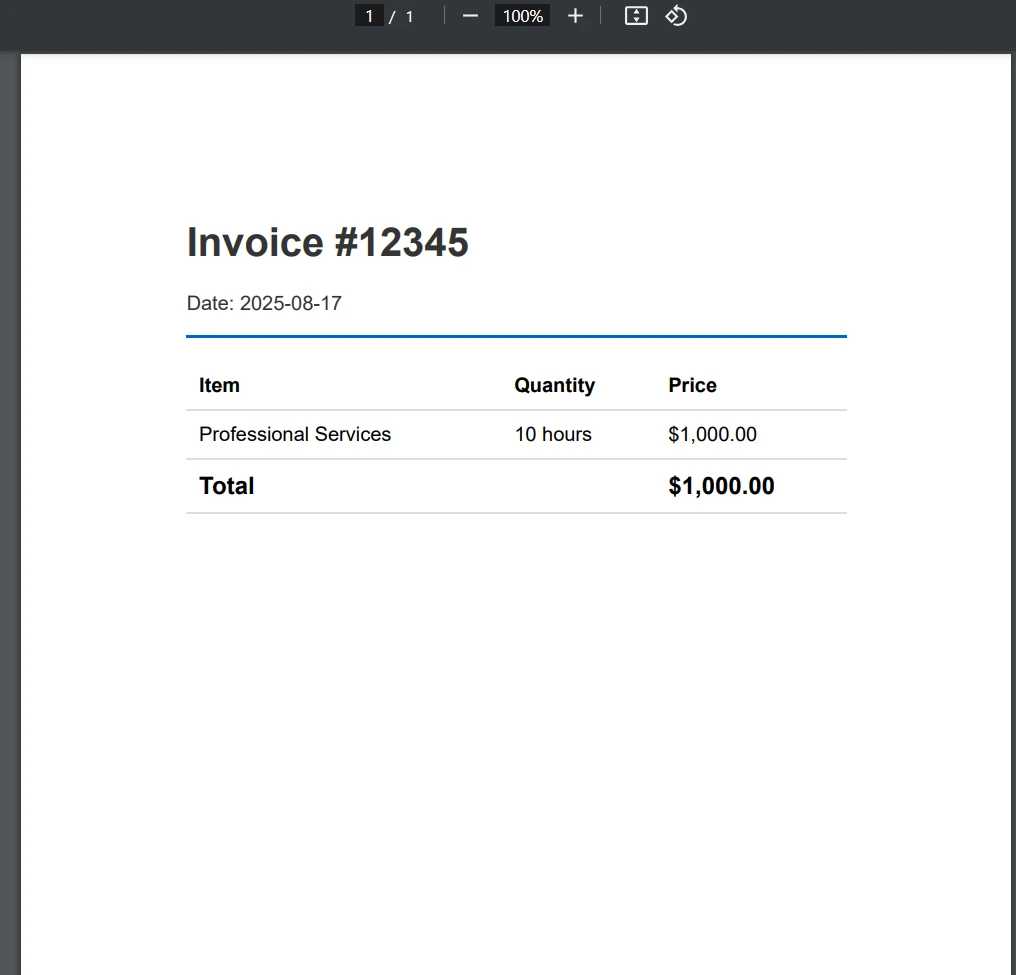
End ClassHTML 문자열을 PDF로 직접 변환하는 가장 일반적인 시나리오로 시작합니다. 이 접근 방식은 청구서, 보고서 또는 확인 이메일과 같은 동적으로 생성된 콘텐츠에 잘 작동합니다.
[Function("ConvertHtmlToPdf")]
public async Task<HttpResponseData> ConvertHtmlToPdf(
[HttpTrigger(AuthorizationLevel.Function, "post")] HttpRequestData req,
FunctionContext executionContext)
{
    _logger.LogInformation("Starting HTML to PDF conversion");
try
{
    // Simple HTML invoice example
    string htmlContent = @"
            <!DOCTYPE html>
            <html>
            <head>
                <meta charset='UTF-8'>
                <style>
                    body { font-family: Arial, sans-serif; margin: 40px; }
                    .header { color: #333; border-bottom: 2px solid #0066cc; }
                    .invoice-details { margin: 20px 0; }
                    table { width: 100%; border-collapse: collapse; }
                    th, td { padding: 10px; text-align: left; border-bottom: 1px solid #ddd; }
                    .total { font-weight: bold; font-size: 1.2em; }
                </style>
            </head>
            <body>
                <div class='header'>
                    <h1>Invoice #12345</h1>
                    <p>Date: " + DateTime.Now.ToString("yyyy-MM-dd") + @"</p>
                </div>
                <div class='invoice-details'>
                    <table>
                        <tr>
                            <th>Item</th>
                            <th>Quantity</th>
                        <th>Price</th>
                        </tr>
                        <tr>
                            <td>Professional Services</td>
                            <td>10 hours</td>
                            <td>$1,000.00</td>
                        </tr>
                        <tr>
                            <td colspan='2' class='total'>Total</td>
                            <td class='total'>$1,000.00</td>
                        </tr>
                    </table>
                </div>
            </body>
            </html>";
    // Create Chrome renderer
    var renderer = new ChromePdfRenderer();
    // Configure rendering options
        renderer.RenderingOptions.PaperSize = IronPdf.Rendering.PdfPaperSize.A4;
        renderer.RenderingOptions.MarginTop = 25;
        renderer.RenderingOptions.MarginBottom = 25;
        renderer.RenderingOptions.MarginLeft = 25;
        renderer.RenderingOptions.MarginRight = 25;
    // Convert HTML to PDF
    var pdf = renderer.RenderHtmlAsPdf(htmlContent);
    // Return PDF as response
    var response = req.CreateResponse(HttpStatusCode.OK);
        response.Headers.Add("Content-Type", "application/pdf");
        response.Headers.Add("Content-Disposition", "attachment; filename=invoice.pdf");
    await response.Body.WriteAsync(pdf.BinaryData);
        _logger.LogInformation("PDF generated successfully");
    return response;
}
catch (Exception ex)
{
        _logger.LogError(ex, "Error generating PDF");
    var errorResponse = req.CreateResponse(HttpStatusCode.InternalServerError);
    await errorResponse.WriteStringAsync($"Error: {ex.Message}");
    return errorResponse;
}
}Imports System
Imports System.Net
Imports System.Threading.Tasks
Imports Microsoft.Azure.Functions.Worker
Imports Microsoft.Azure.Functions.Worker.Http
Imports IronPdf
<Function("ConvertHtmlToPdf")>
Public Class PdfConverter
Private ReadOnly _logger As ILogger
Public Sub New(logger As ILogger)
_logger = logger
End Sub
Public Async Function ConvertHtmlToPdf(
<HttpTrigger(AuthorizationLevel.Function, "post")> req As HttpRequestData,
executionContext As FunctionContext) As Task(Of HttpResponseData)
_logger.LogInformation("Starting HTML to PDF conversion")
Try
' Simple HTML invoice example
Dim htmlContent As String = "
<!DOCTYPE html>
<html>
<head>
<meta charset='UTF-8'>
<style>
body { font-family: Arial, sans-serif; margin: 40px; }
.header { color: #333; border-bottom: 2px solid #0066cc; }
.invoice-details { margin: 20px 0; }
table { width: 100%; border-collapse: collapse; }
th, td { padding: 10px; text-align: left; border-bottom: 1px solid #ddd; }
.total { font-weight: bold; font-size: 1.2em; }
</style>
</head>
<body>
<div class='header'>
<h1>Invoice #12345</h1>
<p>Date: " & DateTime.Now.ToString("yyyy-MM-dd") & "</p>
</div>
<div class='invoice-details'>
<table>
<tr>
<th>Item</th>
<th>Quantity</th>
<th>Price</th>
</tr>
<tr>
<td>Professional Services</td>
<td>10 hours</td>
<td>$1,000.00</td>
</tr>
<tr>
<td colspan='2' class='total'>Total</td>
<td class='total'>$1,000.00</td>
</tr>
</table>
</div>
</body>
</html>"
' Create Chrome renderer
Dim renderer As New ChromePdfRenderer()
' Configure rendering options
renderer.RenderingOptions.PaperSize = IronPdf.Rendering.PdfPaperSize.A4
renderer.RenderingOptions.MarginTop = 25
renderer.RenderingOptions.MarginBottom = 25
renderer.RenderingOptions.MarginLeft = 25
renderer.RenderingOptions.MarginRight = 25
' Convert HTML to PDF
Dim pdf = renderer.RenderHtmlAsPdf(htmlContent)
' Return PDF as response
Dim response = req.CreateResponse(HttpStatusCode.OK)
response.Headers.Add("Content-Type", "application/pdf")
response.Headers.Add("Content-Disposition", "attachment; filename=invoice.pdf")
Await response.Body.WriteAsync(pdf.BinaryData)
_logger.LogInformation("PDF generated successfully")
Return response
Catch ex As Exception
_logger.LogError(ex, "Error generating PDF")
Dim errorResponse = req.CreateResponse(HttpStatusCode.InternalServerError)
Await errorResponse.WriteStringAsync($"Error: {ex.Message}")
Return errorResponse
End Try
End Function
End Class이는 주어진 HTML 문자열을 가져와 RenderingOptions 클래스를 사용하여 구성한 커스텀 렌더링 옵션과 함께 고품질의 PDF 문서로 렌더링합니다.
기존 웹페이지나 복잡한 애플리케이션에 대해 URL을 직접 변환할 수 있습니다:
[Function("ConvertUrlToPdf")]
public async Task<HttpResponseData> ConvertUrlToPdf(
    [HttpTrigger(AuthorizationLevel.Function, "post")] HttpRequestData req,
FunctionContext executionContext)
{
var requestBody = await req.ReadAsStringAsync();
var urlRequest = JsonSerializer.Deserialize<UrlRequest>(requestBody);
try
{
    var renderer = new ChromePdfRenderer();
    // Configure for web page rendering
        renderer.RenderingOptions.PaperSize = IronPdf.Rendering.PdfPaperSize.A4;
        renderer.RenderingOptions.PrintHtmlBackgrounds = true;
        renderer.RenderingOptions.CreatePdfFormsFromHtml = true;
    // Enable JavaScript execution (important for dynamic content)
        renderer.RenderingOptions.EnableJavaScript = true;
        renderer.RenderingOptions.RenderDelay = 1000; // Wait for JS to execute
    // Convert URL to PDF
    var pdf = renderer.RenderUrlAsPdf(urlRequest.Url);
    var response = req.CreateResponse(HttpStatusCode.OK);
        response.Headers.Add("Content-Type", "application/pdf");
    await response.Body.WriteAsync(pdf.BinaryData);
    return response;
}
catch (Exception ex)
{
        _logger.LogError(ex, "Error converting URL to PDF");
    throw;
}
}
public class UrlRequest
{
public string Url { get; set; }
}Imports System
Imports System.Net
Imports System.Text.Json
Imports System.Threading.Tasks
Imports IronPdf
Imports Microsoft.Azure.Functions.Worker
Imports Microsoft.Azure.Functions.Worker.Http
Imports Microsoft.Extensions.Logging
<Function("ConvertUrlToPdf")>
Public Class ConvertUrlToPdfFunction
Private ReadOnly _logger As ILogger
Public Sub New(loggerFactory As ILoggerFactory)
_logger = loggerFactory.CreateLogger(Of ConvertUrlToPdfFunction)()
End Sub
Public Async Function ConvertUrlToPdf(
<HttpTrigger(AuthorizationLevel.Function, "post")> req As HttpRequestData,
executionContext As FunctionContext) As Task(Of HttpResponseData)
Dim requestBody As String = Await req.ReadAsStringAsync()
Dim urlRequest As UrlRequest = JsonSerializer.Deserialize(Of UrlRequest)(requestBody)
Try
Dim renderer As New ChromePdfRenderer()
' Configure for web page rendering
renderer.RenderingOptions.PaperSize = IronPdf.Rendering.PdfPaperSize.A4
renderer.RenderingOptions.PrintHtmlBackgrounds = True
renderer.RenderingOptions.CreatePdfFormsFromHtml = True
' Enable JavaScript execution (important for dynamic content)
renderer.RenderingOptions.EnableJavaScript = True
renderer.RenderingOptions.RenderDelay = 1000 ' Wait for JS to execute
' Convert URL to PDF
Dim pdf = renderer.RenderUrlAsPdf(urlRequest.Url)
Dim response = req.CreateResponse(HttpStatusCode.OK)
response.Headers.Add("Content-Type", "application/pdf")
Await response.Body.WriteAsync(pdf.BinaryData)
Return response
Catch ex As Exception
_logger.LogError(ex, "Error converting URL to PDF")
Throw
End Try
End Function
End Class
Public Class UrlRequest
Public Property Url As String
End Class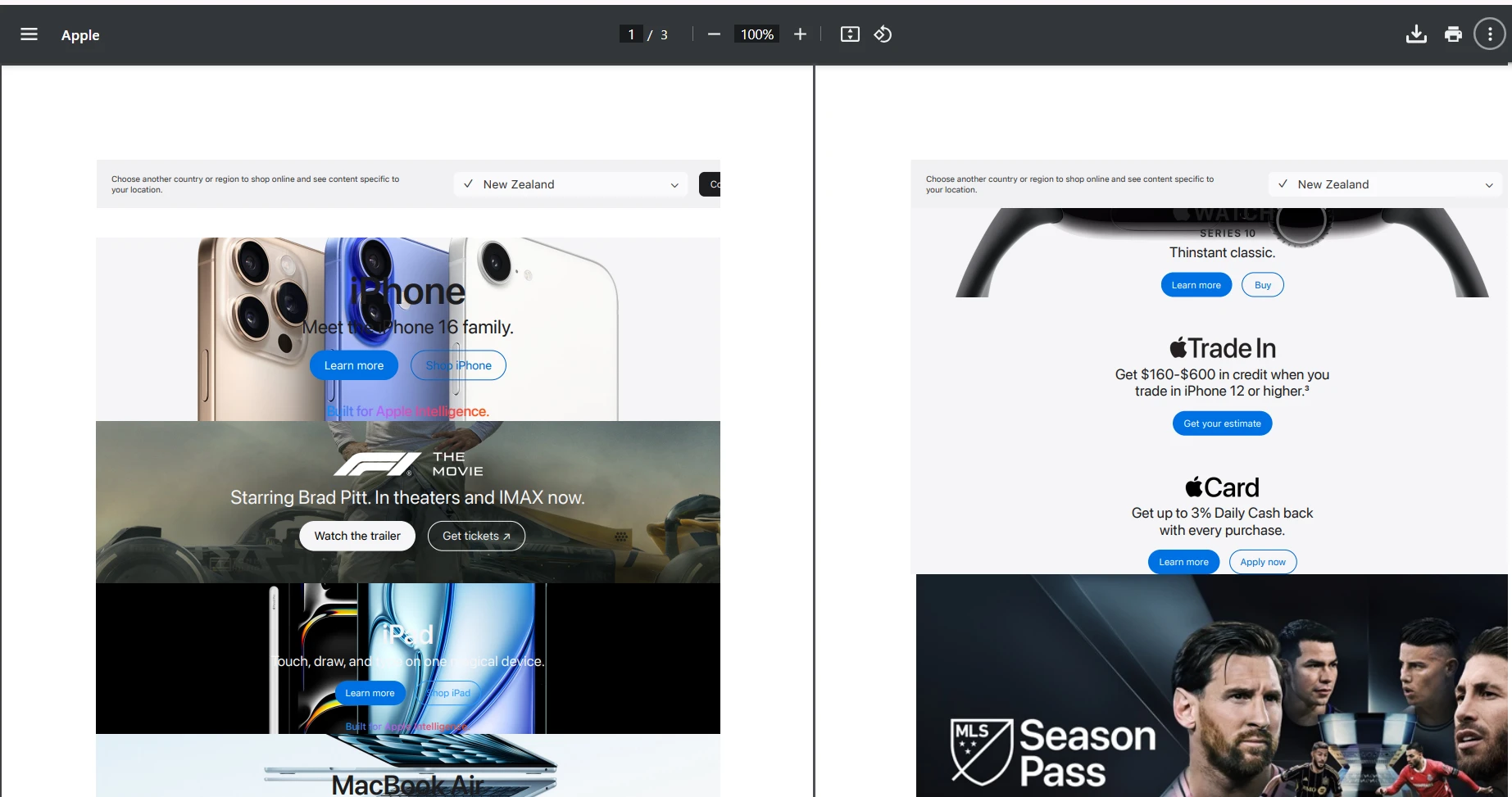
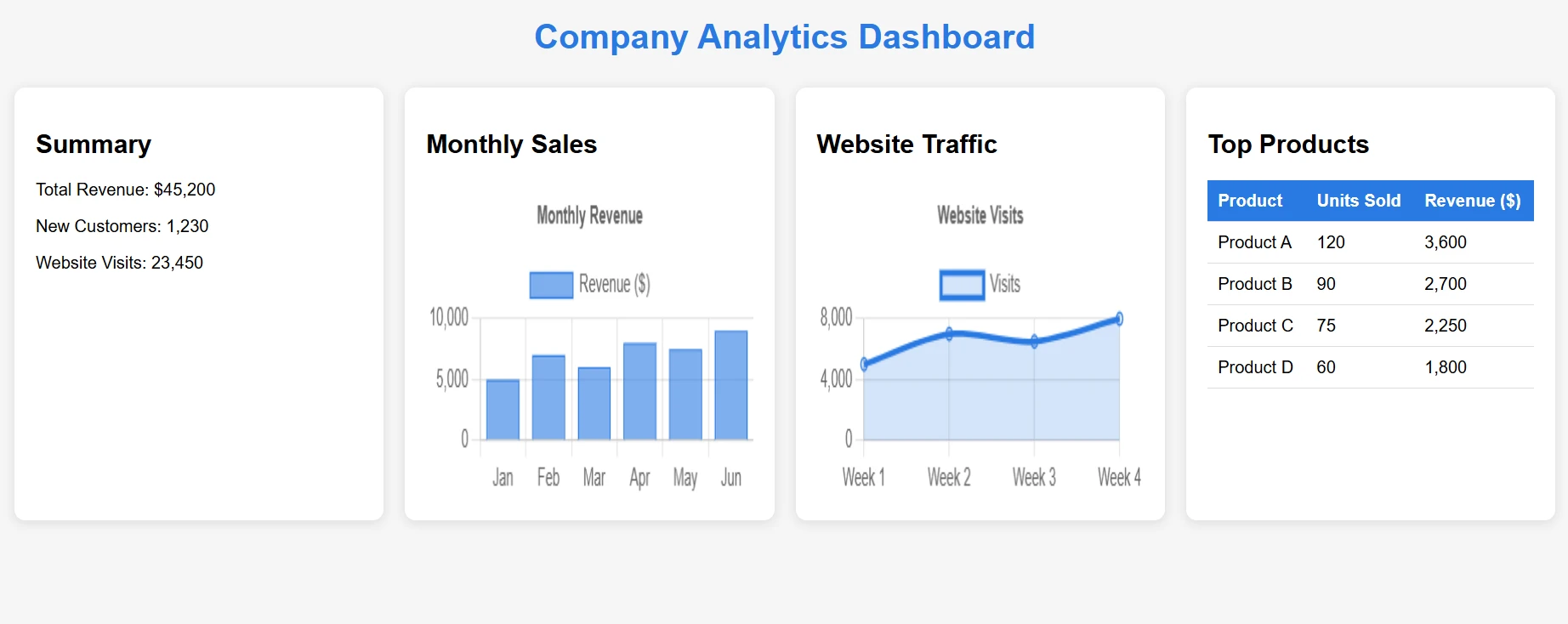
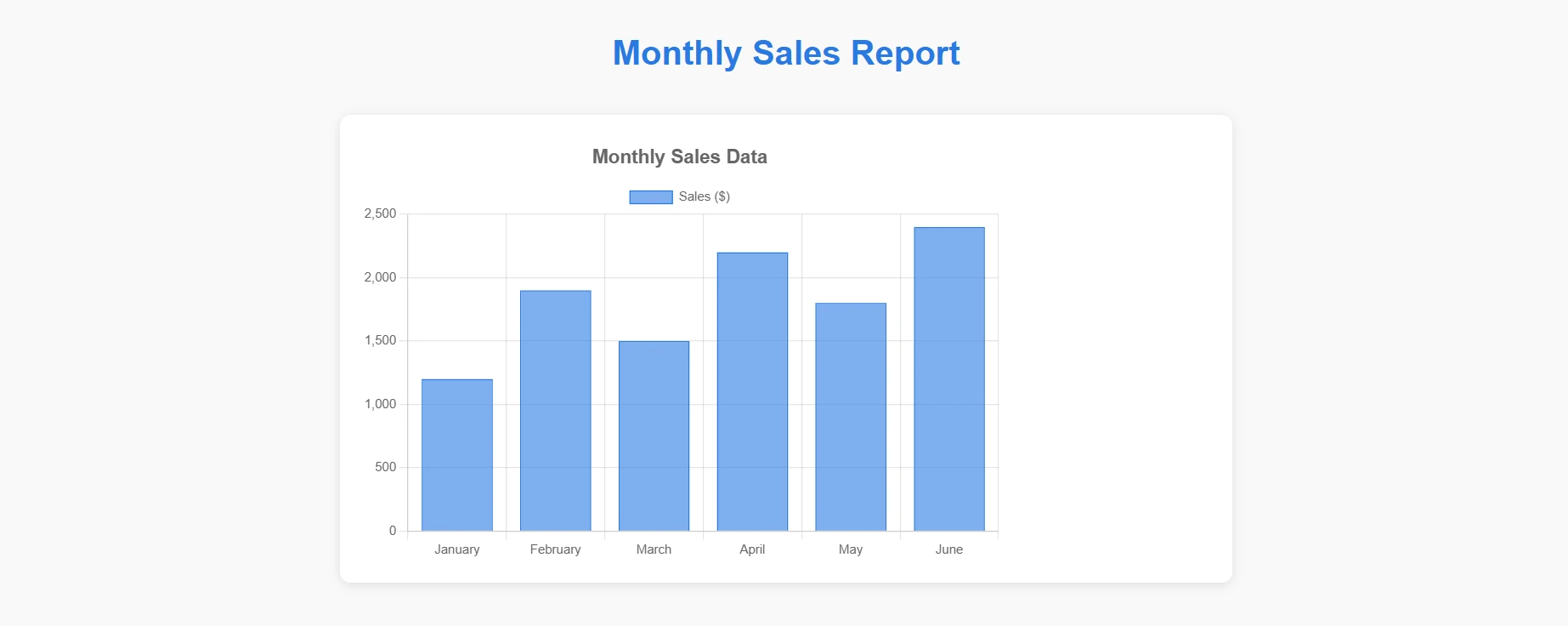
현대 웹 애플리케이션은 콘텐츠 렌더링을 위해 JavaScript에 크게 의존합니다. 차트, 동적 폼, 단일 페이지 애플리케이션이든, IronPDF의 렌더링 엔진이 모두 처리합니다.
이 예에서는 JavaScript 콘텐츠가 포함된 HTML 파일을 가져와 PDF로 변환할 것입니다.
[Function("ConvertComplexHtmlToPdf")]
public async Task<HttpResponseData> ConvertComplexHtmlToPdf(
[HttpTrigger(AuthorizationLevel.Function, "post")] HttpRequestData req,
FunctionContext executionContext)
{
    try
    {
        // Load complex HTML from file
        // [USER TO PROVIDE: complex-dashboard.html with charts and JavaScript]
        string complexHtml = File.ReadAllText("Templates/complex-dashboard.html");
        var renderer = new ChromePdfRenderer();
        // JavaScript-specific configurations
        renderer.RenderingOptions.EnableJavaScript = true;
        renderer.RenderingOptions.WaitFor.JavaScript(3000); // Wait 3 seconds for JS
        // Optional: Set the CSS media type for print or screen styles
        renderer.RenderingOptions.CssMediaType = IronPdf.Rendering.PdfCssMediaType.Print;
        // Set viewport for responsive designs
        renderer.RenderingOptions.ViewPortWidth = 1920;
        renderer.RenderingOptions.ViewPortHeight = 1080;
        var pdf = renderer.RenderHtmlAsPdf(complexHtml);
        // Add metadata
        pdf.MetaData.Author = "Azure Function";
        pdf.MetaData.CreationDate = DateTime.Now;
        pdf.MetaData.Title = "Complex Dashboard Report";
        var response = req.CreateResponse(HttpStatusCode.OK);
        response.Headers.Add("Content-Type", "application/pdf");
        await response.Body.WriteAsync(pdf.BinaryData);
        return response;
    }
    catch (Exception ex)
    {
        _logger.LogError(ex, "Error with complex HTML conversion");
        throw;
    }
}Imports System
Imports System.IO
Imports System.Net
Imports System.Threading.Tasks
Imports IronPdf
Imports Microsoft.Azure.Functions.Worker
Imports Microsoft.Azure.Functions.Worker.Http
<Function("ConvertComplexHtmlToPdf")>
Public Class ConvertComplexHtmlToPdfFunction
Private ReadOnly _logger As ILogger
Public Sub New(loggerFactory As ILoggerFactory)
_logger = loggerFactory.CreateLogger(Of ConvertComplexHtmlToPdfFunction)()
End Sub
Public Async Function ConvertComplexHtmlToPdf(
<HttpTrigger(AuthorizationLevel.Function, "post")> req As HttpRequestData,
executionContext As FunctionContext) As Task(Of HttpResponseData)
Try
' Load complex HTML from file
' [USER TO PROVIDE: complex-dashboard.html with charts and JavaScript]
Dim complexHtml As String = File.ReadAllText("Templates/complex-dashboard.html")
Dim renderer As New ChromePdfRenderer()
' JavaScript-specific configurations
renderer.RenderingOptions.EnableJavaScript = True
renderer.RenderingOptions.WaitFor.JavaScript(3000) ' Wait 3 seconds for JS
' Optional: Set the CSS media type for print or screen styles
renderer.RenderingOptions.CssMediaType = IronPdf.Rendering.PdfCssMediaType.Print
' Set viewport for responsive designs
renderer.RenderingOptions.ViewPortWidth = 1920
renderer.RenderingOptions.ViewPortHeight = 1080
Dim pdf = renderer.RenderHtmlAsPdf(complexHtml)
' Add metadata
pdf.MetaData.Author = "Azure Function"
pdf.MetaData.CreationDate = DateTime.Now
pdf.MetaData.Title = "Complex Dashboard Report"
Dim response = req.CreateResponse(HttpStatusCode.OK)
response.Headers.Add("Content-Type", "application/pdf")
Await response.Body.WriteAsync(pdf.BinaryData)
Return response
Catch ex As Exception
_logger.LogError(ex, "Error with complex HTML conversion")
Throw
End Try
End Function
End Class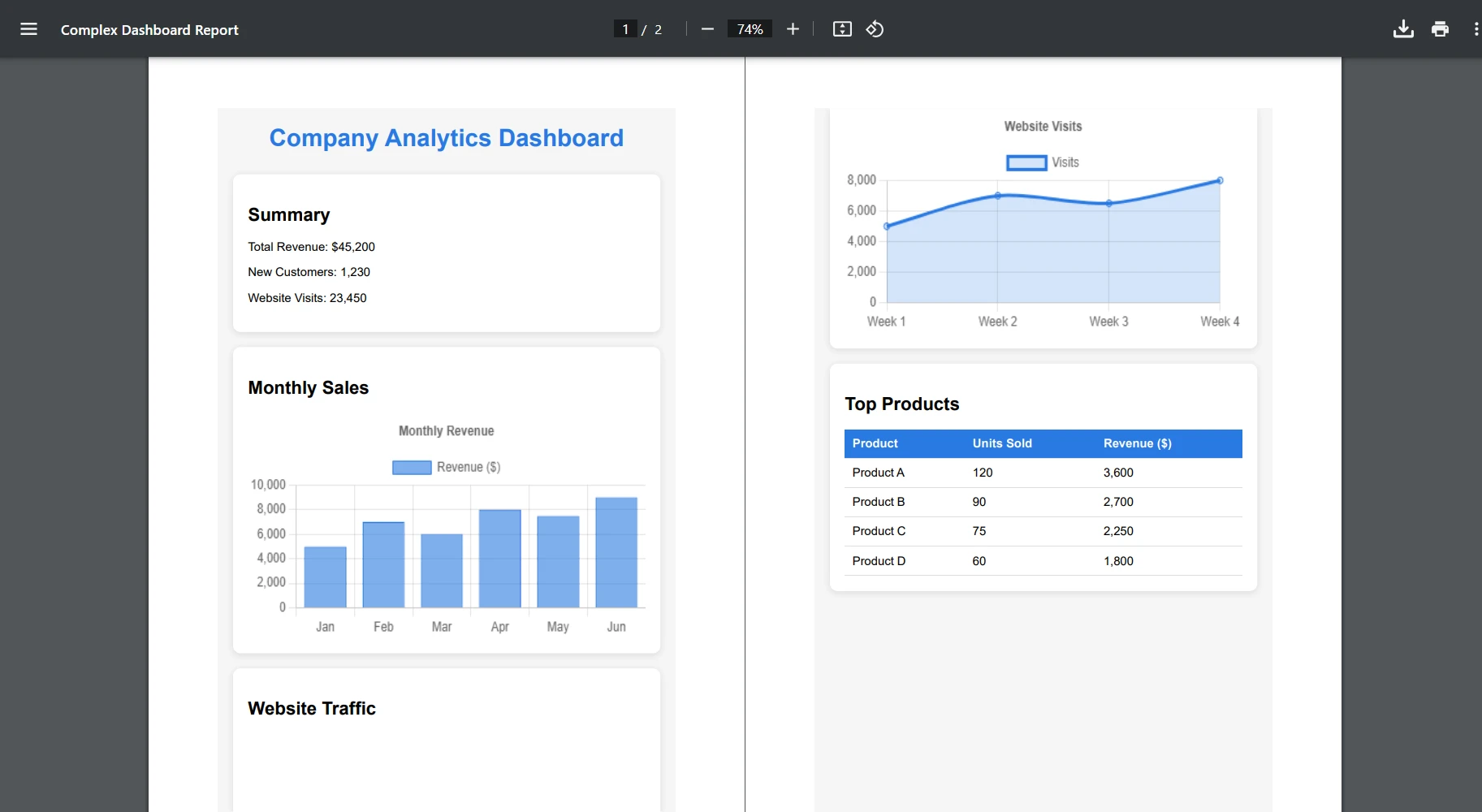
이제 차트가 포함된 HTML 파일을 변환해 보겠습니다:
[Function("ConvertChartToPdf")]
    public async Task<HttpResponseData> ConvertChartToPdf(
    [HttpTrigger(AuthorizationLevel.Function, "post")] HttpRequestData req,
    FunctionContext executionContext)
    {
        try
        {
            // Load chart template
            string chartHtml = File.ReadAllText("Templates/chart-template.html");
            // Replace placeholders with actual data
            var chartData = await GetChartDataAsync();
            chartHtml = chartHtml.Replace("{{CHART_DATA}}", JsonSerializer.Serialize(chartData));
            var renderer = new ChromePdfRenderer();
            // Ensure charts render completely
            renderer.RenderingOptions.EnableJavaScript = true;
            renderer.RenderingOptions.WaitFor.RenderDelay(2000);
            // Set paper orientation for charts
            renderer.RenderingOptions.PaperOrientation = IronPdf.Rendering.PdfPaperOrientation.Landscape;
            var pdf = renderer.RenderHtmlAsPdf(chartHtml);
            var response = req.CreateResponse(HttpStatusCode.OK);
            response.Headers.Add("Content-Type", "application/pdf");
            await response.Body.WriteAsync(pdf.BinaryData);
            return response;
        }
        catch (Exception ex)
        {
            _logger.LogError(ex, "Chart conversion error");
            throw;
        }
}Imports System
Imports System.IO
Imports System.Net
Imports System.Text.Json
Imports System.Threading.Tasks
Imports IronPdf
Imports Microsoft.Azure.Functions.Worker
Imports Microsoft.Azure.Functions.Worker.Http
<Function("ConvertChartToPdf")>
Public Class ChartConverter
Private ReadOnly _logger As ILogger
Public Sub New(logger As ILogger)
_logger = logger
End Sub
Public Async Function ConvertChartToPdf(
<HttpTrigger(AuthorizationLevel.Function, "post")> req As HttpRequestData,
executionContext As FunctionContext) As Task(Of HttpResponseData)
Try
' Load chart template
Dim chartHtml As String = File.ReadAllText("Templates/chart-template.html")
' Replace placeholders with actual data
Dim chartData = Await GetChartDataAsync()
chartHtml = chartHtml.Replace("{{CHART_DATA}}", JsonSerializer.Serialize(chartData))
Dim renderer As New ChromePdfRenderer()
' Ensure charts render completely
renderer.RenderingOptions.EnableJavaScript = True
renderer.RenderingOptions.WaitFor.RenderDelay(2000)
' Set paper orientation for charts
renderer.RenderingOptions.PaperOrientation = IronPdf.Rendering.PdfPaperOrientation.Landscape
Dim pdf = renderer.RenderHtmlAsPdf(chartHtml)
Dim response = req.CreateResponse(HttpStatusCode.OK)
response.Headers.Add("Content-Type", "application/pdf")
Await response.Body.WriteAsync(pdf.BinaryData)
Return response
Catch ex As Exception
_logger.LogError(ex, "Chart conversion error")
Throw
End Try
End Function
Private Async Function GetChartDataAsync() As Task(Of Object)
' Placeholder for actual implementation
Return Await Task.FromResult(New Object())
End Function
End Class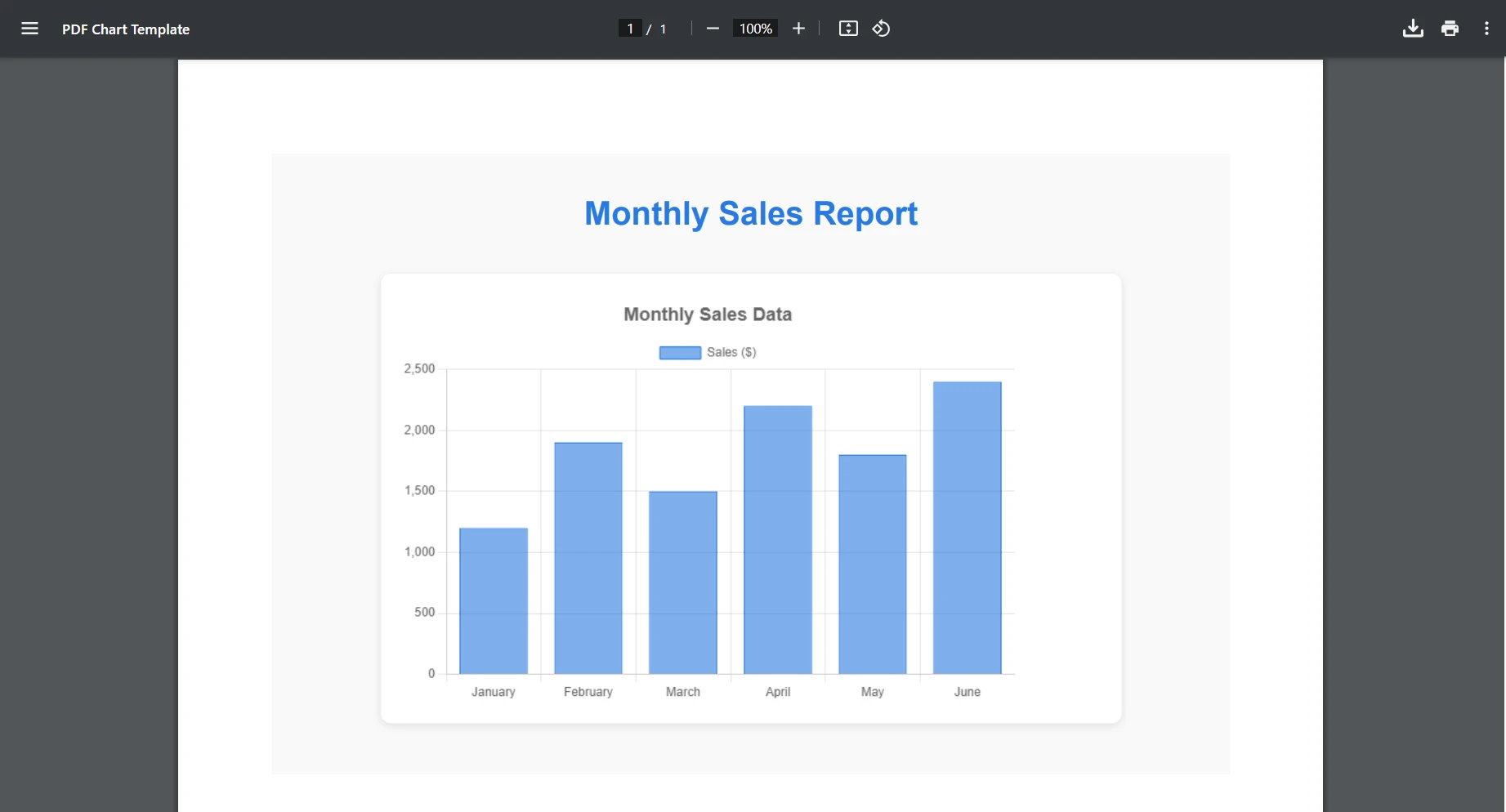
IronPDF는 최종 PDF 출력에서 원래 JavaScript 상호작용을 유지합니다.
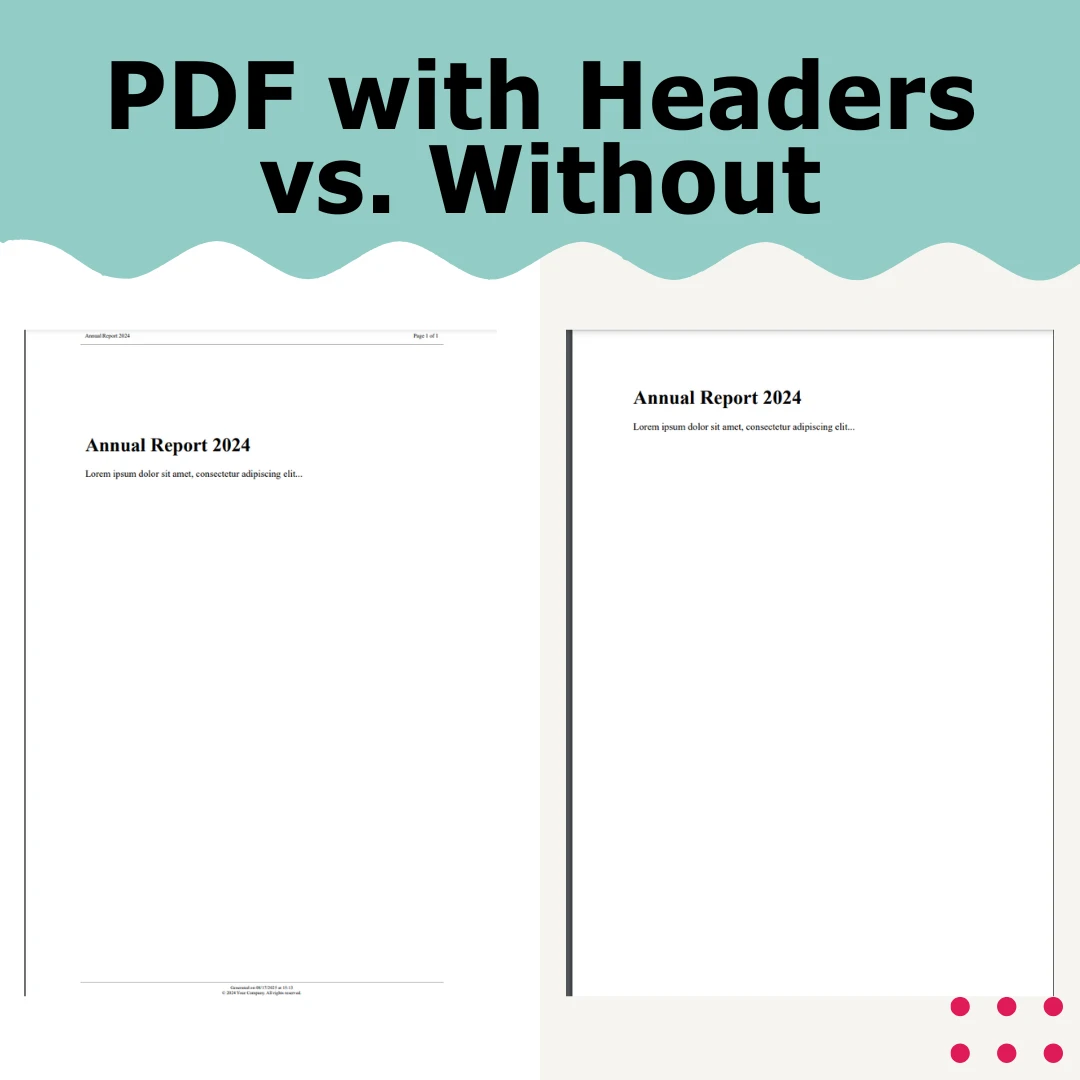
전문적인 PDF는 모든 페이지에 걸쳐 일관된 헤더와 푸터가 필요합니다. IronPDF는 고급 헤더 및 푸터 옵션을 위한 HTML 기반 템플릿으로 이를 간단하게 만듭니다.
[Function("ConvertWithHeaderFooter")]
public async Task<HttpResponseData> ConvertWithHeaderFooter(
[HttpTrigger(AuthorizationLevel.Function, "post")] HttpRequestData req,
FunctionContext executionContext)
{
try
{
    string mainContent = @"
            <html>
            <body>
                <h1>Annual Report 2024</h1>
                <p>Lorem ipsum dolor sit amet, consectetur adipiscing elit...</p>
                <!-- Your main content here -->
            </body>
            </html>";
    var renderer = new ChromePdfRenderer();
    // Configure margins to accommodate headers/footers
        renderer.RenderingOptions.MarginTop = 45;
        renderer.RenderingOptions.MarginBottom = 45;
        renderer.RenderingOptions.MarginLeft = 25;
        renderer.RenderingOptions.MarginRight = 25;
    // HTML Header with merge fields
        renderer.RenderingOptions.HtmlHeader = new HtmlHeaderFooter
    {
        Height = 35,
            HtmlFragment = @"
            <div style='text-align: center; font-size: 12px; padding: 10px;'>
                    <div style='float: left;'>Annual Report 2024</div>
                    <div style='float: right;'>Page {page} of {total-pages}</div>
                    <div style='clear: both;'></div>
                </div>",
            DrawDividerLine = true
    };
    // HTML Footer
        renderer.RenderingOptions.HtmlFooter = new HtmlHeaderFooter
    {
        Height = 30,
            HtmlFragment = @"
                <div style='text-align: center; font-size: 10px; padding: 5px;'>
                    <div>Generated on {date} at {time}</div>
                    <div>© 2024 Your Company. All rights reserved.</div>
                </div>",
            DrawDividerLine = true
    };
    var pdf = renderer.RenderHtmlAsPdf(mainContent);
    var response = req.CreateResponse(HttpStatusCode.OK);
        response.Headers.Add("Content-Type", "application/pdf");
    await response.Body.WriteAsync(pdf.BinaryData);
    return response;
}
catch (Exception ex)
{
        _logger.LogError(ex, "Header/Footer conversion error");
    throw;
}
}
public async Task<PdfDocument> CreatePdfWithCustomHeaders(string htmlContent)
{
var renderer = new ChromePdfRenderer();
// First page header (cover page)
    renderer.RenderingOptions.FirstPageNumber = 0; // Cover page is page 0
    renderer.RenderingOptions.HtmlHeader = new HtmlHeaderFooter
{
    Height = 50,
    HtmlFragment = "<div style='text-align: center; font-size: 24px;'>Company Logo</div>",
        DrawDividerLine = false
};
// Different header for content pages
var pdf = renderer.RenderHtmlAsPdf(htmlContent);
// Apply different headers to specific pages after rendering
for (int i = 1; i < pdf.PageCount; i++)
{
    // Add page-specific content if needed
        pdf.StampHtml(i, @"
        <div style='position: absolute; top: 10px; right: 10px; font-size: 10px;'>
                Section " + GetSectionName(i) + @"
            </div>");
}
return pdf;
}
private string GetSectionName(int pageNumber)
{
// Logic to determine section based on page number
return pageNumber <= 5 ? "Introduction" : "Main Content";
}Imports System.Threading.Tasks
Public Class PdfCreator
Public Async Function CreatePdfWithCustomHeaders(htmlContent As String) As Task(Of PdfDocument)
Dim renderer As New ChromePdfRenderer()
' First page header (cover page)
renderer.RenderingOptions.FirstPageNumber = 0 ' Cover page is page 0
renderer.RenderingOptions.HtmlHeader = New HtmlHeaderFooter With {
.Height = 50,
.HtmlFragment = "<div style='text-align: center; font-size: 24px;'>Company Logo</div>",
.DrawDividerLine = False
}
' Different header for content pages
Dim pdf = renderer.RenderHtmlAsPdf(htmlContent)
' Apply different headers to specific pages after rendering
For i As Integer = 1 To pdf.PageCount - 1
' Add page-specific content if needed
pdf.StampHtml(i, "
<div style='position: absolute; top: 10px; right: 10px; font-size: 10px;'>
Section " & GetSectionName(i) & "
</div>")
Next
Return pdf
End Function
Private Function GetSectionName(pageNumber As Integer) As String
' Logic to determine section based on page number
Return If(pageNumber <= 5, "Introduction", "Main Content")
End Function
End Class이는 지정된 PDF 페이지 범위에 헤더를 적용합니다.
IronPDF의 다재다능함은 많은 사용 사례에 적합합니다:
적절한 구성이 있어도 Azure 특정 문제에 직면할 수 있습니다. 여기 일반적인 문제와 해결책이 있습니다:
문제: 사용자 정의 글꼴이 올바르게 표시되지 않거나 시스템 글꼴로 대체됩니다.
해결책: Azure의 공유 호스팅 계층은 사용자 정의 글꼴에 필요한 GDI+ 접근을 제한합니다. 적어도 B1 계층을 사용하고 Base64 인코딩을 통해 글꼴을 임베드하십시오.
string htmlWithEmbeddedFont = @"
<style>
    @font-face {
            font-family: 'CustomFont';
        src: url(data:font/woff2;base64,YOUR_BASE64_FONT_HERE) format('woff2');
    }
    body { font-family: 'CustomFont', Arial, sans-serif; }
</style>";Dim htmlWithEmbeddedFont As String = "
<style>
@font-face {
font-family: 'CustomFont';
src: url(data:font/woff2;base64,YOUR_BASE64_FONT_HERE) format('woff2');
}
body { font-family: 'CustomFont', Arial, sans-serif; }
</style>"지속적인 글꼴 문제에 대해서는 IronPDF의 글꼴 문제 해결 가이드를 참조하십시오.
문제: "Run from package file" 설정이 활성화된 경우 IronPDF는 종속성을 로드하지 못합니다.
해결책: 이 옵션은 IronPDF가 필요한 파일을 추출하지 못하게 하는 읽기 전용 환경을 생성합니다. 이 옵션을 게시 설정에서 비활성화하거나 이 시나리오를 더 잘 처리하는 IronPdf.Slim 패키지를 사용하십시오.
문제: 대용량 HTML 문서가 시간 초과 또는 메모리 예외를 발생시킵니다.
해결책: 적절한 시간 초과 및 메모리 설정을 구성합니다:
// In your Function App configuration
renderer.RenderingOptions.Timeout = 120000; // 2 minutes
renderer.RenderingOptions.RequestContext = new RequestContext
{
    MaxResponseContentBufferSize = 100 * 1024 * 1024 // 100MB
};' In your Function App configuration
renderer.RenderingOptions.Timeout = 120000 ' 2 minutes
renderer.RenderingOptions.RequestContext = New RequestContext With {
.MaxResponseContentBufferSize = 100 * 1024 * 1024 ' 100MB
}Azure Functions의 시간 초과 구성에 대해서는 Microsoft의 시간 초과 문서를 참조하십시오. 대용량 문서 처리에 대한 솔루션은 Stack Overflow의 Azure Functions 태그에서도 공유됩니다.
Azure에서 특정 HTML-to-PDF 변환 문제 해결 시나리오에 대해서는 IronPDF의 Azure 문제 해결 문서를 방문하십시오.
HTML을 PDF로 변환하는 것은 콘텐츠 복잡성에 따라 리소스를 많이 사용할 수 있습니다. 다음은 Azure Functions에 대한 주요 최적화 전략입니다:
JavaScript가 많은 페이지를 작업할 때 적절한 렌더링 지연을 구성하십시오:
renderer.RenderingOptions.WaitFor.RenderDelay = 500; // Simple pages
renderer.RenderingOptions.WaitFor.RenderDelay = 2000; // Complex JavaScript
renderer.RenderingOptions.WaitFor.RenderDelay = 500 ' Simple pages
renderer.RenderingOptions.WaitFor.RenderDelay = 2000 ' Complex JavaScript대량 시나리오의 경우 리소스를 적절히 처리합니다:
using (var renderer = new ChromePdfRenderer())
{
using (var pdf = renderer.RenderHtmlAsPdf(html))
{
    // Process PDF
    return pdf.BinaryData;
}
}Imports System
Using renderer As New ChromePdfRenderer()
Using pdf = renderer.RenderHtmlAsPdf(html)
' Process PDF
Return pdf.BinaryData
End Using
End Using자주 변하지 않는 콘텐츠에 대해 생성된 PDF를 캐시합니다:
private static readonly MemoryCache _pdfCache = new MemoryCache(new MemoryCacheOptions
{
SizeLimit = 100 // Limit cache size
});
public async Task<byte[]> GetCachedPdf(string cacheKey, string html)
{
if (!_pdfCache.TryGetValue(cacheKey, out byte[] cachedPdf))
{
    var renderer = new ChromePdfRenderer();
    var pdf = renderer.RenderHtmlAsPdf(html);
    cachedPdf = pdf.BinaryData;
        _pdfCache.Set(cacheKey, cachedPdf, new MemoryCacheEntryOptions
    {
        Size = 1,
        SlidingExpiration = TimeSpan.FromMinutes(10)
    });
}
return cachedPdf;
}Imports System
Imports System.Threading.Tasks
Imports Microsoft.Extensions.Caching.Memory
Private Shared ReadOnly _pdfCache As New MemoryCache(New MemoryCacheOptions With {
.SizeLimit = 100 ' Limit cache size
})
Public Async Function GetCachedPdf(cacheKey As String, html As String) As Task(Of Byte())
Dim cachedPdf As Byte() = Nothing
If Not _pdfCache.TryGetValue(cacheKey, cachedPdf) Then
Dim renderer As New ChromePdfRenderer()
Dim pdf = renderer.RenderHtmlAsPdf(html)
cachedPdf = pdf.BinaryData
_pdfCache.Set(cacheKey, cachedPdf, New MemoryCacheEntryOptions With {
.Size = 1,
.SlidingExpiration = TimeSpan.FromMinutes(10)
})
End If
Return cachedPdf
End FunctionAzure에서 HTML을 PDF로 변환하는 것은 두 가지 비용 구성 요소를 포함합니다:
요금은 지역에 따라 다르며 시간이 지남에 따라 변경됩니다. 필요에 가장 적합한 티어 선택을 위한 IronPDF 가이드를 참조하십시오.
IronPDF 라이선스
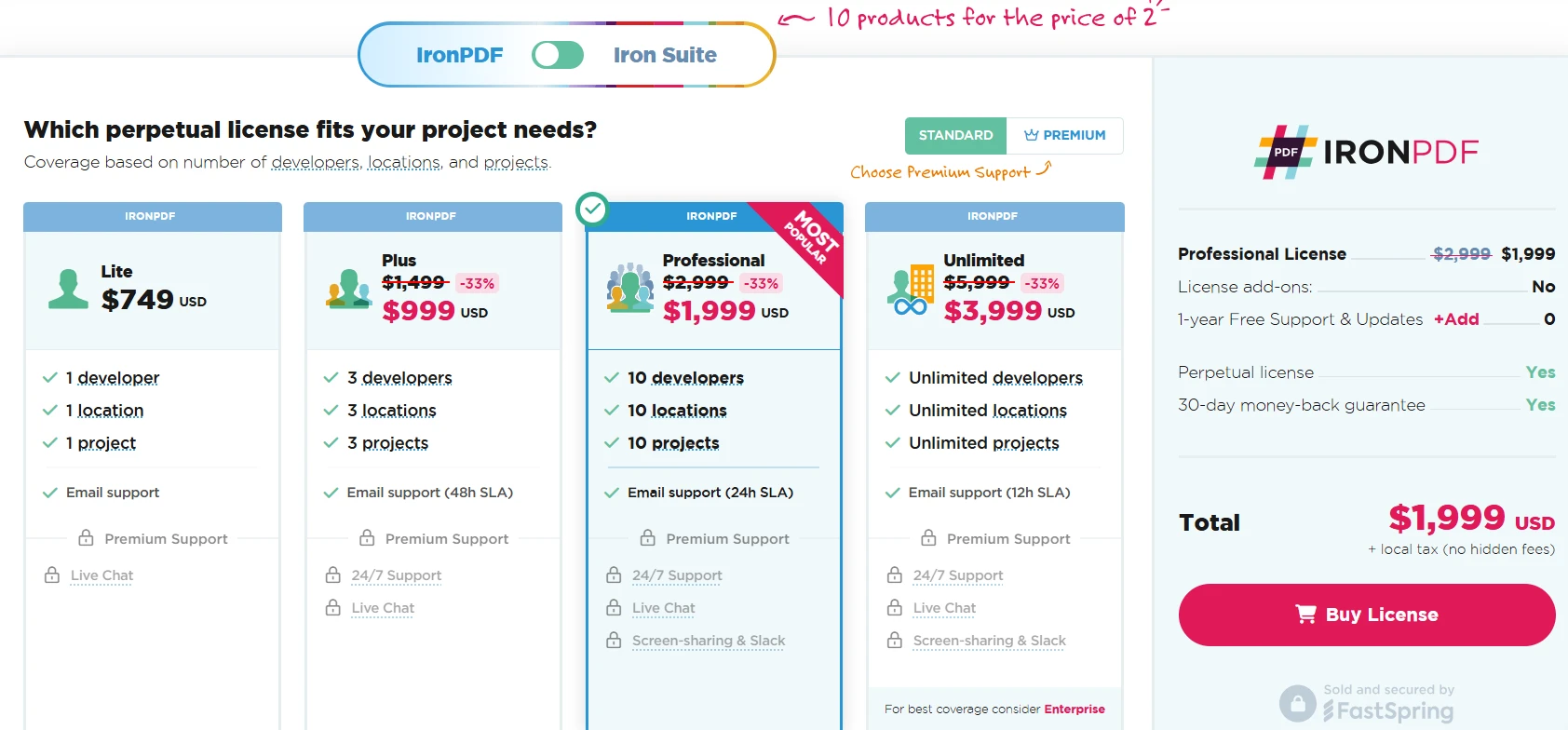
IronPDF는 여러 라이선싱 옵션을 제공합니다:
자세한 가격 책정 및 기능 비교는 IronPDF의 라이선싱 페이지를 방문하십시오.
우리는 HTML을 PDF로 변환하는 것에 중점을 두었지만, 민감한 PDF 파일을 처리할 때 보안이 중요합니다. 원치 않는 손상으로부터 PDF 내용을 안전하게 유지하려면 Azure Functions를 보안하는 방법에 대해 자세히 알아보십시오:
Azure에서 HTML을 PDF로 변환하는 것은 복잡할 필요가 없습니다. IronPDF의 Chrome 렌더링 엔진 및 적절한 Azure 구성을 통해, 모든 HTML 콘텐츠를 전문적인 PDF로 변환할 수 있습니다.
Azure에서 성공적인 HTML to PDF 변환을 위한 핵심 요점:
IronPDF는 간단한 HTML-to-PDF 변환 이상을 제공합니다. 이 기사에서는 고급 PDF 조작 및 PDF 이미지 지원에 대한 기능을 설명했습니다. IronPDF는 당신이 개발 중인 완전히 모든 애플리케이션에 쉽게 통합되며, Console Apps 및 .NET Core 애플리케이션을 포함합니다.
Start using IronPDF in your project today with a free trial.
IronPDF 무료 체험판을 사용하여 강력한 기능에 액세스하고 오늘 Azure 애플리케이션에서 HTML을 PDF로 변환하기 시작하세요!
프로덕션 배포를 위해 IronPDF의 라이선스 옵션을 탐색하여 자신에게 적합한 계획을 찾으세요. 포괄적인 문서, 반응이 빠른 지원, 지속적인 업데이트와 함께, IronPDF는 Azure Functions 및 그 밖의 영역에서 신뢰할 수 있는 HTML to PDF 변환을 위한 모든 것을 제공합니다.

커티스 차우는 칼턴 대학교에서 컴퓨터 과학 학사 학위를 취득했으며, Node.js, TypeScript, JavaScript, React를 전문으로 하는 프론트엔드 개발자입니다. 직관적이고 미적으로 뛰어난 사용자 인터페이스를 만드는 데 열정을 가진 그는 최신 프레임워크를 활용하고, 잘 구성되고 시각적으로 매력적인 매뉴얼을 제작하는 것을 즐깁니다.



IronPDF는 IRON SUITE 의 일부입니다.
10개의 .NET API 제품, 당신의 사무 문서를 위해











PDF 파일을 HTML처럼 빠르게 변환해야 할 때.


