




업데이트됨 2026년 9월 4일
월별 계정 명세서를 PDF 문서로 생성하기
개발자는 IronPDF C# PDF 라이브러리를 사용하여 외부 서비스에 의존하지 않고도 .NET 프로젝트 내에서 HTML을 신뢰할 수 있는 PDF 파일로 변환할 수 있습니다.
더 읽어보기

IronPDF는 C# 개발자에게 프로그래밍 방식으로 PDF 문서를 비교하는 간단한 방법을 제공합니다 -- 텍스트 콘텐츠를 추출하고 코드 몇 줄만으로 페이지별 차이를 분석합니다. 이 튜토리얼은 기본 비교, 다중 문서 분석, 암호로 보호된 파일 처리 및 .NET 10에서 서식이 지정된 비교 보고서 생성에 대한 실질적인 코드 예제를 다룹니다.
수작업으로 PDF 문서를 비교하는 것은 느리고 오류가 발생하기 쉽고 확장성이 없습니다. 법률, 금융, 의료와 같은 문서를 많이 다루는 산업에서는 파일이 끊임없이 변경됩니다 -- 계약은 개정되고, 송장은 재발행되며, 규제 제출물은 버전 검증이 필요합니다. 자동화된 비교는 인간의 병목 현상을 제거하고 매번 일관되고 감사 가능한 결과를 제공합니다.
IronPDF는 C#에서 두 PDF 파일을 비교할 수 있는 생산 준비된 접근 방식을 제공합니다. 이 라이브러리는 복잡한 레이아웃에서 텍스트를 정확하게 추출하기 위해 Chrome 렌더링 엔진을 사용하며, 전체 API는 PDF 콘텐츠를 로드, 읽기 및 분석하는 직관적인 방법을 제공합니다. 계약 변경 사항을 추적하거나, 생성된 출력을 검증하거나, 문서 감사 시스템을 구축하든 상관없이, IronPDF는 무거운 작업을 처리합니다.
이 라이브러리는 이미 여러 플랫폼에서 .NET을 사용하는 팀에게도 확고한 선택입니다. Windows, Linux, macOS, Docker, Azure 및 AWS를 지원하며, 각 대상에 대해 다른 코드 경로를 요구하지 않습니다. 이는 CI/CD 파이프라인에서 실행되는 비교 도구뿐만 아니라 데스크톱 응용 프로그램을 구축하는 데 실용적입니다.
자동화된 비교는 문서가 많은 워크플로우에서 버전 관리를 다룰 때 필수적이 됩니다. 일일 수백 개의 파일을 다루거나 정밀성이 중요한 경우에 수동 검토는 실용적이지 않습니다. 일반적인 시나리오는 청구 주기 간 송장 비교, 승인된 템플릿에 대한 규제 제출물 검증, 릴리스 버전 간 기술 사양의 변경 사항 추적, 법률 워크플로우에서 계약 수정 사항 감사 등이 포함됩니다.
정확성 향상은 상당합니다. 50페이지 분량의 문서 두 개를 검사하는 인간 리뷰어는 금융 테이블의 단일 변경된 숫자를 놓칠 수 있습니다. 자동 비교는 이를 즉시 잡아내고 페이지에 플래그를 지정하며 피로감이나 일관성 문제 없이 차이 보고서를 생성합니다.
PDF 비교는 여러 산업 및 워크플로우에 걸쳐 응용 분야를 찾습니다:
IronPDF의 크로스 플랫폼 지원은 이런 솔루션들이 Windows, Linux 및 클라우드 환경에서 수정을 필요로 하지 않고 배포 가능하게 만듭니다.
IronPDF는 패키지 관리 콘솔 또는 .NET CLI를 사용하여 NuGet을 통해 설치하십시오:
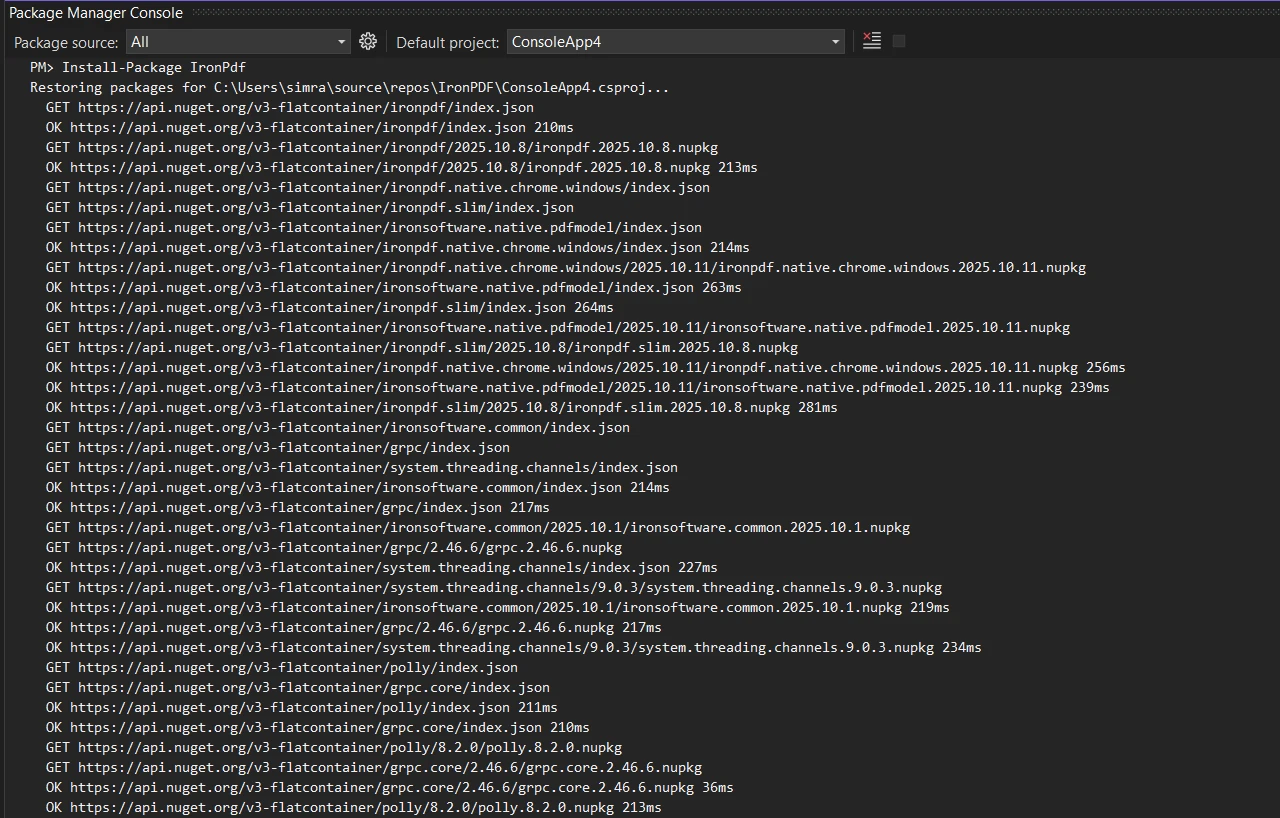
Linux 배포 또는 Docker 기반 환경의 경우, 플랫폼별 문서를 참조하십시오. 설치한 후, 라이센스 키가 있으면 구성하십시오:
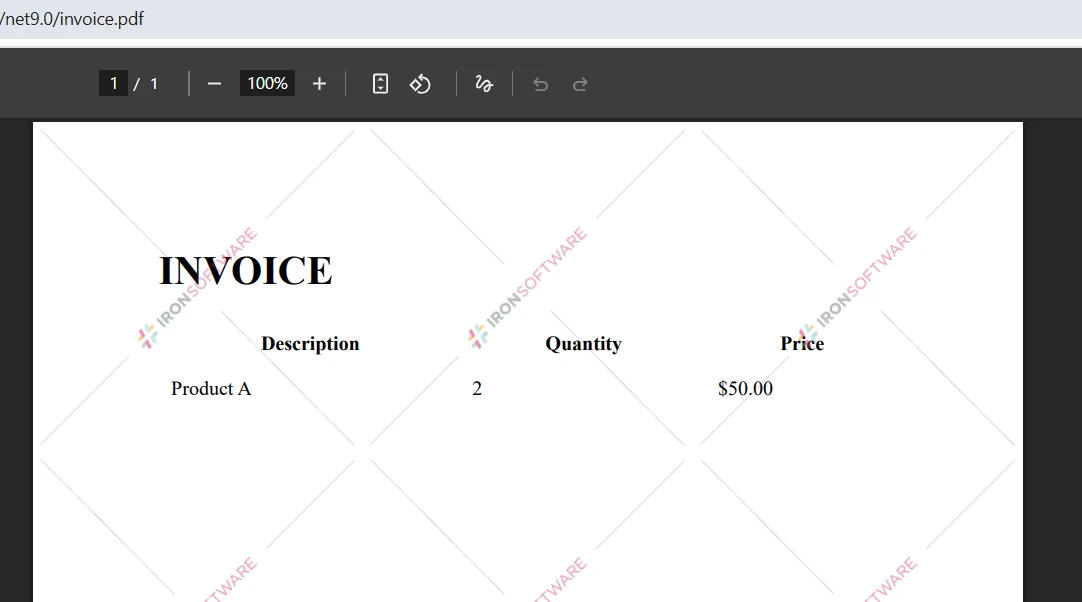
IronPdf.License.LicenseKey = "YOUR-LICENSE-KEY";IronPdf.License.LicenseKey = "YOUR-LICENSE-KEY"라이센스 키 없이도 개발 및 테스트가 가능하지만, 생성된 PDF에는 워터마크가 나타납니다. 라이센스 페이지에서 유효한 라이센스가 있어야 프로덕션 배포가 가능합니다. 무료 체험판은 신용카드 없이 30일 동안 모든 기능을 평가할 수 있습니다.
IronPDF는 .NET Framework 4.6.2+, .NET Core 3.1+, .NET 5에서 .NET 10까지 지원합니다. macOS에서는 Intel과 Apple Silicon 프로세서가 지원됩니다. 라이브러리는 Chrome 렌더링 엔진 설치를 자동으로 처리하므로 수동으로 브라우저를 설정할 필요가 없습니다.

PDF 비교의 기초는 텍스트 콘텐츠를 추출하고 비교하는 것입니다. IronPDF의 텍스트 추출 기능은 다중 열 문서, 표, 양식 및 내장 텍스트 레이어가 있는 스캔된 PDF를 포함하여 거의 모든 PDF 레이아웃에서 정확한 콘텐츠 검색을 제공합니다. 다음 예제는 두 파일을 로드하여 텍스트를 추출하고 유사성 점수를 계산하는 것입니다:
using IronPdf;
using System;

// Load two PDF documents
var pdf1 = PdfDocument.FromFile("document1.pdf");
var pdf2 = PdfDocument.FromFile("document2.pdf");

// Extract text from both PDFs
string text1 = pdf1.ExtractAllText();
string text2 = pdf2.ExtractAllText();

// Compare the two documents
if (text1 == text2)
{
    Console.WriteLine("PDF files are identical");
}
else
{
    Console.WriteLine("PDFs have differences");

    // Calculate character-level similarity
    int maxLength = Math.Max(text1.Length, text2.Length);
    if (maxLength > 0)
    {
        int differences = 0;
        int minLength = Math.Min(text1.Length, text2.Length);

        for (int i = 0; i < minLength; i++)
        {
            if (text1[i] != text2[i]) differences++;
        }

        differences += Math.Abs(text1.Length - text2.Length);
        double similarity = 1.0 - (double)differences / maxLength;

        Console.WriteLine($"Similarity: {similarity:P}");
        Console.WriteLine($"Character differences: {Math.Abs(text1.Length - text2.Length)}");
    }
}Imports IronPdf
Imports System
' Load two PDF documents
Dim pdf1 = PdfDocument.FromFile("document1.pdf")
Dim pdf2 = PdfDocument.FromFile("document2.pdf")
' Extract text from both PDFs
Dim text1 As String = pdf1.ExtractAllText()
Dim text2 As String = pdf2.ExtractAllText()
' Compare the two documents
If text1 = text2 Then
Console.WriteLine("PDF files are identical")
Else
Console.WriteLine("PDFs have differences")
' Calculate character-level similarity
Dim maxLength As Integer = Math.Max(text1.Length, text2.Length)
If maxLength > 0 Then
Dim differences As Integer = 0
Dim minLength As Integer = Math.Min(text1.Length, text2.Length)
For i As Integer = 0 To minLength - 1
If text1(i) <> text2(i) Then differences += 1
Next
differences += Math.Abs(text1.Length - text2.Length)
Dim similarity As Double = 1.0 - CDbl(differences) / maxLength
Console.WriteLine($"Similarity: {similarity:P}")
Console.WriteLine($"Character differences: {Math.Abs(text1.Length - text2.Length)}")
End If
End If이 코드는 최상위 문장과 IronPDF의 ExtractAllText() 메서드를 사용하여 두 파일 모두에서 전체 텍스트를 가져온 다음 문자 수준의 비교를 수행하여 유사도 백분율을 계산합니다. 점수는 문서가 얼마나 다른지에 대한 양적 척도를 빨리 제공합니다.
문자 수준 접근법은 의도적으로 간단하고 빠릅니다. 이는 두 문서가 다르게 되었는지에 대해 빠른 신호가 필요할 때, 예를 들어 실수로 덮어쓰기가 감지되거나 변환 파이프라인이 예상 출력물을 생성했는지를 확인할 때 잘 작동합니다. 더 세밀한 분석이 필요한 시나리오에서는 추출된 텍스트 문자열 위에 Levenshtein 거리나 차이 알고리즘을 추가할 수 있습니다.
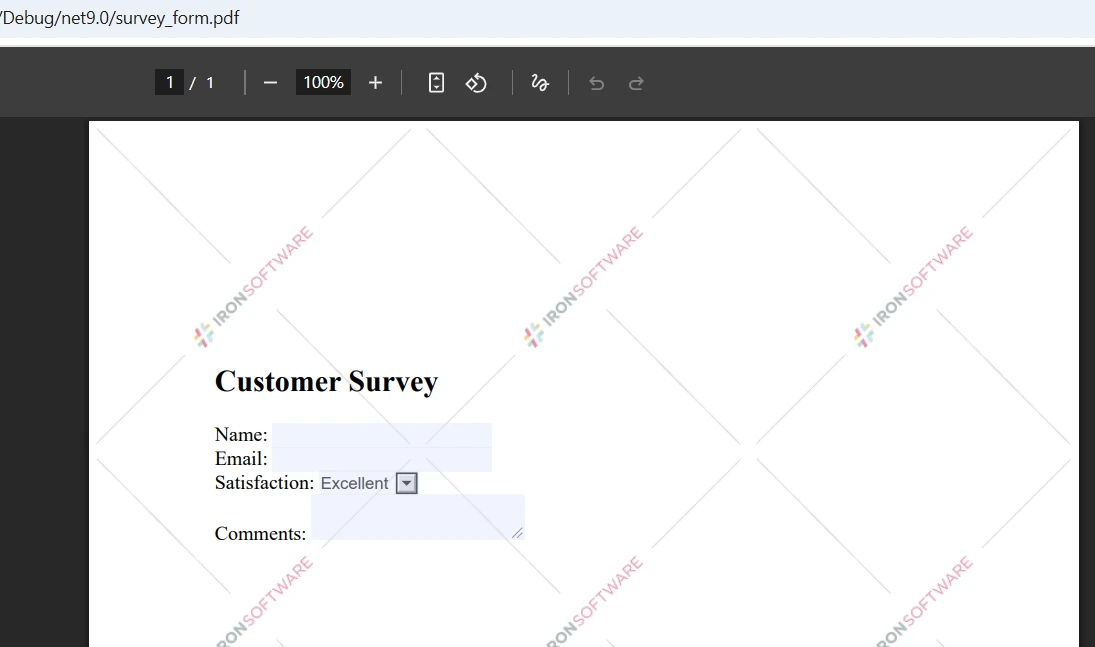
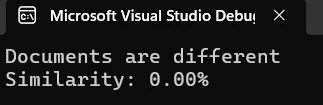
콘솔 출력은 문서 간 유사성 백분율을 표시합니다. 위의 2.60% 유사성 점수는 두 문서가 거의 완전히 다른 콘텐츠를 가지고 있음을 나타냅니다. 이 측정값은 차이의 정도를 빠르게 평가하여 다음 단계에 대한 결정을 내리는 데 도움을 줍니다.
텍스트 전용 비교는 형식, 이미지 또는 레이아웃 차이를 캡처하지 않습니다. 두 PDF가 동일한 텍스트를 가지고 있더라도 서체, 페이지 크기 또는 이미지 배치가 다르면 완전히 다르게 보일 수 있습니다. 전체적인 시각적 비교를 위해, IronPDF의 이미지 추출 기능과 이미지 비교 라이브러리를 결합하는 것을 고려하십시오. IronPDF의 래스터화 기능은 시각적 정확성이 텍스트 콘텐츠보다 중요할 때 픽셀 단위로 비교하기 위해 페이지를 이미지로 변환합니다.
전체 문서 비교는 두 PDF가 다르다는 것을 알려주지만, 페이지별 비교는 어디가 다른지를 정확히 알려줍니다. 이는 보고서, 송장 및 양식과 같은 구조화된 문서에서 페이지별로 예측 가능한 레이아웃을 따르는 콘텐츠에서는 특히 유용합니다:
using IronPdf;
using System;
using System.Collections.Generic;

var pdf1 = PdfDocument.FromFile("document1.pdf");
var pdf2 = PdfDocument.FromFile("document2.pdf");

int maxPages = Math.Max(pdf1.PageCount, pdf2.PageCount);
var pageResults = new List<(int Page, double Similarity)>();

for (int i = 0; i < maxPages; i++)
{
    string page1Text = i < pdf1.PageCount ? pdf1.ExtractTextFromPage(i) : "";
    string page2Text = i < pdf2.PageCount ? pdf2.ExtractTextFromPage(i) : "";

    if (page1Text != page2Text)
    {
        int maxLen = Math.Max(page1Text.Length, page2Text.Length);
        double sim = maxLen == 0 ? 1.0
            : 1.0 - (double)Math.Abs(page1Text.Length - page2Text.Length) / maxLen;

        Console.WriteLine($"Page {i + 1} differs -- similarity: {sim:P}");
        pageResults.Add((i + 1, sim));
    }
}

Console.WriteLine($"\nTotal pages with differences: {pageResults.Count}");Imports IronPdf
Imports System
Imports System.Collections.Generic
Dim pdf1 = PdfDocument.FromFile("document1.pdf")
Dim pdf2 = PdfDocument.FromFile("document2.pdf")
Dim maxPages As Integer = Math.Max(pdf1.PageCount, pdf2.PageCount)
Dim pageResults = New List(Of (Page As Integer, Similarity As Double))()
For i As Integer = 0 To maxPages - 1
Dim page1Text As String = If(i < pdf1.PageCount, pdf1.ExtractTextFromPage(i), "")
Dim page2Text As String = If(i < pdf2.PageCount, pdf2.ExtractTextFromPage(i), "")
If page1Text <> page2Text Then
Dim maxLen As Integer = Math.Max(page1Text.Length, page2Text.Length)
Dim sim As Double = If(maxLen = 0, 1.0, 1.0 - CDbl(Math.Abs(page1Text.Length - page2Text.Length)) / maxLen)
Console.WriteLine($"Page {i + 1} differs -- similarity: {sim:P}")
pageResults.Add((i + 1, sim))
End If
Next
Console.WriteLine($"\nTotal pages with differences: {pageResults.Count}")이 메서드는 ExtractTextFromPage()을 사용하여 각 페이지를 반복하며, 개별적으로 내용을 비교합니다. 이 접근법은 페이지 수가 다른 PDF를 오류 없이 처리합니다 -- 한 문서에 있지만 다른 문서에는 존재하지 않는 페이지는 빈 문자열로 처리되어 올바르게 다른 것으로 등록됩니다.
페이지별 비교는 큰 문서에서 수정 위치를 정확히 찾는데 특히 유용합니다. 전체 200페이지의 법률 계약서를 검토하는 대신 실제로 변경된 5개의 페이지 리스트를 얻게 됩니다. 이는 검토 시간을 크게 줄이고 비교 출력을 실행 가능하게 만듭니다.
대형 PDF의 성능을 위해 IronPDF는 배치 비교를 효율적으로 처리하기 위해 비동기 처리 및 병렬 연산을 지원합니다. 성능 최적화 가이드에는 연속으로 많은 대형 파일을 처리하기 위한 메모리 관리 전략을 포함한 대규모 작업에 대한 추가 기술이 포함되어 있습니다.
단일 참조 문서에 대한 배치 PDF 비교는 IronPDF와 함께 하면 간단합니다. 다음 예제는 제공된 첫 번째 파일에 대한 여러 파일을 비교하고 결과를 수집하여 보고용으로 사용합니다:
using IronPdf;
using System;
using System.Collections.Generic;
using System.IO;

string[] pdfPaths = { "reference.pdf", "version1.pdf", "version2.pdf", "version3.pdf" };

if (pdfPaths.Length < 2)
{
    Console.WriteLine("At least 2 PDFs required for comparison");
    return;
}

var referencePdf = PdfDocument.FromFile(pdfPaths[0]);
string referenceText = referencePdf.ExtractAllText();

var results = new List<(string File, double Similarity, bool Identical)>();

for (int i = 1; i < pdfPaths.Length; i++)
{
    try
    {
        var currentPdf = PdfDocument.FromFile(pdfPaths[i]);
        string currentText = currentPdf.ExtractAllText();

        bool identical = referenceText == currentText;
        int maxLen = Math.Max(referenceText.Length, currentText.Length);
        double similarity = maxLen == 0 ? 1.0
            : 1.0 - (double)Math.Abs(referenceText.Length - currentText.Length) / maxLen;

        results.Add((Path.GetFileName(pdfPaths[i]), similarity, identical));

        string status = identical ? "identical to reference" : $"differs -- similarity: {similarity:P}";
        Console.WriteLine($"{Path.GetFileName(pdfPaths[i])}: {status}");
    }
    catch (Exception ex)
    {
        Console.WriteLine($"Error processing {pdfPaths[i]}: {ex.Message}");
    }
}

Console.WriteLine($"\nBatch complete: {results.Count} files compared");
Console.WriteLine($"Identical: {results.FindAll(r => r.Identical).Count}");
Console.WriteLine($"Different: {results.FindAll(r => !r.Identical).Count}");Imports IronPdf
Imports System
Imports System.Collections.Generic
Imports System.IO
Module Module1
Sub Main()
Dim pdfPaths As String() = {"reference.pdf", "version1.pdf", "version2.pdf", "version3.pdf"}
If pdfPaths.Length < 2 Then
Console.WriteLine("At least 2 PDFs required for comparison")
Return
End If
Dim referencePdf = PdfDocument.FromFile(pdfPaths(0))
Dim referenceText As String = referencePdf.ExtractAllText()
Dim results As New List(Of (File As String, Similarity As Double, Identical As Boolean))()
For i As Integer = 1 To pdfPaths.Length - 1
Try
Dim currentPdf = PdfDocument.FromFile(pdfPaths(i))
Dim currentText As String = currentPdf.ExtractAllText()
Dim identical As Boolean = (referenceText = currentText)
Dim maxLen As Integer = Math.Max(referenceText.Length, currentText.Length)
Dim similarity As Double = If(maxLen = 0, 1.0, 1.0 - CDbl(Math.Abs(referenceText.Length - currentText.Length)) / maxLen)
results.Add((Path.GetFileName(pdfPaths(i)), similarity, identical))
Dim status As String = If(identical, "identical to reference", $"differs -- similarity: {similarity:P}")
Console.WriteLine($"{Path.GetFileName(pdfPaths(i))}: {status}")
Catch ex As Exception
Console.WriteLine($"Error processing {pdfPaths(i)}: {ex.Message}")
End Try
Next
Console.WriteLine($"\nBatch complete: {results.Count} files compared")
Console.WriteLine($"Identical: {results.FindAll(Function(r) r.Identical).Count}")
Console.WriteLine($"Different: {results.FindAll(Function(r) Not r.Identical).Count}")
End Sub
End Module이 접근법은 참조 문서를 한 번 로드한 후 다른 모든 파일을 루프하여 이를 비교합니다. try/catch 블록은 한 개의 손상되었거나 접근 불가능한 파일이 전체 배치를 중단하지 않도록 보장합니다 -- 오류는 로그로 기록되며 다음 파일을 계속 처리합니다.
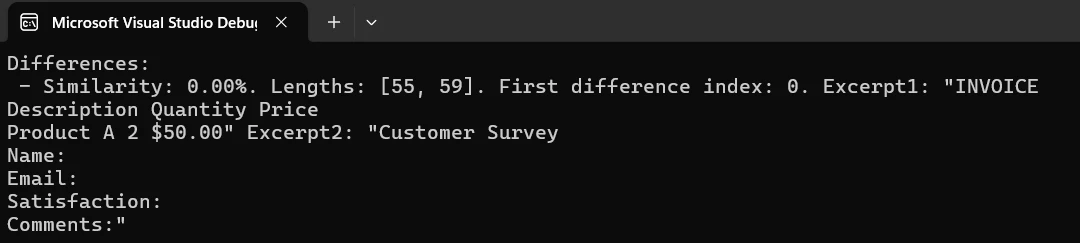
매우 큰 배치의 경우, 여러 PDF에서 텍스트를 로드하고 추출하기 위해 비동기 작업 패턴을 사용하여 순차적으로가 아니라 병렬로 처리하는 것을 고려하세요. 참조 문서를 선택할 때, 버전 관리 시나리오에서는 가장 최근에 승인된 버전을 사용하거나 품질 보증 워크플로에서는 예상 출력 템플릿을 사용하세요. 참조 선택을 자동화하려면 문서 자체에 포함된 생성 날짜 및 버전 번호와 같은 PDF 메타데이터를 읽어 사용할 수 있습니다.
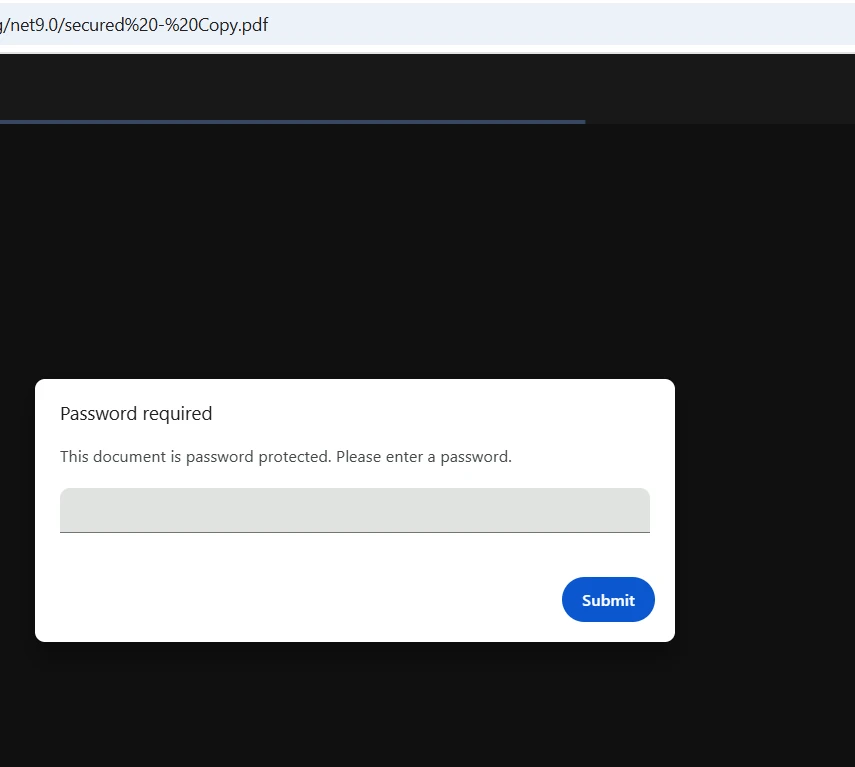
IronPDF는 FromFile 호출에 직접 비밀번호를 입력하여 암호화된 PDF를 처리합니다. 파일을 외부에서 해독할 필요 없이, 라이브러리에서 인증을 내부적으로 처리합니다. 라이브러리는 40비트 RC4, 128비트 RC4, 128비트 AES 암호화 표준을 지원합니다:
using IronPdf;
using System;

try
{
    // Load password-protected PDFs
    var pdf1 = PdfDocument.FromFile("secure-document1.pdf", "password1");
    var pdf2 = PdfDocument.FromFile("secure-document2.pdf", "password2");

    Console.WriteLine($"PDF 1 loaded: {pdf1.PageCount} pages");
    Console.WriteLine($"PDF 2 loaded: {pdf2.PageCount} pages");

    string text1 = pdf1.ExtractAllText();
    string text2 = pdf2.ExtractAllText();

    bool identical = text1.Equals(text2);
    int maxLen = Math.Max(text1.Length, text2.Length);
    double similarity = maxLen == 0 ? 1.0
        : 1.0 - (double)Math.Abs(text1.Length - text2.Length) / maxLen;

    Console.WriteLine($"Documents are {(identical ? "identical" : "different")}");
    Console.WriteLine($"Similarity: {similarity:P}");

    // Optionally save a secured comparison report
    if (!identical)
    {
        var renderer = new ChromePdfRenderer();
        var reportPdf = renderer.RenderHtmlAsPdf(
            $"<h1>Comparison Result</h1><p>Similarity: {similarity:P}</p>");

        reportPdf.SecuritySettings.OwnerPassword = "report-owner-password";
        reportPdf.SecuritySettings.UserPassword = "report-user-password";
        reportPdf.SecuritySettings.AllowUserPrinting = true;
        reportPdf.SecuritySettings.AllowUserCopyPasteContent = false;

        reportPdf.SaveAs("comparison-report.pdf");
        Console.WriteLine("Secured report saved.");
    }
}
catch (Exception ex)
{
    Console.WriteLine($"Error handling secured PDFs: {ex.Message}");
}Imports IronPdf
Imports System
Try
' Load password-protected PDFs
Dim pdf1 = PdfDocument.FromFile("secure-document1.pdf", "password1")
Dim pdf2 = PdfDocument.FromFile("secure-document2.pdf", "password2")
Console.WriteLine($"PDF 1 loaded: {pdf1.PageCount} pages")
Console.WriteLine($"PDF 2 loaded: {pdf2.PageCount} pages")
Dim text1 As String = pdf1.ExtractAllText()
Dim text2 As String = pdf2.ExtractAllText()
Dim identical As Boolean = text1.Equals(text2)
Dim maxLen As Integer = Math.Max(text1.Length, text2.Length)
Dim similarity As Double = If(maxLen = 0, 1.0, 1.0 - CDbl(Math.Abs(text1.Length - text2.Length)) / maxLen)
Console.WriteLine($"Documents are {(If(identical, "identical", "different"))}")
Console.WriteLine($"Similarity: {similarity:P}")
' Optionally save a secured comparison report
If Not identical Then
Dim renderer = New ChromePdfRenderer()
Dim reportPdf = renderer.RenderHtmlAsPdf($"<h1>Comparison Result</h1><p>Similarity: {similarity:P}</p>")
reportPdf.SecuritySettings.OwnerPassword = "report-owner-password"
reportPdf.SecuritySettings.UserPassword = "report-user-password"
reportPdf.SecuritySettings.AllowUserPrinting = True
reportPdf.SecuritySettings.AllowUserCopyPasteContent = False
reportPdf.SaveAs("comparison-report.pdf")
Console.WriteLine("Secured report saved.")
End If
Catch ex As Exception
Console.WriteLine($"Error handling secured PDFs: {ex.Message}")
End Try비밀번호를 FromFile에 전달하면 사전 복호화 단계 없이 암호화된 PDF를 비교할 수 있습니다. IronPDF의 보안 기능은 보호된 콘텐츠를 올바르게 처리할 수 있도록 하며, 디지털 서명은 문서의 신빙성 검증을 위한 추가 계층을 제공합니다.
비밀번호로 보호된 PDF를 처리할 때, 소스 코드에 하드코딩하는 대신 환경 변수 또는 비밀 관리자에 자격 증명을 저장하십시오. 민감한 정보를 제외하도록 로깅 관행을 구현하고, 무차별 대입 시나리오를 방지하기 위해 시도 제한과 함께 재시도 로직을 추가하세요. 고급 암호화 필요에 따라 PDF/UA 준수 가이드는 접근성 준수 보안 구성을 다룹니다.
형식화된 보고서는 이해 관계자에게 두 문서 간 변경된 내용을 명확히 보여줍니다. 다음 예시는 페이지별 차이 메트릭이 있는 스타일이 있는 보고서를 생성하기 위해 IronPDF의 HTML-대-PDF 변환을 사용합니다:
using IronPdf;
using System;
using System.Collections.Generic;
using System.IO;
using System.Text;

var pdf1 = PdfDocument.FromFile("document1.pdf");
var pdf2 = PdfDocument.FromFile("document2.pdf");

var differences = new List<(int Page, double Similarity, int Len1, int Len2, int CharDiff)>();
int totalPages = Math.Max(pdf1.PageCount, pdf2.PageCount);

for (int i = 0; i < totalPages; i++)
{
    string p1 = i < pdf1.PageCount ? pdf1.ExtractTextFromPage(i) ?? "" : "";
    string p2 = i < pdf2.PageCount ? pdf2.ExtractTextFromPage(i) ?? "" : "";

    if (p1 == p2) continue;

    int maxLen = Math.Max(p1.Length, p2.Length);
    double sim = maxLen == 0 ? 1.0 : 1.0 - (double)Math.Abs(p1.Length - p2.Length) / maxLen;
    int charDiff = Math.Abs(p1.Length - p2.Length);

    differences.Add((i + 1, sim, p1.Length, p2.Length, charDiff));
}

// Build HTML report
var sb = new StringBuilder();
sb.Append(@"<html><head><style>
    body { font-family: Arial, sans-serif; margin: 20px; }
    h1 { color: #333; border-bottom: 2px solid #4CAF50; }
    .summary { background: #f0f0f0; padding: 15px; border-radius: 5px; margin-bottom: 20px; }
    table { border-collapse: collapse; width: 100%; }
    th, td { border: 1px solid #ddd; padding: 8px; text-align: left; }
    th { background: #4CAF50; color: white; }
    .ok { background: #c8e6c9; padding: 15px; border-radius: 5px; }
</style></head><body>");

sb.Append("<h1>PDF Comparison Report</h1>");
sb.Append("<div class='summary'>");
sb.Append($"<p><strong>File 1:</strong> {Path.GetFileName("document1.pdf")}</p>");
sb.Append($"<p><strong>File 2:</strong> {Path.GetFileName("document2.pdf")}</p>");
sb.Append($"<p><strong>Pages with differences:</strong> {differences.Count} of {totalPages}</p>");
sb.Append($"<p><strong>Generated:</strong> {DateTime.Now:yyyy-MM-dd HH:mm:ss}</p>");
sb.Append("</div>");

if (differences.Count > 0)
{
    sb.Append("<table><thead><tr><th>Page</th><th>Similarity</th><th>File 1 Length</th><th>File 2 Length</th><th>Char Diff</th></tr></thead><tbody>");
    foreach (var d in differences)
    {
        sb.Append($"<tr><td>{d.Page}</td><td>{d.Similarity:P}</td><td>{d.Len1}</td><td>{d.Len2}</td><td>{d.CharDiff}</td></tr>");
    }
    sb.Append("</tbody></table>");
}
else
{
    sb.Append("<p class='ok'>No differences detected -- files are identical.</p>");
}

sb.Append("</body></html>");

var renderer = new ChromePdfRenderer();
renderer.RenderingOptions.MarginTop = 25;
renderer.RenderingOptions.MarginBottom = 25;
renderer.RenderingOptions.CssMediaType = IronPdf.Rendering.PdfCssMediaType.Print;

var reportPdf = renderer.RenderHtmlAsPdf(sb.ToString());
reportPdf.MetaData.Author = "PDF Comparison Tool";
reportPdf.MetaData.Title = "PDF Comparison Report";
reportPdf.MetaData.CreationDate = DateTime.Now;

reportPdf.SaveAs("comparison-report.pdf");
Console.WriteLine("Report saved to comparison-report.pdf");Imports IronPdf
Imports System
Imports System.Collections.Generic
Imports System.IO
Imports System.Text
Dim pdf1 = PdfDocument.FromFile("document1.pdf")
Dim pdf2 = PdfDocument.FromFile("document2.pdf")
Dim differences = New List(Of (Page As Integer, Similarity As Double, Len1 As Integer, Len2 As Integer, CharDiff As Integer))()
Dim totalPages As Integer = Math.Max(pdf1.PageCount, pdf2.PageCount)
For i As Integer = 0 To totalPages - 1
Dim p1 As String = If(i < pdf1.PageCount, pdf1.ExtractTextFromPage(i), "")
Dim p2 As String = If(i < pdf2.PageCount, pdf2.ExtractTextFromPage(i), "")
If p1 = p2 Then Continue For
Dim maxLen As Integer = Math.Max(p1.Length, p2.Length)
Dim sim As Double = If(maxLen = 0, 1.0, 1.0 - CDbl(Math.Abs(p1.Length - p2.Length)) / maxLen)
Dim charDiff As Integer = Math.Abs(p1.Length - p2.Length)
differences.Add((i + 1, sim, p1.Length, p2.Length, charDiff))
Next
' Build HTML report
Dim sb = New StringBuilder()
sb.Append("<html><head><style>
body { font-family: Arial, sans-serif; margin: 20px; }
h1 { color: #333; border-bottom: 2px solid #4CAF50; }
.summary { background: #f0f0f0; padding: 15px; border-radius: 5px; margin-bottom: 20px; }
table { border-collapse: collapse; width: 100%; }
th, td { border: 1px solid #ddd; padding: 8px; text-align: left; }
th { background: #4CAF50; color: white; }
.ok { background: #c8e6c9; padding: 15px; border-radius: 5px; }
</style></head><body>")
sb.Append("<h1>PDF Comparison Report</h1>")
sb.Append("<div class='summary'>")
sb.Append($"<p><strong>File 1:</strong> {Path.GetFileName("document1.pdf")}</p>")
sb.Append($"<p><strong>File 2:</strong> {Path.GetFileName("document2.pdf")}</p>")
sb.Append($"<p><strong>Pages with differences:</strong> {differences.Count} of {totalPages}</p>")
sb.Append($"<p><strong>Generated:</strong> {DateTime.Now:yyyy-MM-dd HH:mm:ss}</p>")
sb.Append("</div>")
If differences.Count > 0 Then
sb.Append("<table><thead><tr><th>Page</th><th>Similarity</th><th>File 1 Length</th><th>File 2 Length</th><th>Char Diff</th></tr></thead><tbody>")
For Each d In differences
sb.Append($"<tr><td>{d.Page}</td><td>{d.Similarity:P}</td><td>{d.Len1}</td><td>{d.Len2}</td><td>{d.CharDiff}</td></tr>")
Next
sb.Append("</tbody></table>")
Else
sb.Append("<p class='ok'>No differences detected -- files are identical.</p>")
End If
sb.Append("</body></html>")
Dim renderer = New ChromePdfRenderer()
renderer.RenderingOptions.MarginTop = 25
renderer.RenderingOptions.MarginBottom = 25
renderer.RenderingOptions.CssMediaType = IronPdf.Rendering.PdfCssMediaType.Print
Dim reportPdf = renderer.RenderHtmlAsPdf(sb.ToString())
reportPdf.MetaData.Author = "PDF Comparison Tool"
reportPdf.MetaData.Title = "PDF Comparison Report"
reportPdf.MetaData.CreationDate = DateTime.Now
reportPdf.SaveAs("comparison-report.pdf")
Console.WriteLine("Report saved to comparison-report.pdf")이 솔루션은 HTML 렌더링을 사용하여 맞춤형 스타일의 전문 보고서를 생성합니다. IronPDF의 CSS 지원을 통해 전체 맞춤 설정이 가능합니다 -- 서체, 색상, 레이아웃을 기업 브랜드에 맞게 조정하세요. 머리글 및 바닥글을 페이지 번호와 타임스탬프와 함께 추가하여 공식 문서 워크플로를 지원합니다.
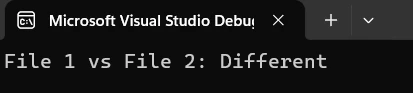
생성된 보고서는 페이지별 자세한 메트릭과 함께 차이점을 명확히 요약합니다. 보고서를 확장하여 유사도 점수를 시각적으로 보여주는 차트, 변경된 영역을 표시하는 페이지 썸네일, 긴 보고서에서 쉽게 탐색할 수 있는 책갈피를 추가할 수 있습니다. 기록 보관용 보고서의 경우 IronPDF는 장기 가독성을 보장하고 문서 보존 규정을 준수하기 위해 PDF/A 형식을 지원합니다.
PDF 비교 기능을 프로덕션에 배포하기 전에, 몇 가지 패턴이 약한 프로토타입과 신뢰할 수 있는 도구의 차이를 만듭니다:
null과 빈 텍스트를 부드럽게 처리합니다. ExtractAllText()는 이미지 전용 PDF 또는 텍스트 레이어가 없는 스캔 문서의 경우 빈 문자열을 반환할 수 있습니다. 비교 로직을 실행하기 전에 항상 빈 결과를 확인하고, 빈 대 빈이 "동일하게" 또는 "불확정적으로" 계산되는지 결정하십시오.
비교 전에 텍스트를 정규화하십시오. 서로 다른 PDF 생성기는 동일한 시각적 콘텐츠에 대해 약간 다른 공백 패턴, 줄 끝, 유니코드 정규화를 생성할 수 있습니다. 비교 전에 text.Trim().Replace("\r\n", "\n")을 실행하면 미묘한 외형 차이로 잘못된 양성 반응을 방지할 수 있습니다.
정확한 일치 대신 비즈니스 워크플로우를 위한 유사도 임계값을 사용하십시오. 98% 유사도 점수는 타임스탬프 또는 자동 생성 ID가 약간 다른 경우에도 두 문서가 기능적으로 동일함을 의미할 수 있습니다. 정확한 문자 일치를 요구하는 대신 도메인에 적합한 임계값을 정의하십시오.
파일 메타데이터와 함께 비교 결과를 기록하십시오. 파일 이름, 크기, 수정 날짜 및 유사도 점수를 구조화된 로그에 저장하십시오. 이는 비교를 다시 실행하지 않고도 컴플라이언스 팀이 검토할 수 있는 감사 기록을 생성합니다.
인코딩 및 폰트 문제를 고려하십시오. 일부 PDF 파일은 텍스트 레이어에 대해 사용자 정의 인코딩 테이블을 사용합니다. IronPDF의 Chrome 기반 엔진은 대부분의 경우를 올바르게 처리하지만, 읽기 어려운 텍스트 출력이 나타날 경우 소스 PDF가 비표준 폰트 인코딩을 사용하는지 확인하십시오. 문제 해결 가이드는 공통 추출 문제와 그 해결책을 다룹니다.
프로덕션 문서 비교 파이프라인을 구축하는 팀의 경우, .NET의 비동기 패턴에 대한 Microsoft 문서는 병렬 파일 처리의 구조에 대한 유용한 지침을 제공합니다. PDF 명세서 (ISO 32000)는 주어진 문서의 텍스트 레이어에 나타날 수 있거나 나타나지 않을 내용 유형을 이해할 필요가 있을 때 검토할 가치가 있습니다.
C#에서의 PDF 비교는 수십 개의 산업에서 문서 자동화를 가능케 하는 실용적인 기술이며, IronPDF는 이를 모든 .NET 개발자가 이용할 수 있게 합니다. 기본적인 텍스트 추출 예제부터 시작하여 필요에 따라 페이지별 분석으로 확장하고, HTML 보고서 생성기를 사용하여 이해 관계자에게 전문적인 출력을 제공합니다.
| 시나리오 | 접근 방식 | 주요 메서드 |
|---|---|---|
| 기본 텍스트 비교 | 두 문서에서 전체 텍스트를 추출하고 문자열을 비교합니다 | ExtractAllText() |
| 페이지별 분석 | 각 페이지를 개별적으로 비교하여 변경 위치를 정확히 찾습니다 | ExtractTextFromPage() |
| 일괄 비교 | 여러 파일을 단일 참조 문서와 비교합니다 | PdfDocument.FromFile() |
| 암호로 보호된 파일 | 파일 로더에 비밀번호를 직접 전달합니다 -- 사전 복호화가 필요 없습니다 | PdfDocument.FromFile(path, password) |
| 보고서 생성 | HTML 비교 요약을 스타일이 있는 PDF 보고서로 변환합니다 | ChromePdfRenderer.RenderHtmlAsPdf() |
무료 체험판을 다운로드하여 즉시 IronPDF로 빌드를 시작하세요 -- 30일 평가 기간 동안 신용카드가 필요 없습니다. 빠른 시작 가이드는 초기 설정을 5분 이내에 안내합니다. 프로덕션에 대비가 되면, 라이선스 페이지를 검토하여 팀 규모와 배포 요구 사항에 적합한 옵션을 확인하세요.
더 깊은 학습을 위해 PDF 생성, 편집 및 조작을 다루는 완벽한 튜토리얼 시리즈를 탐색하세요. API 참조는 자세한 메서드 문서를 제공하며, 예제 섹션은 양식 처리 및 워터마킹을 포함한 실제 구현 사례를 보여줍니다.

커티스 차우는 칼턴 대학교에서 컴퓨터 과학 학사 학위를 취득했으며, Node.js, TypeScript, JavaScript, React를 전문으로 하는 프론트엔드 개발자입니다. 직관적이고 미적으로 뛰어난 사용자 인터페이스를 만드는 데 열정을 가진 그는 최신 프레임워크를 활용하고, 잘 구성되고 시각적으로 매력적인 매뉴얼을 제작하는 것을 즐깁니다.



IronPDF는 IRON SUITE 의 일부입니다.
10개의 .NET API 제품, 당신의 사무 문서를 위해

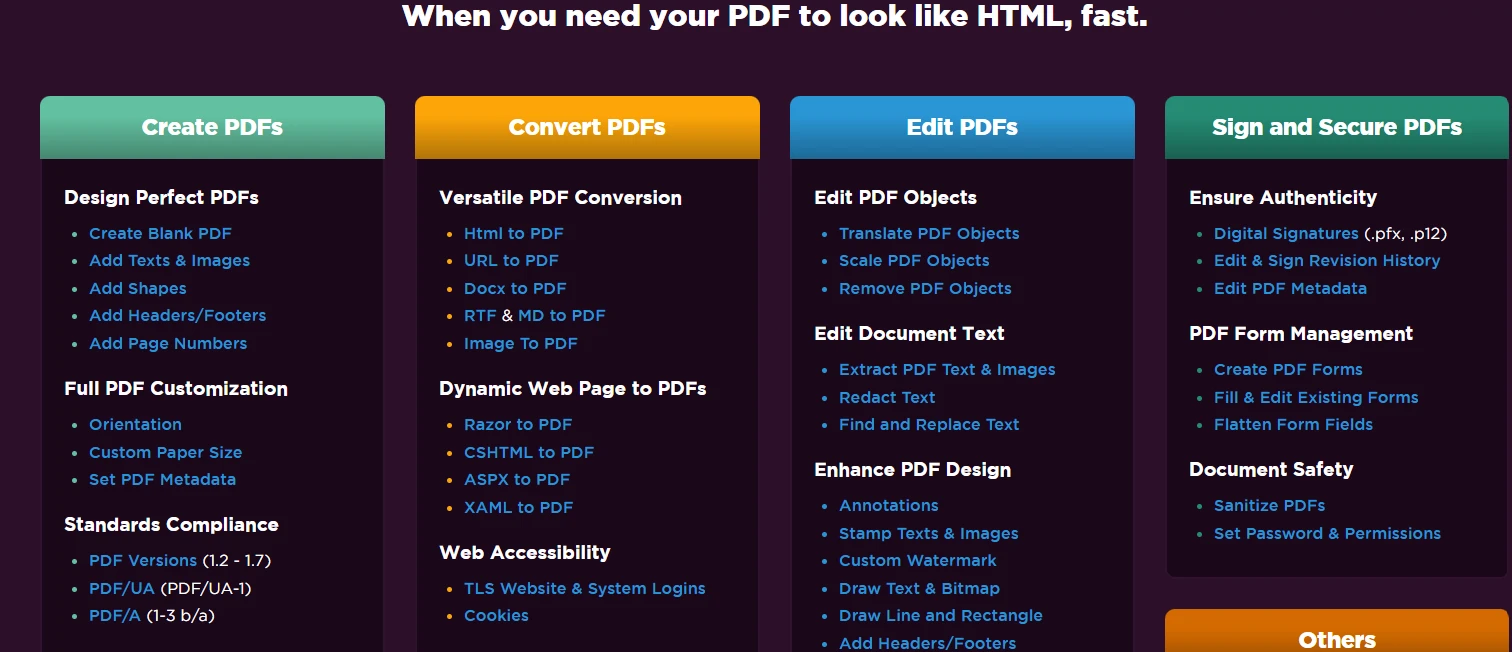
PDF 파일을 HTML처럼 빠르게 변환해야 할 때.


