




업데이트됨 2026년 9월 4일
월별 계정 명세서를 PDF 문서로 생성하기
개발자는 IronPDF C# PDF 라이브러리를 사용하여 외부 서비스에 의존하지 않고도 .NET 프로젝트 내에서 HTML을 신뢰할 수 있는 PDF 파일로 변환할 수 있습니다.
더 읽어보기

IronPDF는 복잡한 종속성이나 수동 파싱 없이 간단한 C# 코드를 사용하여 PDF 파일에서 텍스트, 양식 데이터 및 테이블을 읽는 방법을 제공하여 ASP.NET Core에서 PDF 데이터 추출을 단순화합니다.
.NET 애플리케이션에서 PDF 파일 작업은 처음 보이는 것보다 더 어려울 수 있습니다. 업로드된 청구서에서 텍스트를 추출하거나 설문 조사에서 양식 데이터를 가져오거나 데이터베이스를 위한 테이블을 파싱해야 할 수 있습니다. 많은 프로젝트가 지나치게 복잡한 라이브러리를 선택해 광범위한 사용자 지정 코드 파싱이 필요한 경우 속도가 느려집니다. IronPDF는 최소한의 설정으로 PDF 문서를 읽고 처리할 수 있는 간단한 대안을 제공합니다.
단순 텍스트, 대화형 양식 필드 또는 구조화된 테이블 데이터를 처리하든 IronPDF의 API는 저수준 파싱 없이 PDF 콘텐츠에 직접 액세스할 수 있게 해줍니다. 이 가이드는 ASP.NET Core에서 PDF 파일에서 데이터를 읽는 방법을 안내하며, 텍스트 추출, 양식 데이터 검색, 테이블 파싱, 비동기 파일 업로드 처리를 포함한 모든 작업을 C# 코드로 수행할 수 있습니다.
시작하는 것은 간단합니다. 다음 명령 중 하나를 사용하여 NuGet 패키지 관리자 콘솔 또는 .NET CLI에서 IronPDF NuGet 패키지를 설치하세요:
패키지가 설치되면 PDF 문서와 작업하는 모든 파일의 맨 위에 IronPDF 네임스페이스를 추가하세요:
using IronPdf;Imports IronPdf대부분의 프로젝트에 필요한 모든 설정이 완료되었습니다. IronPDF는 Windows에서 외부 렌더링 프로세스나 추가 네이티브 종속성에 의존하지 않습니다. Linux나 Docker 환경의 경우, 플랫폼별 지침을 보려면 IronPDF 문서를 참조하세요.
무료 체험 라이선스를 통해 프로덕션 사용을 시작하기 전에 전체 기능 세트를 테스트할 수 있습니다. IronPDF 사이트에서 직접 체험 라이선스를 구하고 첫 번째 PDF 작업 전에 한 줄의 코드로 적용할 수 있습니다.
텍스트 추출은 가장 일반적인 PDF 읽기 작업입니다. IronPDF는 문서에서 모든 읽을 수 있는 텍스트를 추출하기 위한 ExtractAllText와 페이지 수준의 접근을 위한 ExtractTextFromPage를 제공합니다. 두 메서드는 읽기 순서를 유지하며 표준 텍스트 인코딩을 처리합니다.
// Load a PDF document from disk
var pdf = PdfDocument.FromFile("document.pdf");

// Extract all text from every page
string allText = pdf.ExtractAllText();

// Extract text from a specific page (zero-based index)
string pageOneText = pdf.ExtractTextFromPage(0);

Console.WriteLine(allText);Imports System
' Load a PDF document from disk
Dim pdf = PdfDocument.FromFile("document.pdf")
' Extract all text from every page
Dim allText As String = pdf.ExtractAllText()
' Extract text from a specific page (zero-based index)
Dim pageOneText As String = pdf.ExtractTextFromPage(0)
Console.WriteLine(allText)ExtractAllText는 줄 바꿈을 유지하면서 전체 텍스트 내용을 하나의 문자열로 반환합니다. ExtractTextFromPage는 0부터 시작하는 인덱스를 사용하여 하나의 페이지를 대상으로 하며, 이는 여러 페이지 문서에서 특정 섹션의 내용만 필요할 때 유용합니다.
텍스트 및 이미지 추출 옵션에 대한 심층적인 검토를 위해, PDF 가이드에서 텍스트 추출하기는 영역 기반 추출을 포함한 고급 시나리오를 다룹니다.
다음 컨트롤러 동작은 IFormFile를 통해 업로드된 PDF를 수락하고, MemoryStream로 읽어들인 후 추출된 텍스트를 JSON으로 반환합니다:
using IronPdf;
using Microsoft.AspNetCore.Http;
using Microsoft.AspNetCore.Mvc;
using System.IO;

[ApiController]
[Route("api/[controller]")]
public class PdfController : ControllerBase
{
    [HttpPost("extract-text")]
    public IActionResult ExtractText(IFormFile pdfFile)
    {
        if (pdfFile == null || pdfFile.Length == 0)
            return BadRequest("No PDF file uploaded.");

        using var stream = new MemoryStream();
        pdfFile.CopyTo(stream);

        var pdf = new PdfDocument(stream.ToArray());
        string extractedText = pdf.ExtractAllText();

        return Ok(new { text = extractedText });
    }
}Imports IronPdf
Imports Microsoft.AspNetCore.Http
Imports Microsoft.AspNetCore.Mvc
Imports System.IO
<ApiController>
<Route("api/[controller]")>
Public Class PdfController
Inherits ControllerBase
<HttpPost("extract-text")>
Public Function ExtractText(pdfFile As IFormFile) As IActionResult
If pdfFile Is Nothing OrElse pdfFile.Length = 0 Then
Return BadRequest("No PDF file uploaded.")
End If
Using stream As New MemoryStream()
pdfFile.CopyTo(stream)
Dim pdf As New PdfDocument(stream.ToArray())
Dim extractedText As String = pdf.ExtractAllText()
Return Ok(New With {.text = extractedText})
End Using
End Function
End Class이 엔드포인트는 업로드된 파일을 바이트 배열로 변환하여 PdfDocument에 직접 전달합니다. 디스크에 임시 파일을 쓰지 않아 코드가 깨끗하게 유지되고 불필요한 저장소 오버헤드를 피할 수 있습니다. IFormFile 인터페이스는 multipart 폼 제출과 Postman 같은 API 클라이언트에서도 자연스럽게 작동합니다.
PDF 양식 - AcroForms라고도 불리며 - 는 사용자가 입력하는 대화형 필드를 포함합니다. IronPDF는 PdfDocument의 Form 속성을 통해 양식 필드를 노출하여 문서의 모든 필드의 이름과 값을 제공합니다.
다음 엔드포인트는 업로드된 양식 PDF를 읽고 모든 필드 값을 JSON 사전으로 반환합니다:
[HttpPost("extract-form")]
public IActionResult ExtractForm([FromForm] IFormFile pdfFile)
{
    if (pdfFile == null || pdfFile.Length == 0)
        return BadRequest("No PDF file uploaded.");

    using var stream = new MemoryStream();
    pdfFile.CopyTo(stream);

    var pdf = new PdfDocument(stream.ToArray());
    var formData = new Dictionary<string, string>();

    if (pdf.Form != null)
    {
        foreach (var field in pdf.Form)
        {
            formData[field.Name] = field.Value;
        }
    }

    return Ok(new { formFields = formData });
}Imports Microsoft.AspNetCore.Mvc
Imports System.IO
<HttpPost("extract-form")>
Public Function ExtractForm(<FromForm> pdfFile As IFormFile) As IActionResult
If pdfFile Is Nothing OrElse pdfFile.Length = 0 Then
Return BadRequest("No PDF file uploaded.")
End If
Using stream As New MemoryStream()
pdfFile.CopyTo(stream)
Dim pdf = New PdfDocument(stream.ToArray())
Dim formData As New Dictionary(Of String, String)()
If pdf.Form IsNot Nothing Then
For Each field In pdf.Form
formData(field.Name) = field.Value
Next
End If
Return Ok(New With {.formFields = formData})
End Using
End Functionpdf.Form의 각 필드는 Name 속성(PDF 작성 도구에서 설정된 필드 식별자)과 Value 속성(사용자가 입력한 텍스트 또는 선택)을 가집니다. 텍스트 박스, 체크박스, 라디오 버튼, 드롭다운 모두 이 컬렉션에 나타납니다.
JSON 응답은 추가 파싱 없이도 양식 제출을 데이터베이스, 타사 API 또는 메시지 큐로 전달하기 쉽게 만들어 줍니다. 프로그램적으로 PDF 양식을 생성하거나 편집하는 워크플로에 대해, PDF 양식 가이드에서는 필드 추가 및 값 사전 입력 방법을 보여줍니다.

위의 응답은 샘플 연락처 양식 PDF의 필드 이름과 값을 포함하는 200 OK 결과를 보여줍니다. 구조는 대부분의 데이터베이스 스키마 또는 REST 페이로드에 매핑하기에 적합하게 평면적인 키-값 맵 형태입니다.
PDF 파일의 테이블은 위치 지정된 텍스트로 저장되며 PDF 형식에는 네이티브 테이블 데이터 구조가 없습니다. 따라서 표 형식의 데이터를 추출한다는 것은 원시 텍스트를 추출하고, 행과 열을 재구성하기 위한 구문 해석 논리를 적용하는 것을 의미합니다.
IronPDF의 ExtractAllText는 공백과 탭 문자를 보존하여 프로그래밍 방식으로 줄을 열로 분할할 수 있도록 합니다. 다음 컨트롤러 액션은 이 접근 방식을 보여줍니다:
[HttpPost("extract-table")]
public IActionResult ExtractTable([FromForm] IFormFile pdfFile)
{
    if (pdfFile == null || pdfFile.Length == 0)
        return BadRequest("No PDF file uploaded.");

    using var memoryStream = new MemoryStream();
    pdfFile.CopyTo(memoryStream);

    var pdf = new PdfDocument(memoryStream.ToArray());
    string text = pdf.ExtractAllText();

    // Split into lines, then split each line into columns
    string[] lines = text.Split(
        new[] { '\r', '\n' },
        StringSplitOptions.RemoveEmptyEntries
    );

    var tableData = new List<string[]>();
    foreach (string line in lines)
    {
        string[] columns = line
            .Split('\t')
            .Where(c => !string.IsNullOrWhiteSpace(c))
            .ToArray();

        if (columns.Length > 0)
            tableData.Add(columns);
    }

    var table = tableData.Select(r => string.Join(" | ", r)).ToList();
    return Ok(new { Table = table });
}Imports Microsoft.AspNetCore.Mvc
Imports System.IO
Imports System.Linq
<HttpPost("extract-table")>
Public Function ExtractTable(<FromForm> pdfFile As IFormFile) As IActionResult
If pdfFile Is Nothing OrElse pdfFile.Length = 0 Then
Return BadRequest("No PDF file uploaded.")
End If
Using memoryStream As New MemoryStream()
pdfFile.CopyTo(memoryStream)
Dim pdf As New PdfDocument(memoryStream.ToArray())
Dim text As String = pdf.ExtractAllText()
' Split into lines, then split each line into columns
Dim lines As String() = text.Split(New Char() {ControlChars.Cr, ControlChars.Lf}, StringSplitOptions.RemoveEmptyEntries)
Dim tableData As New List(Of String())()
For Each line As String In lines
Dim columns As String() = line.Split(ControlChars.Tab).Where(Function(c) Not String.IsNullOrWhiteSpace(c)).ToArray()
If columns.Length > 0 Then
tableData.Add(columns)
End If
Next
Dim table = tableData.Select(Function(r) String.Join(" | ", r)).ToList()
Return Ok(New With {.Table = table})
End Using
End Function이 방법은 탭 구분 열을 일관되게 사용하는 표의 PDF에 효과적으로 작동합니다. 열이 가변적인 공백으로 구분되는 문서의 경우, 최소 간격 휴리스틱을 적용하거나 문자 위치를 검사해야 할 수 있습니다. PDF 병합 또는 분할 가이드는 추출하기 전에 표가 포함된 특정 페이지를 분리해야 할 때 유용합니다.
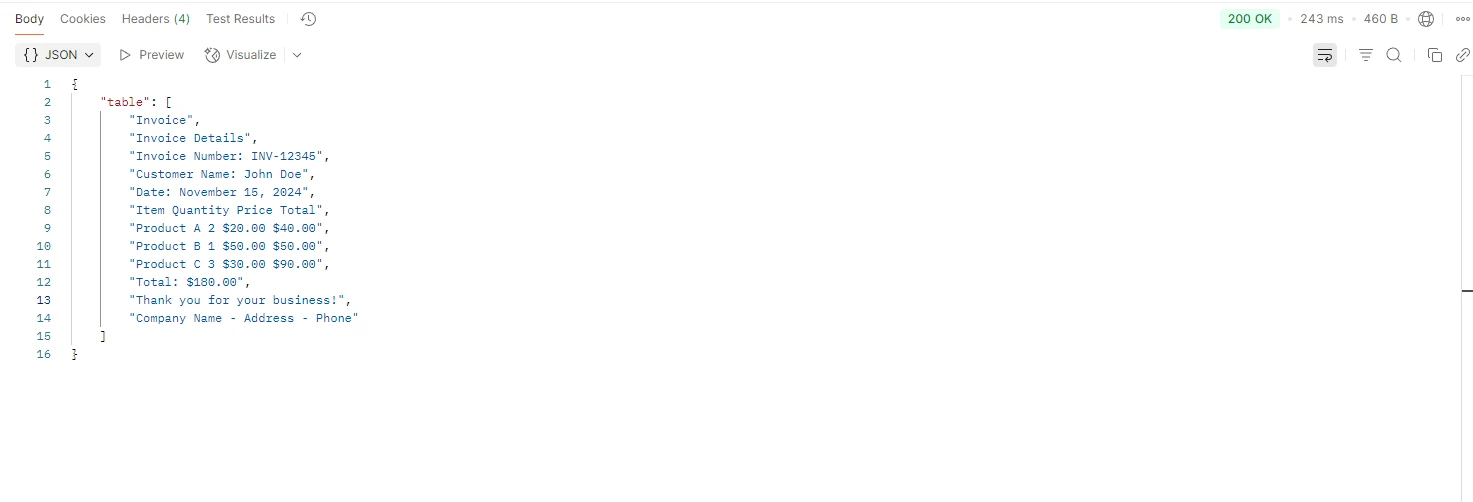
수동 파싱은 PDF가 HTML이나 구조화된 데이터 소스에서 생성되지 않았을 때 적절한 선택입니다. 예를 들어, 스캔된 송장이나 데스크톱 출판 도구에서 생성된 문서의 경우입니다. 탭 분할 접근 방식은 많은 표준 PDF를 신뢰성 있게 처리합니다. 열 경계가 불규칙한 경우, IronPDF의 DOM 액세스 API를 통한 원시 문자 좌표를 검사하여 논리를 세밀하게 조정할 수 있습니다.
HTML에서 생성된 문서의 경우, HTML 중간 단계를 통해 라운드 트립을 고려하십시오. 데이터 기반 HTML 템플릿에서 PDF를 생성하는 것은(HTML 문자열을 PDF로 변환하는 가이드에서 설명) 텍스트 위치가 예측 가능하며 추출이 간단하다는 것을 의미합니다.
프로덕션 ASP.NET Core 애플리케이션은 스레드 풀이 차단되지 않도록 파일 업로드를 비동기적으로 처리해야 합니다. IFormFile.CopyToAsync 메서드는 await와 결합되어 컨트롤러를 비차단으로 유지합니다:
[HttpPost("process-upload")]
public async Task<IActionResult> ProcessPdf([FromForm] IFormFile file)
{
    if (file == null || file.Length == 0)
        return BadRequest("No PDF file uploaded.");

    using var ms = new MemoryStream();
    await file.CopyToAsync(ms);

    var pdf = new PdfDocument(ms.ToArray());
    string text = pdf.ExtractAllText();
    int pageCount = pdf.PageCount;

    return Ok(new
    {
        text,
        pages = pageCount
    });
}Imports System.IO
Imports Microsoft.AspNetCore.Mvc
<HttpPost("process-upload")>
Public Async Function ProcessPdf(<FromForm> file As IFormFile) As Task(Of IActionResult)
If file Is Nothing OrElse file.Length = 0 Then
Return BadRequest("No PDF file uploaded.")
End If
Using ms As New MemoryStream()
Await file.CopyToAsync(ms)
Dim pdf As New PdfDocument(ms.ToArray())
Dim text As String = pdf.ExtractAllText()
Dim pageCount As Integer = pdf.PageCount
Return Ok(New With {
.text = text,
.pages = pageCount
})
End Using
End FunctionPdfDocument 생성자는 동기적이지만, 업로드 단계는 종종 파이프라인에서 가장 느린 부분으로 비동기적으로 실행됩니다. 이 패턴은 동시 로드 아래에서 잘 확장되며, 최소 API 엔드포인트, Razor Pages 핸들러 및 gRPC 서비스와 호환됩니다.
ASP.NET Core는 기본 요청 본문 크기 제한을 30 MB로 적용합니다. 더 큰 PDF의 경우 Program.cs에서 제한을 증가시키세요:
builder.Services.Configure<FormOptions>(options =>
{
    options.MultipartBodyLengthLimit = 100 * 1024 * 1024; // 100 MB
});Imports Microsoft.Extensions.DependencyInjection
Imports Microsoft.AspNetCore.Http
builder.Services.Configure(Of FormOptions)(Sub(options)
options.MultipartBodyLengthLimit = 100 * 1024 * 1024 ' 100 MB
End Sub)Kestrel은 별도의 제한을 가지고 있으며, 이를 늘려야 할 수도 있습니다:
builder.WebHost.ConfigureKestrel(options =>
{
    options.Limits.MaxRequestBodySize = 100 * 1024 * 1024;
});builder.WebHost.ConfigureKestrel(Sub(options)
options.Limits.MaxRequestBodySize = 100 * 1024 * 1024
End Sub)이 값을 애플리케이션이 처리할 PDF의 현실적인 최대 크기에 기반하여 설정하십시오. 항상 예상치 못한 입력을 방지하기 위해 IronPDF로 전달하기 전에 업로드된 파일의 MIME 유형 및 확장자를 검증하십시오.
텍스트나 폼 데이터를 얻으면, 애플리케이션이 필요로 하는 모든 다운스트림 프로세스에 연결할 수 있습니다 - 데이터베이스 기록, 검색 색인화, 보고서 생성 또는 API 호출. IronPDF는 또한 역방향 변환을 지원합니다: HTML을 PDF로 렌더링.
추출한 콘텐츠를 시각적으로 표시하려는 경우, PDF를 이미지로 변환하는 가이드를 사용하여 원본 PDF를 이미지로 렌더링할 수 있습니다. 이 방법은 브라우저에서 전체 PDF를 로드하지 않고 페이지 썸네일을 표시하려는 문서 미리보기 기능에 유용합니다.
출력 문서를 사용자에게 전달하기 전에 보호해야 하는 경우, IronPDF는 후처리 단계로 디지털 서명 및 워터마크를 지원합니다. 헤더 및 푸터 가이드에서 설명한 헤더 및 푸터 추가는 비슷하게 간단합니다.
| 시나리오 | IronPDF 메서드 / 속성 | 노트 |
|---|---|---|
| 모든 페이지 텍스트 추출 | pdf.ExtractAllText() | 읽기 순서로 전체 문서 텍스트 반환 |
| 한 페이지에서 텍스트 추출 | pdf.ExtractTextFromPage(n) | 제로 기반 페이지 인덱스 |
| AcroForm 필드 읽기 | pdf.Form | field.Name 및 field.Value 열거 |
| 테이블 행 구문 분석 | ExtractAllText() + 분할 논리 | 탭 또는 공백으로 분할 |
| 페이지 수 계산 | pdf.PageCount | 페이지 매김 및 검증에 유용 |
| 바이트 배열에서 로드 | 새 PDFDocument(바이트) | 임시 파일 불필요 |
| 파일 경로에서 로드 | PdfDocument.FromFile(경로) | 서버 측 파일 액세스를 위해 |
이제 텍스트 추출, 양식 데이터 읽기, 테이블 구문 분석, 비동기 업로드를 위한 작업 패턴을 가지고 있습니다. 귀하의 애플리케이션 요구 사항에 따라 탐색할 몇 가지 방향이 있습니다.
IronPDF 기능 개요는 HTML-to-PDF 렌더링, 스탬프 오버레이 및 페이지 조작을 다룹니다. PDF 병합 또는 분할 가이드는 여러 소스에서 보고서를 병합하는 애플리케이션을 위한 문서 결합 및 분할을 안내합니다.
보안 문서 전달을 위해 디지털 서명을 사용하여 PDF를 인증한 후 클라이언트에게 보낼 수 있습니다. 맞춤형 워터마크는 생성된 문서에 시각적 브랜딩 또는 초안 레이블을 추가합니다.
프로젝트가 스캔된 PDF(검색 가능한 텍스트가 아닌 이미지)에서 데이터를 추출한다면, ExtractAllText를 호출하기 전에 OCR 단계를 거쳐야 합니다. Iron Software의 IronOCR는 IronPDF와 통합되어 스캔된 문서 워크플로를 처리합니다.
IronPDF는 개인 개발자와 팀을 위한 유연한 라이선스 옵션하에 제공됩니다. 모든 기능을 제한 없이 테스트하기 위해 무료 체험판으로 시작하세요. 완벽한 문서에는 API 참조, 시작 가이드 및 Windows, Linux, Docker 및 클라우드 환경 배포 노트가 포함되어 있습니다.
ASP.NET Core에서 PDF 파일의 데이터를 읽는 데 이제 저수준 파싱 코드나 무거운 의존성이 필요하지 않습니다. IronPDF를 사용하면 업로드한 파일에서 추출한 내용으로의 경로가 모든 컨트롤러나 서비스 레이어에 자연스럽게 맞는 몇 줄로 구성됩니다.

커티스 차우는 칼턴 대학교에서 컴퓨터 과학 학사 학위를 취득했으며, Node.js, TypeScript, JavaScript, React를 전문으로 하는 프론트엔드 개발자입니다. 직관적이고 미적으로 뛰어난 사용자 인터페이스를 만드는 데 열정을 가진 그는 최신 프레임워크를 활용하고, 잘 구성되고 시각적으로 매력적인 매뉴얼을 제작하는 것을 즐깁니다.



IronPDF는 IRON SUITE 의 일부입니다.
10개의 .NET API 제품, 당신의 사무 문서를 위해

PDF 파일을 HTML처럼 빠르게 변환해야 할 때.


