




업데이트됨 2026년 5월 8일
월별 계정 명세서를 PDF 문서로 생성하기
개발자는 IronPDF C# PDF 라이브러리를 사용하여 외부 서비스에 의존하지 않고도 .NET 프로젝트 내에서 HTML을 신뢰할 수 있는 PDF 파일로 변환할 수 있습니다.
더 읽어보기

IronPDF는 PDF 문서를 이미지 형식(PNG, JPG, TIFF, BMP)으로 변환하기 위한 포괄적인 .NET 라이브러리를 제공하며, 품질, DPI 설정, 페이지 선택에 대한 세심한 제어를 지원하며, .NET Framework 및 .NET Core 응용 프로그램을 모두 지원합니다.
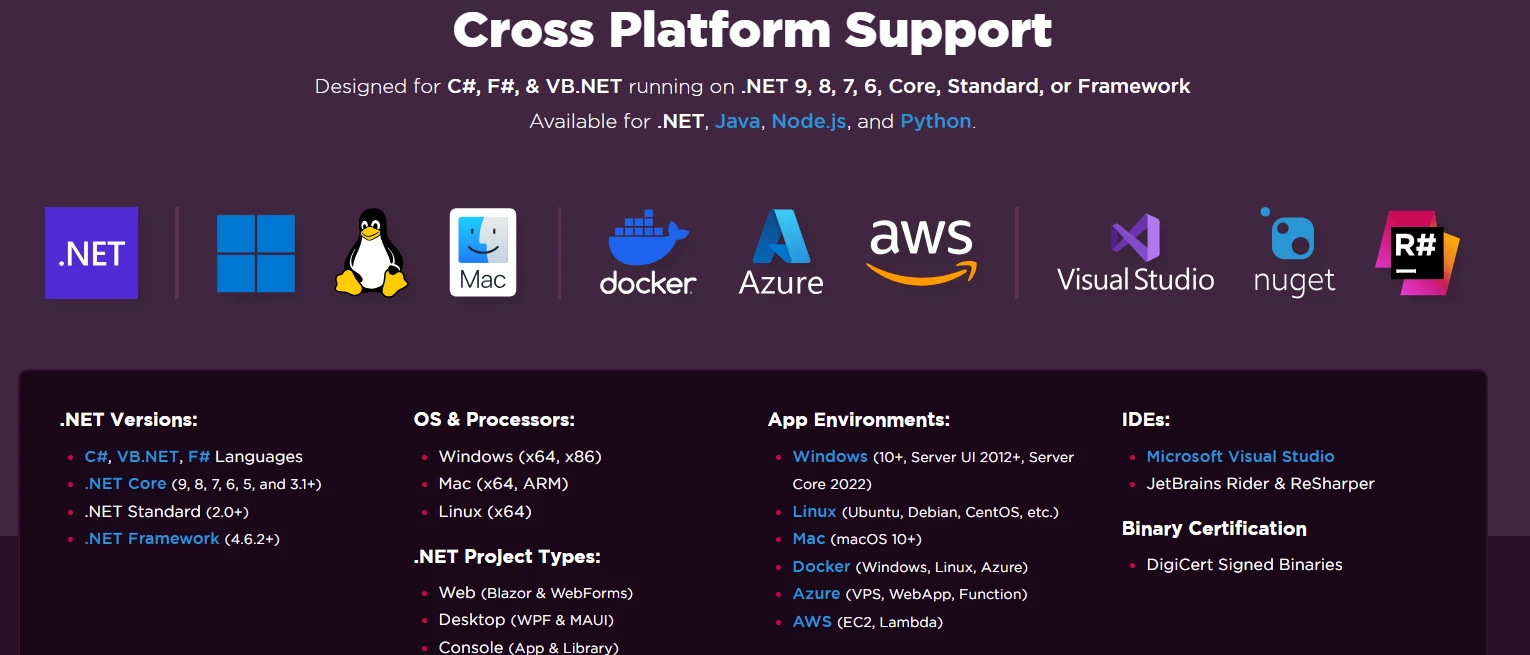
PDF 문서를 이미지 파일로 변환하는 것은 현대의 .NET Framework 및 .NET Core 응용 프로그램에서 일반적으로 요구되는 사항입니다. 문서 썸네일 생성, 웹 디스플레이를 위한 이미지 추출, 이미지 처리 워크플로우를 위한 PDF 파일 변환이 필요할 때 신뢰할 수 있는 PDF 라이브러리는 필수적입니다. IronPDF는 강력한 래스터화 기능을 가진 PDF를 이미지로 변환하는 포괄적인 .NET 라이브러리 솔루션을 제공하며, 여러 이미지 형식을 지원하고 출력 품질 및 이미지 DPI 설정에 대한 세심한 제어를 제공합니다. 라이브러리의 크로스 플랫폼 지원은 컨테이너화된 응용 프로그램이 Windows, Linux, macOS 환경에서 원활하게 작동할 수 있도록 보장합니다.
PDF를 이미지로 변환하는 것은 문서 처리 워크플로우에서 중요한 목적을 제공합니다. 개발자는 자주 문서 관리 시스템을 위한 썸네일을 생성해야 하며, 이미지를 추출하거나, PDF 렌더링이 Adobe Reader가 없이는 최적이 아닌 웹사이트에 이미지를 기반으로 한 미리보기를 생성하거나, OCR을 위한 단일 PDF 페이지를 처리해야 합니다. PDF 파일을 이미지 파일로 변환하면 PDF 형식을 지원하지 않는 플랫폼에서 더 쉽게 공유할 수 있고 이미지 처리 구성 요소와의 호환성이 향상됩니다. 또한, 특정 이미지 형식(TIFF과 같은)으로 문서를 보관하는 것을 요구하는 많은 컴플라이언스 및 보관 시스템이 있으며, 특히 PDF/A 규격 문서나 Section 508 접근성 요구 사항을 구현할 때 필요합니다. 대부분의 경우, 다양한 환경에서 원활하게 작동하는 신뢰할 수 있는 .NET 래퍼가 필요하며, 특히 Azure에 배포하거나 AWS Lambda에 배포할 때 필요합니다.
프로덕션 환경에서는 대량 문서 처리, 웹 응용 프로그램을 위한 자동 썸네일 생성, 이미지 형식만 수용하는 서드 파티 서비스와의 통합을 위해 주로 PDF를 이미지로 변환해야 합니다. 비동기 처리 패턴을 구현할 때 PDF를 이미지로 변환하면 병렬화 및 리소스 활용을 개선할 수 있습니다. 컨테이너화된 배포를 위해, IronPDF Docker 통합은 최소한의 구성 오버헤드로 최적화된 성능을 제공합니다.
컨테이너 환경은 IronPDF의 효율적인 메모리 관리 및 최적화된 렌더링 엔진 덕분에 이로운 점이 있습니다. 라이브러리는 native vs remote engine 구성을 지원하여 전용 컨테이너로 프로세싱을 오프로드하여 리소스 격리를 개선할 수 있습니다. IronPDF를 원격 컨테이너로 실행할 때 PDF 처리를 응용 프로그램 논리와 독립적으로 확장하여 더 나은 처리량과 리소스 활용을 달성할 수 있습니다. 성능 최적화 기능에는 자동 메모리 정리, 구성 가능한 렌더링 풀, 병렬 처리 지원이 포함됩니다.
이미지 변환은 이미지 처리 파이프라인과의 직접 통합을 가능하게 하여 문서 워크플로를 간소화하고, PDF 복잡성 없이 OCR 처리를 용이하게 하며, 기존 시스템과의 호환성을 개선합니다. 특정 페이지를 변환하는 기능은 처리 오버헤드를 줄이며, 배치 처리 기능은 대량 문서 처리를 효율적으로 가능하게 합니다. 문서 관리 시스템과의 통합은 표준 이미지 형식으로 작업할 때 더 간단해집니다.
PDF를 이미지로 변환하기 위한 IronPDF 설치를 시작하는 것은 NuGet 패키지 관리자를 통해 간단합니다. .NET Framework 또는 .NET Core에서 Visual Studio 프로젝트를 열고 패키지 관리자 콘솔에 접근한 후 다음 설치 명령을 실행하세요:
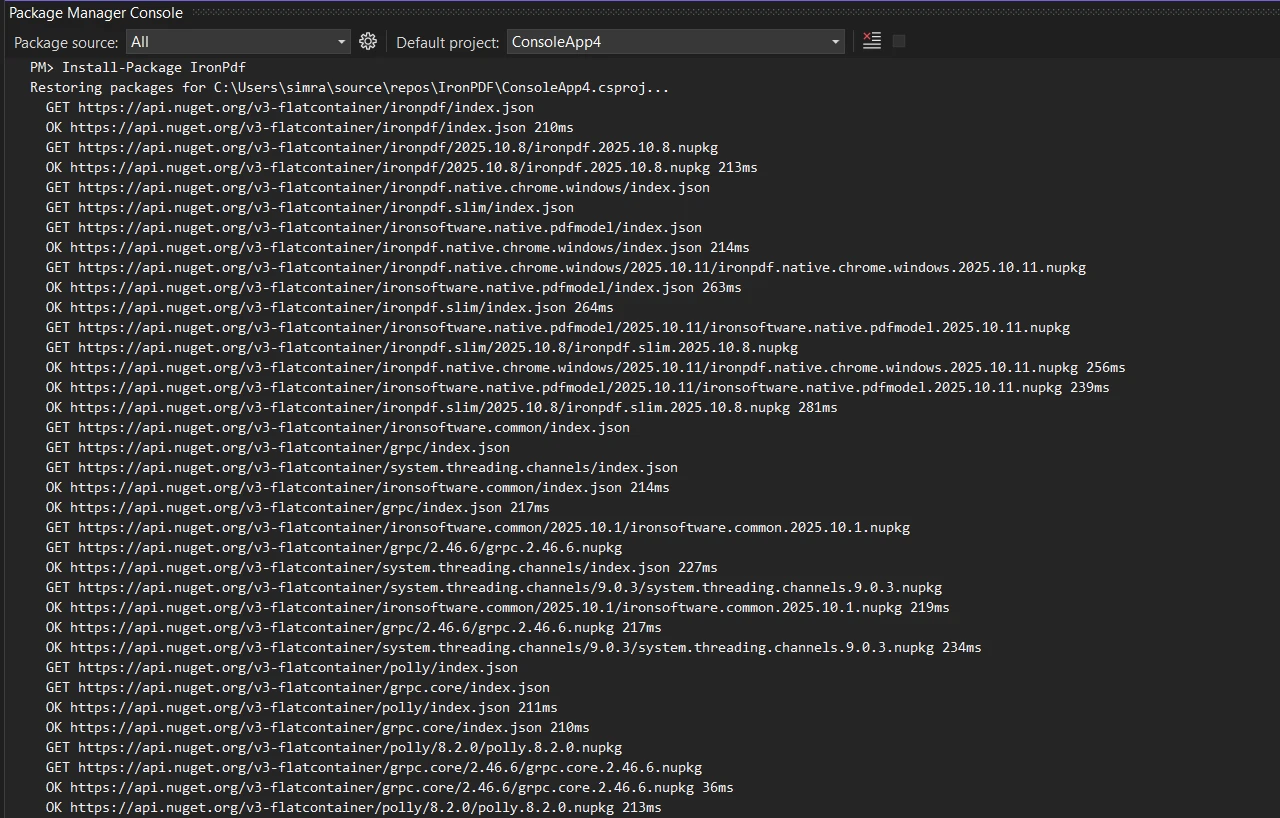
대안으로, NuGet 패키지 관리 UI를 통해 "IronPDF"를 검색하고 설치를 클릭하여 다운로드 및 설치할 수 있습니다. 고급 설치 시나리오를 포함하여 Azure 배포 및 AWS Lambda 구성에 대해서는 포괄적인 설치 개요를 참조하세요. 이 구성 요소는 모든 .NET 버전과 원활하게 작동합니다. 설치 후에 네임스페이스를 코드 파일에 추가하세요:
using IronPdf;
using System;
using System.Drawing;
using System.Linq;
using System.Threading.Tasks;Imports IronPdf
Imports System
Imports System.Drawing
Imports System.Linq
Imports System.Threading.Tasks가장 간단한 PDF를 이미지로 변환하는 시나리오에서는 예제에서 보이는 두 줄의 코드만으로 전체 PDF 문서를 고품질의 PNG 또는 JPG 이미지로 변환할 수 있습니다.
var pdf = PdfDocument.FromFile("invoice.pdf");
pdf.RasterizeToImageFiles(@"C:\images\folder\page_*.png");Dim pdf = PdfDocument.FromFile("invoice.pdf")
pdf.RasterizeToImageFiles("C:\images\folder\page_*.png")이 코드는 FromFile 메소드를 사용하여 단일 PDF 파일을 로드하고 모든 PDF 페이지를 PNG 이미지 파일로 변환합니다. RasterizeToImageFiles 메소드는 PDF 문서의 여러 페이지를 자동으로 처리하며, 출력 폴더에 순차적으로 번호가 매겨진 개별 이미지 파일을 생성합니다. 파일 경로의 별표(*)는 자동 페이지 번호 매기기의 자리표시자로 작동합니다. 메모리 효율적인 처리를 위해 스트림 또는 바이트 배열에서 PDF를 로드할 수도 있습니다.
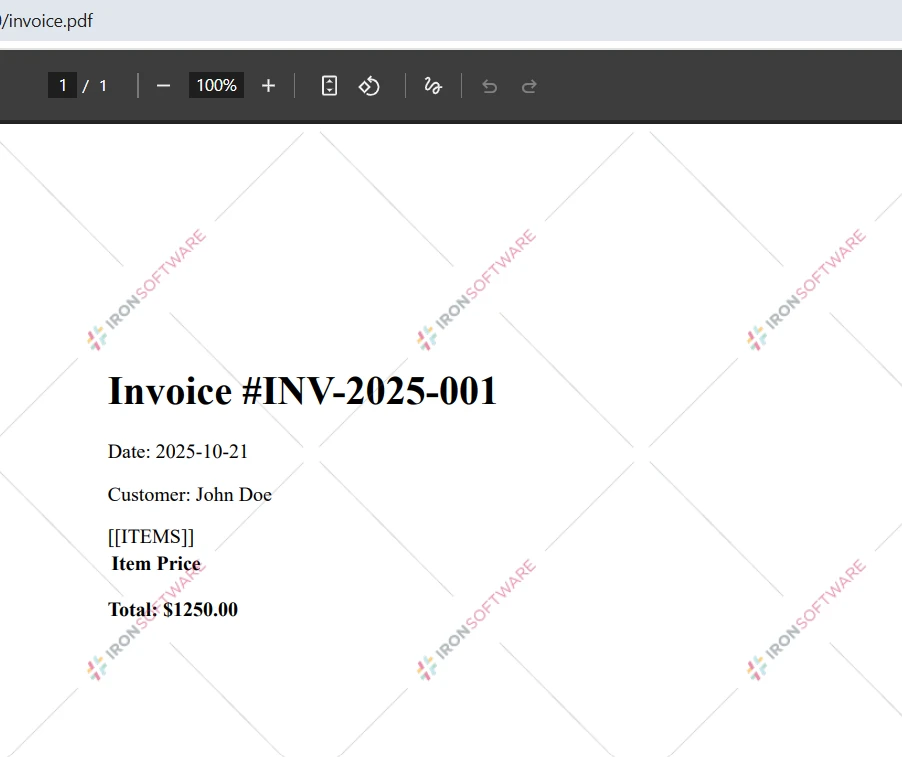
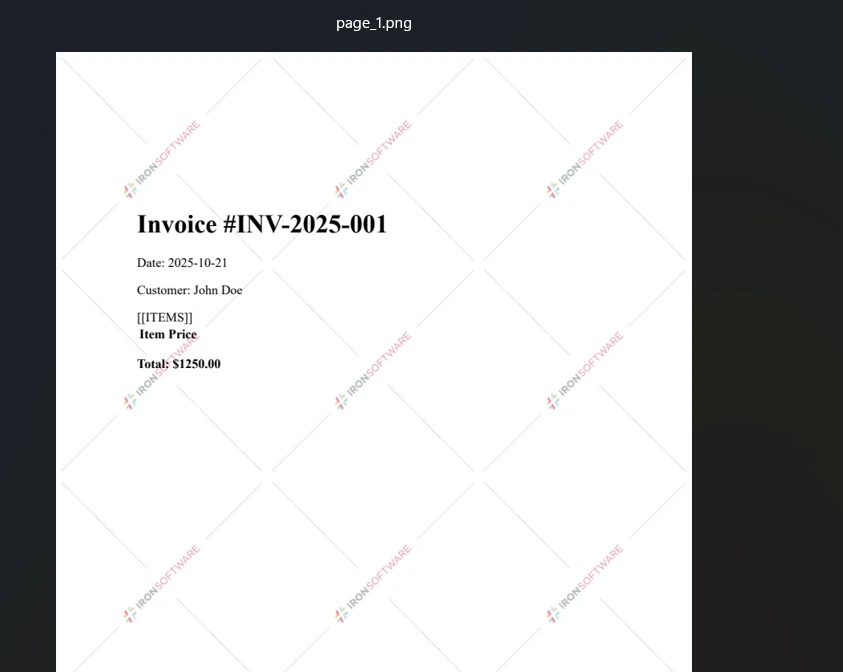
IronPDF를 Docker 컨테이너에 실행하려면 최적의 성능을 위한 특정 구성이 필요합니다. 공식 IronPDF Docker 이미지를 사용하는 것이 권장됩니다. 이 이미지는 필요한 모든 종속성을 포함합니다. 다음은 프로덕션에 적합한 Dockerfile 구성입니다:
FROM mcr.microsoft.com/dotnet/aspnet:8.0
WORKDIR /app

# Install IronPDF dependencies
RUN apt-get update && apt-get install -y \
    libgdiplus \
    libx11-6 \
    libxext6 \
    libxrender1 \
    libfontconfig1 \
    && rm -rf /var/lib/apt/lists/*

# Copy application files
COPY --from=build /app/out .

# Set IronPDF to use container-optimized settings
ENV IRONPDF_ENGINE_MODE=LINUX
ENV IRONPDF_TEMP_PATH=/tmp/ironpdf

# Health check endpoint
HEALTHCHECK --interval=30s --timeout=3s --start-period=5s \
    CMD curl -f ___PROTECTED_URL_110___ || exit 1

ENTRYPOINT ["dotnet", "YourApp.dll"]Kubernetes 배포를 위해서는 적절한 리소스 할당을 보장하고 IronPDF의 원격 엔진을 사용하여 더 나은 확장성을 고려하세요.
Kubernetes 배포는 IronPDF의 무상태 아키텍처와 수평 확장 기능의 이점을 누립니다. 배포를 적절한 리소스 제한과 모니터링을 위한 맞춤 로그 기록으로 구성하십시오. 렌더링 옵션은 메모리 사용량을 최적화하기 위해 컨테이너 환경에 맞게 조정할 수 있습니다. 멀티 리플리카 배포에서 리소스 활용을 개선하기 위해 비동기 패턴을 구현하는 것을 고려하십시오.
IronPDF는 크로스 플랫폼 호환성 및 최소한의 종속성과 함께 CI/CD 파이프라인에 원활하게 통합됩니다. 라이브러리는 자동화된 테스트 시나리오를 지원하며 다양한 환경에서 일관된 출력을 제공합니다. Azure DevOps 및 기타 CI/CD 플랫폼과의 통합은 환경 변수를 통한 라이선스 키 설정 지원으로 간편합니다.
IronPDF는 PDF를 이미지로 변환하는 과정에서 세밀한 제어를 제공하는 데 뛰어납니다. PDF 페이지를 선택적으로 변환하고 품질 설정을 제어하며 여러 출력 이미지 형식 중에서 선택하여 정확한 요구 사항을 충족할 수 있습니다. 기본 팝플러 도구나 GPL 프로그램과 달리, 이 .NET 라이브러리는 고급 API를 통해 종합적인 제어를 제공합니다. 이 라이브러리는 특정 콘텐츠의 정밀한 추출 및 변환을 가능하게 하는 페이지 조작 기능을 지원합니다.
전체 PDF 문서가 아닌 특정 PDF 페이지를 변환하려면 이 예제에서 페이지 범위 매개변수를 사용하세요:
// Event handler example for Windows Forms application
private void ConvertButton_Click(object sender, EventArgs e)
{
    var pdf = PdfDocument.FromFile("report.pdf");
    var pageRange = Enumerable.Range(0, 5); // First 5 pages

    // Configure rendering options for optimal quality
    var renderOptions = new ChromePdfRenderOptions
    {
        CssMediaType = PdfCssMediaType.Print,
        PrintHtmlBackgrounds = true,
        GrayScale = false
    };

    pdf.RasterizeToImageFiles(
        @"C:\output\page_*.jpg",
        pageRange,
        1920,   // Width in pixels
        1080,   // Height in pixels
        IronPdf.Imaging.ImageType.Jpeg,
        150     // Image DPI setting
    );
}' Event handler example for Windows Forms application
Private Sub ConvertButton_Click(ByVal sender As Object, ByVal e As EventArgs)
Dim pdf = PdfDocument.FromFile("report.pdf")
Dim pageRange = Enumerable.Range(0, 5) ' First 5 pages
' Configure rendering options for optimal quality
Dim renderOptions As New ChromePdfRenderOptions With {
.CssMediaType = PdfCssMediaType.Print,
.PrintHtmlBackgrounds = True,
.GrayScale = False
}
pdf.RasterizeToImageFiles(
"C:\output\page_*.jpg",
pageRange,
1920, ' Width in pixels
1080, ' Height in pixels
IronPdf.Imaging.ImageType.Jpeg,
150 ' Image DPI setting
)
End Sub이 샘플은 첫 번째 페이지부터 다섯 번째 페이지까지를 지정된 크기의 JPEG 이미지 형식으로 변환합니다. 메서드 매개변수는 완전한 제어를 제공합니다: 출력 경로 패턴을 정의하고, 단일 또는 여러 페이지를 선택하며, 가로 세로 비율을 유지하면서 픽셀 크기를 설정하고, 이미지 형식을 선택하며, 인쇄 품질 출력을 위한 DPI 해상도를 지정하십시오. 이미지 래스터화 과정은 PDF를 JPG로 변환하는 동안 텍스트의 명확성과 그래픽 품질을 유지합니다. 배치 처리를 위해, 처리량 향상을 위해 비동기 메서드를 사용하는 것을 고려하세요.
IronPDF는 또한 웹 페이지를 PDF로 렌더링한 후 이 후처리 워크플로에서 이미지 파일로 변환할 수 있습니다:
var renderer = new ChromePdfRenderer();

// Configure for optimal web capture
renderer.RenderingOptions.CssMediaType = PdfCssMediaType.Screen;
renderer.RenderingOptions.PrintHtmlBackgrounds = true;
renderer.RenderingOptions.CreatePdfFormsFromHtml = false;
renderer.RenderingOptions.ViewPortWidth = 1920;
renderer.RenderingOptions.ViewPortHeight = 1080;

// Add custom headers if needed
renderer.RenderingOptions.CustomHeaders.Add("Authorization", "Bearer token");

var pdf = renderer.RenderUrlAsPdf("___PROTECTED_URL_111___");
pdf.RasterizeToImageFiles(@"C:\web\screenshot_*.png");Dim renderer As New ChromePdfRenderer()
' Configure for optimal web capture
renderer.RenderingOptions.CssMediaType = PdfCssMediaType.Screen
renderer.RenderingOptions.PrintHtmlBackgrounds = True
renderer.RenderingOptions.CreatePdfFormsFromHtml = False
renderer.RenderingOptions.ViewPortWidth = 1920
renderer.RenderingOptions.ViewPortHeight = 1080
' Add custom headers if needed
renderer.RenderingOptions.CustomHeaders.Add("Authorization", "Bearer token")
Dim pdf = renderer.RenderUrlAsPdf("___PROTECTED_URL_111___")
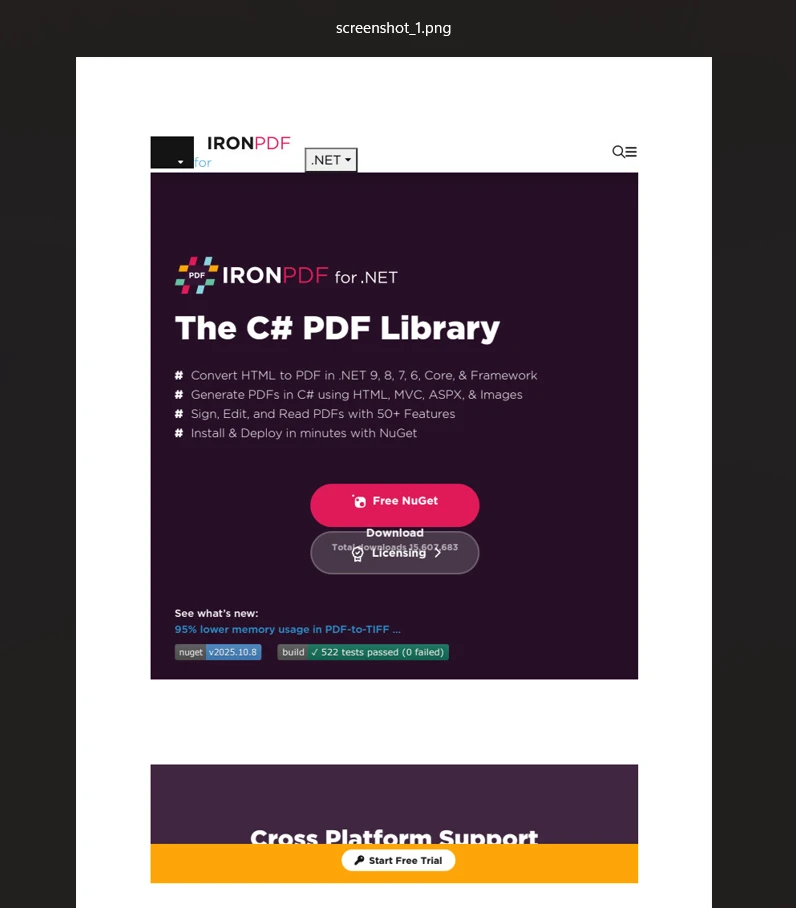
pdf.RasterizeToImageFiles("C:\web\screenshot_*.png")이 접근 방식은 웹사이트 콘텐츠를 Chrome 브라우저에서 보이는 그대로 캡처한 다음 각 PDF 페이지를 PNG 이미지로 변환합니다. ChromePdfRenderer 구성 요소는 JavaScript, CSS3 및 반응형 레이아웃의 적절한 백그라운드 색상을 포함한 현대 웹 기술의 정확한 렌더링을 보장하여 웹사이트 스크린샷을 만들거나 웹 콘텐츠를 아카이브하는 데 적합합니다. 렌더 메서드는 모든 플랫폼에서 일관되게 작동합니다. 인증이 필요한 사이트의 경우, 로그인 자격 증명 또는 사용자 지정 쿠키를 사용하세요.
PDF를 이미지로 변환할 때의 성능 최적화는 여러 전략을 포함합니다. 동시 변환을 위한 비동기 처리를 구현하고, 디스크 I/O 오버헤드를 피하기 위해 메모리 스트림을 활용하며, JavaScript가 많은 콘텐츠에 적합한 렌더링 지연 시간을 설정하세요. WaitFor 클래스는 렌더링 타이밍에 대한 세밀한 제어를 제공합니다. 대규모 운영의 경우, 병렬 처리 패턴을 사용하는 것을 고려하십시오:
public async Task ConvertPdfBatchAsync(List<string> pdfPaths)
{
    var tasks = pdfPaths.Select(async path =>
    {
        var pdf = await PdfDocument.FromFileAsync(path);
        var outputPath = Path.ChangeExtension(path, null) + "_*.png";
        await pdf.RasterizeToImageFilesAsync(outputPath);
    });

    await Task.WhenAll(tasks);
}Public Async Function ConvertPdfBatchAsync(pdfPaths As List(Of String)) As Task
Dim tasks = pdfPaths.Select(Async Function(path)
Dim pdf = Await PdfDocument.FromFileAsync(path)
Dim outputPath = Path.ChangeExtension(path, Nothing) & "_*.png"
Await pdf.RasterizeToImageFilesAsync(outputPath)
End Function)
Await Task.WhenAll(tasks)
End Function컨테이너화된 배포와 같은 메모리 제약 환경에서는 스트리밍 방식과 페이지별 처리를 구현하십시오. PDF 압축 기능은 변환 전에 메모리 사용량을 줄일 수 있습니다. 맞춤형 용지 크수를 사용하여 출력 크기를 최적화하고 장시간 실행되는 프로세스를 위한 적절한 가비지 수집 패턴을 구현하세요. 처리를 위해 큰 PDF를 더 작은 조각으로 분할하는 것을 고려해 보세요.
IronPDF는 .NET Framework 및 .NET Core 애플리케이션에서 다양한 사용 사례에 맞춘 사용자 정의 품질 설정을 통해 모든 주요 이미지 형식을 지원합니다. 이 라이브러리는 기본 Poppler 유틸리티보다 더 많은 옵션을 제공하며, 이미지 최적화와 맞춤형 워터마크에 대한 포괄적인 지원을 제공합니다. 라이브러리의 이미지 처리 기능은 단순한 변환을 넘어서 확장됩니다.
PNG 형식 - 투명성 또는 무손실 압축이 필요한 문서에 이상적입니다. 기술 도면, 스크린샷 및 텍스트 명확성이 중요한 문서에 완벽합니다. 이 형식은 알파 채널 보존을 지원하며 SVG 그래픽 변환에 최적화되어 있습니다.
JPEG/JPG 형식 - 더 작은 파일 크기를 필요로 하는 사진 및 복잡한 이미지에 적합합니다. 파일 크기와 이미지 선명도 간의 균형을 맞추기 위한 품질 조정을 지원합니다. 최적의 결과를 위해 렌더링 옵션을 통해 JPEG 품질 설정을 구성하십시오.
TIFF 형식 - 단일 및 다중 페이지 TIFF 문서를 모두 지원하여 아카이브 목적으로 훌륭합니다. IronPDF의 PDF 페이지로부터 다중 페이지 TIFF 파일을 생성하는 기능은 특히 문서 관리 시스템에 유용합니다:
// Convert PDF to multi-page TIFF - all pages in single file
var pdf = PdfDocument.FromFile("multipage.pdf");

// Configure TIFF-specific options
var tiffOptions = new TiffImageOptions
{
    Compression = TiffCompression.Lzw,
    ColorDepth = 24,
    Resolution = 300
};

pdf.ToMultiPageTiffImage(@"C:\archive\document.tiff", null, null, 300);

// Process complete - single TIFF contains all pages
Console.WriteLine("PDF converted to multi-page TIFF");

// Verify output for compliance systems
var fileInfo = new FileInfo(@"C:\archive\document.tiff");
Console.WriteLine($"TIFF file size: {fileInfo.Length / 1024 / 1024} MB");' Convert PDF to multi-page TIFF - all pages in single file
Dim pdf = PdfDocument.FromFile("multipage.pdf")
' Configure TIFF-specific options
Dim tiffOptions = New TiffImageOptions With {
.Compression = TiffCompression.Lzw,
.ColorDepth = 24,
.Resolution = 300
}
pdf.ToMultiPageTiffImage("C:\archive\document.tiff", Nothing, Nothing, 300)
' Process complete - single TIFF contains all pages
Console.WriteLine("PDF converted to multi-page TIFF")
' Verify output for compliance systems
Dim fileInfo = New FileInfo("C:\archive\document.tiff")
Console.WriteLine($"TIFF file size: {fileInfo.Length / 1024 / 1024} MB")모든 PDF 페이지를 포함하는 단일 TIFF 파일을 생성하여 문서의 무결성을 유지하면서 보관 표준을 충족합니다. 300 DPI 설정은 장기 저장 및 준수를 위한 고해상도 출력을 보장합니다. 다중 페이지 TIFF는 모든 페이지가 단일 파일에 남아 있어야 하는 팩스 시스템, 의료 이미지 및 법적 문서 보관에 특히 유용합니다. 이 기능은 IronPDF를 단순한 변환 도구와 구별합니다. PDF/A 준수를 위해 이미지를 추출하기 전에 보관 형식으로 변환하는 것을 고려하십시오.
BMP 형식 - 압축 아티팩트 없이 최대 품질이 필요할 때 비압축 비트맵 출력을 제공합니다. BMP 형식은 사용자 정의 드로잉 작업 및 비트맵 임베딩에 이상적입니다.
DPI(인치당 도트 수) 설정을 통한 해상도 제어를 통해 웹 표시 및 썸네일 생성의 경우 72-96 DPI, 일반 문서 보기의 경우 150-200 DPI, 인쇄 품질 출력 및 OCR 처리를 위한 300+DPI 등 다양한 시나리오에 최적화를 가능하게 합니다. 이미지 DPI는 파일 크기와 품질에 직접적인 영향을 미칩니다. 인쇄 요구 사항이나 디스플레이 필요 사항을 기반으로 DPI 설정을 구성하십시오.
컨테이너화된 애플리케이션의 경우, PNG 형식은 품질과 호환성의 가장 좋은 균형을 제공합니다. 손실 없는 압축을 통해 서로 다른 컨테이너 런타임에서 일관된 출력을 보장하면서도 합리적인 파일 크기를 유지합니다. Docker 및 Kubernetes를 사용하여 배포할 때, PNG의 범용 지원은 형식 호환성 문제를 제거합니다. 대량 처리의 경우, 변환 후 압축 전략을 구현하여 저장소를 최적화하십시오.
웹 전송을 위한 프로그레시브 JPEG 인코딩 구현, 출력 치수를 제어하기 위한 사용자 정의 용지 크기 사용, 변환 후 압축 알고리즘 적용을 통해 이미지 출력을 최적화하세요. 네트워크 전송 최적화를 위해 CDN 친화적 명명 규칙 시행 및 중간 저장 없이 직접 HTTP 응답을 위한 메모리 스트림 사용을 고려하십시오.
DPI 권장 사항은 사용 사례에 따라 다릅니다. 웹 썸네일 및 미리보기의 경우, 파일 크기를 최소화하기 위해 72-96 DPI를 사용하십시오. 화면에서 문서를 볼 때 너무 크지 않은 선명도를 위해 150 DPI가 필요합니다. 인쇄 준비된 출력은 최소 300 DPI가 필요하며, 전문 인쇄의 경우 600 DPI가 필요할 수 있습니다. OCR 처리는 300-400 DPI에서 가장 잘 수행됩니다. 정확한 제어를 위해 렌더링 옵션 API를 통해 이러한 설정을 구성하십시오.
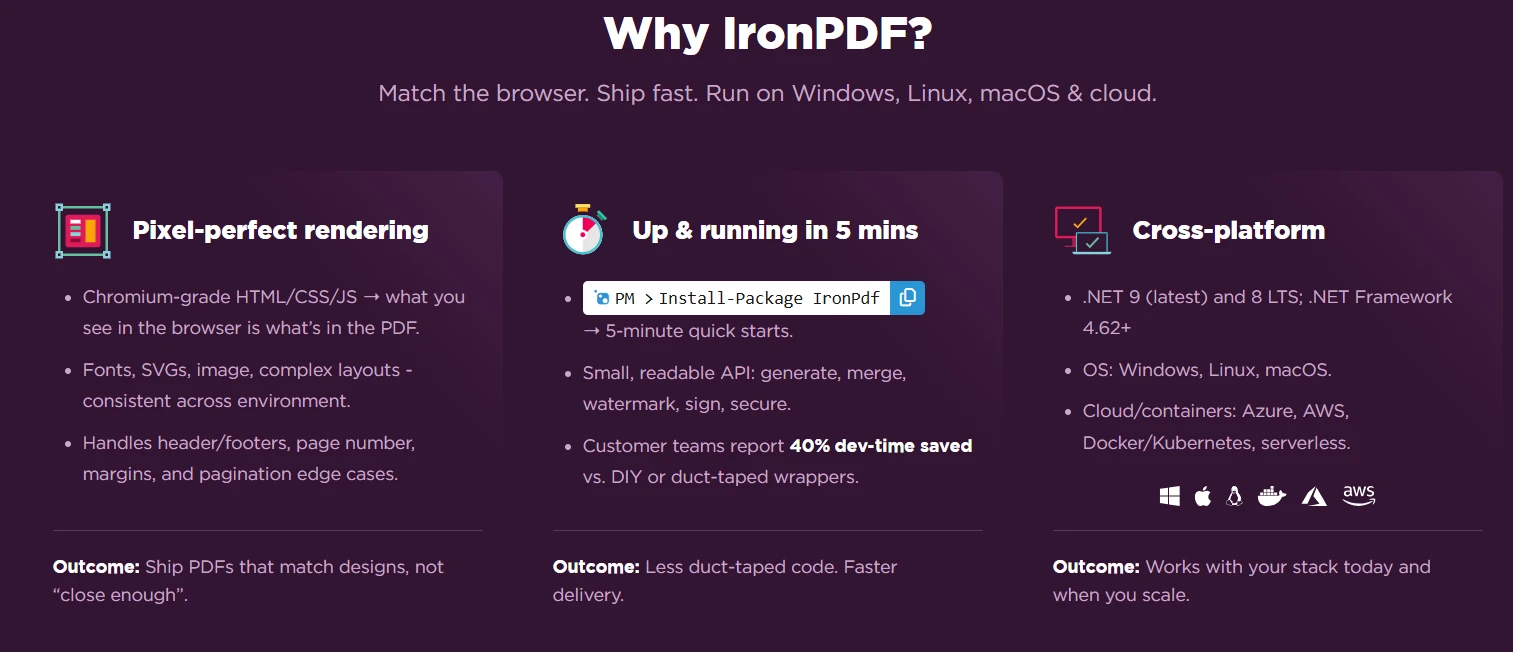
IronPDF의 이미지 변환 기능은 기본 PDF 래스터화 이상을 제공합니다. .NET 라이브러리는 Windows, Linux 및 macOS 환경에서 Adobe Reader 없이 원활하게 실행되는 완벽한 플랫폼 간 지원을 제공합니다. Docker 및 Kubernetes를 통한 컨테이너 배포가 완전히 지원되므로 클라우드 네이티브 .NET Core 애플리케이션에 이상적입니다. 대량 PDF 파일 처리의 경우, 비동기 메서드를 통해 애플리케이션 스레드를 차단하지 않고 효율적인 배치 변환을 가능하게 합니다. 라이브러리는 또한 양식 필드, 주석, 암호화된 문서를 포함한 복잡한 PDF 콘텐츠도 처리합니다. 무료 Poppler 도구와 달리 IronPDF는 전문적인 지원을 갖춘 상업 등급의 신뢰성을 제공합니다.
디지털 서명 보존, 메타데이터 추출, 사용자 정의 글꼴 관리 등 고급 기능을 포함합니다. 라이브러리는 복잡한 그래픽을 위해 WebGL 렌더링을, 동적 콘텐츠를 위해 JavaScript 실행을 지원합니다. OpenAI 서비스와의 통합을 통해 지능형 문서 처리 워크플로를 가능하게 합니다.
IronPDF는 내장된 상태 확인 지원을 통해 컨테이너 오케스트레이션 플랫폼과 통합됩니다. 렌더링 엔진 상태 및 메모리 사용량을 모니터링하여 준비 상태 및 생존 상태 프로브를 구현합니다. 네이티브 엔진은 컨테이너 상태 모니터링을 위한 진단 엔드포인트를 제공합니다:
public class PdfHealthCheck : IHealthCheck
{
    private readonly ChromePdfRenderer _renderer;

    public async Task<HealthCheckResult> CheckHealthAsync(
        HealthCheckContext context,
        CancellationToken cancellationToken = default)
    {
        try
        {
            // Test PDF rendering capability
            var testPdf = await _renderer.RenderHtmlAsPdfAsync("<p>Health Check</p>");
            var images = await testPdf.RasterizeToImageFilesAsync("test_*.png");

            return HealthCheckResult.Healthy("PDF conversion operational");
        }
        catch (Exception ex)
        {
            return HealthCheckResult.Unhealthy("PDF conversion failed", ex);
        }
    }
}Public Class PdfHealthCheck
Implements IHealthCheck
Private ReadOnly _renderer As ChromePdfRenderer
Public Async Function CheckHealthAsync(
context As HealthCheckContext,
Optional cancellationToken As CancellationToken = Nothing) As Task(Of HealthCheckResult) Implements IHealthCheck.CheckHealthAsync
Try
' Test PDF rendering capability
Dim testPdf = Await _renderer.RenderHtmlAsPdfAsync("<p>Health Check</p>")
Dim images = Await testPdf.RasterizeToImageFilesAsync("test_*.png")
Return HealthCheckResult.Healthy("PDF conversion operational")
Catch ex As Exception
Return HealthCheckResult.Unhealthy("PDF conversion failed", ex)
End Try
End Function
End Class프로덕션 배포에는 신중한 리소스 계획이 필요합니다. 렌더링 엔진에 최소 2-4 GB RAM을 할당하고, 동시 운영을 위한 추가 메모리를 준비합니다. CPU 요구 사항은 변환 볼륨에 따라 스케일되므로, 중간 워크로드의 경우 2-4 코어를 계획하십시오. 스토리지 필요 사항은 임시 파일 처리 및 출력 보존 정책에 따라 결정됩니다. 성능 가이드에서는 용량 계획을 위한 상세한 벤치마크를 제공합니다.
Serilog 또는 NLog 같은 인기 있는 프레임워크와 사용자 정의 로깅 통합을 통해 포괄적인 모니터링을 구현하십시오. 페이지당 변환 시간, 메모리 사용 패턴 및 오류 비율을 포함한 주요 메트릭을 추적하십시오. 라이브러리는 분산 추적을 위한 APM 통합을 지원합니다. 관찰된 성능 패턴에 따라 렌더링 타임아웃을 구성하십시오.
IronPDF는 오픈소스 대안에서 사용할 수 없는 기업급 기능을 제공합니다. 상업적인 지원은 빠른 문제 해결을 보장하고, 정기적인 업데이트는 진화하는 플랫폼과의 호환성을 유지합니다. 도서관은 규제 대상 산업을 위한 준수 인증과 민감한 문서를 위한 보안 기능을 제공합니다. GPL 라이센스 도구와 달리, IronPDF의 상업적 라이센스는 법적 우려 없이 독점 애플리케이션 개발을 가능하게 합니다.
IronPDF는 PDF를 이미지로 변환하는 복잡한 작업을 .NET 개발자를 위한 간단하고 신뢰할 수 있는 프로세스로 바꿉니다. 여러 이미지 형식, 다중 페이지 TIFF, 정밀한 이미지 DPI 제어 및 크로스 플랫폼 호환성을 지원하여 워크플로우에서 PDF 문서를 이미지 파일로 변환하는 데 필요한 모든 것을 제공합니다. 직관적인 API 덕분에 최소한의 코드로 고급 PDF 래스터화 로직을 구현할 수 있으며 PNG, JPEG, TIFF 및 BMP 형식에서 우수한 출력 품질을 유지할 수 있습니다. 단일 PDF 페이지에서 이미지를 추출하거나 전체 문서를 변환하려는 경우 IronPDF는 일관된 결과를 제공합니다. 도서관의 컨테이너 준비 아키텍처 및 비동기 처리 기능은 현대 클라우드 배포에 이상적입니다.
IronPDF의 강력한 PDF 이미지 변환 기능을 다양한 규모의 프로젝트에 맞춰 설계된 무료 체험과 함께 체험해 보십시오. PDF 조작 기능을 더 발견하고 문서의 코드 예제를 탐색하려면 포괄적인 문서를 방문하십시오. Enterprise 배포의 경우 라이센스 옵션 및 배포 가이드를 검토하여 최적의 구현을 보장하십시오.

커티스 차우는 칼턴 대학교에서 컴퓨터 과학 학사 학위를 취득했으며, Node.js, TypeScript, JavaScript, React를 전문으로 하는 프론트엔드 개발자입니다. 직관적이고 미적으로 뛰어난 사용자 인터페이스를 만드는 데 열정을 가진 그는 최신 프레임워크를 활용하고, 잘 구성되고 시각적으로 매력적인 매뉴얼을 제작하는 것을 즐깁니다.



IronPDF는 IRON SUITE 의 일부입니다.
10개의 .NET API 제품, 당신의 사무 문서를 위해











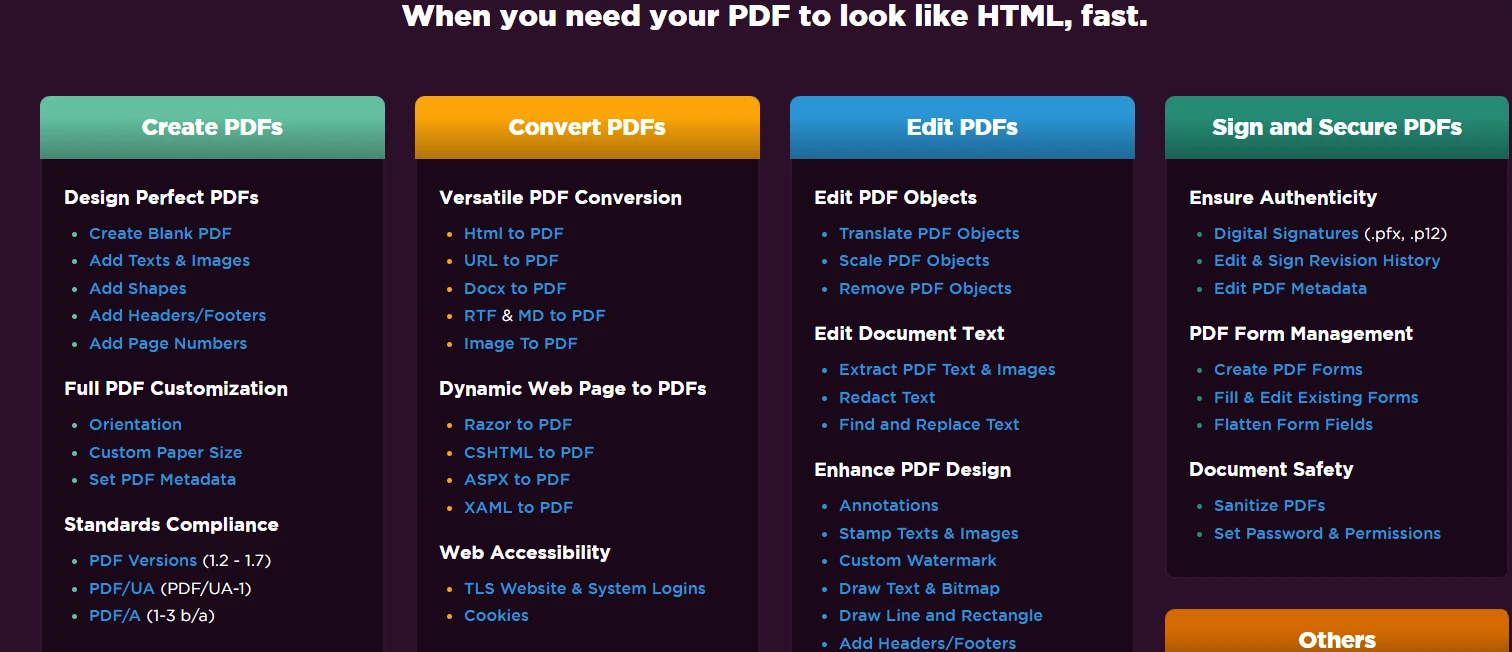
PDF 파일을 HTML처럼 빠르게 변환해야 할 때.


