




업데이트됨 2026년 5월 8일
월별 계정 명세서를 PDF 문서로 생성하기
개발자는 IronPDF C# PDF 라이브러리를 사용하여 외부 서비스에 의존하지 않고도 .NET 프로젝트 내에서 HTML을 신뢰할 수 있는 PDF 파일로 변환할 수 있습니다.
더 읽어보기

IronPDF는 RenderThisPageAsPdf 메서드를 사용하여 ASP.NET 개발자가 한 줄의 코드로 웹 페이지를 PDF 문서로 변환할 수 있게 하여, 품질 손실 없이 어떤 ASPX 페이지에서도 즉시 PDF 생성을 제공합니다.
포괄적인 C# 라이브러리를 통해 ASP.NET을 PDF로, HTML을 PDF로 변환할 수 있으며, C#에서 PDF 파일을 읽고, 프로그래밍 방식으로 PDF를 편집하고, 사용자 정의 헤더와 푸터로 문서를 조작할 수 있습니다. IronPDF를 사용하면 ASP.NET 페이지를 한 줄의 코드로 PDF 문서로 변환할 수 있습니다. 방법은 다음과 같습니다.

C# PDF 기능의 전체 소프트웨어 라이브러리에 액세스하려면 IronPDF를 다운로드하여 프로젝트 및 이 튜토리얼에서 무료로 사용할 수 있습니다. IronPDF는 다양한 환경을 지원합니다. Windows, Linux, macOS, Azure, AWS 및 심지어 Docker 컨테이너.
여러분에게 가장 쉬운 방법으로 다운로드할 수 있는 두 가지 방법이 있습니다. ZIP DLL 다운로드에서 설치하거나 IronPDF에 대한 NuGet 설치를 통해 패키지를 사용할 수 있습니다. NuGet 설치 가이드는 두 가지 방법에 대한 상세한 단계를 제공합니다.
# Use the following commands to add IronPDF via NuGet package manager

# Using Package Manager Console
Install-Package IronPdf

# Using .NET CLI
dotnet add package IronPdfF# 개발자 또는 VB.NET 개발자를 위해 IronPDF는 빠르게 시작할 수 있는 언어별 튜토리얼과 예제를 제공합니다.
ASPX 페이지를 PDF로 변환하는 것은 IronPDF의 RenderThisPageAsPdf 메서드를 사용하여 한 줄의 코드만으로 가능합니다.
using System;
using System.Web.UI;
using IronPdf;

namespace aspxtopdf
{
    public partial class _Default : Page
    {
        protected void Button1_Click(object sender, EventArgs e)
        {
            // Convert the current ASPX page to PDF with one line
            AspxToPdf.RenderThisPageAsPdf();
        }
    }
}



IronPDF를 Visual Studio 프로젝트에 설치하면 ASP.NET에서 PDF 작업을 자동화할 수 있는 다양한 메소드를 제공합니다. PDF에서 이미지와 텍스트를 찾아서 교체, 워터마크 추가, PDF 문서 병합, PDF에서 텍스트 추출, 심지어 PDF를 디지털 서명할 수 있습니다. 라이브러리는 후드 아래에서 Chrome 렌더링 엔진을 사용하여 픽셀 완벽한 HTML에서 PDF 변환을 보장합니다.
IronPDF는 ASP.NET에서 C#을 사용하여 PDF를 개발하기 위한 유연하고 신뢰성 있는 프레임워크를 제공하며, 이는 개발자로서의 우리의 프로젝트에 필수적입니다. 라이브러리는 맞춤 헤더와 푸터, 페이지 번호, 맞춤 종이 크기, PDF 압축과 같은 고급 기능을 지원합니다.
아래 코드에서는 전체 ASP.NET 웹 페이지를 PDF로 생성하기 위해 RenderThisPageAsPdf API 메서드 덕분에 단 한 번의 클릭으로 수행합니다. 이 방법은 복잡한 구성이 필요 없이 빠르게 ASPX 페이지를 PDF로 변환해야 할 때 특히 유용합니다.
// ASP.NET PDF Generator
// anchor-pdf-net-generator

using System;
using System.Web.UI;
using IronPdf;

namespace aspxtopdf
{
    public partial class _Default : Page
    {
        // This method is executed when the ASP.NET page loads
        protected void Page_Load(object sender, EventArgs e)
        {
            // Any page initialization logic can be placed here
            // You can configure rendering options if needed
            AspxToPdf.RenderThisPageAsPdfOptions = new IronPdf.PdfPrintOptions()
            {
                MarginTop = 10,
                MarginBottom = 10,
                MarginLeft = 10,
                MarginRight = 10,
                DPI = 300,
                EnableJavaScript = true,
                PrintHtmlBackgrounds = true
            };
        }

        // This method is executed when Button1 is clicked
        protected void Button1_Click(object sender, EventArgs e)
        {
            // Convert the current ASPX webpage to a PDF
            AspxToPdf.RenderThisPageAsPdf();
        }
    }
}' ASP.NET PDF Generator
' anchor-pdf-net-generator
Imports System
Imports System.Web.UI
Imports IronPdf
Namespace aspxtopdf
Partial Public Class _Default
Inherits Page
' This method is executed when the ASP.NET page loads
Protected Sub Page_Load(sender As Object, e As EventArgs)
' Any page initialization logic can be placed here
' You can configure rendering options if needed
AspxToPdf.RenderThisPageAsPdfOptions = New IronPdf.PdfPrintOptions() With {
.MarginTop = 10,
.MarginBottom = 10,
.MarginLeft = 10,
.MarginRight = 10,
.DPI = 300,
.EnableJavaScript = True,
.PrintHtmlBackgrounds = True
}
End Sub
' This method is executed when Button1 is clicked
Protected Sub Button1_Click(sender As Object, e As EventArgs)
' Convert the current ASPX webpage to a PDF
AspxToPdf.RenderThisPageAsPdf()
End Sub
End Class
End Namespace이 접근 방식의 아름다움은 그 단순함에 있습니다. 복잡한 설정이나 여러 단계가 필요한 다른 PDF 라이브러리와 달리 IronPDF의 ASPX에서 PDF로 변환은 다음을 포함한 모든 것을 자동으로 처리합니다.
더 복잡한 시나리오의 경우 IronPDF는 광범위한 사용자 정의 옵션을 제공합니다. 다음과 같은 일을 할 수 있습니다:
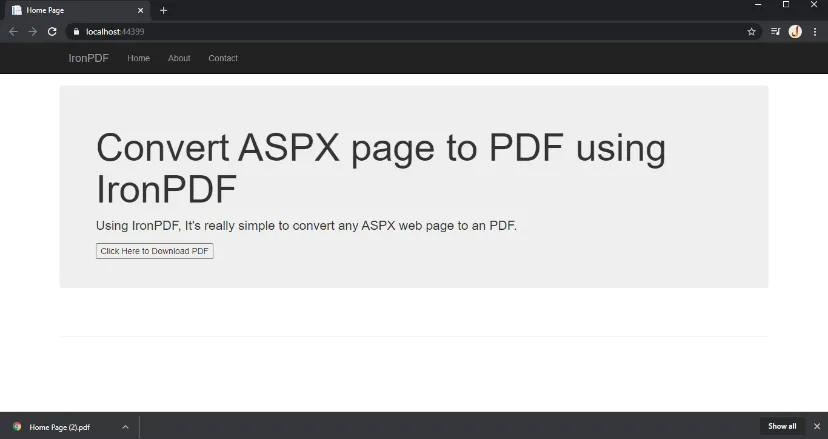
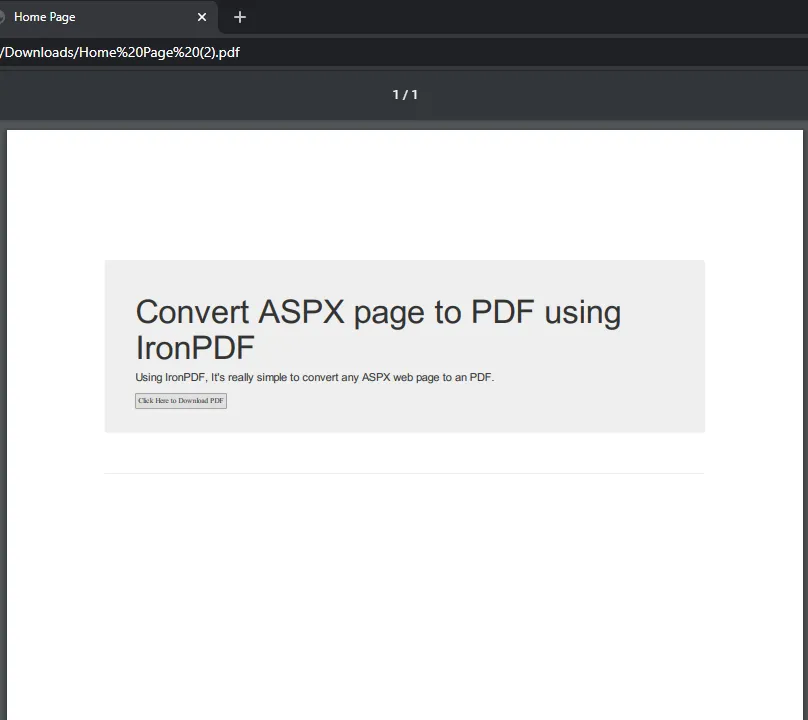
여기에서는 IronPDF 기능을 사용하여 ASPX 웹 페이지를 PDF로 변환하는 예를 보여드립니다. 버튼을 클릭하자마자 전체 웹 페이지가 PDF로 변환됩니다. 품질 손실 없이 전체 웹 페이지가 편집 가능한 문서로 복제됩니다. 간단합니다!
변환 과정은 다음을 유지합니다:
ASP.NET 개발자는 종종 다음 용도로 이 한 번의 클릭으로 이루어지는 PDF 생성을 사용합니다:
PDF를 생성한 후 IronPDF의 광범위한 편집 기능을 활용하여 더욱 개선할 수 있습니다:
// Example of enhancing a generated PDF
protected void Button1_Click(object sender, EventArgs e)
{
    // First, convert the page to PDF
    var pdf = AspxToPdf.RenderThisPageAsPdf(AspxToPdf.FileBehavior.ReturnBinary);

    // Add metadata
    pdf.MetaData.Author = "Your Company Name";
    pdf.MetaData.Title = "Generated Report";

    // Add a watermark
    pdf.ApplyWatermark("<h2 style='color:red'>CONFIDENTIAL</h2>",
        opacity: 50,
        verticalAlignment: VerticalAlignment.Middle,
        horizontalAlignment: HorizontalAlignment.Center);

    // Save with compression
    pdf.CompressImages(90);
    pdf.SaveAs("enhanced-output.pdf");
}' Example of enhancing a generated PDF
Protected Sub Button1_Click(sender As Object, e As EventArgs)
' First, convert the page to PDF
Dim pdf = AspxToPdf.RenderThisPageAsPdf(AspxToPdf.FileBehavior.ReturnBinary)
' Add metadata
pdf.MetaData.Author = "Your Company Name"
pdf.MetaData.Title = "Generated Report"
' Add a watermark
pdf.ApplyWatermark("<h2 style='color:red'>CONFIDENTIAL</h2>",
opacity:=50,
verticalAlignment:=VerticalAlignment.Middle,
horizontalAlignment:=HorizontalAlignment.Center)
' Save with compression
pdf.CompressImages(90)
pdf.SaveAs("enhanced-output.pdf")
End Sub대량 PDF 생성을 위한 최적화 기술을 고려하십시오:
IronPDF는 다양한 배포 환경에서 원활하게 작동합니다:
문제를 겪는 경우, IronPDF는 포괄적인 문제 해결 가이드를 제공합니다:

Explore the API 참조 문서 for IronPDF and discover more ASP.NET functionality. The comprehensive API reference covers all classes, methods, and properties available in the IronPDF namespace.
API 참조 문서IronPDF는 개발을 위한 무료 체험 라이센스와 제품 사용을 위한 다양한 라이센스 옵션을 제공합니다. 빠르게 시작하기 가이드에서 더 많은 예제를 확인하거나 코드 예제 모음을 탐색하여 IronPDF로 가능한 것을 보세요.
더 고급 시나리오용으로는, 튜토리얼 섹션에서 PDF 생성, PDF 변환, 및 PDF 구성 등과 같은 주제를 다룹니다. 기타 PDF 라이브러리와 기능 비교를 탐색하여 개발자들이 .NET PDF 생성 요구 사항에 IronPDF를 선택하는 이유를 이해하세요.

커티스 차우는 칼턴 대학교에서 컴퓨터 과학 학사 학위를 취득했으며, Node.js, TypeScript, JavaScript, React를 전문으로 하는 프론트엔드 개발자입니다. 직관적이고 미적으로 뛰어난 사용자 인터페이스를 만드는 데 열정을 가진 그는 최신 프레임워크를 활용하고, 잘 구성되고 시각적으로 매력적인 매뉴얼을 제작하는 것을 즐깁니다.



IronPDF는 IRON SUITE 의 일부입니다.
10개의 .NET API 제품, 당신의 사무 문서를 위해











PDF 파일을 HTML처럼 빠르게 변환해야 할 때.


