푸터 콘텐츠로 바로가기
JAVA용 IRONPDF 사용

Java에서 PDF 파일을 회전하는 방법

Managing PDFs programmatically in Java is crucial for generating on-demand reports, invoices, or bills. It's also valuable to rotate PDF pages to fix view angle issues. Both tasks can be challenging in Java. This article will use the IronPDF Java Library to simplify PDF page rotation.

IronPDF Java Library

IronPDF for Java helps Java developers create, edit and manipulate PDF documents. The library allows developers to work with nearly every aspect of a PDF document layout and formatting, such as the current rotation of one or more pages.

In addition to creating and manipulating PDFs, IronPDF is highly effective at converting HTML files into pixel-perfect PDFs. IronPDF renders all images and text without losing any formatting. Form components are supported in the PDF file.

IronPDF's JAR file can be downloaded and installed from Maven Central or from the product website directly.

Steps to Rotate Document using Java

Prerequisites

To create a PDF application that can rotate pages, you will need the following prerequisites downloaded and installed on your computer:

  1. JDK (Java Development Kit): Install the latest version of JDK on your computer to compile and run the PDF rotation application. The JDK can be downloaded from the official website.
  2. Maven: Maven needs to be installed as it is a build automation tool used primarily for Java projects. Maven can be downloaded from the Apache Maven website.
  3. IronPDF Java Library: Now you need the latest version of the IronPDF for Java library and should add it as a dependency. Add the following IronPDF Java dependency to your project's pom.xml file:

    <dependency>
        <groupId>com.ironsoftware</groupId>
        <artifactId>ironpdf-jdk8</artifactId>
        <version>2021.9.3663</version>
    </dependency>
    <dependency>
        <groupId>com.ironsoftware</groupId>
        <artifactId>ironpdf-jdk8</artifactId>
        <version>2021.9.3663</version>
    </dependency>
    XML
  4. You will also need to add the Slf4j dependency in the pom.xml file.

    <dependency>
        <groupId>org.slf4j</groupId>
        <artifactId>slf4j-simple</artifactId>
        <version>2.0.5</version>
    </dependency>
    <dependency>
        <groupId>org.slf4j</groupId>
        <artifactId>slf4j-simple</artifactId>
        <version>2.0.5</version>
    </dependency>
    XML

Once you have downloaded and installed all the prerequisites, you can use the project for page orientation tasks in Java applications.

Adding Necessary Imports and License Key

First of all, add the following import statements to the top of the main Java source file:

import com.ironsoftware.ironpdf.PdfDocument;
import com.ironsoftware.ironpdf.edit.PageSelection;
import com.ironsoftware.ironpdf.page.PageRotation;
import com.ironsoftware.ironpdf.render.*;
import java.io.IOException;
import java.nio.file.*;
import com.ironsoftware.ironpdf.PdfDocument;
import com.ironsoftware.ironpdf.edit.PageSelection;
import com.ironsoftware.ironpdf.page.PageRotation;
import com.ironsoftware.ironpdf.render.*;
import java.io.IOException;
import java.nio.file.*;
JAVA

Next, in the main method, call License.setLicenseKey to set a valid product license key that you obtained at the time of purchase (skip this step if you do not have a license key, or sign up for a trial license key).

License.setLicenseKey("Your license key");
JAVA

Render PDF in Portrait or Landscape Orientation

IronPDF can rotate pages in both portrait and landscape orientation.

// Create render options with landscape orientation
ChromePdfRenderOptions renderOptions = new ChromePdfRenderOptions();
renderOptions.setPaperOrientation(PaperOrientation.LANDSCAPE);

// Render the URL as a PDF document
PdfDocument newPdf = PdfDocument.renderUrlAsPdf("https://ironpdf.com", renderOptions);

// Save the document to the specified path
newPdf.saveAs(Paths.get("assets/LandscapePdf.pdf"));
// Create render options with landscape orientation
ChromePdfRenderOptions renderOptions = new ChromePdfRenderOptions();
renderOptions.setPaperOrientation(PaperOrientation.LANDSCAPE);

// Render the URL as a PDF document
PdfDocument newPdf = PdfDocument.renderUrlAsPdf("https://ironpdf.com", renderOptions);

// Save the document to the specified path
newPdf.saveAs(Paths.get("assets/LandscapePdf.pdf"));
JAVA

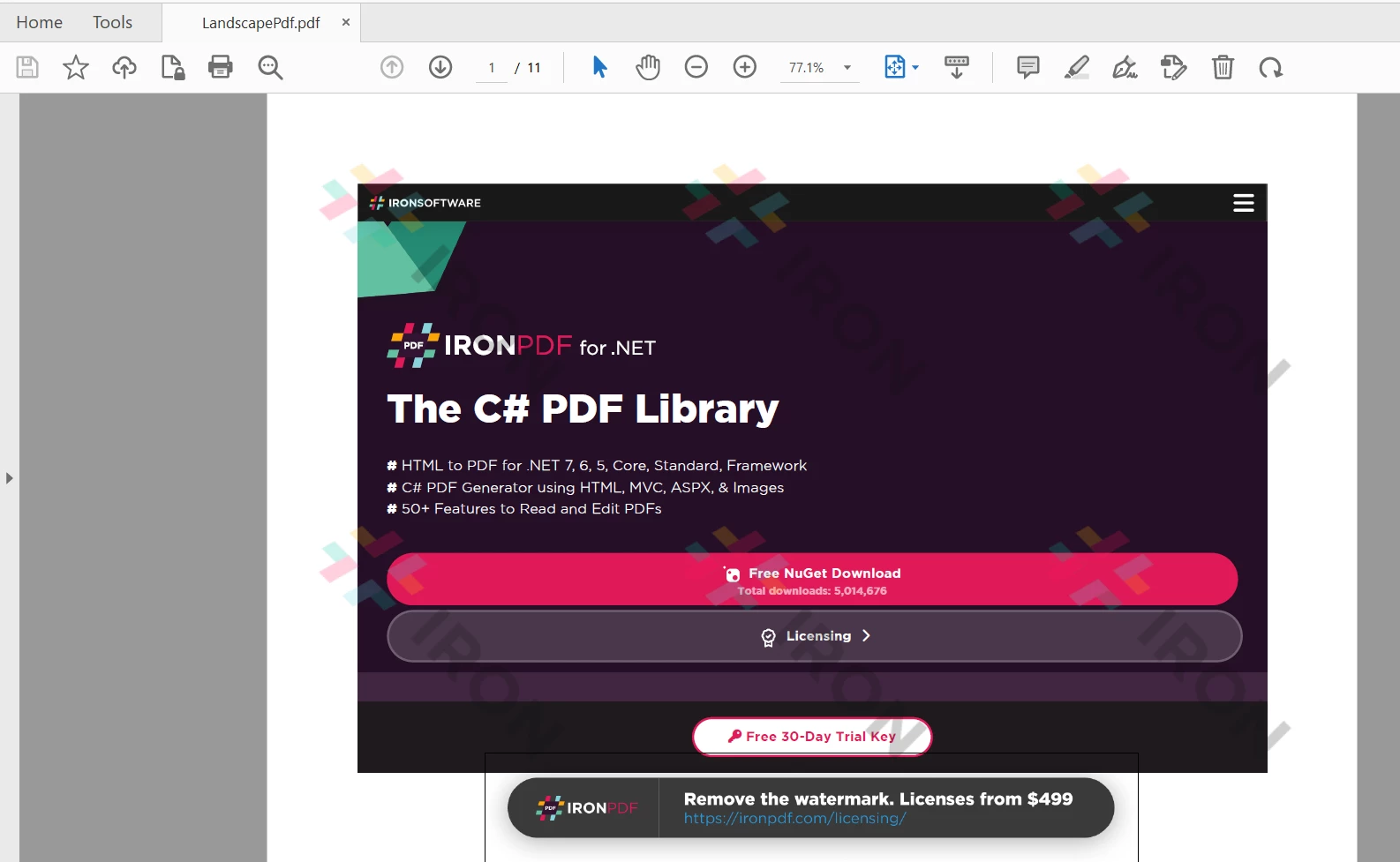
IronPDF uses portrait orientation by default. However, developers can override this orientation while converting content from HTML, RTFs, URLs, etc into PDF documents with a ChromePdfRenderOptions object. The setPaperOrientation method takes a PaperOrientation value as an argument, which allows you to alter the paper orientation of the resulting PDF as desired.

In the above code, the PaperOrientation is set to LANDSCAPE. A PdfDocument class is used to convert a URL to a PDF document using the renderUrlAsPdf method with renderOptions as the second argument.

Finally, the document is saved using the saveAs method in the specified directory.

How to Rotate PDF File in Java, Figure 1: The output PDF file The output PDF file

Rotating Pages by Rotation Angle

For existing documents, the ChromePdfRenderOptions object cannot be used to change the page orientation. For these existing PDF documents, the page orientation can only be adjusted with rotation-based transformations.

// Load an existing PDF document from the specified path
PdfDocument existingPdf = PdfDocument.fromFile(Paths.get("assets/LandscapePdf.pdf"));

// Rotate the first page of the document 90 degrees clockwise
existingPdf.rotatePage(PageRotation.CLOCKWISE_90, PageSelection.firstPage());

// Rotate all pages of the document 270 degrees clockwise
existingPdf.rotateAllPages(PageRotation.CLOCKWISE_270);

// Save the modified document to the specified path
existingPdf.saveAs(Paths.get("assets/ExistingPdfRotated.pdf"));
// Load an existing PDF document from the specified path
PdfDocument existingPdf = PdfDocument.fromFile(Paths.get("assets/LandscapePdf.pdf"));

// Rotate the first page of the document 90 degrees clockwise
existingPdf.rotatePage(PageRotation.CLOCKWISE_90, PageSelection.firstPage());

// Rotate all pages of the document 270 degrees clockwise
existingPdf.rotateAllPages(PageRotation.CLOCKWISE_270);

// Save the modified document to the specified path
existingPdf.saveAs(Paths.get("assets/ExistingPdfRotated.pdf"));
JAVA

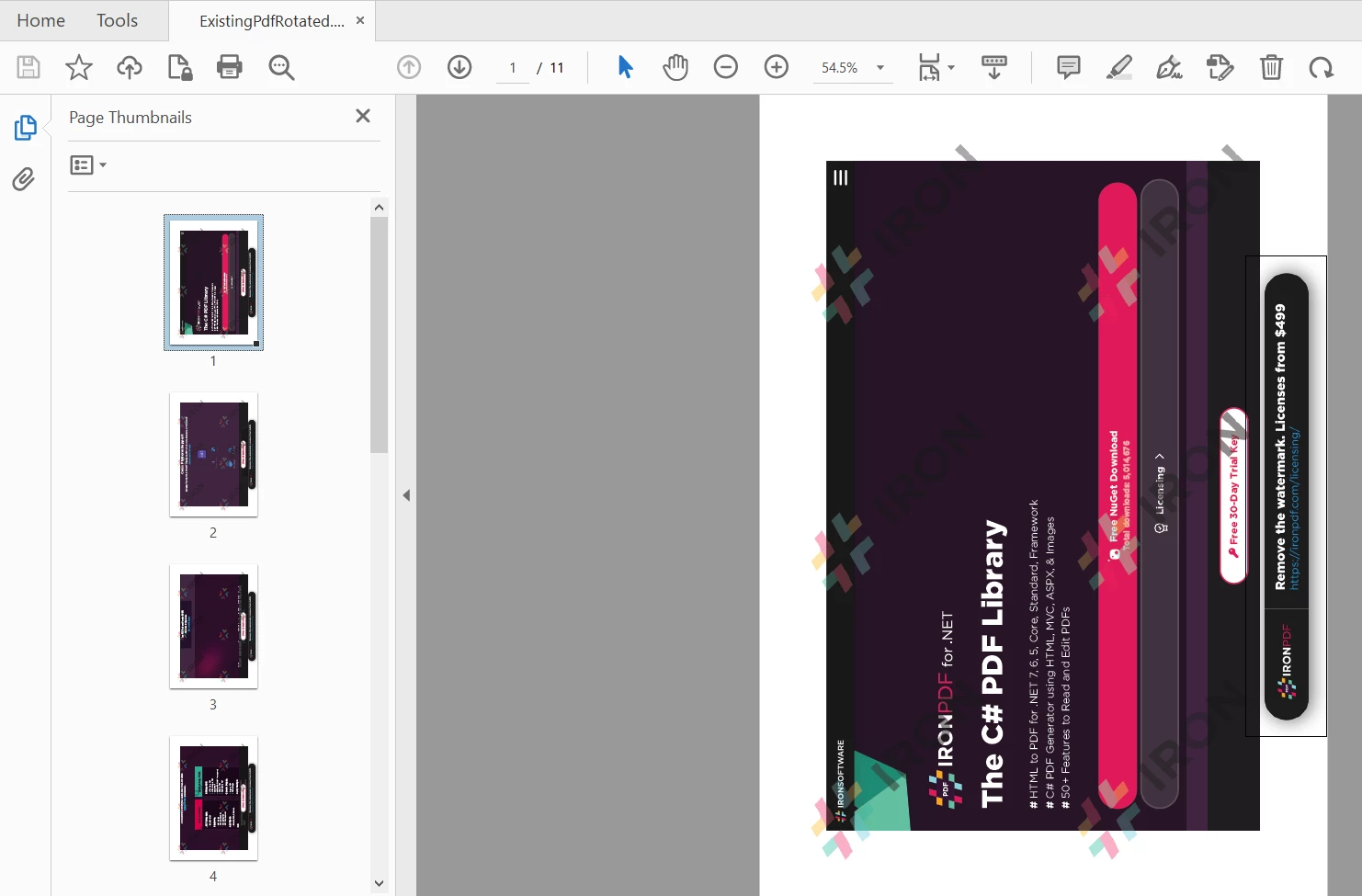
The above code modifies the PDF document that was created in the previous section. It generated the entire document in landscape previously, but here, IronPDF's rotatePage rotates only the firstPage of the existing document by 90 degrees clockwise (using CLOCKWISE_90). Afterwards, rotateAllPages rotates every page (including the first one) by CLOCKWISE_270.

How to Rotate PDF File in Java, Figure 2: Rotated PDF Output Rotated PDF Output

Read more about page orientation in the Code Examples section.

How to Rotate PDF File in Java, Figure 3: IronPDF for Java IronPDF for Java

Summary

This article demonstrates how to create a new document with landscape orientation.

IronPDF also offers developers methods to render PDF documents into images and extract text and content from a PDF. Additionally, IronPDF is also capable of rendering charts in PDFs, enhancing security with passwords, and even handling digital signatures programmatically.

IronPDF for Java is free to use, but for deployment purposes, it requires a commercial license which starts from only $799. You can also access the free trial of the full version of IronPDF to test its functionality in production mode.

자주 묻는 질문

Java에서 PDF 페이지를 회전하려면 어떻게 해야 하나요?

Java에서 PDF 페이지를 회전하려면 IronPDF의 Java 라이브러리를 사용할 수 있습니다. 개별 페이지를 회전하려면 rotatePage 메서드를 사용하거나 문서 내의 모든 페이지를 회전하려면 rotateAllPages를 사용하세요. 이 메서드를 사용하면 90도 또는 270도와 같은 회전 각도를 지정할 수 있습니다.

Java를 사용하여 PDF를 회전하려면 어떤 설정 요구 사항이 있나요?

Java에서 IronPDF를 사용하여 PDF를 회전하려면 JDK, Maven 및 IronPDF 라이브러리가 설치되어 있는지 확인하세요. 또한 프로젝트의 pom.xml 파일에 IronPDF 및 Slf4j 종속성을 포함해야 합니다.

IronPDF는 Java에서 웹 페이지를 PDF로 변환할 수 있나요?

예, IronPDF는 정확한 텍스트 및 이미지 형식을 유지하면서 HTML 파일을 픽셀 단위의 완벽한 PDF로 렌더링하여 웹 페이지를 PDF로 변환할 수 있습니다.

Java용 IronPDF 사용과 관련된 비용이 있나요?

Java용 IronPDF는 개발 목적으로는 무료입니다. 그러나 배포를 위해서는 상용 라이선스가 필요하며, 기본 티어부터 가격이 책정됩니다.

Java에서 PDF의 용지 방향을 변경하려면 어떻게 해야 하나요?

IronPDF를 사용하여 Java에서 PDF의 용지 방향을 변경하려면 PDF를 렌더링하기 전에 ChromePdfRenderOptions 클래스를 사용하고 PaperOrientation 속성을 세로 또는 가로로 설정하세요.

IronPDF Java 라이브러리는 어디서 구할 수 있나요?

IronPDF Java 라이브러리는 Maven Central 또는 공식 IronPDF 제품 웹사이트에서 다운로드할 수 있습니다.

IronPDF는 PDF의 양식 필드를 지원하나요?

예, IronPDF는 PDF 내의 양식 필드를 지원하므로 개발자가 프로그래밍 방식으로 양식 구성 요소를 만들고 조작할 수 있습니다.

IronPDF는 PDF 조작을 위해 어떤 추가 기능을 제공하나요?

IronPDF는 PDF를 이미지로 렌더링, 텍스트 및 콘텐츠 추출, 차트 렌더링, 비밀번호 및 디지털 서명을 통한 문서 보안 강화 등 PDF 조작을 위한 다양한 기능을 제공합니다.

커티스 차우
기술 문서 작성자

커티스 차우는 칼턴 대학교에서 컴퓨터 과학 학사 학위를 취득했으며, Node.js, TypeScript, JavaScript, React를 전문으로 하는 프론트엔드 개발자입니다. 직관적이고 미적으로 뛰어난 사용자 인터페이스를 만드는 데 열정을 가진 그는 최신 프레임워크를 활용하고, 잘 구성되고 시각적으로 매력적인 매뉴얼을 제작하는 것을 즐깁니다.


커티스는 개발 분야 외에도 사물 인터넷(IoT)에 깊은 관심을 가지고 있으며, 하드웨어와 소프트웨어를 통합하는 혁신적인 방법을 연구합니다. 여가 시간에는 게임을 즐기거나 디스코드 봇을 만들면서 기술에 대한 애정과 창의성을 결합합니다.